
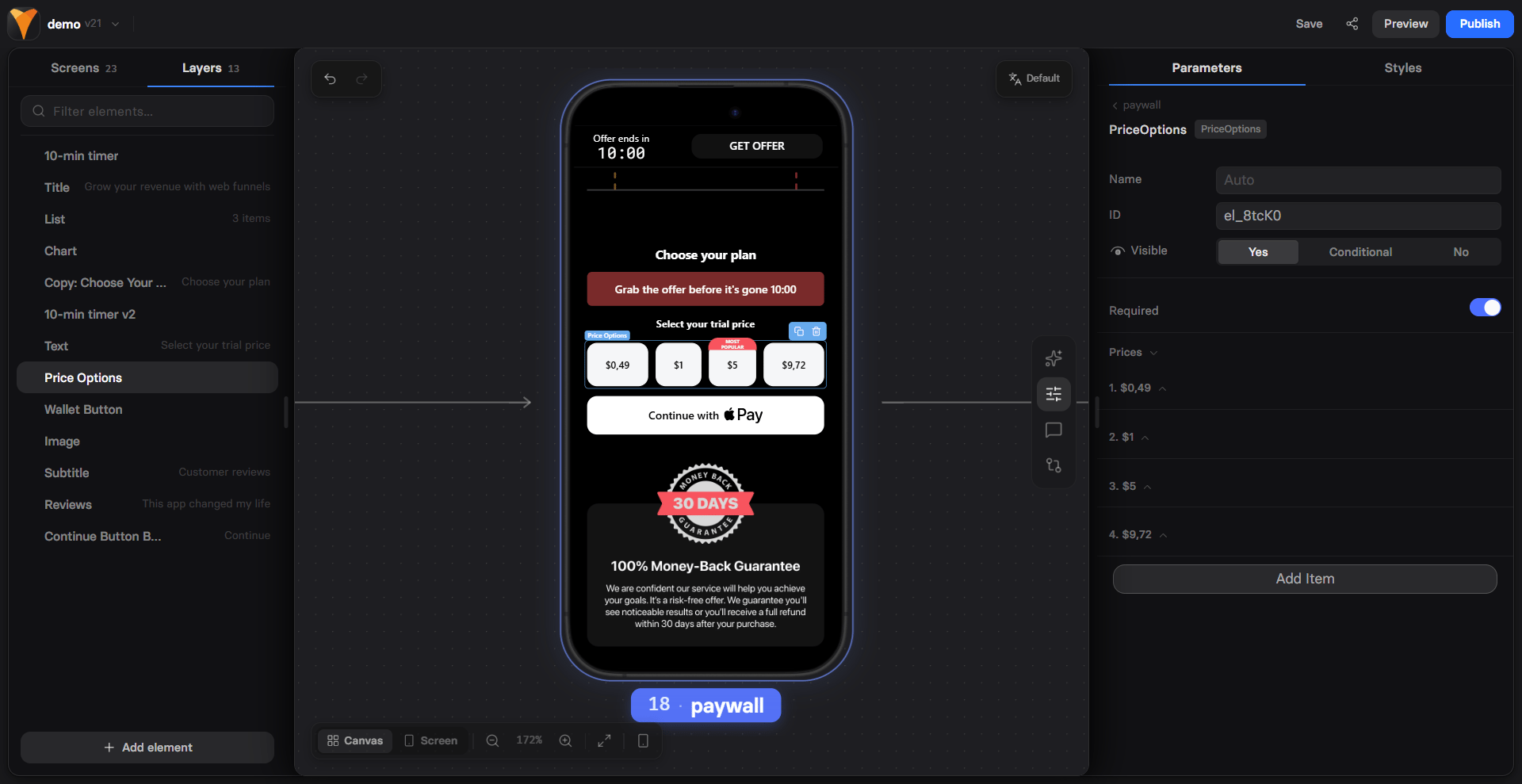
When to Use
Strategic applications:- Paid trial selection - “Start your $1 trial”
- Willingness-to-pay research - “What would you pay?”
- Donation amounts - “Choose your contribution”
- Service tiers - “Select your budget”
- Price anchoring - Show range before real price
Price Picker differs from Plan Picker by focusing on single price points
rather than full subscription plans. Use it when price is the primary
differentiator.
Configuration
Required Field
Make selection mandatory:- Forces user to choose
- Can’t proceed without selection
- Increases commitment psychology
Price Options
Each price option includes: Custom ID Unique identifier for tracking:- Used in variables
- Analytics tracking
- Conditional logic
- “MOST POPULAR”
- “BEST VALUE”
- “LIMITED TIME”
Pricing Psychology
The Goldilocks Effect
Three-option strategy:Anchoring Strategy
Start high to make real price seem reasonable:Commitment Escalation
Small commitment leads to larger:Common Patterns
Paid Trial Funnel
Donation Flow
Price Testing
Budget Qualification
Mobile Optimization
Price Picker excels on mobile: Touch-Friendly Selection- Large tap targets
- Radio button clarity
- Clear selection state
- Easy to change choice
- Large price display
- Clear currency symbols
- Badge visibility
- Proper spacing
- Single tap to choose
- Visual feedback
- Smooth transitions
- No typing needed
Using Price Data
Variable Access
Selected price available as variable:Conditional Logic
Route based on selection:Price-Based Offers
Customize follow-up:Conversion Optimization
Reduce Friction
- Few options - 3-4 maximum
- Clear prices - No mental math
- One currency - User’s local currency
- Round numbers - $10 not $9.97
Build Value
- Price context - “Less than coffee”
- Value props - What they get
- Guarantees - Money-back promise
- Social proof - “Most popular”
Create Urgency
- Limited slots - “Only 10 left at this price”
- Timer - Price increases in
{{timer}} - Bonus - Extra value for quick decision
- Scarcity - “Trial price ends today”
Best Practices
Pricing Display
- Include currency symbol
- Show billing period clearly
- Use consistent formatting
- Highlight savings if any
Option Order
- Ascending - Low to high (builds up)
- Descending - High to low (anchoring)
- Random - For true price testing
Visual Hierarchy
- Recommended option stands out
- Equal spacing between options
- Clear selection indicators
- Readable on all devices
Testing Strategies
A/B Test Variables
- Number of options - 2 vs 3 vs 4
- Price points - Different ranges
- Default selection - Which pre-selected
- Badge text - Different persuasion
- Order - Ascending vs descending
Price Sensitivity Testing
Common Mistakes
Too Many Options
- Causes decision paralysis
- Limit to 3-4 choices
- Focus on clear differences
Unclear Value
- Show what each tier includes
- Explain price differences
- Highlight best value
Poor Mobile Experience
- Test on actual devices
- Ensure easy selection
- Check text readability
Troubleshooting
Selection not saving
Selection not saving
- Element needs an ID
- Check for duplicate IDs
- Verify no JavaScript errors
- Ensure radio buttons work
Variable not working
Variable not working
- ID must match exactly
- Use correct syntax
{{element-ID}} - Check variable is set before use
- Test with console logging
Badges not showing
Badges not showing
- Badge text must be set
- Check visibility settings
- Verify no CSS conflicts
- Test in preview mode
Can't proceed without selection
Can't proceed without selection
- Required field is enabled
- This is intended behavior
- Add default selection if needed
- Clear messaging about requirement
Integration Examples
With Checkout
With Quiz
With Timer
Next Steps
- Process payment with selected price
- Track selections in analytics
- Add urgency with countdown timers
- Test price points with A/B tests