How themes work
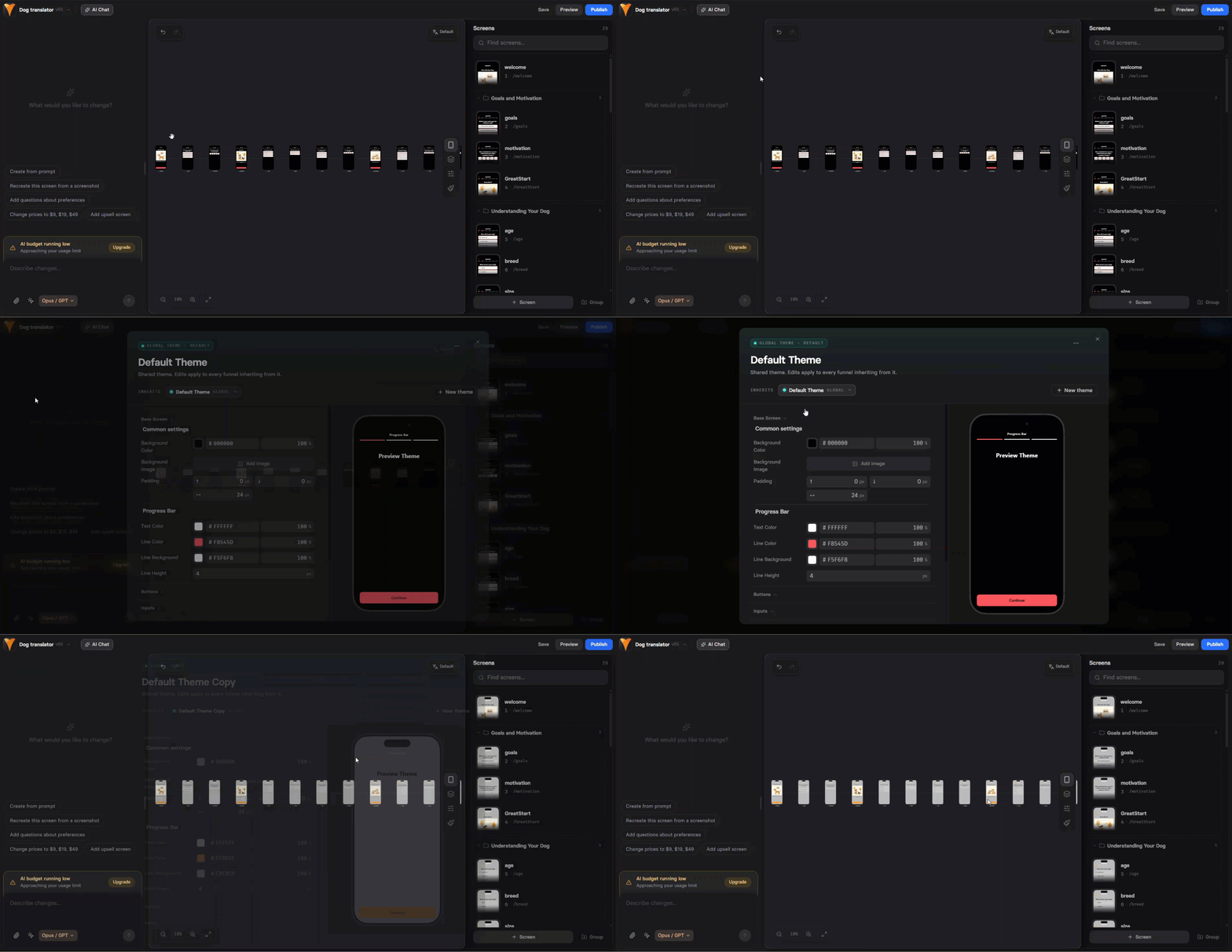
To speed up funnel design across your project:- Default theme: When you open Global themes settings for the first time, you’ll be prompted to set up a default theme.
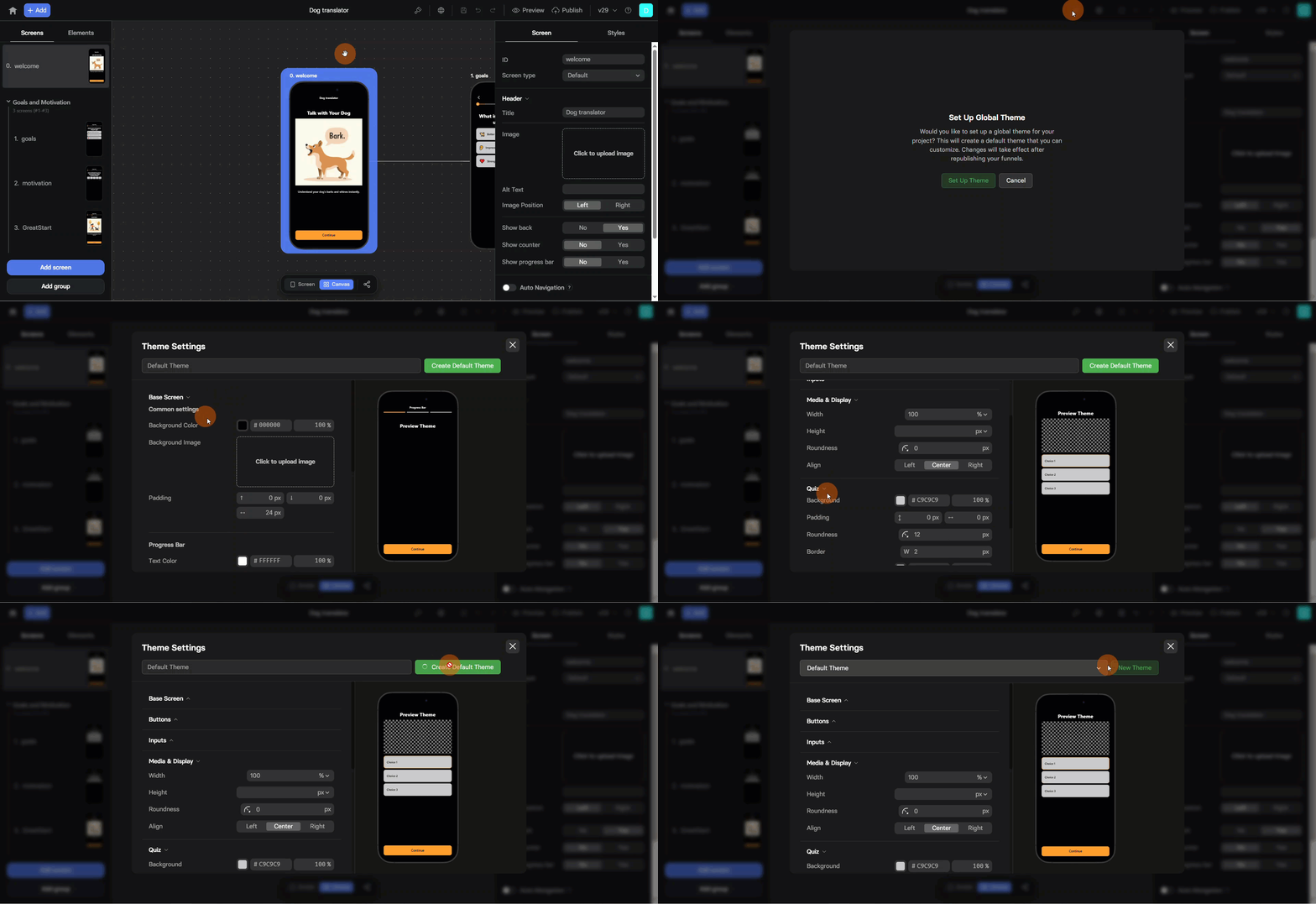
- Create new theme: Define your design by setting styles for all theme elements. You can create multiple themes for different products or campaigns.
- Apply theme: All elements in the funnel will inherit the theme’s styles automatically.
- Override when needed: Make element-specific style adjustments without affecting the global theme.
Themes cover most Styles tab settings, but not all. See
Theme limitations.
Create theme
Once you create a funnel, it has a default theme applied. If you want to create another theme to be available across all project funnels:- Click the Editor menu at the top left and select Themes.
- Click New Theme.
- Name your theme.
- Configure style settings for theme elements.
- Click Save New Theme.
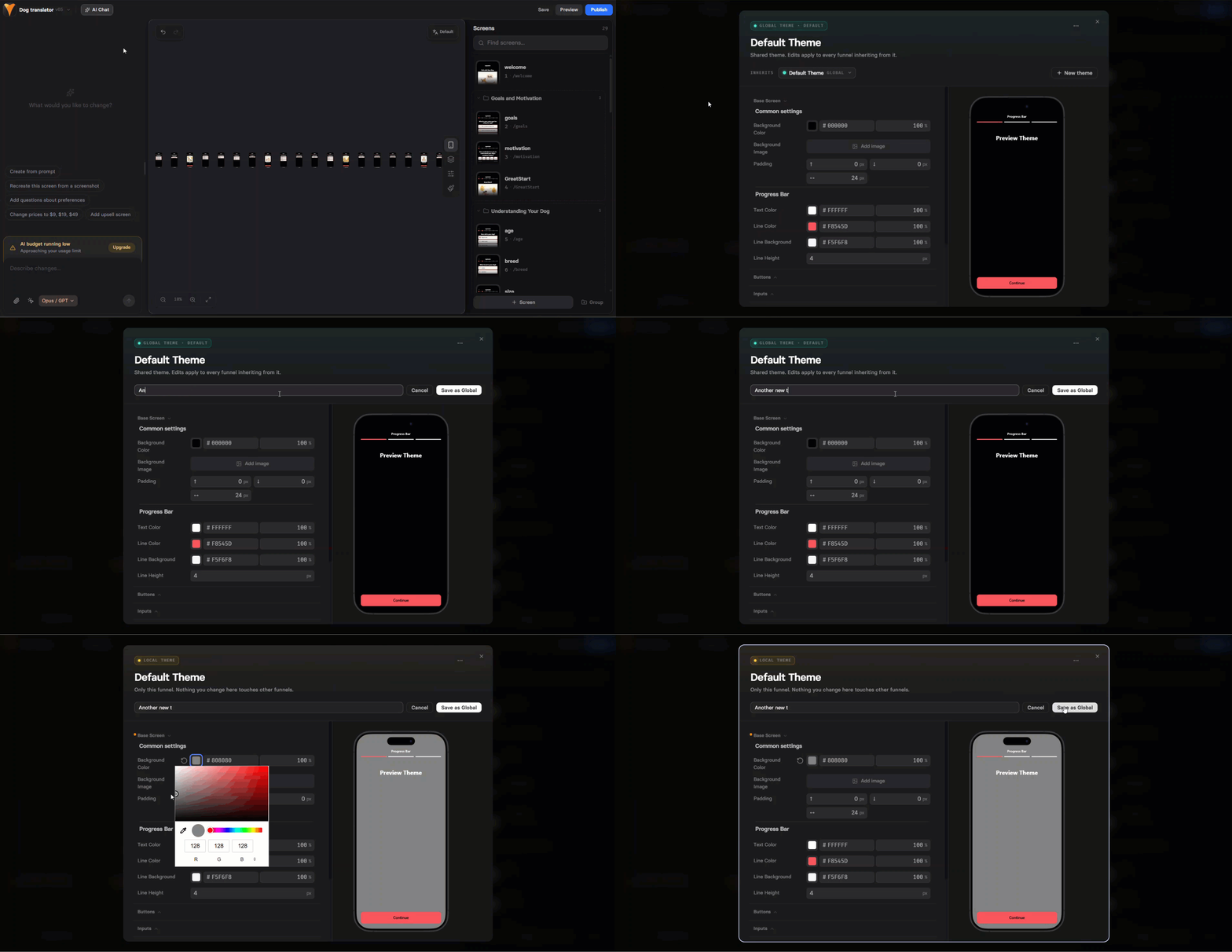
Edit theme
When you edit a theme, the update takes place globally across all project funnels:- Click the Editor menu at the top left and select Themes.
- Configure style settings for theme elements.
- Click Update Theme.
Republish the affected funnels for changes to take effect.
Apply theme
Each theme in your project can be applied to any funnel:- Open the funnel in the Editor.
- Click the Editor menu at the top left and select Themes.
- Select a theme under the Theme Settings.
- Close the Theme Settings popup.
- Save and republish your funnel.
If you edit the theme while applying it, the changes will impact all project funnels with this theme applied.
Theme overrides
You can have style settings for a specific element different from those set in the global theme. To override the theme settings, edit the Styles tab for the element directly. When you override theme settings:- The Styles tab setting you override is marked with the ⚡ lightning icon.
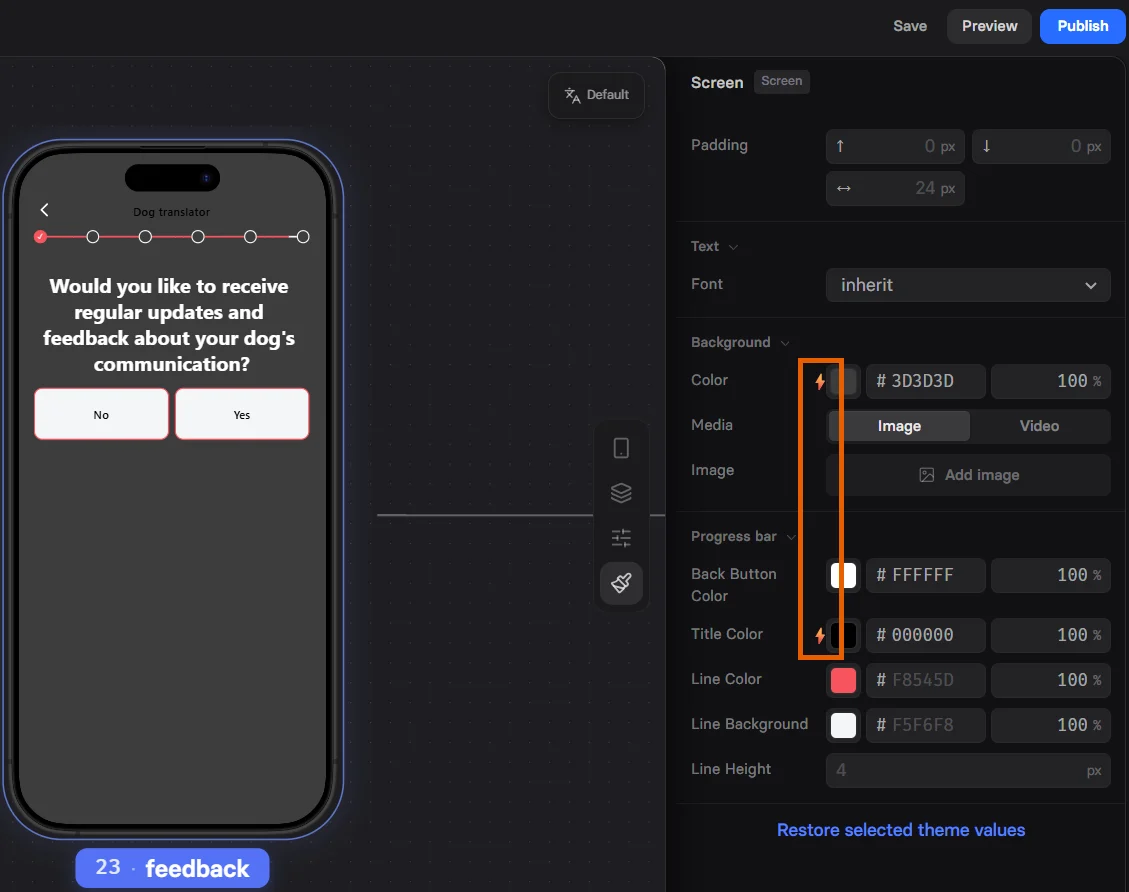
- You can click Restore selected theme values at the bottom of the element Styles tab, if you want to remove overrides for it.
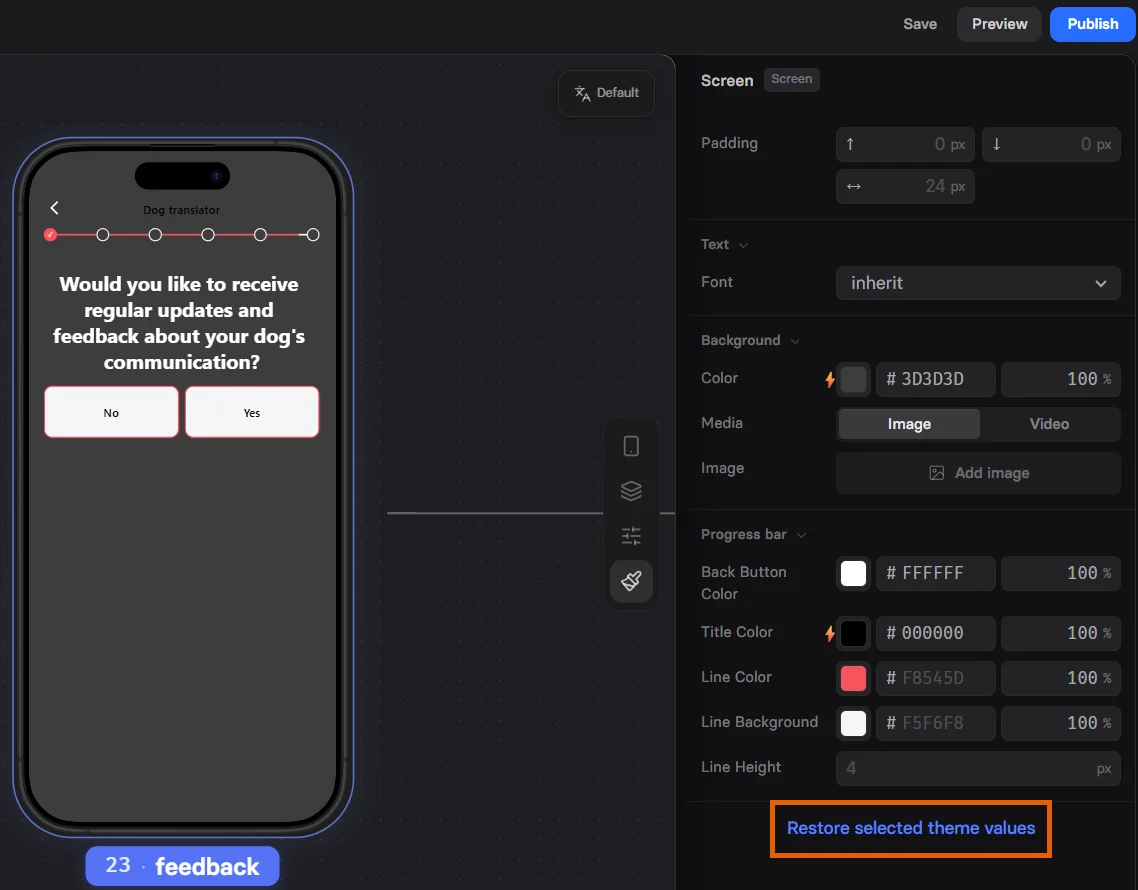
- Elements with overrides are not impacted by theme edits. They will keep their specific look despite theme changes.
- If you duplicate a screen with overrides or add a new one while the focused screen has overrides, the new screen will inherit those overrides automatically.
Theme limitations
Themes don’t cover every setting in the Styles tab. Review your funnel after you apply or edit a theme.Elements you style manually
The theme doesn’t reach these elements. Style each one in its Styles tab:- Paywall elements: Plan picker, Price picker, and Checkout use their own styles. Only the Primary color carries over, for the selected state.
- Wallet buttons: Apple Pay and Google Pay buttons keep the look required by Apple and Google, so they ignore the Buttons theme settings.
- Spinner: follows the Primary color, not the Loaders section.
- Other elements: Popup, Timer, Cookie consent, OAuth buttons, video and Lottie animations, and custom HTML.
Settings you apply manually
The theme has no field for:- Button border color, shadow, and height
- Input placeholder and invalid state colors
- Error message text
- H3 text
- Card text size, weight, and alignment
- Progress bar counter colors
Global logo
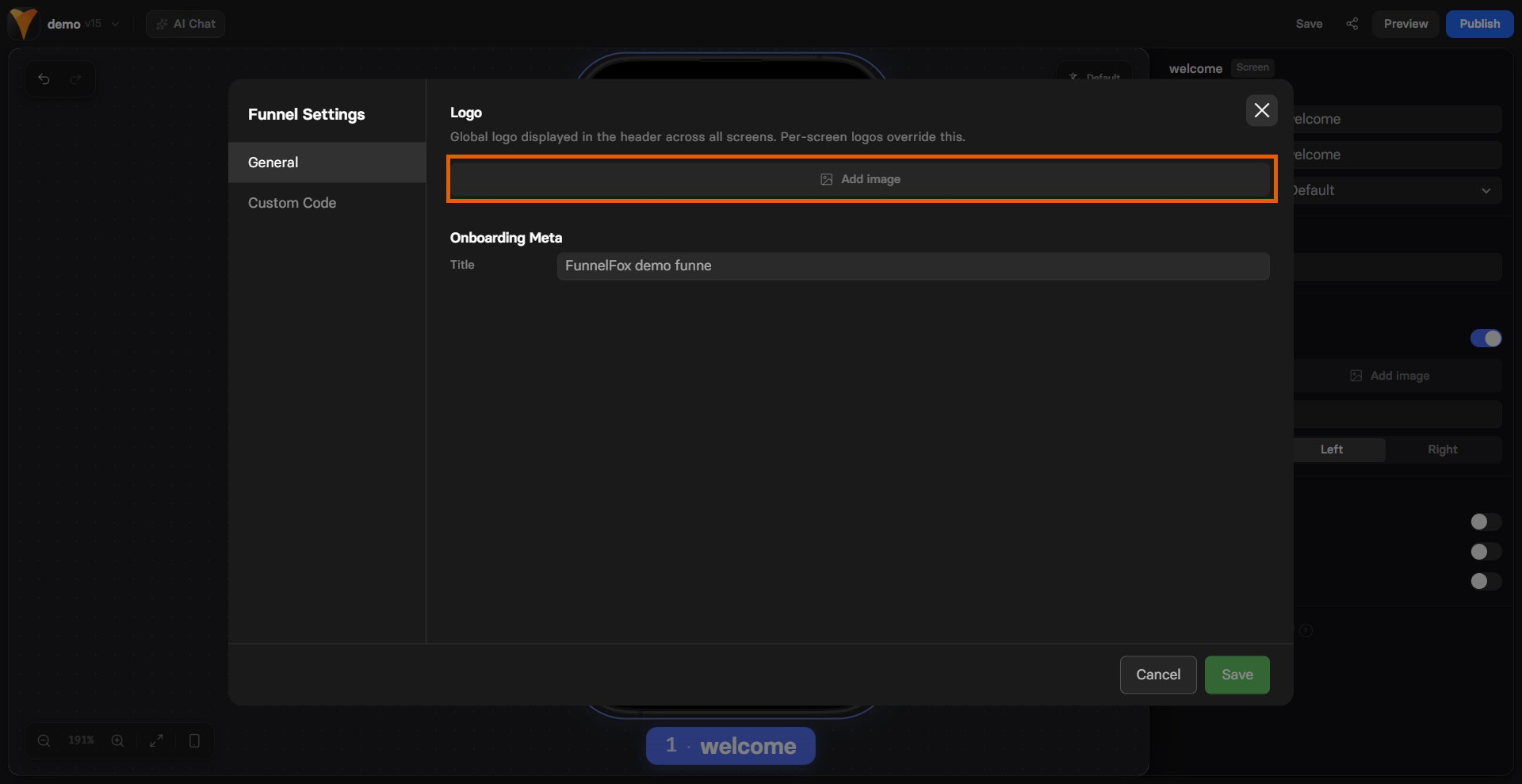
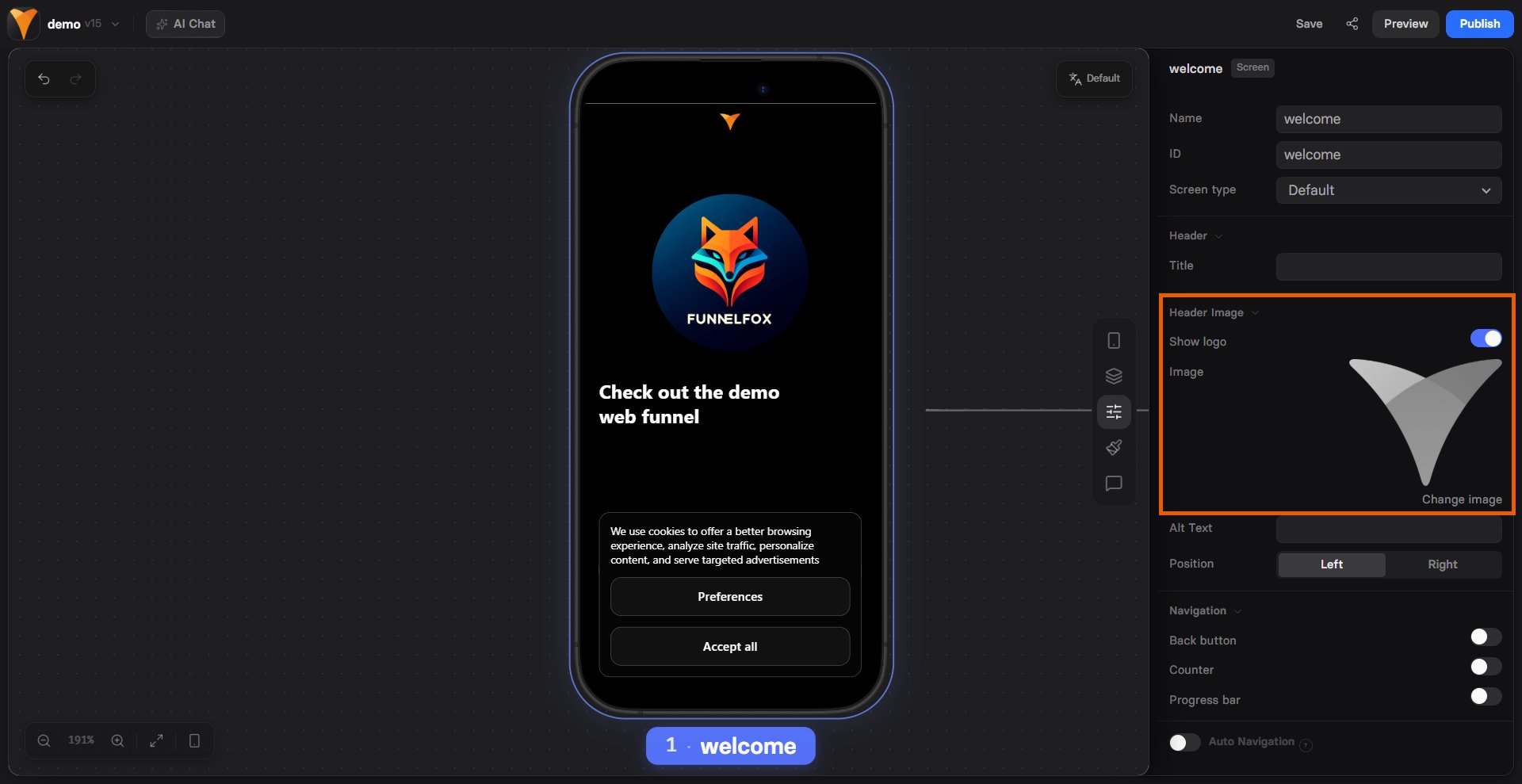
The global logo appears in the header across all funnel screens. Set it once to keep consistent branding without adding a logo to each screen. Per-screen logos override it.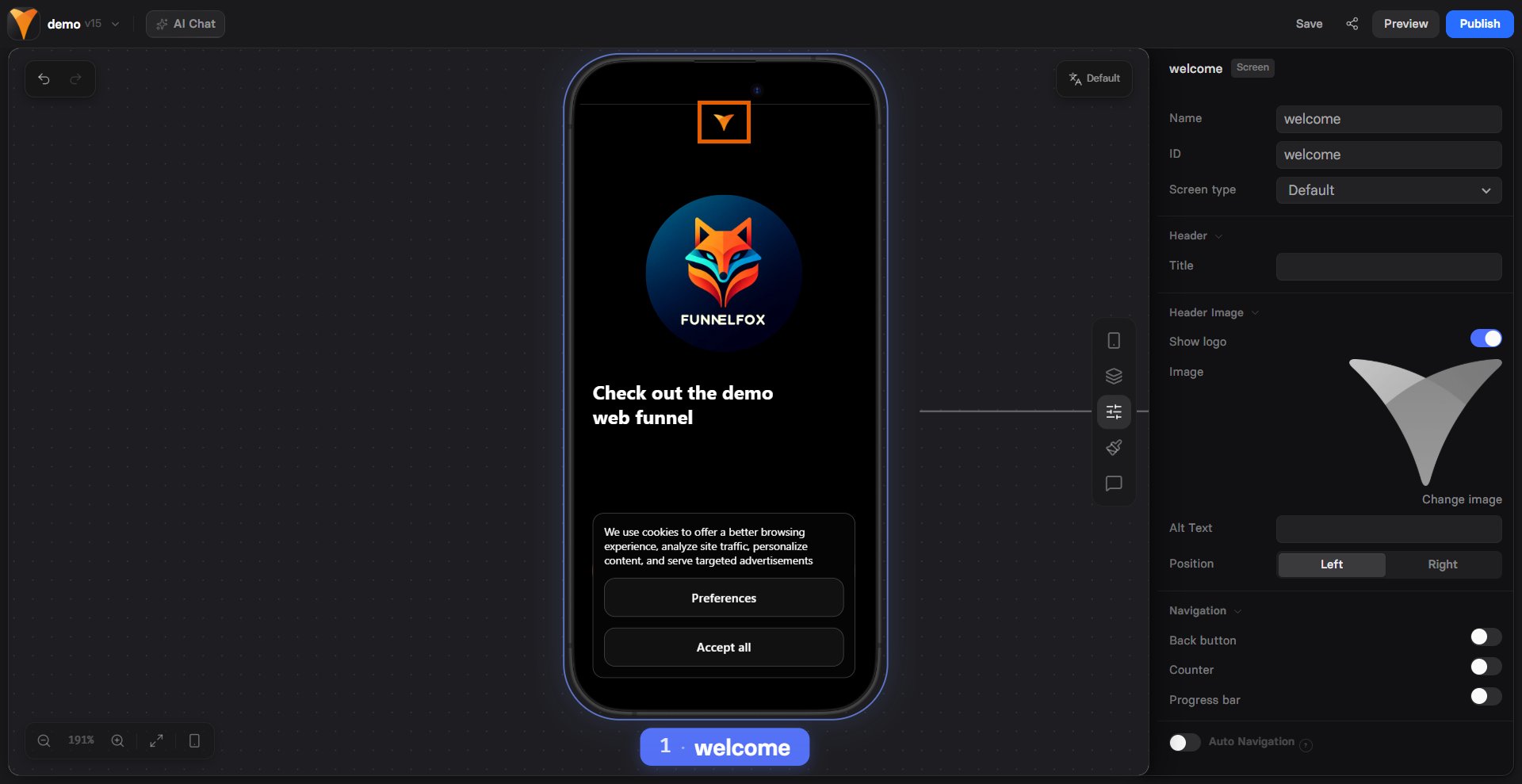
- Click the dropdown with your funnel name at the top left and select Funnel Settings.
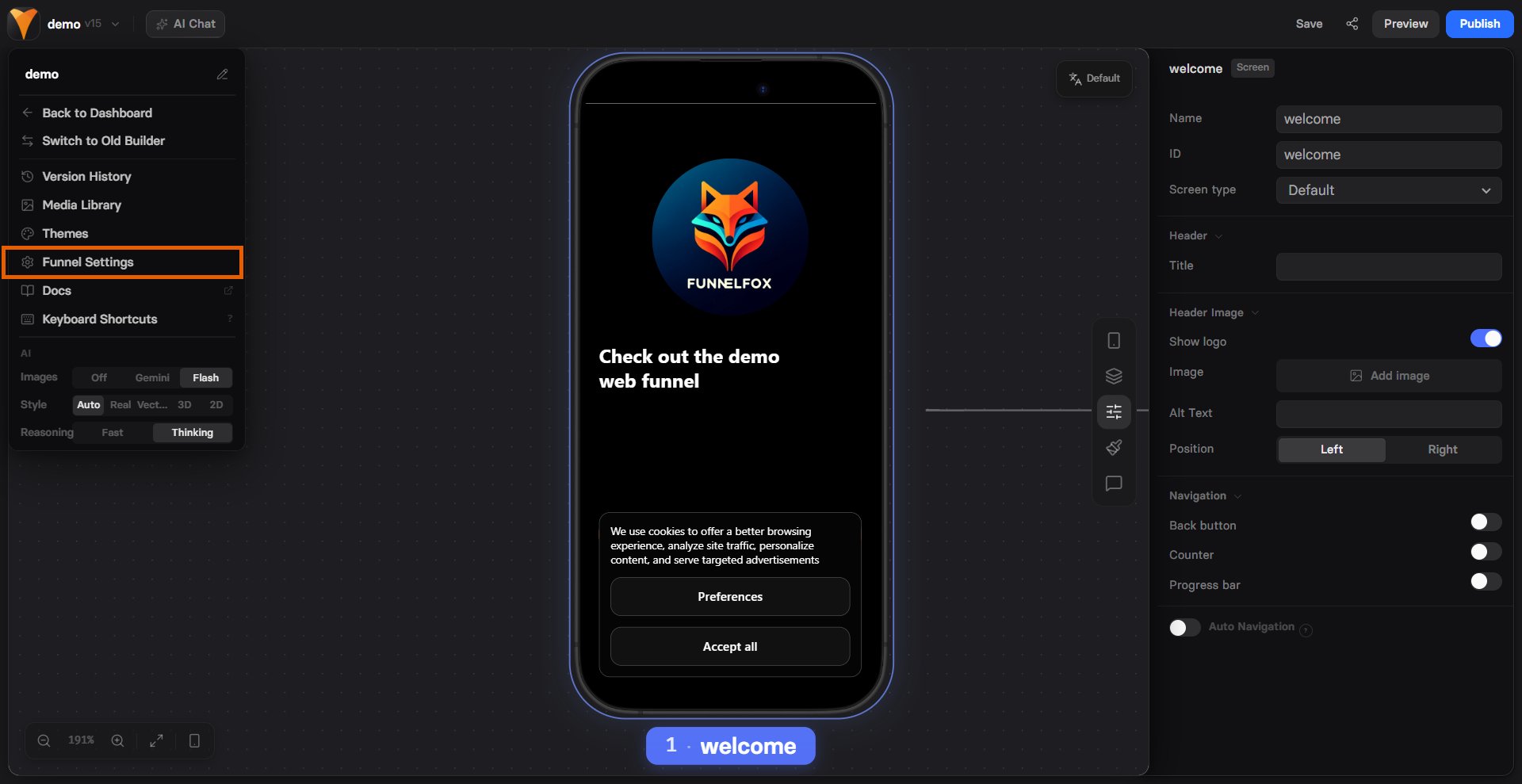
- Click Add image and select the logo to upload.