How Agentic solution works
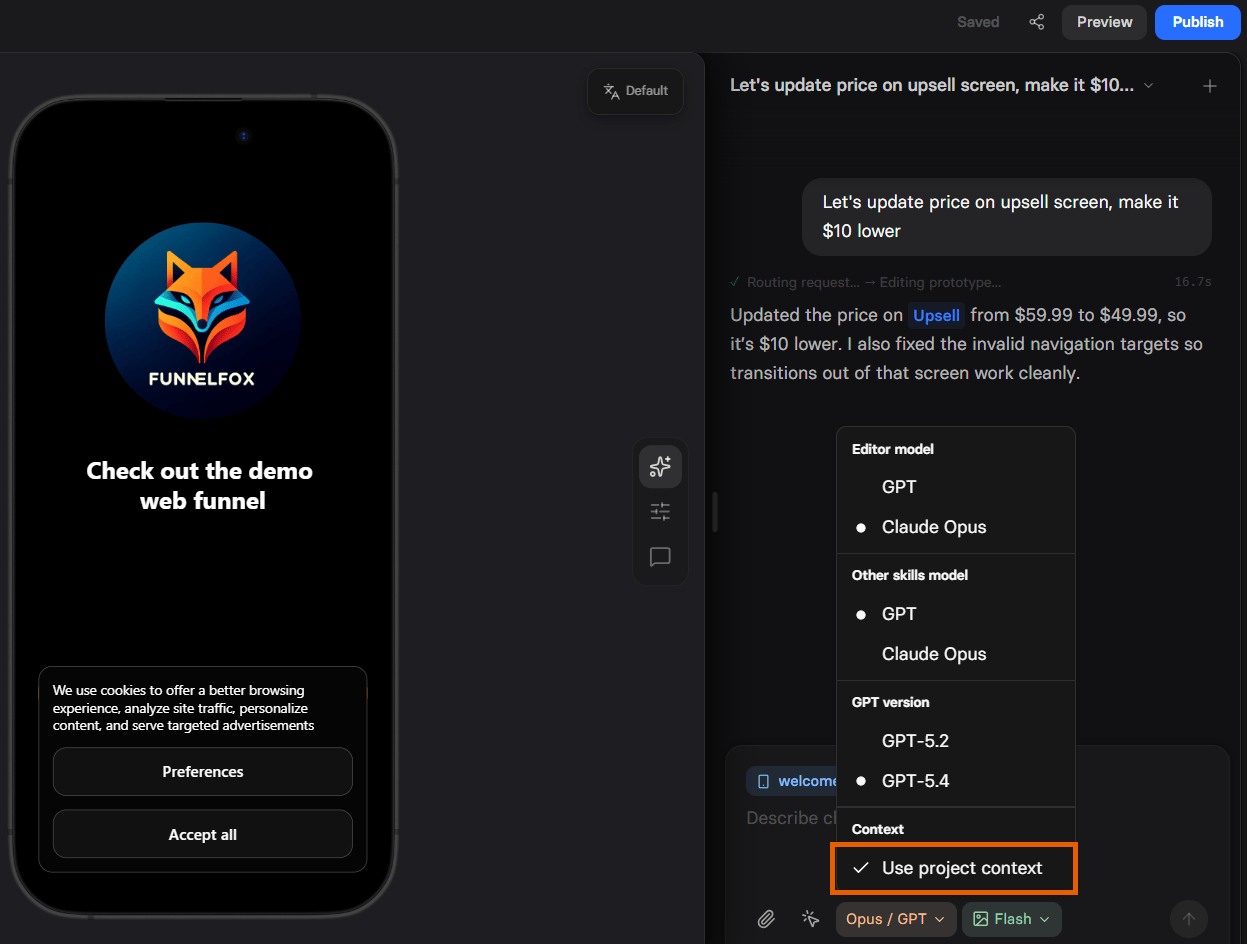
Instead of clicking through funnel screens and adjusting elements one by one, you describe the outcome you want in plain English, and the agent applies the edits directly on the canvas. The agent understands your product, your niche, and what actually converts in your category. Every run is grounded in two sources of context:- Project context: Your product profile (identity, category, brand, voice, and audience). Auto-captured from your App Store, Google Play, or website link and editable from the Context tab.
- Global market context: Structures, flows, and pricing patterns that convert across 30+ verticals in web2app.
Key features
Edit any element, screen, or the whole funnel by prompt, in seconds. No builder skills required. Describe the change and the agent applies it. Learn more about AI Chat in Editor. Drop a screenshot of a paywall, onboarding, or quiz screen. The agent recreates it with your copy, colors, and components. Learn more about building from a reference. Paste a link to a live funnel or landing page. The agent walks the flow, captures every screen, and rebuilds it as an editable FunnelFox funnel. Learn more about building from URL. Tell the agent about your app and it composes a complete, on-brand funnel grounded in real market benchmarks for your niche. Learn more about generating funnels from scratch. Connect Claude Code, Cursor, Codex, or another AI tool to FunnelFox. The AI reads your funnels and data, edits funnels in bulk, and builds new ones from your own files, outside the Editor. The MCP server is in Beta. Learn more about the MCP server.Coming soon!
Coming soon!
Coming soon!
Quickstart
Before you start, set up your project context so the agent has something to ground its edits on. Context isn’t required, but results are noticeably better with it.1
Open AI Chat
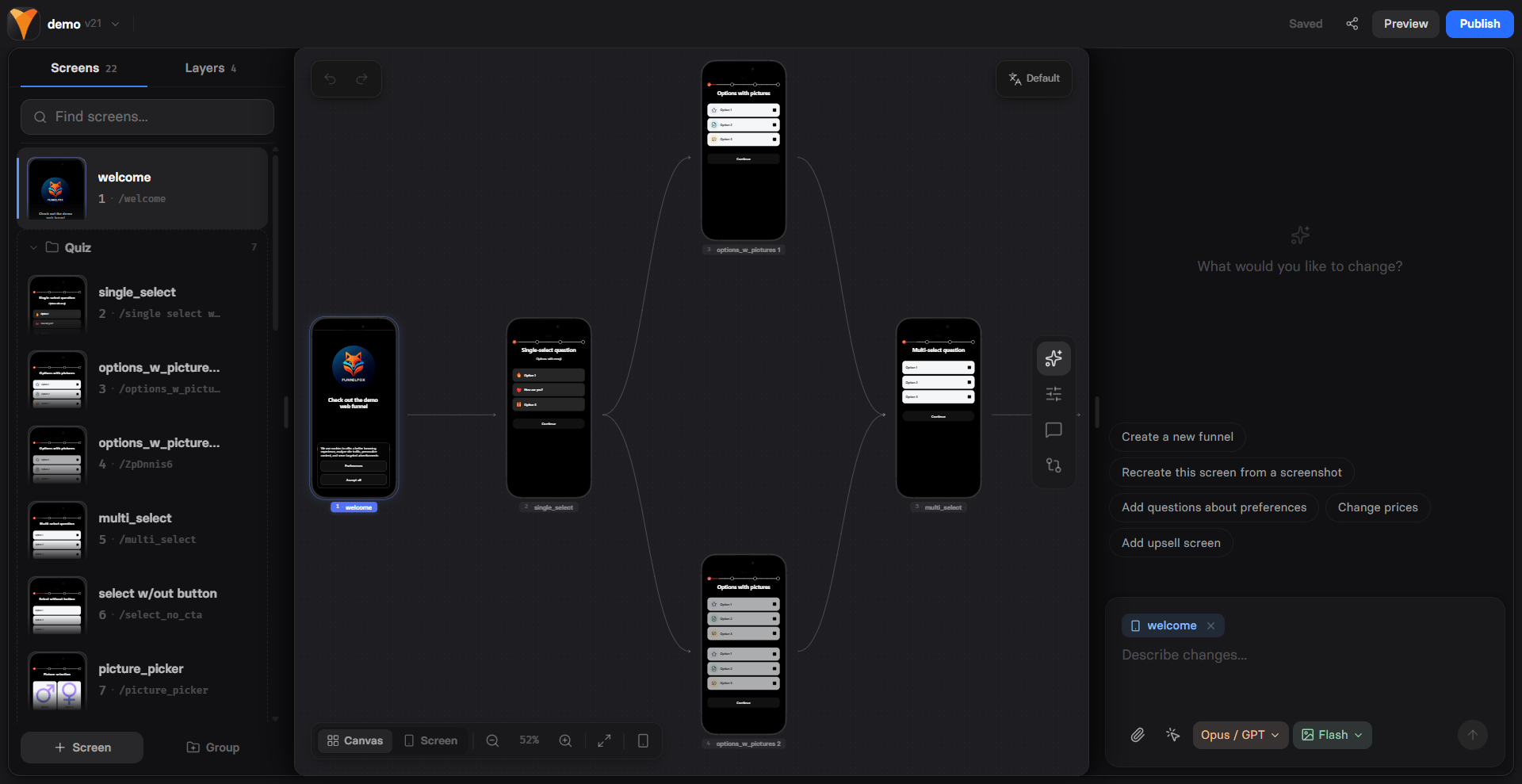
Open a funnel in the Editor and click the sparkles AI icon in the selector
on the right to open the AI Chat.
2
Give the agent context
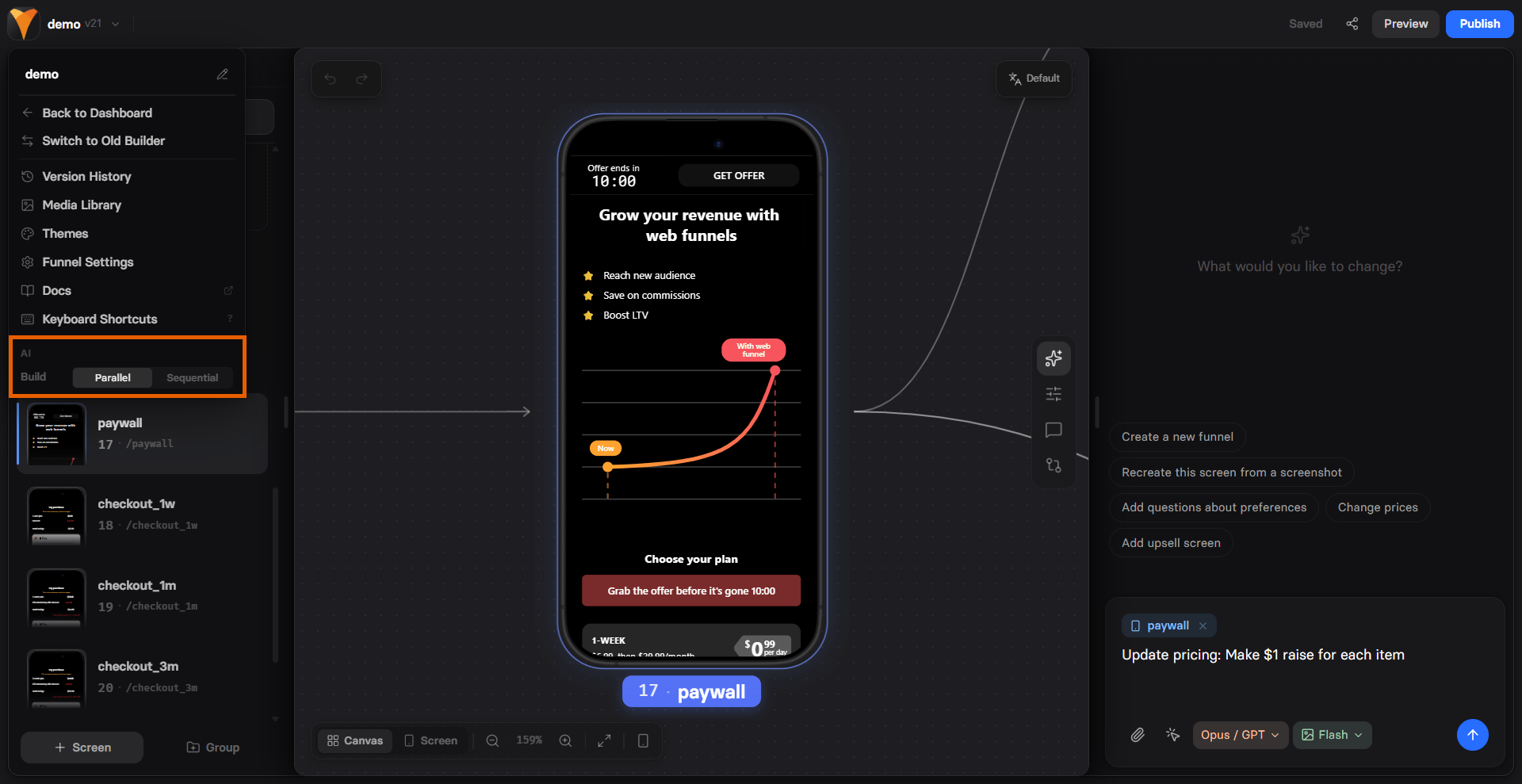
Click any screen on the canvas to focus the agent on the whole screen, or any screen element for a more specific target.You can also click the paperclip icon on the bottom left to attach a
reference image, or simply drag and drop, or even paste it
with Cmd/Ctrl + V.
3
Describe the change
Type your prompt in plain English and press Enter. Use Shift + Enter
for a new line.
4
Watch the canvas update
The agent makes changes. Everything happens instantly inside the Editor.
5
Iterate or undo
Send a follow-up prompt, or click Undo at the top to
roll back that turn only.
AI Chat in Editor
AI Chat in Editor is the baseline capability of the agent. Opened with the sparkles AI icon in the selector on the right, and lets anyone on your team change any part of a funnel in plain language, without opening a settings panel, picking a component, or editing a style. You describe what you want, and the agent applies the change. With AI Chat in Editor you can:- Edit elements: Change a single element by prompt.
- Edit screens: Reshape an existing screen or create a new one.
- Edit whole funnels: Apply broad changes across every screen.
- Localize in one prompt: Translate a screen or the whole funnel into another language.
1
Pick a scope
Open the Editor and use the canvas to select an element, screen, or nothing if you want to update the whole funnel.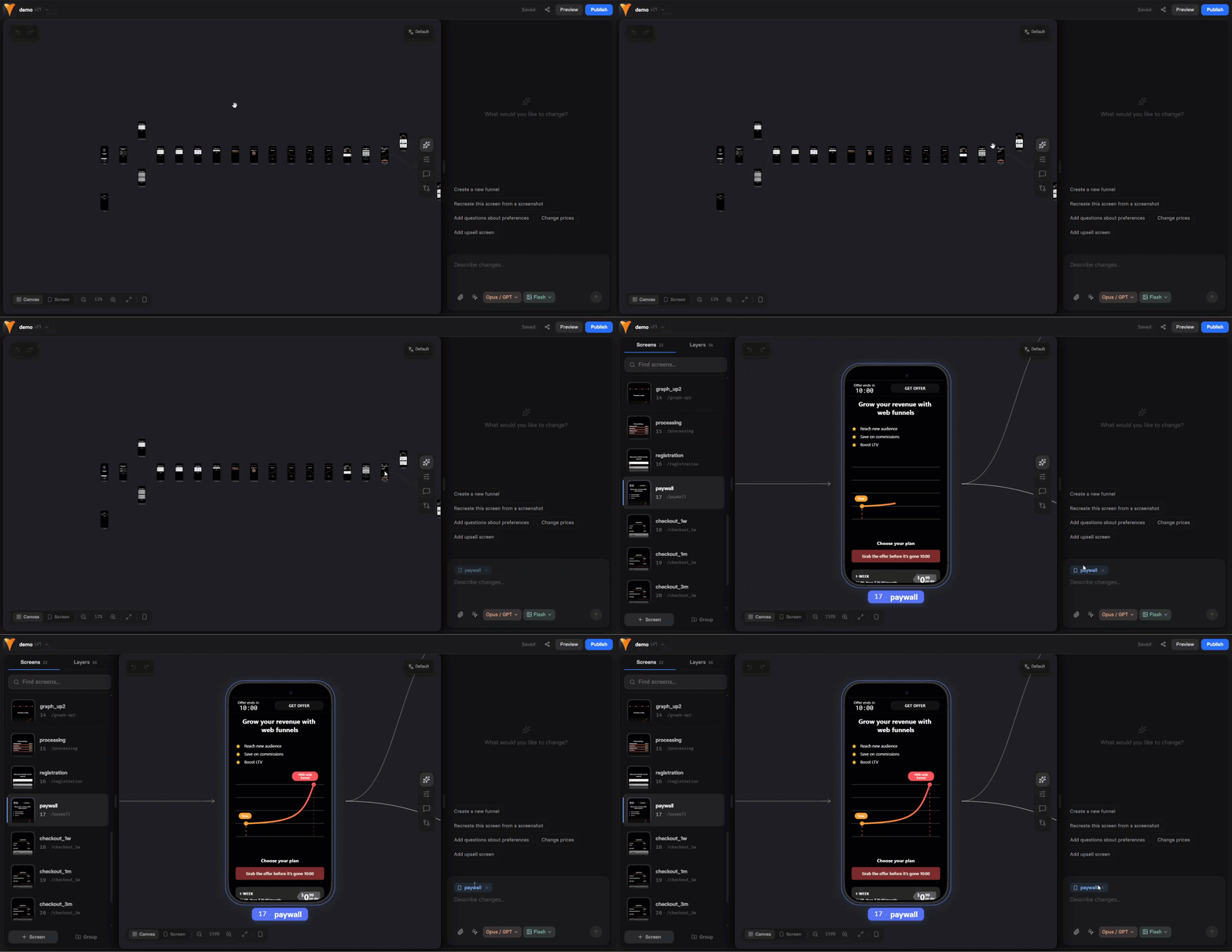
2
Describe the change
Type your prompt in plain English and press Enter. Everything happens instantly right on canvas.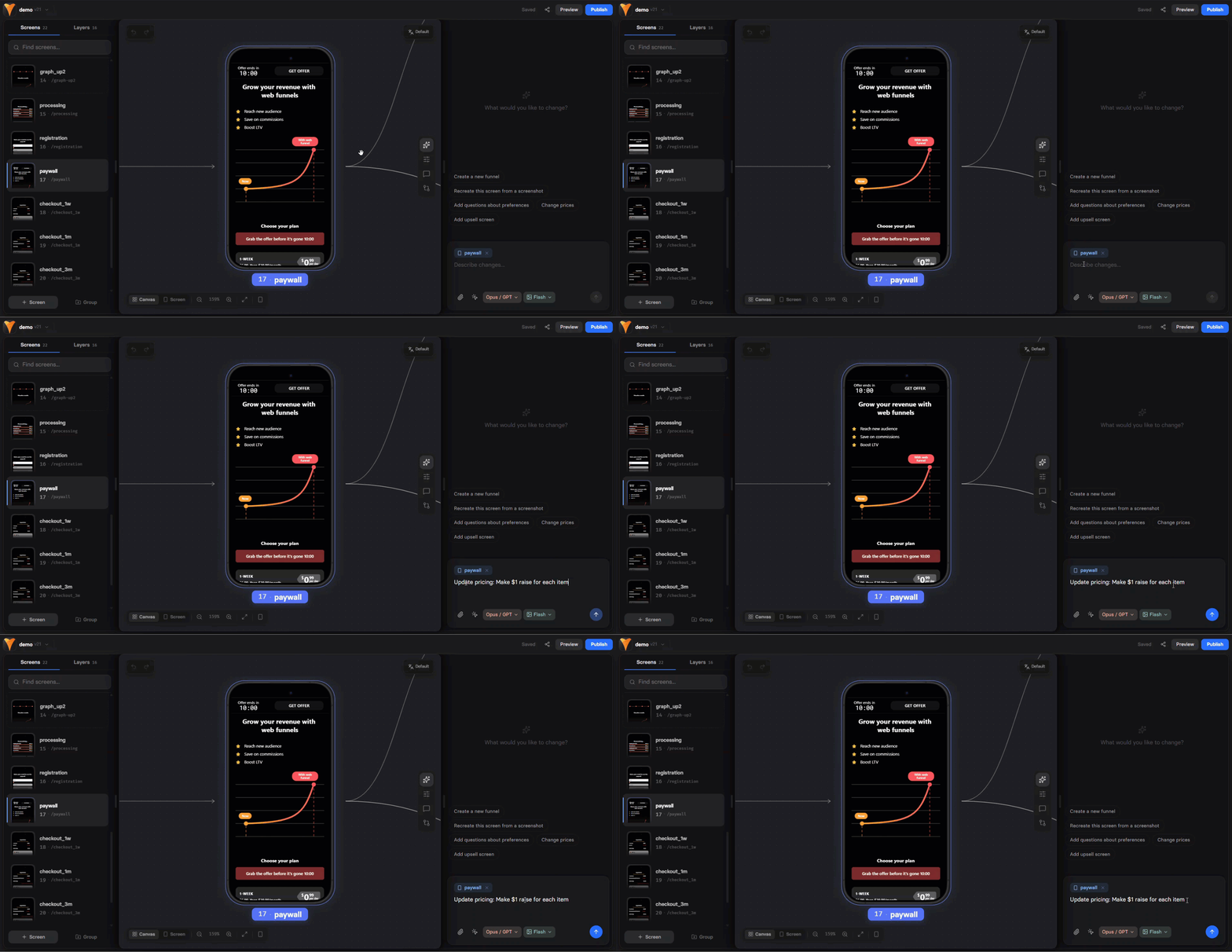
3
Review, refine, or undo
Read the agent’s summary. Send a follow-up prompt to iterate, or
click Undo at the top of the AI Chat to
roll back that turn.
While the agent is working, the send button becomes a stop icon. If you click it to abort, the canvas reverts to its pre-prompt state.
Example prompts
Example prompts
- “Reduce the quiz options to 6.”
- “Change the CTA to ‘Start my plan’ and make it bolder.”
- “Create a new screen with a title, subtitle, and five single-choice questions about sleep habits.”
- “Turn this quiz screen into a paywall with a 3-plan picker and a testimonials block.”
- “Make the tone more friendly and less clinical across the whole funnel.”
- “Replace ‘weight loss’ with ‘fitness journey’ everywhere.”
- “Localize the whole funnel into Spanish.”
Agent context
You can feed the agent a few kinds of context alongside your prompt:- Screens & elements: Click them with your mouse to select. The agent becomes focused on the whole screen or just a specific element.
- Image attachments: Click the paperclip icon at the bottom left to attach PNG, JPG, GIF, WebP, SVG, or BMP files. You can also drag and drop them, or paste with Cmd/Ctrl + V.
- Chat history: The agent remembers the earlier turns of the chat you’re in, so you can follow up on previous requests. Starting a new chat resets the conversation only, every chat reads your funnel as it currently stands.
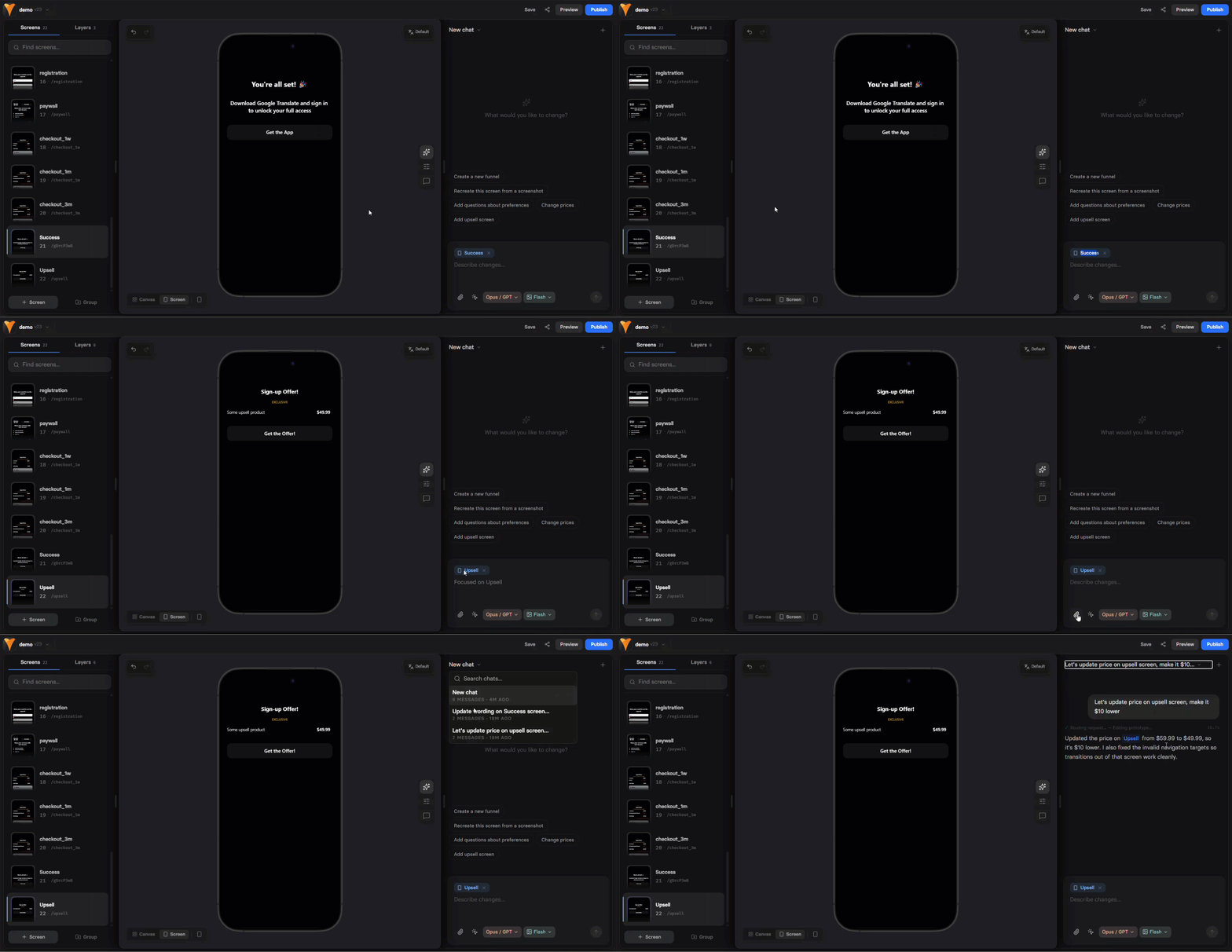
Agent & model settings
Model selection and settings are located at the bottom of your AI Chat. Model selector:- Editor model: The model used for the main screen/element editing work.
- Other skills model: The model used for supporting skills (planning, image analysis, etc.)
- GPT version: Only when GPT is selected in the Editor or other skills models.
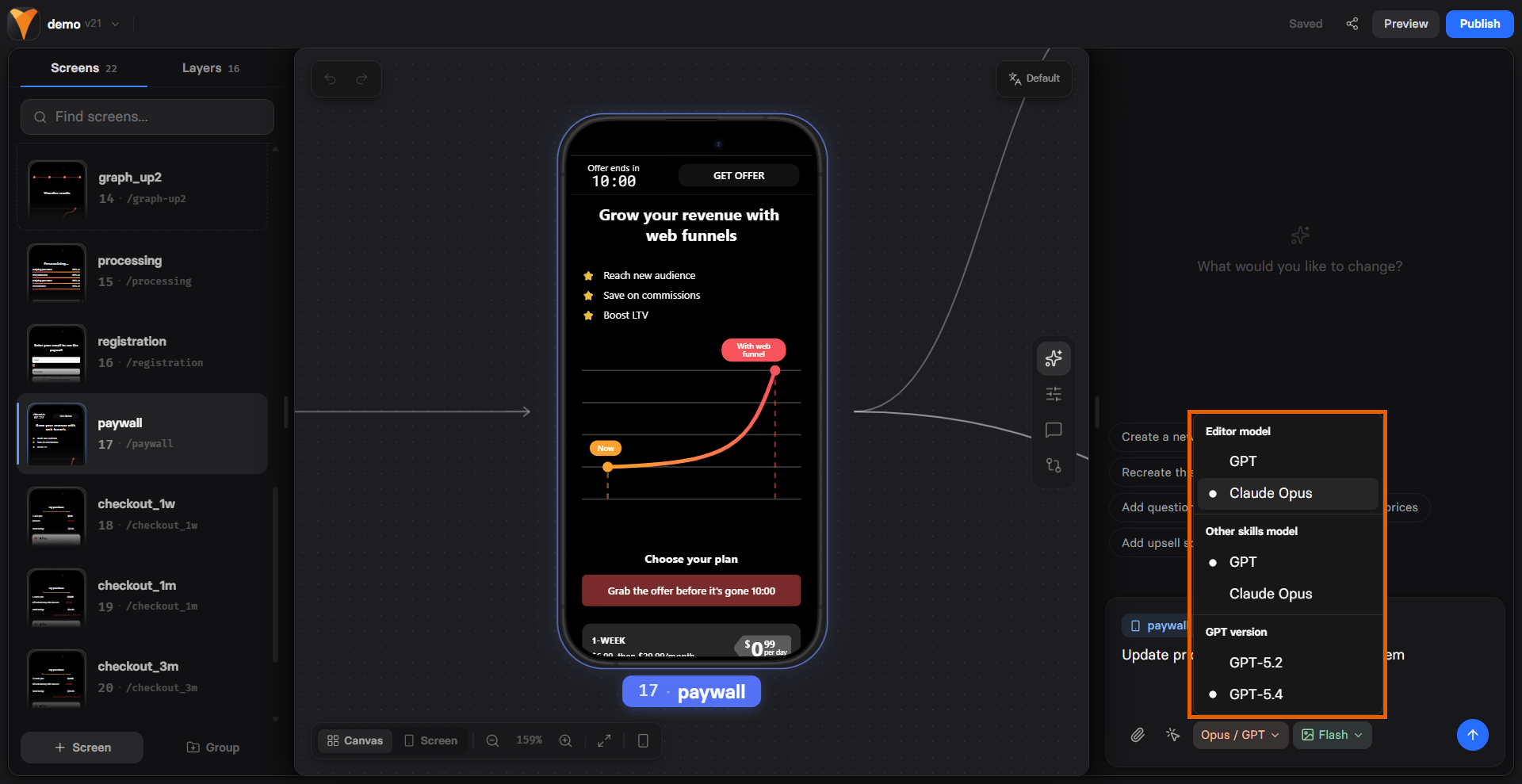
- Off: Skip image generation, the fastest one.
- Nano Banana Pro: Highest quality, but slower.
- Flash: Faster, good for iteration.
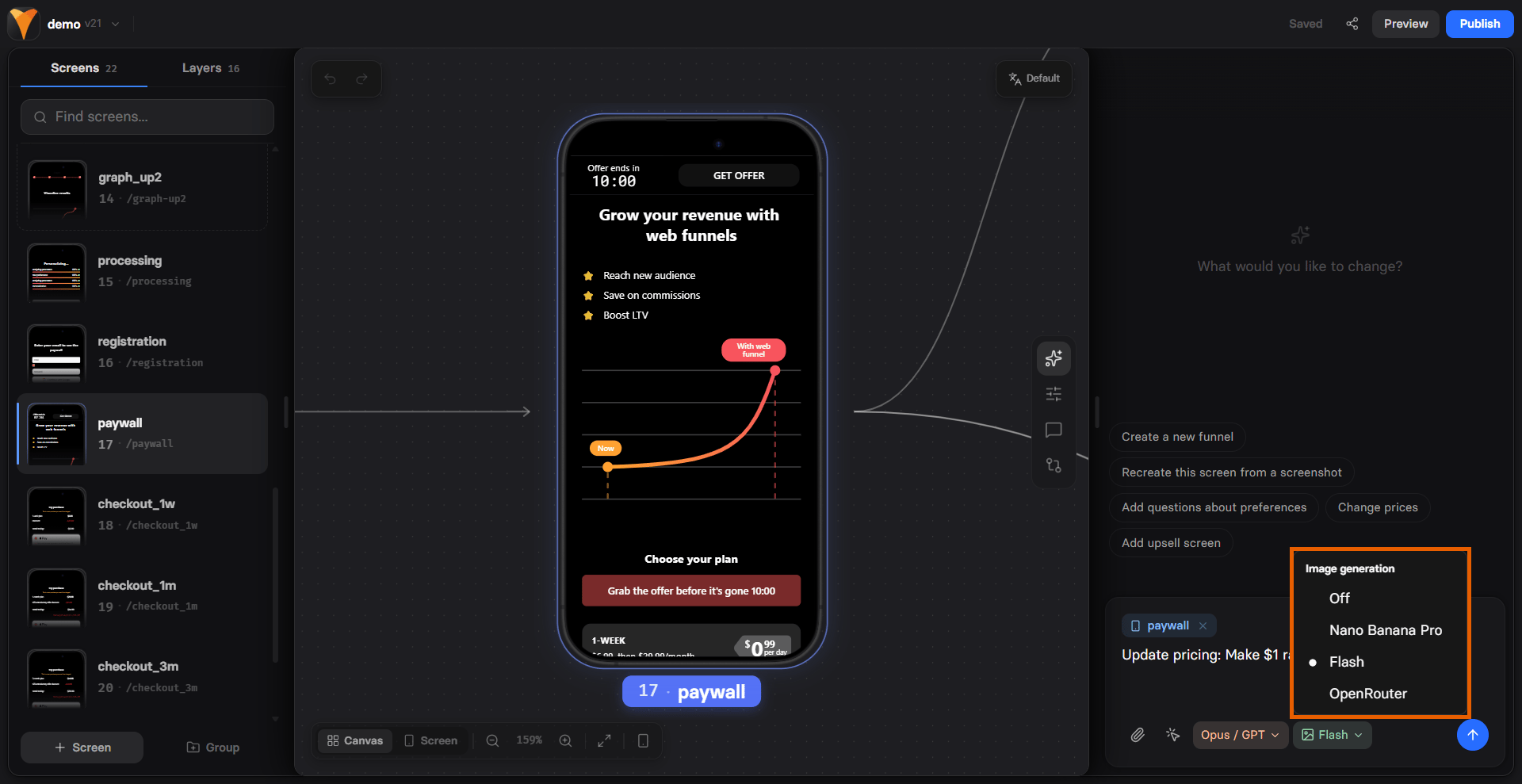
- Build: Choose how the agent builds your funnel.
- Parallel: Generates elements simultaneously and is faster.
- Sequential: Generates them one after another, each informed by the previous, so it’s more deterministic and more coherent for tightly linked content.
Build from a reference
Hand the agent any visual reference (an old design, an inspiration shot, a competitor screen), and get a fully rebranded, editor-ready screen in one step. The agent reads the reference, interprets its structure, and recomposes it on your brand: your colors, your components, your tone of voice. The output is a real, native FunnelFox screen: fully editable, not a locked artifact. To build from a reference:1
Attach your reference
Click the paperclip icon at the bottom left to attach PNG, JPG, GIF, WebP, SVG, or BMP
files. You can also drag and drop them, or paste with
Cmd/Ctrl + V.Works perfectly with paywalls, onboarding, quizzes,
loaders, and feedback screens.
2
Add a clarifying prompt (optional)
A prompt helps when the reference alone
is ambiguous.For example,
Rebuild this as the first screen of my quiz or Use this as inspiration for the pricing screen.3
Review and refine
Review your outcomes and refine by prompt or manually, when needed.
Figma integration is coming soon!
Build from URL
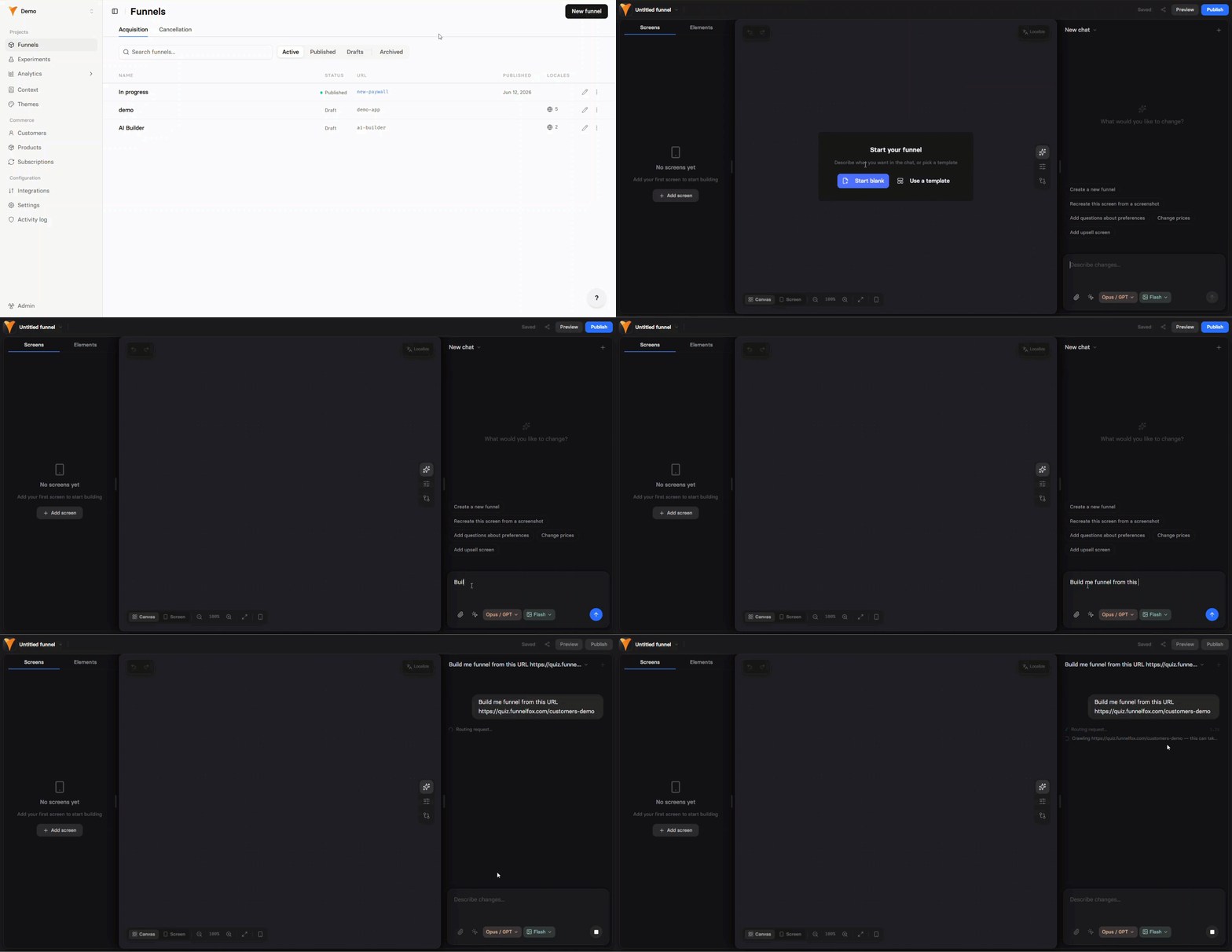
Paste a link to a live funnel or landing page and the agent rebuilds it as a native FunnelFox funnel. It walks the flow screen by screen, applies the source theme, then recreates every screen it captured. Screens appear on the canvas as they are rebuilt, so you see the funnel fill up during the run. The output is a real, native FunnelFox funnel: fully editable, not a locked artifact.Screens are added to the funnel you have open, and the funnel theme is
replaced by the source theme. Run it on a new, empty funnel.
1
Start a new funnel
Go to the Funnels page and click New funnel.
2
Paste the link with your prompt
Type something like
Recreate the funnel from this page: https://example.com
and press Enter. Only the first link in the message is used.Add changes in the same prompt, for example build a funnel like <link> but make the tone friendlier. The agent applies them on top
of the source.3
Wait for the capture
Capturing takes a few minutes and scales with the number of screens.Rebuilding starts right after, screen by screen. Ask for the same link
again in the same chat and the agent reuses the capture, so there’s no
second wait. A new chat captures the funnel again.
4
Review and refine
Review your outcomes and refine by prompt or manually, when needed.
- Images: Inserted as empty placeholders with a description, then filled if image generation is on.
- Payments: No products, prices, or checkout setup. Prices on the source are captured as text only.
- Integrations, tracking, custom code, domains, and localizations.
- Conditional logic: The rebuilt funnel is the linear path the agent walked, without the source branching.
- Fonts and pixel-exact styling: Approximated, not imported.
- FunnelFox funnels: Duplicate them instead.
The agent tries to walk the flow all the way to the paywall. If it
stops earlier, the capture preview says the paywall was not reached, and the
funnel is built from what was captured.
Generate funnels from scratch
Before you start, describe your app or paste an App Store, Google Play, or website link in the Project context. The agent composes a complete, on-brand funnel from scratch: welcome, quiz, processing, authorization, paywall, and final screens. Structure, pricing, and onboarding flow are chosen from market benchmarks for your niche, not guessed from a template. Once the context is added, generate a funnel from scratch:1
Start a new funnel
Go to the Funnels page and click New funnel.
2
Set up the agent
Click the Editor menu at the top left and select how the agent builds your funnel, then choose the model, if needed.
3
Provide a prompt
Trigger agent with something like
build me a funnel from scratch and press Enter.Generation typically takes 2–4 minutes.4
Review and refine
Review your outcomes and refine by prompt or manually, when needed.
Every funnel is unique. The same project regenerating gets
something new. The agent pattern-matches against live funnels
across 30+ verticals and applies what’s converting in your
category right now.
Project context
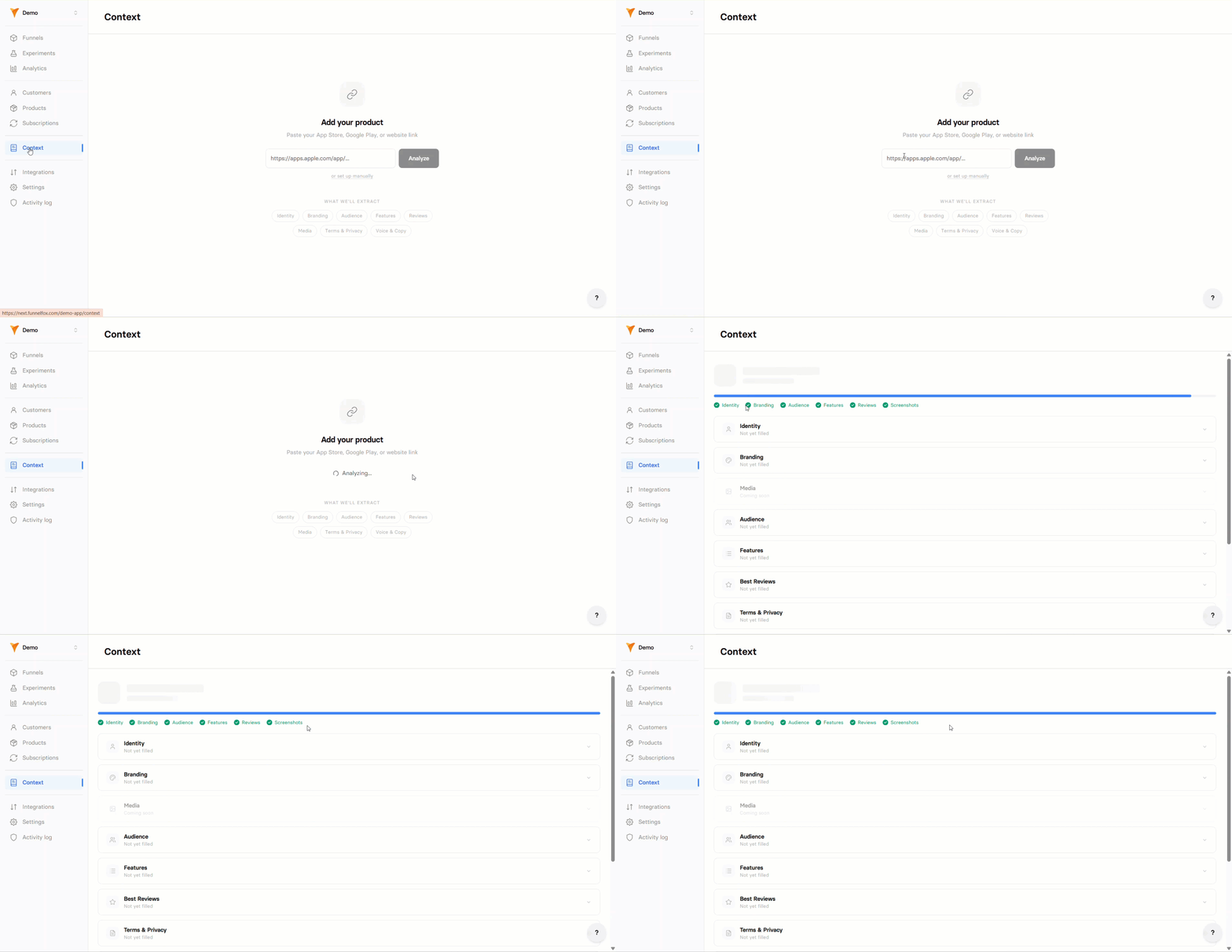
Project context is your product profile (brand, audience, and category) that grounds every generation and edit. You’ll find it on the Context page of your FunnelFox dashboard. It also shapes AI translation of your locales. What gets captured:- Identity and category (name, description, vertical)
- Branding and voice (color palette, tone, positioning)
- Audience, features, reviews
- Terms & privacy
- Social media
- Go to the Context page of your FunnelFox dashboard.
- Paste an App Store, Google Play, or website link.
- Click Analyze.
Media extraction (images, screenshots, and videos
straight from your product page) is coming soon!
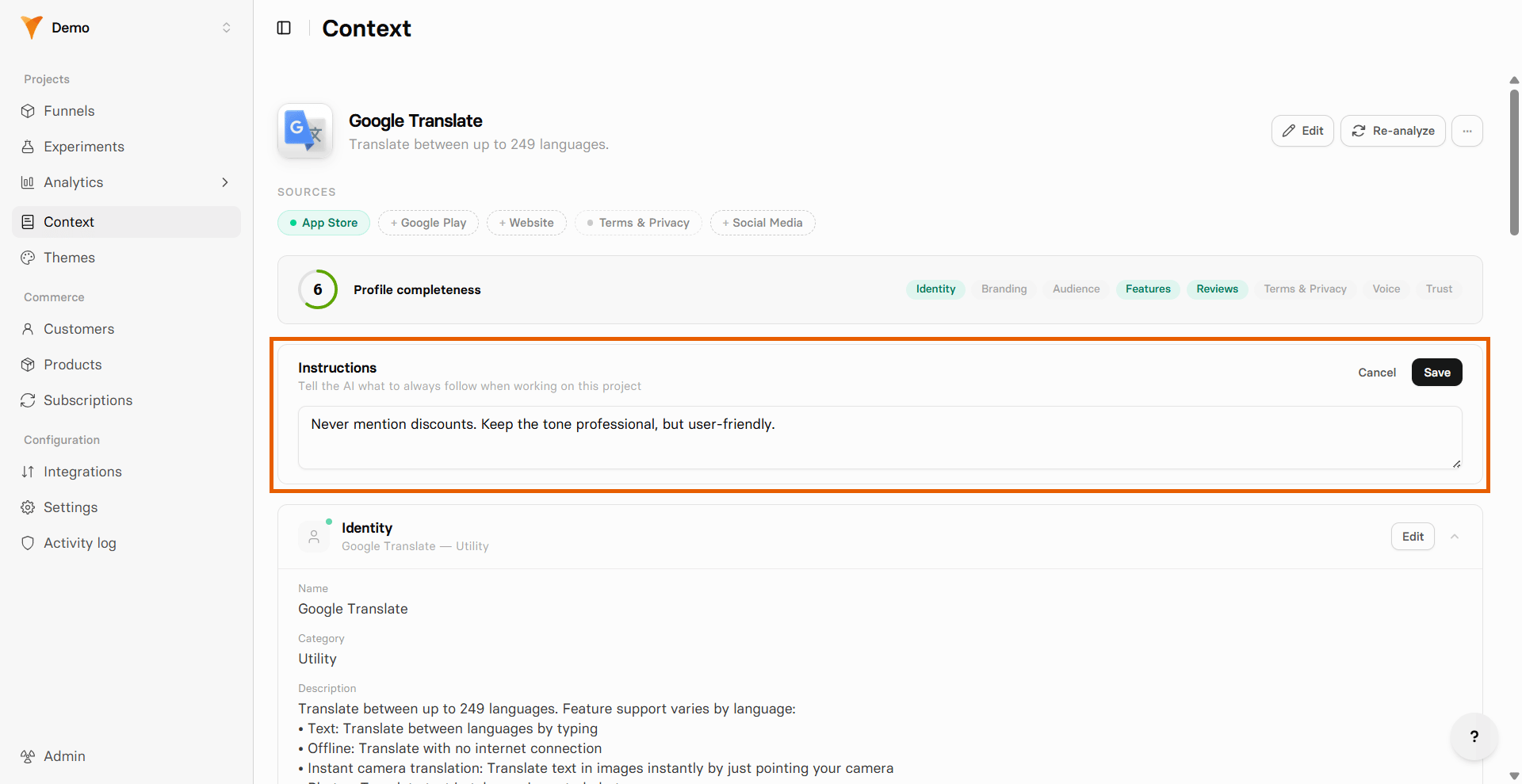
Instructions
The Instructions field on the Context page sets rules the agent follows every time it works on this project. While the Context page describes what your product is, Instructions define how the AI should behave. Instructions override the product profile, but not your prompt: if a request contradicts a rule, the agent does what you asked. Instructions also apply to AI translation. There, they can’t override the rules that keep placeholders, HTML, and prices intact.