
Setup
You’ll need an active Braze account to set up this integration. Create your API key in Braze, then apply it in FunnelFox.1. Create API key
- Go to Settings > APIs and Identifiers in Braze.
- Select Create API Key.
- Give your new key a name.
- Don’t specify any allowlisted IP addresses and subnets for the new key. This way requests can be sent from any IP address.
-
Ensure that the
users.trackpermission at the/users/trackendpoint is enabled. This allows FunnelFox to record user attributes, custom events, and purchases. - Copy the created API key.
2. Apply API key
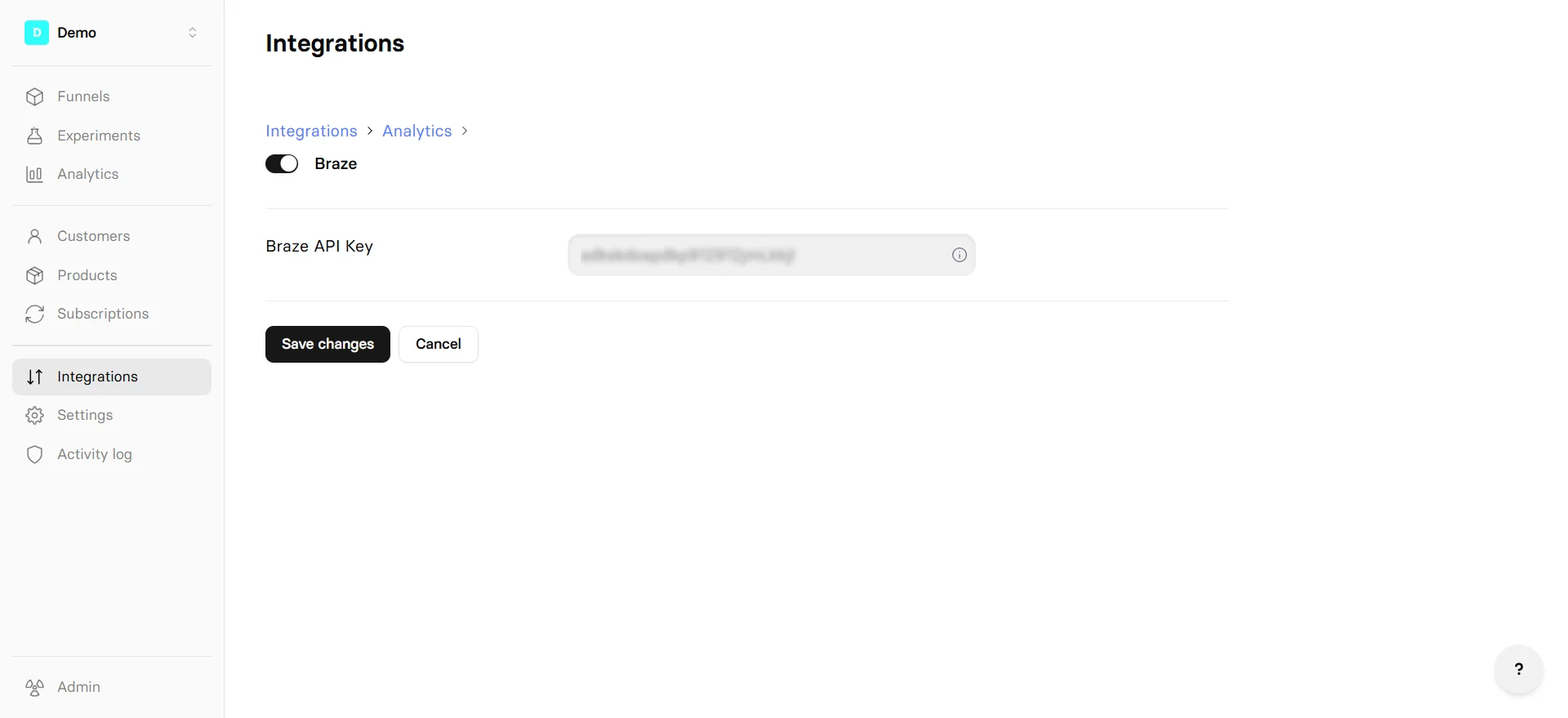
- Go to Integrations > Braze in FunnelFox.
- Paste the key into the Braze API Key field.
- Click Save changes.
Your Braze integration is now active. Republish your
funnels to apply these changes.
Events
Braze receives the following data from FunnelFox:User identification
FunnelFox identifies each subscriber in Braze using the FunnelFox profile ID as the Brazeexternal_id. This ID
remains consistent across all events, so profile attributes
and purchase history are unified under one Braze user.