
Purchase and Sign Up to Snap Events Manager. Use these events to track conversions, optimize campaigns, and build audiences in Snapchat Ads.
Set up Snapchat Pixel
Create a Pixel in Snapchat Ads Manager, configure the events you want to track, and connect it to FunnelFox.1. Create Pixel
- Go to Snapchat Ads Manager.
- Select Pixels from the dropdown at the top left.
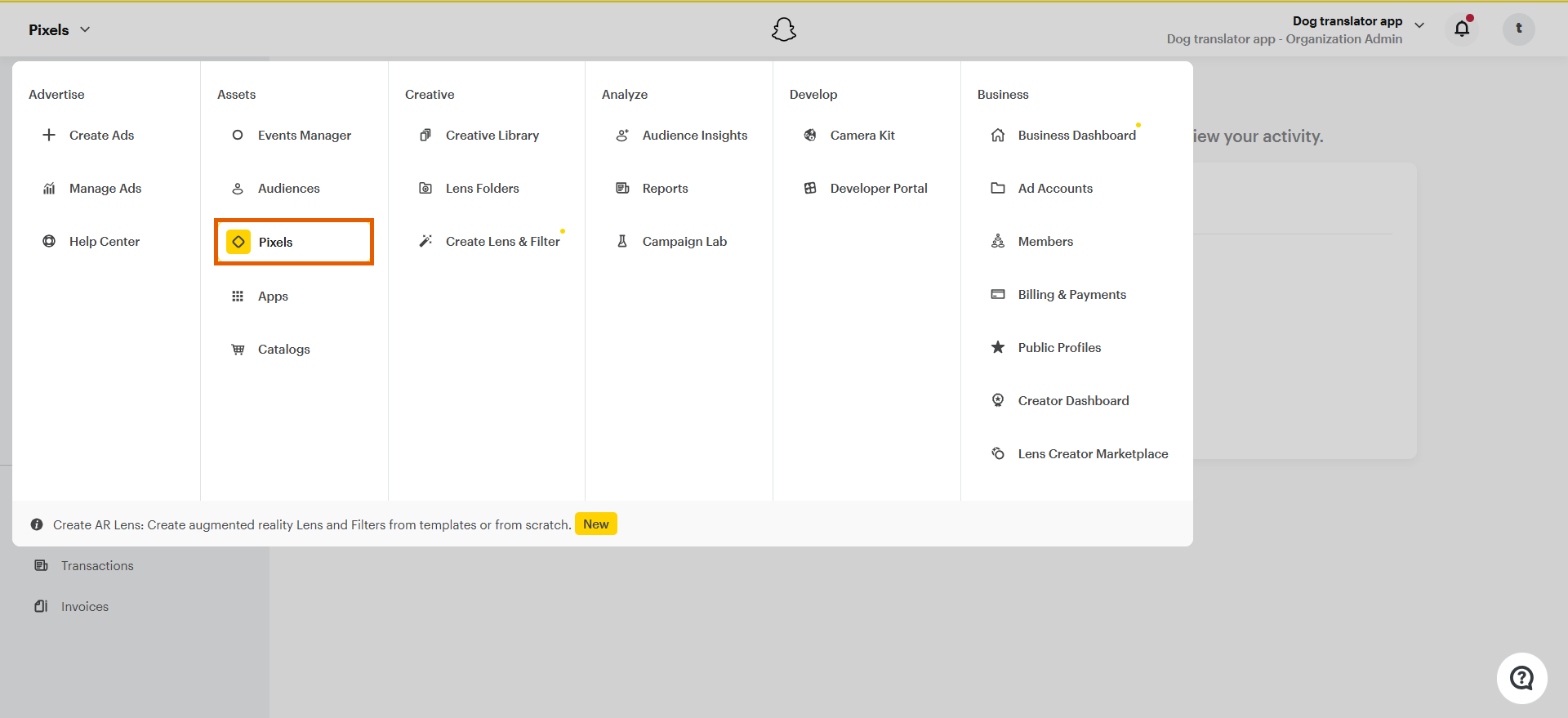
- Click Create Pixel, then confirm.
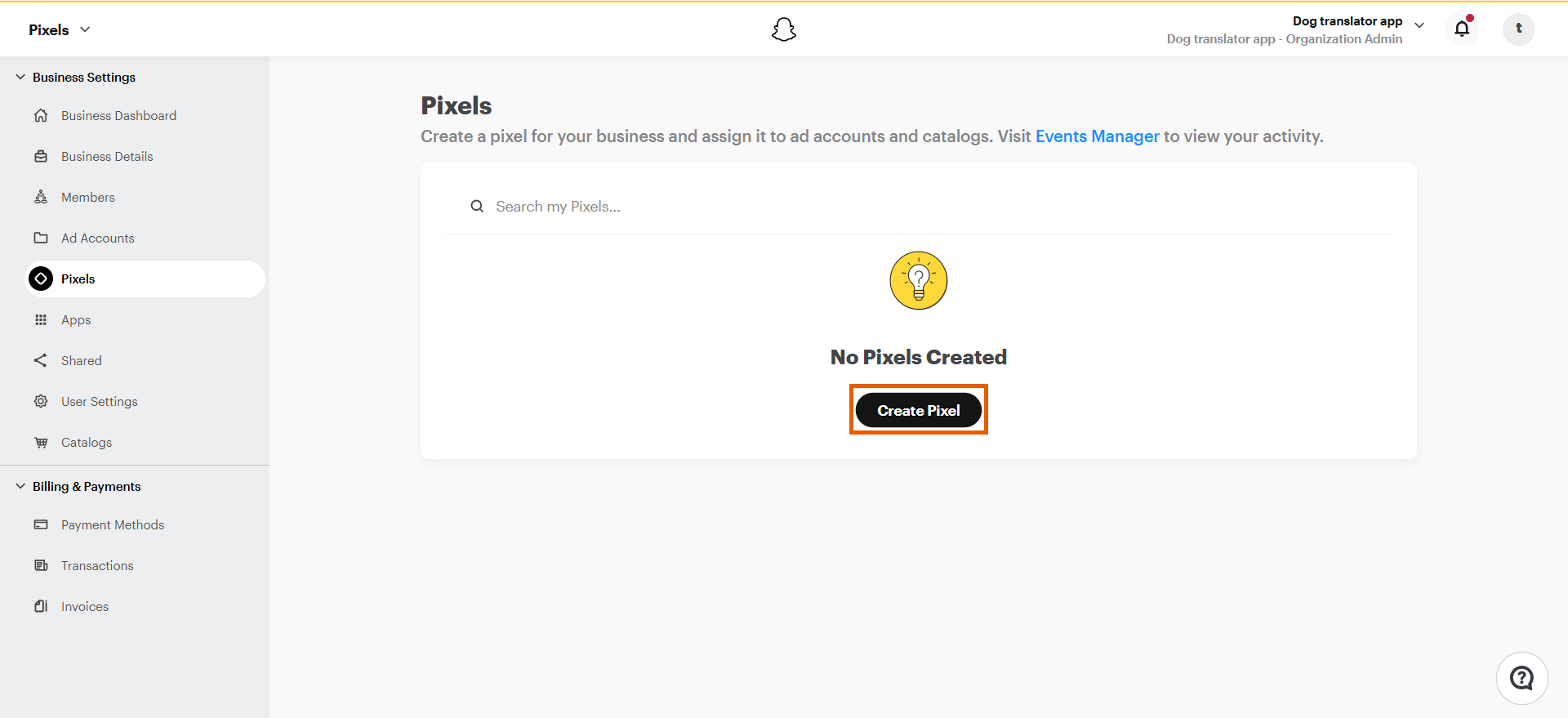
- Paste your project domain (e.g.,
https://demo-app.fnlfx.com/) from Settings > Domains in FunnelFox.
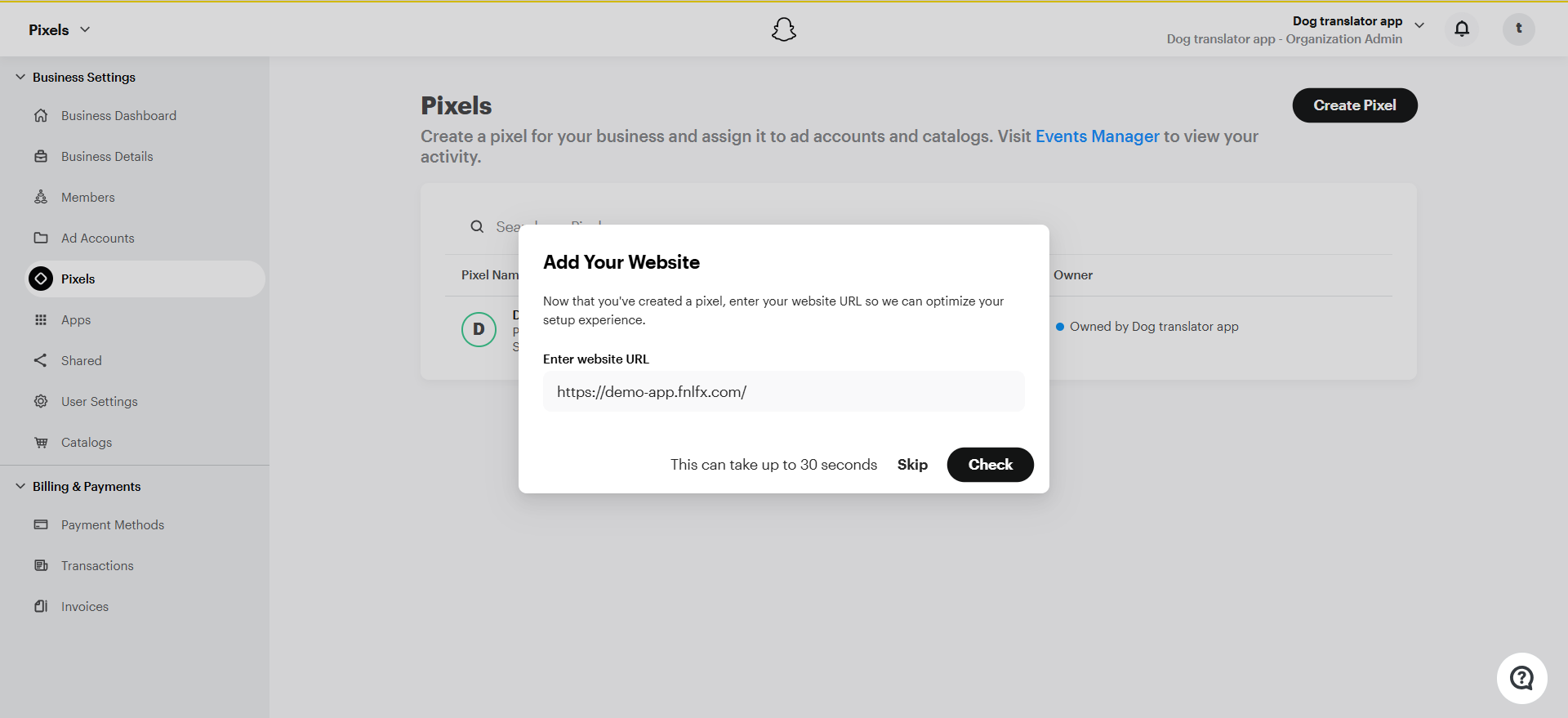
- Click Check.
- Select Manual Setup.
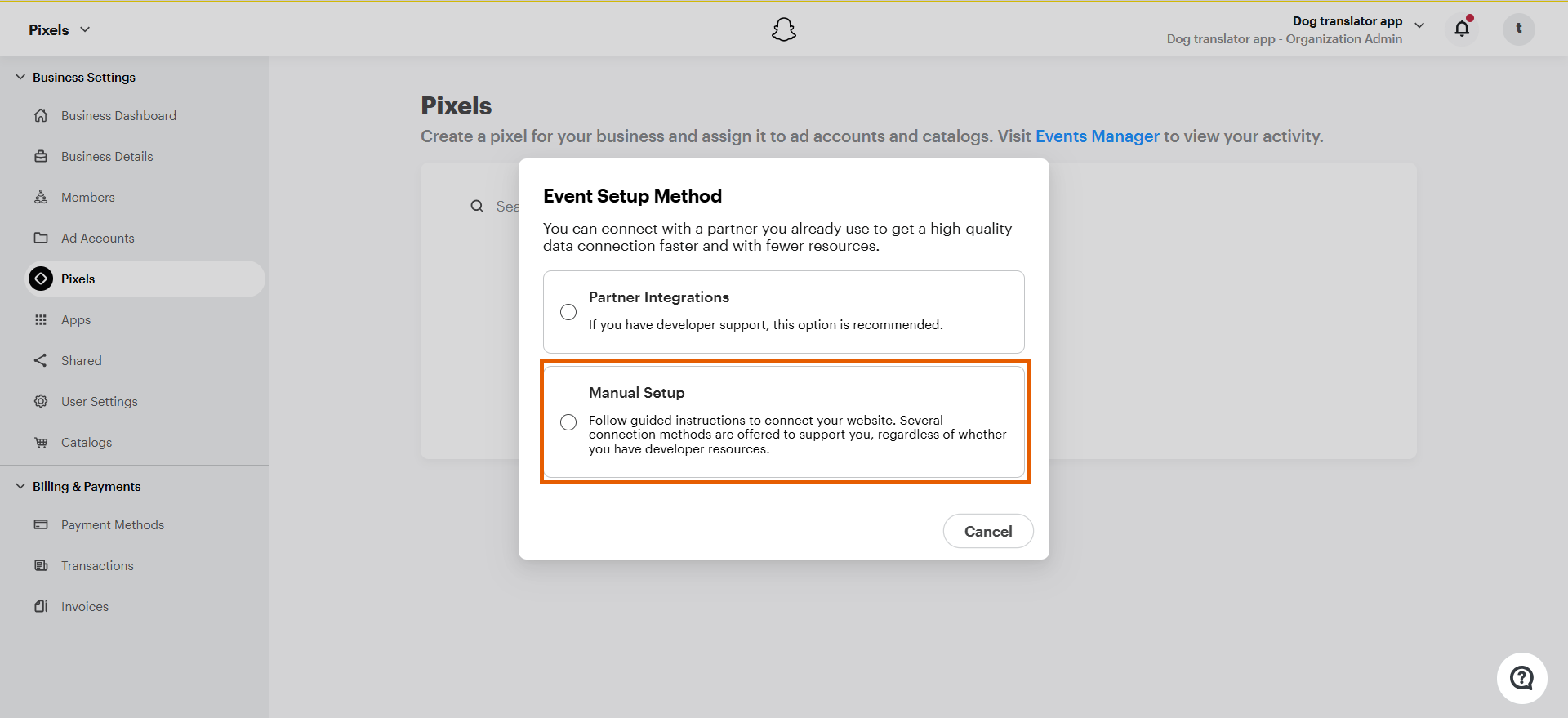
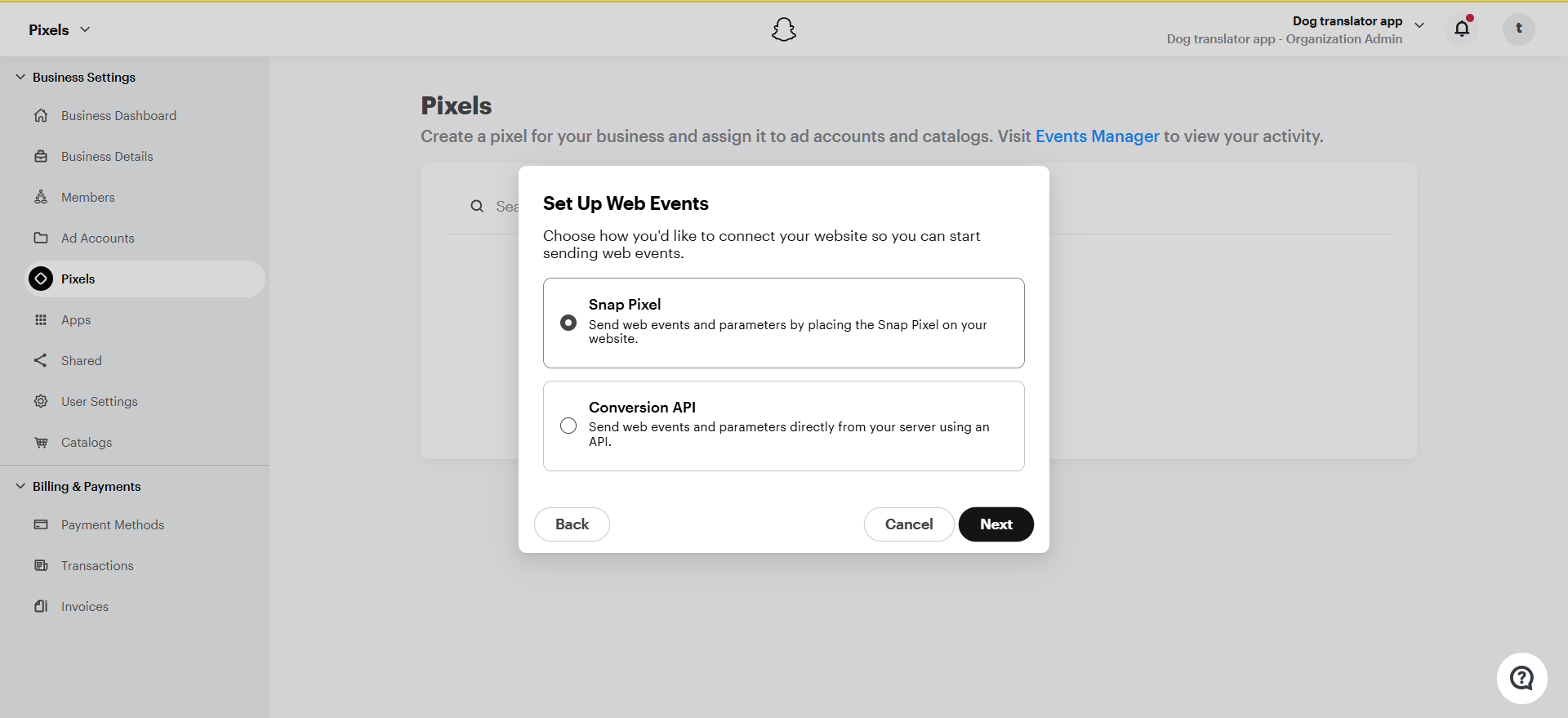
- Select Snap Pixel and click Next.
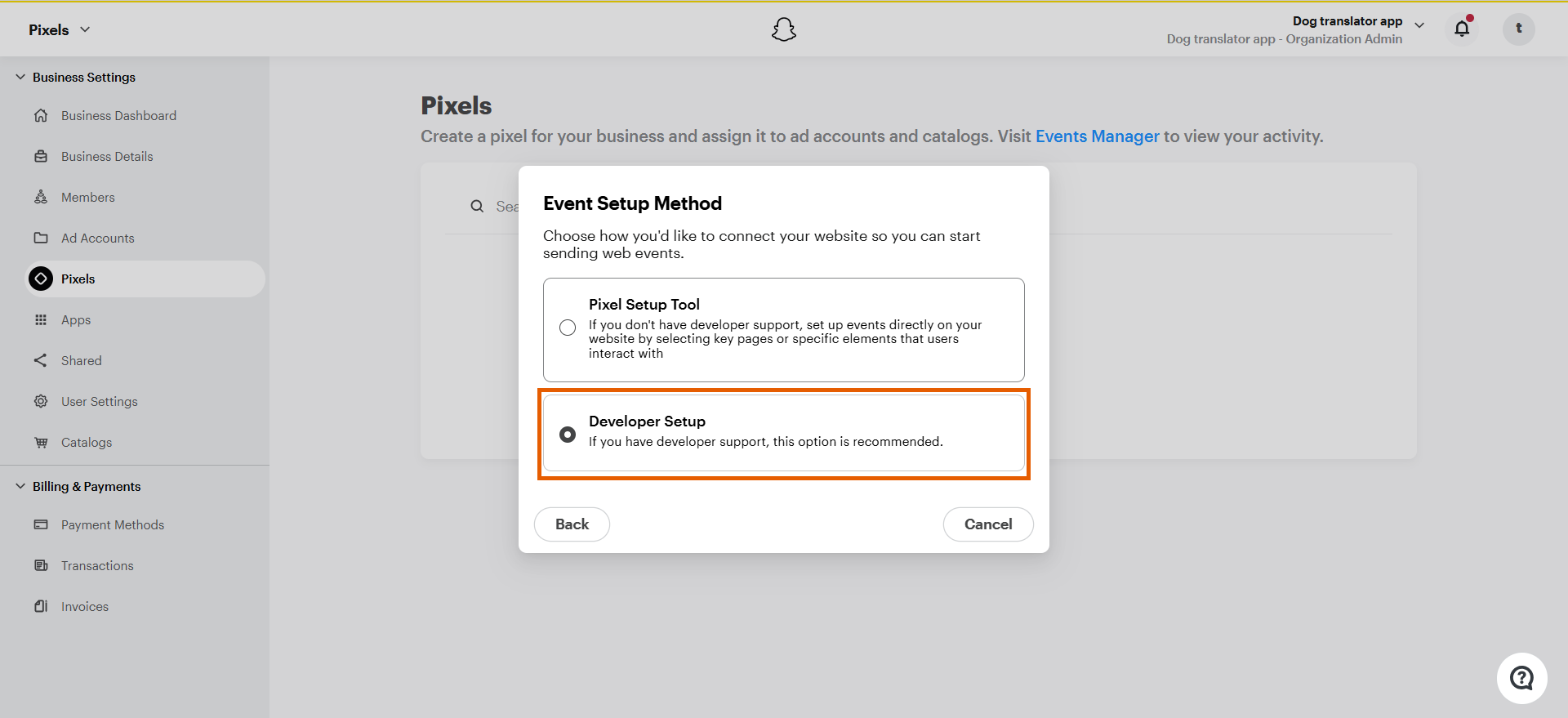
- Select Developer Setup.
2. Configure events
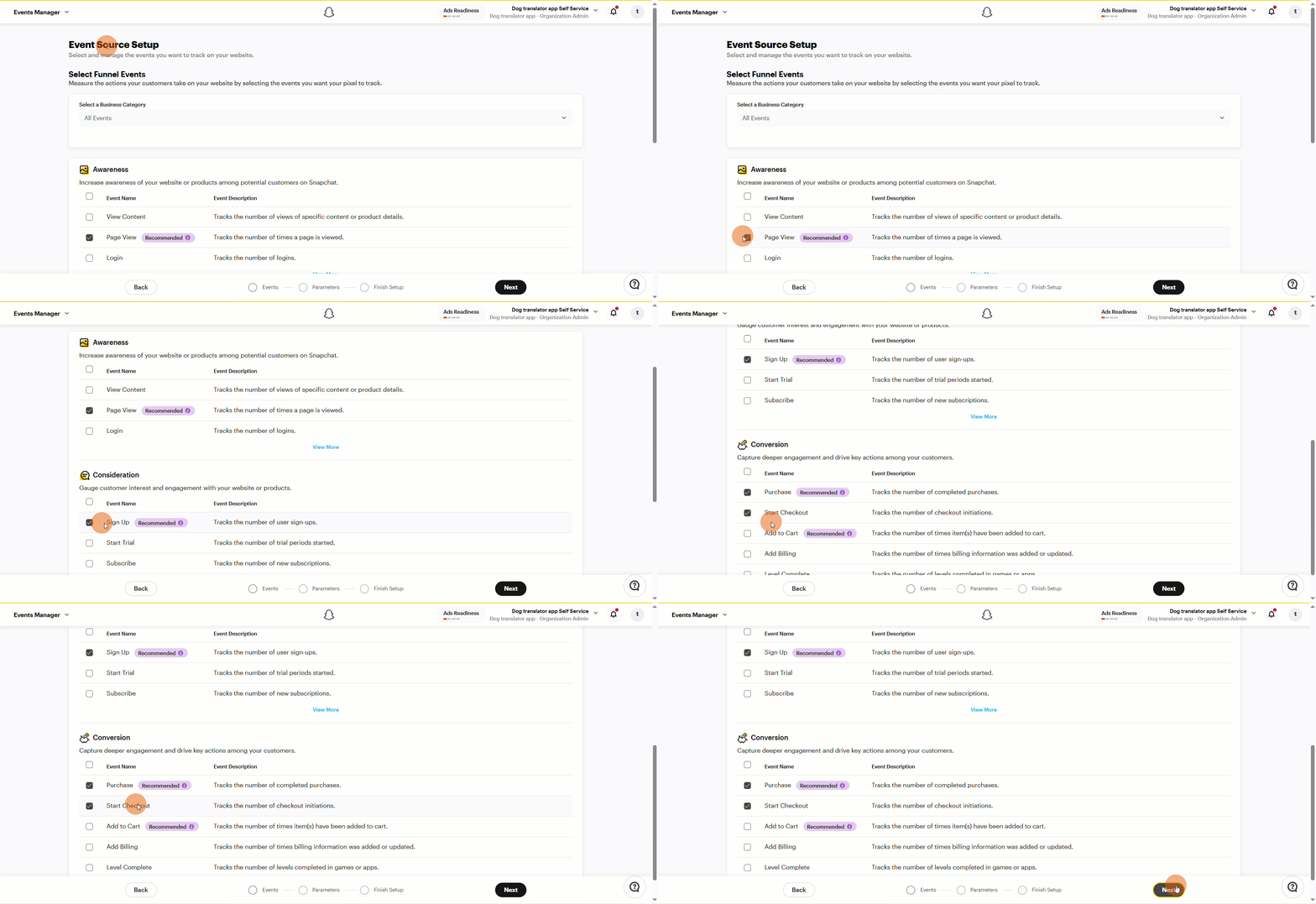
- Select the following events and click Next:
- Page View
- Sign Up
- Start Checkout
- Purchase
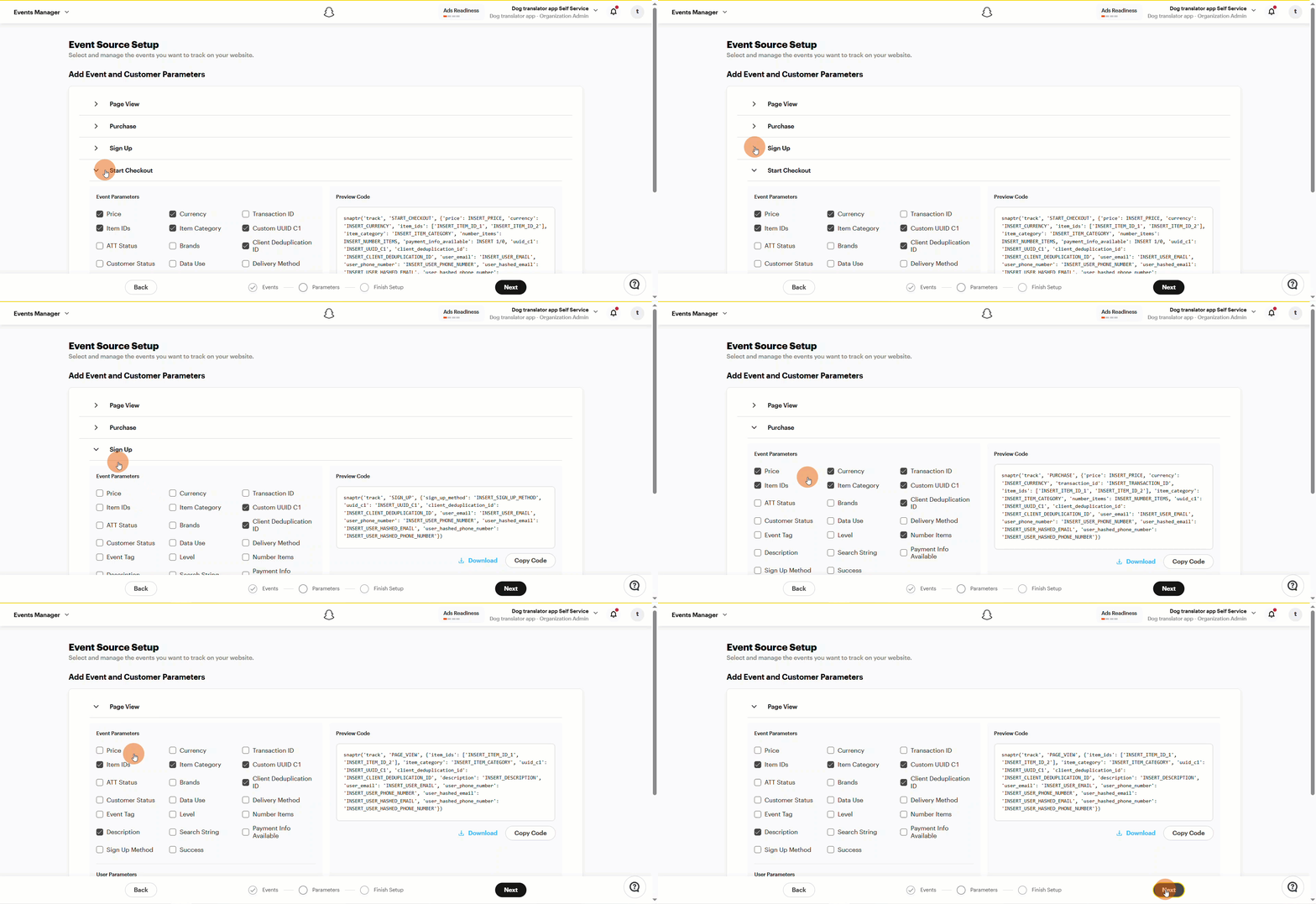
- Enable these parameters in addition to the default ones:
- All events: Client Deduplication ID
- Page View: Description
- Purchase: Price, Currency, Item IDs
- Start Checkout: Price, Currency
- Click Finish.
3. Apply Pixel ID in FunnelFox
- Go back to Pixels in Snapchat.
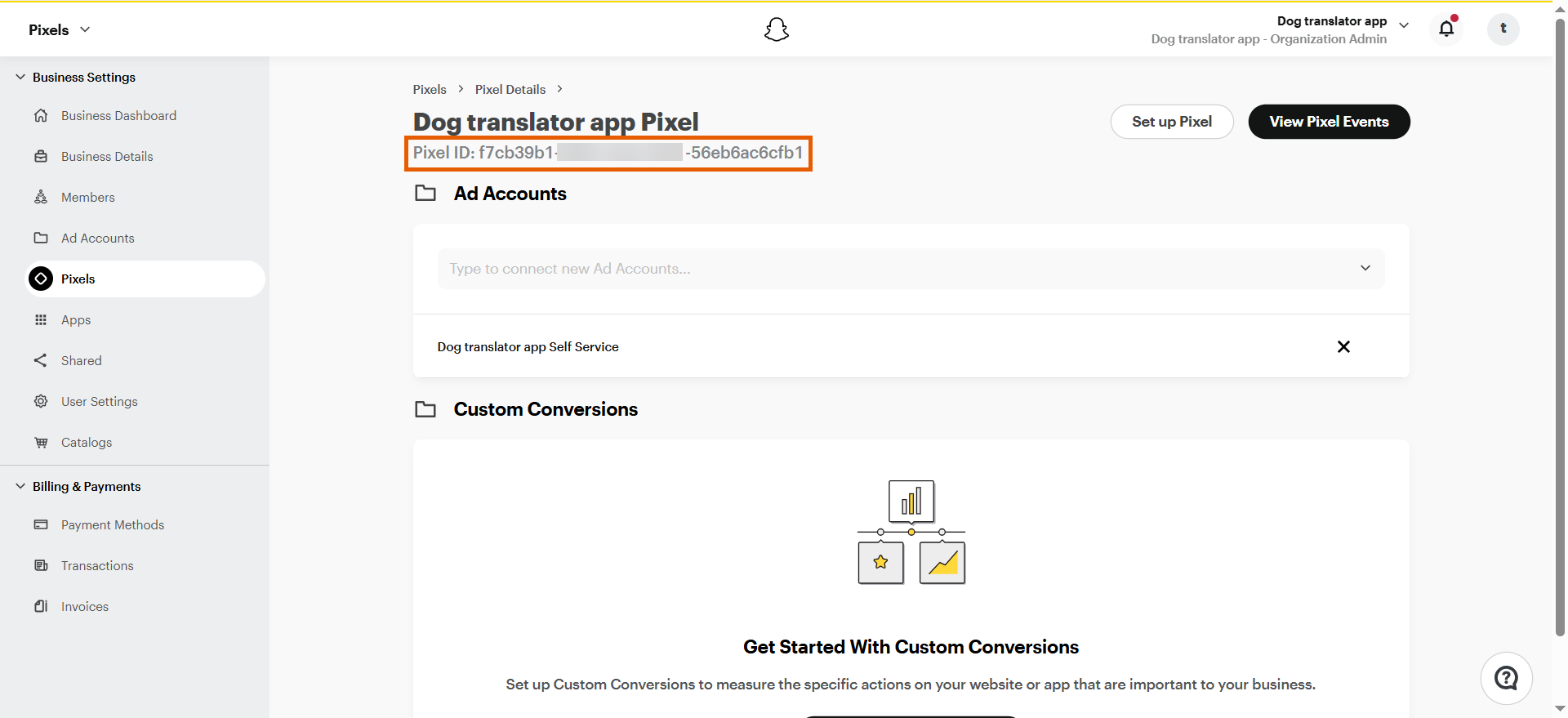
- Open the Pixel you just created.
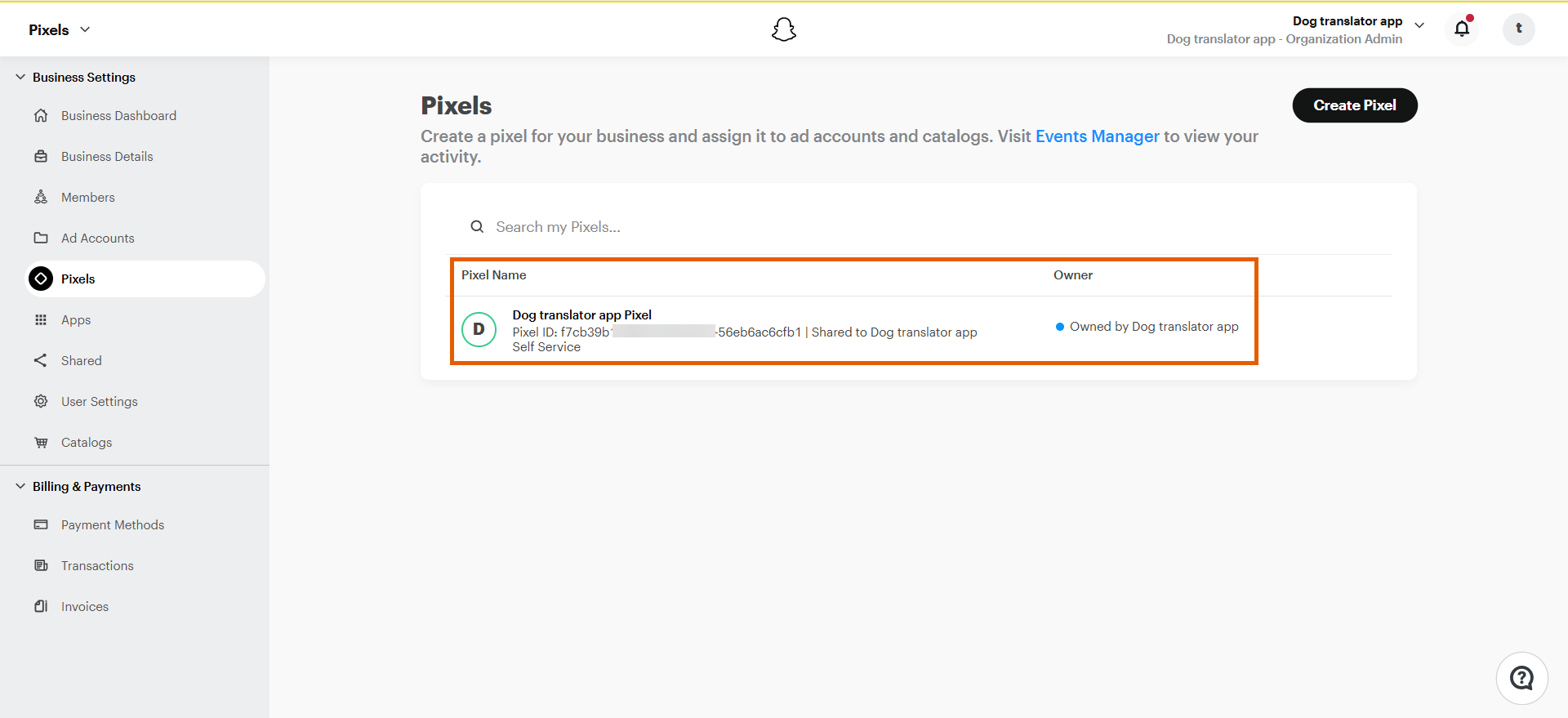
- Copy the Pixel ID.
- Go to Integrations > Snapchat in FunnelFox.
- Paste your Pixel ID into the Snapchat Tag ID field.
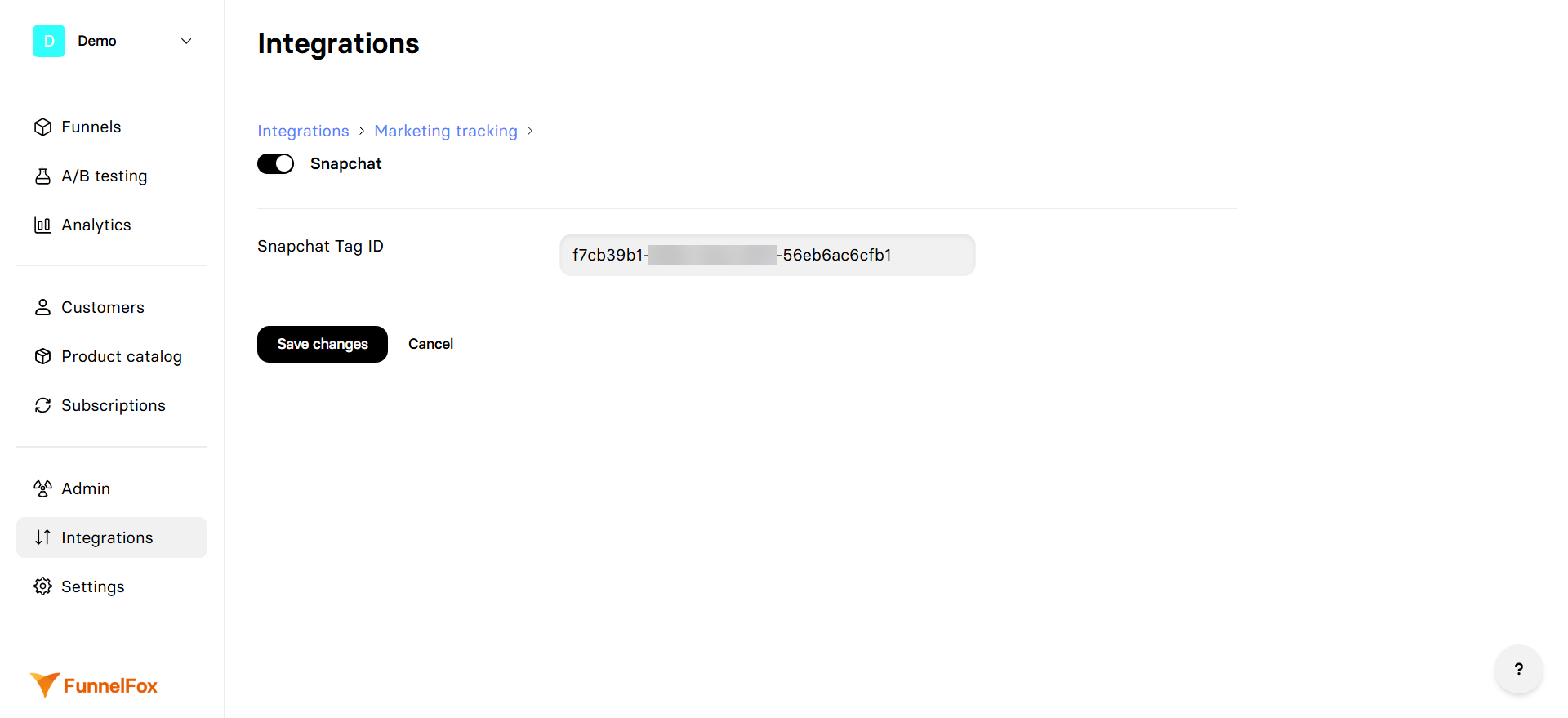
- Click Save changes.
Snapchat Pixel tracking is now active! Republish your funnels and test event tracking.
Test your integration
Send test events from your funnel to verify that tracking works:- Go to Snapchat Ads Manager.
- Select Events Manager from the dropdown at the top left.
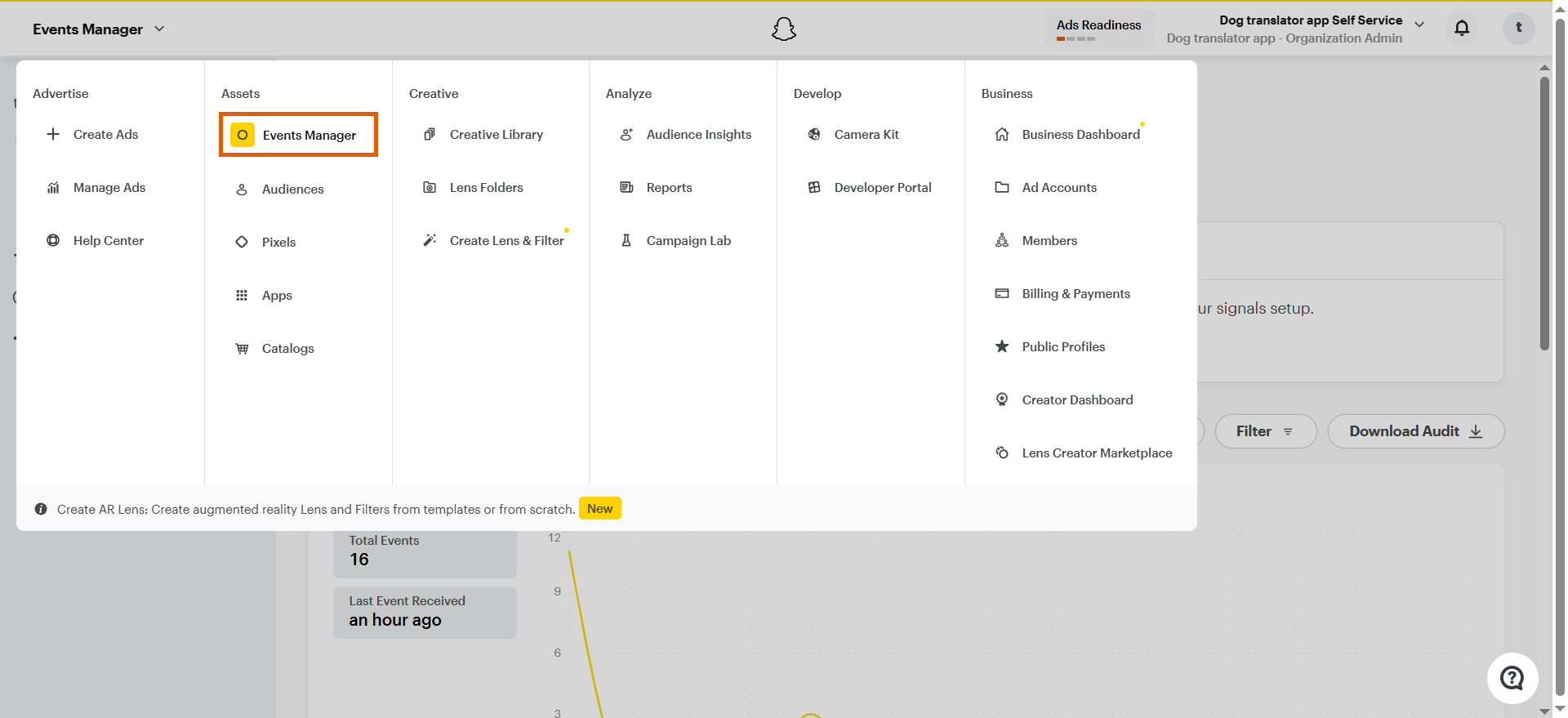
- Go to Test Events on the left.
- Paste your funnel URL under Pixel SDK and click Open Website.
- Interact with your funnel. Events will appear under Test Events.
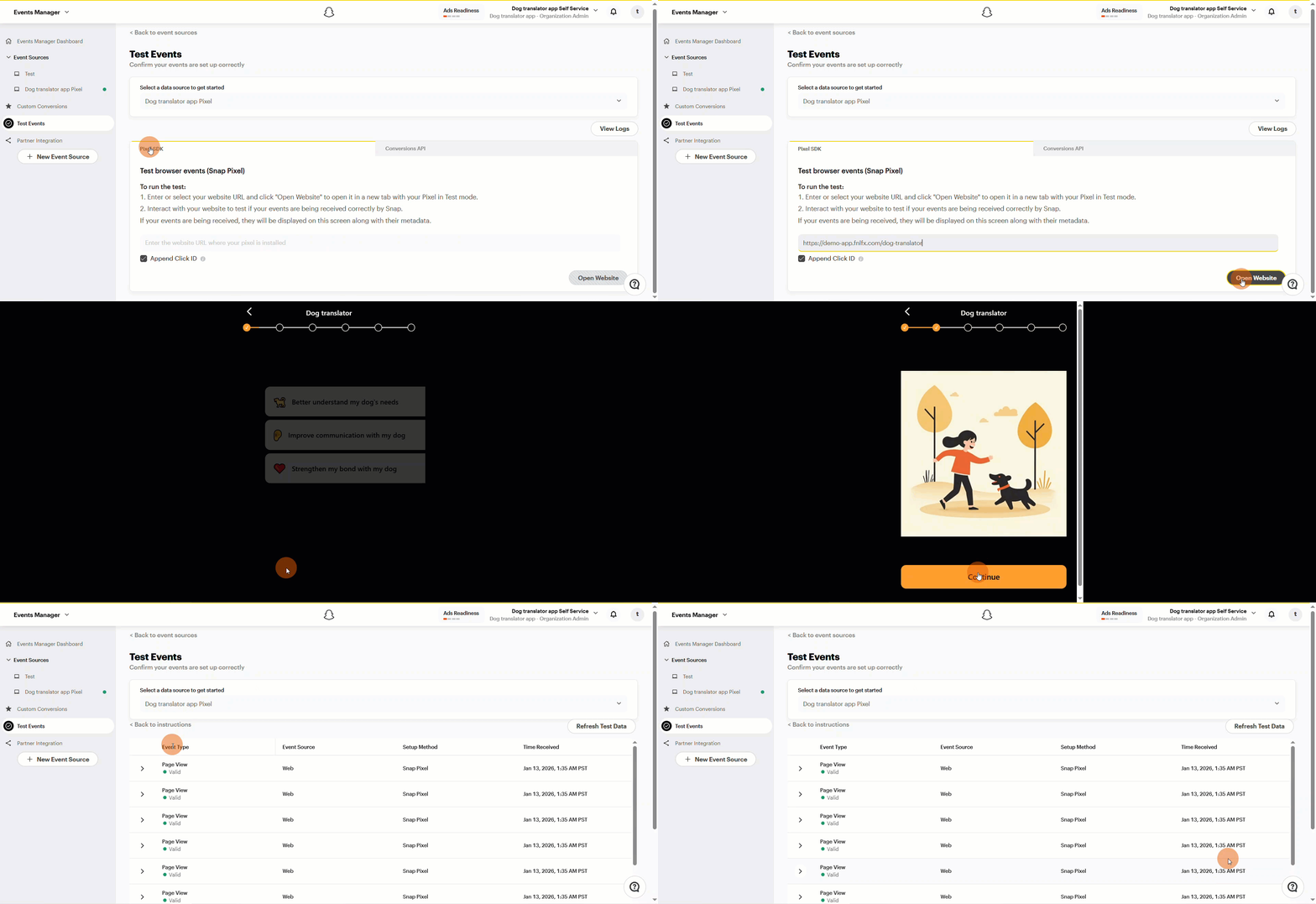
Test events might take a few minutes to appear after initial setup. Check your Pixel page under Event Sources if they don’t show up immediately.