
Checkout and Pagevisit to Pinterest Ads Manager. Use these
events to track conversions, optimize campaigns, and build audiences in
Pinterest Ads.
Set up Pinterest tag
Configure the Conversions API and Pinterest tag in your Pinterest Ad account, then connect them to FunnelFox.1. Set up Conversions API
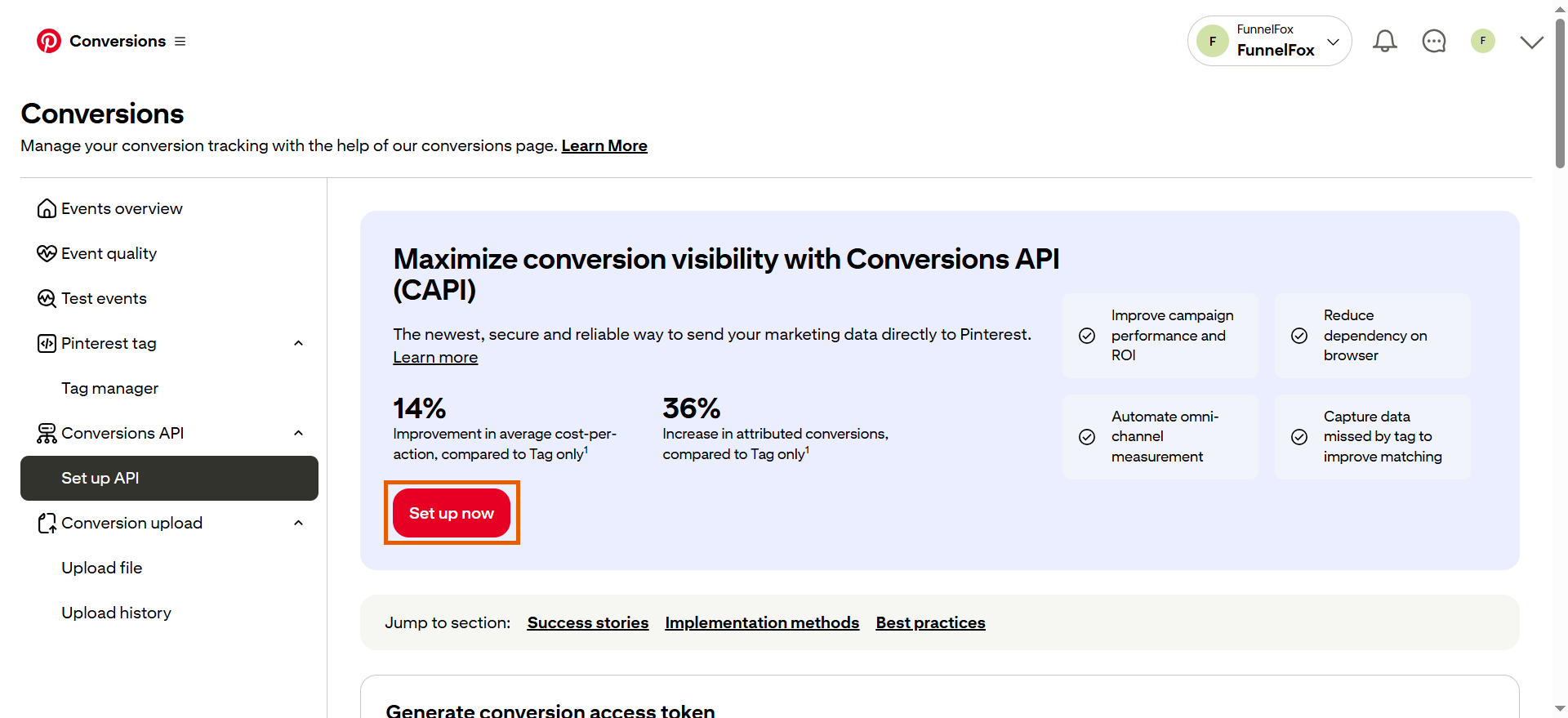
- Go to Conversions > Set up API in your Pinterest Ad account.
- Click Set up now.
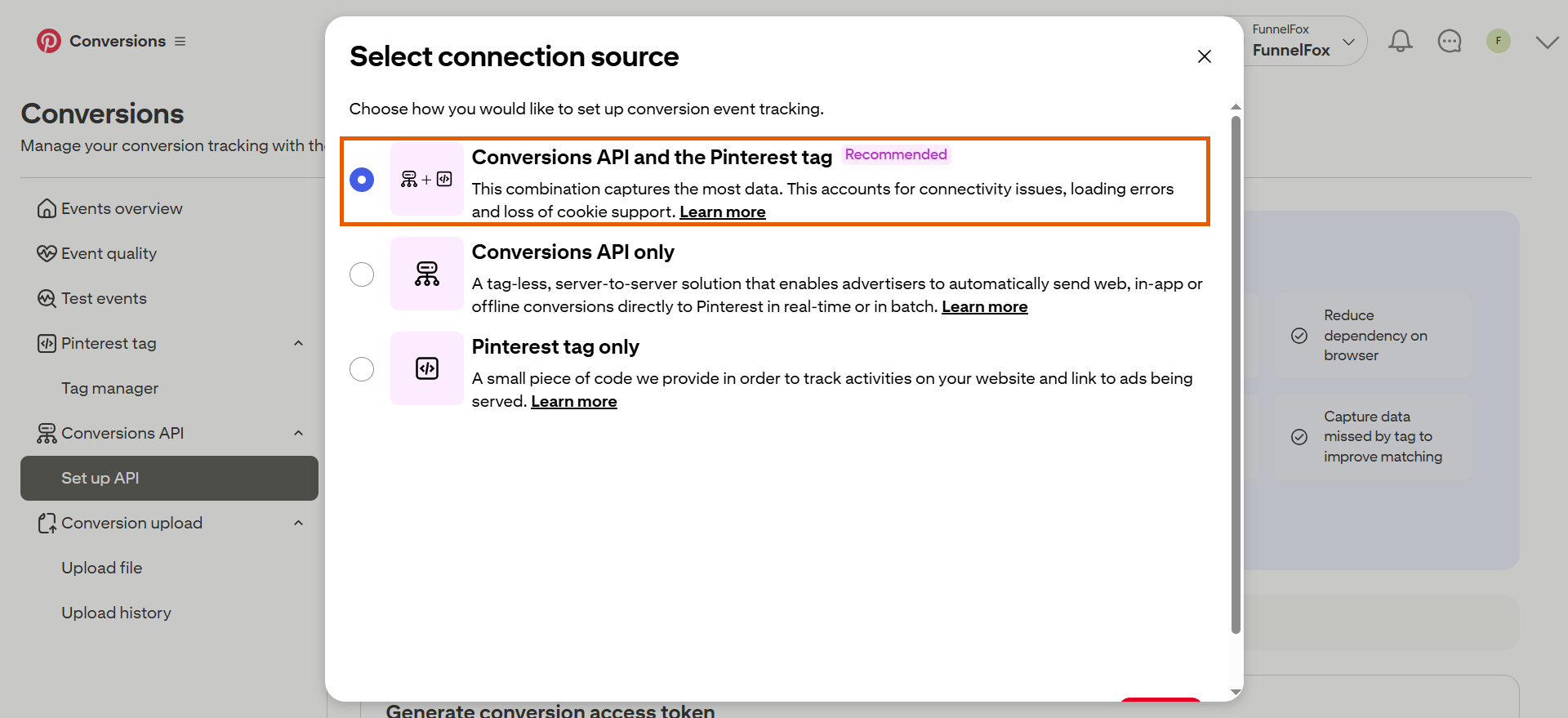
- Select Conversions API and Pinterest tag, then click Continue.
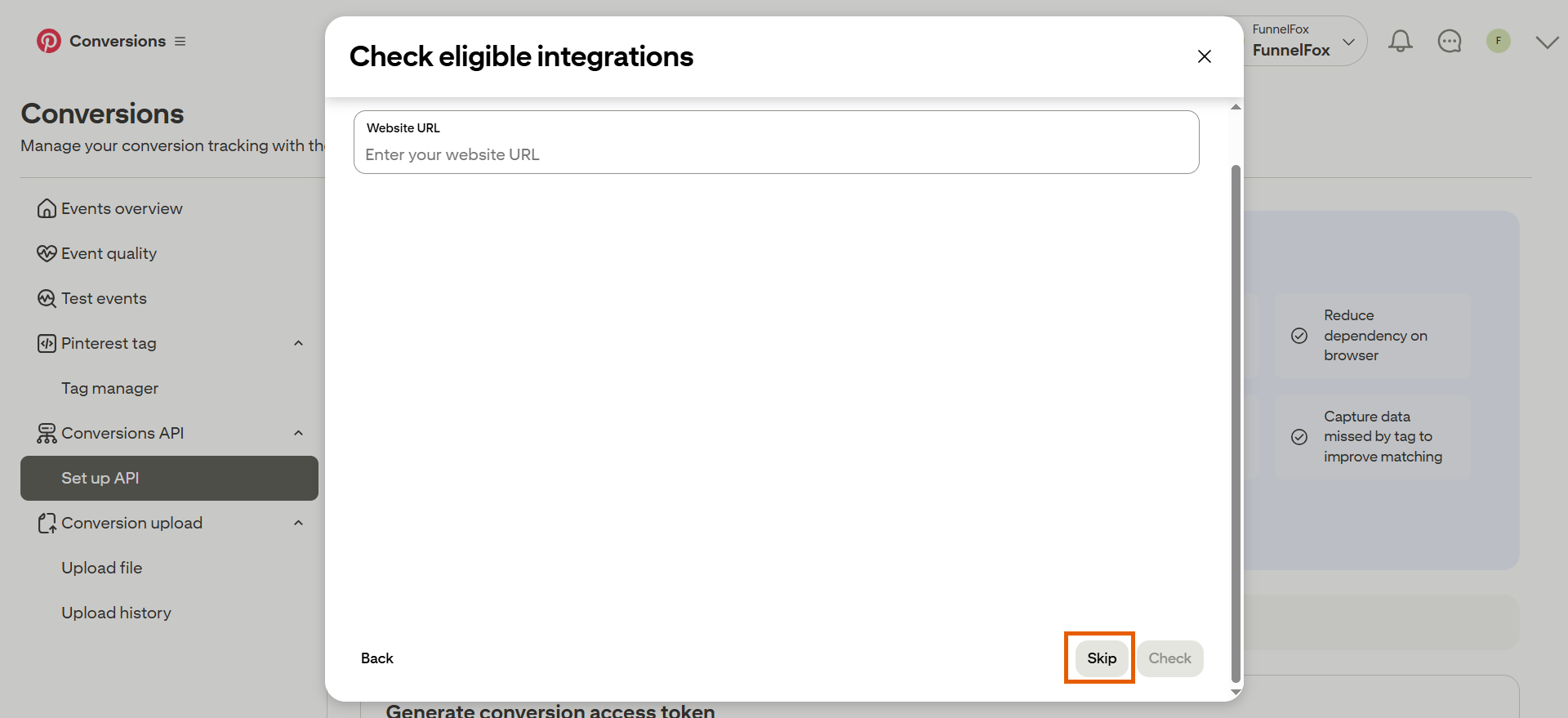
- Click Skip under Check eligible integrations.
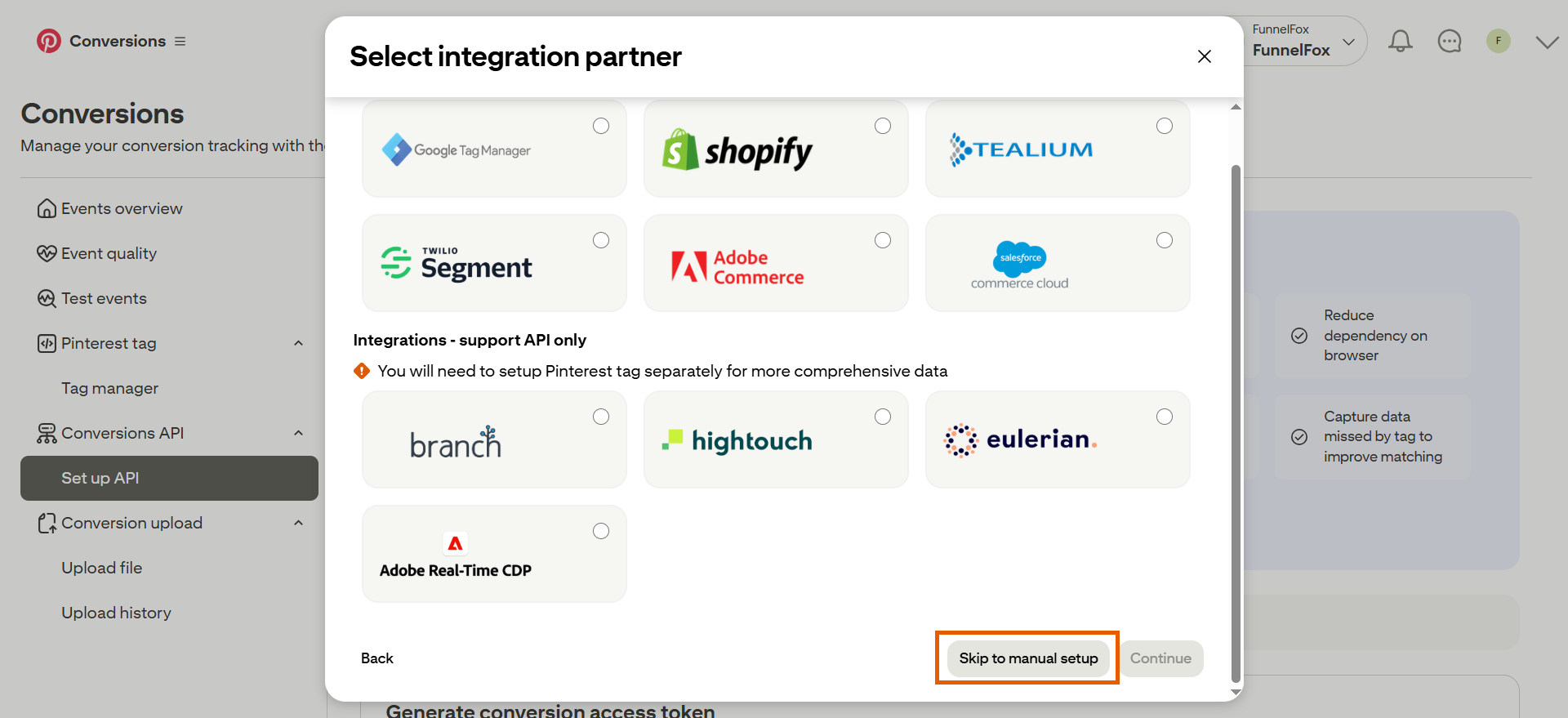
- Click Skip to manual setup under Select integration partner.
- Click Continue in the Setup overview.
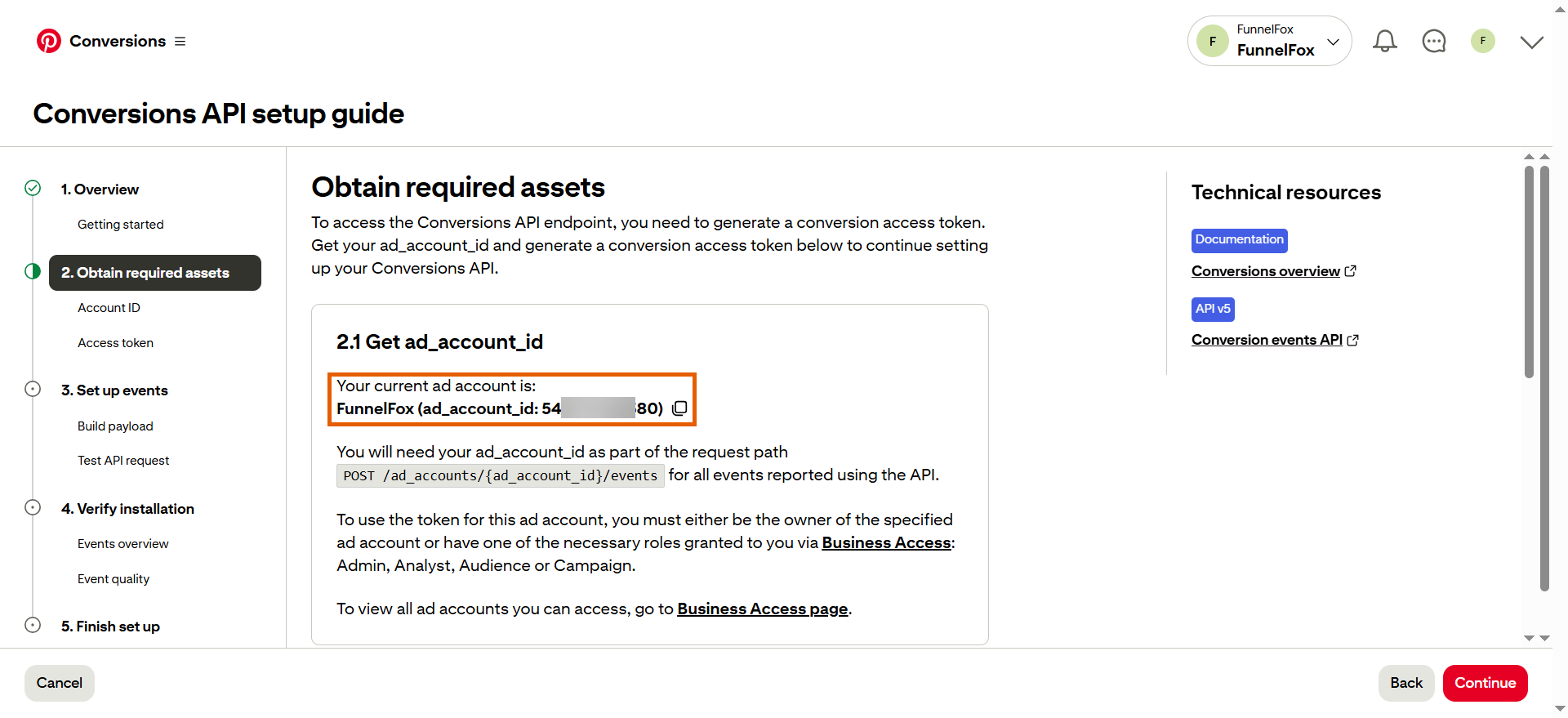
- Copy your ad_account_id.
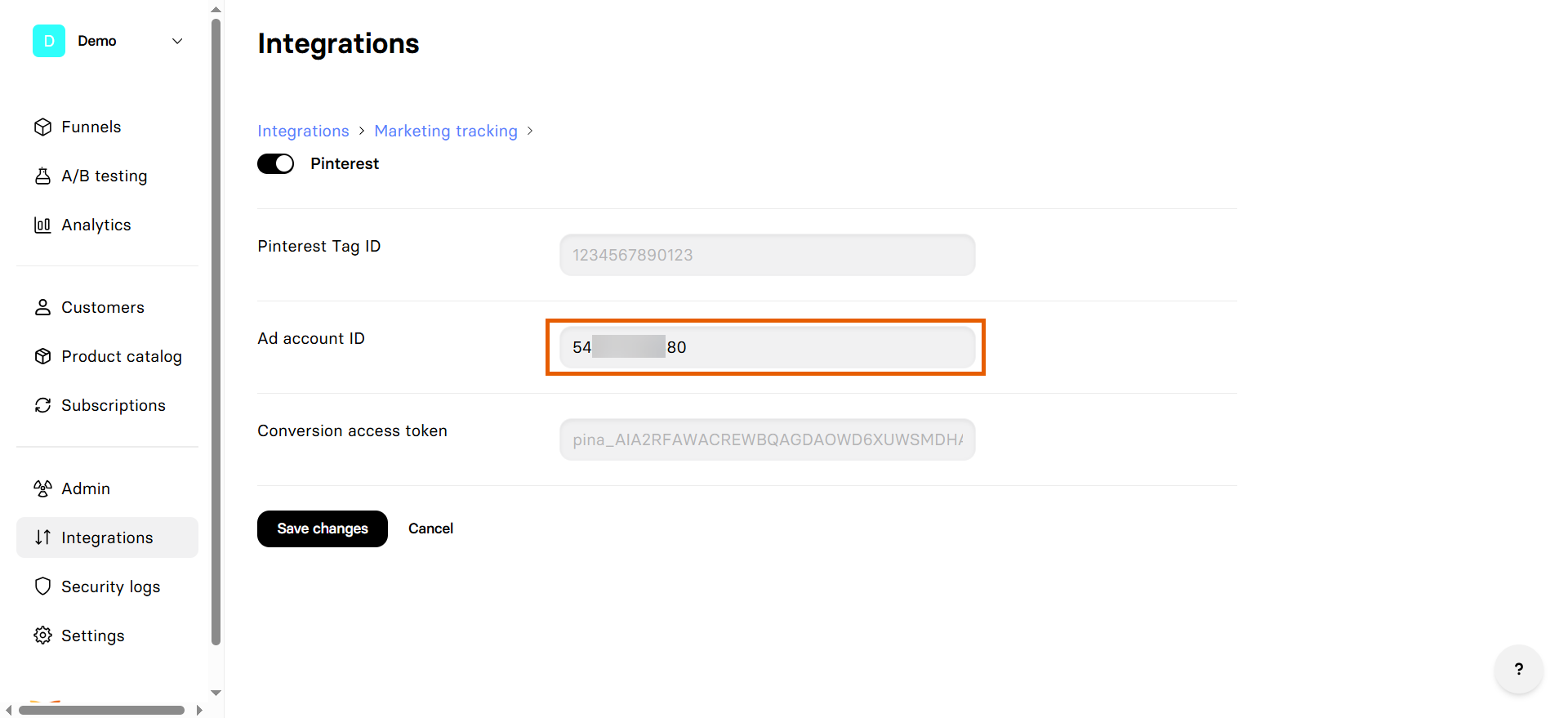
- Go to Integrations > Pinterest in FunnelFox.
- Paste your ID into the Ad account ID field.
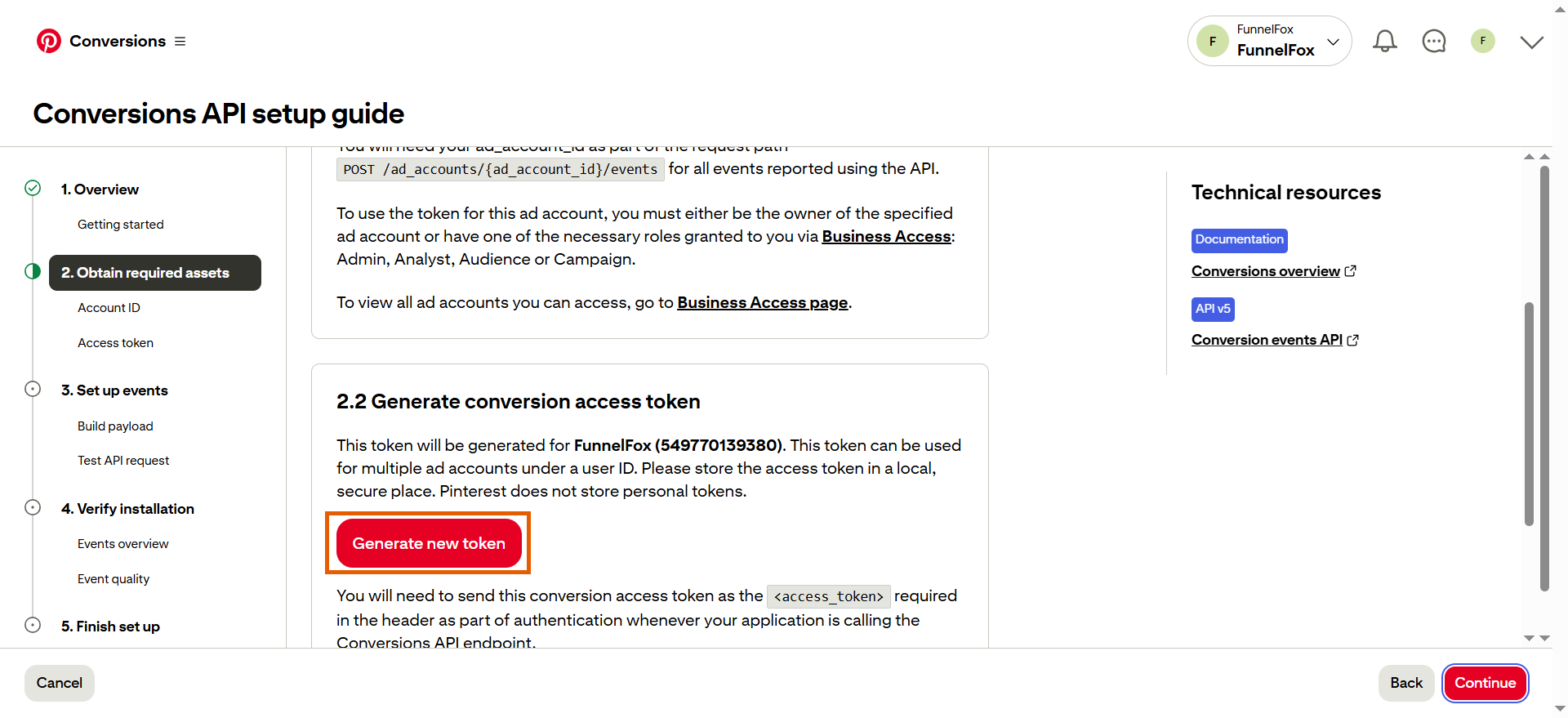
- Go back to Pinterest and click Generate new token under Obtain required assets.
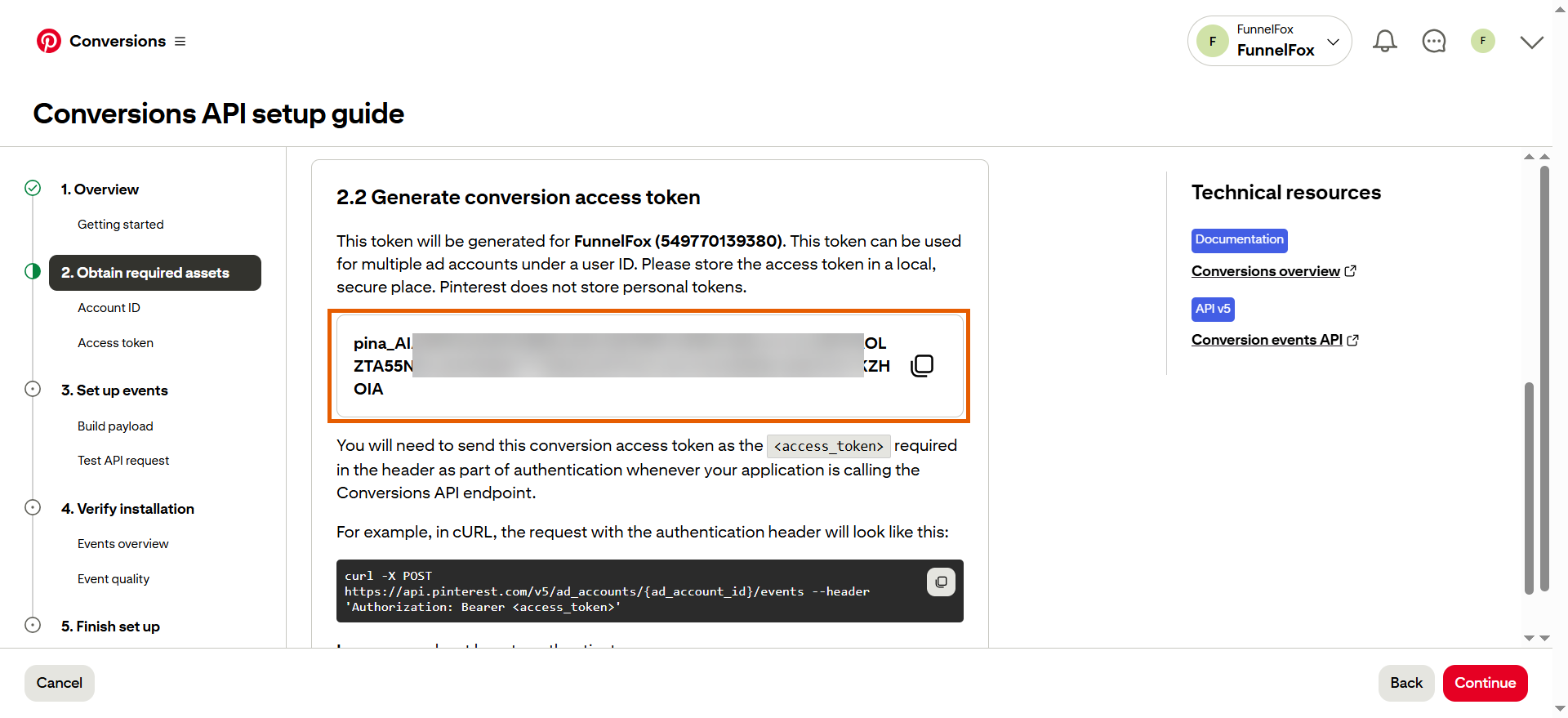
- Copy your access token.
- Go back to FunnelFox and paste your token into the Conversion access token field.
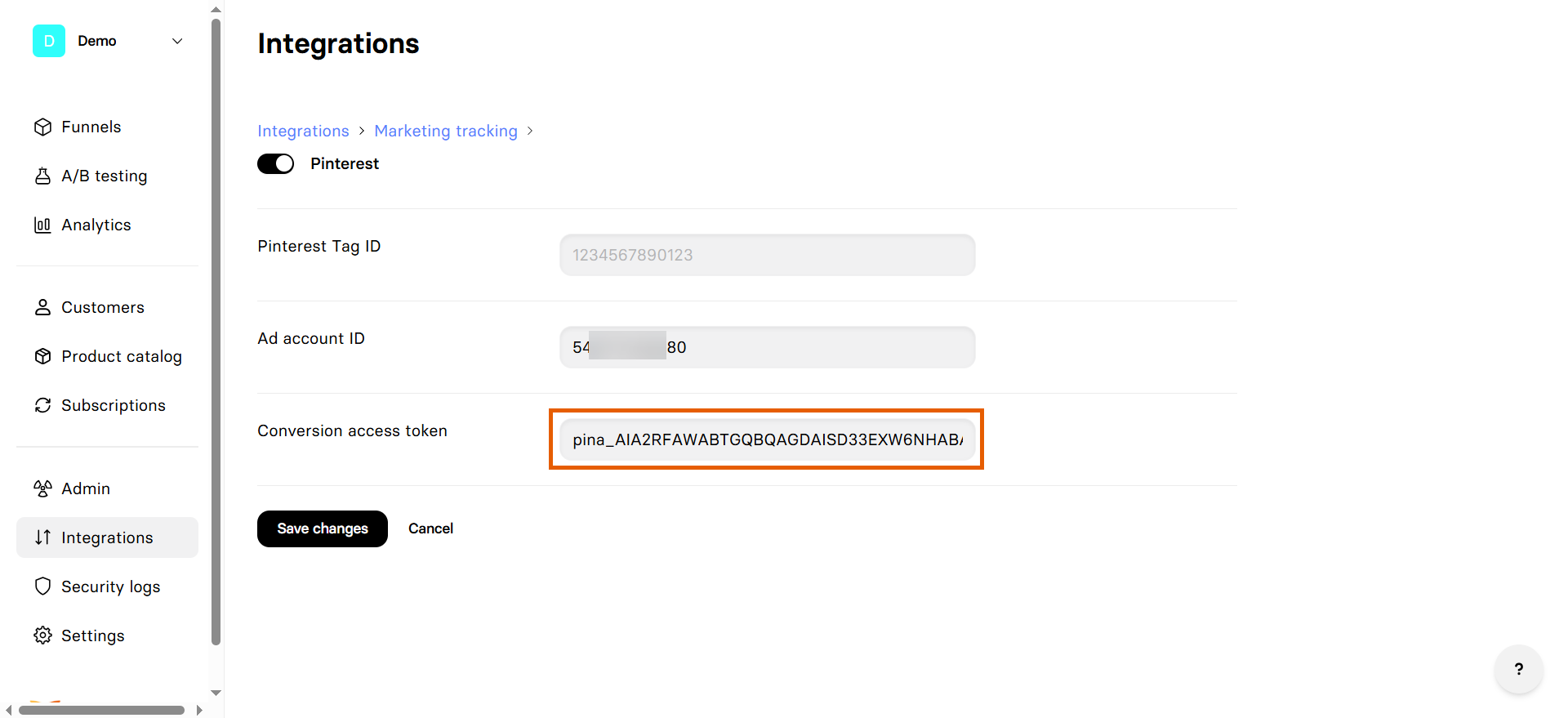
2. Set up Pinterest tag
- Click Continue in Pinterest until you reach the Finish set up page.
- Click Continue install Pinterest Tag.
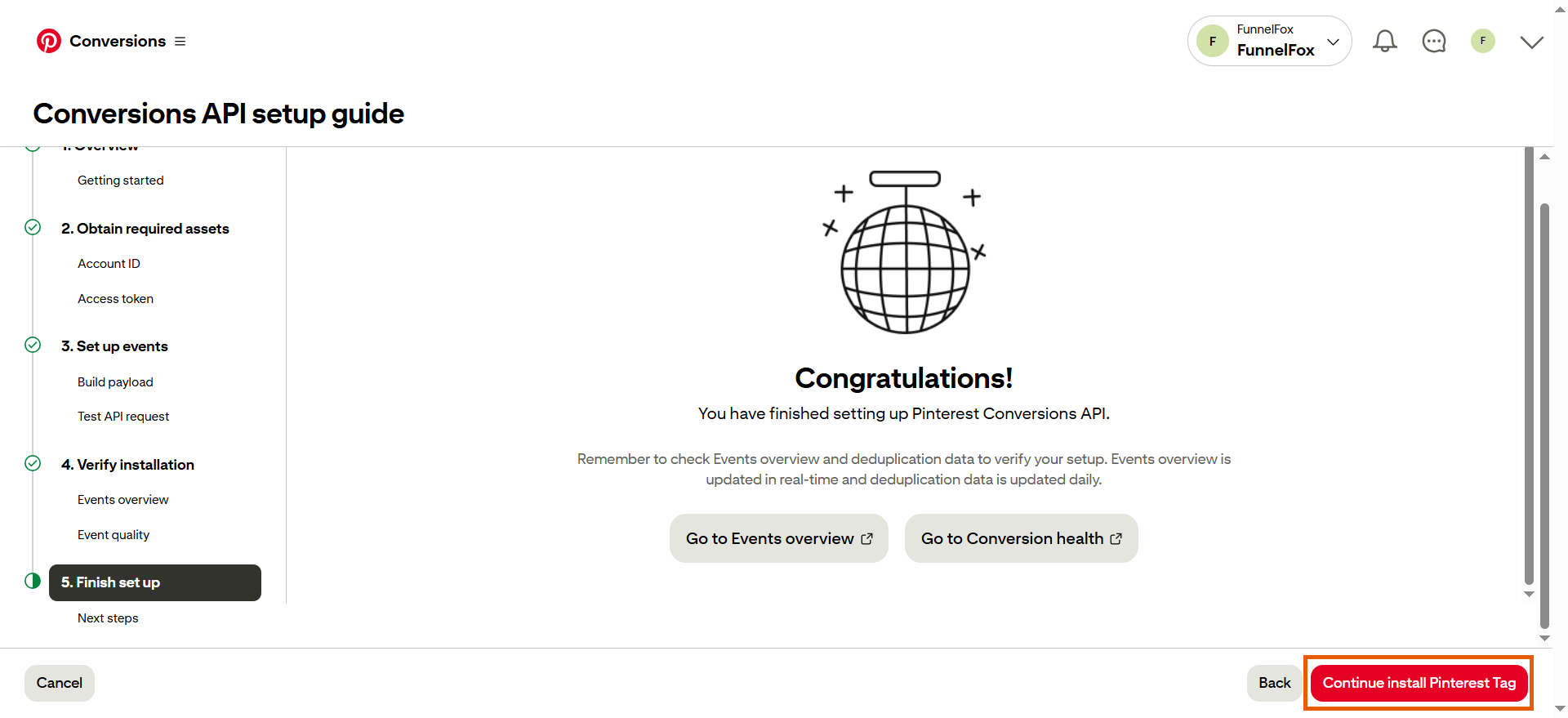
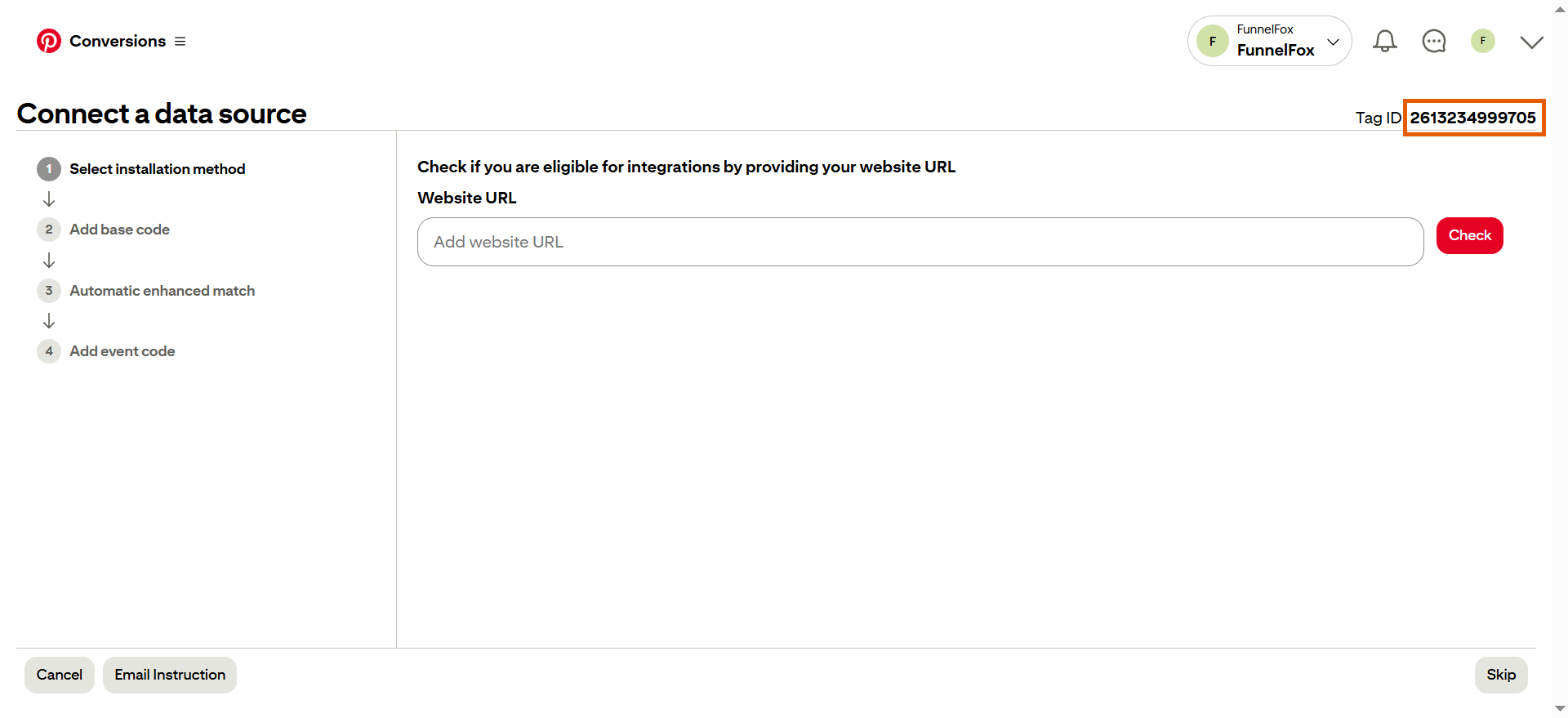
- Copy your Tag ID at the top right.
- Go back to FunnelFox and paste your ID into the Pinterest Tag ID field.
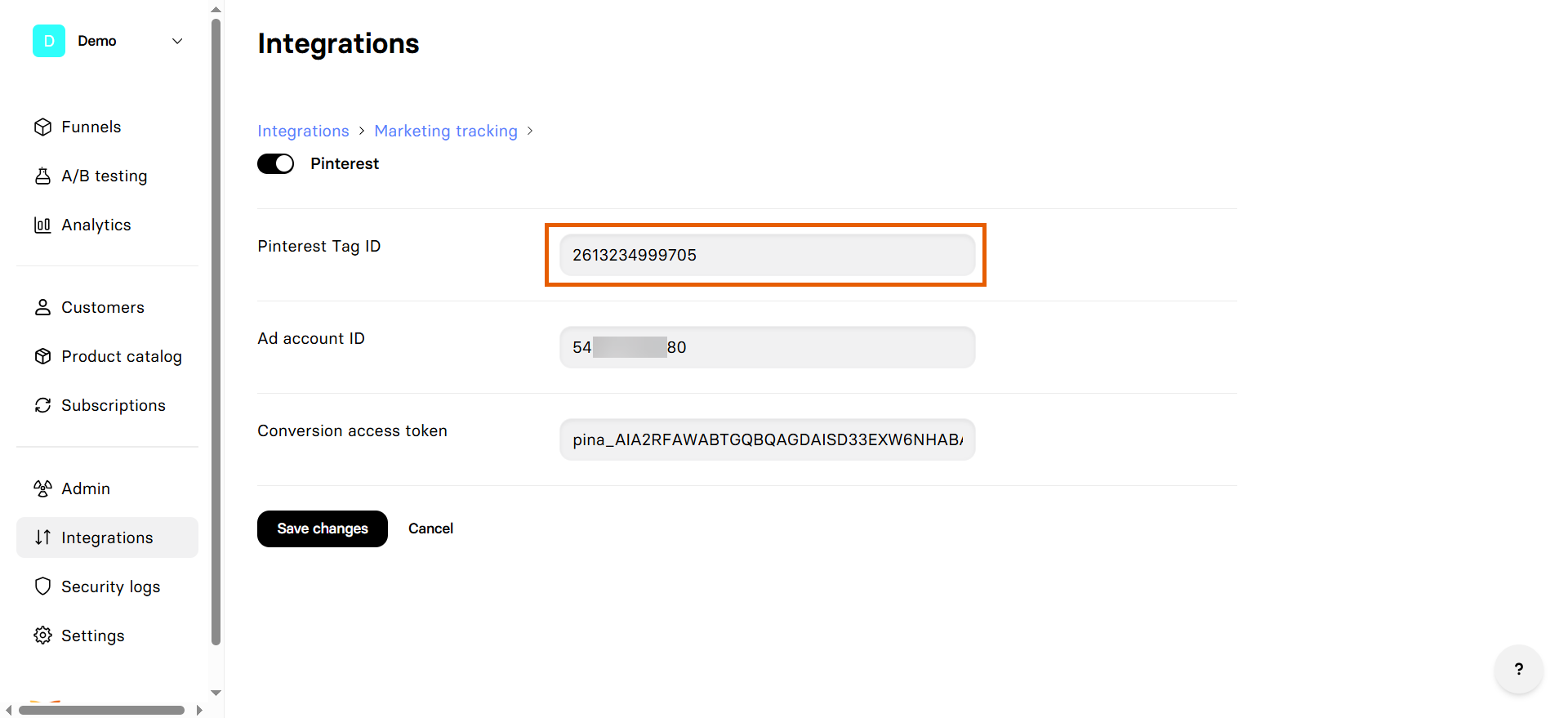
- Click Save changes.
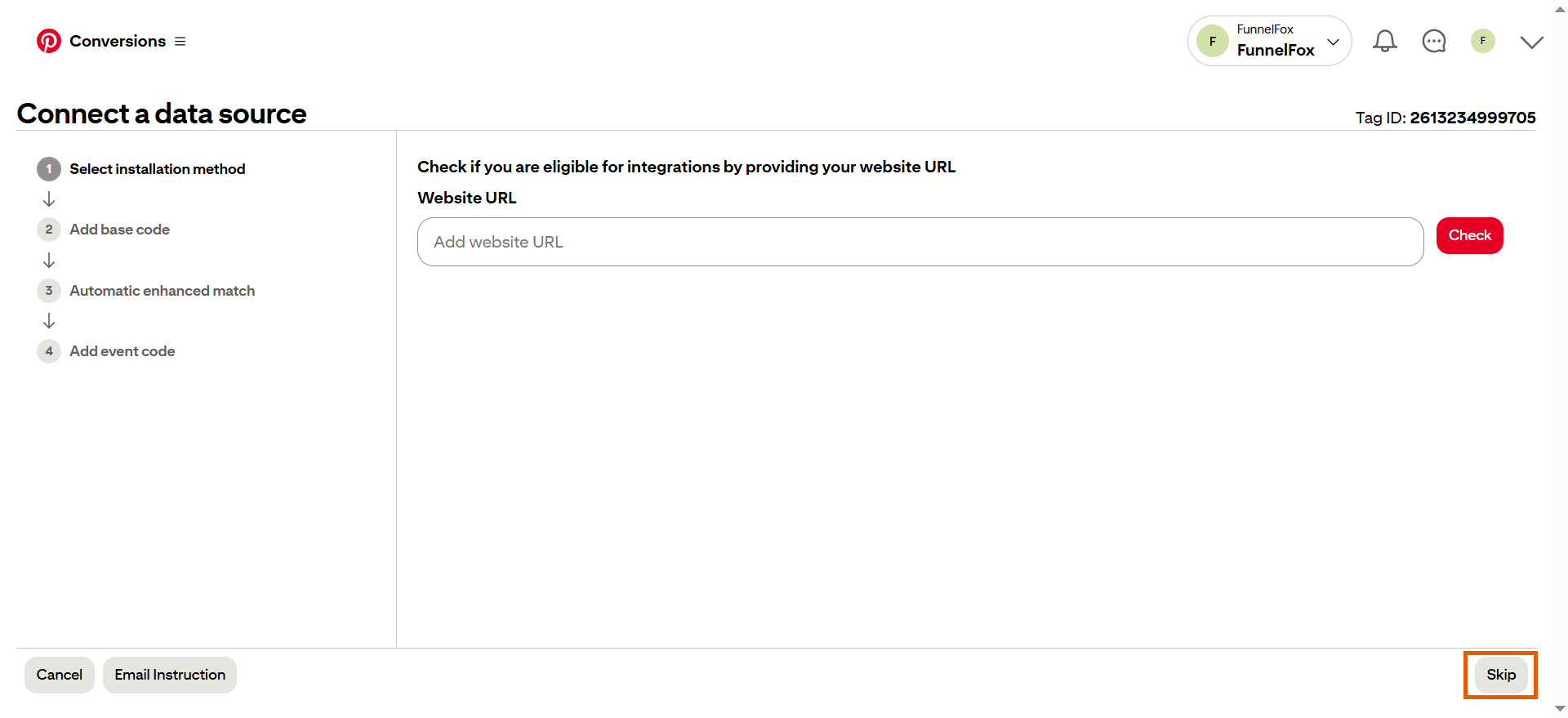
- Go back to Pinterest and click Skip under Eligible integrations selection.
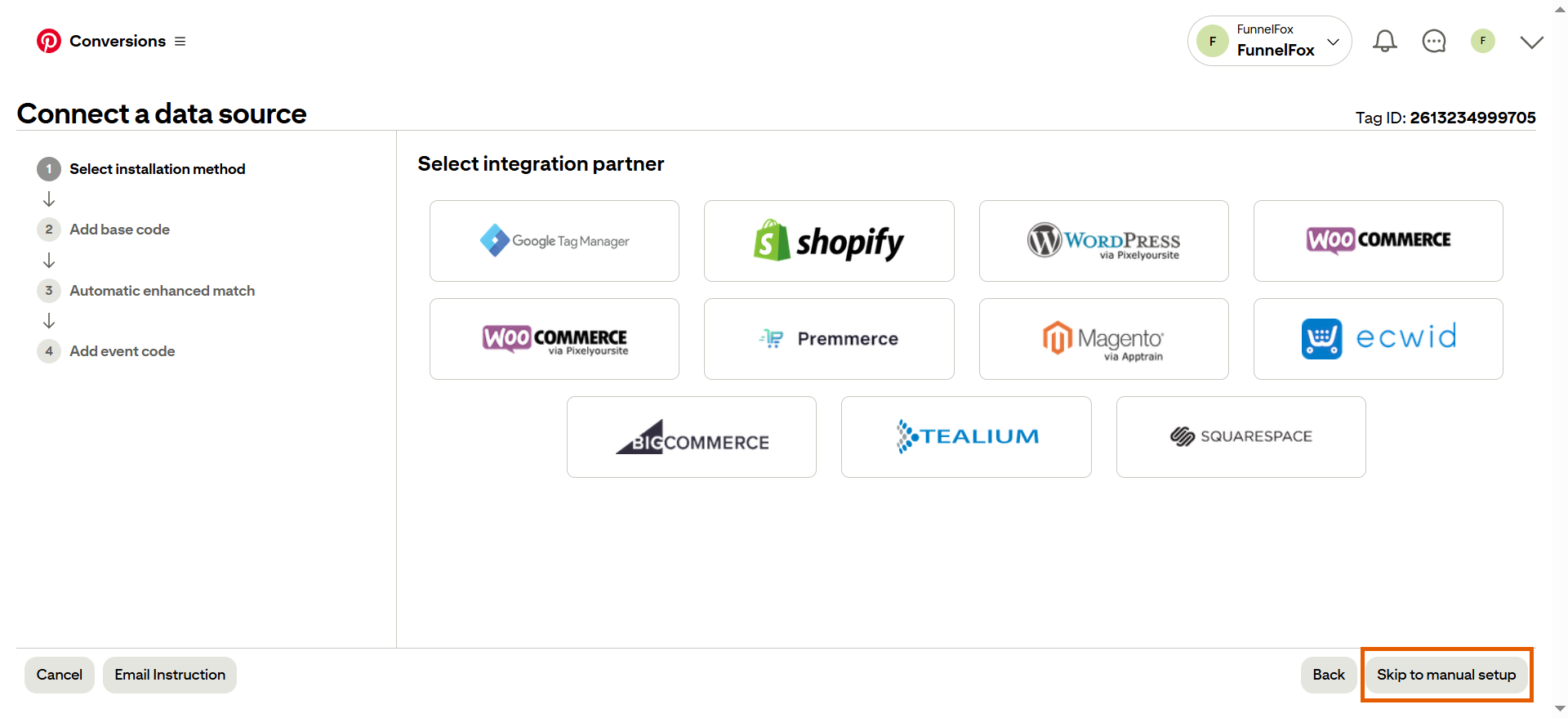
- Click Skip to manual setup.
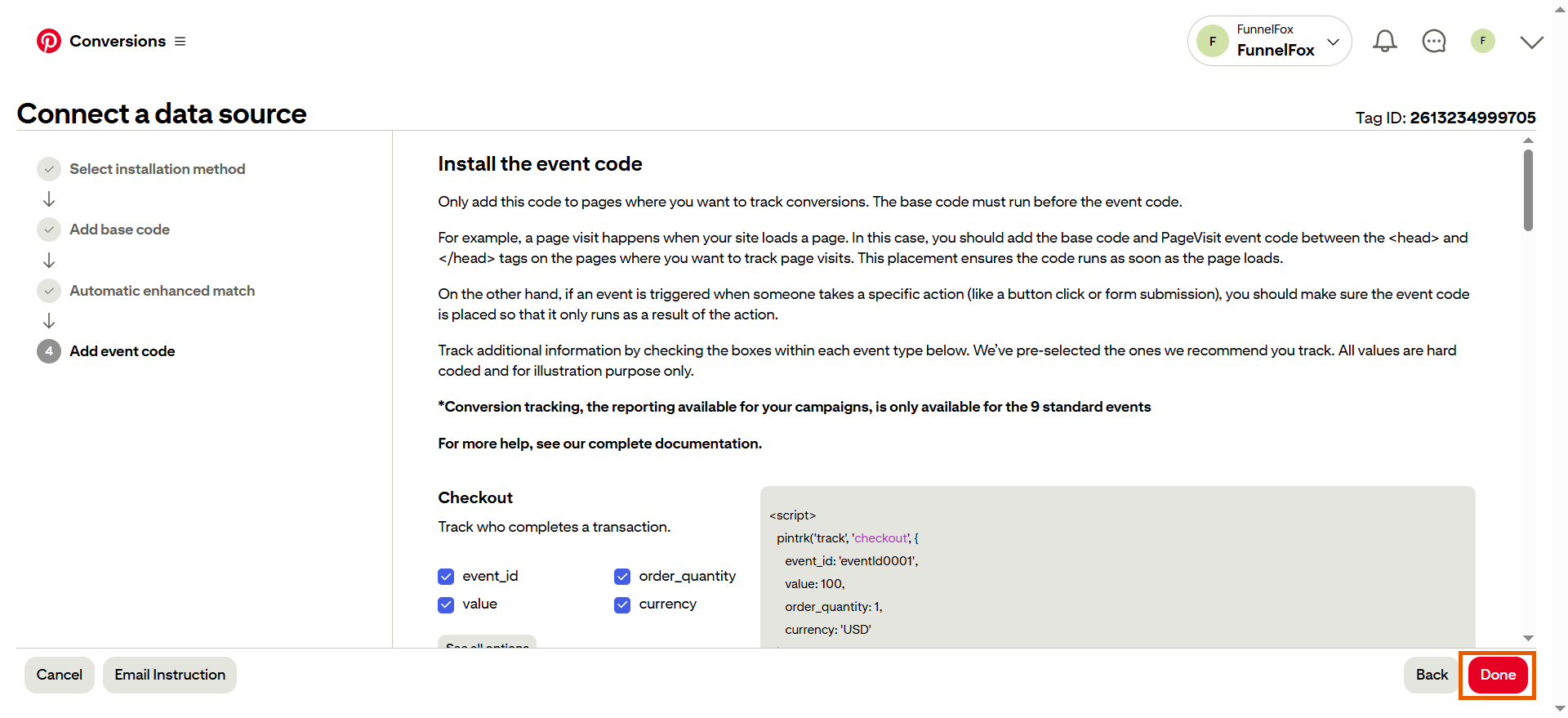
- Keep the default settings and click Continue until you reach the Install the event code page.
- Keep your default settings and click Done.
Pinterest tag tracking is now active! Republish your funnels and
test event tracking.
Test your integration
- Go to Conversions > Test events in your Pinterest Ads account.
- Paste your funnel URL under Website and click Launch website.
- Interact with your funnel. Events will appear under Test Events.
Test events might take a few minutes to appear, especially right
after setup. If events do not show up, wait a moment and interact with
your funnel again.