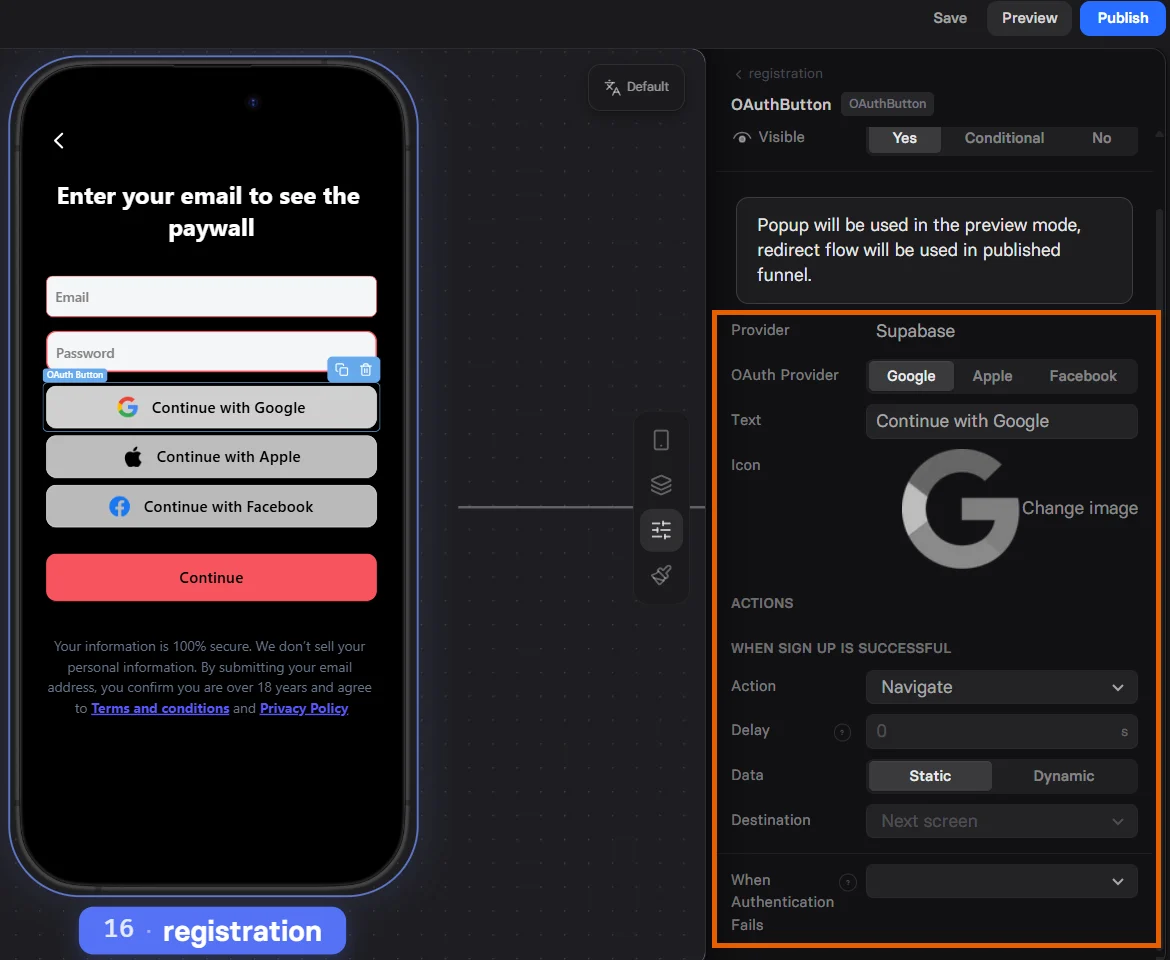
How it works
FunnelFox authenticates users directly within your funnels, giving each user a stable Supabase UID. It will either:- Create a new Supabase user (sign up): If no user exists for the customer’s credentials.
- Authenticate an existing Supabase user (sign in): If the user was created during a previous funnel experience and signs in using an OAuth button.
{{email}} funnel variable. You can use it in upstream screens, for example, in deep links.
Email & Password authentication
Email-based authentication occurs when the customer navigates from the authentication screen with Email/Eassword inputs filled out. The first Email input completed in the funnel automatically pre-fills all subsequent Email inputs in the same funnel. Sign up: When a customer submits their credentials in a funnel, FunnelFox automatically handles Supabase user creation:- FunnelFox creates a Supabase user with email and password-based authentication.
- By default, a secure random password is generated for the user.
- If the same screen includes a Password input element, that value replaces the generated password.
OAuth authentication
Unlike email/password authentication, OAuth works right when the customer uses the OAuth button. OAuth providers enable seamless social authentication within your funnels:- Enable OAuth providers (e.g., Google or Apple) in Supabase and add OAuth buttons in the Editor.
- Users receive a secure and seamless authentication experience:
- If it’s the user’s first time, Supabase creates the account.
- If the account already exists, Supabase signs them in using the same OAuth buttons.
User identification
The Supabase UID serves as the canonical identifier for each authenticated user within FunnelFox. It is stored on the user’s profile and available to your app after authentication.Setup
Complete the Supabase integration by creating a Supabase project and connecting it to FunnelFox.1. Create Supabase project
Start by setting up a new project in the Supabase dashboard.- Click + New project.
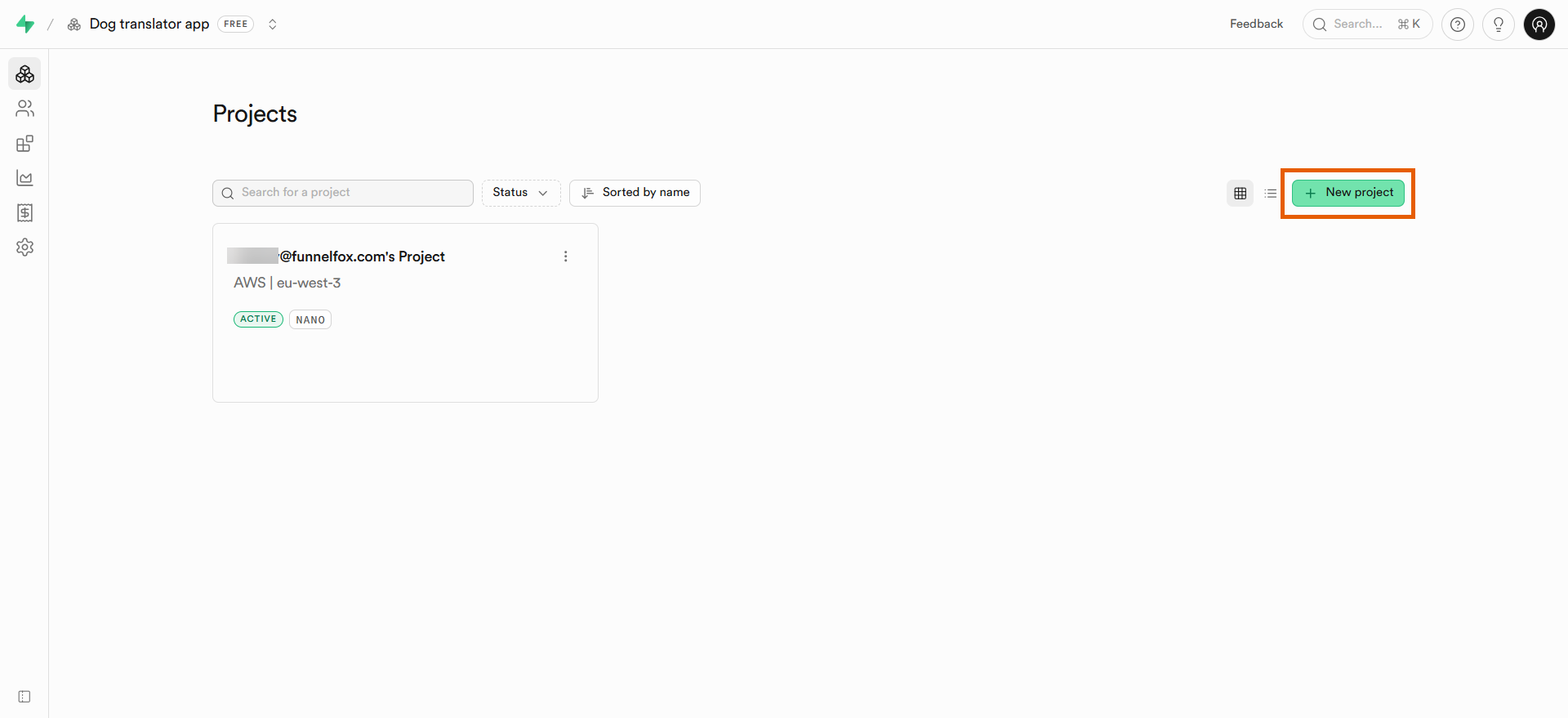
- Name your project and set a database password.
- Click Create new project.
2. Configure auth providers
Email/Password is enabled by default and requires no additional setup. Select an OAuth provider to configure.- Google OAuth
- Apple OAuth
Google OAuth provides seamless authentication using Google accounts. You’ll configure your Google Cloud console to authorize your FunnelFox domain, then enable the provider in Supabase.You need an existing project in the Google Cloud console. If you don’t have one, create it before continuing.Google Cloud console configuration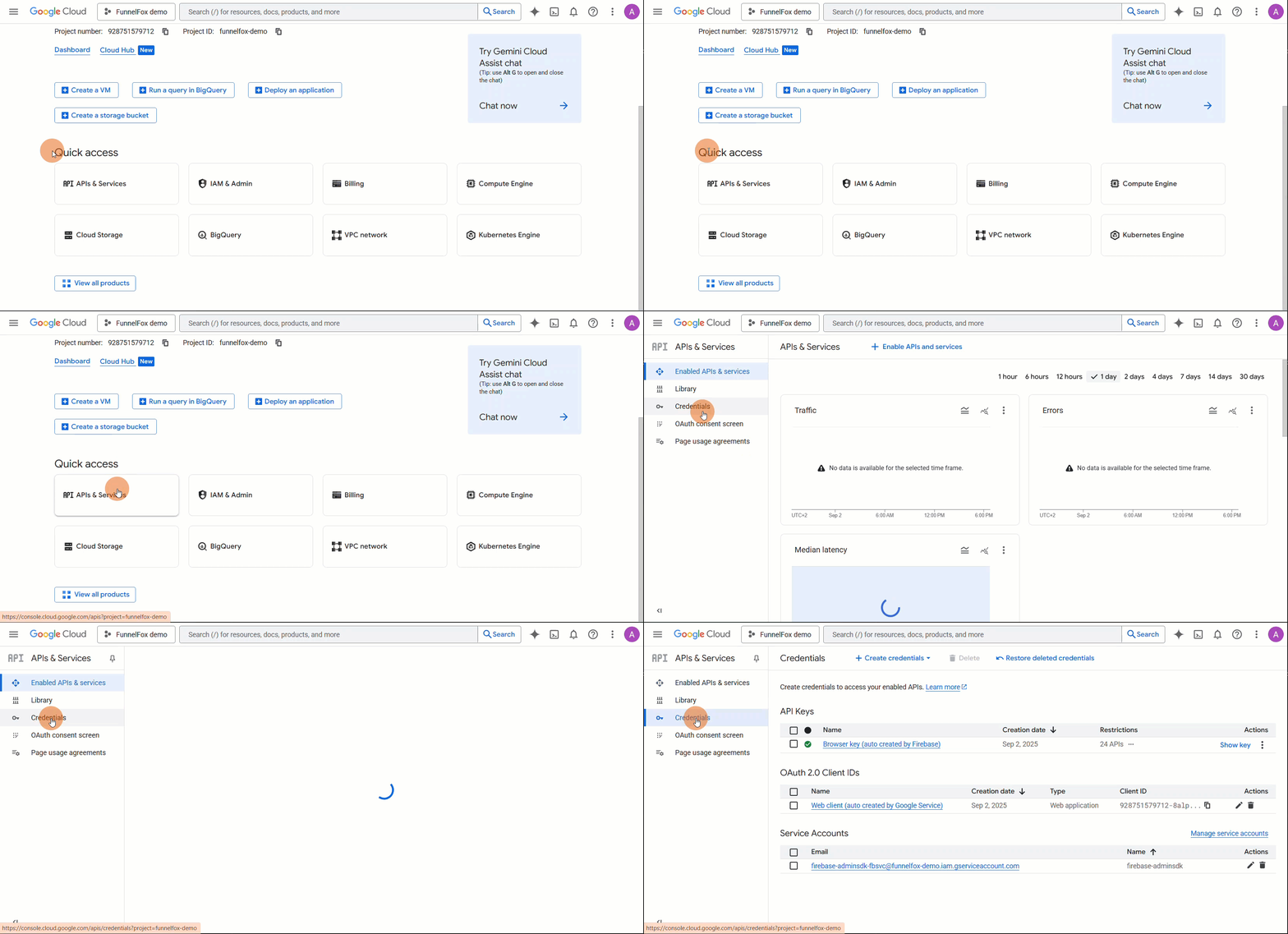
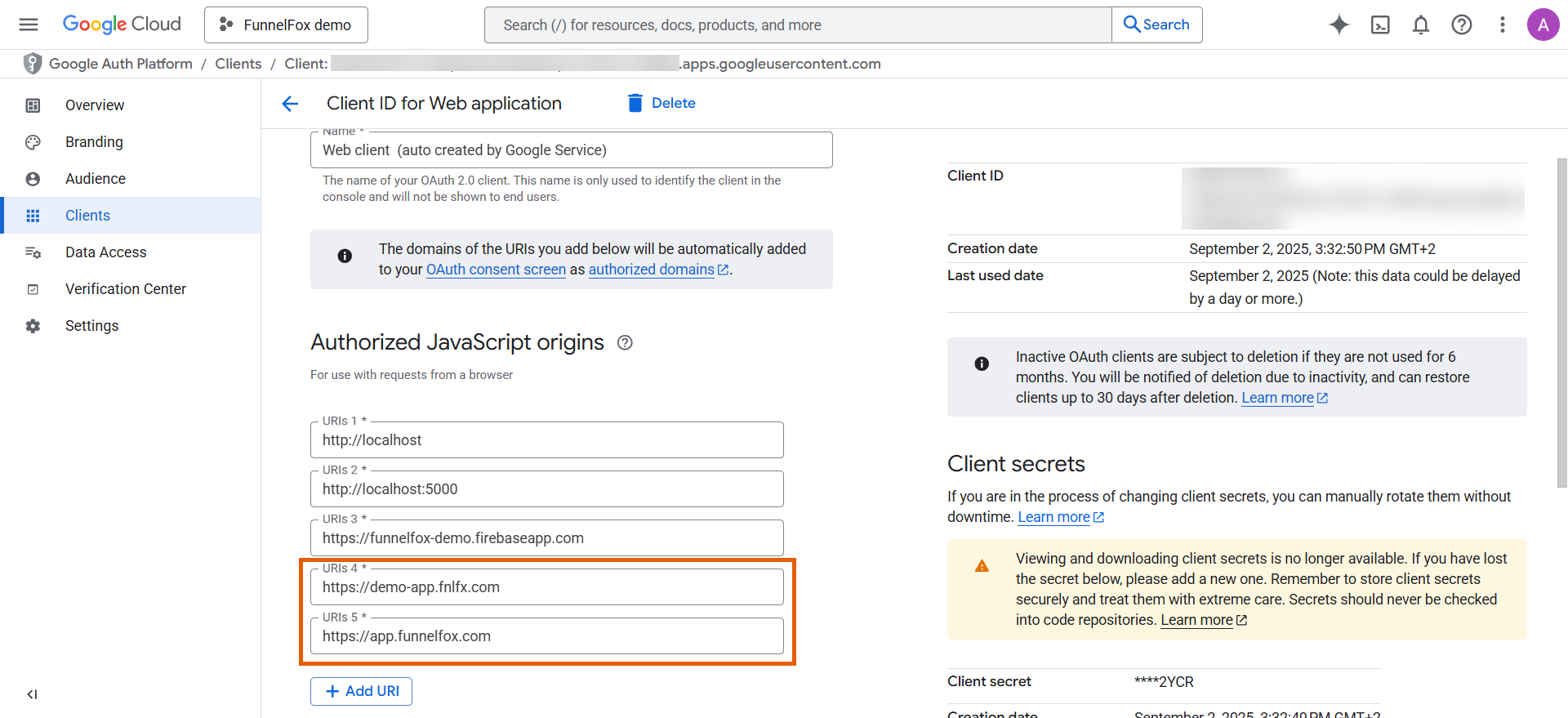
You will need your full project URL for this step. Go to Settings > Domains in your FunnelFox project and copy your project URL, e.g.
https://demo-app.fnlfx.com.- Go to APIs & Services > Credentials from the Quick access section.
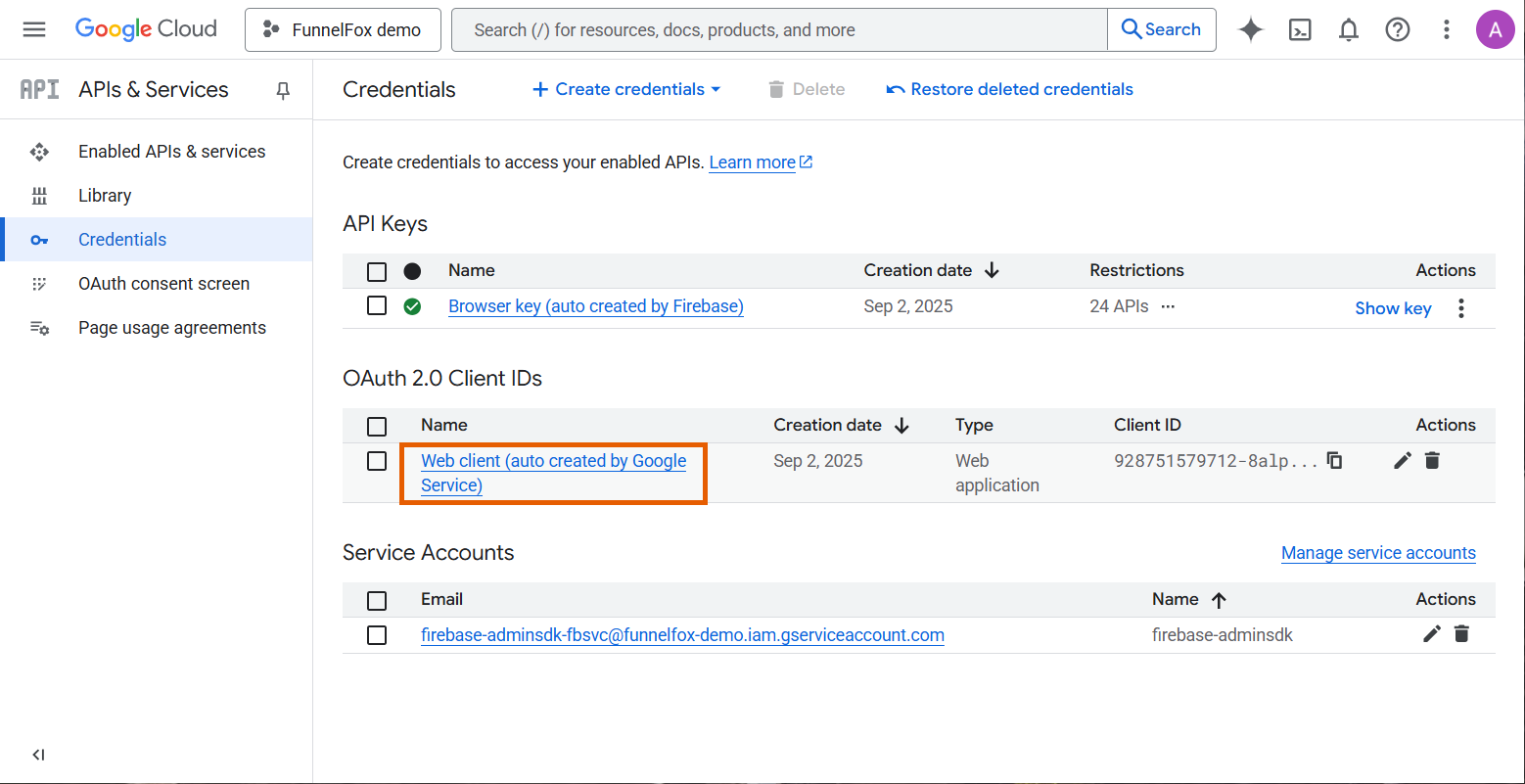
- Open the web client auto-created by Google Service under OAuth 2.0 Client IDs.
- Click Add URL twice under Authorized JavaScript origins, and set up the following two fields:
- Paste your full project URL.
- Paste
https://app.funnelfox.com.
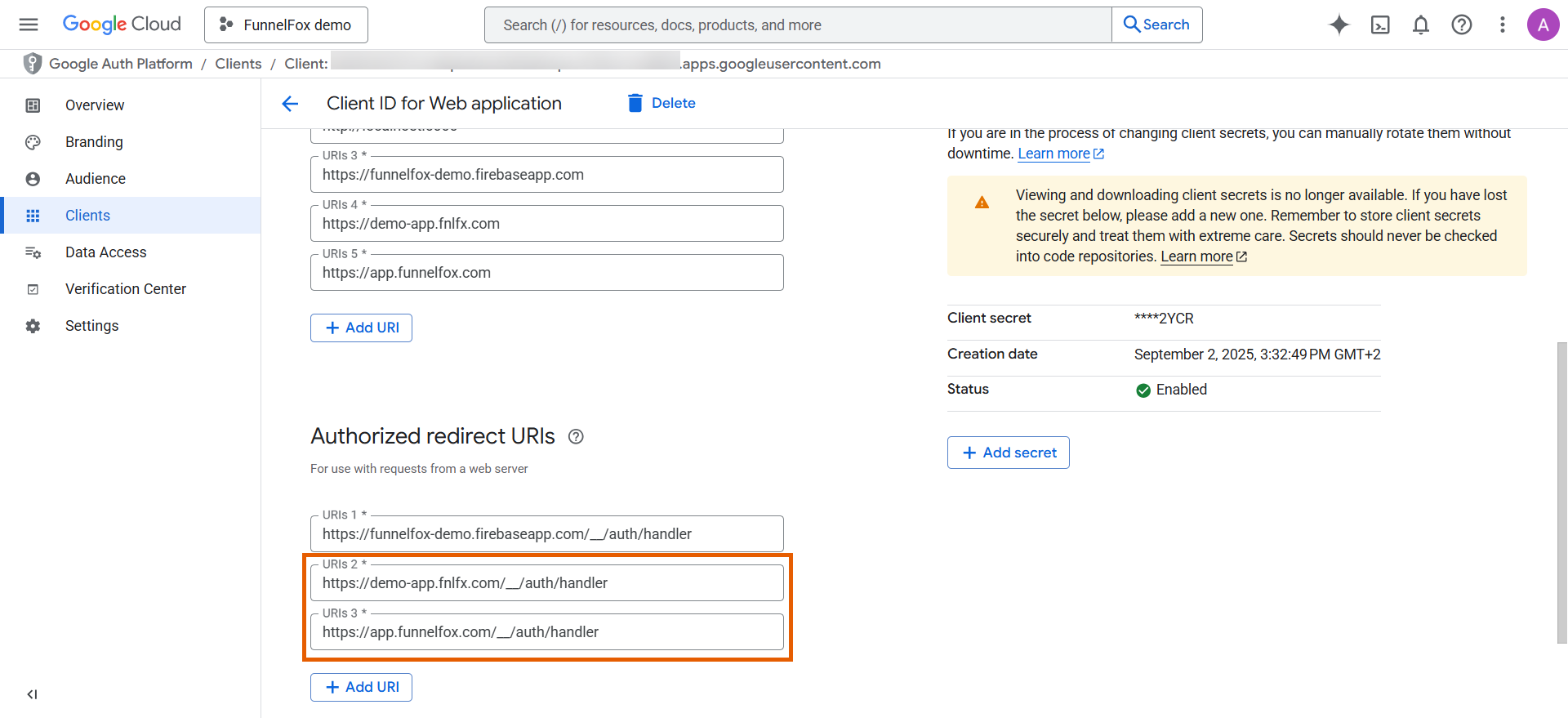
- Click Add URL twice under Authorized redirect URIs, and set up the following two fields:
- Paste your full project URL +
/__/auth/handler. Your final URL will look likehttps://demo-app.fnlfx.com/__/auth/handler. - Paste
https://app.funnelfox.com/__/auth/handler.
- Paste your full project URL +
- Copy your Client ID under Additional information at the top right.
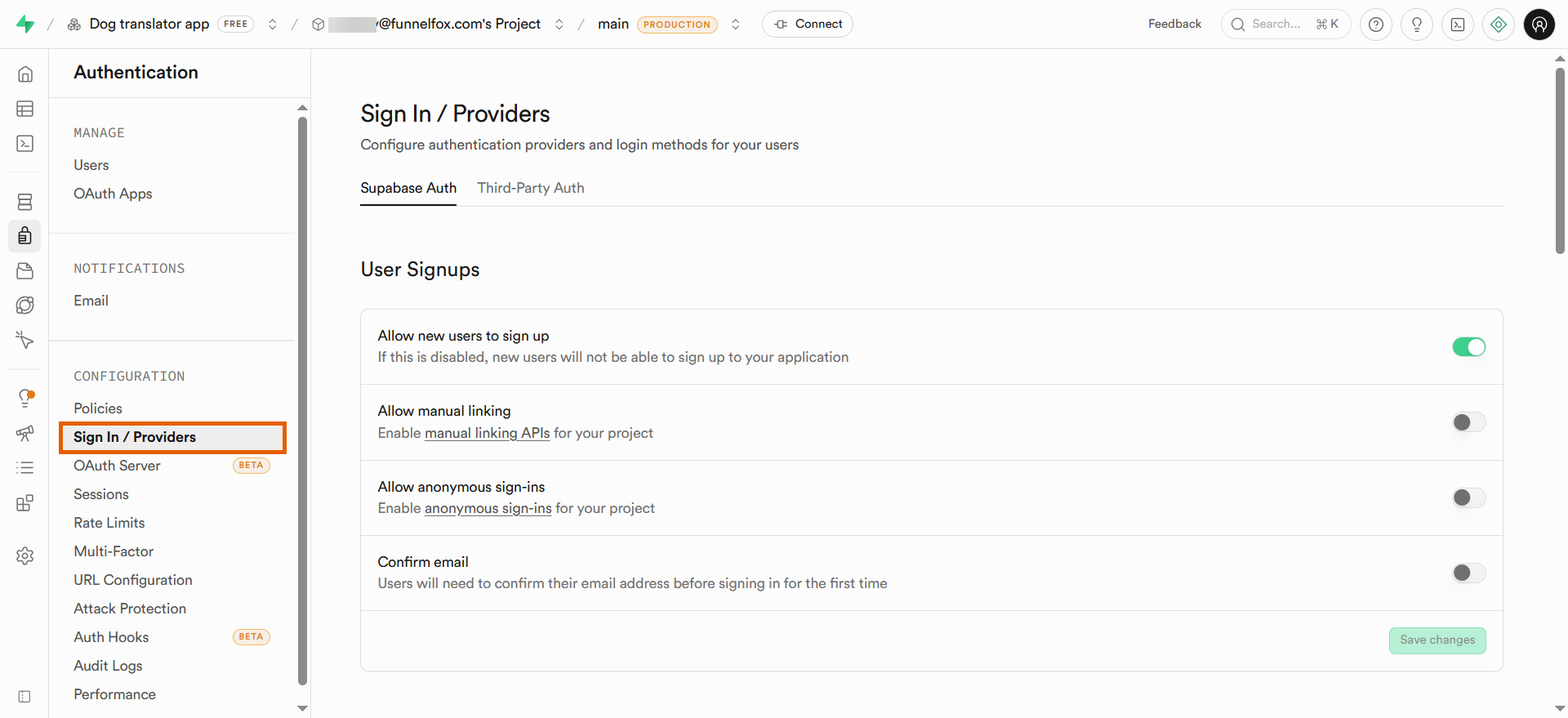
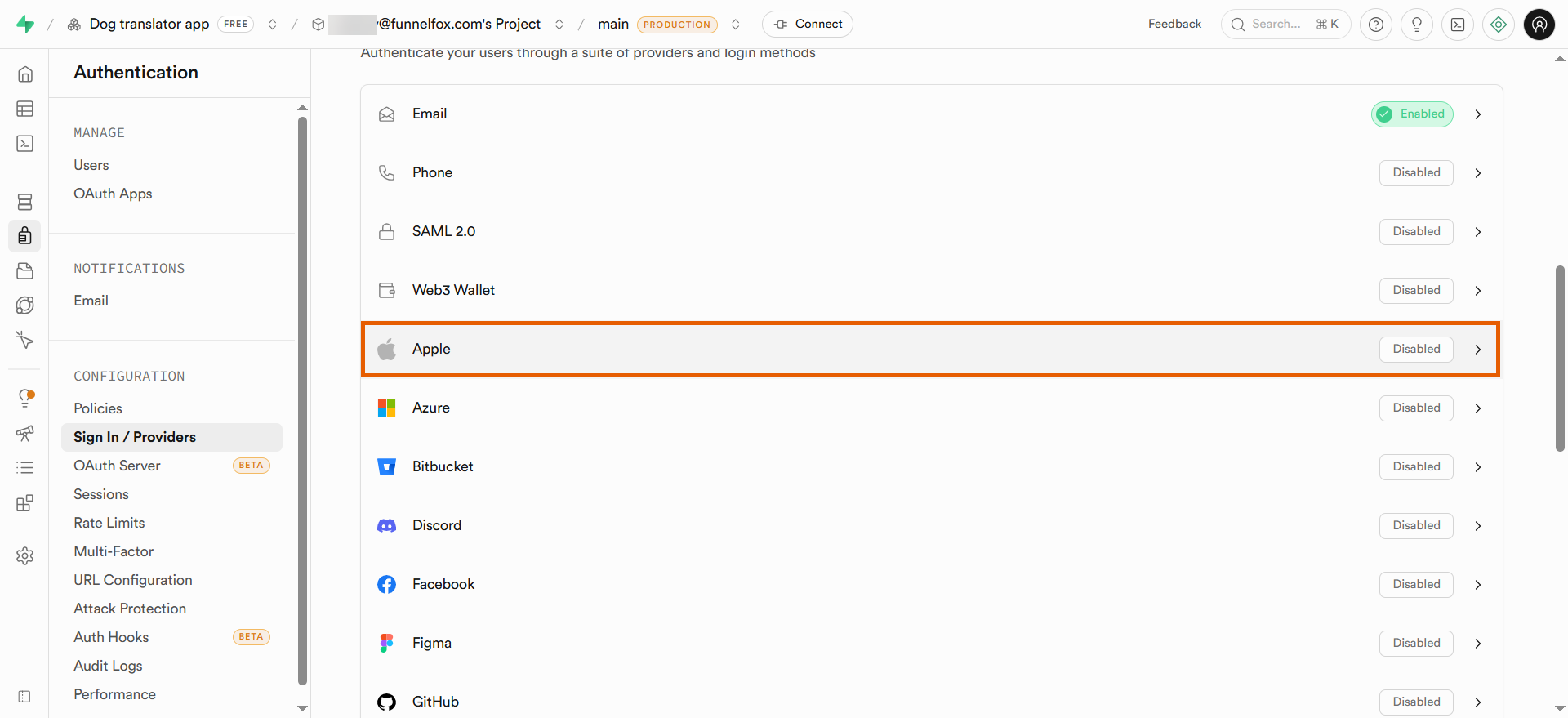
- Go to Authentication > Sign In / Providers in your Supabase project.
-
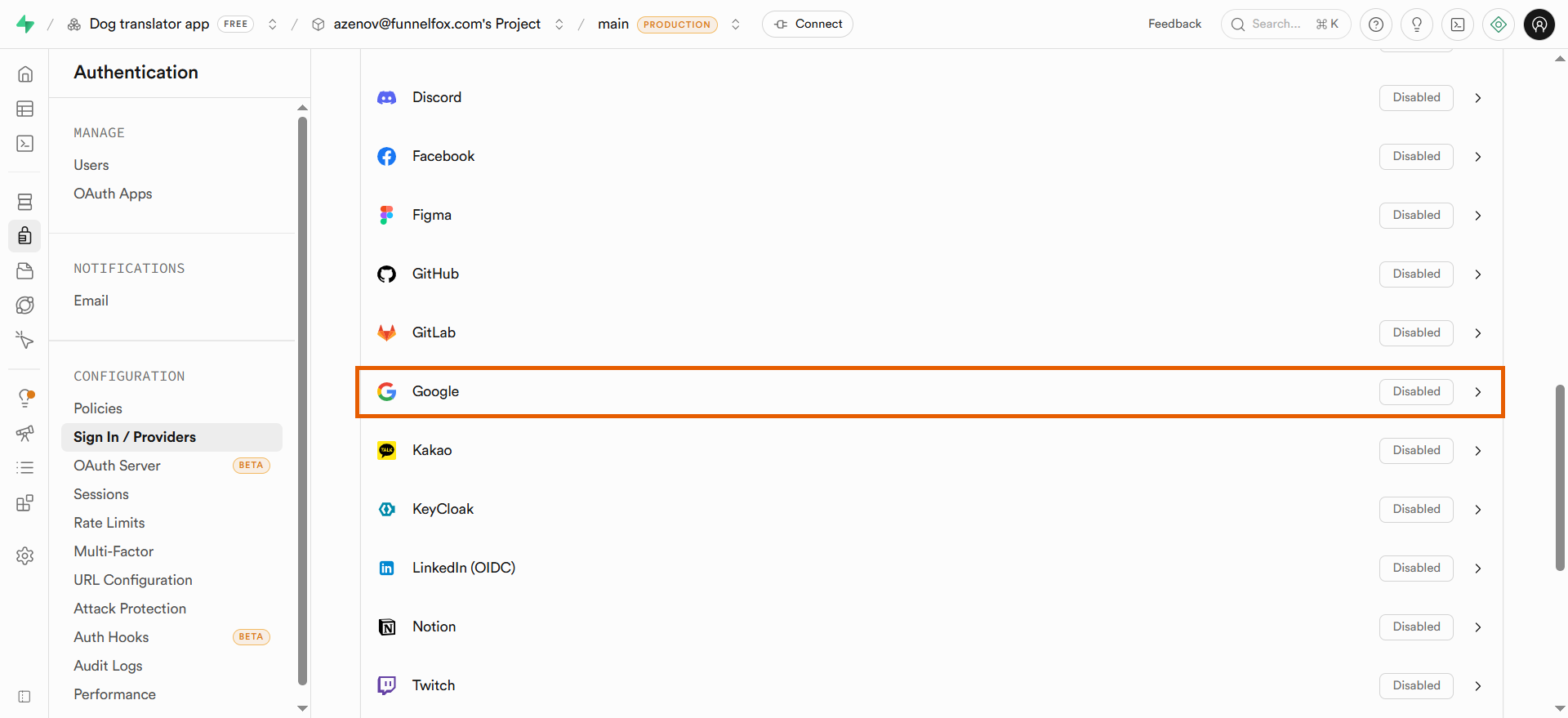
Select Google under Auth Providers.
-
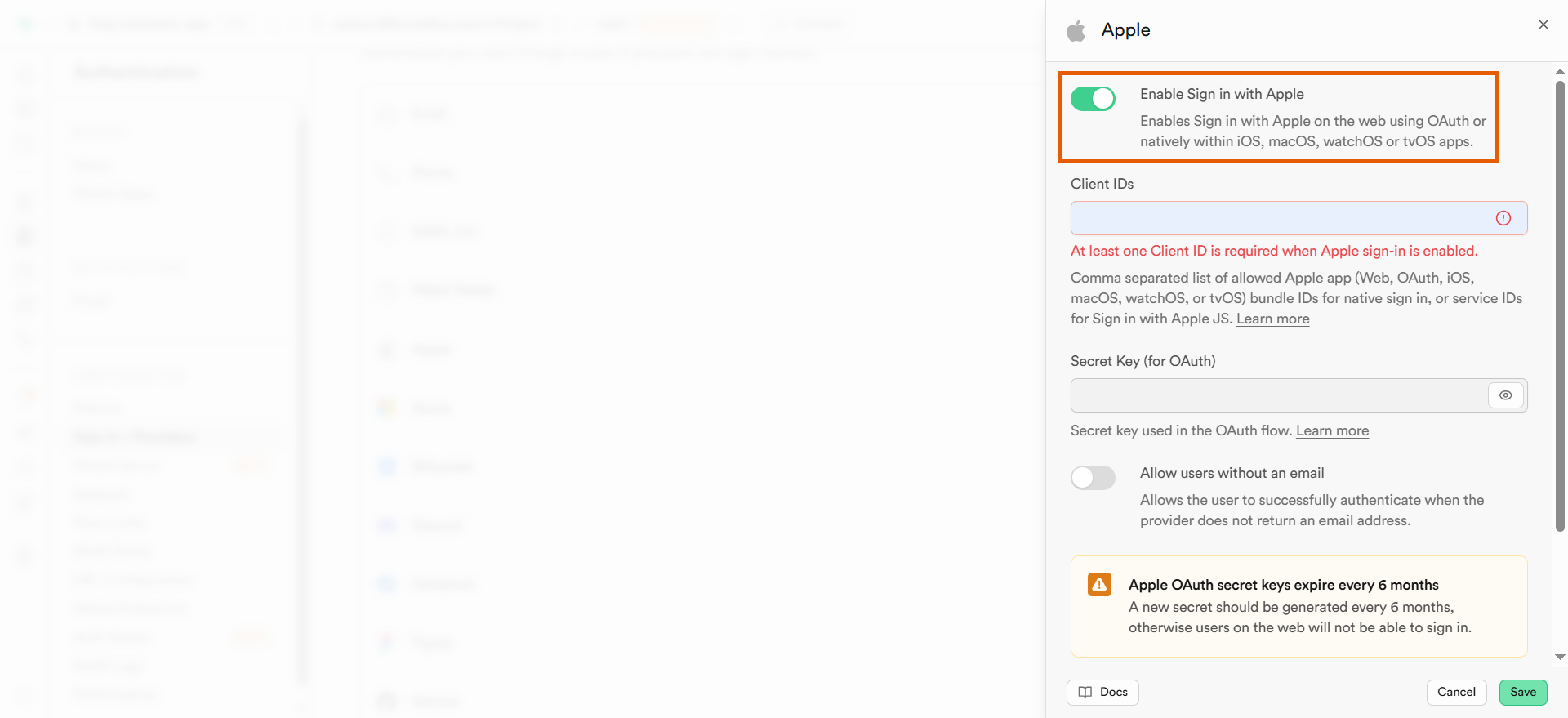
Toggle on Enable Sign in with Google.
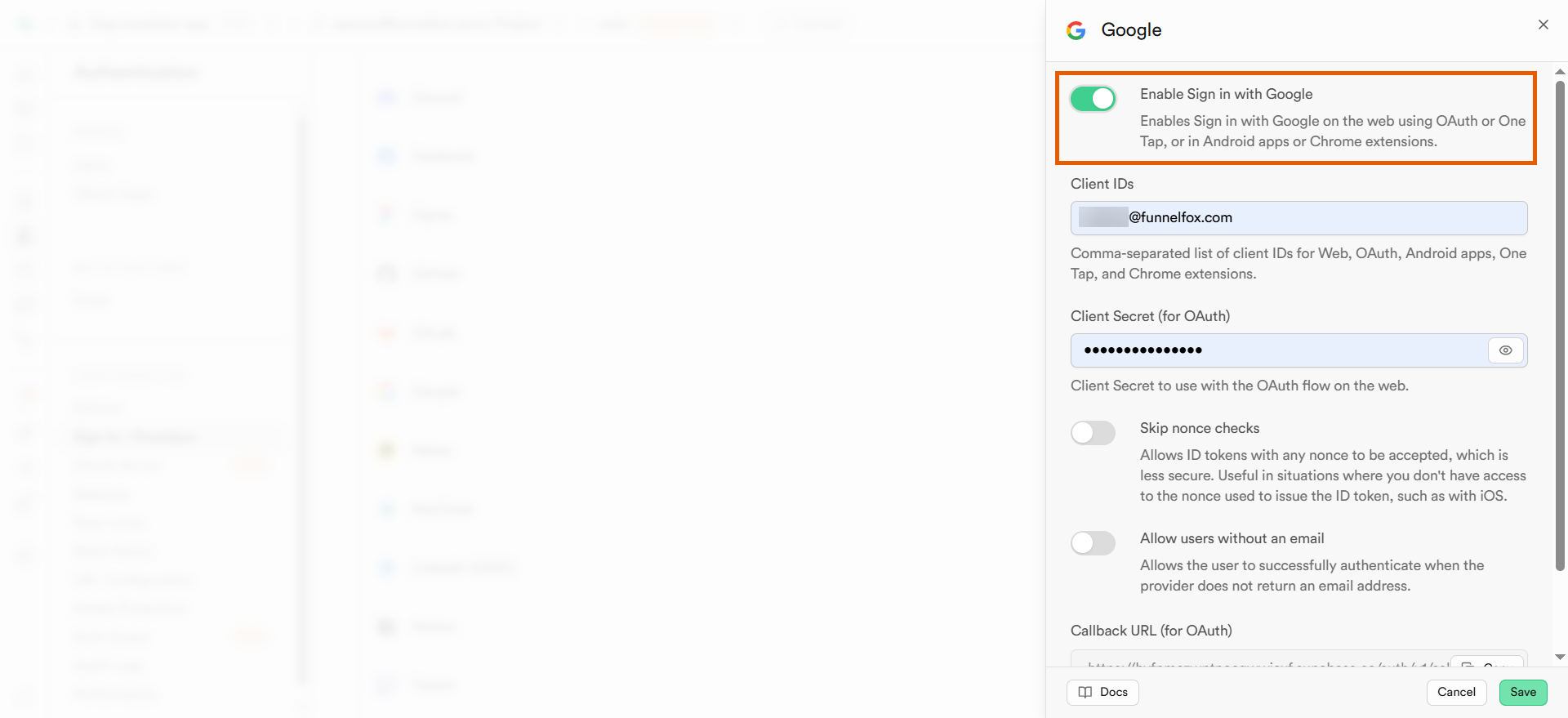
-
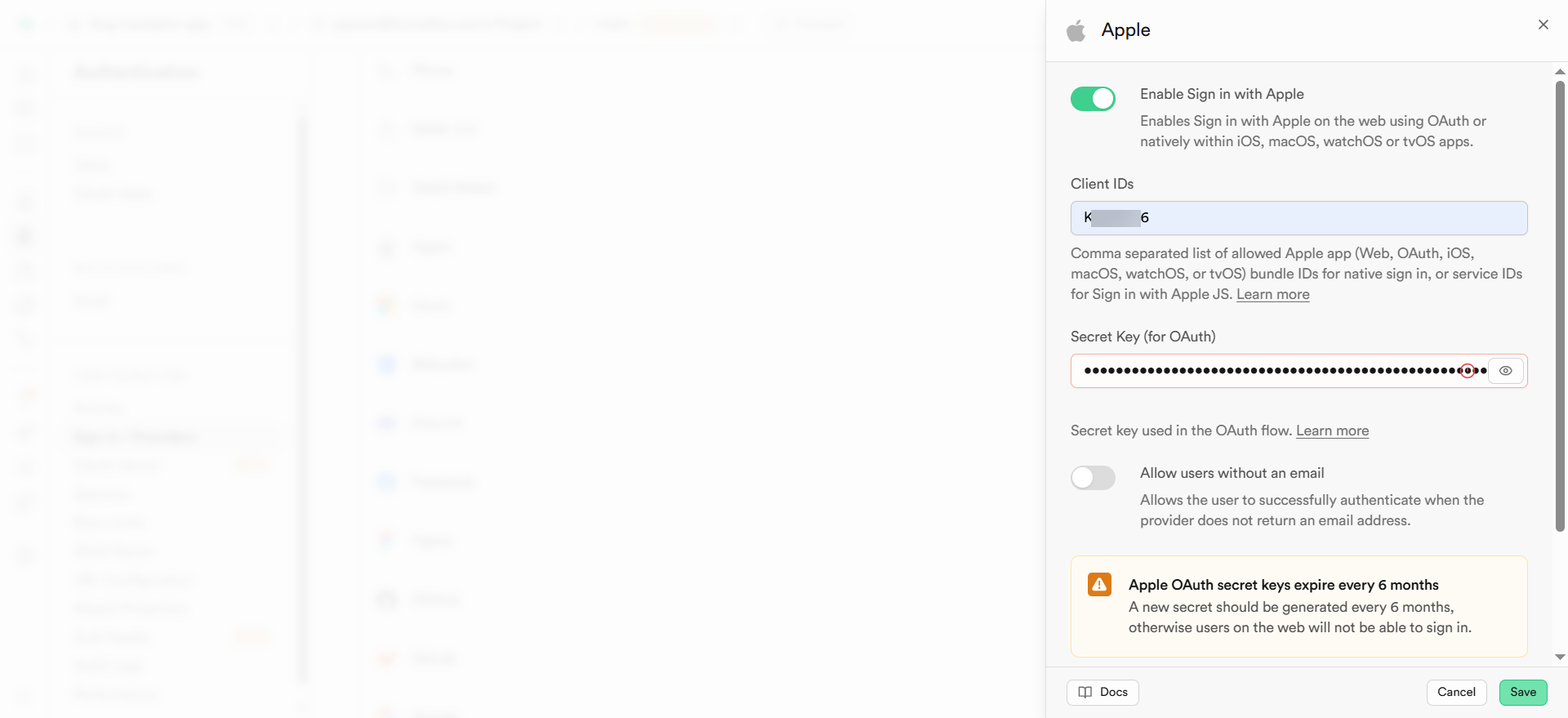
Paste your Client ID into the Client IDs field.
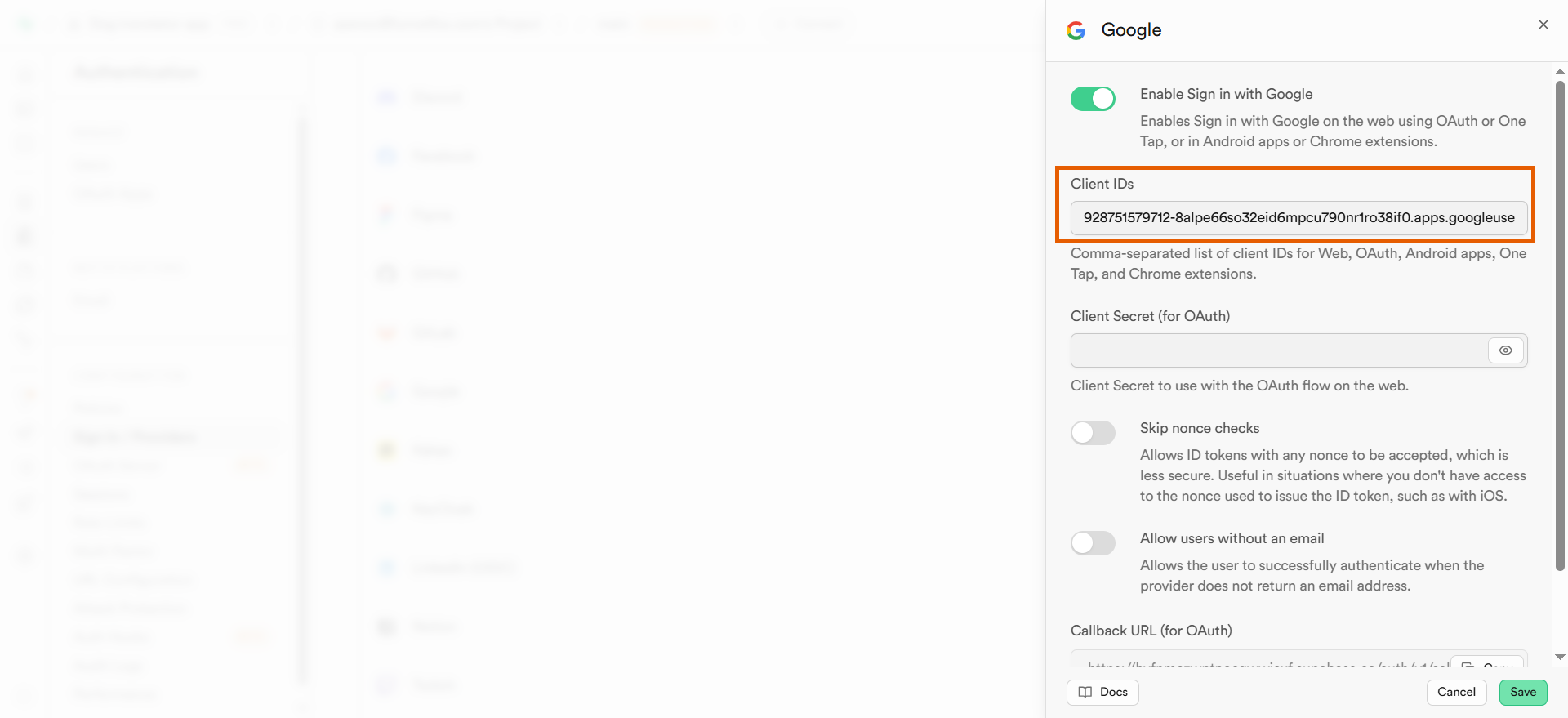
-
Go back to your Google Cloud console and click + Add secret under Client secrets.
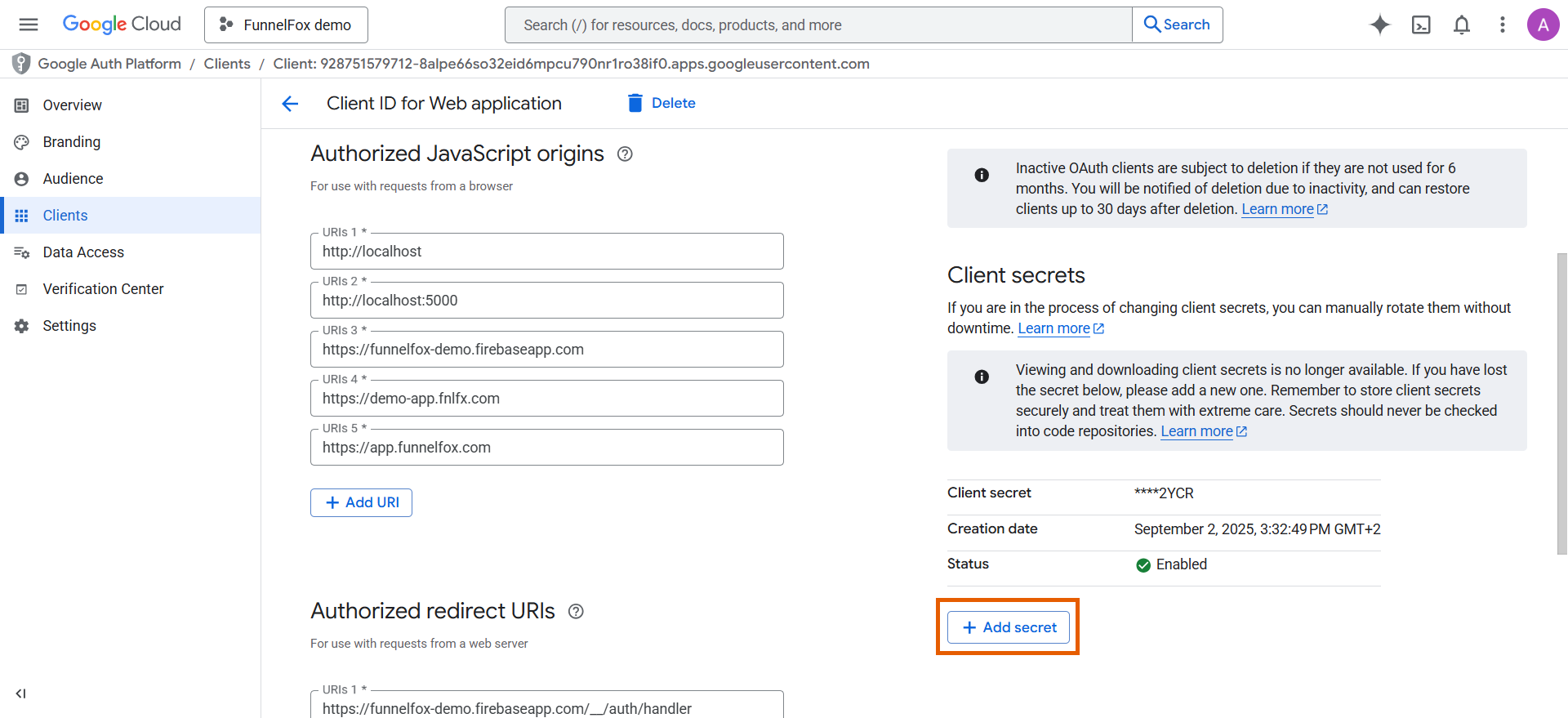
-
Copy your new client secret.
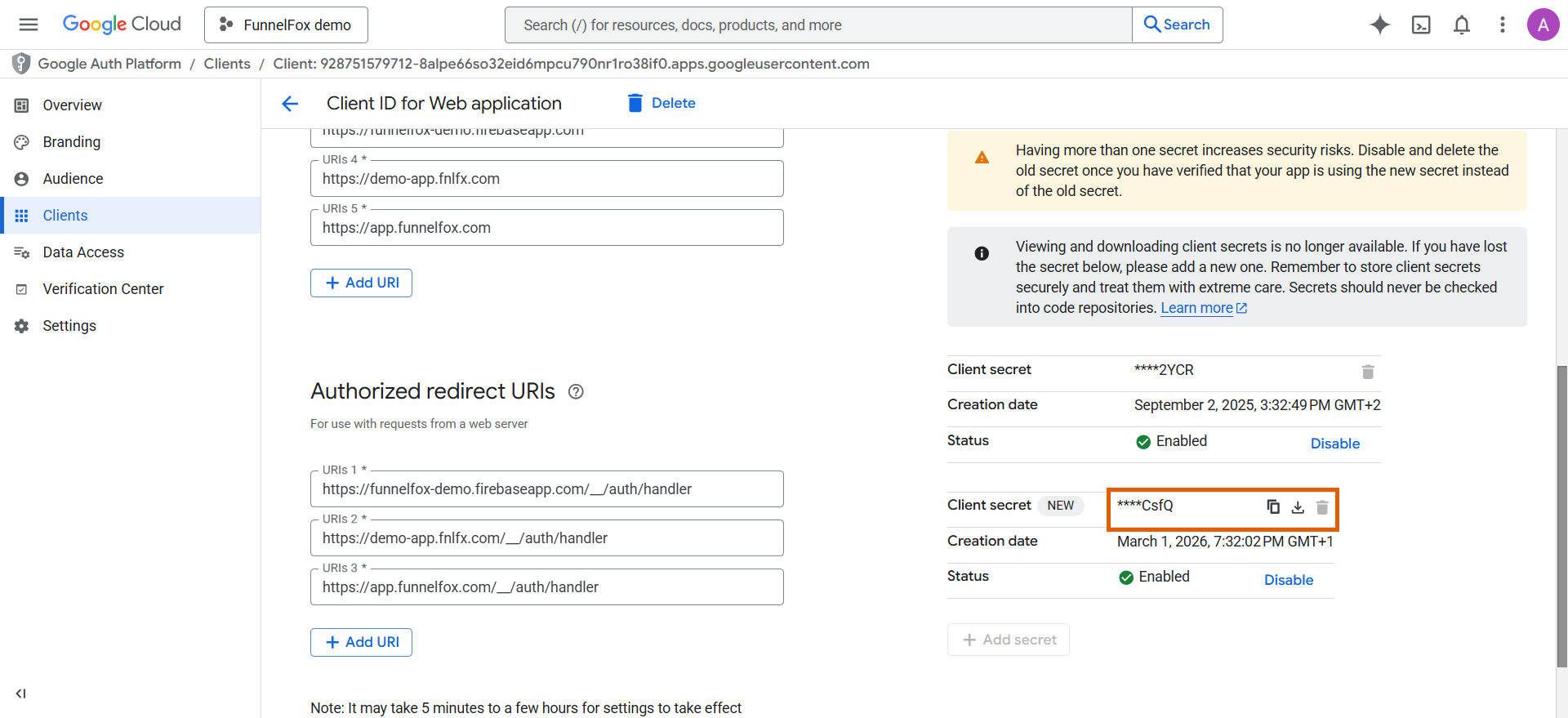
-
Go back to Supabase and paste the secret into Client Secret (for OAuth).
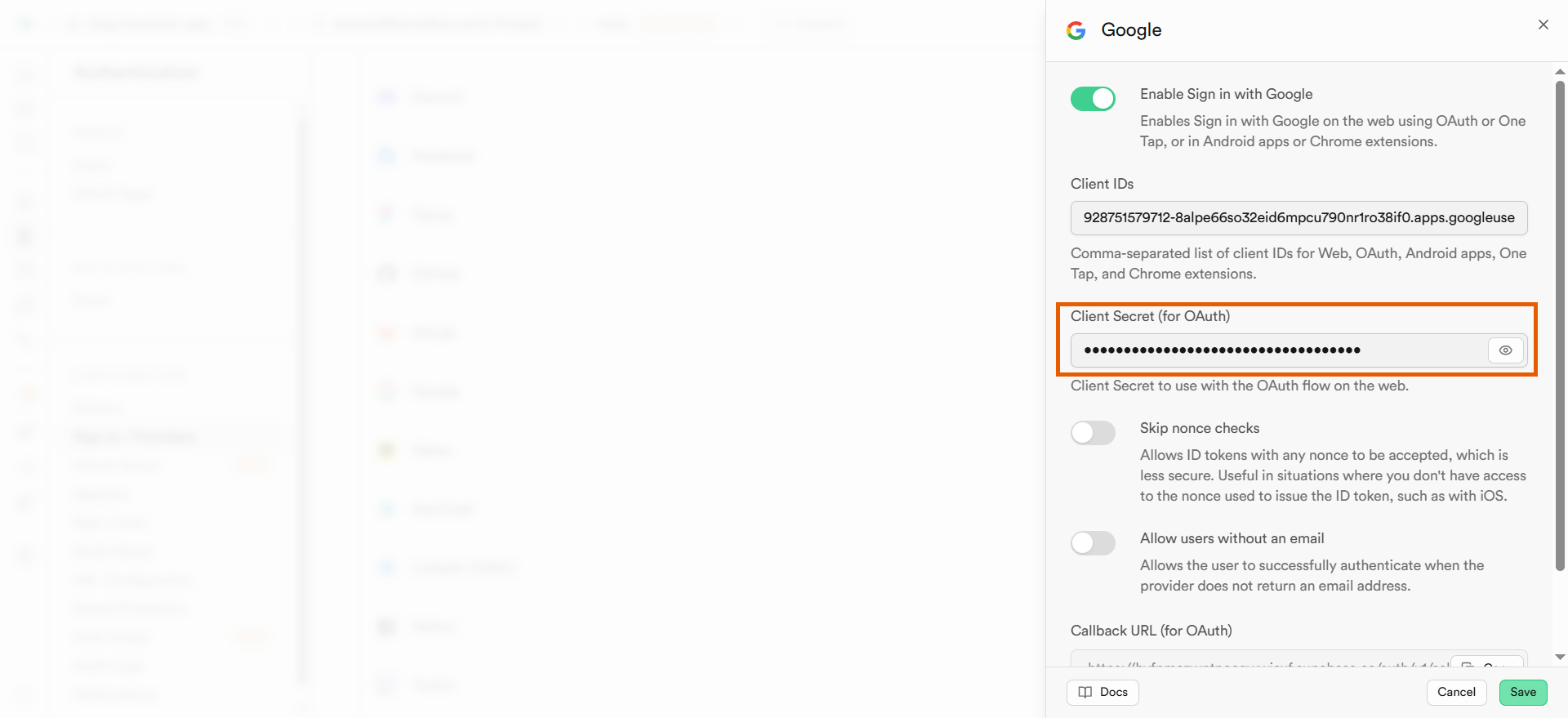
- Click Save.
-
Copy the Callback URL (for OAuth).
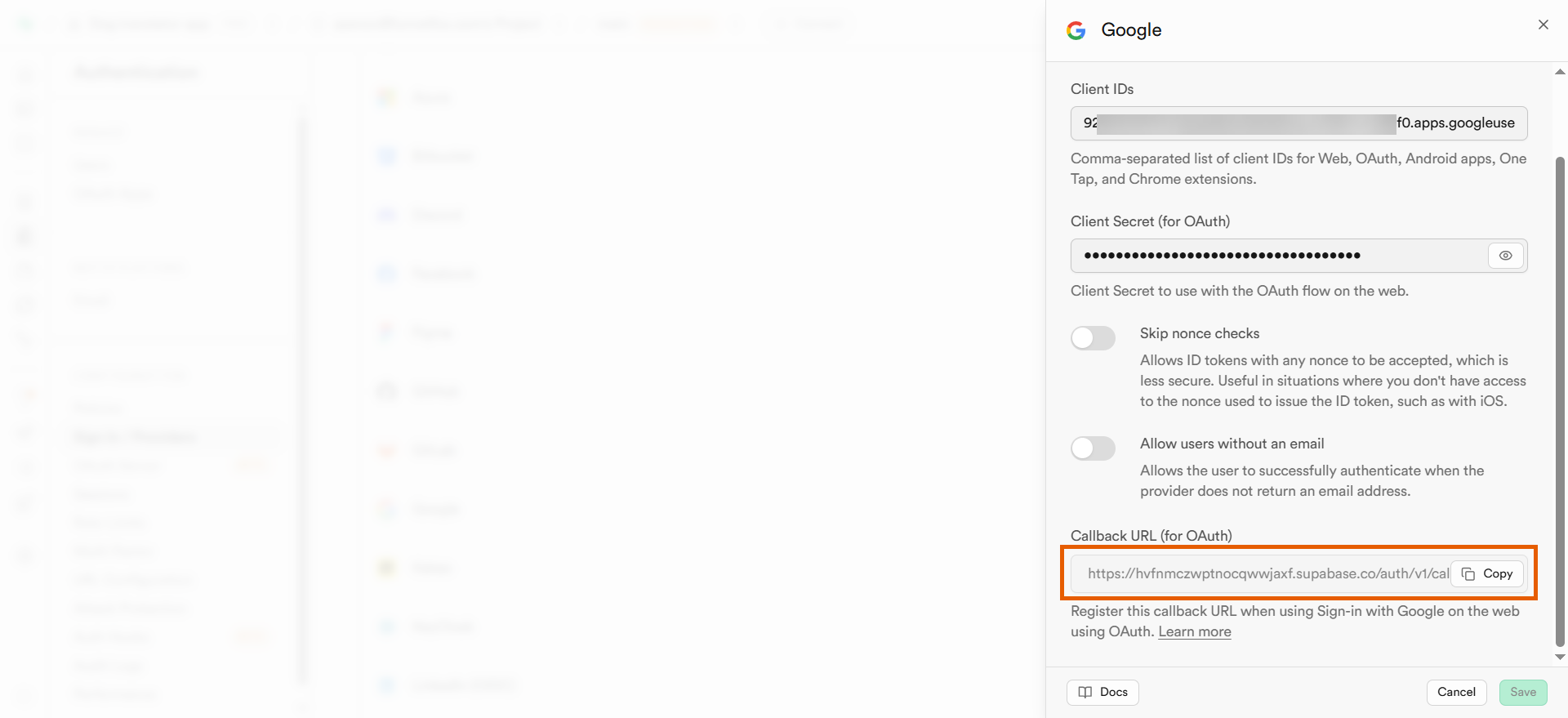
-
Go back to the Authorized redirect URIs in Google Cloud console and add one more URI with the callback URL from Supabase.
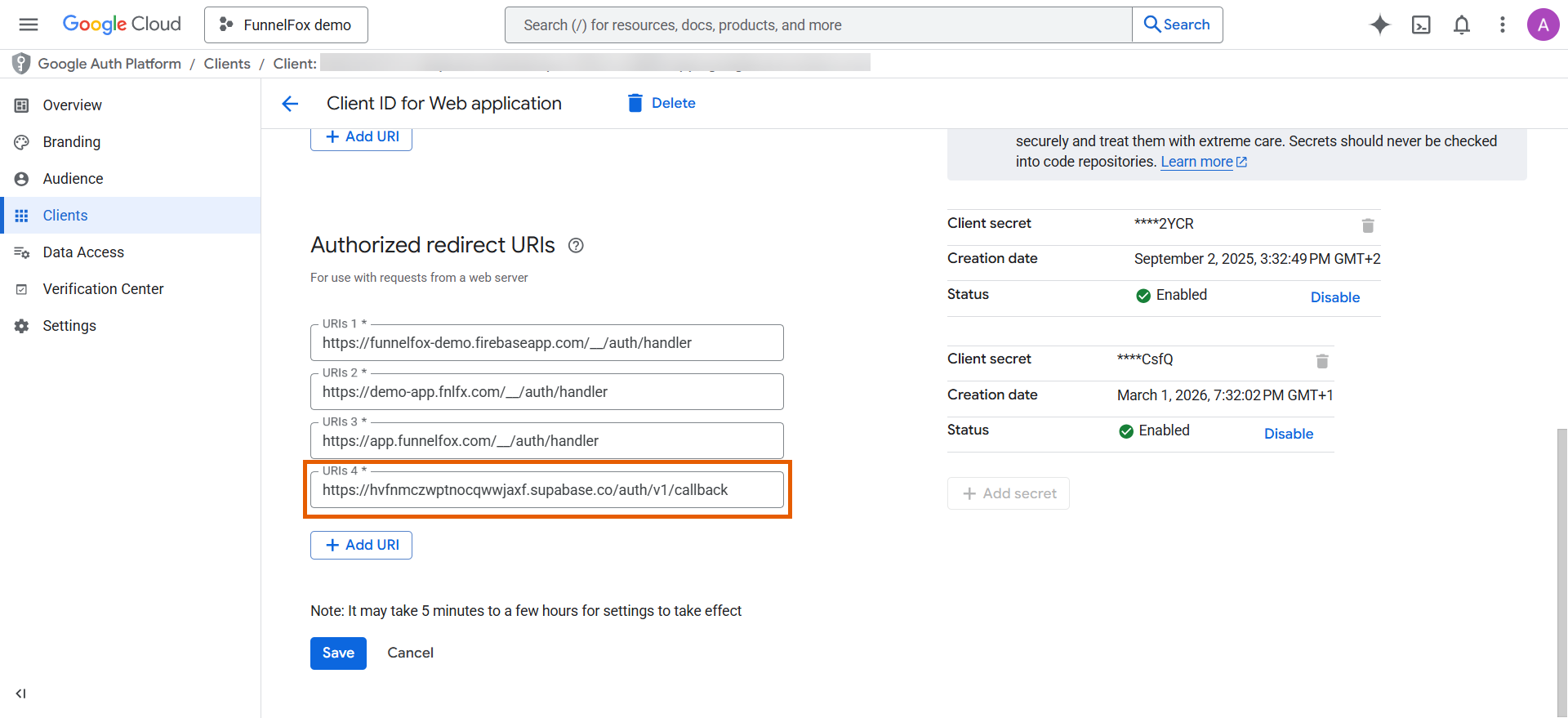
- Click Save.
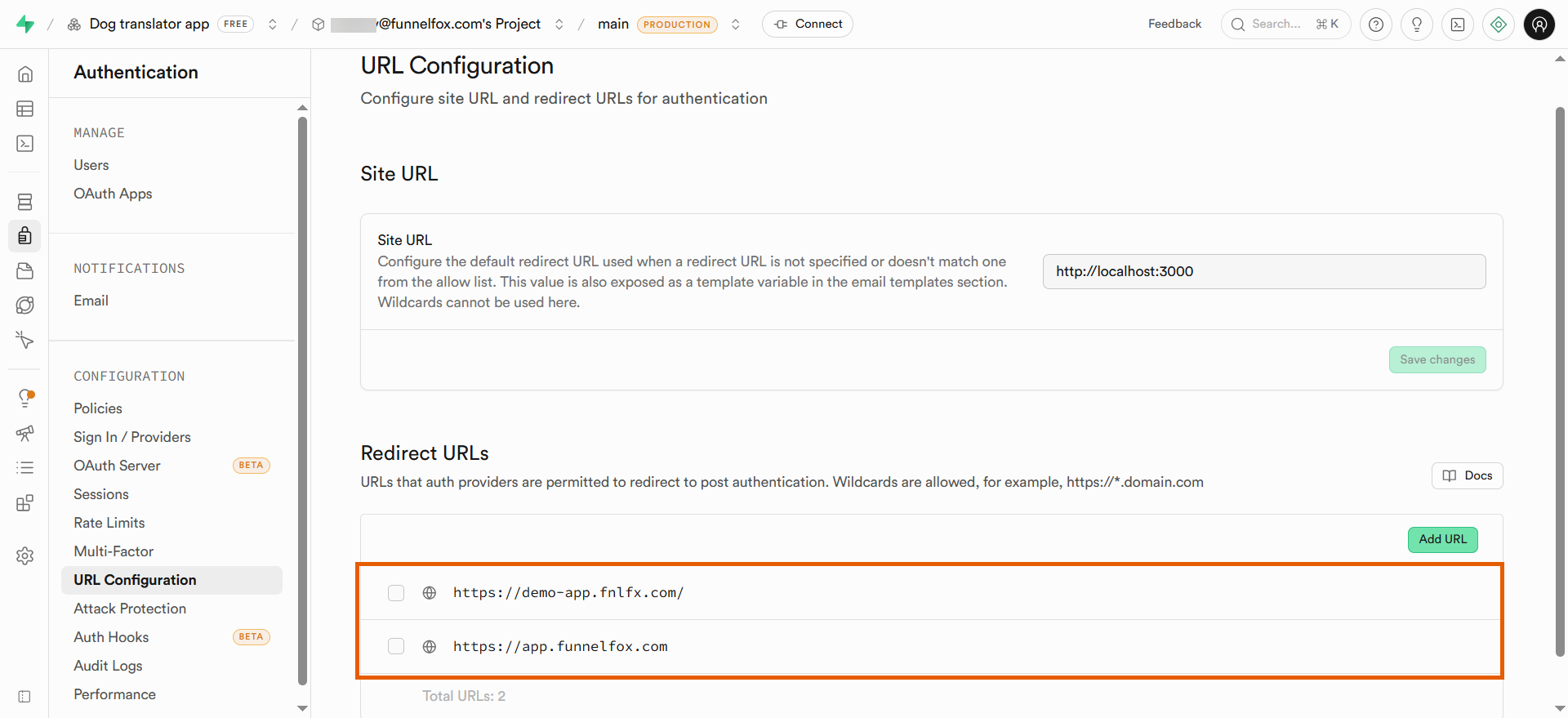
- Go to Authentication > URL Configuration in Supabase and make sure the following domains are added under Redirect URLs:
- Your full project URL.
-
https://app.funnelfox.com -
Your custom domains (if any).
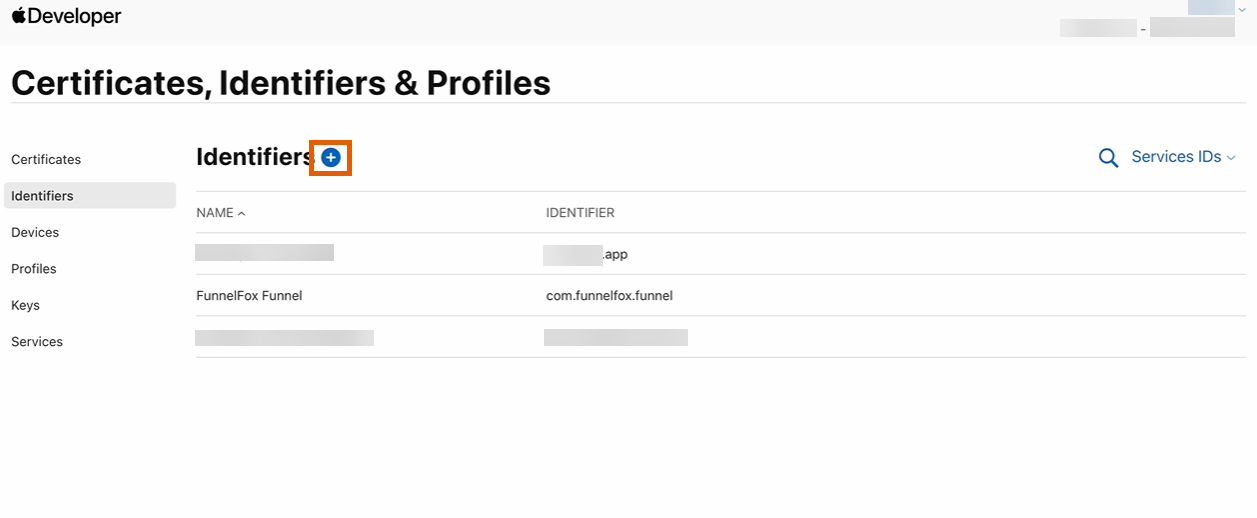
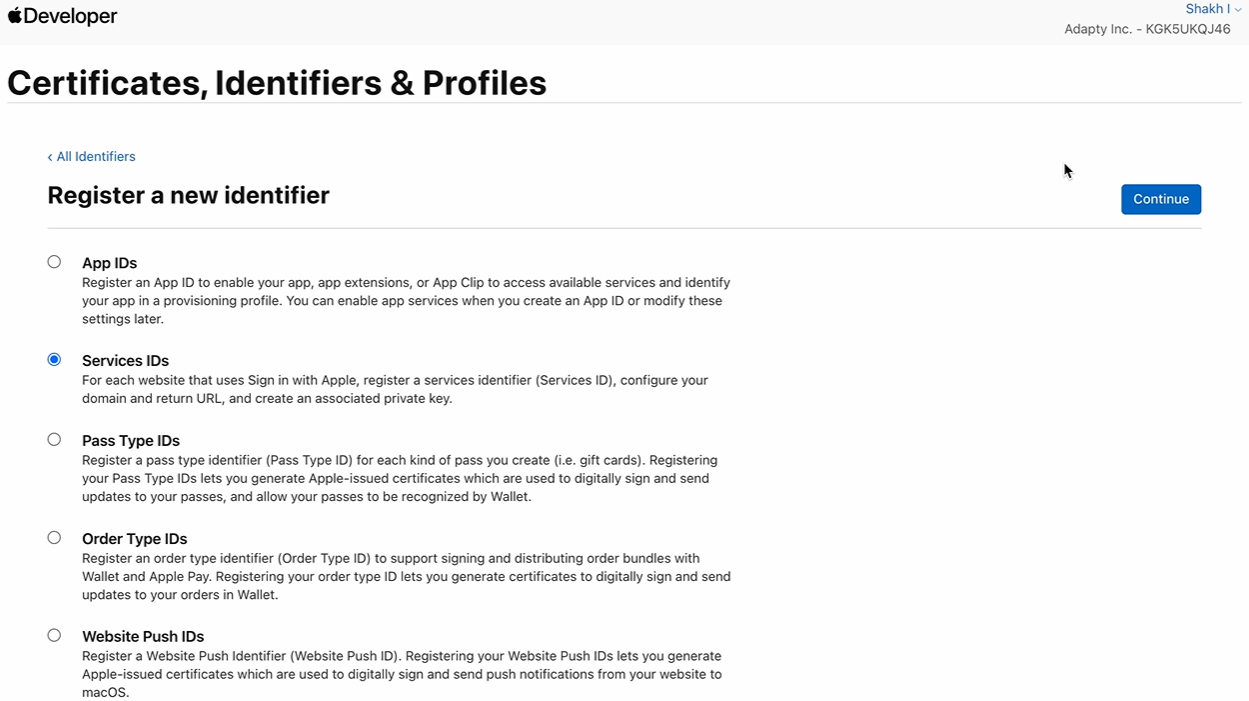
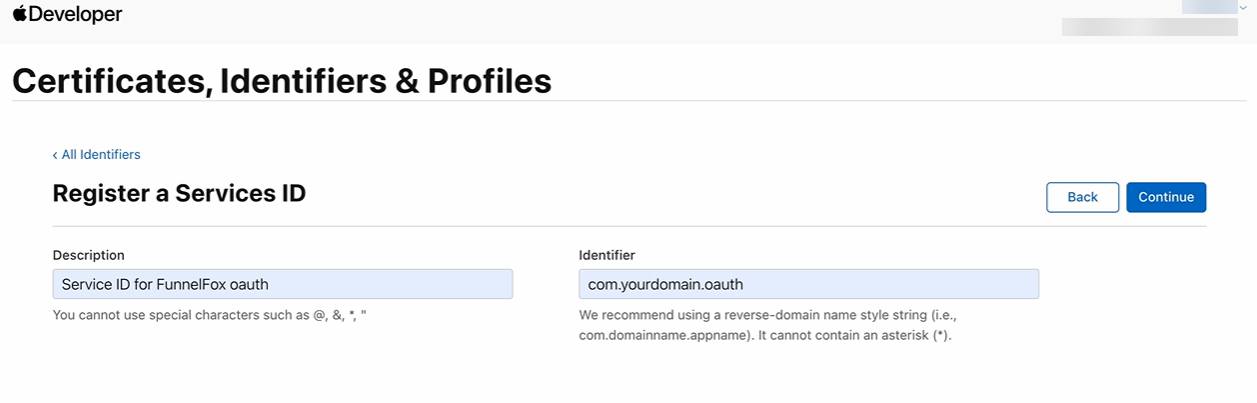
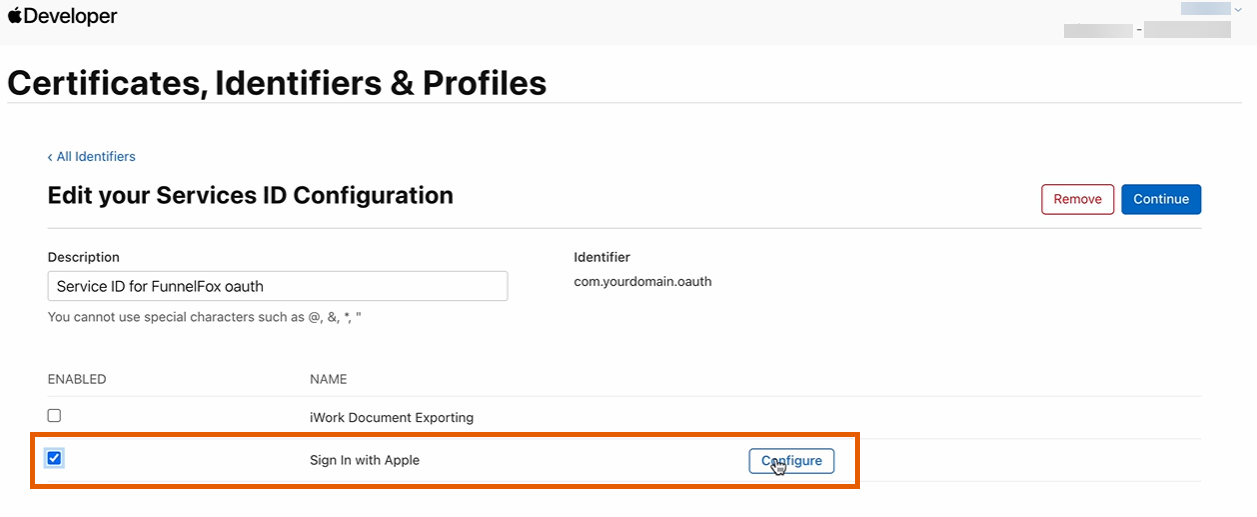
3. Connect Supabase to FunnelFox
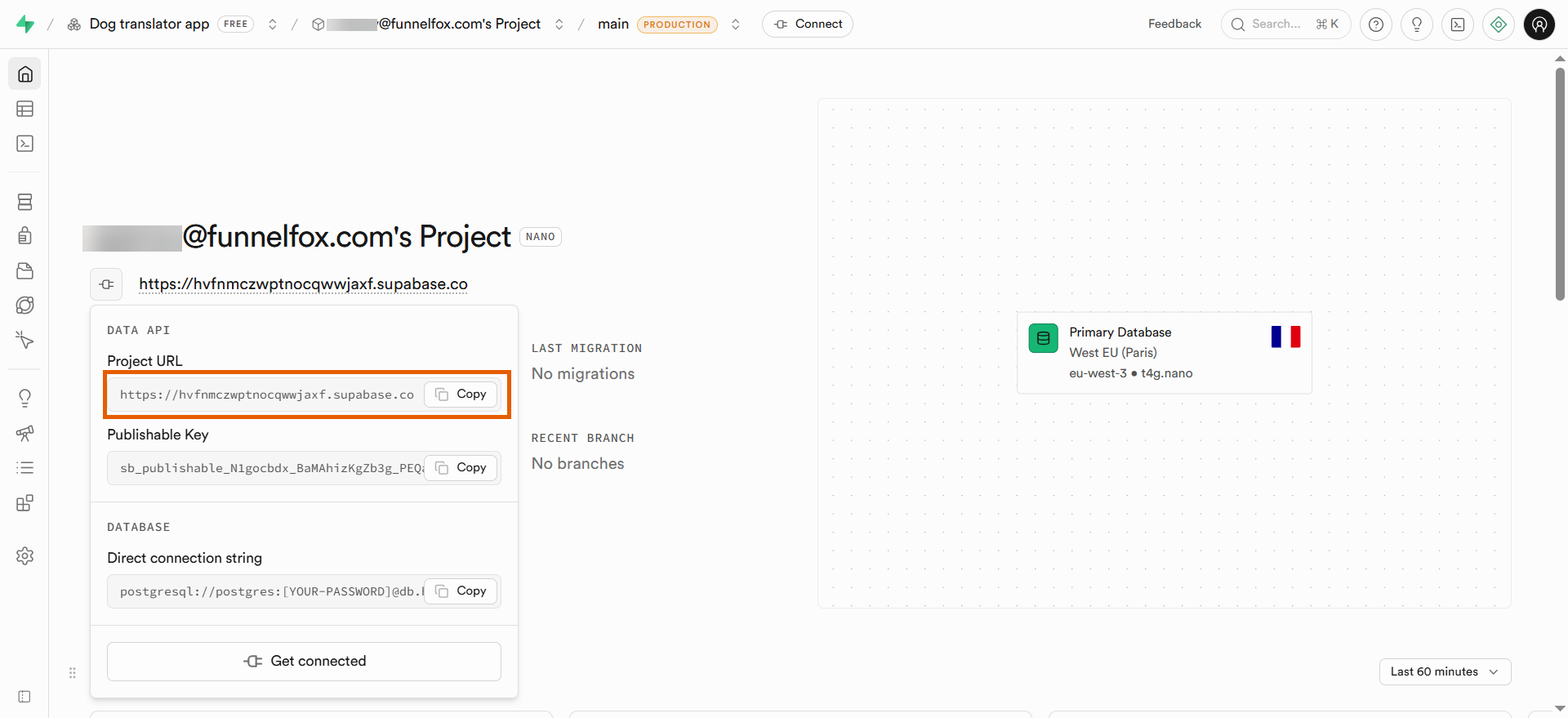
Retrieve your project credentials from Supabase and add them to FunnelFox.- In your Supabase project, hover over your project URL in the top navigation. You will see your Project URL and Publishable Key.
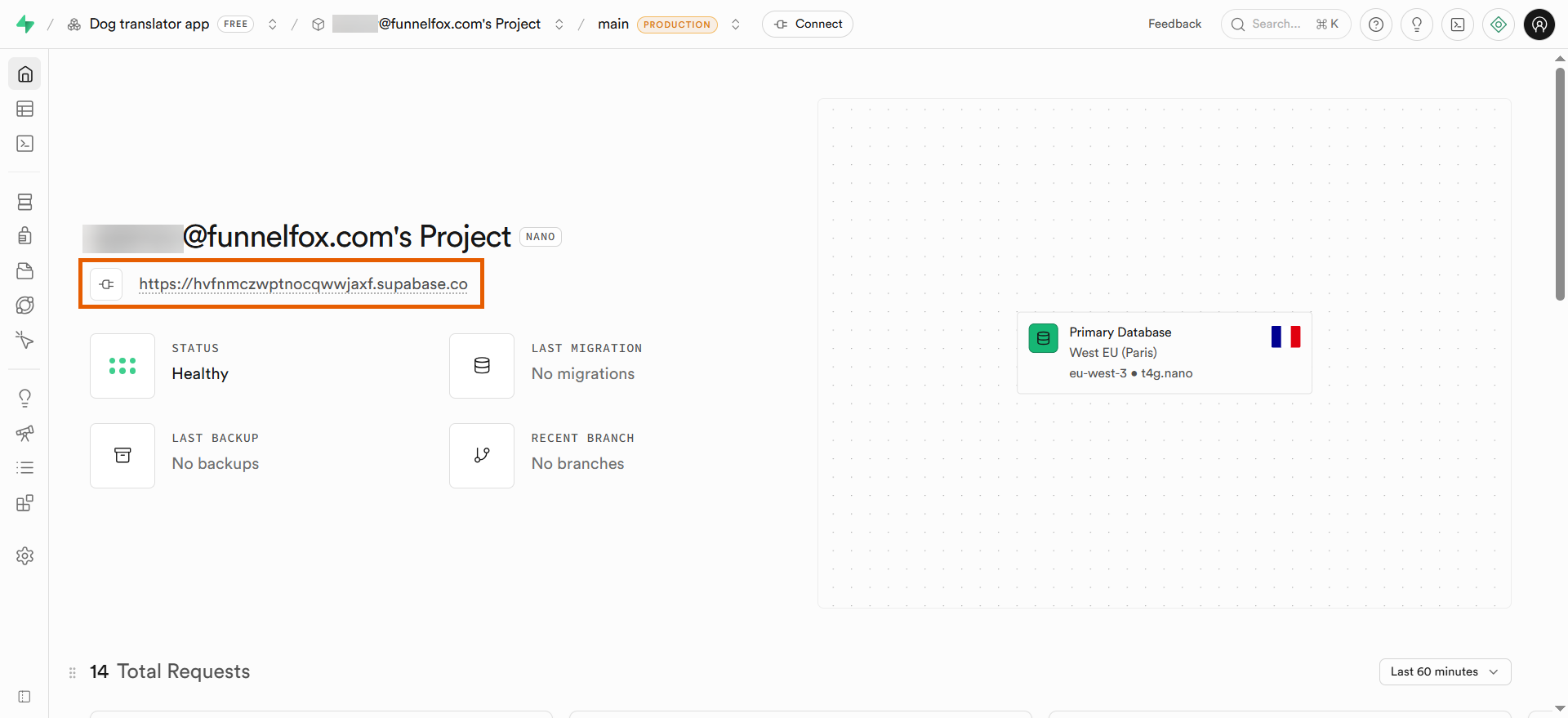
- Copy the Project URL.
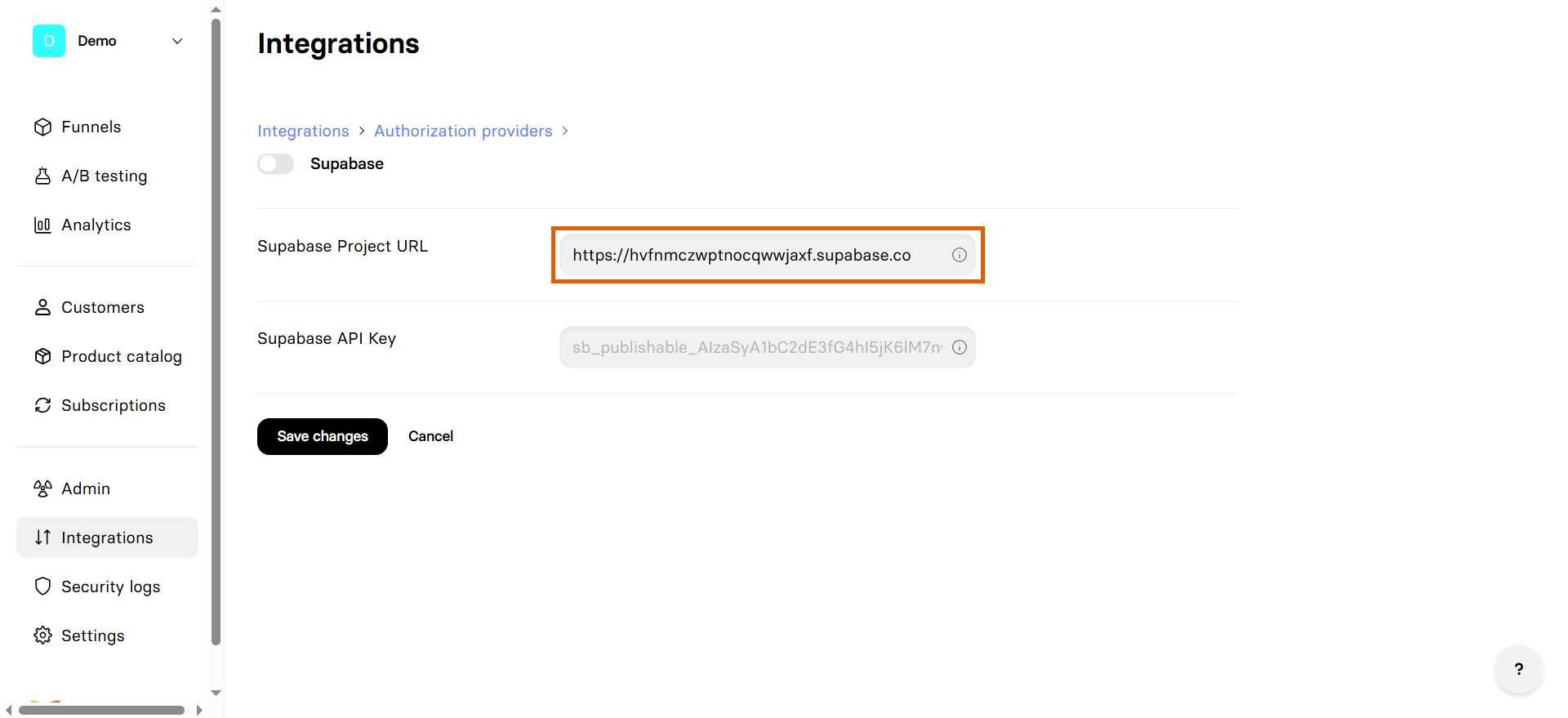
- Go to Integrations > Supabase in FunnelFox.
- Paste the URL into the Supabase Project URL field.
- Go back to your Supabase project and copy the Publishable Key.
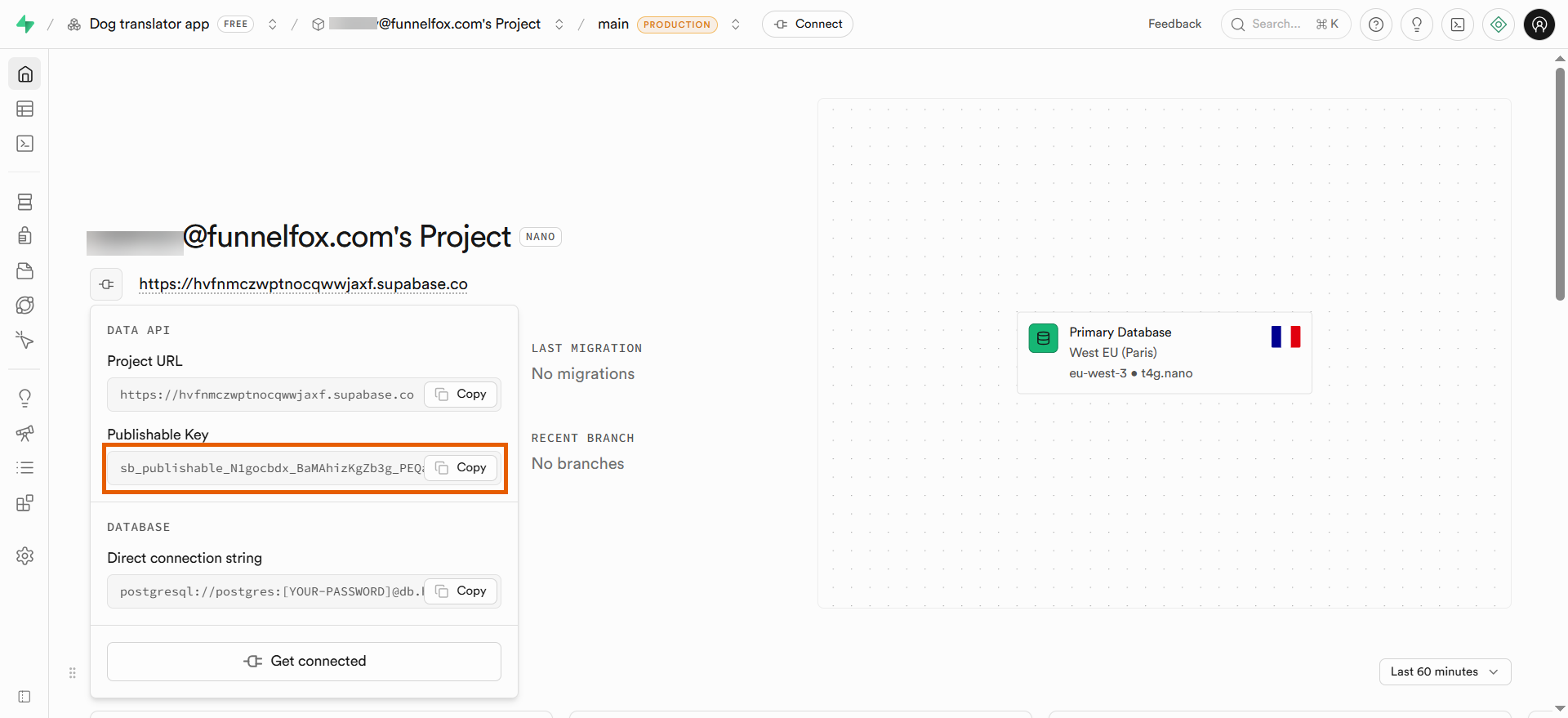
- Paste the key into the Supabase API Key field in FunnelFox.
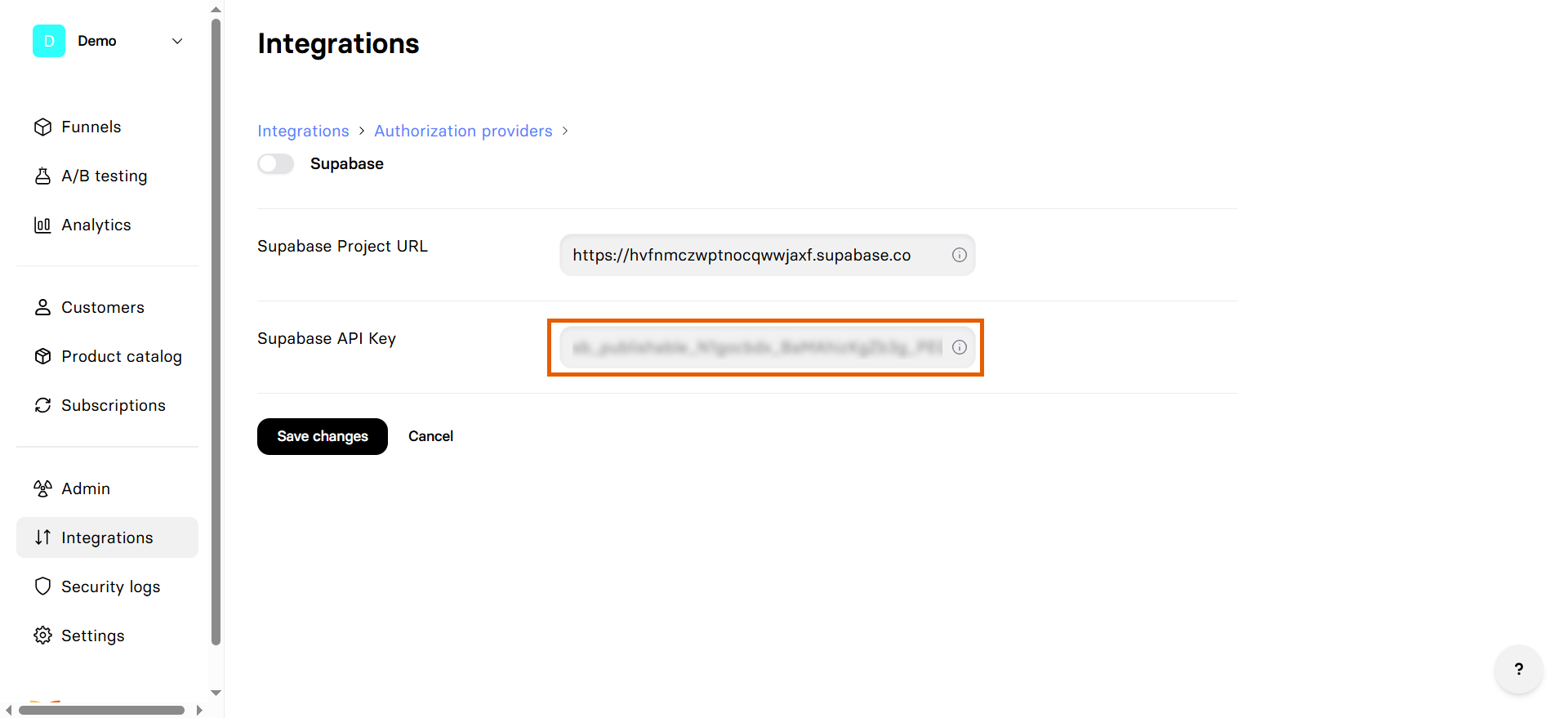
- Click Save changes.
You successfully integrated Supabase! Add the authentication methods you’ve set up to your funnels in the Editor.
Add authentication to funnels
Once Supabase is configured, you can add authentication flows to your funnels in the Editor: prompt AI Chat in Editor or build the screens manually on the canvas. The following authentication methods correspond to the ones you’ve set up in Supabase. The same OAuth buttons serve both authentication methods: sign up and sign in.Email/Password authentication
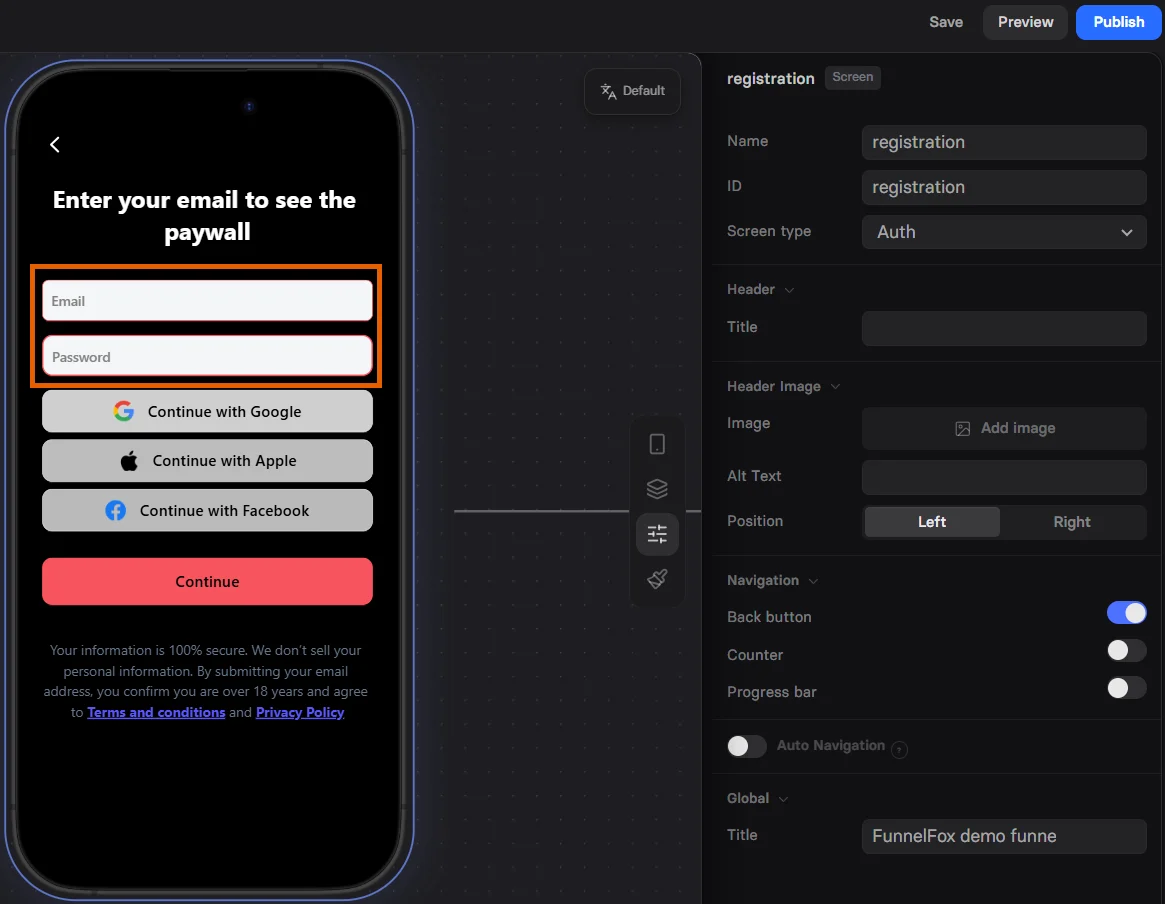
Enable users to authenticate with their email address and custom password. To add Email/Password authentication to your funnel, prompt the AI Chat in Editor to add a screen for user registration with both Email and Password inputs. Or open the Elements tab on the left, click Add element > Inputs and add them manually.By default, FunnelFox generates a random password when a user submits their email in the funnel. It’s important to add the Password input on the same screen to replace the previously generated password with the one provided.
OAuth authentication
Enable seamless OAuth authentication using Google or Apple accounts for a frictionless user experience. To add OAuth authentication to your funnel:- In the Editor, prompt the AI Chat to add a screen for user registration with OAuth button or use the one you’ve already added for Email/Password. Or open the Elements tab on the left, click Add element > Authentication and select OAuth button.
- Go to Properties > Parameters tab of your OAuth button.
- Select OAuth provider.
- Under Actions, set up user navigation for cases when authentication succeeds or fails.