
Subscription management
To modify your FunnelFox Payments subscriptions:- Go to the Support Tool page in your FunnelFox Payments dashboard.
- Search for a user or click on the User UUID under Latest payments.
- Make your changes in the Subscriptions section.
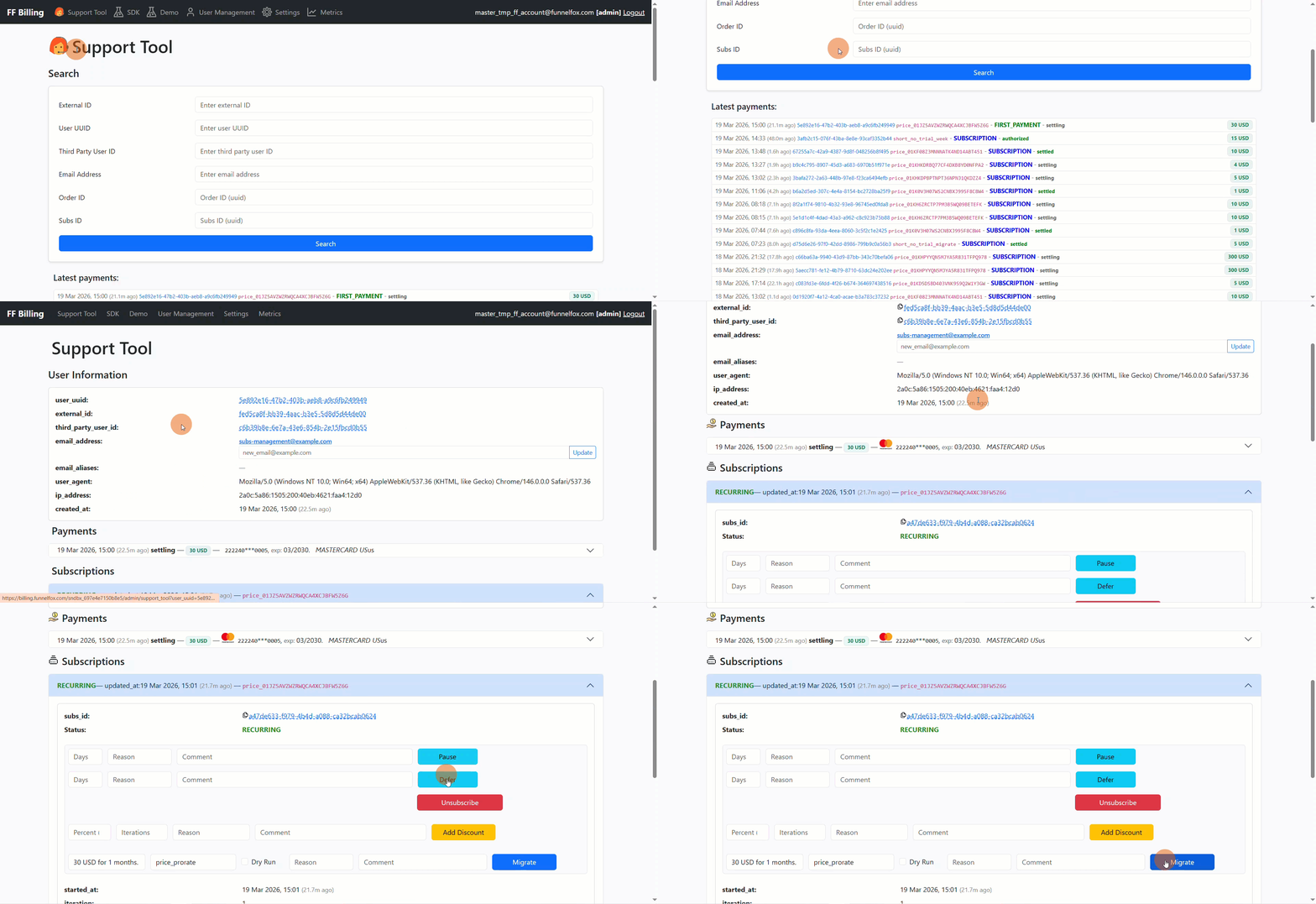
- Unsubscribe
- Pause and resume
- Add discount
- Defer
- Migrate
Unsubscribe
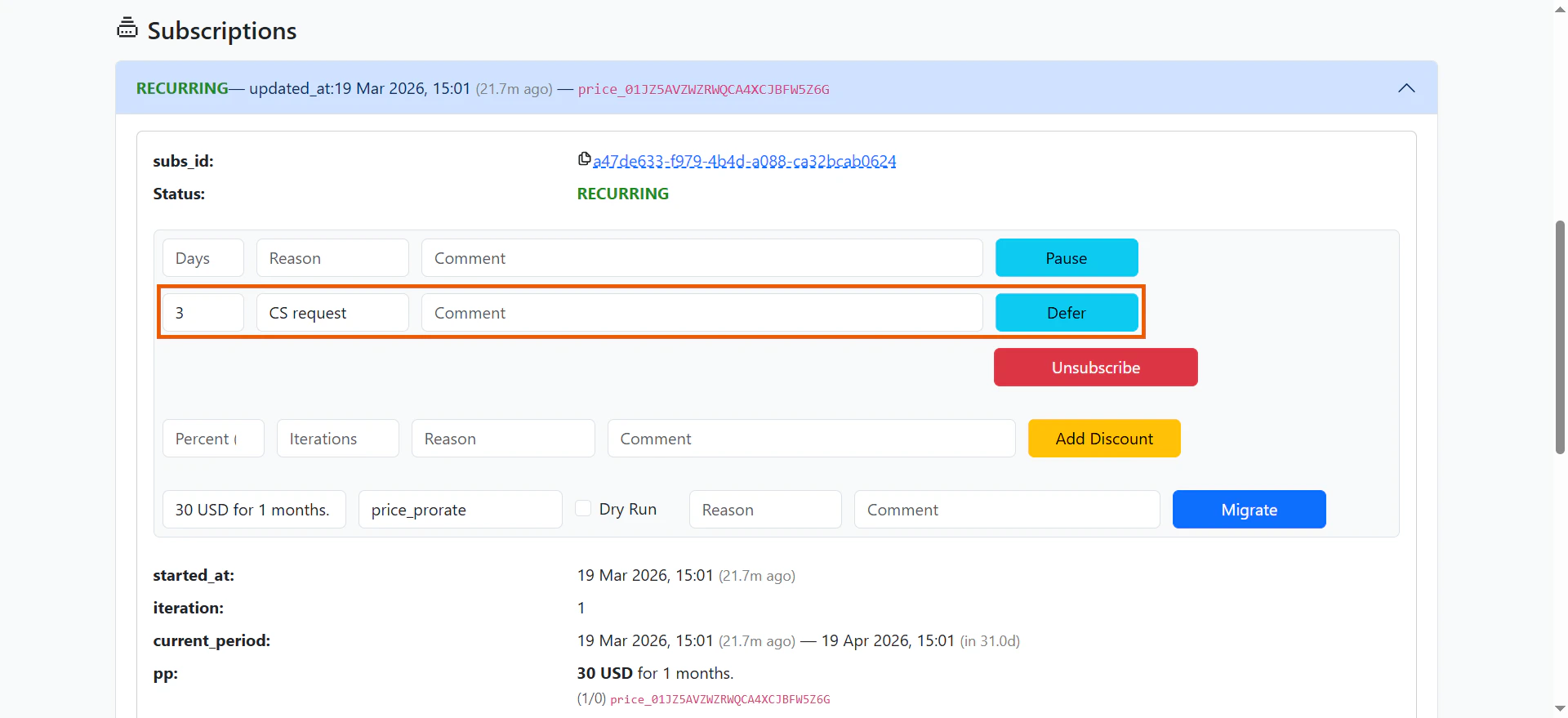
Click Unsubscribe under the selected subscription, if you want to disable its auto-renewal. Premium access remains active until the end of the current paid period, then becomes deactivated.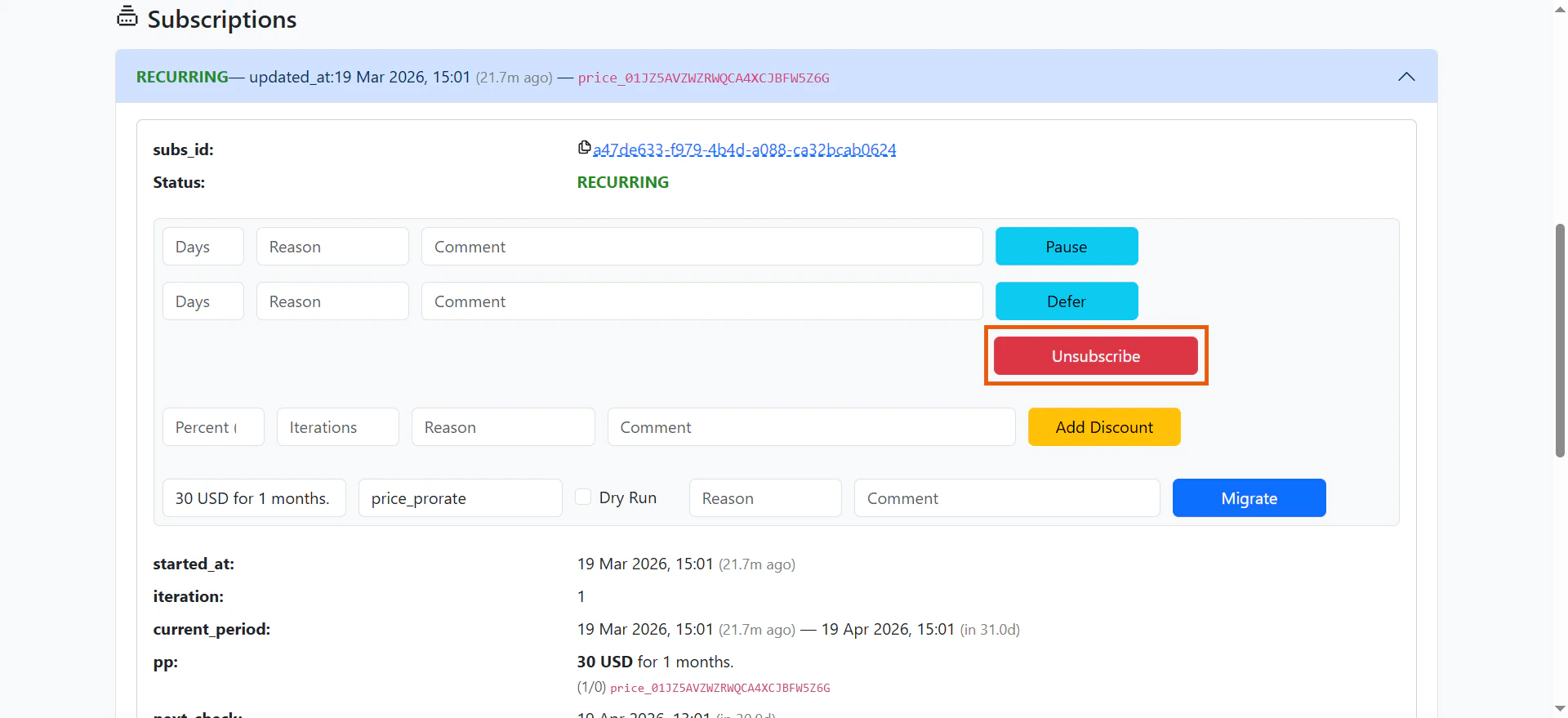
Pause and resume
To temporarily delay future charges:- Enter the pause details:
- Duration (days)
- Pause reason (optional)
- Comment (optional)
- Click Pause.
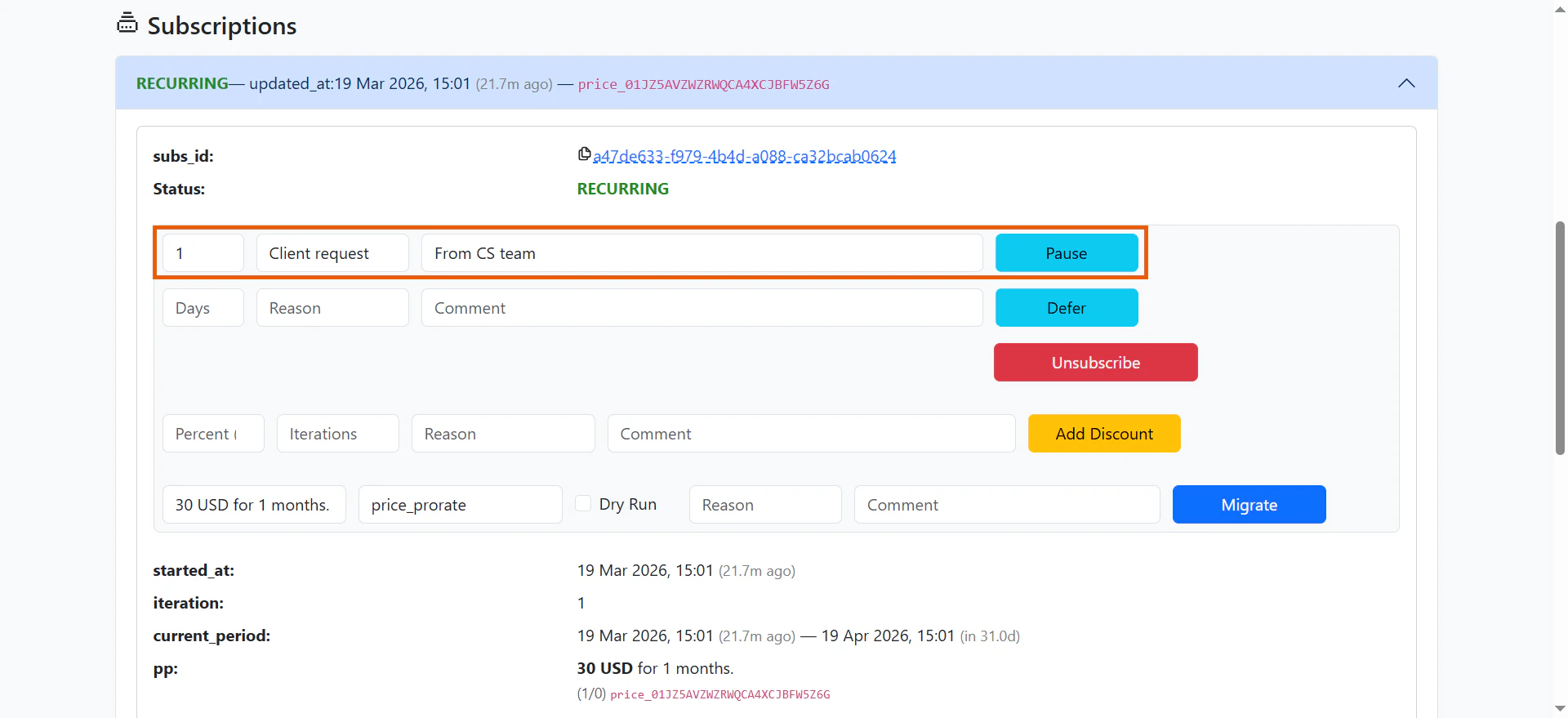
next_check_atindicates the datetime when the subscription will auto-resume. When the pause is persistent (no end date), this value isnulland the subscription must be resumed manually via the API.unused_premium_after_pauseshows how long Premium access will remain available after the subscription resumes. This attribute is not currently included in webhook payloads.
Add discount
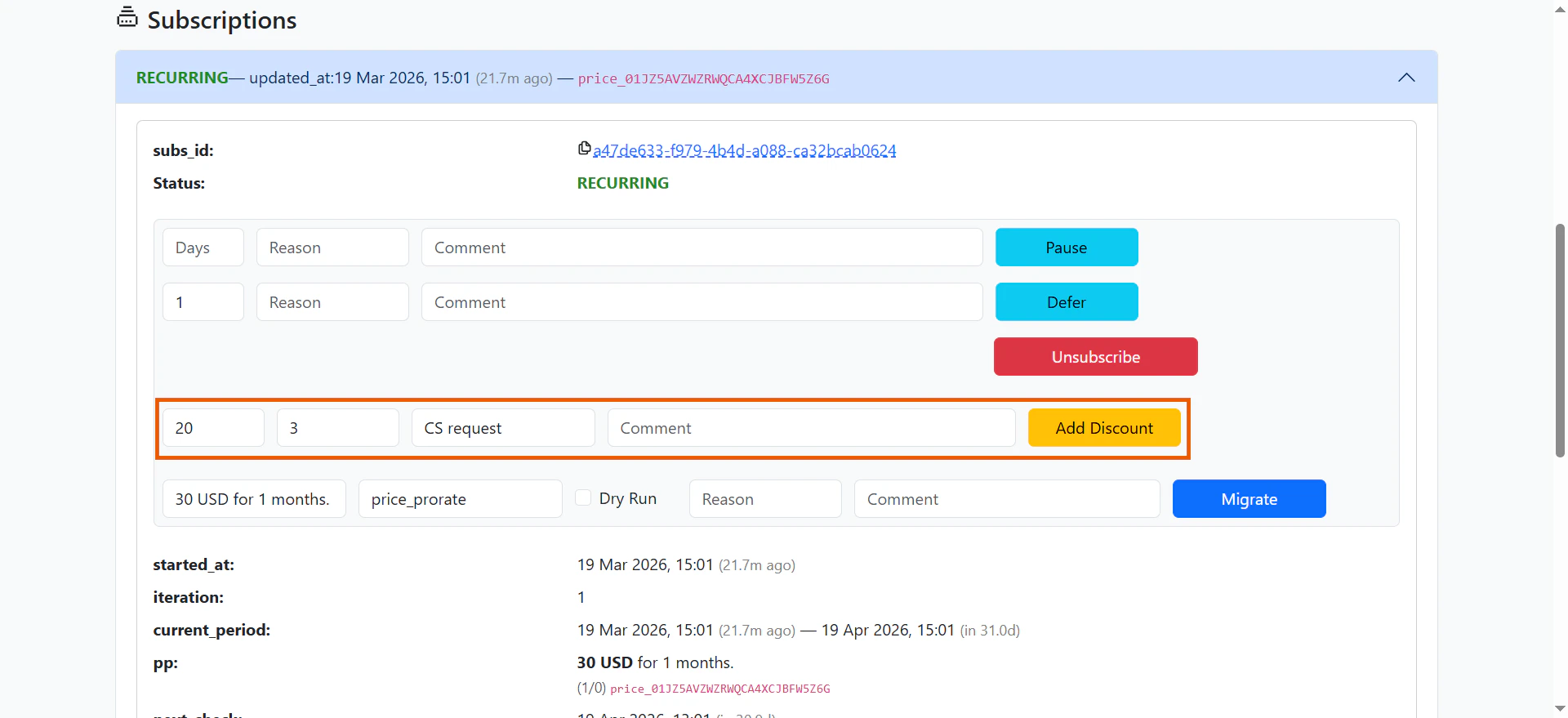
After a subscription is purchased, you can apply discounts to future payments:- Enter the discount details:
- Percentage: Discount amount based on iteration price.
- Number of iterations: How many billing cycles the discount applies to.
- Reason (optional)
- Comment (optional)
- Click Add discount.
Defer
You can postpone the next charge date:- Enter the deferral details:
- Duration (days)
- Pause reason (optional)
- Comment (optional)
- Click Defer.
Update user email
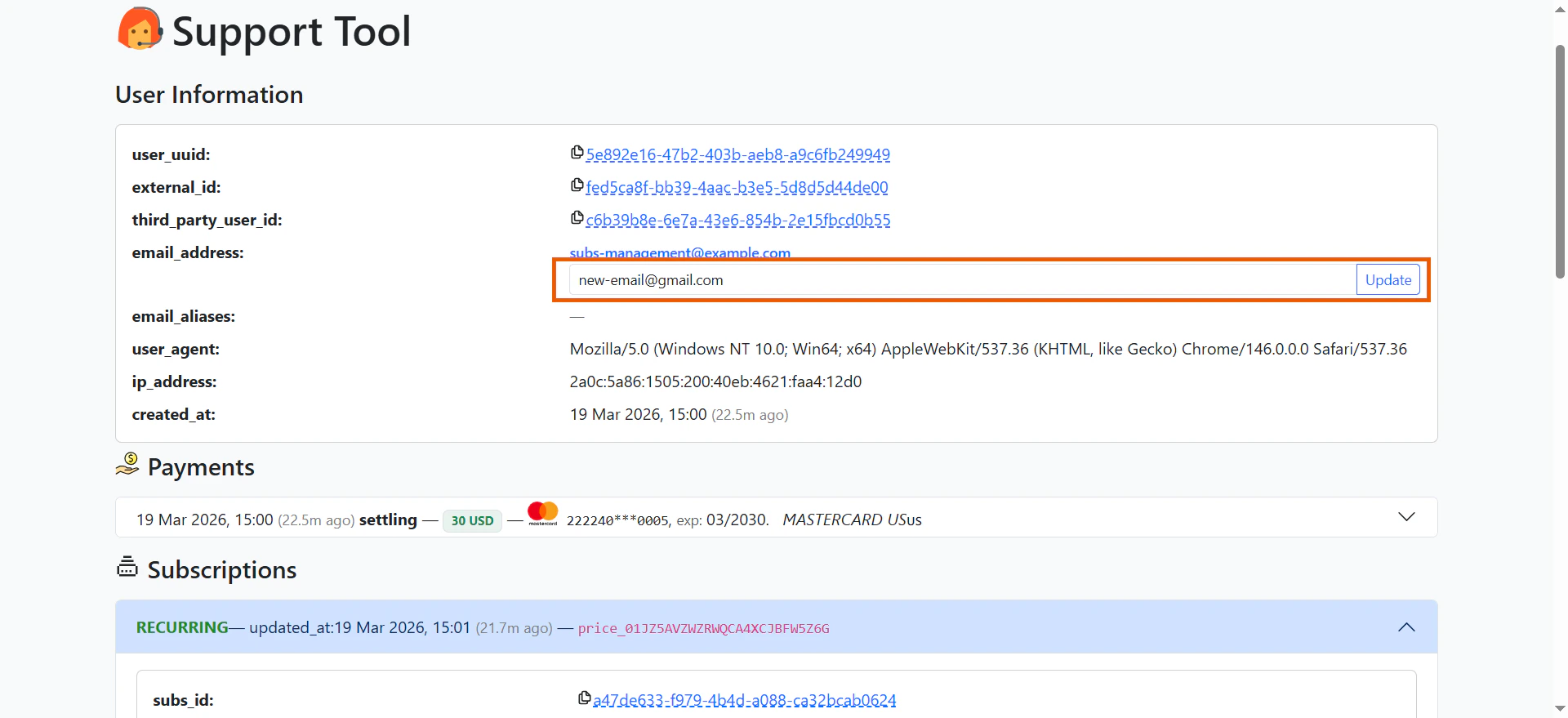
Along with subscription details changes, you can also update customer email.- Go to the User Information section of the Support Tool page in your FunnelFox Payments dashboard.
- Enter a new valid email address.
- Click Update.
-
Must be a properly formatted email address (has a local part, an
@sign, and a valid domain). -
Reject if the email ends with
example@example.com. -
Reject if the email starts with
FIXME@.