
- Adaptive 3DS: Runs 3DS only when the declines a payment because authentication is required.
- Always run 3DS: Runs 3DS before every authorization.
Choose your 3DS setting
Your setting depends on where the card is issued and where your merchant account is. The merchant account is the acquirer that authorizes the payment. Where your company is registered doesn’t matter.
SCA is mandatory for customer-initiated payments only when both the card and
the merchant account are in the EEA or the UK. PSD2 sets this rule in the EEA,
and equivalent rules apply in the UK. If your merchant account is elsewhere,
the issuer decides whether to ask for authentication, and Always run 3DS adds a
challenge the issuer didn’t ask for.
You pick the setting in the Authorize payment block of your Primer workflow:
Renewals are merchant-initiated, so SCA doesn’t apply to them. They stay on
No 3DS.
Adaptive 3DS
Adaptive 3DS is disabled by default and runs 3DS only when a payment needs it:- FunnelFox Payments attempts the payment without 3DS.
- If it’s approved, the customer pays instantly.
- If the PSP declines it because authentication is required, FunnelFox Payments runs 3DS and retries.
- The customer completes the challenge, and the payment goes through.
Card payment cascading requires
Adaptive 3DS. The backup processor reuses the 3DS result from the first
attempt, so the customer doesn’t authenticate twice.
Always run 3DS
Always run 3DS authenticates the customer before every authorization. If authentication fails, Primer declines the payment, so you don’t need extra blocks after authorization. Use it only for EEA and UK cards through an EEA or UK merchant account. A condition in your Primer workflow sends these cards to Always run 3DS, and all other payments keep their current setting.Setup
Both options use the same 3DS profile: the merchant details Primer needs for each card network. You set it up once.- Adaptive 3DS: Complete steps 0 and 1.
- Always run 3DS: Complete all steps.
0. Prepare Stripe account
Skip this step if you don’t process through Stripe, or if your Stripe account is on IC+ pricing. Complete this step before you request the profile. The request in step 1 needs your acquirer BIN and MID, and Stripe shares them only with accounts on IC+ pricing. On standard pricing, choose one option:- Switch to IC+ pricing, then continue with step 1.
- Use a profile from another processor you have, such as Adyen. Ask your Solution Manager to make it your default profile. Both processors must use the same MCC. Liability shift still applies, but issuers may ask for a challenge a bit more often. If you don’t have that profile yet, request it for that processor in step 1.
- Keep Processor 3DS on Stripe for EEA and UK cards. Stripe handles SCA, but you don’t see the 3DS result in Primer. Skip the remaining steps for Stripe payments.
1. Request 3DS profile
Request the profile from your FunnelFox Payments dashboard, or ask your Solution Manager to request it for you.The profile request is labeled Adaptive 3DS, though you use it for Always
run 3DS too.
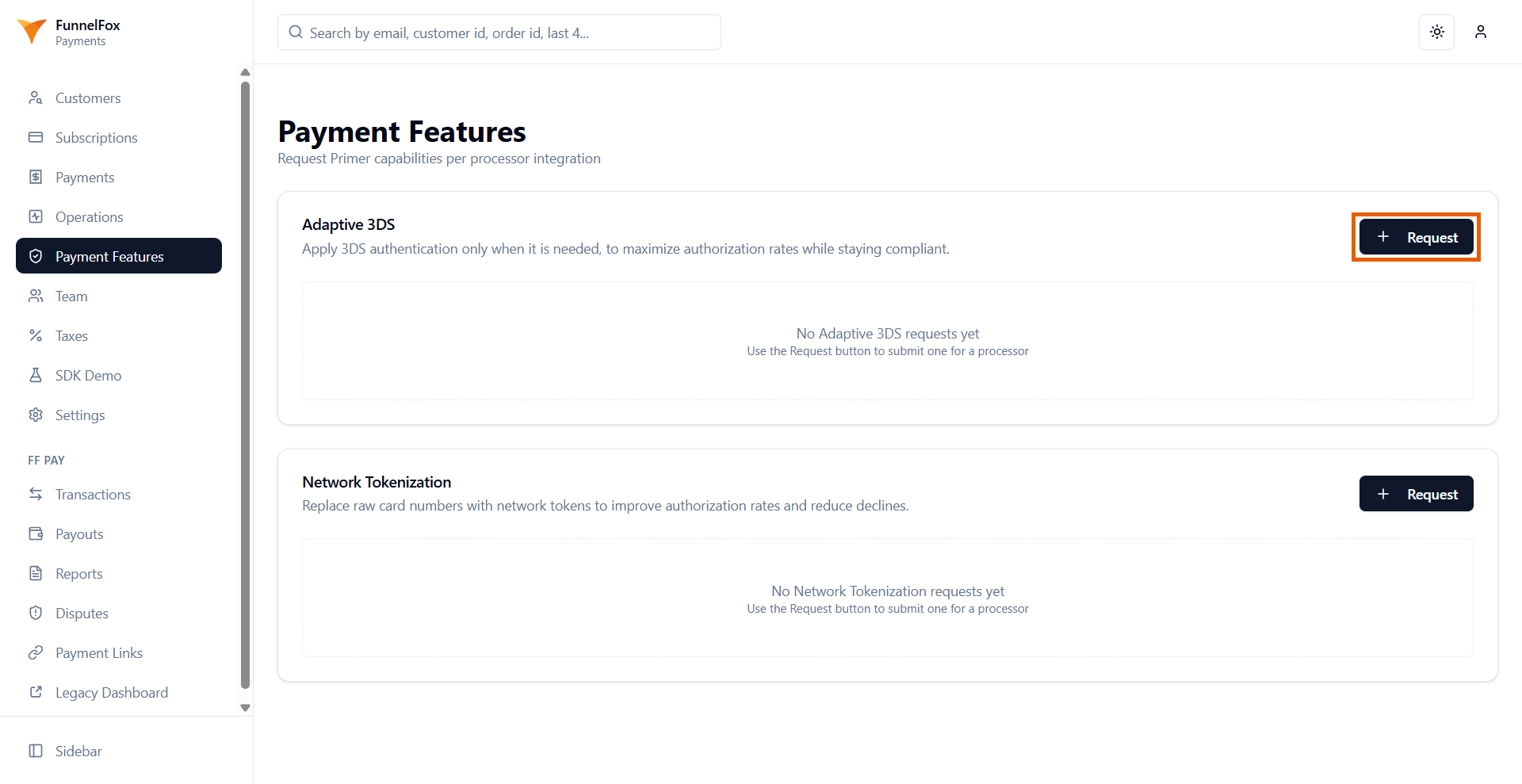
- Go to the Payment Features page.
- Click Request to the right of Adaptive 3DS.
- Complete the form:
- Primer Organization ID: Find it in the Primer Dashboard under Settings > Organisation.
- Processor: The processor this profile applies to (for example, Stripe, Adyen, or Airwallex). For a processor that isn’t listed, select Other and enter its Processor name.
- Merchant Account: Find it in the Primer Dashboard under Integrations > [processor] > Merchant Account.
- Display Name: Name for the 3DS profile.
- Merchant Name: Name shown in the authentication window.
-
Merchant URL: A bare domain like
example.comis fine. -
Country Code: ISO 3166-1 alpha-2, for example
US. -
MCC: Merchant Category Code, exactly 4 digits, for example
5734. -
Card Networks: Select at least one. For each selected network, enter:
- MID: Processor Merchant Account ID
- Acquirer BIN
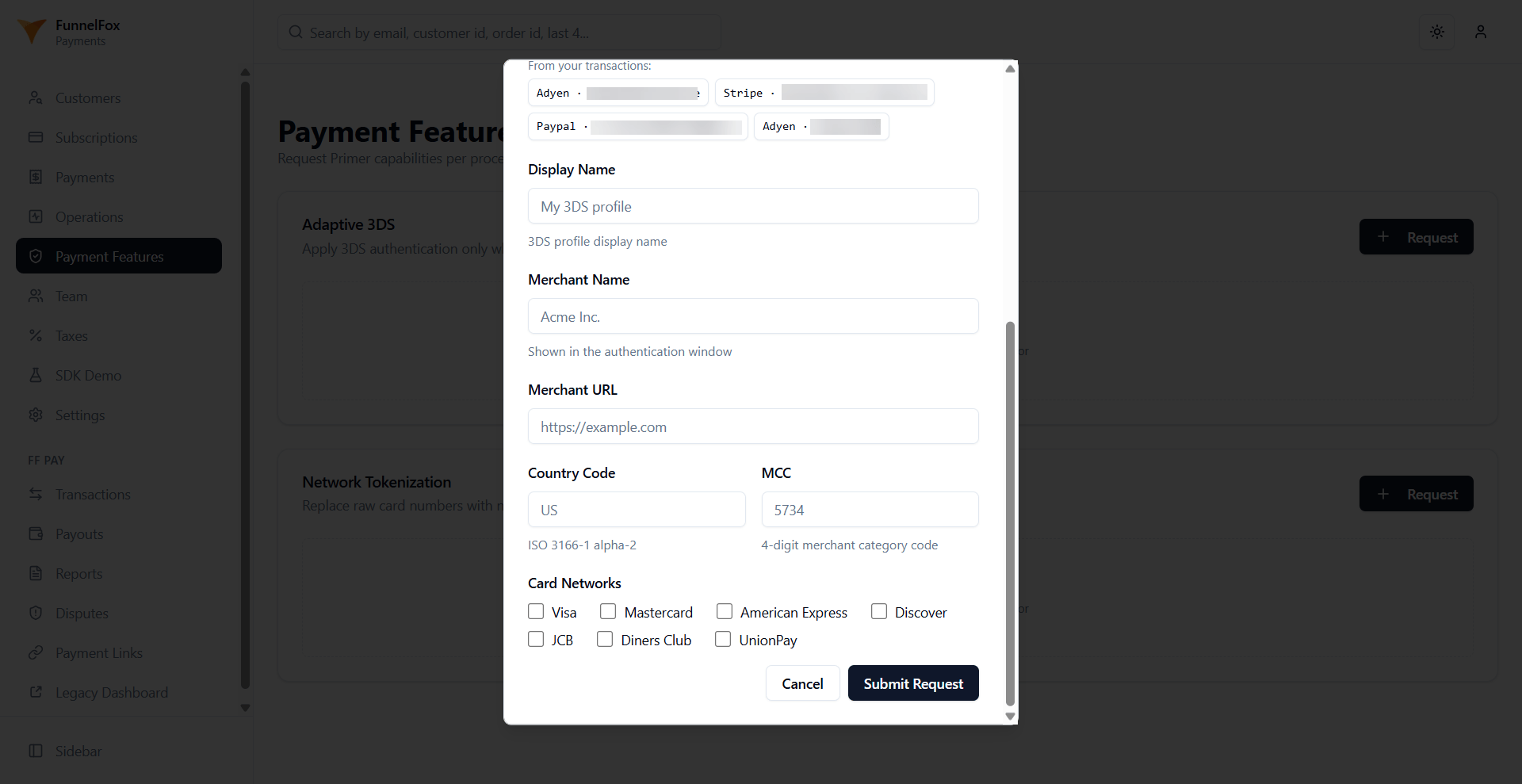
- Click Submit Request.
2. Update card workflow
Skip steps 2 to 4 if you use only Adaptive 3DS. EEA and UK cards go to Always run 3DS, for both trial authorizations and regular charges. Other cards and renewals stay as they are.1
Open your card workflow
Go to the Workflows page in your Primer dashboard, open the workflow for
card payments, and click Edit workflow.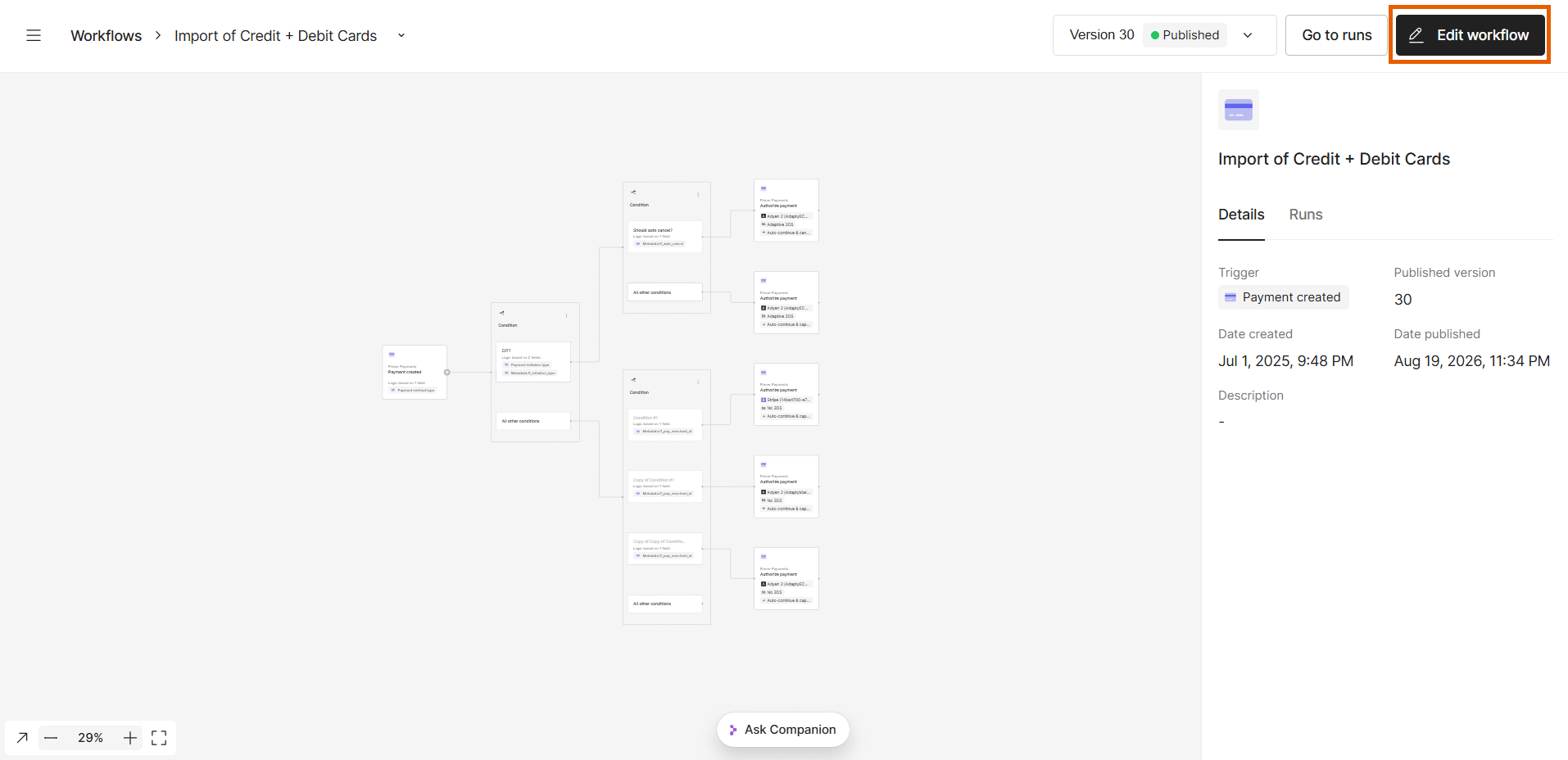
2
Add the EEA and UK condition
In the match branch of your customer-initiated condition, insert a
condition on Issuer country code with the EEA and UK country list. It
must sit above the free-trial check (Should auto cancel? on
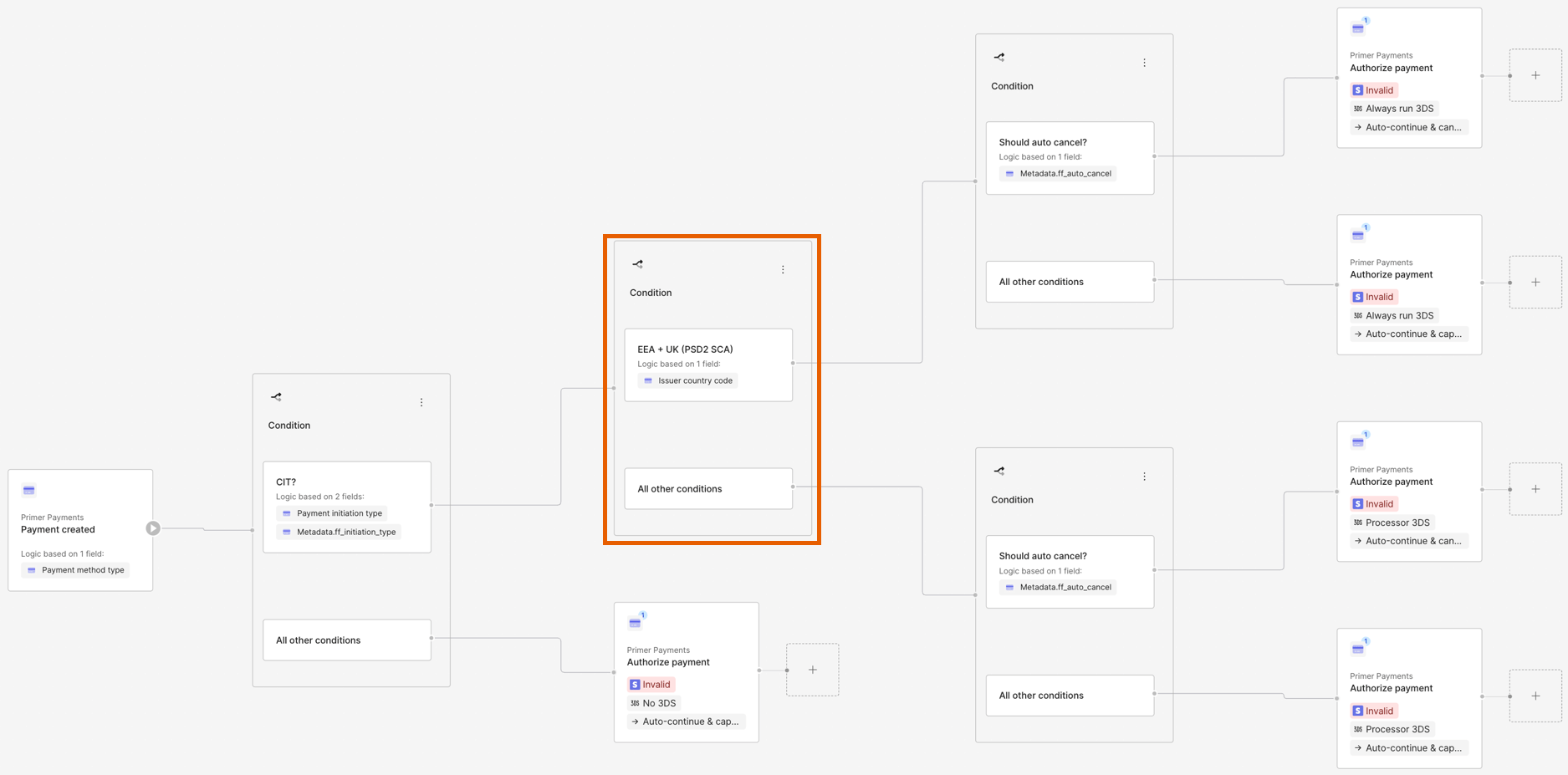
Metadata.ff_auto_cancel), because the first payment saves the card for
renewals and needs SCA too.EEA and UK country list
EEA and UK country list
Use the operator One of with these 31 codes: the 27 EU countries,
Iceland, Liechtenstein, Norway, and the United Kingdom.
3
Add the free-trial check
In the match branch of the new condition, add a Should auto cancel?
condition on 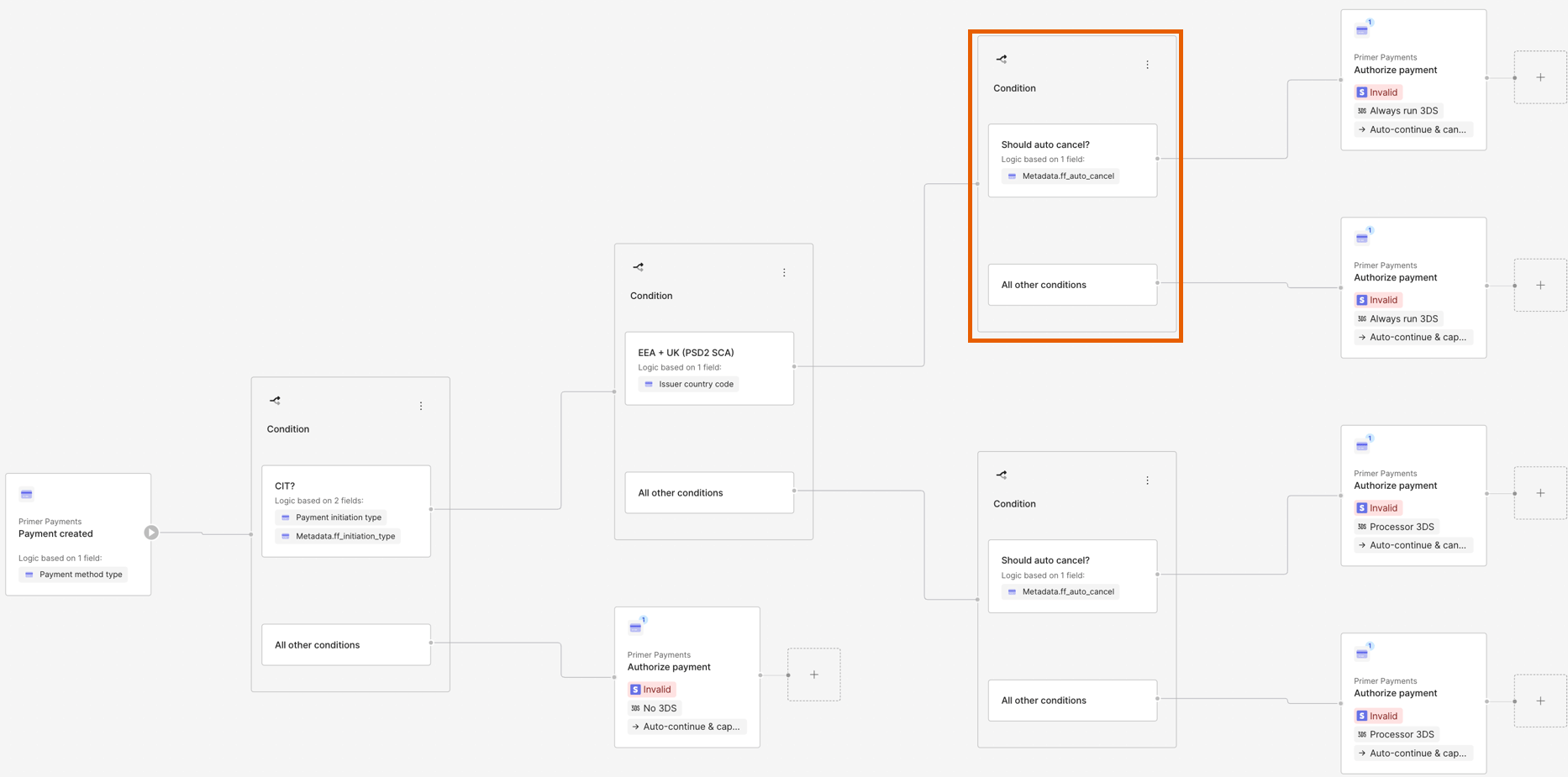
Metadata.ff_auto_cancel.4
Add two Authorize payment blocks
Add an Authorize payment block to each branch of the free-trial check.
Copy the processor and settings from your existing blocks, and set 3DS to
Always run 3DS.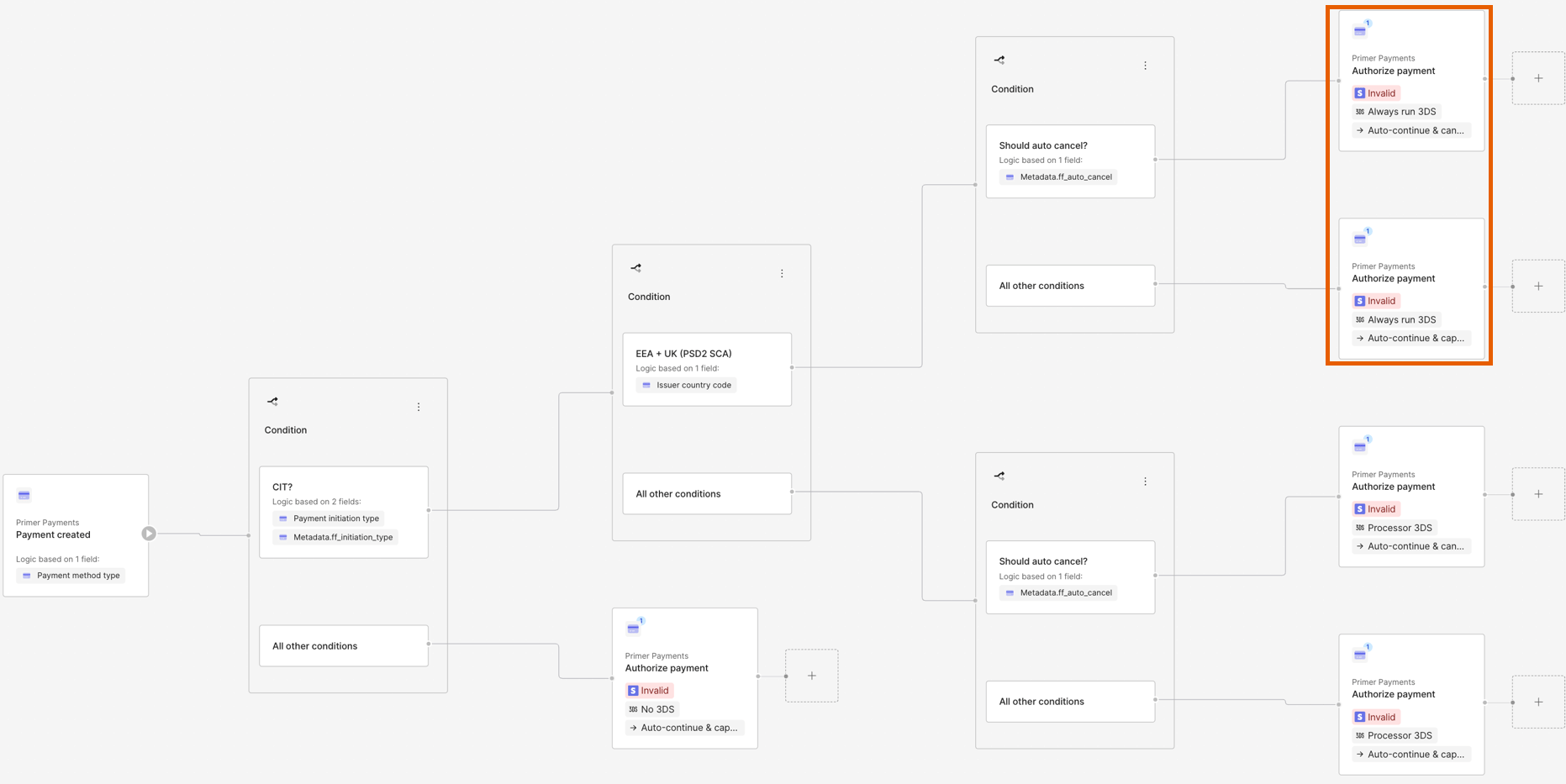
5
Connect the remaining traffic
Connect All other conditions of the EEA and UK condition to your
existing free-trial check. Leave the renewal branch unchanged.
6
Save the workflow
Click Save.
3. Update Google Pay workflow
Skip this step if you don’t accept Google Pay. Google Pay payments come in two types, and only one needs 3DS:- Network-tokenized: The card is added to Google Wallet on an Android device. The payment is authenticated on the device, carries a cryptogram, and stays on No 3DS.
- PAN-only: The card is saved in a Google account, typically used on desktop or a non-Android browser. The payment has no authentication, so PSD2 treats it as a regular card payment.
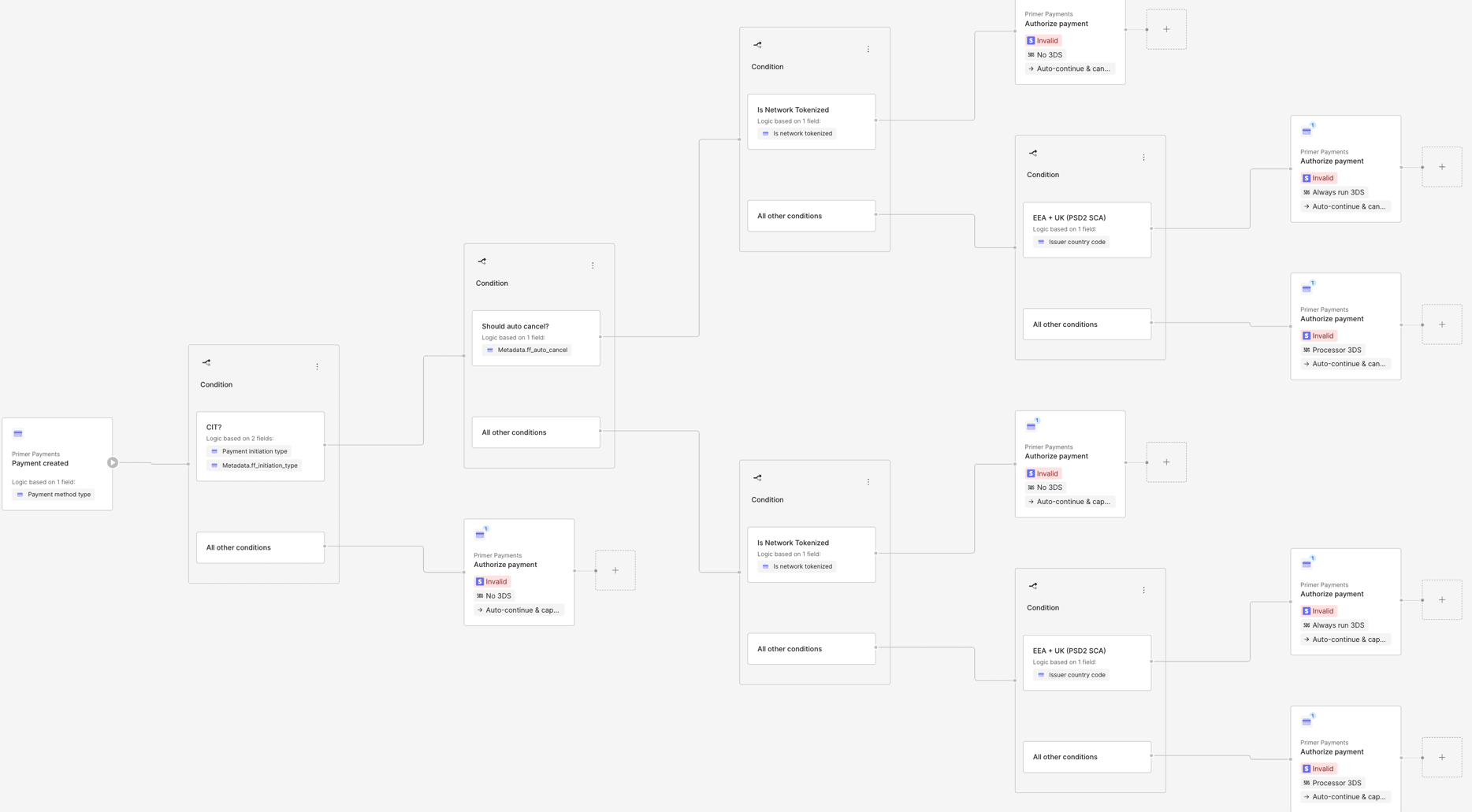
1
Open your Google Pay workflow
Go to the Workflows page in your Primer dashboard, open the workflow for
Google Pay, and click Edit workflow.
2
Add the EEA and UK conditions
In the free-trial branch, find the Is Network Tokenized condition. In
its All other conditions branch, insert a condition on Issuer country
code with the EEA and UK country list. Repeat in the regular-charge
branch.
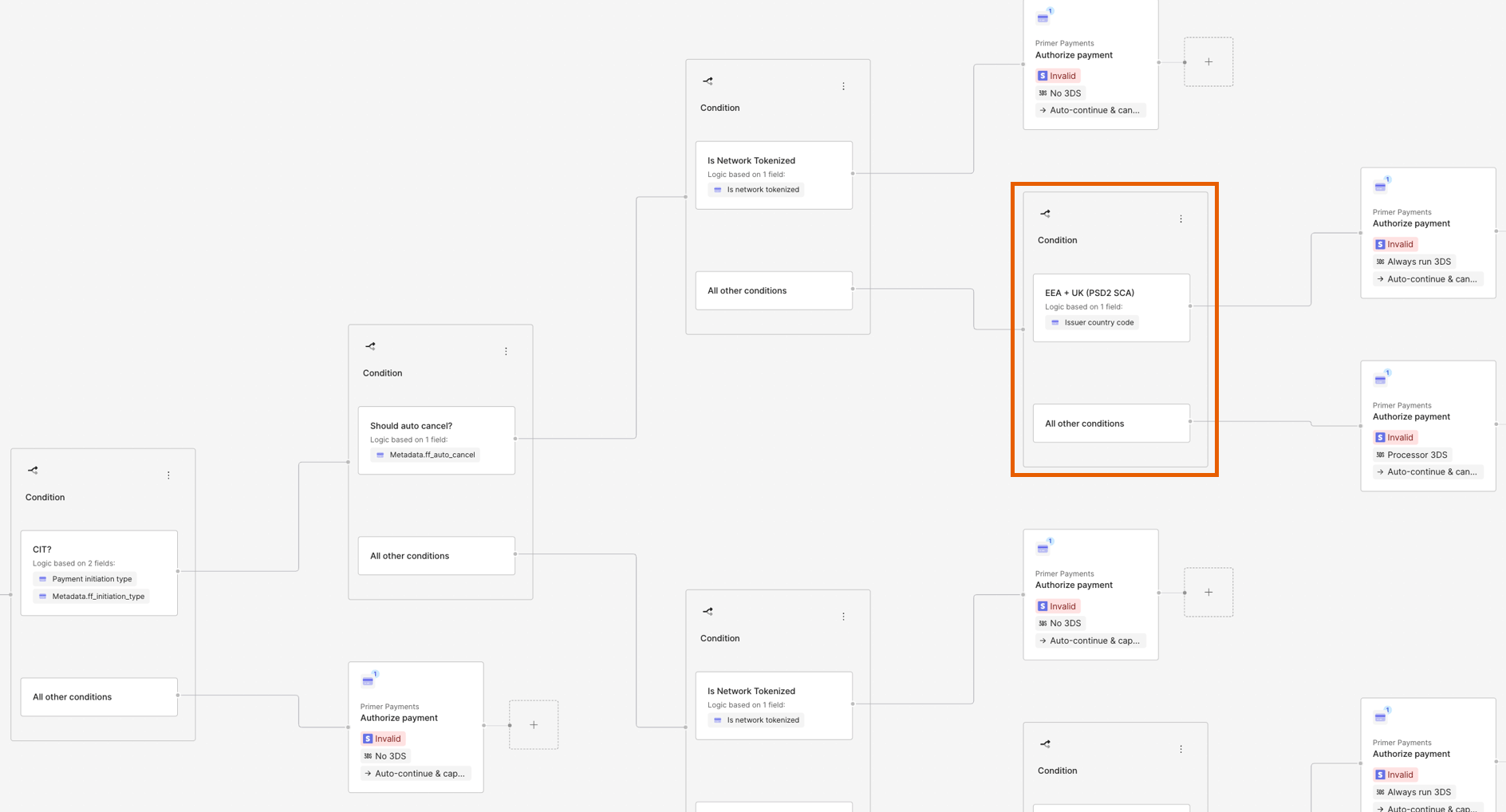
EEA and UK country list
EEA and UK country list
Use the operator One of with these 31 codes: the 27 EU countries,
Iceland, Liechtenstein, Norway, and the United Kingdom.
3
Add two Authorize payment blocks
In the match branch of each new condition, add an Authorize payment
block. Copy the processor and settings from the existing block in the same
branch, and set 3DS to Always run 3DS.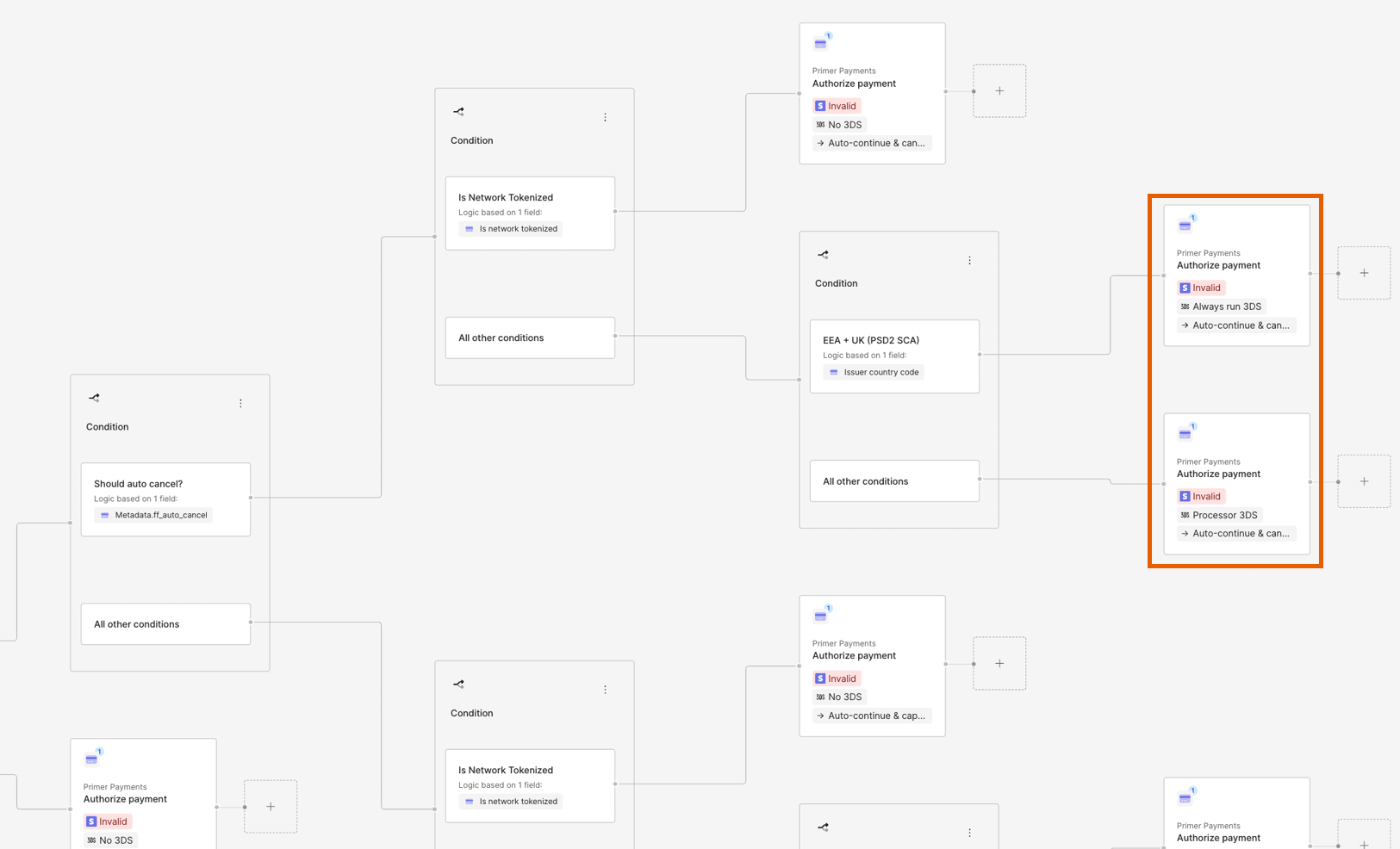
4
Connect the remaining traffic
Connect All other conditions of each new condition to the existing
Authorize payment block in that branch. Leave the network-tokenized and
renewal branches unchanged.
5
Save the workflow
Click Save.