How it works
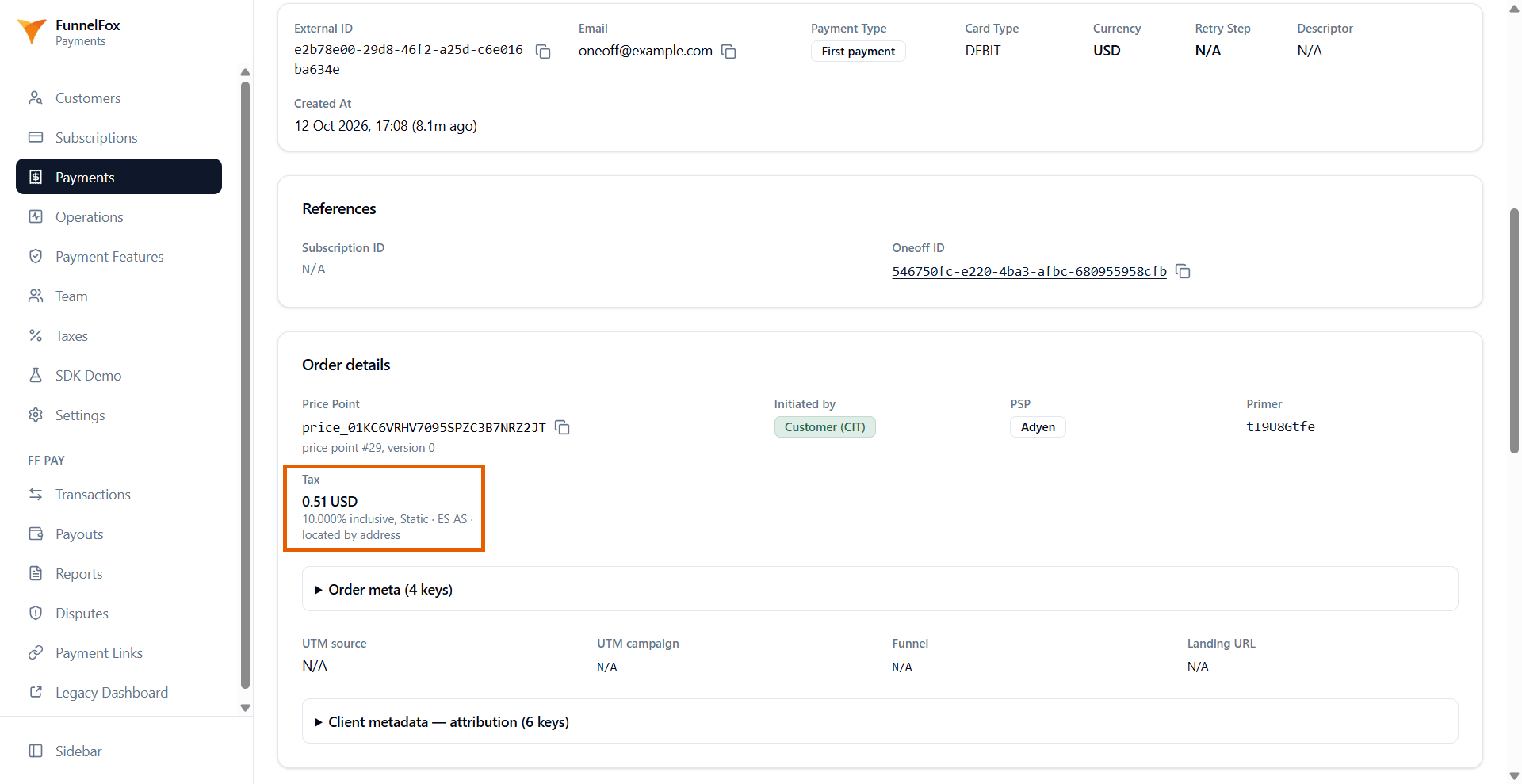
FunnelFox Payments Taxes calculates tax at checkout and charges it together with the payment. Each country has a tax behavior that decides whether tax is part of the price or added on top:- Inclusive: Tax is part of the price, so the amount charged doesn’t change.
- Exclusive: Tax is added on top of the price.
- Amount charged: $20.00
- Subscription price: $16.67
- Tax (VAT 20%): $3.33
- Amount charged: $24.00
- Subscription price: $20.00
- Tax (VAT 20%): $4.00
Customer address
Tax depends on the buyer’s location. By default, FunnelFox Payments reads it from the buyer’s IP. To calculate tax from the address the buyer enters, go to Taxes > Settings in your FunnelFox Payments dashboard and turn on Collect the customer’s location on the payment form.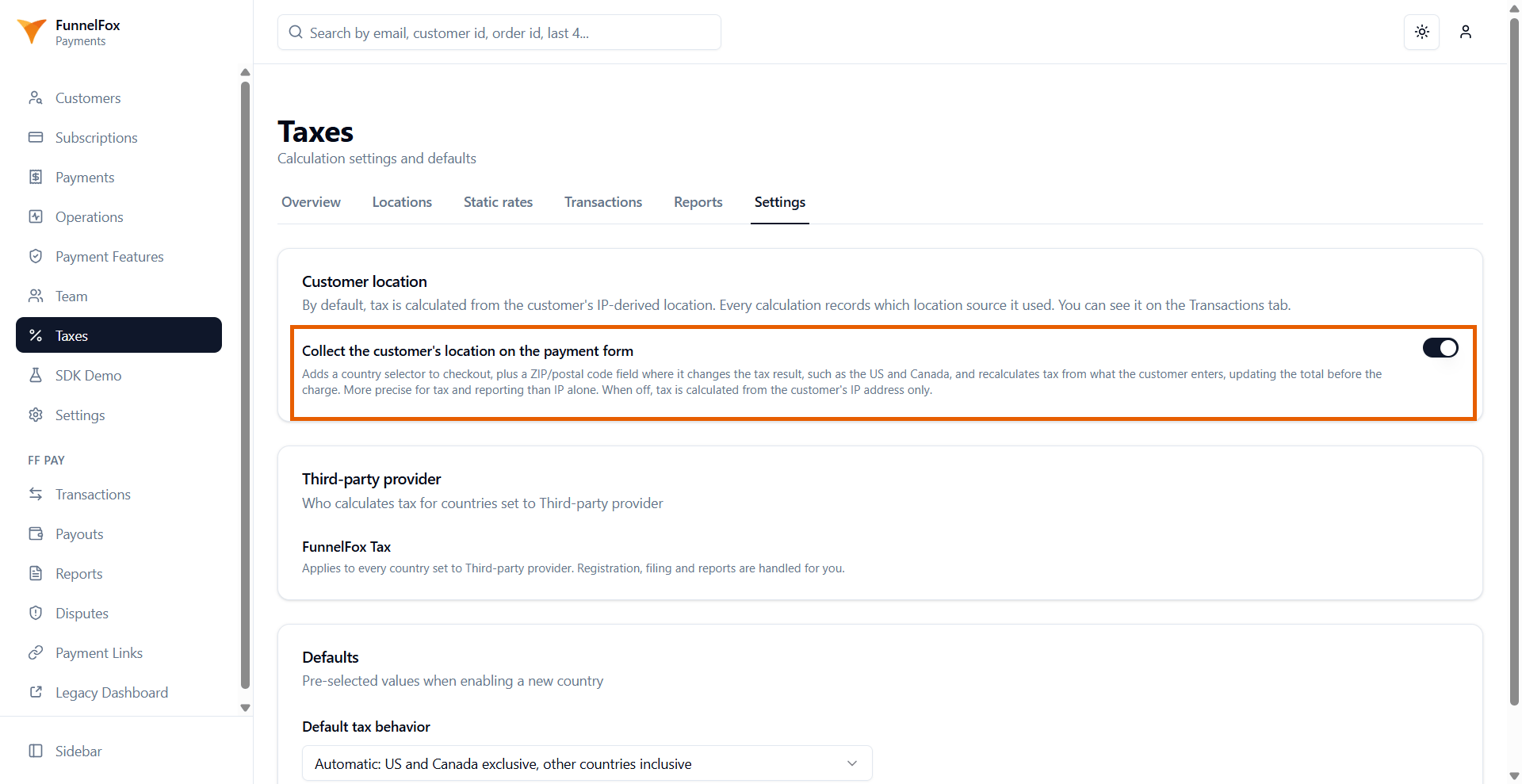
If you build your checkout with the FunnelFox Payments Web SDK, the checkout
doesn’t show tax. The SDK reports the total and tax through
onTaxChange so
you can update your prices. Learn more about
taxes in the Web SDK.Setup
Configure Taxes from the Taxes section of your FunnelFox Payments dashboard.1
Check the third-party provider
Skip this step if you use only static rates.Go to Taxes > Settings in your FunnelFox Payments dashboard. The
Third-party provider section shows which provider calculates tax for every
country set to Third-party provider: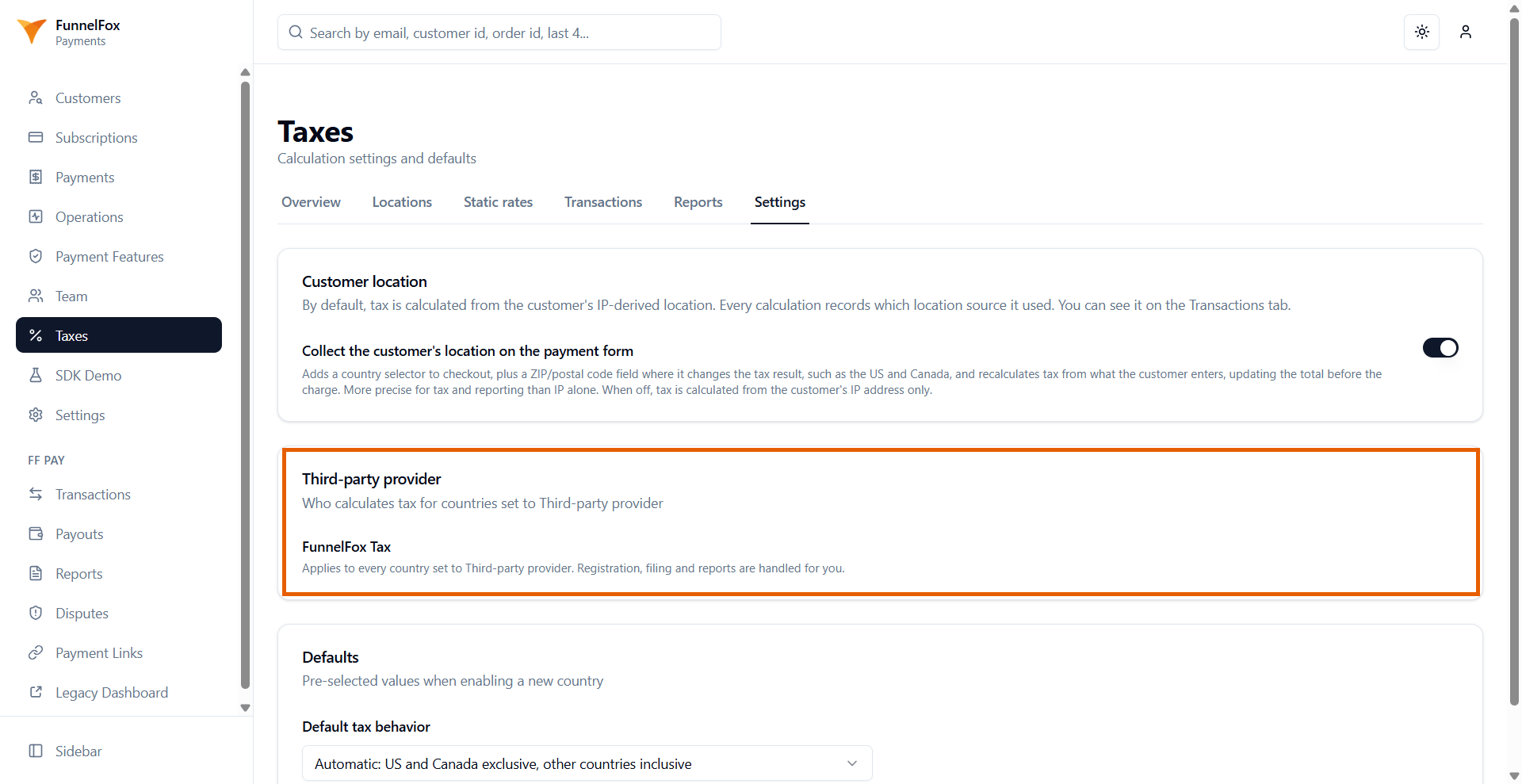
- FunnelFox Tax: Registration, filing, and reports are handled for you (default).
- Stripe Tax or Anrok: Registrations, filing, and reports live in that provider’s dashboard, and it bills you directly.
2
Turn on tax for a country
Go to Taxes > Locations in your FunnelFox Payments dashboard. Open a
country and set: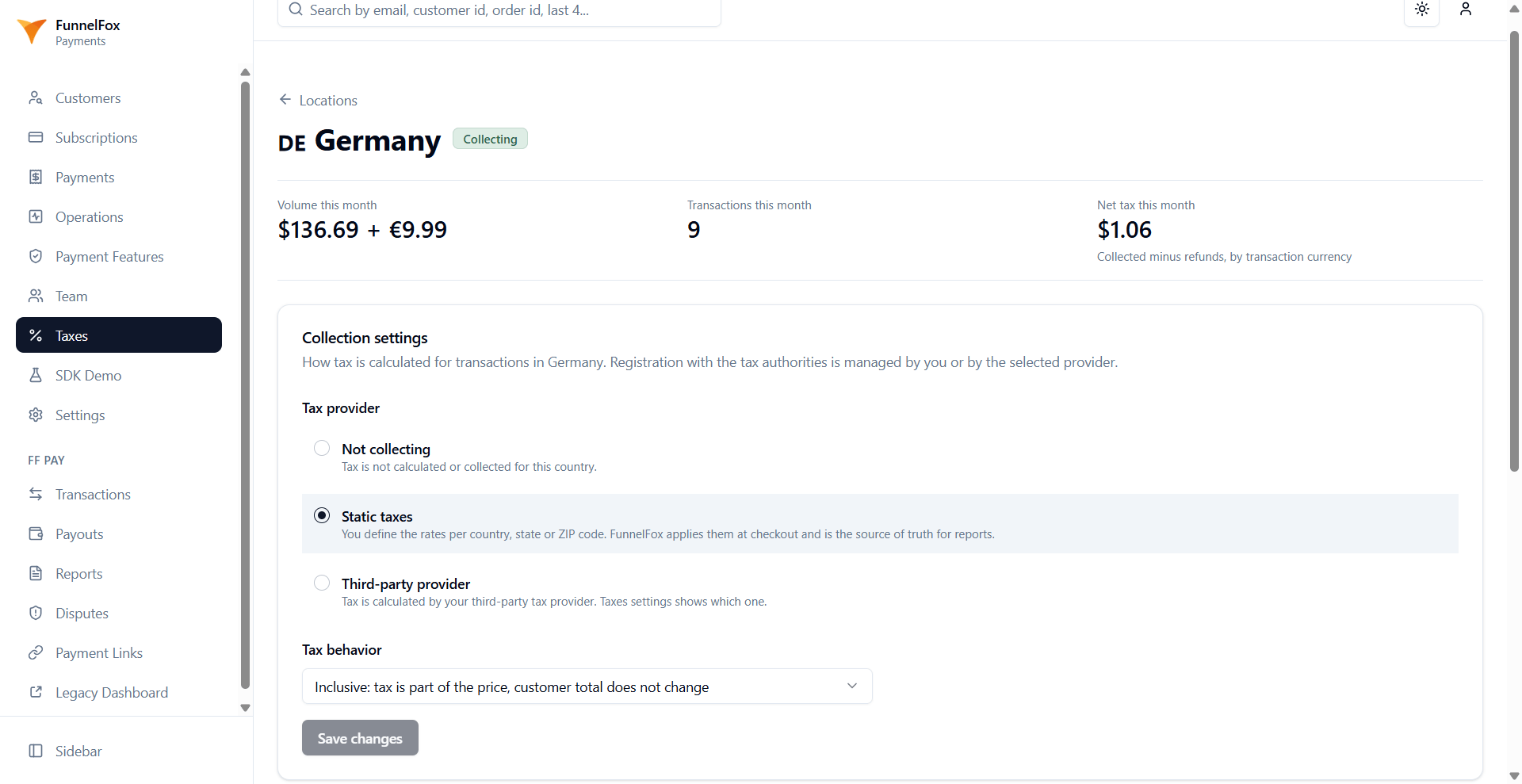
- Tax provider: None (default), Static, or Third-party provider.
- Tax behavior: Inclusive or Exclusive.
If your third-party provider has no registration for the country,
saving fails. Add the registration in the provider’s dashboard first.
3
Collect the customer's location (optional)
Go to Taxes > Settings in your FunnelFox Payments dashboard and turn on
Collect the customer’s location on the payment form to calculate tax from
the address the buyer enters. Learn more in
Customer address.
Locations
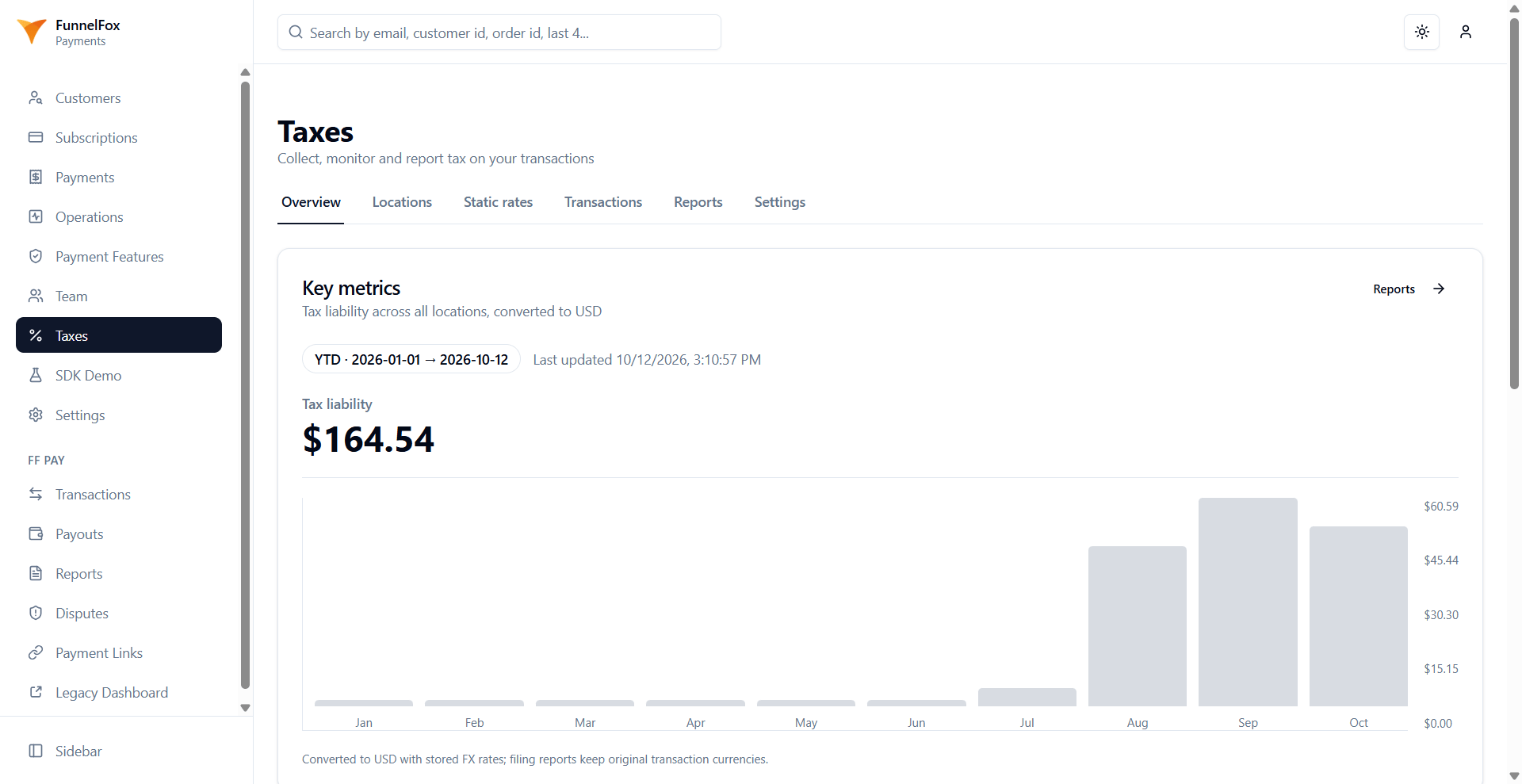
The Taxes > Locations page in your FunnelFox Payments dashboard lists every country you process transactions in. Countries appear here automatically.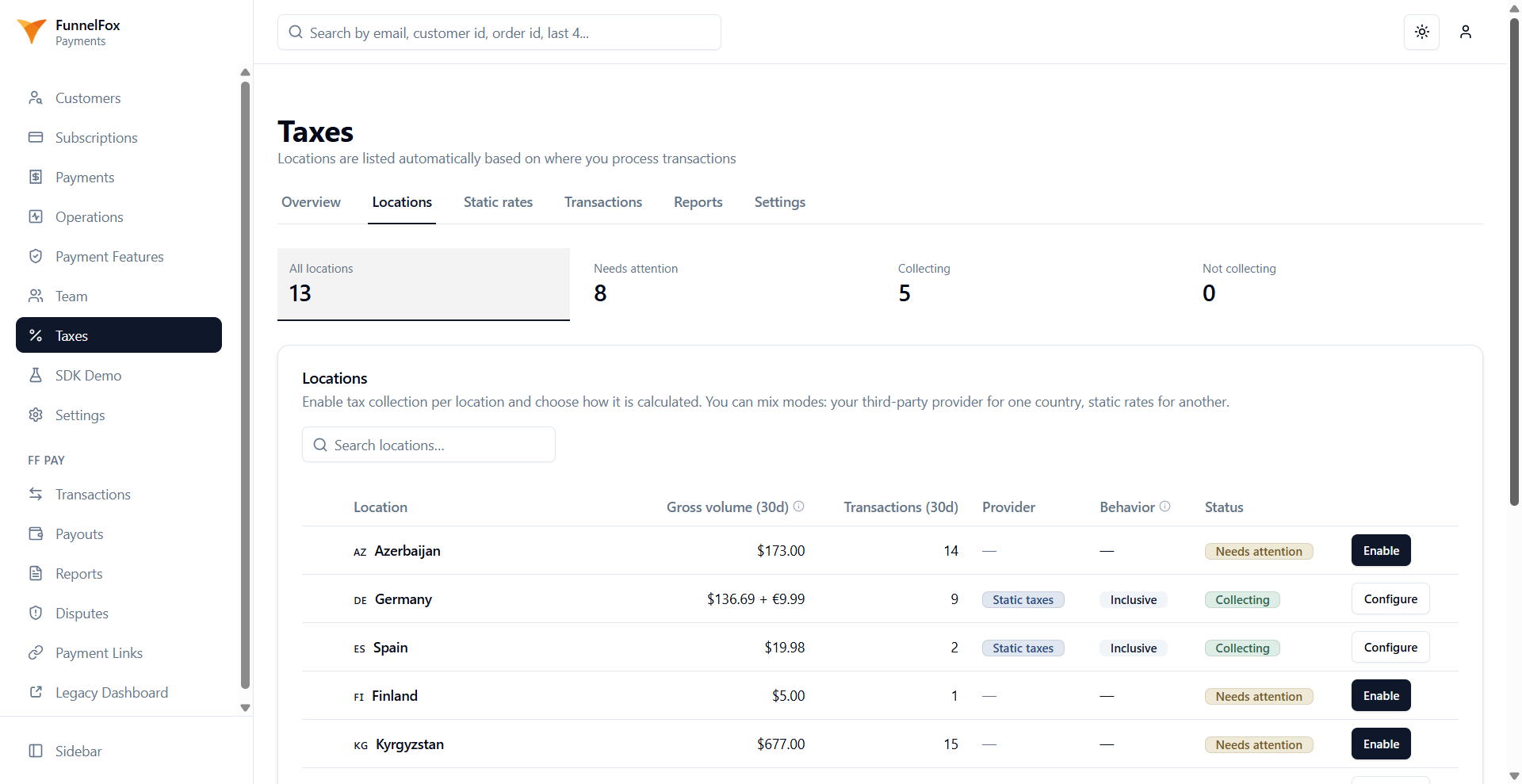
- Gross volume (30d): The total charged in the last 30 days, tax included. Refunds aren’t deducted.
- Transactions (30d): The number of transactions in the last 30 days.
- Provider: None, Static, or Third-party provider.
- Behavior: Inclusive or Exclusive.
- Status: One of:
- Collecting: Tax is on for this country.
- Needs attention: Tax is off, but you had transactions here in the last 30 days.
- Not collecting: Tax is off, and you had no recent transactions here.
Historical transactions
When you turn on static tax for a country you already sell in, past transactions have no tax. They aren’t included in tax reports until you process them. To process them, open the country on the Taxes > Locations page and click Process historical transactions. This isn’t available for the US.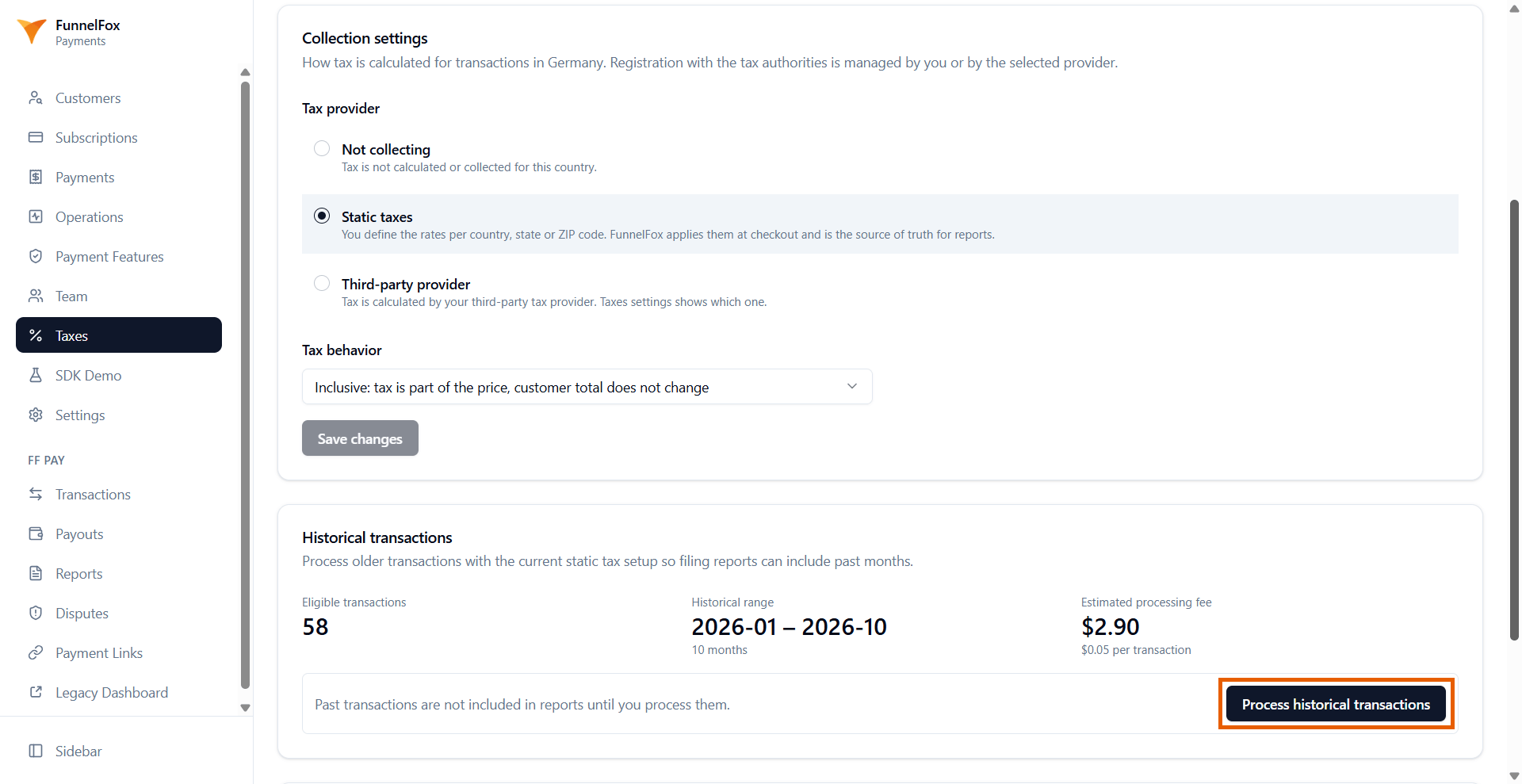
Tax rates
The Taxes > Static rates page in your FunnelFox Payments dashboard holds your static rates. FunnelFox Payments uses them for countries set to Static, and as a fallback for countries set to Third-party provider.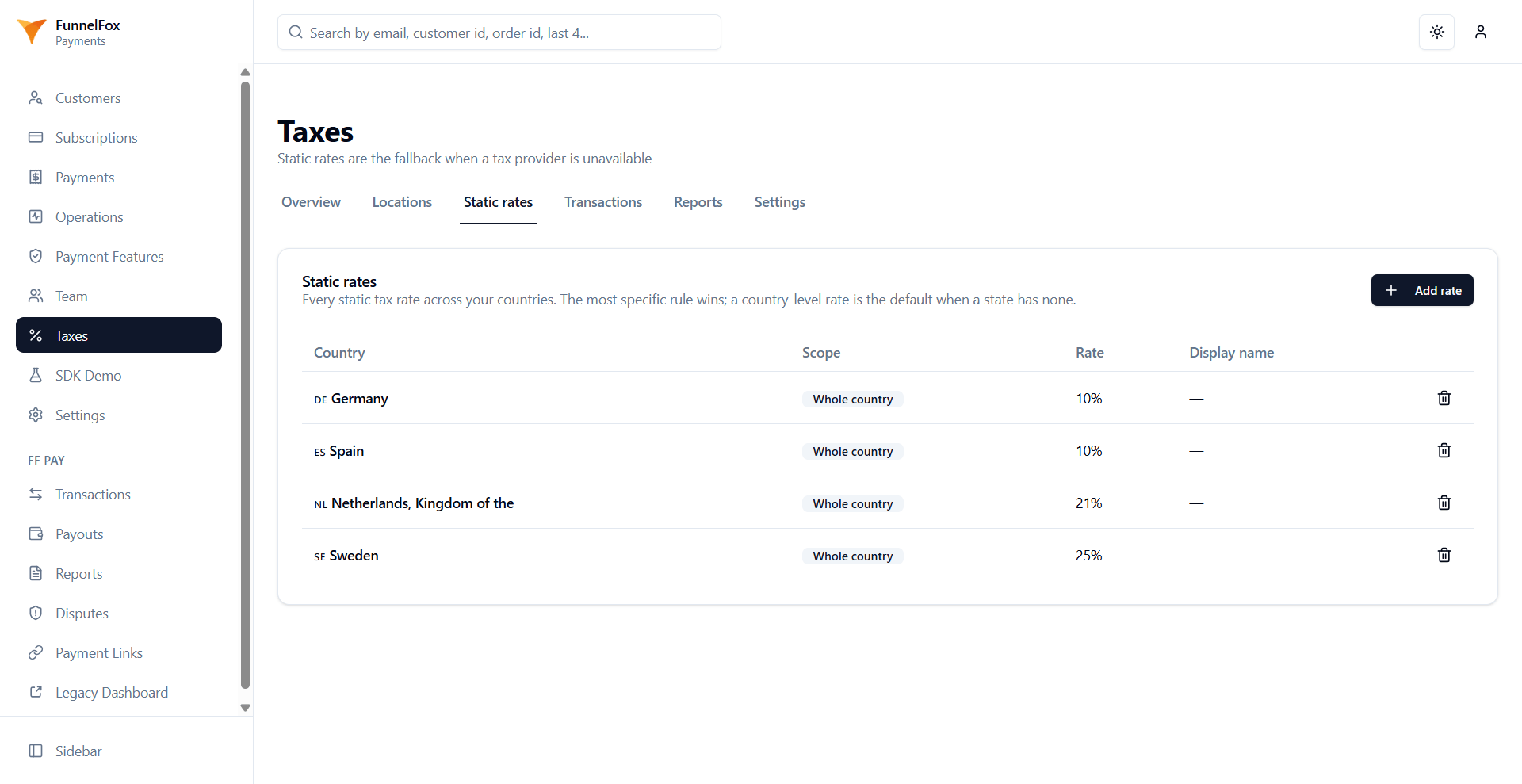
- Country: The country the rate applies to. One rate covers the whole country.
- State or Province: For the US and Canada only. A state or province rate overrides the country rate there.
- Rate (%): The tax rate, such as
20for 20%. - Display name: An optional name for the tax, such as
VAT.
Fallback rates
If your third-party provider is unavailable, FunnelFox Payments charges the country’s static rate instead. Payments taxed with the fallback rate show a yellow warning icon next to the provider in the Provider column of Taxes > Transactions.Reports
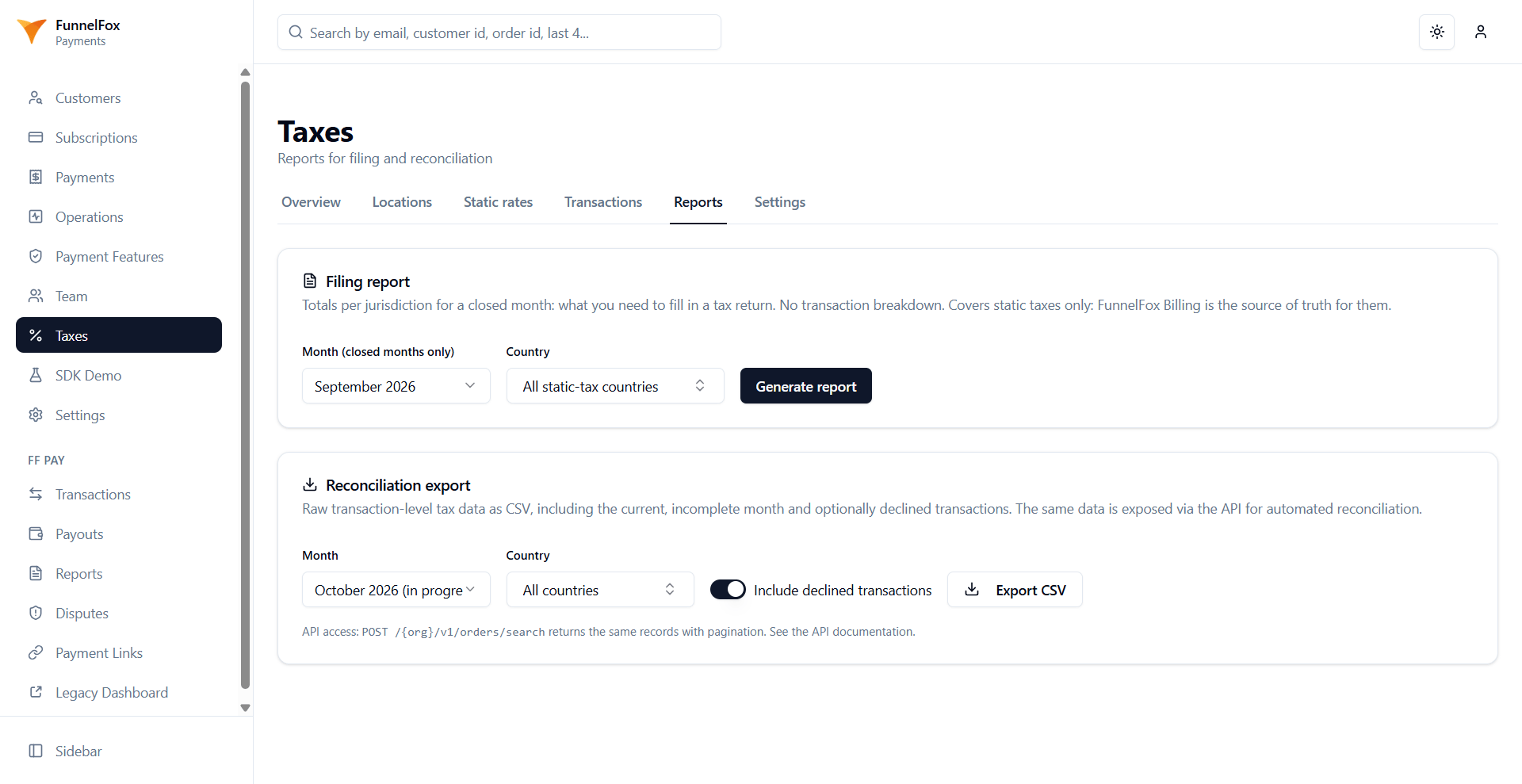
The Taxes > Reports page in your FunnelFox Payments dashboard has two reports:- Filing report: Totals per jurisdiction for a closed month, which is what you need to fill in a tax return. It covers static taxes only. For countries set to Third-party provider, use your provider’s dashboard.
- Reconciliation export: Transaction-level tax data as a CSV, including the current month.
A month with untaxed past transactions can’t be filed. Process
historical transactions for that country
first.