
Customers list
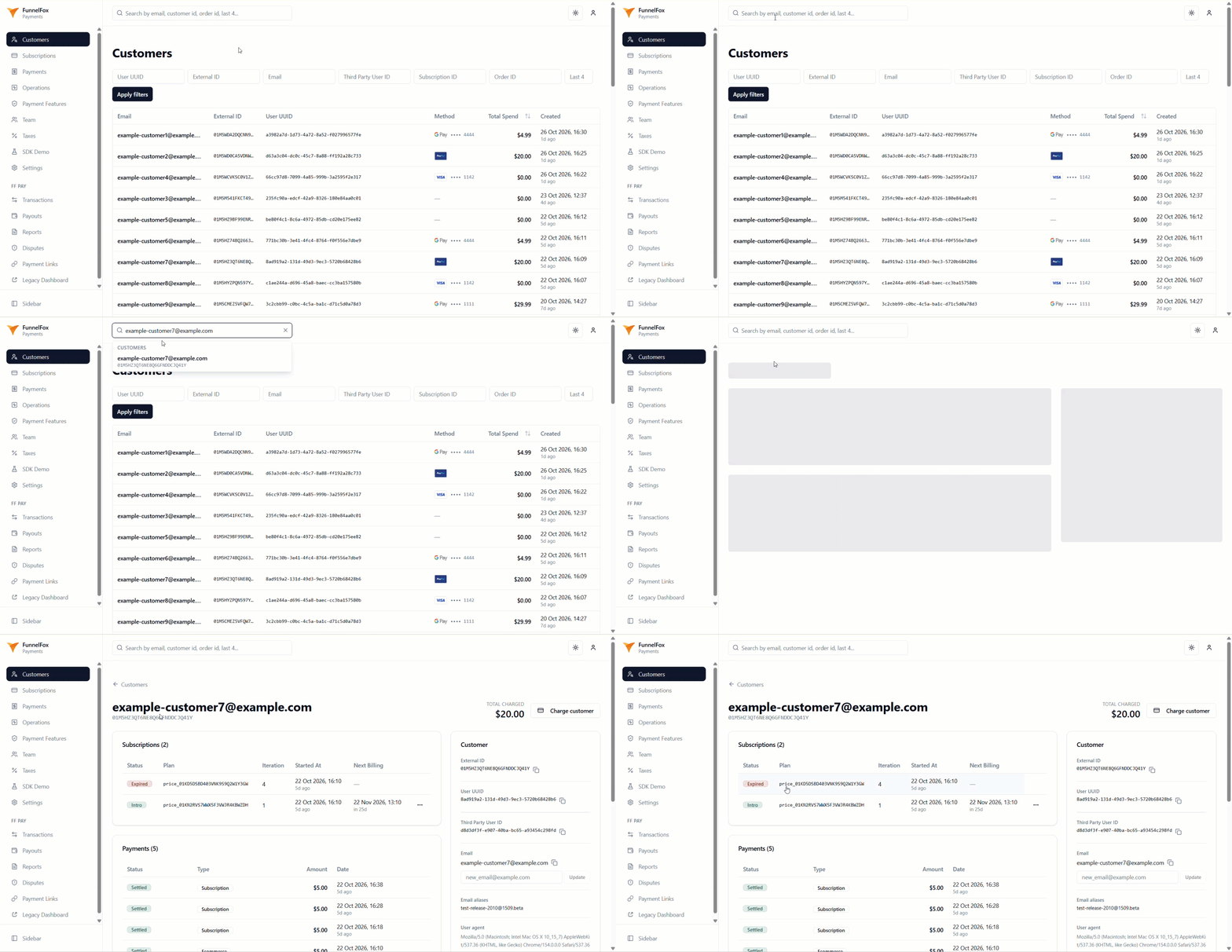
Go to the Customers page to see all customers in your organization, newest first. To narrow the list, fill in filters such as Email, External ID, or Order ID, and click Apply filters. Filters match full values only, and Email also matches the customer’s email aliases. To see who paid the most, click Total Spend. Total spend is the amount the customer paid minus refunds, in USD. Click a customer to open their page.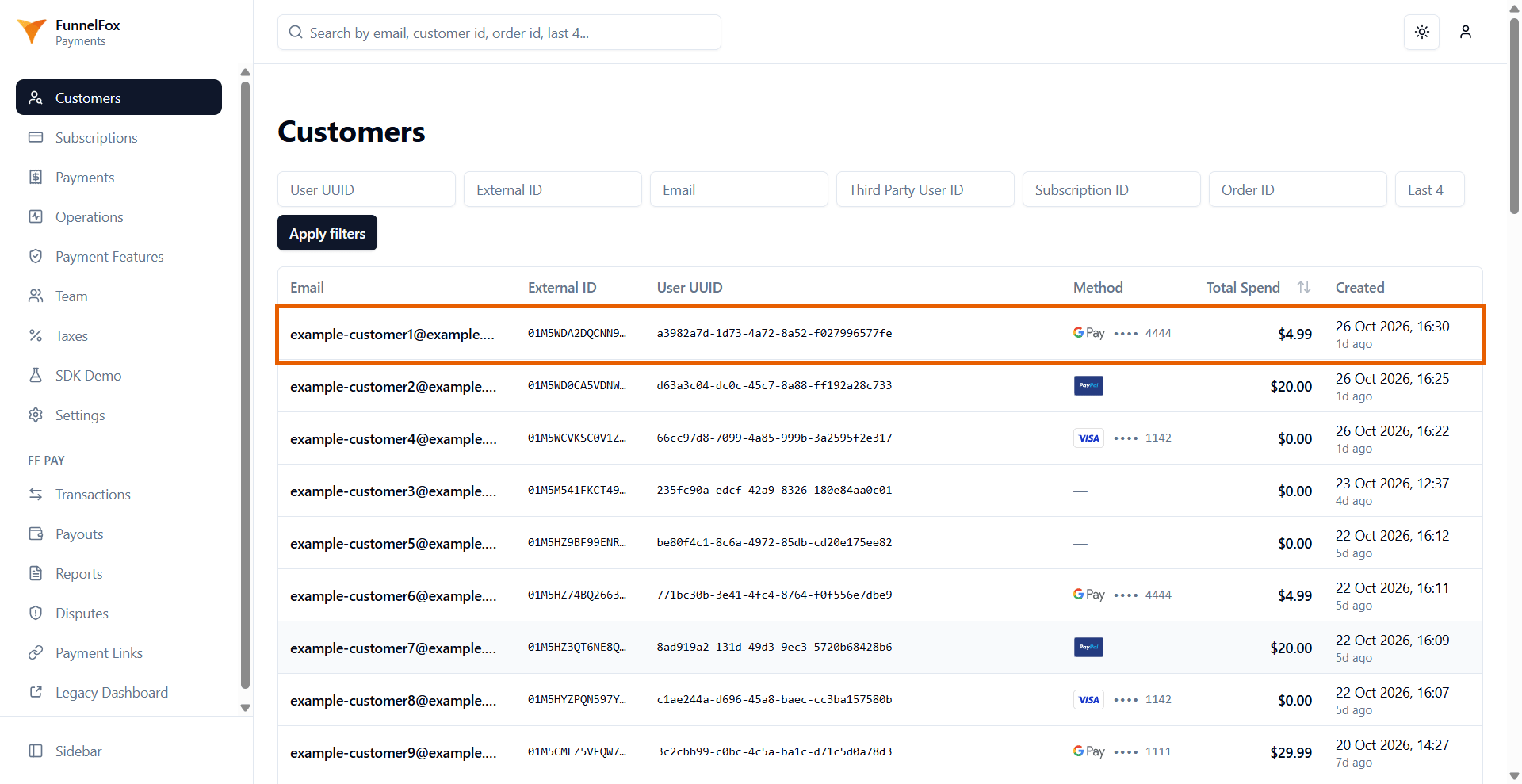
Customer page
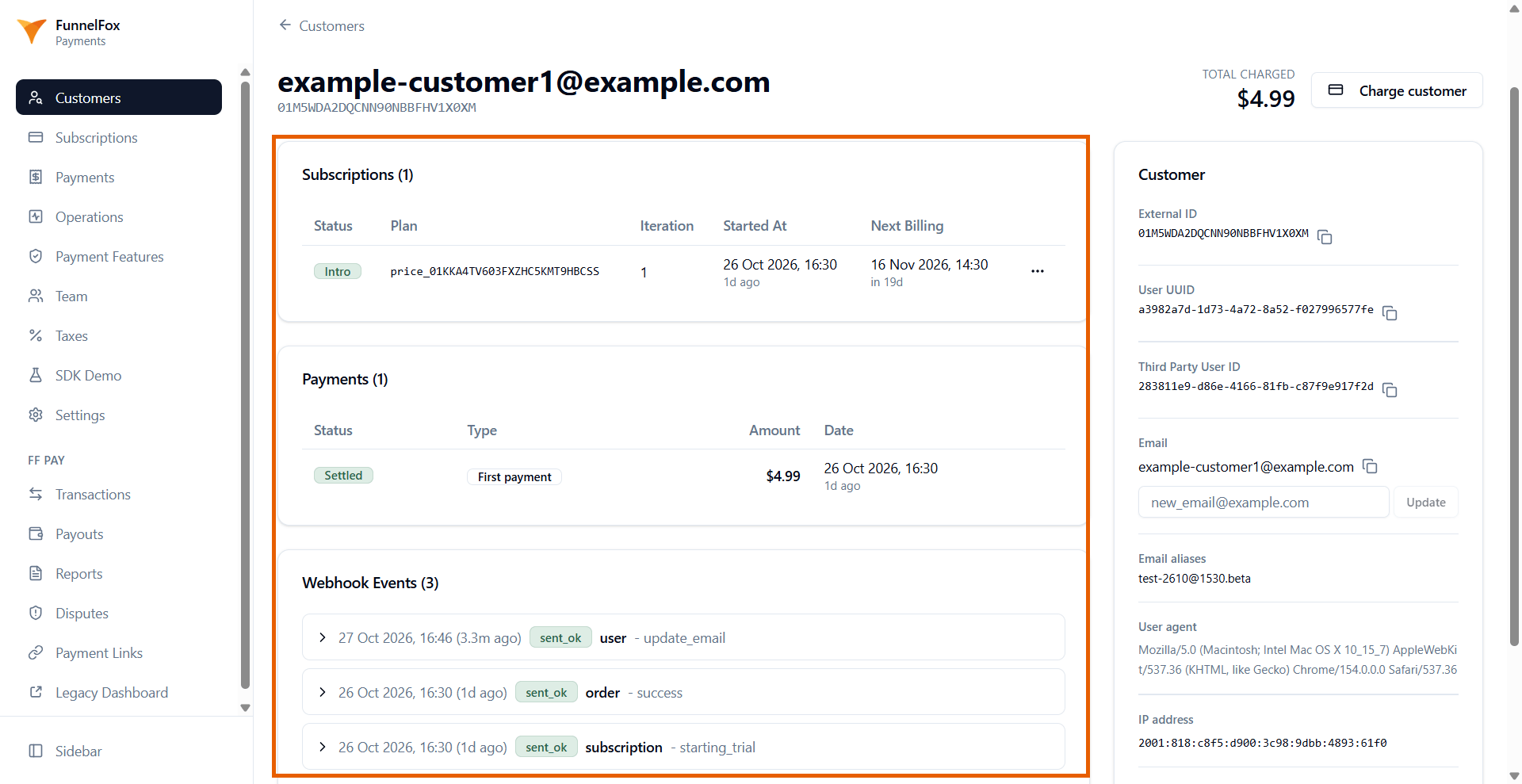
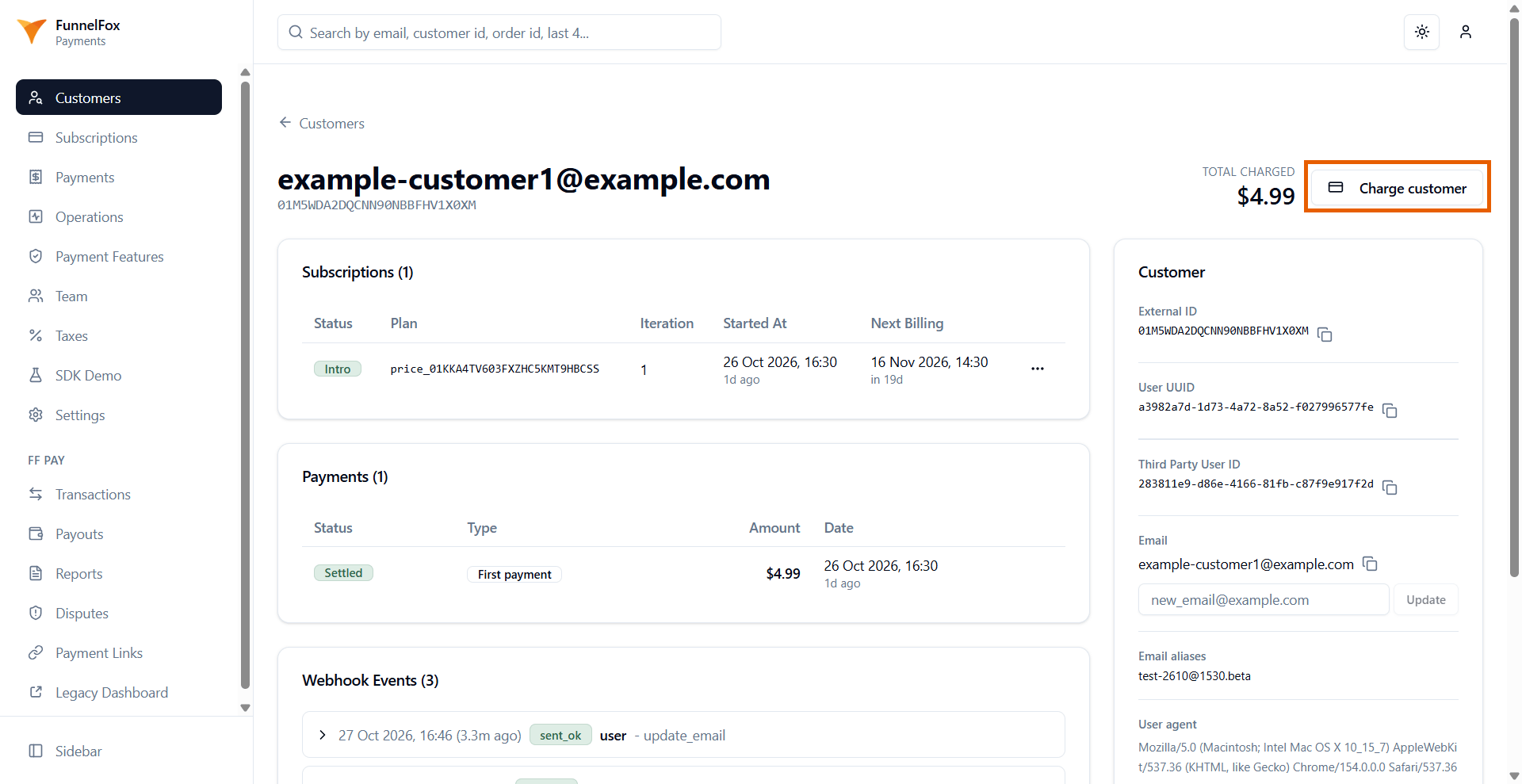
The top of the customer page shows their email, external ID, and total charged amount. Below, you see these blocks:- Subscriptions: Open a subscription to manage it, or use the three-dot menu on its row for quick actions such as cancel and resume.
- Payments: Open a payment to see its details or refund it.
- OneOffs and Consumables: Lifetime and consumable purchases with the features they grant. These blocks appear only when the customer has such purchases.
- Webhook Events: Every webhook sent to your endpoints about this customer, with its delivery status and retry details.
- Audit Log: Actions taken on the customer’s payments and subscriptions, such as refunds and cancellations. Each entry shows who took the action and the reason, if one was entered.
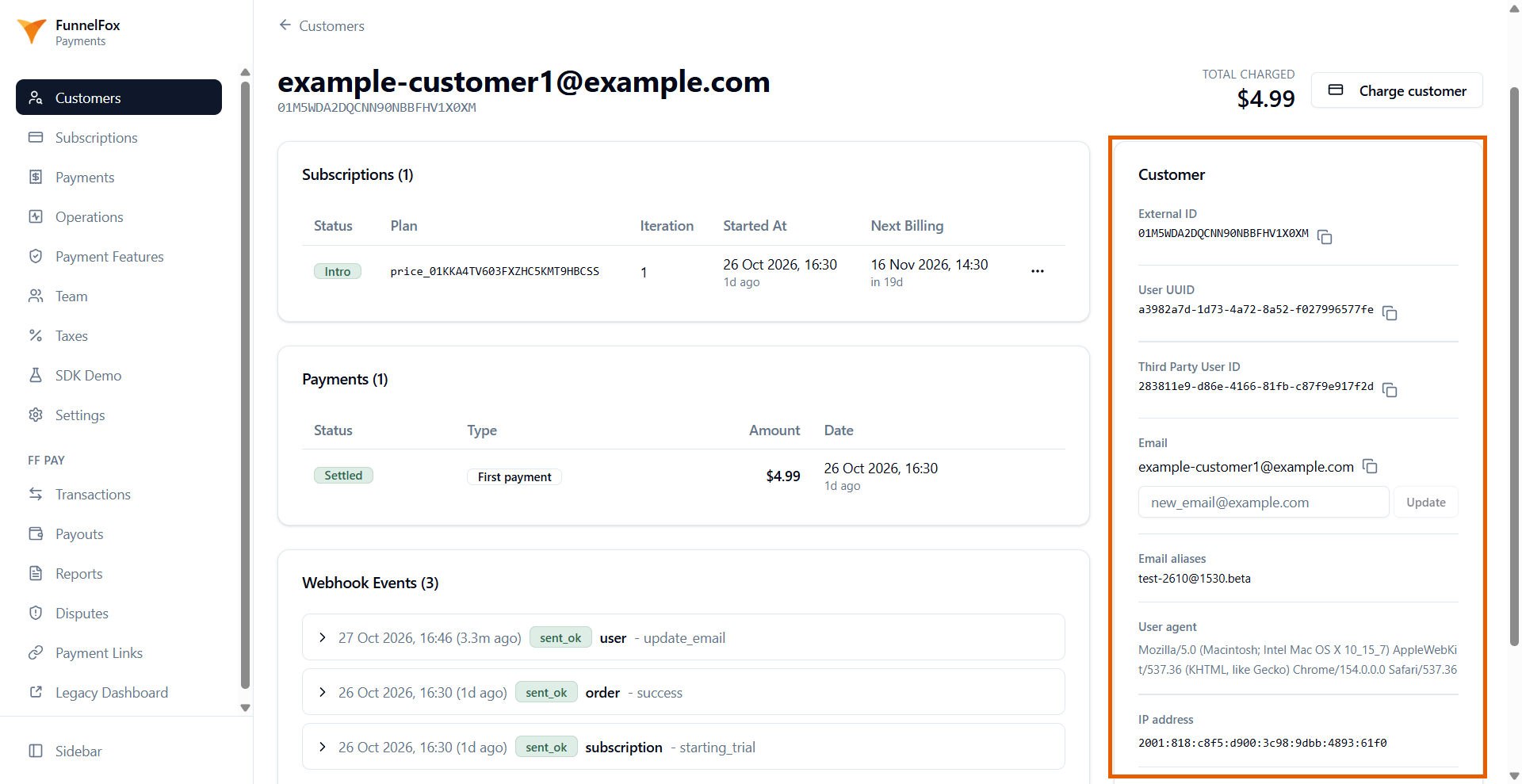
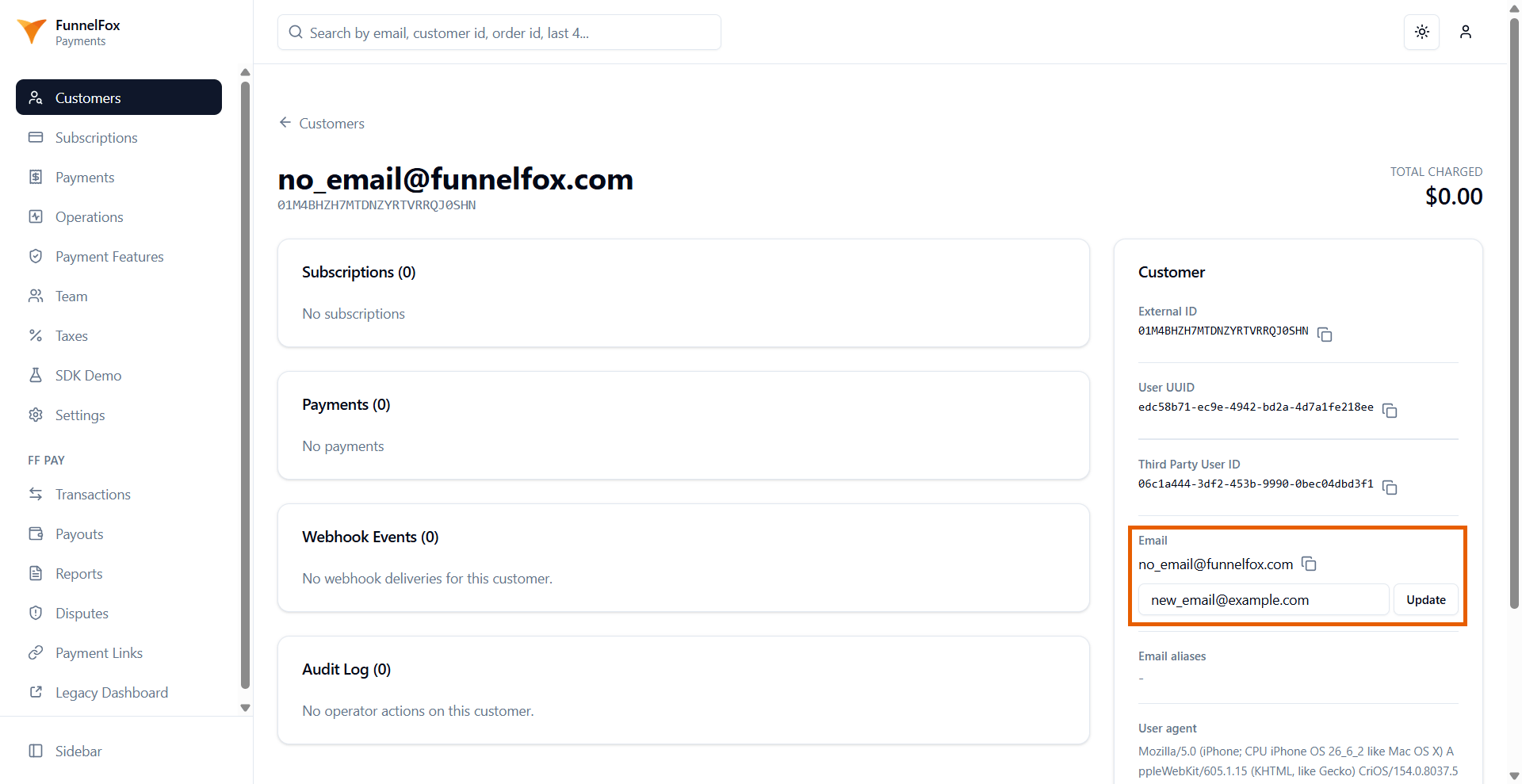
- External ID: Your unique identifier for the customer. Use this ID to reference the customer in all API calls, such as checkout sessions, refunds, cancellations, and email updates.
- User UUID: A system-generated unique identifier that links the customer to their orders, subscriptions, purchases, and webhook events.
- Third Party User ID: A system-generated identifier used when communicating with the integrated payment service.
- Email: The customer’s current primary email, collected at checkout or from Apple Pay. FunnelFox Payments also sends this email with payment metadata.
- Email aliases: The customer’s other emails, such as previous ones.
- User agent: The browser and device information captured from the customer’s checkout session.
- IP address: The customer’s IP address at checkout.
- Created At: When the customer record was created.
Manage customers
To update a customer’s email:- In the Customer card, enter a new valid email address under Email.
- Click Update.
user webhook with the update_email subtype.
Permissions
What a team member can do depends on their access group, set on the Team page:- Support: Find customers, update their emails, and manage their payments and subscriptions.
- Admin: Everything Support can do, plus charge customers.