> ## Documentation Index
> Fetch the complete documentation index at: https://funnelfox.com/docs/llms.txt
> Use this file to discover all available pages before exploring further.
# How to set up Meta Pixel
> Detailed guide to configuring Meta (Facebook) Pixel in your FunnelFox project. Track events, conversions, and optimize your ad spend.
[Meta Pixel integration](/integrations/tracking/meta-pixel) sends events like `Purchase` and `CompleteRegistration`
to Facebook Events Manager, enabling better ad optimization on Instagram and
Facebook.
Conversions API additionally sends events directly from FunnelFox server to Meta, bypassing browser limitations. This guide walks you through the complete setup process.
We strongly recommend using Conversions API. If you're unsure whether you need it, read our guide on
[why use Conversions API](/integrations/tracking/meta-pixel#use-conversions-api).
## Set up Meta Pixel
Follow these steps to create a Meta dataset, get your Pixel ID, and connect it to FunnelFox.
### 1. Create data source
1. Go to [Meta Events Manager](https://www.facebook.com/events_manager2/).
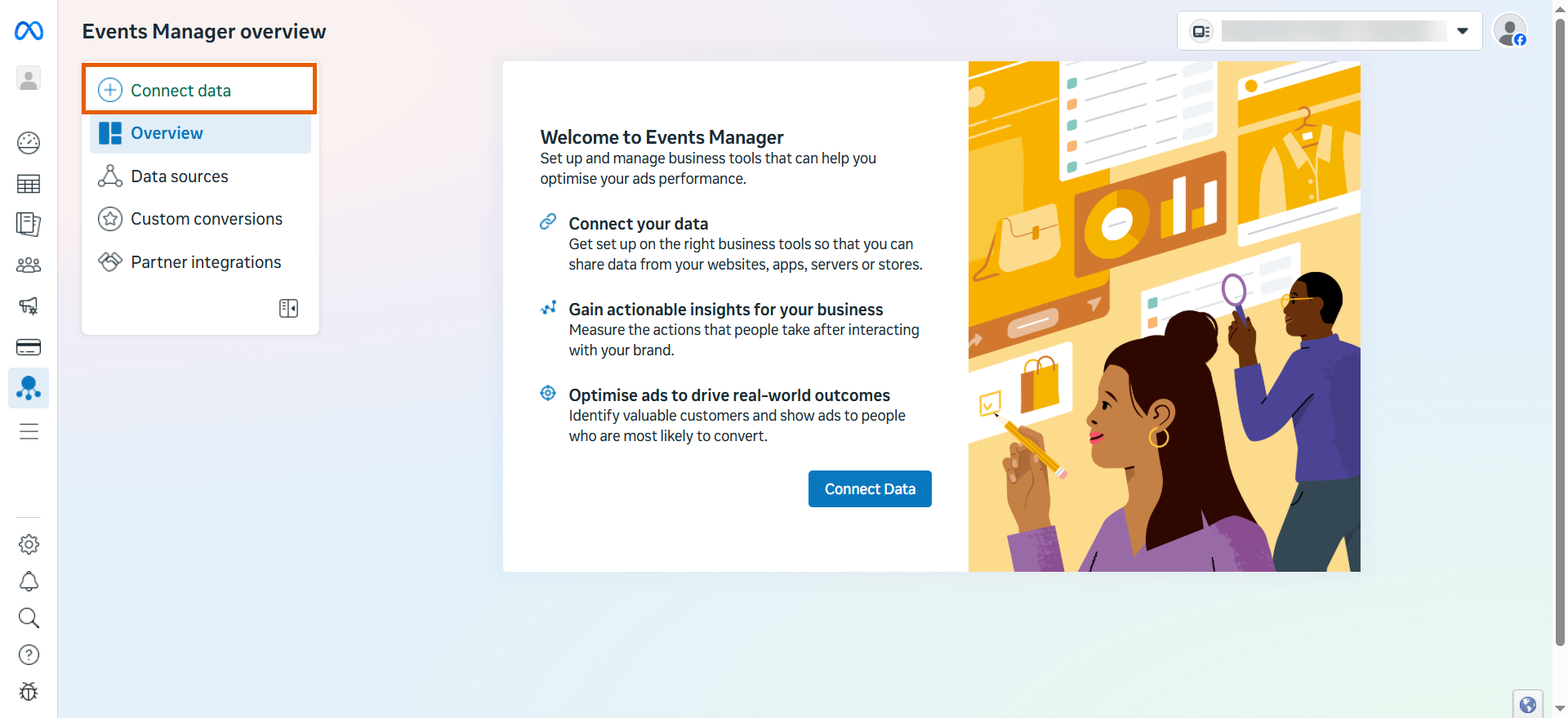
2. Click **Connect data**.
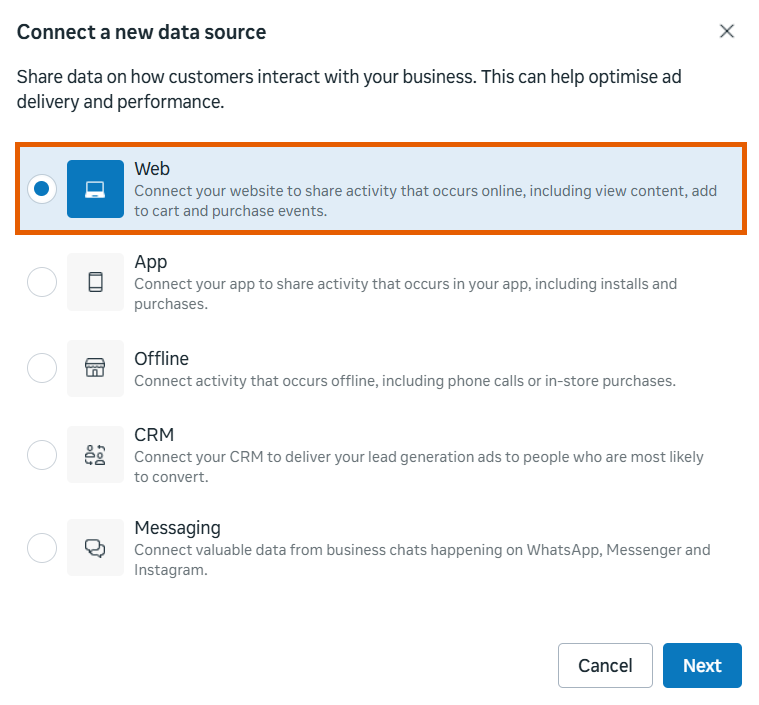
 3. Select **Web**.
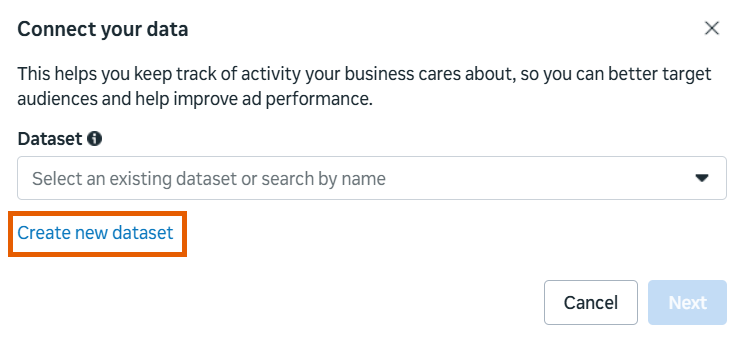
 4. Click **Create new dataset**.
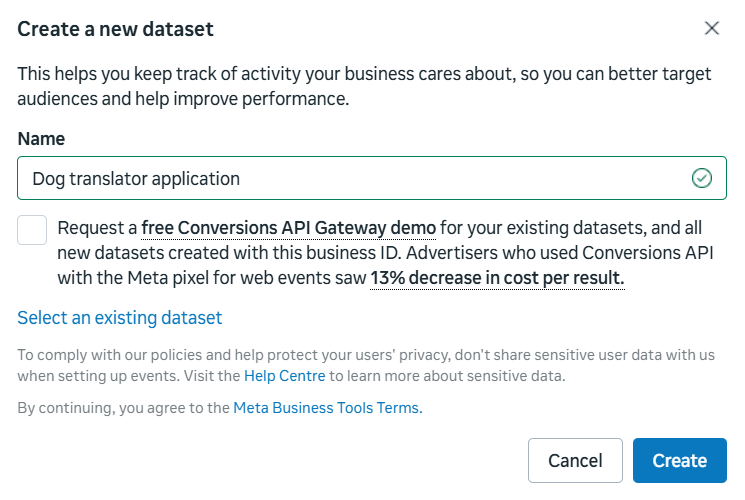
 5. Name your dataset and uncheck the demo request.
6. Click **Create**.
5. Name your dataset and uncheck the demo request.
6. Click **Create**.
 Your dataset is created. Follow the steps below to set up your integration.
### 2. Access your Pixel ID
1. Go to [Meta Events Manager > Data sources](https://business.facebook.com/events_manager2/list).
2. Select the Pixel (data source) you've created.
Your dataset is created. Follow the steps below to set up your integration.
### 2. Access your Pixel ID
1. Go to [Meta Events Manager > Data sources](https://business.facebook.com/events_manager2/list).
2. Select the Pixel (data source) you've created.
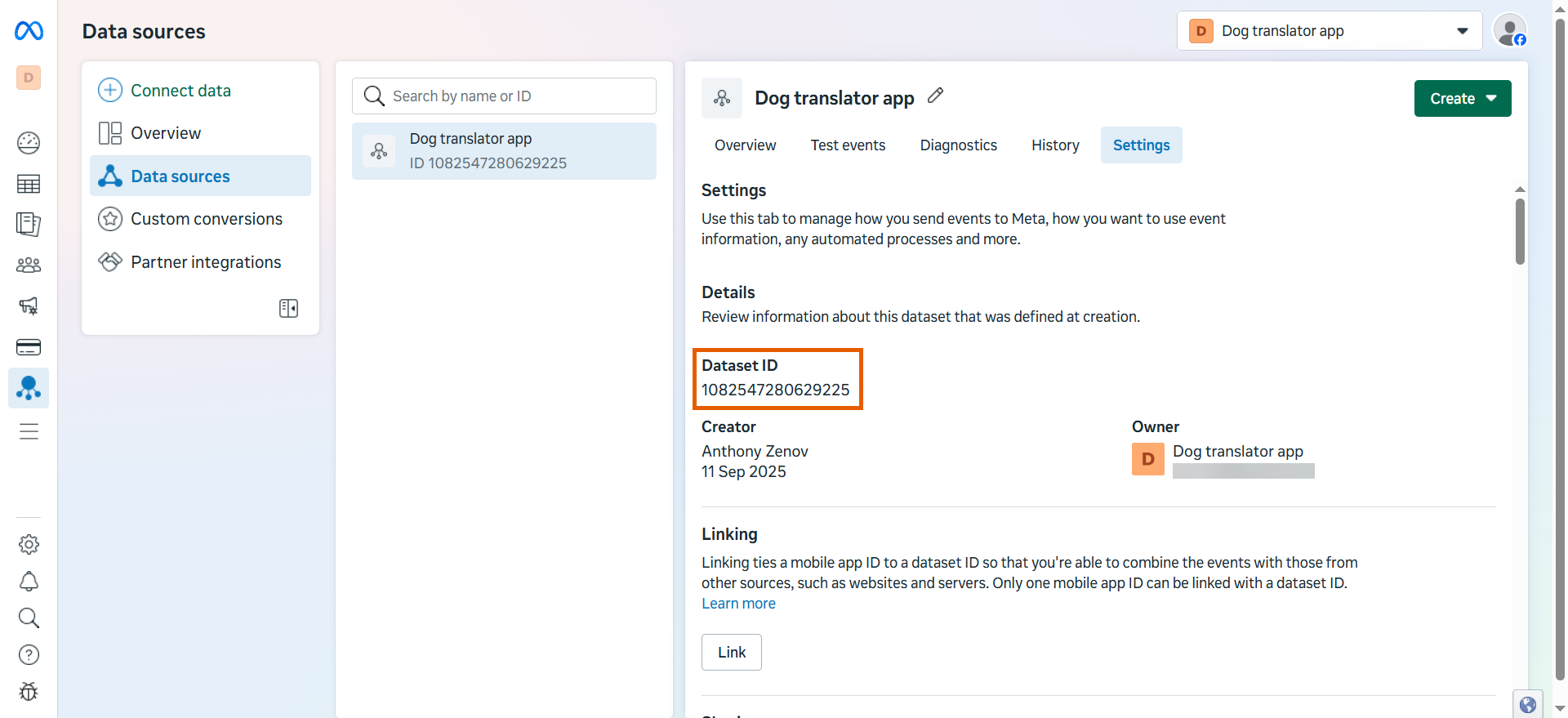
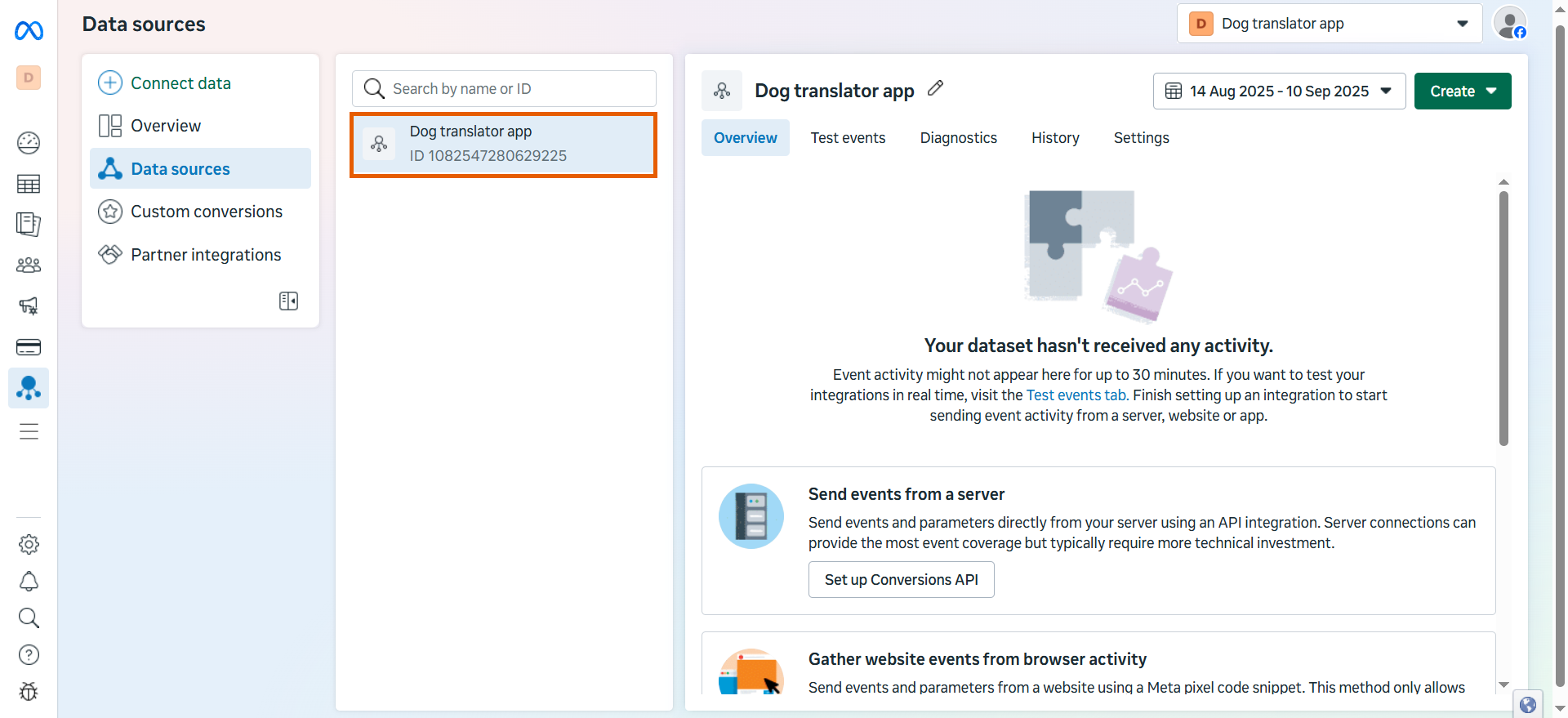 3. Copy the **Dataset ID** on the right or by going to the **Settings** tab for the data source.
 ### 3. Apply Pixel ID in FunnelFox
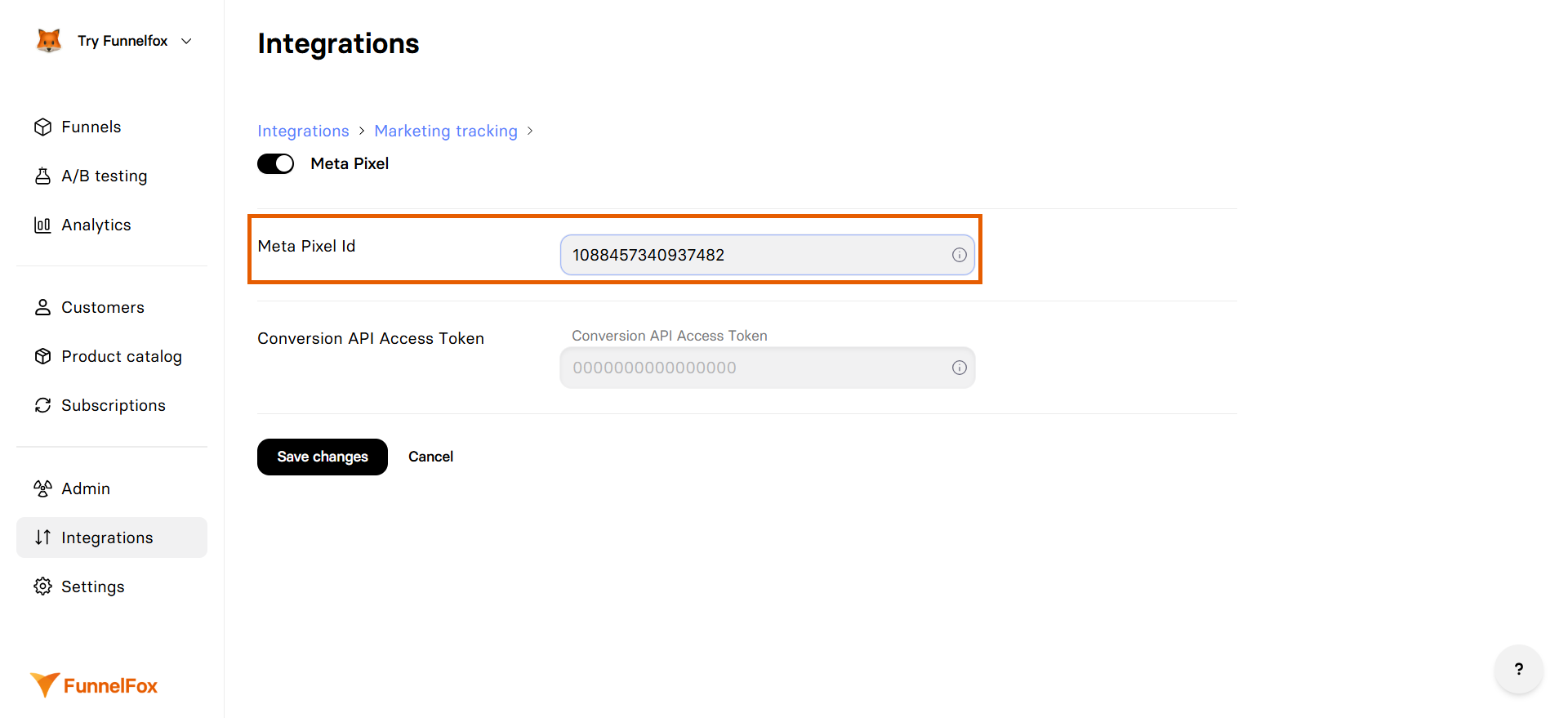
1. Go to [Integrations > Meta Pixel](https://app.funnelfox.com/integrations/meta) in FunnelFox.
2. Paste your Dataset ID (Pixel ID) into the **Meta Pixel ID** field.
3. Click **Save changes**.
Meta Pixel event tracking is now active! Republish your funnels, or enhance tracking with the Conversions API by following the next section.
### 3. Apply Pixel ID in FunnelFox
1. Go to [Integrations > Meta Pixel](https://app.funnelfox.com/integrations/meta) in FunnelFox.
2. Paste your Dataset ID (Pixel ID) into the **Meta Pixel ID** field.
3. Click **Save changes**.
Meta Pixel event tracking is now active! Republish your funnels, or enhance tracking with the Conversions API by following the next section.
 ## Set up Conversions API
To set up the Conversions API, you must be an [admin or developer](https://www.facebook.com/business/help/442345745885606) for the Meta business portfolio.
Conversions API provides server-side backup for browser events, bypassing browser limitations. Learn more about [Meta Pixel vs Conversions API](/integrations/tracking/meta-pixel#meta-pixel-vs-conversions-api).
Complete these steps after [setting up Meta Pixel](/integrations/tracking/set-up-meta-pixel-integration#setup-meta-pixel):
### 1. Start your setup
1. Go to [Meta Events Manager > Data sources](https://business.facebook.com/events_manager2/list).
2. Select your Pixel (data source).
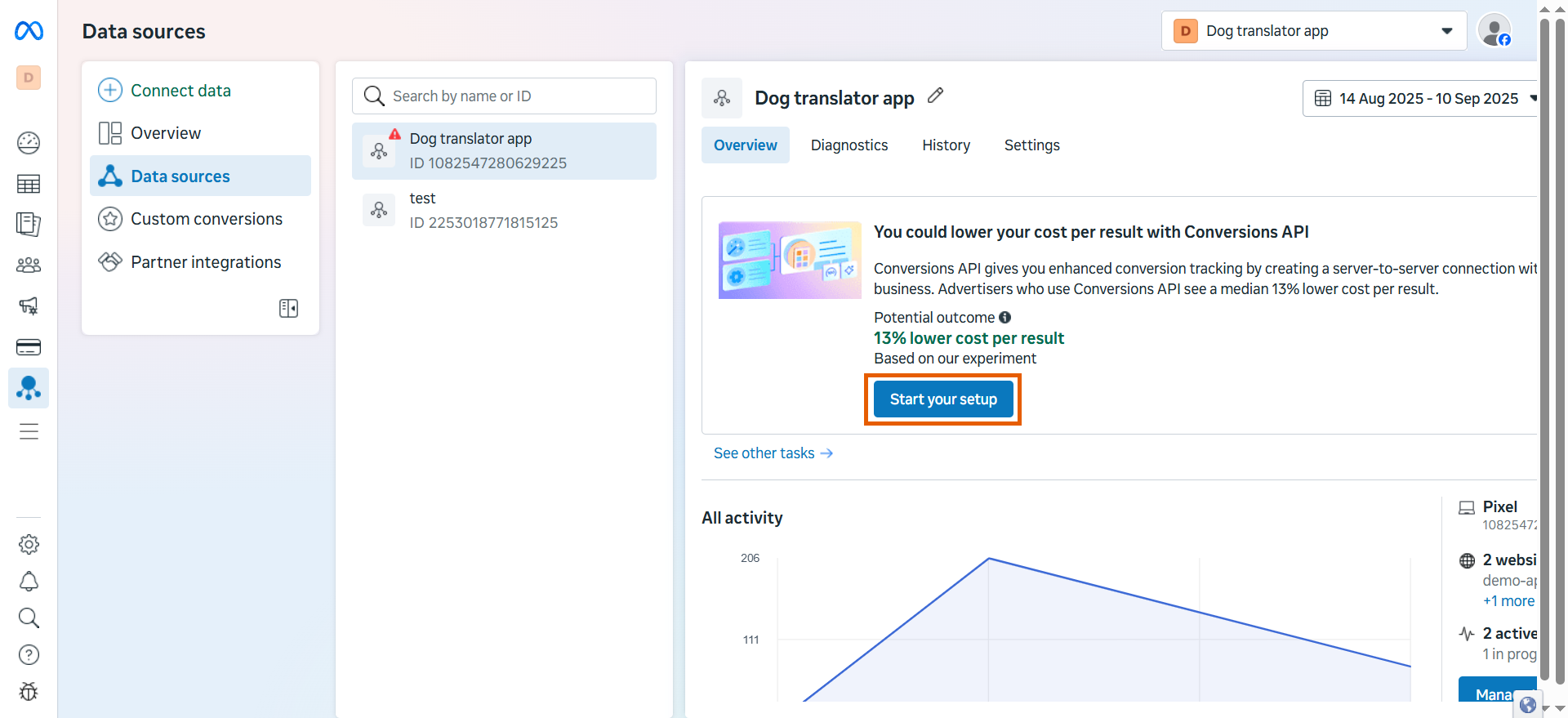
3. Click **Start your setup** on the Conversions API notification.
## Set up Conversions API
To set up the Conversions API, you must be an [admin or developer](https://www.facebook.com/business/help/442345745885606) for the Meta business portfolio.
Conversions API provides server-side backup for browser events, bypassing browser limitations. Learn more about [Meta Pixel vs Conversions API](/integrations/tracking/meta-pixel#meta-pixel-vs-conversions-api).
Complete these steps after [setting up Meta Pixel](/integrations/tracking/set-up-meta-pixel-integration#setup-meta-pixel):
### 1. Start your setup
1. Go to [Meta Events Manager > Data sources](https://business.facebook.com/events_manager2/list).
2. Select your Pixel (data source).
3. Click **Start your setup** on the Conversions API notification.
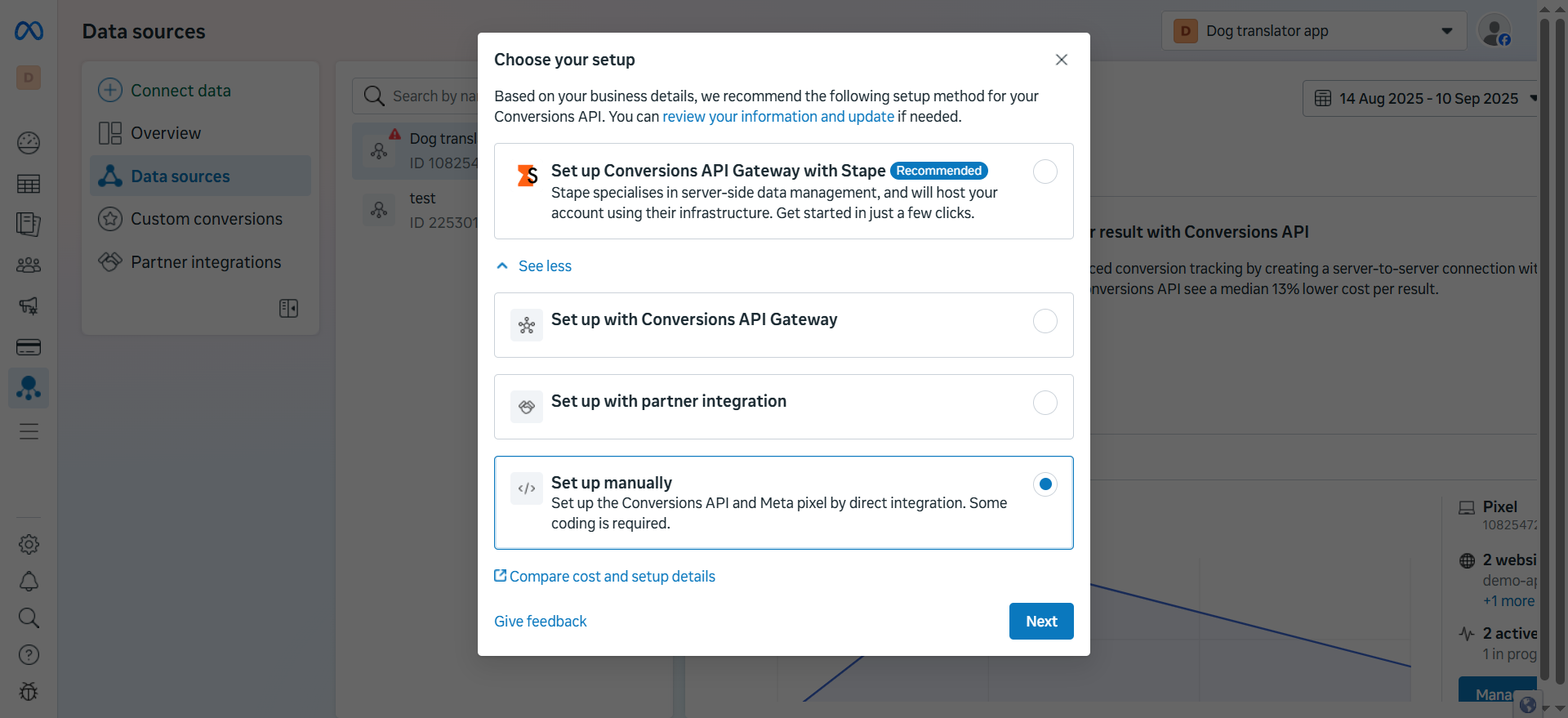
 ### 2. Choose setup method
1. Click **See other ways to setup**.
2. Select **Set up manually**.
3. Click **Next**.
### 2. Choose setup method
1. Click **See other ways to setup**.
2. Select **Set up manually**.
3. Click **Next**.
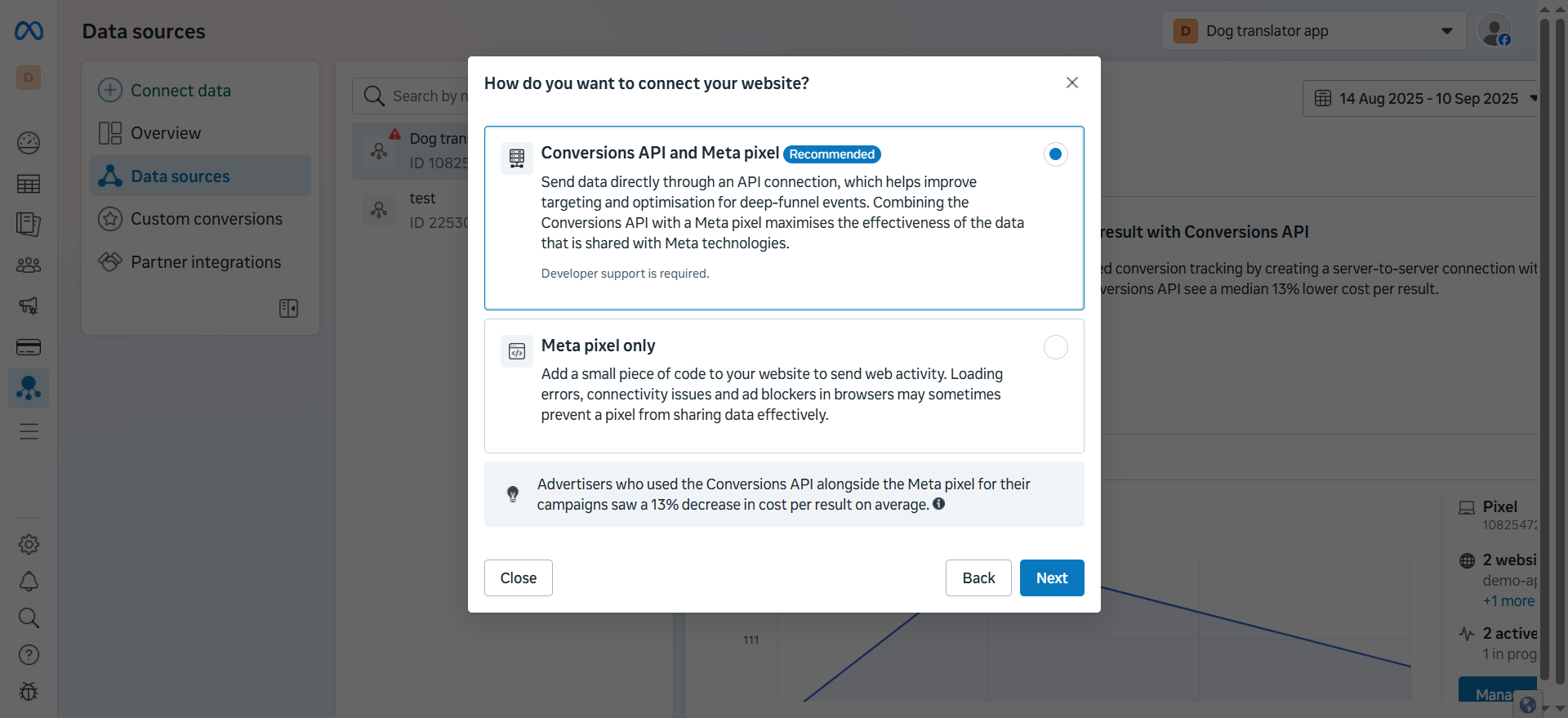
 ### 3. Configure setup options
1. Select **Conversions API and Meta pixel**.
2. Click **Next**.
### 3. Configure setup options
1. Select **Conversions API and Meta pixel**.
2. Click **Next**.
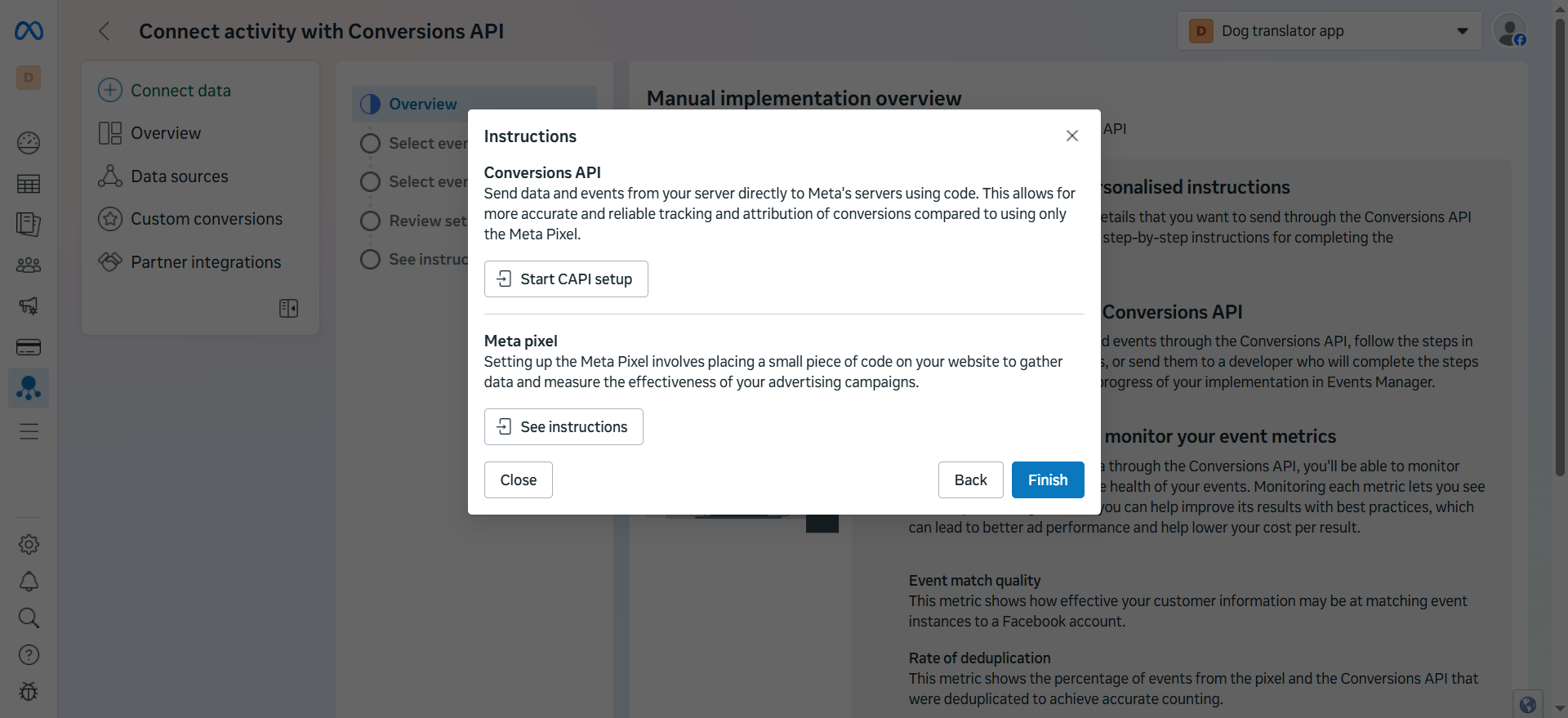
 3. Click **Start CAPI setup**.
4. Click **Finish**.
3. Click **Start CAPI setup**.
4. Click **Finish**.
 ### 4. Manual implementation
1. Click **Continue** under **Manual implementation overview**.
2. Checkmark **Events sent using pixel code**.
### 4. Manual implementation
1. Click **Continue** under **Manual implementation overview**.
2. Checkmark **Events sent using pixel code**.
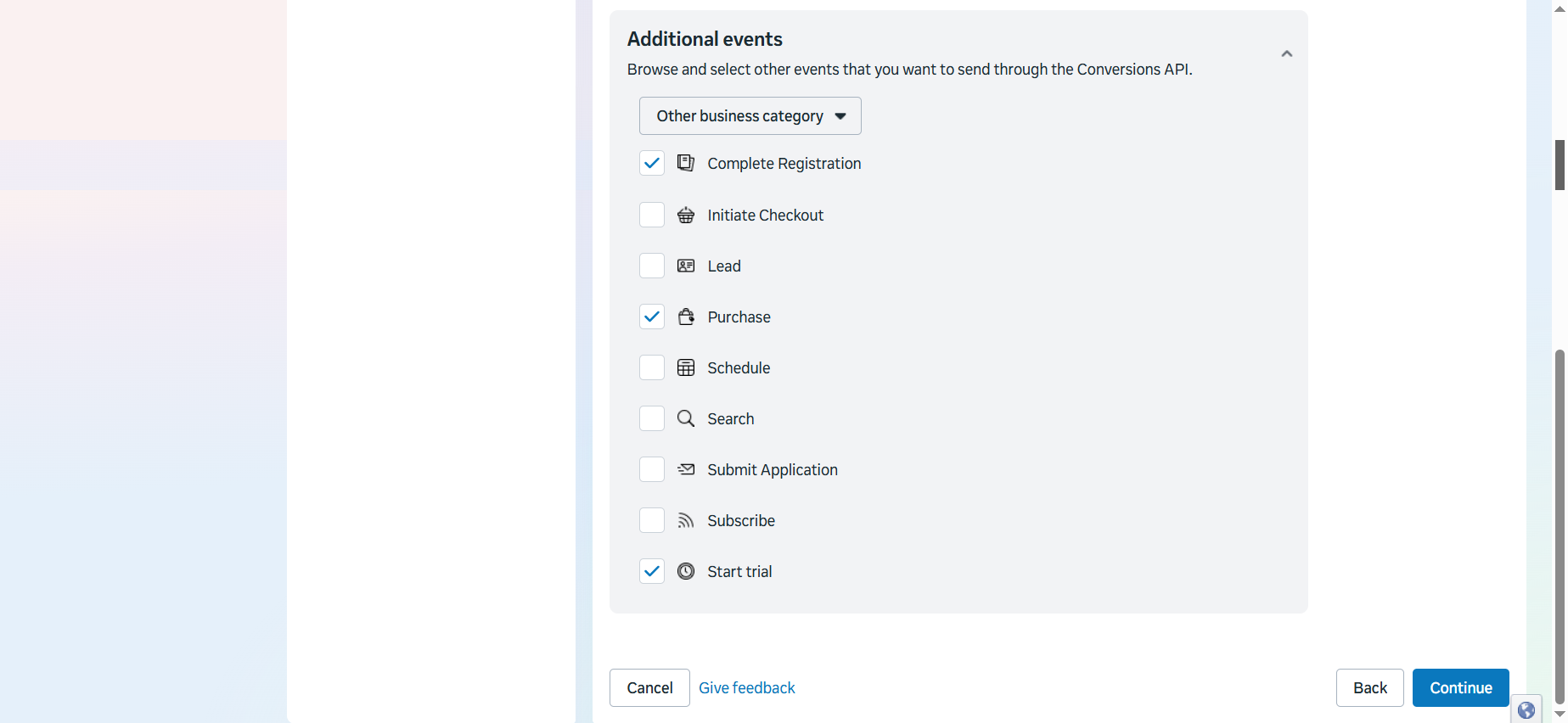
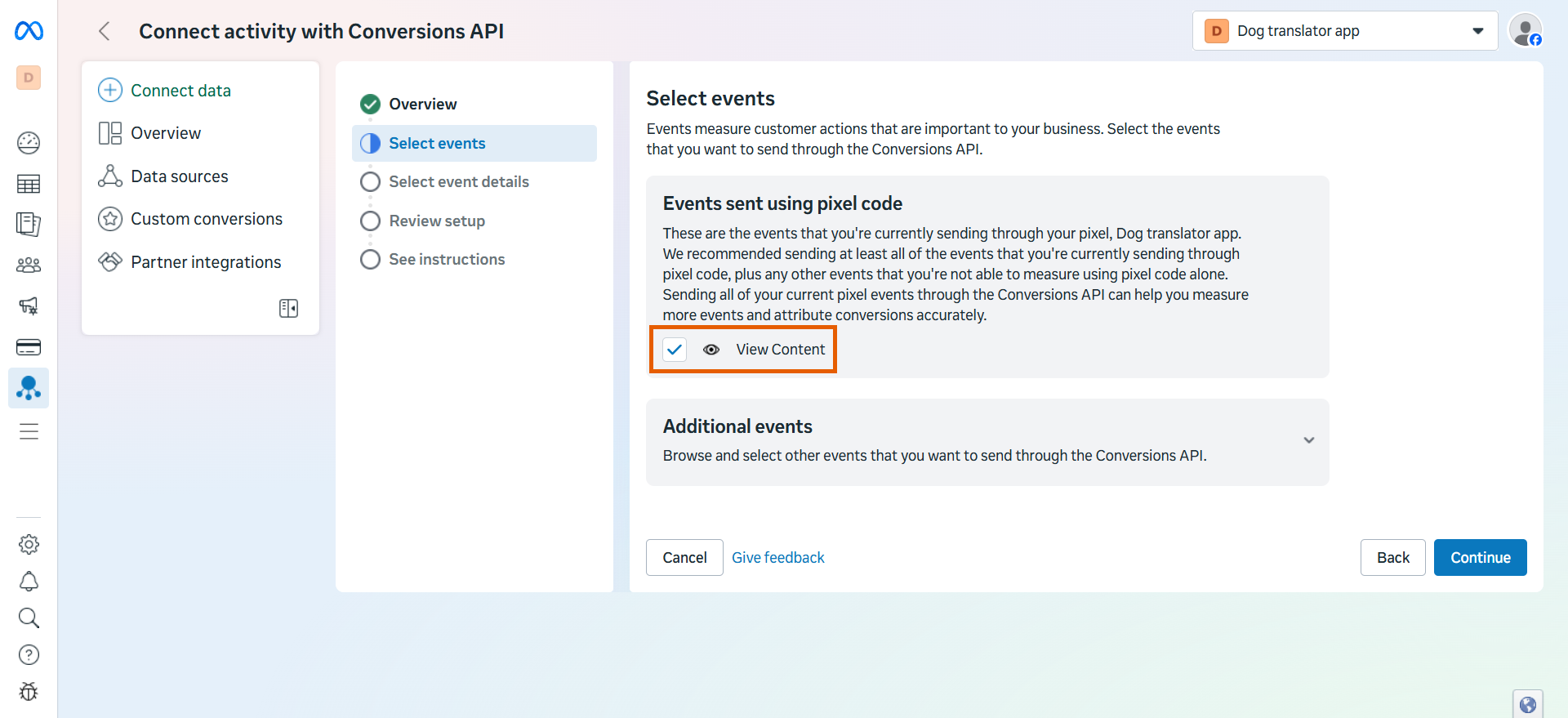 3. Select [all events to track with Conversions API](/integrations/tracking/meta-pixel#tracked-events) under **Additional events**.
4. Click **Continue**.
3. Select [all events to track with Conversions API](/integrations/tracking/meta-pixel#tracked-events) under **Additional events**.
4. Click **Continue**.
 5. Click **Continue** under **Select parameters**.
6. Click **Continue** under **Review setup**.
7. Click **Continue** under **See instructions**.
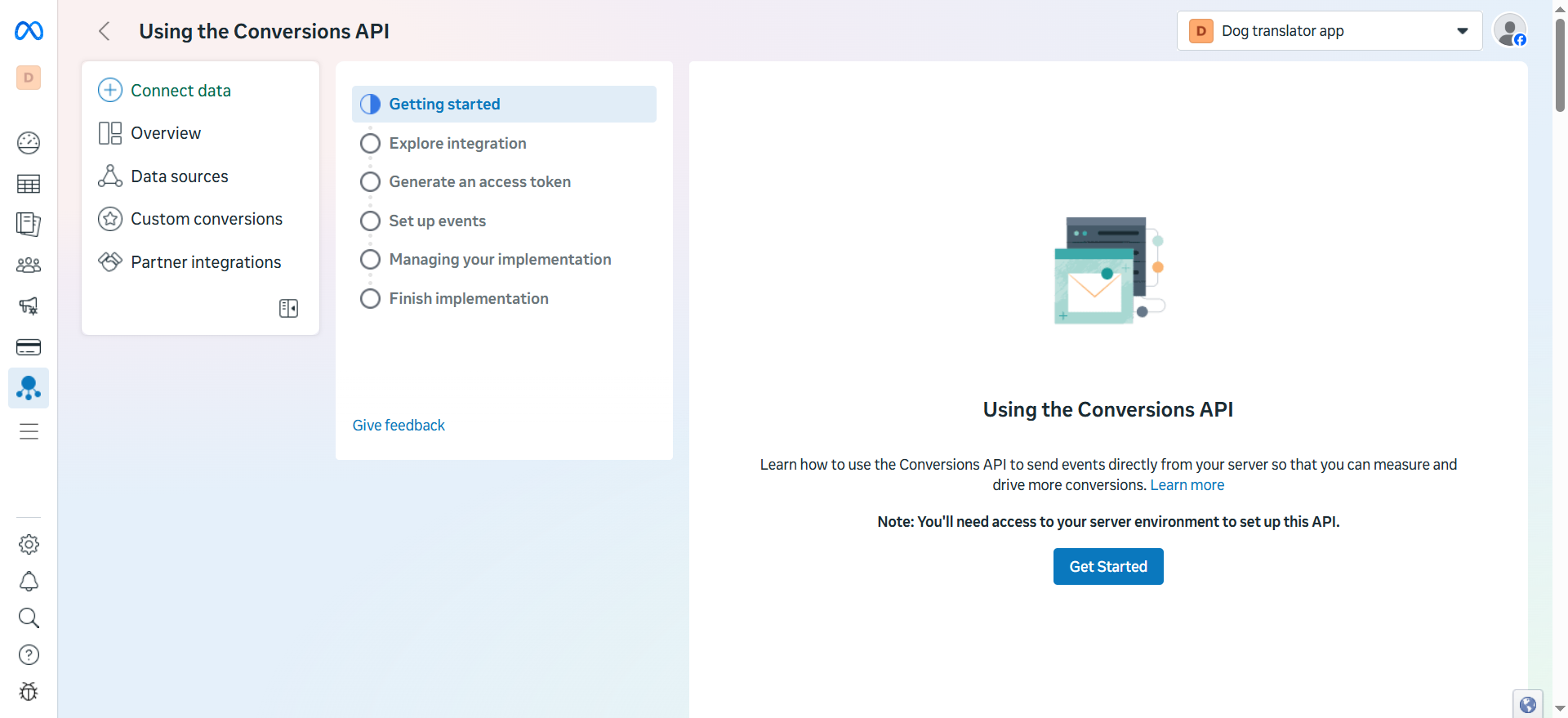
You will see the **Using the Conversions API** page.
5. Click **Continue** under **Select parameters**.
6. Click **Continue** under **Review setup**.
7. Click **Continue** under **See instructions**.
You will see the **Using the Conversions API** page.
 ### 5. Generate access token
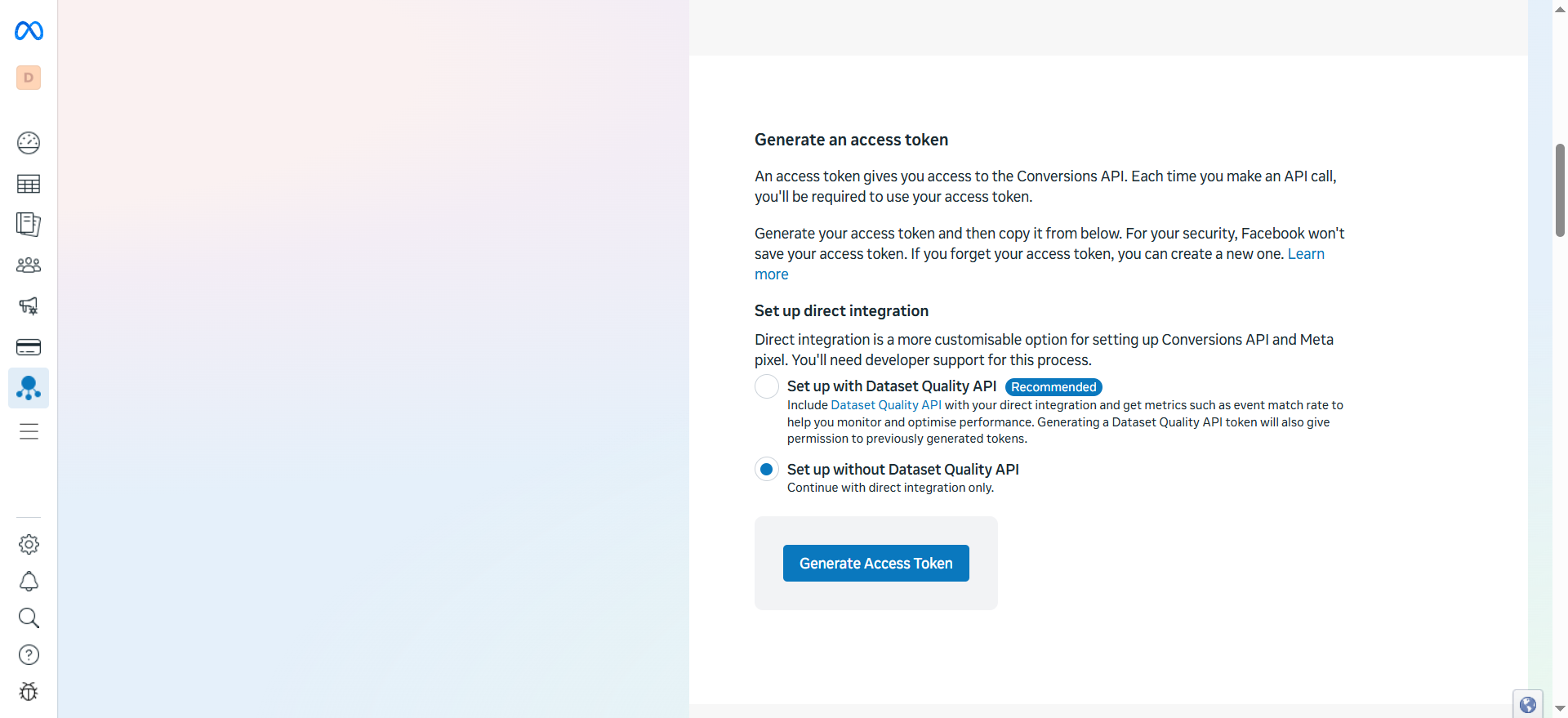
1. Go to the **Generate an access token** section and select **Set up without Dataset Quality API**.
This guide covers the setup flow without Dataset Quality API, but you can select any option under **Generate an access token**.
2. Click **Generate Access Token**.
3. Copy the access token.
### 5. Generate access token
1. Go to the **Generate an access token** section and select **Set up without Dataset Quality API**.
This guide covers the setup flow without Dataset Quality API, but you can select any option under **Generate an access token**.
2. Click **Generate Access Token**.
3. Copy the access token.
 4. Click **Finish**.
### 6. Apply token in FunnelFox
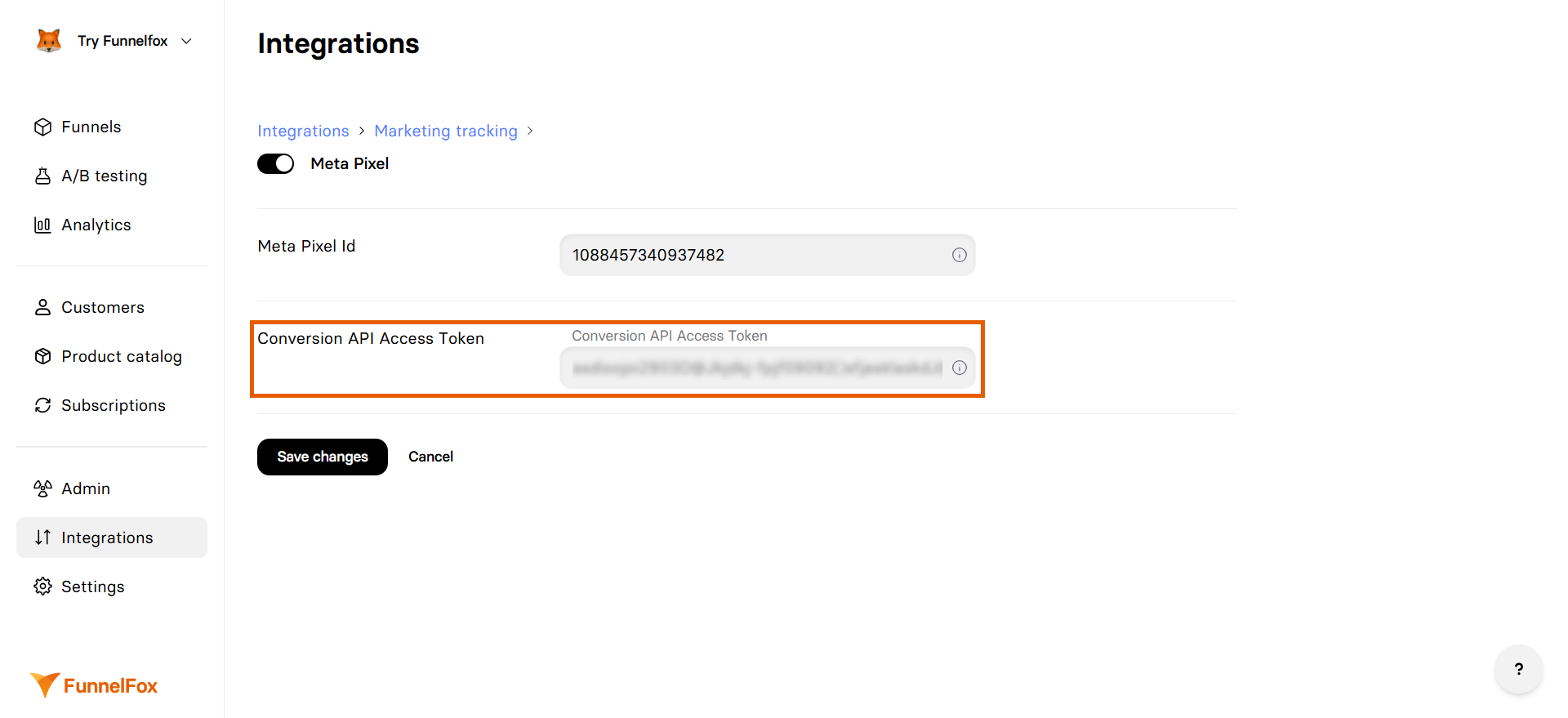
1. Go to [Integrations > Meta Pixel](https://app.funnelfox.com/integrations/meta) in FunnelFox.
2. Paste your access token into the **Conversion API Access Token** field.
3. Click **Save changes**.
Conversions API is now active! Republish your funnels and [test event tracking](/integrations/tracking/set-up-meta-pixel-integration#test-your-integration).
4. Click **Finish**.
### 6. Apply token in FunnelFox
1. Go to [Integrations > Meta Pixel](https://app.funnelfox.com/integrations/meta) in FunnelFox.
2. Paste your access token into the **Conversion API Access Token** field.
3. Click **Save changes**.
Conversions API is now active! Republish your funnels and [test event tracking](/integrations/tracking/set-up-meta-pixel-integration#test-your-integration).
 ## Test your integration
Verify that event tracking works correctly by sending test events from your funnel:
1. Go to [Meta Events Manager > Data sources](https://business.facebook.com/events_manager2/list).
2. Select your Pixel (data source).
3. Go to **Test events** for the data source.
## Test your integration
Verify that event tracking works correctly by sending test events from your funnel:
1. Go to [Meta Events Manager > Data sources](https://business.facebook.com/events_manager2/list).
2. Select your Pixel (data source).
3. Go to **Test events** for the data source.
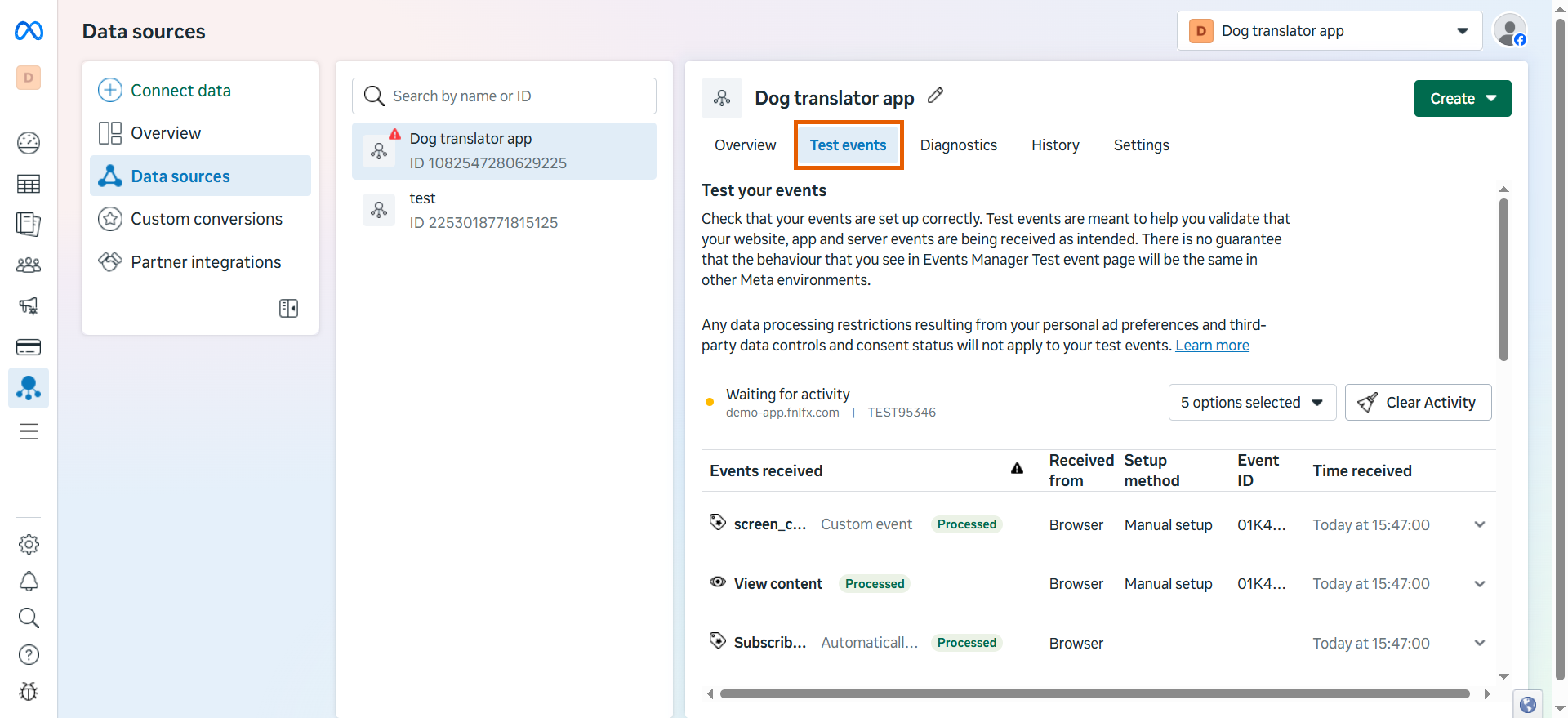 4. Open your published funnel and interact with it. Events will appear in the **Test events** tab.
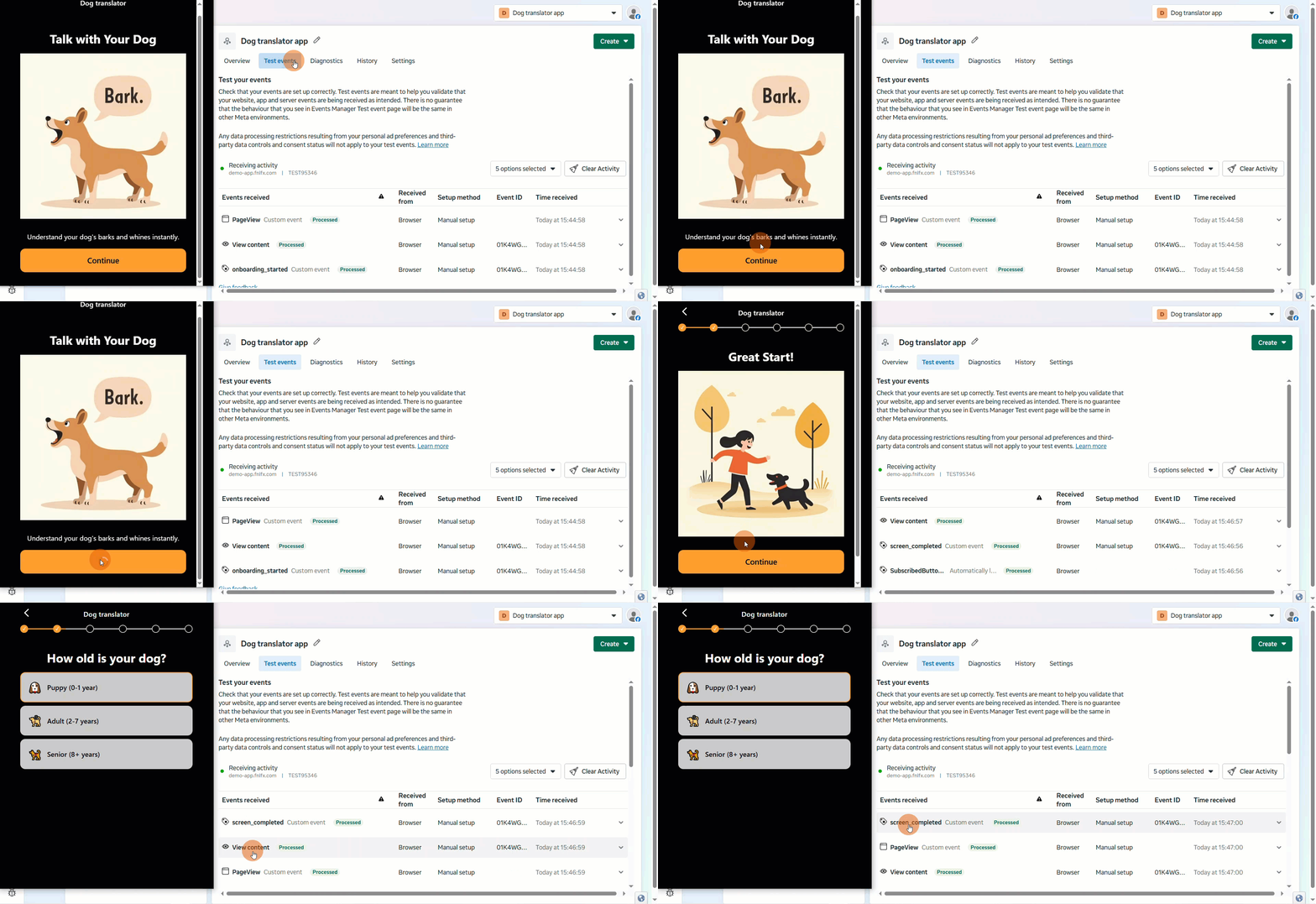 ### Test Conversions API
Ensure that Conversions API is set up and sending events properly.
To check the integration status:
1. Click **Manage integrations** from the **Overview** tab of your data source.
### Test Conversions API
Ensure that Conversions API is set up and sending events properly.
To check the integration status:
1. Click **Manage integrations** from the **Overview** tab of your data source.
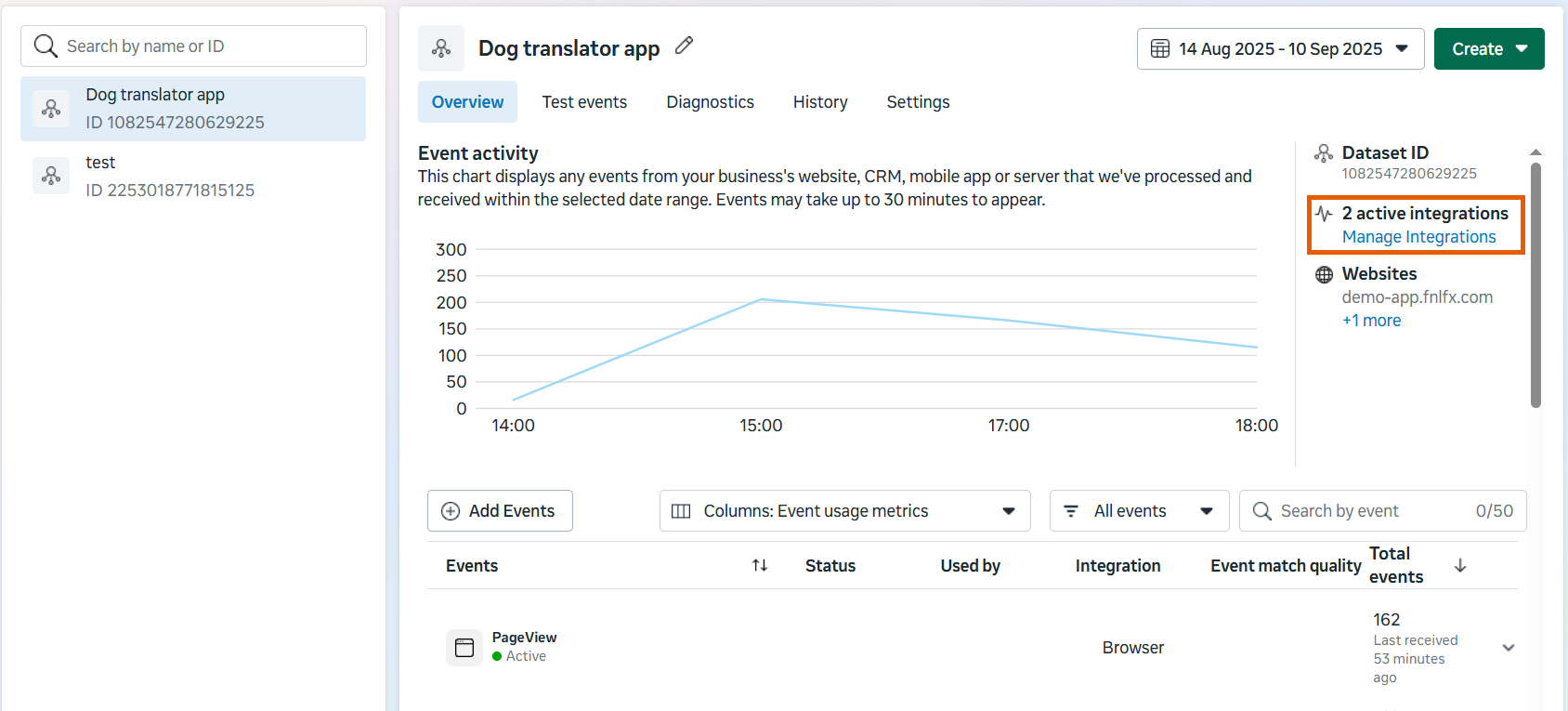 2. Check the status under **Conversions API**. **Active** or **Waiting for first event** statuses indicate successful setup.
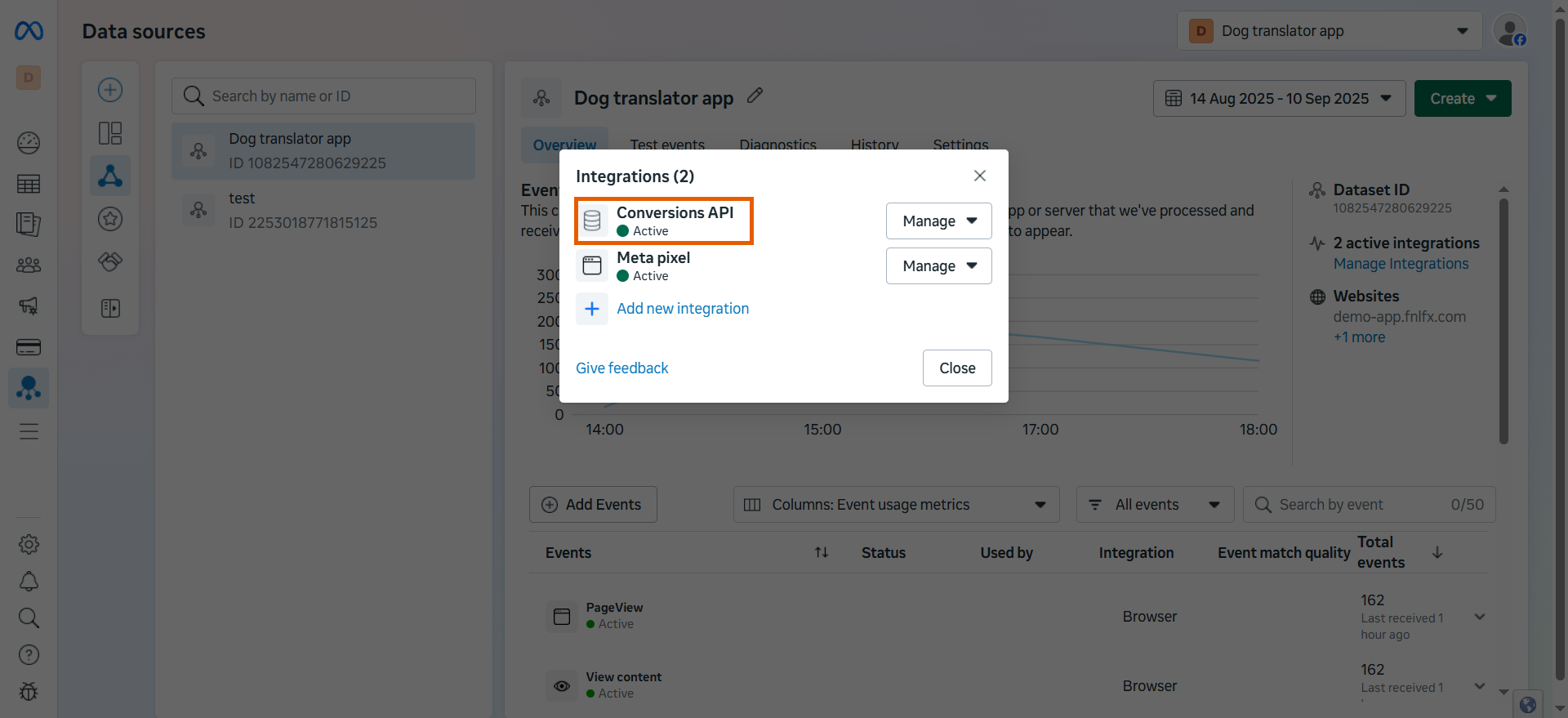 To test Conversions API events:
1. Complete the registration step on your published funnel.
2. Go to the **Overview** tab for the data source.
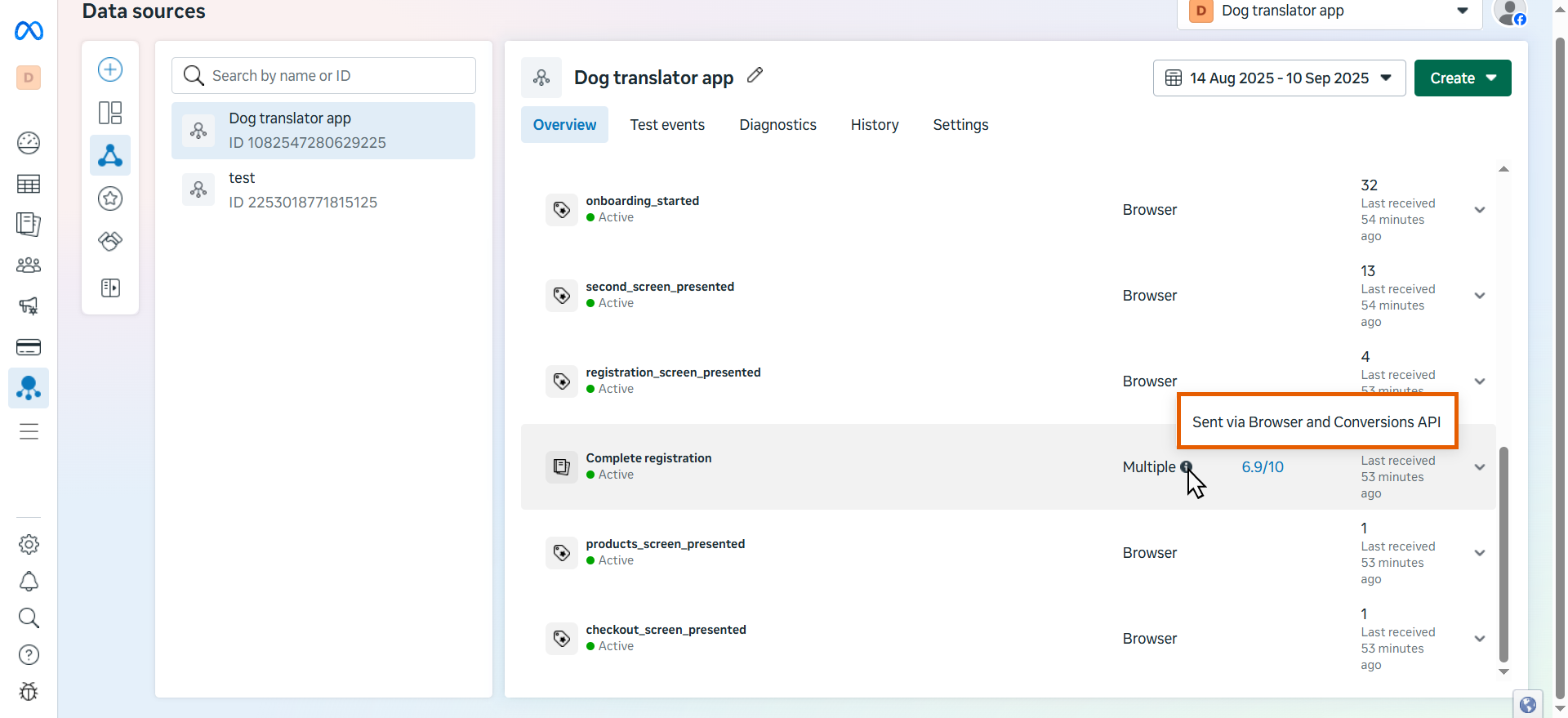
3. You will see the **Complete registration** event marked **Multiple** in the **Integrations** column.
Hover it over to see it's sent via Conversions API.
To test Conversions API events:
1. Complete the registration step on your published funnel.
2. Go to the **Overview** tab for the data source.
3. You will see the **Complete registration** event marked **Multiple** in the **Integrations** column.
Hover it over to see it's sent via Conversions API.
 ## Troubleshooting
Even if your setup matches the steps above, events may still not appear. This can happen if Meta blocks traffic from your domain.
To fix this, add both your FunnelFox project [custom domain](/dashboard/settings#domains) and
`https://app.funnelfox.com/` to the **domain allow list** for Pixel traffic in [Meta Events Manager](https://business.facebook.com/events_manager2/).
Learn more about [managing Meta Pixel traffic permissions](https://www.facebook.com/business/help/278125336598935).
## Troubleshooting
Even if your setup matches the steps above, events may still not appear. This can happen if Meta blocks traffic from your domain.
To fix this, add both your FunnelFox project [custom domain](/dashboard/settings#domains) and
`https://app.funnelfox.com/` to the **domain allow list** for Pixel traffic in [Meta Events Manager](https://business.facebook.com/events_manager2/).
Learn more about [managing Meta Pixel traffic permissions](https://www.facebook.com/business/help/278125336598935).