> ## Documentation Index
> Fetch the complete documentation index at: https://funnelfox.com/docs/llms.txt
> Use this file to discover all available pages before exploring further.
# Set up AppsFlyer integration
> Step-by-step guide to configure AppsFlyer for your funnels
The [AppsFlyer integration](/integrations/tracking/appsflyer) sends funnel events to AppsFlyer. Learn how to set it up and test the integration to ensure your events are delivered correctly.
## Setup
Add your web app in AppsFlyer, get your Dev Key, and connect it to FunnelFox.
### 1. Add your app in AppsFlyer
1. Log in to [AppsFlyer](https://www.appsflyer.com/).
2. Go to **Settings > My Apps**.
3. Click **+ Add app**.
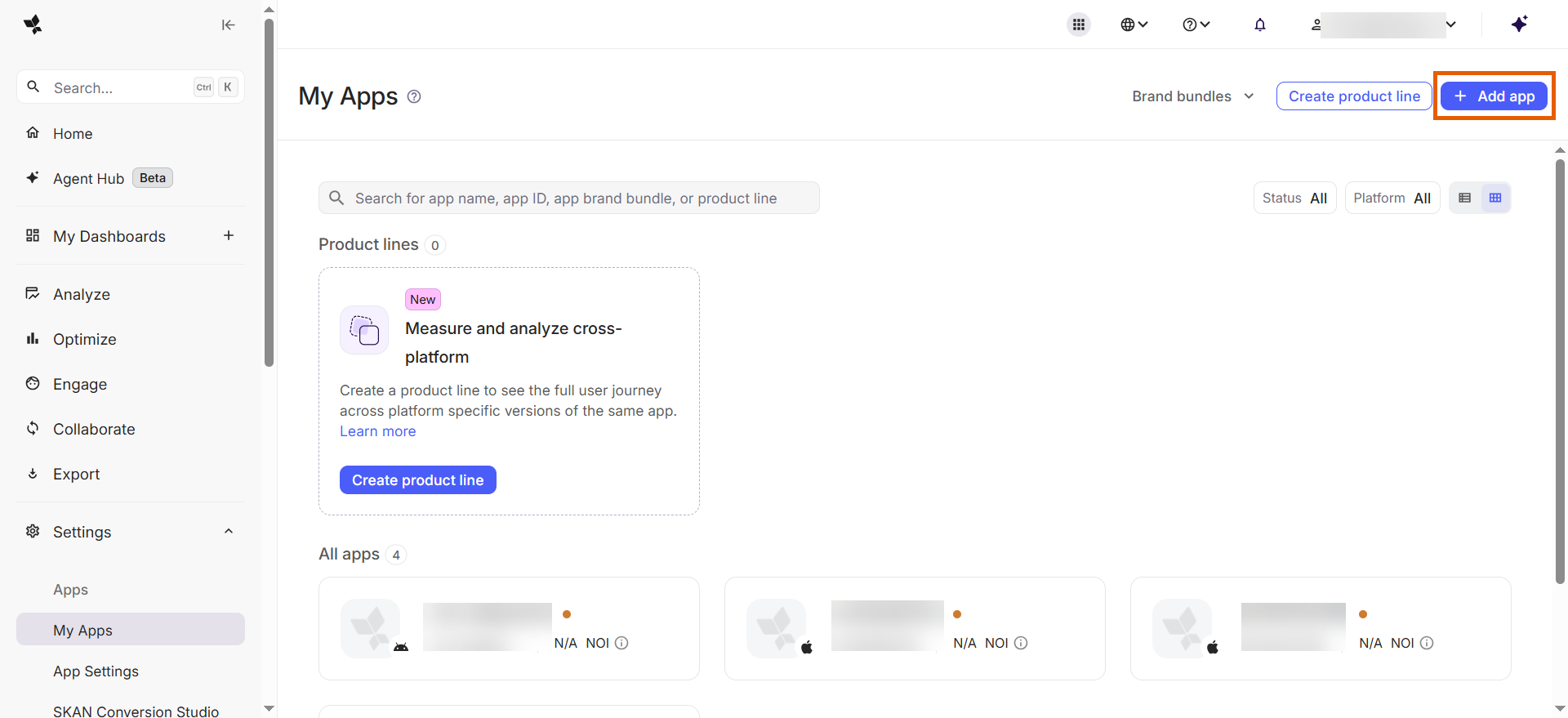 4. Fill out the app details and click **Add my app**:
* **Platform**: Web (PBA).
* **URL**: Your FunnelFox project URL. For sandbox testing, add an additional app using `https://app.funnelfox.com/`.
* **App name**: Any name to identify this app.
4. Fill out the app details and click **Add my app**:
* **Platform**: Web (PBA).
* **URL**: Your FunnelFox project URL. For sandbox testing, add an additional app using `https://app.funnelfox.com/`.
* **App name**: Any name to identify this app.
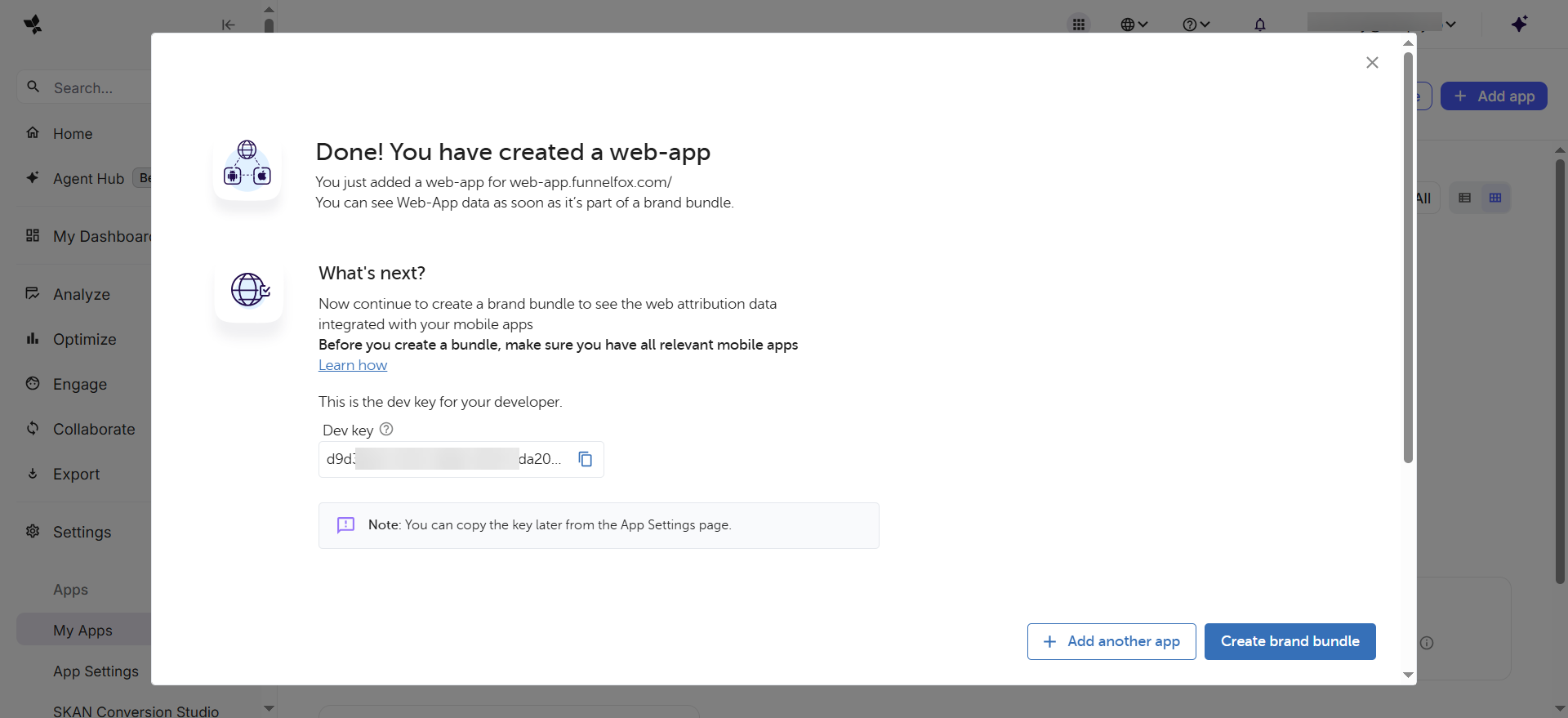
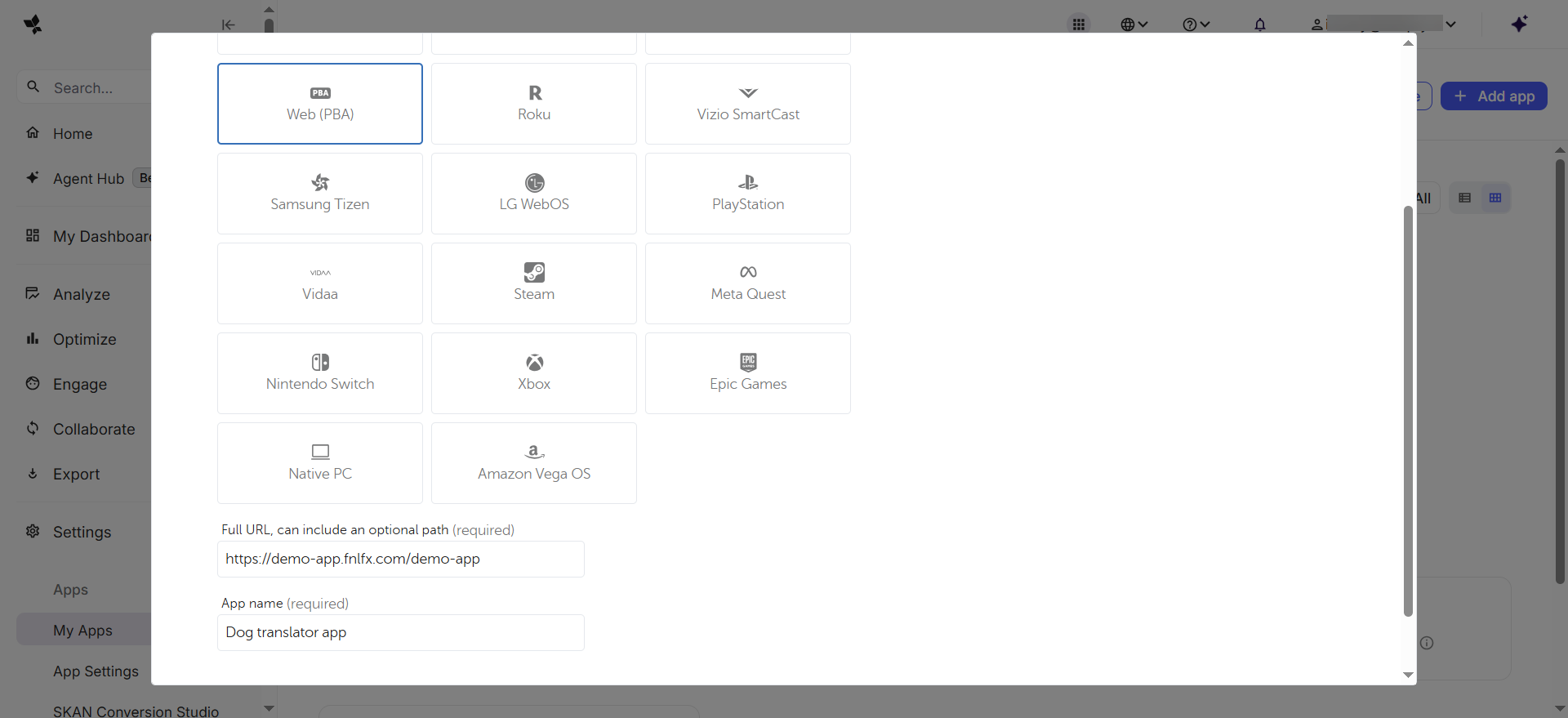 5. Copy the **Dev Key**.
 ### 2. Configure in FunnelFox
1. Go to [Integrations > AppsFlyer](https://app.funnelfox.com/integrations/appsflyer) in FunnelFox.
2. Paste the Dev Key into the **AppsFlyer Web Dev Key** field.
### 2. Configure in FunnelFox
1. Go to [Integrations > AppsFlyer](https://app.funnelfox.com/integrations/appsflyer) in FunnelFox.
2. Paste the Dev Key into the **AppsFlyer Web Dev Key** field.
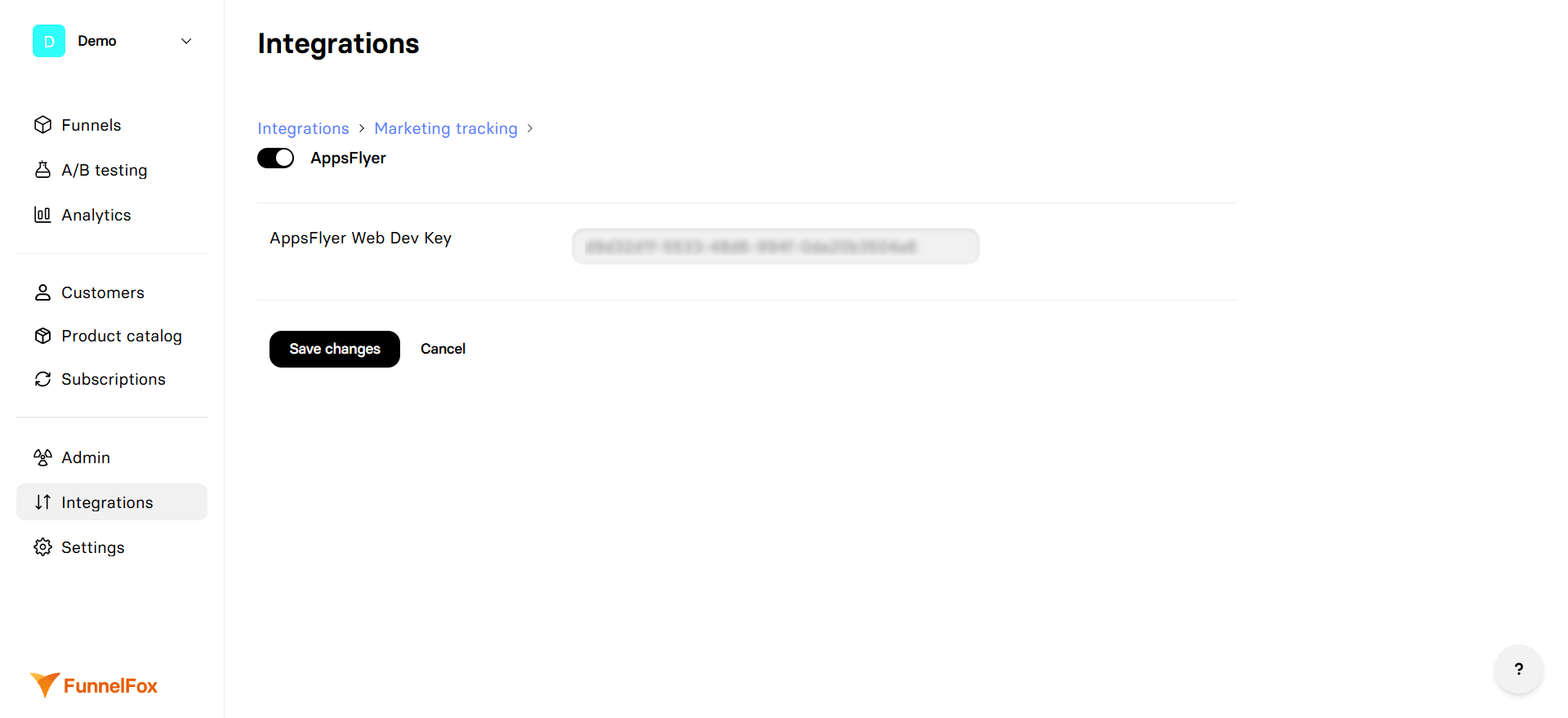 3. Click **Save changes**.
AppsFlyer tracking is now active on your production funnel. Repeat the setup using `https://app.funnelfox.com/` as your app URL in AppsFlyer to enable event tracking for funnel preview.
## Test your integration
Verify that events are firing correctly from your funnel:
1. Open your funnel in a browser.
2. Open developer tools.
3. Go to the **Network** tab.
4. Interact with your funnel (navigate pages, view checkout, complete a purchase).
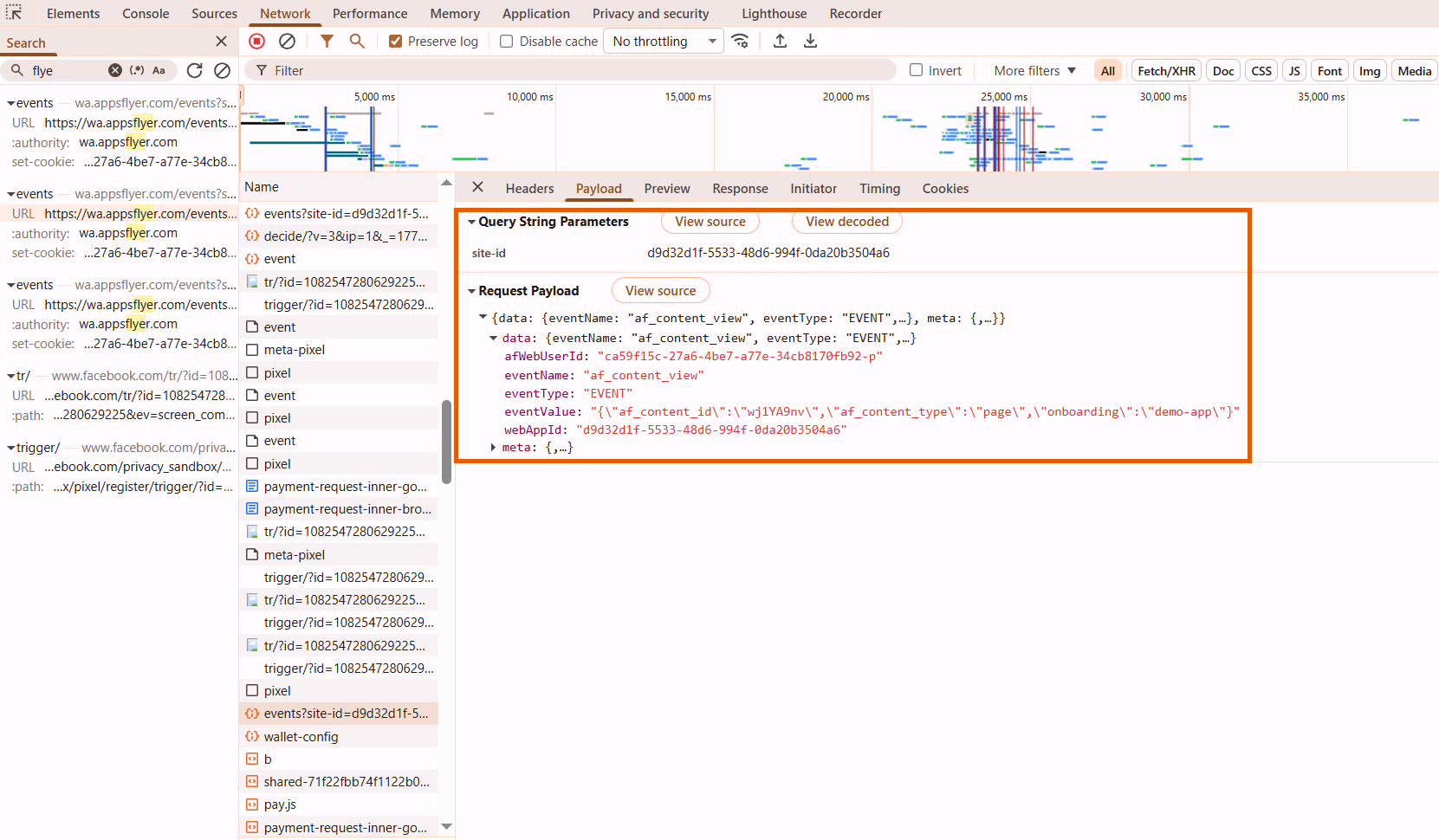
5. Filter network requests by `appsflyer` and look for outgoing event calls.
You can also follow the [AppsFlyer guide on testing web events](https://support.appsflyer.com/hc/en-us/articles/360012729178-Test-PBA-web-SDK-integration) for additional verification steps.
3. Click **Save changes**.
AppsFlyer tracking is now active on your production funnel. Repeat the setup using `https://app.funnelfox.com/` as your app URL in AppsFlyer to enable event tracking for funnel preview.
## Test your integration
Verify that events are firing correctly from your funnel:
1. Open your funnel in a browser.
2. Open developer tools.
3. Go to the **Network** tab.
4. Interact with your funnel (navigate pages, view checkout, complete a purchase).
5. Filter network requests by `appsflyer` and look for outgoing event calls.
You can also follow the [AppsFlyer guide on testing web events](https://support.appsflyer.com/hc/en-us/articles/360012729178-Test-PBA-web-SDK-integration) for additional verification steps.