> ## Documentation Index
> Fetch the complete documentation index at: https://funnelfox.com/docs/llms.txt
> Use this file to discover all available pages before exploring further.
# Google Ads
> Import GA4 key events from FunnelFox into Google Ads as conversions.
FunnelFox sends key events (such as purchase completions) to your connected Google Analytics (GA4) property.
You can use these existing GA4 events to configure conversion tracking in Google Ads and optimize your ad campaigns.
How it works:
1. FunnelFox sends key events to your GA4 property.
2. You mark the events as key events in GA4 (e.g., `purchase_completed_success`).
3. You link GA4 and Google Ads.
4. Key events are imported as Google Ads conversions.
## Setup
Follow these steps to import GA4 key events into Google Ads.
### 1. Mark key event
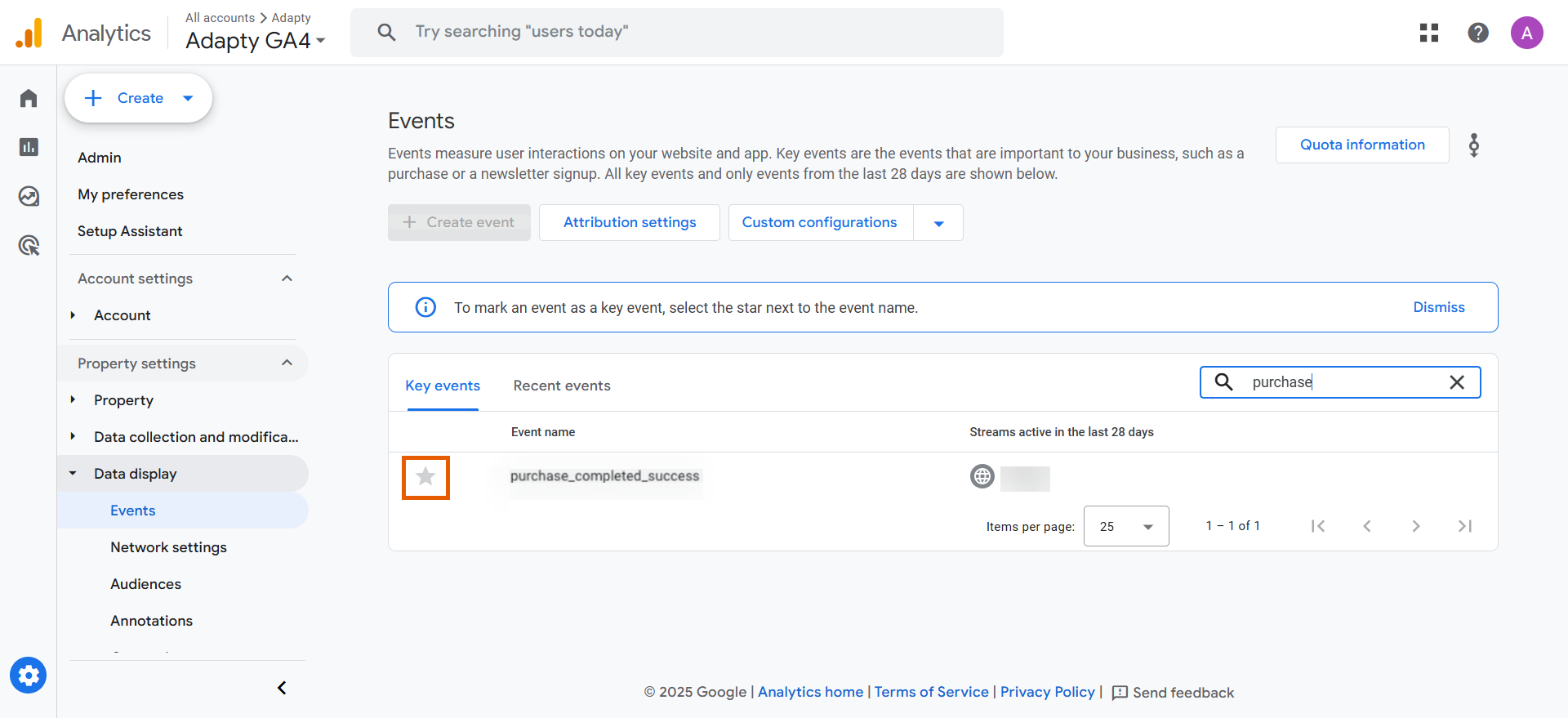
1. Go to **Admin > Data display > Events** in [Google Analytics](https://analytics.google.com/analytics/web/).
2. Mark `purchase_completed_success` as a key event.
 ### 2. Link GA4 to Google Ads
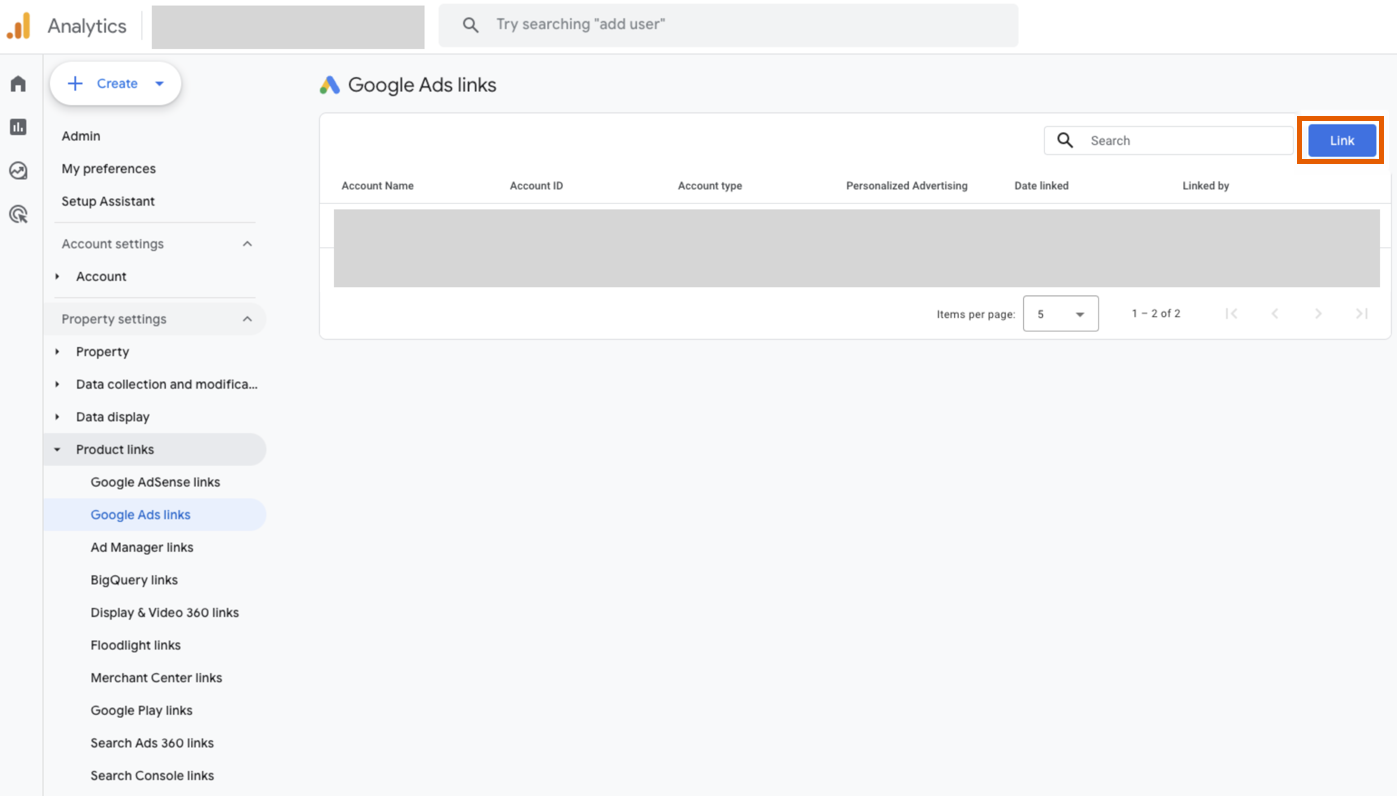
1. Go to **Admin > Product links > Google Ads links** in Google Analytics.
2. Click **Link**.
### 2. Link GA4 to Google Ads
1. Go to **Admin > Product links > Google Ads links** in Google Analytics.
2. Click **Link**.
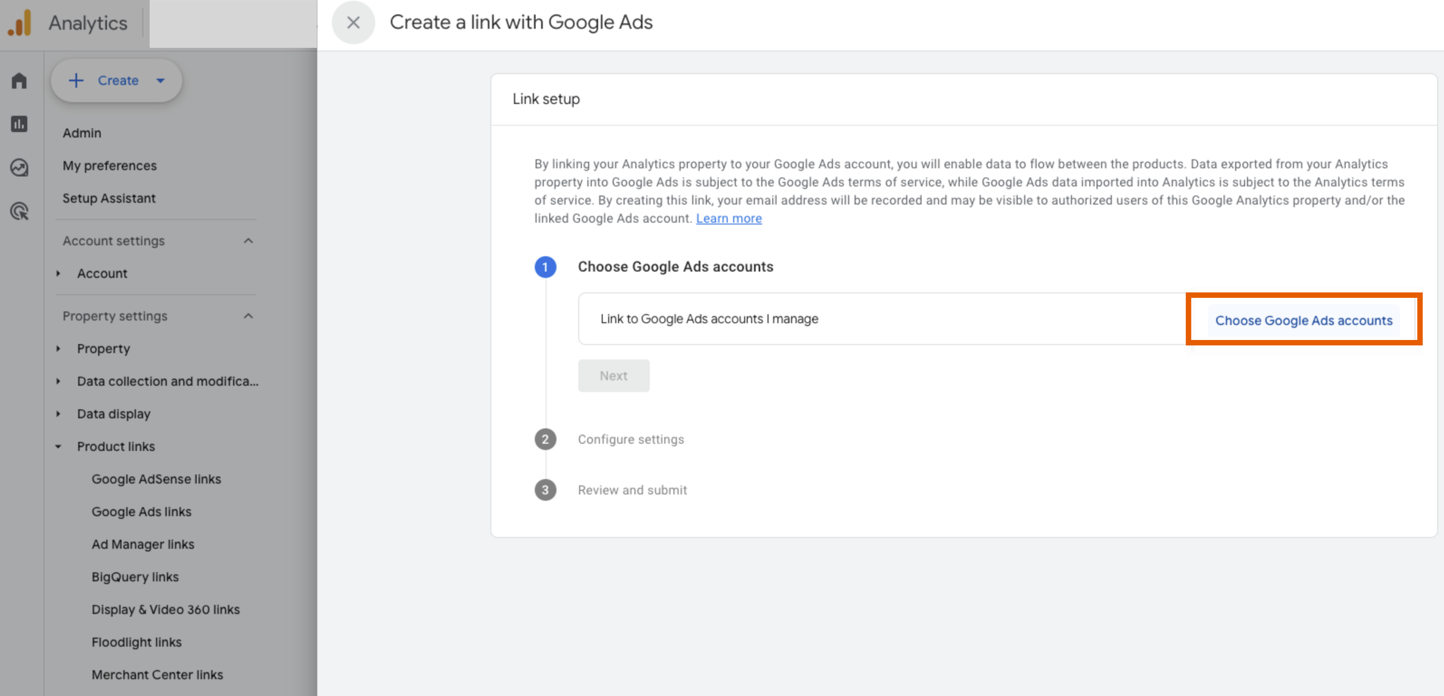
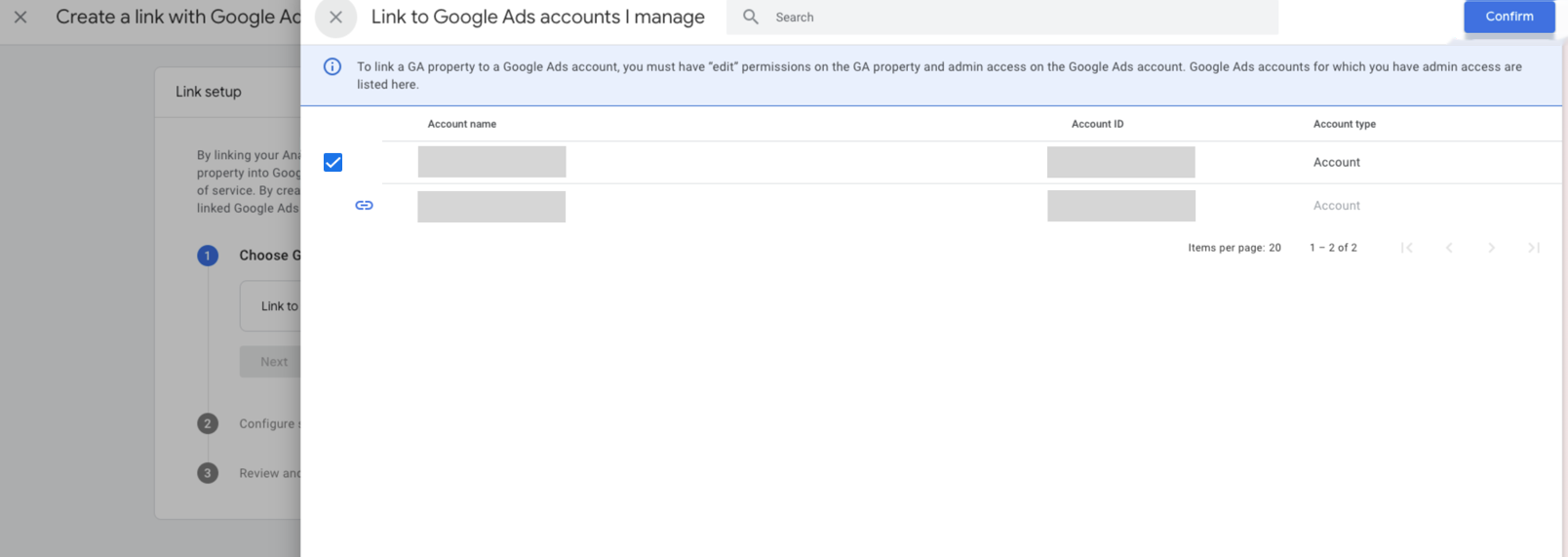
 3. Click **Choose Google Ads accounts**.
 4. Select your Google Ads account and click **Confirm**.
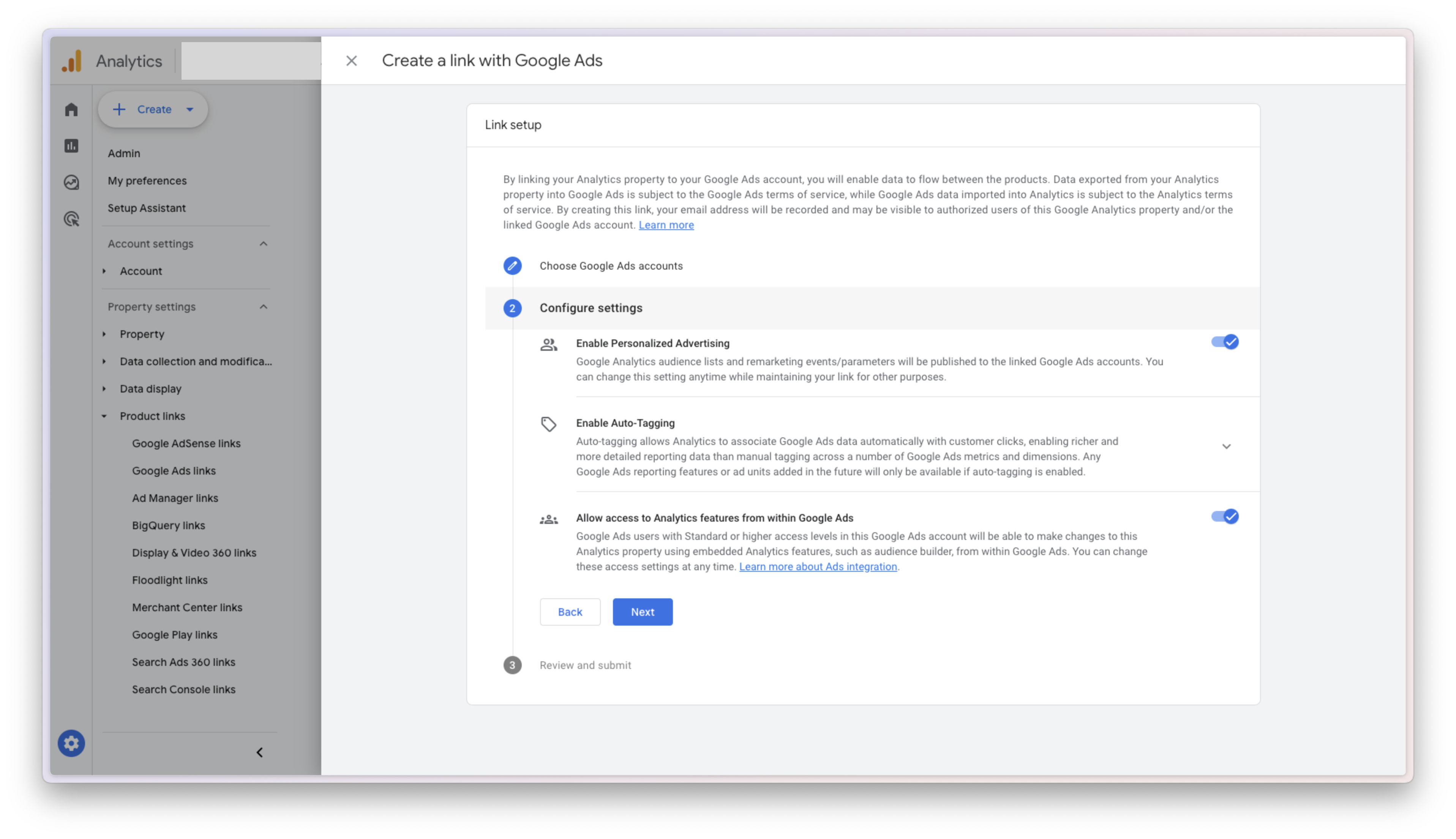
 5. Keep all options toggled on under **Configure settings** and click **Next**.
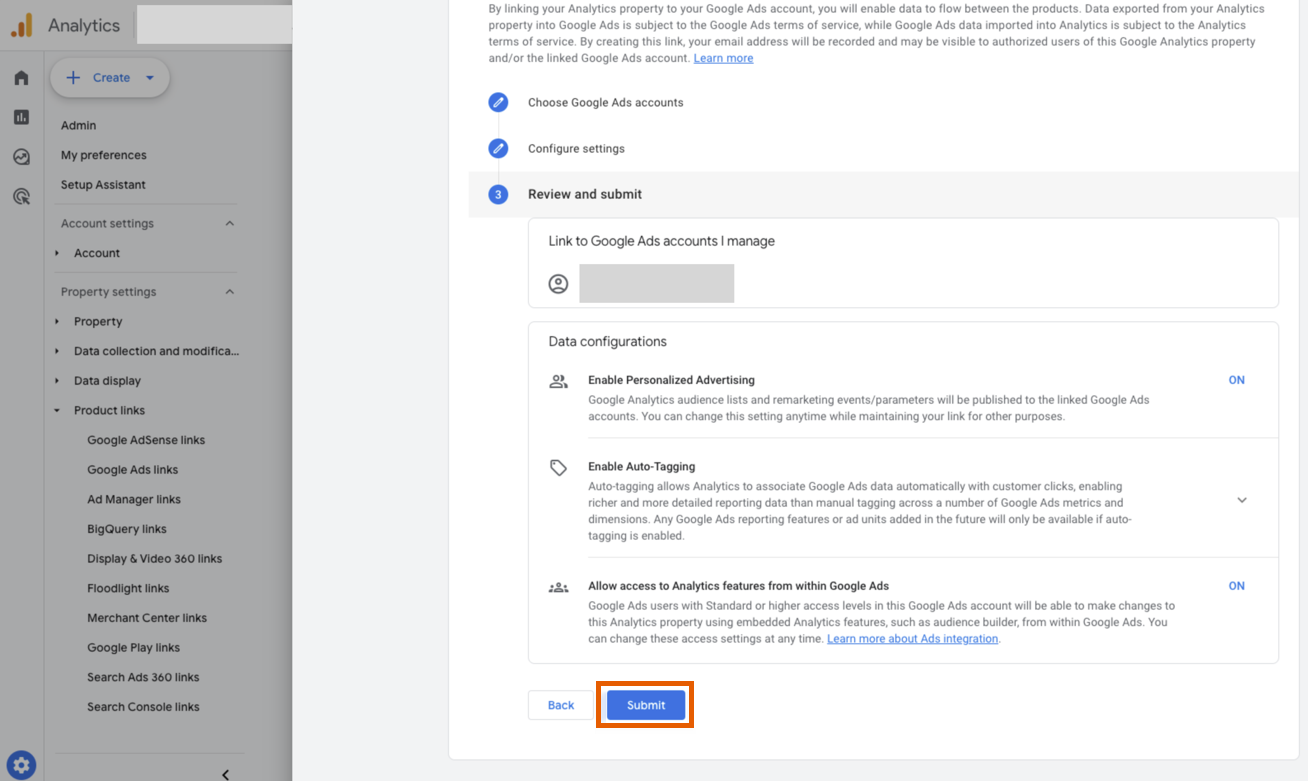
 6. Click **Submit**.
 ### 3. Link Google Ads to GA4
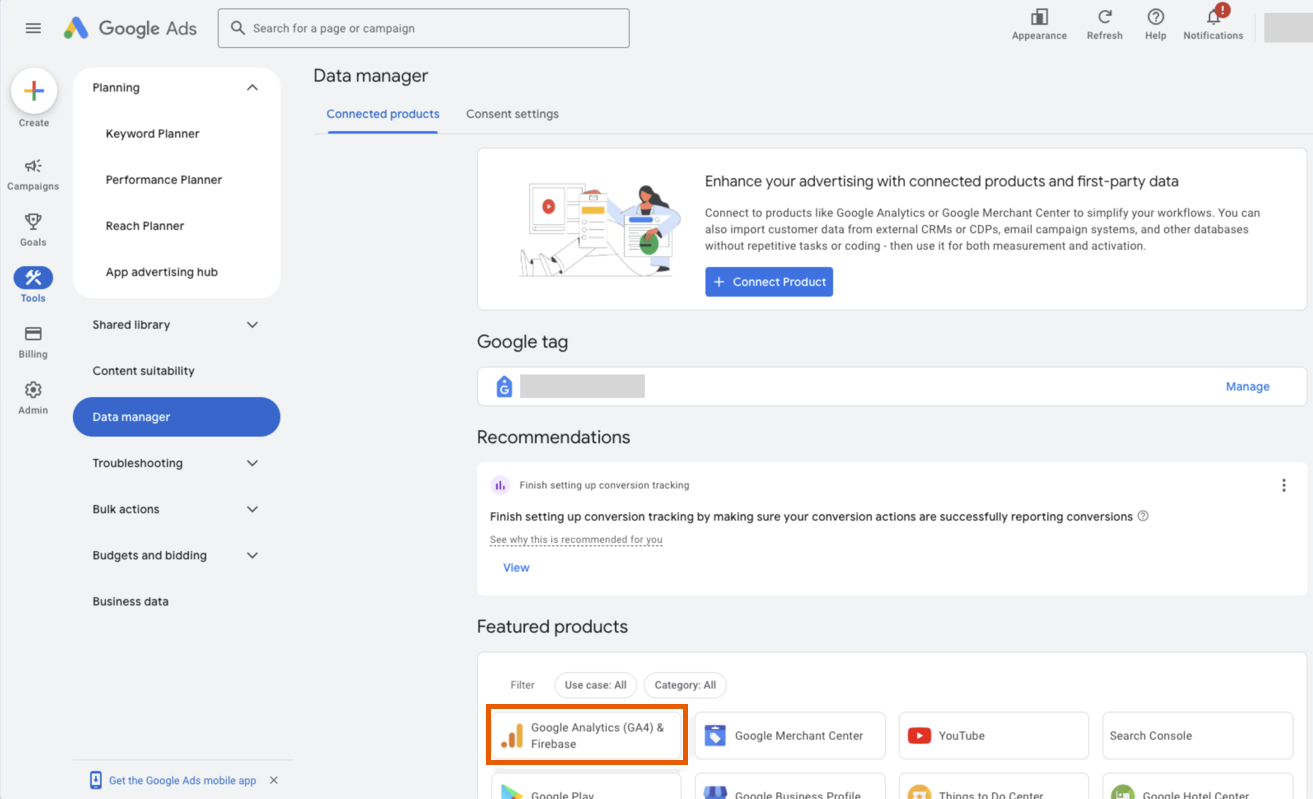
1. Go to **Tools > Data Manager** in [Google Ads](https://ads.google.com/).
2. Click **Google Analytics (GA4) & Firebase** under **Featured products**.
### 3. Link Google Ads to GA4
1. Go to **Tools > Data Manager** in [Google Ads](https://ads.google.com/).
2. Click **Google Analytics (GA4) & Firebase** under **Featured products**.
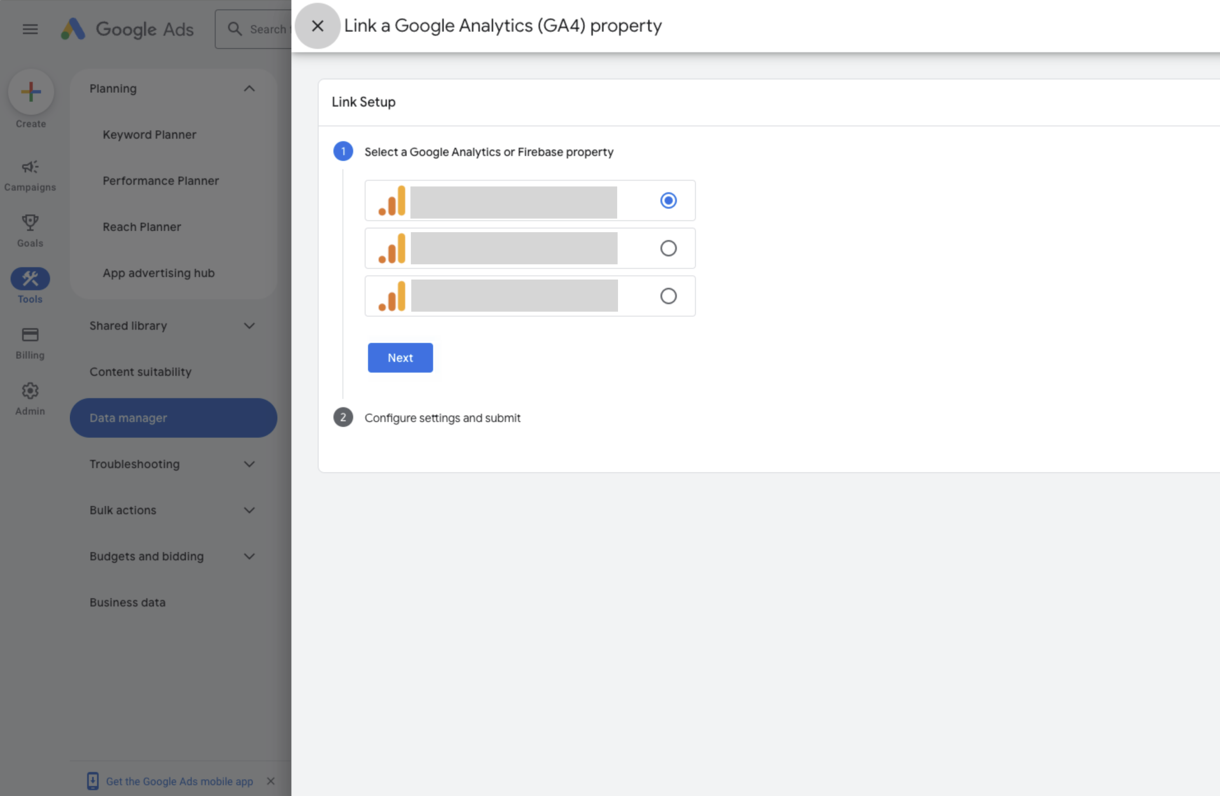
 3. Select your Google Analytics account and click **Next**.
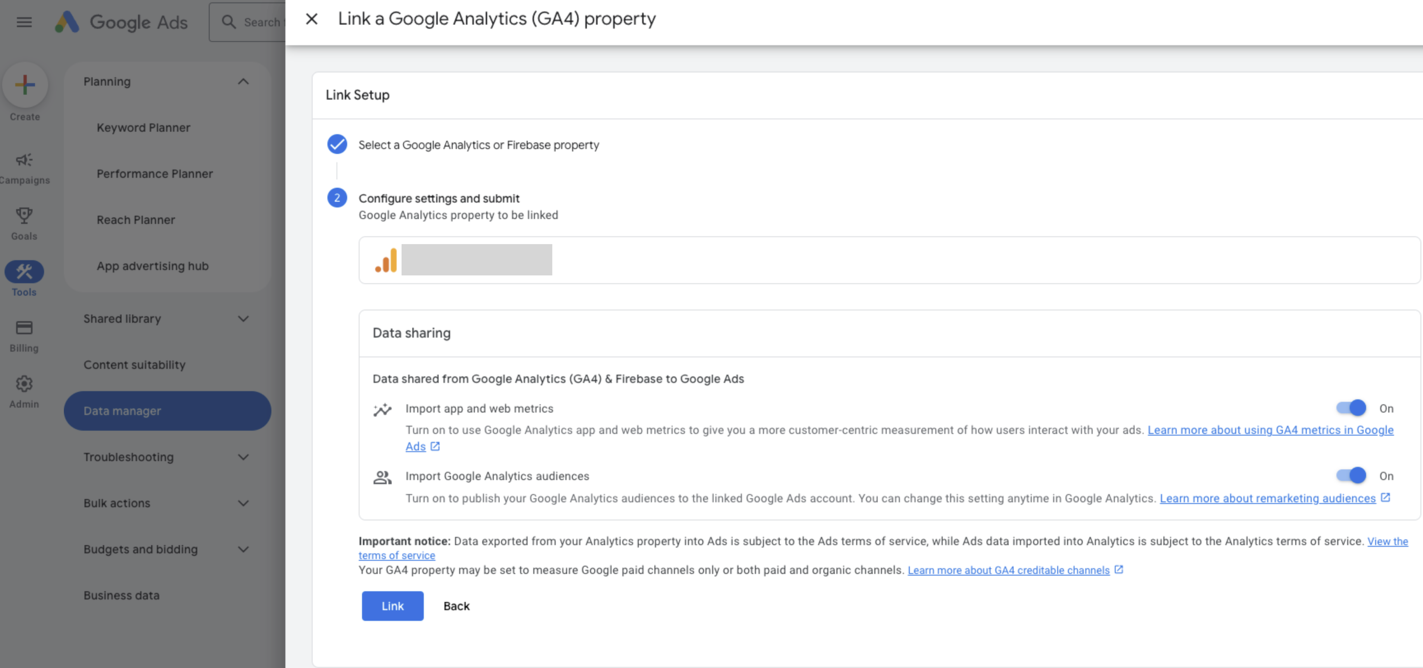
 4. Keep all options toggled on under **Data sharing** and click **Link**.
 ### 4. Import GA4 key events
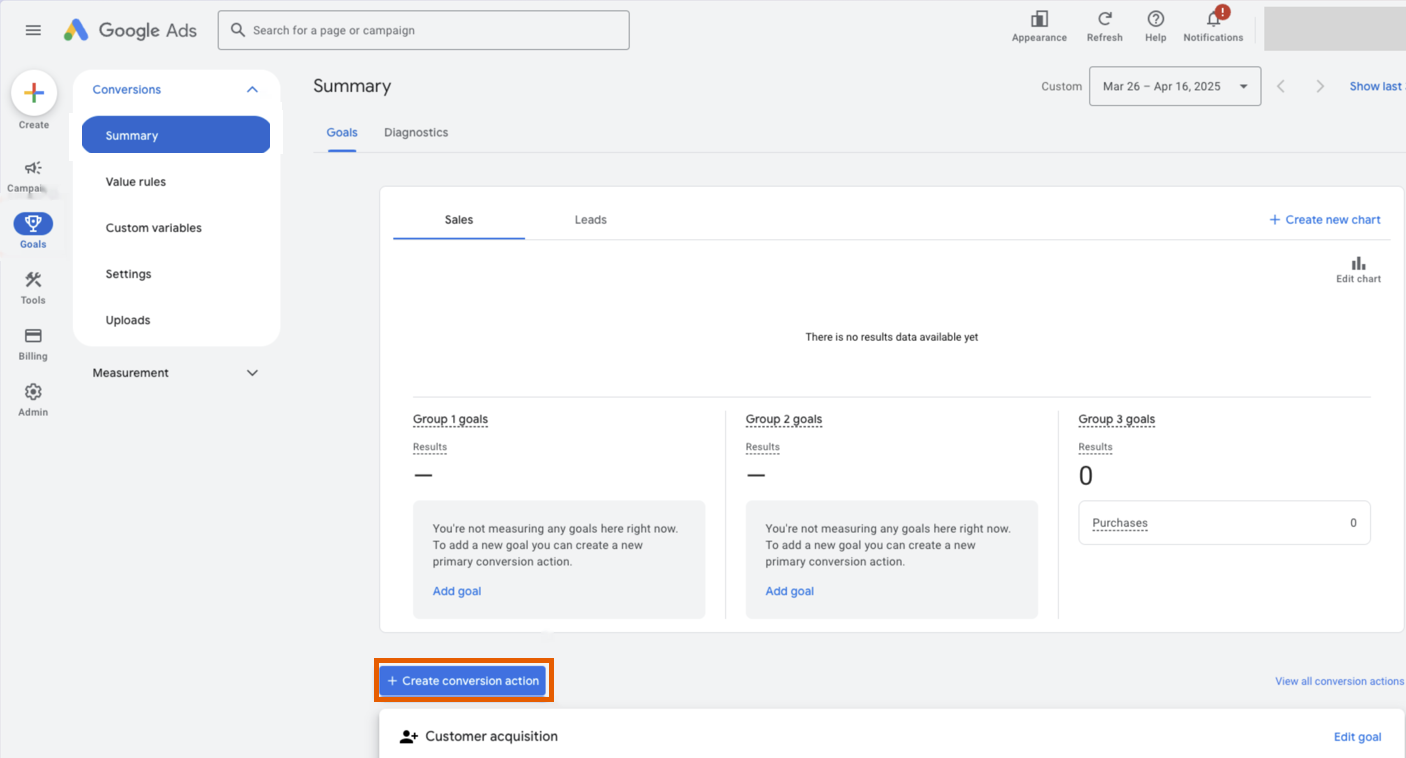
1. Go to **Goals > Conversions > Summary** in Google Ads.
2. Click **+ Create conversion action**.
### 4. Import GA4 key events
1. Go to **Goals > Conversions > Summary** in Google Ads.
2. Click **+ Create conversion action**.
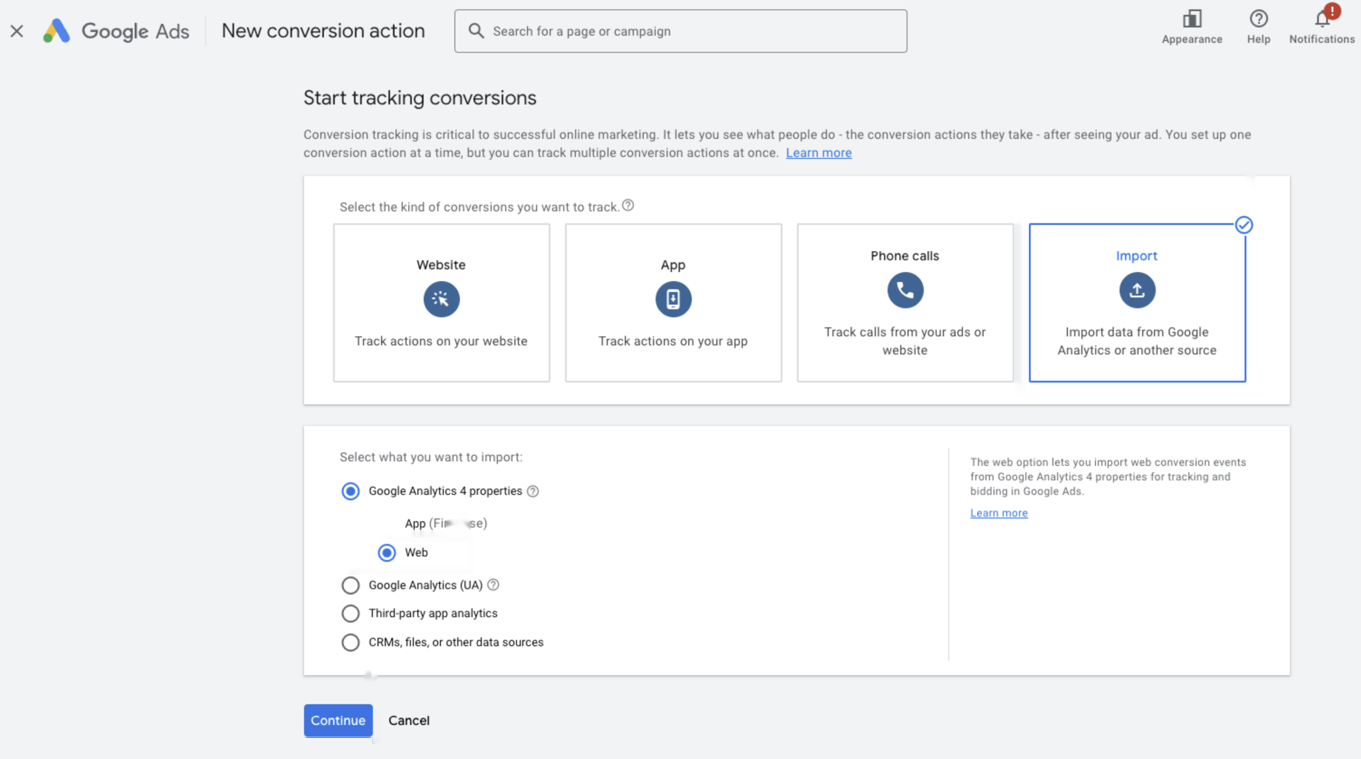
 3. Click **Import** under **Start tracking conversions**.
4. Select **Web** under **Google Analytics 4 properties** and click **Continue**.
3. Click **Import** under **Start tracking conversions**.
4. Select **Web** under **Google Analytics 4 properties** and click **Continue**.
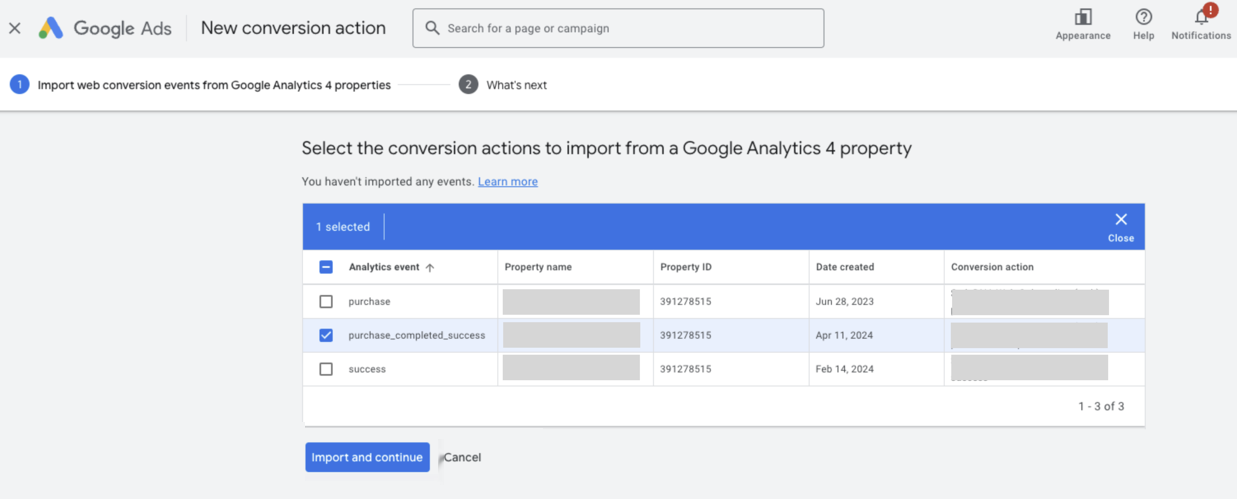
 5. Select the `purchase_completed_success` event and click **Import and continue**.