> ## Documentation Index
> Fetch the complete documentation index at: https://funnelfox.com/docs/llms.txt
> Use this file to discover all available pages before exploring further.
# RevenueCat integration
> Connect RevenueCat to FunnelFox for cross-platform subscription management. Sync web purchases with your mobile app subscriptions.
The RevenueCat integration creates a customer profile for every paying user at checkout and records their initial subscription transaction.
RevenueCat then tracks renewals, expirations, and refunds, automatically managing access and revenue metrics.
 ## How it works
When a user completes a subscription purchase in your funnel:
1. **Profile creation**: FunnelFox creates a RevenueCat customer with the [App User ID](/integrations/subscription-management/revenuecat#user-id).
2. **Purchase tracking**: The initial subscription purchase is sent to RevenueCat.
3. **Ongoing monitoring**: RevenueCat monitors the subscription directly
with Stripe/Paddle for renewals, cancellations, and revenue events.
4. **App verification**: Your app checks subscription status through the
RevenueCat SDK.
Transactions for one-time (one-off) purchases are not sent to RevenueCat.
One-time purchases create profiles **only if an entitlement is configured**.
FunnelFox checks for an entitlement in the Checkout element first. If none is found, it checks [Integrations > RevenueCat](https://app.funnelfox.com/integrations/revenuecat). If there’s still no entitlement, no profile is created and access isn’t granted.
## Setup
Choose your integration method based on your payment setup:
* [FunnelFox](/integrations/subscription-management/revenuecat#funnelfox): If you use Stripe or Paddle as your payment provider.
* [FunnelFox Billing](/integrations/subscription-management/revenuecat#funnelfox-billing): If you use FunnelFox Billing instead of a direct payment provider integration.
### FunnelFox
1. Log into [RevenueCat Dashboard](https://app.revenuecat.com).
2. Go to **Project Settings** → **API Keys**.
## How it works
When a user completes a subscription purchase in your funnel:
1. **Profile creation**: FunnelFox creates a RevenueCat customer with the [App User ID](/integrations/subscription-management/revenuecat#user-id).
2. **Purchase tracking**: The initial subscription purchase is sent to RevenueCat.
3. **Ongoing monitoring**: RevenueCat monitors the subscription directly
with Stripe/Paddle for renewals, cancellations, and revenue events.
4. **App verification**: Your app checks subscription status through the
RevenueCat SDK.
Transactions for one-time (one-off) purchases are not sent to RevenueCat.
One-time purchases create profiles **only if an entitlement is configured**.
FunnelFox checks for an entitlement in the Checkout element first. If none is found, it checks [Integrations > RevenueCat](https://app.funnelfox.com/integrations/revenuecat). If there’s still no entitlement, no profile is created and access isn’t granted.
## Setup
Choose your integration method based on your payment setup:
* [FunnelFox](/integrations/subscription-management/revenuecat#funnelfox): If you use Stripe or Paddle as your payment provider.
* [FunnelFox Billing](/integrations/subscription-management/revenuecat#funnelfox-billing): If you use FunnelFox Billing instead of a direct payment provider integration.
### FunnelFox
1. Log into [RevenueCat Dashboard](https://app.revenuecat.com).
2. Go to **Project Settings** → **API Keys**.
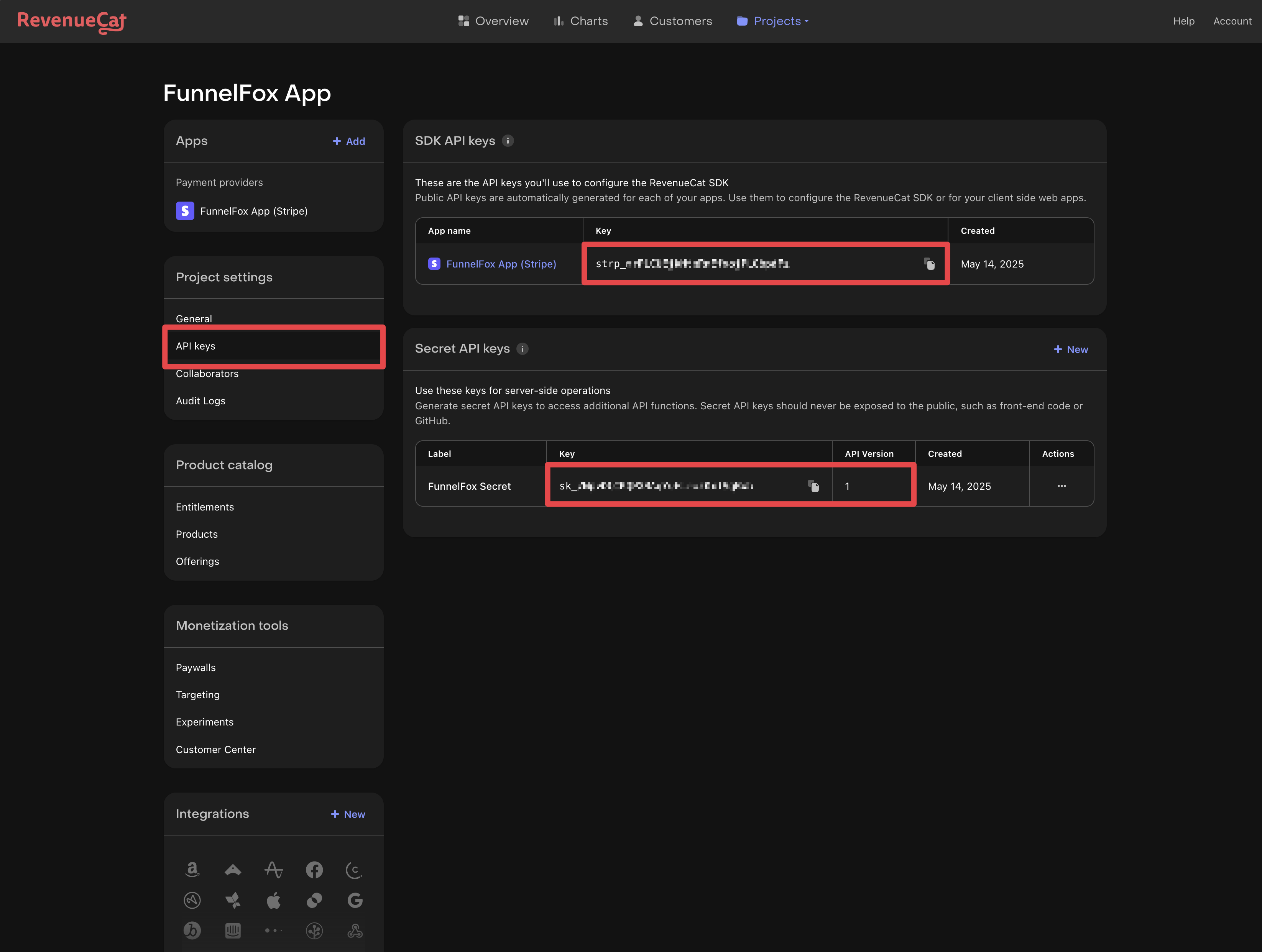 3. Create a **Secret Key** with **API Version** set to **V1**.
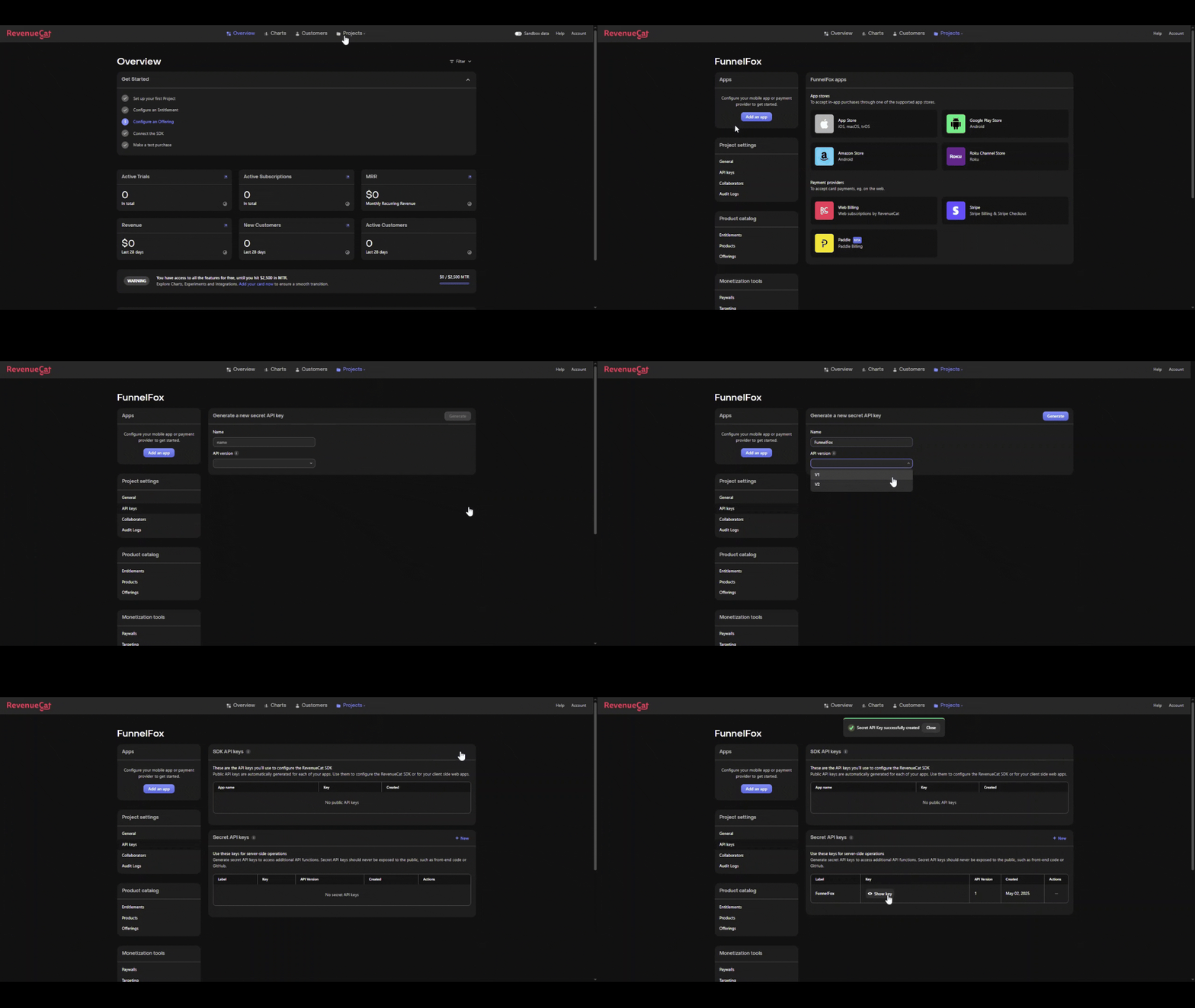 4. Copy the **Secret Key**.
1. In RevenueCat, go to your app settings.
2. Find the **Stripe App Key** (starts with `strp_`).
3. Ensure **Track new purchases from server-to-server notifications**
is disabled.
4. Copy the **Stripe App Key**.
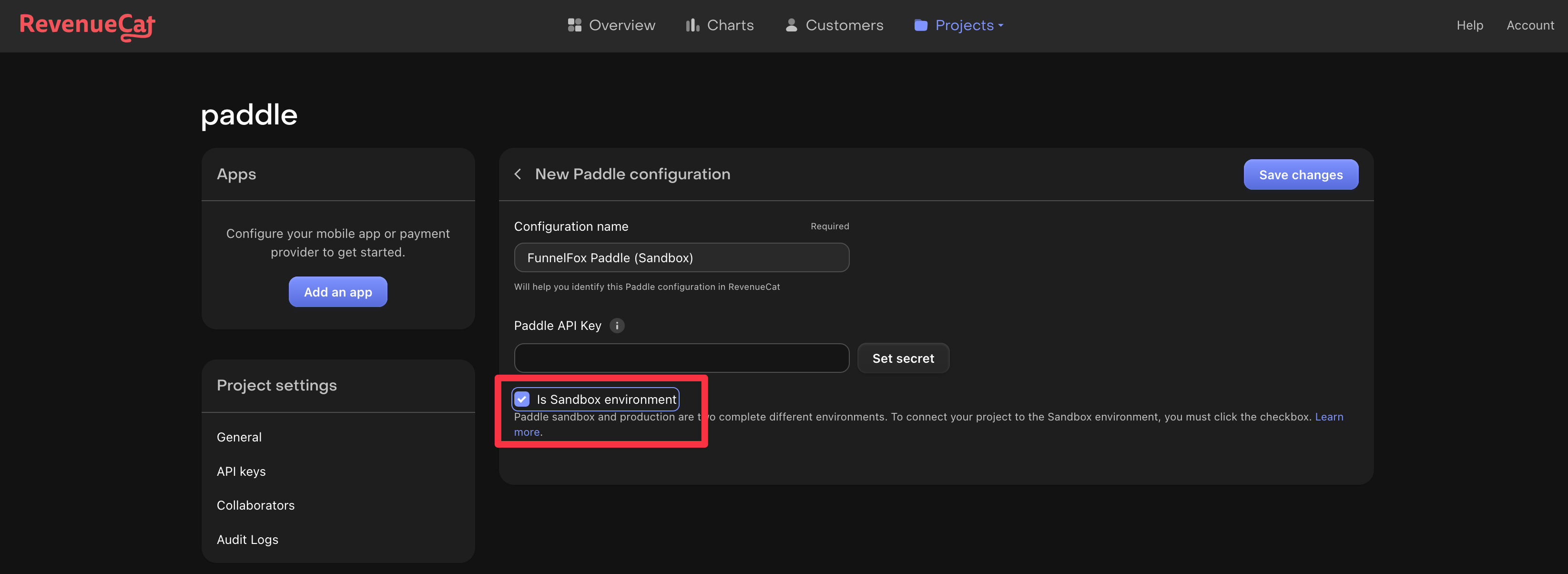
1. In RevenueCat, find your Paddle app settings.
2. Copy the **Production Paddle App Key** (starts with `pdl_`).
3. Copy the **Sandbox Paddle App Key** for testing.
Paddle requires separate keys for production and sandbox environments.
4. Copy the **Secret Key**.
1. In RevenueCat, go to your app settings.
2. Find the **Stripe App Key** (starts with `strp_`).
3. Ensure **Track new purchases from server-to-server notifications**
is disabled.
4. Copy the **Stripe App Key**.
1. In RevenueCat, find your Paddle app settings.
2. Copy the **Production Paddle App Key** (starts with `pdl_`).
3. Copy the **Sandbox Paddle App Key** for testing.
Paddle requires separate keys for production and sandbox environments.
 You only need to configure the app key for your active payment provider (Stripe or Paddle).
Avoid using the **Legacy Setup** and **iOS App Key only** fields for new integrations.
Use Stripe app key for full subscription tracking and revenue
analytics.
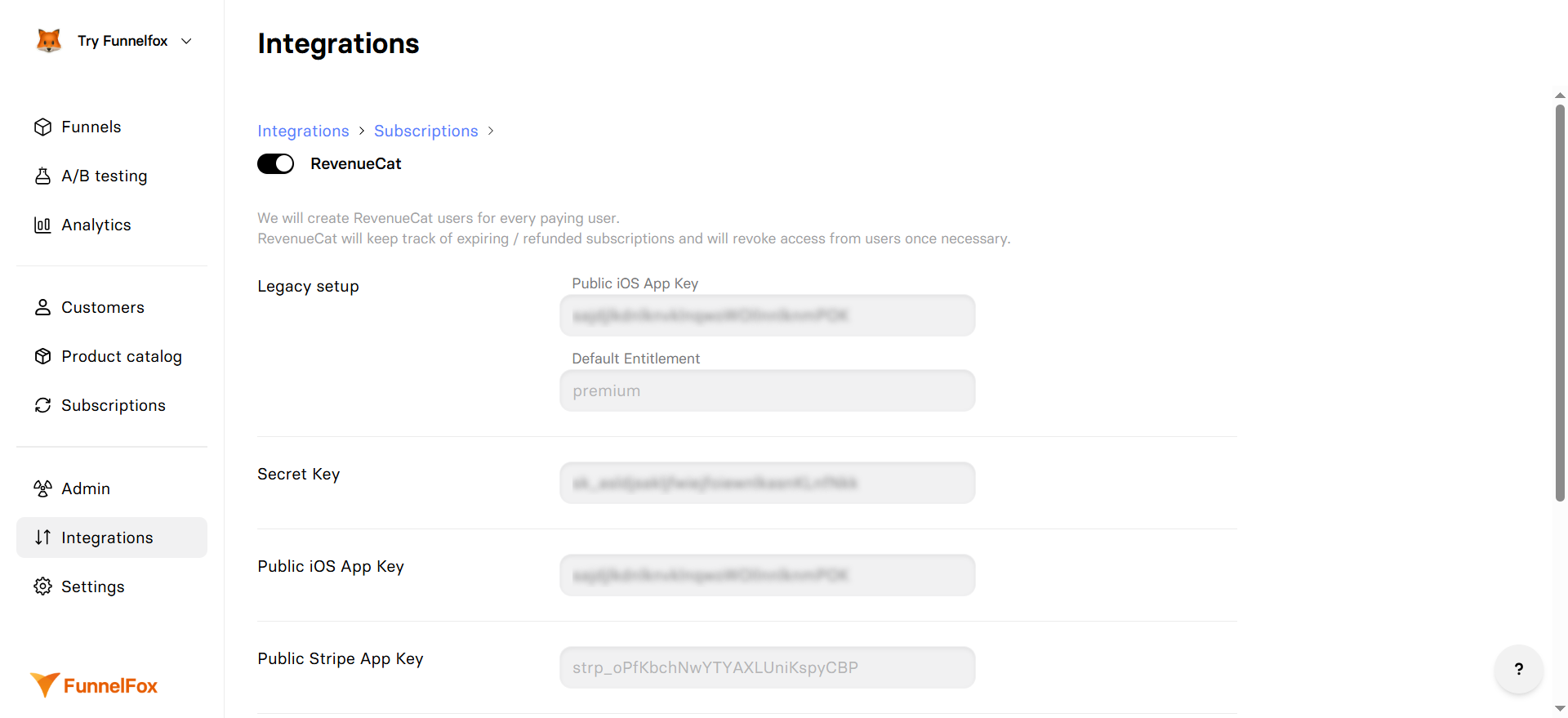
1. Go to **Integrations** → **RevenueCat**.
2. Paste your **Secret Key**.
3. Paste your app key into **Public Stripe App Key**.
4. Click **Save changes**.
Avoid using the **Legacy Setup** and **iOS App Key only** fields for new integrations.
Use Paddle app key for full subscription tracking and revenue
analytics.
1. Go to **Integrations** → **RevenueCat**.
2. Paste your **Secret Key**.
3. Paste your production app key into **Production Paddle App Key**.
4. Paste your sandbox app key into **Sandbox Paddle App Key**.
5. Click **Save changes**.
After your first test purchase:
1. Check the RevenueCat dashboard for the new customer.
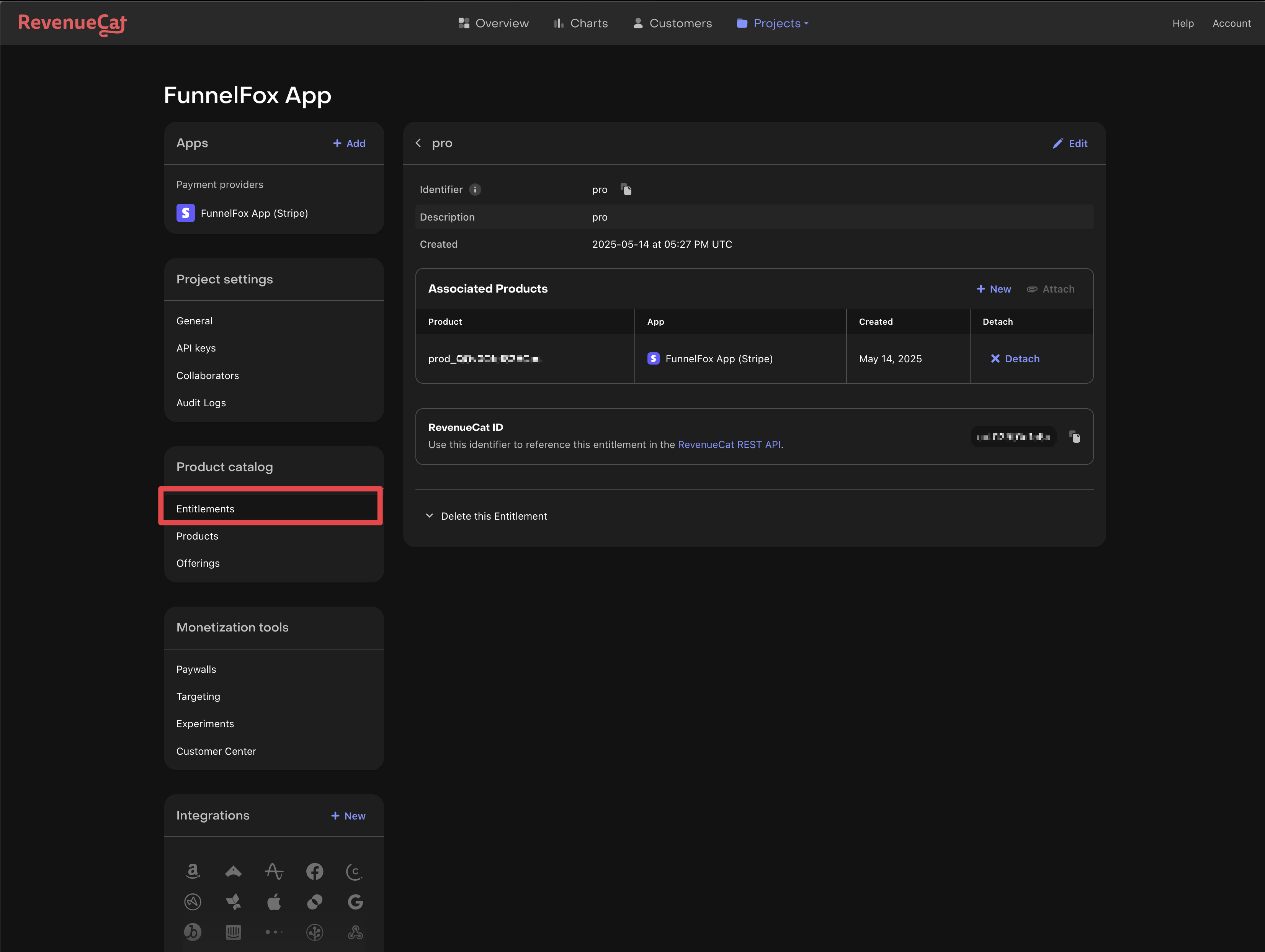
2. Map your Stripe/Paddle products to RevenueCat entitlements.
3. Configure product identifiers to match your app.\\
The example shows a `pro` entitlement mapped to a Stripe product.
You only need to configure the app key for your active payment provider (Stripe or Paddle).
Avoid using the **Legacy Setup** and **iOS App Key only** fields for new integrations.
Use Stripe app key for full subscription tracking and revenue
analytics.
1. Go to **Integrations** → **RevenueCat**.
2. Paste your **Secret Key**.
3. Paste your app key into **Public Stripe App Key**.
4. Click **Save changes**.
Avoid using the **Legacy Setup** and **iOS App Key only** fields for new integrations.
Use Paddle app key for full subscription tracking and revenue
analytics.
1. Go to **Integrations** → **RevenueCat**.
2. Paste your **Secret Key**.
3. Paste your production app key into **Production Paddle App Key**.
4. Paste your sandbox app key into **Sandbox Paddle App Key**.
5. Click **Save changes**.
After your first test purchase:
1. Check the RevenueCat dashboard for the new customer.
2. Map your Stripe/Paddle products to RevenueCat entitlements.
3. Configure product identifiers to match your app.\\
The example shows a `pro` entitlement mapped to a Stripe product.
 * Open your funnel in preview mode.
* Make a test purchase.
* Verify the customer appears in RevenueCat.
* Check that entitlements are granted correctly.
### FunnelFox Billing
Follow this section if you're using FunnelFox Billing instead of integrating directly with Stripe or Paddle.
You need a FunnelFox Billing account for this setup. Request our support team if you don't have one.
Open your [RevenueCat project](https://www.revenuecat.com/docs/projects/overview) and follow these steps:
1. Go to **Apps & providers** and click **New app configuration**.
* Open your funnel in preview mode.
* Make a test purchase.
* Verify the customer appears in RevenueCat.
* Check that entitlements are granted correctly.
### FunnelFox Billing
Follow this section if you're using FunnelFox Billing instead of integrating directly with Stripe or Paddle.
You need a FunnelFox Billing account for this setup. Request our support team if you don't have one.
Open your [RevenueCat project](https://www.revenuecat.com/docs/projects/overview) and follow these steps:
1. Go to **Apps & providers** and click **New app configuration**.
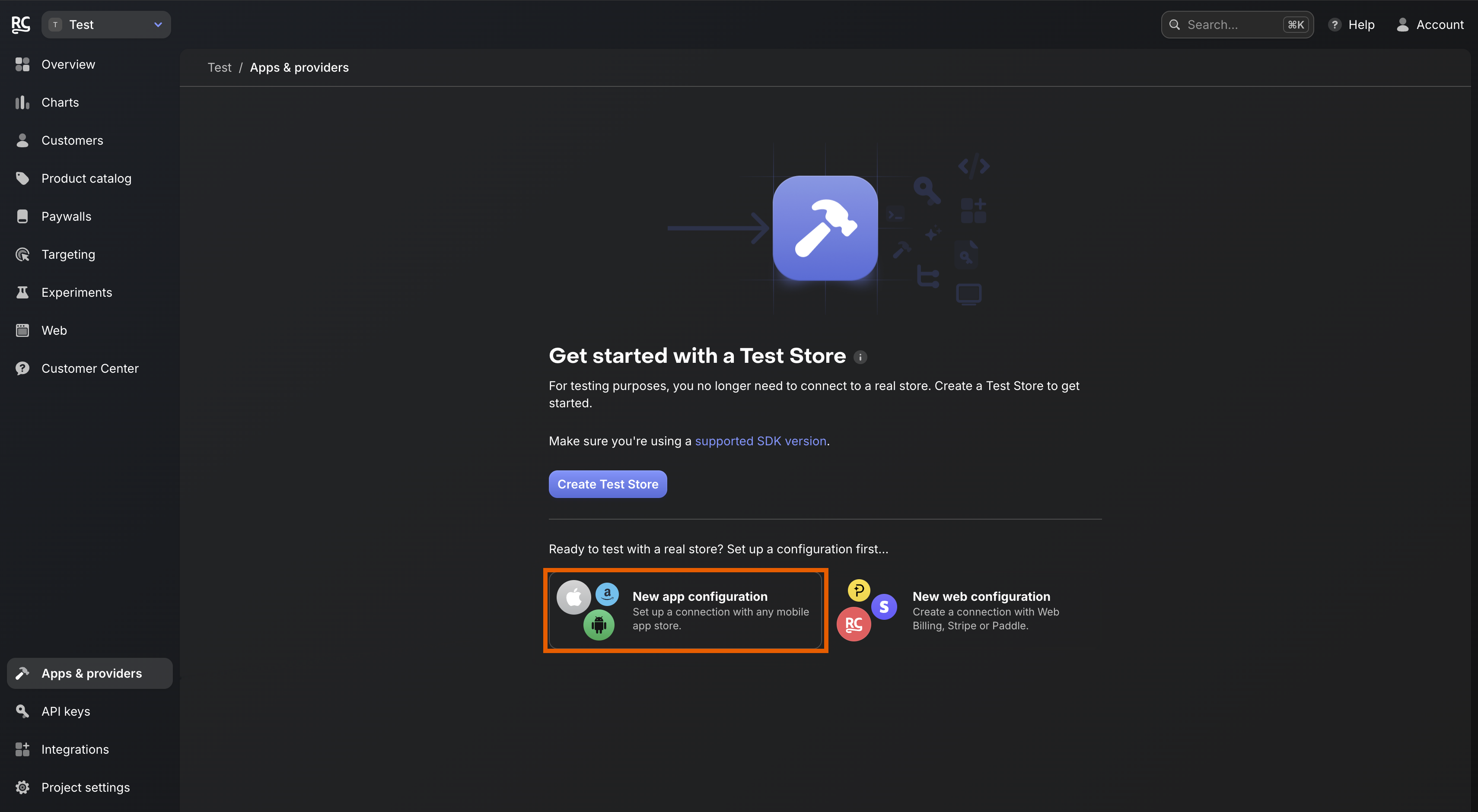 2. Click **Google Play Store**.
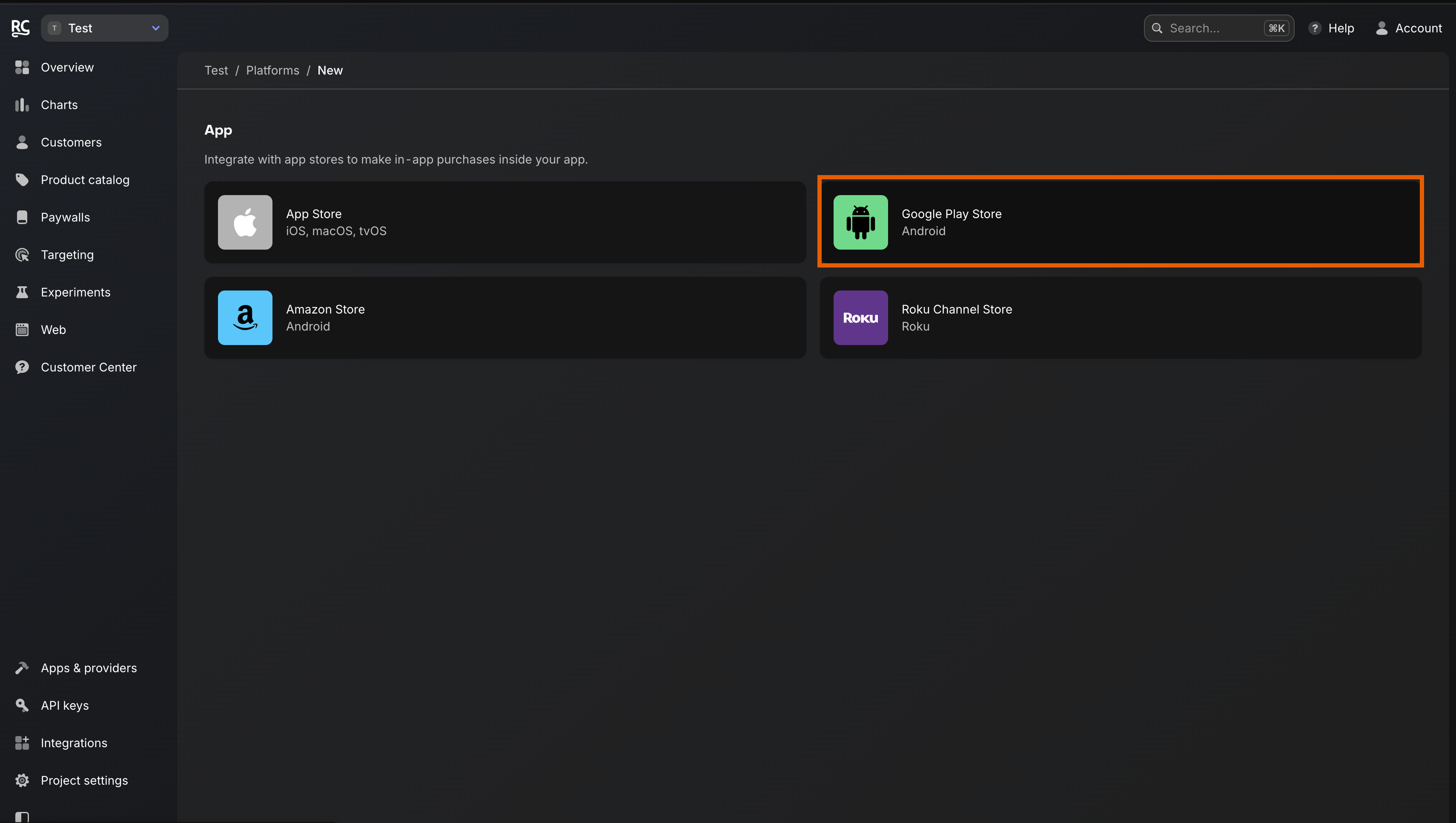 3. Name your app and Google Play package, then click **Save changes**.
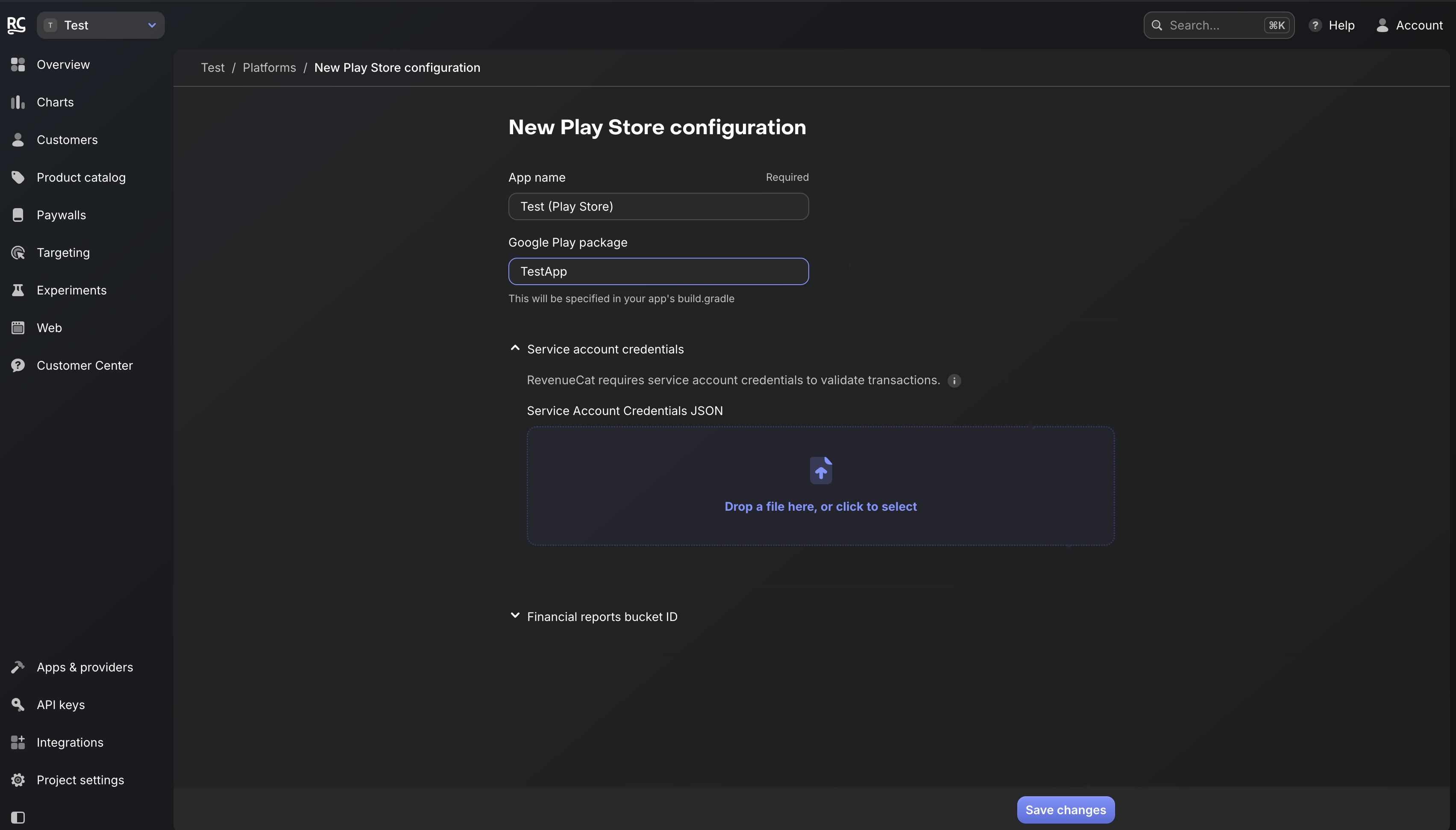 1. Copy the **Public API key**.
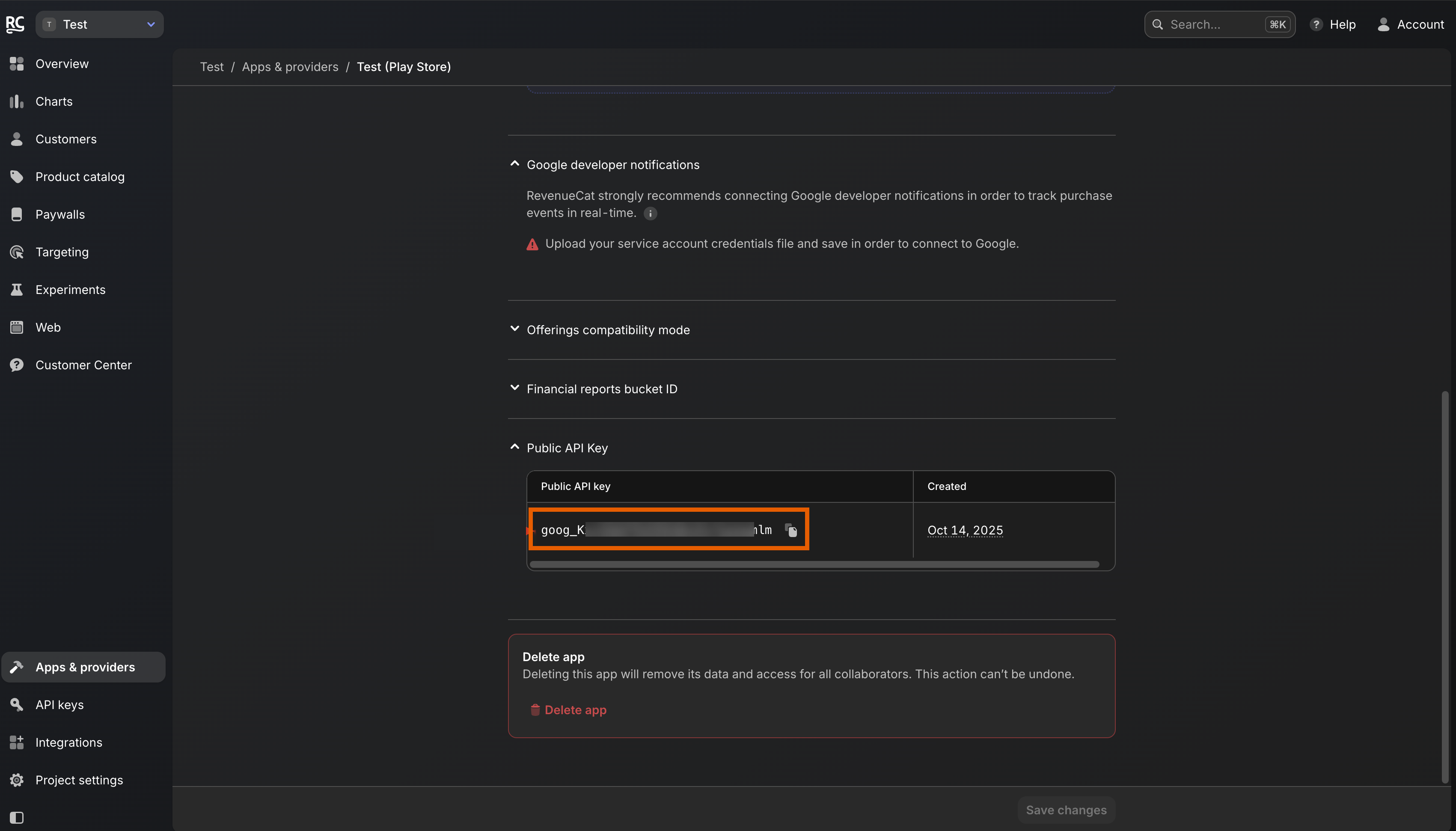 2. Go to [Integrations > RevenueCat](https://app.funnelfox.com/integrations/revenuecat) in FunnelFox.
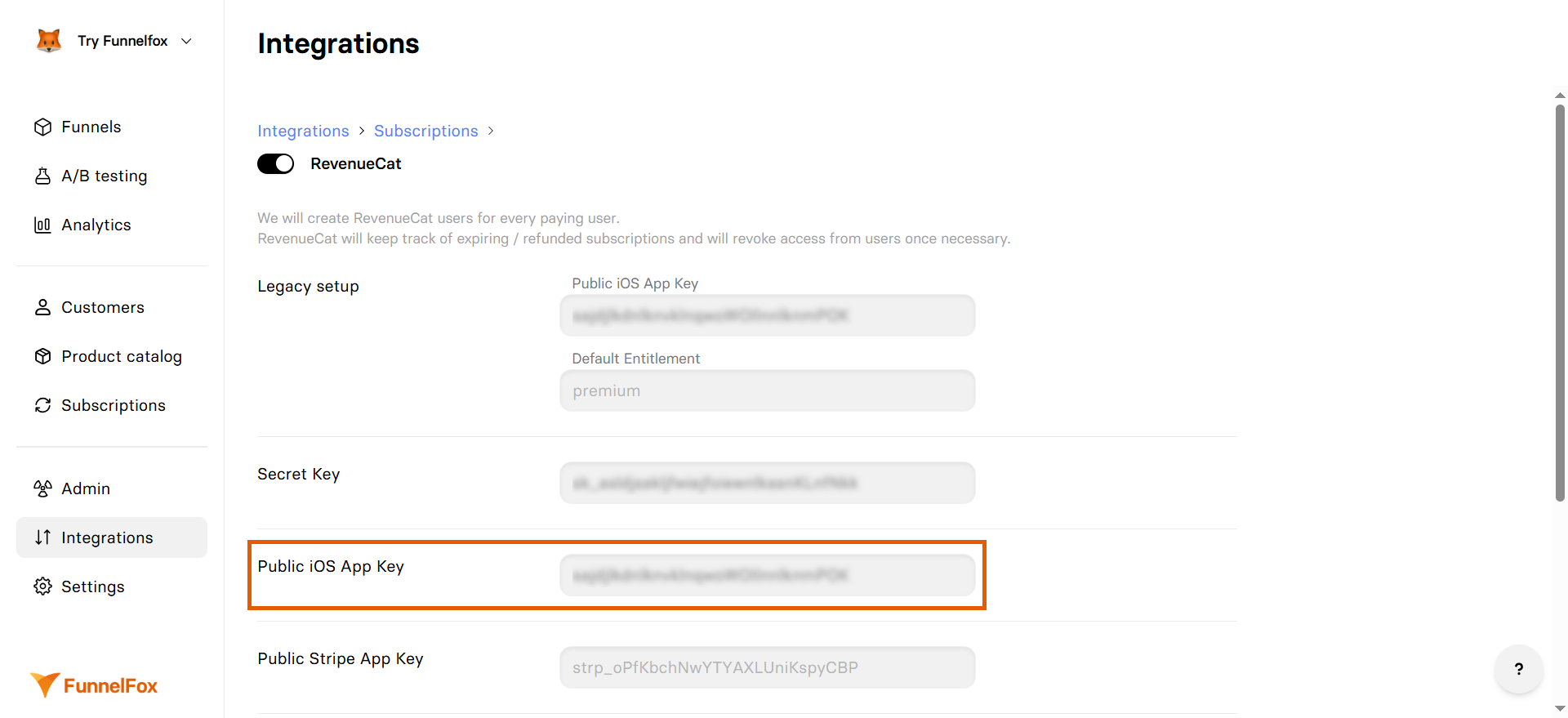
3. Paste the key into the **Public iOS App Key** field. The key will also automatically appear under the **Legacy setup**.
Don't close the RevenueCat settings page in FunnelFox as you'll need it for the next steps.
2. Go to [Integrations > RevenueCat](https://app.funnelfox.com/integrations/revenuecat) in FunnelFox.
3. Paste the key into the **Public iOS App Key** field. The key will also automatically appear under the **Legacy setup**.
Don't close the RevenueCat settings page in FunnelFox as you'll need it for the next steps.
 1. Go back to your project in RevenueCat and click **API keys**.
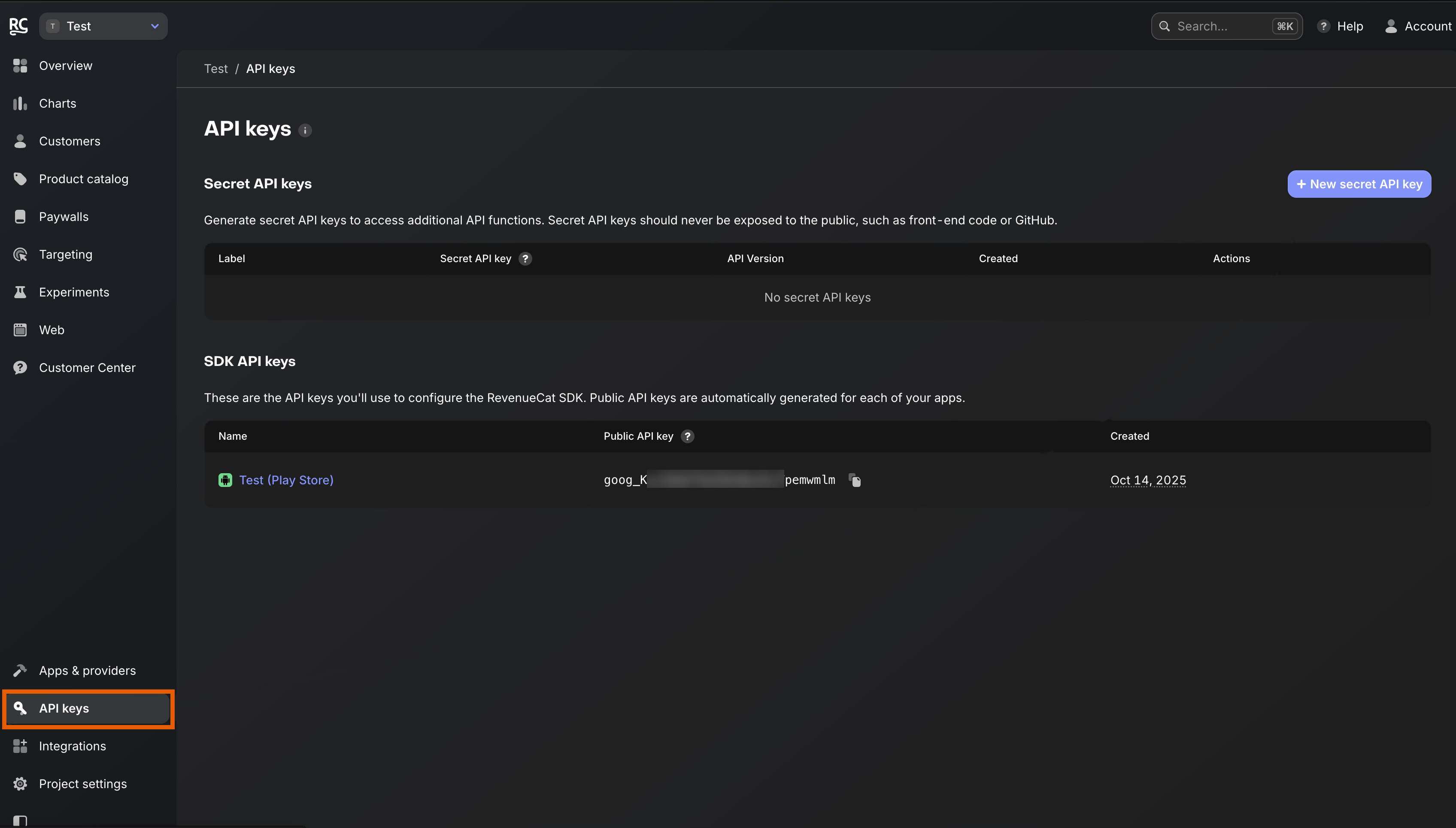 2. Click **+ New secret API key** at the top right.
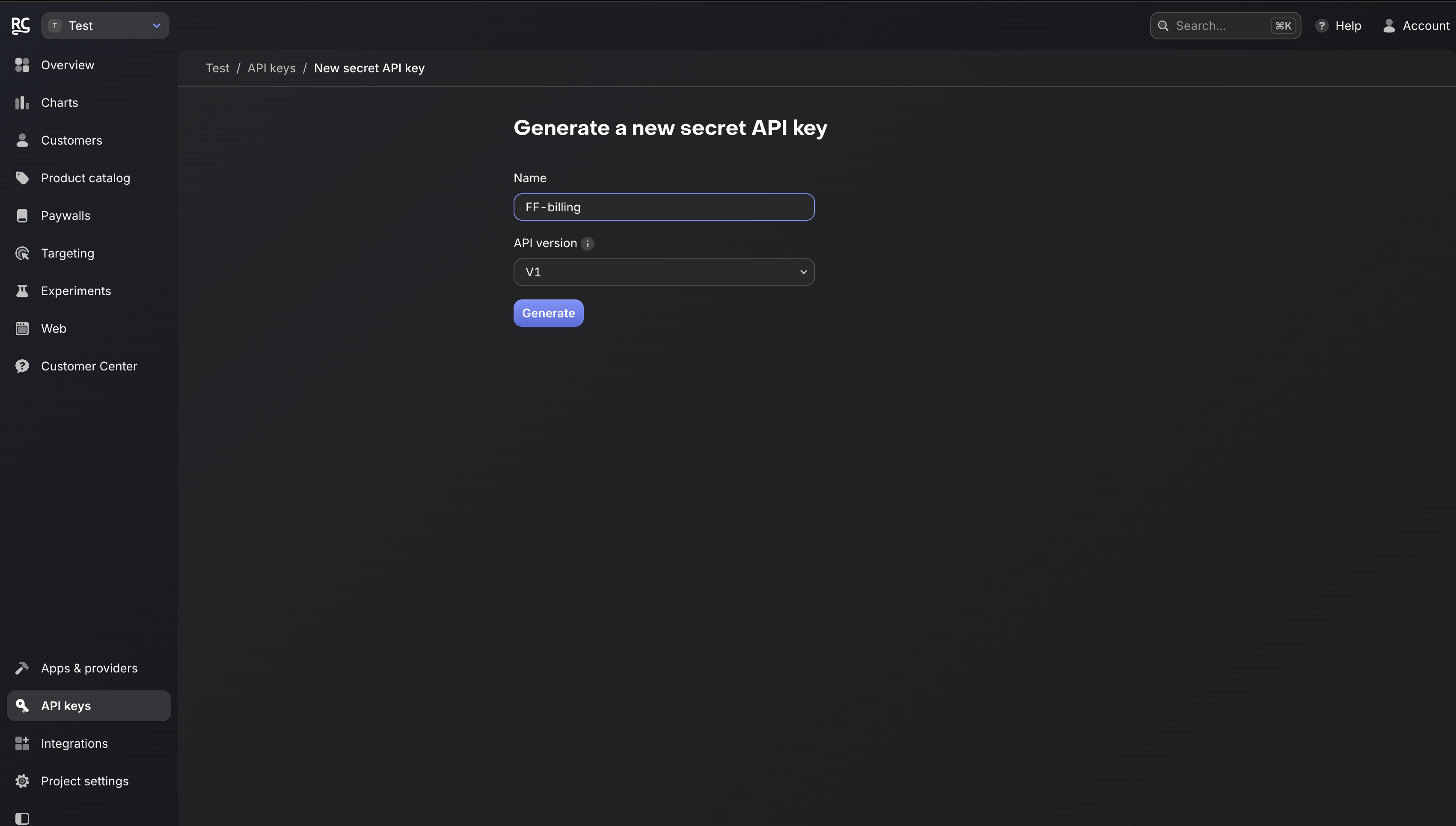
3. Enter API key details, then click **Generate**:
* **Name**: Enter any name you like
* **API version**: `V1`
2. Click **+ New secret API key** at the top right.
3. Enter API key details, then click **Generate**:
* **Name**: Enter any name you like
* **API version**: `V1`
 4. Copy the **Secret API key**.
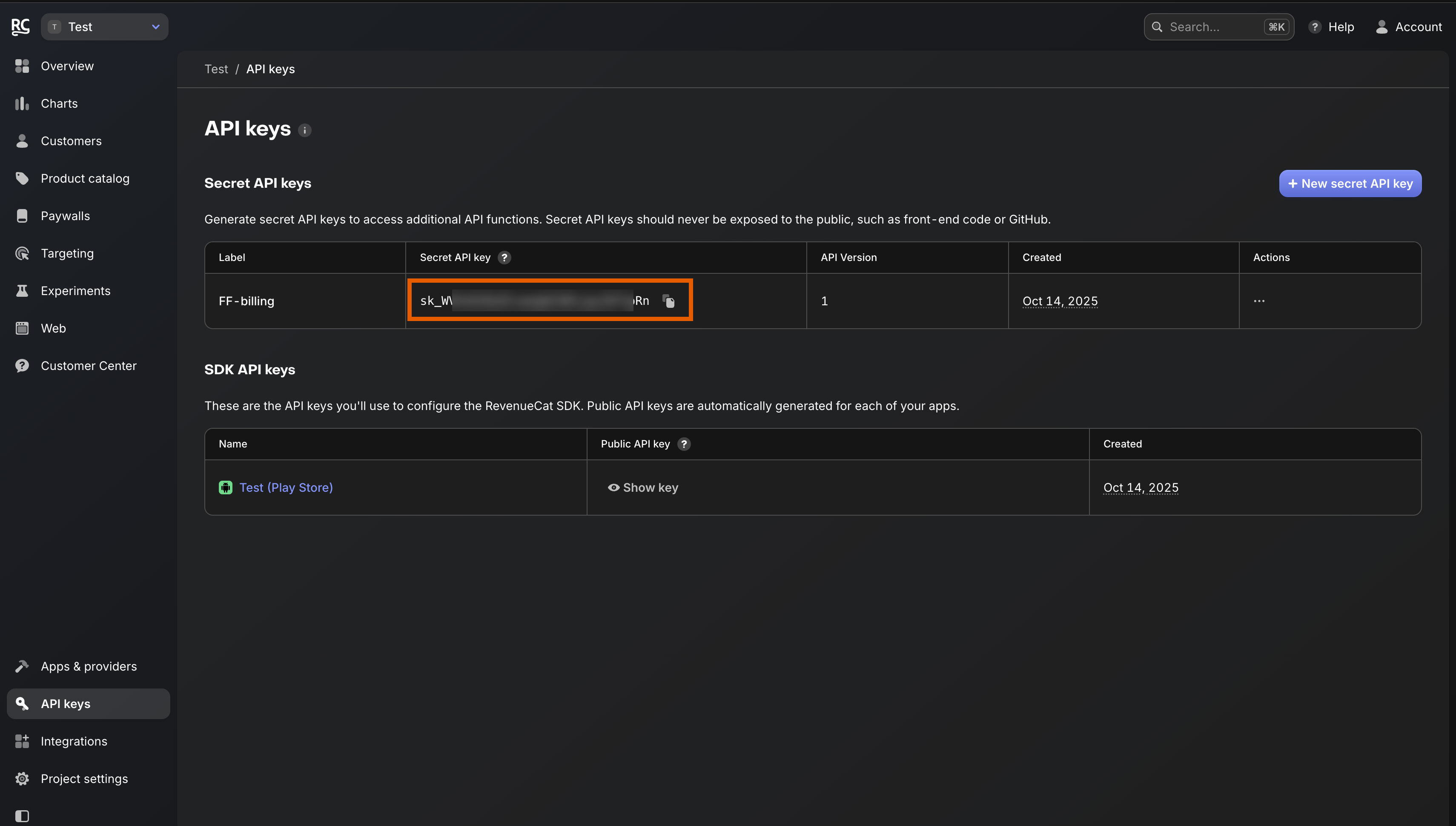 5. Go back to RevenueCat settings in FunnelFox and paste the key into the **Secret Key** field.
 1. In your RevenueCat project, go to **Product catalog** > **Entitlements**.
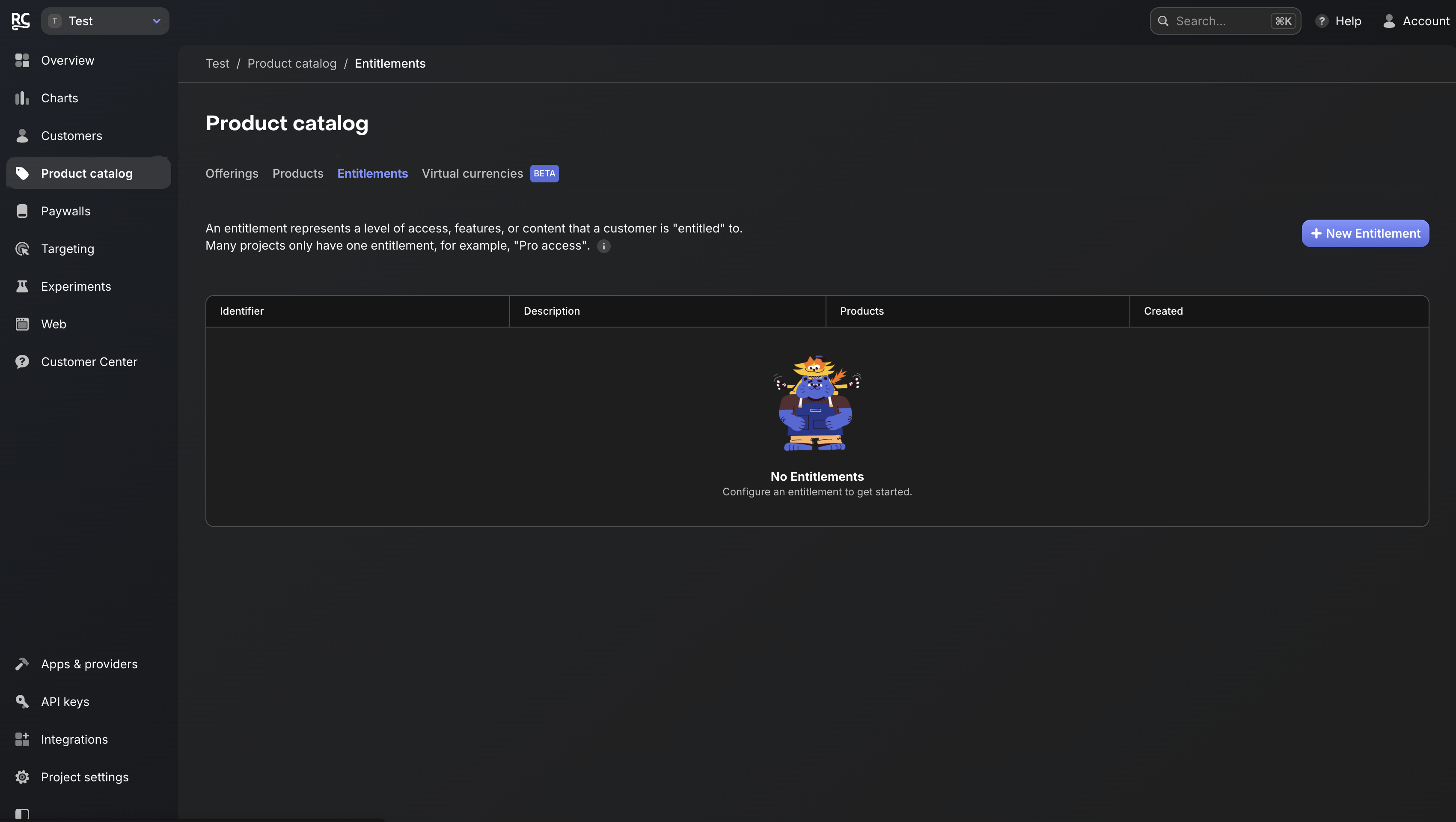 2. Click **+ New Entitlement** on the right.
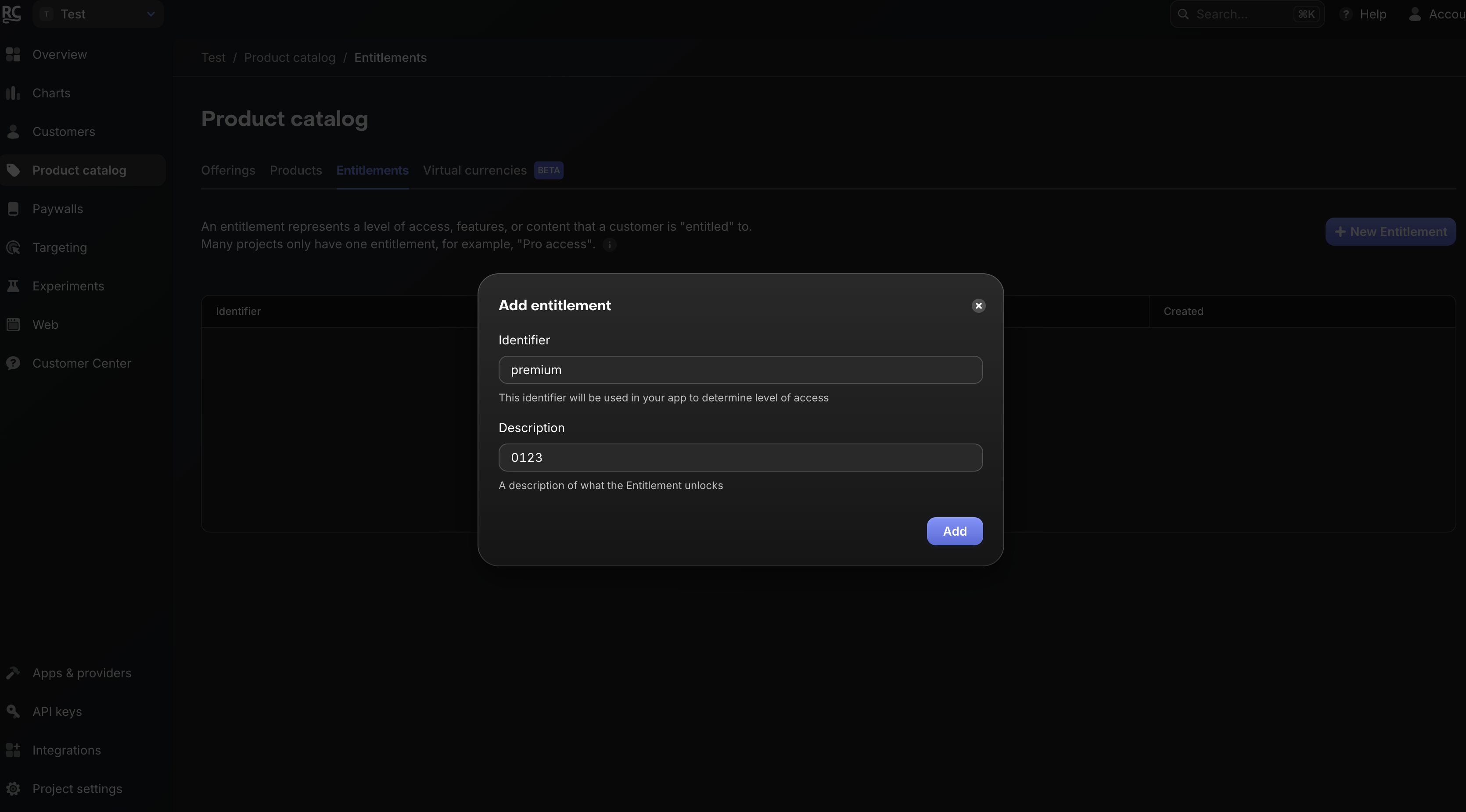
3. Enter entitlement details, then click **Add**:
* **Identifier**: `premium`
* **Description**: Any description you like
2. Click **+ New Entitlement** on the right.
3. Enter entitlement details, then click **Add**:
* **Identifier**: `premium`
* **Description**: Any description you like
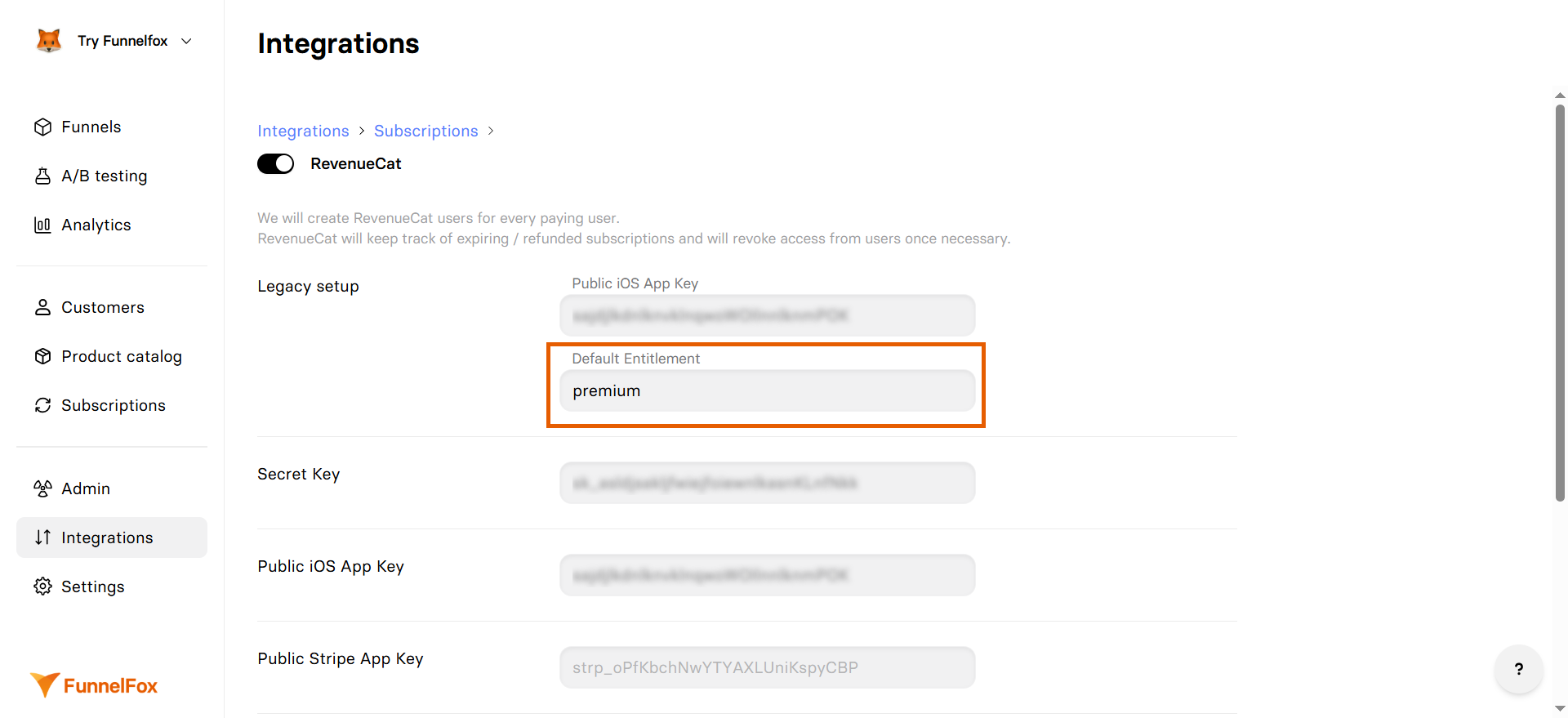
 4. Go back to RevenueCat settings in FunnelFox and enter the same identifier value `premium` into the **Default Entitlement** field.
 5. Click **Save changes**.
## Customer profile creation
### User ID
FunnelFox creates RevenueCat customers with an App User ID. The logic depends on when your FunnelFox project was set up:
Email is no longer used as the default App User ID for FunnelFox projects created after November 1, 2025.
FunnelFox uses the following priority for creating the App User ID:
1. **Custom input**: If you add an input element with the `_USERID_` element ID, its value becomes the App User ID.
2. **From your backend**: When you fetch the user ID from your backend, set it using [custom code](/editor/coding) inside a Raw HTML element:
```
```
3. **Profile-based ID (default)**: If none of the above are provided, FunnelFox uses `fnlfx_` + FunnelFox profile ID.
If you want to switch to the new logic, reach out to your Customer Success Manager.
By default, FunnelFox uses the user's email as the App User ID. You can override this behavior following the priority below:
1. **Custom input**: If you add an input element with the `_USERID_` element ID, its value becomes the App User ID.
2. **From your backend**: When you fetch the user ID from your backend, set it using [custom code](/editor/coding) inside a Raw HTML element:
```
```
3. **Email (default)**: If none of the above are provided, the user's email address is used as the App User ID.
4. **Fallback**: If no email is collected, FunnelFox uses `fnlfx_` + FunnelFox profile ID.
Unlike Adapty, RevenueCat integration doesn't support URL parameters for existing customer IDs. Users must be identified through your app.
### User attributes
FunnelFox sets the following attributes in RevenueCat customers:
| Attribute | Value | Description |
| ---------------------- | ------------ | ------------------------------- |
| **email** | User's email | If collected in the funnel |
| **fnlfx\_profile\_id** | Profile ID | FunnelFox's internal profile ID |
## User identification
Your app needs to identify users and check their subscription status. For example:
```typescript React Native theme={null}
import Purchases from 'react-native-purchases';
//...
// After the user logs in, identify them with their App User ID
// Use the same ID FunnelFox created in RevenueCat
const { customerInfo, created } = await Purchases.logIn(appUserId);
const hasActive = !!customerInfo.entitlements.active["premium"];
// Update UI or grant features based on hasActive
```
The email used in `logIn()` must match the email collected in your FunnelFox
funnel. This links the web purchase to the app user.
Learn about user identification for iOS, Android, and more in [RevenueCat's documentation](https://www.revenuecat.com/docs/customers/identifying-customers).
5. Click **Save changes**.
## Customer profile creation
### User ID
FunnelFox creates RevenueCat customers with an App User ID. The logic depends on when your FunnelFox project was set up:
Email is no longer used as the default App User ID for FunnelFox projects created after November 1, 2025.
FunnelFox uses the following priority for creating the App User ID:
1. **Custom input**: If you add an input element with the `_USERID_` element ID, its value becomes the App User ID.
2. **From your backend**: When you fetch the user ID from your backend, set it using [custom code](/editor/coding) inside a Raw HTML element:
```
```
3. **Profile-based ID (default)**: If none of the above are provided, FunnelFox uses `fnlfx_` + FunnelFox profile ID.
If you want to switch to the new logic, reach out to your Customer Success Manager.
By default, FunnelFox uses the user's email as the App User ID. You can override this behavior following the priority below:
1. **Custom input**: If you add an input element with the `_USERID_` element ID, its value becomes the App User ID.
2. **From your backend**: When you fetch the user ID from your backend, set it using [custom code](/editor/coding) inside a Raw HTML element:
```
```
3. **Email (default)**: If none of the above are provided, the user's email address is used as the App User ID.
4. **Fallback**: If no email is collected, FunnelFox uses `fnlfx_` + FunnelFox profile ID.
Unlike Adapty, RevenueCat integration doesn't support URL parameters for existing customer IDs. Users must be identified through your app.
### User attributes
FunnelFox sets the following attributes in RevenueCat customers:
| Attribute | Value | Description |
| ---------------------- | ------------ | ------------------------------- |
| **email** | User's email | If collected in the funnel |
| **fnlfx\_profile\_id** | Profile ID | FunnelFox's internal profile ID |
## User identification
Your app needs to identify users and check their subscription status. For example:
```typescript React Native theme={null}
import Purchases from 'react-native-purchases';
//...
// After the user logs in, identify them with their App User ID
// Use the same ID FunnelFox created in RevenueCat
const { customerInfo, created } = await Purchases.logIn(appUserId);
const hasActive = !!customerInfo.entitlements.active["premium"];
// Update UI or grant features based on hasActive
```
The email used in `logIn()` must match the email collected in your FunnelFox
funnel. This links the web purchase to the app user.
Learn about user identification for iOS, Android, and more in [RevenueCat's documentation](https://www.revenuecat.com/docs/customers/identifying-customers).