> ## Documentation Index
> Fetch the complete documentation index at: https://funnelfox.com/docs/llms.txt
> Use this file to discover all available pages before exploring further.
# Stripe payment integration
> Set up Stripe as your payment provider in FunnelFox. Configure checkout, subscriptions, Apple Pay, and manage recurring payments.
Stripe is FunnelFox's most feature-rich payment integration, offering global
payment processing with advanced subscription management, tax handling, and
extensive payment method support.
## Key features
FunnelFox supports the following payment methods and transaction types with Stripe:
| Transaction type | Cards | Apple Pay | Google Pay | PayPal\* |
| ------------------------------ | :---: | :-------: | :--------: | :------: |
| **Subscriptions** | | | | |
| Subscriptions | ✅ | ✅ | ✅ | ✅ |
| Free & paid trials | ✅ | ✅ | ✅ | ✅ |
| **Upsells** | | | | |
| One-time products | ✅ | ✅ | ✅ | ✅ |
| Subscription upsells (upgrade) | ✅ | ✅ | ✅ | ✅ |
| **Offers** | | | | |
| Intro offers | ✅ | ✅ | ✅ | ✅ |
| Promo codes (Coupons) | ✅ | ✅ | ✅ | ✅ |
Learn more about [configuring each transaction type](/integrations/payments/stripe#subscription-configuration) in your funnel.
*PayPal is available for [API keys setup](/integrations/payments/stripe#deprecated-api-keys-setup-flow) with European Stripe accounts only. For other cases, use the direct [PayPal integration](/integrations/payments/paypal).*
### Additional features
* **Cancellation funnels**: Full support for [cancellation flows](/dashboard/funnels#cancellation-funnels) with options to offer discounted subscriptions, gifts, or pauses instead of losing customers completely.
* **Wallet button**: One-click payment button for Apple Pay and Google Pay. Includes a fallback option when Apple Pay or Google Pay isn't available.
* **Stripe Link**: [Faster checkout](/integrations/payments/stripe#stripe-link) for returning Stripe customers using their saved payment details.
* **Failed payment recovery**: Automatic support for [Stripe retries](https://docs.stripe.com/billing/revenue-recovery/smart-retries) to reduce revenue loss from failed payments.
* **Stripe Managed Payments**: Use the [merchant of record (MoR) solution from Stripe](/integrations/payments/stripe-managed-payments) in FunnelFox to offload tax compliance, fraud prevention, disputes, and post-purchase support to Stripe.
## Setup
You need an active, verified Stripe account to connect Stripe. If you have one, the connection takes just a few clicks.
Follow the steps below to configure both environments using the same connection method ([Stripe App](/integrations/payments/stripe#install-stripe-app-for-sandbox) or [API keys](/integrations/payments/stripe#deprecated-api-keys-setup-flow)).
FunnelFox recommends using the [Stripe App integration method](/integrations/payments/stripe#install-stripe-app-for-sandbox) for the most reliable and seamless experience.
### Install Stripe App for sandbox
1. Go to [Integrations > Stripe > Stripe App](https://app.funnelfox.com/integrations/stripe) in FunnelFox.
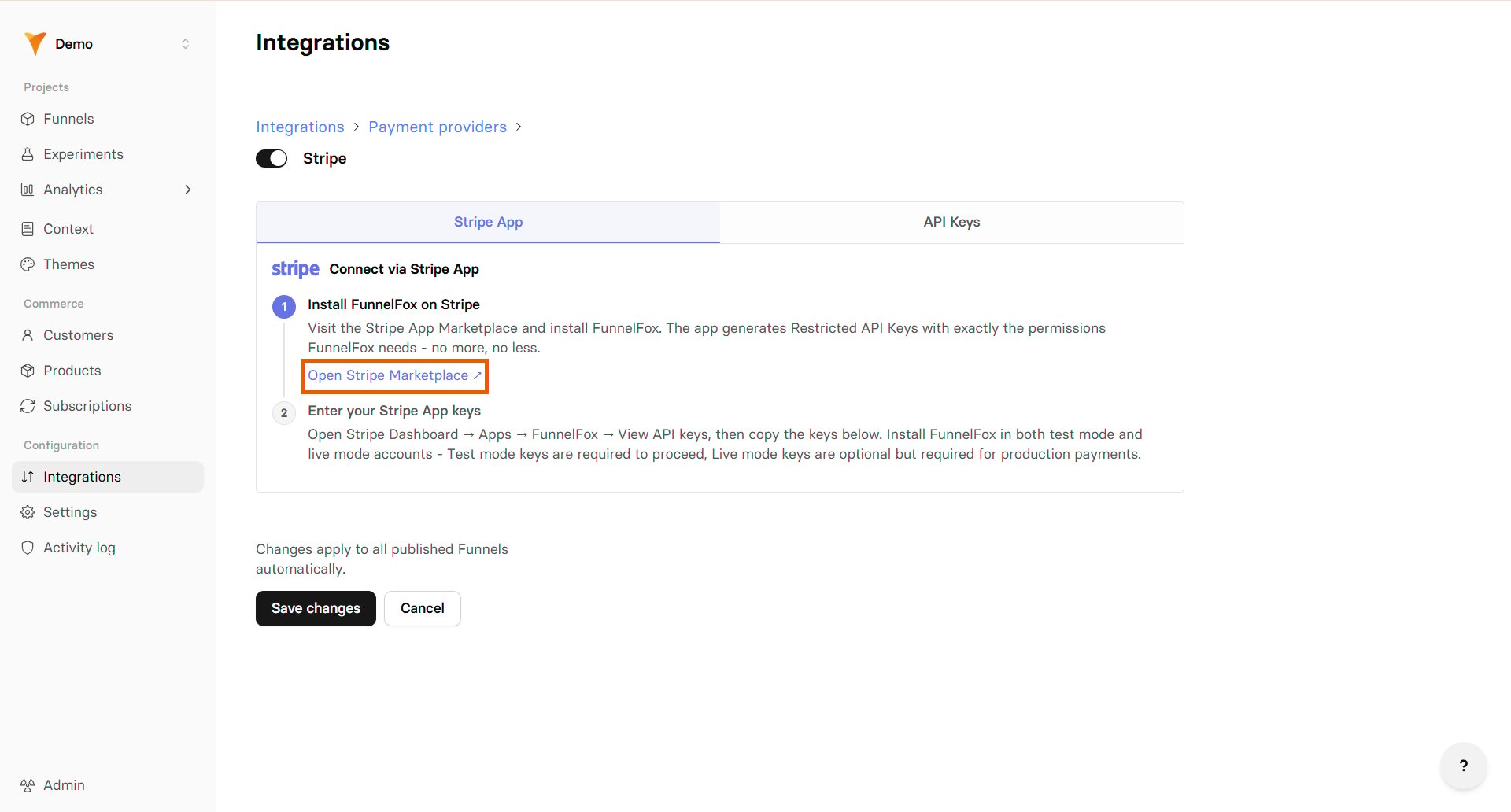
2. Click **Open Stripe Marketplace**.
 3. Select your Stripe Sandbox account.
Stripe [recommends using sandbox accounts](https://docs.stripe.com/testing-use-cases#compare) for testing purposes instead of production accounts in test mode.
3. Select your Stripe Sandbox account.
Stripe [recommends using sandbox accounts](https://docs.stripe.com/testing-use-cases#compare) for testing purposes instead of production accounts in test mode.
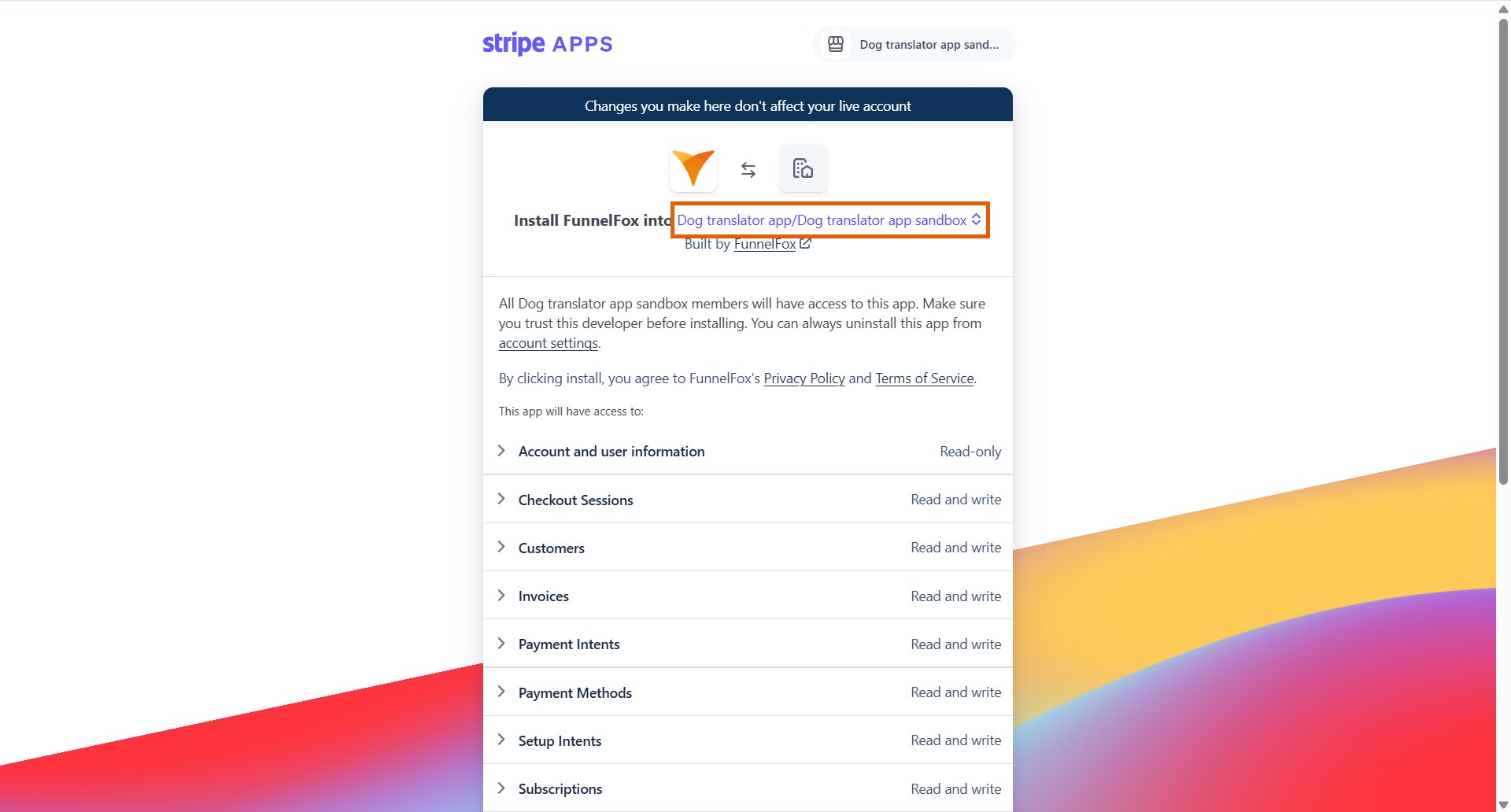 4. Keep the access rights as is and click **Install app in sandbox**.
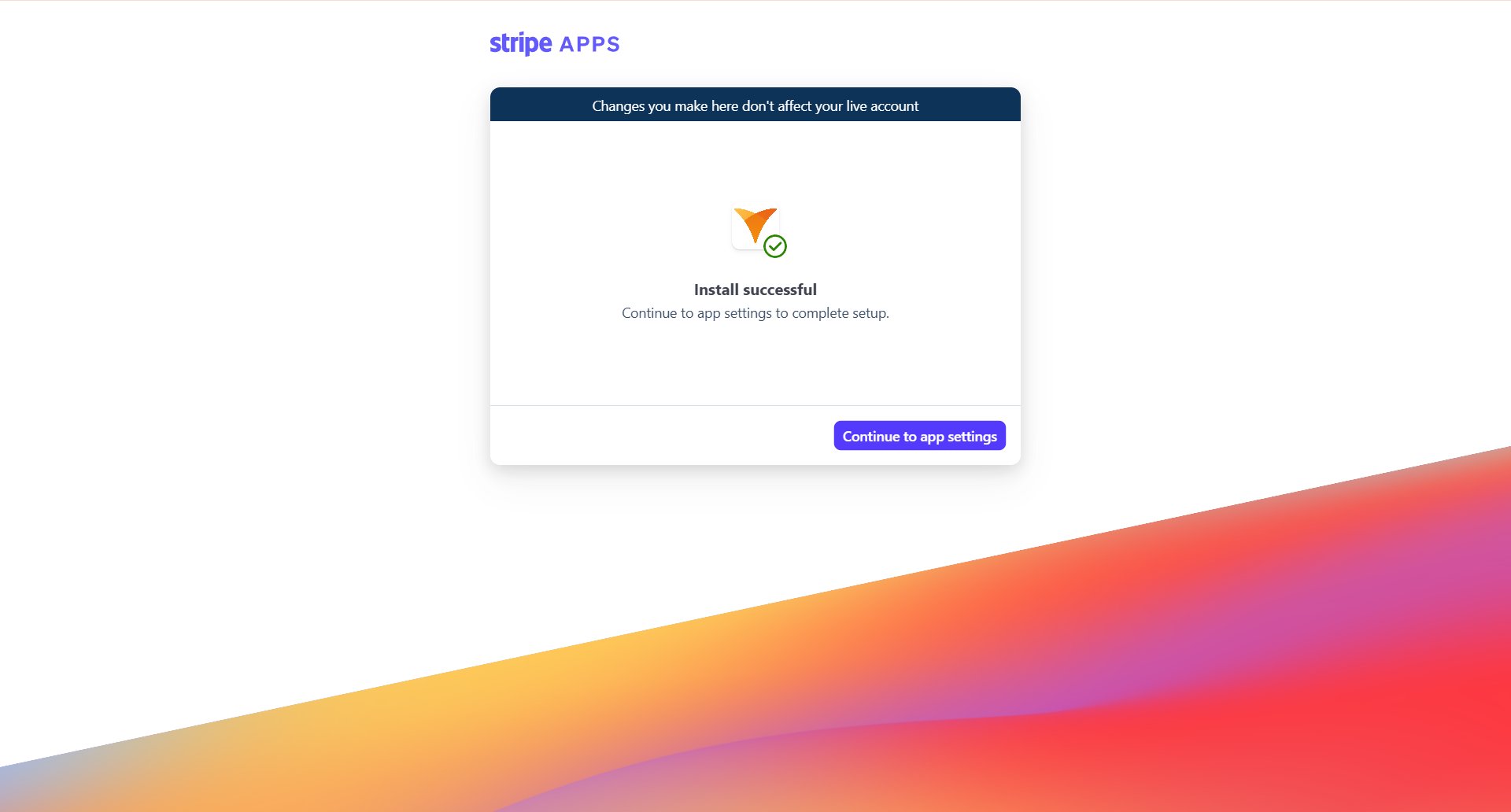
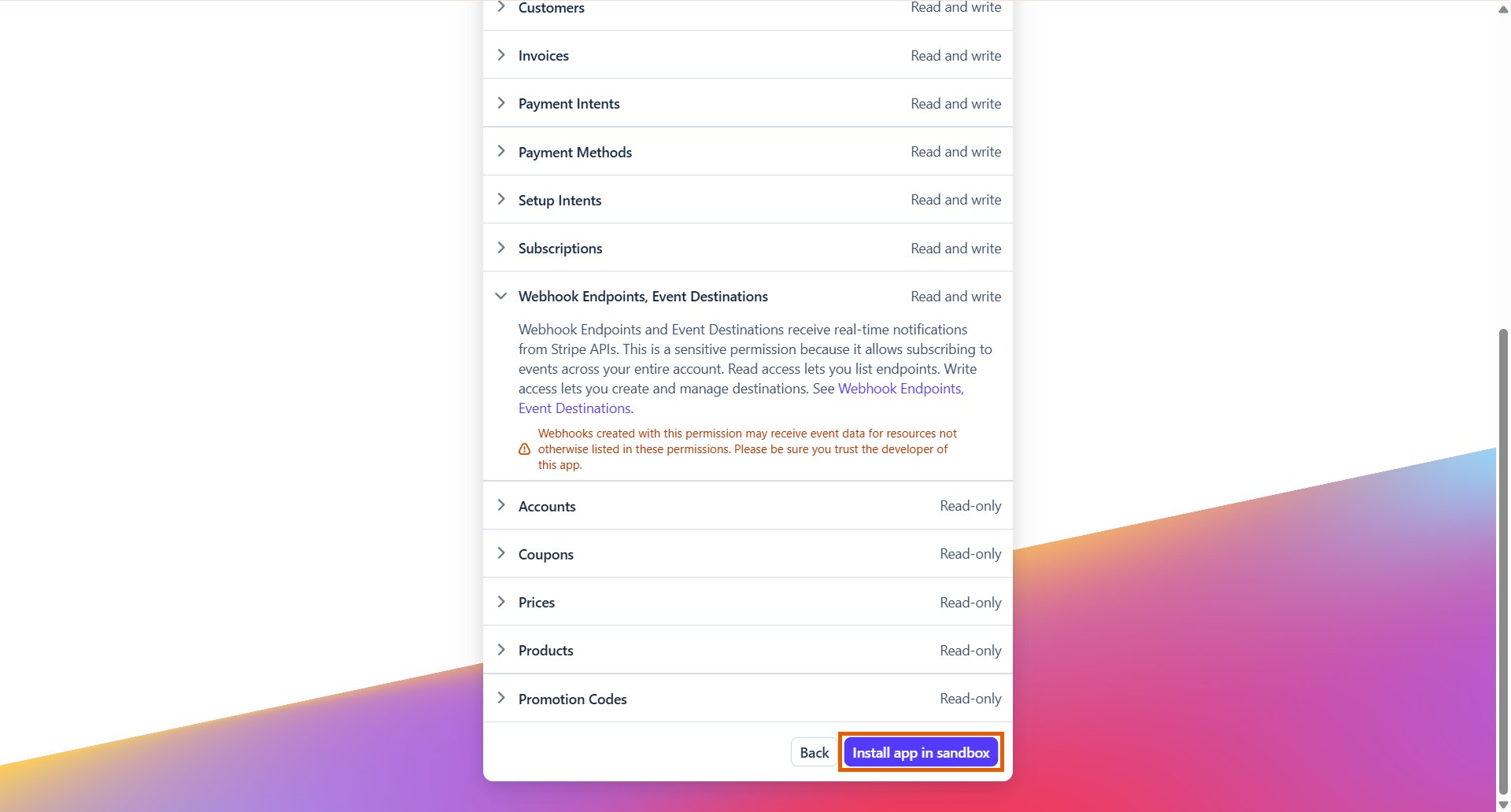 5. Click **Continue to app settings**.
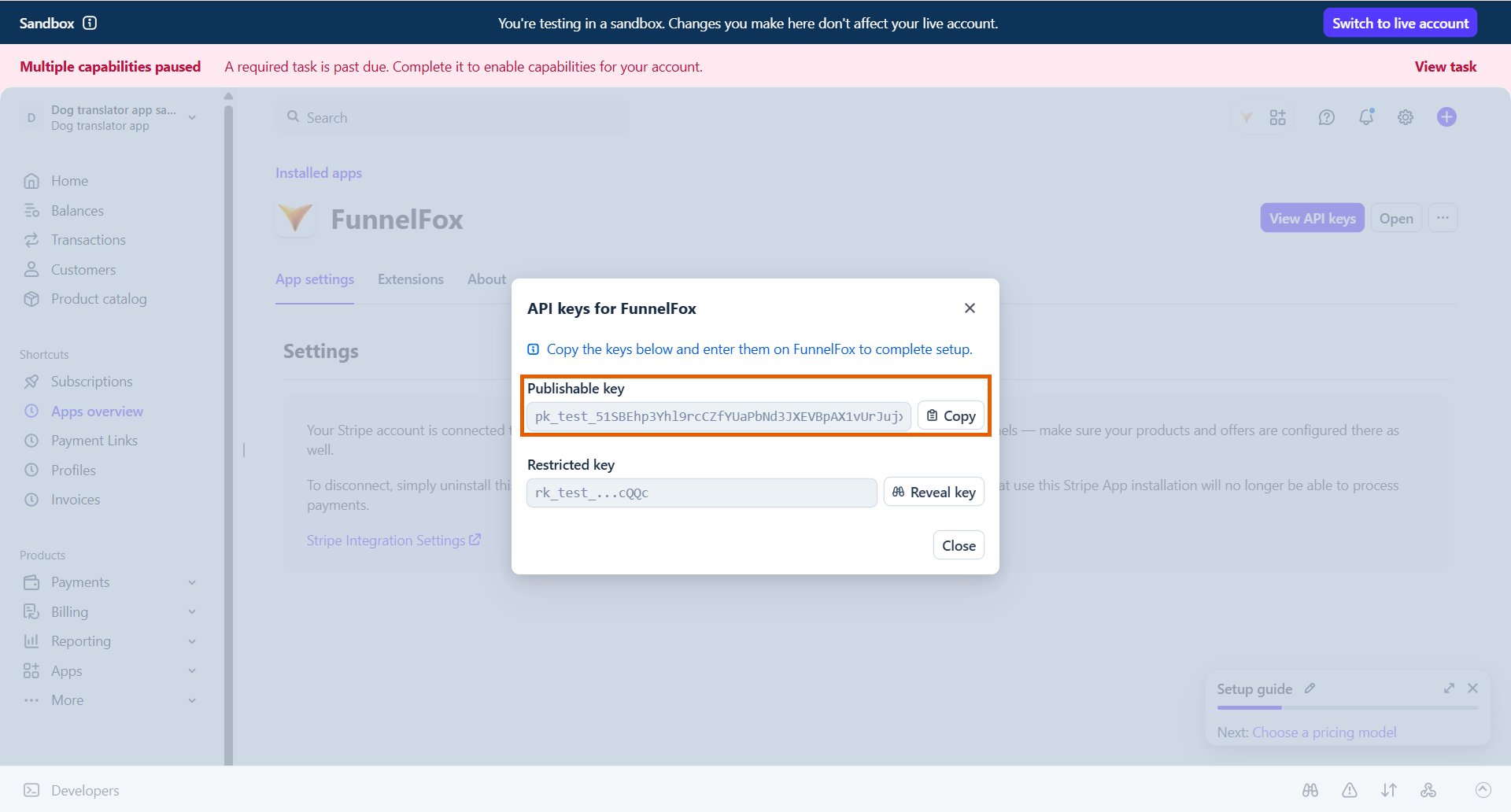
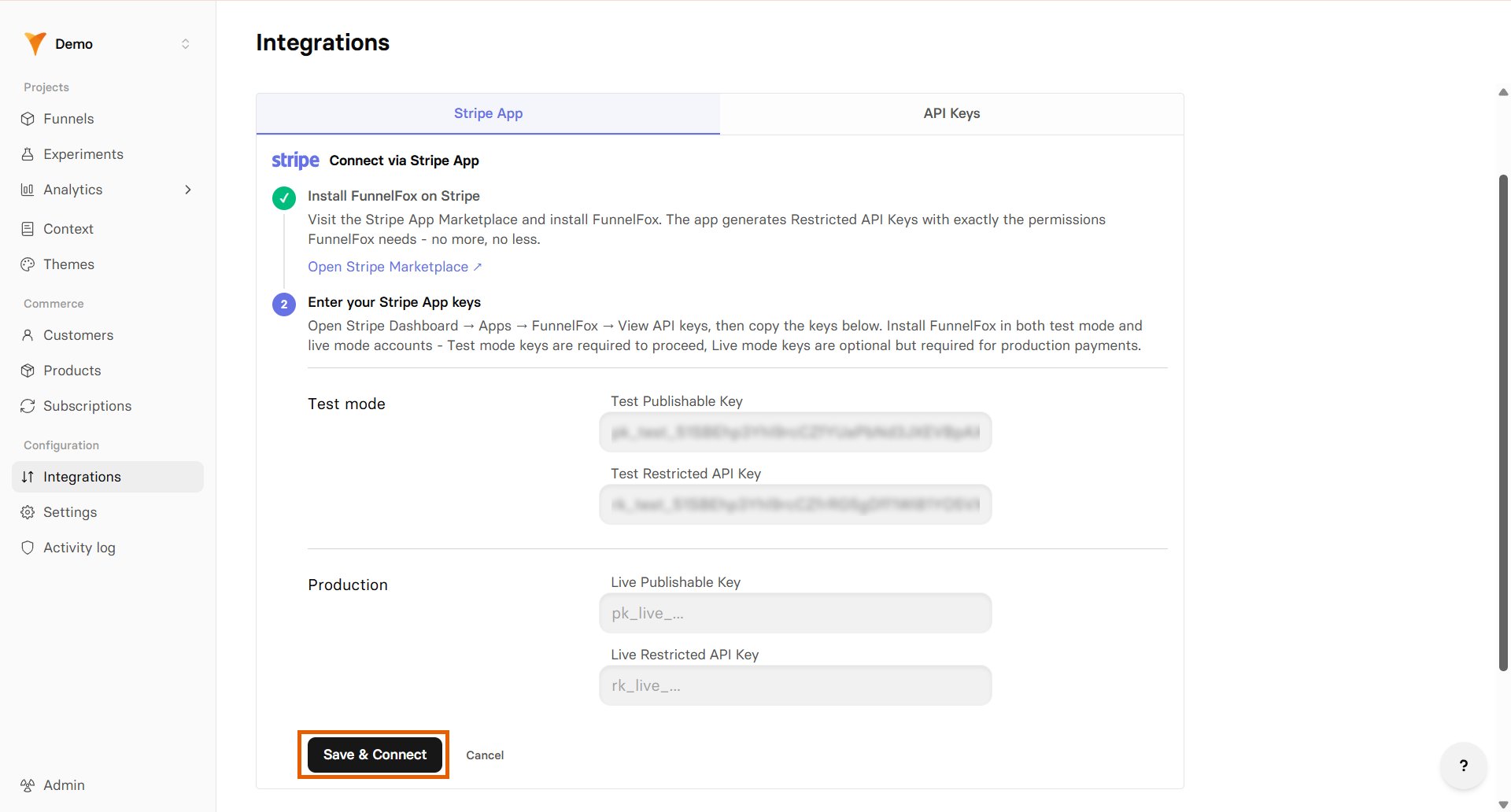
 6. Copy your **Publishable key**.
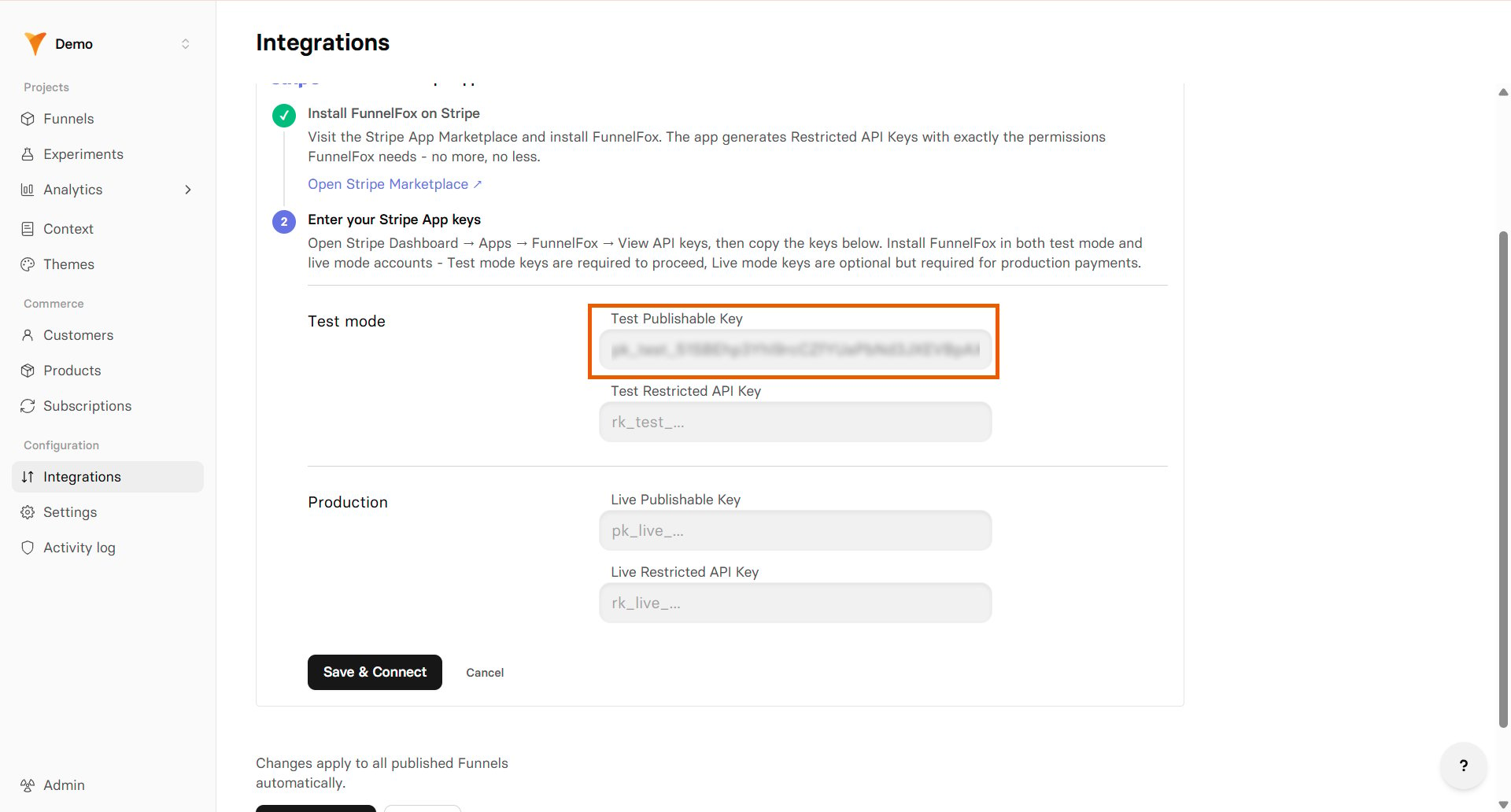
 7. Go back to the Stripe integration in FunnelFox and paste the key into the **Test Publishable key** field.
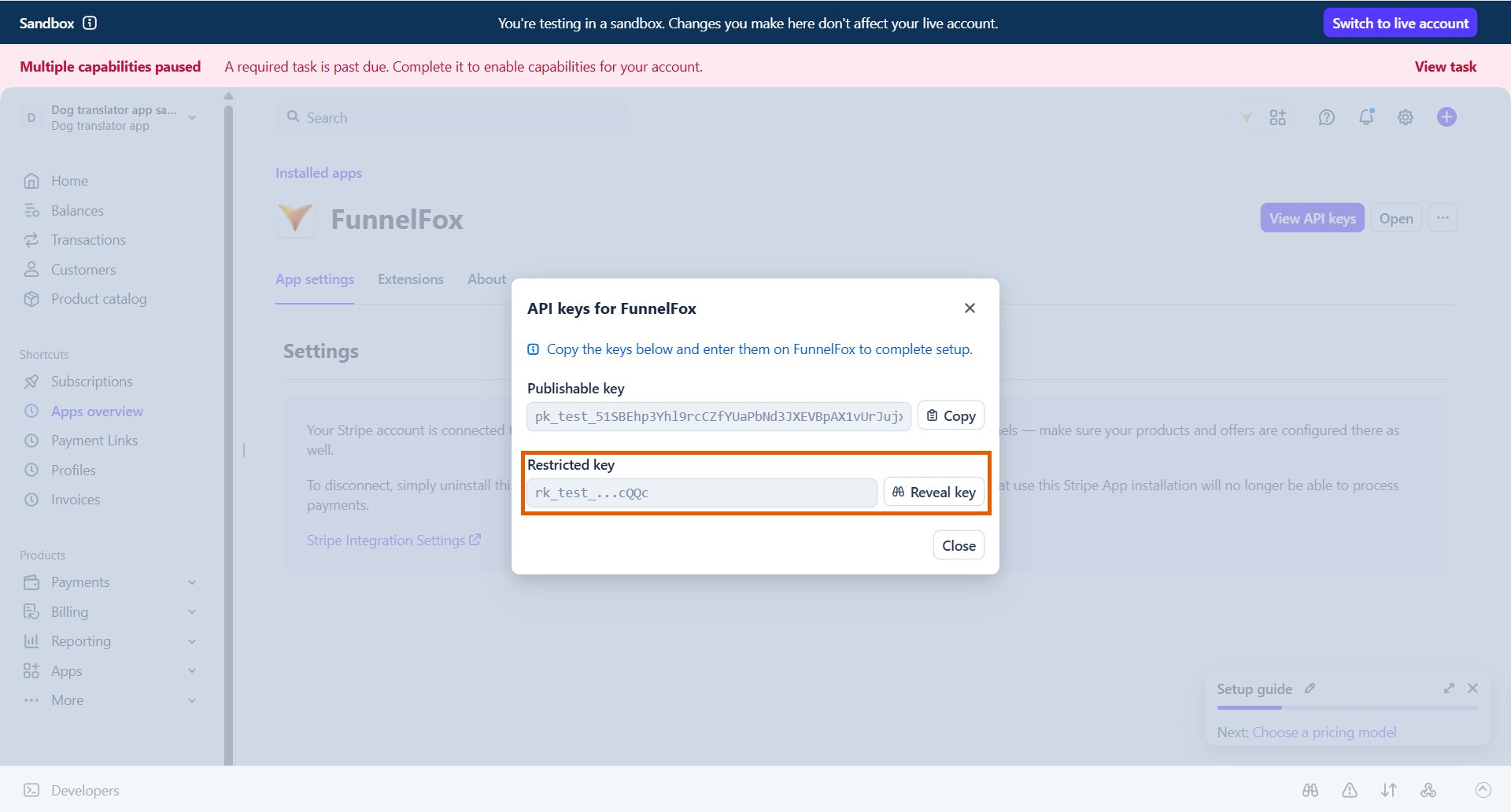
 8. Reveal and copy your **Restricted key** in Stripe.
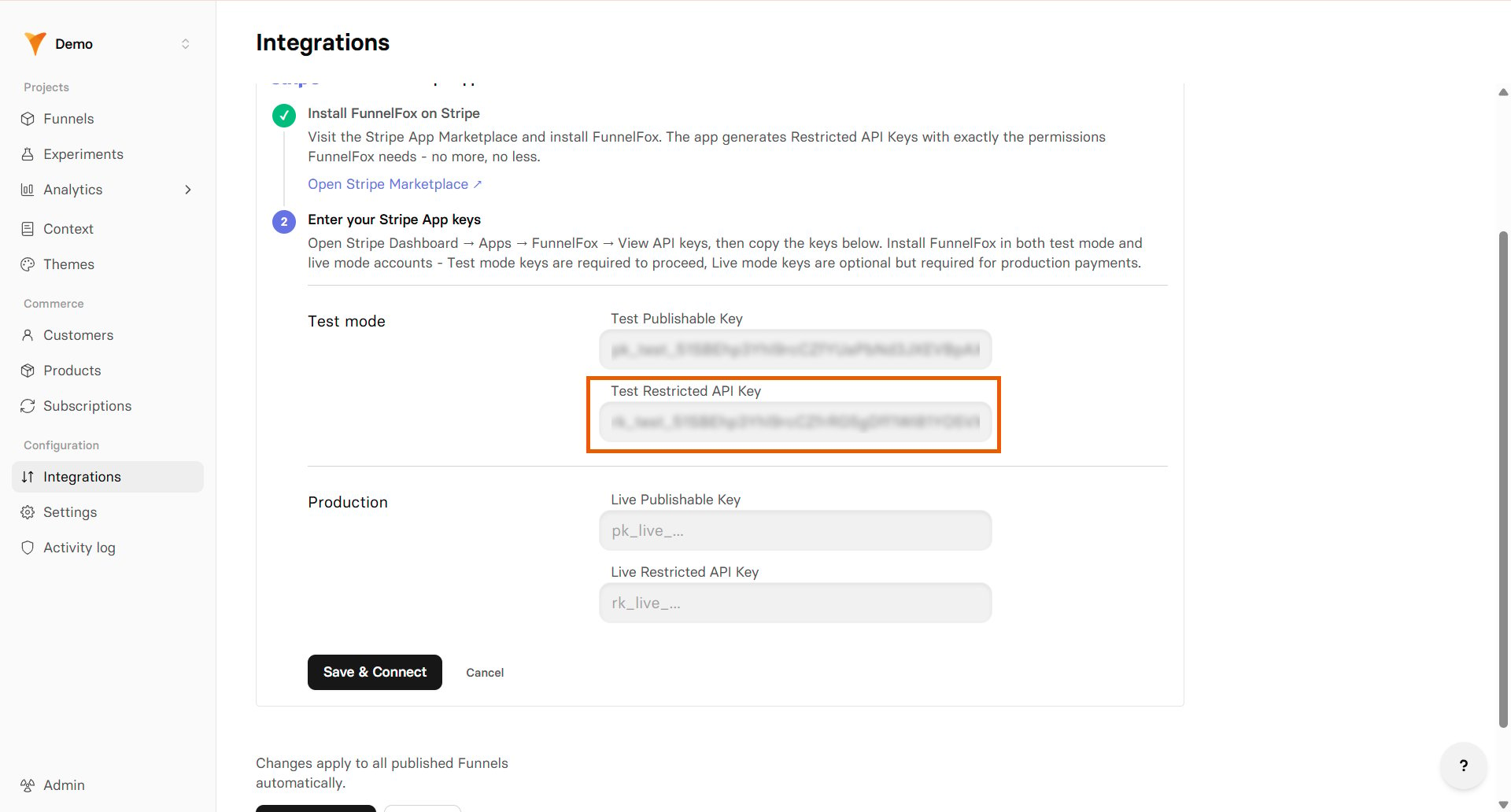
 9. Go back to the Stripe integration in FunnelFox and paste the key into the **Test Restricted API Key** field.
 10. Click **Save & Connect**.
 ### Install Stripe App for production
1. Click **Open Stripe Marketplace**.
### Install Stripe App for production
1. Click **Open Stripe Marketplace**.
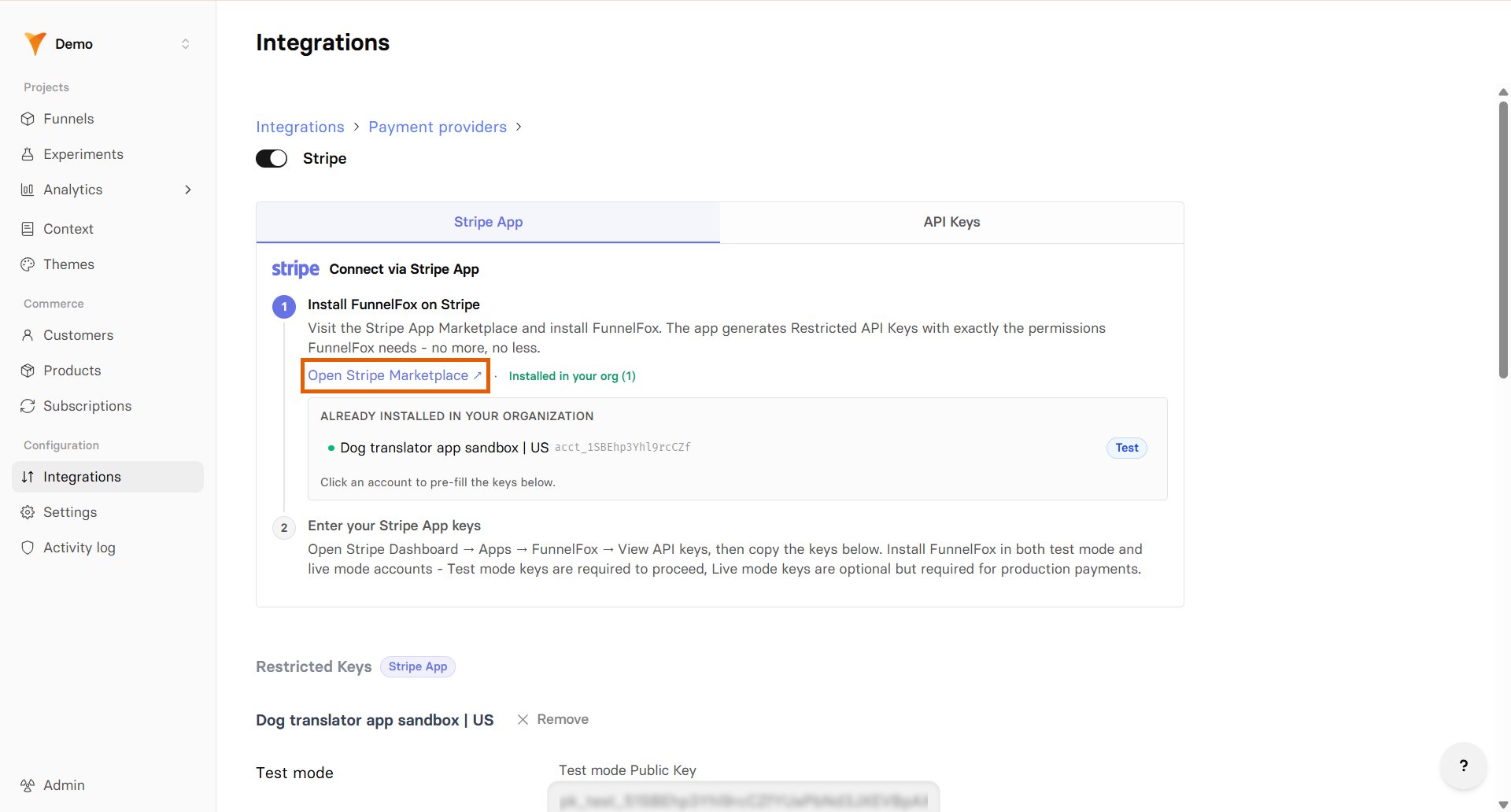 2. Select your Stripe Production account.
3. Follow the same steps above to install the app and paste your keys into the **Live** keys fields in FunnelFox.
Your Stripe integration is now active! Remember to republish your funnels to apply the changes.
### Migrating from deprecated API keys setup
If you previously connected Stripe using the deprecated API keys setup, we recommend migrating to the new Stripe App installation.
Do not delete your deprecated connections in [Integrations > Stripe](https://app.funnelfox.com/integrations/stripe). Keeping them ensures that webhooks for existing subscriptions continue to work. Redundant connections will be hidden from the UI after the transition period.
1. Follow the [setup flow above](/integrations/payments/stripe#setup) and connect both environments:
* Sandbox account: Used for testing in funnel previews. Create products there to select them later in the Sandbox section of the Checkout element.
* Production account: Used for live traffic on published funnels. Create products there to select them later in the Production section of the Checkout element.
2. Republish your funnels.
3. Verify that all products from the previous setup are available in your Checkout element.
FunnelFox doesn't support **Stripe Sandboxes**. Use your **live Stripe account** with **Test mode** enabled instead. Learn about [Stripe testing environments](https://docs.stripe.com/testing-use-cases#test-mode).
### 1. Live API keys
You need to add both publishable and secret keys from your live Stripe account.
**Publishable key**:
1. Go to **Developers > API keys** in [Stripe Dashboard](https://dashboard.stripe.com).
2. Copy your **Publishable key** (starts with `pk_live`).
2. Select your Stripe Production account.
3. Follow the same steps above to install the app and paste your keys into the **Live** keys fields in FunnelFox.
Your Stripe integration is now active! Remember to republish your funnels to apply the changes.
### Migrating from deprecated API keys setup
If you previously connected Stripe using the deprecated API keys setup, we recommend migrating to the new Stripe App installation.
Do not delete your deprecated connections in [Integrations > Stripe](https://app.funnelfox.com/integrations/stripe). Keeping them ensures that webhooks for existing subscriptions continue to work. Redundant connections will be hidden from the UI after the transition period.
1. Follow the [setup flow above](/integrations/payments/stripe#setup) and connect both environments:
* Sandbox account: Used for testing in funnel previews. Create products there to select them later in the Sandbox section of the Checkout element.
* Production account: Used for live traffic on published funnels. Create products there to select them later in the Production section of the Checkout element.
2. Republish your funnels.
3. Verify that all products from the previous setup are available in your Checkout element.
FunnelFox doesn't support **Stripe Sandboxes**. Use your **live Stripe account** with **Test mode** enabled instead. Learn about [Stripe testing environments](https://docs.stripe.com/testing-use-cases#test-mode).
### 1. Live API keys
You need to add both publishable and secret keys from your live Stripe account.
**Publishable key**:
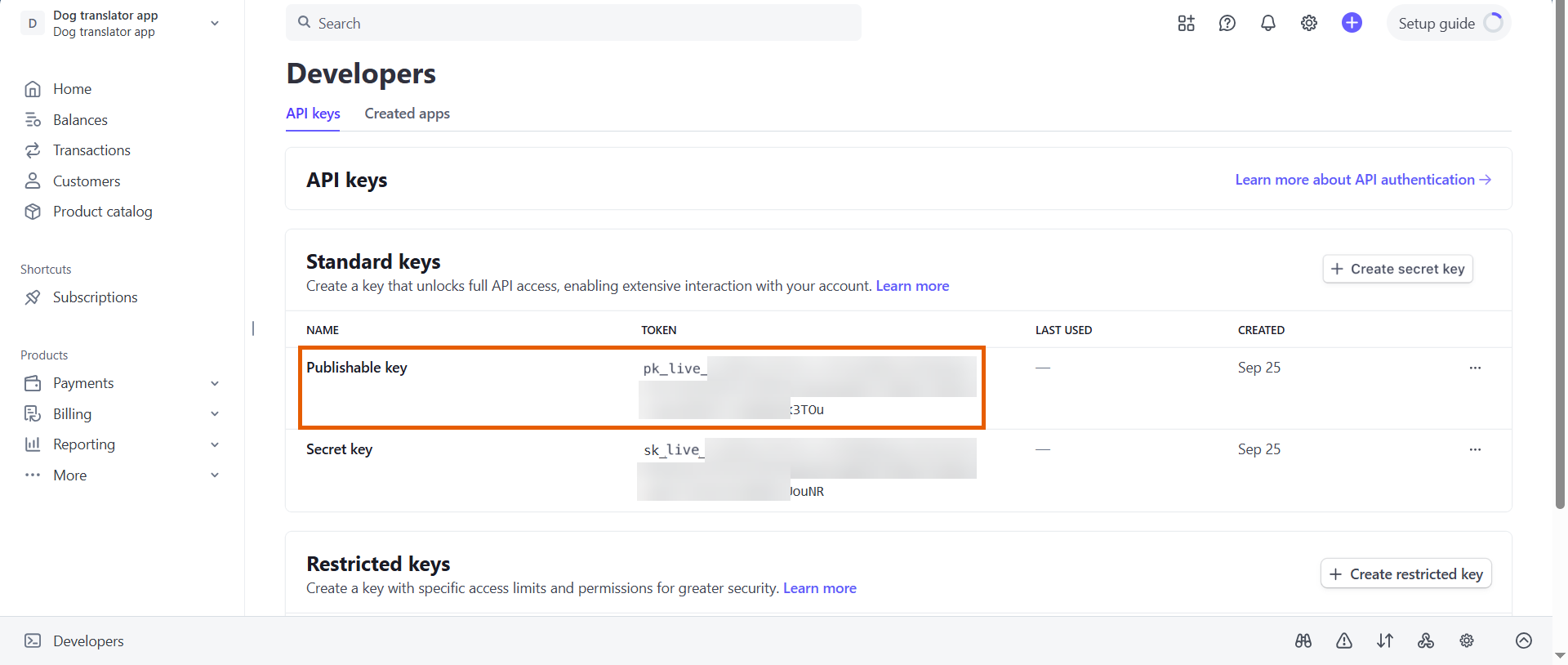
1. Go to **Developers > API keys** in [Stripe Dashboard](https://dashboard.stripe.com).
2. Copy your **Publishable key** (starts with `pk_live`).
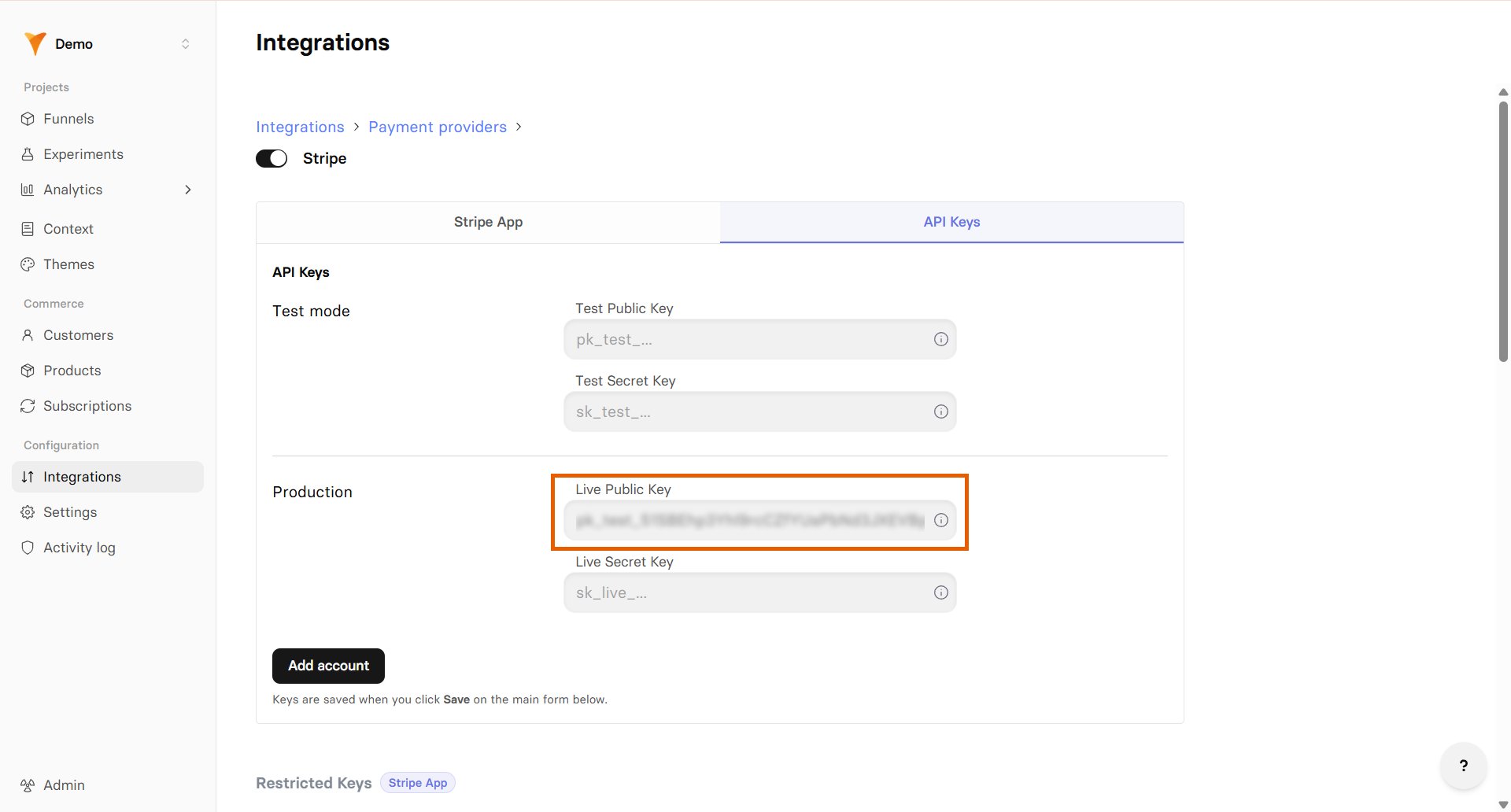
 3. Go to [Integrations > Stripe > API Keys tab](https://app.funnelfox.com/integrations/stripe) in FunnelFox.
4. Paste the publishable key into the **Live Public Key** field under **Production**.
3. Go to [Integrations > Stripe > API Keys tab](https://app.funnelfox.com/integrations/stripe) in FunnelFox.
4. Paste the publishable key into the **Live Public Key** field under **Production**.
 Keep your FunnelFox Stripe settings page open throughout the setup process.
**Secret key**:
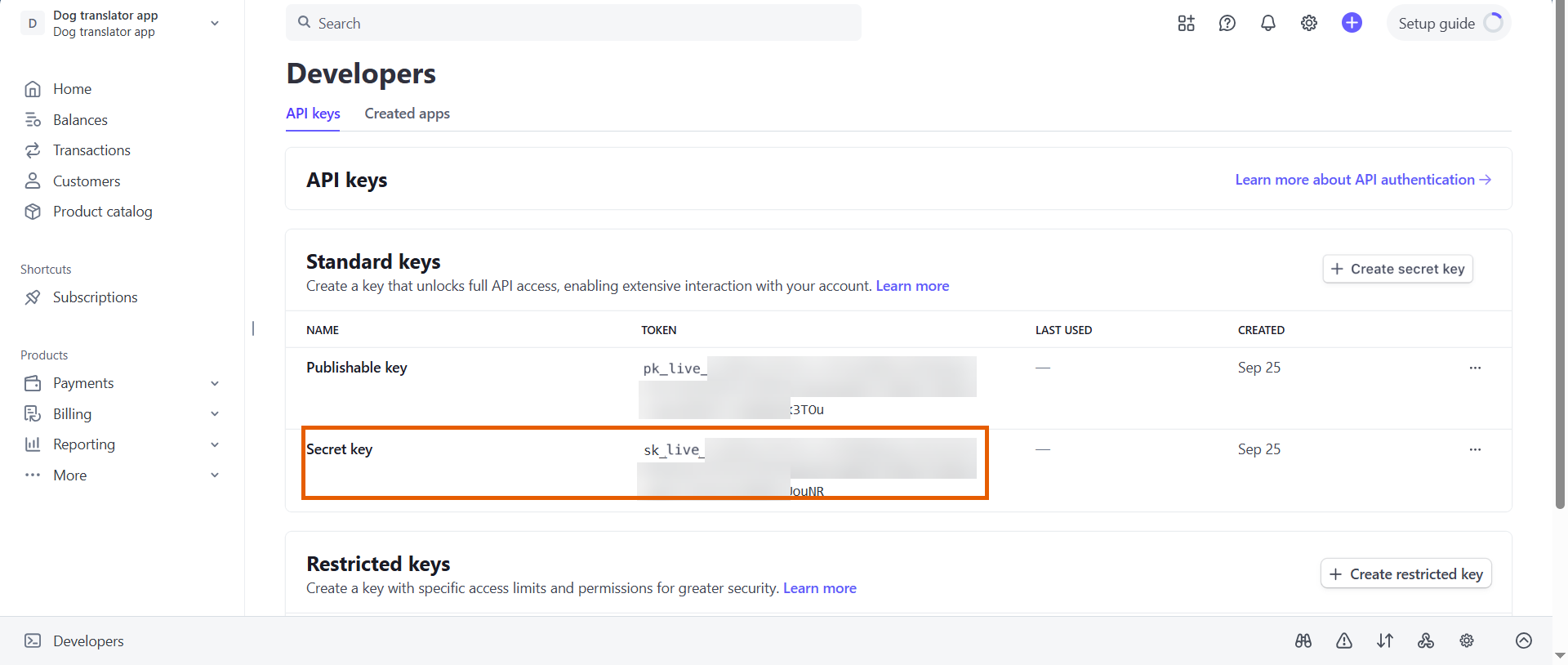
1. Go back to **Developers > API keys** in Stripe.
2. Copy your **Secret key** (starts with `sk_live`).
Keep your FunnelFox Stripe settings page open throughout the setup process.
**Secret key**:
1. Go back to **Developers > API keys** in Stripe.
2. Copy your **Secret key** (starts with `sk_live`).
 3. Go back to your Stripe settings in FunnelFox.
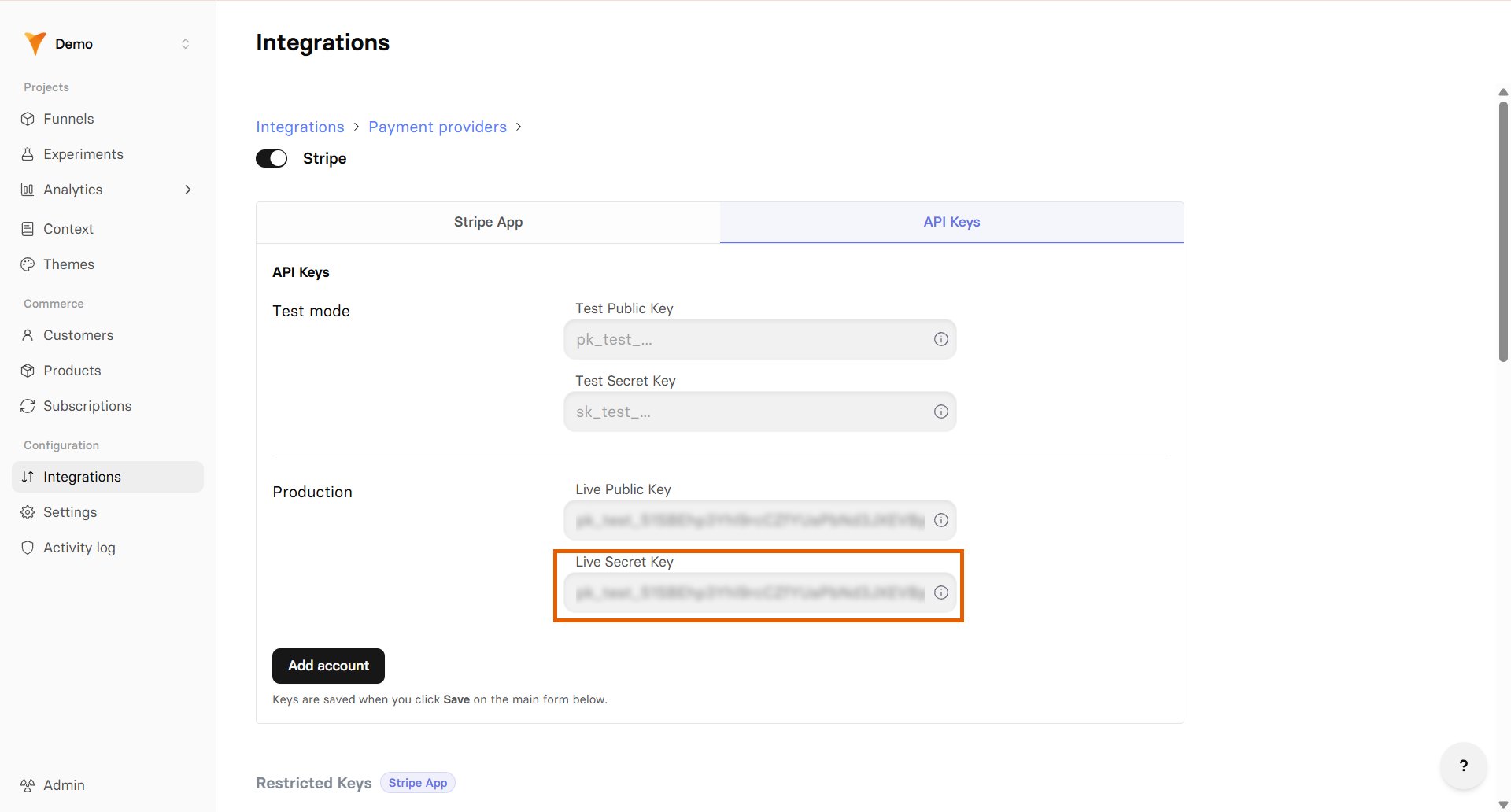
4. Paste the secret key into the **Live Secret Key** field under **Production**.
3. Go back to your Stripe settings in FunnelFox.
4. Paste the secret key into the **Live Secret Key** field under **Production**.
 ### 2. Test API keys
Next, add your test keys for testing payments before going live.
**Test Publishable key**:
1. Go to back to your Stripe Dashboard.
2. Click your account picker at the top left and toggle on **Test mode**.
3. Go to **Developers > API keys**.
4. Copy your test **Publishable key** (starts with `pk_test`).
### 2. Test API keys
Next, add your test keys for testing payments before going live.
**Test Publishable key**:
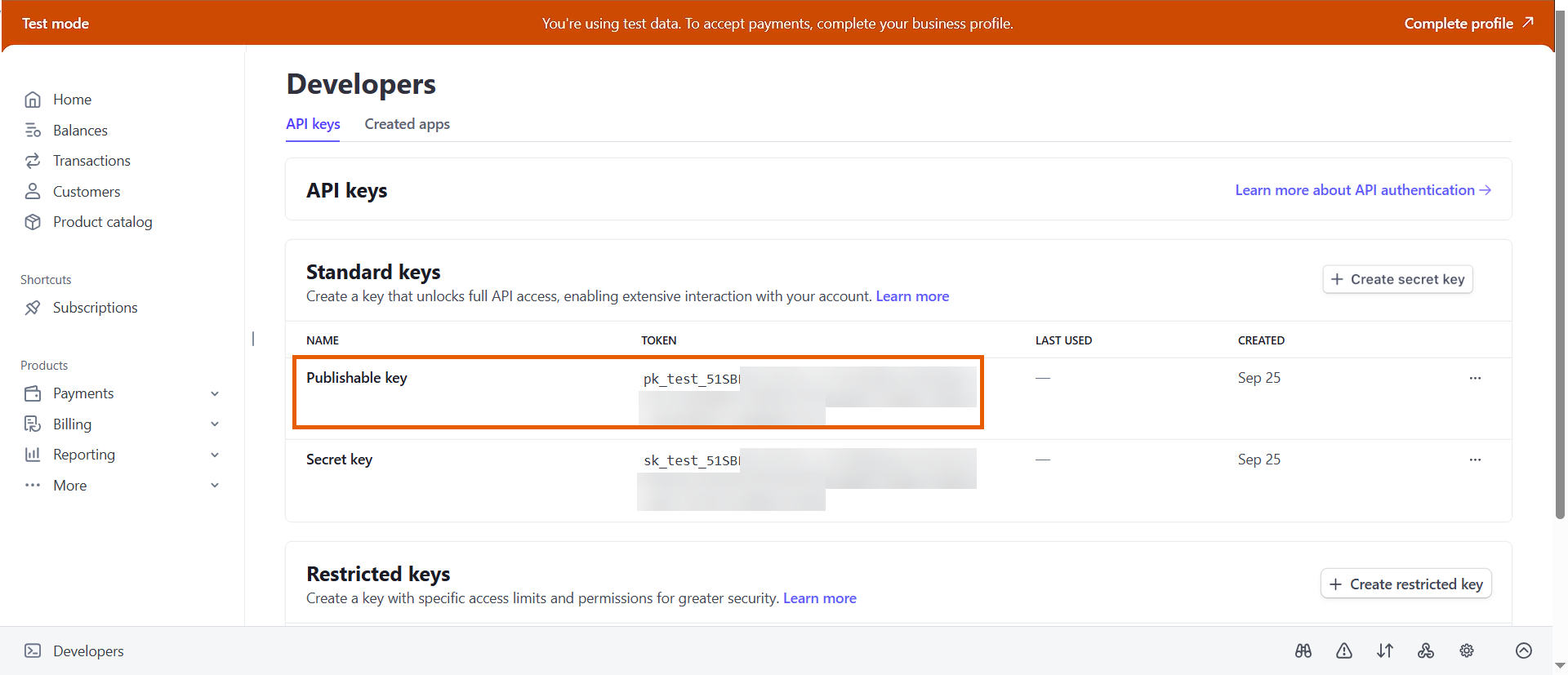
1. Go to back to your Stripe Dashboard.
2. Click your account picker at the top left and toggle on **Test mode**.
3. Go to **Developers > API keys**.
4. Copy your test **Publishable key** (starts with `pk_test`).
 4. Go back to the Stripe settings in FunnelFox.
5. Paste the test publishable key into the **Test mode Public Key** field under **Test mode**.
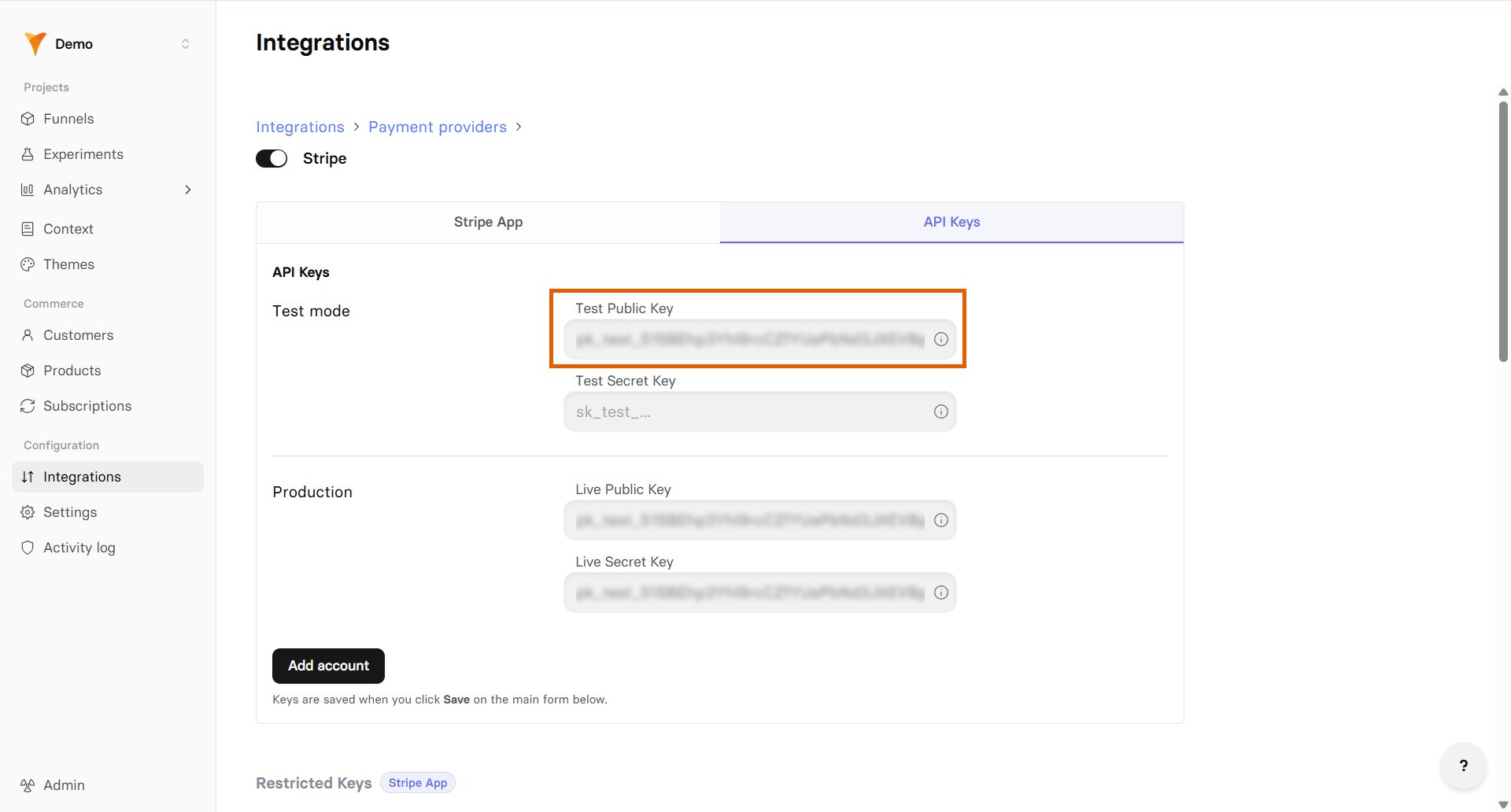
4. Go back to the Stripe settings in FunnelFox.
5. Paste the test publishable key into the **Test mode Public Key** field under **Test mode**.
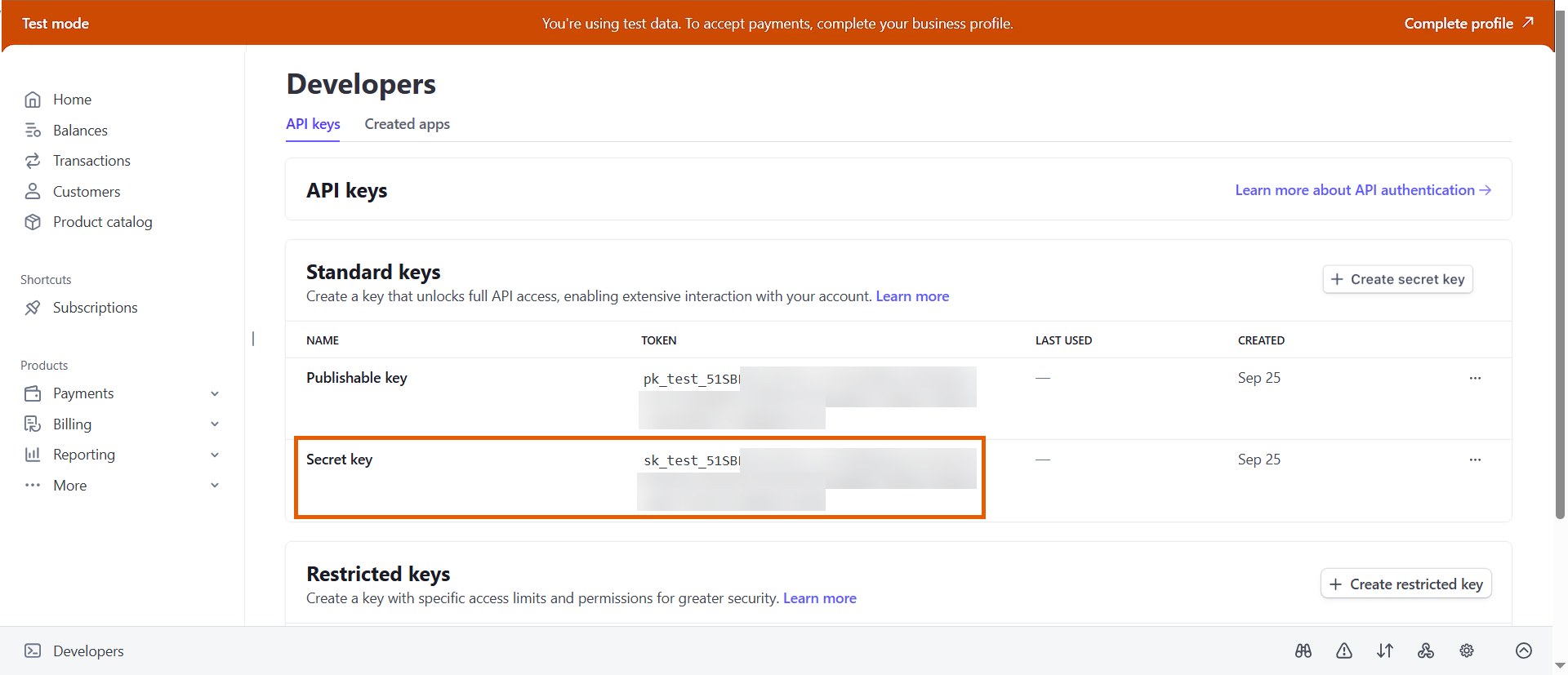
 **Test Secret key**:
1. Go back to **Developers > API keys** in Stripe.
2. Copy your test **Secret key** (starts with `sk_test`).
**Test Secret key**:
1. Go back to **Developers > API keys** in Stripe.
2. Copy your test **Secret key** (starts with `sk_test`).
 3. Go back to your Stripe settings in FunnelFox.
4. Paste the test secret key into the **Test mode Secret Key** field under **Test mode**.
3. Go back to your Stripe settings in FunnelFox.
4. Paste the test secret key into the **Test mode Secret Key** field under **Test mode**.
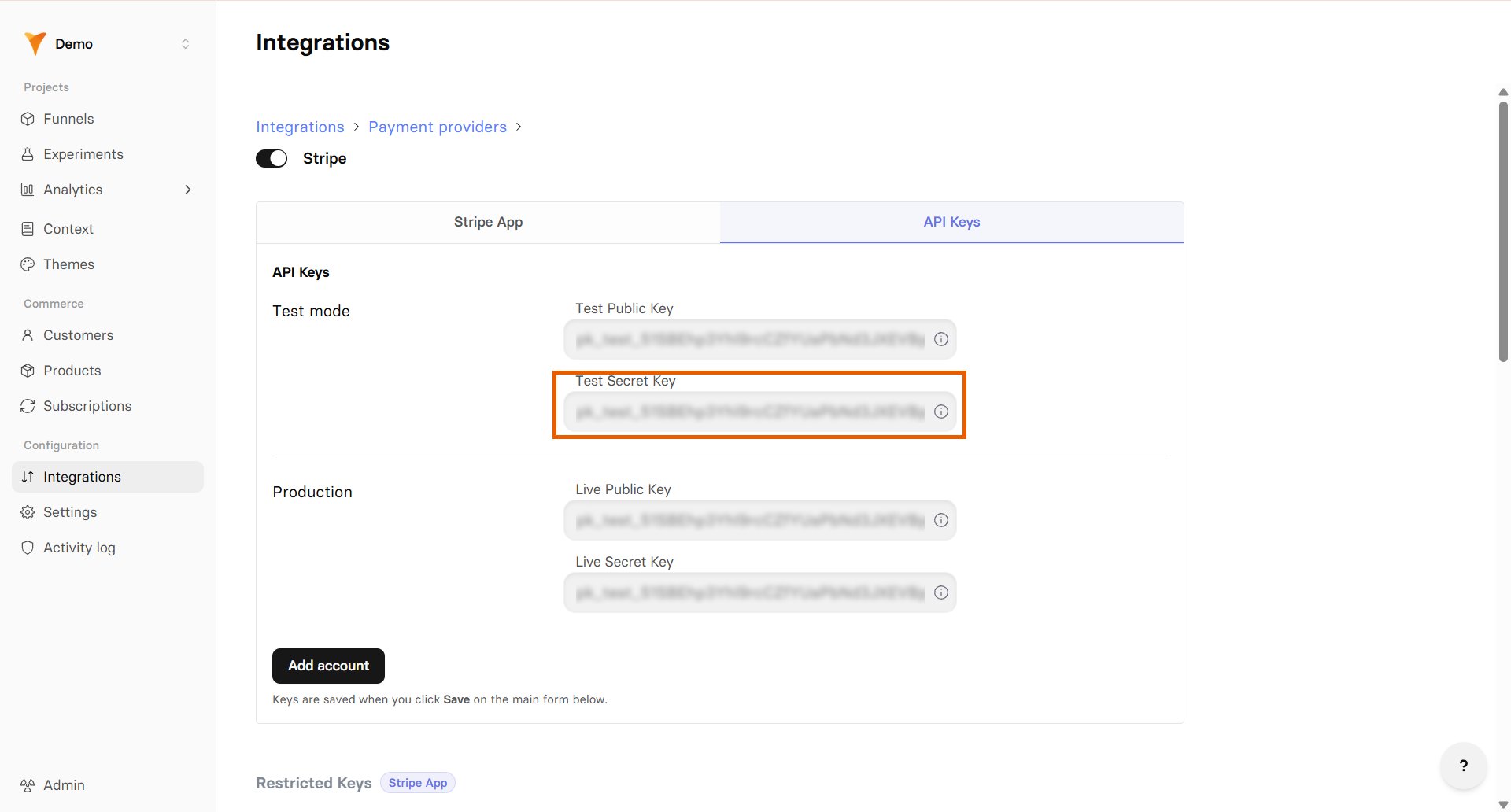 5. Save changes.
## Products configuration
FunnelFox automatically creates webhooks in your Stripe account and syncs your products after setup.
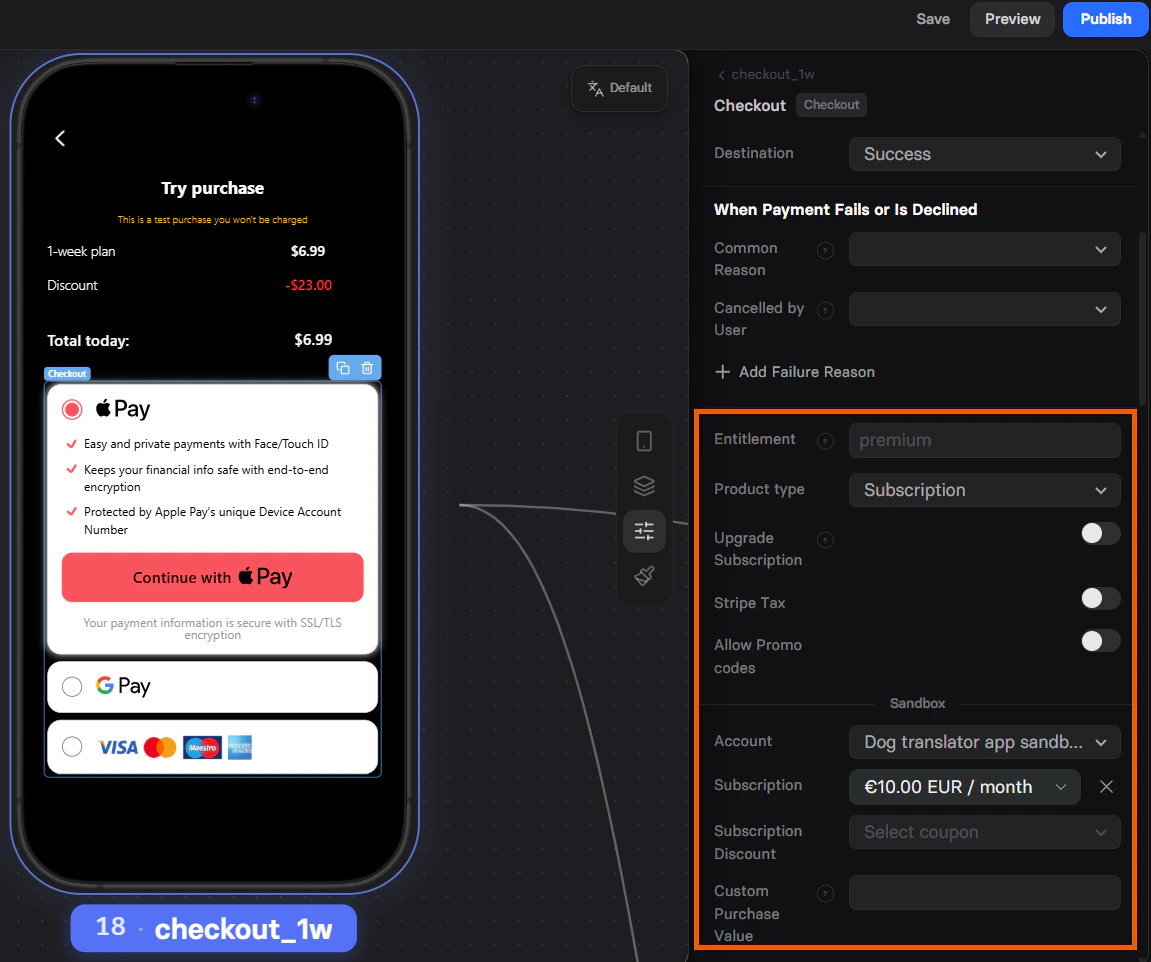
Products created in your Stripe Sandbox account are available for funnel preview testing under the **Sandbox** section of the **Element** tab in your [Checkout element](/elements/checkout#subscription-configuration).
Similarly, products created in the production environment are available under the **Production** section.
Configure Stripe products in your funnels:
* [Free trial](/elements/checkout#free-trial)
* [Paid trial](/elements/checkout#paid-trial)
* [Offers (coupons & promo codes)](/elements/checkout#offers)
* [Upsell](/elements/checkout#upsell)
5. Save changes.
## Products configuration
FunnelFox automatically creates webhooks in your Stripe account and syncs your products after setup.
Products created in your Stripe Sandbox account are available for funnel preview testing under the **Sandbox** section of the **Element** tab in your [Checkout element](/elements/checkout#subscription-configuration).
Similarly, products created in the production environment are available under the **Production** section.
Configure Stripe products in your funnels:
* [Free trial](/elements/checkout#free-trial)
* [Paid trial](/elements/checkout#paid-trial)
* [Offers (coupons & promo codes)](/elements/checkout#offers)
* [Upsell](/elements/checkout#upsell)
 ## Digital wallets
FunnelFox supports Apple Pay and Google Pay wallet buttons with Stripe for faster checkout. Apple Pay requires domain verification, while Google Pay works by default.
### Apple Pay
Apple Pay for Stripe requires domain verification before you can use it.
To enable Apple Pay:
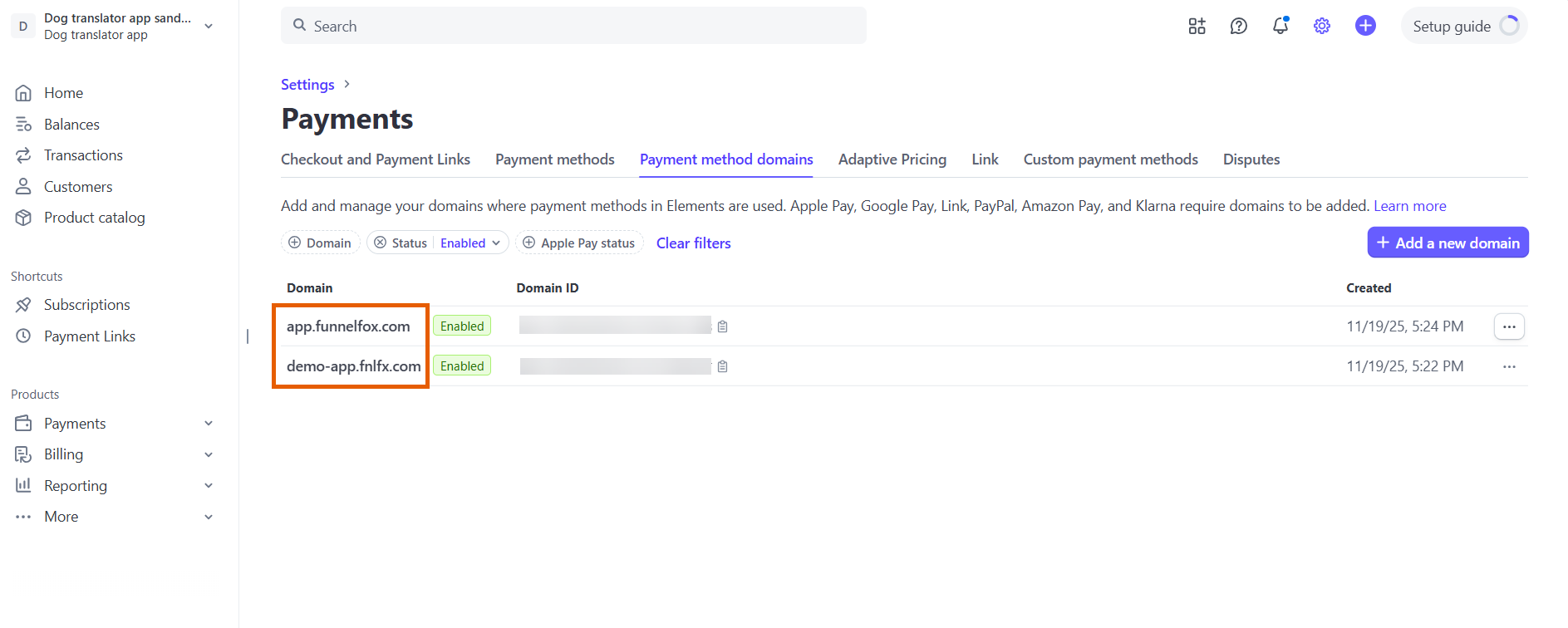
1. Go to **Settings > Payments > Payment method domains** in your [Stripe Dashboard](https://dashboard.stripe.com/dashboard).
## Digital wallets
FunnelFox supports Apple Pay and Google Pay wallet buttons with Stripe for faster checkout. Apple Pay requires domain verification, while Google Pay works by default.
### Apple Pay
Apple Pay for Stripe requires domain verification before you can use it.
To enable Apple Pay:
1. Go to **Settings > Payments > Payment method domains** in your [Stripe Dashboard](https://dashboard.stripe.com/dashboard).
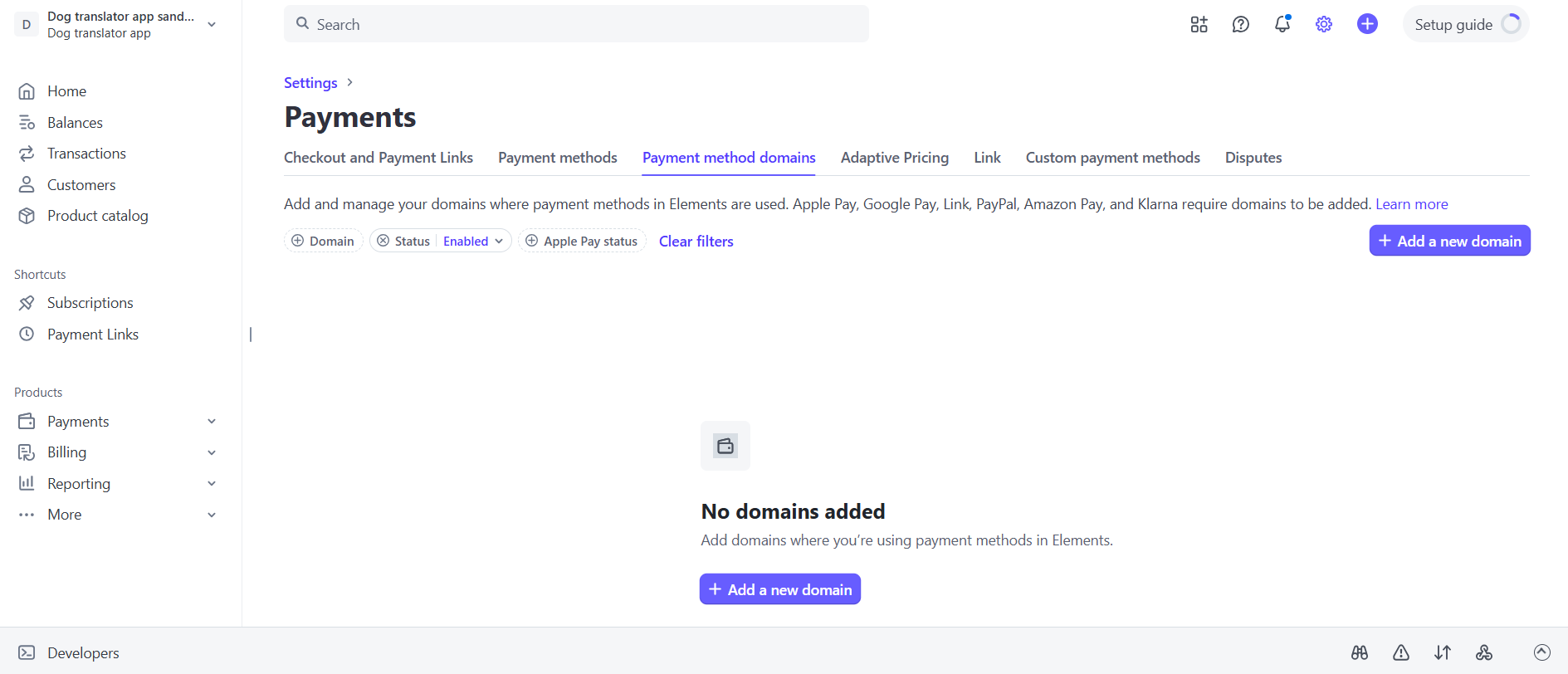 2. Click **+ Add a new domain**.
3. Add your project domain from [Settings > Domains](https://app.funnelfox.com/settings/domains) in FunnelFox and click **Save**. If you have a custom domain, add it as well.
To use Apple Pay in funnel preview mode, add `http://app.funnelfox.com/` as a domain.
2. Click **+ Add a new domain**.
3. Add your project domain from [Settings > Domains](https://app.funnelfox.com/settings/domains) in FunnelFox and click **Save**. If you have a custom domain, add it as well.
To use Apple Pay in funnel preview mode, add `http://app.funnelfox.com/` as a domain.
 4. Go to [Settings > Domains](https://app.funnelfox.com/settings/domains) in FunnelFox.
5. Select **Stripe** under **Apple Pay domain verification**.
4. Go to [Settings > Domains](https://app.funnelfox.com/settings/domains) in FunnelFox.
5. Select **Stripe** under **Apple Pay domain verification**.
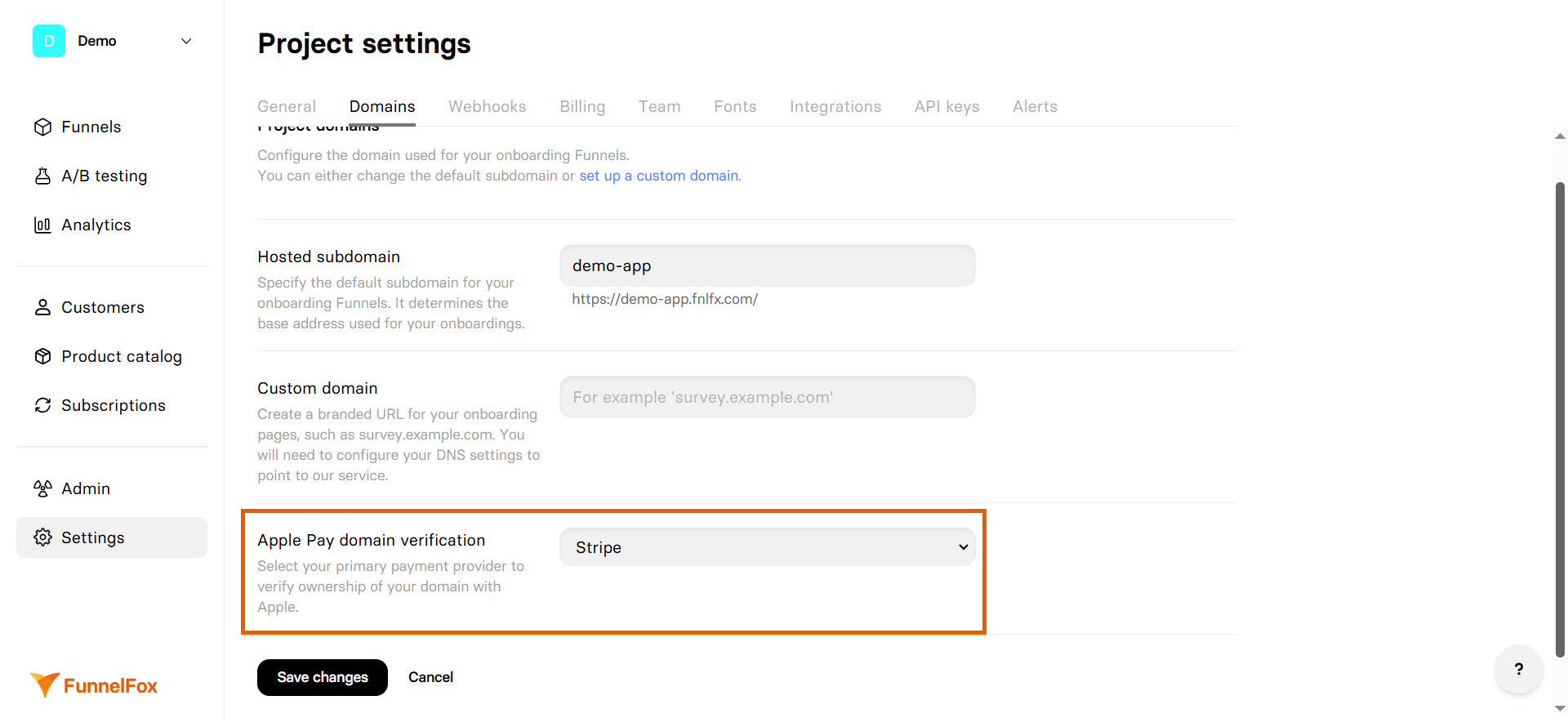 6. Click **Save**.
Apple Pay wallet button will become available in your funnels after domain verification completes.
### Google Pay
Google Pay wallet buttons with Stripe works by default and requires no configuration.
## Stripe Link
[Stripe Link](https://stripe.com/en-nl/payments/link) lets returning Stripe customers pay faster using their
saved payment details. They do not need to re-enter their card or billing information, which helps improve conversion rates.
You don't need to configure anything extra in the Checkout element. Enabling
Stripe Link in your integration settings makes it available as a checkout payment
method on all funnels automatically.
Customers who have previously saved their payment details with Stripe Link, even if they are new to your funnel, can complete their payment in just a few clicks.
If a customer registers in your funnel using an Email input or OAuth button, Stripe customer and subscription are created with that email — not
the one associated with their Stripe Link account.
6. Click **Save**.
Apple Pay wallet button will become available in your funnels after domain verification completes.
### Google Pay
Google Pay wallet buttons with Stripe works by default and requires no configuration.
## Stripe Link
[Stripe Link](https://stripe.com/en-nl/payments/link) lets returning Stripe customers pay faster using their
saved payment details. They do not need to re-enter their card or billing information, which helps improve conversion rates.
You don't need to configure anything extra in the Checkout element. Enabling
Stripe Link in your integration settings makes it available as a checkout payment
method on all funnels automatically.
Customers who have previously saved their payment details with Stripe Link, even if they are new to your funnel, can complete their payment in just a few clicks.
If a customer registers in your funnel using an Email input or OAuth button, Stripe customer and subscription are created with that email — not
the one associated with their Stripe Link account.
 Before enabling Stripe Link in FunnelFox, make sure the
[Stripe Link payment method is activated](https://support.stripe.com/questions/activate-a-new-payment-method)
in your Stripe account. Note that Stripe Link is not available in India,
Brazil, and Thailand.
To enable Stripe Link:
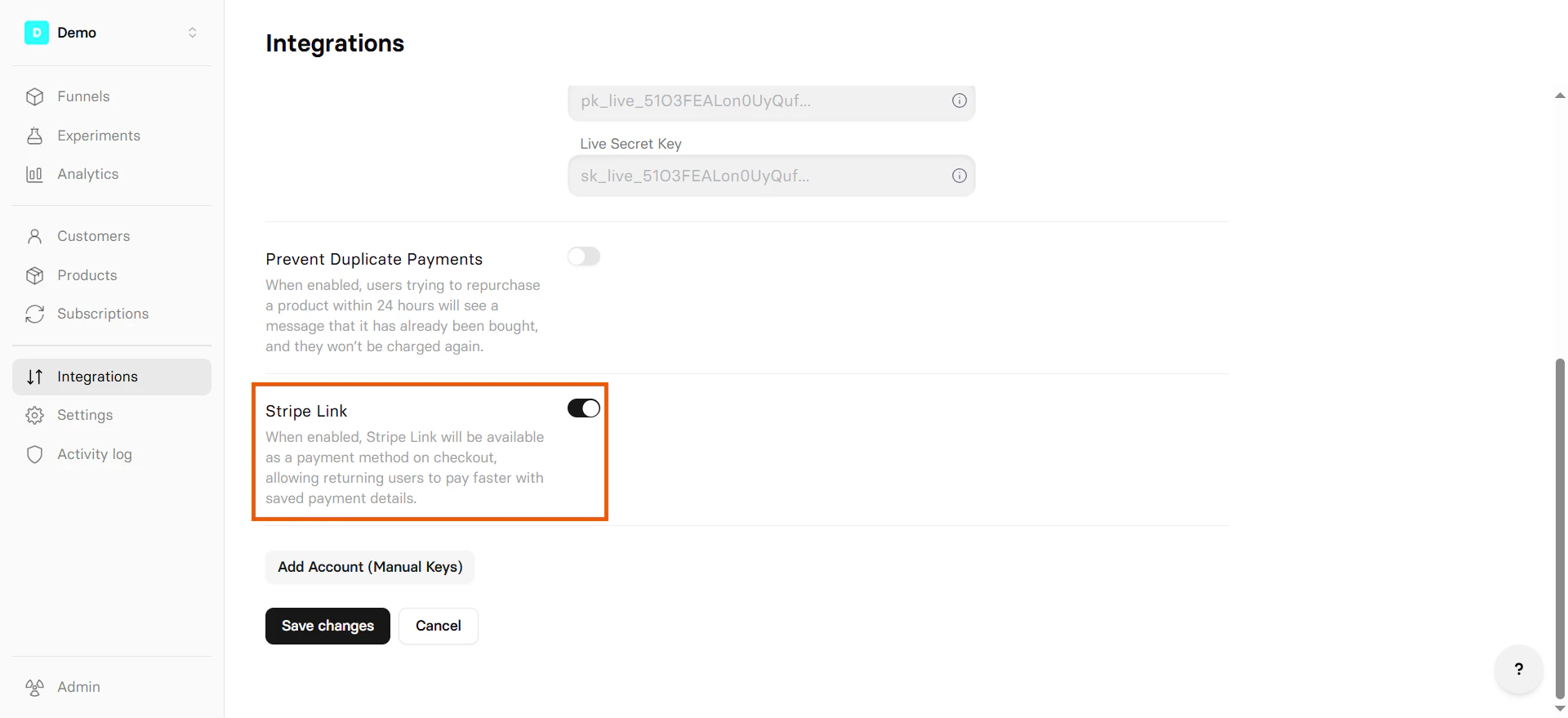
1. Go to [Integrations > Stripe](https://app.funnelfox.com/integrations/stripe)
in FunnelFox.
2. Toggle on **Stripe Link**.
3. Click **Save changes**.
4. Republish your funnels.
If you disable Stripe Link, republish your funnels again to apply the changes live.
Before enabling Stripe Link in FunnelFox, make sure the
[Stripe Link payment method is activated](https://support.stripe.com/questions/activate-a-new-payment-method)
in your Stripe account. Note that Stripe Link is not available in India,
Brazil, and Thailand.
To enable Stripe Link:
1. Go to [Integrations > Stripe](https://app.funnelfox.com/integrations/stripe)
in FunnelFox.
2. Toggle on **Stripe Link**.
3. Click **Save changes**.
4. Republish your funnels.
If you disable Stripe Link, republish your funnels again to apply the changes live.
 ## Multiple Stripe accounts
Connect multiple Stripe accounts to support:
* Different business entities
* Geographic separation
* Currency optimization
1. Go to [Integrations > Stripe](https://app.funnelfox.com/integrations/stripe).
2. Click **Add Stripe account**.
3. Follow the [setup steps](/integrations/payments/stripe#setup) for the new account.
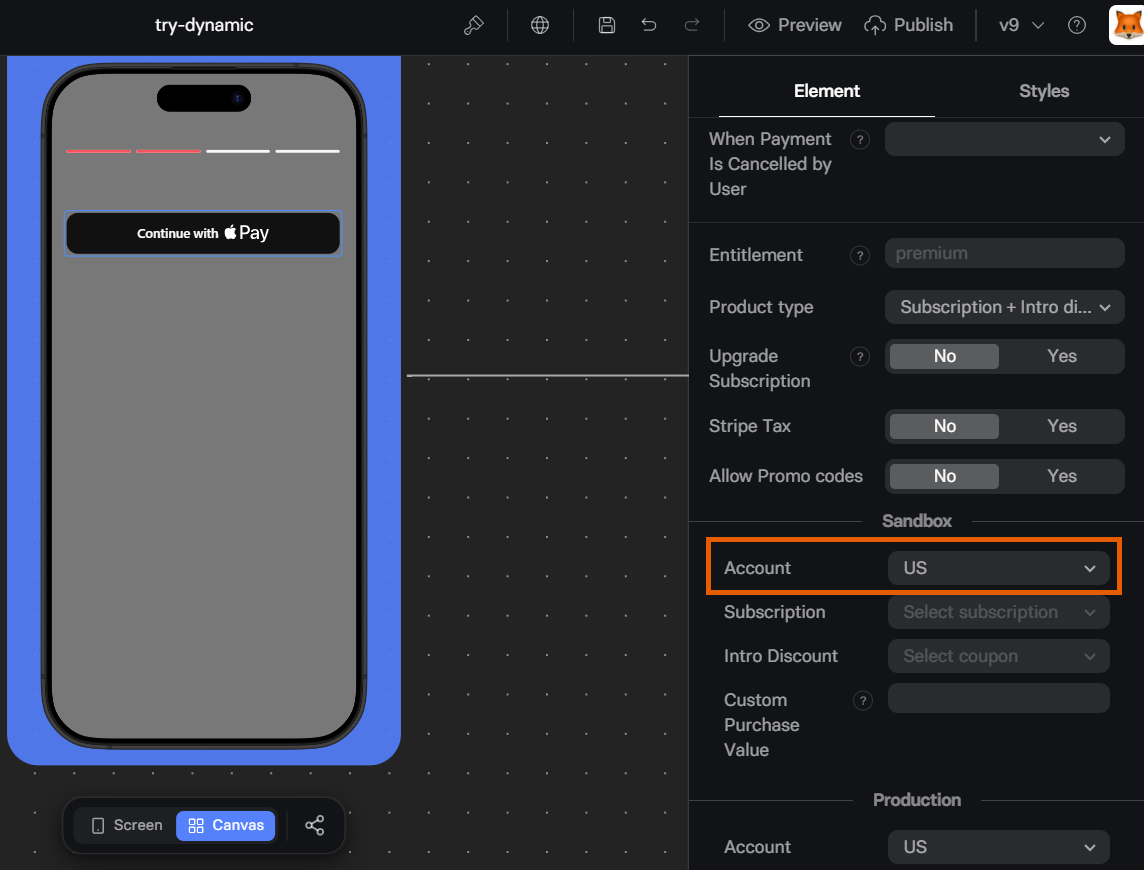
After adding accounts, you can switch between them in your funnel (separately for Sandbox and Production environments):
* In the **Element** tab of your **Checkout**
## Multiple Stripe accounts
Connect multiple Stripe accounts to support:
* Different business entities
* Geographic separation
* Currency optimization
1. Go to [Integrations > Stripe](https://app.funnelfox.com/integrations/stripe).
2. Click **Add Stripe account**.
3. Follow the [setup steps](/integrations/payments/stripe#setup) for the new account.
After adding accounts, you can switch between them in your funnel (separately for Sandbox and Production environments):
* In the **Element** tab of your **Checkout**
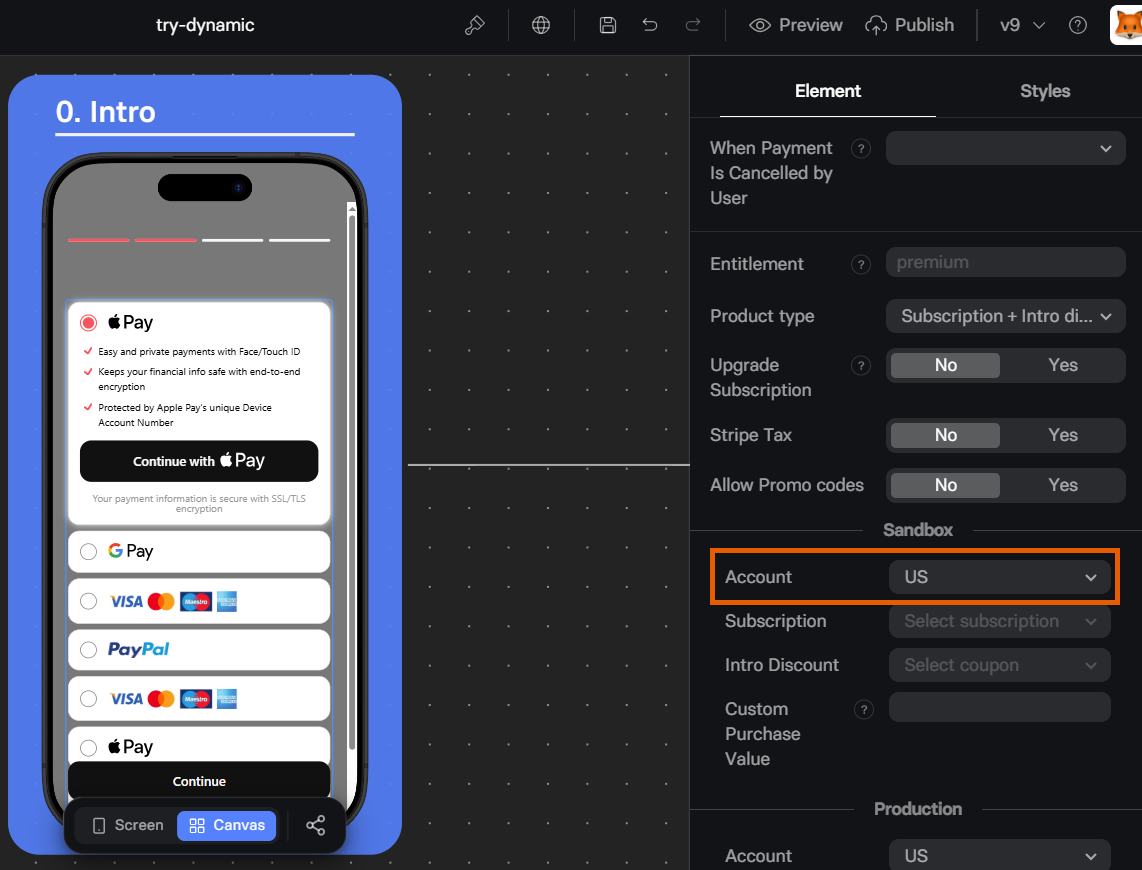 * In the **Element** tab of your **Wallet Button**
 ## Stripe Tax
Stripe Tax automatically calculates taxes for you. Learn more about Stripe Tax and its pricing in the [Stripe documentation](https://docs.stripe.com/tax/checkout).
To enable Stripe Tax:
1. Go to [Stripe Dashboard](https://dashboard.stripe.com/dashboard).
2. Set up Stripe Tax. Learn about [setting up Stripe Tax](https://docs.stripe.com/tax/set-up) in Stripe Dashboard.
1. Go to the [Checkout element](/elements/checkout) in your funnels.
2. Set **Stripe Tax** to **Yes** in the **Actions** section of the **Element** tab.
## Prevent duplicate payments
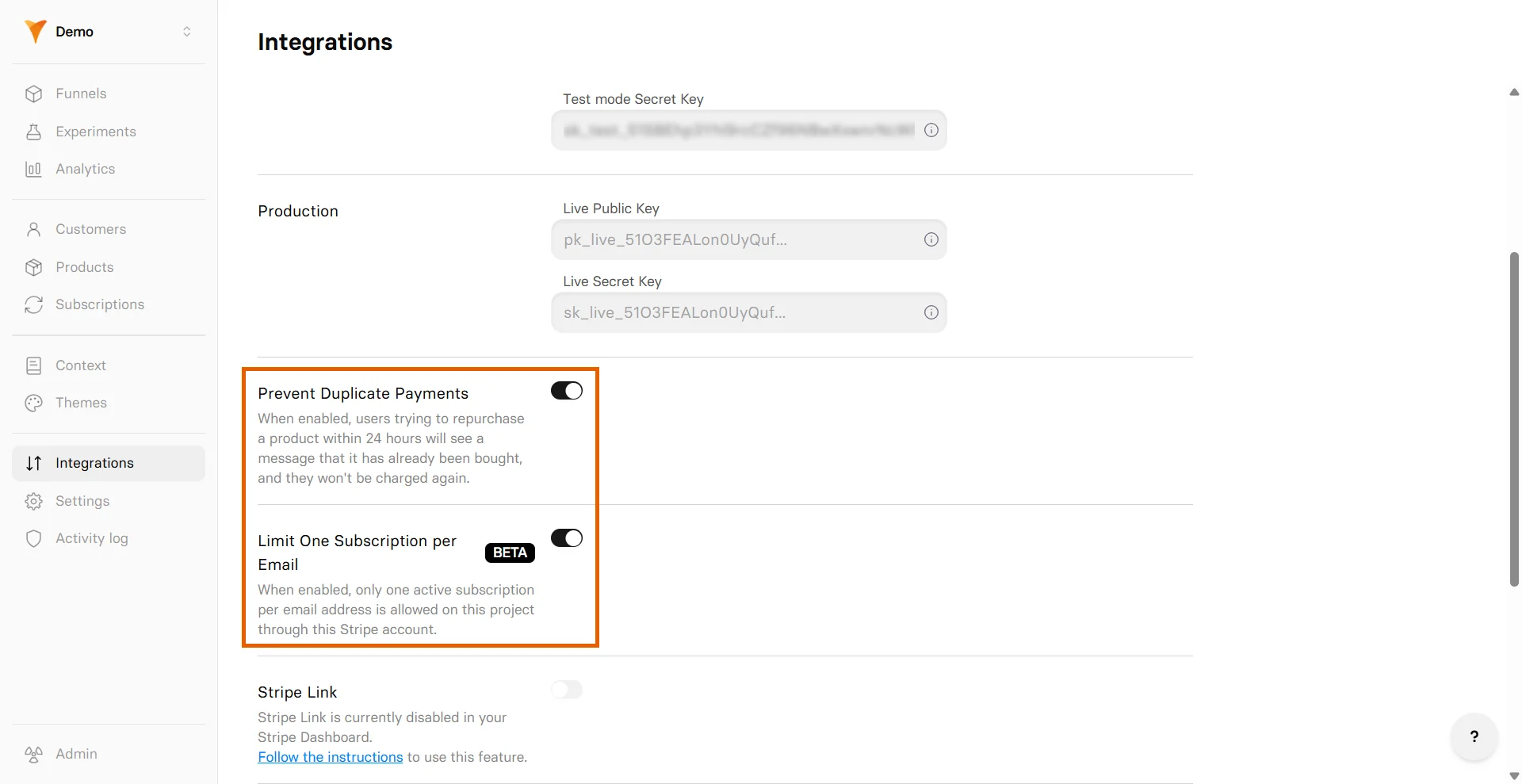
Customers sometimes pay twice by double-clicking the purchase button or by starting a fresh checkout when they already subscribed. FunnelFox offers two ways for the Stripe integration to block both cases:
* **Prevent Duplicate Payments**: Blocks a duplicate purchase that matches all of these: same customer, same product price, and same purchase date. Covers accidental double-clicks before Stripe confirms the first payment.
* **Limit One Subscription Per Email**: Blocks a new purchase if the customer's email already has an active, trialing, or paused subscription in your project. Plan upgrades, one-time payments, and customers whose previous subscription is canceled or expired are not affected.
**Limit One Subscription Per Email** only works if the customer's email is captured in the funnel before checkout.
To enable these protections:
1. Go to [Integrations > Stripe](https://app.funnelfox.com/integrations/stripe).
2. Toggle on **Prevent Duplicate Payments** or **Limit One Subscription Per Email**.
Customers see these alerts when a duplicate is prevented:
* Duplicate payment: *"You have already purchased this item. You won't be charged again."*
* Duplicate subscription: *"You already have an active subscription."*
## Stripe Tax
Stripe Tax automatically calculates taxes for you. Learn more about Stripe Tax and its pricing in the [Stripe documentation](https://docs.stripe.com/tax/checkout).
To enable Stripe Tax:
1. Go to [Stripe Dashboard](https://dashboard.stripe.com/dashboard).
2. Set up Stripe Tax. Learn about [setting up Stripe Tax](https://docs.stripe.com/tax/set-up) in Stripe Dashboard.
1. Go to the [Checkout element](/elements/checkout) in your funnels.
2. Set **Stripe Tax** to **Yes** in the **Actions** section of the **Element** tab.
## Prevent duplicate payments
Customers sometimes pay twice by double-clicking the purchase button or by starting a fresh checkout when they already subscribed. FunnelFox offers two ways for the Stripe integration to block both cases:
* **Prevent Duplicate Payments**: Blocks a duplicate purchase that matches all of these: same customer, same product price, and same purchase date. Covers accidental double-clicks before Stripe confirms the first payment.
* **Limit One Subscription Per Email**: Blocks a new purchase if the customer's email already has an active, trialing, or paused subscription in your project. Plan upgrades, one-time payments, and customers whose previous subscription is canceled or expired are not affected.
**Limit One Subscription Per Email** only works if the customer's email is captured in the funnel before checkout.
To enable these protections:
1. Go to [Integrations > Stripe](https://app.funnelfox.com/integrations/stripe).
2. Toggle on **Prevent Duplicate Payments** or **Limit One Subscription Per Email**.
Customers see these alerts when a duplicate is prevented:
* Duplicate payment: *"You have already purchased this item. You won't be charged again."*
* Duplicate subscription: *"You already have an active subscription."*
 ## Testing
Test your Stripe integration with simulated payments before going live.
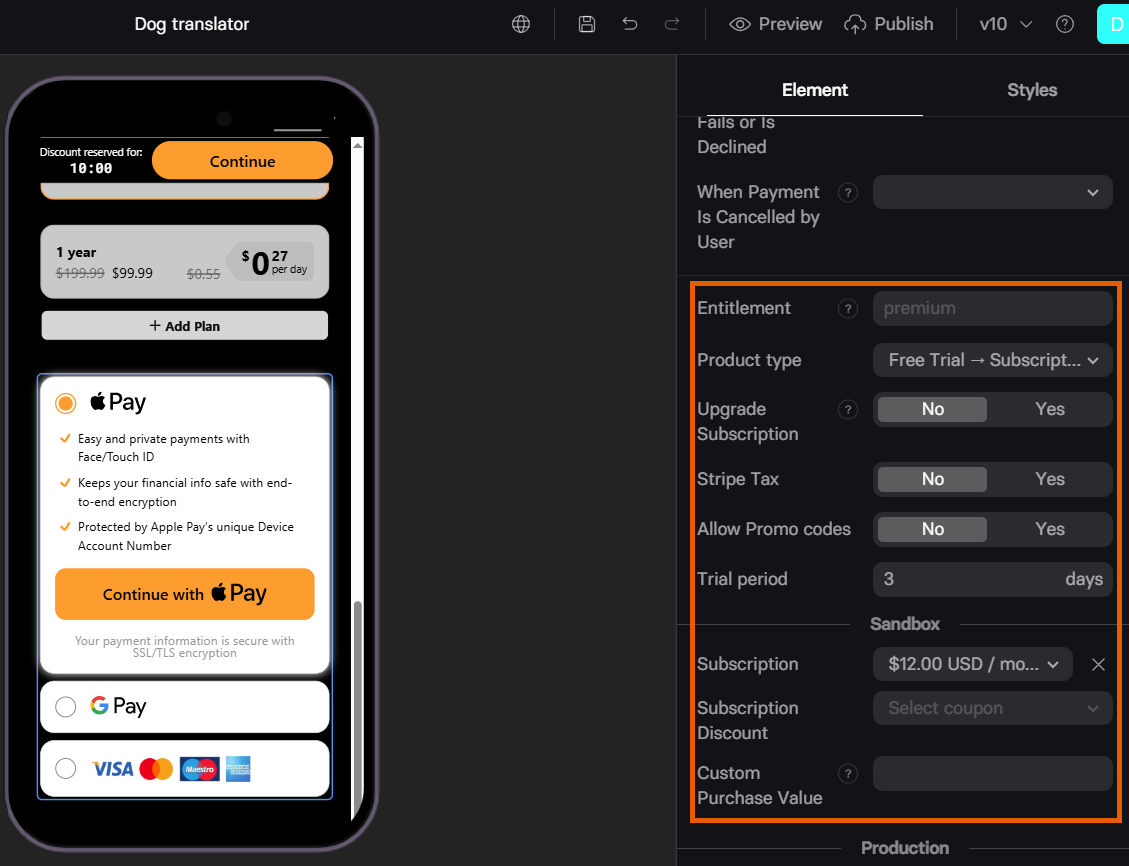
1. Configure the test in your Checkout element's **Sandbox** section.
## Testing
Test your Stripe integration with simulated payments before going live.
1. Configure the test in your Checkout element's **Sandbox** section.
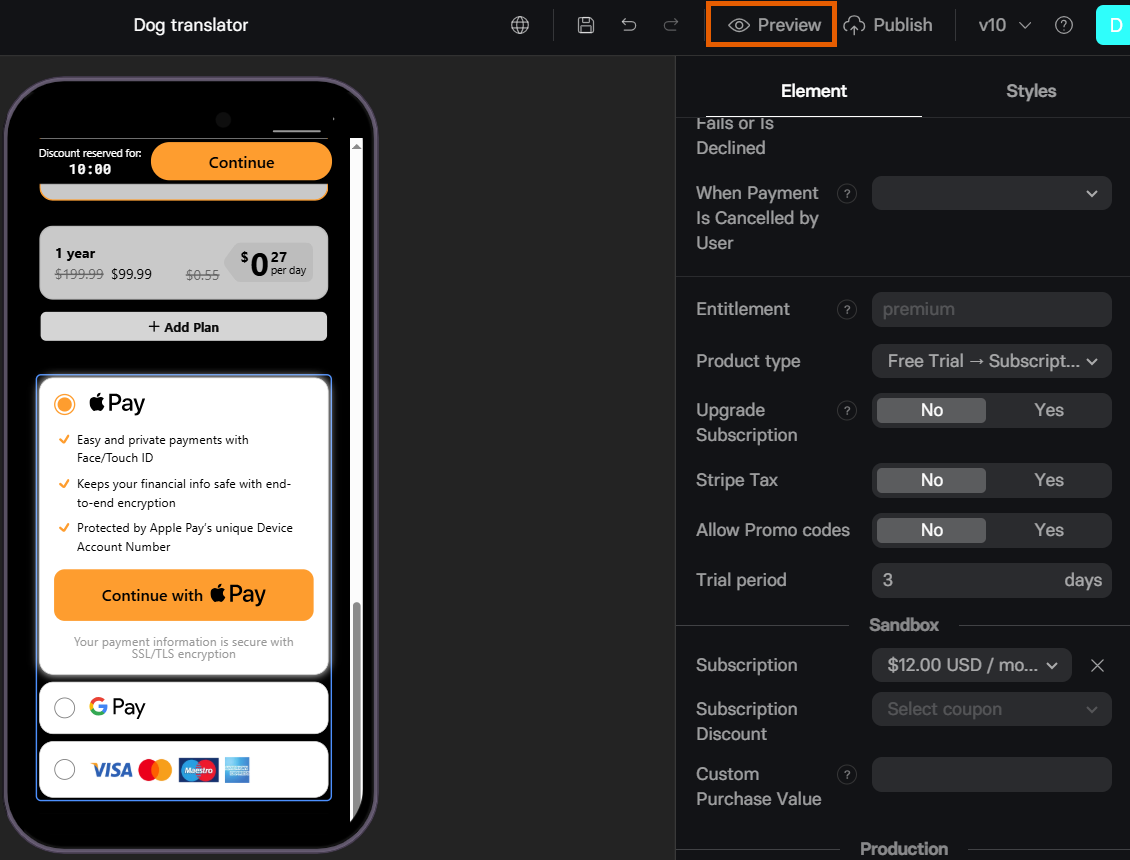
 2. Open your funnel in **Preview** mode.
 3. Use these Stripe test cards with any future expiry date and any 3-digit CVV:
| Card Number | Scenario |
| ------------------- | ----------------------- |
| 4242 4242 4242 4242 | Success |
| 4000 0000 0000 0002 | Declined |
| 4000 0000 0000 9995 | Insufficient funds |
| 4000 0025 0000 3155 | Requires authentication |
Learn more about [Stripe test cards](https://docs.stripe.com/testing).
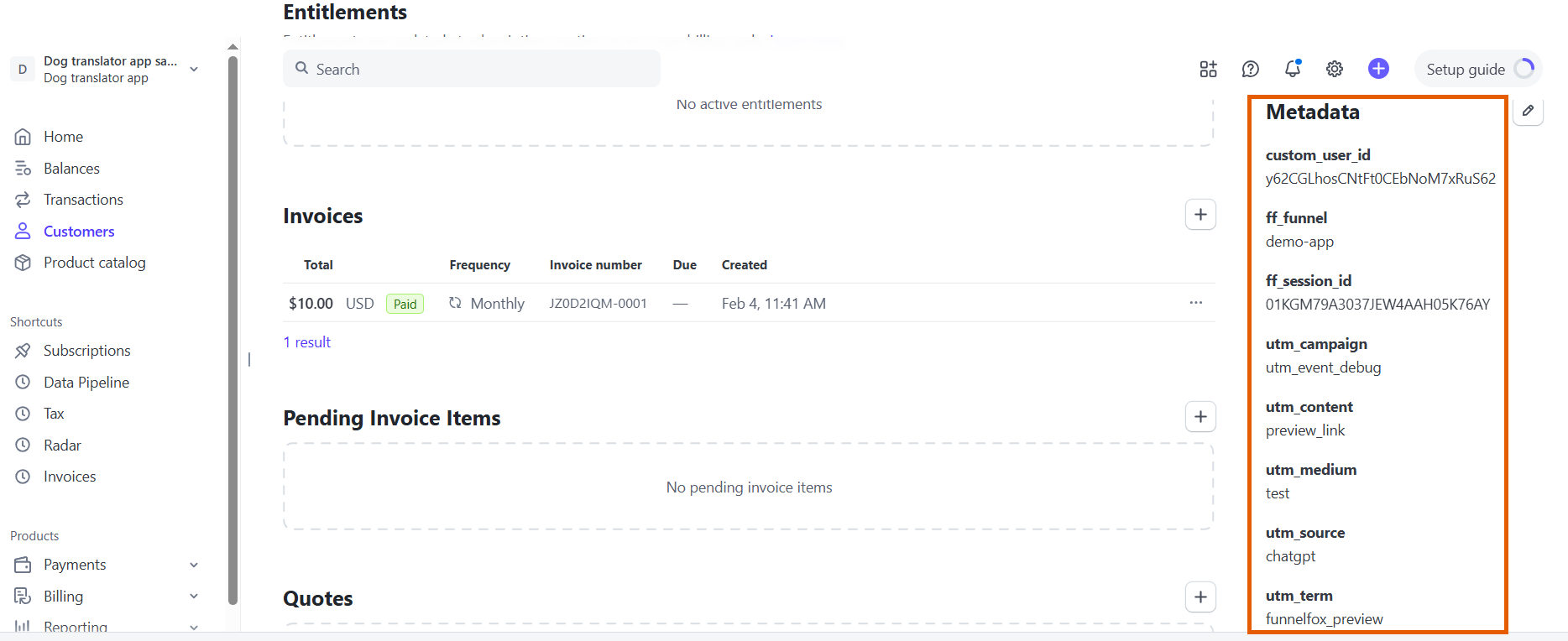
## Metadata
FunnelFox sends the following customer metadata with purchases to Stripe:
```json theme={null}
{
"fbc": "fb.1.1771647859500.test_click_id_123",
"fbp": "fb.1.1768417255988.7307905378490303",
"custom_user_id": "y62CGLhosCNtFt0CEbNoM7xRuS62",
"ff_funnel": "welcome-flow",
"ff_session_id": "xyz789",
"utm_source": "google",
"utm_medium": "cpc",
"utm_campaign": "summer-sale",
"utm_term": "subscription",
"utm_content": "ad-variant-a"
}
```
3. Use these Stripe test cards with any future expiry date and any 3-digit CVV:
| Card Number | Scenario |
| ------------------- | ----------------------- |
| 4242 4242 4242 4242 | Success |
| 4000 0000 0000 0002 | Declined |
| 4000 0000 0000 9995 | Insufficient funds |
| 4000 0025 0000 3155 | Requires authentication |
Learn more about [Stripe test cards](https://docs.stripe.com/testing).
## Metadata
FunnelFox sends the following customer metadata with purchases to Stripe:
```json theme={null}
{
"fbc": "fb.1.1771647859500.test_click_id_123",
"fbp": "fb.1.1768417255988.7307905378490303",
"custom_user_id": "y62CGLhosCNtFt0CEbNoM7xRuS62",
"ff_funnel": "welcome-flow",
"ff_session_id": "xyz789",
"utm_source": "google",
"utm_medium": "cpc",
"utm_campaign": "summer-sale",
"utm_term": "subscription",
"utm_content": "ad-variant-a"
}
```
 ## Troubleshooting
You will not see your production account in test mode when connecting a Stripe Sandbox account. Stripe [recommends using sandbox accounts](https://docs.stripe.com/testing-use-cases#compare) for testing purposes instead of production accounts in test mode.
Yes. To show relevant currencies for each user locale, follow our [pricing localization guide](/editor/localizations).
Products used in funnel preview are fetched from your Stripe Sandbox account. Make sure the products are created there.
Stripe allows you to upsell both one-time products and subscription upgrades. By default, customers don't need to provide their payment details again and will be charged with just one click.
If the upsell payment is declined, for example due to insufficient funds after the initial purchase, the checkout pop-up is shown again so the customer can retry.
## Next steps
* [Configure checkout element](/elements/checkout) in your funnel
* [Set up Stripe Managed Payments](/integrations/payments/stripe-managed-payments)
## Troubleshooting
You will not see your production account in test mode when connecting a Stripe Sandbox account. Stripe [recommends using sandbox accounts](https://docs.stripe.com/testing-use-cases#compare) for testing purposes instead of production accounts in test mode.
Yes. To show relevant currencies for each user locale, follow our [pricing localization guide](/editor/localizations).
Products used in funnel preview are fetched from your Stripe Sandbox account. Make sure the products are created there.
Stripe allows you to upsell both one-time products and subscription upgrades. By default, customers don't need to provide their payment details again and will be charged with just one click.
If the upsell payment is declined, for example due to insufficient funds after the initial purchase, the checkout pop-up is shown again so the customer can retry.
## Next steps
* [Configure checkout element](/elements/checkout) in your funnel
* [Set up Stripe Managed Payments](/integrations/payments/stripe-managed-payments)