> ## Documentation Index
> Fetch the complete documentation index at: https://funnelfox.com/docs/llms.txt
> Use this file to discover all available pages before exploring further.
# Stripe Managed Payments
> Use the merchant of record (MoR) solution from Stripe in FunnelFox to offload tax compliance, fraud prevention, disputes, and post-purchase support to Stripe.
[Stripe Managed Payments](https://docs.stripe.com/payments/managed-payments) is a merchant of record solution from Stripe
that handles indirect tax compliance, fraud prevention, disputes, and
transaction-level customer support on your behalf.
You can enable Managed Payments per Checkout element in FunnelFox, so it can run
alongside your regular Stripe checkout in the same project.
## How it works
Once enabled, Stripe takes over key parts of the payment lifecycle for
checkouts that use Managed Payments:
* **Merchant of record**: Stripe acts as the merchant of record. Customers
interact with Stripe Link at checkout, on receipts, and for post-purchase
support.
* **Indirect tax compliance**: When a payment completes, Stripe withholds
applicable indirect taxes (sales tax, VAT, GST). Managed Payments covers post-sale
tax compliance across 80+ countries.
* **Fraud prevention**: Stripe applies real-time fraud detection that
automatically blocks fraudulent transactions.
* **Dispute handling**: Stripe manages disputes for you using automated
tools and manual review. If Stripe decides to counter a dispute, it
submits evidence on your behalf without contacting you for more.
* **Customer support**: Stripe handles transaction-level customer support
for purchases made through Managed Payments.
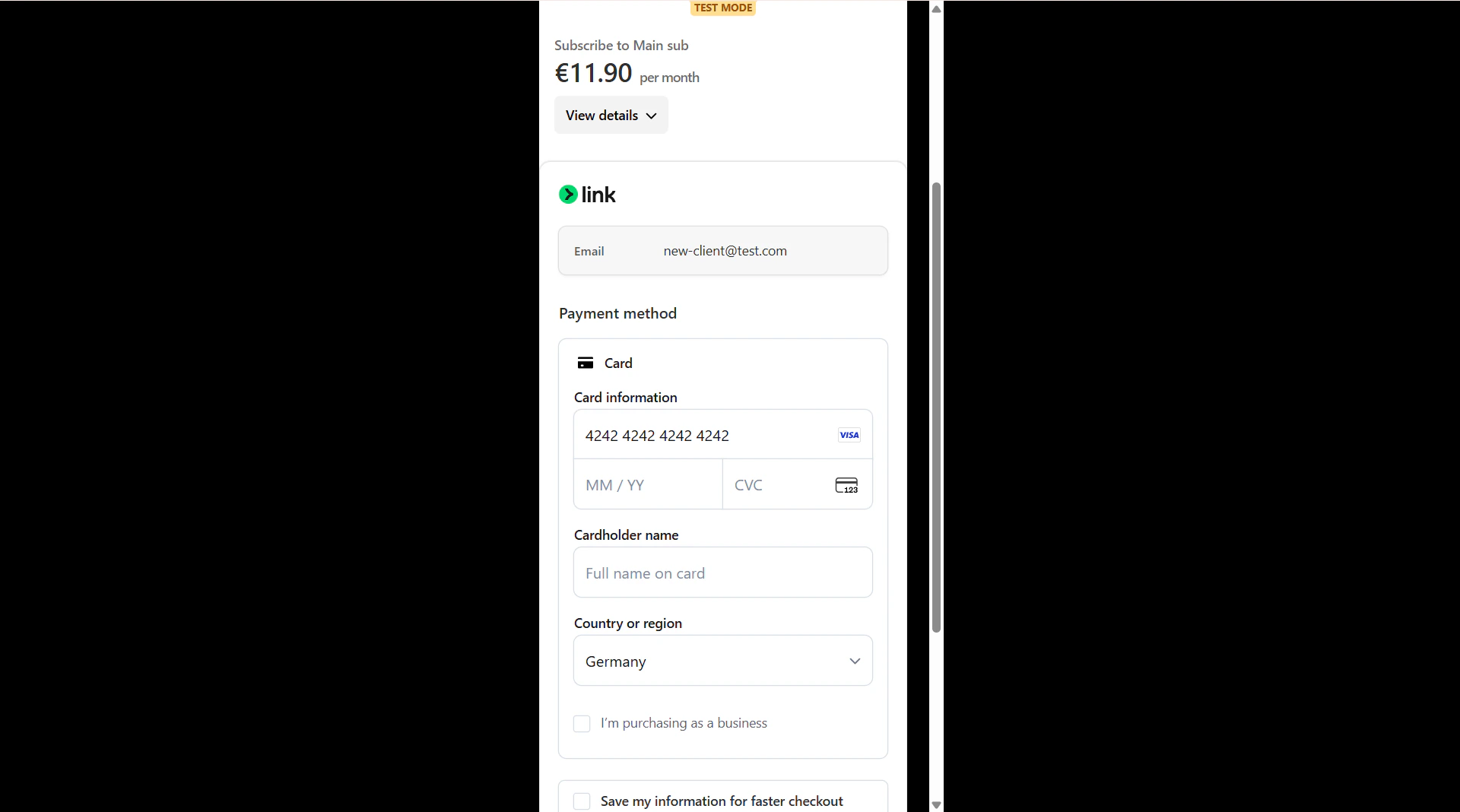
* **Prebuilt checkout**: Managed Payments is delivered through Stripe's Prebuilt
checkout. Customers can pay with cards, Apple Pay, and Link, plus any
local methods configured for your account.
- Managed Payments doesn't support upsell for now.
- [Cancellation funnels](/dashboard/funnels#cancellation-funnels) don't
support Managed Payments for now.
Learn more about Managed Payments in [Stripe's documentation](https://docs.stripe.com/payments/managed-payments).
## Setup
You need an active [Stripe integration](/integrations/payments/stripe)
set up with API keys before you can enable Managed Payments.
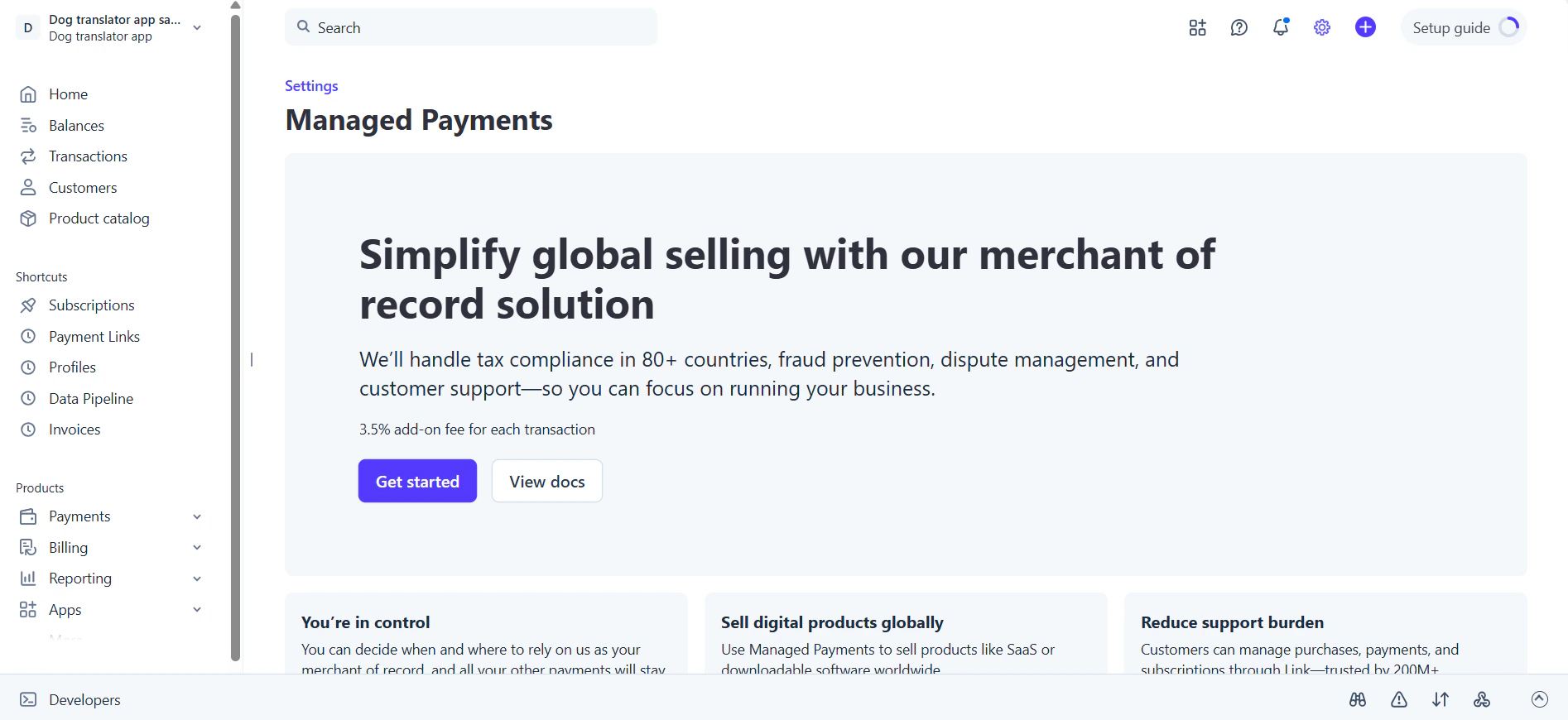
Go to the
[Managed Payments settings](https://dashboard.stripe.com/settings/managed-payments)
in your Stripe Dashboard and enable Managed Payments. During the
flow:
1. Review your products and assign each one a category eligible for
Managed Payments when Stripe prompts you.
2. Select **Prebuilt checkout** when choosing a checkout type.
3. Click **Continue** until Managed Payments is enabled.
 If you add new products after enabling Managed Payments, make sure each one uses a
tax code eligible for Managed Payments.
Learn more about Stripe's
[product tax code requirements](https://docs.stripe.com/payments/managed-payments/eligibility#product-tax-code-requirements).
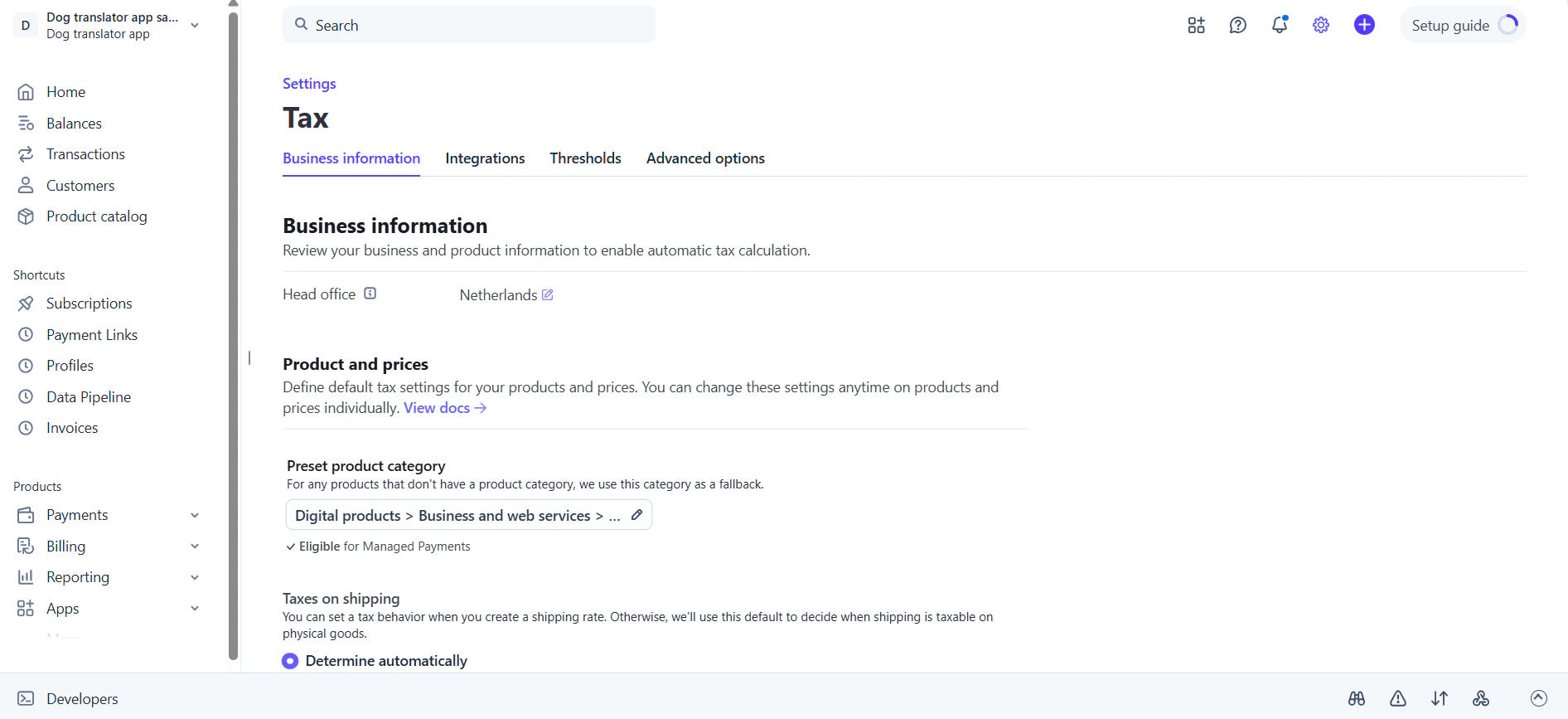
Managed Payments handles indirect tax compliance, so your Stripe tax settings
must be accurate. Go to
[Settings > Tax](https://dashboard.stripe.com/settings/tax) in your Stripe Dashboard and
adjust individual products if needed.
If you add new products after enabling Managed Payments, make sure each one uses a
tax code eligible for Managed Payments.
Learn more about Stripe's
[product tax code requirements](https://docs.stripe.com/payments/managed-payments/eligibility#product-tax-code-requirements).
Managed Payments handles indirect tax compliance, so your Stripe tax settings
must be accurate. Go to
[Settings > Tax](https://dashboard.stripe.com/settings/tax) in your Stripe Dashboard and
adjust individual products if needed.
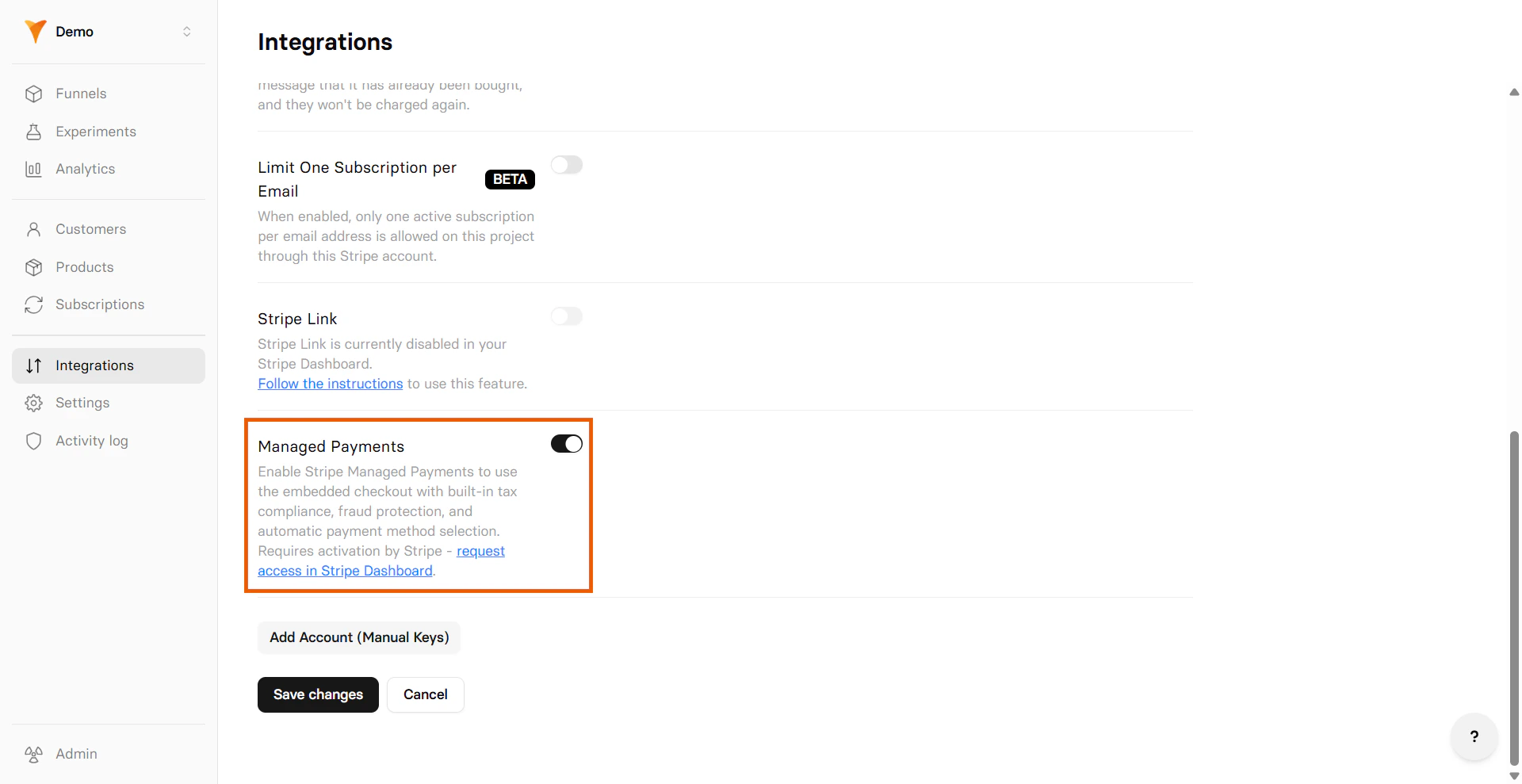
 Go to
[Integrations > Stripe](https://app.funnelfox.com/integrations/stripe)
in FunnelFox and toggle on **Managed Payments**.
Go to
[Integrations > Stripe](https://app.funnelfox.com/integrations/stripe)
in FunnelFox and toggle on **Managed Payments**.
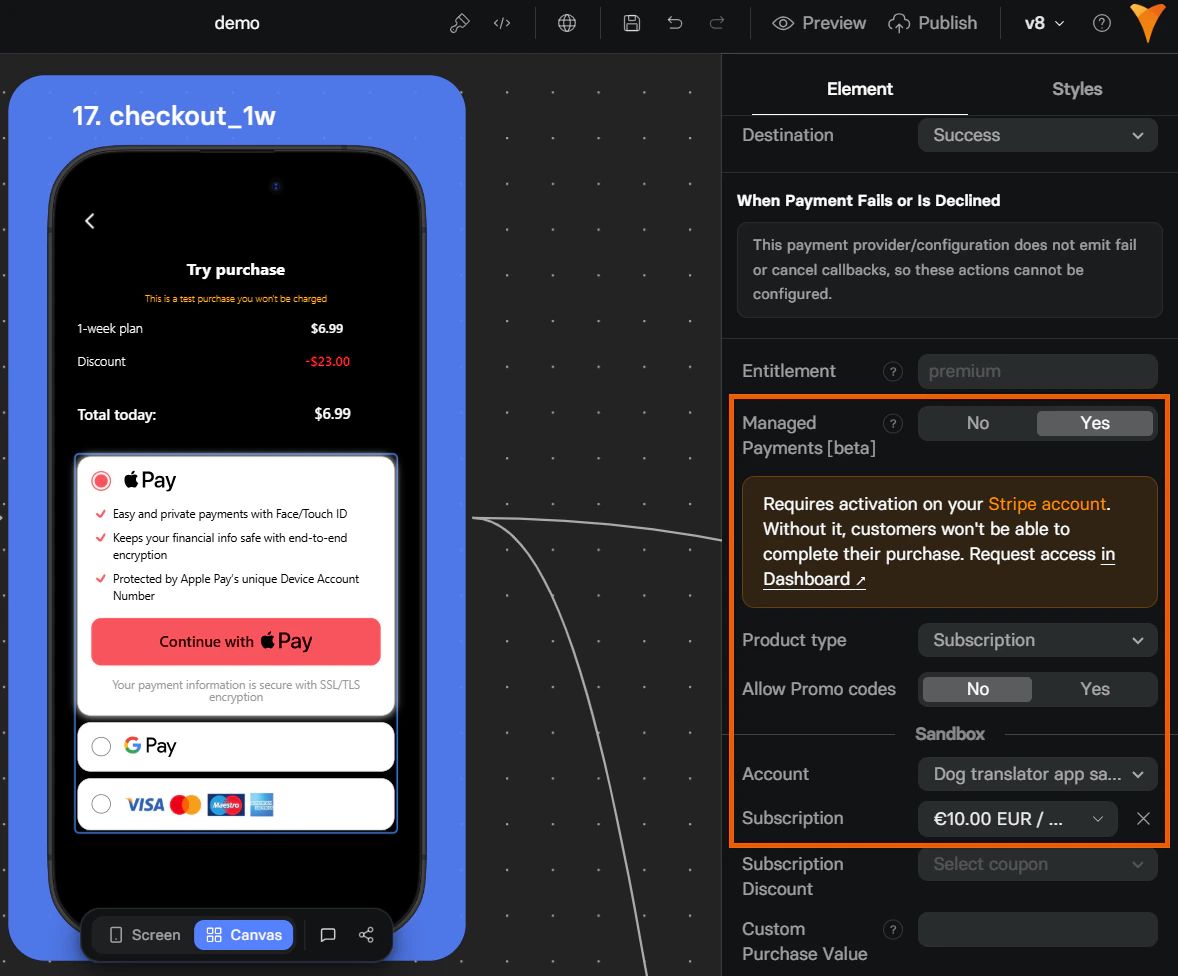
 Open your [Checkout element](/elements/checkout) in the Editor and enable **Managed Payments**, then configure the product you
sell and its type.
Open your [Checkout element](/elements/checkout) in the Editor and enable **Managed Payments**, then configure the product you
sell and its type.
 Managed Payments is now active on that Checkout element. Republish
your funnel to apply the changes.
## Payment methods
Cards, Apple Pay, and Stripe Link are automatically enabled as payment
methods for Managed Payments and cannot be disabled.
Any additional payment methods can
be configured by the Managed Payments support team at Stripe.
Learn more about [payment method configurations for Managed Payments](https://support.stripe.com/questions/payment-method-configurations-for-managed-payments).
Managed Payments is now active on that Checkout element. Republish
your funnel to apply the changes.
## Payment methods
Cards, Apple Pay, and Stripe Link are automatically enabled as payment
methods for Managed Payments and cannot be disabled.
Any additional payment methods can
be configured by the Managed Payments support team at Stripe.
Learn more about [payment method configurations for Managed Payments](https://support.stripe.com/questions/payment-method-configurations-for-managed-payments).
 ## Digital wallets
FunnelFox supports Apple Pay and Google Pay with Stripe
Managed Payments for faster checkout. Apple Pay is enabled by default,
but you still need to verify your domains before customers can use it.
Google Pay must be configured by the Managed Payments support team at
Stripe.
This article covers digital wallets for Stripe Managed Payments. For
regular Stripe checkout, go to the
[Stripe integration](/integrations/payments/stripe#digital-wallets).
### Apple Pay
Apple Pay for Managed Payments requires domain verification before you
can use it.
To verify your domain:
1. Go to **Settings > Payments > Payment method domains** in your [Stripe Dashboard](https://dashboard.stripe.com/dashboard).
## Digital wallets
FunnelFox supports Apple Pay and Google Pay with Stripe
Managed Payments for faster checkout. Apple Pay is enabled by default,
but you still need to verify your domains before customers can use it.
Google Pay must be configured by the Managed Payments support team at
Stripe.
This article covers digital wallets for Stripe Managed Payments. For
regular Stripe checkout, go to the
[Stripe integration](/integrations/payments/stripe#digital-wallets).
### Apple Pay
Apple Pay for Managed Payments requires domain verification before you
can use it.
To verify your domain:
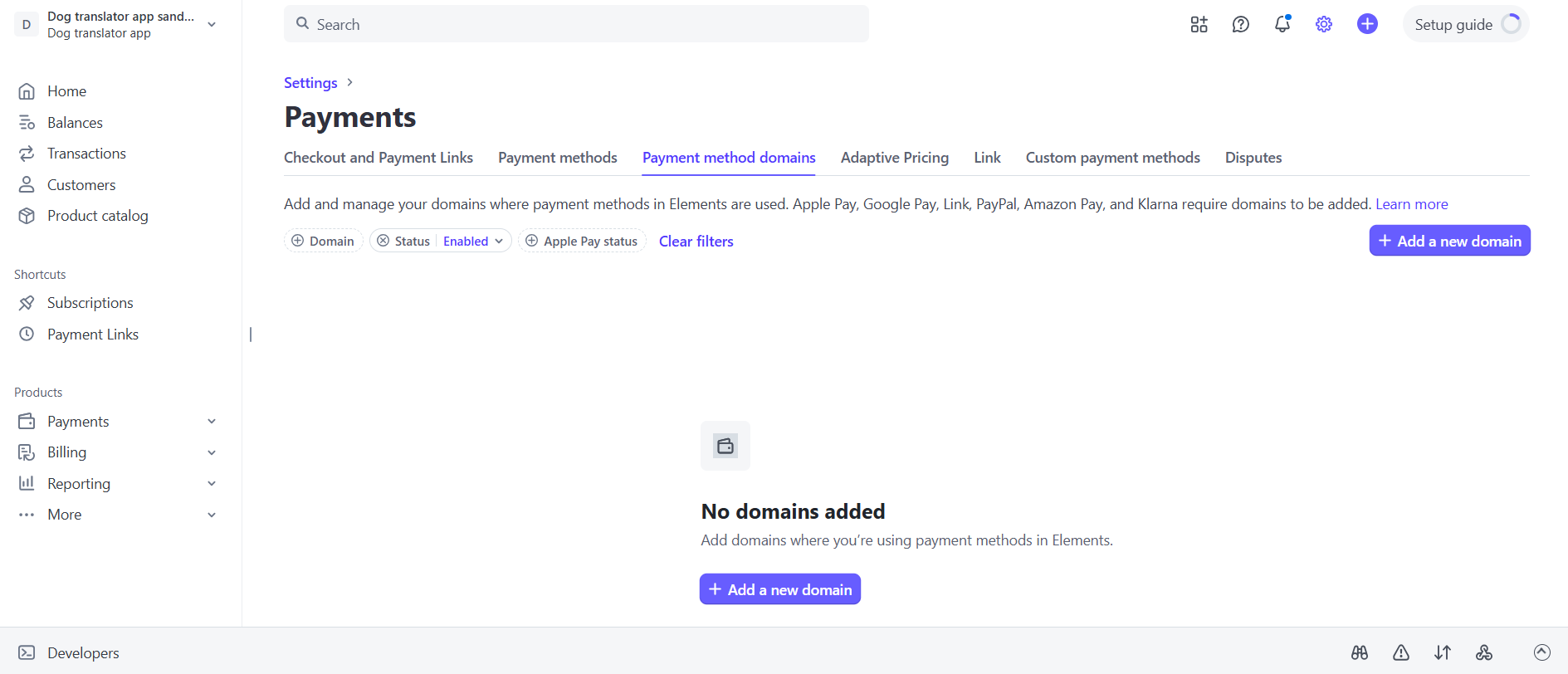
1. Go to **Settings > Payments > Payment method domains** in your [Stripe Dashboard](https://dashboard.stripe.com/dashboard).
 2. Click **+ Add a new domain**.
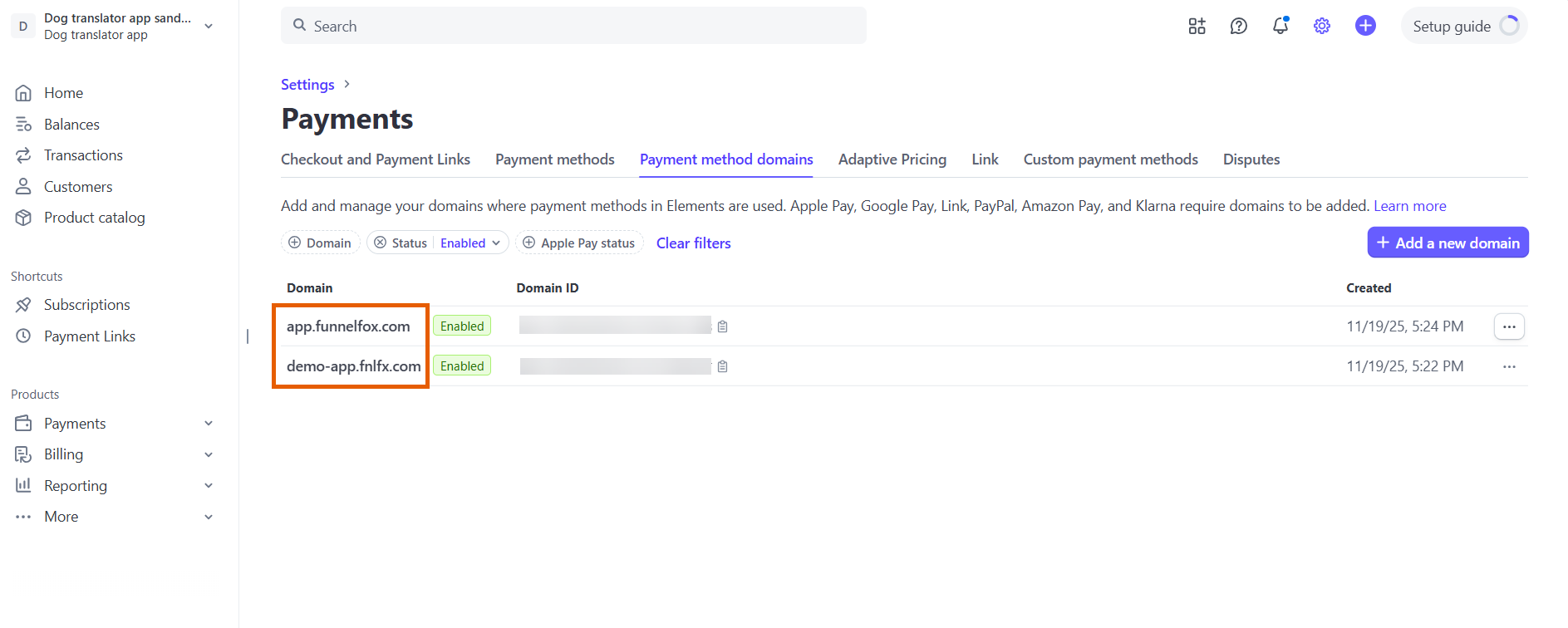
3. Add your project domain from [Settings > Domains](https://app.funnelfox.com/settings/domains) in FunnelFox and click **Save**. If you have a custom domain, add it as well.
To use Apple Pay in funnel preview mode, add `http://app.funnelfox.com/` as a domain.
2. Click **+ Add a new domain**.
3. Add your project domain from [Settings > Domains](https://app.funnelfox.com/settings/domains) in FunnelFox and click **Save**. If you have a custom domain, add it as well.
To use Apple Pay in funnel preview mode, add `http://app.funnelfox.com/` as a domain.
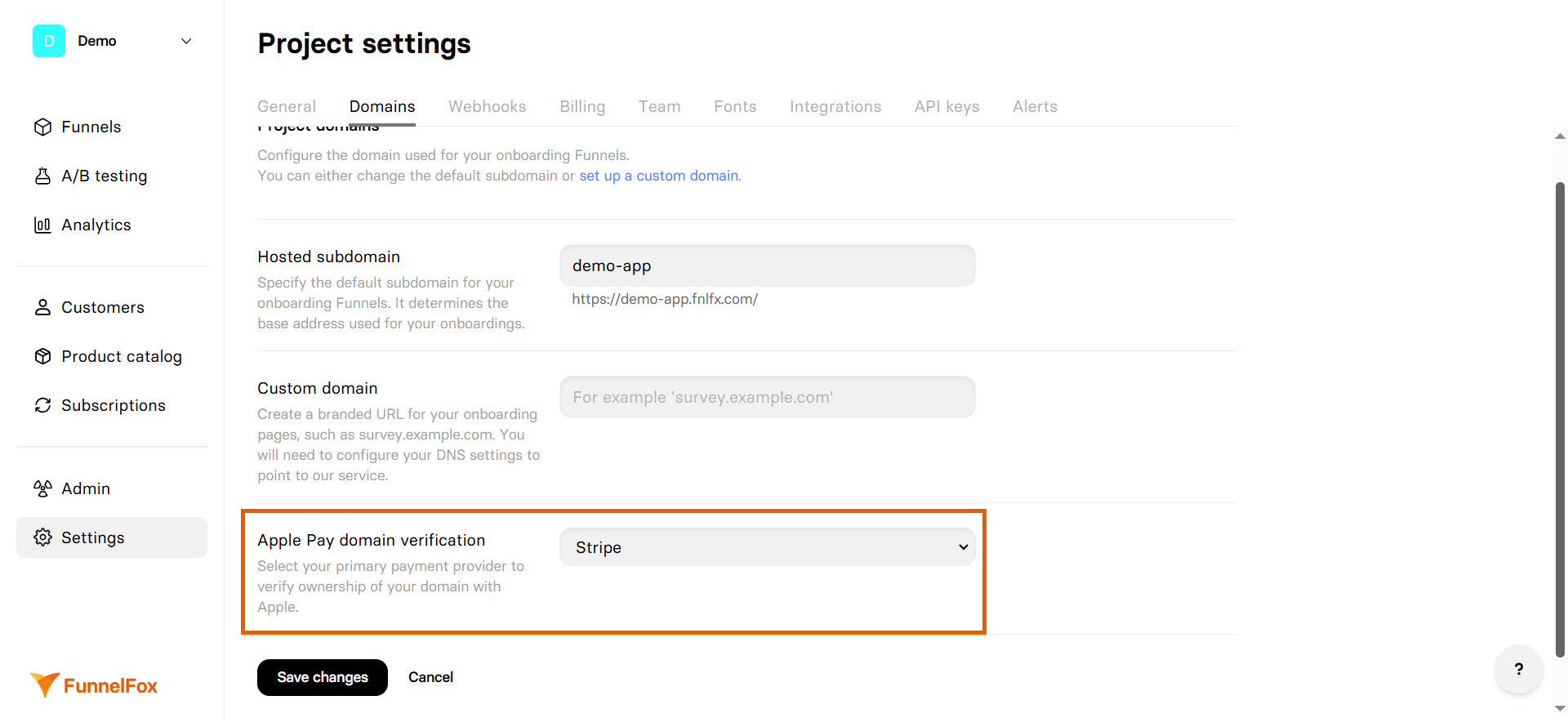
 4. Go to [Settings > Domains](https://app.funnelfox.com/settings/domains) in FunnelFox.
5. Select **Stripe** under **Apple Pay domain verification**.
4. Go to [Settings > Domains](https://app.funnelfox.com/settings/domains) in FunnelFox.
5. Select **Stripe** under **Apple Pay domain verification**.
 6. Click **Save**.
Apple Pay will become available in your funnels after domain
verification completes.
#### Wallet-first checkout
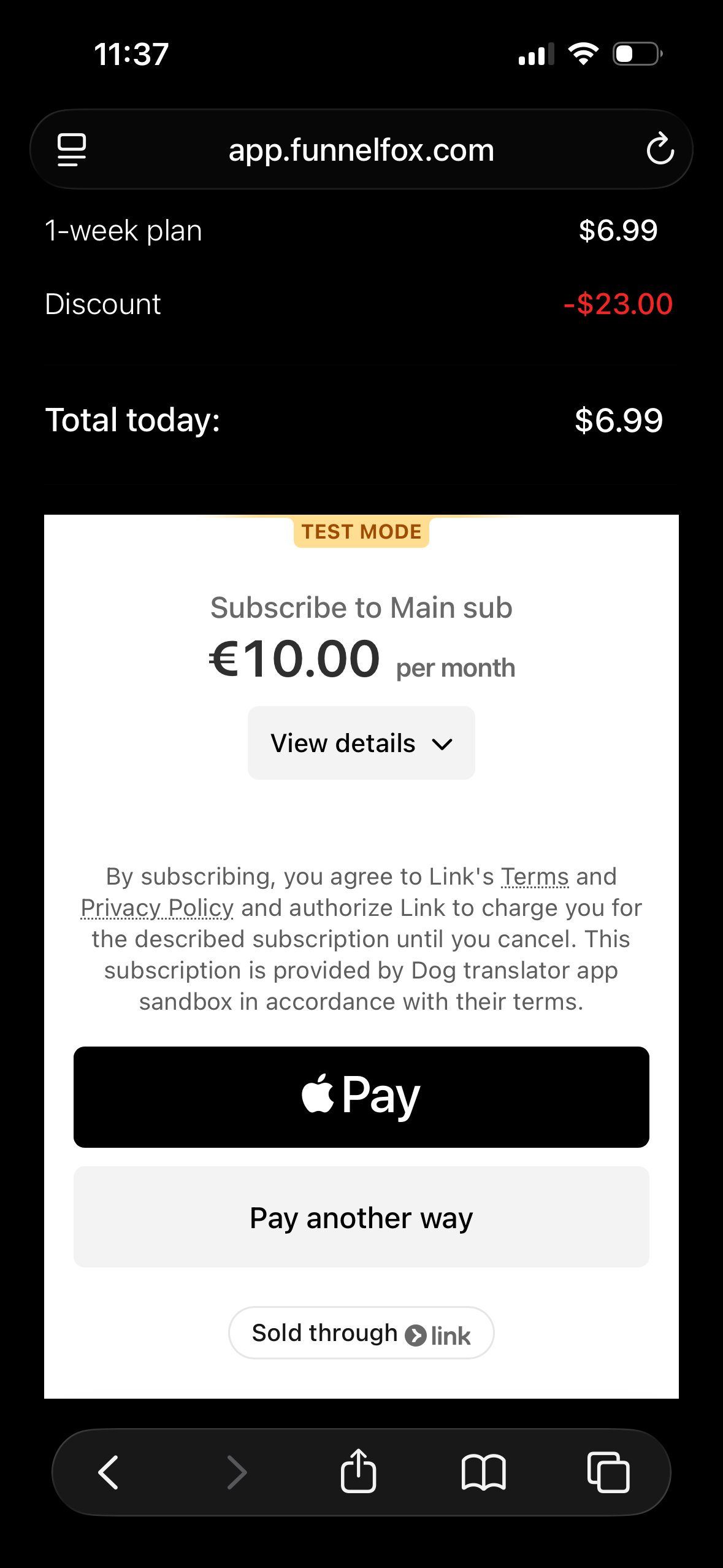
By default, Apple Pay is shown alongside other payment methods during
checkout.
You can enable **Wallet-first checkout** to provide a seamless
one-click payment experience similar to a wallet button. It prioritizes
Apple Pay by showing it first to customers, while other payment methods
are placed under the **Pay another way** button:
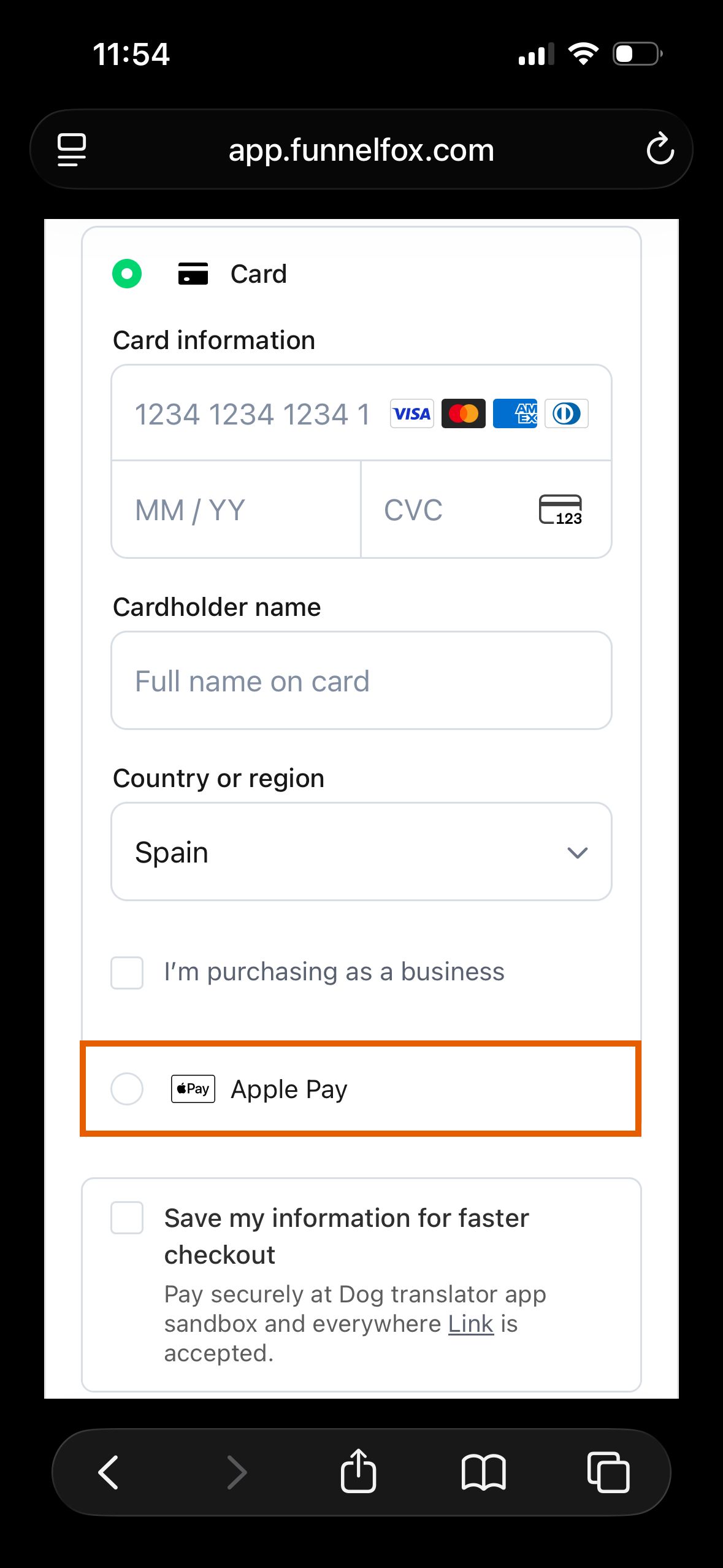
Apple Pay is shown among additional payment methods:
6. Click **Save**.
Apple Pay will become available in your funnels after domain
verification completes.
#### Wallet-first checkout
By default, Apple Pay is shown alongside other payment methods during
checkout.
You can enable **Wallet-first checkout** to provide a seamless
one-click payment experience similar to a wallet button. It prioritizes
Apple Pay by showing it first to customers, while other payment methods
are placed under the **Pay another way** button:
Apple Pay is shown among additional payment methods:
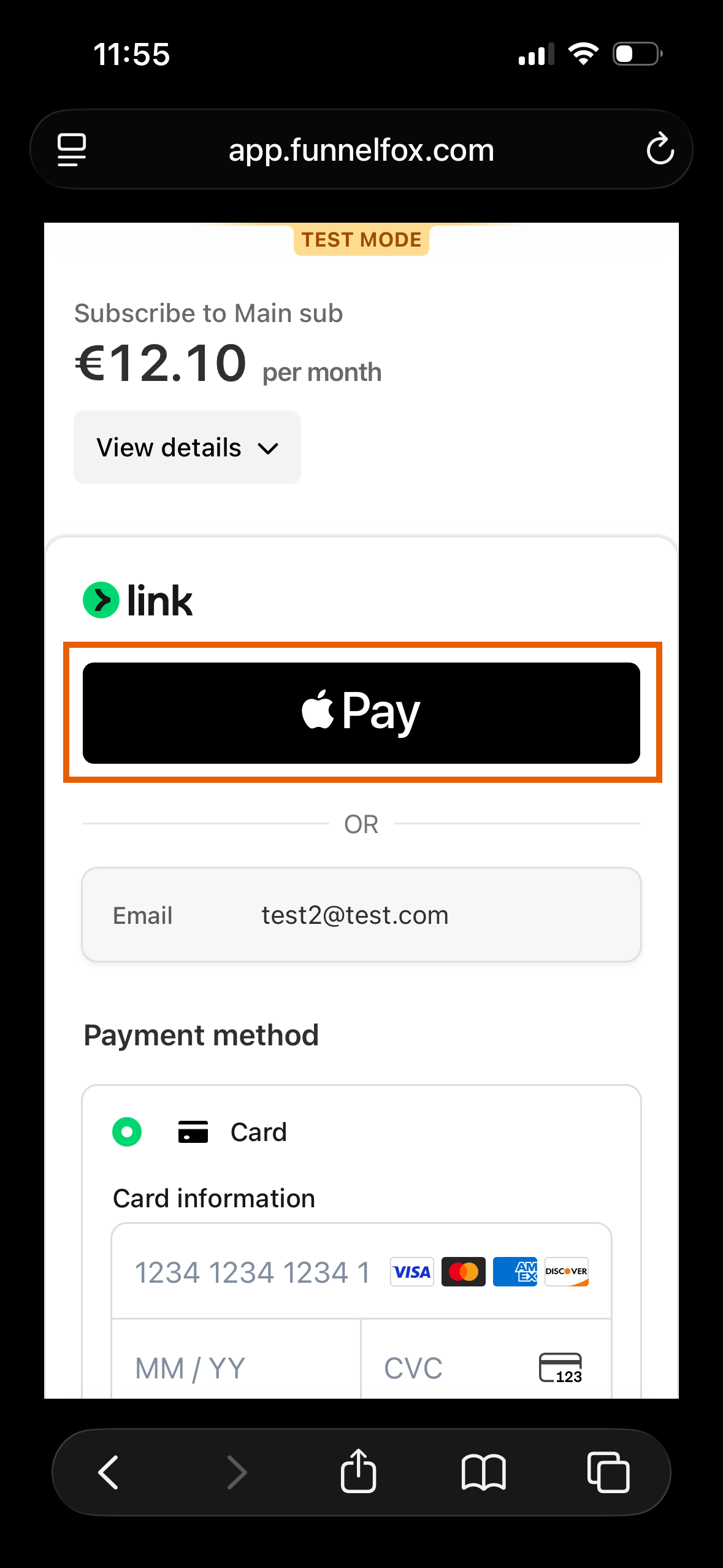
 Apple Pay is shown as payment method for Link:
 Prioritized Apple Pay:
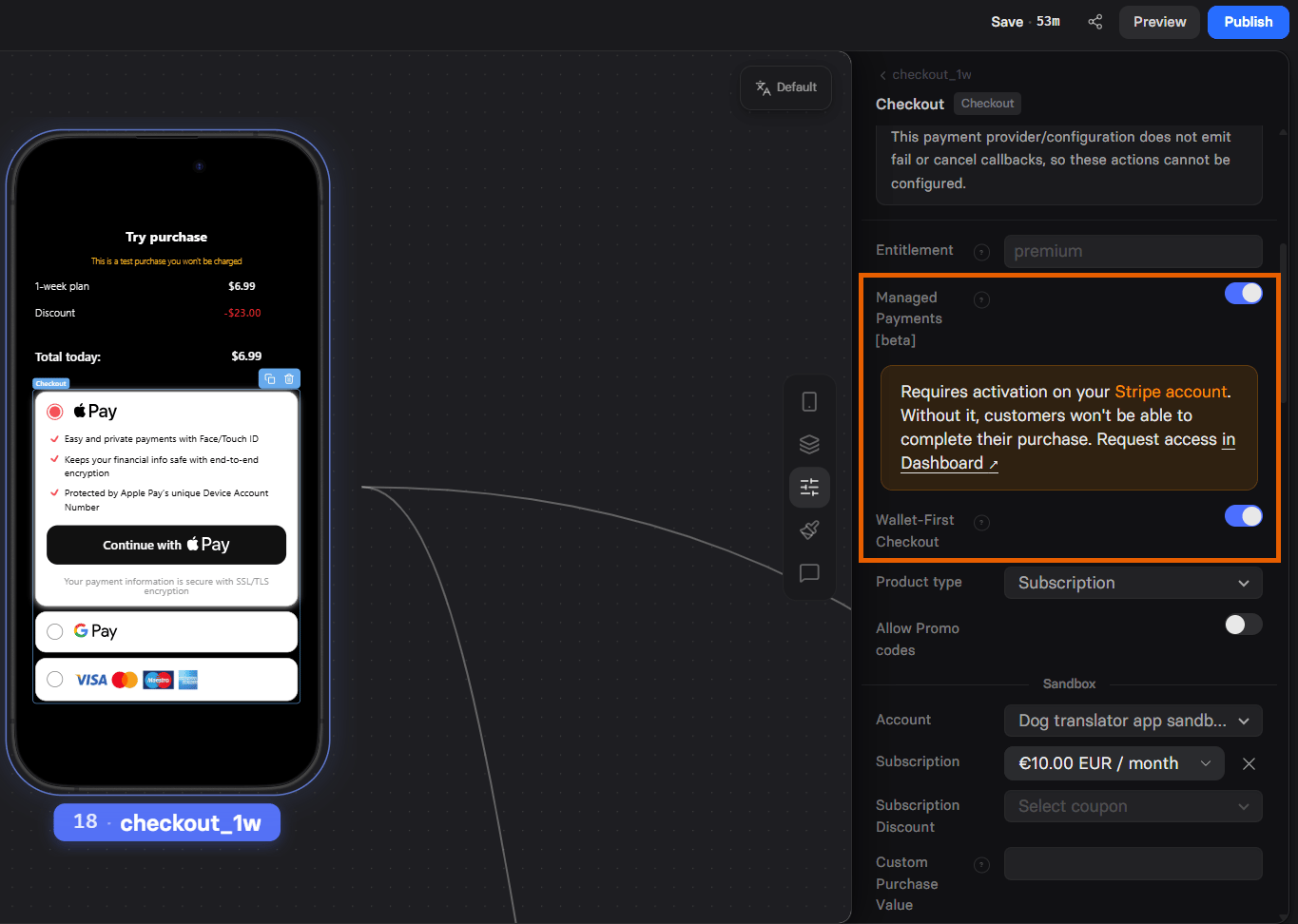
 To enable Wallet-first Apple Pay behavior:
1. [Verify your domain](#apple-pay).
2. Configure your [Checkout element](/elements/checkout):
* Ensure **Managed Payments** is toggled on.
* Toggle on **Wallet-First Checkout**.
To enable Wallet-first Apple Pay behavior:
1. [Verify your domain](#apple-pay).
2. Configure your [Checkout element](/elements/checkout):
* Ensure **Managed Payments** is toggled on.
* Toggle on **Wallet-First Checkout**.
 ## FAQ
FunnelFox doesn't apply its own fees for Managed Payments. Stripe charges its own
fees for Managed Payments.
Learn more about [Stripe's Managed Payments pricing](https://stripe.com/en-es/pricing#managed-payments).
Yes. Managed Payments is enabled per Checkout element, so you can
mix Managed Payments and regular Stripe checkouts within the same project or even within the same funnel.
Not in the FunnelFox Editor. The checkout is managed by
Stripe. You can edit basic branding (logo, colors, icon) in
Stripe's
[Branding settings](https://dashboard.stripe.com/account/branding).
## Next steps
* [Stripe integration](/integrations/payments/stripe)
* [Configure checkout element](/elements/checkout)
## FAQ
FunnelFox doesn't apply its own fees for Managed Payments. Stripe charges its own
fees for Managed Payments.
Learn more about [Stripe's Managed Payments pricing](https://stripe.com/en-es/pricing#managed-payments).
Yes. Managed Payments is enabled per Checkout element, so you can
mix Managed Payments and regular Stripe checkouts within the same project or even within the same funnel.
Not in the FunnelFox Editor. The checkout is managed by
Stripe. You can edit basic branding (logo, colors, icon) in
Stripe's
[Branding settings](https://dashboard.stripe.com/account/branding).
## Next steps
* [Stripe integration](/integrations/payments/stripe)
* [Configure checkout element](/elements/checkout)