> ## Documentation Index
> Fetch the complete documentation index at: https://funnelfox.com/docs/llms.txt
> Use this file to discover all available pages before exploring further.
# Solidgate payment integration
> Integrate Solidgate as your payment provider in FunnelFox. Configure checkout, subscriptions, and payment processing for web funnels.
Solidgate is a payment integration that provides optimized
payment processing for digital goods with high approval rates and
comprehensive fraud prevention for gaming, digital content, and subscription services.
## Key features
FunnelFox supports the following payment methods and transaction types with Solidgate:
| Transaction type | Cards | Apple Pay | Google Pay | PayPal |
| ------------------------------ | :---: | :-------: | :--------: | :----: |
| **Subscriptions** | | | | |
| Subscriptions | ✅ | ✅ | ✅ | ✅ |
| Free & paid trials | ✅ | ✅ | ✅ | ✅ |
| **Upsells** | | | | |
| One-time products | ✅ | ✅ | ✅ | ✅ |
| Subscription upsells (2nd sub) | ✅ | ✅ | ✅ | ✅ |
| Subscription upsells (upgrade) | ❌ | ❌ | ❌ | ❌ |
| **Offers** | | | | |
| Intro offers | ❌ | ❌ | ❌ | ❌ |
| Promo codes (Coupons) | ❌ | ❌ | ❌ | ❌ |
Learn more about [configuring each transaction type](/integrations/payments/solidgate#subscription-configuration) in your funnel.
### Additional features
* **Cancellation funnels**: Full support for [cancellation flows](/dashboard/funnels#cancellation-funnels) with options to offer discounted subscriptions, gifts, or pauses instead of losing customers completely.
* **Failed payment recovery**: Automatic support for [Solidgate retries](https://docs.solidgate.com/billing/manage-subscription/recover-revenue/) to reduce revenue loss from failed payments.
* **Wallet button**: [One-click payment button](/integrations/payments/solidgate#digital-wallets) for Apple Pay and Google Pay. Includes a fallback option when Apple Pay or Google Pay isn't available.
## Setup
You need two active and verified channels (Sandbox and Live) available in [Developers > Channels](https://hub.solidgate.com/dev/channel) in your Solidgate Dashboard to integrate with FunnelFox.
Keep both FunnelFox and Solidgate dashboards open during setup—you'll switch between them several times.
### 1. API keys
**Public key**
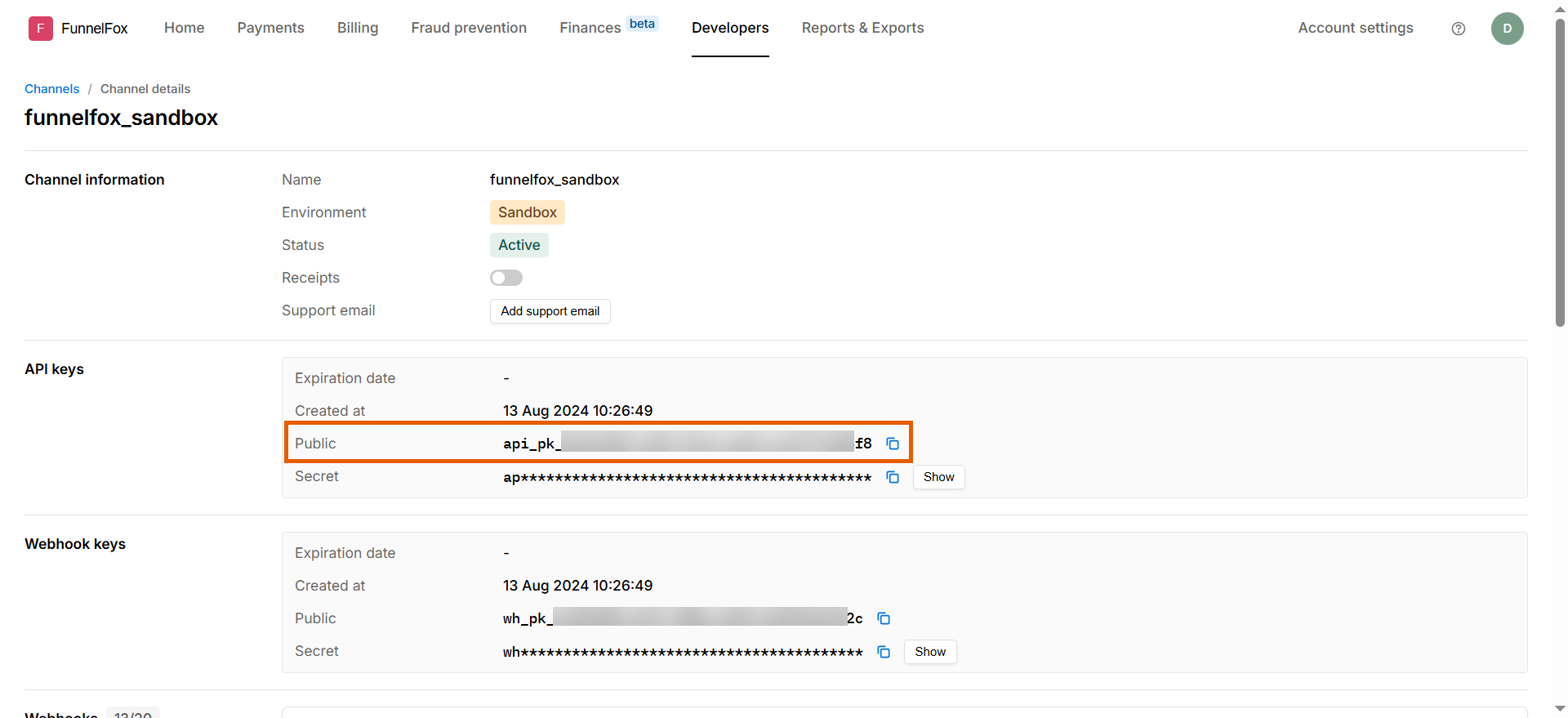
1. Go to [Developers > Channels](https://hub.solidgate.com/dev/channel) in Solidgate and open the Sandbox channel.
2. Copy the **Public key** under **API keys**.
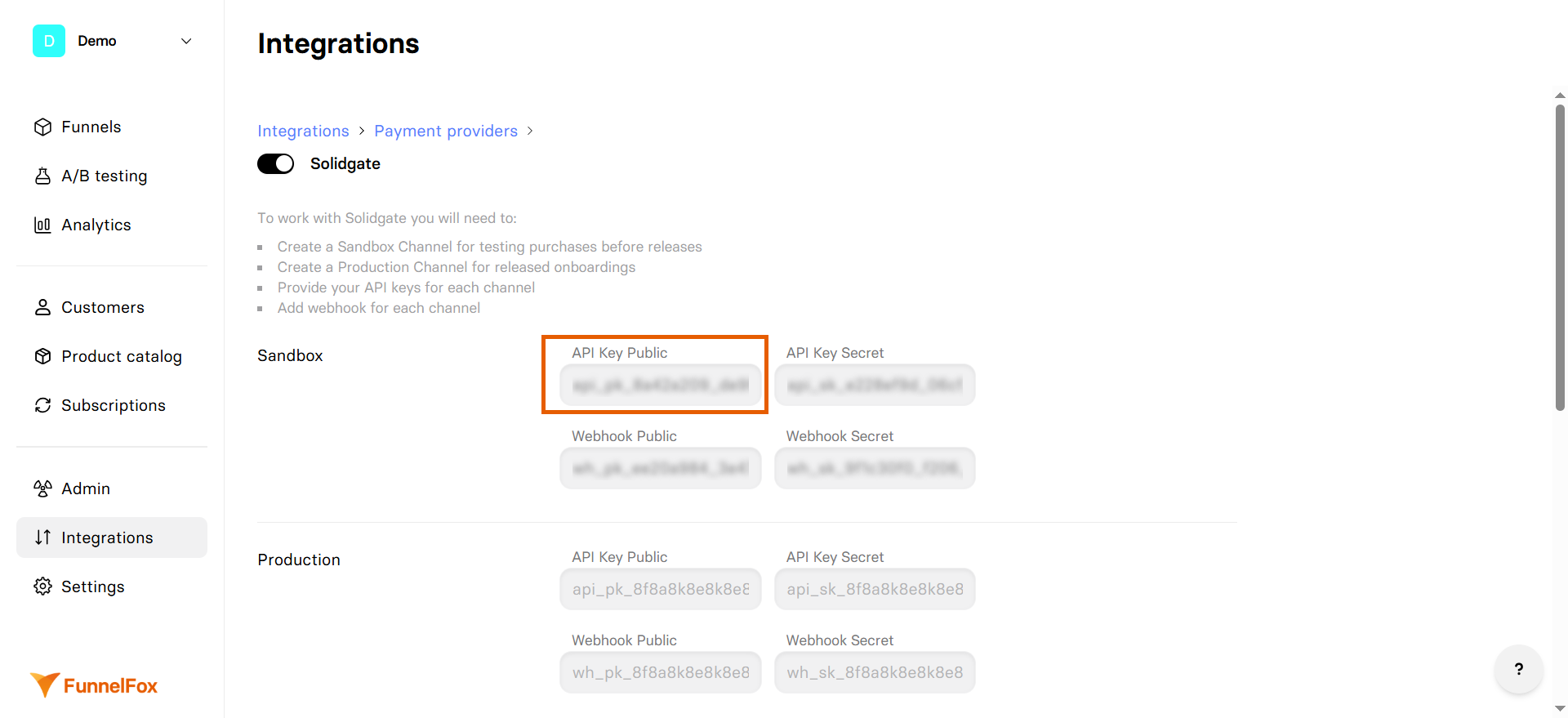
 3. Go to [Integrations > Solidgate](https://app.funnelfox.com/integrations/solidgate) in FunnelFox.
4. Paste the Public key into the **API Key Public** field under **Sandbox**.
3. Go to [Integrations > Solidgate](https://app.funnelfox.com/integrations/solidgate) in FunnelFox.
4. Paste the Public key into the **API Key Public** field under **Sandbox**.
 Don't close your Solidgate integration settings in FunnelFox and proceed with the next section.
**Secret key**
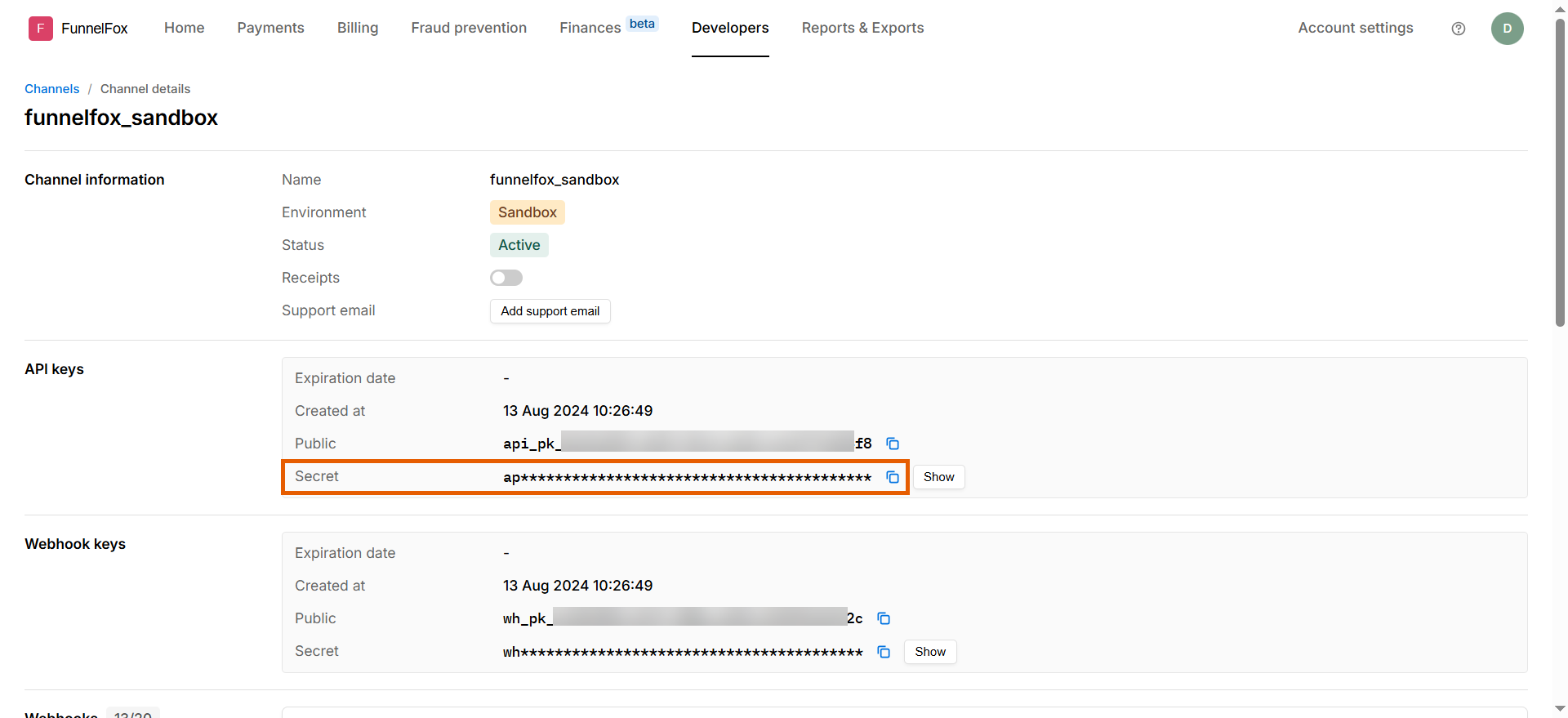
1. Go back to the Sandbox channel in Solidgate.
2. Copy the **Secret key** under **API keys**.
Don't close your Solidgate integration settings in FunnelFox and proceed with the next section.
**Secret key**
1. Go back to the Sandbox channel in Solidgate.
2. Copy the **Secret key** under **API keys**.
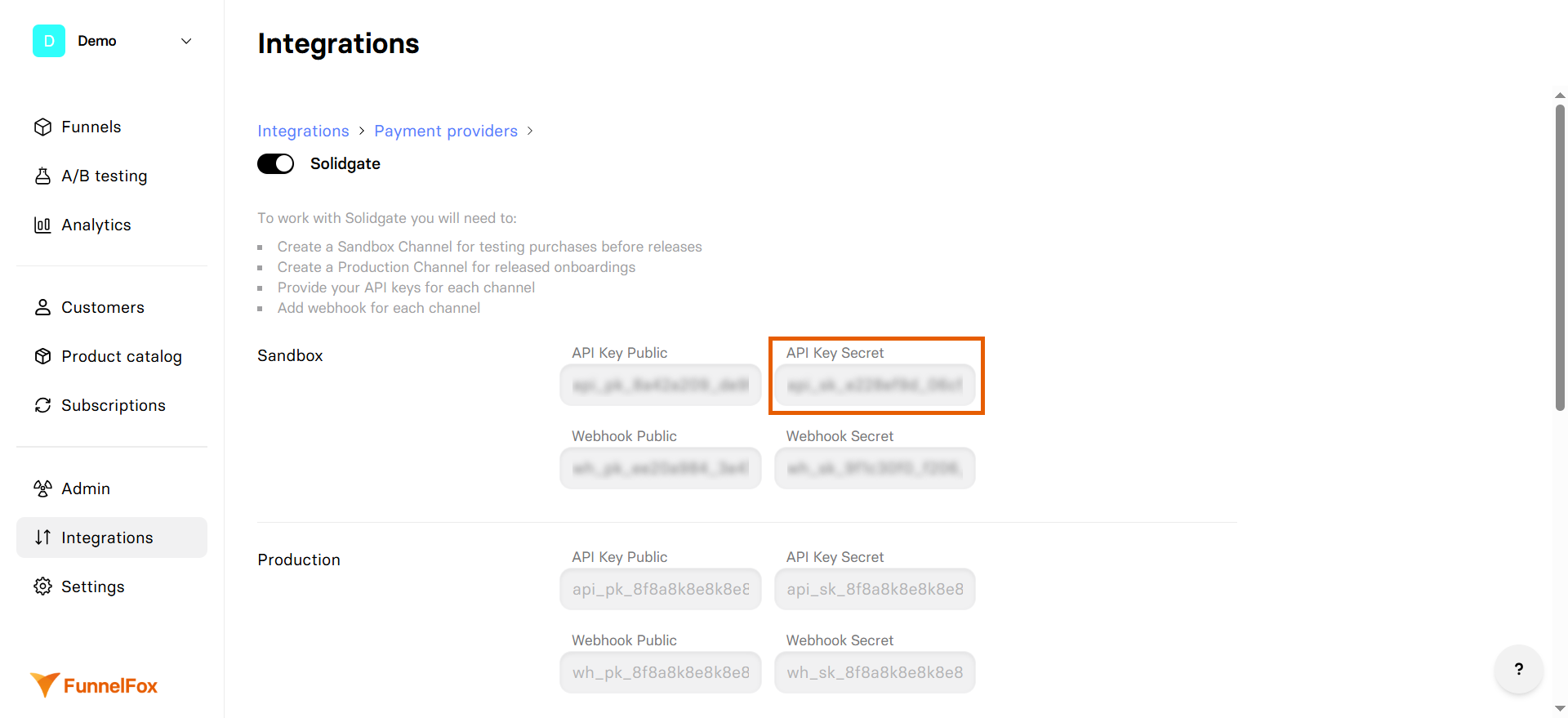
 3. Go back to your Solidgate settings in FunnelFox.
4. Paste the Secret key into the **API Key Secret** field under **Sandbox**.
3. Go back to your Solidgate settings in FunnelFox.
4. Paste the Secret key into the **API Key Secret** field under **Sandbox**.
 ### 2. Webhook keys
**Public key**
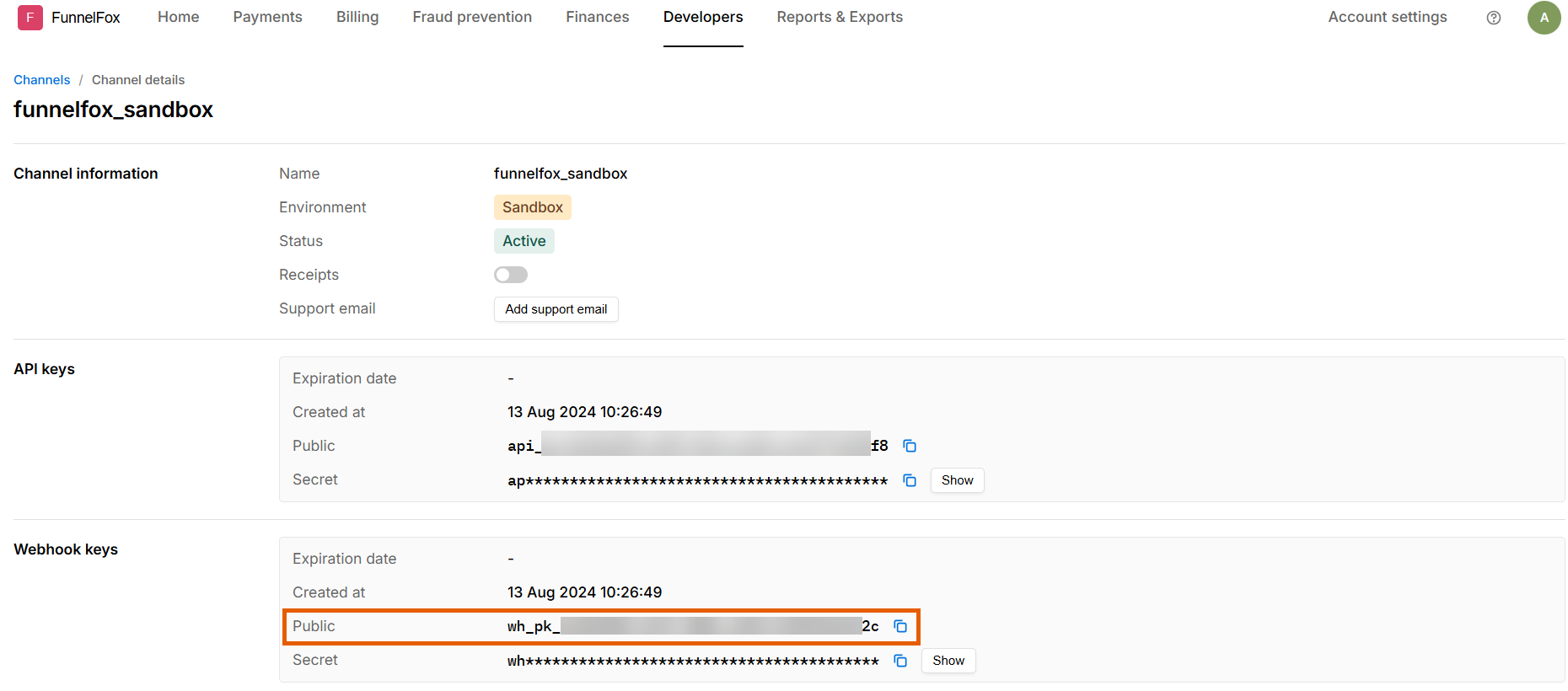
1. Go back to the Sandbox channel in Solidgate.
2. Copy the **Public key** under **Webhook keys**.
### 2. Webhook keys
**Public key**
1. Go back to the Sandbox channel in Solidgate.
2. Copy the **Public key** under **Webhook keys**.
 3. Go back to your Solidgate settings in FunnelFox.
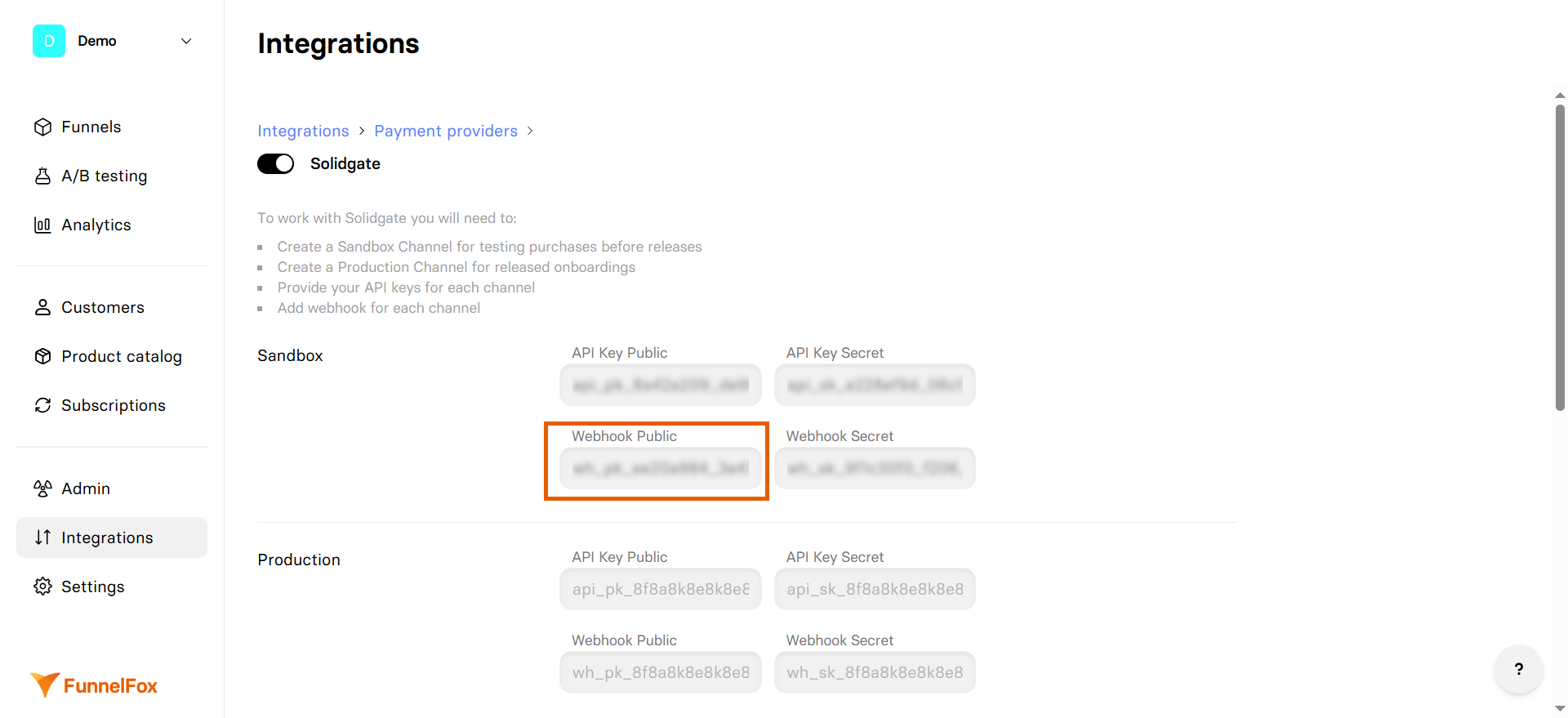
4. Paste the Public key into the **Webhook Public** field under **Sandbox**.
3. Go back to your Solidgate settings in FunnelFox.
4. Paste the Public key into the **Webhook Public** field under **Sandbox**.
 **Secret key**
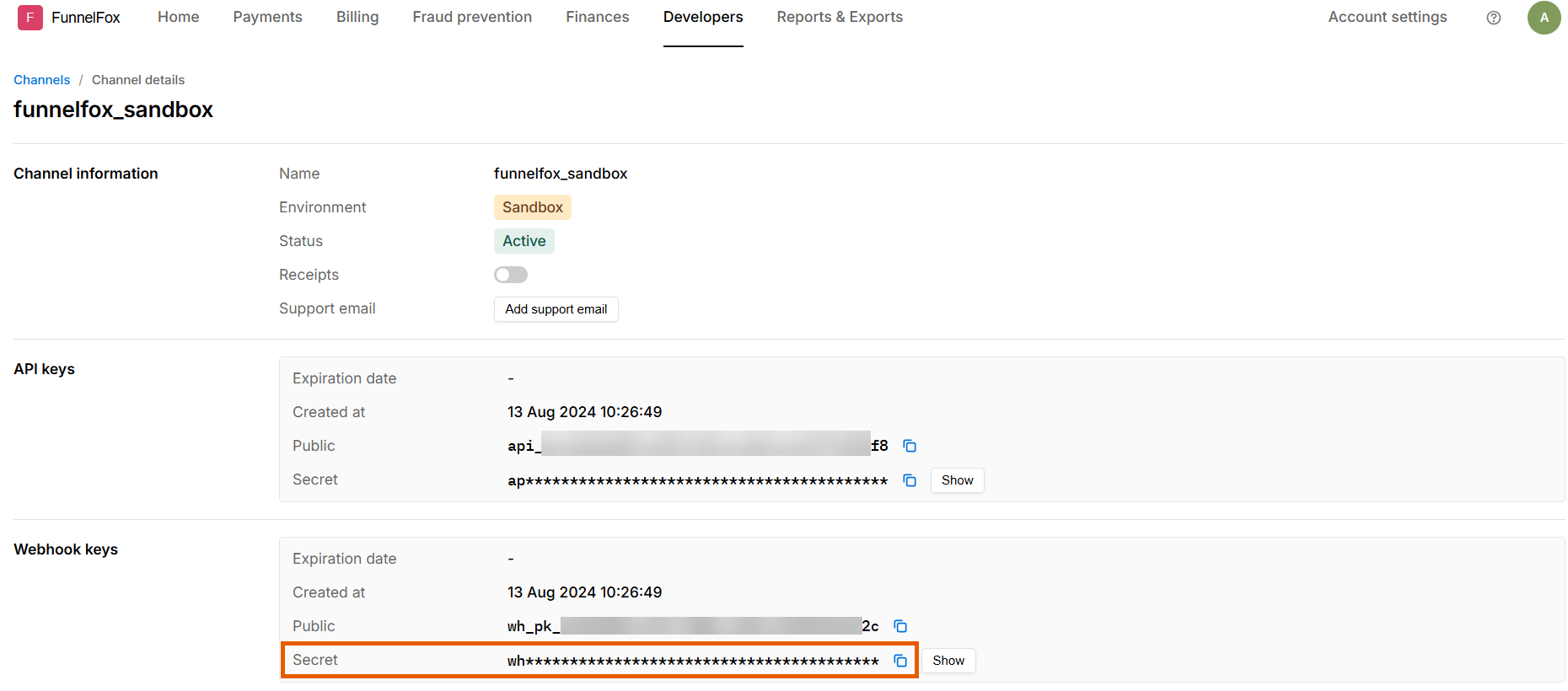
1. Go back to the Sandbox channel in Solidgate.
2. Copy the **Secret key** under **Webhook keys**.
**Secret key**
1. Go back to the Sandbox channel in Solidgate.
2. Copy the **Secret key** under **Webhook keys**.
 3. Go back to your Solidgate settings in FunnelFox.
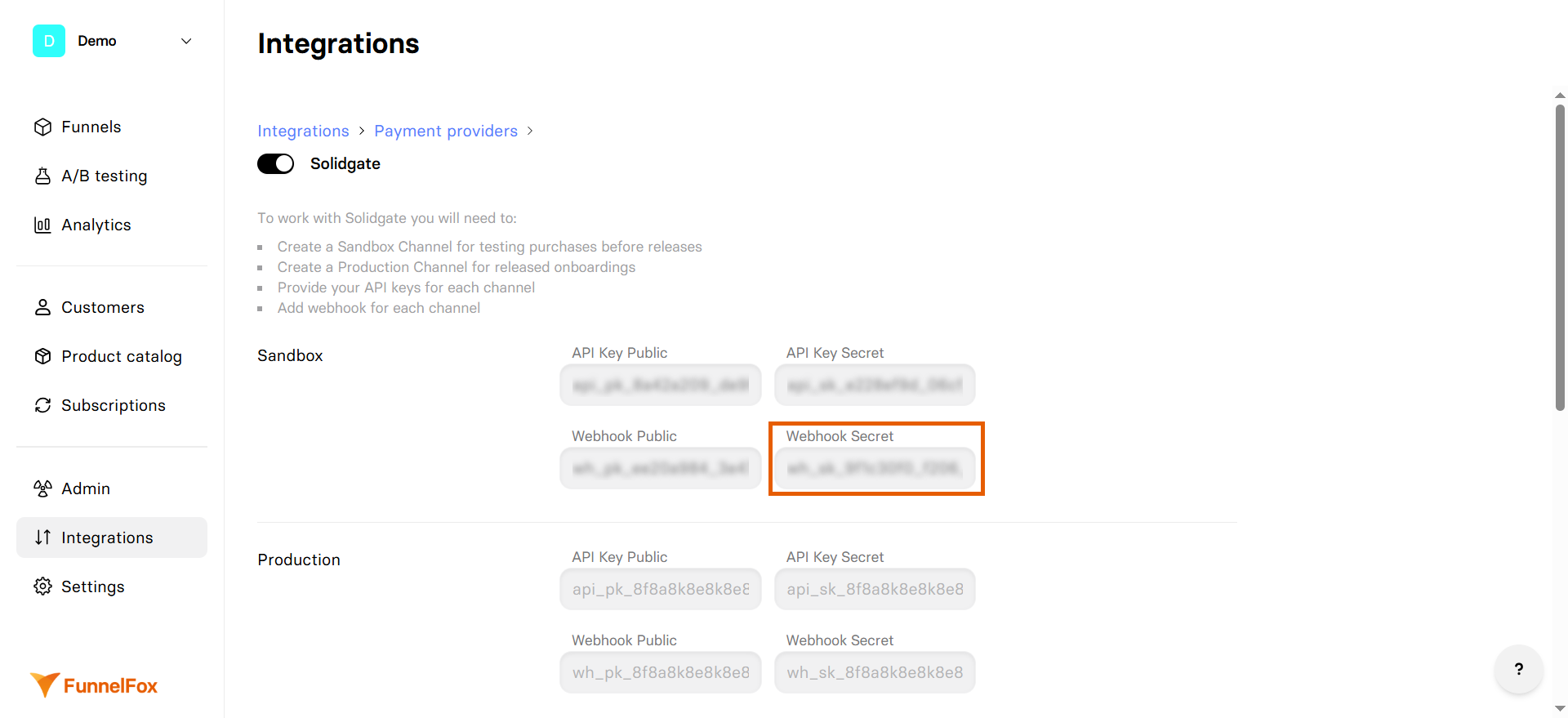
4. Paste the Public key into the **Webhook Secret** field under **Sandbox**.
3. Go back to your Solidgate settings in FunnelFox.
4. Paste the Public key into the **Webhook Secret** field under **Sandbox**.
 ### 3. Live channel configuration
1. Open your Live channel in Solidgate and repeat the setup process above.
2. Click **Save changes** on the Solidgate settings page in FunnelFox.
Your Solidgate integration is now active! Remember to republish your funnels to apply the changes.
## Subscription configuration
FunnelFox automatically creates webhooks in your Solidgate account and syncs your products after setup.
Products created in Solidgate become available in the **Element** tab of your [Checkout element](/elements/checkout#subscription-configuration).
Configure Solidgate products in your funnels:
* [Free trial](/elements/checkout#free-trial)
* [Paid trial](/elements/checkout#paid-trial)
* [Upsell](/elements/checkout#upsell)
### 3. Live channel configuration
1. Open your Live channel in Solidgate and repeat the setup process above.
2. Click **Save changes** on the Solidgate settings page in FunnelFox.
Your Solidgate integration is now active! Remember to republish your funnels to apply the changes.
## Subscription configuration
FunnelFox automatically creates webhooks in your Solidgate account and syncs your products after setup.
Products created in Solidgate become available in the **Element** tab of your [Checkout element](/elements/checkout#subscription-configuration).
Configure Solidgate products in your funnels:
* [Free trial](/elements/checkout#free-trial)
* [Paid trial](/elements/checkout#paid-trial)
* [Upsell](/elements/checkout#upsell)
 ## Digital wallets
FunnelFox supports Apple Pay and Google Pay with Solidgate for faster checkout. Apple Pay requires domain verification, while Google Pay works by default.
Once your setup is complete, [configure wallet buttons](/integrations/payments/solidgate#wallet-button-configuration) directly in your funnels.
### Apple Pay
Apple Pay for Solidgate requires domain verification before you can use it.
To enable Apple Pay:
1. Go to [Developers > Apple Pay Domains](https://hub.solidgate.com/dev/apple-pay-domain) in Solidgate.
2. Click **+ Add new domain** at the top right.
## Digital wallets
FunnelFox supports Apple Pay and Google Pay with Solidgate for faster checkout. Apple Pay requires domain verification, while Google Pay works by default.
Once your setup is complete, [configure wallet buttons](/integrations/payments/solidgate#wallet-button-configuration) directly in your funnels.
### Apple Pay
Apple Pay for Solidgate requires domain verification before you can use it.
To enable Apple Pay:
1. Go to [Developers > Apple Pay Domains](https://hub.solidgate.com/dev/apple-pay-domain) in Solidgate.
2. Click **+ Add new domain** at the top right.
 3. Paste your project domain from [Settings > Domains](https://app.funnelfox.com/settings/domains) in FunnelFox and click **Add**. If you have a custom domain, add it as well.
To use Apple Pay in funnel preview mode, add `http://app.funnelfox.com/` as a domain.
3. Paste your project domain from [Settings > Domains](https://app.funnelfox.com/settings/domains) in FunnelFox and click **Add**. If you have a custom domain, add it as well.
To use Apple Pay in funnel preview mode, add `http://app.funnelfox.com/` as a domain.
 4. Go to [Settings > Domains](https://app.funnelfox.com/settings/domains) in FunnelFox.
5. Select **Solidgate** under **Apple Pay domain verification**.
4. Go to [Settings > Domains](https://app.funnelfox.com/settings/domains) in FunnelFox.
5. Select **Solidgate** under **Apple Pay domain verification**.
 6. Click **Save**.
Apple Pay will become available in your funnels after domain verification completes.
### Google Pay
Google Pay with Solidgate works by default and requires no configuration.
### Wallet button configuration
Click **+ Add** in the Visual editor, then select **Paywall Elements > Wallet Button** and set your configuration:
* **Payment Provider**: Solidgate
* **Config source**: Defines how the button is configured.
* **Independent**: Configure separately from your Checkout element. Cannot be placed on the same screen with a Checkout or another wallet button.
* **Linked**: Inherits [product configuration](/elements/checkout#subscription-configuration) from your Checkout element on the same screen. Requires the Apple Pay / Google Pay payment method to be enabled in the Checkout. You can include multiple linked Wallet Buttons and Checkouts on the same screen using [conditional visibility](/elements/overview#conditional-visibility).
* **Fallback**: If the wallet button fails to load or initialize, a simple button appears that triggers the action you’ve configured.
For independent wallet button configuration, you can also set the following:
* **When Payment Succeeds**: Navigation action to trigger when payment is completed.
* **When payment fails or is declined**: Navigation action to trigger when payment fails due to a decline or error (including 3DS).
* **When payment is cancelled by user**: Navigation action to trigger when user clicks the cancel button (if available).
* **Entitlement**: Access level ID for [subscription manager](/integrations/subscription-management).
* **Flow type**: Defines the payment flow depending on what you sell.
* **One-time**
* **Subscription**
* **Order description**: Description to be sent for order details to Solidgate.
* **Plan/Price**: Define the Solidgate product or one-time price to sell.
* **Custom purchase value**: Override the actual price in analytics and marketing tracking events. Use this for value-based optimization where you can send a predicted LTV.
* Leave empty to use the actual product price.
For customers with slow internet connections, the linked wallet button may load before the related Checkout element. In this case, the wallet button won’t function, and the fallback button will be triggered automatically.
6. Click **Save**.
Apple Pay will become available in your funnels after domain verification completes.
### Google Pay
Google Pay with Solidgate works by default and requires no configuration.
### Wallet button configuration
Click **+ Add** in the Visual editor, then select **Paywall Elements > Wallet Button** and set your configuration:
* **Payment Provider**: Solidgate
* **Config source**: Defines how the button is configured.
* **Independent**: Configure separately from your Checkout element. Cannot be placed on the same screen with a Checkout or another wallet button.
* **Linked**: Inherits [product configuration](/elements/checkout#subscription-configuration) from your Checkout element on the same screen. Requires the Apple Pay / Google Pay payment method to be enabled in the Checkout. You can include multiple linked Wallet Buttons and Checkouts on the same screen using [conditional visibility](/elements/overview#conditional-visibility).
* **Fallback**: If the wallet button fails to load or initialize, a simple button appears that triggers the action you’ve configured.
For independent wallet button configuration, you can also set the following:
* **When Payment Succeeds**: Navigation action to trigger when payment is completed.
* **When payment fails or is declined**: Navigation action to trigger when payment fails due to a decline or error (including 3DS).
* **When payment is cancelled by user**: Navigation action to trigger when user clicks the cancel button (if available).
* **Entitlement**: Access level ID for [subscription manager](/integrations/subscription-management).
* **Flow type**: Defines the payment flow depending on what you sell.
* **One-time**
* **Subscription**
* **Order description**: Description to be sent for order details to Solidgate.
* **Plan/Price**: Define the Solidgate product or one-time price to sell.
* **Custom purchase value**: Override the actual price in analytics and marketing tracking events. Use this for value-based optimization where you can send a predicted LTV.
* Leave empty to use the actual product price.
For customers with slow internet connections, the linked wallet button may load before the related Checkout element. In this case, the wallet button won’t function, and the fallback button will be triggered automatically.
 ## Testing
Test your Solidgate integration with simulated payments before going live.
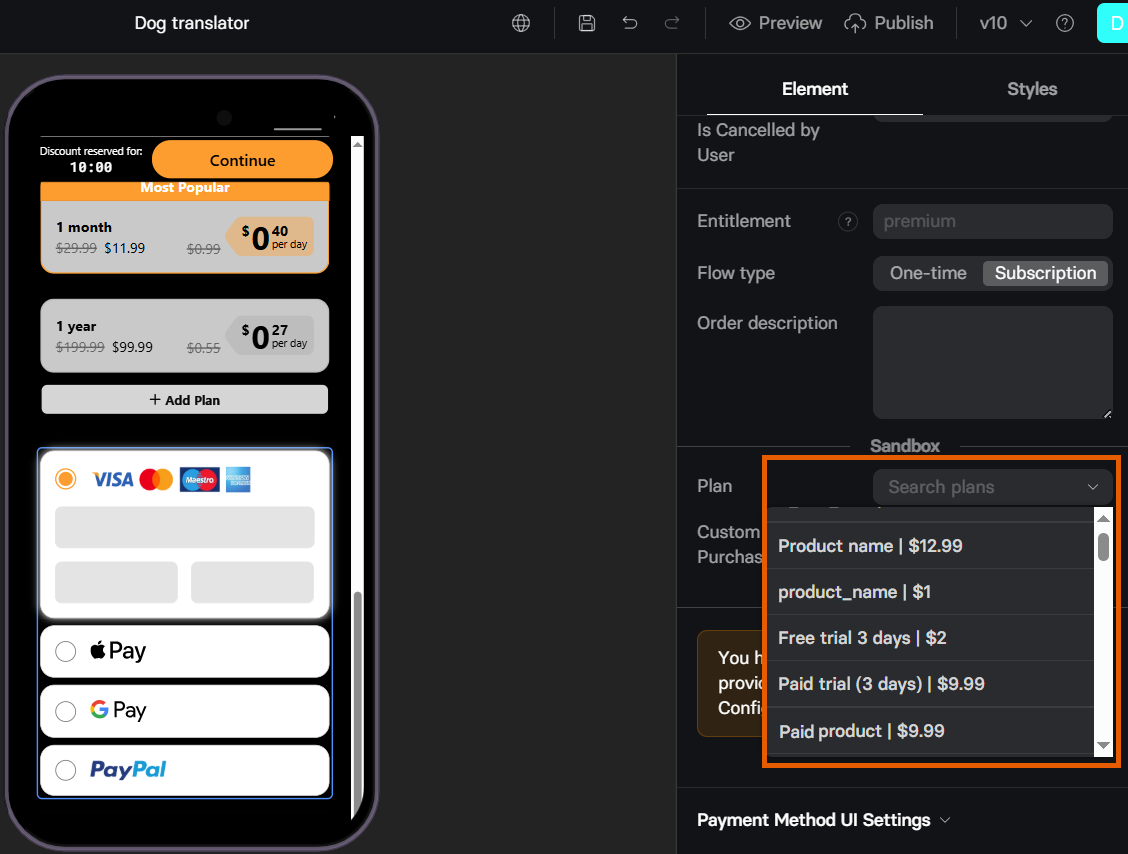
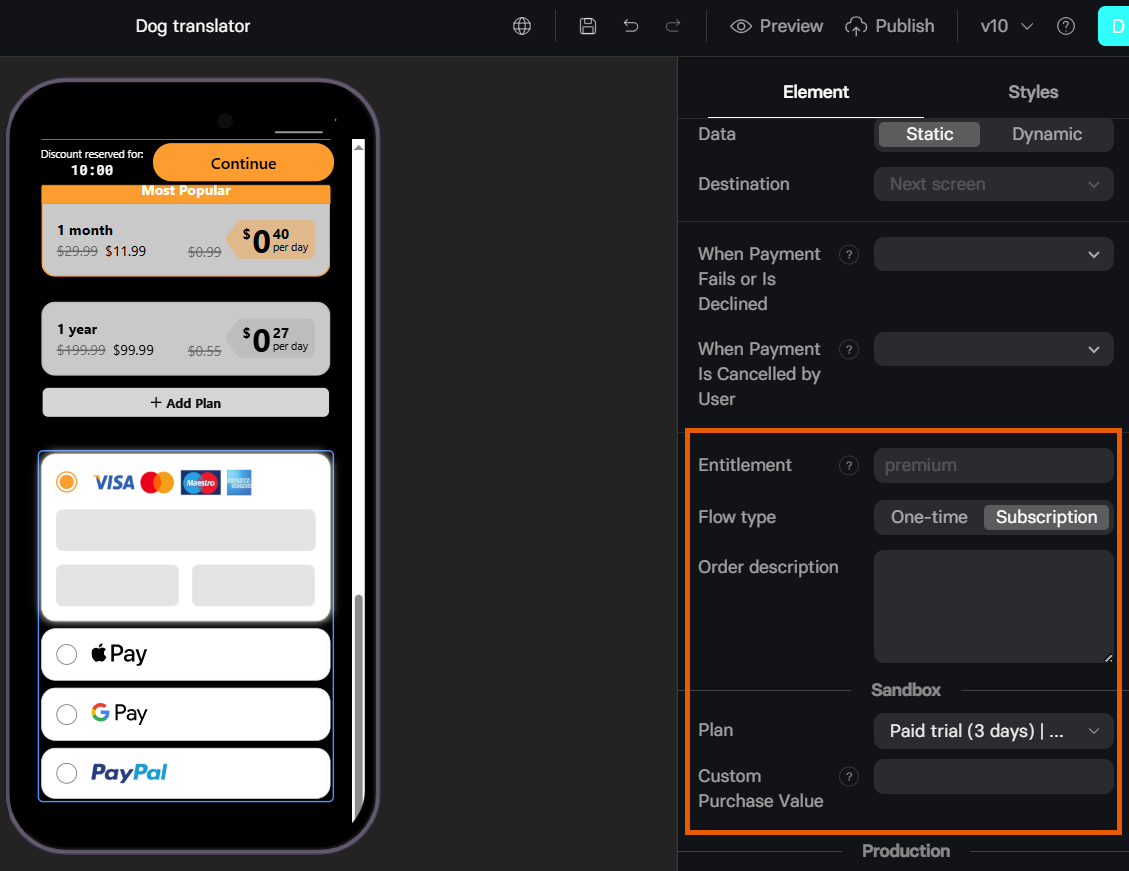
1. Configure the test in your Checkout element's **Sandbox** section.
## Testing
Test your Solidgate integration with simulated payments before going live.
1. Configure the test in your Checkout element's **Sandbox** section.
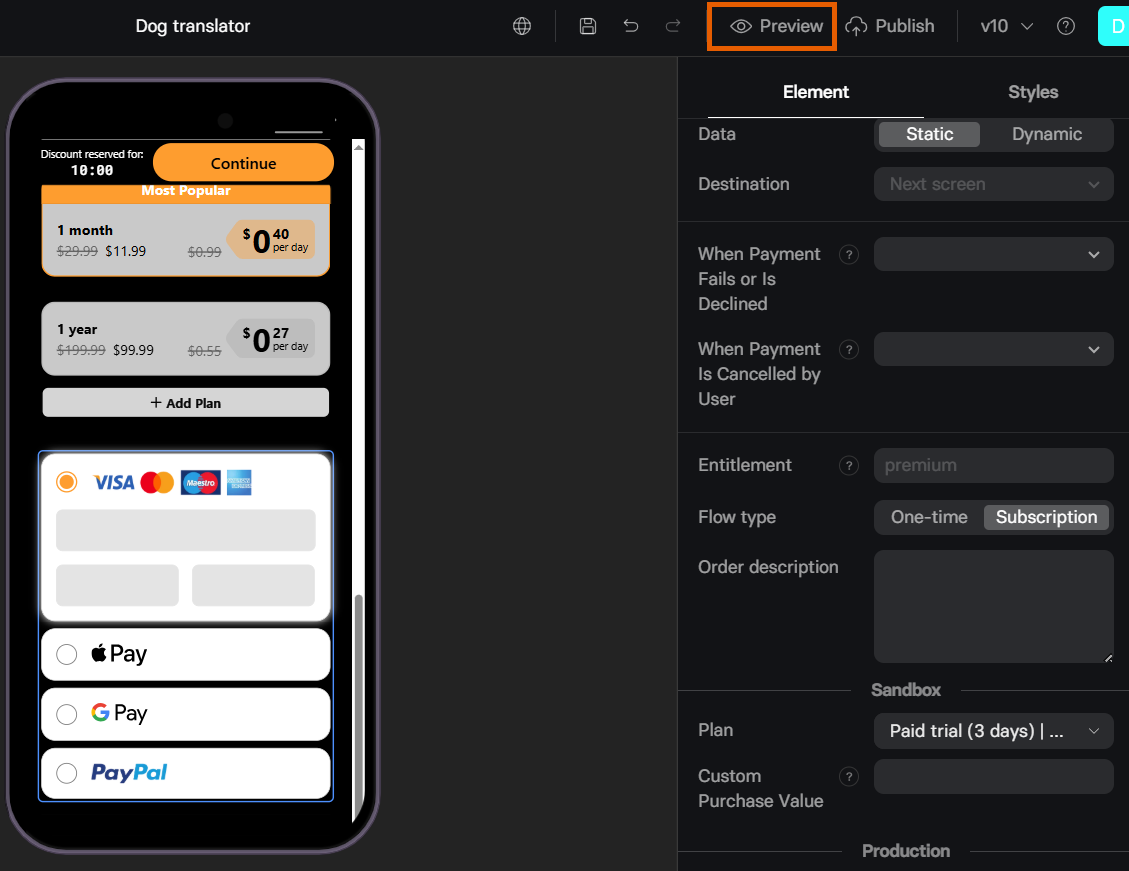
 2. Open your funnel in **Preview** mode.
 3. Use these Solidgate test cards with any future expiry date and `123` as CVV:
| Card Number | Scenario |
| ------------------- | ----------------- |
| 4067 4299 7471 9265 | Success |
| 4532 4566 1814 2692 | Recurring success |
| 4510 1088 1840 6882 | Declined |
Learn more about [Solidgate test cards](https://docs.solidgate.com/payments/testing/#card-payments).
## Next steps
* [Configure checkout element](/elements/checkout) in your funnel
3. Use these Solidgate test cards with any future expiry date and `123` as CVV:
| Card Number | Scenario |
| ------------------- | ----------------- |
| 4067 4299 7471 9265 | Success |
| 4532 4566 1814 2692 | Recurring success |
| 4510 1088 1840 6882 | Declined |
Learn more about [Solidgate test cards](https://docs.solidgate.com/payments/testing/#card-payments).
## Next steps
* [Configure checkout element](/elements/checkout) in your funnel