> ## Documentation Index
> Fetch the complete documentation index at: https://funnelfox.com/docs/llms.txt
> Use this file to discover all available pages before exploring further.
# Firebase authentication
> Set up Firebase Authentication in FunnelFox. Enable email, social login, and anonymous auth for your web funnel users.
The [Firebase integration](https://app.funnelfox.com/integrations/firebase) enables multiple authentication methods while maintaining a consistent user identity.
## How it works
FunnelFox authenticates users directly within your funnels, giving each user a stable Firebase UID (FUID). It will either:
* **Create a new Firebase user (sign up)**: If no user exists for the customer's credentials.
* **Authenticate an existing Firebase user (sign in)**: If the user was created during a previous funnel experience and signs in using an OAuth button or by entering their email. New purchase is recorded in the existing Adapty or RevenueCat profile.
Once the user is authenticated, your app takes over the in-app authentication flow.
The email entered by the customer (via Email input or OAuth) is saved as the `{{email}}` funnel variable. You can use it in upstream screens, for example, in deep links.
### Email & Password authentication
Email-based authentication occurs when the customer navigates from the authentication screen with email/password inputs filled out.
**Sign up:**
When a customer submits their credentials in a funnel, FunnelFox automatically handles Firebase user creation:
* FunnelFox creates a Firebase user via Email/Password authentication.
* By default, a secure random password is generated for the user.
* If the same screen includes a Password input element, that value replaces the generated password.
For the Email/Password sign up, we recommend using the Password input element. If you rely on the generated random password, it won’t be accessible to the user, so you’ll need to implement a [password reset flow](https://firebase.google.com/docs/auth/admin/email-action-links) during the in-app authentication step.
**Sign in:**
Email-based sign in works through the same Email input, but requires the [Service account key](#service-account-key) to be uploaded to FunnelFox.
When a customer enters their email, FunnelFox checks whether a Firebase user already exists for that address:
* If a Firebase user exists, FunnelFox recognizes the customer as returning, signs them in using their Firebase UID (FUID), and fires the [profile.updated](/api-reference/webhook-reference/profileupdated) webhook.
* If no Firebase user exists, FunnelFox treats the customer as new and creates a Firebase user (sign up).
FunnelFox doesn't check the password during sign in. It only verifies whether the email already belongs to a Firebase user.
To find the customer, FunnelFox first checks its own records for a profile that already stores an FUID. If none is found, FunnelFox requires the [Service account key](#service-account-key) to look the customer up directly in Firebase. The new purchase is then recorded in the existing Adapty or RevenueCat profile linked to that FUID.
### OAuth authentication
Unlike email/password authentication, OAuth works right when the customer uses the OAuth button.
OAuth providers enable seamless social authentication within your funnels:
* Enable OAuth providers (e.g., Google or Apple) in Firebase and add OAuth buttons in the Editor.
* Users receive a secure and seamless authentication experience:
* If it’s the user’s first time, Firebase creates the account.
* If the account already exists, Firebase signs them in using the same OAuth buttons and FunnelFox fires the [profile.updated](/api-reference/webhook-reference/profileupdated) webhook.
FunnelFox automatically tracks OAuth button interactions. When a customer
taps an OAuth button, FunnelFox sends an `auth_button_clicked` event,
followed by `auth_success` or `auth_fail` depending on the result. Learn more in the
[events reference](/integrations/events).
### Unified identity (FUID)
Firebase UID becomes the canonical identifier across all integrated services:
* The user's Firebase UID (FUID) serves as their primary identifier.
* When other integrations are enabled, FunnelFox forwards this ID automatically:
* [Adapty](/integrations/subscription-management/adapty) receives it as CustomerUserID.
* [RevenueCat](/integrations/subscription-management/revenuecat) receives it as appUserID.
If a customer makes a purchase while signed in within the funnel, the new purchase is recorded in the existing Adapty or RevenueCat profile.
## Setup
Complete the Firebase integration by creating a Firebase project, configuring authentication methods, and connecting it to FunnelFox.
### 1. Create Firebase Project
Start by setting up a new Firebase project in the [Firebase console](https://console.firebase.google.com/).
1. Go to the Firebase console and start creating a new Firebase project.
2. Name your project.
3. Configure Google Analytics.
4. Click **Create project**.
### 2. Configure Firebase Authentication
Enable Firebase Authentication to configure your preferred sign-in methods.
1. In your Firebase project, go to **Build > Authentication**.
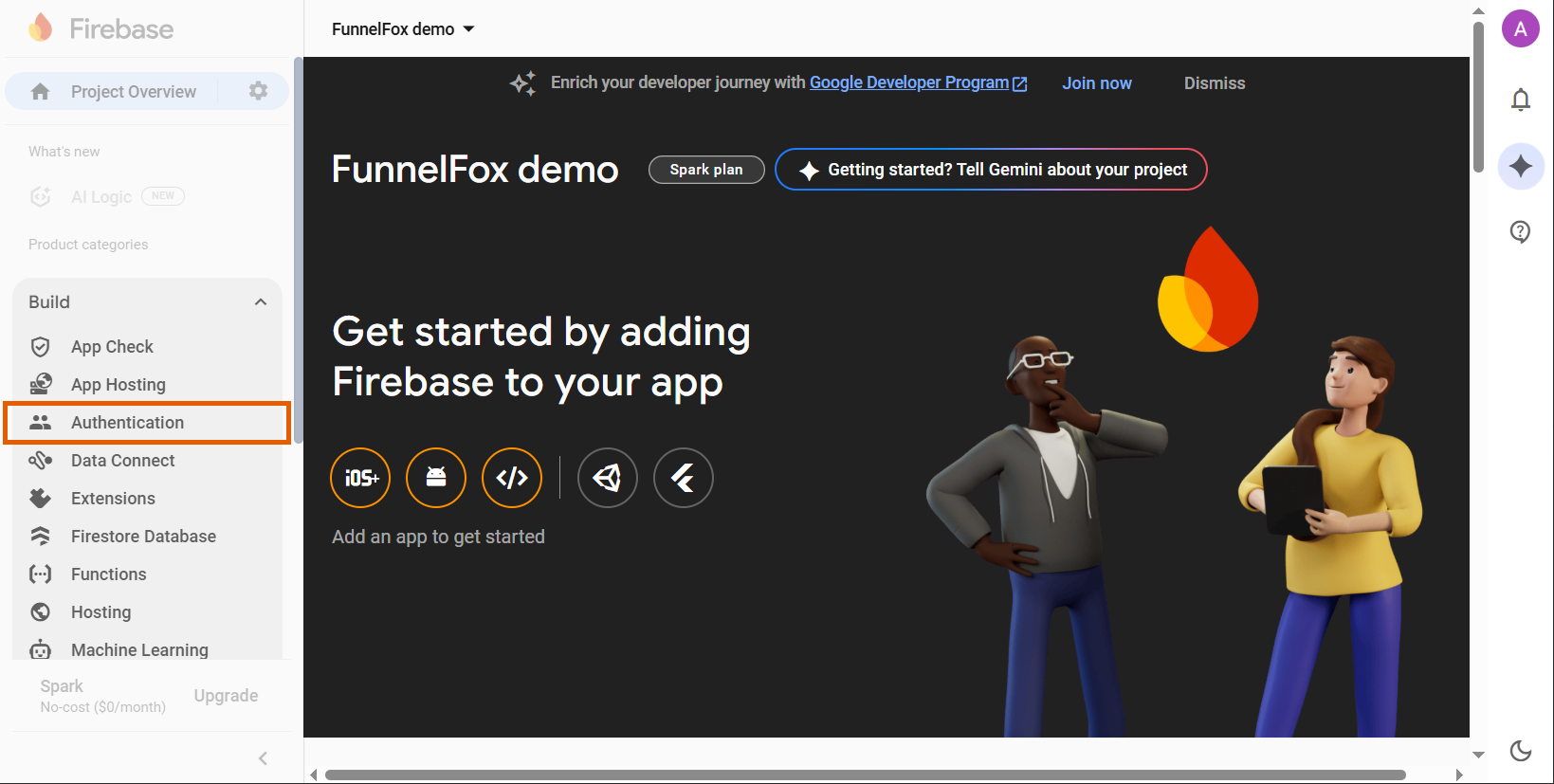 2. Click **Get started**.
Follow the steps below to set up your sign-in methods.
### 3. Configure sign-in methods
Select a provider to configure under the **Sign-in method** in Firebase.
Once done, click **Add new provider** to set up another one.
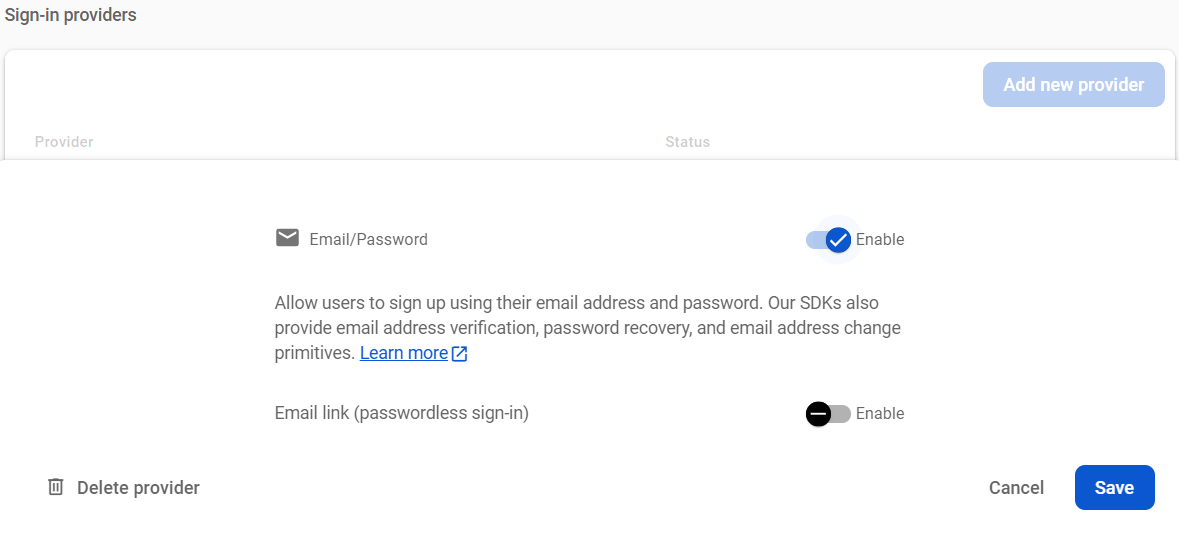
The Email/Password method allows users to sign up using their email address and password.
1. Click **Email/Password** in the **Native providers**.
2. Toggle on **Email/Password**.
3. Click **Save**.
2. Click **Get started**.
Follow the steps below to set up your sign-in methods.
### 3. Configure sign-in methods
Select a provider to configure under the **Sign-in method** in Firebase.
Once done, click **Add new provider** to set up another one.
The Email/Password method allows users to sign up using their email address and password.
1. Click **Email/Password** in the **Native providers**.
2. Toggle on **Email/Password**.
3. Click **Save**.
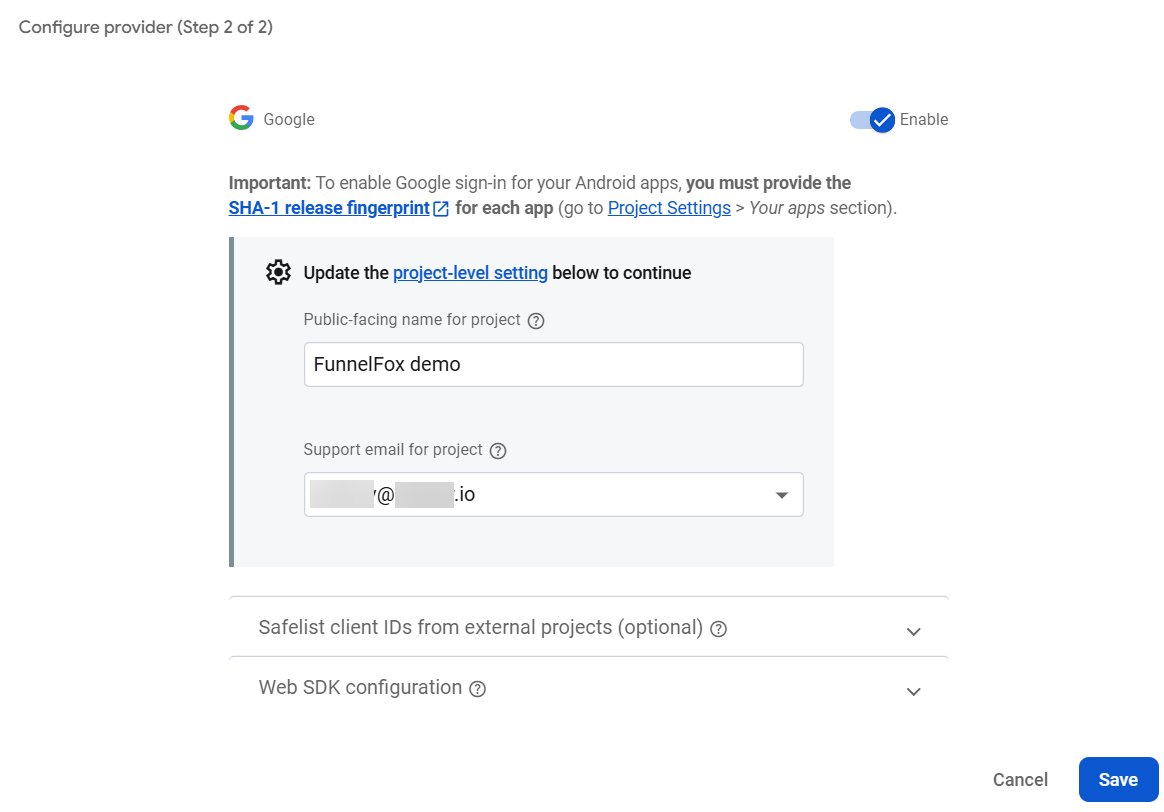
 Google OAuth provides seamless authentication using Google accounts. You'll first configure the provider in Firebase, then set up your Google Cloud console.
**Firebase configuration**
1. Click **Google** in **Additional providers**.
2. Toggle on **Google**.
3. Enter your project details:
* **Public-facing name**: Displayed on emails that your users receive after creating an account with your app.
* **Support email**: Presented to users when they are authenticating with Google.
4. Click **Save**.
Google OAuth provides seamless authentication using Google accounts. You'll first configure the provider in Firebase, then set up your Google Cloud console.
**Firebase configuration**
1. Click **Google** in **Additional providers**.
2. Toggle on **Google**.
3. Enter your project details:
* **Public-facing name**: Displayed on emails that your users receive after creating an account with your app.
* **Support email**: Presented to users when they are authenticating with Google.
4. Click **Save**.
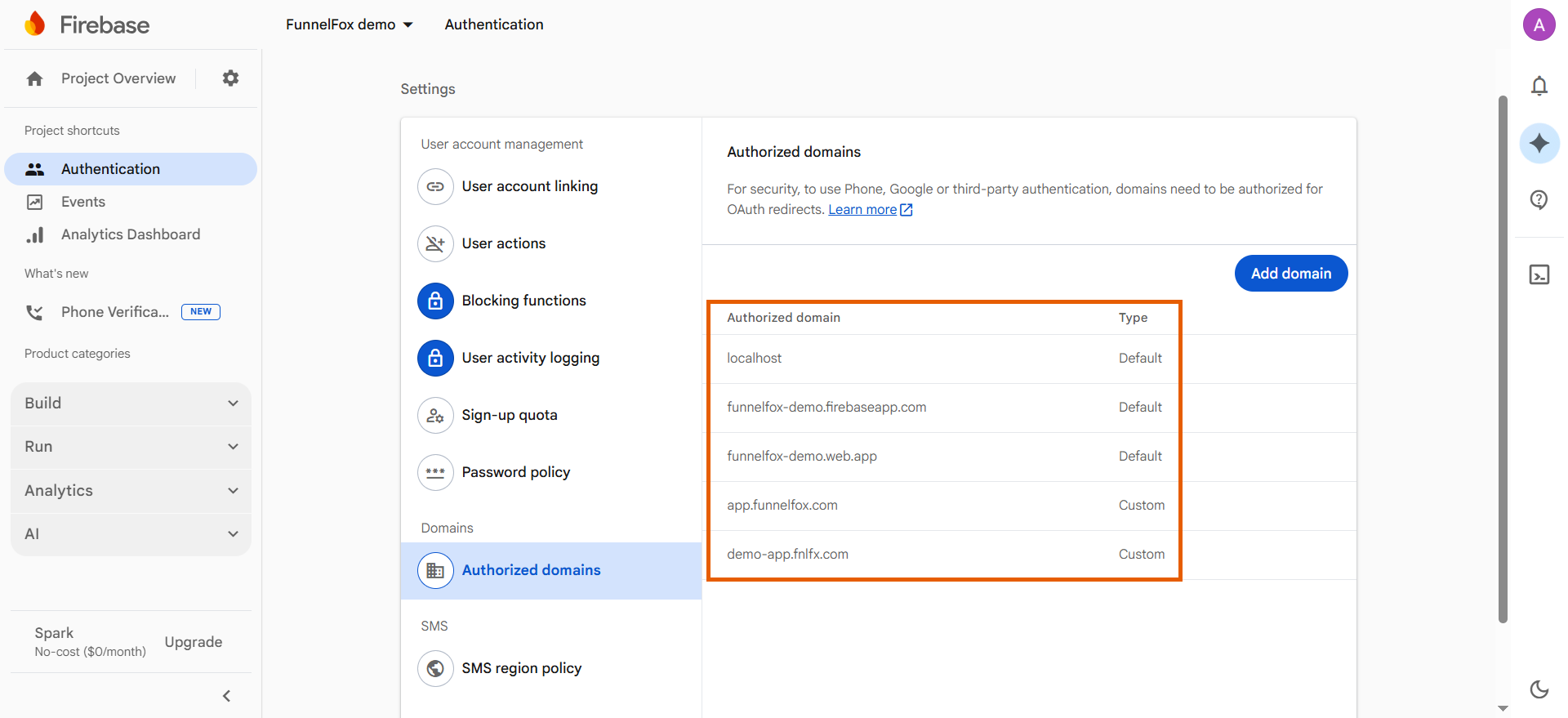
 5. Go to **Authentication > Settings > Authorized domains** and make sure the following domains are added:
* Your full project URL.
* `https://app.funnelfox.com`
* Your custom domains (if any).
5. Go to **Authentication > Settings > Authorized domains** and make sure the following domains are added:
* Your full project URL.
* `https://app.funnelfox.com`
* Your custom domains (if any).
 **Google console configuration**
Configure Google Cloud console to enable OAuth authentication with your FunnelFox domain.
You will need your full project URL for this step. Go to [Settings > Domains](https://app.funnelfox.com/settings/domains) in your FunnelFox project and copy your project URL, e.g. `https://demo-app.fnlfx.com`.
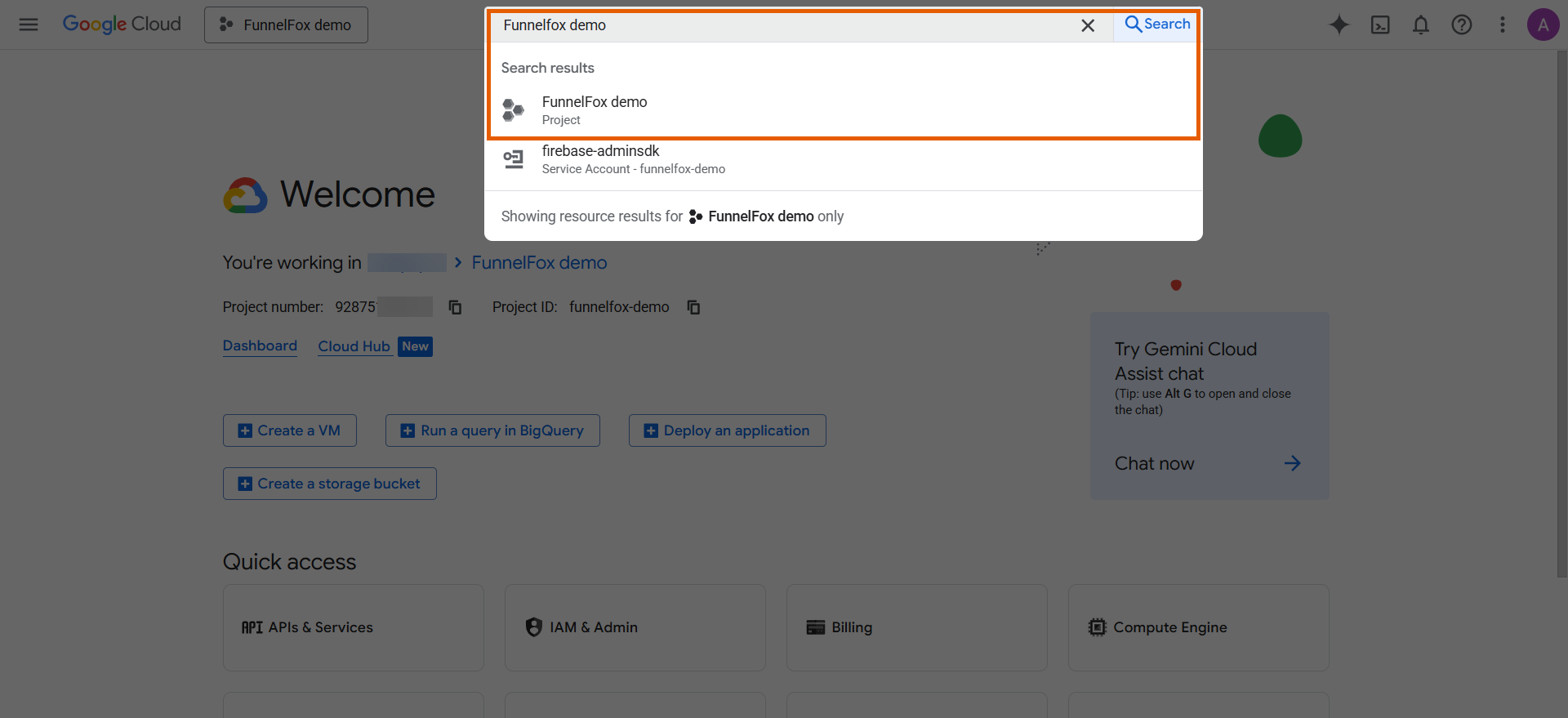
1. Open the project you've just created in the [Google Cloud console](https://console.cloud.google.com/).
**Google console configuration**
Configure Google Cloud console to enable OAuth authentication with your FunnelFox domain.
You will need your full project URL for this step. Go to [Settings > Domains](https://app.funnelfox.com/settings/domains) in your FunnelFox project and copy your project URL, e.g. `https://demo-app.fnlfx.com`.
1. Open the project you've just created in the [Google Cloud console](https://console.cloud.google.com/).
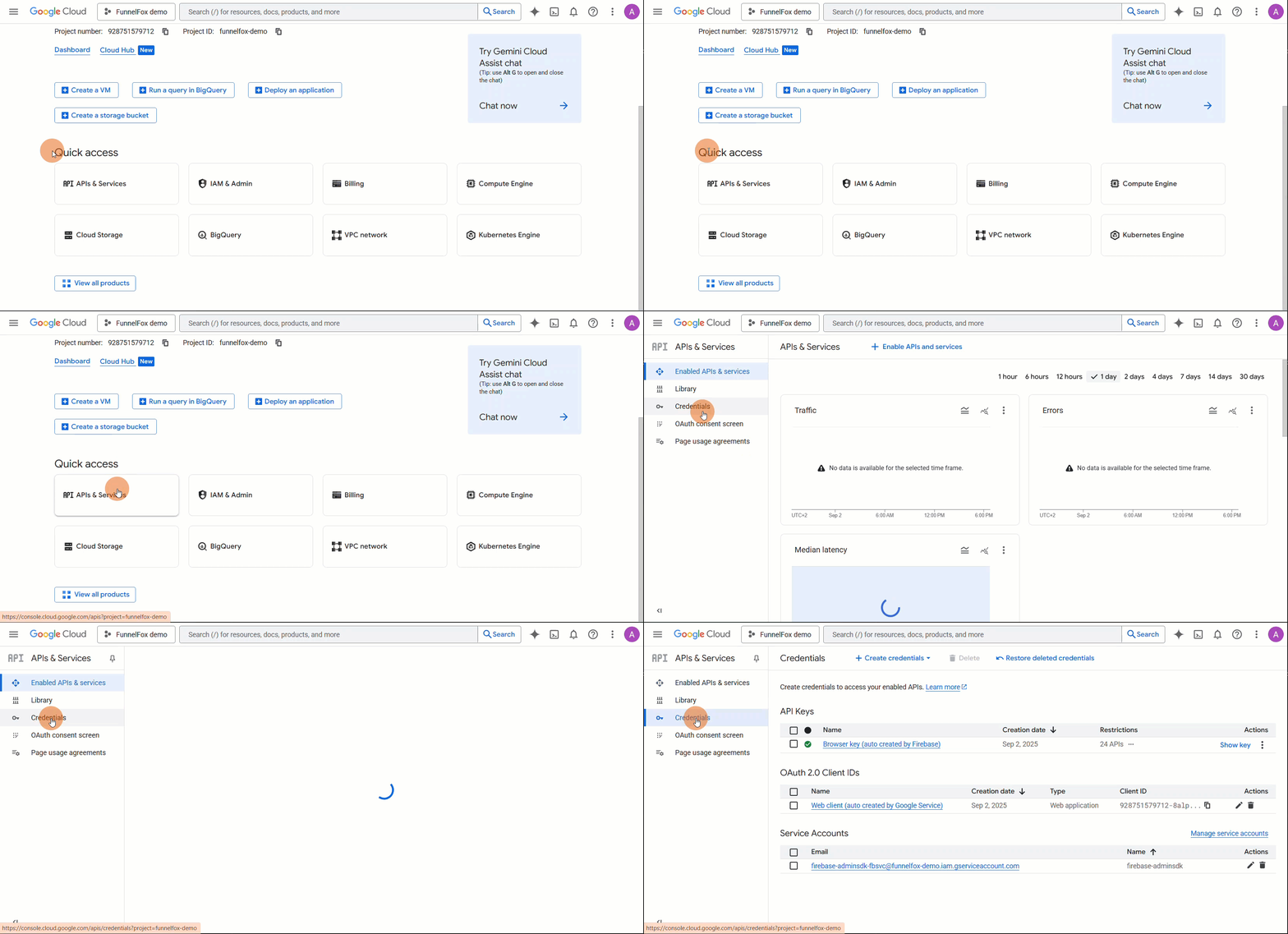
 2. Go to **APIs & Services > Credentials** from the **Quick access** section.
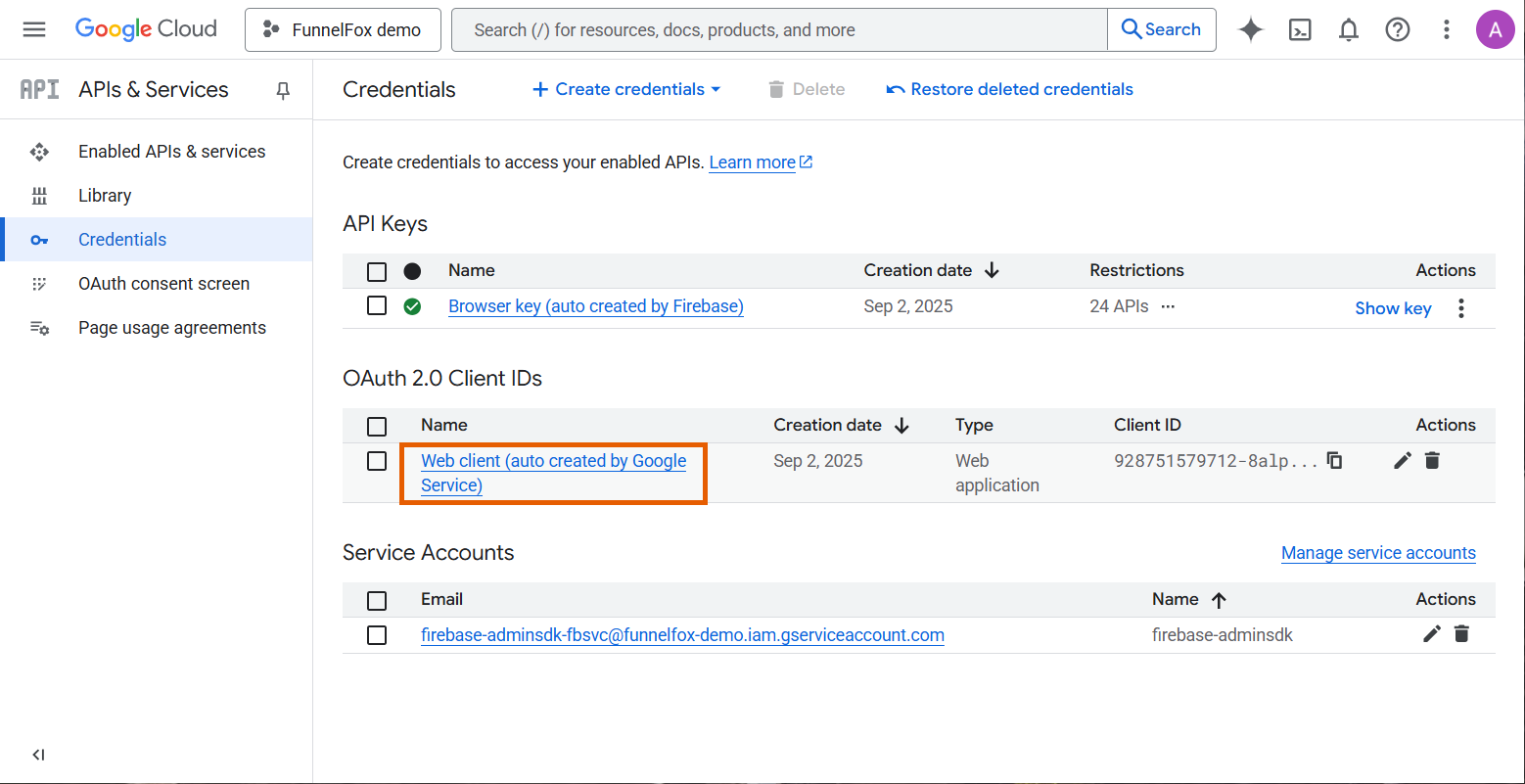
 3. Open the web client just auto created by Google Service under **OAuth 2.0 Client IDs**.
 4. Click **Add URL** twice under **Authorized JavaScript origins**, and set up the following two fields:
* Paste your full project URL.
* Paste `https://app.funnelfox.com`.
4. Click **Add URL** twice under **Authorized JavaScript origins**, and set up the following two fields:
* Paste your full project URL.
* Paste `https://app.funnelfox.com`.
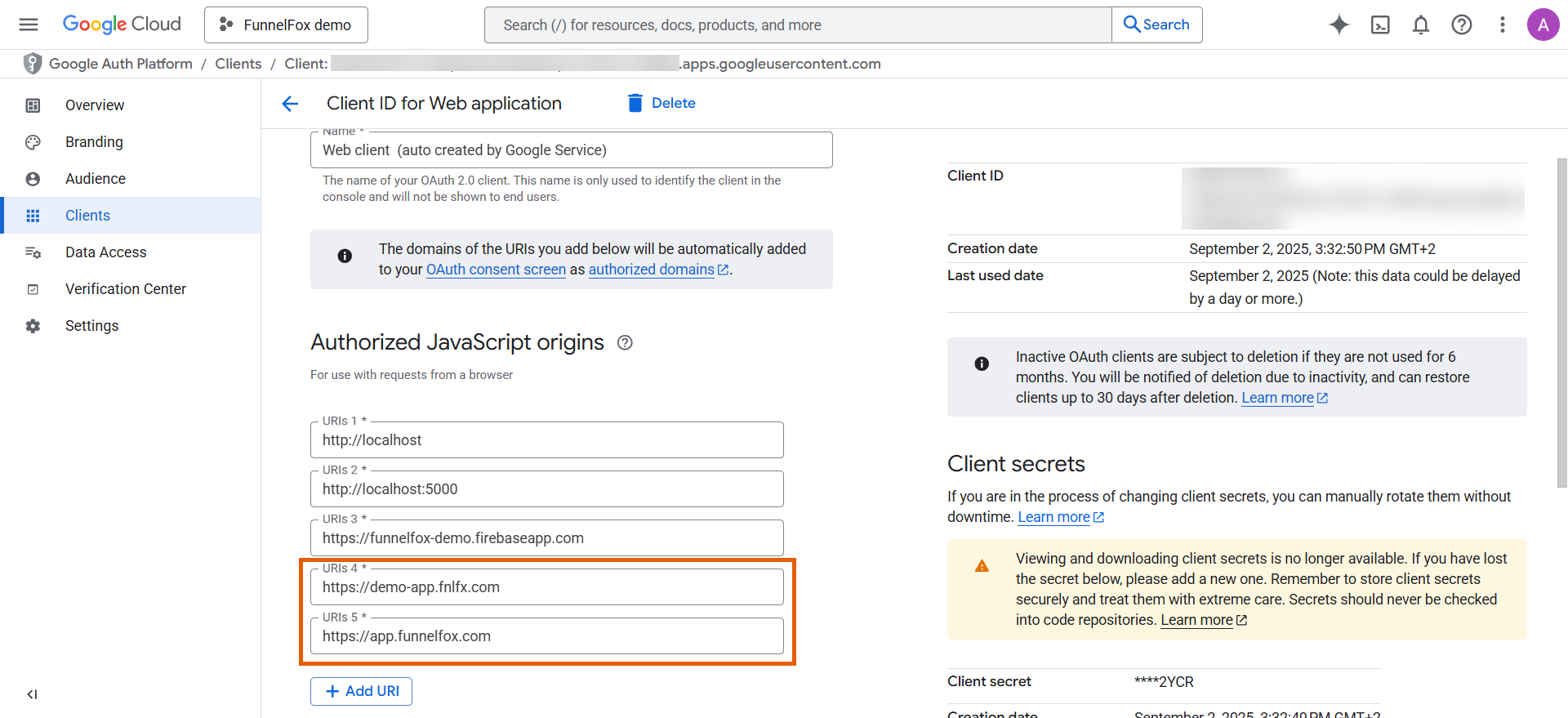 5. Click **Add URl** twice under **Authorized redirect URIs**, and set up the following two fields:
* Paste your full project URL+ `/__/auth/handler`. Your final URl will look like `https://demo-app.fnlfx.com/__/auth/handler`.
* Paste `https://app.funnelfox.com/__/auth/handler`.
5. Click **Add URl** twice under **Authorized redirect URIs**, and set up the following two fields:
* Paste your full project URL+ `/__/auth/handler`. Your final URl will look like `https://demo-app.fnlfx.com/__/auth/handler`.
* Paste `https://app.funnelfox.com/__/auth/handler`.
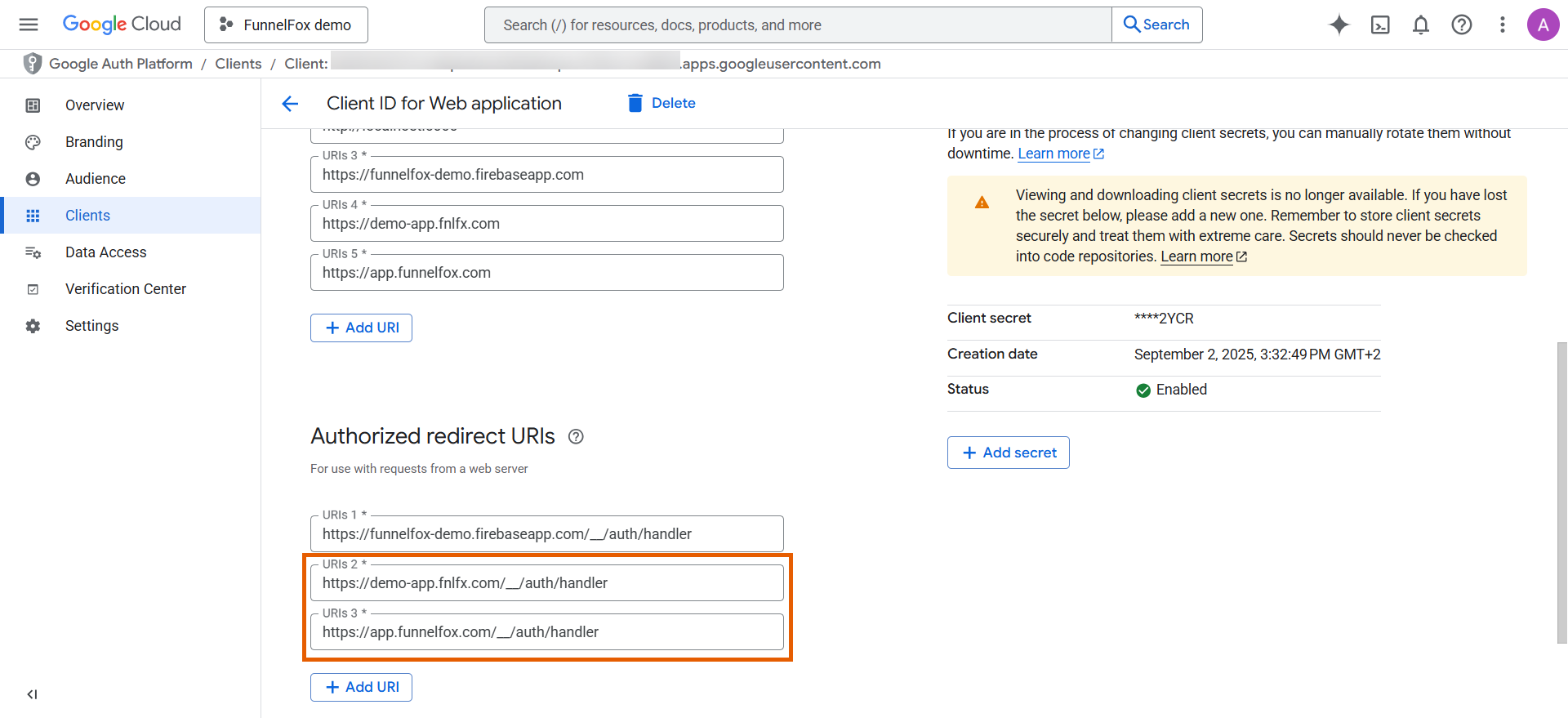 6. Click **Save**.
Apple OAuth provides seamless authentication using Apple ID. You'll configure your Service ID and key in Apple Developer Portal, then set up the provider in Firebase.
You will need an **App ID** registered with enabled **Sign in with Apple** capability. Learn about [App IDs in Apple documentation](https://developer.apple.com/help/account/identifiers/register-an-app-id) if you don't have one.
**Apple Service ID configuration**
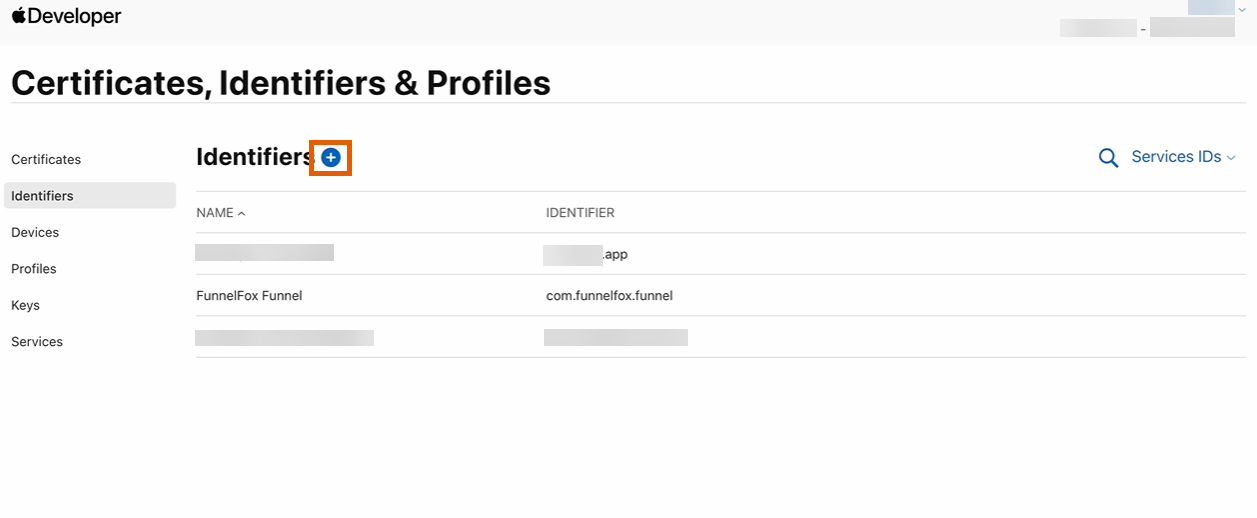
1. Go to [Certificates, Identifiers & Profiles > Identifiers](https://developer.apple.com/account/resources/identifiers) in your Apple Developer Portal.
2. Click **+** to create a new identifier.
6. Click **Save**.
Apple OAuth provides seamless authentication using Apple ID. You'll configure your Service ID and key in Apple Developer Portal, then set up the provider in Firebase.
You will need an **App ID** registered with enabled **Sign in with Apple** capability. Learn about [App IDs in Apple documentation](https://developer.apple.com/help/account/identifiers/register-an-app-id) if you don't have one.
**Apple Service ID configuration**
1. Go to [Certificates, Identifiers & Profiles > Identifiers](https://developer.apple.com/account/resources/identifiers) in your Apple Developer Portal.
2. Click **+** to create a new identifier.
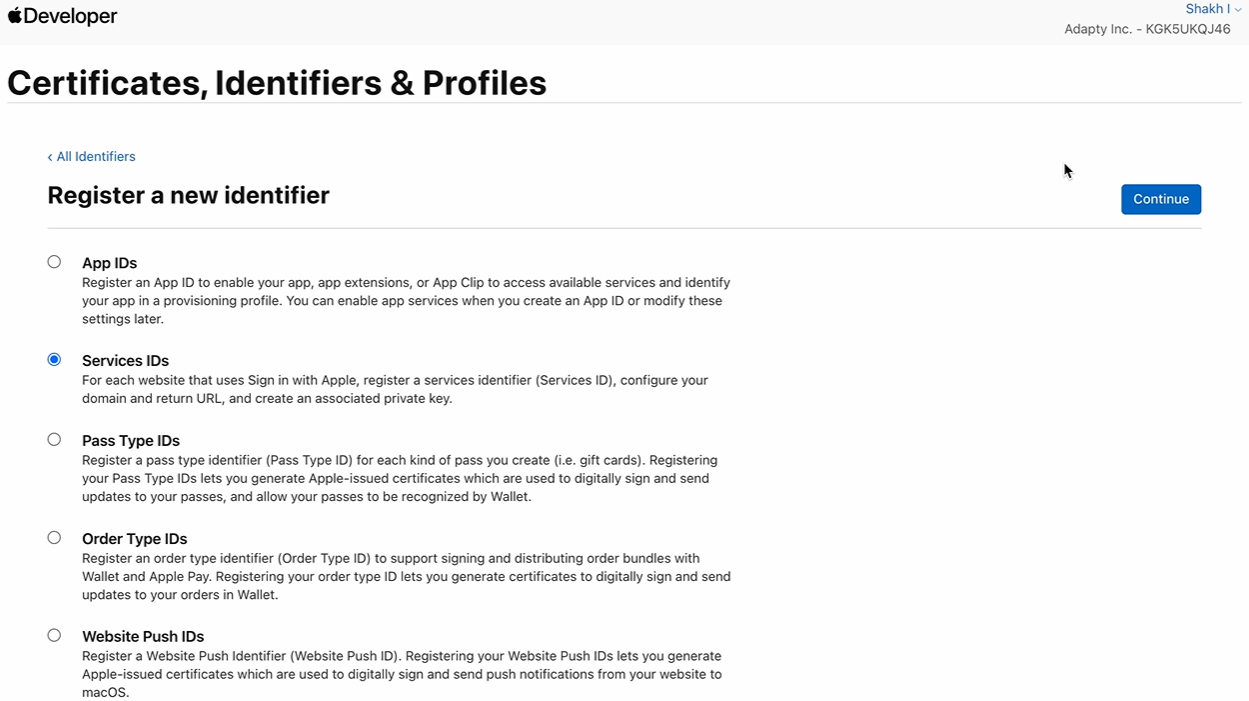
 3. Select **Services IDs** and click **Continue**.
 4. Enter your Service ID **Description** and **Identifier**. Use reverse-domain naming, e.g. `com.yourdomain.oauth`.
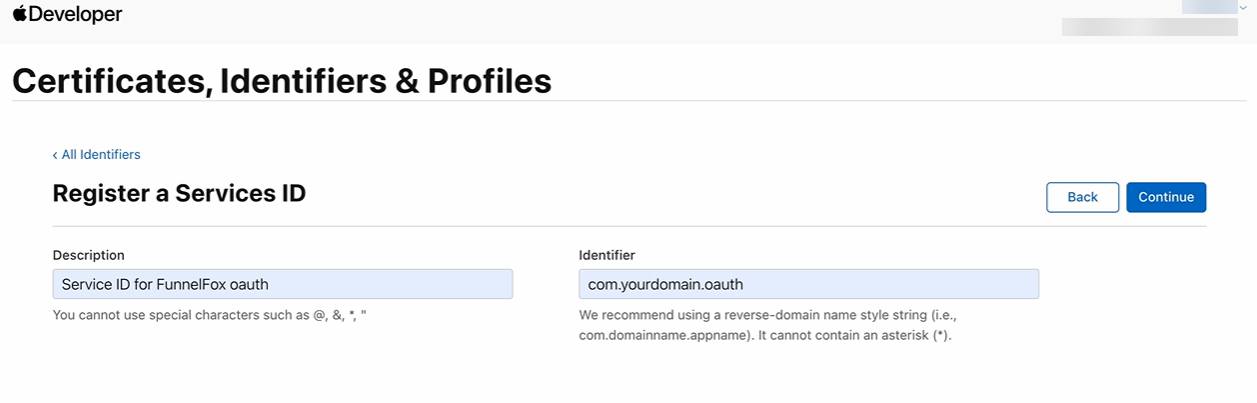 5. Click **Continue**, then **Register**.
6. Open the Service ID you just created.
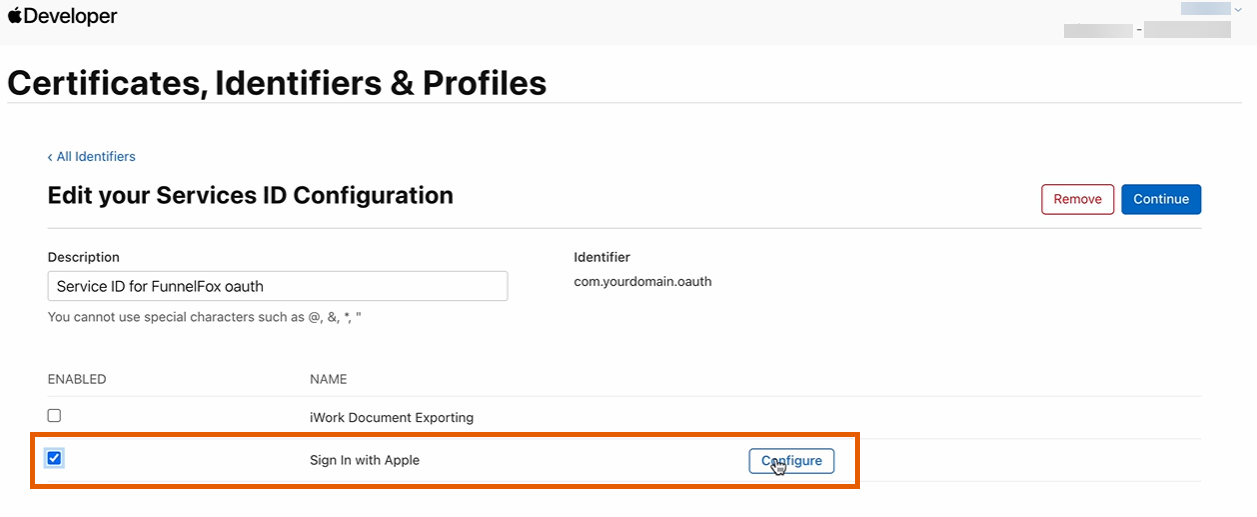
7. Enable **Sign In with Apple** and click **Configure**.
5. Click **Continue**, then **Register**.
6. Open the Service ID you just created.
7. Enable **Sign In with Apple** and click **Configure**.
 8. Configure the Web Authentication:
* **Primary App ID**: Select your App ID.
* **Domains and Subdomains**: Add two domains
* Your project domain from [Settings > Domains](/dashboard/settings#domains) in FunnelFox, e.g. `demo-app.fnlfx.com`.
* `https://app.funnelfox.com`.
* **Return URLs**: Add two return domains
* Your project domain with the auth handler path: `https://YOUR_DOMAIN/__/auth/handler`. For example, `https://demo-app.fnlfx.com/__/auth/handler`.
* `https://app.funnelfox.com/__/auth/handler`.
8. Configure the Web Authentication:
* **Primary App ID**: Select your App ID.
* **Domains and Subdomains**: Add two domains
* Your project domain from [Settings > Domains](/dashboard/settings#domains) in FunnelFox, e.g. `demo-app.fnlfx.com`.
* `https://app.funnelfox.com`.
* **Return URLs**: Add two return domains
* Your project domain with the auth handler path: `https://YOUR_DOMAIN/__/auth/handler`. For example, `https://demo-app.fnlfx.com/__/auth/handler`.
* `https://app.funnelfox.com/__/auth/handler`.
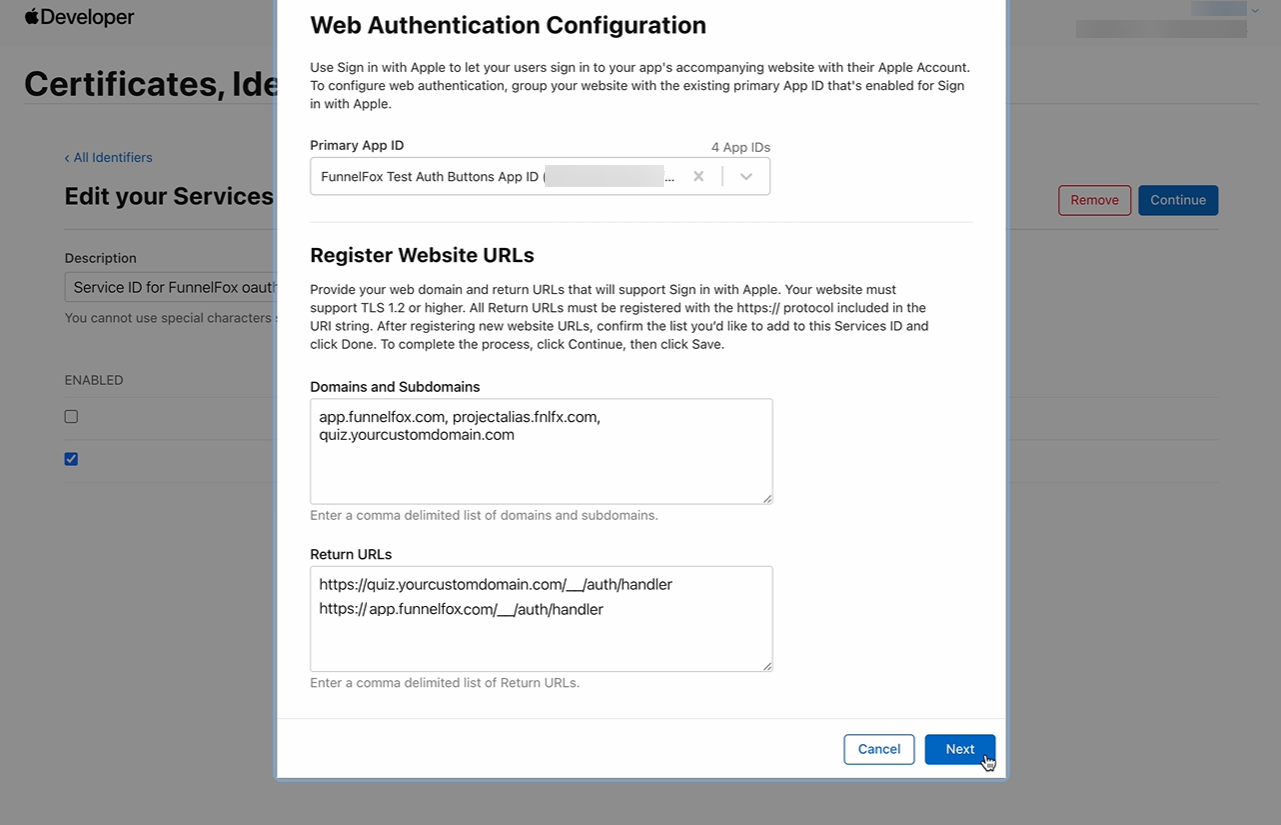 9. Click **Next**, then click **Done**.
10. Click **Continue**, then click **Save** to the right from **Services ID Configuration**.
**Apple key configuration**
1. Go to the **Keys** tab in [Certificates, Identifiers & Profiles](https://developer.apple.com/account/resources/identifiers).
2. Click **+** to create a new key.
9. Click **Next**, then click **Done**.
10. Click **Continue**, then click **Save** to the right from **Services ID Configuration**.
**Apple key configuration**
1. Go to the **Keys** tab in [Certificates, Identifiers & Profiles](https://developer.apple.com/account/resources/identifiers).
2. Click **+** to create a new key.
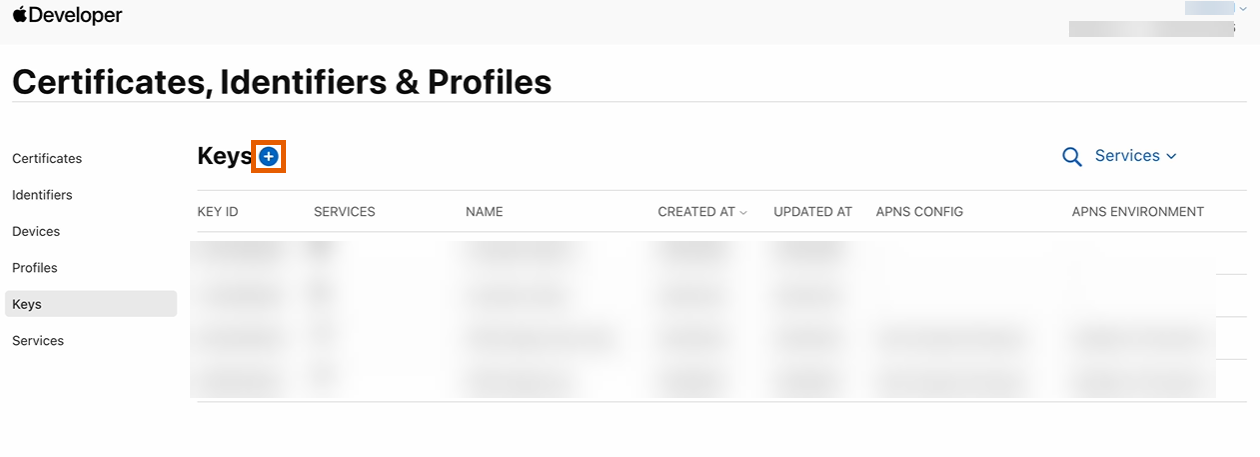 3. Name your key.
4. Enable **Sign in with Apple** and click **Configure**.
3. Name your key.
4. Enable **Sign in with Apple** and click **Configure**.
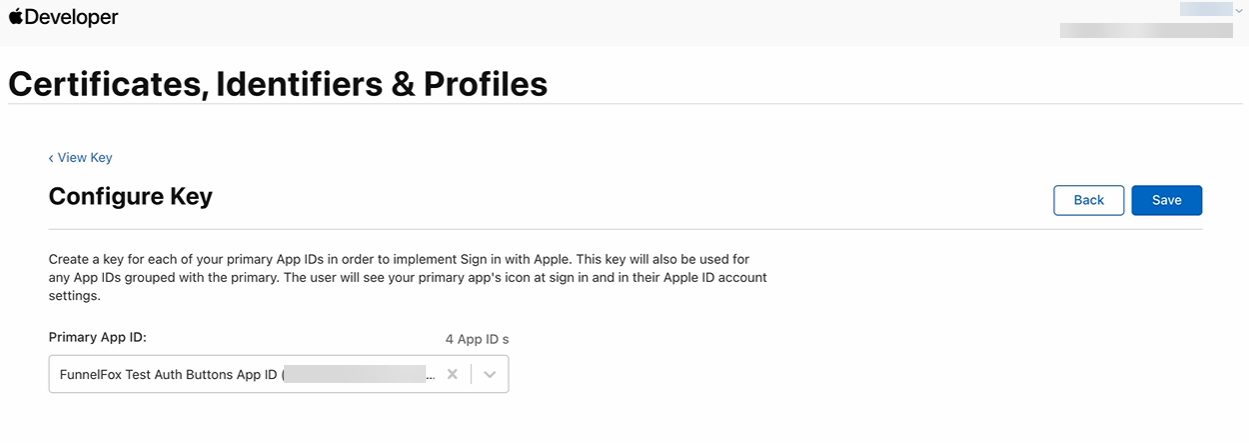
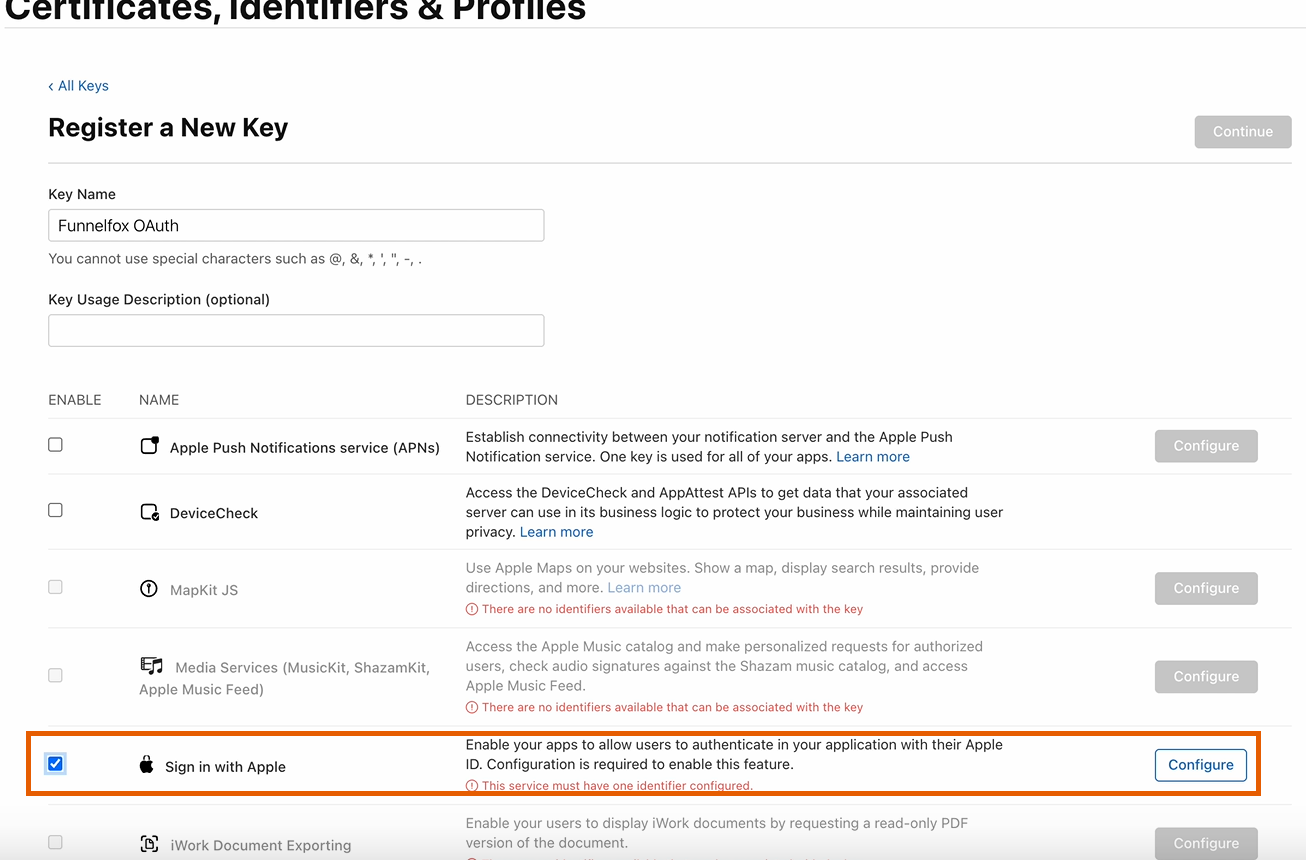 5. Select your **Primary App ID** and click **Save**.
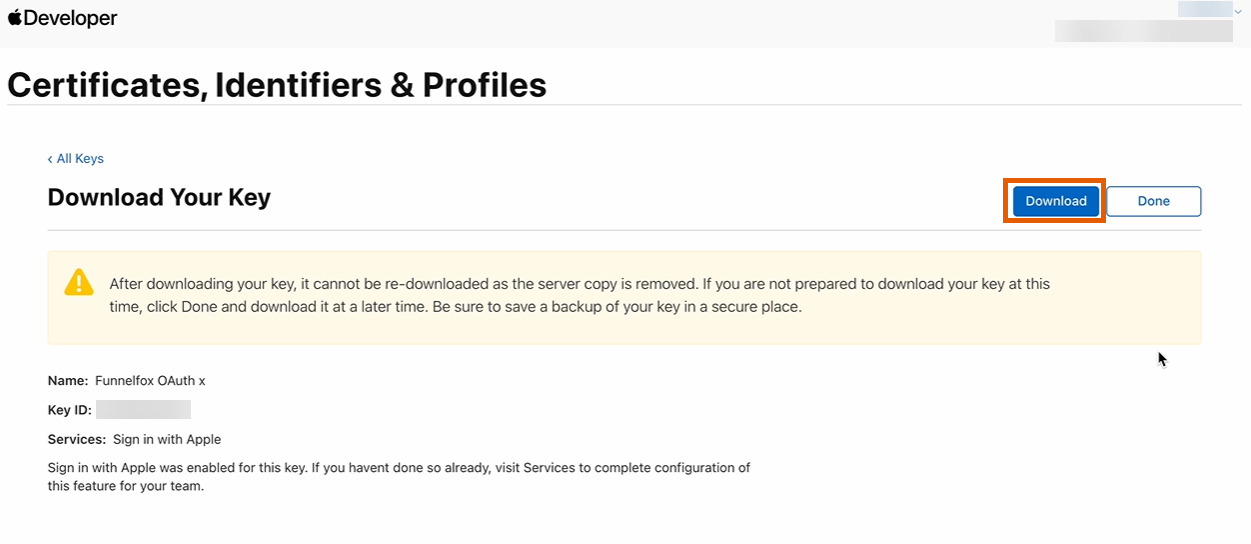
 6. Click **Continue**, then click **Register**.
7. Click **Download** to save your key file. You'll need it in the next step.
You can download the key file only once.
6. Click **Continue**, then click **Register**.
7. Click **Download** to save your key file. You'll need it in the next step.
You can download the key file only once.
 **Firebase configuration**
1. Go to **Authentication > Sign-in method** in your Firebase project.
2. Click **Add new provider**.
3. Click **Apple** in **Additional providers**.
4. Toggle on **Apple**.
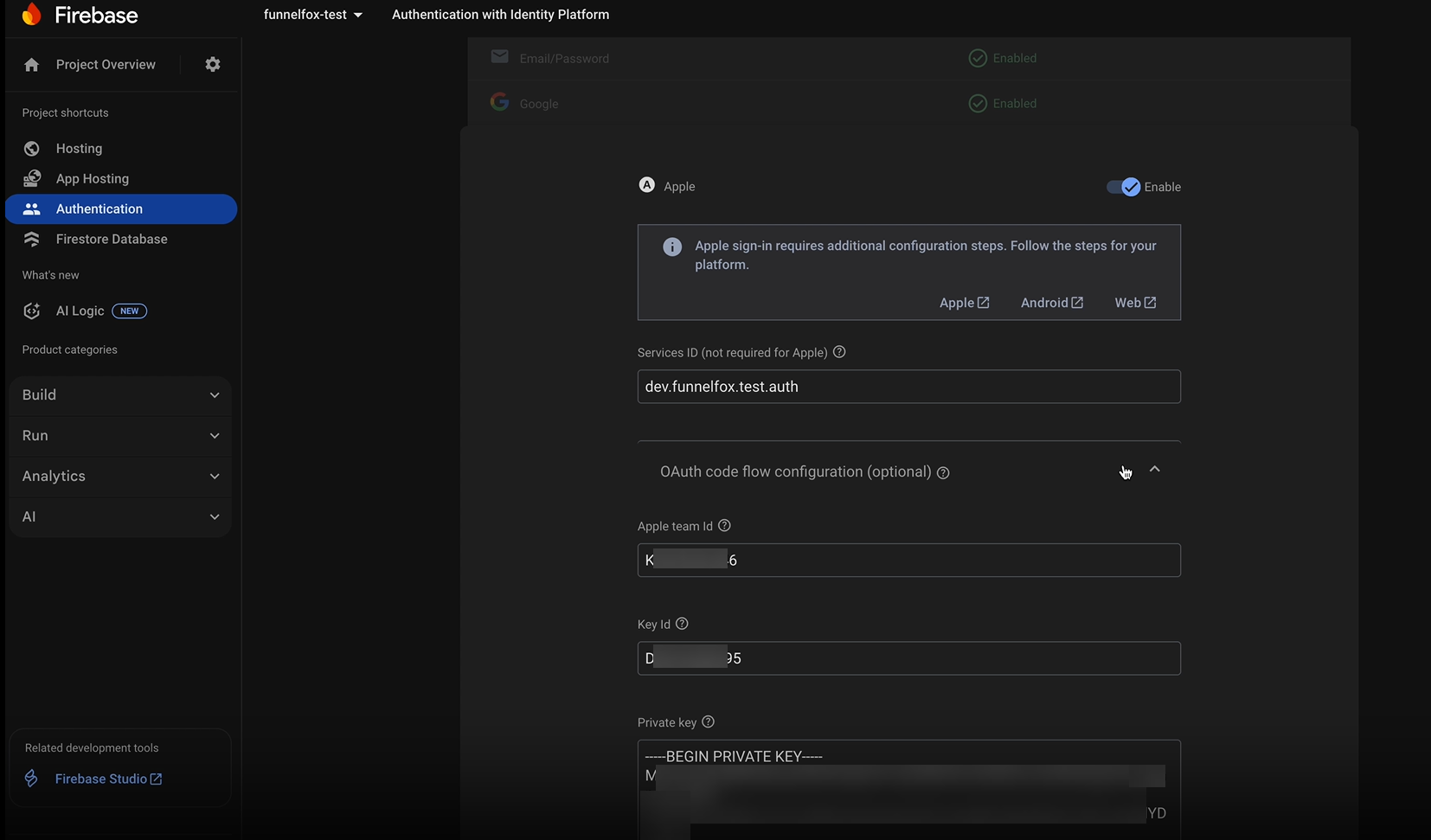
5. Enter your project details:
* **Services ID**: The identifier for the Service ID you created.
* **Apple team ID**: Your 10-character team ID from the **Membership details** page of your [Apple developer account](https://developer.apple.com/account). Learn more about [Apple Team ID](https://developer.apple.com/help/glossary/team-id/).
* **Key ID**: The identifier of the key you created.
* **Private key**: The contents of the key file you downloaded.
**Firebase configuration**
1. Go to **Authentication > Sign-in method** in your Firebase project.
2. Click **Add new provider**.
3. Click **Apple** in **Additional providers**.
4. Toggle on **Apple**.
5. Enter your project details:
* **Services ID**: The identifier for the Service ID you created.
* **Apple team ID**: Your 10-character team ID from the **Membership details** page of your [Apple developer account](https://developer.apple.com/account). Learn more about [Apple Team ID](https://developer.apple.com/help/glossary/team-id/).
* **Key ID**: The identifier of the key you created.
* **Private key**: The contents of the key file you downloaded.
 6. Click **Save**.
7. Go to **Authentication > Settings > Authorized domains** and make sure the following domains are added:
* Your full project URL.
* `https://app.funnelfox.com`
* Your custom domains (if any).
Magic links eliminate password-related routine and are very reliable. Users enter their email, receive a link, and tapping it logs them in.
Learn how to [configure magic links](https://firebase.google.com/docs/auth/web/email-link-auth) in Firebase.
### 4. Register Your App in Firebase
Register your web app in Firebase to obtain the configuration values needed for FunnelFox integration.
1. Go back to your Firebase project.
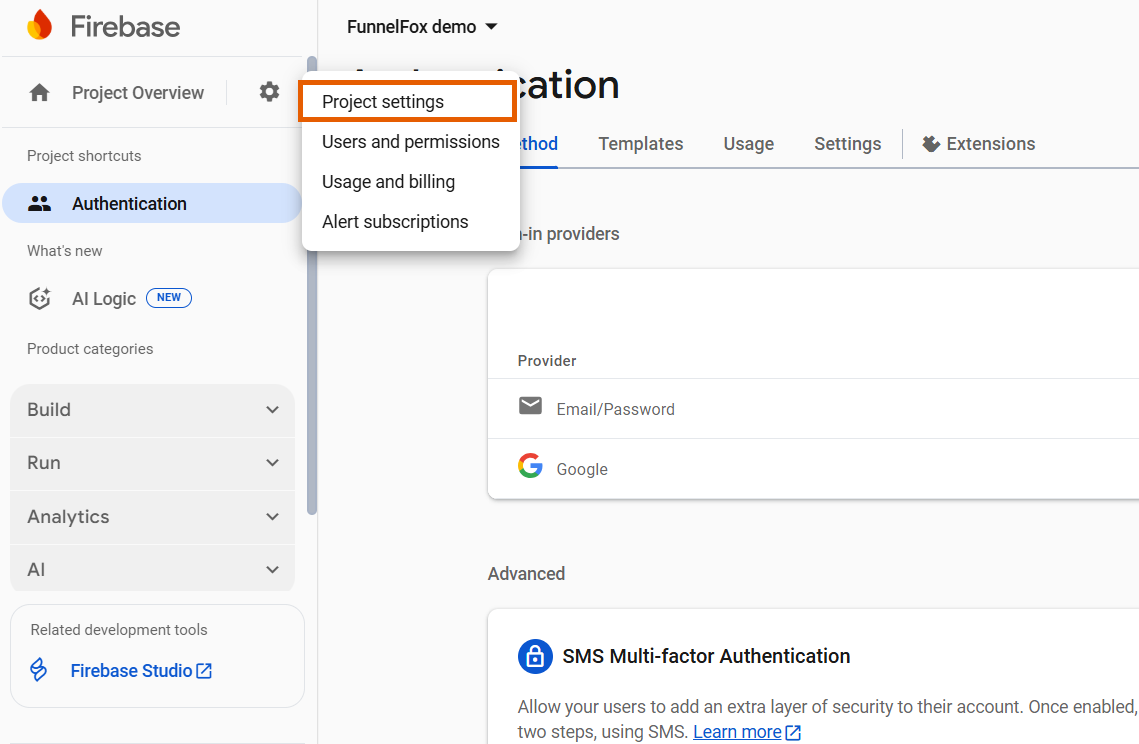
2. Click the settings gear icon at the top left and select **Project settings**.
6. Click **Save**.
7. Go to **Authentication > Settings > Authorized domains** and make sure the following domains are added:
* Your full project URL.
* `https://app.funnelfox.com`
* Your custom domains (if any).
Magic links eliminate password-related routine and are very reliable. Users enter their email, receive a link, and tapping it logs them in.
Learn how to [configure magic links](https://firebase.google.com/docs/auth/web/email-link-auth) in Firebase.
### 4. Register Your App in Firebase
Register your web app in Firebase to obtain the configuration values needed for FunnelFox integration.
1. Go back to your Firebase project.
2. Click the settings gear icon at the top left and select **Project settings**.
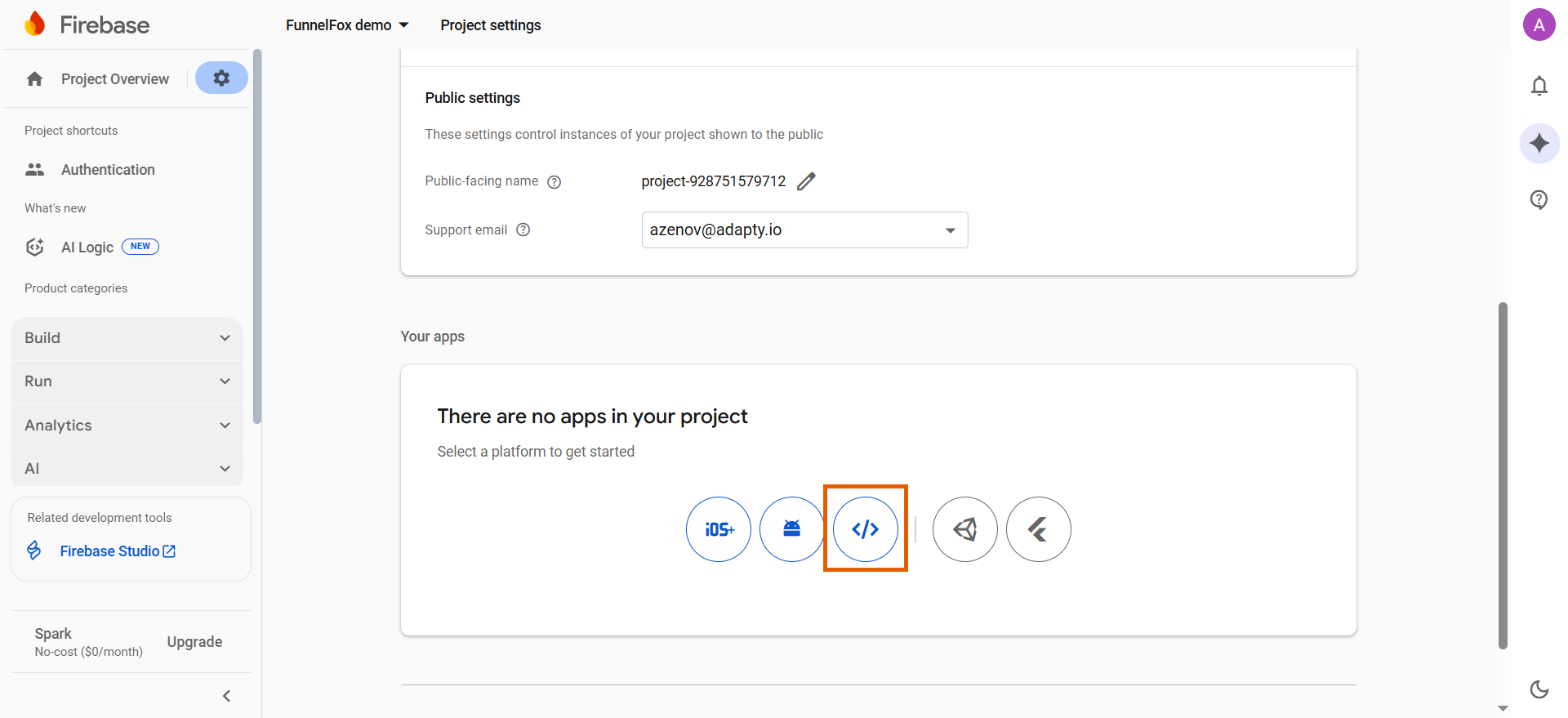
 3. Select the web icon under **Your apps**.
 4. Add your **app nickname**.
5. Click **Register app**.
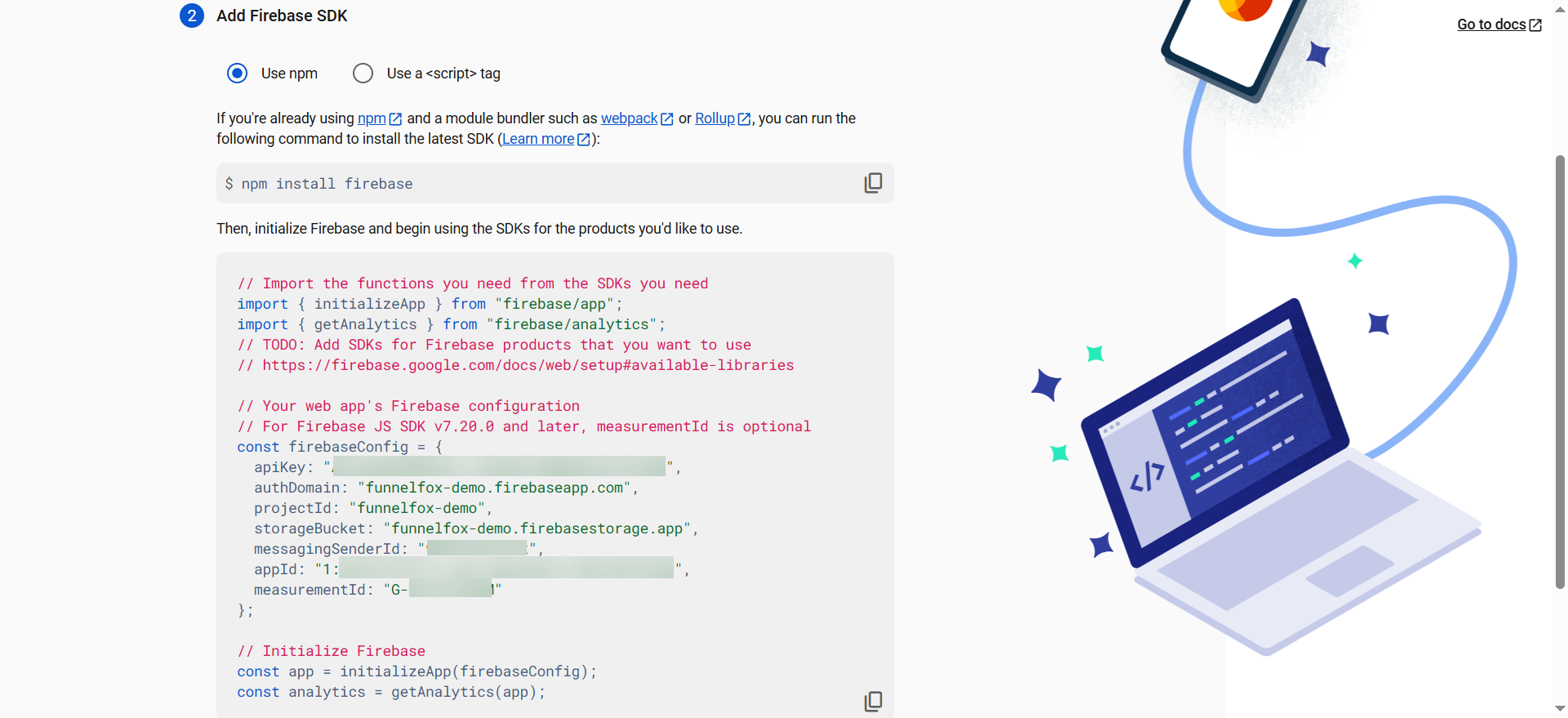
You will see the config required for the next step.
4. Add your **app nickname**.
5. Click **Register app**.
You will see the config required for the next step.
 ### 5. Connect Firebase to FunnelFox
Complete the integration by adding your Firebase configuration to FunnelFox.
1. Go to [Integrations > Firebase](https://app.funnelfox.com/integrations/firebase) in FunnelFox.
2. Toggle on **Firebase**.
3. Copy the config values from Firebase project and paste them in FunnelFox using the following mapping:
| Firebase Config Value | FunnelFox Field |
| --------------------- | -------------------- |
| `apiKey` | Firebase API Key |
| `authDomain` | Firebase Auth Domain |
| `projectId` | Firebase Project ID |
4. Click **Save changes**.
### 5. Connect Firebase to FunnelFox
Complete the integration by adding your Firebase configuration to FunnelFox.
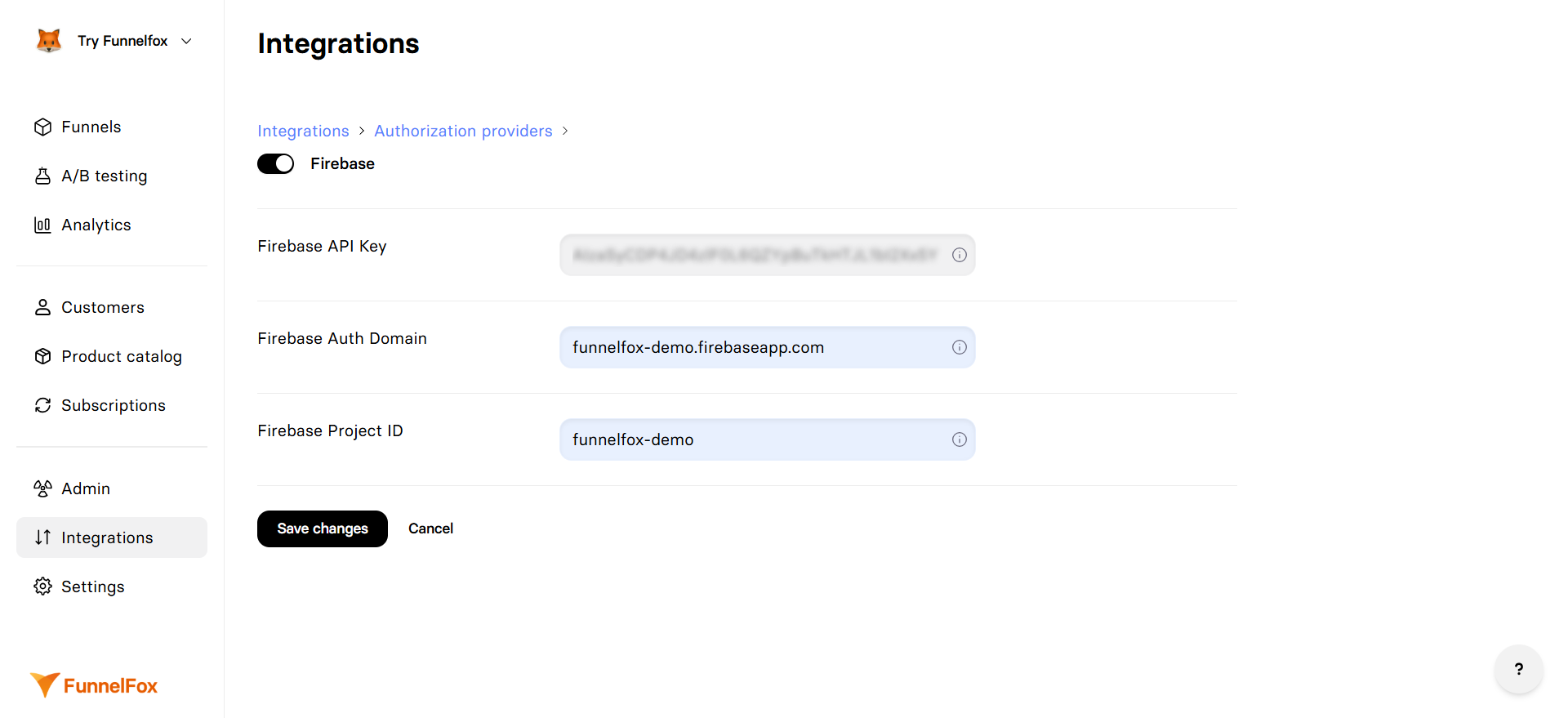
1. Go to [Integrations > Firebase](https://app.funnelfox.com/integrations/firebase) in FunnelFox.
2. Toggle on **Firebase**.
3. Copy the config values from Firebase project and paste them in FunnelFox using the following mapping:
| Firebase Config Value | FunnelFox Field |
| --------------------- | -------------------- |
| `apiKey` | Firebase API Key |
| `authDomain` | Firebase Auth Domain |
| `projectId` | Firebase Project ID |
4. Click **Save changes**.
 You successfully integrated Firebase! Add the authentication methods you've set up to your funnels in the Editor.
## Service account key
The service account key lets FunnelFox look customers up in Firebase. It's required for email sign in to work reliably.
With the key, FunnelFox can find a customer in Firebase even when:
* The customer exists in FunnelFox with an email only, and no FUID is stored in their profile.
* The customer exists in Firebase but not yet in this FunnelFox project.
To upload the key to FunnelFox:
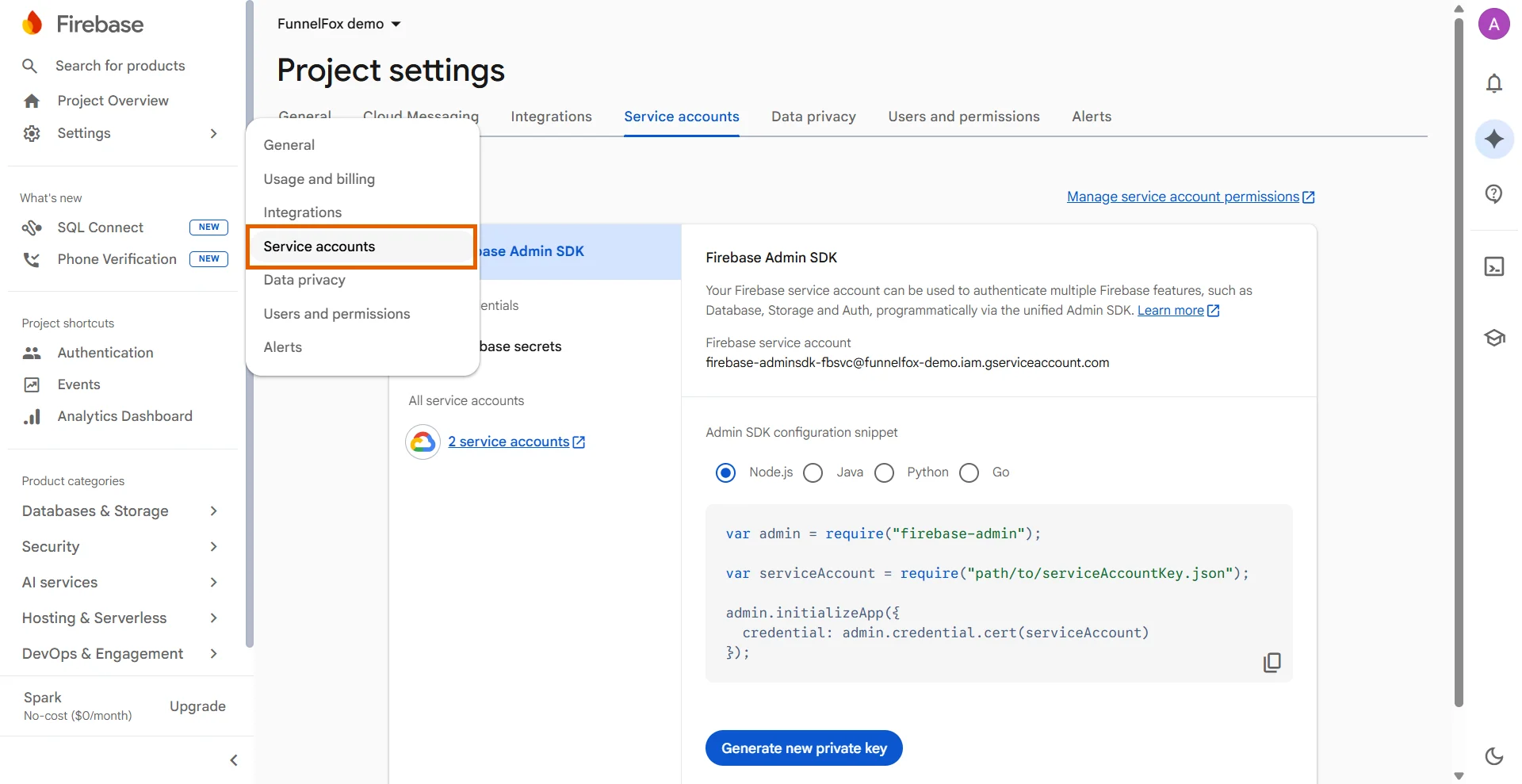
1. Go to **Settings > Service accounts** in the [Firebase console](https://console.firebase.google.com/).
You successfully integrated Firebase! Add the authentication methods you've set up to your funnels in the Editor.
## Service account key
The service account key lets FunnelFox look customers up in Firebase. It's required for email sign in to work reliably.
With the key, FunnelFox can find a customer in Firebase even when:
* The customer exists in FunnelFox with an email only, and no FUID is stored in their profile.
* The customer exists in Firebase but not yet in this FunnelFox project.
To upload the key to FunnelFox:
1. Go to **Settings > Service accounts** in the [Firebase console](https://console.firebase.google.com/).
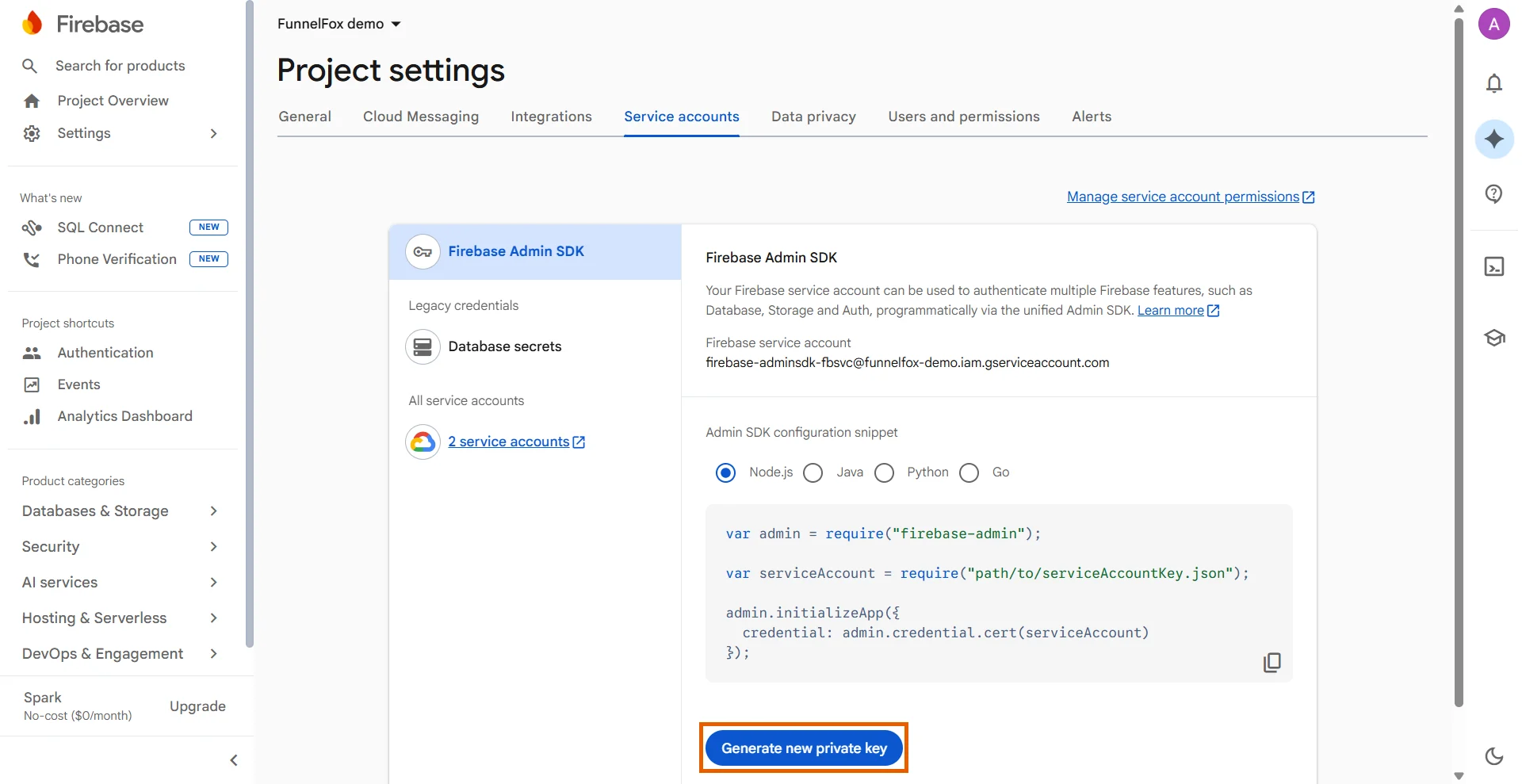
 2. Click **Generate new private key**.
 3. Confirm the download. The JSON file with the key is created and downloaded within a few seconds.
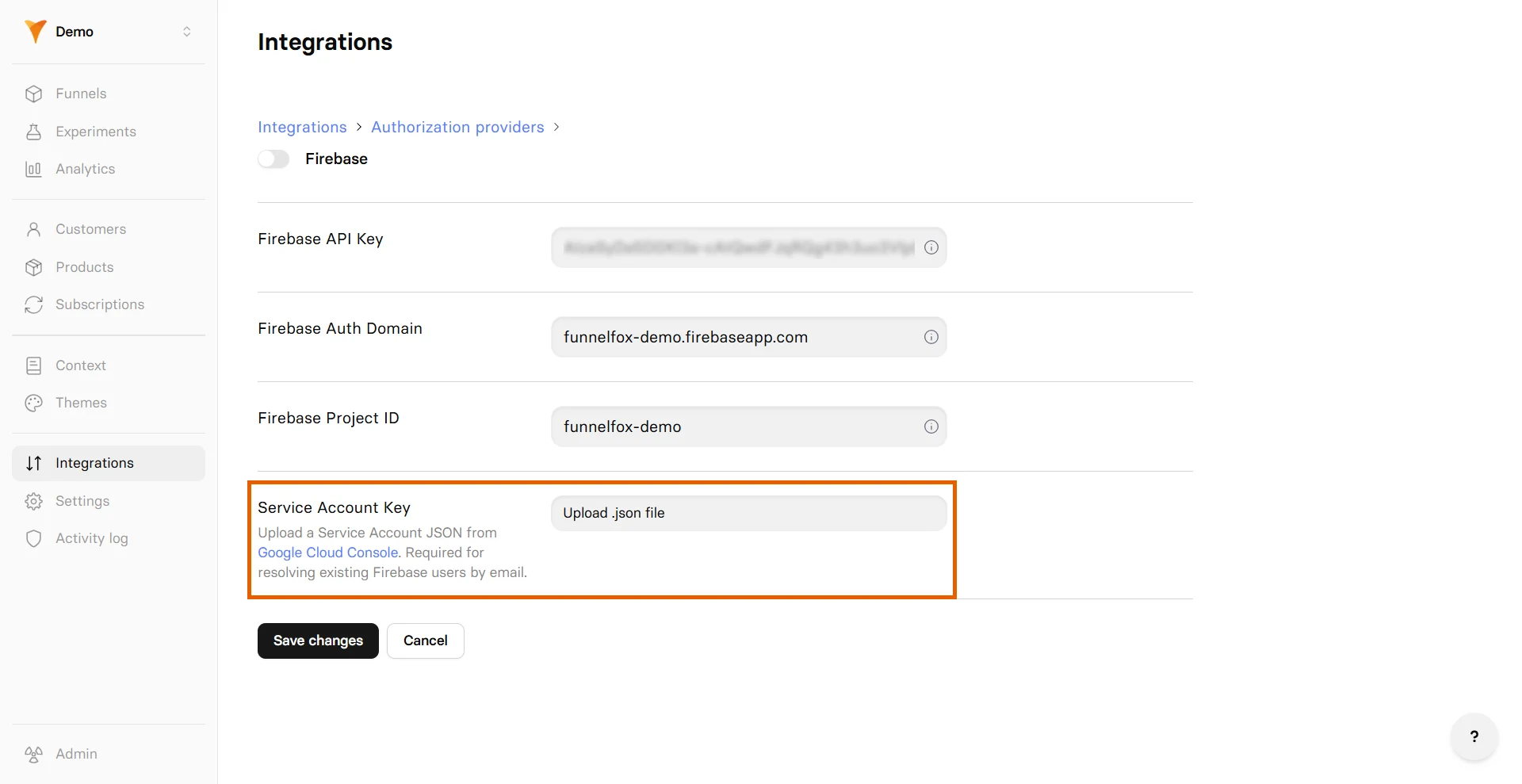
Go to [Integrations > Firebase](https://app.funnelfox.com/integrations/firebase) in FunnelFox. Upload the JSON file using the **Service Account Key** field, then save changes.
3. Confirm the download. The JSON file with the key is created and downloaded within a few seconds.
Go to [Integrations > Firebase](https://app.funnelfox.com/integrations/firebase) in FunnelFox. Upload the JSON file using the **Service Account Key** field, then save changes.
 ### Multi-project setups
If you run multiple FunnelFox projects integrated with the same Firebase project, the service account key lets a customer use email sign in even when they were originally created in a different FunnelFox project.
In this case, FunnelFox:
1. Looks the customer up in Firebase.
2. Creates a new profile in the current project, since the customer didn't exist here before.
3. Signs in the same Firebase customer by FUID.
4. Records the purchase in the same Adapty or RevenueCat profile.
Both FunnelFox projects must be integrated with the same Firebase project for this to work.
## Add authentication to funnels
Once Firebase is configured, you can add authentication flows to your funnels in the Editor. The following authentication methods correspond to the ones you've set up in Firebase.
The same OAuth buttons serve both authentication methods: sign up and sign in.
### Email/Password authentication
Enable users to authenticate with their email address and custom password.
To add Email/Password authentication to your funnel:
1. In the Editor, prompt the AI Chat to add a screen for user registration with both **Email** and **Password** inputs.
Or go to **Add element > Inputs** and add these inputs manually.
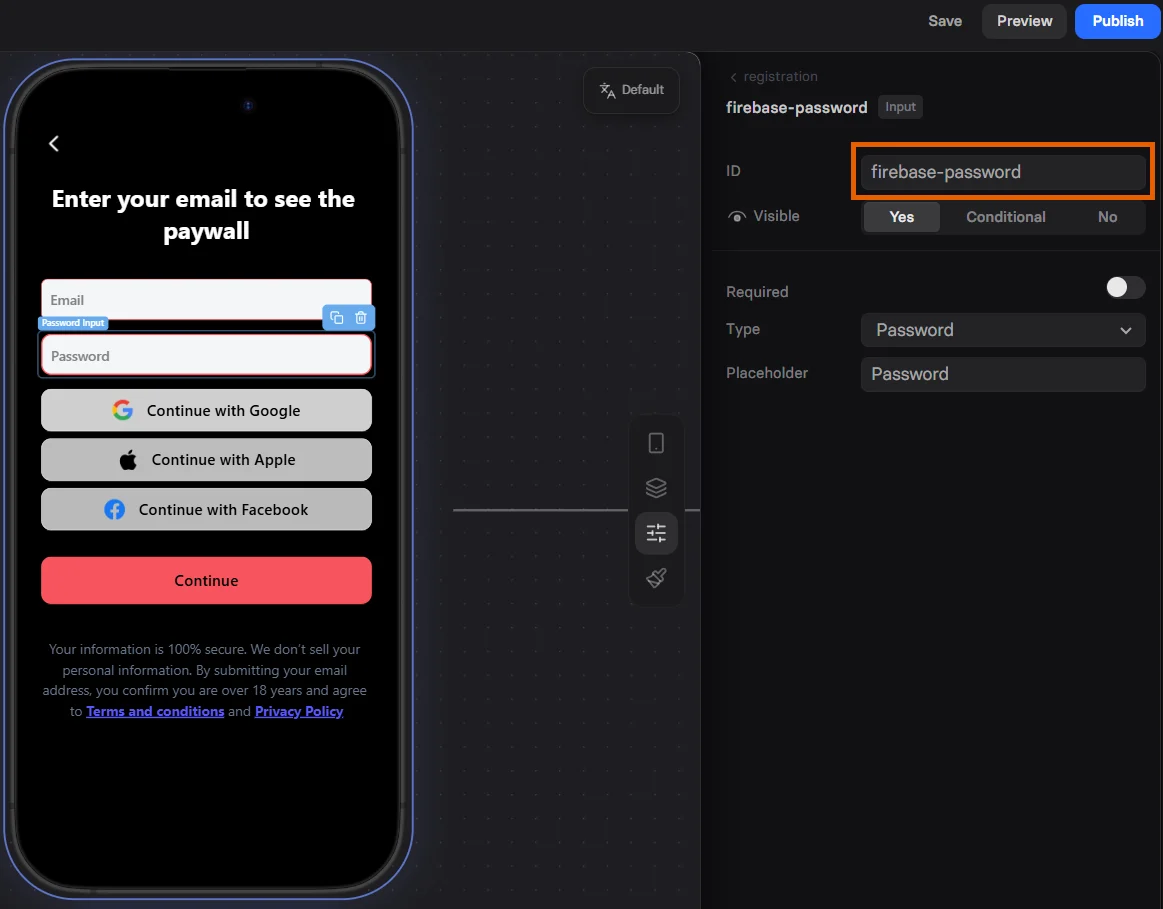
2. Set the Custom ID to `firebase-password` for the Password input.
By default, FunnelFox generates a random password when a user submits their email in the funnel. It's important to add the Password input on the same screen to replace the previously generated password with the one provided.
### Multi-project setups
If you run multiple FunnelFox projects integrated with the same Firebase project, the service account key lets a customer use email sign in even when they were originally created in a different FunnelFox project.
In this case, FunnelFox:
1. Looks the customer up in Firebase.
2. Creates a new profile in the current project, since the customer didn't exist here before.
3. Signs in the same Firebase customer by FUID.
4. Records the purchase in the same Adapty or RevenueCat profile.
Both FunnelFox projects must be integrated with the same Firebase project for this to work.
## Add authentication to funnels
Once Firebase is configured, you can add authentication flows to your funnels in the Editor. The following authentication methods correspond to the ones you've set up in Firebase.
The same OAuth buttons serve both authentication methods: sign up and sign in.
### Email/Password authentication
Enable users to authenticate with their email address and custom password.
To add Email/Password authentication to your funnel:
1. In the Editor, prompt the AI Chat to add a screen for user registration with both **Email** and **Password** inputs.
Or go to **Add element > Inputs** and add these inputs manually.
2. Set the Custom ID to `firebase-password` for the Password input.
By default, FunnelFox generates a random password when a user submits their email in the funnel. It's important to add the Password input on the same screen to replace the previously generated password with the one provided.
 ### OAuth authentication
Enable seamless OAuth authentication using Google or Apple accounts for a frictionless user experience.
To add OAuth authentication to your funnel:
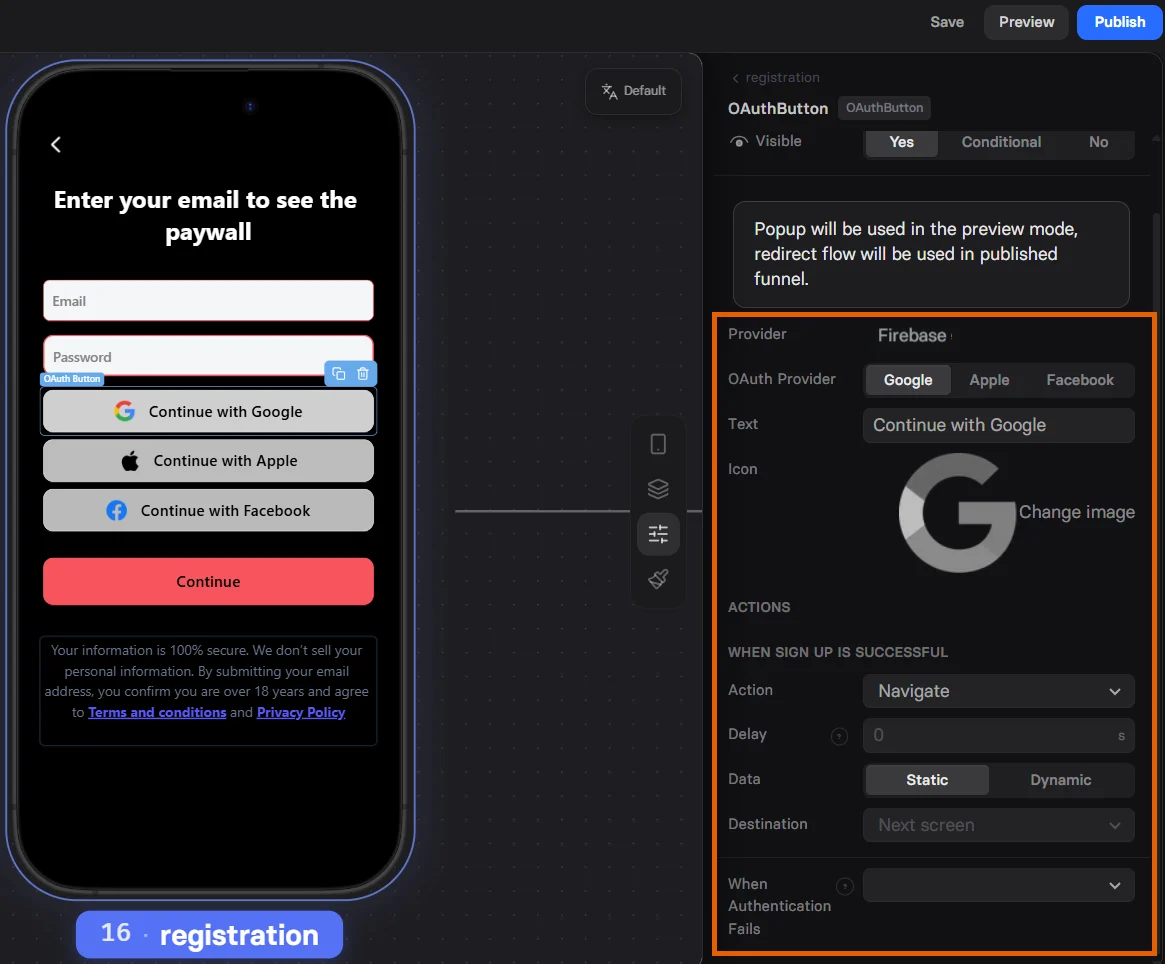
1. In the Editor, prompt the AI Chat to add a screen for user registration with OAuth button or use the one you've already added for Email/Password.
Or click **Add element > Authentication** and select **OAuth button**.
2. Go to the **Parameters** tab of the OAuth button.
3. Select OAuth provider.
4. Under **Actions**, set up user navigation for cases when authentication succeeds or fails.
Learn more about setting up [navigation actions](/editor/actions#navigate).
Apple OAuth works correctly only in a published funnel and returns a 403 error in funnel preview.
### OAuth authentication
Enable seamless OAuth authentication using Google or Apple accounts for a frictionless user experience.
To add OAuth authentication to your funnel:
1. In the Editor, prompt the AI Chat to add a screen for user registration with OAuth button or use the one you've already added for Email/Password.
Or click **Add element > Authentication** and select **OAuth button**.
2. Go to the **Parameters** tab of the OAuth button.
3. Select OAuth provider.
4. Under **Actions**, set up user navigation for cases when authentication succeeds or fails.
Learn more about setting up [navigation actions](/editor/actions#navigate).
Apple OAuth works correctly only in a published funnel and returns a 403 error in funnel preview.