> ## Documentation Index
> Fetch the complete documentation index at: https://funnelfox.com/docs/llms.txt
> Use this file to discover all available pages before exploring further.
# Google Tag Manager integration
> Deploy and manage analytics tags in FunnelFox via GTM. Set up data layer events, triggers, variables, and server-side tagging.
Google Tag Manager (GTM) integration allows you to manage all your tracking
tags through your existing GTM container.
 ## Features
* **Tag Management**: Deploy tags without code changes
* **Data Layer Integration**: Access all FunnelFox events
* **Version Control**: Test and rollback tag configurations
* **Debug Mode**: Preview tags before publishing
* **Built-in Templates**: Quick setup for common platforms
* **Custom Variables**: Create complex tracking logic
## Configuration
### Prerequisites
* Google Tag Manager account with container
* GTM container ID (GTM-XXXXXXX)
* FunnelFox project with funnels ready to publish
### Setup Steps
1. Log into [Google Tag Manager](https://tagmanager.google.com)
2. Select your container
3. Copy the **Container ID** (format: GTM-XXXXXXX)
4. Note: It's displayed in the top navigation bar
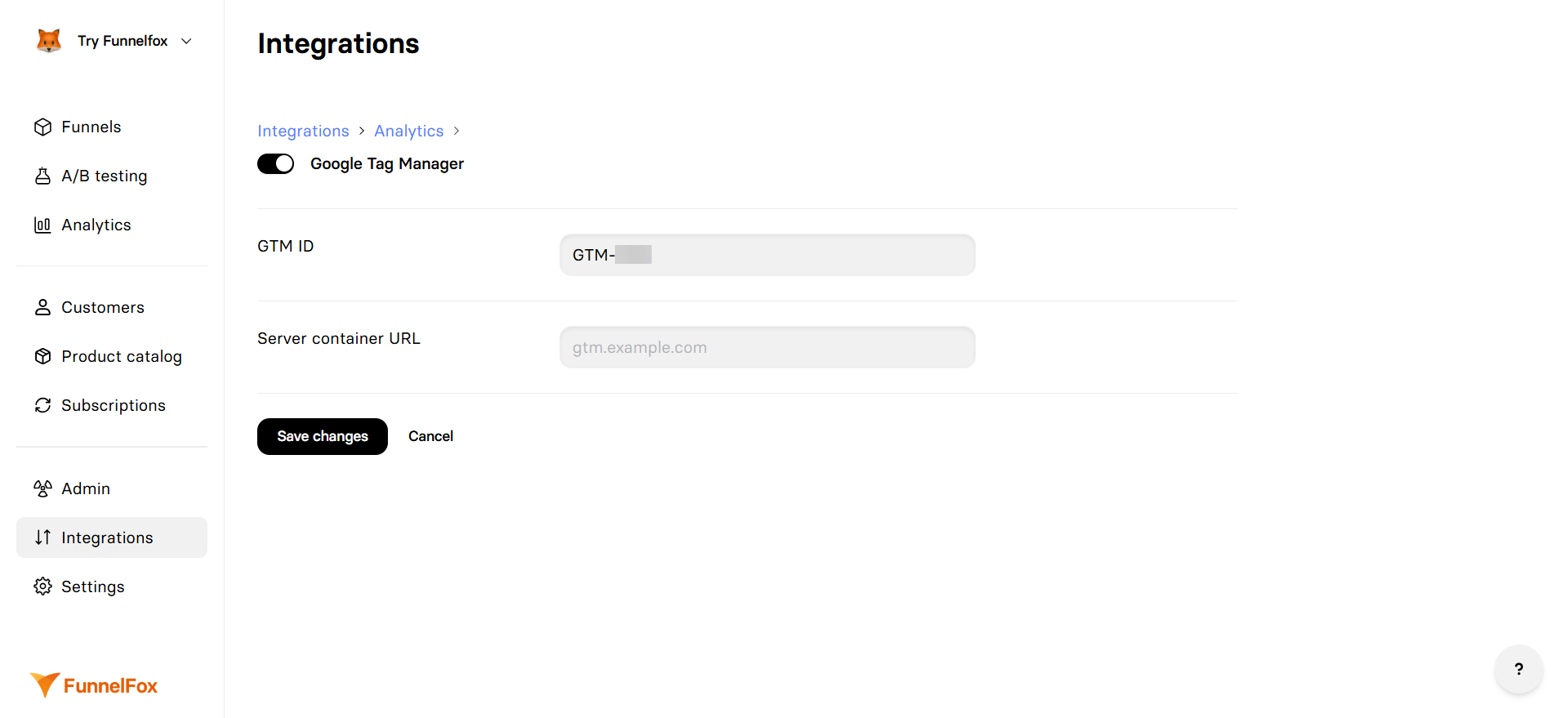
1. Go to **Integrations** → **Google Tag Manager**
2. Toggle **Google Tag Manager** on
3. Paste your **GTM Container ID**
4. Click **Save changes**
[Republish your funnels](/editor/publishing) to activate GTM
Set up your tags, triggers, and variables in GTM
(detailed below)
When GTM is enabled, it can work alongside direct Google Analytics
integration. Both use the data layer without conflict.
## Data Layer Events
FunnelFox automatically pushes all events to the GTM data layer.
Here's what FunnelFox sends automatically:
```javascript theme={null}
// This is automatically pushed by FunnelFox when a page loads:
window.dataLayer.push({
event: 'screen_presented',
funnel_id: 'welcome-flow',
funnel_alias: 'Welcome Flow',
page_index: 0,
page_id: 'intro',
profile_id: 'abc123',
session_id: 'xyz789',
sandbox: false,
user_data: { sha256_email_address: '5e88...c1f4' }
});
```
### Available Events
All [standard events](/integrations/events#events) are available
as triggers in GTM:
* `onboarding_started`
* `screen_presented`
* `screen_completed`
* `purchase_completed_success`
* `user_email_collected`
* And all other standard events
## Common Tag Configurations
### Google Analytics 4
1. In GTM, click **Tags** → **New**
2. Choose **Google Analytics: GA4 Configuration**
3. Enter your Measurement ID
4. Trigger on **All Pages**
For each event you want to track:
1. Create new **GA4 Event** tag
2. Use `{{Event}}` as event name
3. Add event parameters from data layer variables
4. Trigger on specific FunnelFox events
### Facebook Pixel
1. Create **Custom HTML** tag
2. Add Facebook Pixel base code
3. Trigger on **All Pages**
Create tags for key events:
* `user_email_collected` → Lead event
* `purchase_completed_success` → Purchase event
* `checkout_presented` → InitiateCheckout event
Use the [Facebook Pixel Helper Chrome Extension](https://chromewebstore.google.com/detail/facebook-pixel-helper/fdgfkebogiimcoedlicjlajpkdmockpc)
to verify pixel events are firing correctly.
### AppLovin (Axon Pixel)
FunnelFox funnels support AppLovin tracking using Google Tag Manager. Follow the complete [GTM guide from the Axon documentation](https://support.axon.ai/en/growth/promoting-your-websites/axon-pixel-integration/google-tag-manager) to set up your Google Tag Manager.
To improve user identification, FunnelFox also supports the `_axwrt` cookie. Learn more about [enhanced user identification](https://support.axon.ai/en/growth/promoting-your-websites/axon-pixel-integration/google-tag-manager#enhanced-user-identification-recommended) with Axon Pixel.
### Custom Platform Integration
```html theme={null}
```
## Variables Setup
### Built-in Variables
Enable these in GTM:
* **Event**: Access event names
* **Page URL**: Current page location
* **Referrer**: Traffic source
### Data Layer Variables
Create variables for FunnelFox data:
| Variable Name | Data Layer Variable | Type |
| ----------------- | ------------------- | ------------------- |
| DLV - funnel\_id | funnel\_id | Data Layer Variable |
| DLV - page\_index | page\_index | Data Layer Variable |
| DLV - profile\_id | profile\_id | Data Layer Variable |
| DLV - price | price | Data Layer Variable |
| DLV - product\_id | product\_id | Data Layer Variable |
| DLV - sandbox | sandbox | Data Layer Variable |
## Triggers
### Event-Based Triggers
Create triggers for specific events:
1. **Purchase Trigger**
* Trigger Type: Custom Event
* Event Name: `purchase_completed_success`
2. **Email Capture Trigger**
* Trigger Type: Custom Event
* Event Name: `user_email_collected`
3. **Checkout Trigger**
* Trigger Type: Custom Event
* Event Name: `checkout_presented`
### Conditional Triggers
Add conditions to triggers:
* Only fire on production: `sandbox equals false`
* Specific funnel: `funnel_id equals welcome-flow`
* Minimum page depth: `page_index greater than 2`
## Debug Mode
### Preview Container
1. In GTM, click **Preview**
2. Enter your funnel URL
3. Navigate through your funnel
4. See tags fire in real-time
5. Verify variables are populated
### Debug Tools
Install the [Tag Assistant Companion Chrome Extension](https://chromewebstore.google.com/detail/tag-assistant-companion/jmekfmbnaedfebfnmakmokmlfpblbfdm)
for enhanced debugging with GTM Preview mode.
* Use Tag Assistant for detailed debugging
* Check data layer in browser console: `dataLayer`
* Verify tag firing order and timing
* Test both preview and production modes
### Server-Side Tagging
For improved performance and privacy:
1. Set up GTM Server container
2. Route tags through your domain
3. Reduce client-side JavaScript
4. Improve page load speed
## Troubleshooting
* Verify Container ID format (GTM-XXXXXXX)
* Check funnels were republished
* Look for GTM snippet in page source
* Disable ad blockers during testing
* Use GTM Preview mode to debug
* Check trigger conditions
* Verify event names match exactly
* Look at data layer in console
* Ensure data layer variables are created
* Use Preview mode to inspect values
* Look for duplicate containers
* Review tag sequencing
## Next Steps
* [Configure specific tracking platforms](/integrations/tracking)
* [Set up conversion tracking](/integrations/tracking/google-ads)
* Learn about [GTM best practices](https://support.google.com/tagmanager/answer/6103697)
## Features
* **Tag Management**: Deploy tags without code changes
* **Data Layer Integration**: Access all FunnelFox events
* **Version Control**: Test and rollback tag configurations
* **Debug Mode**: Preview tags before publishing
* **Built-in Templates**: Quick setup for common platforms
* **Custom Variables**: Create complex tracking logic
## Configuration
### Prerequisites
* Google Tag Manager account with container
* GTM container ID (GTM-XXXXXXX)
* FunnelFox project with funnels ready to publish
### Setup Steps
1. Log into [Google Tag Manager](https://tagmanager.google.com)
2. Select your container
3. Copy the **Container ID** (format: GTM-XXXXXXX)
4. Note: It's displayed in the top navigation bar
1. Go to **Integrations** → **Google Tag Manager**
2. Toggle **Google Tag Manager** on
3. Paste your **GTM Container ID**
4. Click **Save changes**
[Republish your funnels](/editor/publishing) to activate GTM
Set up your tags, triggers, and variables in GTM
(detailed below)
When GTM is enabled, it can work alongside direct Google Analytics
integration. Both use the data layer without conflict.
## Data Layer Events
FunnelFox automatically pushes all events to the GTM data layer.
Here's what FunnelFox sends automatically:
```javascript theme={null}
// This is automatically pushed by FunnelFox when a page loads:
window.dataLayer.push({
event: 'screen_presented',
funnel_id: 'welcome-flow',
funnel_alias: 'Welcome Flow',
page_index: 0,
page_id: 'intro',
profile_id: 'abc123',
session_id: 'xyz789',
sandbox: false,
user_data: { sha256_email_address: '5e88...c1f4' }
});
```
### Available Events
All [standard events](/integrations/events#events) are available
as triggers in GTM:
* `onboarding_started`
* `screen_presented`
* `screen_completed`
* `purchase_completed_success`
* `user_email_collected`
* And all other standard events
## Common Tag Configurations
### Google Analytics 4
1. In GTM, click **Tags** → **New**
2. Choose **Google Analytics: GA4 Configuration**
3. Enter your Measurement ID
4. Trigger on **All Pages**
For each event you want to track:
1. Create new **GA4 Event** tag
2. Use `{{Event}}` as event name
3. Add event parameters from data layer variables
4. Trigger on specific FunnelFox events
### Facebook Pixel
1. Create **Custom HTML** tag
2. Add Facebook Pixel base code
3. Trigger on **All Pages**
Create tags for key events:
* `user_email_collected` → Lead event
* `purchase_completed_success` → Purchase event
* `checkout_presented` → InitiateCheckout event
Use the [Facebook Pixel Helper Chrome Extension](https://chromewebstore.google.com/detail/facebook-pixel-helper/fdgfkebogiimcoedlicjlajpkdmockpc)
to verify pixel events are firing correctly.
### AppLovin (Axon Pixel)
FunnelFox funnels support AppLovin tracking using Google Tag Manager. Follow the complete [GTM guide from the Axon documentation](https://support.axon.ai/en/growth/promoting-your-websites/axon-pixel-integration/google-tag-manager) to set up your Google Tag Manager.
To improve user identification, FunnelFox also supports the `_axwrt` cookie. Learn more about [enhanced user identification](https://support.axon.ai/en/growth/promoting-your-websites/axon-pixel-integration/google-tag-manager#enhanced-user-identification-recommended) with Axon Pixel.
### Custom Platform Integration
```html theme={null}
```
## Variables Setup
### Built-in Variables
Enable these in GTM:
* **Event**: Access event names
* **Page URL**: Current page location
* **Referrer**: Traffic source
### Data Layer Variables
Create variables for FunnelFox data:
| Variable Name | Data Layer Variable | Type |
| ----------------- | ------------------- | ------------------- |
| DLV - funnel\_id | funnel\_id | Data Layer Variable |
| DLV - page\_index | page\_index | Data Layer Variable |
| DLV - profile\_id | profile\_id | Data Layer Variable |
| DLV - price | price | Data Layer Variable |
| DLV - product\_id | product\_id | Data Layer Variable |
| DLV - sandbox | sandbox | Data Layer Variable |
## Triggers
### Event-Based Triggers
Create triggers for specific events:
1. **Purchase Trigger**
* Trigger Type: Custom Event
* Event Name: `purchase_completed_success`
2. **Email Capture Trigger**
* Trigger Type: Custom Event
* Event Name: `user_email_collected`
3. **Checkout Trigger**
* Trigger Type: Custom Event
* Event Name: `checkout_presented`
### Conditional Triggers
Add conditions to triggers:
* Only fire on production: `sandbox equals false`
* Specific funnel: `funnel_id equals welcome-flow`
* Minimum page depth: `page_index greater than 2`
## Debug Mode
### Preview Container
1. In GTM, click **Preview**
2. Enter your funnel URL
3. Navigate through your funnel
4. See tags fire in real-time
5. Verify variables are populated
### Debug Tools
Install the [Tag Assistant Companion Chrome Extension](https://chromewebstore.google.com/detail/tag-assistant-companion/jmekfmbnaedfebfnmakmokmlfpblbfdm)
for enhanced debugging with GTM Preview mode.
* Use Tag Assistant for detailed debugging
* Check data layer in browser console: `dataLayer`
* Verify tag firing order and timing
* Test both preview and production modes
### Server-Side Tagging
For improved performance and privacy:
1. Set up GTM Server container
2. Route tags through your domain
3. Reduce client-side JavaScript
4. Improve page load speed
## Troubleshooting
* Verify Container ID format (GTM-XXXXXXX)
* Check funnels were republished
* Look for GTM snippet in page source
* Disable ad blockers during testing
* Use GTM Preview mode to debug
* Check trigger conditions
* Verify event names match exactly
* Look at data layer in console
* Ensure data layer variables are created
* Use Preview mode to inspect values
* Look for duplicate containers
* Review tag sequencing
## Next Steps
* [Configure specific tracking platforms](/integrations/tracking)
* [Set up conversion tracking](/integrations/tracking/google-ads)
* Learn about [GTM best practices](https://support.google.com/tagmanager/answer/6103697)