> ## Documentation Index
> Fetch the complete documentation index at: https://funnelfox.com/docs/llms.txt
> Use this file to discover all available pages before exploring further.
# Google Analytics integration
> Connect Google Analytics 4 to FunnelFox. Track funnel performance, user behavior, conversions, and revenue with automatic event sending.
Google Analytics 4 provides comprehensive web analytics to track user behavior,
measure conversions, and understand your funnel performance.
 ## Features
* **Event Tracking**: Automatic capture of all funnel interactions
* **Conversion Tracking**: Monitor goals and transactions
* **Audience Building**: Create remarketing lists based on behavior
* **Real-time Reports**: See visitor activity as it happens
* **Integration with Google Ads**: Optimize campaigns with conversion data
* **Cross-platform Tracking**: Unified view across web and app
## Configuration
### Prerequisites
* Google Analytics 4 property (not Universal Analytics)
* GA4 Measurement ID (starts with G-)
* FunnelFox project with funnels ready to publish
### Setup Steps
1. Log into [Google Analytics](https://analytics.google.com)
2. Select your GA4 property
3. Go to **Admin** → **Data Streams**
4. Select your web stream
5. Copy the **Measurement ID** (format: G-XXXXXXXXXX)
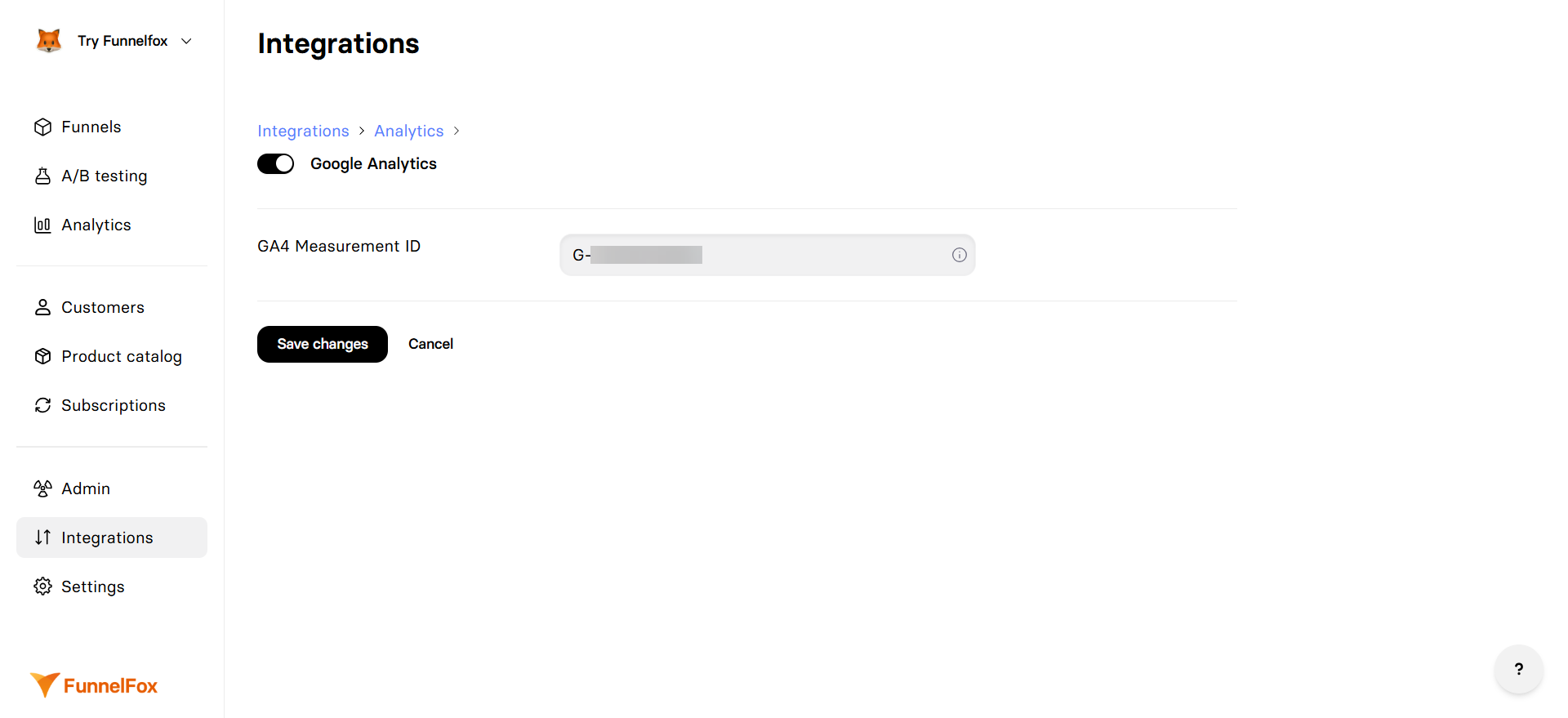
1. Go to **Integrations** → **Google Analytics**
2. Toggle **Google Analytics** on
3. Paste your **GA4 Measurement ID**
4. Click **Save changes**
[Republish your funnels](/editor/publishing) to activate tracking
1. Open your funnel in preview mode
2. Check GA4 **Realtime** reports
3. Look for active users and events
If you also use Google Tag Manager, GA4 can work alongside it. Both use
the data layer and can operate simultaneously.
## Event Tracking
### Standard Events
GA4 automatically receives these mapped events:
| FunnelFox Event | GA4 Event | Category |
| ---------------------------- | ---------- | ------------ |
| `purchase_completed_success` | `purchase` | Monetization |
### E-commerce Data
Purchase events include enhanced e-commerce parameters:
* `transaction_id`: Unique purchase identifier
* `value`: Total amount
* `currency`: ISO currency code
* `items`: Array of purchased products
* `payment_type`: Payment method used
## Conversion Tracking
### Setting Up Conversions
1. In GA4, go to **Configure** → **Conversions**
2. Mark these events as conversions:
* `purchase`: Track completed sales
### Google Ads Integration
Link GA4 with Google Ads for:
* Conversion import for campaign optimization
* Remarketing list creation
* Enhanced conversions with user data
* Offline conversion tracking
When an email is collected in the funnel, FunnelFox sends it to GA4 as
hashed user data to support [Enhanced Conversions](https://support.google.com/google-ads/answer/9888656).
This lets GA4 and Google Ads attribute conversions and improve match rates.
## User Properties
GA4 receives these user dimensions:
* `user_id`: FunnelFox profile ID
* `funnel_id`: Current funnel identifier
* `funnel_alias`: Human-readable funnel name
* `sandbox`: Test vs. production traffic
### Custom Dimensions
Create custom dimensions in GA4 for FunnelFox data:
1. Go to **Configure** → **Custom definitions**
2. Create dimensions for:
* `funnel_id`: Track performance by funnel
* `experiment_variant`: A/B test analysis
* `payment_provider`: Payment method analysis
## Testing
### Debug Mode
Use GA4 DebugView for real-time testing:
1. Install [Google Analytics Debugger Chrome Extension](https://chrome.google.com/webstore/detail/google-analytics-debugger/jnkmfdileelhofjcijamephohjechhna)
2. Enable the extension in your browser
3. Open your funnel
4. View events in GA4 **Configure** → **DebugView**
The Chrome extension enables debug mode for GA4, allowing you to see events
in real-time in the DebugView without waiting for standard processing.
### Preview Mode
Events from preview mode include:
* `sandbox: true` parameter
* Test transaction IDs
* Same event structure as production
## Troubleshooting
* Verify Measurement ID format (G-XXXXXXXXXX)
* Check funnels were republished after configuration
* Look in Realtime reports first (events can take 24-48 hours to appear in standard reports)
* Ensure ad blockers are disabled during testing
* Verify purchase events include price and currency
* Check GA4 data stream settings for enhanced measurement
* Ensure products are configured with proper IDs
* Look in Monetization reports, not just Events
* Check if GTM is also sending page views
* Verify Enhanced Measurement isn't duplicating events
* Ensure only one GA4 configuration is active
* Enable User-ID reporting in GA4 property settings
* Verify users are being identified (email collected)
* Check User-ID view in GA4 for cross-device tracking
## Next Steps
* [Set up Google Tag Manager](/integrations/analytics/google-tag-manager) for additional tracking
* [Configure Google Ads conversion tracking](/integrations/tracking/google-ads)
* [Create custom reports](https://support.google.com/analytics/answer/10333290) in GA4
## Features
* **Event Tracking**: Automatic capture of all funnel interactions
* **Conversion Tracking**: Monitor goals and transactions
* **Audience Building**: Create remarketing lists based on behavior
* **Real-time Reports**: See visitor activity as it happens
* **Integration with Google Ads**: Optimize campaigns with conversion data
* **Cross-platform Tracking**: Unified view across web and app
## Configuration
### Prerequisites
* Google Analytics 4 property (not Universal Analytics)
* GA4 Measurement ID (starts with G-)
* FunnelFox project with funnels ready to publish
### Setup Steps
1. Log into [Google Analytics](https://analytics.google.com)
2. Select your GA4 property
3. Go to **Admin** → **Data Streams**
4. Select your web stream
5. Copy the **Measurement ID** (format: G-XXXXXXXXXX)
1. Go to **Integrations** → **Google Analytics**
2. Toggle **Google Analytics** on
3. Paste your **GA4 Measurement ID**
4. Click **Save changes**
[Republish your funnels](/editor/publishing) to activate tracking
1. Open your funnel in preview mode
2. Check GA4 **Realtime** reports
3. Look for active users and events
If you also use Google Tag Manager, GA4 can work alongside it. Both use
the data layer and can operate simultaneously.
## Event Tracking
### Standard Events
GA4 automatically receives these mapped events:
| FunnelFox Event | GA4 Event | Category |
| ---------------------------- | ---------- | ------------ |
| `purchase_completed_success` | `purchase` | Monetization |
### E-commerce Data
Purchase events include enhanced e-commerce parameters:
* `transaction_id`: Unique purchase identifier
* `value`: Total amount
* `currency`: ISO currency code
* `items`: Array of purchased products
* `payment_type`: Payment method used
## Conversion Tracking
### Setting Up Conversions
1. In GA4, go to **Configure** → **Conversions**
2. Mark these events as conversions:
* `purchase`: Track completed sales
### Google Ads Integration
Link GA4 with Google Ads for:
* Conversion import for campaign optimization
* Remarketing list creation
* Enhanced conversions with user data
* Offline conversion tracking
When an email is collected in the funnel, FunnelFox sends it to GA4 as
hashed user data to support [Enhanced Conversions](https://support.google.com/google-ads/answer/9888656).
This lets GA4 and Google Ads attribute conversions and improve match rates.
## User Properties
GA4 receives these user dimensions:
* `user_id`: FunnelFox profile ID
* `funnel_id`: Current funnel identifier
* `funnel_alias`: Human-readable funnel name
* `sandbox`: Test vs. production traffic
### Custom Dimensions
Create custom dimensions in GA4 for FunnelFox data:
1. Go to **Configure** → **Custom definitions**
2. Create dimensions for:
* `funnel_id`: Track performance by funnel
* `experiment_variant`: A/B test analysis
* `payment_provider`: Payment method analysis
## Testing
### Debug Mode
Use GA4 DebugView for real-time testing:
1. Install [Google Analytics Debugger Chrome Extension](https://chrome.google.com/webstore/detail/google-analytics-debugger/jnkmfdileelhofjcijamephohjechhna)
2. Enable the extension in your browser
3. Open your funnel
4. View events in GA4 **Configure** → **DebugView**
The Chrome extension enables debug mode for GA4, allowing you to see events
in real-time in the DebugView without waiting for standard processing.
### Preview Mode
Events from preview mode include:
* `sandbox: true` parameter
* Test transaction IDs
* Same event structure as production
## Troubleshooting
* Verify Measurement ID format (G-XXXXXXXXXX)
* Check funnels were republished after configuration
* Look in Realtime reports first (events can take 24-48 hours to appear in standard reports)
* Ensure ad blockers are disabled during testing
* Verify purchase events include price and currency
* Check GA4 data stream settings for enhanced measurement
* Ensure products are configured with proper IDs
* Look in Monetization reports, not just Events
* Check if GTM is also sending page views
* Verify Enhanced Measurement isn't duplicating events
* Ensure only one GA4 configuration is active
* Enable User-ID reporting in GA4 property settings
* Verify users are being identified (email collected)
* Check User-ID view in GA4 for cross-device tracking
## Next Steps
* [Set up Google Tag Manager](/integrations/analytics/google-tag-manager) for additional tracking
* [Configure Google Ads conversion tracking](/integrations/tracking/google-ads)
* [Create custom reports](https://support.google.com/analytics/answer/10333290) in GA4