> ## Documentation Index
> Fetch the complete documentation index at: https://funnelfox.com/docs/llms.txt
> Use this file to discover all available pages before exploring further.
# Test and go live
> Verify your funnel is ready to drive conversions and grow revenue
Ensure you've completed all [quickstart steps](/getting-started/quickstart) before testing.
After completing your initial setup, test your funnel end-to-end in sandbox mode before launch: preview your funnel, complete a test purchase, then verify customers, transactions, analytics, and attribution events.
1. Go to the [Funnels page](https://app.funnelfox.com/funnels).
2. Click your funnel to open the Visual editor.
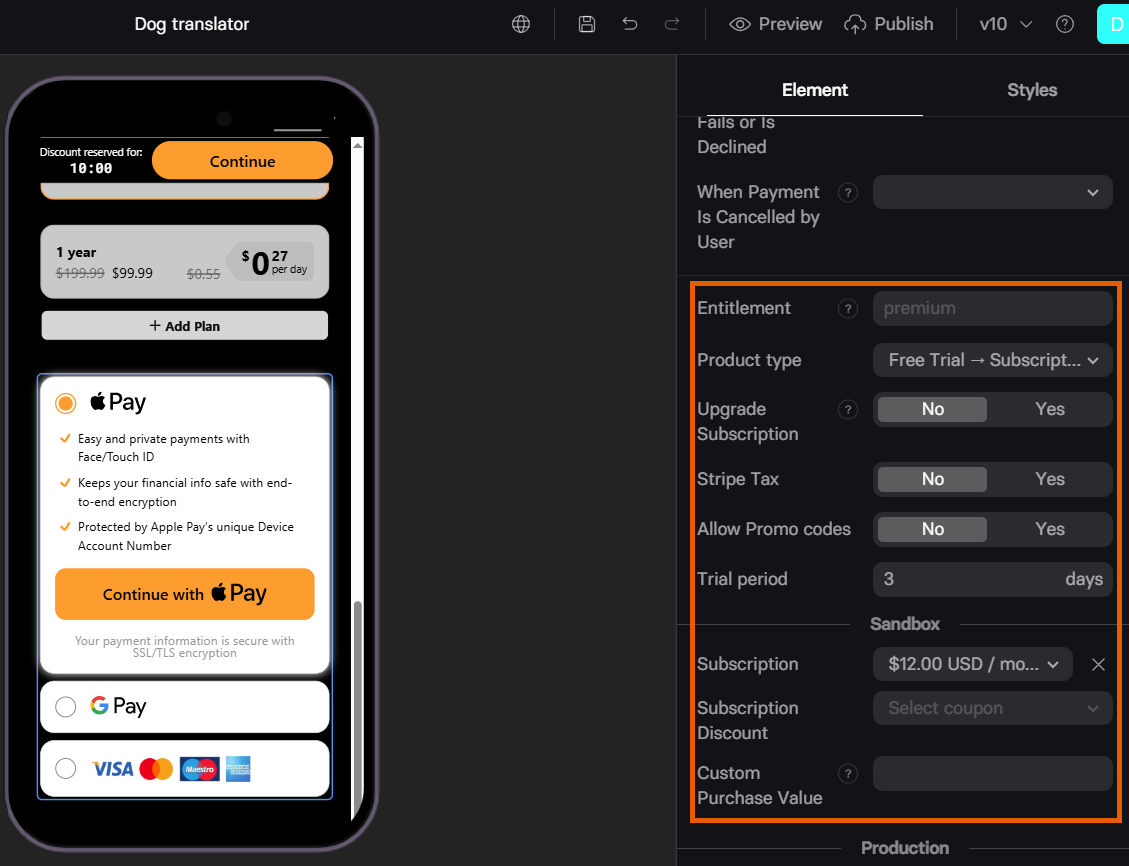
3. Configure products to test in the Sandbox section of the Checkout element.
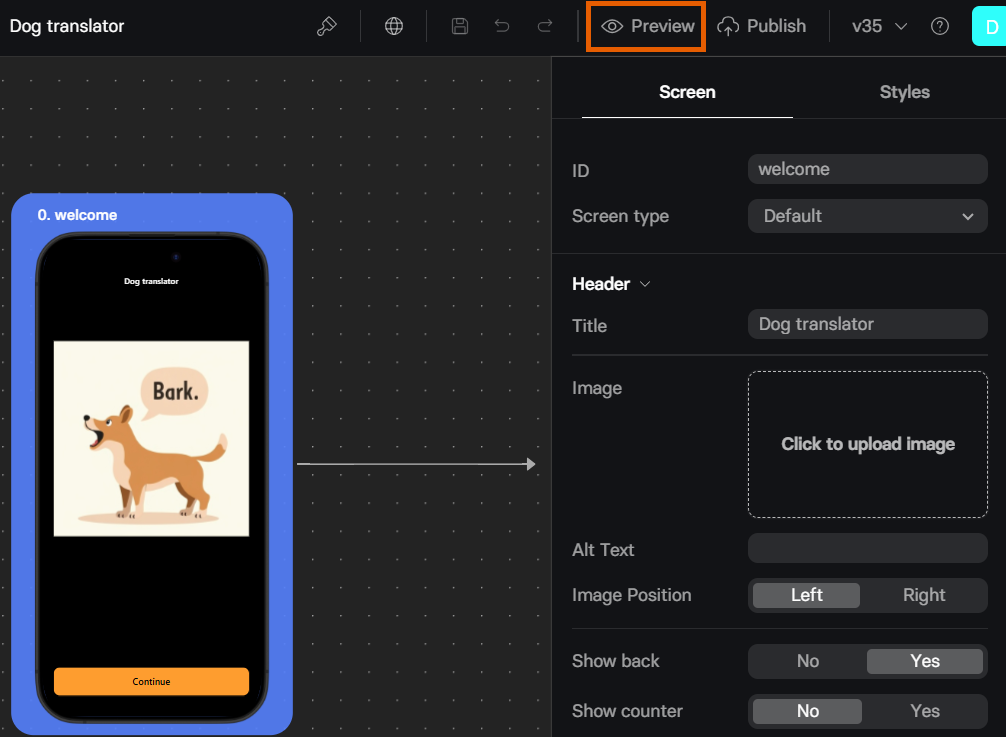
 1. Click the initial funnel screen on the left to start your preview from the beginning.
2. Click **Preview** in the top toolbar.
1. Click the initial funnel screen on the left to start your preview from the beginning.
2. Click **Preview** in the top toolbar.
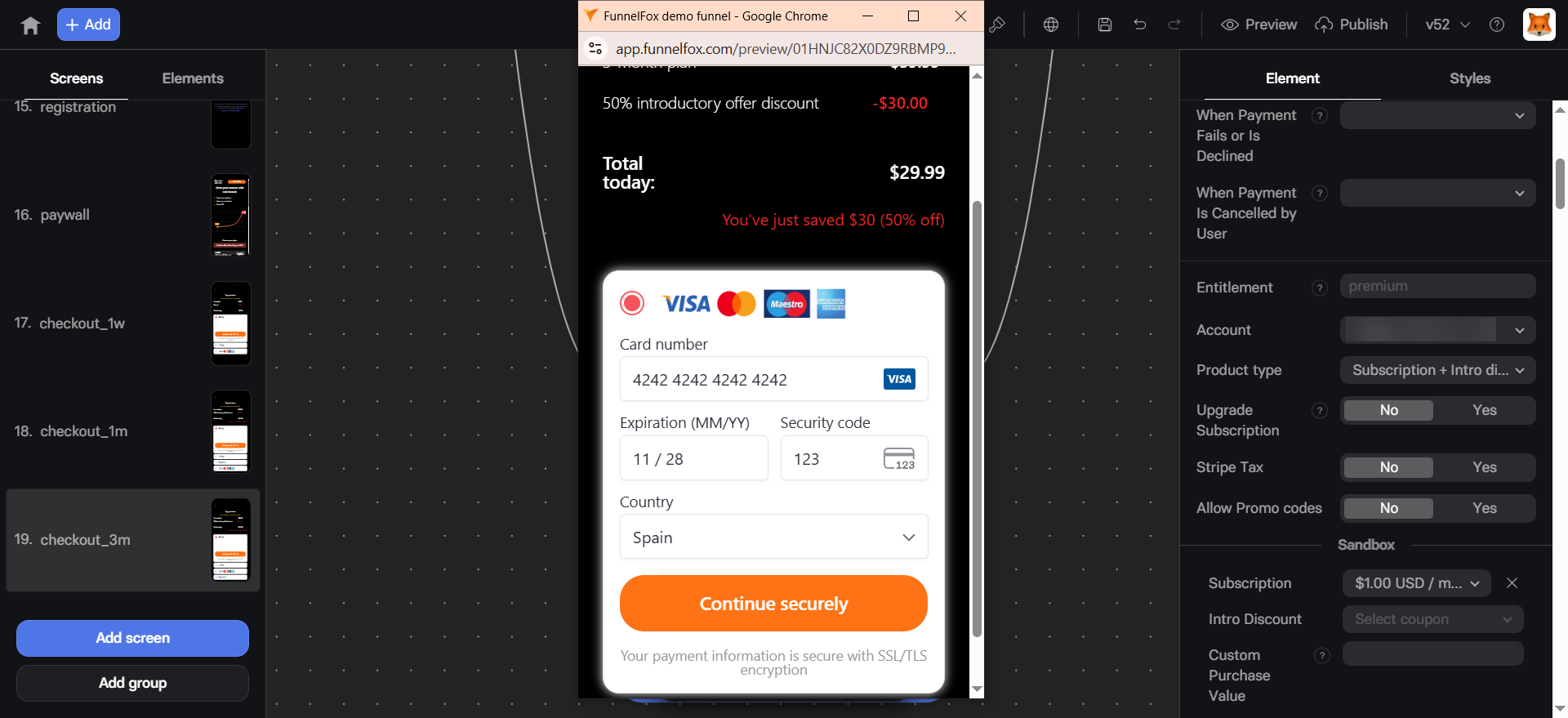
 1. Go through the funnel steps to trigger analytics events.
2. Make a test purchase when you reach the Checkout.
* **Number**: `4242 4242 4242 4242`
* **Expiry date**: Any valid future date (e.g., `12/34`)
* **CVC**: Any three-digit CVC
Learn more about [Stripe test cards](https://docs.stripe.com/testing).
* **Number**: `4532 4566 1814 2692`
* **Expiry date**: Any valid future date (within 50 years)
* **CVC**: Any 3-digit code
Learn more about [Solidgate test cards](https://docs.solidgate.com/payments/testing).
* **Number**: `4242 4242 4242 4242`
* **Expiry date**: Any future expiry date
* **CVV**: `100`
Learn more about [Paddle test cards](https://developer.paddle.com/concepts/payment-methods/credit-debit-card#test-payment-method).
Test cards depend on the payment provider processing your FunnelFox Billing transactions.
Learn more about [FunnelFox Billing test cards](/billing/testing#test-cards).
1. Go through the funnel steps to trigger analytics events.
2. Make a test purchase when you reach the Checkout.
* **Number**: `4242 4242 4242 4242`
* **Expiry date**: Any valid future date (e.g., `12/34`)
* **CVC**: Any three-digit CVC
Learn more about [Stripe test cards](https://docs.stripe.com/testing).
* **Number**: `4532 4566 1814 2692`
* **Expiry date**: Any valid future date (within 50 years)
* **CVC**: Any 3-digit code
Learn more about [Solidgate test cards](https://docs.solidgate.com/payments/testing).
* **Number**: `4242 4242 4242 4242`
* **Expiry date**: Any future expiry date
* **CVV**: `100`
Learn more about [Paddle test cards](https://developer.paddle.com/concepts/payment-methods/credit-debit-card#test-payment-method).
Test cards depend on the payment provider processing your FunnelFox Billing transactions.
Learn more about [FunnelFox Billing test cards](/billing/testing#test-cards).
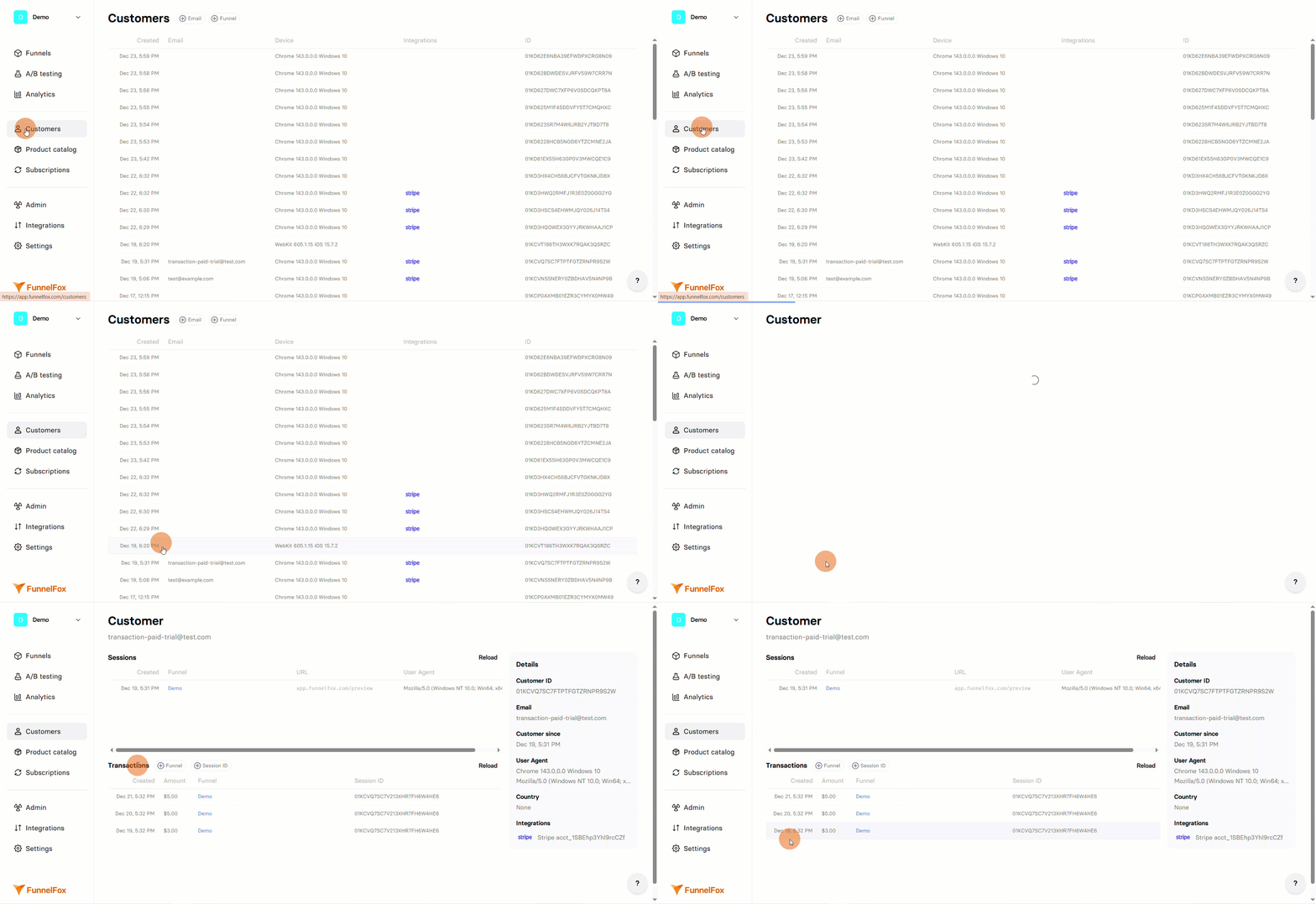
 Go to the [Customers page](https://app.funnelfox.com/customers) and find the customer created for your test purchase.
Click on the customer to see the transaction you made. This confirms your payment provider integration is working.
Go to the [Customers page](https://app.funnelfox.com/customers) and find the customer created for your test purchase.
Click on the customer to see the transaction you made. This confirms your payment provider integration is working.
 Verify the events FunnelFox sent to your analytics platform. The steps below show Amplitude and Mixpanel examples.
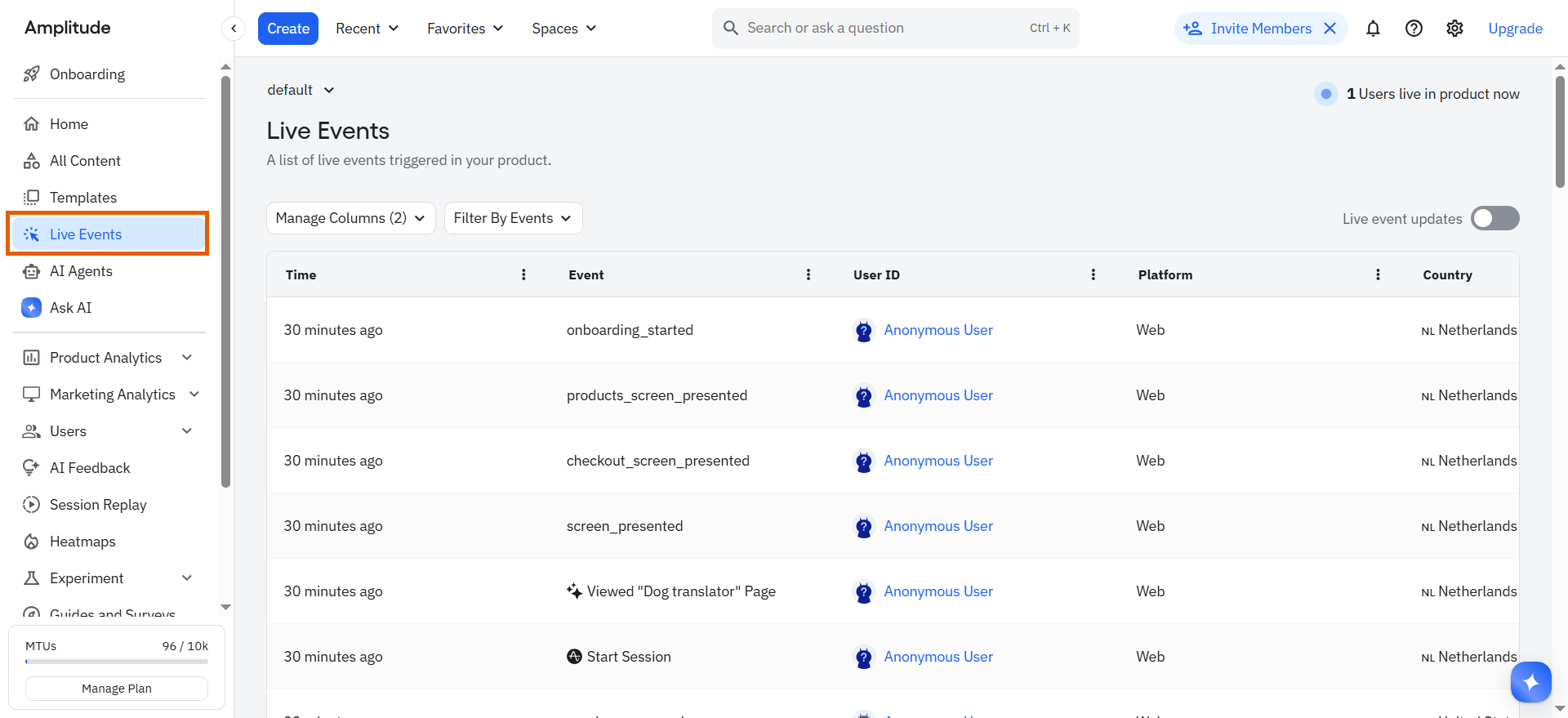
1. Go to **Live events** in your [Amplitude dashboard](https://app.amplitude.com/) to see events from your test.
Verify the events FunnelFox sent to your analytics platform. The steps below show Amplitude and Mixpanel examples.
1. Go to **Live events** in your [Amplitude dashboard](https://app.amplitude.com/) to see events from your test.
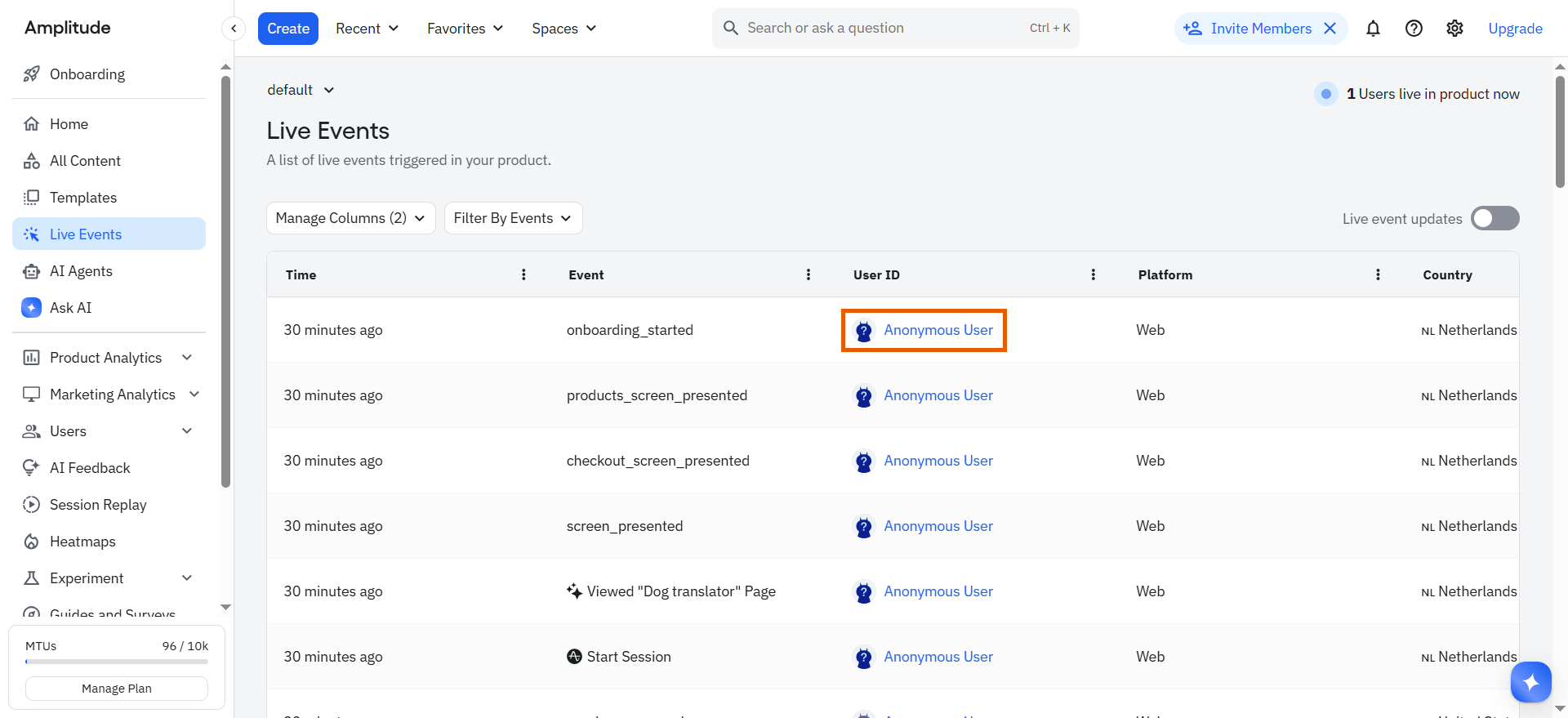
 2. Click on the user in the event list to learn more about data received.
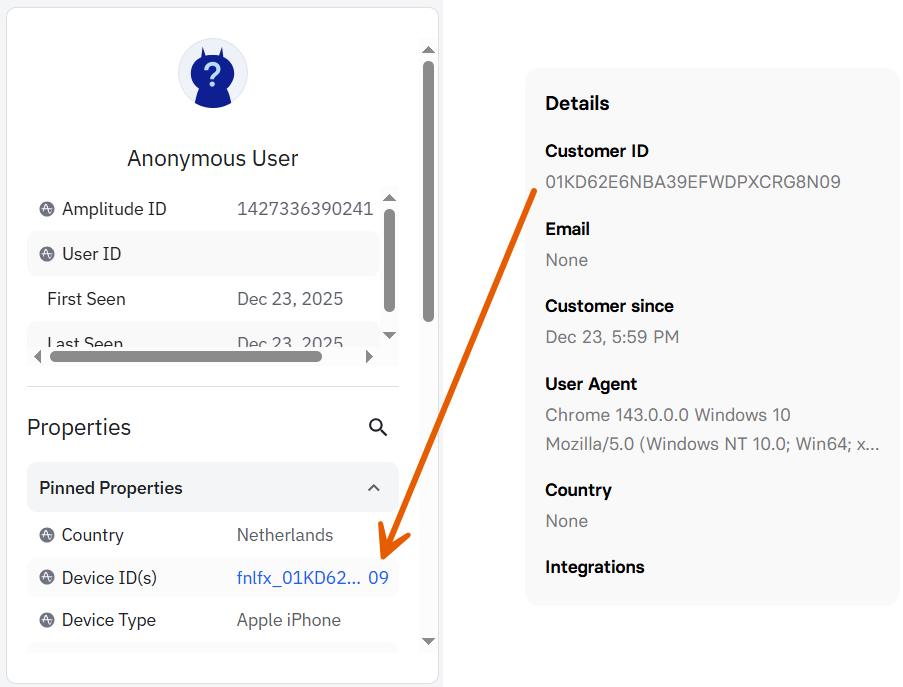
 3. You will see the **Customer ID** from FunnelFox as **Device ID** with `fnflx_` prefix in Amplitude and all events for this user.
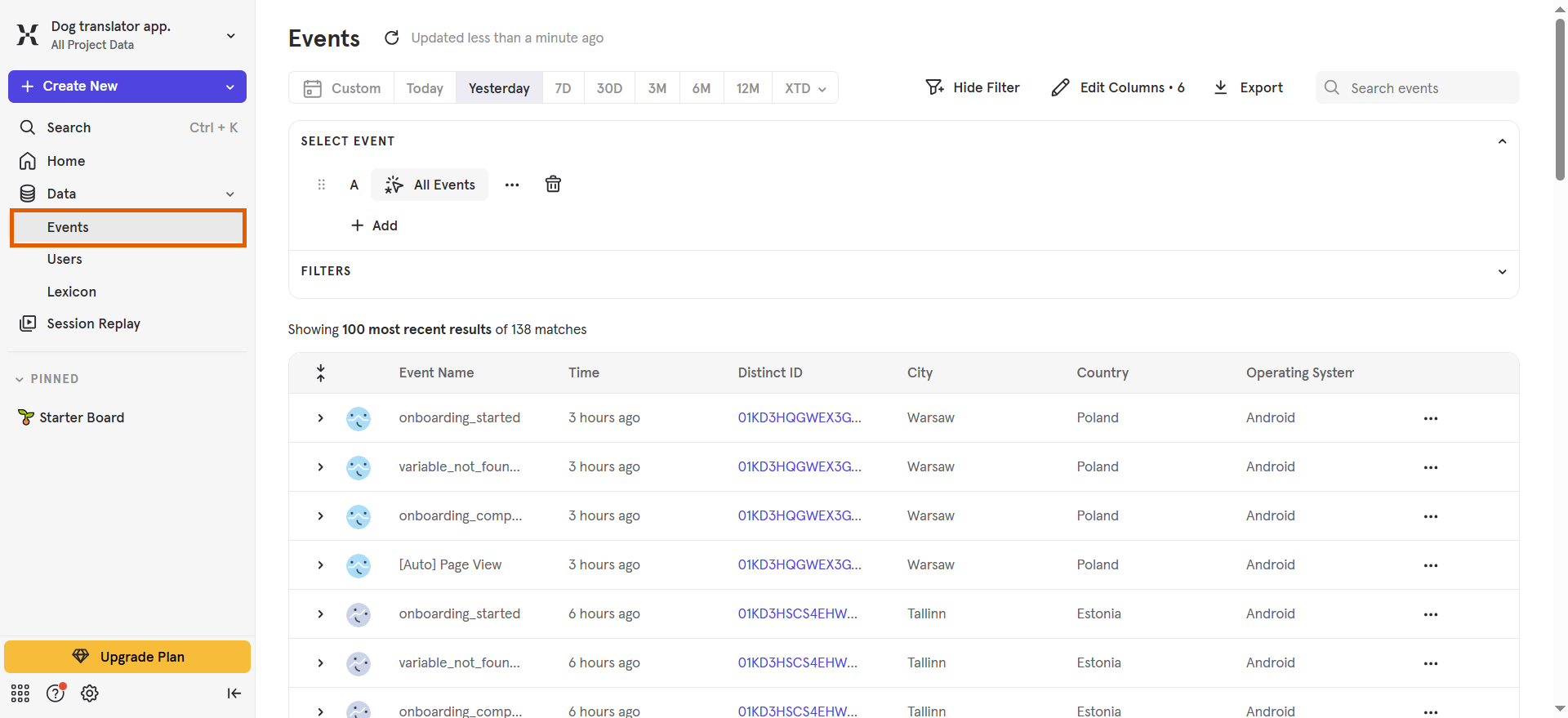
 1. Go to **Events** in your [Mixpanel dashboard](https://mixpanel.com/home/) to see events from your test.
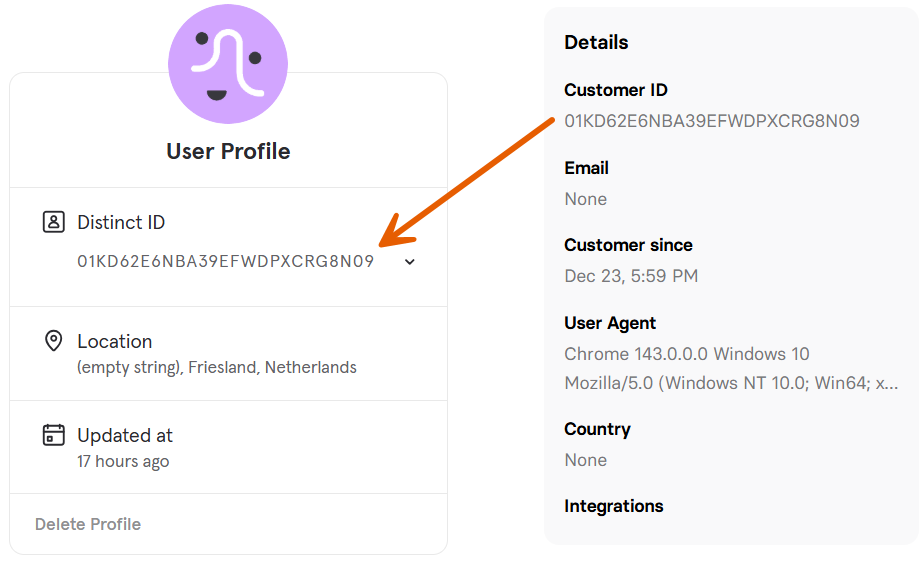
 2. Click on the **Distinct ID** in the event list to learn more about data received.
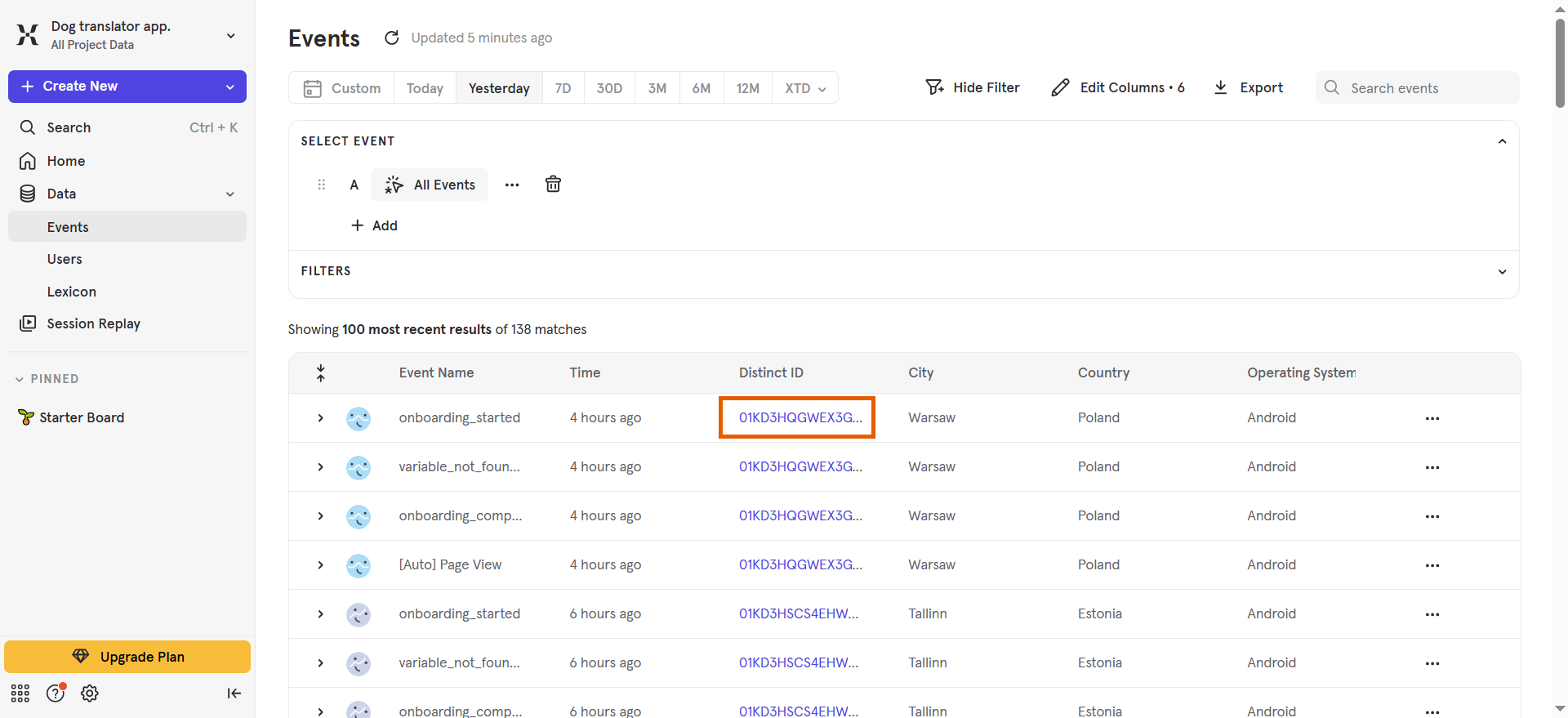 3. You will see the **Customer ID** from FunnelFox as **Distinct ID** in Mixpanel and all events for this user.
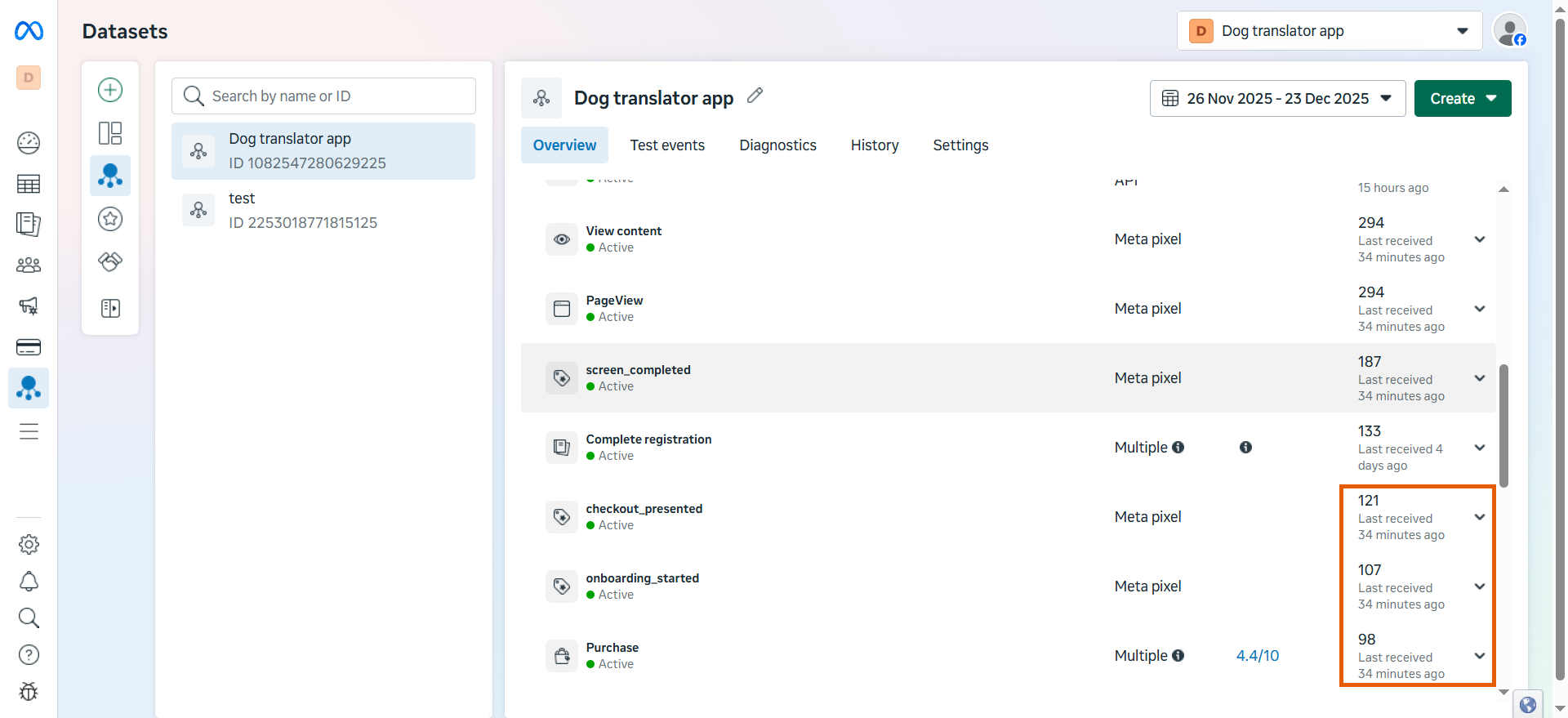
 Go to the **Overview** tab of your dataset connected to FunnelFox in [Meta Events Manager](https://www.facebook.com/events_manager2/).
Verify that **Purchase** and other events appear with timestamps matching your test purchase.
Go to the **Overview** tab of your dataset connected to FunnelFox in [Meta Events Manager](https://www.facebook.com/events_manager2/).
Verify that **Purchase** and other events appear with timestamps matching your test purchase.
 You're all set to optimize your funnel and grow revenue.