> ## Documentation Index
> Fetch the complete documentation index at: https://funnelfox.com/docs/llms.txt
> Use this file to discover all available pages before exploring further.
# Wallet button
> Add one-tap Apple Pay and Google Pay buttons to your funnels with the Wallet button element.
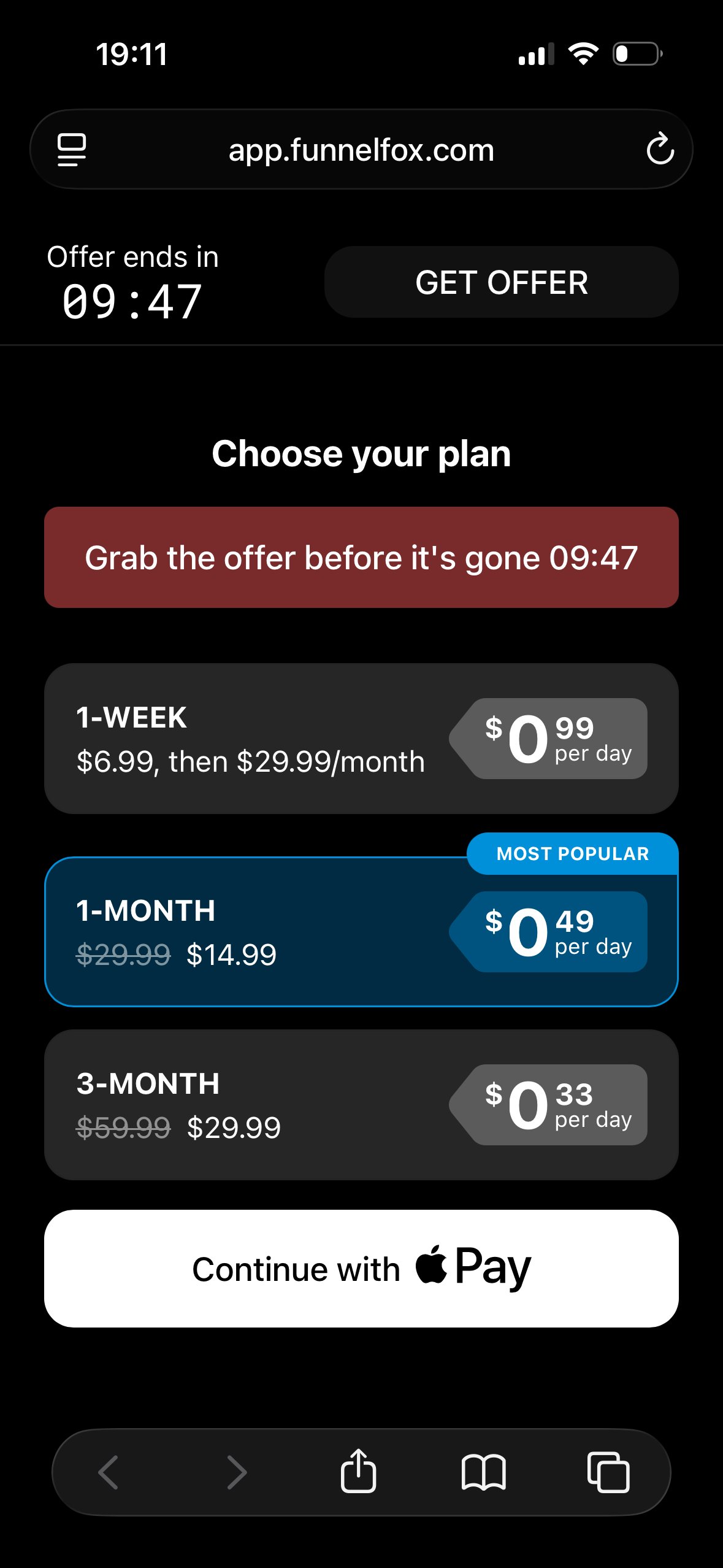
The Wallet button element renders a native Apple Pay or Google Pay button
that charges the customer in one tap.
Because wallet buttons skip manual card entry, they
reduce checkout friction and typically boost conversion rates by up to 30%.
Don't confuse the Wallet button with the Apple Pay and Google Pay
payment methods of the [Checkout element](/docs/elements/checkout#3-payment-method).
The Checkout renders wallets inside the full payment form, while the
Wallet button is a standalone one-tap button you can place anywhere
in the funnel.
 ## How it works
Place the Wallet button on your paywall screen alongside the
[Plan picker](/docs/elements/planpicker), above the Checkout element.
At runtime, the Wallet button:
1. Detects which wallet the visitor's
device and browser support.
2. Shows that wallet's native button.
3. Falls back to a regular button when no wallet is available.
Wallet availability depends on the visitor's device and browser, and on the
wallet configuration of your payment provider:
| Wallet | Availability |
| ---------- | ---------------------- |
| Apple Pay | Safari on iOS or macOS |
| Google Pay | Chrome or Android |
If both wallets are available on the device, Apple Pay is shown.
In the Editor, the Wallet button is not rendered and always appears as a static placeholder.
## Supported providers
Set up digital wallets for your payment provider before adding the
Wallet button:
* **Stripe**: [Enable digital wallets](/docs/integrations/payments/stripe#digital-wallets) and verify your domain for Apple Pay.
* **Solidgate**: [Enable digital wallets](/docs/integrations/payments/solidgate#digital-wallets) and verify your domain for Apple Pay.
* **FunnelFox Billing**: [Set up Apple Pay and Google Pay](/docs/billing/integration-billing-funnelfox#1-set-up-apple-pay) in your Primer account.
* **Paddle**: The one-tap wallet experience is implemented as [Apple Pay Express Checkout](/docs/integrations/payments/paddle#apple-pay-express-checkout) in the Checkout element instead of the Wallet button. [Verify your domain](/docs/integrations/payments/paddle#domain-verification) for Apple Pay.
Avoid showing wallets twice on one screen: for example, a Stripe Wallet
button next to a
[Stripe Managed Payments](/docs/integrations/payments/stripe-managed-payments)
Checkout duplicates Apple Pay, and Solidgate supports only one wallet
source per screen.
## Create Wallet button
To set up a Wallet button, configure digital wallets for your payment
provider first, including Apple Pay domain verification, as described
in [Supported providers](#supported-providers).
Prompt [AI Chat in Editor](/docs/agentic-solution/overview#ai-chat-in-editor) to
add and configure the Wallet button.
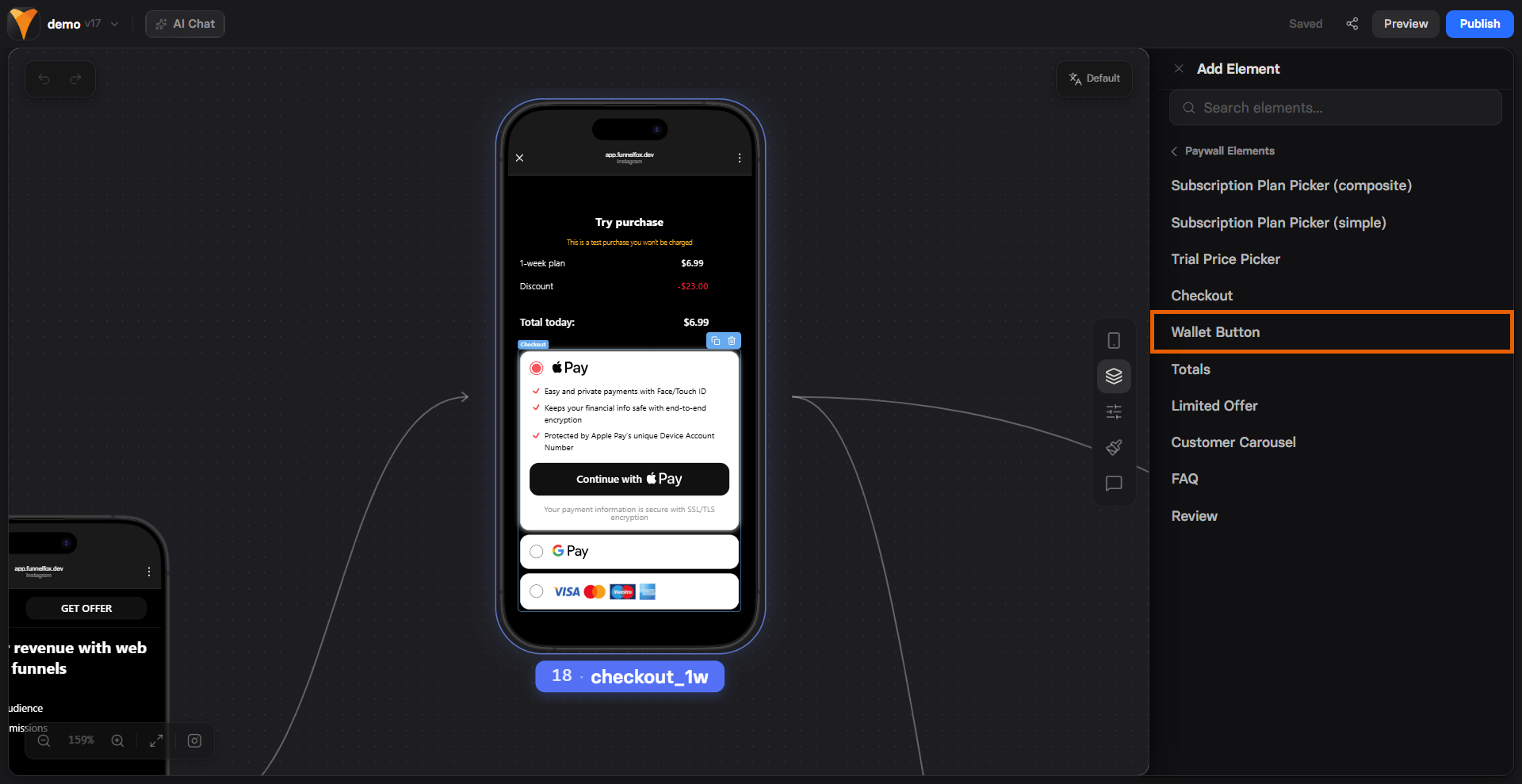
Or open the **Layers** tab in your Editor, click **+ Add element** and
select **Paywall Elements > Wallet
button**, and follow the steps below.
## How it works
Place the Wallet button on your paywall screen alongside the
[Plan picker](/docs/elements/planpicker), above the Checkout element.
At runtime, the Wallet button:
1. Detects which wallet the visitor's
device and browser support.
2. Shows that wallet's native button.
3. Falls back to a regular button when no wallet is available.
Wallet availability depends on the visitor's device and browser, and on the
wallet configuration of your payment provider:
| Wallet | Availability |
| ---------- | ---------------------- |
| Apple Pay | Safari on iOS or macOS |
| Google Pay | Chrome or Android |
If both wallets are available on the device, Apple Pay is shown.
In the Editor, the Wallet button is not rendered and always appears as a static placeholder.
## Supported providers
Set up digital wallets for your payment provider before adding the
Wallet button:
* **Stripe**: [Enable digital wallets](/docs/integrations/payments/stripe#digital-wallets) and verify your domain for Apple Pay.
* **Solidgate**: [Enable digital wallets](/docs/integrations/payments/solidgate#digital-wallets) and verify your domain for Apple Pay.
* **FunnelFox Billing**: [Set up Apple Pay and Google Pay](/docs/billing/integration-billing-funnelfox#1-set-up-apple-pay) in your Primer account.
* **Paddle**: The one-tap wallet experience is implemented as [Apple Pay Express Checkout](/docs/integrations/payments/paddle#apple-pay-express-checkout) in the Checkout element instead of the Wallet button. [Verify your domain](/docs/integrations/payments/paddle#domain-verification) for Apple Pay.
Avoid showing wallets twice on one screen: for example, a Stripe Wallet
button next to a
[Stripe Managed Payments](/docs/integrations/payments/stripe-managed-payments)
Checkout duplicates Apple Pay, and Solidgate supports only one wallet
source per screen.
## Create Wallet button
To set up a Wallet button, configure digital wallets for your payment
provider first, including Apple Pay domain verification, as described
in [Supported providers](#supported-providers).
Prompt [AI Chat in Editor](/docs/agentic-solution/overview#ai-chat-in-editor) to
add and configure the Wallet button.
Or open the **Layers** tab in your Editor, click **+ Add element** and
select **Paywall Elements > Wallet
button**, and follow the steps below.
 ### 1. Payment provider
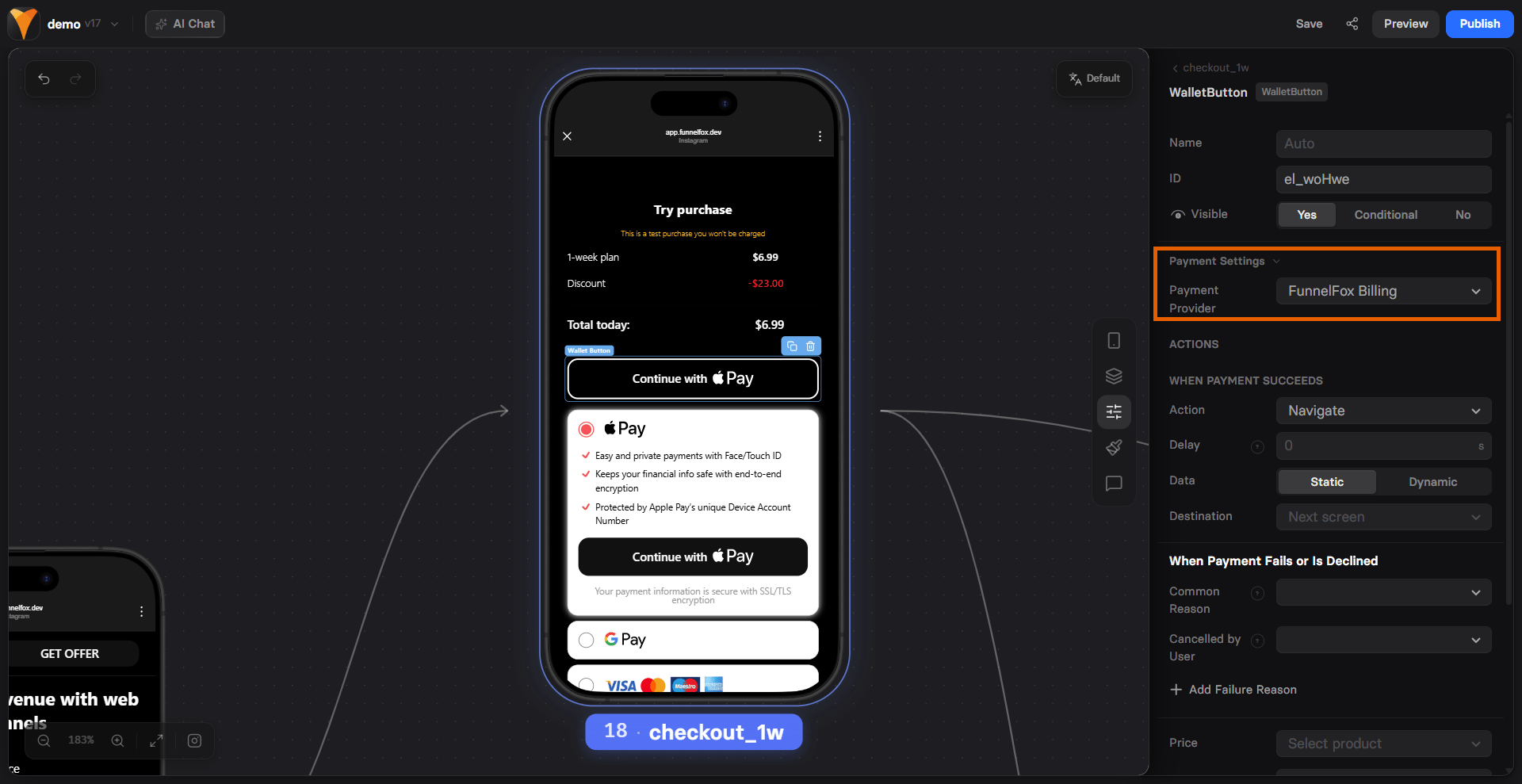
1. Go to the **Parameters** tab of your Wallet button.
2. Select your provider under **Payment settings**. The list shows only
providers with wallet support. If you have a single wallet-capable
provider, it's selected automatically.
### 1. Payment provider
1. Go to the **Parameters** tab of your Wallet button.
2. Select your provider under **Payment settings**. The list shows only
providers with wallet support. If you have a single wallet-capable
provider, it's selected automatically.
 3. Configure the settings under the payment provider:
* **When payment succeeds**: Navigation action to trigger when payment is completed.
* **When payment fails or is declined**: Navigation action that runs when the payment fails due to a decline or error, including 3DS.
* **Common reason**: Navigation that runs when the payment fails for any unspecified reason.
* **Cancelled by user**: Navigation action that runs when the user closes the payment sheet.
* **Add failure reason**: Configure navigation based on a specific failure reason, such as `insufficient funds`, `invalid card details` or `do not honor`.
* **Account**: Your Stripe account. Learn about [multiple Stripe accounts](/docs/integrations/payments/stripe#multiple-stripe-accounts) in FunnelFox.
* **Total label**: Text label shown next to the price in the browser's native payment sheet.
Don't place a Stripe Wallet button on the same screen as a
[Stripe Managed Payments](/docs/integrations/payments/stripe-managed-payments)
Checkout. The Managed Payments checkout can already show Apple Pay,
so the screen would display duplicate wallet buttons.
* **Config source**: Defines how the button is configured.
* **Independent**: Configure separately from your Checkout element.
* **Linked**: Inherits configuration from a Checkout element on the same screen. Requires the Apple Pay / Google Pay payment method to be enabled in that Checkout. You can include multiple linked Wallet buttons and Checkouts on the same screen using [conditional visibility](/docs/elements/overview#conditional-visibility).
For independent wallet buttons, you can also set the following:
* **When payment succeeds**: Navigation action to trigger when payment is completed.
* **When payment fails or is declined**: Navigation action to trigger when payment fails due to a decline or error (including 3DS).
* **When payment is cancelled by user**: Navigation action to trigger when user clicks the cancel button (if available).
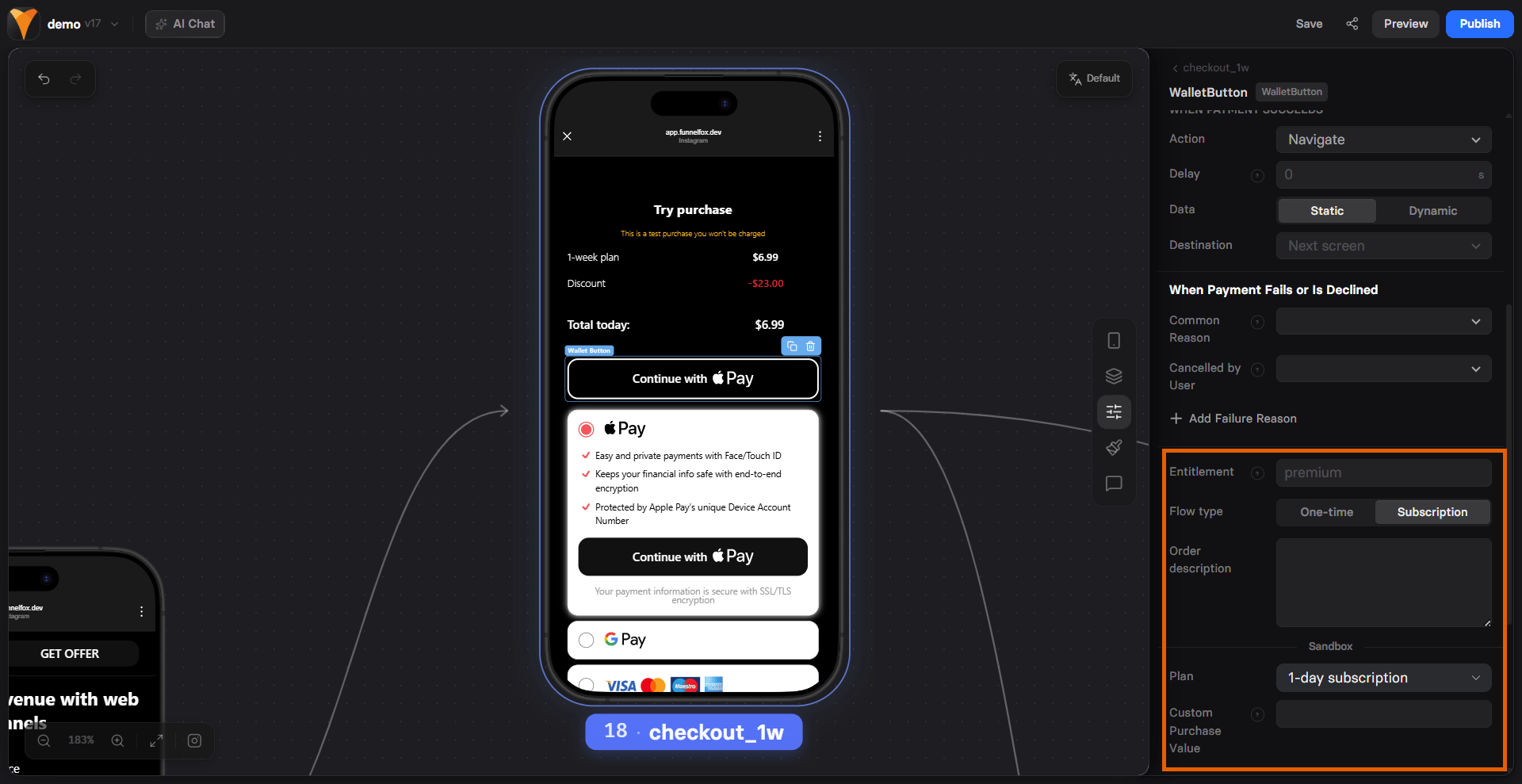
* **Entitlement**: Access level ID for [subscription manager](/docs/integrations/subscription-management).
* **Flow type**: Defines the payment flow depending on what you sell.
* **One-time**
* **Subscription**
* **Order description**: Description to be sent for order details to Solidgate.
* **Custom purchase value**: Override the actual price in analytics and marketing tracking events. Use this for value-based optimization where you can send a predicted LTV.
* Leave empty to use the actual product price.
Each screen can contain only one Solidgate wallet source: either
one independent Wallet button or one Solidgate Checkout with Apple
Pay or Google Pay enabled. A second independent wallet on the same
screen silently fails at runtime. To show several wallet buttons
on the same screen, set all but one to **Linked**.
* **When payment succeeds**: Navigation action to trigger when payment is completed.
* **When payment fails or is declined**: Navigation action that runs when the payment fails due to a decline or error, including 3DS.
* **Common reason**: Navigation that runs when the payment fails for any unspecified reason.
* **Cancelled by user**: Navigation action that runs when the user closes the payment sheet.
* **Add failure reason**: Configure navigation based on a specific failure reason, such as `insufficient funds`, `invalid card details` or `do not honor`.
With FunnelFox Billing, the provider renders its own native wallet
button, so styling is limited to color presets. Learn more in
[Styling](#4-styling).
### 2. Product selection
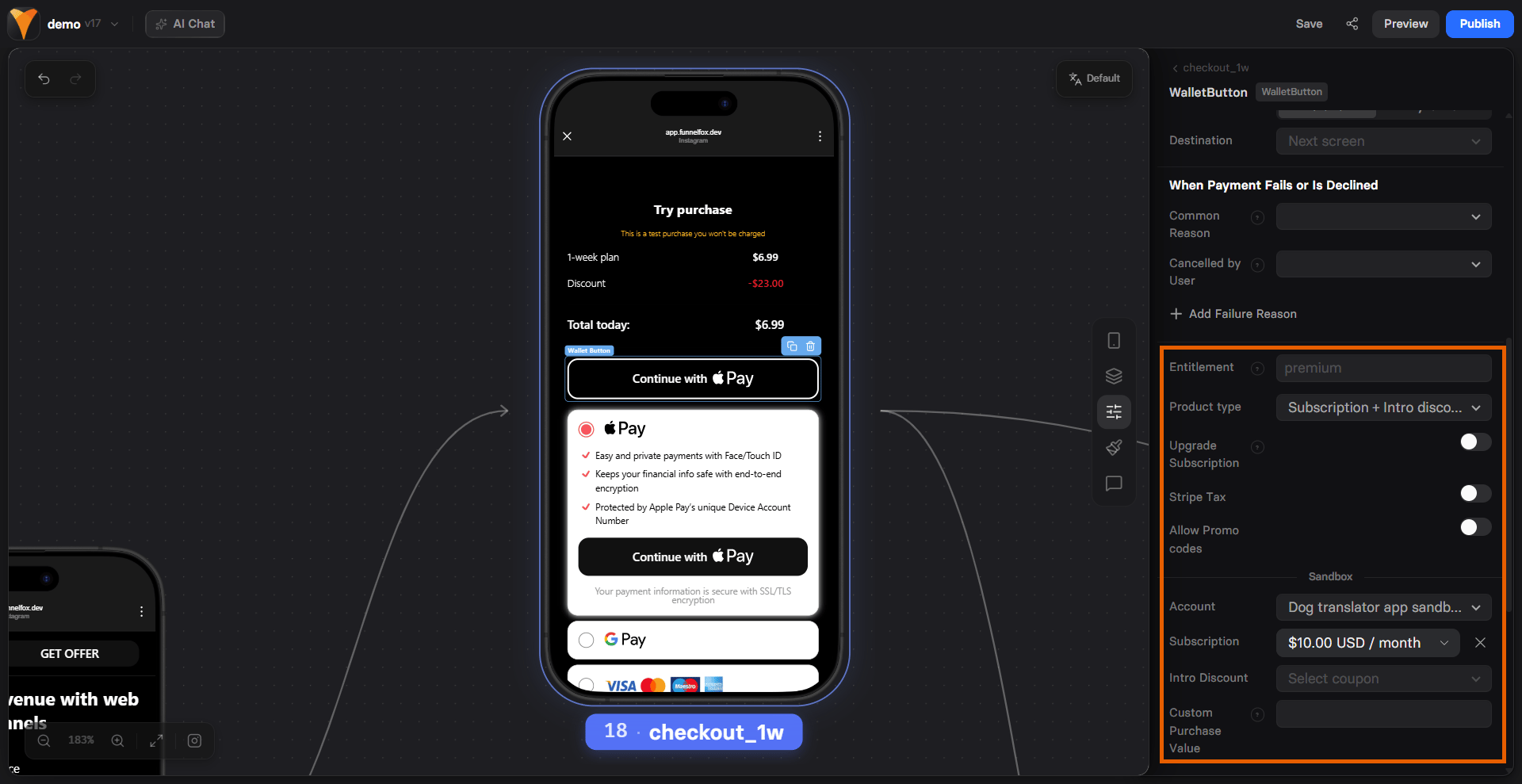
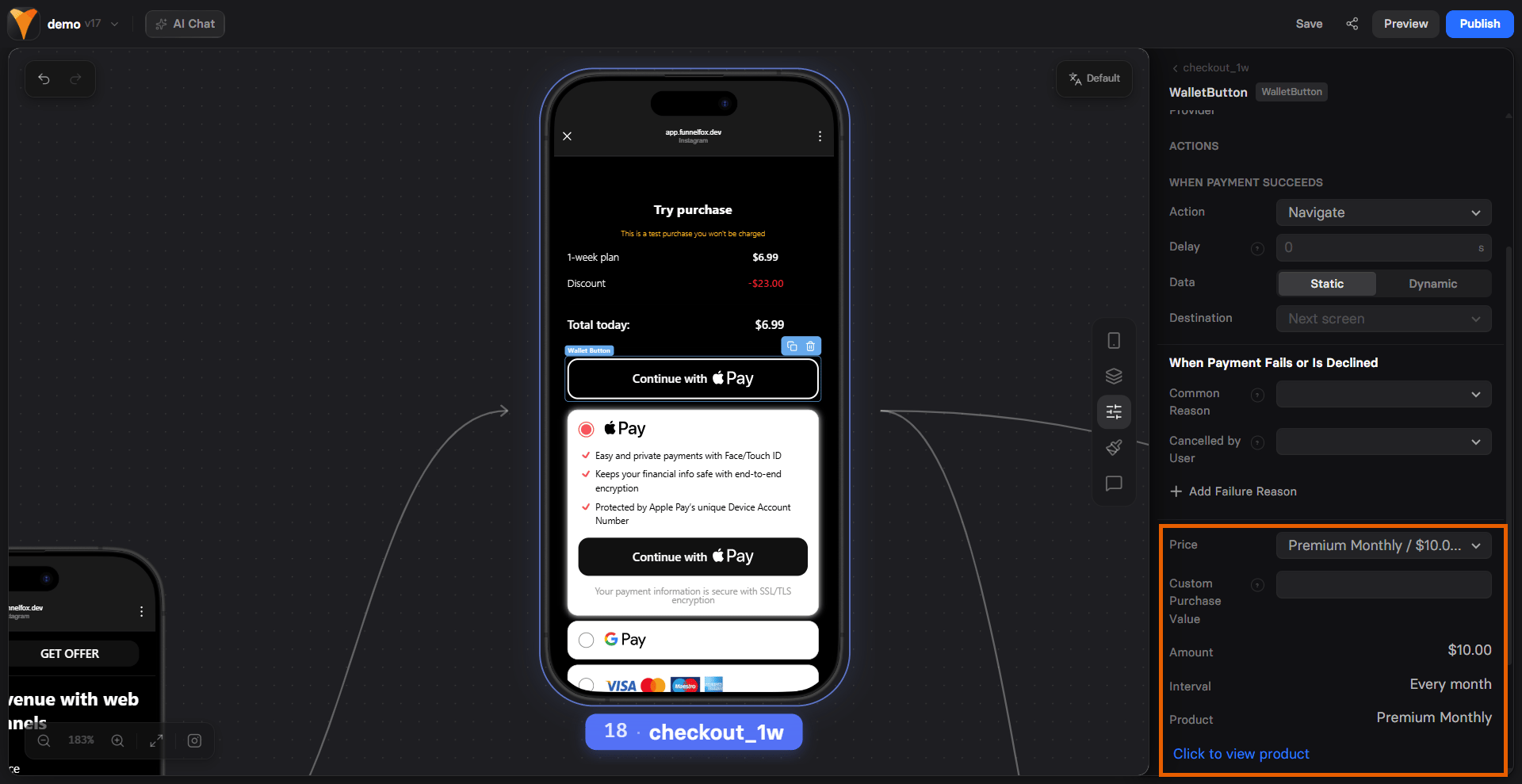
Configure the product your Wallet button sells the same way you configured it in the
[Checkout element](/docs/elements/checkout#subscription-configuration).
3. Configure the settings under the payment provider:
* **When payment succeeds**: Navigation action to trigger when payment is completed.
* **When payment fails or is declined**: Navigation action that runs when the payment fails due to a decline or error, including 3DS.
* **Common reason**: Navigation that runs when the payment fails for any unspecified reason.
* **Cancelled by user**: Navigation action that runs when the user closes the payment sheet.
* **Add failure reason**: Configure navigation based on a specific failure reason, such as `insufficient funds`, `invalid card details` or `do not honor`.
* **Account**: Your Stripe account. Learn about [multiple Stripe accounts](/docs/integrations/payments/stripe#multiple-stripe-accounts) in FunnelFox.
* **Total label**: Text label shown next to the price in the browser's native payment sheet.
Don't place a Stripe Wallet button on the same screen as a
[Stripe Managed Payments](/docs/integrations/payments/stripe-managed-payments)
Checkout. The Managed Payments checkout can already show Apple Pay,
so the screen would display duplicate wallet buttons.
* **Config source**: Defines how the button is configured.
* **Independent**: Configure separately from your Checkout element.
* **Linked**: Inherits configuration from a Checkout element on the same screen. Requires the Apple Pay / Google Pay payment method to be enabled in that Checkout. You can include multiple linked Wallet buttons and Checkouts on the same screen using [conditional visibility](/docs/elements/overview#conditional-visibility).
For independent wallet buttons, you can also set the following:
* **When payment succeeds**: Navigation action to trigger when payment is completed.
* **When payment fails or is declined**: Navigation action to trigger when payment fails due to a decline or error (including 3DS).
* **When payment is cancelled by user**: Navigation action to trigger when user clicks the cancel button (if available).
* **Entitlement**: Access level ID for [subscription manager](/docs/integrations/subscription-management).
* **Flow type**: Defines the payment flow depending on what you sell.
* **One-time**
* **Subscription**
* **Order description**: Description to be sent for order details to Solidgate.
* **Custom purchase value**: Override the actual price in analytics and marketing tracking events. Use this for value-based optimization where you can send a predicted LTV.
* Leave empty to use the actual product price.
Each screen can contain only one Solidgate wallet source: either
one independent Wallet button or one Solidgate Checkout with Apple
Pay or Google Pay enabled. A second independent wallet on the same
screen silently fails at runtime. To show several wallet buttons
on the same screen, set all but one to **Linked**.
* **When payment succeeds**: Navigation action to trigger when payment is completed.
* **When payment fails or is declined**: Navigation action that runs when the payment fails due to a decline or error, including 3DS.
* **Common reason**: Navigation that runs when the payment fails for any unspecified reason.
* **Cancelled by user**: Navigation action that runs when the user closes the payment sheet.
* **Add failure reason**: Configure navigation based on a specific failure reason, such as `insufficient funds`, `invalid card details` or `do not honor`.
With FunnelFox Billing, the provider renders its own native wallet
button, so styling is limited to color presets. Learn more in
[Styling](#4-styling).
### 2. Product selection
Configure the product your Wallet button sells the same way you configured it in the
[Checkout element](/docs/elements/checkout#subscription-configuration).
 ### 3. Fallback
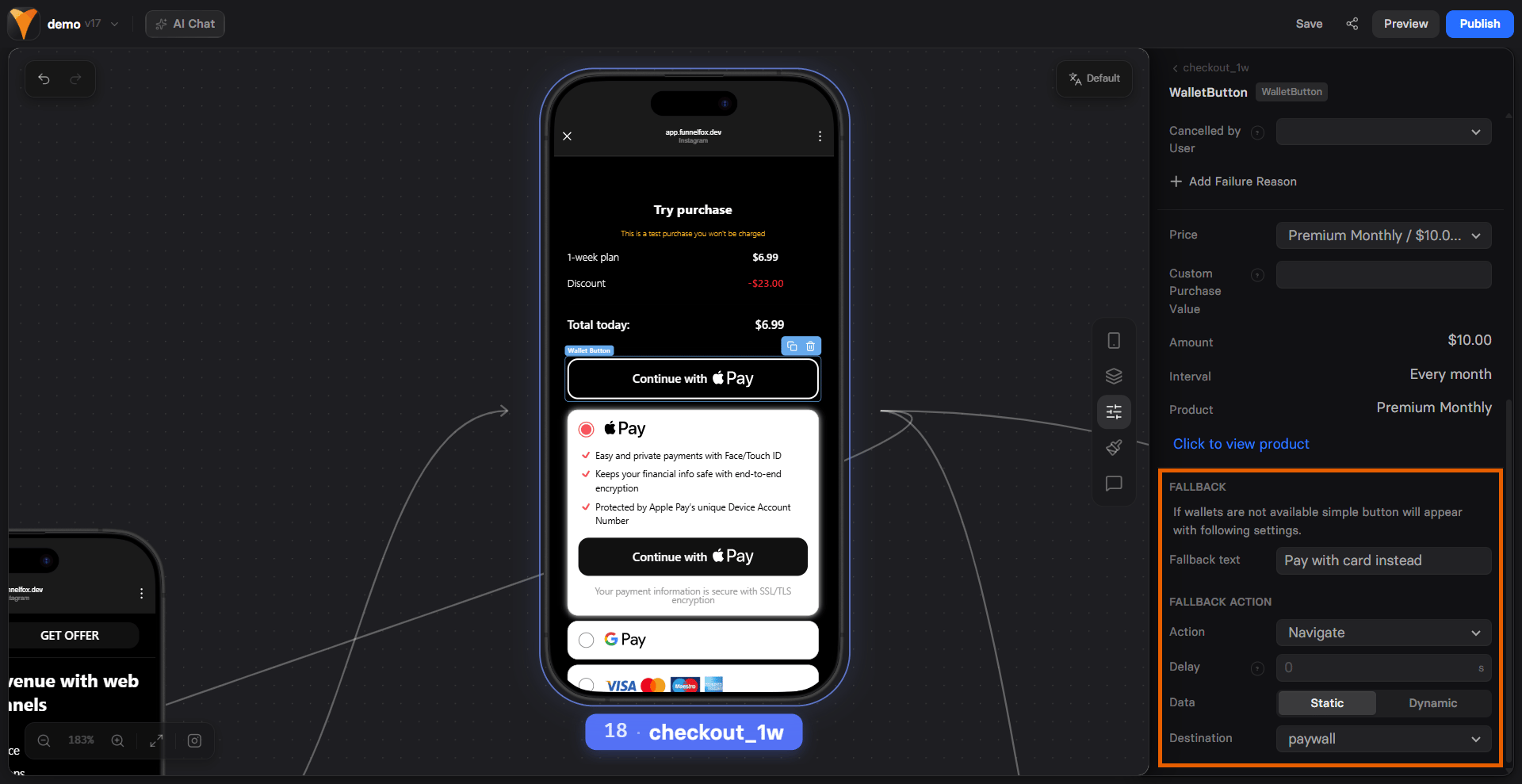
If wallets are not available, a regular button appears with your fallback
settings. The fallback triggers when the device or browser doesn't support
Apple Pay or Google Pay, and when the wallet button fails to load or
initialize.
Treat the fallback as the path for everyone else and always configure it:
* **Fallback text**: Label for the fallback button. If empty, the Wallet button text value is used. Supports [localizations](/docs/editor/localizations).
* **Fallback action**: Action to trigger when the fallback button is tapped, for example, navigate to your checkout screen.
### 3. Fallback
If wallets are not available, a regular button appears with your fallback
settings. The fallback triggers when the device or browser doesn't support
Apple Pay or Google Pay, and when the wallet button fails to load or
initialize.
Treat the fallback as the path for everyone else and always configure it:
* **Fallback text**: Label for the fallback button. If empty, the Wallet button text value is used. Supports [localizations](/docs/editor/localizations).
* **Fallback action**: Action to trigger when the fallback button is tapped, for example, navigate to your checkout screen.
 ### 4. Styling
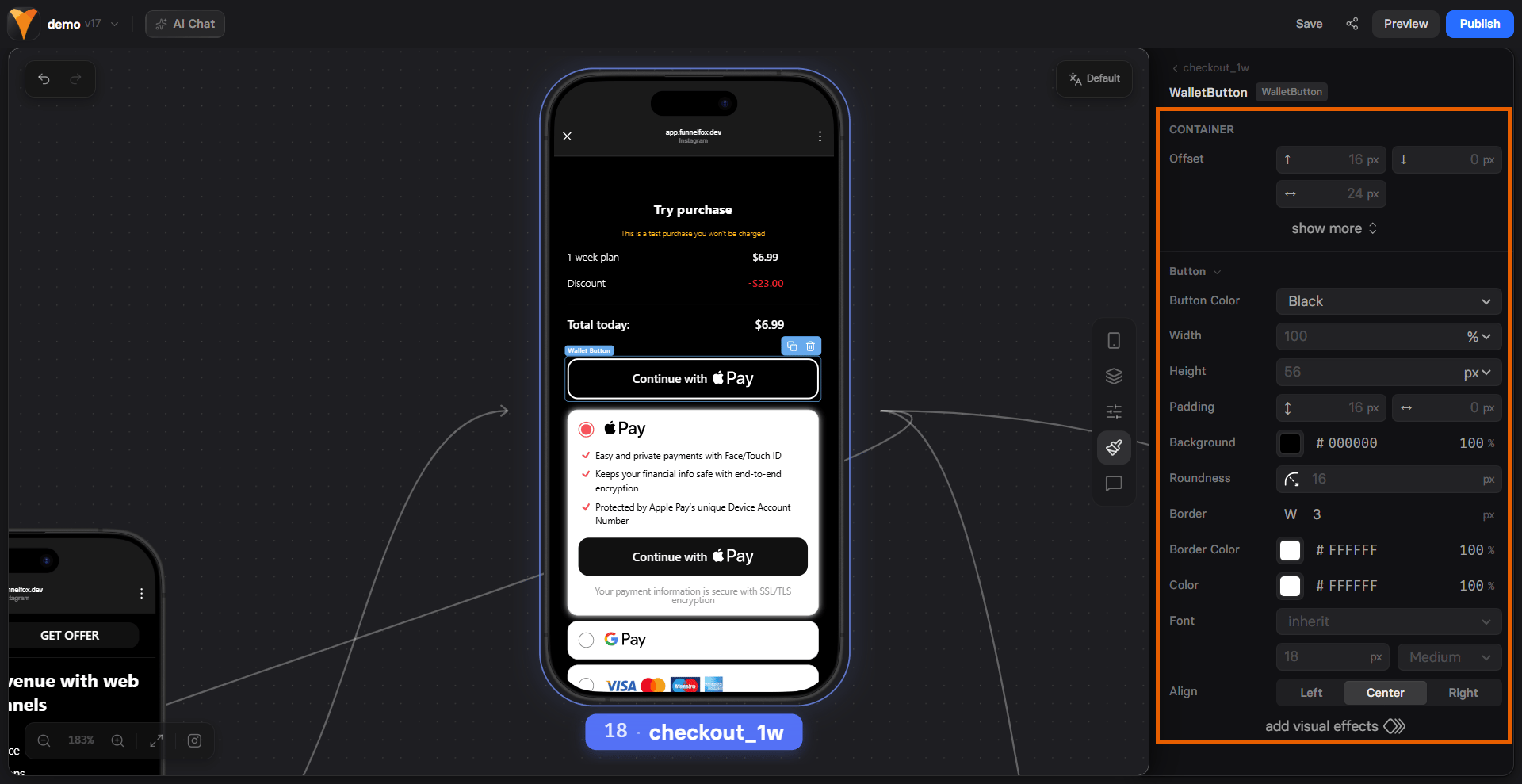
Go to the **Styles** tab of your Wallet button and adjust the following:
* **Container**: Margins, alignment, and other layout settings.
* **Button**: Background, border, roundness, padding, size, and text styles.
* **Effects**: Pulse animation to draw attention to the button.
With FunnelFox Billing, the provider renders its own native wallet
button, so free-form styling is disabled. Choose **Black** or **White**
under **Button color** instead.
### 4. Styling
Go to the **Styles** tab of your Wallet button and adjust the following:
* **Container**: Margins, alignment, and other layout settings.
* **Button**: Background, border, roundness, padding, size, and text styles.
* **Effects**: Pulse animation to draw attention to the button.
With FunnelFox Billing, the provider renders its own native wallet
button, so free-form styling is disabled. Choose **Black** or **White**
under **Button color** instead.
 ## Event triggers
The Wallet button triggers the same payment flow events as the
[Checkout element](/docs/elements/checkout#event-triggers):
* `purchase_started`: User taps the one-click Apple Pay or Google Pay button.
* `purchase_completed_success`: User successfully completes a purchase.
* `purchase_completed_fail`: User fails to complete a purchase.
The `checkout_init_error` event is not sent when a wallet can't
initialize on a device that doesn't support it, for example, Apple Pay
on Android.
Learn more about [events and their parameters](/docs/integrations/events).
## Troubleshooting
Check the following in order:
1. Verify your domains for Apple Pay. Both your project domain and
your custom domain must be added to your PSP, and the PSP must be
selected under **Apple Pay domain verification** in
[Settings > Domains](https://app.funnelfox.com/settings/domains)
in FunnelFox. See the steps for
[Stripe](/docs/integrations/payments/stripe#apple-pay),
[Solidgate](/docs/integrations/payments/solidgate#apple-pay), and
[FunnelFox Billing](/docs/billing/integration-billing-funnelfox#1-set-up-apple-pay).
2. Check the device and browser: Apple Pay requires Safari on iOS
or macOS, and Google Pay requires Chrome or Android.
3. Make sure digital wallets are enabled for your payment provider.
4. Check where you're testing: the Editor always shows a static
placeholder. Test in Live Preview or on the published funnel.
Solidgate renders the Apple Pay button only in Safari. This is a
limitation on the Solidgate side. Learn more in the
[Solidgate documentation](https://docs.solidgate.com/payments/integrate/payment-form/apple-pay-button/#non-safari-browsers).
For customers with slow internet connections, the linked wallet
button may load before the related Checkout element. In this case,
the wallet button won't function, and the fallback button is
triggered automatically.
## Next steps
* [Configure the Checkout element](/docs/elements/checkout)
## Event triggers
The Wallet button triggers the same payment flow events as the
[Checkout element](/docs/elements/checkout#event-triggers):
* `purchase_started`: User taps the one-click Apple Pay or Google Pay button.
* `purchase_completed_success`: User successfully completes a purchase.
* `purchase_completed_fail`: User fails to complete a purchase.
The `checkout_init_error` event is not sent when a wallet can't
initialize on a device that doesn't support it, for example, Apple Pay
on Android.
Learn more about [events and their parameters](/docs/integrations/events).
## Troubleshooting
Check the following in order:
1. Verify your domains for Apple Pay. Both your project domain and
your custom domain must be added to your PSP, and the PSP must be
selected under **Apple Pay domain verification** in
[Settings > Domains](https://app.funnelfox.com/settings/domains)
in FunnelFox. See the steps for
[Stripe](/docs/integrations/payments/stripe#apple-pay),
[Solidgate](/docs/integrations/payments/solidgate#apple-pay), and
[FunnelFox Billing](/docs/billing/integration-billing-funnelfox#1-set-up-apple-pay).
2. Check the device and browser: Apple Pay requires Safari on iOS
or macOS, and Google Pay requires Chrome or Android.
3. Make sure digital wallets are enabled for your payment provider.
4. Check where you're testing: the Editor always shows a static
placeholder. Test in Live Preview or on the published funnel.
Solidgate renders the Apple Pay button only in Safari. This is a
limitation on the Solidgate side. Learn more in the
[Solidgate documentation](https://docs.solidgate.com/payments/integrate/payment-form/apple-pay-button/#non-safari-browsers).
For customers with slow internet connections, the linked wallet
button may load before the related Checkout element. In this case,
the wallet button won't function, and the fallback button is
triggered automatically.
## Next steps
* [Configure the Checkout element](/docs/elements/checkout)