> ## Documentation Index
> Fetch the complete documentation index at: https://funnelfox.com/docs/llms.txt
> Use this file to discover all available pages before exploring further.
# Timer / countdown element
> Add countdown timers to your FunnelFox funnels. Create urgency with customizable timers, deadline countdowns, and expiring offers.
The Timer element creates powerful urgency that drives immediate action. Whether
it's a limited-time offer or expiring bonus, timers tap into fear of missing
out (FOMO) to boost conversions.
 ## Use cases
Perfect for:
* **Limited offers** - "50% off ends in..."
* **Expiring bonuses** - "Free add-ons available for..."
* **Product launches** - "Early bird pricing ends..."
## Create timers
Set up your timer by adding the element and configuring its content and behavior.
### 1. Add timer
Prompt the AI Chat in Editor to add a Timer element.
Or open the **Layers** tab, click **+ Add element** and go to **All > Timer**.
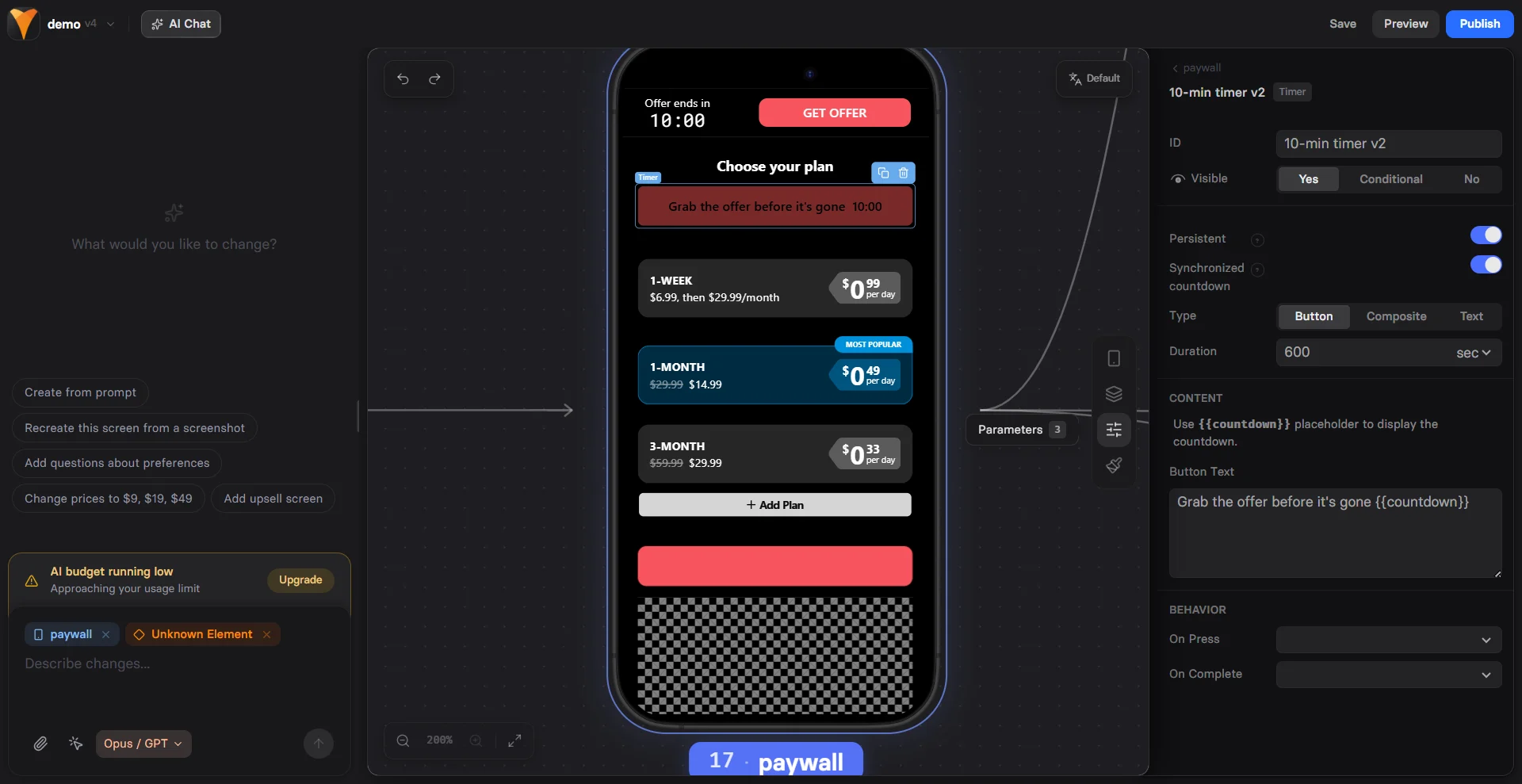
Select the timer type in the **Parameters** tab on the right:
* **Button**: Countdown displayed on a button.
* **Composite**: Button + text for maximum visibility.
* **Text**: Inline countdown in text.
### 2. Configure timer
Go to the **Parameters** tab on the right and configure:
* **Persistent**: When enabled, the timer preserves its time after a page refresh or when the visitor returns.
* **Duration**: Timer length in seconds or minutes.
* **Text**: Inline label that displays the countdown. Use the `{{countdown}}` placeholder.
* **Button Text**: Button label that displays the countdown. Use the `{{countdown}}` placeholder.
* **On Press**: Configure [actions](/editor/actions#essential-actions) that run when the button is pressed, such as navigating the user, revealing hidden elements, and more.
* **On Complete**: Configure actions that run when the timer reaches zero.
* **Synchronized countdown**: Syncs the timer start time across all pages in this funnel. When disabled, each timer starts when the user first views it.
### 3. Timer layout
Go to the **Styles** tab to customize the visual appearance of the element, button, text, and countdown.
## Troubleshooting
Check the [Persistent](/elements/timer#2-configure-timer) setting. When enabled, the timer preserves its time after a page refresh or when the visitor returns.
Check the [Synchronized countdown](/elements/timer#2-configure-timer) setting. When enabled, all timers in the funnel start at the same time. When disabled, each timer starts when the user first views it.
## Use cases
Perfect for:
* **Limited offers** - "50% off ends in..."
* **Expiring bonuses** - "Free add-ons available for..."
* **Product launches** - "Early bird pricing ends..."
## Create timers
Set up your timer by adding the element and configuring its content and behavior.
### 1. Add timer
Prompt the AI Chat in Editor to add a Timer element.
Or open the **Layers** tab, click **+ Add element** and go to **All > Timer**.
Select the timer type in the **Parameters** tab on the right:
* **Button**: Countdown displayed on a button.
* **Composite**: Button + text for maximum visibility.
* **Text**: Inline countdown in text.
### 2. Configure timer
Go to the **Parameters** tab on the right and configure:
* **Persistent**: When enabled, the timer preserves its time after a page refresh or when the visitor returns.
* **Duration**: Timer length in seconds or minutes.
* **Text**: Inline label that displays the countdown. Use the `{{countdown}}` placeholder.
* **Button Text**: Button label that displays the countdown. Use the `{{countdown}}` placeholder.
* **On Press**: Configure [actions](/editor/actions#essential-actions) that run when the button is pressed, such as navigating the user, revealing hidden elements, and more.
* **On Complete**: Configure actions that run when the timer reaches zero.
* **Synchronized countdown**: Syncs the timer start time across all pages in this funnel. When disabled, each timer starts when the user first views it.
### 3. Timer layout
Go to the **Styles** tab to customize the visual appearance of the element, button, text, and countdown.
## Troubleshooting
Check the [Persistent](/elements/timer#2-configure-timer) setting. When enabled, the timer preserves its time after a page refresh or when the visitor returns.
Check the [Synchronized countdown](/elements/timer#2-configure-timer) setting. When enabled, all timers in the funnel start at the same time. When disabled, each timer starts when the user first views it.