> ## Documentation Index
> Fetch the complete documentation index at: https://funnelfox.com/docs/llms.txt
> Use this file to discover all available pages before exploring further.
# Text input element
> Add text input fields to your FunnelFox funnels. Collect emails, names, and custom data with validation and styling options.
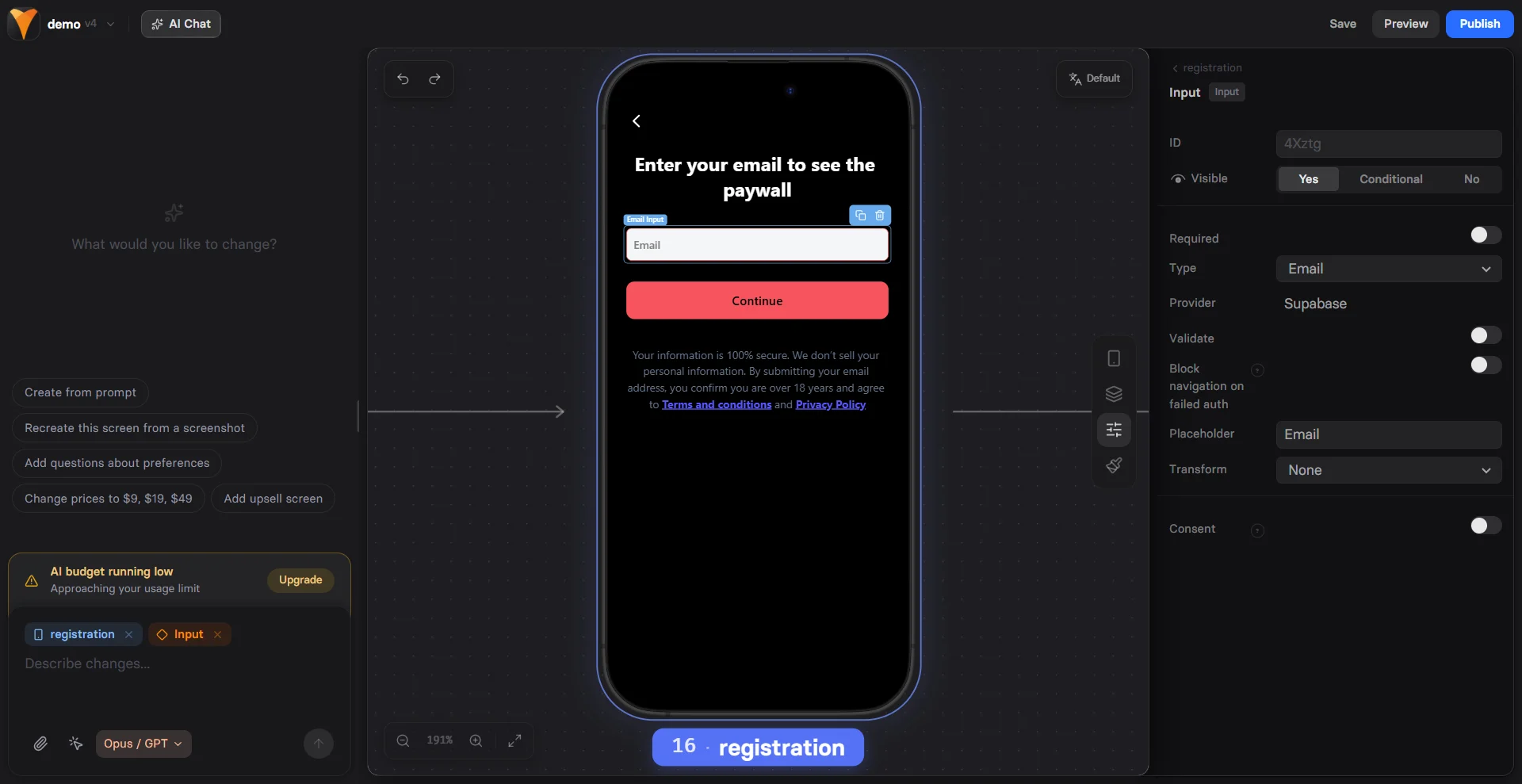
The Text Input element is the fundamental building block for data collection in
your funnels. It's stateful, meaning user input is saved and accessible
throughout the funnel via variables.
 ## When to Use
Essential for collecting:
* **Email addresses** - Newsletter signups, account creation
* **Names** - Personalization, customer records
* **Phone numbers** - SMS marketing, support
* **Custom data** - Ages, preferences, feedback
* **Passwords** - Account creation, login forms
## Input Types
Choose the appropriate type for better user experience and validation:
| Type | Purpose | Mobile Keyboard | Validation |
| ------------ | --------------- | --------------- | ----------------------------------- |
| **Text** | General text | Standard | None |
| **Email** | Email addresses | Email keyboard | Email format |
| **Number** | Numeric values | Numeric pad | Number range, integer / non-integer |
| **Tel** | Phone numbers | Phone pad | None |
| **Password** | Secure input | Standard | Hidden input |
| **URL** | Web addresses | URL keyboard | URL format |
| **Date** | Date selection | Date picker | Date format |
Always use the email type for email collection - it provides better
mobile keyboards and built-in validation.
## Configuration
### Basic Settings
**Placeholder Text**
Guide users with example input:
* "Enter your email"
* "First name"
* "Your phone (optional)"
**Required Field**
* Prevents form submission without input
* Shows validation message
* Adds asterisk (\*) indicator
### Validation
**Email type inputs**:
* Validates format ([name@domain.com](mailto:name@domain.com))
* Errors appear only if the field is marked **Required** and the user tries to navigate to another screen without entering a valid email
**Number type inputs**:
* **Integer only** - Only whole numbers are allowed. Decimals (e.g., 3.5) are not accepted
* **Min value** and **Max value** - The minimum and maximum allowed values
* **Exclusive**: When set to **Yes**, the Min or Max value itself is not allowed
* **Error message**: Custom text shown for invalid values. You can provide your own message or keep the default one
### Text Transformation
Automatically format input:
| Transform | Input | Result | Use Case |
| -------------- | --------------------------------------- | --------------------------------------- | ------------------- |
| **Uppercase** | john | JOHN | Promo codes |
| **Lowercase** | [John@Email.com](mailto:John@Email.com) | [john@email.com](mailto:john@email.com) | Email normalization |
| **Capitalize** | john smith | John Smith | Names |
## Using Input Values
### Variables
Input values become variables using the element ID:
```
Element ID: user-email
User enters: john@example.com
Available as: {{user-email}}
```
### Multiple Inputs
Collect complete information:
```html theme={null}
Name: {{first-name}} {{last-name}}
Email: {{email}}
Phone: {{phone}}
```
### Conditional Logic
Show/hide elements based on input:
```
Show premium options if {{age}} > 25
Show student discount if {{email}} contains ".edu"
Hide shipping if {{country}} equals "US"
```
## Mobile Optimization
Text inputs are optimized for mobile:
**Appropriate Keyboards**
* Email: Shows @ and .com keys
* Number: Numeric keypad only
* Phone: Large number keys
* URL: No spaces, quick slash
**Auto-features**
* Autocomplete for common fields
* Autocorrect disabled for emails
* Auto-capitalization for names
* Password managers integration
**Touch Targets**
* Minimum 44px height
* Clear tap areas
* Proper spacing between fields
On mobile, use single-column layouts for forms. Side-by-side inputs
are harder to complete on small screens.
## Form Design Best Practices
### Progressive Disclosure
Don't overwhelm users:
**Page 1**: Email only
**Page 2**: Name and preferences
**Page 3**: Additional details
This approach:
* Increases completion rates by 30%
* Captures emails for abandonment recovery
* Feels less overwhelming
### Field Order
Optimal sequence:
1. Email (easiest to provide)
2. Name (personal but simple)
3. Phone (more hesitation)
4. Address (highest friction)
### Labels vs Placeholders
**Use both for clarity:**
* Label: "Email Address"
* Placeholder: "[john@example.com](mailto:john@example.com)"
**Mobile consideration:**
Labels stay visible when typing, placeholders disappear.
## Advanced Features
### Autocomplete Attributes
Enable browser autofill:
```
Name: autocomplete="name"
Email: autocomplete="email"
Phone: autocomplete="tel"
```
This speeds up form completion by 40%.
### Input Masking
Format input as users type:
* Phone: (555) 123-4567
* Credit card: 1234 5678 9012 3456
* Date: MM/DD/YYYY
### Multi-line Text
For longer responses:
* Set "Multiline" option
* Adjustable height
* Good for feedback, comments
## Email Collection Strategies
### Two-Step Opt-in
Higher quality leads:
**Step 1**: "Enter email for free guide"
**Step 2**: "Check your email to confirm"
Benefits:
* Verifies email ownership
* Higher engagement rates
* Cleaner email list
### Inline Validation
Immediate feedback:
* ✓ Valid email format
* ✗ Invalid format
* ⚠️ Disposable email detected
## Common Patterns
### Newsletter Signup
```
Input: Email (required)
Placeholder: "Enter your email"
Button: "Get Free Updates"
```
### Lead Magnet
```
Page 1:
- Email input
- "Get Free eBook" button
Page 2:
- Name input (optional)
- Download button
```
### Account Creation
```
Email: Required, validated
Password: Required, min 8 characters
Confirm Password: Match validation
```
### Quiz Start
```
"First, what's your name?"
Input: Text
Placeholder: "John"
Transform: Capitalize
Next page: "Nice to meet you, {{name}}!"
```
## Conversion Optimization
### Reduce Friction
* **Single field per page** - For critical inputs
* **Optional indicators** - Mark optional vs required
* **Clear errors** - Specific, helpful messages
### Build Trust
* **Privacy notice** - "We'll never spam you"
* **Social proof** - "Join 10,000+ subscribers"
* **Benefits** - "Get exclusive tips"
* **Security** - Lock icon for sensitive data
### Increase Completion
* **Progress indicators** - Show form progress
* **Save progress** - Remember partial input
* **Exit intent** - Capture before leaving
* **Inline validation** - Fix errors immediately
## Troubleshooting
* Element must have an ID
* Check for duplicate IDs
* Verify no JavaScript errors
* Input must lose focus to save
* Variable name matches ID exactly
* Use correct syntax: `{{element-id}}`
* Value updates after input loses focus
* Check for typos in variable name
* Email validation only works with email type
* Required validation needs form submission
* Number constraints need number type
* Check browser compatibility
* Verify input type is set correctly
* Test on actual device, not desktop browser
* Check for custom CSS interference
* Some keyboards vary by OS version
## Integration Examples
### With Checkout
Collect email before payment:
```
Page 1: Email input
Page 2: Checkout (email pre-filled)
```
### With Options
Personalized path:
```
Page 1: Name input
Page 2: "Hi {{name}}, what's your goal?"
Page 3: Options based on goal
```
### With Analytics
Track form completion:
```javascript theme={null}
// When email is entered
fox.track('Lead Captured', {
email: '{{user-email}}'
});
```
## Next Steps
* [Use variables](/editor/variables) from inputs
* [Add validation](/editor/actions#validation) with actions
* [Connect to webhooks](/develop/webhooks) for data sync
* [Track conversions](/integrations/analytics) with analytics
## When to Use
Essential for collecting:
* **Email addresses** - Newsletter signups, account creation
* **Names** - Personalization, customer records
* **Phone numbers** - SMS marketing, support
* **Custom data** - Ages, preferences, feedback
* **Passwords** - Account creation, login forms
## Input Types
Choose the appropriate type for better user experience and validation:
| Type | Purpose | Mobile Keyboard | Validation |
| ------------ | --------------- | --------------- | ----------------------------------- |
| **Text** | General text | Standard | None |
| **Email** | Email addresses | Email keyboard | Email format |
| **Number** | Numeric values | Numeric pad | Number range, integer / non-integer |
| **Tel** | Phone numbers | Phone pad | None |
| **Password** | Secure input | Standard | Hidden input |
| **URL** | Web addresses | URL keyboard | URL format |
| **Date** | Date selection | Date picker | Date format |
Always use the email type for email collection - it provides better
mobile keyboards and built-in validation.
## Configuration
### Basic Settings
**Placeholder Text**
Guide users with example input:
* "Enter your email"
* "First name"
* "Your phone (optional)"
**Required Field**
* Prevents form submission without input
* Shows validation message
* Adds asterisk (\*) indicator
### Validation
**Email type inputs**:
* Validates format ([name@domain.com](mailto:name@domain.com))
* Errors appear only if the field is marked **Required** and the user tries to navigate to another screen without entering a valid email
**Number type inputs**:
* **Integer only** - Only whole numbers are allowed. Decimals (e.g., 3.5) are not accepted
* **Min value** and **Max value** - The minimum and maximum allowed values
* **Exclusive**: When set to **Yes**, the Min or Max value itself is not allowed
* **Error message**: Custom text shown for invalid values. You can provide your own message or keep the default one
### Text Transformation
Automatically format input:
| Transform | Input | Result | Use Case |
| -------------- | --------------------------------------- | --------------------------------------- | ------------------- |
| **Uppercase** | john | JOHN | Promo codes |
| **Lowercase** | [John@Email.com](mailto:John@Email.com) | [john@email.com](mailto:john@email.com) | Email normalization |
| **Capitalize** | john smith | John Smith | Names |
## Using Input Values
### Variables
Input values become variables using the element ID:
```
Element ID: user-email
User enters: john@example.com
Available as: {{user-email}}
```
### Multiple Inputs
Collect complete information:
```html theme={null}
Name: {{first-name}} {{last-name}}
Email: {{email}}
Phone: {{phone}}
```
### Conditional Logic
Show/hide elements based on input:
```
Show premium options if {{age}} > 25
Show student discount if {{email}} contains ".edu"
Hide shipping if {{country}} equals "US"
```
## Mobile Optimization
Text inputs are optimized for mobile:
**Appropriate Keyboards**
* Email: Shows @ and .com keys
* Number: Numeric keypad only
* Phone: Large number keys
* URL: No spaces, quick slash
**Auto-features**
* Autocomplete for common fields
* Autocorrect disabled for emails
* Auto-capitalization for names
* Password managers integration
**Touch Targets**
* Minimum 44px height
* Clear tap areas
* Proper spacing between fields
On mobile, use single-column layouts for forms. Side-by-side inputs
are harder to complete on small screens.
## Form Design Best Practices
### Progressive Disclosure
Don't overwhelm users:
**Page 1**: Email only
**Page 2**: Name and preferences
**Page 3**: Additional details
This approach:
* Increases completion rates by 30%
* Captures emails for abandonment recovery
* Feels less overwhelming
### Field Order
Optimal sequence:
1. Email (easiest to provide)
2. Name (personal but simple)
3. Phone (more hesitation)
4. Address (highest friction)
### Labels vs Placeholders
**Use both for clarity:**
* Label: "Email Address"
* Placeholder: "[john@example.com](mailto:john@example.com)"
**Mobile consideration:**
Labels stay visible when typing, placeholders disappear.
## Advanced Features
### Autocomplete Attributes
Enable browser autofill:
```
Name: autocomplete="name"
Email: autocomplete="email"
Phone: autocomplete="tel"
```
This speeds up form completion by 40%.
### Input Masking
Format input as users type:
* Phone: (555) 123-4567
* Credit card: 1234 5678 9012 3456
* Date: MM/DD/YYYY
### Multi-line Text
For longer responses:
* Set "Multiline" option
* Adjustable height
* Good for feedback, comments
## Email Collection Strategies
### Two-Step Opt-in
Higher quality leads:
**Step 1**: "Enter email for free guide"
**Step 2**: "Check your email to confirm"
Benefits:
* Verifies email ownership
* Higher engagement rates
* Cleaner email list
### Inline Validation
Immediate feedback:
* ✓ Valid email format
* ✗ Invalid format
* ⚠️ Disposable email detected
## Common Patterns
### Newsletter Signup
```
Input: Email (required)
Placeholder: "Enter your email"
Button: "Get Free Updates"
```
### Lead Magnet
```
Page 1:
- Email input
- "Get Free eBook" button
Page 2:
- Name input (optional)
- Download button
```
### Account Creation
```
Email: Required, validated
Password: Required, min 8 characters
Confirm Password: Match validation
```
### Quiz Start
```
"First, what's your name?"
Input: Text
Placeholder: "John"
Transform: Capitalize
Next page: "Nice to meet you, {{name}}!"
```
## Conversion Optimization
### Reduce Friction
* **Single field per page** - For critical inputs
* **Optional indicators** - Mark optional vs required
* **Clear errors** - Specific, helpful messages
### Build Trust
* **Privacy notice** - "We'll never spam you"
* **Social proof** - "Join 10,000+ subscribers"
* **Benefits** - "Get exclusive tips"
* **Security** - Lock icon for sensitive data
### Increase Completion
* **Progress indicators** - Show form progress
* **Save progress** - Remember partial input
* **Exit intent** - Capture before leaving
* **Inline validation** - Fix errors immediately
## Troubleshooting
* Element must have an ID
* Check for duplicate IDs
* Verify no JavaScript errors
* Input must lose focus to save
* Variable name matches ID exactly
* Use correct syntax: `{{element-id}}`
* Value updates after input loses focus
* Check for typos in variable name
* Email validation only works with email type
* Required validation needs form submission
* Number constraints need number type
* Check browser compatibility
* Verify input type is set correctly
* Test on actual device, not desktop browser
* Check for custom CSS interference
* Some keyboards vary by OS version
## Integration Examples
### With Checkout
Collect email before payment:
```
Page 1: Email input
Page 2: Checkout (email pre-filled)
```
### With Options
Personalized path:
```
Page 1: Name input
Page 2: "Hi {{name}}, what's your goal?"
Page 3: Options based on goal
```
### With Analytics
Track form completion:
```javascript theme={null}
// When email is entered
fox.track('Lead Captured', {
email: '{{user-email}}'
});
```
## Next Steps
* [Use variables](/editor/variables) from inputs
* [Add validation](/editor/actions#validation) with actions
* [Connect to webhooks](/develop/webhooks) for data sync
* [Track conversions](/integrations/analytics) with analytics