> ## Documentation Index
> Fetch the complete documentation index at: https://funnelfox.com/docs/llms.txt
> Use this file to discover all available pages before exploring further.
# Plan picker element
> Add plan picker elements to your funnels. Let users compare and select subscription plans with customizable pricing displays.
The Plan picker element creates optimized paywalls that maximize conversion rates through clear pricing presentation and friction-free selection. It's the go-to element for subscription apps to present pricing options.
Plan Picker is specifically designed for subscription products. For one-time
purchases or simple price selection, use [Price Picker](/elements/pricepicker).
 ## How it works
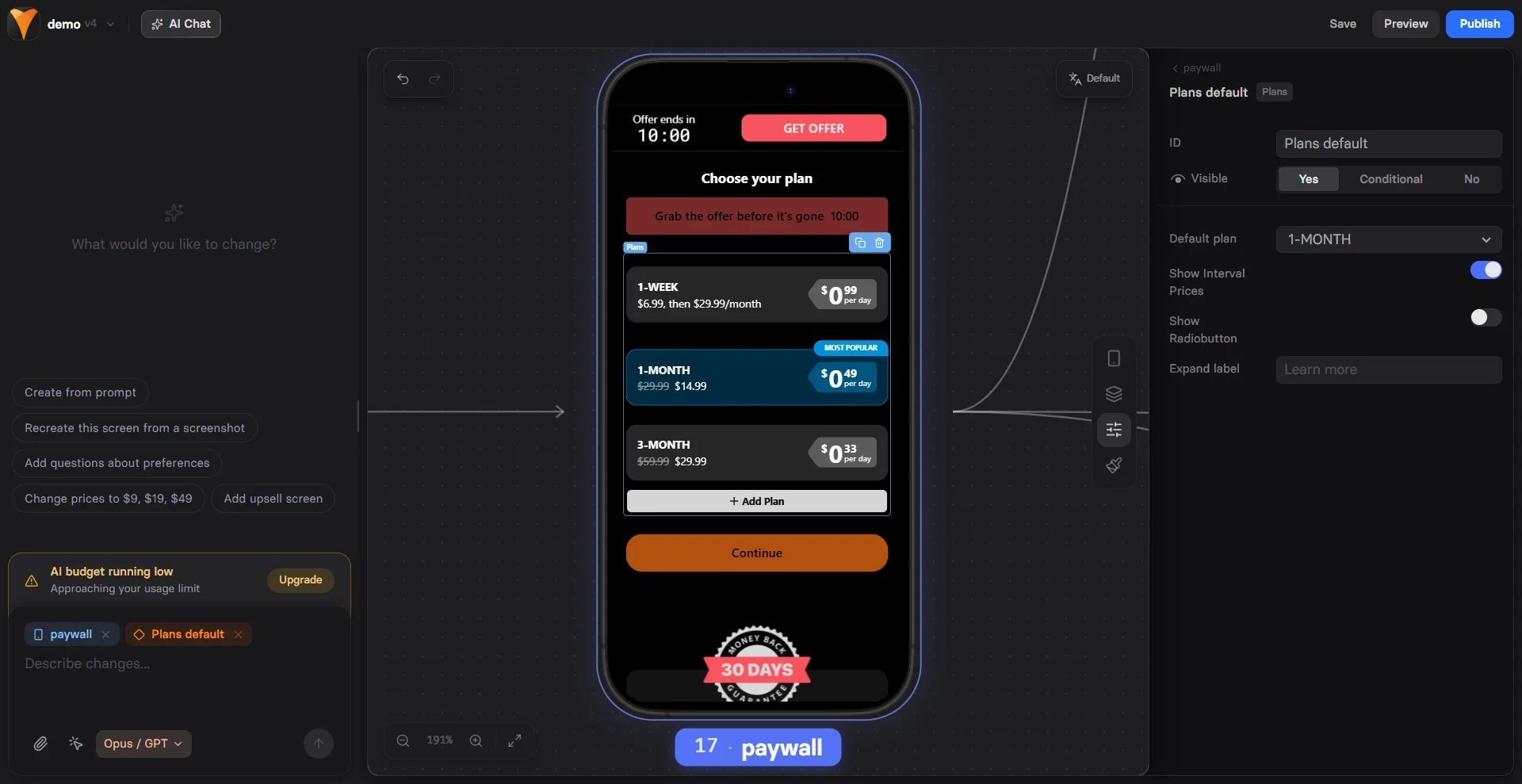
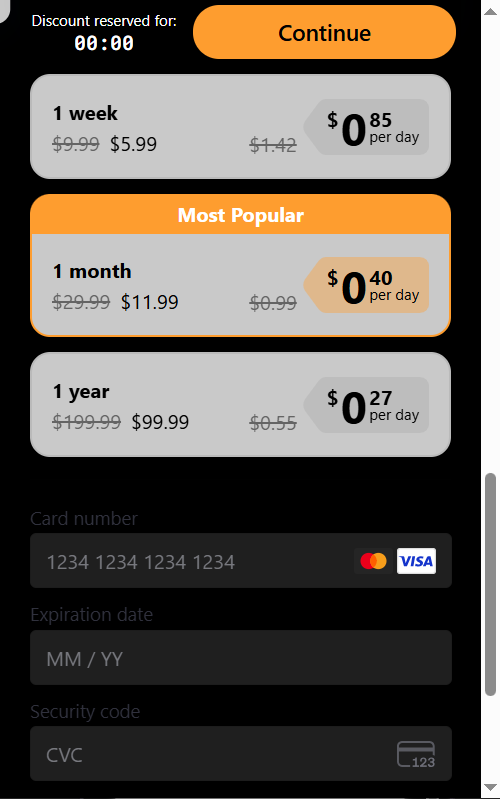
The Plan picker is a container element that holds individual plan components. Each plan represents a subscription or purchase option with its own pricing and billing period.
It allows you to visualize plan selection for users on paywalls. For example:
```
Plan picker
├── Plan 1: Weekly - $5.99/week
├── Plan 2: Monthly - $11.99/month (Most Popular)
└── Plan 3: Yearly - $99.99/year
```
## How it works
The Plan picker is a container element that holds individual plan components. Each plan represents a subscription or purchase option with its own pricing and billing period.
It allows you to visualize plan selection for users on paywalls. For example:
```
Plan picker
├── Plan 1: Weekly - $5.99/week
├── Plan 2: Monthly - $11.99/month (Most Popular)
└── Plan 3: Yearly - $99.99/year
```
 When you have a plan picker:
* You can set your [checkout](/elements/checkout) to automatically receive the price selected by users.
* You can test different pricing strategies with [experiments](/dashboard/experiments) (A/B tests).
## Create plans
Set up your plan picker by adding the element and configuring individual subscription plans with pricing and billing options.
Prompt [AI Chat in Editor](/agentic-solution/overview#ai-chat-in-editor) with something like `add a plan picker with three monthly tiers` and the agent adds and configures the element for you.
### 1. Add Plan picker
Prompt the AI Chat in Editor to add a Plan picker element.
Or open the **Layers** tab, click **+ Add element** and go to **Paywall elements**.
Configure the **Parameters** tab of the Plan picker element:
* **Composite**: Each plan includes a subscription button.
* **Simple**: Subscription button is placed separately from plan picker.
If you're using multiple plan pickers, configure the element ID to sync them. Learn more about [syncing multiple plan pickers](#sync-plan-pickers).
### 2. Configure plans
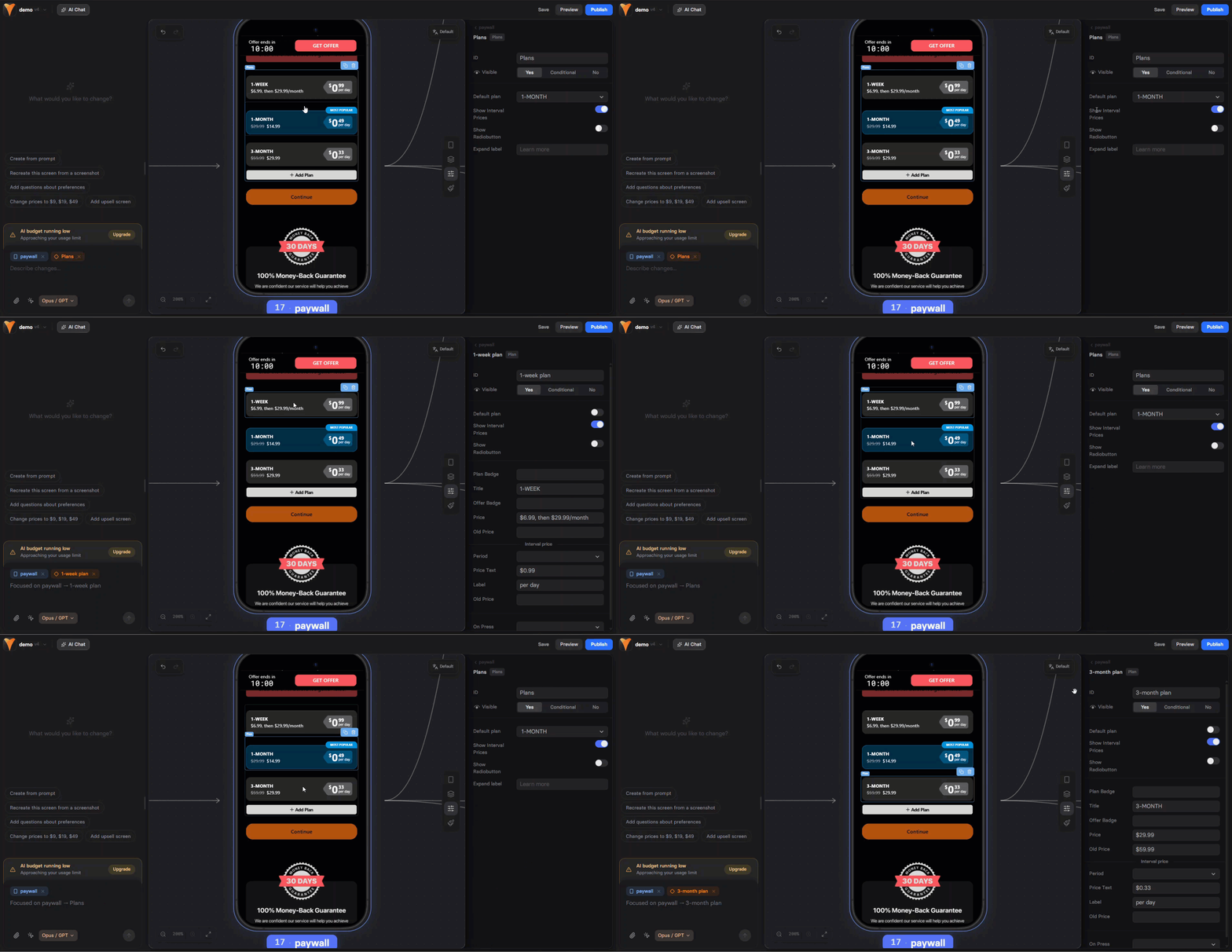
Go to the **Parameters** tab for each plan and configure:
* **Visible**: Optionally make the plan conditional, based on previous user inputs. Learn about [conditional visibility](/elements/overview#conditional-visibility).
* **Default plan**: Pre-select recommended plan. Combine with a badge to encourage user selection.
* **Show Interval prices**: When set to Yes, displays daily/weekly/monthly prices with custom labels.
* **Show Radiobutton**: Adds radio buttons to indicate selection.
* **Plan Badge**: Shows a badge at the top of the plan to encourage selection. For example, *BEST VALUE*, *POPULAR*, *SAVE 50%*.
* **Title**: Plan title visible to users. Supports dynamic content using [variables](/editor/variables).
* **Offer Badge**: Shows a badge inside the plan. Supports dynamic content using [variables](/editor/variables).
* **Price**: Actual price, e.g. *\$9.99*. Supports dynamic content using [variables](/editor/variables).
* **Old Price**: Strike-through price for discounts.
* **On Press**: Configure [actions](/editor/actions#essential-actions) that run when the plan is selected, such as navigating the user, revealing hidden elements, and more.
You can localize prices and show relevant currencies for each user. Learn about [pricing localization](/editor/localizations#pricing-localization).
### 3. Plans layout
Beyond the overall plan picker element layout, you can also adjust the layout of each individual plan, badge, or price block.
Go to the **Styles** tab to fine-tune visual properties.
## Sync plan pickers
You may want to use multiple plan pickers. In this case, sync them so when users select a plan from one picker, the same plan is automatically selected in other pickers.
To sync plan pickers:
1. Use the same element ID for all plan pickers (e.g., *plans*).
2. Use the same ID for each corresponding plan (e.g., the monthly plan should have the same *month* ID across all pickers).
When you have a plan picker:
* You can set your [checkout](/elements/checkout) to automatically receive the price selected by users.
* You can test different pricing strategies with [experiments](/dashboard/experiments) (A/B tests).
## Create plans
Set up your plan picker by adding the element and configuring individual subscription plans with pricing and billing options.
Prompt [AI Chat in Editor](/agentic-solution/overview#ai-chat-in-editor) with something like `add a plan picker with three monthly tiers` and the agent adds and configures the element for you.
### 1. Add Plan picker
Prompt the AI Chat in Editor to add a Plan picker element.
Or open the **Layers** tab, click **+ Add element** and go to **Paywall elements**.
Configure the **Parameters** tab of the Plan picker element:
* **Composite**: Each plan includes a subscription button.
* **Simple**: Subscription button is placed separately from plan picker.
If you're using multiple plan pickers, configure the element ID to sync them. Learn more about [syncing multiple plan pickers](#sync-plan-pickers).
### 2. Configure plans
Go to the **Parameters** tab for each plan and configure:
* **Visible**: Optionally make the plan conditional, based on previous user inputs. Learn about [conditional visibility](/elements/overview#conditional-visibility).
* **Default plan**: Pre-select recommended plan. Combine with a badge to encourage user selection.
* **Show Interval prices**: When set to Yes, displays daily/weekly/monthly prices with custom labels.
* **Show Radiobutton**: Adds radio buttons to indicate selection.
* **Plan Badge**: Shows a badge at the top of the plan to encourage selection. For example, *BEST VALUE*, *POPULAR*, *SAVE 50%*.
* **Title**: Plan title visible to users. Supports dynamic content using [variables](/editor/variables).
* **Offer Badge**: Shows a badge inside the plan. Supports dynamic content using [variables](/editor/variables).
* **Price**: Actual price, e.g. *\$9.99*. Supports dynamic content using [variables](/editor/variables).
* **Old Price**: Strike-through price for discounts.
* **On Press**: Configure [actions](/editor/actions#essential-actions) that run when the plan is selected, such as navigating the user, revealing hidden elements, and more.
You can localize prices and show relevant currencies for each user. Learn about [pricing localization](/editor/localizations#pricing-localization).
### 3. Plans layout
Beyond the overall plan picker element layout, you can also adjust the layout of each individual plan, badge, or price block.
Go to the **Styles** tab to fine-tune visual properties.
## Sync plan pickers
You may want to use multiple plan pickers. In this case, sync them so when users select a plan from one picker, the same plan is automatically selected in other pickers.
To sync plan pickers:
1. Use the same element ID for all plan pickers (e.g., *plans*).
2. Use the same ID for each corresponding plan (e.g., the monthly plan should have the same *month* ID across all pickers).
 ## Next steps
* [Add checkout](/elements/checkout) for payment processing
* [Create experiments](/dashboard/experiments) to test plan variations
## Next steps
* [Add checkout](/elements/checkout) for payment processing
* [Create experiments](/dashboard/experiments) to test plan variations