> ## Documentation Index
> Fetch the complete documentation index at: https://funnelfox.com/docs/llms.txt
> Use this file to discover all available pages before exploring further.
# Elements overview
> Explore all FunnelFox funnel elements: buttons, text, images, checkouts, timers, popups, plan pickers, reviews, and more.
Elements are the fundamental building blocks of your funnels. From simple text
and images to complex forms and payment buttons, elements let you create
engaging, conversion-optimized experiences without writing code.
## Adding Elements
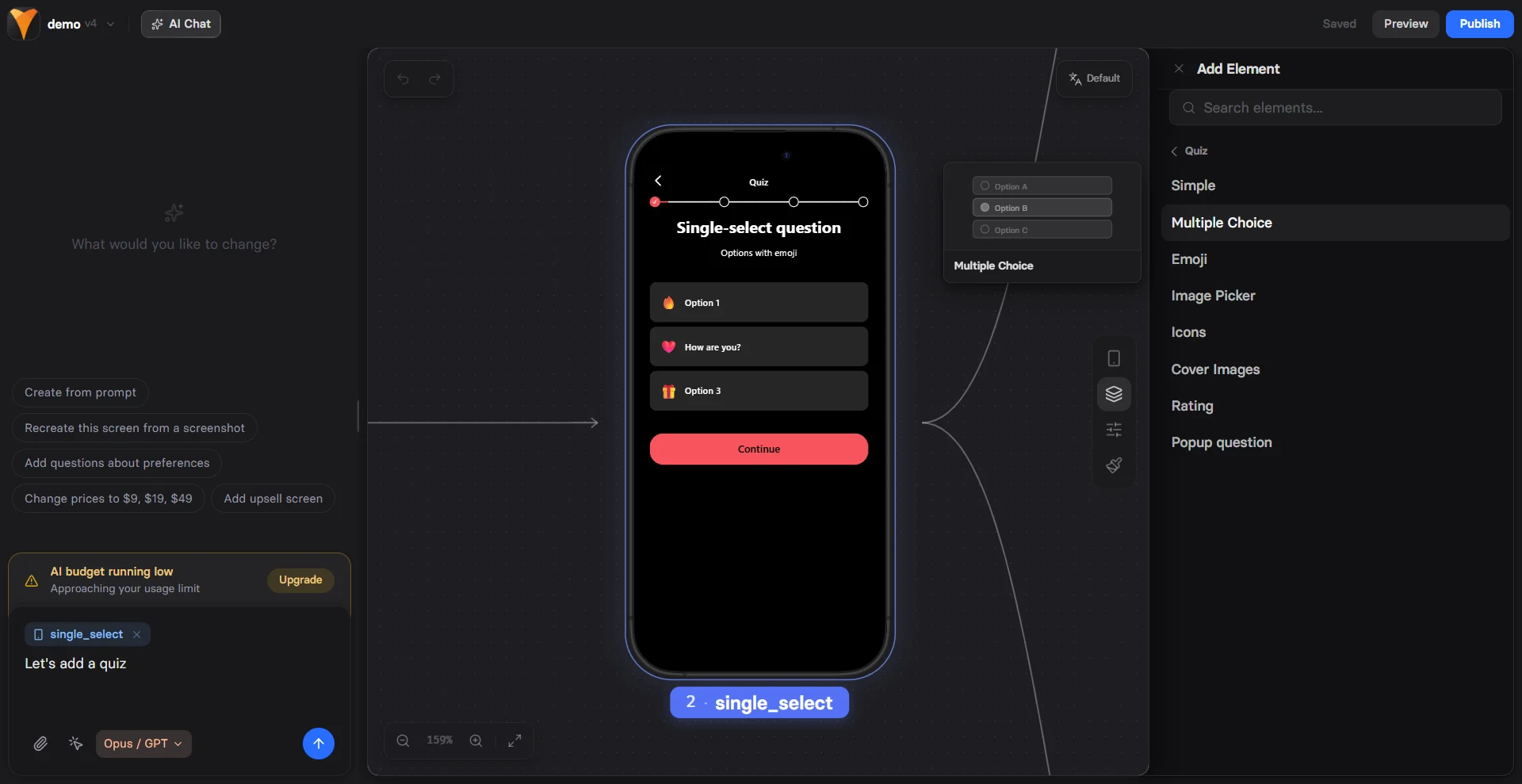
The fastest way to add elements is to prompt [AI Chat in Editor](/agentic-solution/overview#ai-chat-in-editor) on the canvas, for example: `add a plan picker with three monthly tiers and a CTA button`. The agent picks the right elements, configures them, and lays them out on the screen.
You can also drag elements from the left panel onto your screen in the Editor. Each element automatically adapts to mobile and desktop views while maintaining your design intent.
 ## Common Properties
Every element shares these foundational properties that control identification,
visibility, and behavior.
### Element Tab
#### ID
Unique identifier for the element. Auto-generated but customizable.
**Why IDs matter:**
* **Variables**: Stateful elements (inputs, dropdowns, etc.) with IDs create variables
* **Analytics tracking**: Track specific element interactions
* **Dynamic actions**: Reference in show/hide actions
Use descriptive IDs like `email-input` or `submit-button` for easier
maintenance and debugging.
#### Visibility
Control when and how elements appear:
| Option | Description | Use Case |
| --------------- | ------------------------ | -------------------------- |
| **Yes** | Always visible (default) | Standard content |
| **No** | Removed from DOM | Hidden features, A/B tests |
| **Conditional** | Show based on rules | Personalization, targeting |
**Important for RAW elements**: Setting visibility to "No" prevents scripts
from executing since the element isn't rendered in the DOM.
See [Conditional Visibility](#conditional-visibility) below for detailed rules and options.
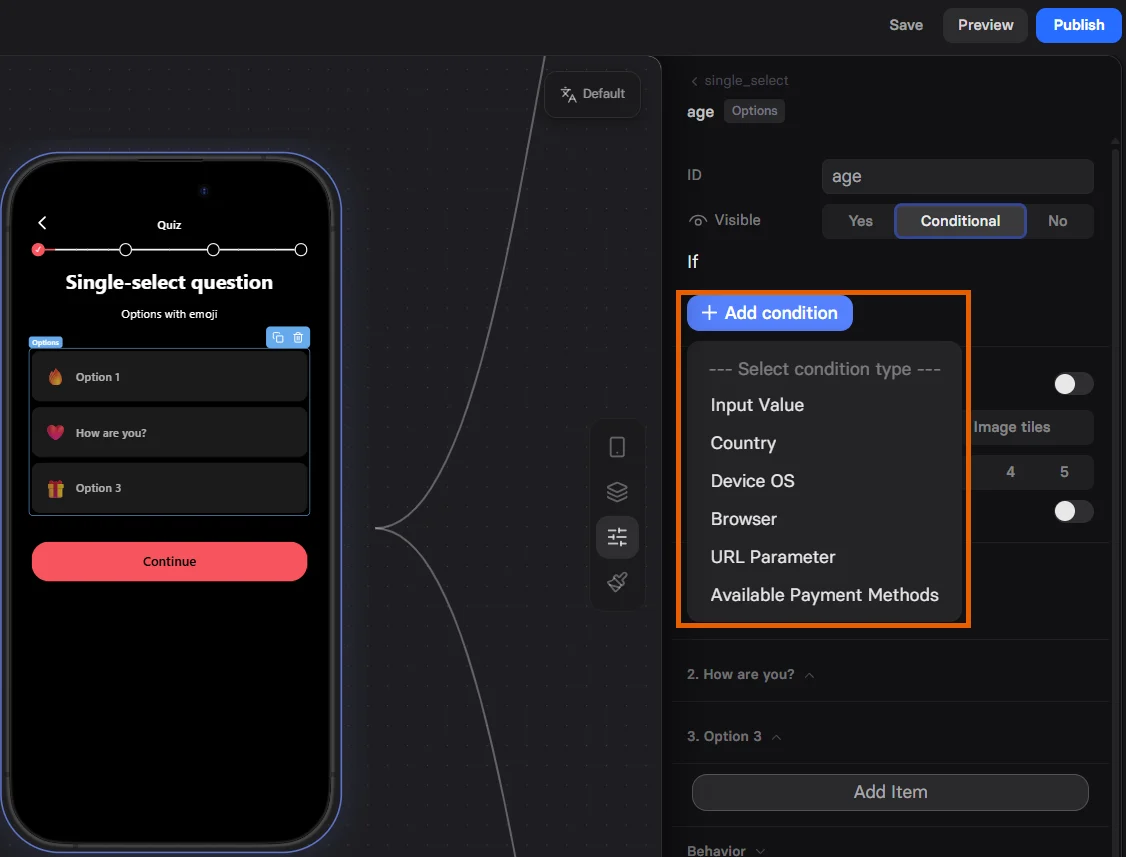
## Conditional Visibility
Create sophisticated display rules based on user data and context:
## Common Properties
Every element shares these foundational properties that control identification,
visibility, and behavior.
### Element Tab
#### ID
Unique identifier for the element. Auto-generated but customizable.
**Why IDs matter:**
* **Variables**: Stateful elements (inputs, dropdowns, etc.) with IDs create variables
* **Analytics tracking**: Track specific element interactions
* **Dynamic actions**: Reference in show/hide actions
Use descriptive IDs like `email-input` or `submit-button` for easier
maintenance and debugging.
#### Visibility
Control when and how elements appear:
| Option | Description | Use Case |
| --------------- | ------------------------ | -------------------------- |
| **Yes** | Always visible (default) | Standard content |
| **No** | Removed from DOM | Hidden features, A/B tests |
| **Conditional** | Show based on rules | Personalization, targeting |
**Important for RAW elements**: Setting visibility to "No" prevents scripts
from executing since the element isn't rendered in the DOM.
See [Conditional Visibility](#conditional-visibility) below for detailed rules and options.
## Conditional Visibility
Create sophisticated display rules based on user data and context:
 ### Condition Types
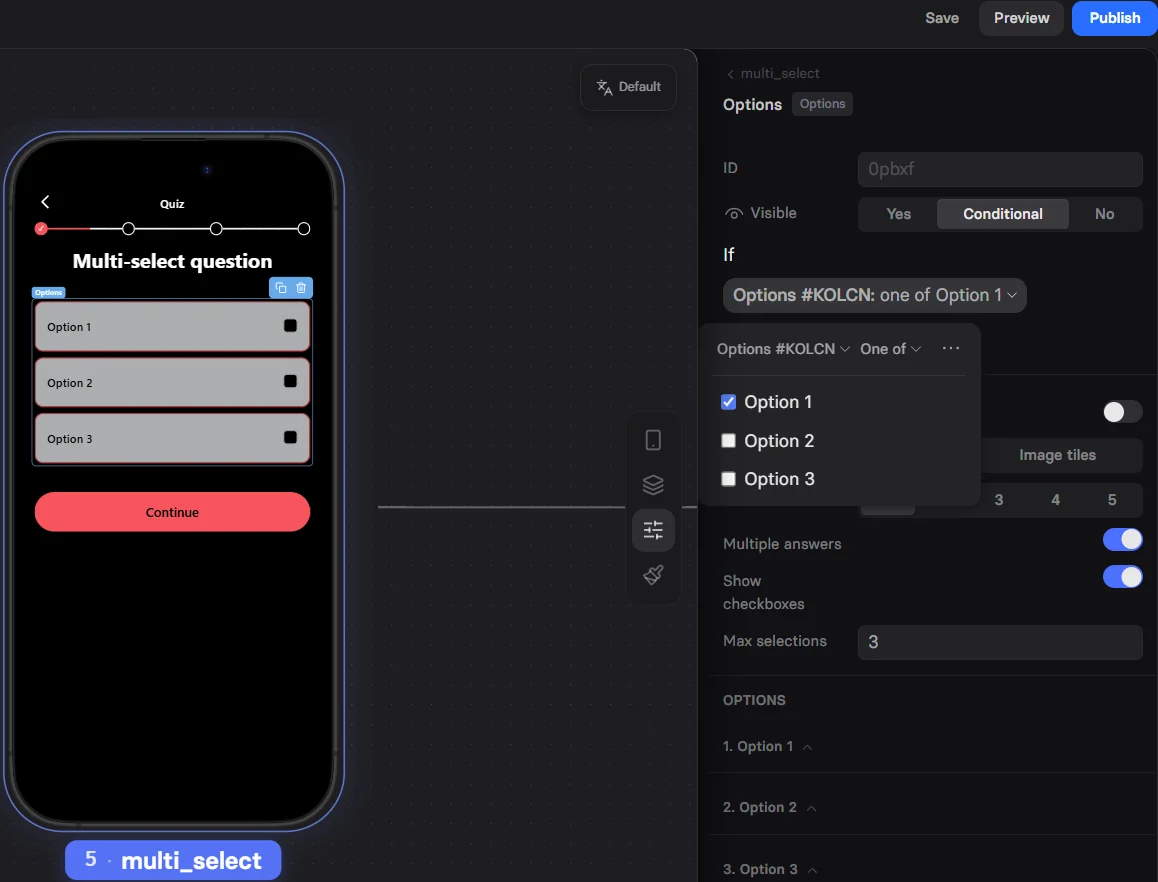
**Input Value**
Check user inputs or variables against conditions:
* Equals, Not equals
* Greater than, Less than
* Contains, Does not contain
* Empty, Not empty
* Is one of (multiple values)
### Condition Types
**Input Value**
Check user inputs or variables against conditions:
* Equals, Not equals
* Greater than, Less than
* Contains, Does not contain
* Empty, Not empty
* Is one of (multiple values)
 **Country**
Show/hide based on visitor's location (geo-IP):
```
Example: Show EU-specific privacy notice only to European visitors
```
**Device OS**
Target specific platforms:
* iOS
* Android
* Other (Desktop, etc.)
**Browser**
Detect visitor's browser:
* Chrome
* Firefox
* Safari
* Instagram (in-app)
* Facebook (in-app)
**URL Parameter**
Check for query parameters in the URL:
**Country**
Show/hide based on visitor's location (geo-IP):
```
Example: Show EU-specific privacy notice only to European visitors
```
**Device OS**
Target specific platforms:
* iOS
* Android
* Other (Desktop, etc.)
**Browser**
Detect visitor's browser:
* Chrome
* Firefox
* Safari
* Instagram (in-app)
* Facebook (in-app)
**URL Parameter**
Check for query parameters in the URL:
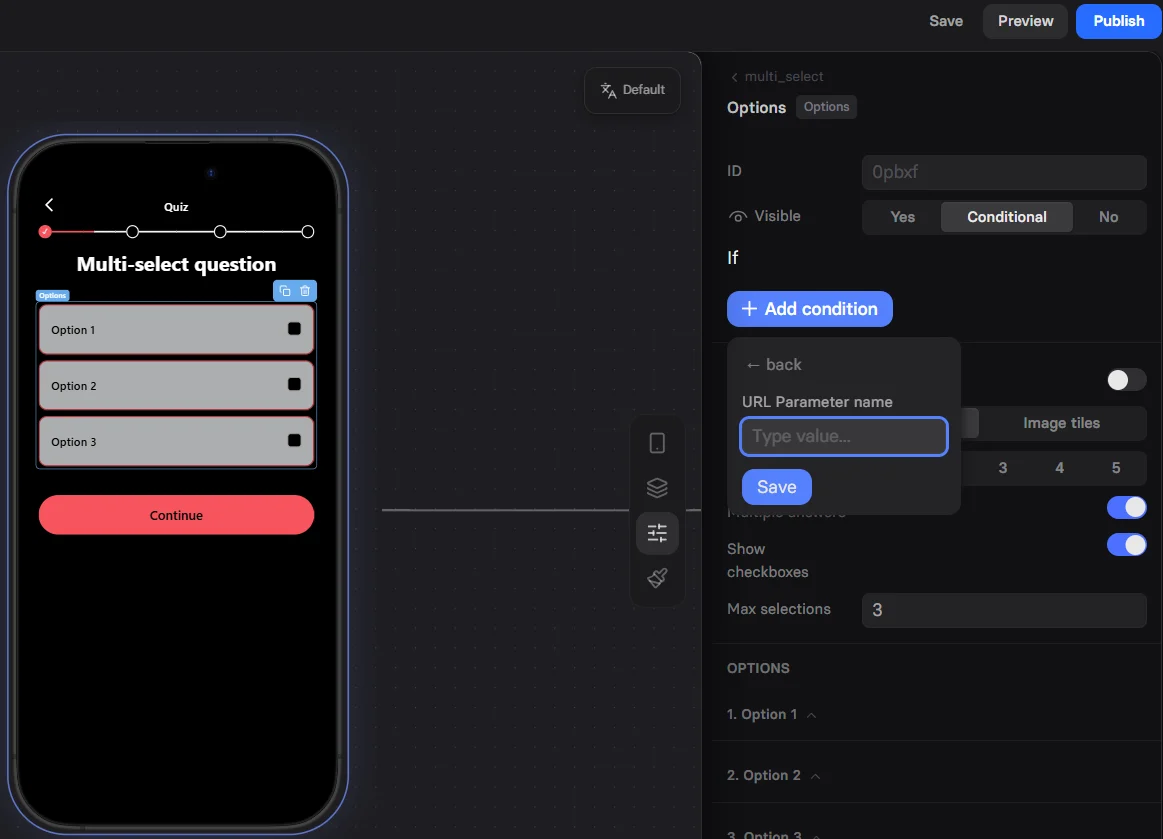 ```
URL: funnel.com?utm_campaign=promo
Condition: ?utm_campaign contains "promo"
Result: Element shows
```
**Available Payment Methods**
Show elements based on payment capabilities:
* Primarily for Apple Pay availability
* Useful for payment method selectors
### Combining Conditions
Add multiple conditions with logical operators:
* **All conditions must be true** (AND logic)
* **Any condition must be true** (OR logic)
## Styles Tab
Use [themes](/editor/themes) to speed up design across all funnels in your project.
Access the **Styles** tab in the selector on the right. Common styling properties available for all elements:
```
URL: funnel.com?utm_campaign=promo
Condition: ?utm_campaign contains "promo"
Result: Element shows
```
**Available Payment Methods**
Show elements based on payment capabilities:
* Primarily for Apple Pay availability
* Useful for payment method selectors
### Combining Conditions
Add multiple conditions with logical operators:
* **All conditions must be true** (AND logic)
* **Any condition must be true** (OR logic)
## Styles Tab
Use [themes](/editor/themes) to speed up design across all funnels in your project.
Access the **Styles** tab in the selector on the right. Common styling properties available for all elements:
 ### Container Styles
#### Offset
Position adjustment relative to default placement:
* Horizontal offset (px)
* Vertical offset (px)
#### Position
How the element is positioned:
* **In content**: Normal document flow
* **Attached**: Fixed position - stays visible in viewport (e.g., sticky button at bottom)
* **Attached on scroll**: Becomes fixed after scrolling into view (sticky behavior)
#### Padding
Internal spacing between content and element border:
* Top, Right, Bottom, Left (px)
* Use for breathing room around content
### Visual Styles
#### Background
* **Color**: Solid background color with opacity
* **Gradient**: Two-color gradients (if supported)
* **Image**: Background images for containers
#### Roundness
Corner radius in pixels:
* `0px` = Sharp corners
* `8px` = Slightly rounded (modern)
* `100px` = Pill-shaped (for buttons)
#### Border
* **Width**: Border thickness (px)
* **Color**: Border color with opacity
* **Style**: Solid, dashed, dotted (element-specific)
#### Shadow
Add depth with shadows:
* Toggle on/off
* Customize shadow properties (element-specific)
* "Show less" for preset shadows
* Expand for detailed control
### Geo-Targeted Offers
Personalize based on location:
```
US Visitors: Show USD pricing
EU Visitors: Show EUR pricing + VAT notice
UK Visitors: Show GBP pricing
```
### Campaign-Specific Elements
Show elements for marketing campaigns:
```
URL: funnel.com?promo=summer50
Show: Special offer banner with code
```
## Troubleshooting
### Container Styles
#### Offset
Position adjustment relative to default placement:
* Horizontal offset (px)
* Vertical offset (px)
#### Position
How the element is positioned:
* **In content**: Normal document flow
* **Attached**: Fixed position - stays visible in viewport (e.g., sticky button at bottom)
* **Attached on scroll**: Becomes fixed after scrolling into view (sticky behavior)
#### Padding
Internal spacing between content and element border:
* Top, Right, Bottom, Left (px)
* Use for breathing room around content
### Visual Styles
#### Background
* **Color**: Solid background color with opacity
* **Gradient**: Two-color gradients (if supported)
* **Image**: Background images for containers
#### Roundness
Corner radius in pixels:
* `0px` = Sharp corners
* `8px` = Slightly rounded (modern)
* `100px` = Pill-shaped (for buttons)
#### Border
* **Width**: Border thickness (px)
* **Color**: Border color with opacity
* **Style**: Solid, dashed, dotted (element-specific)
#### Shadow
Add depth with shadows:
* Toggle on/off
* Customize shadow properties (element-specific)
* "Show less" for preset shadows
* Expand for detailed control
### Geo-Targeted Offers
Personalize based on location:
```
US Visitors: Show USD pricing
EU Visitors: Show EUR pricing + VAT notice
UK Visitors: Show GBP pricing
```
### Campaign-Specific Elements
Show elements for marketing campaigns:
```
URL: funnel.com?promo=summer50
Show: Special offer banner with code
```
## Troubleshooting
- Save your funnel.
- Delete the problematic element.
- Add the element back and reconfigure it.
- Reload the page and test again.
- Save the funnel.
- Reload the page.
- Edit the conditions again.
## Next Steps
* [RAW Element](/elements/raw) - Add custom HTML and JavaScript
* [Button Element](/elements/button) - Create compelling CTAs
* [Input Elements](/elements/textinput) - Collect user information
* [Actions & Triggers](/editor/actions) - Make elements interactive