> ## Documentation Index
> Fetch the complete documentation index at: https://funnelfox.com/docs/llms.txt
> Use this file to discover all available pages before exploring further.
# Options
> Interactive multiple-choice element for quizzes, surveys, and user preferences
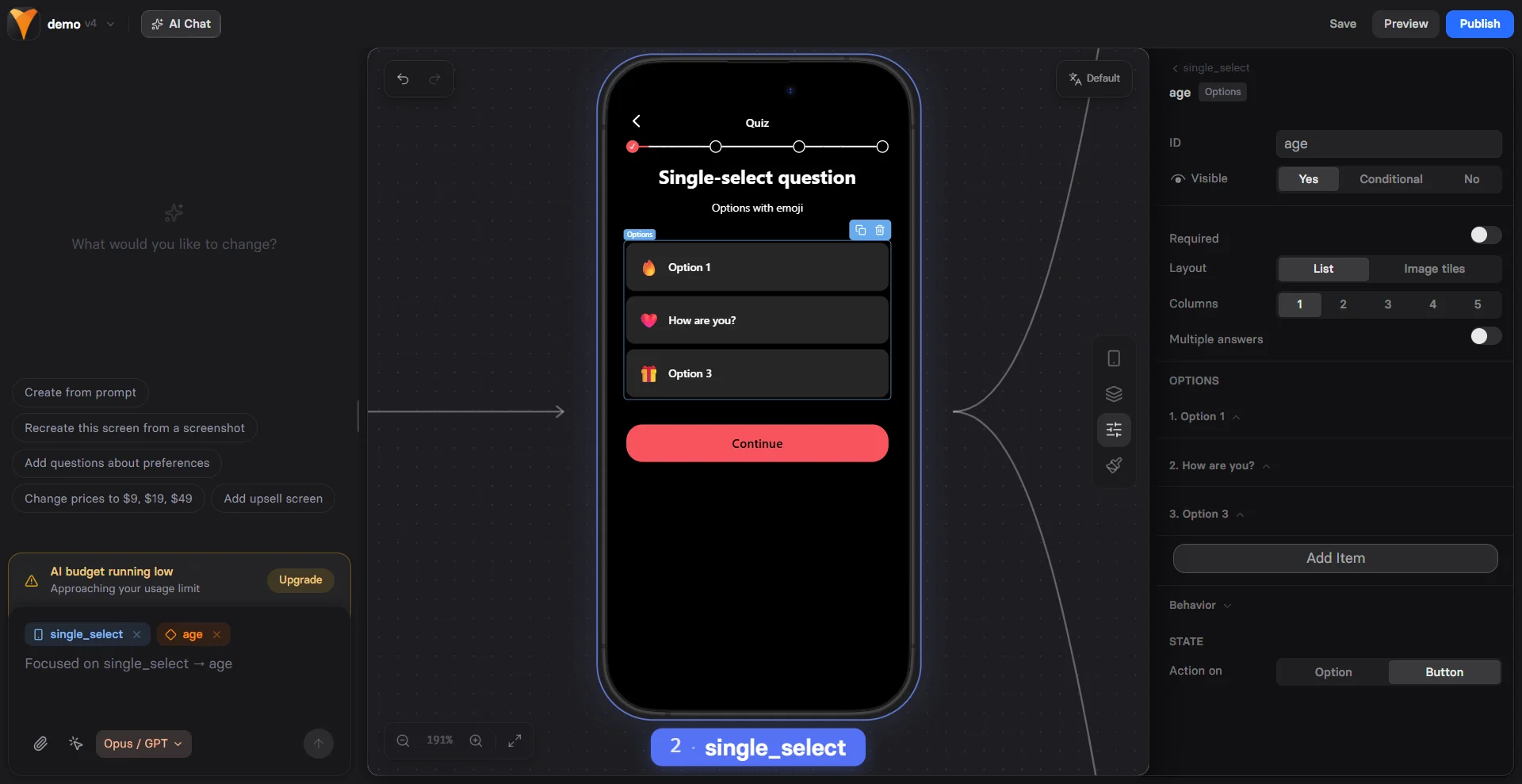
The Options element is the foundation of interactive funnels, enabling you to
collect user preferences, run quizzes, and personalize the experience based on
responses. It's stateful, meaning responses are saved and accessible throughout
the funnel.
 ## Use cases
Perfect for:
* **Quizzes** - "What's your fitness goal?"
* **Preference collection** - "Choose your interests"
* **Product selection** - "Pick your plan features"
* **Surveys** - "How did you hear about us?"
* **Segmentation** - Route users based on selections
## Create Options
Prompt [AI Chat in Editor](/agentic-solution/overview#ai-chat-in-editor) to add a quiz screen.
Or open the **Layers** tab, click **+ Add element** and select **Quiz**, then follow the steps below.
### 1. Configuration
Configure the Options type, then proceed with basic settings in the **Parameters** tab on the right.
**Options type**:
* **Simple**: Single-select options with text only
* **Multiple Choice**: Multi-select options with text only
* **Emoji**: Choices shown as emojis for fast, expressive taps. Supports multi-select
* **Image picker**: Visual selections displayed as image tiles or cards. Supports multi-select
* **Icons**: Compact icon (or icon + label) options for scannable choices. Supports multi-select
* **Rating**: A 1–n scale (e.g., stars) for scoring or satisfaction
You can also add [popup elements](/elements/popup) to create modal overlays that capture user attention and guide them through focused interactions.
**Element layout**:
* **List**: Traditional vertical list for text-heavy options
* **Image tiles**: Grid of image cards for visual selection
* **Randomize order**: Randomizes the order of options each time the screen is displayed
You can also add checkboxes for multi-select options for visual confirmation of selection state.
**Selection mode**:
* **Single select**: Set Multiple answers to **No** to allow only one choice.
* **Multi select**: Set Multiple answers to **Yes** to allow multiple choices. Use **Max selections** to limit the number of choices (e.g., for quizzes like “Choose your top 3”).
In the **Behaviour** section of the **Parameters** tab, configure navigation based on the selection mode. For single-select options, the screen automatically advances when users choose an option. For multi-select options, users need a navigation button to proceed.
### 2. Element settings
* **Element ID**: Set up element name if you want user replies to be used for variables
* **Visibility**: Show/hide the element based on conditions
* **Required**: Make selection mandatory to prevent advancing without selection
### 3. Option settings
In the **Parameters** tab, set up each individual option:
* **Visibility**: Show/hide the option based on conditions such as other selections or previous user replies
* **Label**: Defines the text shown to the user and supports [variables](/editor/variables). Editable directly on the canvas
* **Value**: The reply stored for variables you can use later
* **Acts as "Select all" / "Select none"** (for multiselect only): Lets one option toggle all other options on the screen. **Select all** cannot select an option marked as **Select none**, and vice versa.
* **Image**: Allows you to upload images for tile layouts or use an emoji as the option label
### 4. Option layout
Beyond the overall Options element layout, you can also adjust the layout of each individual choice.
In the **Styles** tab, go to **Configured** to fine-tune visual properties and the pressed state.
### 5. Actions & triggers
This step applies to single-select Options only. For multi-select Options, use [buttons](/elements/button) to set up actions and triggers.
Go to the **Behaviour** section of the **Parameters** tab to configure how actions and triggers work:
* **State**: Select **Option** to fire triggers immediately or **Button** for actions after all selections
* **Action**: Set up triggers to fire. Learn more about [actions & triggers](/editor/actions)
## User replies
### Access replies data
User responses to options (replies) are stored as values for variables.
For example (single select):
```
Element ID: goal-quiz
User selects: "Lose Weight"
Variable available as: {{goal-quiz}}
Value: "lose-weight" (the option's ID)
```
Multi-select options create comma-separated values. For example:
```
Element ID: interests
User selects: "Design", "Marketing", "Sales"
{{interests}} = "design,marketing,sales"
```
You can access replies in three ways:
* By using [replies as variables](/elements/options#replies-as-variables)
* Through [API calls](/develop/replies-in-api)
* Through [webhook events](/develop/replies-in-webhooks)
### Replies as variables
Use replies for personalization with variables:
Options element with ID `user-level`
Show advanced tips if `{{user-level}}` equals "expert"
Button action: Navigate to page based on `{{user-level}}`
Learn more about [variables](/editor/variables).
## Quiz structure
Build engaging quizzes with Options. As a best practice, follow this flow:
1. **Welcome screen** - Set expectations
2. **Question screens** - One Options element per screen
3. **Processing** - "Calculating results..." with [Loader](/elements/loader)
4. **Results** - Personalized based on answers
5. **Offer** - Tailored product recommendation
## Next steps
* [Use variables](/editor/variables) from option replies
* [Add conditional visibility](/elements/overview#conditional-visibility)
* [Create multi-step quizzes](/editor/actions#navigate)
## Use cases
Perfect for:
* **Quizzes** - "What's your fitness goal?"
* **Preference collection** - "Choose your interests"
* **Product selection** - "Pick your plan features"
* **Surveys** - "How did you hear about us?"
* **Segmentation** - Route users based on selections
## Create Options
Prompt [AI Chat in Editor](/agentic-solution/overview#ai-chat-in-editor) to add a quiz screen.
Or open the **Layers** tab, click **+ Add element** and select **Quiz**, then follow the steps below.
### 1. Configuration
Configure the Options type, then proceed with basic settings in the **Parameters** tab on the right.
**Options type**:
* **Simple**: Single-select options with text only
* **Multiple Choice**: Multi-select options with text only
* **Emoji**: Choices shown as emojis for fast, expressive taps. Supports multi-select
* **Image picker**: Visual selections displayed as image tiles or cards. Supports multi-select
* **Icons**: Compact icon (or icon + label) options for scannable choices. Supports multi-select
* **Rating**: A 1–n scale (e.g., stars) for scoring or satisfaction
You can also add [popup elements](/elements/popup) to create modal overlays that capture user attention and guide them through focused interactions.
**Element layout**:
* **List**: Traditional vertical list for text-heavy options
* **Image tiles**: Grid of image cards for visual selection
* **Randomize order**: Randomizes the order of options each time the screen is displayed
You can also add checkboxes for multi-select options for visual confirmation of selection state.
**Selection mode**:
* **Single select**: Set Multiple answers to **No** to allow only one choice.
* **Multi select**: Set Multiple answers to **Yes** to allow multiple choices. Use **Max selections** to limit the number of choices (e.g., for quizzes like “Choose your top 3”).
In the **Behaviour** section of the **Parameters** tab, configure navigation based on the selection mode. For single-select options, the screen automatically advances when users choose an option. For multi-select options, users need a navigation button to proceed.
### 2. Element settings
* **Element ID**: Set up element name if you want user replies to be used for variables
* **Visibility**: Show/hide the element based on conditions
* **Required**: Make selection mandatory to prevent advancing without selection
### 3. Option settings
In the **Parameters** tab, set up each individual option:
* **Visibility**: Show/hide the option based on conditions such as other selections or previous user replies
* **Label**: Defines the text shown to the user and supports [variables](/editor/variables). Editable directly on the canvas
* **Value**: The reply stored for variables you can use later
* **Acts as "Select all" / "Select none"** (for multiselect only): Lets one option toggle all other options on the screen. **Select all** cannot select an option marked as **Select none**, and vice versa.
* **Image**: Allows you to upload images for tile layouts or use an emoji as the option label
### 4. Option layout
Beyond the overall Options element layout, you can also adjust the layout of each individual choice.
In the **Styles** tab, go to **Configured** to fine-tune visual properties and the pressed state.
### 5. Actions & triggers
This step applies to single-select Options only. For multi-select Options, use [buttons](/elements/button) to set up actions and triggers.
Go to the **Behaviour** section of the **Parameters** tab to configure how actions and triggers work:
* **State**: Select **Option** to fire triggers immediately or **Button** for actions after all selections
* **Action**: Set up triggers to fire. Learn more about [actions & triggers](/editor/actions)
## User replies
### Access replies data
User responses to options (replies) are stored as values for variables.
For example (single select):
```
Element ID: goal-quiz
User selects: "Lose Weight"
Variable available as: {{goal-quiz}}
Value: "lose-weight" (the option's ID)
```
Multi-select options create comma-separated values. For example:
```
Element ID: interests
User selects: "Design", "Marketing", "Sales"
{{interests}} = "design,marketing,sales"
```
You can access replies in three ways:
* By using [replies as variables](/elements/options#replies-as-variables)
* Through [API calls](/develop/replies-in-api)
* Through [webhook events](/develop/replies-in-webhooks)
### Replies as variables
Use replies for personalization with variables:
Options element with ID `user-level`
Show advanced tips if `{{user-level}}` equals "expert"
Button action: Navigate to page based on `{{user-level}}`
Learn more about [variables](/editor/variables).
## Quiz structure
Build engaging quizzes with Options. As a best practice, follow this flow:
1. **Welcome screen** - Set expectations
2. **Question screens** - One Options element per screen
3. **Processing** - "Calculating results..." with [Loader](/elements/loader)
4. **Results** - Personalized based on answers
5. **Offer** - Tailored product recommendation
## Next steps
* [Use variables](/editor/variables) from option replies
* [Add conditional visibility](/elements/overview#conditional-visibility)
* [Create multi-step quizzes](/editor/actions#navigate)