> ## Documentation Index
> Fetch the complete documentation index at: https://funnelfox.com/docs/llms.txt
> Use this file to discover all available pages before exploring further.
# Checkout element
> Add and configure checkout elements in your FunnelFox funnels. Customize payment forms, pricing display, and purchase flows.
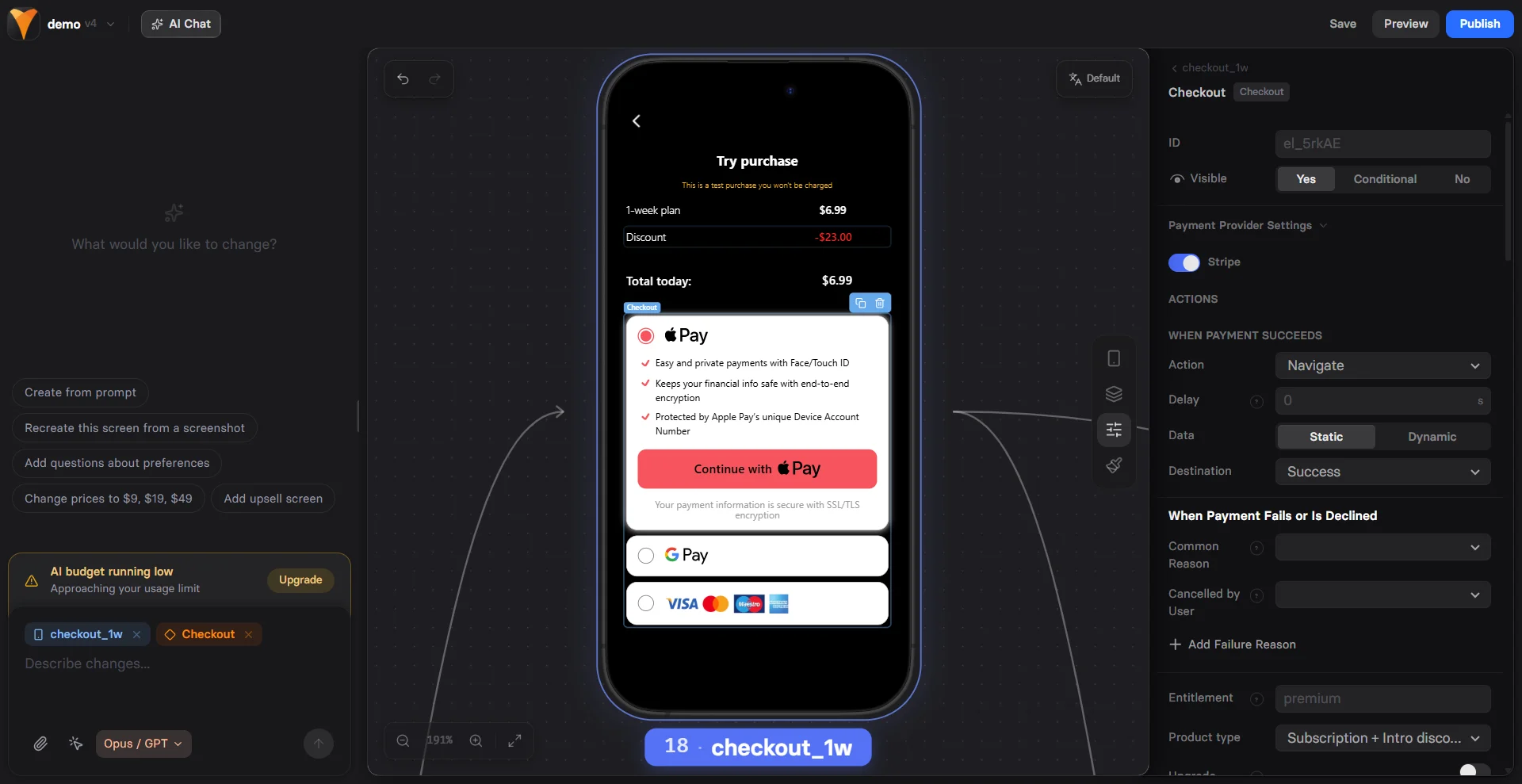
The Checkout element is the most advanced component in FunnelFox. It's designed to reduce payment friction and maximize conversion rates by handling the complete payment flow from card collection to subscription creation.
 ## Use cases
Add Checkout to your funnel for:
* **First-time purchases** - Initial subscription or one-time payment.
* **Trials** - Free or paid trial activation.
* **Offers** - Introductory or promotional discounts (coupons) applied to the first charge to boost conversion.
For upsells and additional purchases after the initial payment, use the [Purchase action](/editor/actions#purchase) on buttons instead.
## Create Checkout
To set up a Checkout, you need at least one configured payment provider. Learn about [payment integrations](/integrations/payments/index).
Prompt [AI Chat in Editor](/agentic-solution/overview#ai-chat-in-editor) to add and configure the Checkout.
Or open the **Layers** tab in your Editor, click **+ Add element** and select **Paywall Elements > Checkout**, and follow the steps below.
### 1. Product selection
You can skip this step if you're creating a funnel for a single product.
Each Checkout element handles payment for one product only. To accept payments for multiple products based on user selection:
1. Add Options or Plan picker elements earlier in the funnel.
2. Add one Checkout element for each product you sell.
3. Go to the **Parameters** tab for your Checkout and set **Visible** to **Conditional**.
4. Click **+ Add condition** and select an answer from Plan pickers or Options leading to this Checkout.
5. Repeat for each product you want to sell.
Learn about [conditional element visibility](/elements/overview#conditional-visibility).
### 2. Payment provider
1. Go to the **Parameters** tab for the Checkout.
2. Toggle on the payment provider you've integrated and configure the following:
* **When payment succeeds**: Navigation action to trigger when payment is completed.
* **When payment fails or is declined**: Navigation action that runs when the payment fails due to a decline or error, including 3DS.
* **Common reason**: Navigation that runs when the payment fails for any unspecified reason.
* **Cancelled by user**: Navigation action that runs when the user clicks the cancel button, if available.
* **Add failure reason**: Configure navigation based on a specific failure reason, such as `insufficient funds`, `invalid card details` or `do not honor`.
* **Entitlement**: Access level ID for [subscription manager](/integrations/subscription-management).
* **Account**: Your Stripe account. Learn about [multiple Stripe accounts](/integrations/payments/stripe#multiple-stripe-accounts) in FunnelFox.
* **Product type**: Defines the payment flow depending on what you sell
* One-off product (for one-time payments)
* Subscription
* Subscription + discount
* Free trial -> Subscription
* Paid trial -> Subscription
* **Upgrade subscription**:
* **No**: Successful payment creates a new customer with the purchased subscription.
* **Yes**: Use for upsells. Successful payment seamlessly upgrades the customer's subscription plan to this one.
* **Stripe Tax**: Enables tax calculations. Learn about [Stripe Tax](/integrations/payments/stripe#stripe-tax).
* **Allow promo codes**: Enables promo code settings. Learn about [promo codes setup](/elements/checkout#offer).
* **Subscription**: Define the Stripe subscription to sell.
* **Subscription/Intro discount**: Define the [Stripe coupon](https://docs.stripe.com/billing/subscriptions/coupons#coupons) to apply.
* **Custom purchase value**: Replaces the real price value in analytics & marketing tracking events. Use for value-based optimization where you can send a predicted LTV.
* The real price value of the purchased product is sent if this field is empty.
Learn more about [Stripe integration](/integrations/payments/stripe) in FunnelFox.
* **When payment succeeds**: Navigation action to trigger when payment is completed.
* **When payment fails or is declined**: Navigation action to trigger when payment fails due to a decline or error (including 3DS).
* **When payment is cancelled by user**: Navigation action to trigger when user clicks the cancel button (if available).
* **Entitlement**: Access level ID for [subscription manager](/integrations/subscription-management).
* **Flow type**: Defines the payment flow depending on what you sell
* One-time
* Subscription
* **Order description**: Description to be sent for order details to Solidgate.
* **Plan/Price**: Define the Solidgate product or one-time price to sell.
* **Custom purchase value**: Override the actual price in analytics and marketing tracking events. Use this for value-based optimization where you can send a predicted LTV.
* Leave empty to use the actual product price.
Learn more about [Solidgate integration](/integrations/payments/solidgate) in FunnelFox.
* **When payment succeeds**: Navigation action to trigger when payment is completed.
* **When payment fails or is declined**: Navigation action to trigger when payment fails due to a decline or error (including 3DS).
* **When payment is cancelled by user**: Navigation action to trigger when user clicks the cancel button (if available).
* **Entitlement**: Access level ID for [subscription manager](/integrations/subscription-management).
* **Variant**:
* **One-page**: Sets payment details and customer information on a single page.
* **Multi-page**: Sets payment details and customer information on two pages
* \*\*Express (Apple Pay): Provides a seamless one-click payment experience similar to a wallet button. It prioritizes Apple Pay by showing it first to customers.
* **Show Pay another way** (For Express variant only): Adds a button to select another payment method or use them as a fallback
We recommend using the **One-page** variant for a smoother customer experience.
* **Allow discounts**: Shows or hides the option to manually apply a [Paddle discount code](/elements/checkout#paddle-5).
* **Show discount removal control**: When **Allow discounts** is disabled, lets you hide the discount removal button. This is useful when a discount is automatically applied for the first month.
* **Show VAT field**: Shows or hides the option to [add tax and business information](https://www.paddle.com/help/sell/tax/what-format-should-i-use-for-my-vat-id).
* **Product type**: Choose the payment flow based on what you're selling:
* **Default**: For regular subscription purchases, select the subscription in the **Product** field.
* **Trial -> Subscription**: For [paid trials](/elements/checkout#subscription-configuration), set the trial period as **Trial product** and the subscription as **Main product**.
* **Discount**: Apply a Paddle discount as an [introductory offer](/elements/checkout#subscription-configuration) for the first payment.
* **Custom purchase value**: Override the actual price in analytics and marketing tracking events. Use this for value-based optimization where you can send a predicted LTV.
* Leave empty to use the actual product price.
Learn more about [Paddle integration](/integrations/payments/paddle) in FunnelFox.
* **When payment succeeds**: Navigation action to trigger when payment is completed.
* **When payment fails or is declined**: Navigation action that runs when the payment fails due to a decline or error, including 3DS.
* **Common reason**: Navigation that runs when the payment fails for any unspecified reason.
* **Cancelled by user**: Navigation action that runs when the user clicks the cancel button, if available.
* **Add failure reason**: Configure navigation based on a specific failure reason, such as `insufficient funds`, `invalid card details` or `do not honor`.
* **Price**: Define the Billing product to sell.
* **Custom purchase value**: Replaces the real price value in analytics & marketing tracking events. Use for value-based optimization where you can send a predicted LTV.
* The real price value of the purchased product is sent if this field is empty.
Learn more about [FunnelFox Billing](/billing).
Detailed documentation is coming soon!
Detailed documentation is coming soon!
### 3. Payment method
Once you enable a payment provider, you will see payment methods to set up:
1. Toggle on the payment methods you need in the **Parameters** tab:
* **Apple Pay**
* **Google Pay** (not recommended for in-app browsers (e.g., Instagram or Telegram) due to low reliability)
* **Card**
* **PayPal**
2. Optionally, customize how the payment method looks:
* **Caption**
* **Bullet list**
* **Button prefix**
* **Custom icon**
* **Footer text**
* **Total label**
* **Require email field** (cards only): Adds a required email field above the card form. This email overrides any email collected before checkout. If another email is collected later, it overrides the checkout email.
3. Optionally, set **Use as a fallback** to **Yes** if you want to show this method only when other methods aren't available. For example, you can choose to display only Card if Apple Pay fails to render.
To enable Stripe Link as a payment method, you don't need to configure
anything here. Enable it in
[Integrations > Stripe](/integrations/payments/stripe#stripe-link)
instead.
1. Toggle on the payment methods you need in the **Parameters** tab:
* **Card**
* **Apple Pay**
* **Google Pay** (not recommended for in-app browsers (e.g., Instagram or Telegram) due to low reliability)
* **PayPal**
2. Optionally, customize how the payment method looks:
* **Card number input label** (for Card only)
* **Caption**
* **Bullet list**
* **Button text**
* **Custom icon**
* **Footer text**
* **Cardholder name input**
* **Button color** (for Apple/Google Pay, PayPal only)
* **Label** (for PayPal only)
* **Shape** (for PayPal only)
* **Height** (for PayPal only)
3. Optionally, set **Use as a fallback** to **Yes** if you want to show this method only when other methods aren't available. For example, you can choose to display only Card if Apple Pay fails to render.
1. All payment methods are enabled by default for Paddle.
You can customize which methods to show by selecting from these options in the **Methods** field:
* **Card**
* **Apple Pay**
* **Google Pay** (not recommended for in-app browsers (e.g., Instagram or Telegram) due to low reliability)
* **PayPal**
2. Optionally, customize the appearance of payment methods:
* **Caption**
* **Bullet list**
* **Custom icon**
* **Footer text**
3. Optionally, set **Use as a fallback** to **Yes** to show this method only when other methods aren't available. For example, display only Card if Apple Pay fails to load.
1. Toggle on the payment methods you need in the **Element** tab:
* **Card**
* **Apple Pay**
* **Google Pay** (not recommended for in-app browsers (e.g., Instagram or Telegram) due to low reliability)
* **PayPal**
2. Optionally, customize how the payment method looks:
* **Caption**
* **Bullet list**
* **Button prefix**
* **Custom icon**
* **Footer text**
* **Cardholder name input** (for cards only)
* **Email field** (for cards only)
3. Optionally, set **Use as a fallback** to **Yes** if you want to show this method only when other methods aren't available. For example, you can choose to display only Card if Apple Pay fails to render.
Detailed documentation is coming soon!
Detailed documentation is coming soon!
### 4. Layout
Go to the **Styles** tab of your Checkout.
Beyond the overall element layout in the **Container** section, you can also customize the appearance of the Accordion (payment methods list), Button, Errors, and Coupon Input (if enabled).
For Apple Pay and Google Pay checkout buttons, styling is supported only by Stripe, Paddle, and PayPal.
Set both the **Text Color** and **Background** of the **Accordion** so that input fields for payment details remain clearly visible to users.
## Subscription configuration
Regardless of which PSP you integrated with FunnelFox, all subscriptions in your funnels are configured through the **Parameters** tab of the Checkout.
While editing the **Payment Provider Settings** section, you can configure:
* [Free trial](/elements/checkout#free-trial)
* [Paid trial](/elements/checkout#paid-trial)
* [Offers](/elements/checkout#offers)
* [Upsells](/elements/checkout#upsell)
### Free trial
Start the subscription at no charge for a fixed period, then proceed with paid subscription.
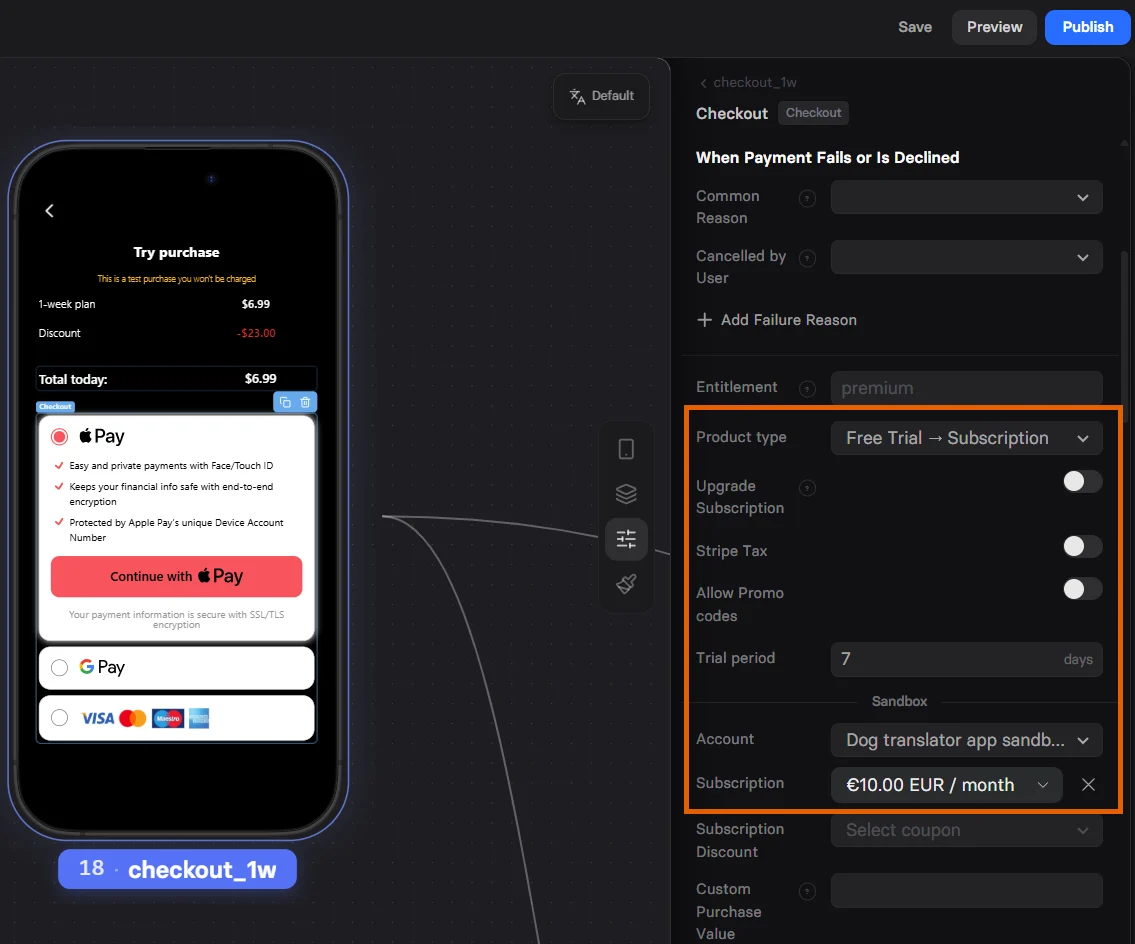
You can configure a free trial for any subscription created in Stripe:
1. Select **Free trial -> Subscription** in the **Product type**.
2. Set the number of days in the **Trial period**.
3. Select the product to sell in the **Subscription**.
## Use cases
Add Checkout to your funnel for:
* **First-time purchases** - Initial subscription or one-time payment.
* **Trials** - Free or paid trial activation.
* **Offers** - Introductory or promotional discounts (coupons) applied to the first charge to boost conversion.
For upsells and additional purchases after the initial payment, use the [Purchase action](/editor/actions#purchase) on buttons instead.
## Create Checkout
To set up a Checkout, you need at least one configured payment provider. Learn about [payment integrations](/integrations/payments/index).
Prompt [AI Chat in Editor](/agentic-solution/overview#ai-chat-in-editor) to add and configure the Checkout.
Or open the **Layers** tab in your Editor, click **+ Add element** and select **Paywall Elements > Checkout**, and follow the steps below.
### 1. Product selection
You can skip this step if you're creating a funnel for a single product.
Each Checkout element handles payment for one product only. To accept payments for multiple products based on user selection:
1. Add Options or Plan picker elements earlier in the funnel.
2. Add one Checkout element for each product you sell.
3. Go to the **Parameters** tab for your Checkout and set **Visible** to **Conditional**.
4. Click **+ Add condition** and select an answer from Plan pickers or Options leading to this Checkout.
5. Repeat for each product you want to sell.
Learn about [conditional element visibility](/elements/overview#conditional-visibility).
### 2. Payment provider
1. Go to the **Parameters** tab for the Checkout.
2. Toggle on the payment provider you've integrated and configure the following:
* **When payment succeeds**: Navigation action to trigger when payment is completed.
* **When payment fails or is declined**: Navigation action that runs when the payment fails due to a decline or error, including 3DS.
* **Common reason**: Navigation that runs when the payment fails for any unspecified reason.
* **Cancelled by user**: Navigation action that runs when the user clicks the cancel button, if available.
* **Add failure reason**: Configure navigation based on a specific failure reason, such as `insufficient funds`, `invalid card details` or `do not honor`.
* **Entitlement**: Access level ID for [subscription manager](/integrations/subscription-management).
* **Account**: Your Stripe account. Learn about [multiple Stripe accounts](/integrations/payments/stripe#multiple-stripe-accounts) in FunnelFox.
* **Product type**: Defines the payment flow depending on what you sell
* One-off product (for one-time payments)
* Subscription
* Subscription + discount
* Free trial -> Subscription
* Paid trial -> Subscription
* **Upgrade subscription**:
* **No**: Successful payment creates a new customer with the purchased subscription.
* **Yes**: Use for upsells. Successful payment seamlessly upgrades the customer's subscription plan to this one.
* **Stripe Tax**: Enables tax calculations. Learn about [Stripe Tax](/integrations/payments/stripe#stripe-tax).
* **Allow promo codes**: Enables promo code settings. Learn about [promo codes setup](/elements/checkout#offer).
* **Subscription**: Define the Stripe subscription to sell.
* **Subscription/Intro discount**: Define the [Stripe coupon](https://docs.stripe.com/billing/subscriptions/coupons#coupons) to apply.
* **Custom purchase value**: Replaces the real price value in analytics & marketing tracking events. Use for value-based optimization where you can send a predicted LTV.
* The real price value of the purchased product is sent if this field is empty.
Learn more about [Stripe integration](/integrations/payments/stripe) in FunnelFox.
* **When payment succeeds**: Navigation action to trigger when payment is completed.
* **When payment fails or is declined**: Navigation action to trigger when payment fails due to a decline or error (including 3DS).
* **When payment is cancelled by user**: Navigation action to trigger when user clicks the cancel button (if available).
* **Entitlement**: Access level ID for [subscription manager](/integrations/subscription-management).
* **Flow type**: Defines the payment flow depending on what you sell
* One-time
* Subscription
* **Order description**: Description to be sent for order details to Solidgate.
* **Plan/Price**: Define the Solidgate product or one-time price to sell.
* **Custom purchase value**: Override the actual price in analytics and marketing tracking events. Use this for value-based optimization where you can send a predicted LTV.
* Leave empty to use the actual product price.
Learn more about [Solidgate integration](/integrations/payments/solidgate) in FunnelFox.
* **When payment succeeds**: Navigation action to trigger when payment is completed.
* **When payment fails or is declined**: Navigation action to trigger when payment fails due to a decline or error (including 3DS).
* **When payment is cancelled by user**: Navigation action to trigger when user clicks the cancel button (if available).
* **Entitlement**: Access level ID for [subscription manager](/integrations/subscription-management).
* **Variant**:
* **One-page**: Sets payment details and customer information on a single page.
* **Multi-page**: Sets payment details and customer information on two pages
* \*\*Express (Apple Pay): Provides a seamless one-click payment experience similar to a wallet button. It prioritizes Apple Pay by showing it first to customers.
* **Show Pay another way** (For Express variant only): Adds a button to select another payment method or use them as a fallback
We recommend using the **One-page** variant for a smoother customer experience.
* **Allow discounts**: Shows or hides the option to manually apply a [Paddle discount code](/elements/checkout#paddle-5).
* **Show discount removal control**: When **Allow discounts** is disabled, lets you hide the discount removal button. This is useful when a discount is automatically applied for the first month.
* **Show VAT field**: Shows or hides the option to [add tax and business information](https://www.paddle.com/help/sell/tax/what-format-should-i-use-for-my-vat-id).
* **Product type**: Choose the payment flow based on what you're selling:
* **Default**: For regular subscription purchases, select the subscription in the **Product** field.
* **Trial -> Subscription**: For [paid trials](/elements/checkout#subscription-configuration), set the trial period as **Trial product** and the subscription as **Main product**.
* **Discount**: Apply a Paddle discount as an [introductory offer](/elements/checkout#subscription-configuration) for the first payment.
* **Custom purchase value**: Override the actual price in analytics and marketing tracking events. Use this for value-based optimization where you can send a predicted LTV.
* Leave empty to use the actual product price.
Learn more about [Paddle integration](/integrations/payments/paddle) in FunnelFox.
* **When payment succeeds**: Navigation action to trigger when payment is completed.
* **When payment fails or is declined**: Navigation action that runs when the payment fails due to a decline or error, including 3DS.
* **Common reason**: Navigation that runs when the payment fails for any unspecified reason.
* **Cancelled by user**: Navigation action that runs when the user clicks the cancel button, if available.
* **Add failure reason**: Configure navigation based on a specific failure reason, such as `insufficient funds`, `invalid card details` or `do not honor`.
* **Price**: Define the Billing product to sell.
* **Custom purchase value**: Replaces the real price value in analytics & marketing tracking events. Use for value-based optimization where you can send a predicted LTV.
* The real price value of the purchased product is sent if this field is empty.
Learn more about [FunnelFox Billing](/billing).
Detailed documentation is coming soon!
Detailed documentation is coming soon!
### 3. Payment method
Once you enable a payment provider, you will see payment methods to set up:
1. Toggle on the payment methods you need in the **Parameters** tab:
* **Apple Pay**
* **Google Pay** (not recommended for in-app browsers (e.g., Instagram or Telegram) due to low reliability)
* **Card**
* **PayPal**
2. Optionally, customize how the payment method looks:
* **Caption**
* **Bullet list**
* **Button prefix**
* **Custom icon**
* **Footer text**
* **Total label**
* **Require email field** (cards only): Adds a required email field above the card form. This email overrides any email collected before checkout. If another email is collected later, it overrides the checkout email.
3. Optionally, set **Use as a fallback** to **Yes** if you want to show this method only when other methods aren't available. For example, you can choose to display only Card if Apple Pay fails to render.
To enable Stripe Link as a payment method, you don't need to configure
anything here. Enable it in
[Integrations > Stripe](/integrations/payments/stripe#stripe-link)
instead.
1. Toggle on the payment methods you need in the **Parameters** tab:
* **Card**
* **Apple Pay**
* **Google Pay** (not recommended for in-app browsers (e.g., Instagram or Telegram) due to low reliability)
* **PayPal**
2. Optionally, customize how the payment method looks:
* **Card number input label** (for Card only)
* **Caption**
* **Bullet list**
* **Button text**
* **Custom icon**
* **Footer text**
* **Cardholder name input**
* **Button color** (for Apple/Google Pay, PayPal only)
* **Label** (for PayPal only)
* **Shape** (for PayPal only)
* **Height** (for PayPal only)
3. Optionally, set **Use as a fallback** to **Yes** if you want to show this method only when other methods aren't available. For example, you can choose to display only Card if Apple Pay fails to render.
1. All payment methods are enabled by default for Paddle.
You can customize which methods to show by selecting from these options in the **Methods** field:
* **Card**
* **Apple Pay**
* **Google Pay** (not recommended for in-app browsers (e.g., Instagram or Telegram) due to low reliability)
* **PayPal**
2. Optionally, customize the appearance of payment methods:
* **Caption**
* **Bullet list**
* **Custom icon**
* **Footer text**
3. Optionally, set **Use as a fallback** to **Yes** to show this method only when other methods aren't available. For example, display only Card if Apple Pay fails to load.
1. Toggle on the payment methods you need in the **Element** tab:
* **Card**
* **Apple Pay**
* **Google Pay** (not recommended for in-app browsers (e.g., Instagram or Telegram) due to low reliability)
* **PayPal**
2. Optionally, customize how the payment method looks:
* **Caption**
* **Bullet list**
* **Button prefix**
* **Custom icon**
* **Footer text**
* **Cardholder name input** (for cards only)
* **Email field** (for cards only)
3. Optionally, set **Use as a fallback** to **Yes** if you want to show this method only when other methods aren't available. For example, you can choose to display only Card if Apple Pay fails to render.
Detailed documentation is coming soon!
Detailed documentation is coming soon!
### 4. Layout
Go to the **Styles** tab of your Checkout.
Beyond the overall element layout in the **Container** section, you can also customize the appearance of the Accordion (payment methods list), Button, Errors, and Coupon Input (if enabled).
For Apple Pay and Google Pay checkout buttons, styling is supported only by Stripe, Paddle, and PayPal.
Set both the **Text Color** and **Background** of the **Accordion** so that input fields for payment details remain clearly visible to users.
## Subscription configuration
Regardless of which PSP you integrated with FunnelFox, all subscriptions in your funnels are configured through the **Parameters** tab of the Checkout.
While editing the **Payment Provider Settings** section, you can configure:
* [Free trial](/elements/checkout#free-trial)
* [Paid trial](/elements/checkout#paid-trial)
* [Offers](/elements/checkout#offers)
* [Upsells](/elements/checkout#upsell)
### Free trial
Start the subscription at no charge for a fixed period, then proceed with paid subscription.
You can configure a free trial for any subscription created in Stripe:
1. Select **Free trial -> Subscription** in the **Product type**.
2. Set the number of days in the **Trial period**.
3. Select the product to sell in the **Subscription**.
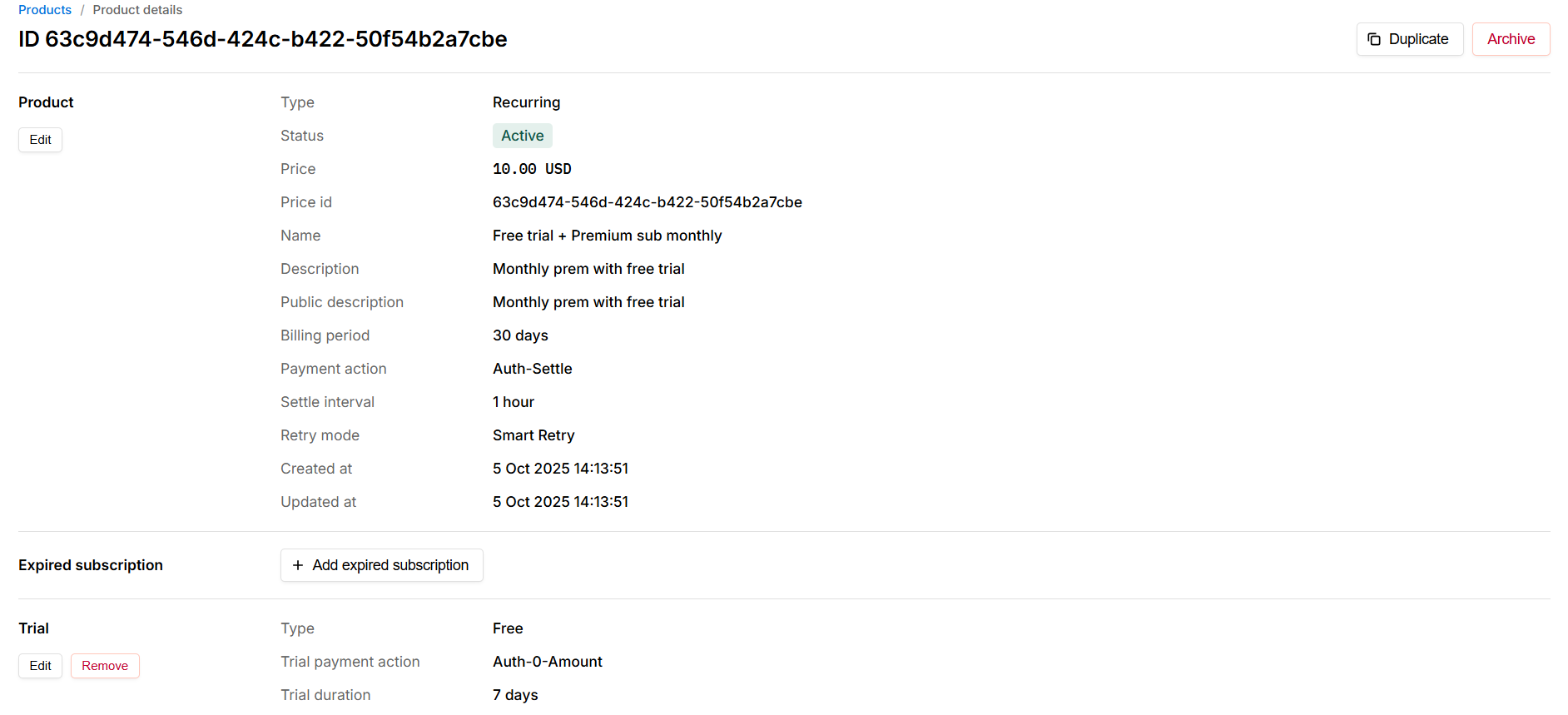
 Before setting up a free trial, you need to [create a product](https://docs.solidgate.com/billing/subscription-overview) with a free trial in Solidgate:
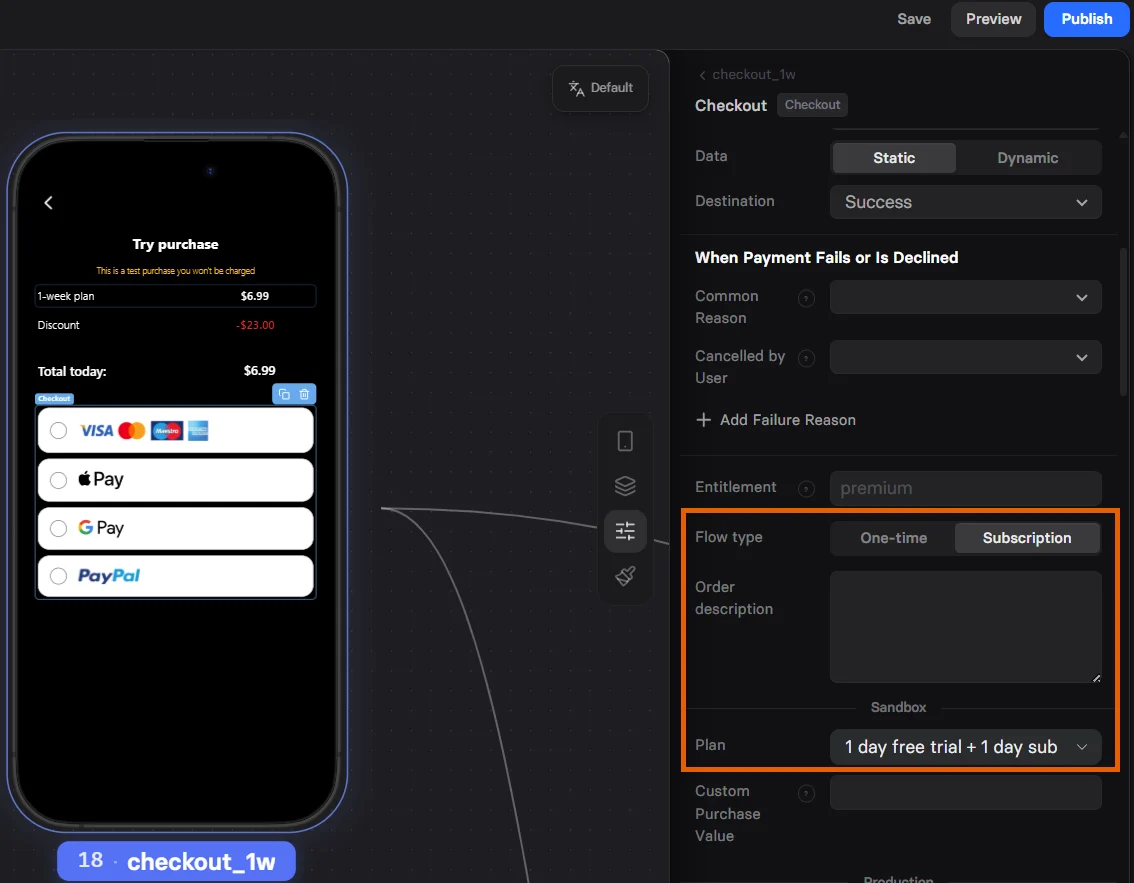
 To configure a free trial:
1. Select **Subscription** in the **Flow type**.
2. Select the product with free trial in **Plan**.
To configure a free trial:
1. Select **Subscription** in the **Flow type**.
2. Select the product with free trial in **Plan**.
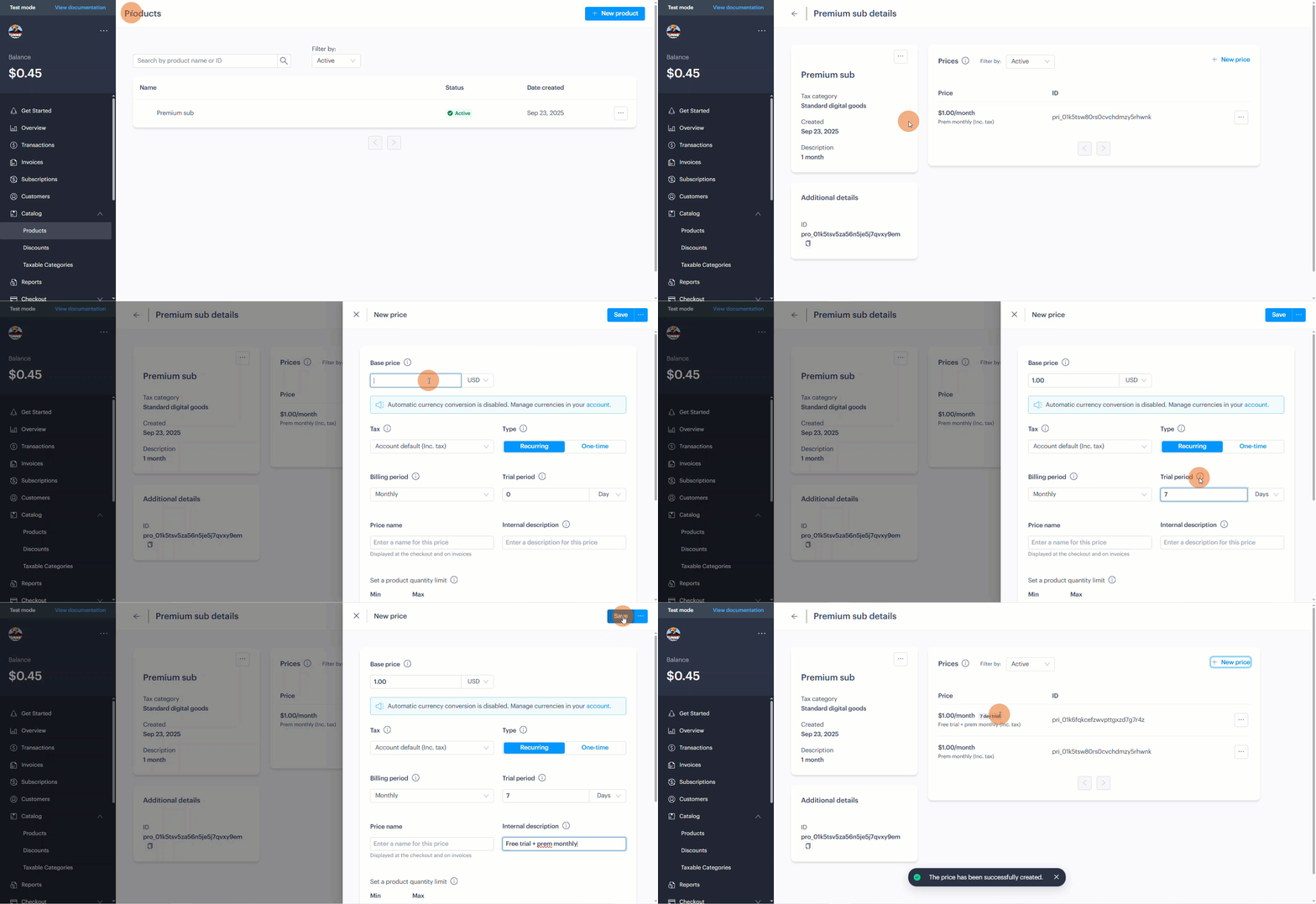
 Before setting up a free trial, you need:
* Subscription product created in Paddle.
* [Price](https://developer.paddle.com/build/products/create-products-prices) with a trial period created in Paddle for that product.
Before setting up a free trial, you need:
* Subscription product created in Paddle.
* [Price](https://developer.paddle.com/build/products/create-products-prices) with a trial period created in Paddle for that product.
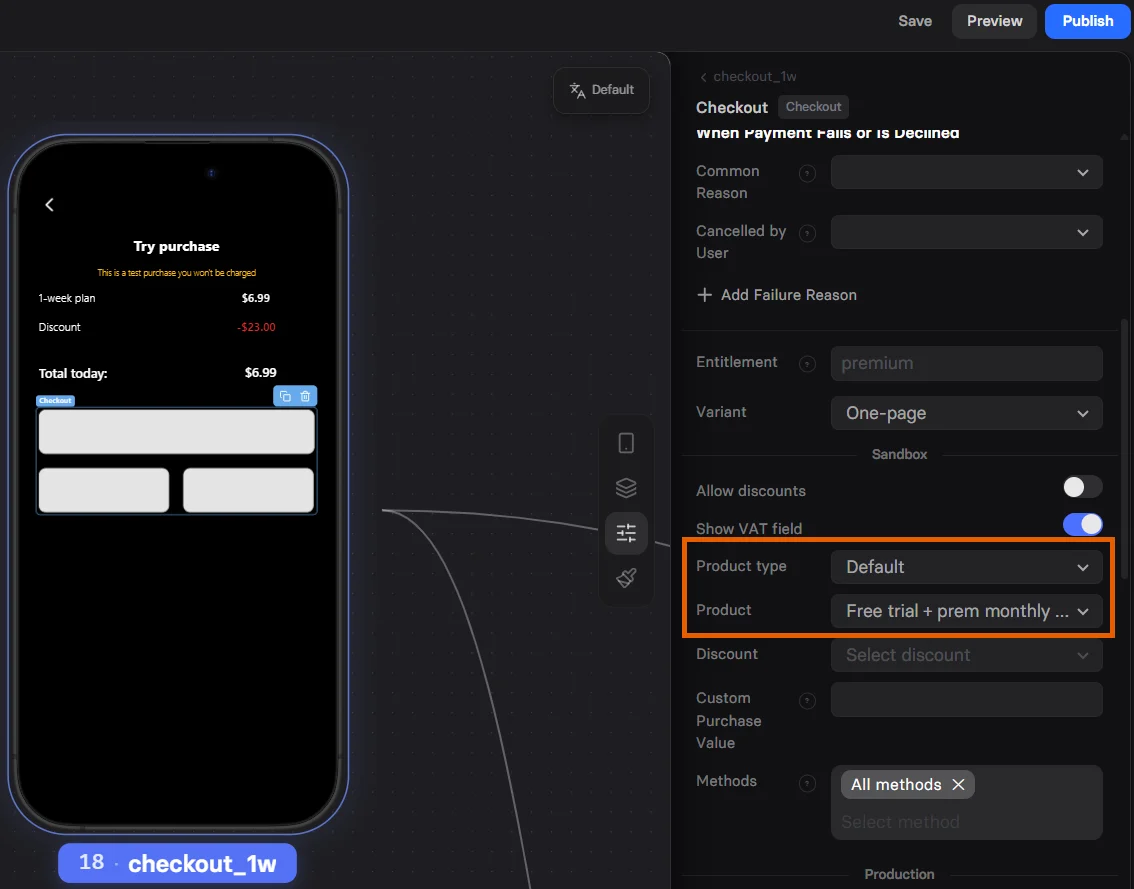
 To configure a free trial:
1. Select **Default** in the **Product type**.
2. Select the subscription price with the trial in **Product**.
If you don't see the price you've just created, reopen the funnel.
To configure a free trial:
1. Select **Default** in the **Product type**.
2. Select the subscription price with the trial in **Product**.
If you don't see the price you've just created, reopen the funnel.
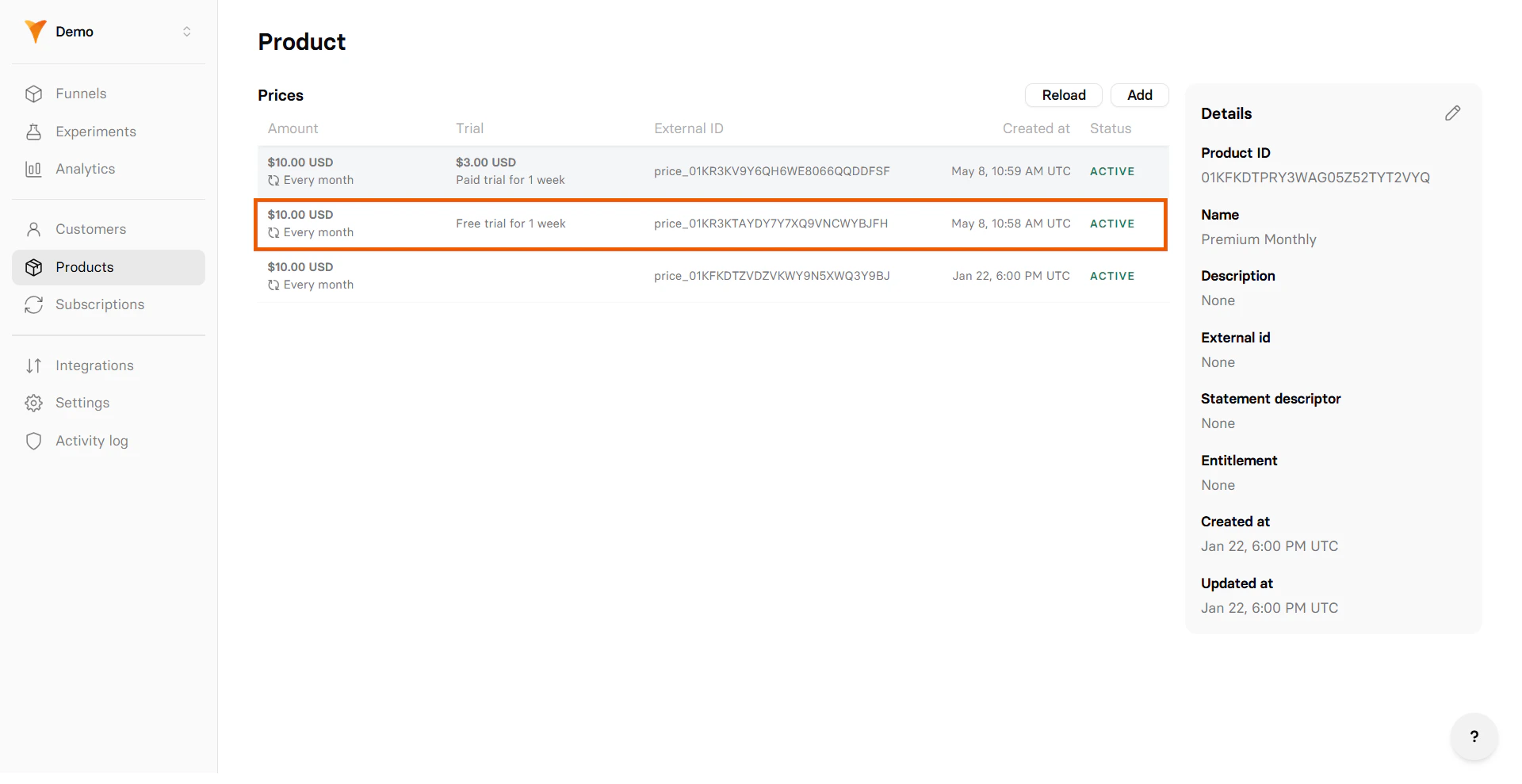
 Before setting up a free trial, you need:
* Subscription product created on the [Products page](https://app.funnelfox.com/products) of your FunnelFox dashboard.
* Price with a free trial period created on that product page.
Before setting up a free trial, you need:
* Subscription product created on the [Products page](https://app.funnelfox.com/products) of your FunnelFox dashboard.
* Price with a free trial period created on that product page.
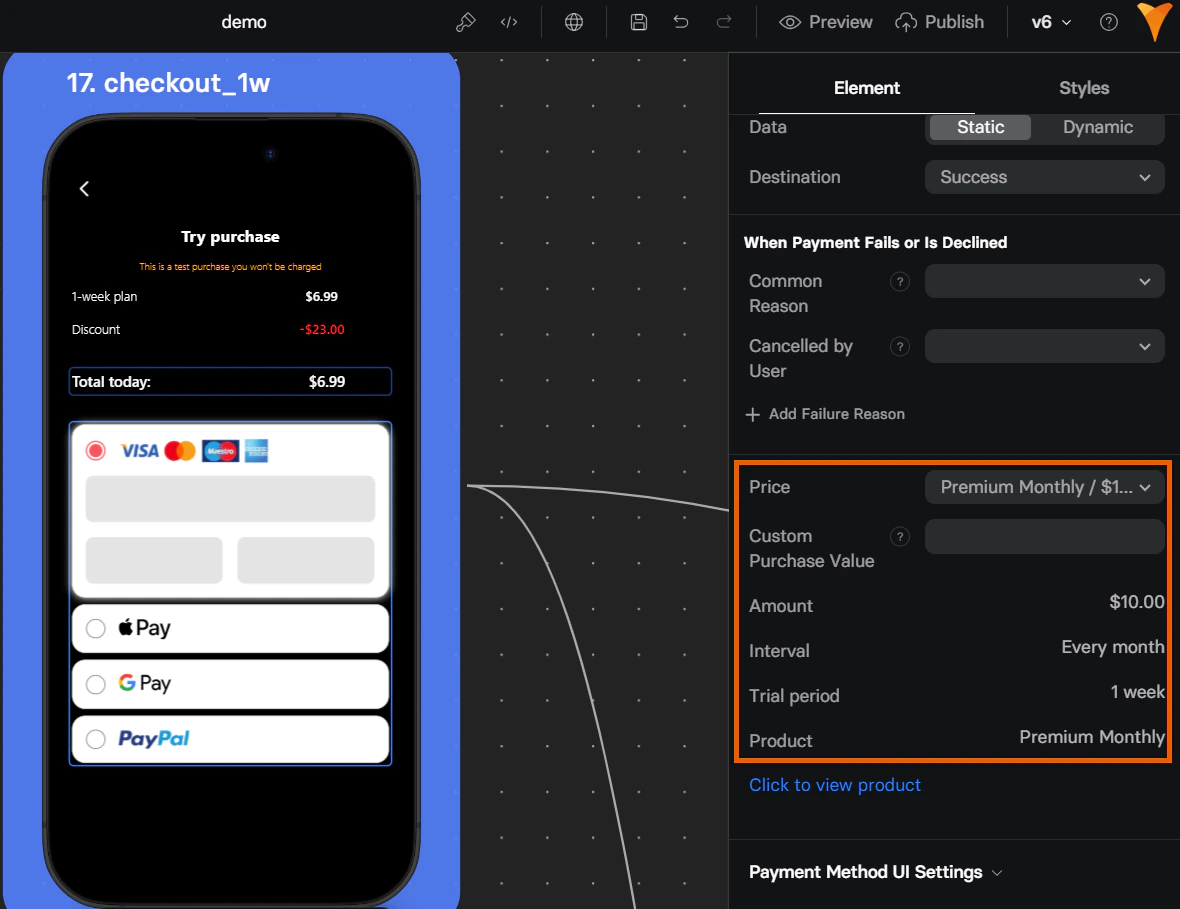
 To configure a free trial, select the product you created in **Price**.
If you don't see the price you've just created, reopen the funnel.
To configure a free trial, select the product you created in **Price**.
If you don't see the price you've just created, reopen the funnel.
 Detailed documentation is coming soon!
### Paid trial
Begin with a low, introductory payment for a limited period, then proceed with full-price subscription.
Before configuring a paid trial, you need:
* Subscription product created in Stripe.
* One-time product created in Stripe that will represent the charge for the paid trial in Checkout configuration.
To configure a paid trial:
1. Select **Paid trial -> Subscription** in the **Product type**.
2. Set the number of days in the **Trial period**.
3. Select the product to sell in the **Subscription**. This is the full-price subscription to be charged after the trial.
4. Select the one-time product to sell in the **Trial price**. This is the one-time item to define the paid trial.
Detailed documentation is coming soon!
Detailed documentation is coming soon!
### Paid trial
Begin with a low, introductory payment for a limited period, then proceed with full-price subscription.
Before configuring a paid trial, you need:
* Subscription product created in Stripe.
* One-time product created in Stripe that will represent the charge for the paid trial in Checkout configuration.
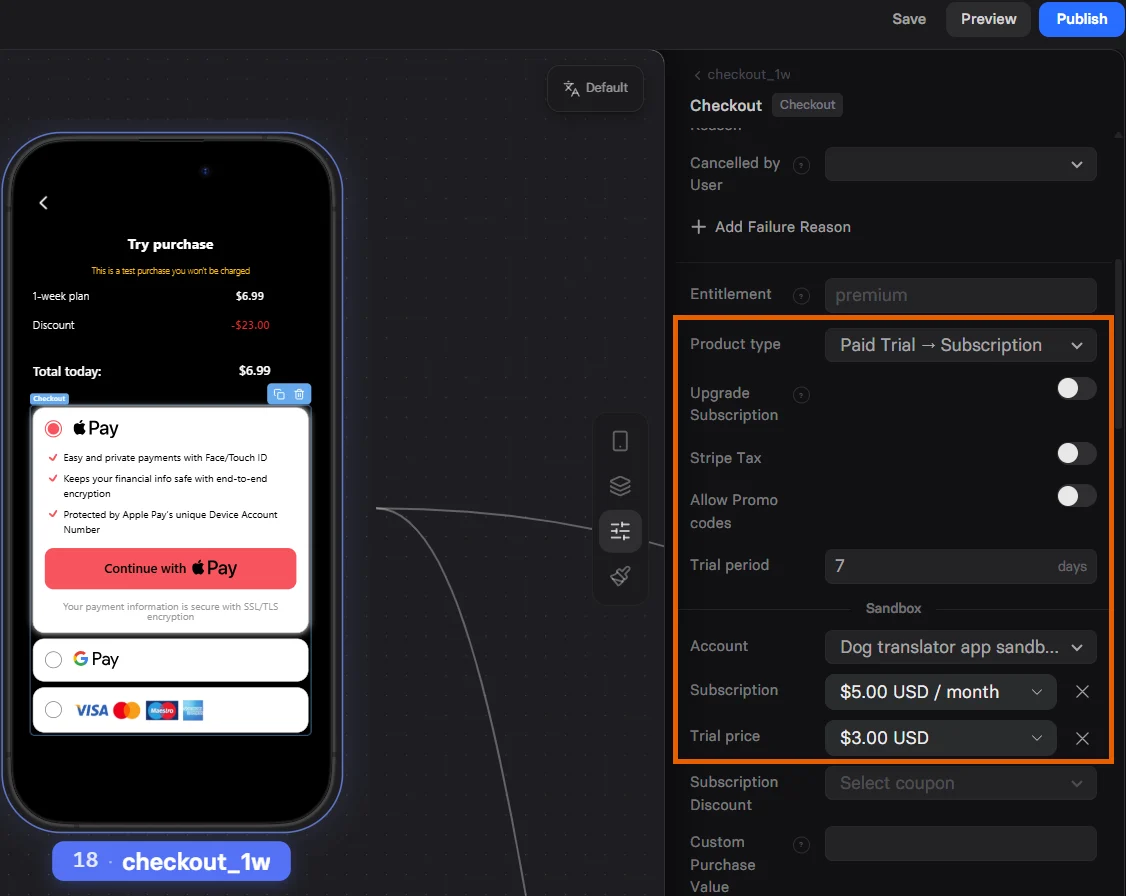
To configure a paid trial:
1. Select **Paid trial -> Subscription** in the **Product type**.
2. Set the number of days in the **Trial period**.
3. Select the product to sell in the **Subscription**. This is the full-price subscription to be charged after the trial.
4. Select the one-time product to sell in the **Trial price**. This is the one-time item to define the paid trial.
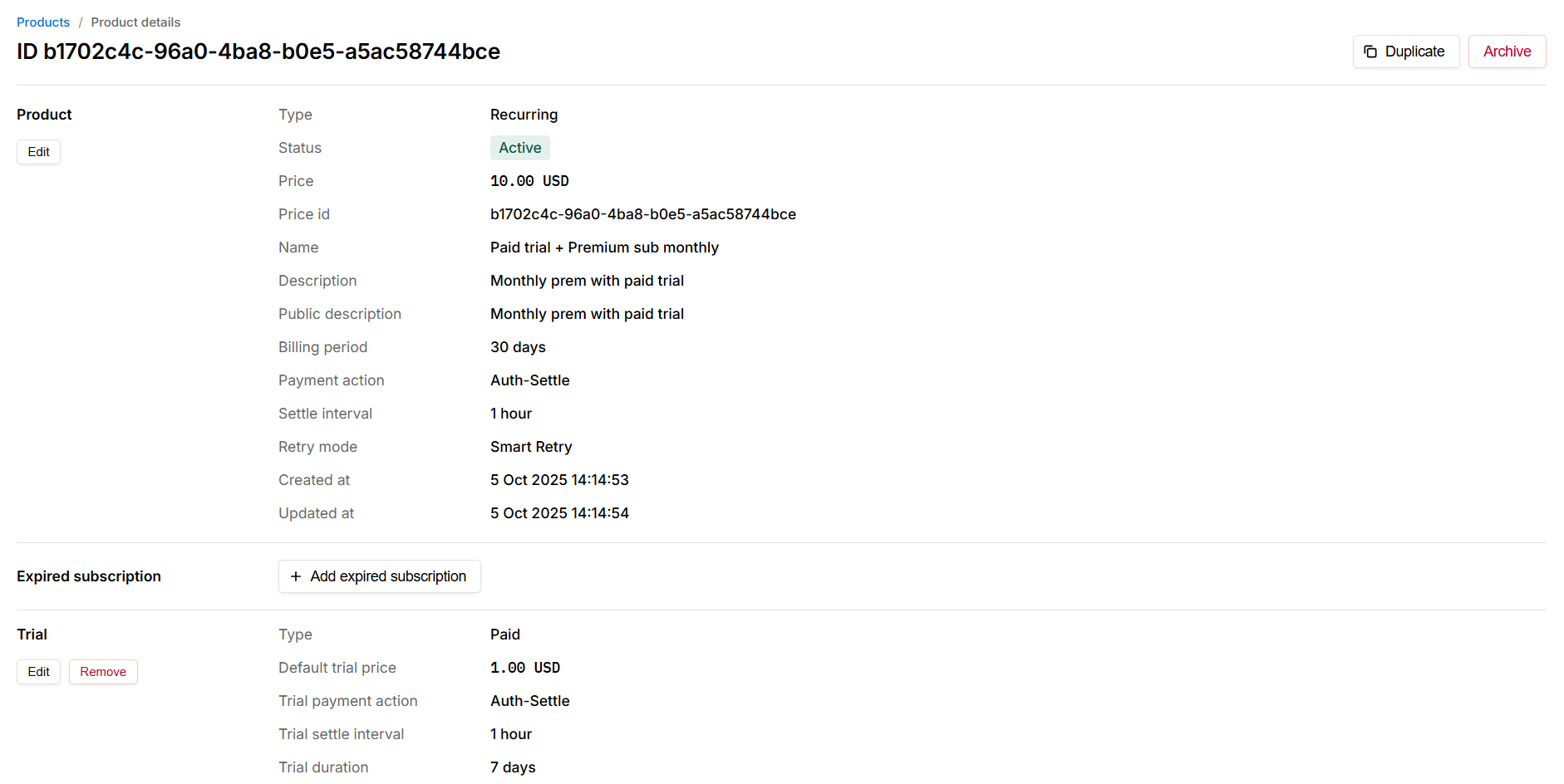
 Before setting up a paid trial, you need to [create a product](https://docs.solidgate.com/billing/subscription-overview) with a paid trial in Solidgate:
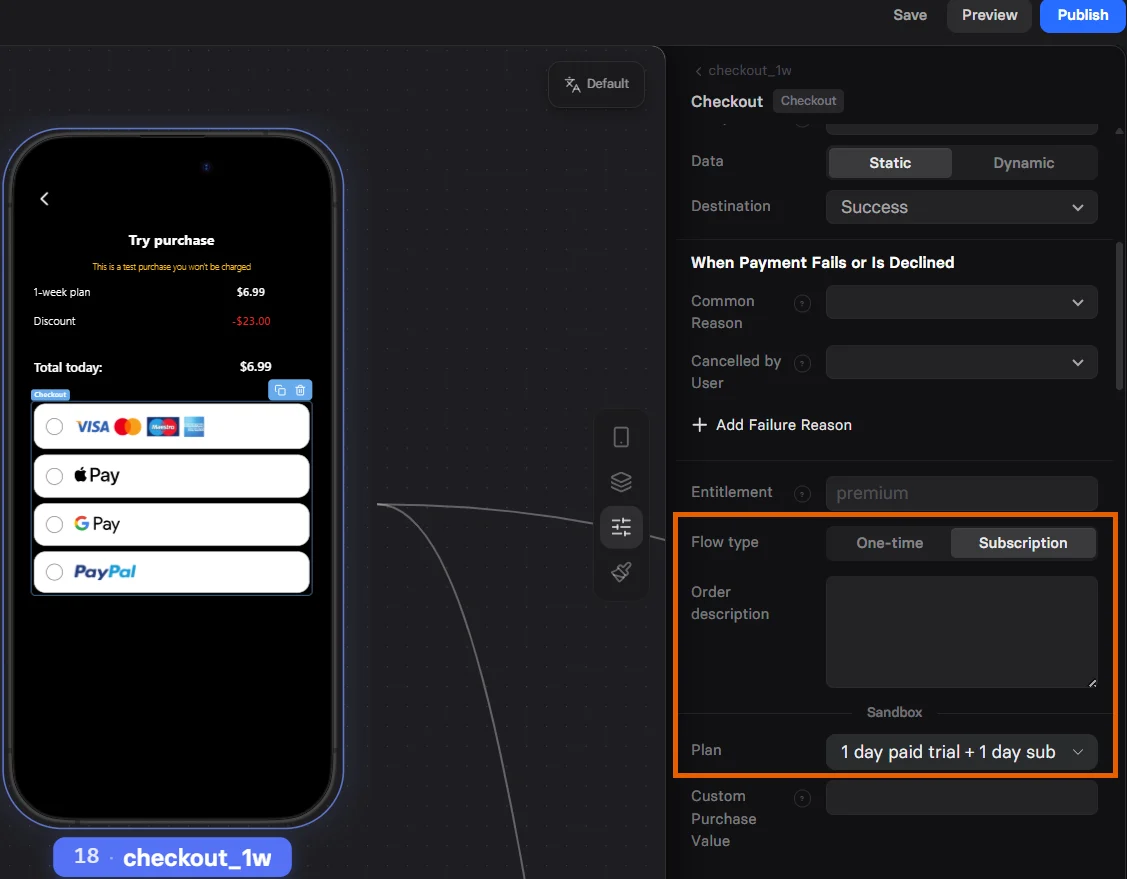
 To configure a paid trial:
1. Select **Subscription** in the **Flow type**.
2. Select the product with paid trial in **Plan**.
To configure a paid trial:
1. Select **Subscription** in the **Flow type**.
2. Select the product with paid trial in **Plan**.
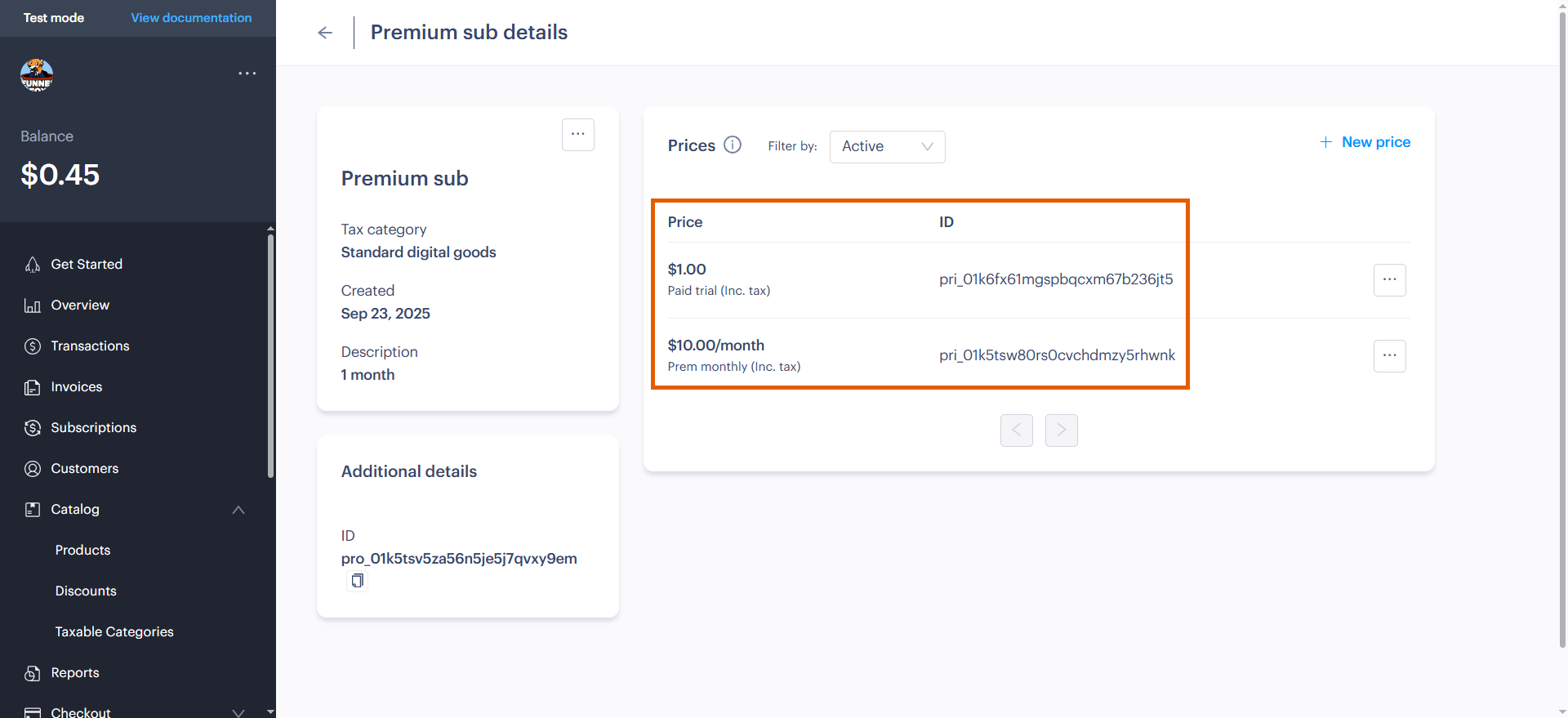
 Before setting up a paid trial, you need:
* Subscription product created in Paddle.
* [Recurring price](https://developer.paddle.com/build/products/create-products-prices) created in Paddle to charge for the subscription. Add a trial period to this price so customers aren't charged the full amount before the trial ends.
* One-time price for the same product created in Paddle to charge for the trial period.
Before setting up a paid trial, you need:
* Subscription product created in Paddle.
* [Recurring price](https://developer.paddle.com/build/products/create-products-prices) created in Paddle to charge for the subscription. Add a trial period to this price so customers aren't charged the full amount before the trial ends.
* One-time price for the same product created in Paddle to charge for the trial period.
 To configure a paid trial:
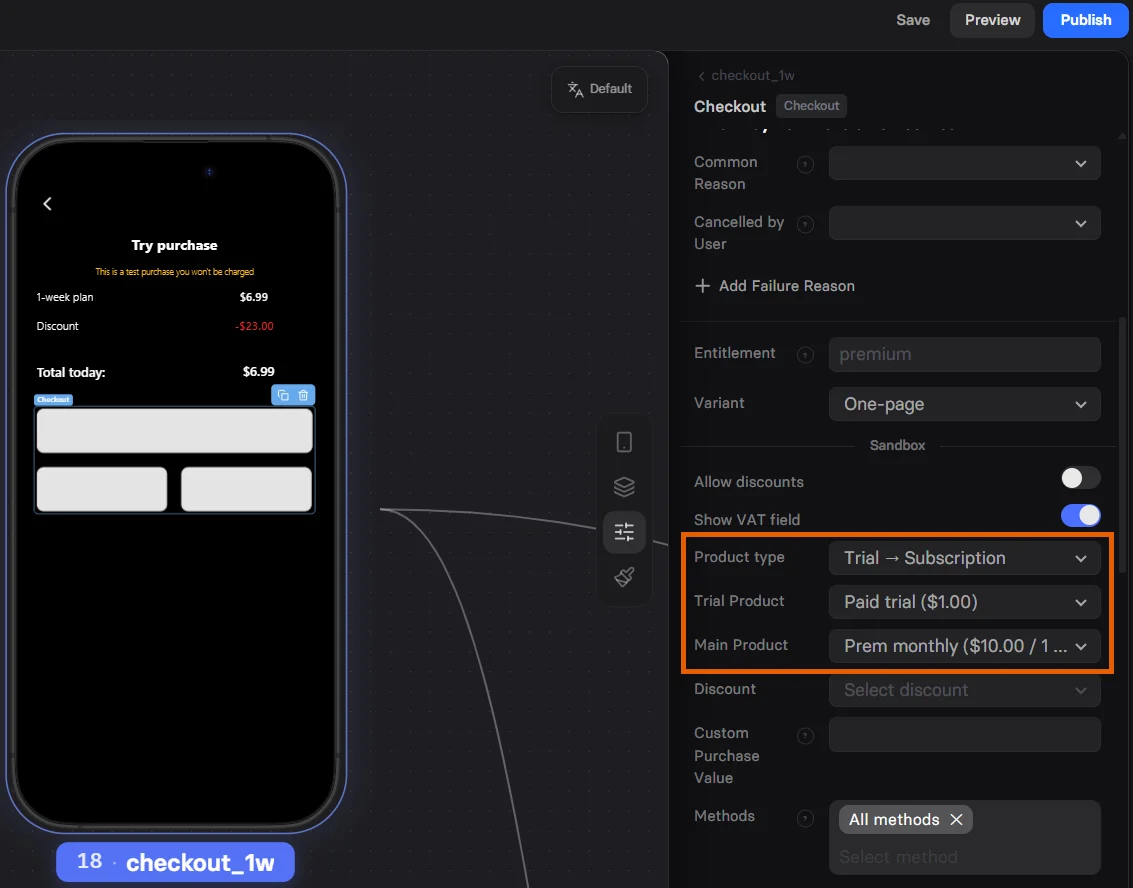
1. Select **Trial -> Subscription** in the **Product type**.
2. Select the trial price in **Trial Product**.
3. Select the subscription price in **Main Product**.
To configure a paid trial:
1. Select **Trial -> Subscription** in the **Product type**.
2. Select the trial price in **Trial Product**.
3. Select the subscription price in **Main Product**.
 Before setting up a paid trial, you need:
* Subscription product created on the [Products page](https://app.funnelfox.com/products) of your FunnelFox dashboard.
* Price with a paid trial period created on that product page.
Before setting up a paid trial, you need:
* Subscription product created on the [Products page](https://app.funnelfox.com/products) of your FunnelFox dashboard.
* Price with a paid trial period created on that product page.
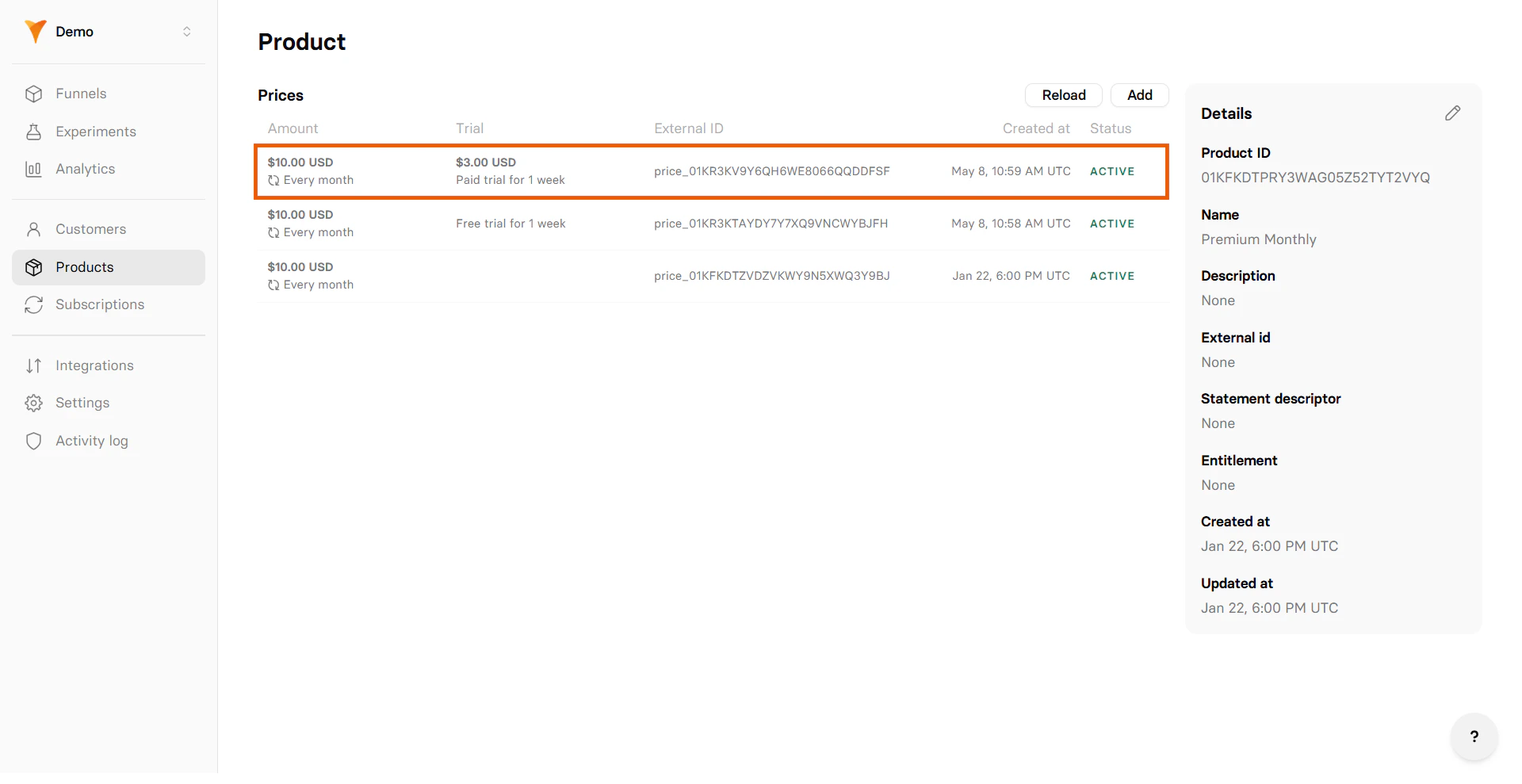 To configure a paid trial, select the product you created in **Price**.
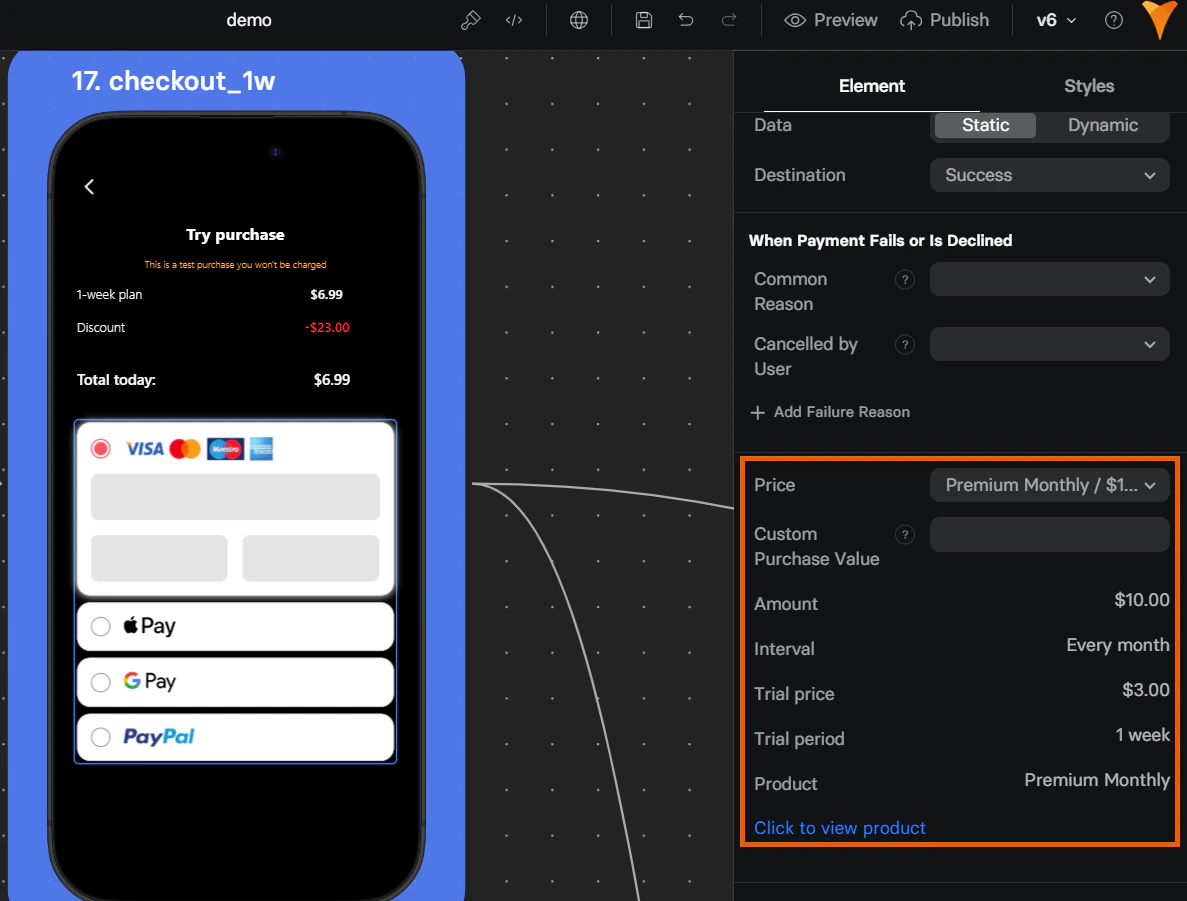 Detailed documentation is coming soon!
### Offers
Introductory or promotional discounts (coupons) applied to the first charge to boost conversion.
You can configure an intro or promo offer for any subscription created in Stripe.
Additionally, you need to create a [Stripe coupon](https://docs.stripe.com/billing/subscriptions/coupons#coupons) to be applied to the first charge.
Unlike paid trial configuration for Stripe, a coupon allows you to apply a percentage discount to any subscription using the same coupon.
Select how you want to implement your offer:
With intro discount:
* You select a Stripe coupon to be applied to a specific subscription.
* Customers won't have to input promo codes manually.
1. Select **Subscription + Intro discount** in the **Product type**.
2. Select the product to sell in the **Subscription**.
3. Select the coupon to reduce the first charge in the **Intro Discount**.
Detailed documentation is coming soon!
Detailed documentation is coming soon!
### Offers
Introductory or promotional discounts (coupons) applied to the first charge to boost conversion.
You can configure an intro or promo offer for any subscription created in Stripe.
Additionally, you need to create a [Stripe coupon](https://docs.stripe.com/billing/subscriptions/coupons#coupons) to be applied to the first charge.
Unlike paid trial configuration for Stripe, a coupon allows you to apply a percentage discount to any subscription using the same coupon.
Select how you want to implement your offer:
With intro discount:
* You select a Stripe coupon to be applied to a specific subscription.
* Customers won't have to input promo codes manually.
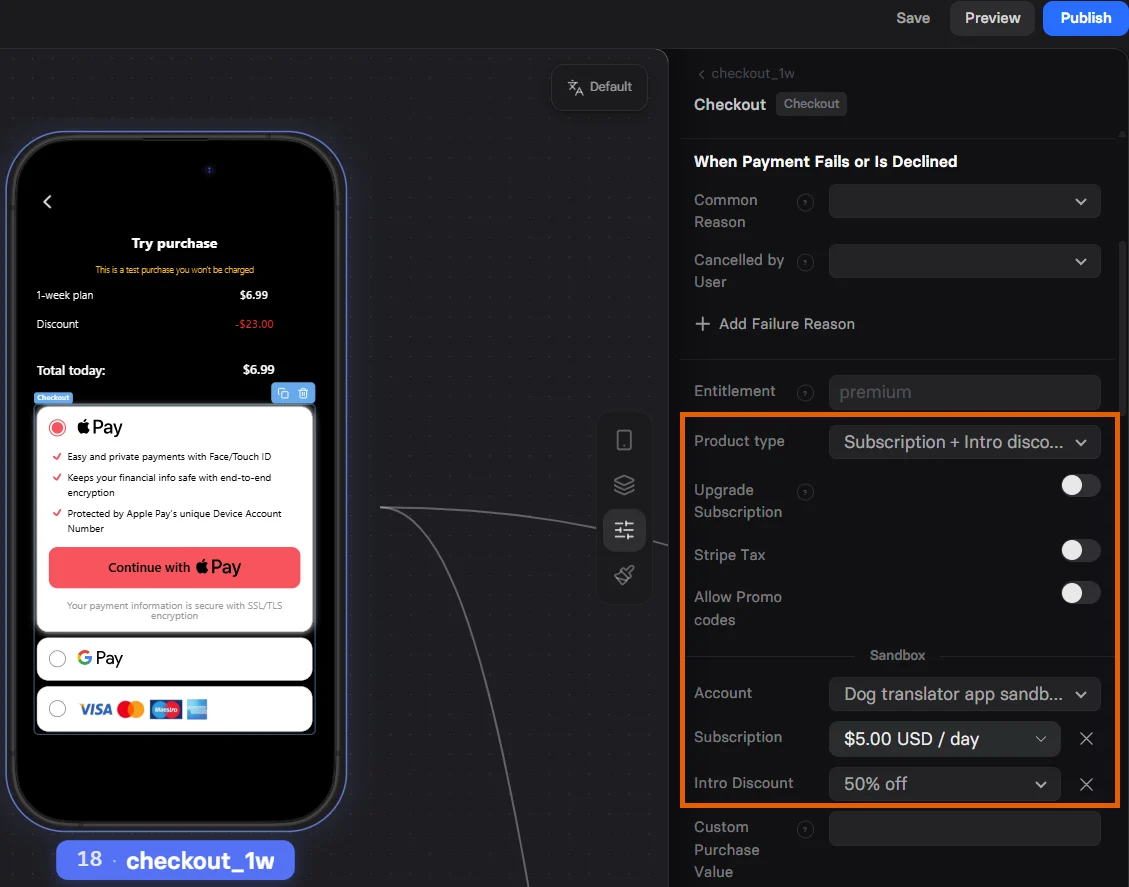
1. Select **Subscription + Intro discount** in the **Product type**.
2. Select the product to sell in the **Subscription**.
3. Select the coupon to reduce the first charge in the **Intro Discount**.
 This option enables a promo code input field for your Checkout, allowing customers to enter a code manually.
You will need to create a [promotional code](https://docs.stripe.com/billing/subscriptions/coupons#promotion-codes) for your Stripe coupon.
Once you have a Stripe promo code:
1. Set **Allow Promo codes** to **Yes**.
2. Set **Show Manual Input** to **Yes**.
This option enables a promo code input field for your Checkout, allowing customers to enter a code manually.
You will need to create a [promotional code](https://docs.stripe.com/billing/subscriptions/coupons#promotion-codes) for your Stripe coupon.
Once you have a Stripe promo code:
1. Set **Allow Promo codes** to **Yes**.
2. Set **Show Manual Input** to **Yes**.
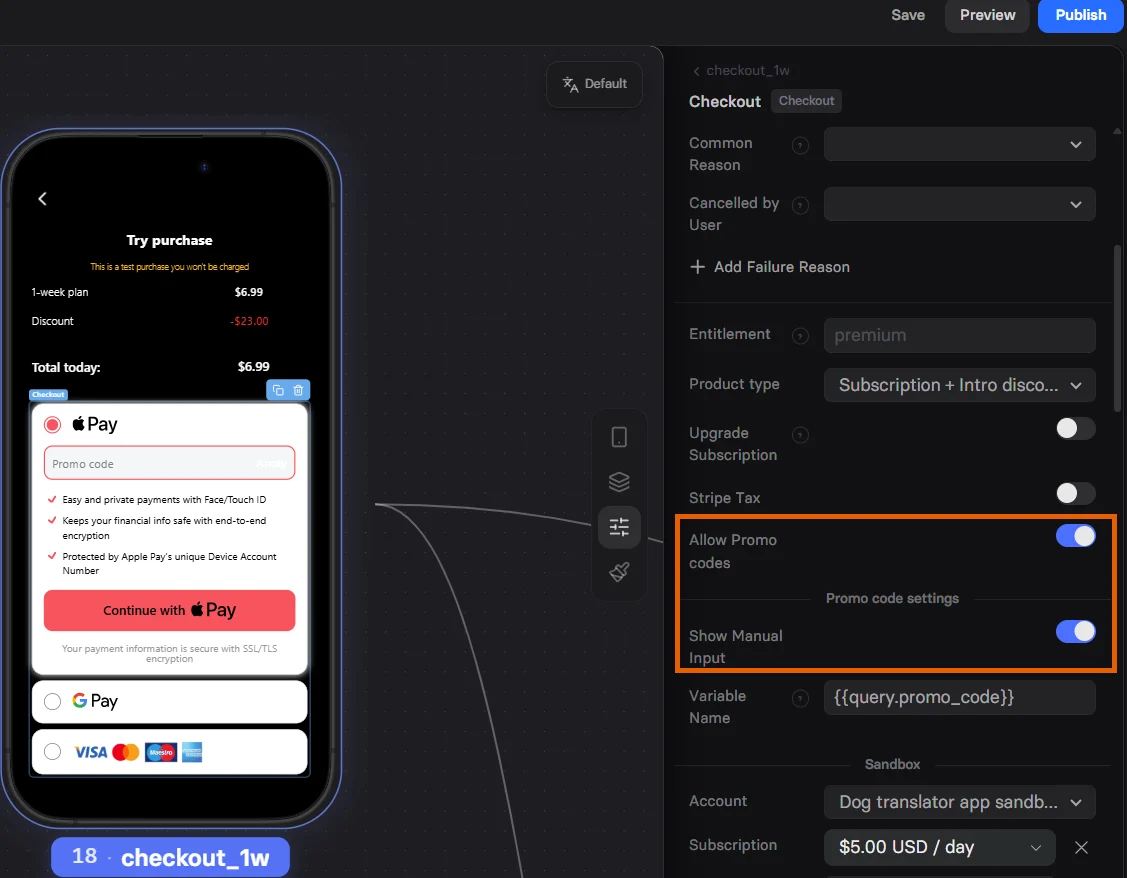 This option allows you to apply a promo code through a URL query parameter so your customers won't have to enter it manually.
You will need to create a [promotional code](https://docs.stripe.com/billing/subscriptions/coupons#promotion-codes) for your Stripe coupon.
Once you have a Stripe promo code:
1. Set **Allow Promo codes** to **Yes**.
This option allows you to apply a promo code through a URL query parameter so your customers won't have to enter it manually.
You will need to create a [promotional code](https://docs.stripe.com/billing/subscriptions/coupons#promotion-codes) for your Stripe coupon.
Once you have a Stripe promo code:
1. Set **Allow Promo codes** to **Yes**.
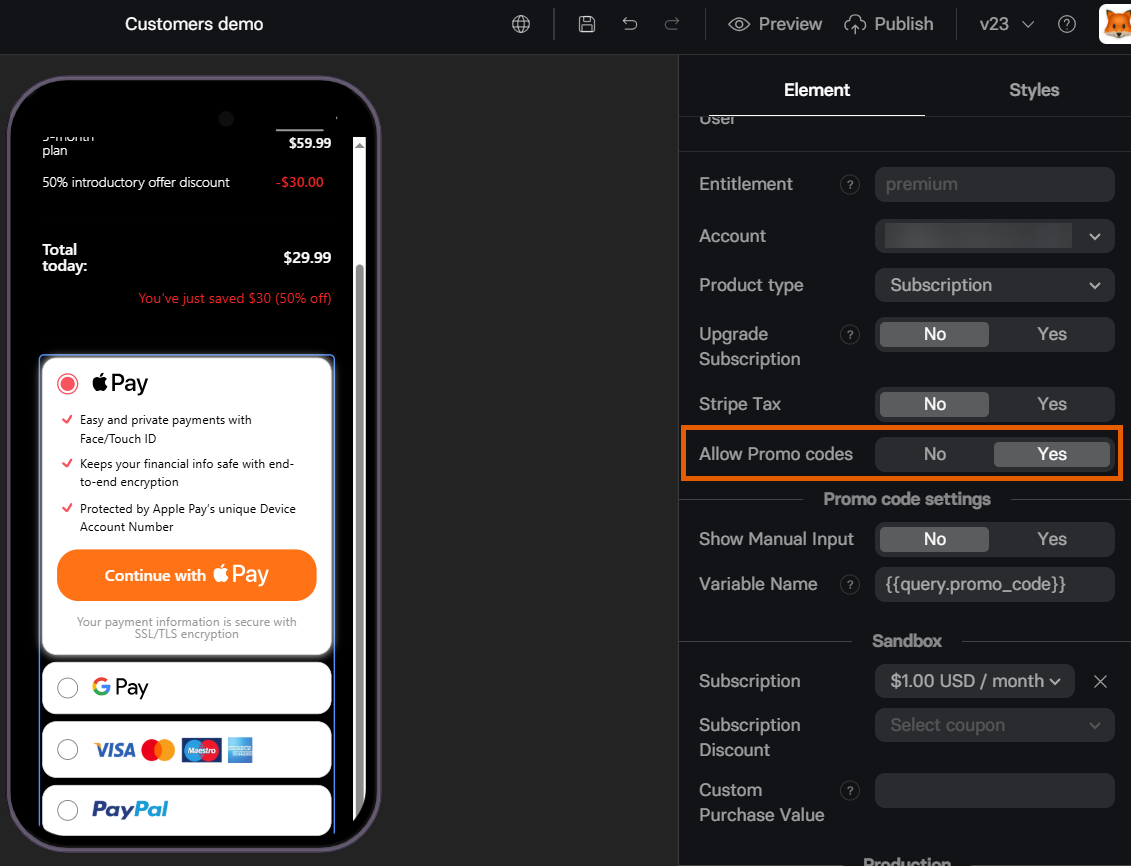 2. Add the promo code as a query parameter to the link leading customers to the funnel, for example, `promo_code=SEPT2025`
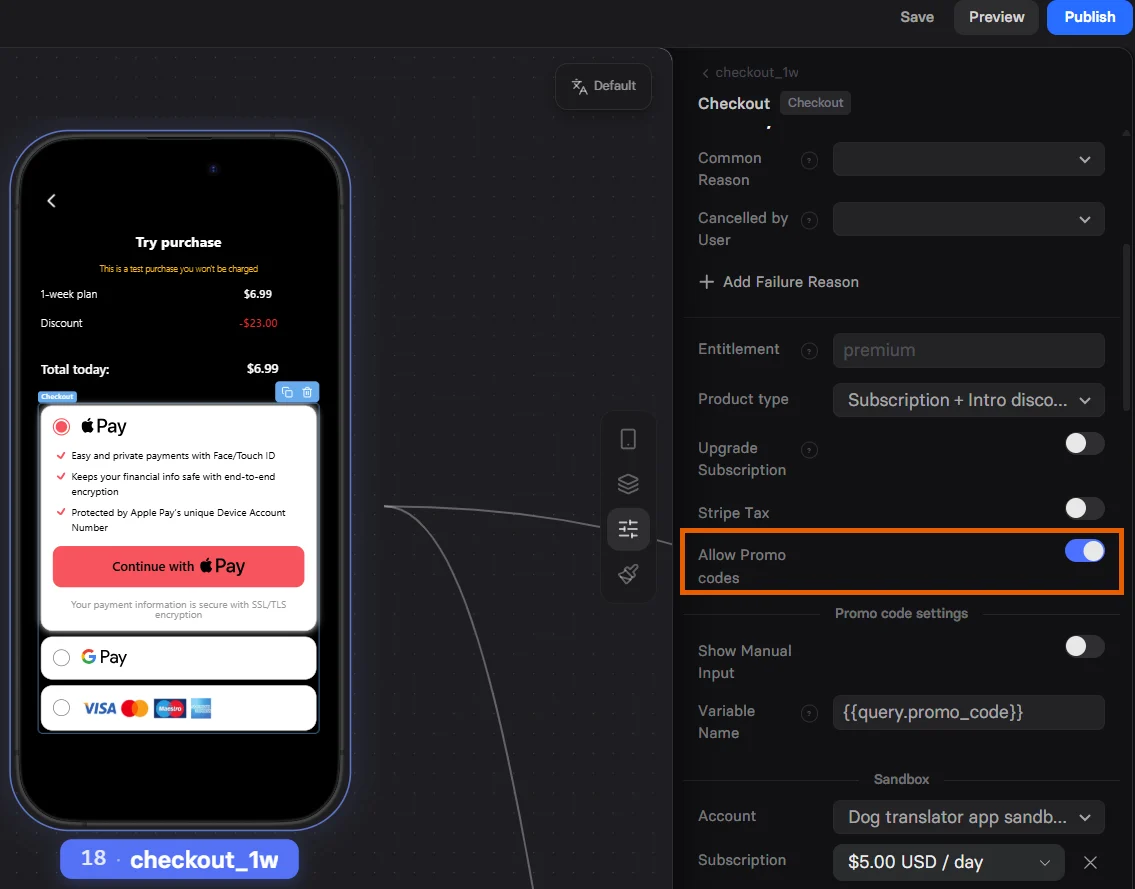 If you accidentally use a promo code and intro discount at the same time, only the promo code will be applied.
Offers are not available with Solidgate integration, but you can [configure a paid trial](/elements/checkout#solidgate-4) instead.
You can set up an intro offer for any subscription created in Paddle.
You also need to create a [Paddle discount](https://developer.paddle.com/build/products/offer-discounts-promotions-coupons) to apply to the first charge.
Unlike a paid trial configuration in Paddle, an intro offer allows you to apply a percentage discount to any subscription using the same Paddle Discount.
If you accidentally use a promo code and intro discount at the same time, only the promo code will be applied.
Offers are not available with Solidgate integration, but you can [configure a paid trial](/elements/checkout#solidgate-4) instead.
You can set up an intro offer for any subscription created in Paddle.
You also need to create a [Paddle discount](https://developer.paddle.com/build/products/offer-discounts-promotions-coupons) to apply to the first charge.
Unlike a paid trial configuration in Paddle, an intro offer allows you to apply a percentage discount to any subscription using the same Paddle Discount.
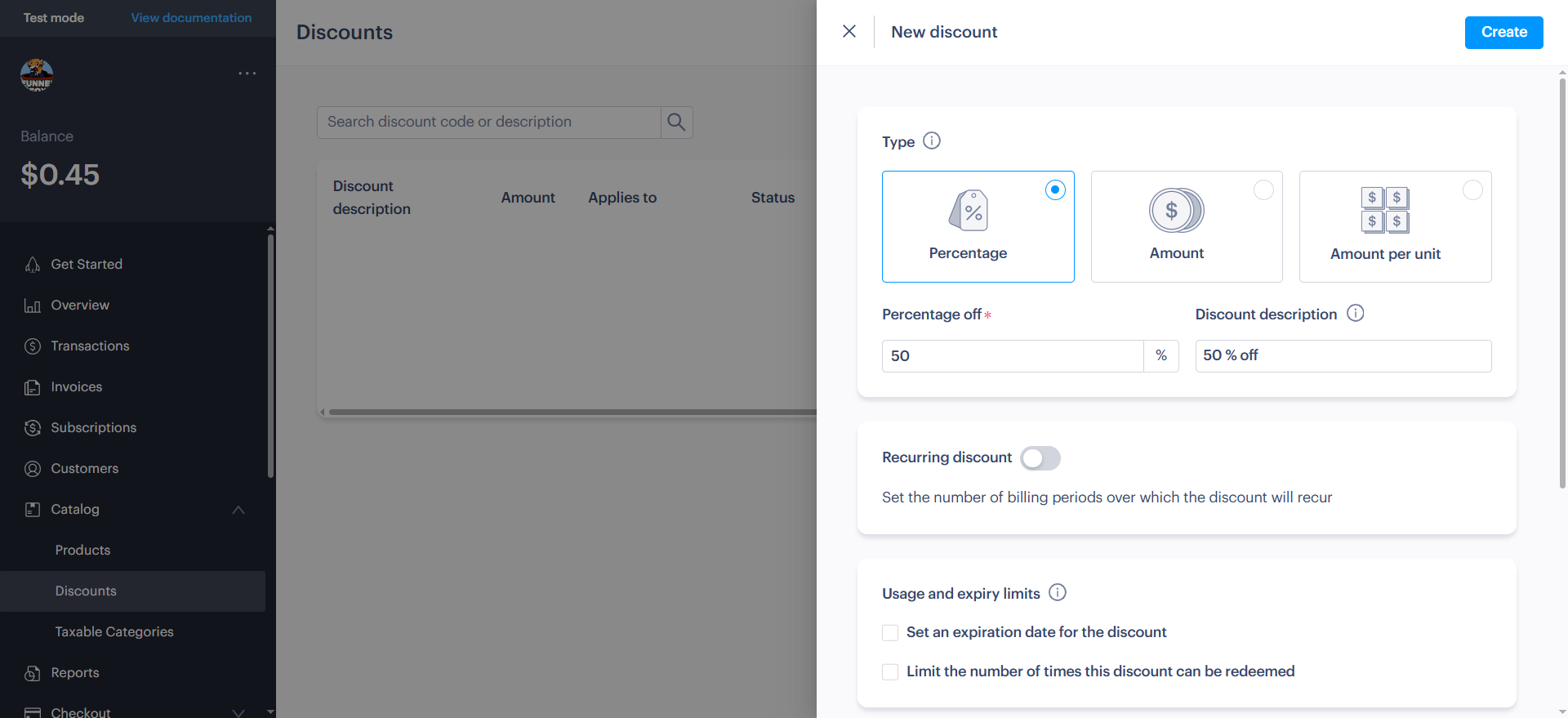 Select how you want to implement your offer:
With intro discount:
* You select a Paddle discount to be applied to a specific subscription.
* Customers won't have to input discount codes manually.
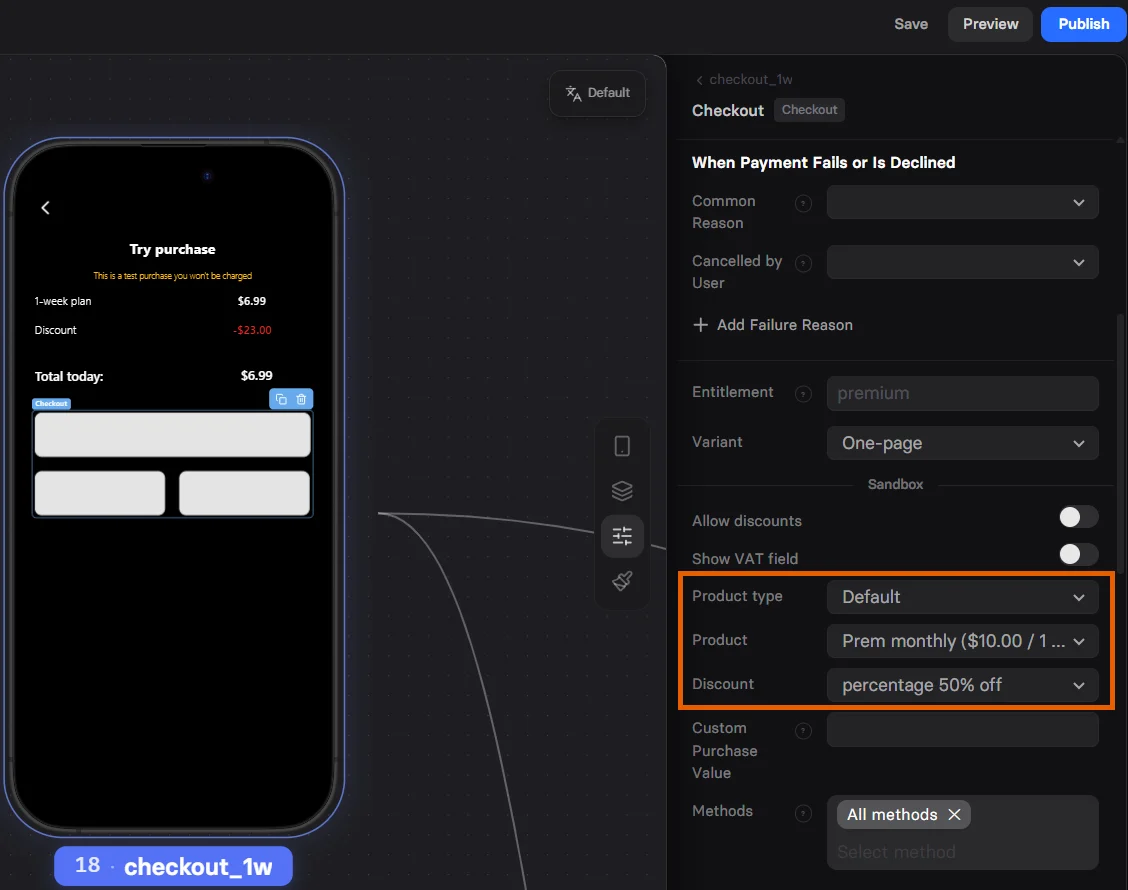
To configure an intro offer:
1. Set **Default** in the **Product type**.
2. Select the subscription price in **Product**.
3. Select the offer in **Discount**.
You don't need to modify the **Allow discounts** setting. If it's set to **Yes**, customers can click **X** to remove your intro offer unless **Show discount removal control** is disabled.
Select how you want to implement your offer:
With intro discount:
* You select a Paddle discount to be applied to a specific subscription.
* Customers won't have to input discount codes manually.
To configure an intro offer:
1. Set **Default** in the **Product type**.
2. Select the subscription price in **Product**.
3. Select the offer in **Discount**.
You don't need to modify the **Allow discounts** setting. If it's set to **Yes**, customers can click **X** to remove your intro offer unless **Show discount removal control** is disabled.
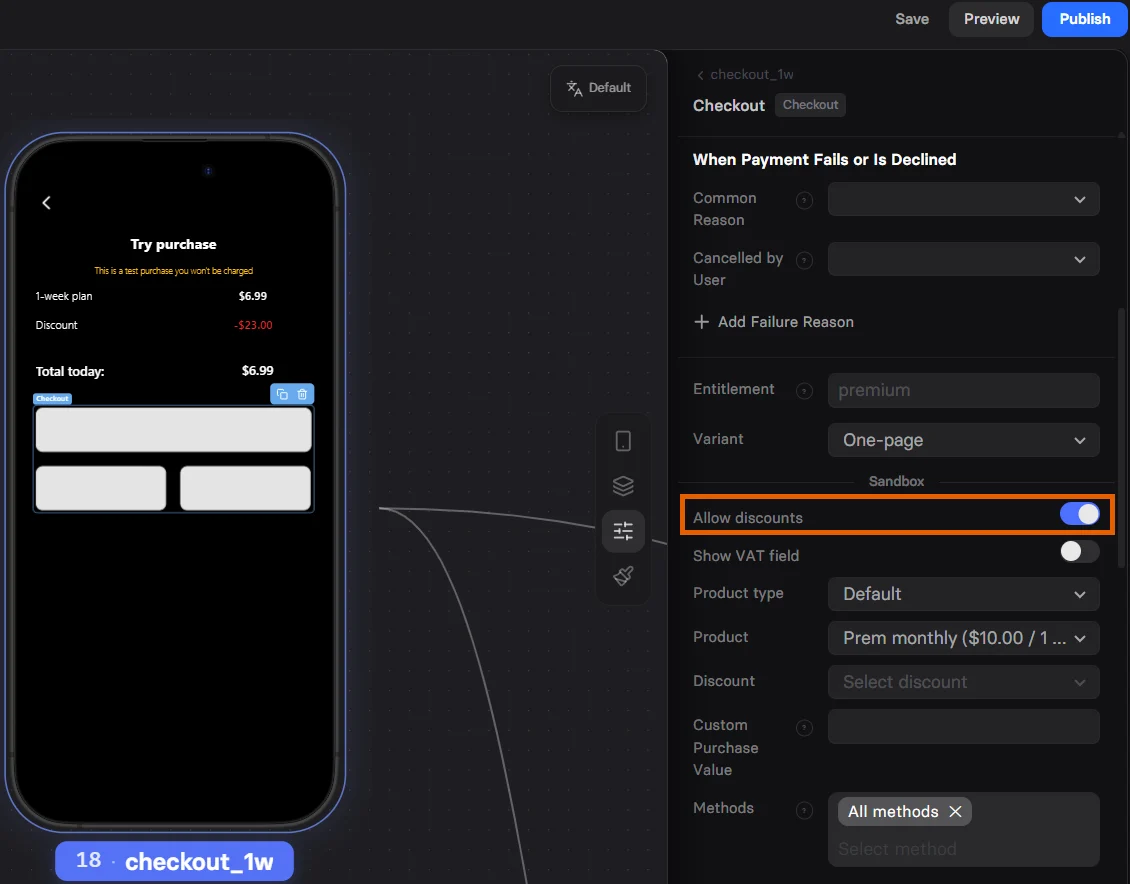
 This option enables a promo code input field for your Checkout, allowing customers to enter a code manually.
You will need to toggle on **Checkout discount code** to create a discount code when creating your [Paddle discount](https://developer.paddle.com/build/products/offer-discounts-promotions-coupons#background-rules-and-limits-checkout-restrictions).
To configure your Checkout, simply set **Allow discounts** to **Yes**.
This option enables a promo code input field for your Checkout, allowing customers to enter a code manually.
You will need to toggle on **Checkout discount code** to create a discount code when creating your [Paddle discount](https://developer.paddle.com/build/products/offer-discounts-promotions-coupons#background-rules-and-limits-checkout-restrictions).
To configure your Checkout, simply set **Allow discounts** to **Yes**.
 Offers are not available with FunnelFox Billing integration, but you can [configure a paid trial](/elements/checkout#billing-4) instead.
Detailed documentation is coming soon!
Detailed documentation is coming soon!
### Upsell
Present a higher-value plan or add-on to customers.
Stripe allows you to upsell one-time products, additional subscriptions, and subscription upgrades. Customers don't need to provide their payment details again and will be charged with just one click.
If the upsell payment is declined, for example due to insufficient funds after the initial purchase, the checkout pop-up is shown again so the customer can retry.
You can configure an upsell for any one-time product created in Stripe:
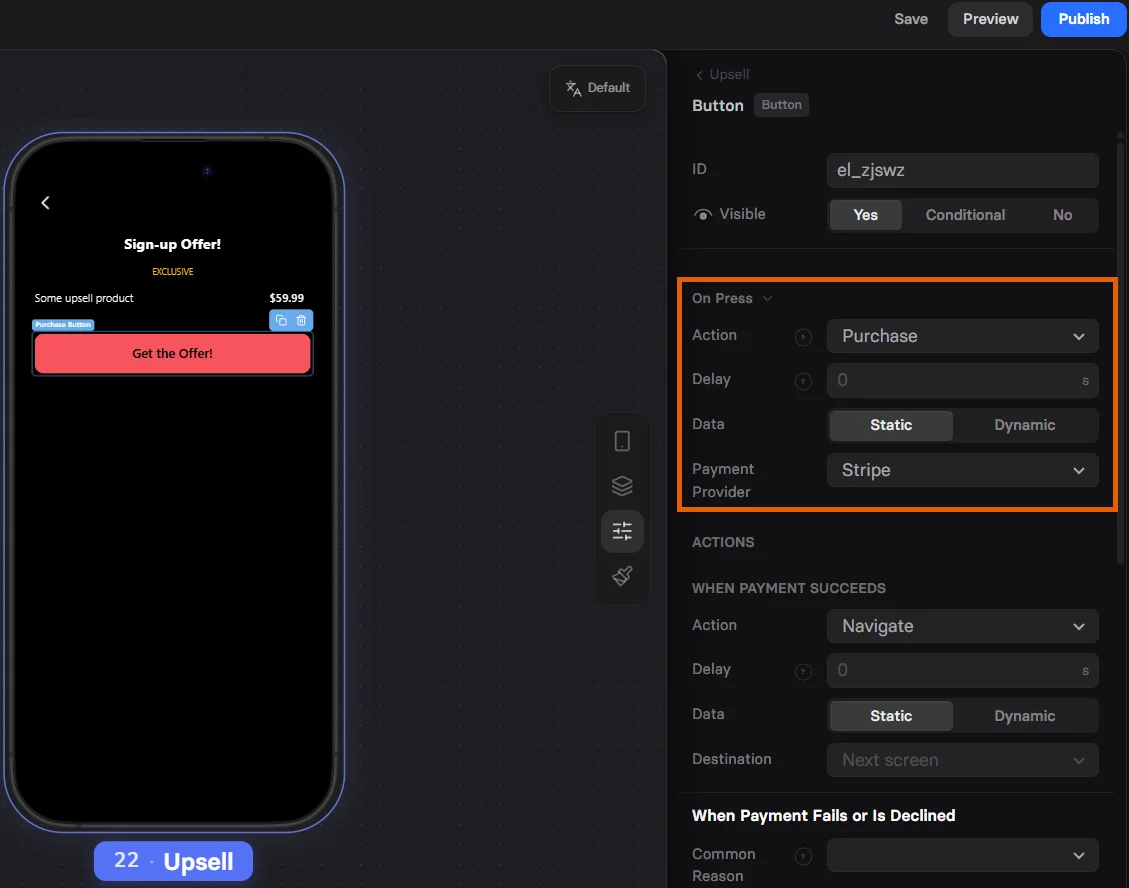
1. Add a [Button](/elements/button) element to your upsell screen.
2. Set up the **On Press** section of the **Parameters** tab:
* **Action**: Purchase
* **Payment Provider**: Stripe
Offers are not available with FunnelFox Billing integration, but you can [configure a paid trial](/elements/checkout#billing-4) instead.
Detailed documentation is coming soon!
Detailed documentation is coming soon!
### Upsell
Present a higher-value plan or add-on to customers.
Stripe allows you to upsell one-time products, additional subscriptions, and subscription upgrades. Customers don't need to provide their payment details again and will be charged with just one click.
If the upsell payment is declined, for example due to insufficient funds after the initial purchase, the checkout pop-up is shown again so the customer can retry.
You can configure an upsell for any one-time product created in Stripe:
1. Add a [Button](/elements/button) element to your upsell screen.
2. Set up the **On Press** section of the **Parameters** tab:
* **Action**: Purchase
* **Payment Provider**: Stripe
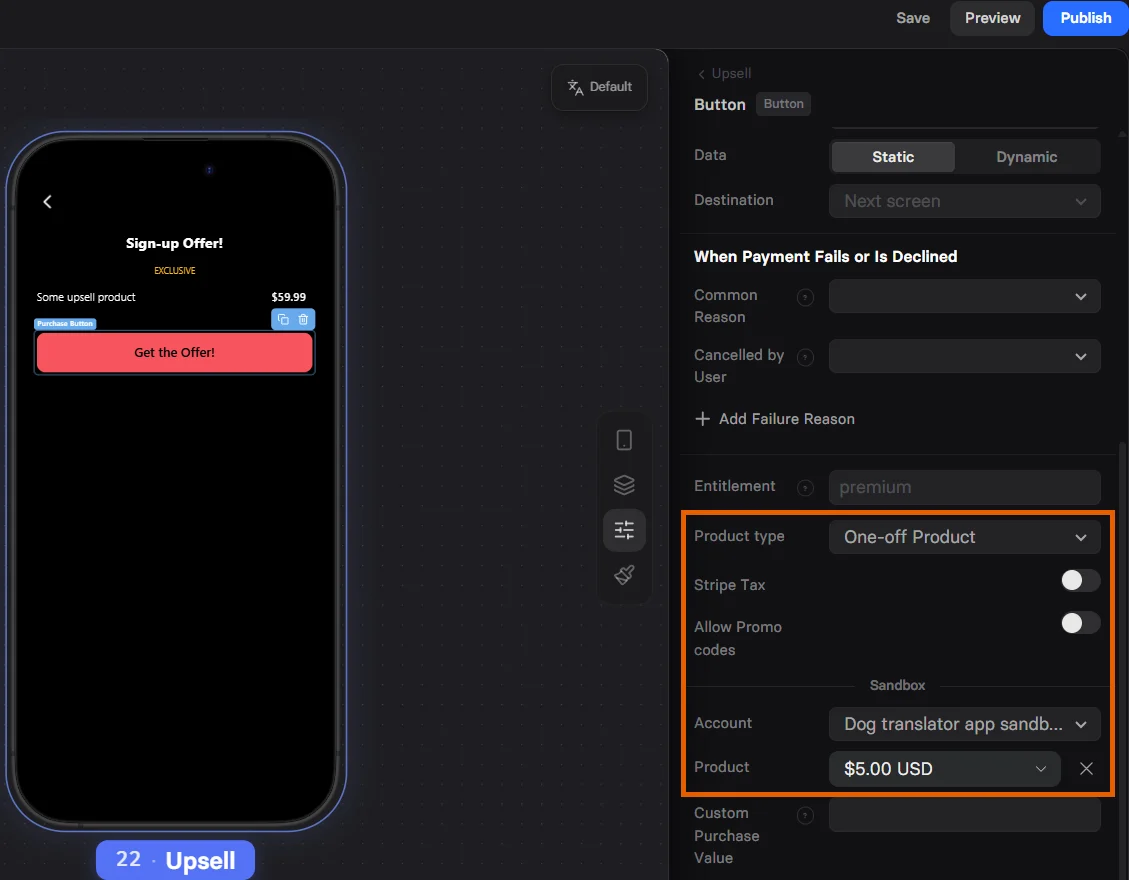
 3. Set up the one-time product to upsell:
* **Product type**: One-off product
* **Product**: Select the product to upsell
3. Set up the one-time product to upsell:
* **Product type**: One-off product
* **Product**: Select the product to upsell
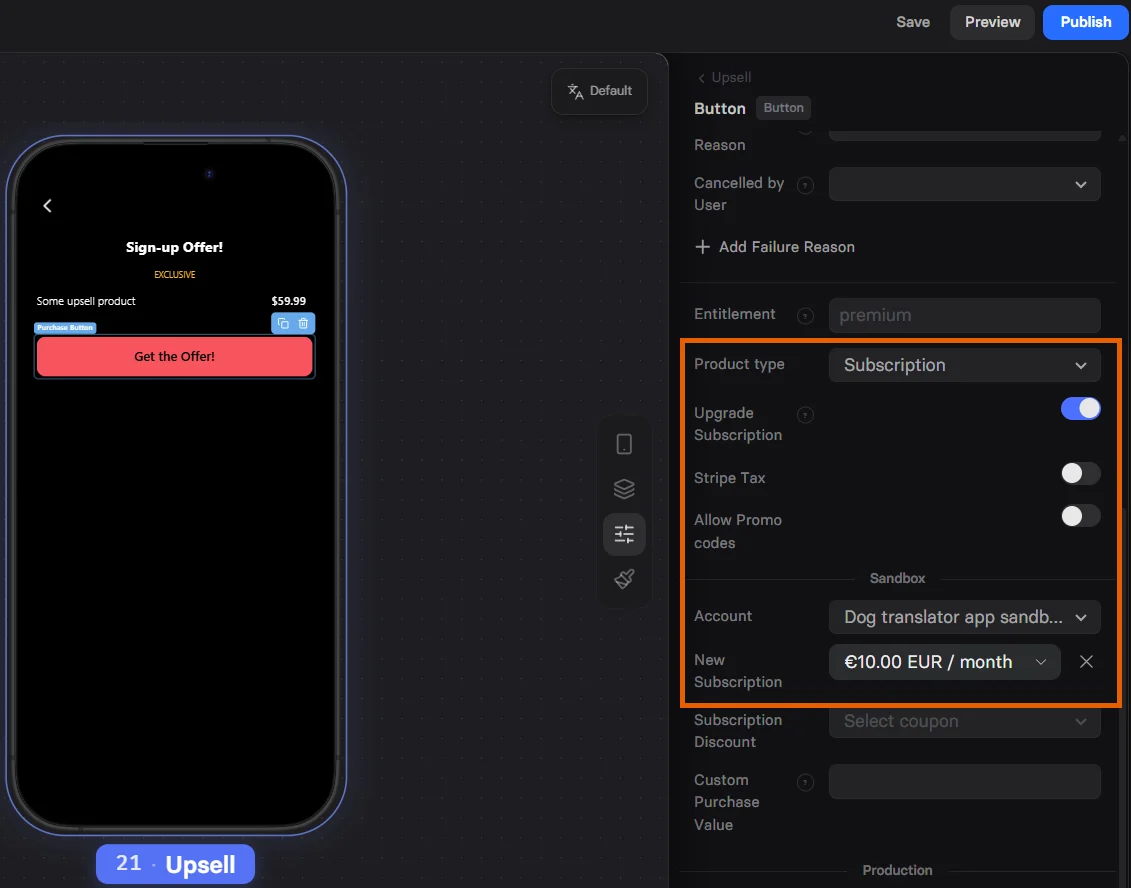
 You can configure an upsell for any subscription created in Stripe. Customers will be charged for the price difference between the initial and final plan:
1. Add a [Button](/elements/button) element to your upsell screen.
2. Set up the **On Press** section of the **Parameters** tab:
* **Action**: Purchase
* **Payment Provider**: Stripe
3. Set up the subscription to upsell:
* **Product type**: Subscription
* **Upgrade subscription**: Yes
* **New subscription**: Select the subscription to upsell
You can configure an upsell for any subscription created in Stripe. Customers will be charged for the price difference between the initial and final plan:
1. Add a [Button](/elements/button) element to your upsell screen.
2. Set up the **On Press** section of the **Parameters** tab:
* **Action**: Purchase
* **Payment Provider**: Stripe
3. Set up the subscription to upsell:
* **Product type**: Subscription
* **Upgrade subscription**: Yes
* **New subscription**: Select the subscription to upsell
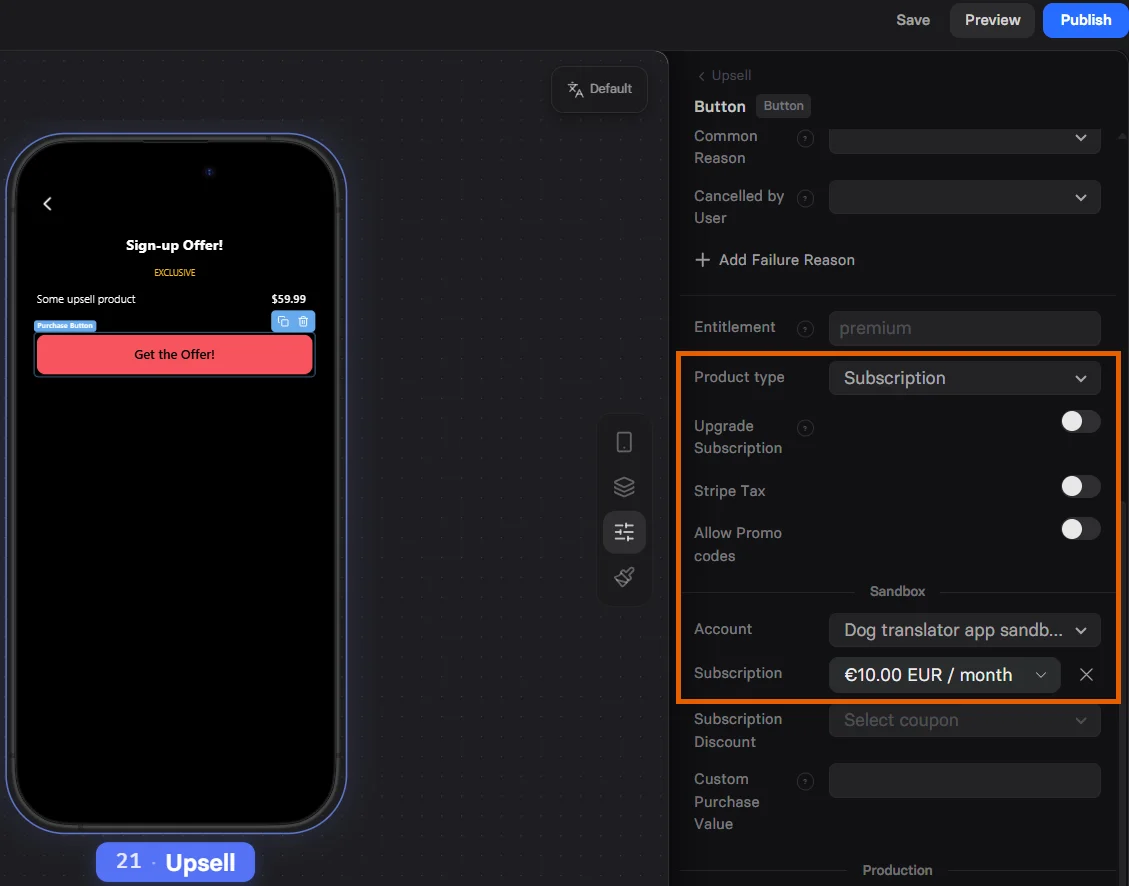
 Configuring and additional subscription upsell means your customer will purchase one more subscription instead of upgrading the initial one. As a result, customer finishes your funnel with two subscriptions.
1. Add a [Button](/elements/button) element to your upsell screen.
2. Set up the **On Press** section of the **Parameters** tab:
* **Action**: Purchase
* **Payment Provider**: Stripe
3. Set up the subscription to upsell:
* **Product type**: Subscription
* **Upgrade subscription**: No
* **Subscription**: Select the subscription to upsell
Configuring and additional subscription upsell means your customer will purchase one more subscription instead of upgrading the initial one. As a result, customer finishes your funnel with two subscriptions.
1. Add a [Button](/elements/button) element to your upsell screen.
2. Set up the **On Press** section of the **Parameters** tab:
* **Action**: Purchase
* **Payment Provider**: Stripe
3. Set up the subscription to upsell:
* **Product type**: Subscription
* **Upgrade subscription**: No
* **Subscription**: Select the subscription to upsell
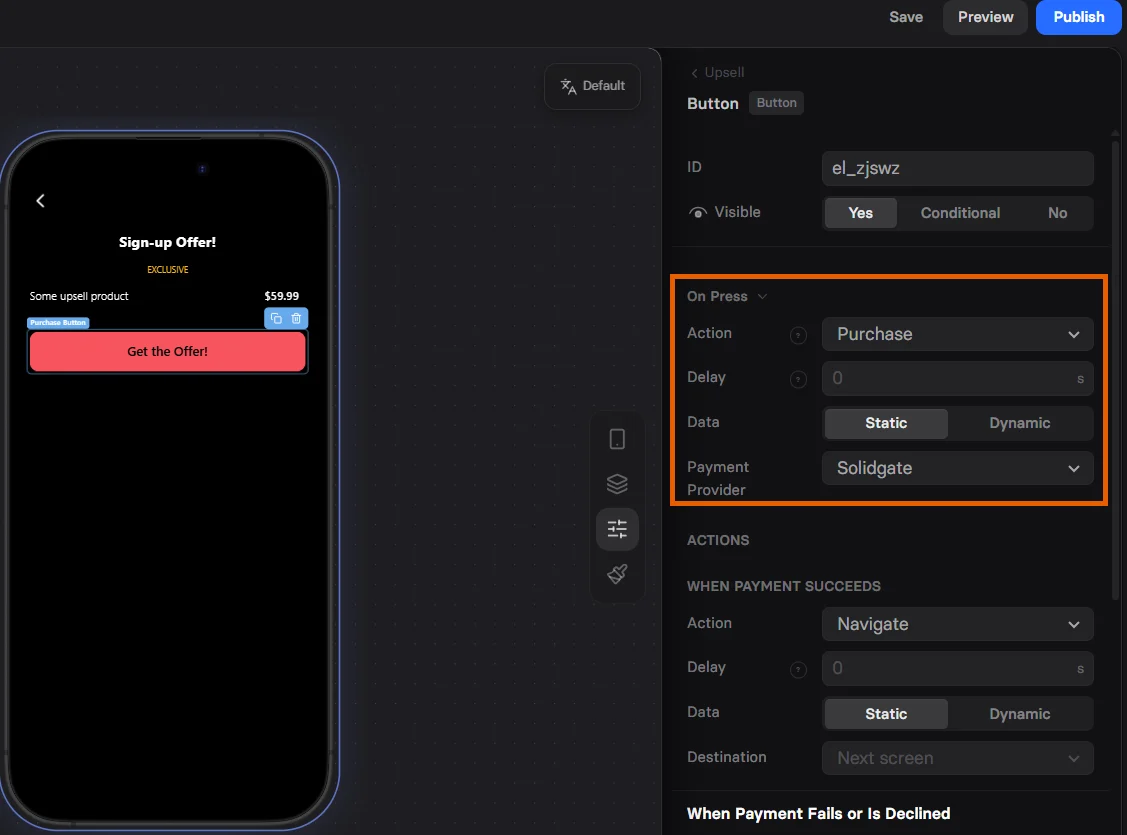
 Solidgate integration allows you to upsell both one-time products and additional subscriptions. Customers don't need to provide their payment details again and will be charged with just one click.
You can configure an upsell for any one-time or subscription product created in Solidgate:
1. Add a [Button](/elements/button) element to your upsell screen.
2. Set up the **On Press** section of the **Parameters** tab:
* **Action**: Purchase
* **Payment Provider**: Solidgate
Solidgate integration allows you to upsell both one-time products and additional subscriptions. Customers don't need to provide their payment details again and will be charged with just one click.
You can configure an upsell for any one-time or subscription product created in Solidgate:
1. Add a [Button](/elements/button) element to your upsell screen.
2. Set up the **On Press** section of the **Parameters** tab:
* **Action**: Purchase
* **Payment Provider**: Solidgate
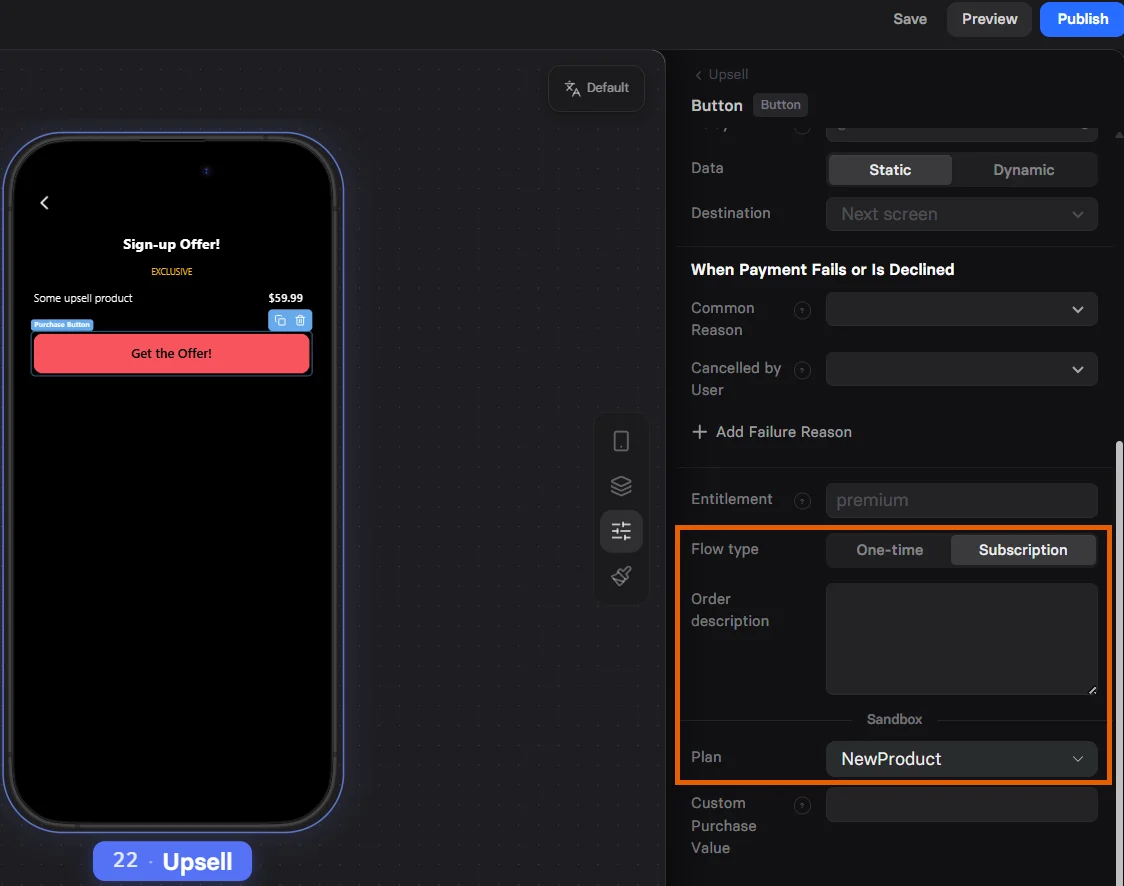
 3. Set up the one-time product or subscription to upsell:
* **Product type**: One-off product or Subscription
* **Product**: Select the product to upsell or one-off price
3. Set up the one-time product or subscription to upsell:
* **Product type**: One-off product or Subscription
* **Product**: Select the product to upsell or one-off price
 Paddle supports upsells for both one-time products and subscription upgrades. Customers don't need to enter their payment details again and will be charged with just one click.
Upselling an additional subscription is not supported with Paddle. If you configure a subscription in this flow, it replaces the initial subscription instead of creating a separate one.
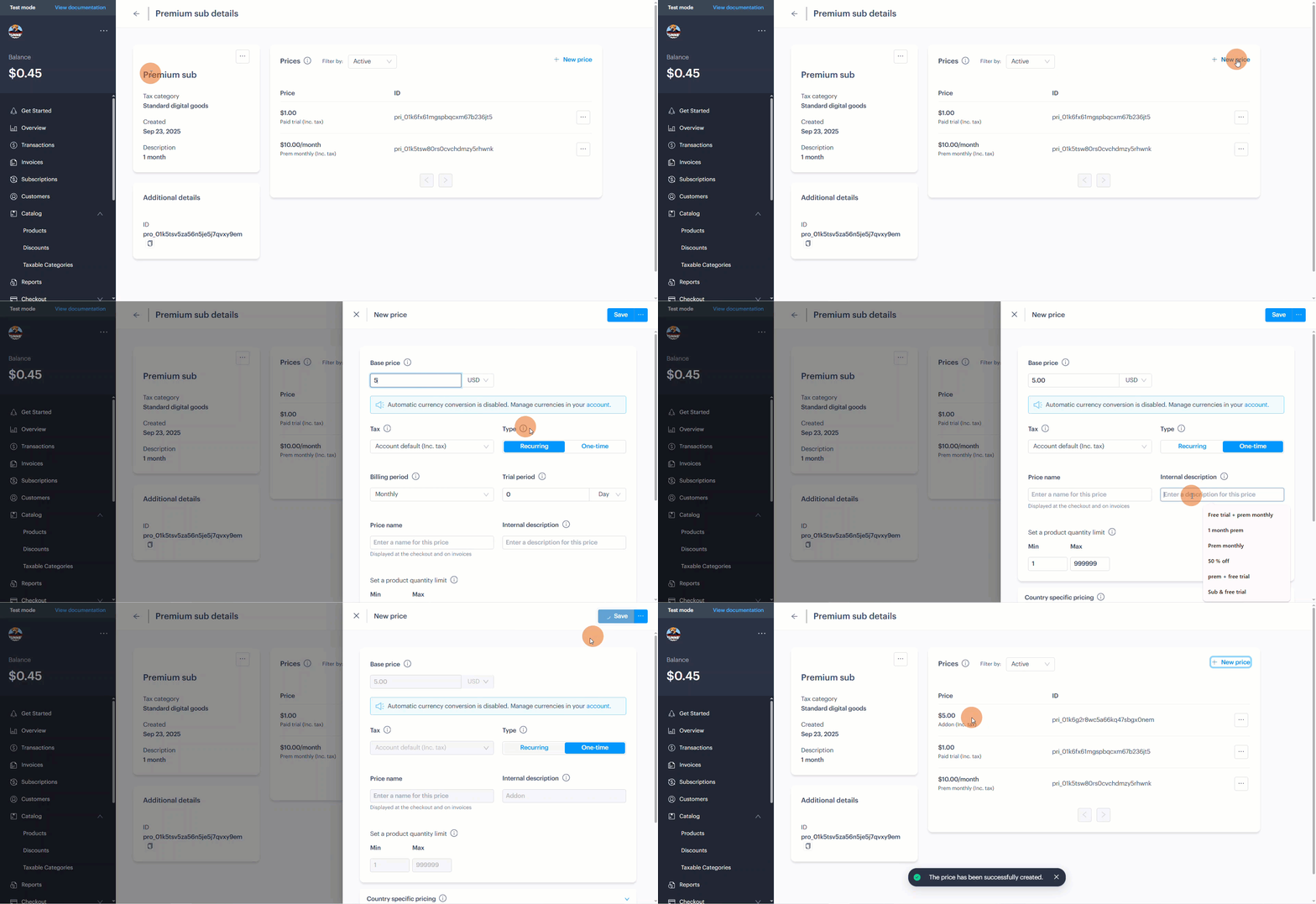
Before setting up an upsell, you need:
* Subscription product with recurring price created in Paddle (required for either subscription upgrade or a one-time upsell).
* [One-time price](https://developer.paddle.com/build/products/create-products-prices) for the same product created in Paddle to charge for your one-time upsell.
Paddle supports upsells for both one-time products and subscription upgrades. Customers don't need to enter their payment details again and will be charged with just one click.
Upselling an additional subscription is not supported with Paddle. If you configure a subscription in this flow, it replaces the initial subscription instead of creating a separate one.
Before setting up an upsell, you need:
* Subscription product with recurring price created in Paddle (required for either subscription upgrade or a one-time upsell).
* [One-time price](https://developer.paddle.com/build/products/create-products-prices) for the same product created in Paddle to charge for your one-time upsell.
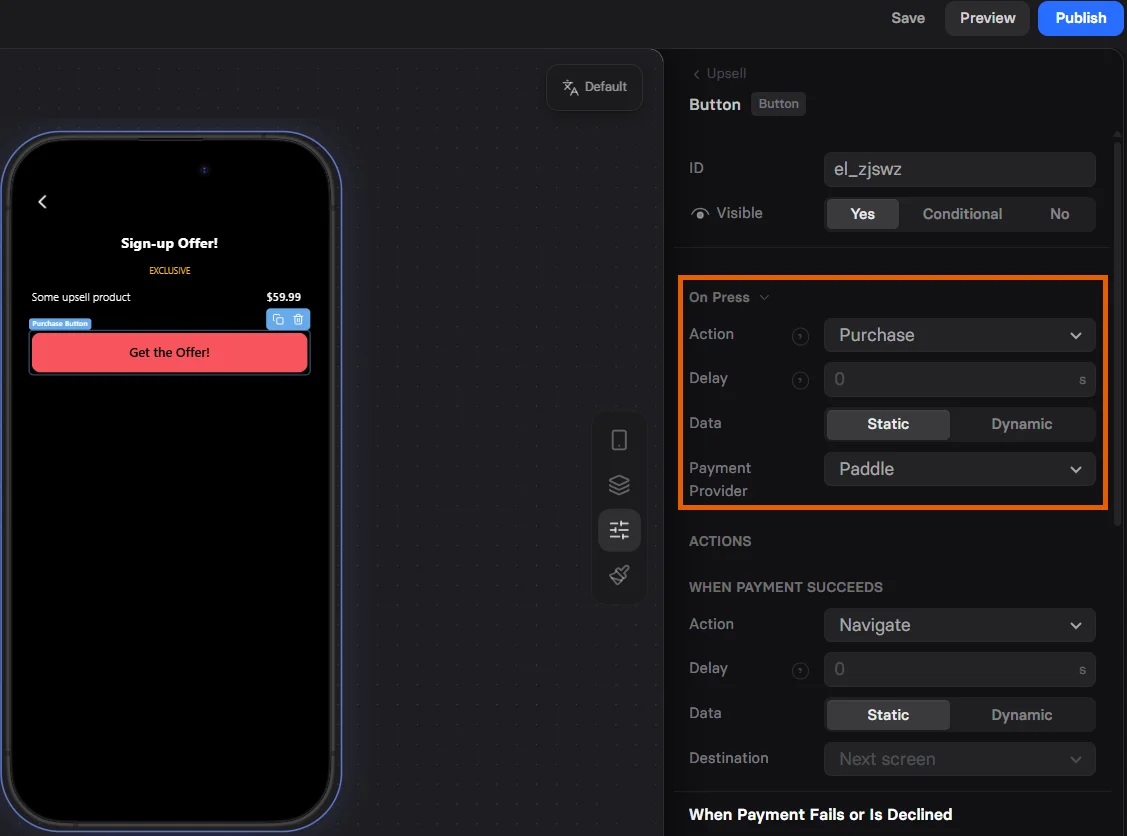
 To configure your upsell:
1. Add a [Button](/elements/button) element to your upsell screen.
2. Set up the **On Press** section of the **Parameters** tab:
* **Action**: Purchase
* **Payment Provider**: Paddle
To configure your upsell:
1. Add a [Button](/elements/button) element to your upsell screen.
2. Set up the **On Press** section of the **Parameters** tab:
* **Action**: Purchase
* **Payment Provider**: Paddle
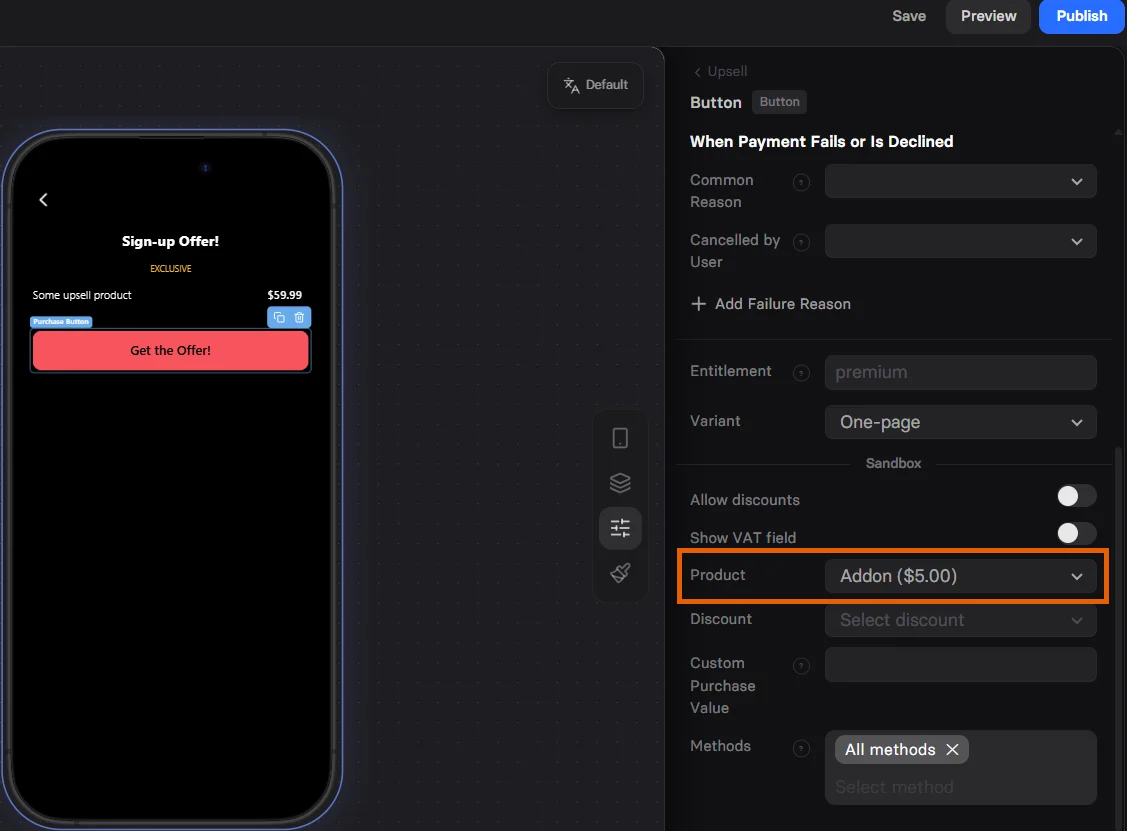
 3. Select your subscription or a one-time price in **Product**.
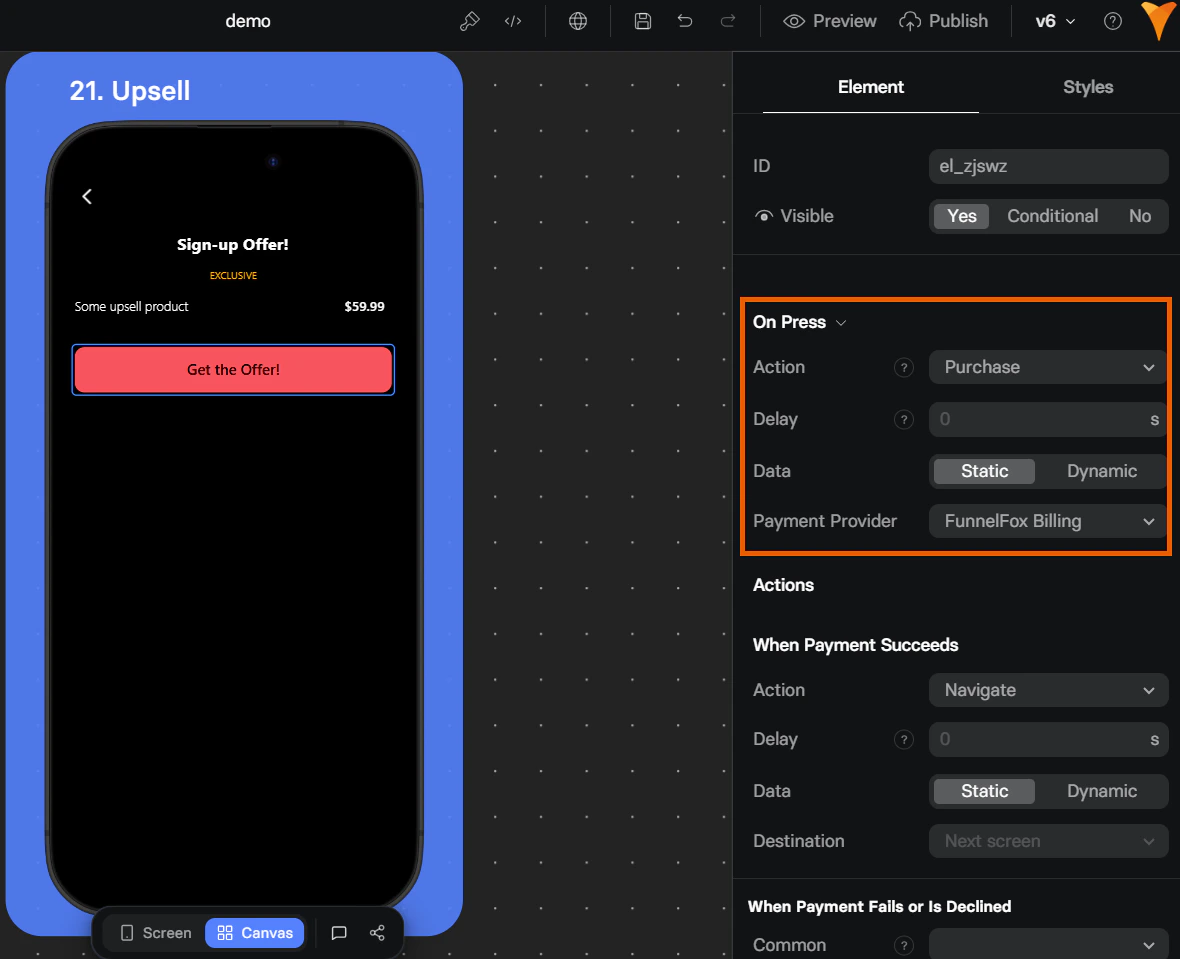
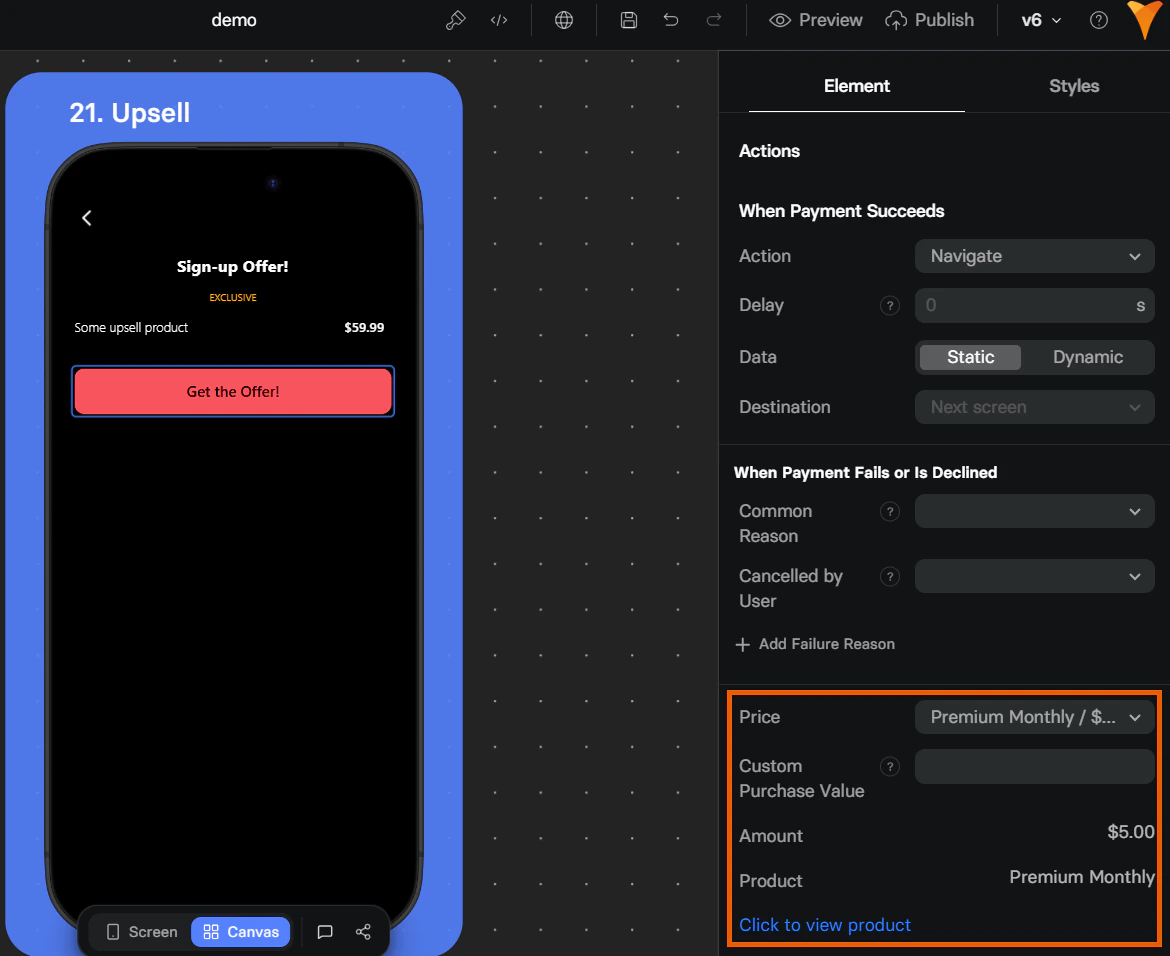
 FunnelFox Billing allows you to upsell both one-time products and additional subscriptions. Customers don't need to provide their payment details again and will be charged with just one click.
You can configure an upsell for any one-time or subscription product created on the [Products page](https://app.funnelfox.com/products):
1. Add a [Button](/elements/button) element to your upsell screen.
2. Set up the **On Press** section of the **Element** tab:
* **Action**: Purchase
* **Payment Provider**: Billing
FunnelFox Billing allows you to upsell both one-time products and additional subscriptions. Customers don't need to provide their payment details again and will be charged with just one click.
You can configure an upsell for any one-time or subscription product created on the [Products page](https://app.funnelfox.com/products):
1. Add a [Button](/elements/button) element to your upsell screen.
2. Set up the **On Press** section of the **Element** tab:
* **Action**: Purchase
* **Payment Provider**: Billing
 3. Select the recurring or one-off product to upsell in **Price**.
 Detailed documentation is coming soon!
## Event triggers
When a user interacts with a Checkout, the following events are triggered:
* `checkout_presented`: Each time the checkout element is shown.
* `checkout_impression`: When the user sees the checkout for the first time. Triggers only once per user session.
* `checkout_screen_presented`: When the user sees a screen with a checkout element.
For long paywall screens, `checkout_screen_presented` might be triggered without `checkout_presented` if the user leaves the funnel before reaching the Checkout element.
* `purchase_started`: User enters payment details and taps Buy or taps a one-click purchase button for Apple Pay/Google Pay/PayPal.
* `purchase_completed_success`: User successfully completes a purchase.
* `purchase_completed_fail`: User fails to complete a purchase (e.g., due to wrong card details or insufficient funds).
* `user_email_collected`: User enters a valid email (if Email input field is available on the checkout).
Learn more about [events and their parameters](/integrations/analytics/index#standard-events).
## Testing
Use test cards credentials to check how your Checkout works:
* [Testing with Stripe](/integrations/payments/stripe#testing)
* [Testing with Paddle](/integrations/payments/paddle#testing)
* [Testing with FastSpring](/integrations/payments/fastspring#testing)
No real charges occur while testing in Preview mode.
## Troubleshooting
Go to the **Styles** tab of your Checkout. Set **Text Color** and **Background** in the **Accordion** section so payment input fields are clearly readable (high contrast) in your design.
## Next steps
* [Configure payment providers](/integrations/payments)
* [Choose how your users sign in](/integrations/authentication/sign-in-methods) after purchase
Detailed documentation is coming soon!
Detailed documentation is coming soon!
## Event triggers
When a user interacts with a Checkout, the following events are triggered:
* `checkout_presented`: Each time the checkout element is shown.
* `checkout_impression`: When the user sees the checkout for the first time. Triggers only once per user session.
* `checkout_screen_presented`: When the user sees a screen with a checkout element.
For long paywall screens, `checkout_screen_presented` might be triggered without `checkout_presented` if the user leaves the funnel before reaching the Checkout element.
* `purchase_started`: User enters payment details and taps Buy or taps a one-click purchase button for Apple Pay/Google Pay/PayPal.
* `purchase_completed_success`: User successfully completes a purchase.
* `purchase_completed_fail`: User fails to complete a purchase (e.g., due to wrong card details or insufficient funds).
* `user_email_collected`: User enters a valid email (if Email input field is available on the checkout).
Learn more about [events and their parameters](/integrations/analytics/index#standard-events).
## Testing
Use test cards credentials to check how your Checkout works:
* [Testing with Stripe](/integrations/payments/stripe#testing)
* [Testing with Paddle](/integrations/payments/paddle#testing)
* [Testing with FastSpring](/integrations/payments/fastspring#testing)
No real charges occur while testing in Preview mode.
## Troubleshooting
Go to the **Styles** tab of your Checkout. Set **Text Color** and **Background** in the **Accordion** section so payment input fields are clearly readable (high contrast) in your design.
## Next steps
* [Configure payment providers](/integrations/payments)
* [Choose how your users sign in](/integrations/authentication/sign-in-methods) after purchase