> ## Documentation Index
> Fetch the complete documentation index at: https://funnelfox.com/docs/llms.txt
> Use this file to discover all available pages before exploring further.
# Funnel templates
> Start a funnel from a ready-made FunnelFox template, then personalize it as needed.
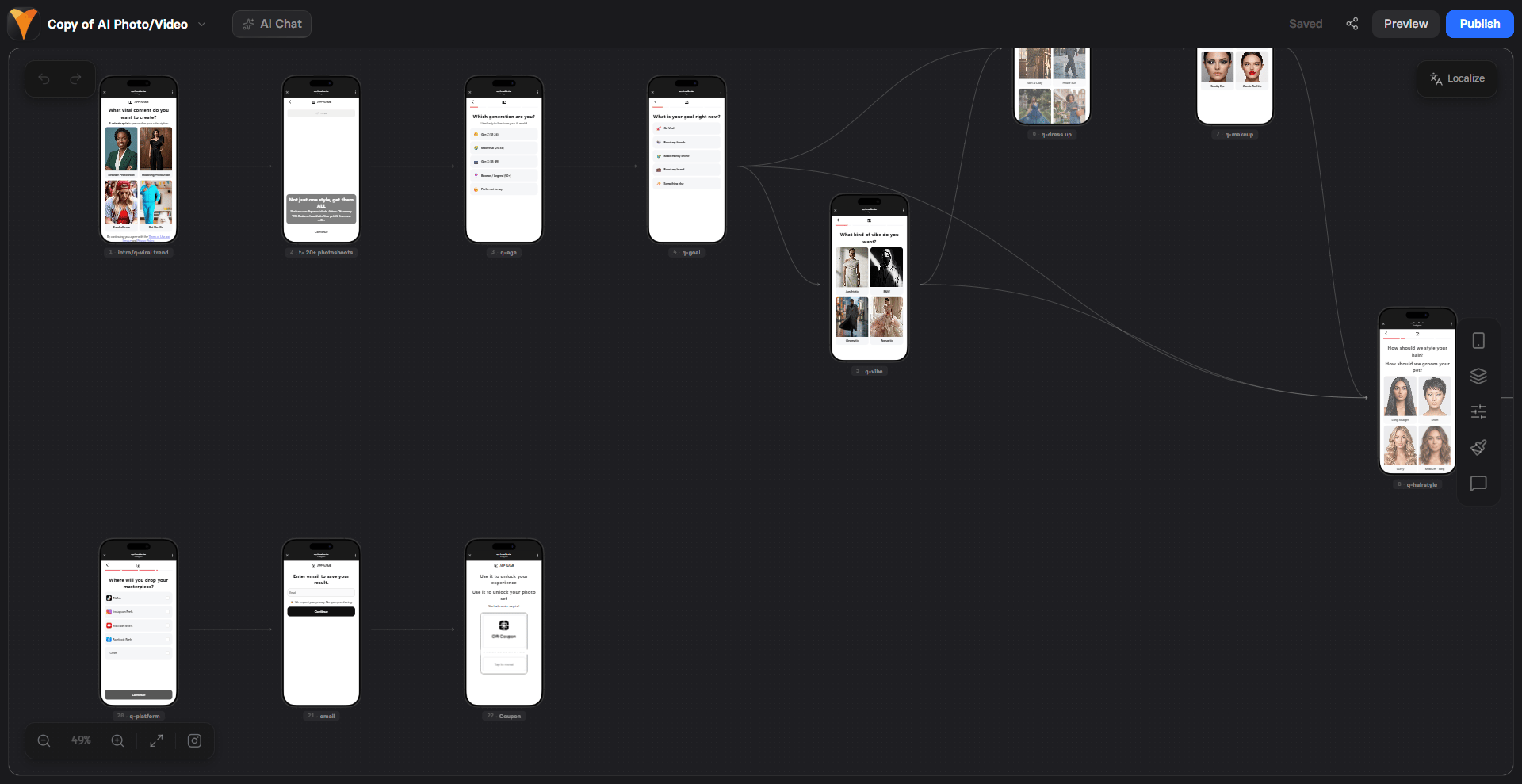
FunnelFox includes a library of ready-made funnel templates modeled on
high-converting funnels across popular niches. Each template arrives with a
complete screen sequence, so you start from a working flow instead of a blank
canvas.
Templates are starting points, not finished funnels. Every template ships
with placeholder content that you replace with your own. Follow
[Personalize your template](#personalize-your-template).
 ## Templates library
Ten templates are available when you create a funnel.
**By niche:**
* AI Learning
* AI Photo/Video
* Astrology
* Mental Well-Being
* Nutrition: Meal Plan
* Parenting
* Relationship/Dating
* Self-Growth
**By funnel type:**
* [Full cancellation flow](/docs/dashboard/funnels#cancellation-funnels)
* Paywall
## Templates library
Ten templates are available when you create a funnel.
**By niche:**
* AI Learning
* AI Photo/Video
* Astrology
* Mental Well-Being
* Nutrition: Meal Plan
* Parenting
* Relationship/Dating
* Self-Growth
**By funnel type:**
* [Full cancellation flow](/docs/dashboard/funnels#cancellation-funnels)
* Paywall
 ## Use templates
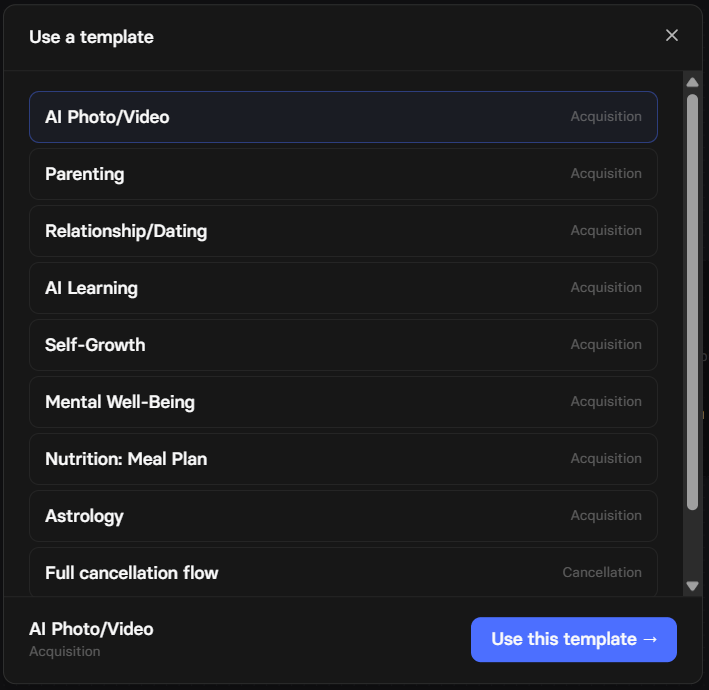
Go to the [Funnels page](https://app.funnelfox.com/funnels) and click
**New funnel**.
## Use templates
Go to the [Funnels page](https://app.funnelfox.com/funnels) and click
**New funnel**.
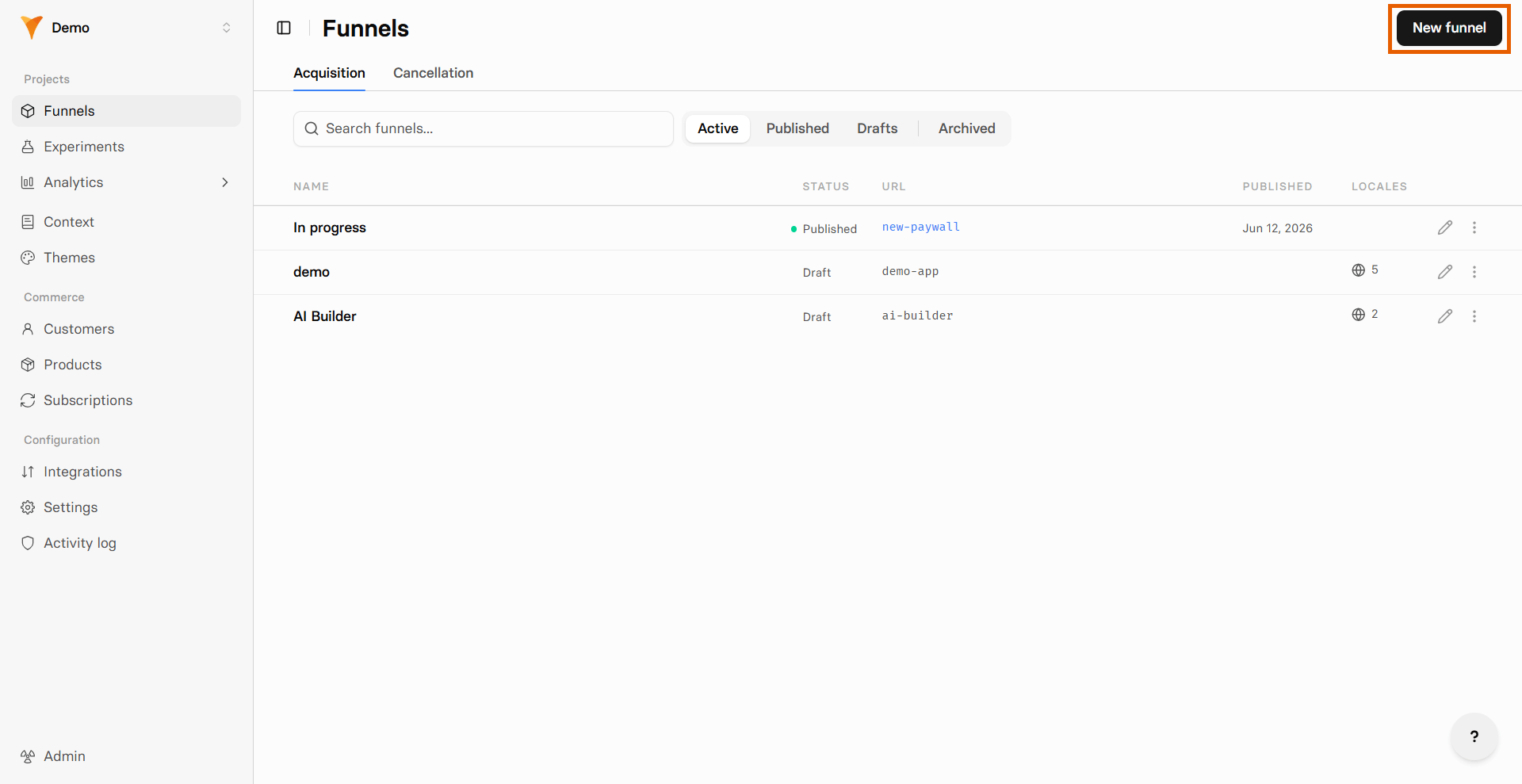 Click **Use a template** and select a template from the library.
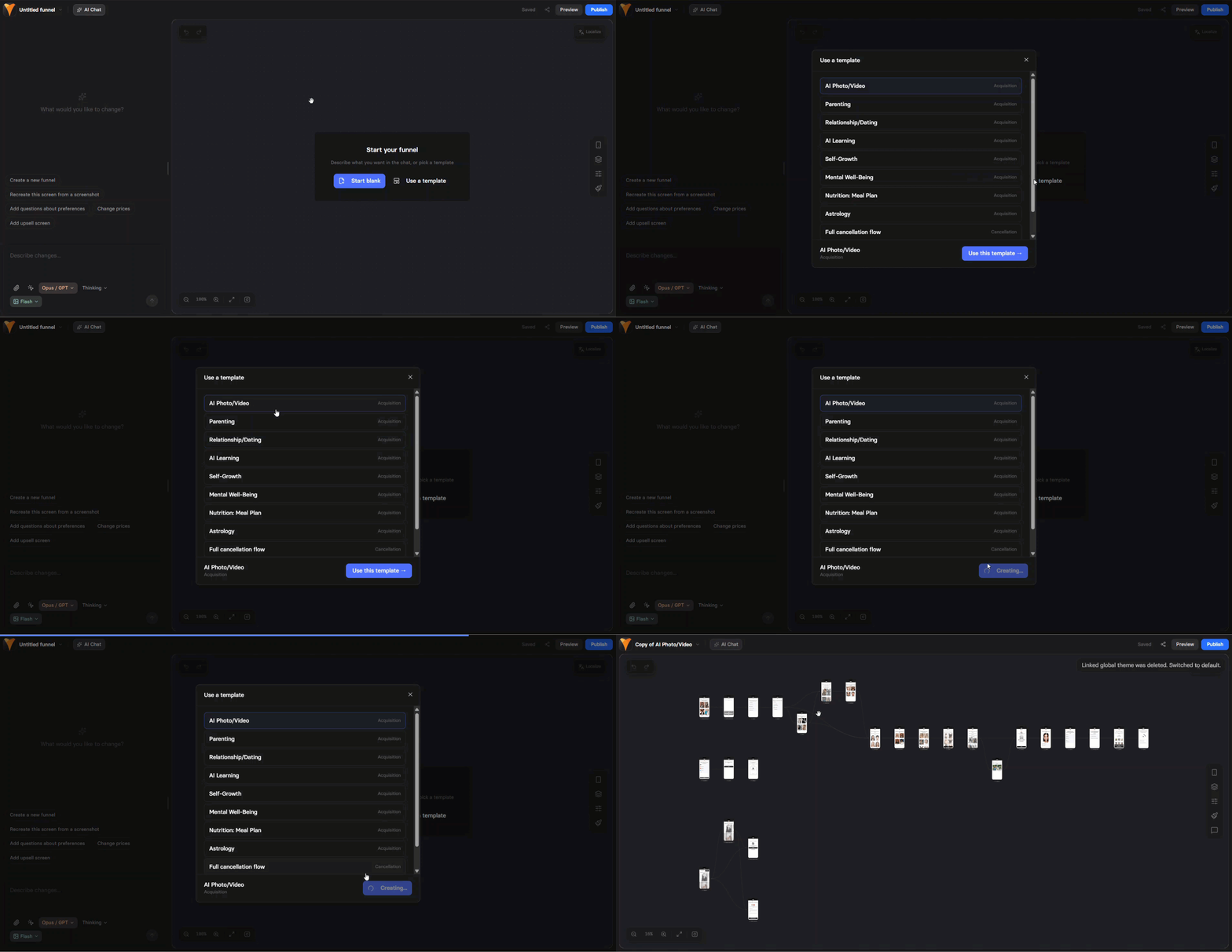 Replace the template's placeholder content with your own before you
publish: legal links, images, social proof, and paywall products.
Follow [Personalize your template](#personalize-your-template).
Before you publish, run
[Check for errors](/docs/editor/publishing#check-for-errors). It catches what
partial personalization leaves behind: dead-end screens, a Checkout with
no product selected, mismatched plan IDs, and images with no URL.
## Personalize your template
Legal links and paywall products are required before you send real traffic to
a template. The rest of this section controls how on-brand the funnel feels.
Use [AI Chat in Editor](/docs/agentic-solution/overview#ai-chat-in-editor) to speed up your edits.
### Legal links
Any underlined text in the template copy is a hyperlink, and most point to a
Privacy Policy or Terms of Service on the FunnelFox website. Replace every one
with your own legal pages, using the
[Text element](/docs/elements/text#rich-text-editor) rich text editor or an
[External link action](/docs/editor/actions#external-link) for buttons.
### Images
Images on transition screens and inside [Options](/docs/elements/options) elements
are layout placeholders. Replace them with your own visuals, or regenerate
them in your brand style with an [AI image tool](/docs/agentic-solution/overview#agent-%26-model-settings).
### Social proof
Ratings, review counts, and user numbers are generic placeholders, such as
"Join 2,000,000 users". Update them to your product's real metrics, or to
numbers that stay credible for your stage. Replace the placeholder
testimonials in any [Reviews](/docs/elements/reviews) element too.
### Personalization variables
Screen copy may contain variables such as `{{goal}}` or `{{name}}`, which fill
in from answers the visitor gave earlier. They appear in two places:
* **Screen copy**: Updates automatically from user input.
* **Raw HTML**: Calculates a value on profile and results screens, such as a
BMI score or a well-being level.
Both work as they are if you keep the screens. Learn more about
[variables](/docs/editor/variables).
### Raw HTML screens
Screens with an HTML tag next to their name in the **Screens** list use the
[Raw HTML](/docs/elements/raw) element for logic and visual effects beyond the
standard elements. It either renders content, such as a scratch-off promo code
or a results card with a calculated score, or runs hidden logic, such as
calculating a BMI index from quiz answers.
These work without changes. To adjust the logic or styling, edit the code
inside the element. See [per-screen custom code](/docs/editor/coding) for the Fox
API available to it.
### Branding and theme
Templates inherit your project's global theme, so your colors, fonts, and
styles apply across every screen at once. Learn how to
[apply a theme](/docs/editor/themes#apply-theme).
[Raw HTML](/docs/elements/raw) elements render with isolated styling by
default, so the global theme does not reach them. Set **Preserve
Formatting** to **Yes** to inherit theme fonts and colors, or style them
inside the code.
### Paywall products and prices
Template paywalls display example prices and have no products attached.
Configure these before you publish:
* **Plan picker prices**: Update **Price** and **Old Price** on every plan.
See [configure plans](/docs/elements/planpicker#2-configure-plans).
* **Descriptor copy**: Any pricing text below the Plan picker must match the
Plan picker values.
* **Checkout**: Select the product you sell from your payment provider. See
[product selection](/docs/elements/checkout#1-product-selection).
* **Wallet buttons**: Select the same product on every
[Wallet button](/docs/elements/wallet-button#2-product-selection).
* **Secondary paywall**: A discounted offer needs its own products at the
discounted prices in your payment provider.
Plan picker prices are display text only. The amount you charge comes from
the product selected on the Checkout element, so keep the two in sync.
### Funnel flow changes
Screens navigation runs through
[actions](/docs/editor/actions). When you add or remove screens, update the actions
that pointed at them so no screen leads to a deleted destination, and set
**Destination** to send an action to a specific screen.
For example, if your template has an [upsell](/docs/elements/checkout#upsell)
screen after checkout and you remove it, point the Checkout element's **When
payment succeeds** at the final screen. See
[payment provider settings](/docs/elements/checkout#2-payment-provider).
## Next steps
* [Themes & global styles](/docs/editor/themes) - Apply your branding across all
screens
* [Plan picker](/docs/elements/planpicker) - Configure paywall plans and prices
* [Variables](/docs/editor/variables) - How personalization placeholders work
* [Publishing](/docs/editor/publishing) - Check for errors and go live
Replace the template's placeholder content with your own before you
publish: legal links, images, social proof, and paywall products.
Follow [Personalize your template](#personalize-your-template).
Before you publish, run
[Check for errors](/docs/editor/publishing#check-for-errors). It catches what
partial personalization leaves behind: dead-end screens, a Checkout with
no product selected, mismatched plan IDs, and images with no URL.
## Personalize your template
Legal links and paywall products are required before you send real traffic to
a template. The rest of this section controls how on-brand the funnel feels.
Use [AI Chat in Editor](/docs/agentic-solution/overview#ai-chat-in-editor) to speed up your edits.
### Legal links
Any underlined text in the template copy is a hyperlink, and most point to a
Privacy Policy or Terms of Service on the FunnelFox website. Replace every one
with your own legal pages, using the
[Text element](/docs/elements/text#rich-text-editor) rich text editor or an
[External link action](/docs/editor/actions#external-link) for buttons.
### Images
Images on transition screens and inside [Options](/docs/elements/options) elements
are layout placeholders. Replace them with your own visuals, or regenerate
them in your brand style with an [AI image tool](/docs/agentic-solution/overview#agent-%26-model-settings).
### Social proof
Ratings, review counts, and user numbers are generic placeholders, such as
"Join 2,000,000 users". Update them to your product's real metrics, or to
numbers that stay credible for your stage. Replace the placeholder
testimonials in any [Reviews](/docs/elements/reviews) element too.
### Personalization variables
Screen copy may contain variables such as `{{goal}}` or `{{name}}`, which fill
in from answers the visitor gave earlier. They appear in two places:
* **Screen copy**: Updates automatically from user input.
* **Raw HTML**: Calculates a value on profile and results screens, such as a
BMI score or a well-being level.
Both work as they are if you keep the screens. Learn more about
[variables](/docs/editor/variables).
### Raw HTML screens
Screens with an HTML tag next to their name in the **Screens** list use the
[Raw HTML](/docs/elements/raw) element for logic and visual effects beyond the
standard elements. It either renders content, such as a scratch-off promo code
or a results card with a calculated score, or runs hidden logic, such as
calculating a BMI index from quiz answers.
These work without changes. To adjust the logic or styling, edit the code
inside the element. See [per-screen custom code](/docs/editor/coding) for the Fox
API available to it.
### Branding and theme
Templates inherit your project's global theme, so your colors, fonts, and
styles apply across every screen at once. Learn how to
[apply a theme](/docs/editor/themes#apply-theme).
[Raw HTML](/docs/elements/raw) elements render with isolated styling by
default, so the global theme does not reach them. Set **Preserve
Formatting** to **Yes** to inherit theme fonts and colors, or style them
inside the code.
### Paywall products and prices
Template paywalls display example prices and have no products attached.
Configure these before you publish:
* **Plan picker prices**: Update **Price** and **Old Price** on every plan.
See [configure plans](/docs/elements/planpicker#2-configure-plans).
* **Descriptor copy**: Any pricing text below the Plan picker must match the
Plan picker values.
* **Checkout**: Select the product you sell from your payment provider. See
[product selection](/docs/elements/checkout#1-product-selection).
* **Wallet buttons**: Select the same product on every
[Wallet button](/docs/elements/wallet-button#2-product-selection).
* **Secondary paywall**: A discounted offer needs its own products at the
discounted prices in your payment provider.
Plan picker prices are display text only. The amount you charge comes from
the product selected on the Checkout element, so keep the two in sync.
### Funnel flow changes
Screens navigation runs through
[actions](/docs/editor/actions). When you add or remove screens, update the actions
that pointed at them so no screen leads to a deleted destination, and set
**Destination** to send an action to a specific screen.
For example, if your template has an [upsell](/docs/elements/checkout#upsell)
screen after checkout and you remove it, point the Checkout element's **When
payment succeeds** at the final screen. See
[payment provider settings](/docs/elements/checkout#2-payment-provider).
## Next steps
* [Themes & global styles](/docs/editor/themes) - Apply your branding across all
screens
* [Plan picker](/docs/elements/planpicker) - Configure paywall plans and prices
* [Variables](/docs/editor/variables) - How personalization placeholders work
* [Publishing](/docs/editor/publishing) - Check for errors and go live