> ## Documentation Index
> Fetch the complete documentation index at: https://funnelfox.com/docs/llms.txt
> Use this file to discover all available pages before exploring further.
# Publishing your funnel
> Publish funnels to production in FunnelFox. Learn about preview mode, version history, production URLs, and best practices.
Publishing takes your funnel from draft to live, making it accessible to
real visitors. FunnelFox provides two environments, preview for testing
and production for live traffic, so you can test everything safely
before going live.
Published funnels are static and immutable. Once published,
a funnel version works exactly the same way forever, giving you complete
reliability and predictable behavior.
## How Publishing Works
When you publish a funnel, FunnelFox builds static files that serve your
visitors. This process:
1. Creates a new version (v1, v2, v3...)
2. Builds all pages and elements into optimized files
3. Deploys instantly to your funnel URL
4. Keeps the previous version running until the new one is ready
Publishing takes a few seconds and changes go live immediately after publishing completes.
Active visitors continue on their current version. New visitors get the
updated version seamlessly.
## Preview Mode
Test everything before going live. Preview mode gives you a safe environment
to validate your funnel with real interactions but without real consequences.
### Preview URLs
All preview URLs follow this pattern:
```
https://app.funnelfox.com/preview/[funnel-id]
```
These URLs are:
* **Persistent**: Save and bookmark them. They always show latest saved changes
* **Shareable**: Send to teammates or clients for feedback
* **Device-friendly**: Test on any device or browser
* **Always current**: Automatically reflect your latest edits
### What's Different in Preview
| Feature | Preview Mode | Production |
| ------------- | ----------------------------- | ------------------------ |
| **URL** | app.funnelfox.com/preview/... | \[project].fnlfx.com/... |
| **Payments** | Test mode (no real charges) | Real transactions |
| **Products** | Sandbox products | Live products |
| **Users** | Marked as preview profiles | Real profiles |
| **Analytics** | Tracked normally | Tracked normally |
| **Webhooks** | Can use test endpoints | Production endpoints |
Share preview links with stakeholders for approval before publishing.
They'll see exactly what the final funnel will look like.
## Publishing to Production
Ready to go live? Click the **Publish** button in the editor to deploy your
funnel to production.
### What Happens When You Publish
1. **New version created**: Each publish increments the version (v1 → v2 → v3)
2. **Static files built**: Your funnel is compiled into optimized static files
3. **Instant deployment**: New version replaces the old one immediately
4. **Active users protected**: Visitors mid-funnel continue uninterrupted
If publishing fails, follow our [troubleshooting section](/editor/publishing#i-cant-publish-my-funnel) to resolve the issue.
Publishing is immediate and irreversible. There's no built-in rollback,
so always test thoroughly in preview mode first and then review your published funnel.
### Production URLs
Your funnel will be available at:
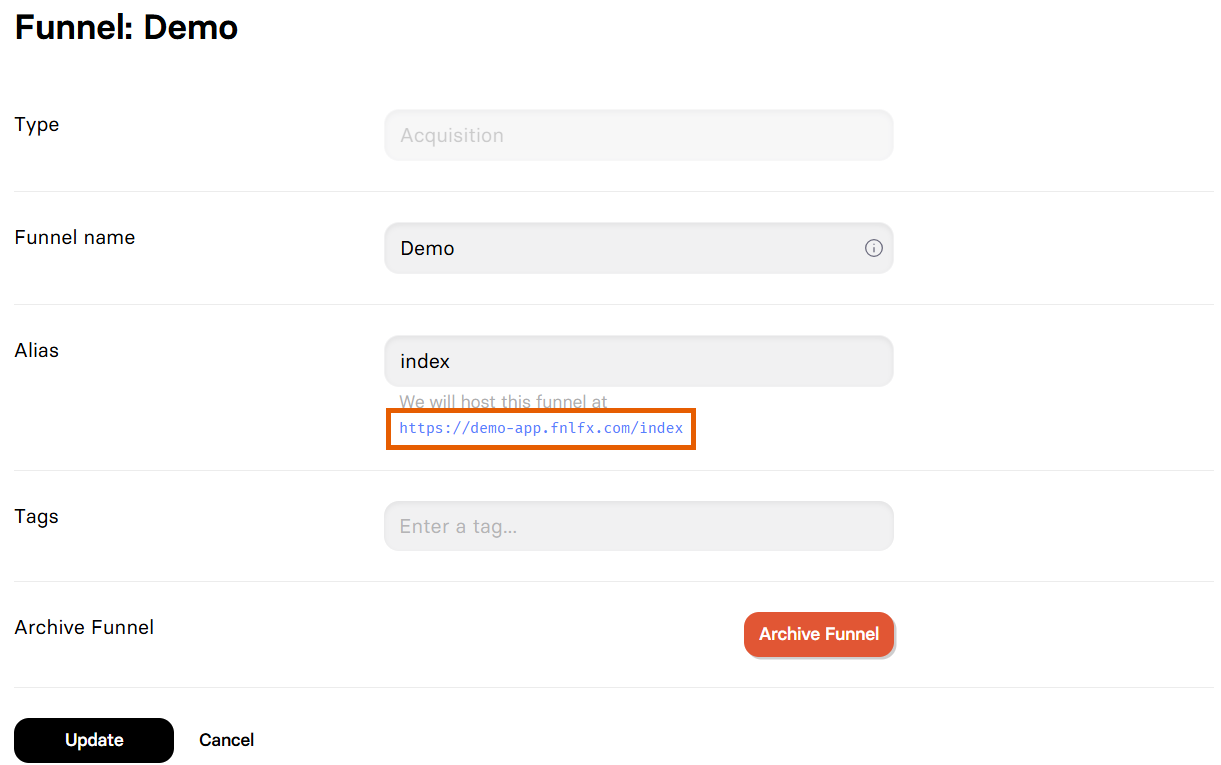
* **FunnelFox subdomain**: `[project-name].fnlfx.com/[funnel-alias]`.
* **Custom domain** (if configured): `yourdomain.com/[funnel-alias]`. Learn about [configuring custom domains](/dashboard/settings#domains).
By default, if a user manually edits the URL and lands on the root domain (for example, `[project-name].fnlfx.com` or `yourdomain.com`), they are routed to `[project-name].fnlfx.com/index`.
Since there’s no funnel configured at the base URL by default, the user will see the FunnelFox error screen:
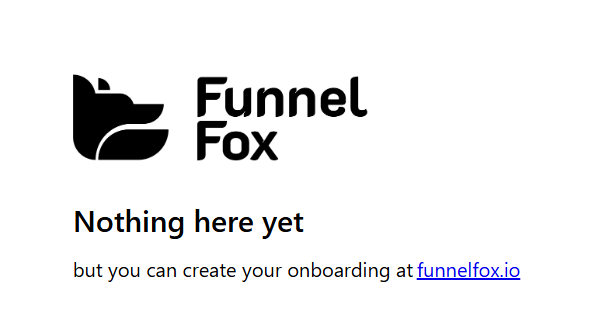 If you’d like to display something meaningful instead, [create a funnel](/dashboard/funnels#create-funnel) with the alias `index`. Users visiting the root domain will then be routed there:
 ## When to Republish
Since funnels are static, certain changes require republishing to take effect:
### Changes That Require Republishing
* ✅ Editor changes (elements, text, design, AI Chat edits)
* ✅ Adding/removing pages or screens
* ✅ Project settings (products, prices, integrations)
* ✅ Payment provider configuration
* ✅ Meta pixel or tracking changes
* ✅ Custom domain configuration
### Changes That Don't Require Republishing
* ❌ Viewing analytics data
* ❌ User submissions and funnel data
* ❌ Stopping an experiment (only starting requires republish)
* ❌ For FunnelFox technical improvements and fixes to reach your funnels. These are rolled out instantly.
If you changed something about how the funnel works or
looks, you need to republish. If you're just viewing data, you don't.
## Managing Versions
Each publish creates a new version number that increments automatically.
While you can't directly roll back to a previous published version, you can:
1. **Use Version history**: Click the **Editor menu** at the top left and select **Version history** to restore any previous save. Learn more about [version history](/editor/overview#key-features).
2. **Republish**: Make your changes and publish again to create a new version.
3. **Track changes**: Version numbers help you identify when changes went live.
## Best Practices
### Before Publishing
Complete the entire funnel flow in preview mode. Test all paths,
buttons, and integrations.
Verify payment providers, pixels, and webhooks are configured correctly
for production.
Test preview on mobile, tablet, and desktop to ensure responsive design.
Double-check all text, prices, and legal disclaimers are accurate.
### After Publishing
Always review your published funnel to avoid unexpected or sensitive changes affecting live traffic.
* Monitor early traffic for unexpected behavior
* Check analytics to verify tracking works
* Test the production URL yourself (carefully with test data)
* Document the version number and what changed
## Troubleshooting
Publishing takes a moment to build your funnel. Wait 10-30 seconds and
refresh. If changes still don't appear, clear your browser cache or
check in an incognito window.
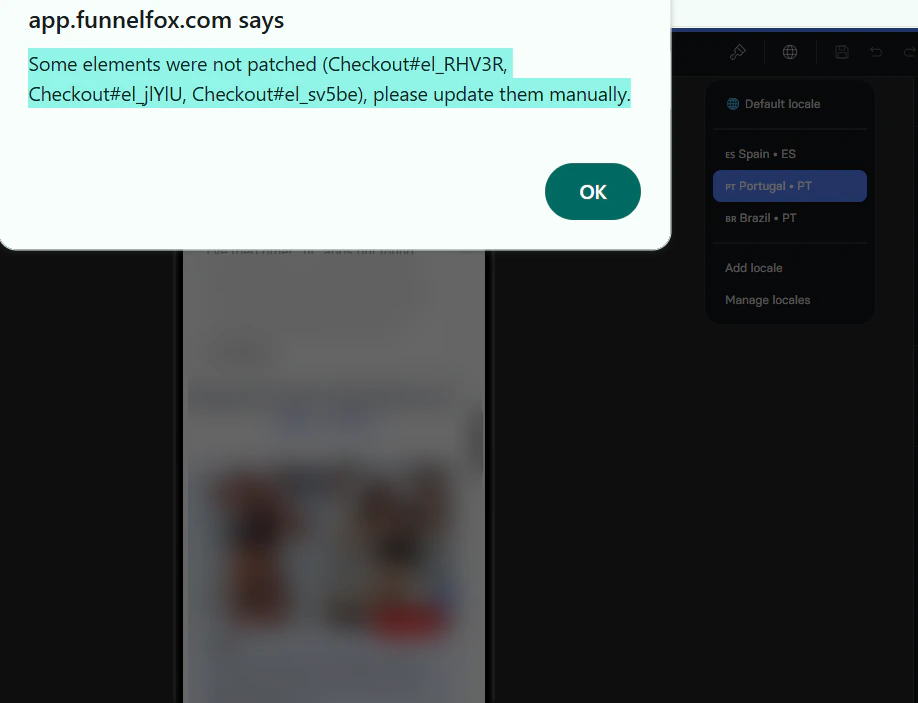
Publishing failures are most commonly related to locale configuration issues. To resolve them:
1. Make sure you haven’t exceeded the [25 locales limit](https://funnelfox.com/docs/editor/localizations) for this funnel.
2. Review the publishing error message in the popup and ensure that all affected elements are properly configured for each locale.
## When to Republish
Since funnels are static, certain changes require republishing to take effect:
### Changes That Require Republishing
* ✅ Editor changes (elements, text, design, AI Chat edits)
* ✅ Adding/removing pages or screens
* ✅ Project settings (products, prices, integrations)
* ✅ Payment provider configuration
* ✅ Meta pixel or tracking changes
* ✅ Custom domain configuration
### Changes That Don't Require Republishing
* ❌ Viewing analytics data
* ❌ User submissions and funnel data
* ❌ Stopping an experiment (only starting requires republish)
* ❌ For FunnelFox technical improvements and fixes to reach your funnels. These are rolled out instantly.
If you changed something about how the funnel works or
looks, you need to republish. If you're just viewing data, you don't.
## Managing Versions
Each publish creates a new version number that increments automatically.
While you can't directly roll back to a previous published version, you can:
1. **Use Version history**: Click the **Editor menu** at the top left and select **Version history** to restore any previous save. Learn more about [version history](/editor/overview#key-features).
2. **Republish**: Make your changes and publish again to create a new version.
3. **Track changes**: Version numbers help you identify when changes went live.
## Best Practices
### Before Publishing
Complete the entire funnel flow in preview mode. Test all paths,
buttons, and integrations.
Verify payment providers, pixels, and webhooks are configured correctly
for production.
Test preview on mobile, tablet, and desktop to ensure responsive design.
Double-check all text, prices, and legal disclaimers are accurate.
### After Publishing
Always review your published funnel to avoid unexpected or sensitive changes affecting live traffic.
* Monitor early traffic for unexpected behavior
* Check analytics to verify tracking works
* Test the production URL yourself (carefully with test data)
* Document the version number and what changed
## Troubleshooting
Publishing takes a moment to build your funnel. Wait 10-30 seconds and
refresh. If changes still don't appear, clear your browser cache or
check in an incognito window.
Publishing failures are most commonly related to locale configuration issues. To resolve them:
1. Make sure you haven’t exceeded the [25 locales limit](https://funnelfox.com/docs/editor/localizations) for this funnel.
2. Review the publishing error message in the popup and ensure that all affected elements are properly configured for each locale.
 You can't unpublish, but you can archive the funnel to hide it from
your dashboard. The URL will still work for existing links. To truly
take it offline, you'd need to delete it (only possible if never published).
This happens when someone trims the link and removes the funnel alias.
By default, there’s no funnel configured at the base URL, so users see the FunnelFox error screen.
To show something meaningful instead, create a funnel with the alias `index`.
Learn more about [production URLs](/editor/publishing#production-urls).
## Next Steps
* [Project Settings](/dashboard/settings) - Configure domains and integrations
* [Experiments](/dashboard/experiments) - Run A/B tests on published funnels
* [Analytics](/dashboard/analytics) - Monitor your published funnel performance
You can't unpublish, but you can archive the funnel to hide it from
your dashboard. The URL will still work for existing links. To truly
take it offline, you'd need to delete it (only possible if never published).
This happens when someone trims the link and removes the funnel alias.
By default, there’s no funnel configured at the base URL, so users see the FunnelFox error screen.
To show something meaningful instead, create a funnel with the alias `index`.
Learn more about [production URLs](/editor/publishing#production-urls).
## Next Steps
* [Project Settings](/dashboard/settings) - Configure domains and integrations
* [Experiments](/dashboard/experiments) - Run A/B tests on published funnels
* [Analytics](/dashboard/analytics) - Monitor your published funnel performance