> ## Documentation Index
> Fetch the complete documentation index at: https://funnelfox.com/docs/llms.txt
> Use this file to discover all available pages before exploring further.
# Pricing localization & multi-currency prices
> Boost conversion by showing every customer a price in their local currency.
Pricing localization shows each customer a price in the currency they expect,
which boosts conversion on your paywall. A visitor in Germany sees euros, a
visitor in the UK sees pounds, and both buy through the same funnel.
A price in an unfamiliar currency asks your visitor to do the math before
paying. Showing the local currency removes that hesitation.
Pricing localization builds on funnel locales. Set up your
[locales](/docs/editor/localizations) first, because you select prices per locale.
## How pricing localization works
A localized price has three parts, and all three must agree:
1. **A price in your PSP**: One price or product per currency, created in
your PSP dashboard.
2. **A locale that selects it**: Each locale points its Checkout element at
one of those prices.
3. **Display text that matches**: Plan picker, Price picker, and Text
elements show text you type, so you update it in every locale.
## Set up pricing localization
Create your prices first, then point each locale at the right one.
### 1. Create price for each currency
Create one price per currency in whichever payment provider holds your product catalog.
Create one [Stripe price](https://docs.stripe.com/products-prices/how-products-and-prices-work#prices)
per currency. Several prices can live on the same Stripe product, so one
product can carry your USD, EUR, and GBP prices.
For a [paid trial](/docs/elements/checkout#paid-trial), also create one
one-time Stripe product per currency to charge for the trial.
FunnelFox automatically syncs your Stripe products when the Editor page is reloaded.
1. Go to [Product catalog](https://dashboard.stripe.com/products) in
your Stripe dashboard.
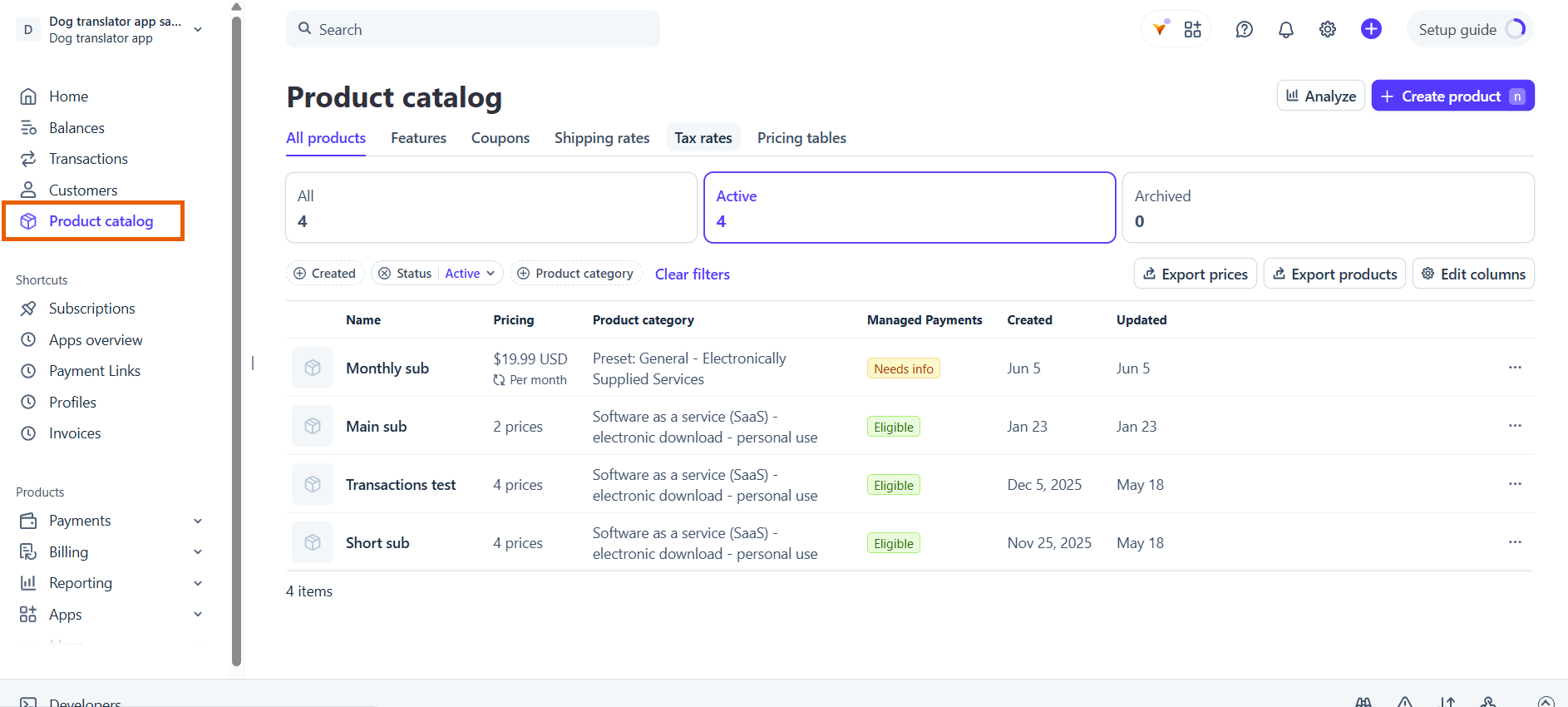 2. Click the product to open it.
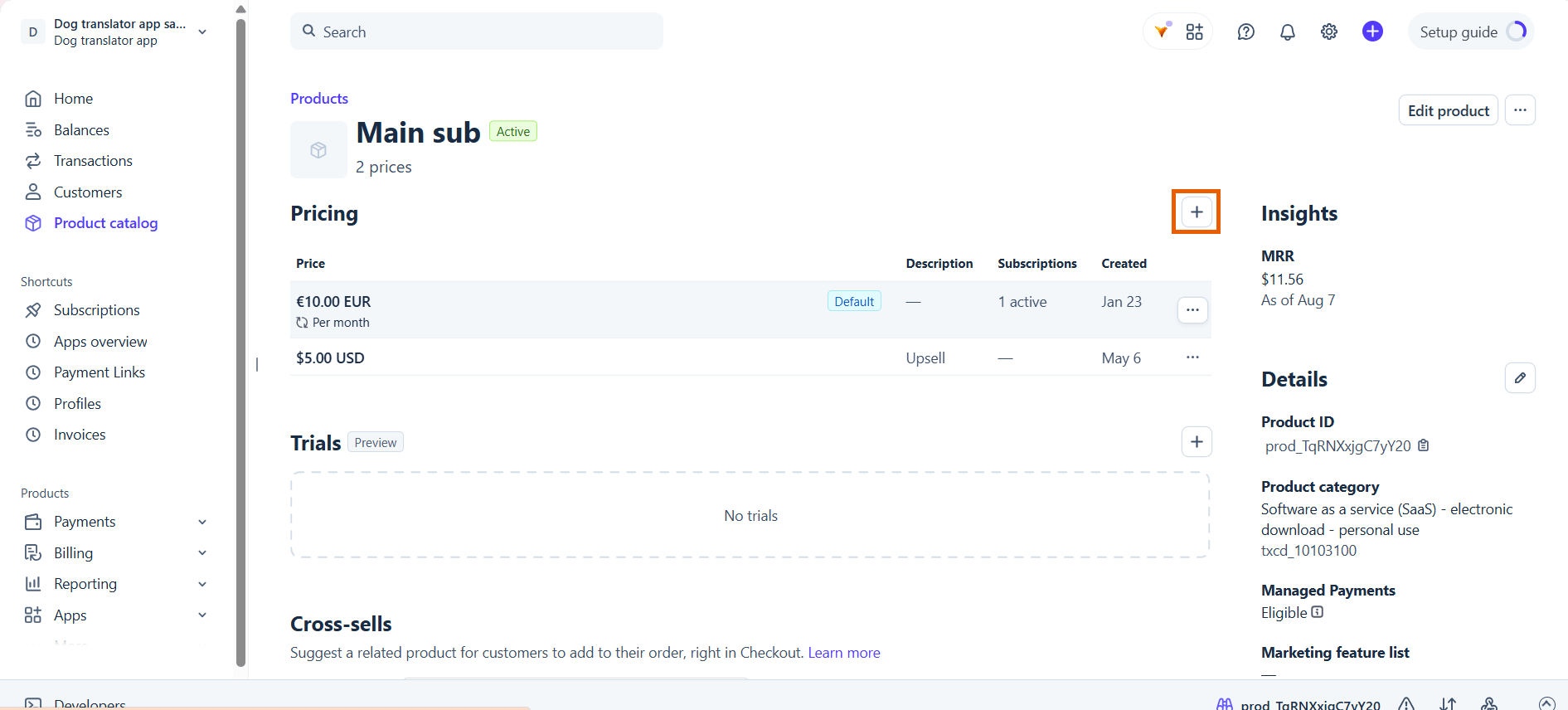
3. Click **+** under **Pricing**.
2. Click the product to open it.
3. Click **+** under **Pricing**.
 4. Enter the price details, including the currency.
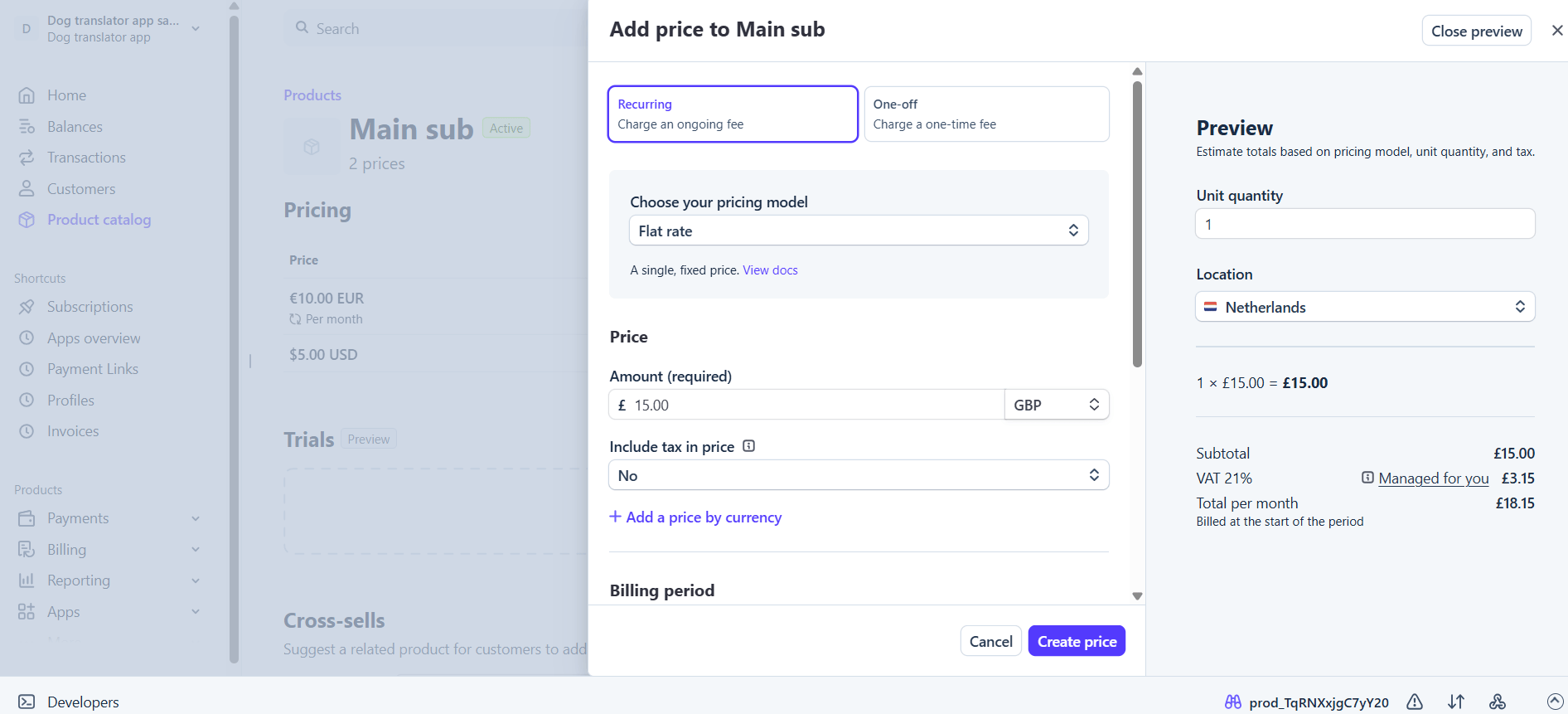 5. Click **Create price**.
Repeat for every currency you sell in. All of the prices stay on the
same product.
On the [Stripe via FunnelFox Billing integration path](/docs/integrations/payments/stripe#setup), products aren't fetched
from Stripe. Create your per-currency prices on the [Products page](/docs/dashboard/products) in FunnelFox instead.
Create one [Paddle price](https://developer.paddle.com/build/products/create-products-prices)
per currency on your subscription product.
For a [paid trial](/docs/elements/checkout#paid-trial), each currency needs
two prices: a subscription price with a free trial period, and a one-time
price that charges for the trial.
FunnelFox automatically syncs your Paddle products when the Editor page is reloaded.
1. Go to **Catalog > Products** in Paddle.
5. Click **Create price**.
Repeat for every currency you sell in. All of the prices stay on the
same product.
On the [Stripe via FunnelFox Billing integration path](/docs/integrations/payments/stripe#setup), products aren't fetched
from Stripe. Create your per-currency prices on the [Products page](/docs/dashboard/products) in FunnelFox instead.
Create one [Paddle price](https://developer.paddle.com/build/products/create-products-prices)
per currency on your subscription product.
For a [paid trial](/docs/elements/checkout#paid-trial), each currency needs
two prices: a subscription price with a free trial period, and a one-time
price that charges for the trial.
FunnelFox automatically syncs your Paddle products when the Editor page is reloaded.
1. Go to **Catalog > Products** in Paddle.
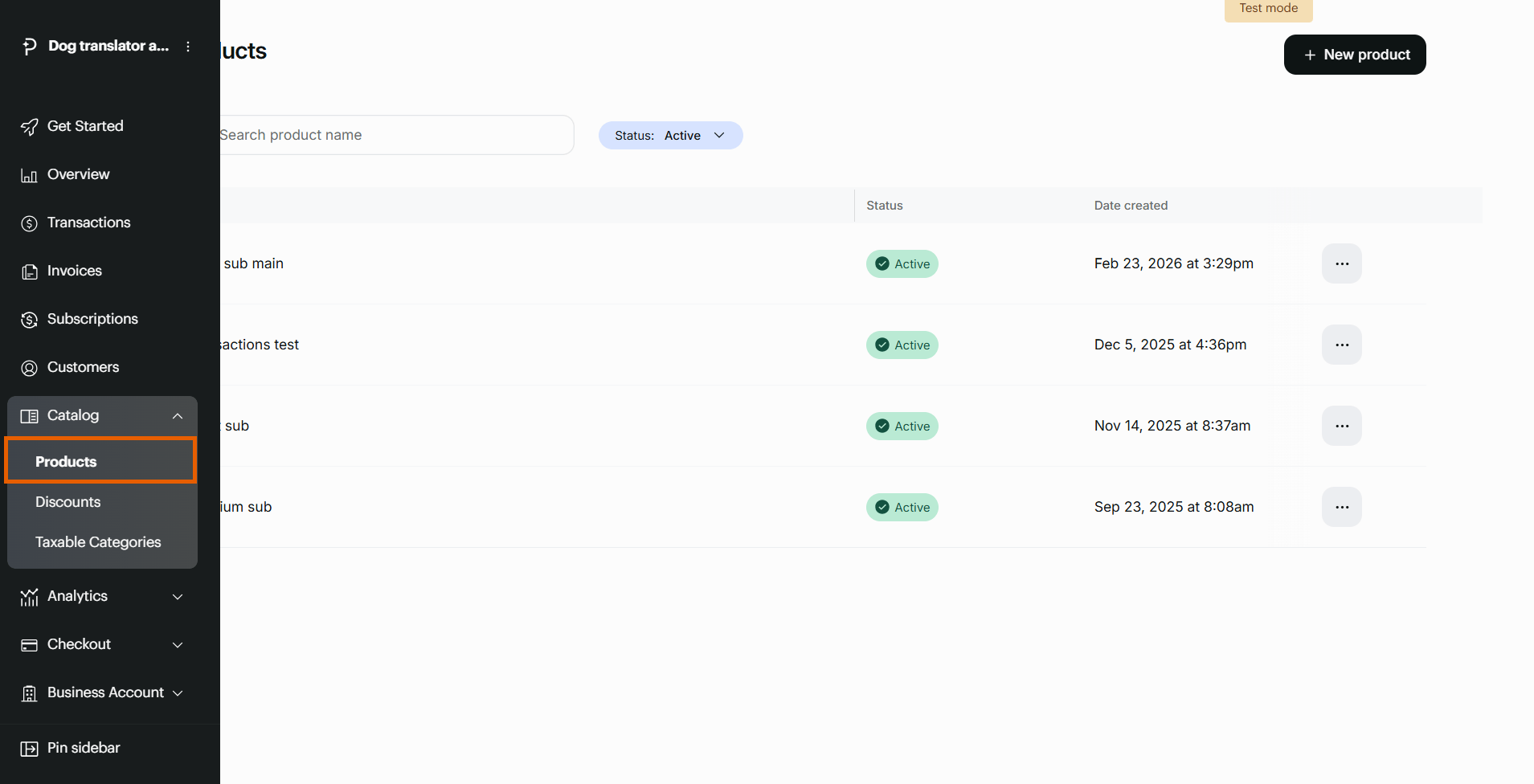 2. Open the product you sell and click **New price**.
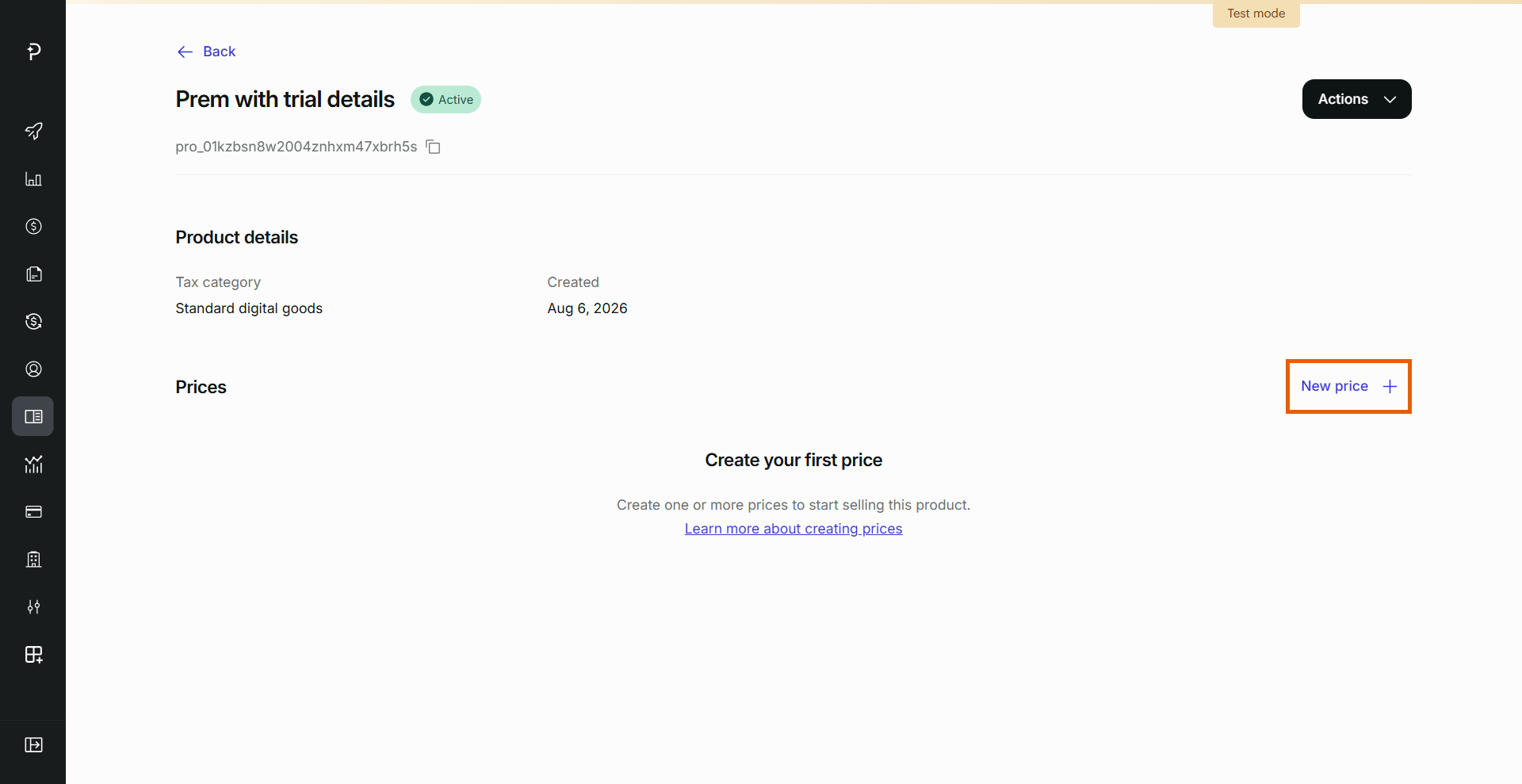 3. Enter the price details, including the currency.
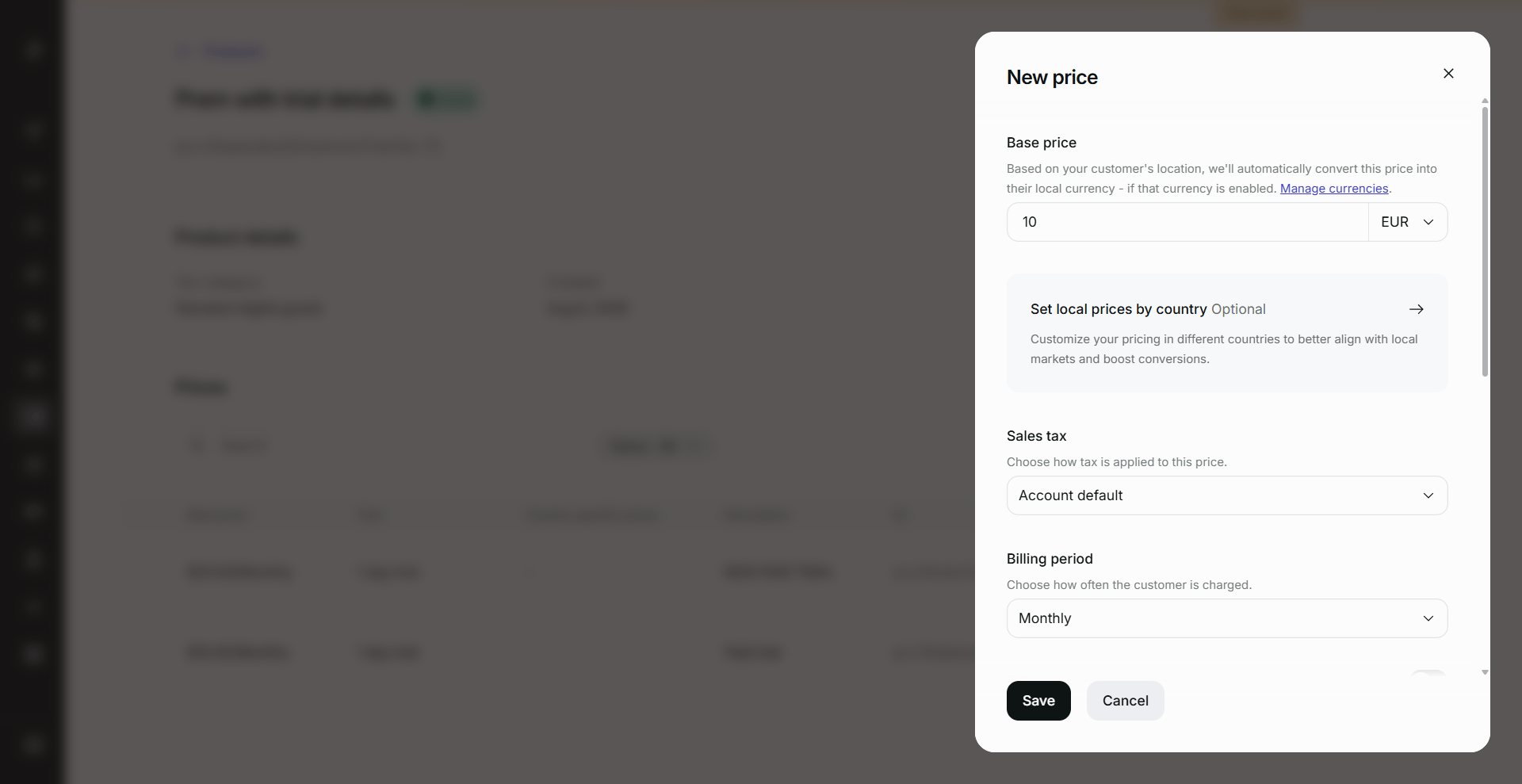 4. Click **Save**.
Repeat for every currency you sell in.
A Solidgate product carries a single currency for this setup. Adding another price to
an existing product doesn't work, so every currency needs its own
product.
Create one [Solidgate product](https://docs.solidgate.com/billing/subscription-overview)
per currency.
Trials are configured on the Solidgate product itself, so each
per-currency product carries its own
[free trial](/docs/elements/checkout#free-trial) or
[paid trial](/docs/elements/checkout#paid-trial) terms.
FunnelFox automatically syncs your Solidgate products when the Editor page is reloaded.
1. Go to **Billing > Products** in your
[Solidgate dashboard](https://hub.solidgate.com).
4. Click **Save**.
Repeat for every currency you sell in.
A Solidgate product carries a single currency for this setup. Adding another price to
an existing product doesn't work, so every currency needs its own
product.
Create one [Solidgate product](https://docs.solidgate.com/billing/subscription-overview)
per currency.
Trials are configured on the Solidgate product itself, so each
per-currency product carries its own
[free trial](/docs/elements/checkout#free-trial) or
[paid trial](/docs/elements/checkout#paid-trial) terms.
FunnelFox automatically syncs your Solidgate products when the Editor page is reloaded.
1. Go to **Billing > Products** in your
[Solidgate dashboard](https://hub.solidgate.com).
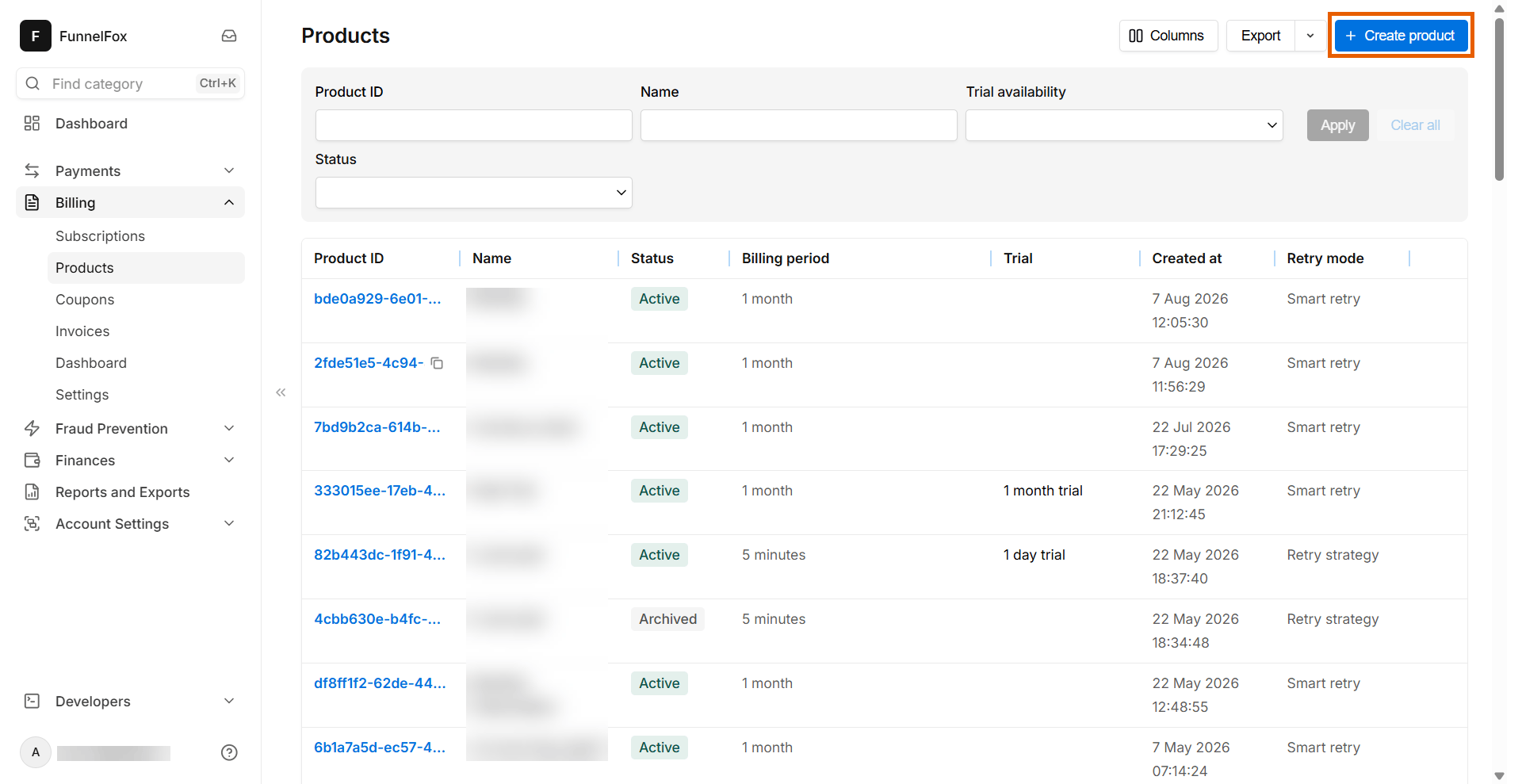
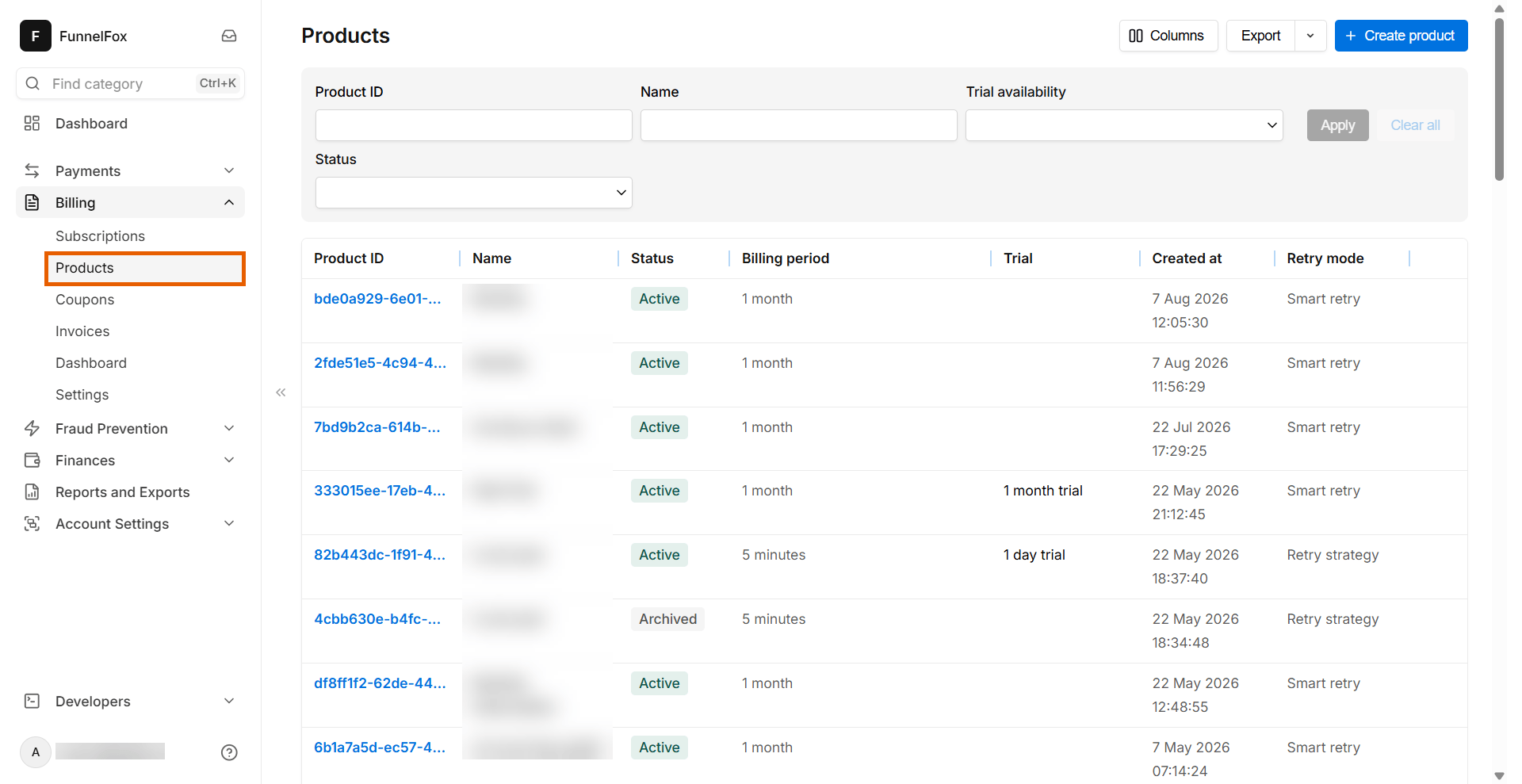 2. Click **+ Create product**.
 3. Enter the product details, including the currency.
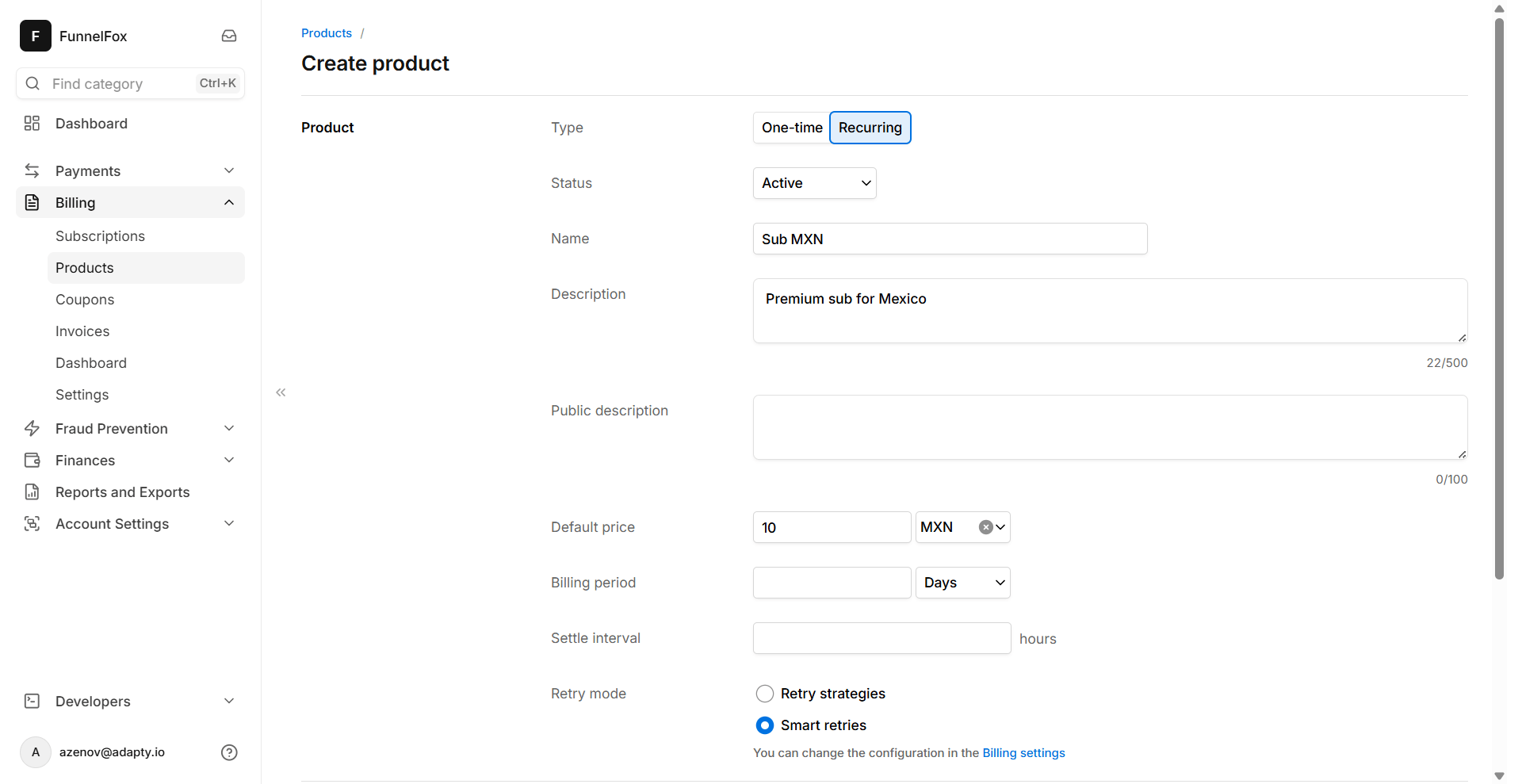 4. Click **Create product**.
Repeat for every currency you sell in.
Create one price per currency on the
[Products page](https://app.funnelfox.com/products) of your FunnelFox
dashboard. **Currency** is required on every price, so a product sold in
three currencies needs three prices.
Learn about
[managing products](/docs/dashboard/products).
1. Go to the [Products page](https://app.funnelfox.com/products) in
your FunnelFox dashboard.
4. Click **Create product**.
Repeat for every currency you sell in.
Create one price per currency on the
[Products page](https://app.funnelfox.com/products) of your FunnelFox
dashboard. **Currency** is required on every price, so a product sold in
three currencies needs three prices.
Learn about
[managing products](/docs/dashboard/products).
1. Go to the [Products page](https://app.funnelfox.com/products) in
your FunnelFox dashboard.
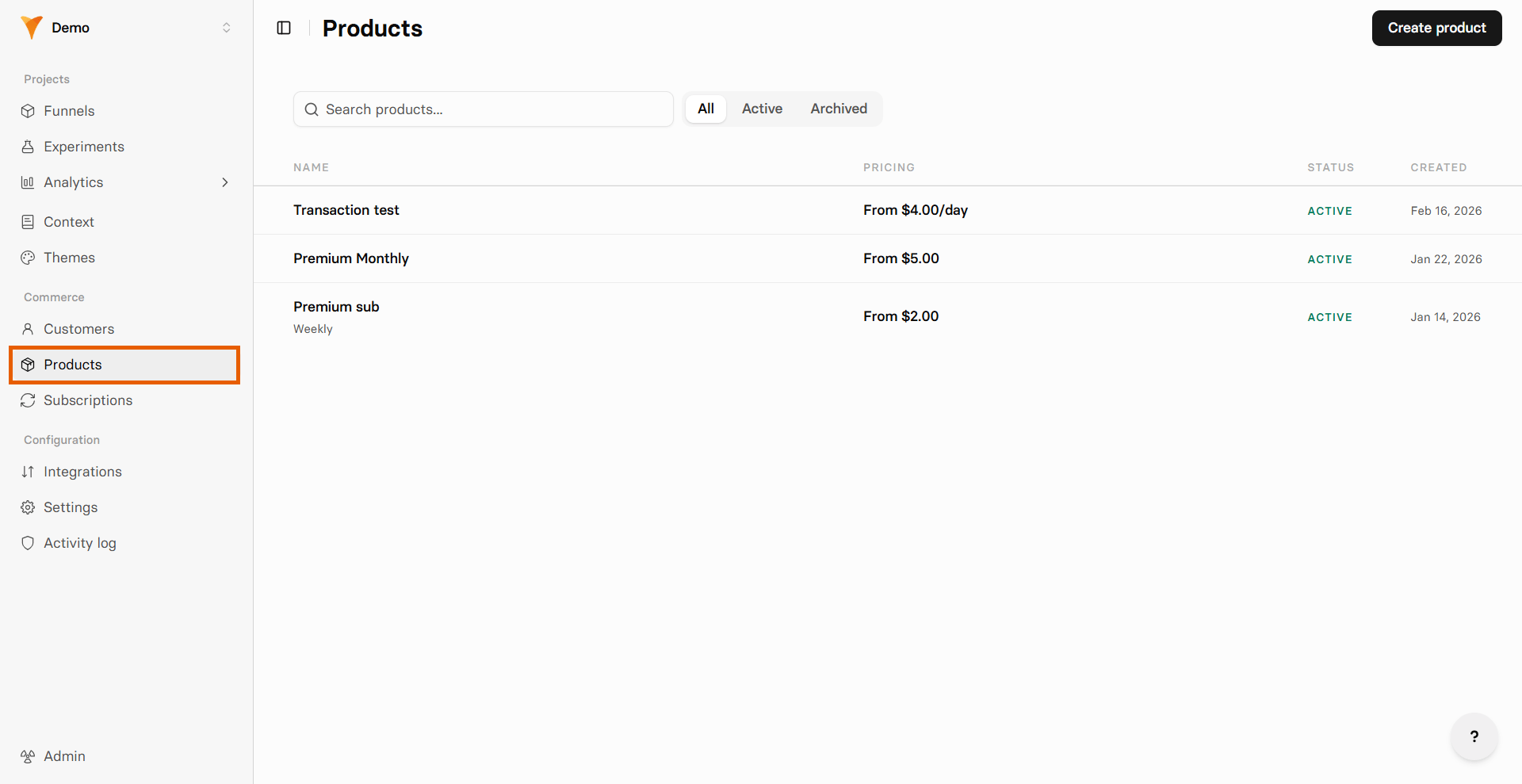 2. Click the product to open it.
3. In the **Prices** section, click **Add**.
2. Click the product to open it.
3. In the **Prices** section, click **Add**.
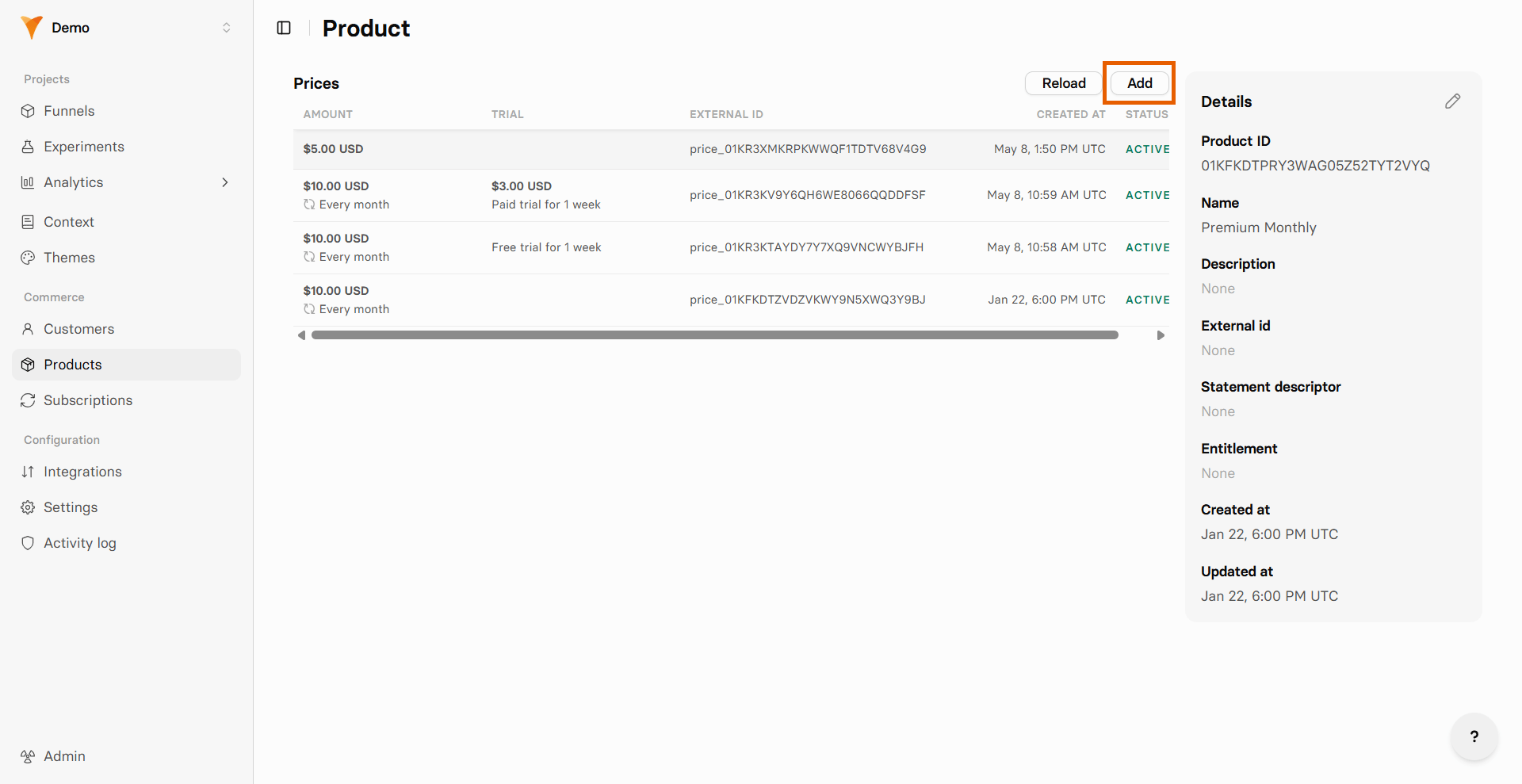 4. Enter the price details, including the **Currency**, then click **Create price**.
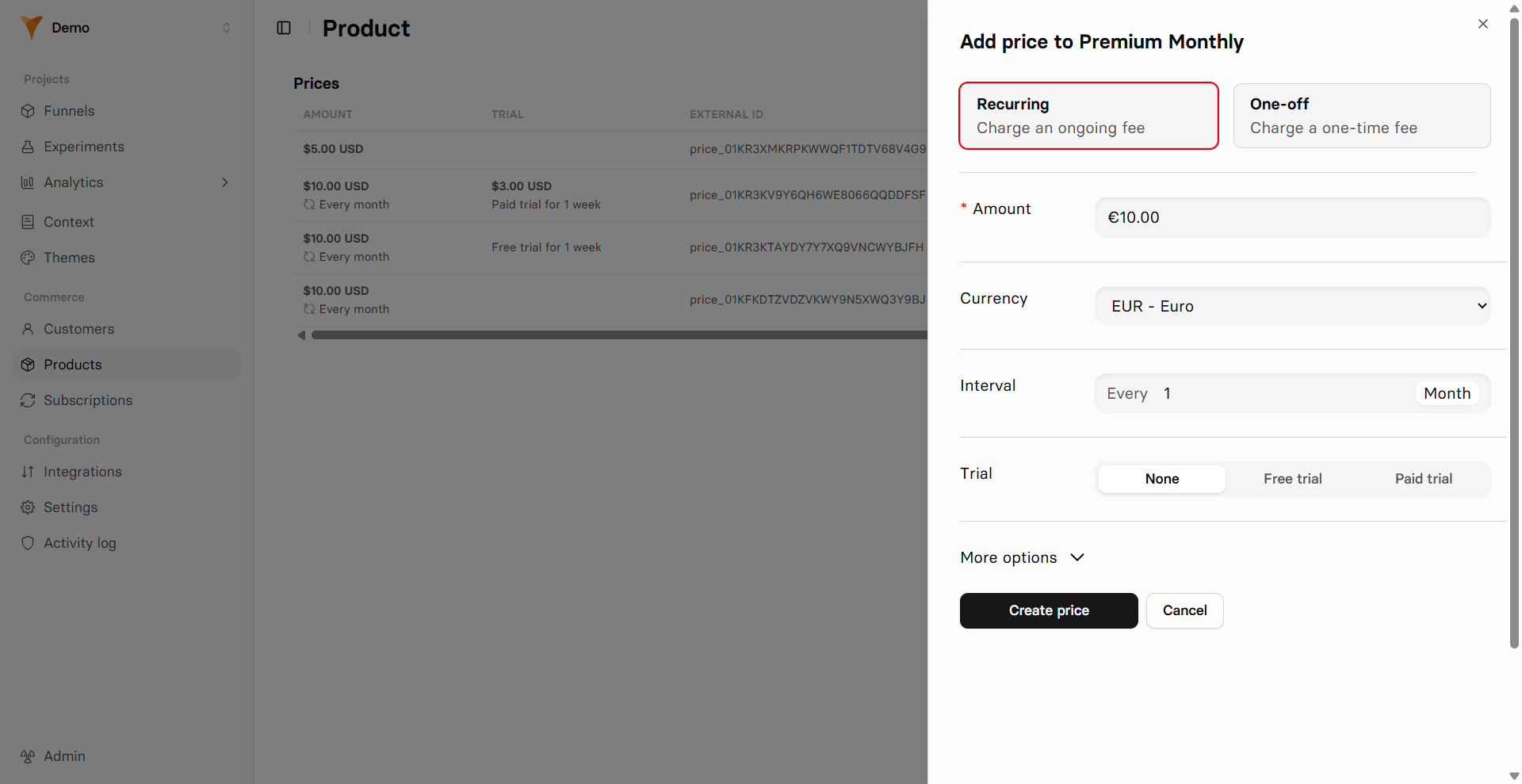 Repeat for every currency you sell in. All of the prices stay on the
same product.
### 2. Select price in each locale
Repeat these steps for every locale that needs its own currency.
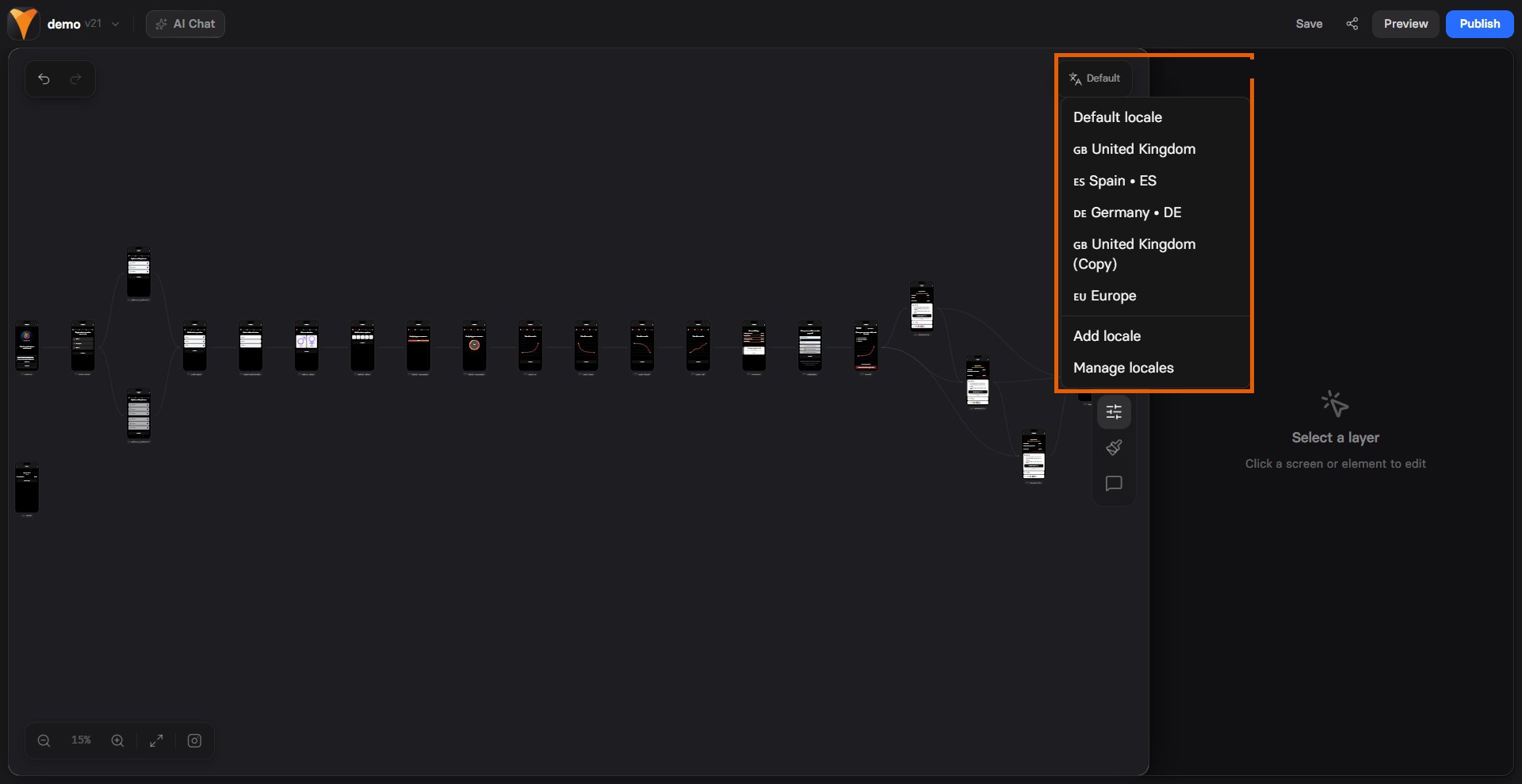
Open the funnel in the Editor and switch to the locale using the switcher at the top.
Repeat for every currency you sell in. All of the prices stay on the
same product.
### 2. Select price in each locale
Repeat these steps for every locale that needs its own currency.
Open the funnel in the Editor and switch to the locale using the switcher at the top.
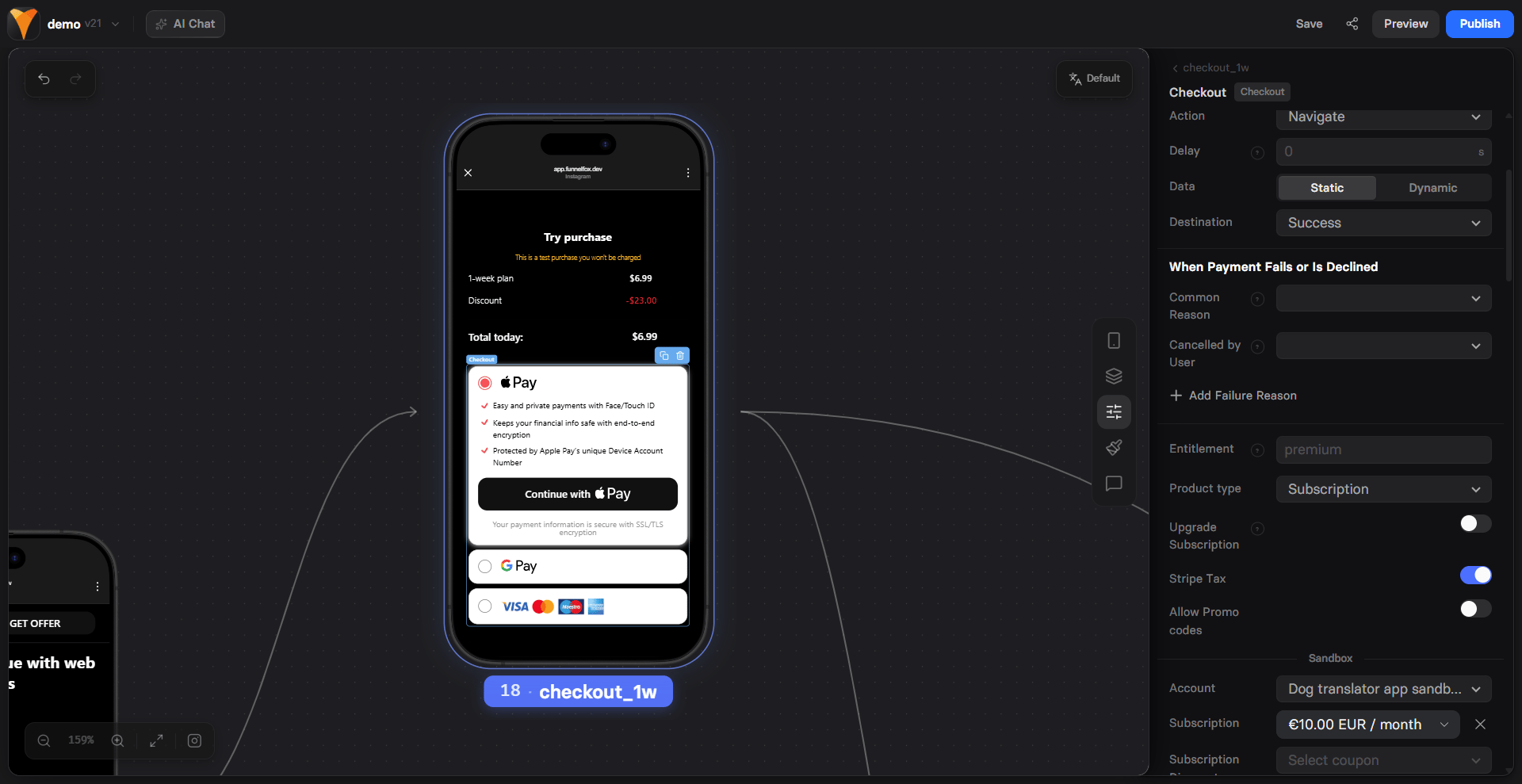
 Select the Checkout element, go to its **Parameters** tab.
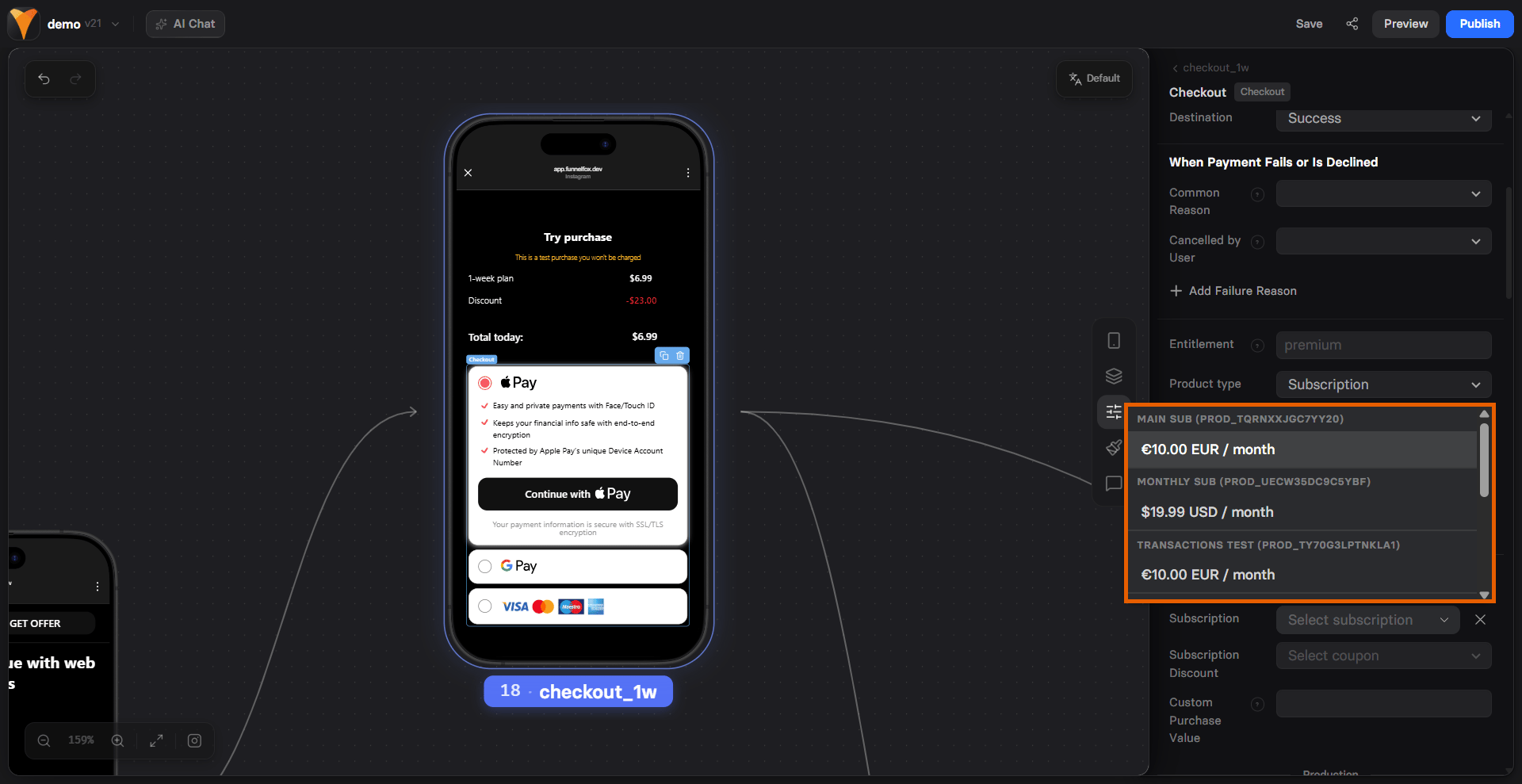
 Select the price you created for this locale's currency.
Learn about
[checkout configuration](/docs/elements/checkout#subscription-configuration)
for each PSP.
Select the price you created for this locale's currency.
Learn about
[checkout configuration](/docs/elements/checkout#subscription-configuration)
for each PSP.
 Each locale keeps its own price selection. Locales you skip keep using
the default locale's price.
If you don't see a price you've just created, reopen the funnel.
If your screen has a [Wallet button](/docs/elements/wallet-button), check its
configuration, too.
### 3. Update displayed price
The price your visitor reads on the paywall is text you type. It isn't bound
to the price your Checkout charges, so update it in every locale.
* **Plan picker**: Open the **Parameters** tab of each plan and update
**Price** and **Old Price**. Learn about
[configuring plans](/docs/elements/planpicker#2-configure-plans).
* **Price picker**: Update **Price Text** on each price option.
* **Text elements**: Update any amount or currency symbol written into your
headlines, body copy, and disclaimers.
### 4. Test and publish
Save each locale you edited, then publish the funnel. A locale with
unsaved changes blocks publishing.
Add the `ff-locale` parameter to your published URL to check each
currency without a VPN:
```
https://example.fnlfx.com/paywall?ff-locale=de-DE
https://example.fnlfx.com/paywall?ff-locale=en-GB
```
Learn about
[overriding a locale via URL](/docs/editor/localizations#override-locale-via-url).
Confirm the amount and currency in your Plan picker
match the amount and currency in the Checkout.
Use your PSP's test cards to confirm the right price is charged:
* [Testing with Stripe](/docs/integrations/payments/stripe#testing)
* [Testing with Paddle](/docs/integrations/payments/paddle#testing)
* [Testing with Solidgate](/docs/integrations/payments/solidgate#testing)
* [Testing with FunnelFox Billing](/docs/billing/testing)
## Troubleshooting
Check your [locale matching rules](/docs/editor/localizations#locale-matching)
first, since a catch-all locale higher in the list may be winning. Then
open the locale in the Editor and confirm the Checkout points at the price
for that currency.
Plan picker and Price picker show text you type, while the Checkout
charges the PSP price it points at. Open the locale and align the two.
## Next steps
* [Set up funnel locales](/docs/editor/localizations)
* [Configure the Checkout element](/docs/elements/checkout)
Each locale keeps its own price selection. Locales you skip keep using
the default locale's price.
If you don't see a price you've just created, reopen the funnel.
If your screen has a [Wallet button](/docs/elements/wallet-button), check its
configuration, too.
### 3. Update displayed price
The price your visitor reads on the paywall is text you type. It isn't bound
to the price your Checkout charges, so update it in every locale.
* **Plan picker**: Open the **Parameters** tab of each plan and update
**Price** and **Old Price**. Learn about
[configuring plans](/docs/elements/planpicker#2-configure-plans).
* **Price picker**: Update **Price Text** on each price option.
* **Text elements**: Update any amount or currency symbol written into your
headlines, body copy, and disclaimers.
### 4. Test and publish
Save each locale you edited, then publish the funnel. A locale with
unsaved changes blocks publishing.
Add the `ff-locale` parameter to your published URL to check each
currency without a VPN:
```
https://example.fnlfx.com/paywall?ff-locale=de-DE
https://example.fnlfx.com/paywall?ff-locale=en-GB
```
Learn about
[overriding a locale via URL](/docs/editor/localizations#override-locale-via-url).
Confirm the amount and currency in your Plan picker
match the amount and currency in the Checkout.
Use your PSP's test cards to confirm the right price is charged:
* [Testing with Stripe](/docs/integrations/payments/stripe#testing)
* [Testing with Paddle](/docs/integrations/payments/paddle#testing)
* [Testing with Solidgate](/docs/integrations/payments/solidgate#testing)
* [Testing with FunnelFox Billing](/docs/billing/testing)
## Troubleshooting
Check your [locale matching rules](/docs/editor/localizations#locale-matching)
first, since a catch-all locale higher in the list may be winning. Then
open the locale in the Editor and confirm the Checkout points at the price
for that currency.
Plan picker and Price picker show text you type, while the Checkout
charges the PSP price it points at. Open the locale and align the two.
## Next steps
* [Set up funnel locales](/docs/editor/localizations)
* [Configure the Checkout element](/docs/elements/checkout)