> ## Documentation Index
> Fetch the complete documentation index at: https://funnelfox.com/docs/llms.txt
> Use this file to discover all available pages before exploring further.
# Editor overview
> Build web funnels with FunnelFox's Editor. Edit by prompt with AI Chat in Editor, manage screens and elements on the canvas, preview and publish.
The FunnelFox Editor is where you build web funnels — by prompt with
[AI Chat in Editor](/agentic-solution/overview#ai-chat-in-editor) or
manually on the canvas. View your funnel as a flow, drag and drop
elements, and create sophisticated conversion flows without writing
code.
The Editor is not compatible with Safari. For the best experience, use Chrome or a Chrome-based browser such as Microsoft Edge, Arc, Opera, or similar.
## Editor interface
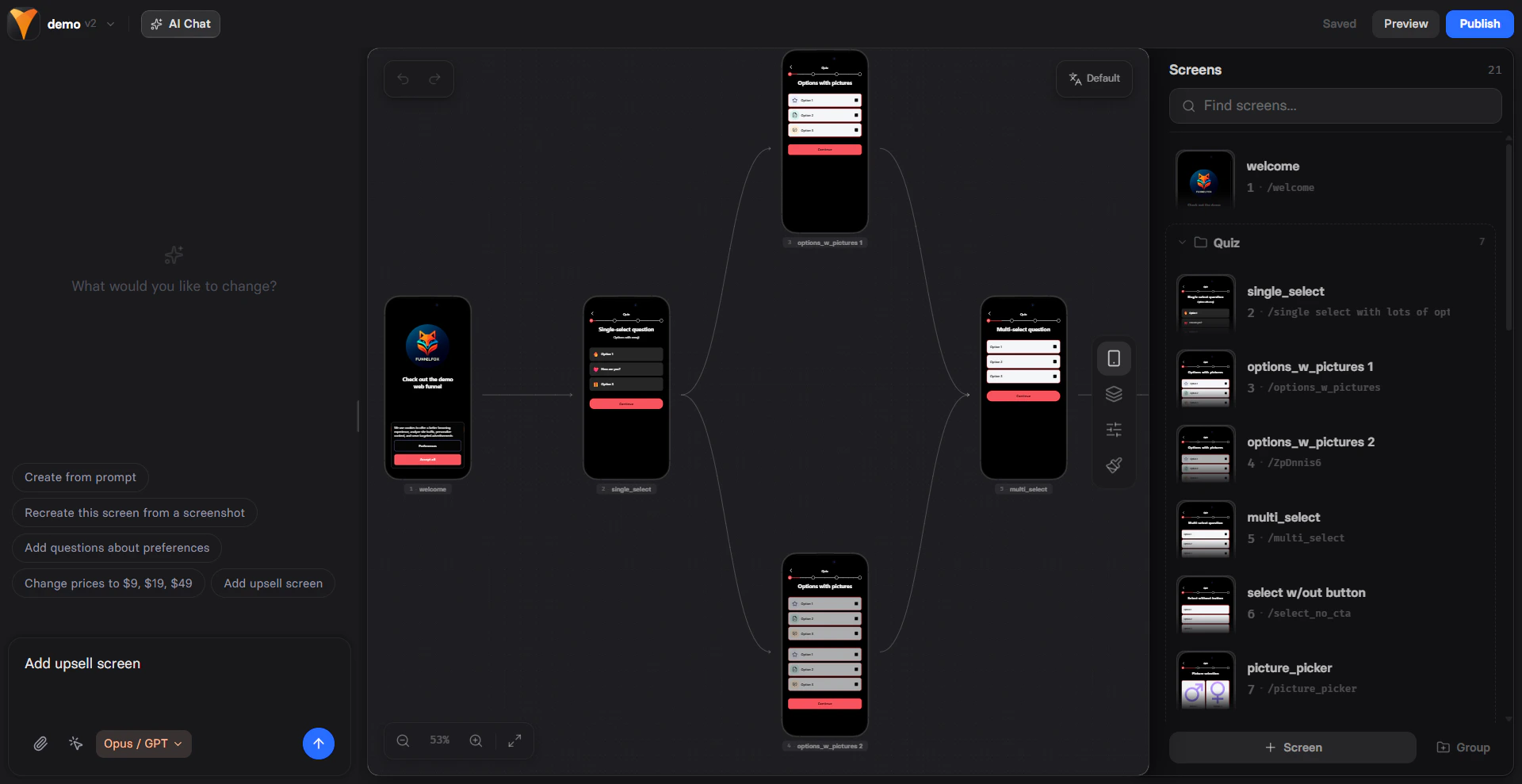 The editor displays a mobile preview by default
because most funnel traffic comes from mobile devices. Your funnels
automatically work on all screen sizes.
### AI Chat in Editor
AI Chat in Editor lives on the left side of the Editor and lets anyone
on your team edit any element, screen, or the whole funnel by prompt without any builder skills required.
You can also build from a reference image, such as a paywall, onboarding, or quiz screen screenshot. The agent recreates it with your copy, colors, and components.
To switch to the new builder, Open the Editor and click **New Builder** in the top left. To switch back, open the Editor menu at the top left and click **Switch to Old Builder**.
Learn more about [AI Chat in Editor](/agentic-solution/overview#ai-chat-in-editor).
### Canvas
Your main funnel view with a canvas interface.
Browse your funnel flow here in mobile device frames and click any screen to start editing it. You can zoom in or out to see all funnel branches at once. Canvas is especially helpful for managing [dynamic navigation flows](/editor/overview#navigation-flow).
To collaborate on your launch, [share the canvas](/editor/overview#share-canvas) with your team and use [comments](/editor/overview#comments) if needed.
### Screens
Available in the selector on the right. View all screens in your
funnel, add new ones, reorder them by dragging, and group them.
### Element layers
Available in the selector on the right. Browse the layer tree of
elements on the current screen, reorder them, and select directly from the list.
### Parameters
Available in the selector on the right. Configure the selected screen: ID, title, type, back button, progress bar, auto-navigation, and
other screen-level settings.
### Styles
Available in the selector on the right. Adjust layout and visual
styling for the selected screen or element.
Use
[themes](/editor/themes) to speed up design across all funnels in your
project.
## Key features
Screens are individual pages in your funnel. Each screen has its own URL
path like `/funnel-slug/screen-id`. Always use descriptive screen IDs
(e.g., 'welcome', 'benefits', 'checkout') for clean URLs and better
analytics tracking.
Set screen types for [analytics tracking](/dashboard/analytics#set-up-tracking):
* **Default**: Standard content screens
* **Auth**: Login or registration
* **Checkout**: Payment processing
* **Finish**: Success or confirmation
* **Paywall**: Pricing presentation
* **Upsell**: Additional offers
Screen types are for analytics only. They don't change functionality
but help track conversion metrics like "Start to Paywall" rates.
Configure for each screen:
* **ID**: Screen identifier used in URL (e.g., 'registration', 'pricing')
* **Title**: Browser tab title
* **Image**: Social sharing preview
* **Show back**: Enable back navigation
* **Show counter**: Display screen counter
* **Show progress bar**: Track completion
* **Auto Navigation**: Automatic next screen
Use the **Styles** tab to adjust how each progress bar or counter element looks, matching your overall design. You can style each screen individually or click **Apply to All Screens** to apply changes globally.
Elements are the building blocks of your screens. Add them onto your
canvas to build your funnel.
Each element has properties you can customize:
* Visual styling (colors, fonts, spacing)
* Content (text, images, placeholders)
* Behavior (actions, conditions)
Learn more about [elements](/elements/overview).
The Editor maintains a complete version history. To access it, click the Editor menu at the top left and select **Version history**.
The editor displays a mobile preview by default
because most funnel traffic comes from mobile devices. Your funnels
automatically work on all screen sizes.
### AI Chat in Editor
AI Chat in Editor lives on the left side of the Editor and lets anyone
on your team edit any element, screen, or the whole funnel by prompt without any builder skills required.
You can also build from a reference image, such as a paywall, onboarding, or quiz screen screenshot. The agent recreates it with your copy, colors, and components.
To switch to the new builder, Open the Editor and click **New Builder** in the top left. To switch back, open the Editor menu at the top left and click **Switch to Old Builder**.
Learn more about [AI Chat in Editor](/agentic-solution/overview#ai-chat-in-editor).
### Canvas
Your main funnel view with a canvas interface.
Browse your funnel flow here in mobile device frames and click any screen to start editing it. You can zoom in or out to see all funnel branches at once. Canvas is especially helpful for managing [dynamic navigation flows](/editor/overview#navigation-flow).
To collaborate on your launch, [share the canvas](/editor/overview#share-canvas) with your team and use [comments](/editor/overview#comments) if needed.
### Screens
Available in the selector on the right. View all screens in your
funnel, add new ones, reorder them by dragging, and group them.
### Element layers
Available in the selector on the right. Browse the layer tree of
elements on the current screen, reorder them, and select directly from the list.
### Parameters
Available in the selector on the right. Configure the selected screen: ID, title, type, back button, progress bar, auto-navigation, and
other screen-level settings.
### Styles
Available in the selector on the right. Adjust layout and visual
styling for the selected screen or element.
Use
[themes](/editor/themes) to speed up design across all funnels in your
project.
## Key features
Screens are individual pages in your funnel. Each screen has its own URL
path like `/funnel-slug/screen-id`. Always use descriptive screen IDs
(e.g., 'welcome', 'benefits', 'checkout') for clean URLs and better
analytics tracking.
Set screen types for [analytics tracking](/dashboard/analytics#set-up-tracking):
* **Default**: Standard content screens
* **Auth**: Login or registration
* **Checkout**: Payment processing
* **Finish**: Success or confirmation
* **Paywall**: Pricing presentation
* **Upsell**: Additional offers
Screen types are for analytics only. They don't change functionality
but help track conversion metrics like "Start to Paywall" rates.
Configure for each screen:
* **ID**: Screen identifier used in URL (e.g., 'registration', 'pricing')
* **Title**: Browser tab title
* **Image**: Social sharing preview
* **Show back**: Enable back navigation
* **Show counter**: Display screen counter
* **Show progress bar**: Track completion
* **Auto Navigation**: Automatic next screen
Use the **Styles** tab to adjust how each progress bar or counter element looks, matching your overall design. You can style each screen individually or click **Apply to All Screens** to apply changes globally.
Elements are the building blocks of your screens. Add them onto your
canvas to build your funnel.
Each element has properties you can customize:
* Visual styling (colors, fonts, spacing)
* Content (text, images, placeholders)
* Behavior (actions, conditions)
Learn more about [elements](/elements/overview).
The Editor maintains a complete version history. To access it, click the Editor menu at the top left and select **Version history**.
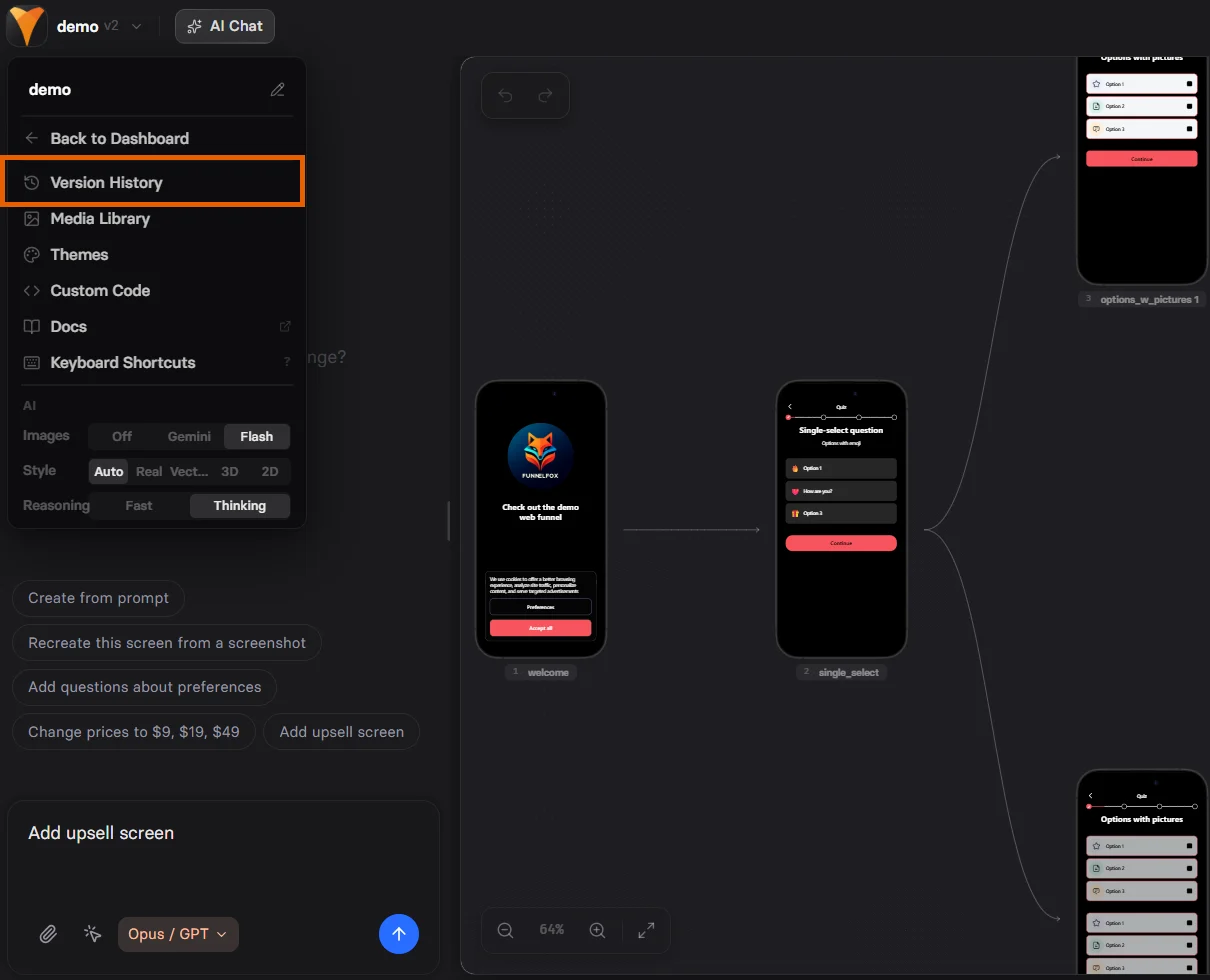 * Each save creates a new version (v1, v2, v3...).
* Click the restore arrow to roll back to any previous save.
* The version you're editing right now is marked as **Current**.
* Each version has a timestamp when it was saved.
The editor doesn’t auto-save. Click **Save** to preserve your work.
## Build your funnel
Before you start, describe your app or paste an App Store, Google Play, or website
link in the [Project context](/agentic-solution/overview#project-context).
Once set, open a funnel in the Editor and start with the **AI Chat** on the left.
Click the Editor menu at the top left and select how the agent builds your funnel and visual style, if needed.
Trigger agent with something like `build me a funnel from scratch` and press **Enter**.
Generation typically takes 2–4 minutes.
Review your outcomes and refine by prompt or manually, when needed.
Mark screens appropriately (Paywall, Checkout, etc.) for analytics
tracking.
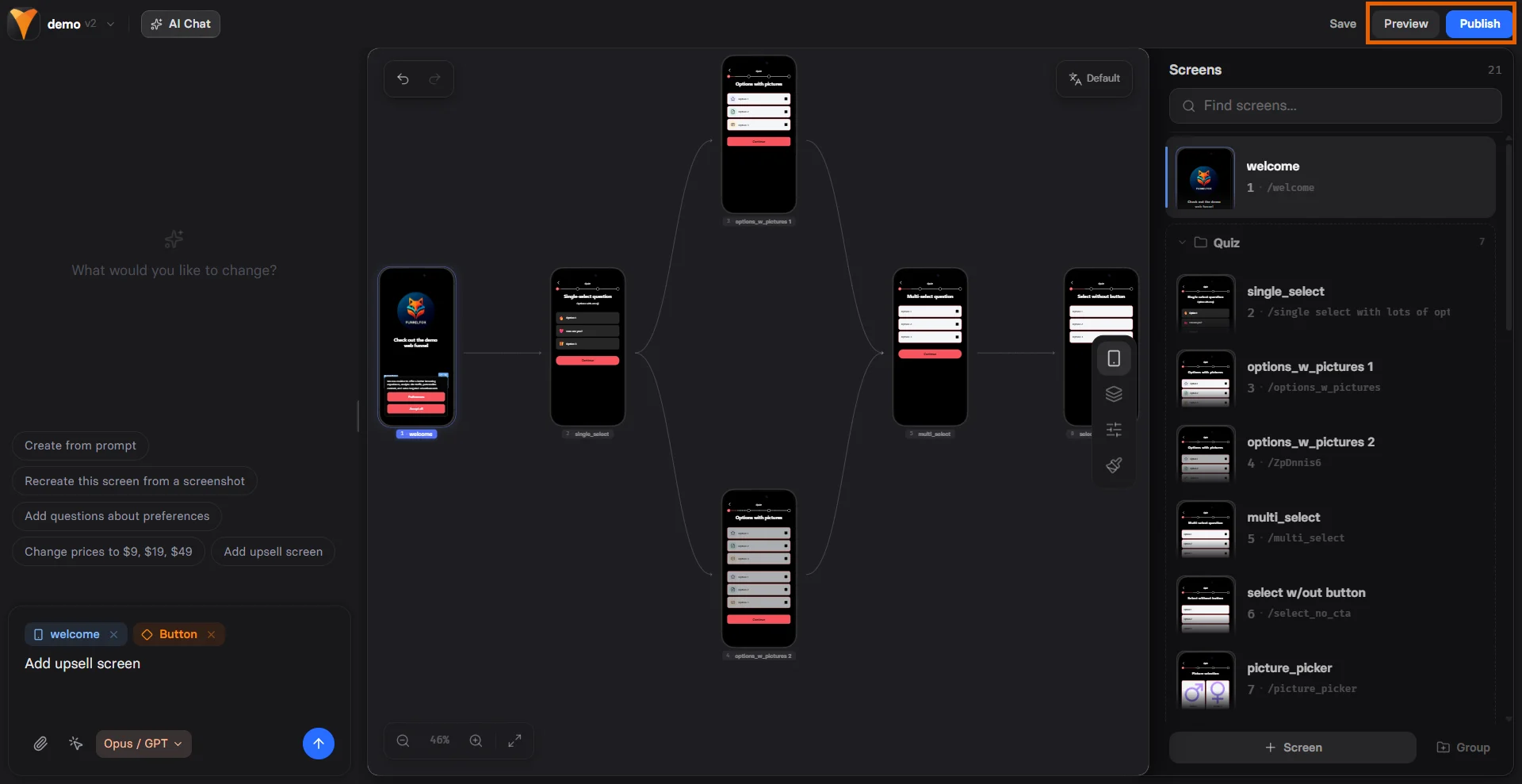
Use Preview mode to test your funnel with sandbox payments before
going live.
### Group funnel screens
Go to the **Screens** tab using the selector on the right, then click the **+ Group** button in the bottom right to group screens.
* Each save creates a new version (v1, v2, v3...).
* Click the restore arrow to roll back to any previous save.
* The version you're editing right now is marked as **Current**.
* Each version has a timestamp when it was saved.
The editor doesn’t auto-save. Click **Save** to preserve your work.
## Build your funnel
Before you start, describe your app or paste an App Store, Google Play, or website
link in the [Project context](/agentic-solution/overview#project-context).
Once set, open a funnel in the Editor and start with the **AI Chat** on the left.
Click the Editor menu at the top left and select how the agent builds your funnel and visual style, if needed.
Trigger agent with something like `build me a funnel from scratch` and press **Enter**.
Generation typically takes 2–4 minutes.
Review your outcomes and refine by prompt or manually, when needed.
Mark screens appropriately (Paywall, Checkout, etc.) for analytics
tracking.
Use Preview mode to test your funnel with sandbox payments before
going live.
### Group funnel screens
Go to the **Screens** tab using the selector on the right, then click the **+ Group** button in the bottom right to group screens.
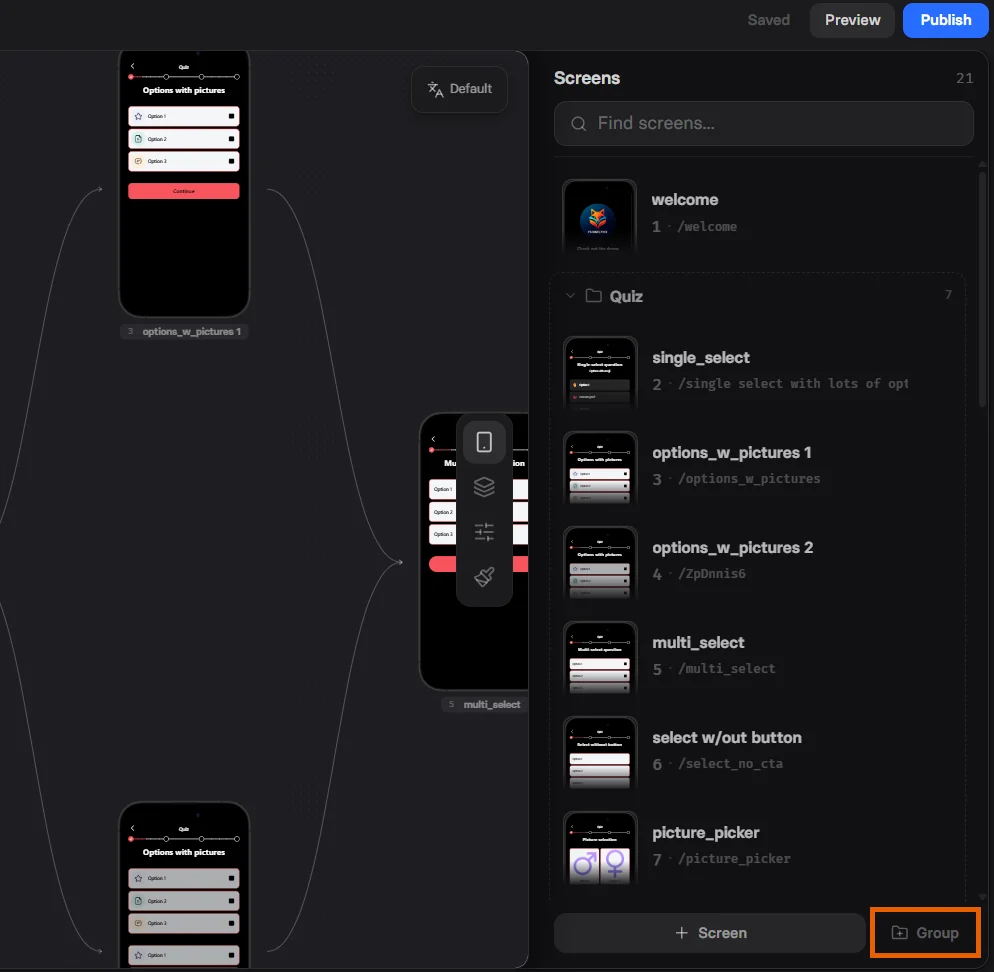 Groups organize screens and enable progress tracking:
**Organization**
* Group related screens (e.g., "Quiz Questions", "Checkout Flow")
* Collapse groups for cleaner navigation
* Reorder entire groups at once
**Progress bars**
* Each group becomes a progress point
* Users see completion as they advance
* Visual feedback improves conversion
Example: Three groups with 3 screens each shows 3 dots in the progress
bar. Completing group 2 fills the second dot.
## Navigation flow
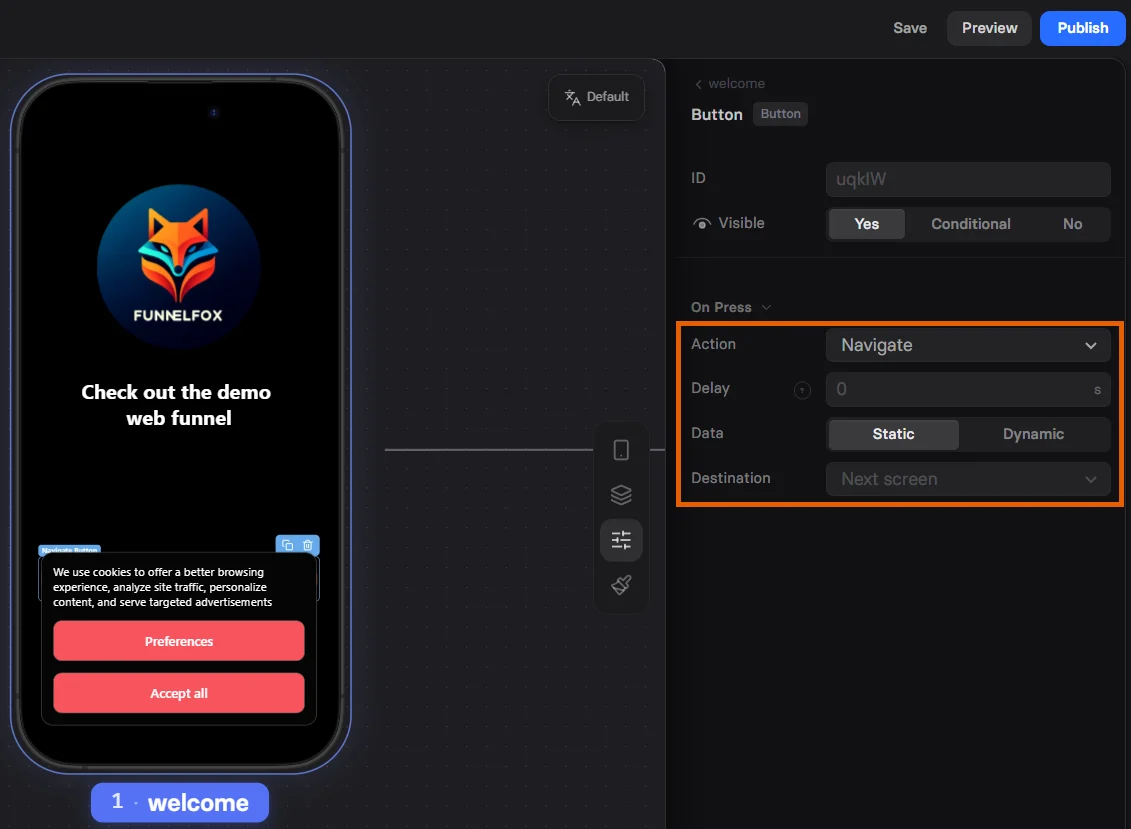
Unlike traditional page builders, funnel screens aren't directly linked.
Instead, they follow a sequence with navigation controlled by actions.
You can easily visualize the entire user journey through your funnel using the [canvas view](/editor/overview#editor-interface).
**Default flow**:
* Screens appear in the order shown in the **Screens** selector on the right
* **Next screen** action follows this order
* Users progress linearly through the funnel
**Dynamic navigation**:
* Use **Destination to \[specific screen]** button action for branching
* Create conditional navigation based on user choices
* Build dynamic paths with personalization
Groups organize screens and enable progress tracking:
**Organization**
* Group related screens (e.g., "Quiz Questions", "Checkout Flow")
* Collapse groups for cleaner navigation
* Reorder entire groups at once
**Progress bars**
* Each group becomes a progress point
* Users see completion as they advance
* Visual feedback improves conversion
Example: Three groups with 3 screens each shows 3 dots in the progress
bar. Completing group 2 fills the second dot.
## Navigation flow
Unlike traditional page builders, funnel screens aren't directly linked.
Instead, they follow a sequence with navigation controlled by actions.
You can easily visualize the entire user journey through your funnel using the [canvas view](/editor/overview#editor-interface).
**Default flow**:
* Screens appear in the order shown in the **Screens** selector on the right
* **Next screen** action follows this order
* Users progress linearly through the funnel
**Dynamic navigation**:
* Use **Destination to \[specific screen]** button action for branching
* Create conditional navigation based on user choices
* Build dynamic paths with personalization
 ## Share canvas
You can share your funnel while building it in two ways:
1. Click the **Share** button at the top right.
## Share canvas
You can share your funnel while building it in two ways:
1. Click the **Share** button at the top right.
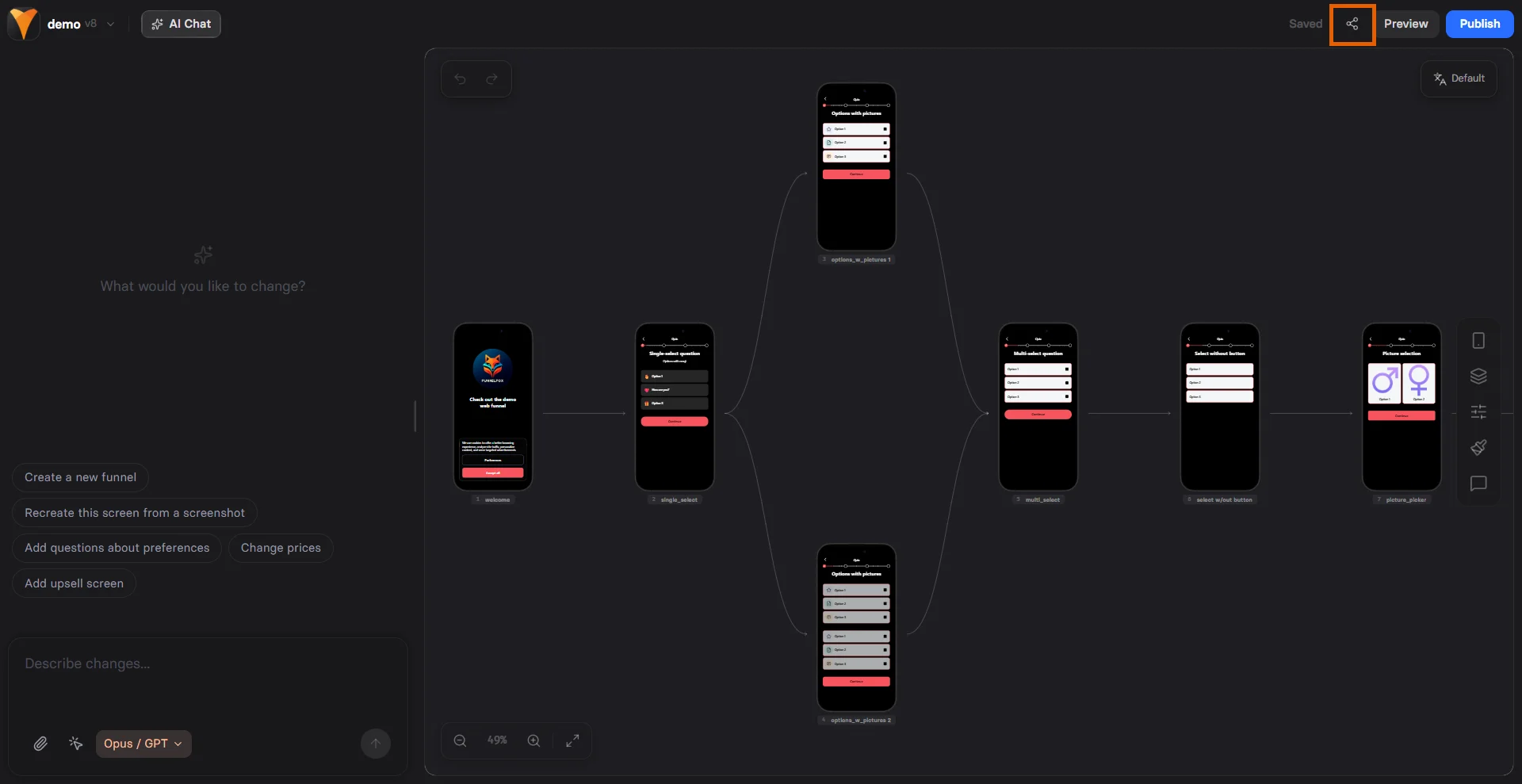 2. Select how you share the canvas:
* **Share for editing together**: For users with builder access. Use this to allow them to [comment](/editor/overview#comments) on the canvas. If your team has multiple projects, the link will automatically lead to the right one.
* **Share for viewing only**: For public viewing of the current canvas (without editing).
The link you share includes funnel ID so you can search it from the Funnels list, if needed.
## Comments
Use comments in the canvas to collaborate with your team — address feedback, discuss designs, and accelerate funnel building.
Commenting is available to any user logged in to your FunnelFox project.
Comments are not available when the canvas is shared with [preview access rights](/editor/overview#share-canvas).
To comment on the canvas:
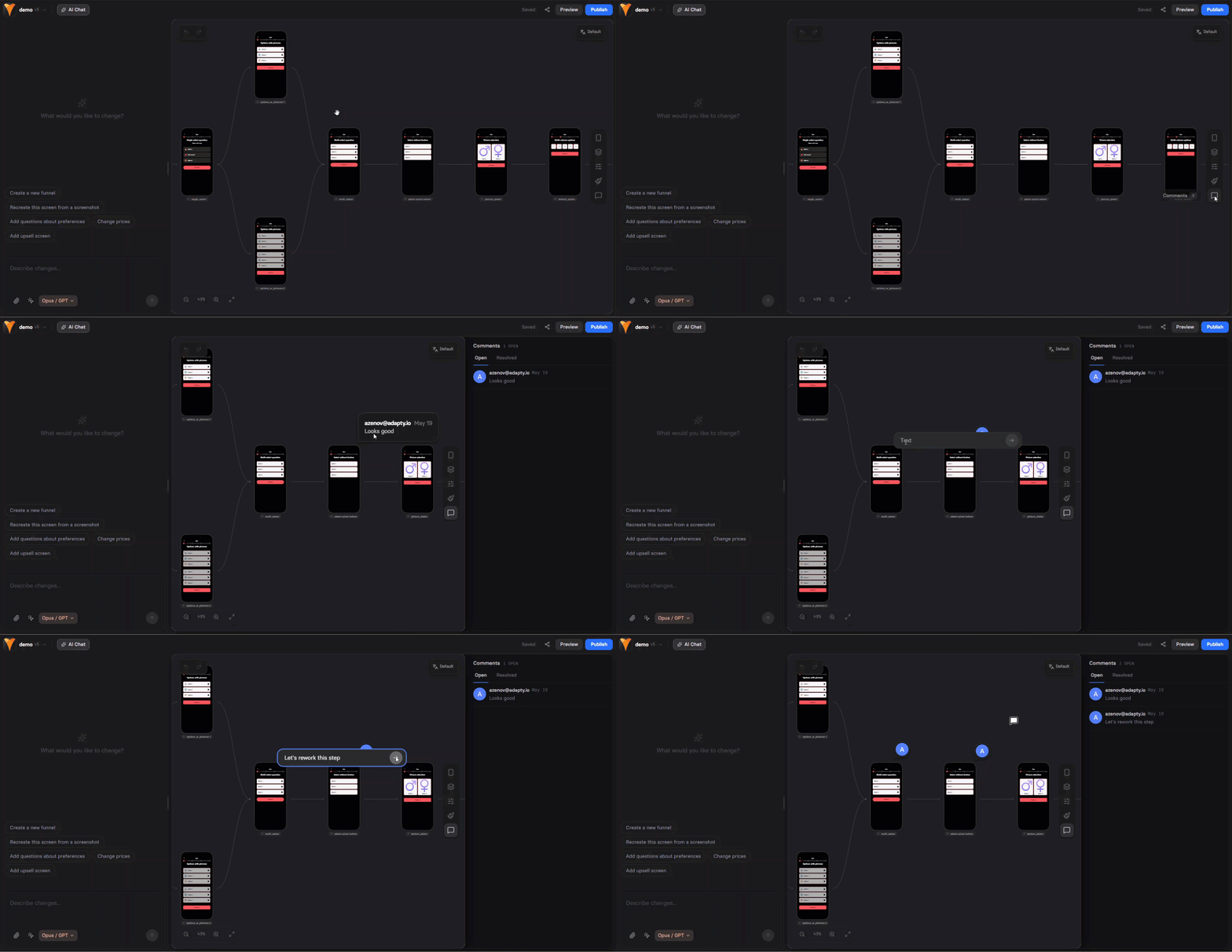
1. Click the in the selector on the right to enter comment mode. Your cursor will change to a .
2. In comment mode, you can:
* Hover over existing comments to view them.
* Click any comment to reply or resolve it. Resolved comments disappear from the canvas.
* Click anywhere on the canvas to add a new comment.
2. Select how you share the canvas:
* **Share for editing together**: For users with builder access. Use this to allow them to [comment](/editor/overview#comments) on the canvas. If your team has multiple projects, the link will automatically lead to the right one.
* **Share for viewing only**: For public viewing of the current canvas (without editing).
The link you share includes funnel ID so you can search it from the Funnels list, if needed.
## Comments
Use comments in the canvas to collaborate with your team — address feedback, discuss designs, and accelerate funnel building.
Commenting is available to any user logged in to your FunnelFox project.
Comments are not available when the canvas is shared with [preview access rights](/editor/overview#share-canvas).
To comment on the canvas:
1. Click the in the selector on the right to enter comment mode. Your cursor will change to a .
2. In comment mode, you can:
* Hover over existing comments to view them.
* Click any comment to reply or resolve it. Resolved comments disappear from the canvas.
* Click anywhere on the canvas to add a new comment.
 ## Preview vs production
You can view each funnel in Preview or Publish mode:
**For testing and development**:
* Instant updates
* Sandbox payments (test cards)
* No real transactions
* Faster builds
* [Share](/editor/overview#share-canvas) preview links for public viewing without builder access
Use for all testing before going live.
**For real traffic**:
* Static, optimized build
* Real payment processing
* Production analytics
* Cached for speed
* Immutable version
* Get shareable URLs from the Funnels page
Each publish creates a permanent version.
## Preview vs production
You can view each funnel in Preview or Publish mode:
**For testing and development**:
* Instant updates
* Sandbox payments (test cards)
* No real transactions
* Faster builds
* [Share](/editor/overview#share-canvas) preview links for public viewing without builder access
Use for all testing before going live.
**For real traffic**:
* Static, optimized build
* Real payment processing
* Production analytics
* Cached for speed
* Immutable version
* Get shareable URLs from the Funnels page
Each publish creates a permanent version.
 ## Keyboard shortcuts
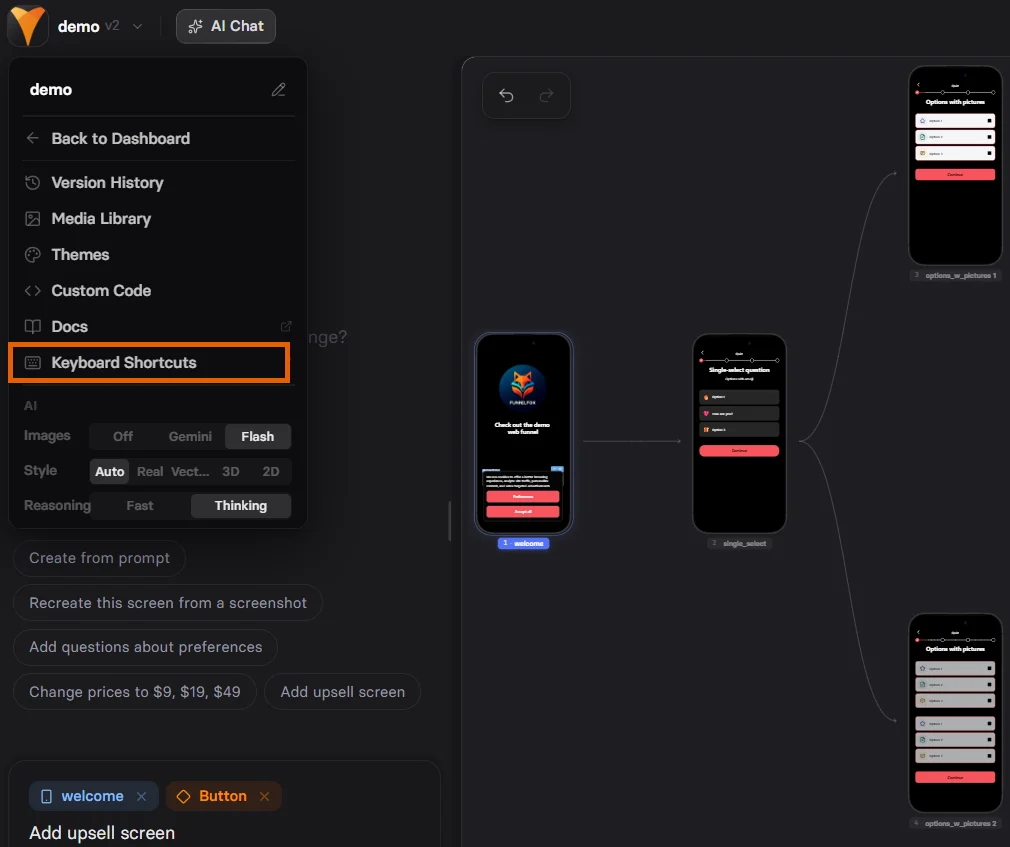
Speed up your workflow with shortcuts. Click the **Editor menu** at the top left and select **Keyboard shortcuts** to view
the full list inside the Editor.
Common ones:
* **Cmd/Ctrl + Z**: Undo
* **Cmd/Ctrl + Shift + Z**: Redo
* **Cmd/Ctrl + C**: Copy element
* **Cmd/Ctrl + V**: Paste element
* **Delete**: Remove selected element
* **Cmd/Ctrl + S**: Save changes
## Keyboard shortcuts
Speed up your workflow with shortcuts. Click the **Editor menu** at the top left and select **Keyboard shortcuts** to view
the full list inside the Editor.
Common ones:
* **Cmd/Ctrl + Z**: Undo
* **Cmd/Ctrl + Shift + Z**: Redo
* **Cmd/Ctrl + C**: Copy element
* **Cmd/Ctrl + V**: Paste element
* **Delete**: Remove selected element
* **Cmd/Ctrl + S**: Save changes
 ## Troubleshooting
- Save your funnel.
- Delete the problematic element.
- Add the element back and reconfigure it.
- Reload the page and test again.
- Save the funnel.
- Reload the page.
- Edit the conditions again.
The Editor is not compatible with Safari. For best performance, use Chrome or a Chrome-based browser instead.
## Next steps
* [Element reference](/elements/overview) - Detailed element documentation
* [Actions & triggers](/editor/actions) - Configure interactions
* [Localization](/editor/localizations) - Multi-language funnels