> ## Documentation Index
> Fetch the complete documentation index at: https://funnelfox.com/docs/llms.txt
> Use this file to discover all available pages before exploring further.
# Funnel localization & multi-language support
> Translate your funnels into multiple languages with FunnelFox. AI-powered translations, locale management, and multi-language setup.
Localization lets you create multiple language versions of your funnel that
automatically display based on your visitors' location and browser language.
Studies show conversion rates improve by up to 70% when users see content
in their native language.
Each funnel can include up to 25 locales.
 ## How localization works
Localizing a funnel is simple:
1. **Create locales for your funnel**: Add the countries and languages you want to support. For fast setup, you can translate content automatically with AI. Learn about [managing locales](/editor/localizations#manage-locales) and [AI translation](/editor/localizations#ai-translation).
2. **Automatic detection at runtime**: When a visitor lands on your funnel, FunnelFox reads their country (from IP) and language (from the browser) to pick the best locale. Learn about [locale matching logic](/editor/localizations#locale-matching).
3. **Localize prices**: Show the right currency and price for each locale. Create currency-specific prices in Stripe, then select the matching price in your Checkout element for that locale. See the [pricing localization section](/editor/localizations#pricing-localization).
Localized content is part of your funnel's static build.
You must republish after making localization changes for them to go live.
## Manage locales
To manage locales, either:
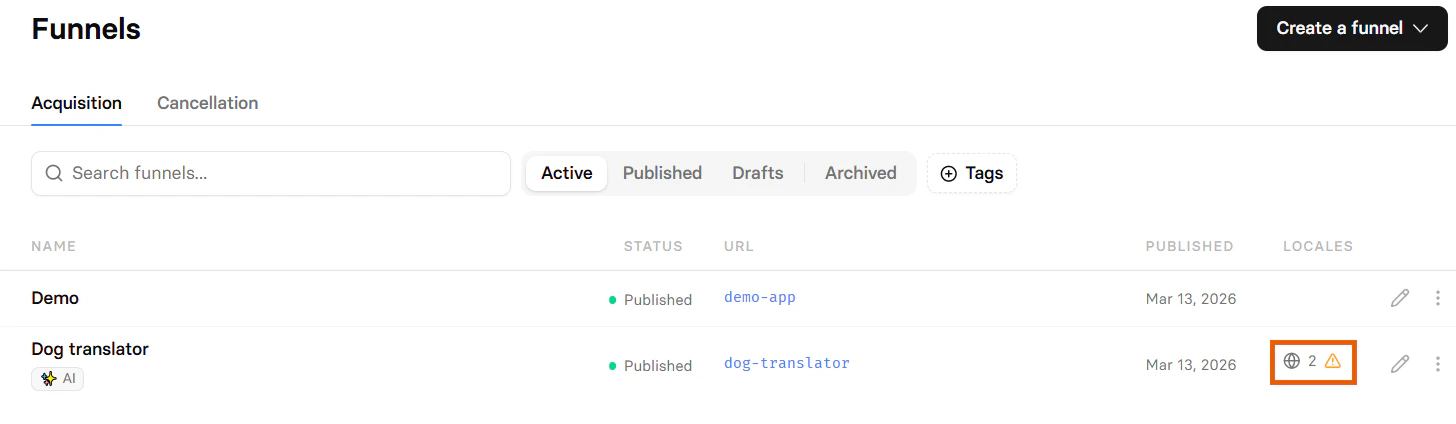
* Click the 🌐︎ locales icon in your [Funnels list](https://app.funnelfox.com/funnels) (if you have any locales).
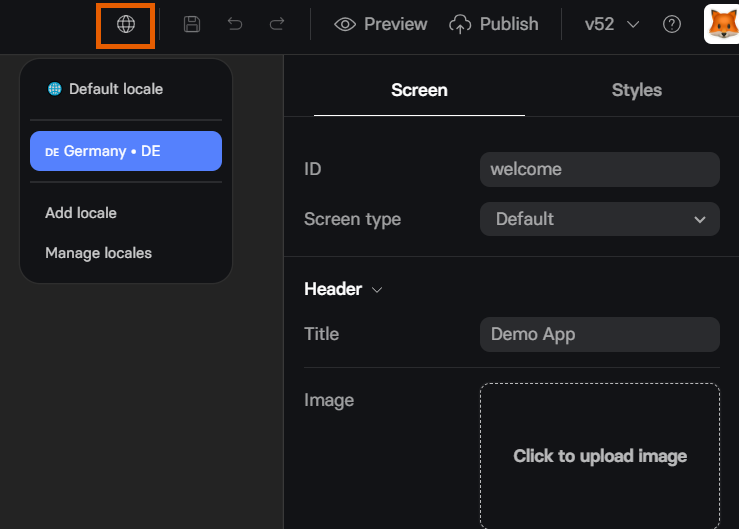
* Hover over the 🌐︎ globe icon at the top of the Visual editor and click **Manage locales**.
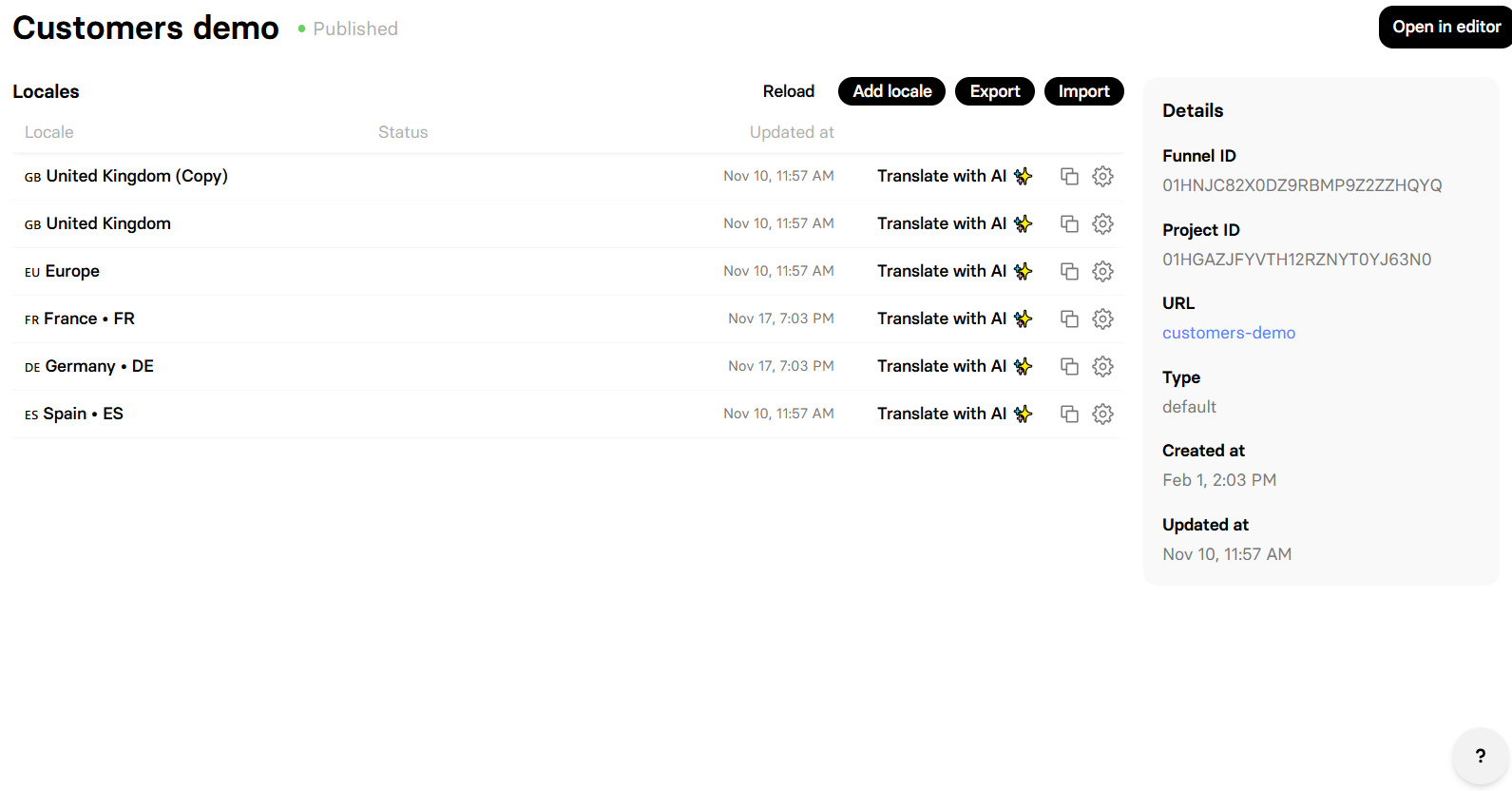
A red status in your locales list means missing translation keys for that locale — usually caused by editing the default locale. Click **Translate with AI** to fix it.
## How localization works
Localizing a funnel is simple:
1. **Create locales for your funnel**: Add the countries and languages you want to support. For fast setup, you can translate content automatically with AI. Learn about [managing locales](/editor/localizations#manage-locales) and [AI translation](/editor/localizations#ai-translation).
2. **Automatic detection at runtime**: When a visitor lands on your funnel, FunnelFox reads their country (from IP) and language (from the browser) to pick the best locale. Learn about [locale matching logic](/editor/localizations#locale-matching).
3. **Localize prices**: Show the right currency and price for each locale. Create currency-specific prices in Stripe, then select the matching price in your Checkout element for that locale. See the [pricing localization section](/editor/localizations#pricing-localization).
Localized content is part of your funnel's static build.
You must republish after making localization changes for them to go live.
## Manage locales
To manage locales, either:
* Click the 🌐︎ locales icon in your [Funnels list](https://app.funnelfox.com/funnels) (if you have any locales).
* Hover over the 🌐︎ globe icon at the top of the Visual editor and click **Manage locales**.
A red status in your locales list means missing translation keys for that locale — usually caused by editing the default locale. Click **Translate with AI** to fix it.
 ### Add new locale
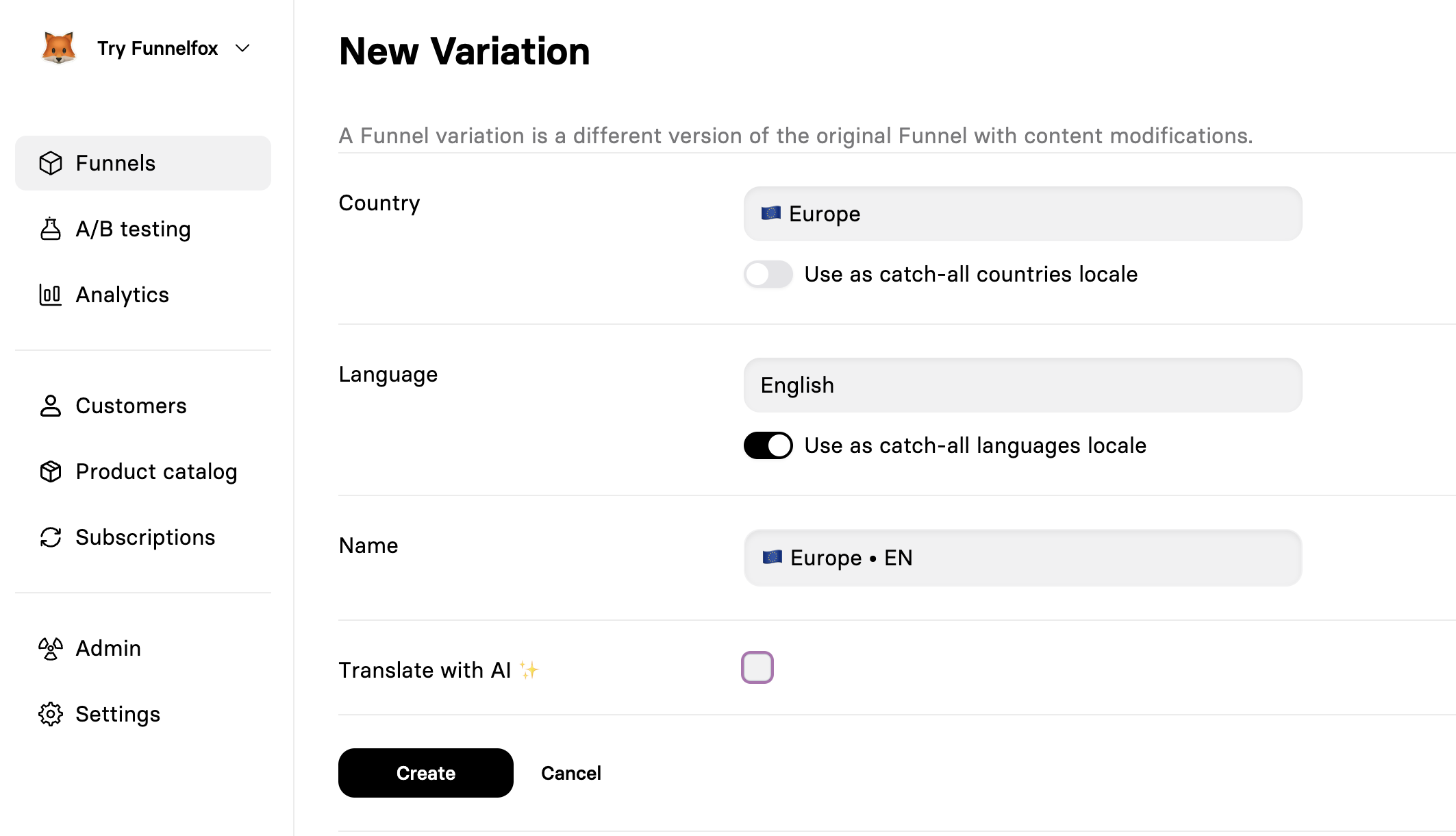
1. Click **Add locale**.
2. Select **Country**.
3. Select **Language**.
4. Optionally enable **catch-all** for [broader matching](/editor/localizations#locale-matching).
5. Choose whether to **Translate with AI** for instant translation.
Use "Europe" as a country to target all 27 EU countries with one locale: AT, BE, BG, HR, CY, CZ, DK, EE, FI, FR, DE, GR, HU, IE, IT, LV, LT, LU, MT, NL, PL, PT, RO, SK, SI, ES, SE.
### Add new locale
1. Click **Add locale**.
2. Select **Country**.
3. Select **Language**.
4. Optionally enable **catch-all** for [broader matching](/editor/localizations#locale-matching).
5. Choose whether to **Translate with AI** for instant translation.
Use "Europe" as a country to target all 27 EU countries with one locale: AT, BE, BG, HR, CY, CZ, DK, EE, FI, FR, DE, GR, HU, IE, IT, LV, LT, LU, MT, NL, PL, PT, RO, SK, SI, ES, SE.
 ### Edit localization
Changes to the default locale's structure automatically apply to all
other locales. Be careful when adding or removing elements in the
default locale.
To edit content in a specific locale, switch between locales using the 🌐︎ globe icon in the editor toolbar:
### Edit localization
Changes to the default locale's structure automatically apply to all
other locales. Be careful when adding or removing elements in the
default locale.
To edit content in a specific locale, switch between locales using the 🌐︎ globe icon in the editor toolbar:
 After editing the default locale, a red indicator appears in the Locales column of your Funnels list if translation keys are missing. To fix this, open the funnel page and click **Translate with AI**.
**You can change:**
* All text content (headlines, paragraphs, buttons)
* Images and media files
* Input placeholders and labels
* Option lists in dropdowns/radio buttons
* Error messages
* Meta tags and SEO content
**You cannot change:**
* Screen structure or flow
* Number of elements
* Element types or positions
* Actions and triggers
* Form field requirements
## Locale matching
FunnelFox uses the visitor's **country** (from IP) and **language** (from the browser).
Matching rules are applied in the following order, starting from the first. If there's no match, the next rule is applied:
1. **Exact match**: Country and language both match the locale.
* Language: German
* Country: Germany
* Result: Locale applies only to users from Germany with German as browser language
2. **Catch-all language enabled**: Country matches and any language is accepted (browser language is ignored).
* Language: Any (catch-all enabled)
* Country: Germany
* Result: All visitors from Germany see this locale, regardless of their browser language
3. **Catch-all country enabled**: Language matches and any country is accepted (IP location is ignored).
* Language: Spanish
* Country: Any (catch-all enabled)
* Result: All Spanish-speaking visitors see this locale, regardless of their location
4. **Both country and language catch-all enabled**: Matches everyone and overrides the default.
* Language: Any (catch-all enabled)
* Country: Any (catch-all enabled)
* Result: All visitors see this locale instead of the default, regardless of location or browser language
5. **Default locale**: Fallback used when no other rule matches.
* Result: Visitors who don't match any configured locale see this default version
When testing locale matching, use a private/incognito mode or clear your cookies and browser data to ensure accurate results.
Right-to-left languages (Arabic, Hebrew, Farsi, Urdu, and others) automatically render with reversed text and progress bar direction based on the locale's language.
You can override automatic selection for testing or sharing by adding a URL parameter, e.g. `?ff-locale=de-DE`. Learn more about [overriding locales via URL](/editor/localizations#override-locale-via-url).
## AI translation
FunnelFox includes built-in AI translation for fast localization:
* **During locale creation**: Enable **Translate with AI** when creating a new locale to instantly translate all content.
After editing the default locale, a red indicator appears in the Locales column of your Funnels list if translation keys are missing. To fix this, open the funnel page and click **Translate with AI**.
**You can change:**
* All text content (headlines, paragraphs, buttons)
* Images and media files
* Input placeholders and labels
* Option lists in dropdowns/radio buttons
* Error messages
* Meta tags and SEO content
**You cannot change:**
* Screen structure or flow
* Number of elements
* Element types or positions
* Actions and triggers
* Form field requirements
## Locale matching
FunnelFox uses the visitor's **country** (from IP) and **language** (from the browser).
Matching rules are applied in the following order, starting from the first. If there's no match, the next rule is applied:
1. **Exact match**: Country and language both match the locale.
* Language: German
* Country: Germany
* Result: Locale applies only to users from Germany with German as browser language
2. **Catch-all language enabled**: Country matches and any language is accepted (browser language is ignored).
* Language: Any (catch-all enabled)
* Country: Germany
* Result: All visitors from Germany see this locale, regardless of their browser language
3. **Catch-all country enabled**: Language matches and any country is accepted (IP location is ignored).
* Language: Spanish
* Country: Any (catch-all enabled)
* Result: All Spanish-speaking visitors see this locale, regardless of their location
4. **Both country and language catch-all enabled**: Matches everyone and overrides the default.
* Language: Any (catch-all enabled)
* Country: Any (catch-all enabled)
* Result: All visitors see this locale instead of the default, regardless of location or browser language
5. **Default locale**: Fallback used when no other rule matches.
* Result: Visitors who don't match any configured locale see this default version
When testing locale matching, use a private/incognito mode or clear your cookies and browser data to ensure accurate results.
Right-to-left languages (Arabic, Hebrew, Farsi, Urdu, and others) automatically render with reversed text and progress bar direction based on the locale's language.
You can override automatic selection for testing or sharing by adding a URL parameter, e.g. `?ff-locale=de-DE`. Learn more about [overriding locales via URL](/editor/localizations#override-locale-via-url).
## AI translation
FunnelFox includes built-in AI translation for fast localization:
* **During locale creation**: Enable **Translate with AI** when creating a new locale to instantly translate all content.
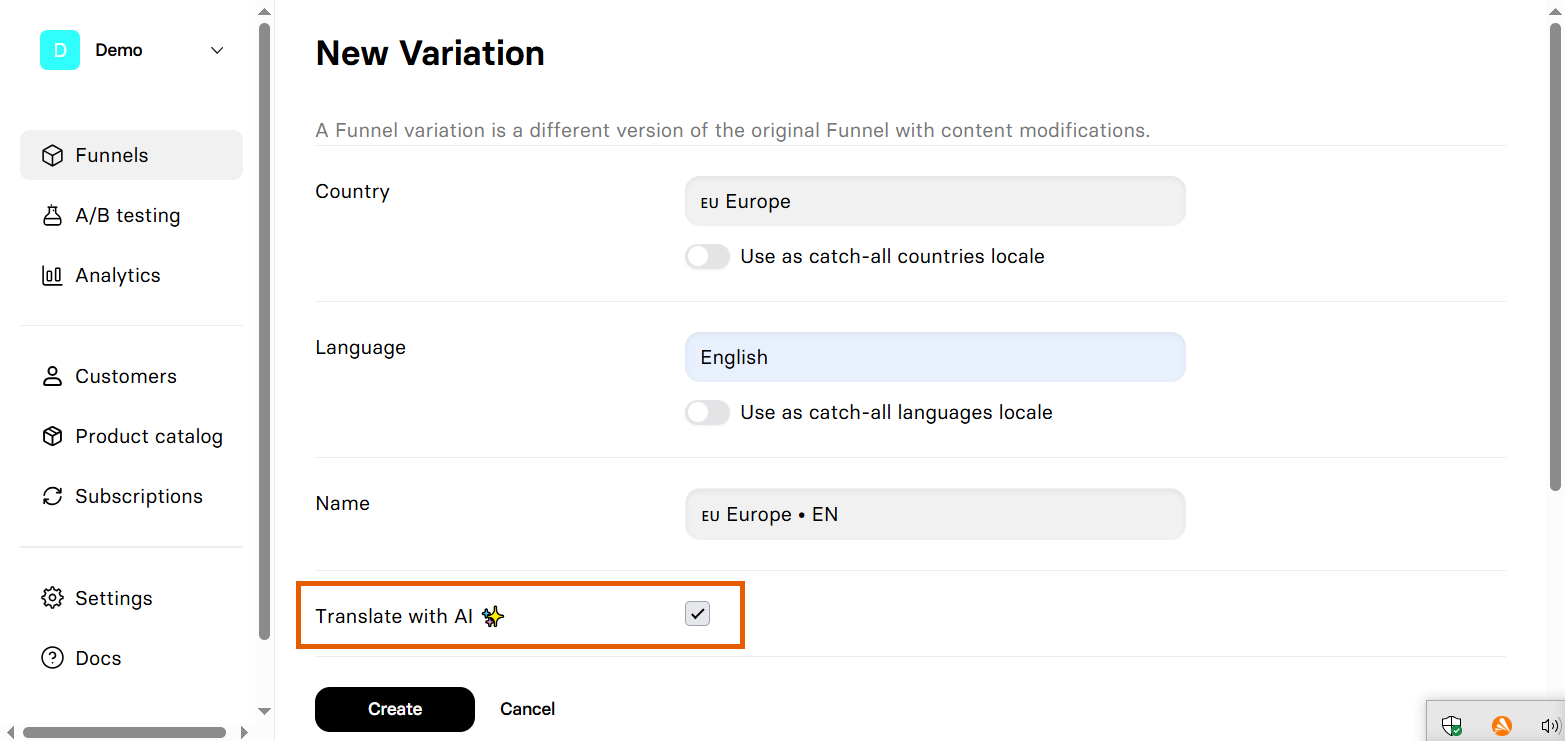 * **From the funnel page**: Open the funnel in your [Funnels list](https://app.funnelfox.com/funnels) and click **Translate with AI** on any existing locale to retranslate all content or only missing keys.
AI translation takes 1-2 minutes depending on funnel size. The page displays **Processing translation with AI...** during this time. You can navigate away and return later.
AI translation doesn't translate content inside [Raw HTML elements](/elements/raw). You'll need to translate that content manually by [editing](/editor/localizations#edit-localization) the locale.
Review AI translations before publishing. Pay special attention to:
* Brand names and product titles
* Technical terms and acronyms
* Calls-to-action (cultural adaptation needed)
* Legal disclaimers and compliance text
* Pricing and currency symbols
## Pricing localization
To localize prices in FunnelFox, first create prices for each currency you need in Stripe. Learn more about [prices in Stripe](https://docs.stripe.com/products-prices/how-products-and-prices-work#prices).
To show relevant currencies for each user and improve conversions, you can set up different local currencies for any locale using the Checkout element with Stripe:
1. Open the [locale](/editor/localizations#edit-localization) in the Editor.
2. In the **Element** tab of the **Plan picker**, update the currency and prices.
* **From the funnel page**: Open the funnel in your [Funnels list](https://app.funnelfox.com/funnels) and click **Translate with AI** on any existing locale to retranslate all content or only missing keys.
AI translation takes 1-2 minutes depending on funnel size. The page displays **Processing translation with AI...** during this time. You can navigate away and return later.
AI translation doesn't translate content inside [Raw HTML elements](/elements/raw). You'll need to translate that content manually by [editing](/editor/localizations#edit-localization) the locale.
Review AI translations before publishing. Pay special attention to:
* Brand names and product titles
* Technical terms and acronyms
* Calls-to-action (cultural adaptation needed)
* Legal disclaimers and compliance text
* Pricing and currency symbols
## Pricing localization
To localize prices in FunnelFox, first create prices for each currency you need in Stripe. Learn more about [prices in Stripe](https://docs.stripe.com/products-prices/how-products-and-prices-work#prices).
To show relevant currencies for each user and improve conversions, you can set up different local currencies for any locale using the Checkout element with Stripe:
1. Open the [locale](/editor/localizations#edit-localization) in the Editor.
2. In the **Element** tab of the **Plan picker**, update the currency and prices.
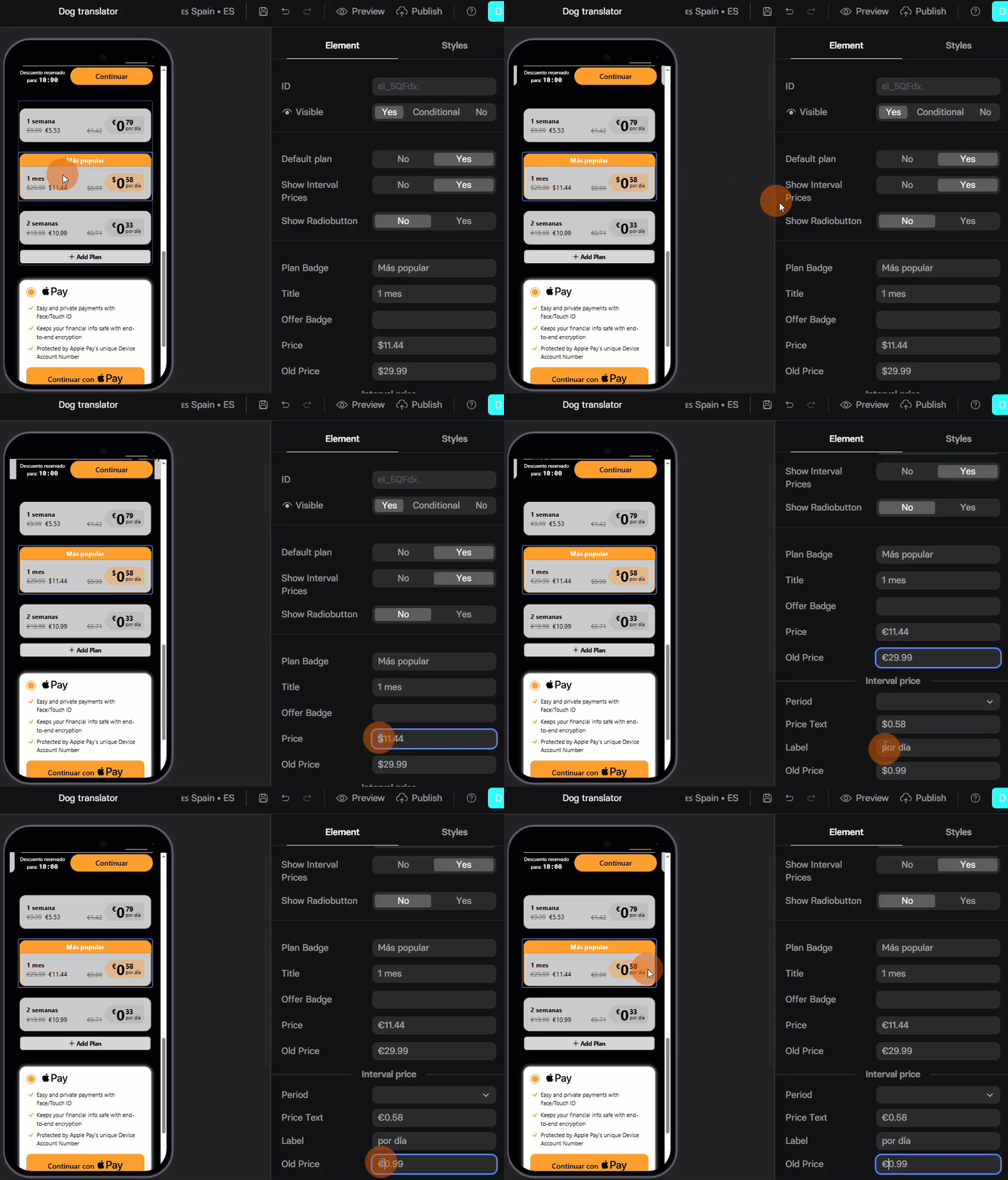 3. Go to the **Actions** section in the **Element** tab of **Checkout**.
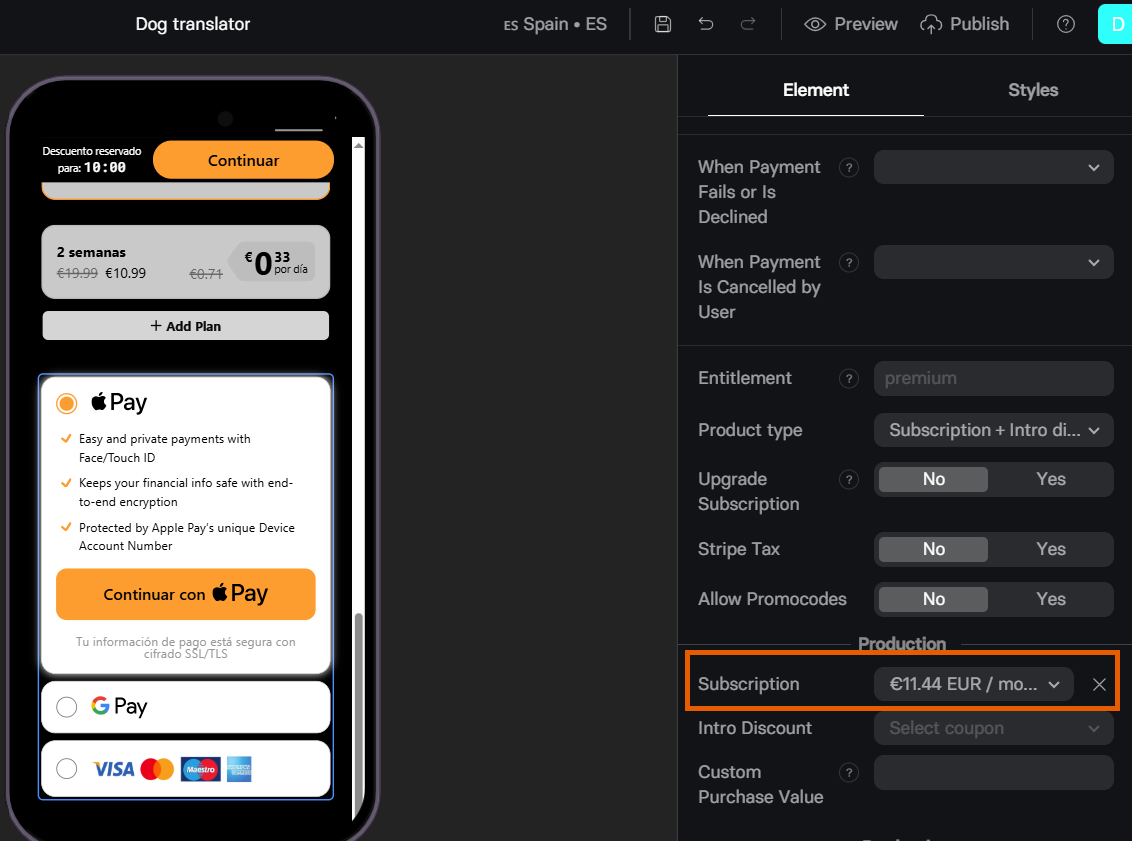
4. From the **Subscription** dropdown, select the Stripe price in the relevant currency.
3. Go to the **Actions** section in the **Element** tab of **Checkout**.
4. From the **Subscription** dropdown, select the Stripe price in the relevant currency.
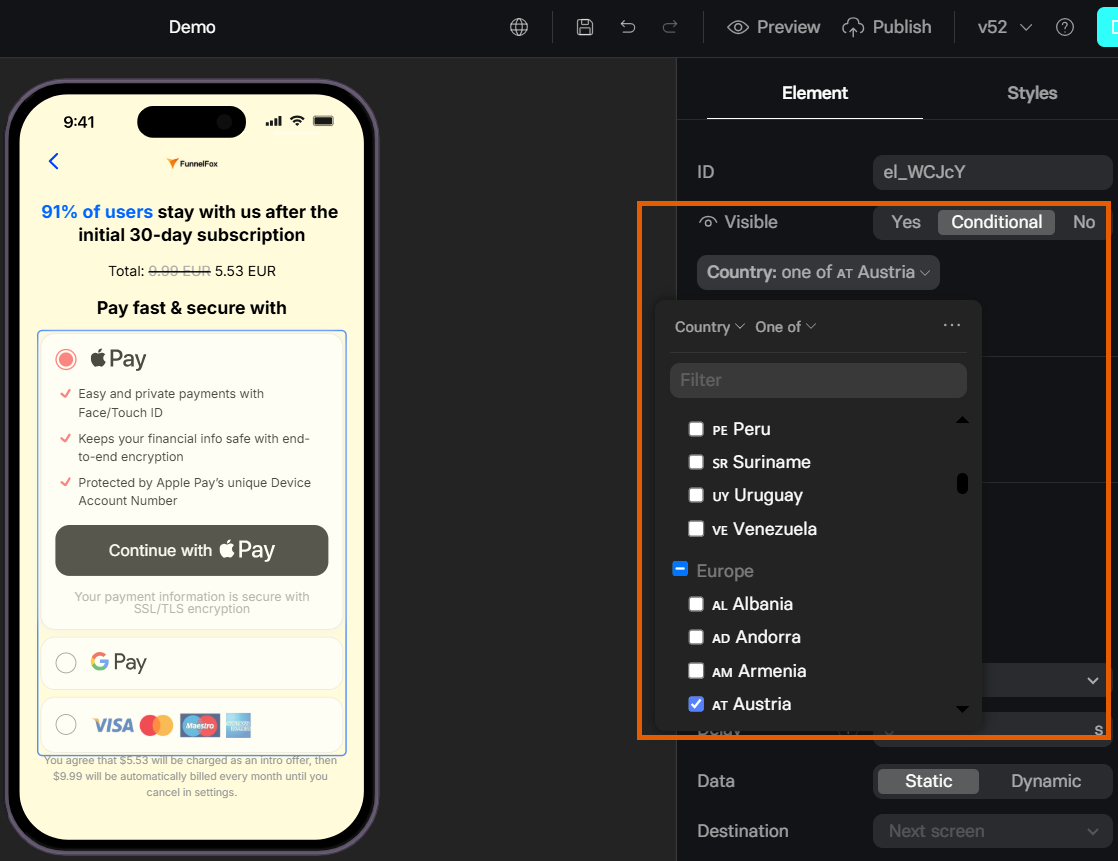
 5. Optionally, set **Visibility** to **Conditional** for both Plan picker and Checkout, and choose specific countries if you want localized pricing to appear only for certain visitors of that locale.
If you add multiple Checkout (or Price picker) elements with conditional visibility, make sure that no country is assigned to more than one Checkout at the same time.
5. Optionally, set **Visibility** to **Conditional** for both Plan picker and Checkout, and choose specific countries if you want localized pricing to appear only for certain visitors of that locale.
If you add multiple Checkout (or Price picker) elements with conditional visibility, make sure that no country is assigned to more than one Checkout at the same time.
 6. Save and republish to go live.
## Override locale via URL
For published funnels, you can override automatic locale detection by passing the `ff-locale` parameter in the URL query string. This is useful for:
* Testing different language versions without VPN
* Sharing direct links to specific language versions
* Quality assurance and review workflows
* Customer support scenarios
To do this, publish your funnel and add `?ff-locale=` followed by the locale code to the public URL:
```
https://example.fnlfx.com/welcome?ff-locale=de-DE
https://example.fnlfx.com/welcome?ff-locale=es-ES
https://example.fnlfx.com/welcome?ff-locale=fr-FR
```
The `ff-locale` parameter accepts standard ISO language codes in the format:
* `language-COUNTRY` (e.g., `en-US`, `de-DE`, `fr-FR`)
* `language` only (e.g., `en`, `de`, `fr`)
The `ff-locale` parameter must match one of your configured locales. If an
invalid or non-existent locale is provided, FunnelFox falls back to
automatic detection.
### How override works
When a locale is set via URL parameter:
* It overrides geographic and browser language detection
* The preference persists throughout the funnel session
* Subsequent page navigations maintain the selected locale
* The parameter doesn't need to be included on every page
### Examples
**Direct link to German version:**
```
https://your-project.fnlfx.com/signup?ff-locale=de-DE
```
**Append to existing parameters:**
```
https://your-project.fnlfx.com/offer?utm_source=email&ff-locale=fr-FR
```
**Testing multiple locales quickly:**
```bash theme={null}
# Open multiple browser tabs with different locales
open https://example.fnlfx.com/?ff-locale=en-US
open https://example.fnlfx.com/?ff-locale=de-DE
open https://example.fnlfx.com/?ff-locale=es-ES
```
## Import/export translations
For professional translations or bulk editing, use the import/export feature.
Content inside [Raw HTML elements](/elements/raw) can’t be imported or exported. Translate that content manually by [editing](/editor/localizations#edit-localization) the locale instead.
### Export
1. Open the funnel in your [Funnels list](https://app.funnelfox.com/funnels).
2. Click **Export**.
3. Receive a TSV (Tab-Separated Values) file.
Now you can share it with translators or translation services.
The TSV file has the following structure:
```
Key 🌐 Default 🇩🇪 Germany • DE
screens.welcome.elements.heading.props.content Welcome! Willkommen!
screens.welcome.elements.button.props.text Get Started Loslegen
```
Each row contains:
* **Key**: Unique identifier (**don't modify it**)
* **Default column**: Original text
* **Locale columns**: Translated text for each locale
### Import
1. Ensure TSV maintains the exact structure.
2. Open the funnel in your [Funnels list](https://app.funnelfox.com/funnels).
3. Click **Import** and select your file.
4. Review changes in the editor
5. Republish to make changes live
Import overwrites all existing translations for included locales.
Always backup by exporting first.
## Test locales
Use a private/incognito window or clear your cookies and browser data, then follow one of the testing methods below.
### Test different locales
1. **URL Parameter**: Add `?ff-locale=xx-XX` to force a specific locale for your published funnel
2. **Use VPN**: Connect from different countries to trigger geo-detection
3. **Change browser language**: Modify browser's language preferences
4. **Use different devices**: Test with colleagues in other locations
5. **Browser extensions**: Use header modification tools to change Accept-Language
### Preview mode test
Preview mode uses the same locale detection logic as production, but it does not support the locale URL parameter.
## Locale identifiers
Your webhooks and API responses include:
* `locale`: Full locale name (e.g., "Germany • DE")
* `locale_code`: ISO format (e.g., "de-DE")
## Troubleshooting
Ensure you republished the funnel after making localization changes.
Check that your test location/language matches your locale rules.
Review your locale priority rules. More specific rules (exact country +
language) take precedence over catch-all rules.
6. Save and republish to go live.
## Override locale via URL
For published funnels, you can override automatic locale detection by passing the `ff-locale` parameter in the URL query string. This is useful for:
* Testing different language versions without VPN
* Sharing direct links to specific language versions
* Quality assurance and review workflows
* Customer support scenarios
To do this, publish your funnel and add `?ff-locale=` followed by the locale code to the public URL:
```
https://example.fnlfx.com/welcome?ff-locale=de-DE
https://example.fnlfx.com/welcome?ff-locale=es-ES
https://example.fnlfx.com/welcome?ff-locale=fr-FR
```
The `ff-locale` parameter accepts standard ISO language codes in the format:
* `language-COUNTRY` (e.g., `en-US`, `de-DE`, `fr-FR`)
* `language` only (e.g., `en`, `de`, `fr`)
The `ff-locale` parameter must match one of your configured locales. If an
invalid or non-existent locale is provided, FunnelFox falls back to
automatic detection.
### How override works
When a locale is set via URL parameter:
* It overrides geographic and browser language detection
* The preference persists throughout the funnel session
* Subsequent page navigations maintain the selected locale
* The parameter doesn't need to be included on every page
### Examples
**Direct link to German version:**
```
https://your-project.fnlfx.com/signup?ff-locale=de-DE
```
**Append to existing parameters:**
```
https://your-project.fnlfx.com/offer?utm_source=email&ff-locale=fr-FR
```
**Testing multiple locales quickly:**
```bash theme={null}
# Open multiple browser tabs with different locales
open https://example.fnlfx.com/?ff-locale=en-US
open https://example.fnlfx.com/?ff-locale=de-DE
open https://example.fnlfx.com/?ff-locale=es-ES
```
## Import/export translations
For professional translations or bulk editing, use the import/export feature.
Content inside [Raw HTML elements](/elements/raw) can’t be imported or exported. Translate that content manually by [editing](/editor/localizations#edit-localization) the locale instead.
### Export
1. Open the funnel in your [Funnels list](https://app.funnelfox.com/funnels).
2. Click **Export**.
3. Receive a TSV (Tab-Separated Values) file.
Now you can share it with translators or translation services.
The TSV file has the following structure:
```
Key 🌐 Default 🇩🇪 Germany • DE
screens.welcome.elements.heading.props.content Welcome! Willkommen!
screens.welcome.elements.button.props.text Get Started Loslegen
```
Each row contains:
* **Key**: Unique identifier (**don't modify it**)
* **Default column**: Original text
* **Locale columns**: Translated text for each locale
### Import
1. Ensure TSV maintains the exact structure.
2. Open the funnel in your [Funnels list](https://app.funnelfox.com/funnels).
3. Click **Import** and select your file.
4. Review changes in the editor
5. Republish to make changes live
Import overwrites all existing translations for included locales.
Always backup by exporting first.
## Test locales
Use a private/incognito window or clear your cookies and browser data, then follow one of the testing methods below.
### Test different locales
1. **URL Parameter**: Add `?ff-locale=xx-XX` to force a specific locale for your published funnel
2. **Use VPN**: Connect from different countries to trigger geo-detection
3. **Change browser language**: Modify browser's language preferences
4. **Use different devices**: Test with colleagues in other locations
5. **Browser extensions**: Use header modification tools to change Accept-Language
### Preview mode test
Preview mode uses the same locale detection logic as production, but it does not support the locale URL parameter.
## Locale identifiers
Your webhooks and API responses include:
* `locale`: Full locale name (e.g., "Germany • DE")
* `locale_code`: ISO format (e.g., "de-DE")
## Troubleshooting
Ensure you republished the funnel after making localization changes.
Check that your test location/language matches your locale rules.
Review your locale priority rules. More specific rules (exact country +
language) take precedence over catch-all rules.