> ## Documentation Index
> Fetch the complete documentation index at: https://funnelfox.com/docs/llms.txt
> Use this file to discover all available pages before exploring further.
# Subscriptions dashboard
> View and manage all web subscriptions in FunnelFox. Monitor active subscribers, renewal status, cancellations, and revenue metrics.
The [Subscriptions page](https://app.funnelfox.com/subscriptions) gives you
a complete view of all active and past subscriptions across your payment
providers. Unlike products, which you create in FunnelFox, subscriptions
are automatically synced from your PSPs when customers make purchases.
**Read-only data**: Subscriptions are created by your payment providers
when customers purchase through your funnels. You cannot manually create
subscriptions, but you can manage them (pause, cancel, refund).
## Why Centralized Subscription Management?
Managing subscriptions across multiple PSPs is typically a nightmare — logging
into different dashboards, dealing with different interfaces, and trying to
help customers who you can't even find. FunnelFox solves this.
See all subscriptions from Stripe, PayPal, Paddle, and other PSPs
in one searchable, filterable dashboard.
Cancel, pause, or resume subscriptions without leaving FunnelFox
or logging into individual PSP dashboards.
See complete customer history including which funnel they used,
what product they bought, and their payment history.
Subscription data syncs automatically from your PSPs, ensuring
you always see the current status.
## Viewing Subscriptions
### Subscriptions List
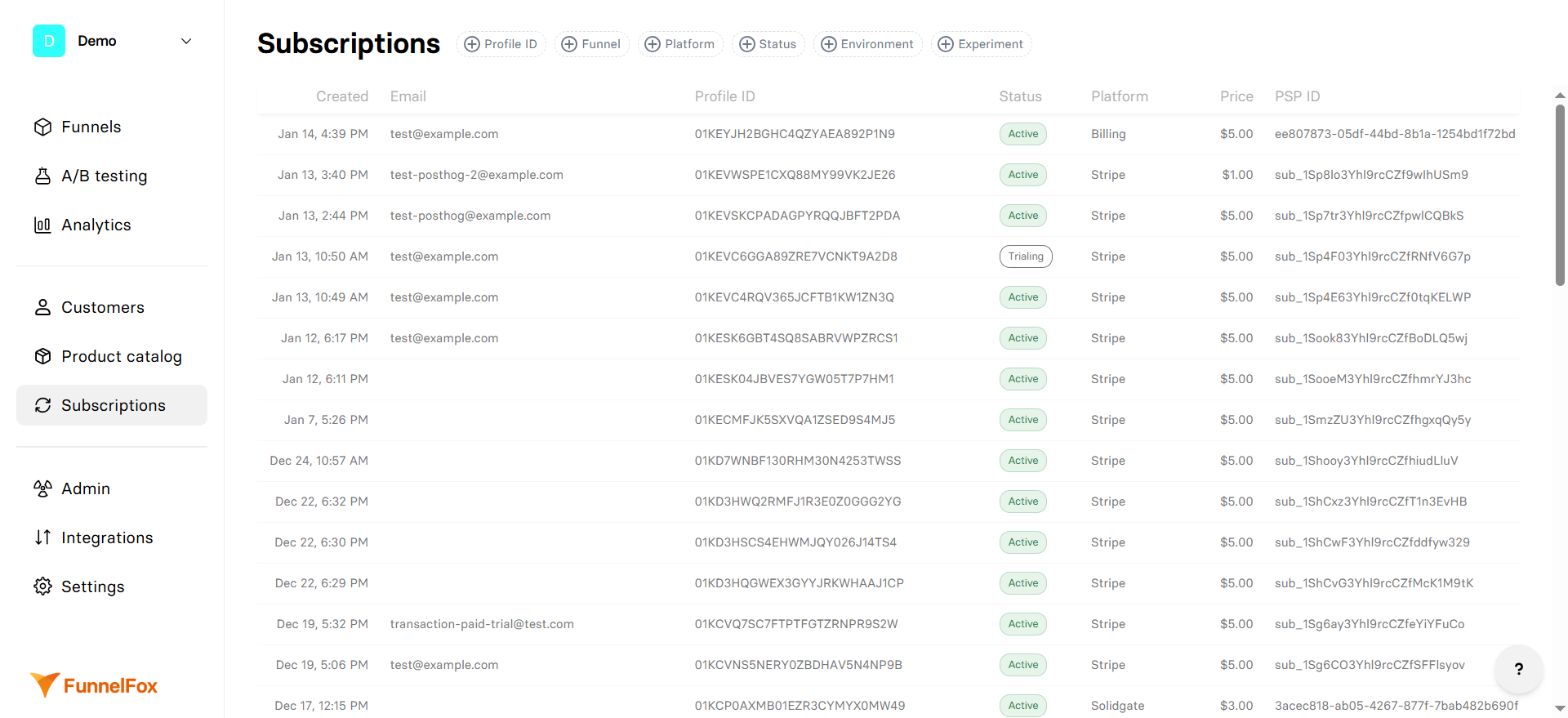
The main subscriptions page displays all subscriptions in a sortable table:
 #### Understanding the Columns
The unique identifier for the customer in FunnelFox. Click to view
the complete customer profile with all their subscriptions and payments.
Current subscription state:
* **Created** - Subscription has just been created
* **Trialing** - Subscription is in a free or paid trial period
* **Active** - Currently billing and in good standing
* **Paused** - Temporarily suspended but can be resumed
* **Cancelled** - Will not renew after current period
* **Unpaid** - Latest invoice wasn’t paid
* **Expired** - Subscription has ended
When the subscription was first created. Useful for tracking
customer lifetime and anniversary dates.
The payment provider handling this subscription (Billing, Stripe,
PayPal, Paddle, etc.)
The recurring amount charged for this subscription. Shows the
regular price, not including any active discounts or trials.
The subscription identifier in the payment provider's system.
Useful when you need to reference the subscription directly
with the PSP's support team.
### Filtering and Search
Use the filter bar to quickly find specific subscriptions:
**Profile ID Filter**: Enter a customer's Profile ID to see all
their subscriptions across different products and PSPs.
You can find the Profile ID in the Customers section or from
your webhook data.
**Funnel Filter**: Select a funnel to see all subscriptions that
originated from it. Perfect for tracking campaign performance.
**Status Filter**: Filter by subscription status to focus on:
* Active subscriptions for revenue tracking
* Cancelled subscriptions for win-back campaigns
* Past due subscriptions for dunning management
**Platform Filter**: View subscriptions from specific payment
providers. Useful when dealing with PSP-specific issues or
reconciling accounts.
**Environment Filter**: Separate test/sandbox subscriptions from
production. Essential during development and testing.
## Subscription Details
Click any subscription to view complete details and management options:
#### Understanding the Columns
The unique identifier for the customer in FunnelFox. Click to view
the complete customer profile with all their subscriptions and payments.
Current subscription state:
* **Created** - Subscription has just been created
* **Trialing** - Subscription is in a free or paid trial period
* **Active** - Currently billing and in good standing
* **Paused** - Temporarily suspended but can be resumed
* **Cancelled** - Will not renew after current period
* **Unpaid** - Latest invoice wasn’t paid
* **Expired** - Subscription has ended
When the subscription was first created. Useful for tracking
customer lifetime and anniversary dates.
The payment provider handling this subscription (Billing, Stripe,
PayPal, Paddle, etc.)
The recurring amount charged for this subscription. Shows the
regular price, not including any active discounts or trials.
The subscription identifier in the payment provider's system.
Useful when you need to reference the subscription directly
with the PSP's support team.
### Filtering and Search
Use the filter bar to quickly find specific subscriptions:
**Profile ID Filter**: Enter a customer's Profile ID to see all
their subscriptions across different products and PSPs.
You can find the Profile ID in the Customers section or from
your webhook data.
**Funnel Filter**: Select a funnel to see all subscriptions that
originated from it. Perfect for tracking campaign performance.
**Status Filter**: Filter by subscription status to focus on:
* Active subscriptions for revenue tracking
* Cancelled subscriptions for win-back campaigns
* Past due subscriptions for dunning management
**Platform Filter**: View subscriptions from specific payment
providers. Useful when dealing with PSP-specific issues or
reconciling accounts.
**Environment Filter**: Separate test/sandbox subscriptions from
production. Essential during development and testing.
## Subscription Details
Click any subscription to view complete details and management options:
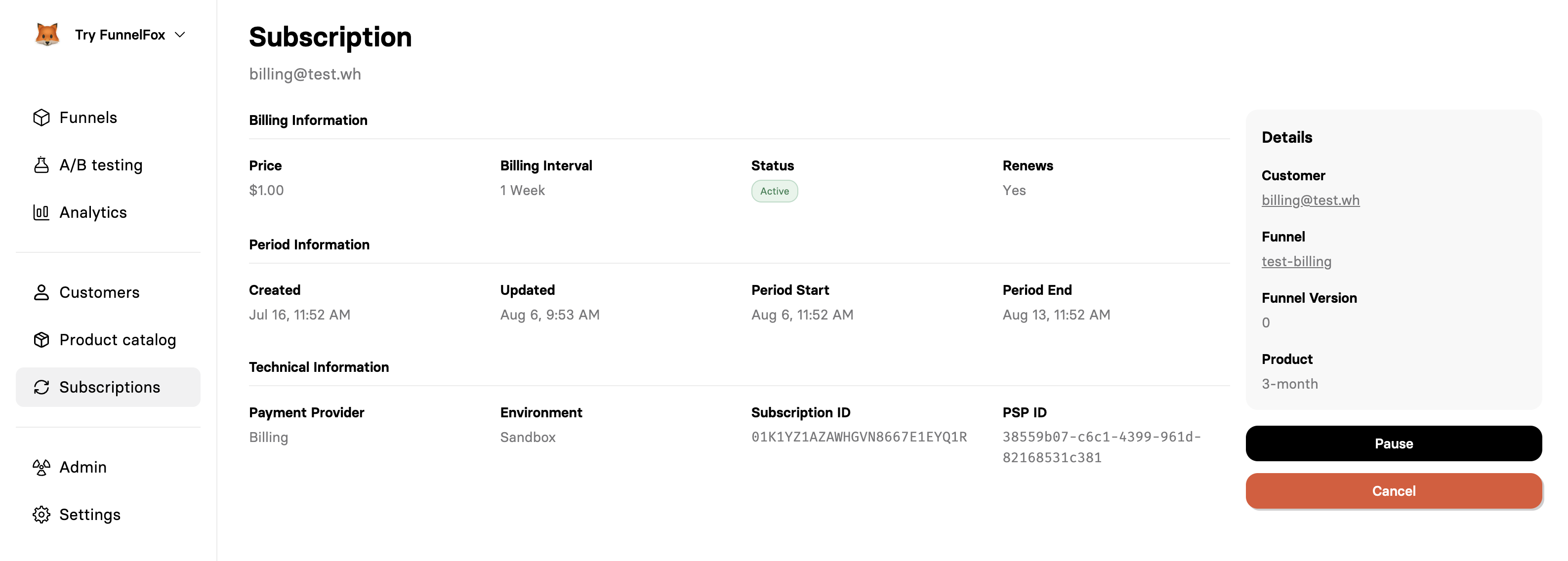 ### Billing Information
The billing section shows current subscription terms:
The amount charged each billing period. For subscriptions with
multiple price points, this shows the current active price.
How often the customer is charged:
* Daily, Weekly, Monthly, Yearly
* Custom intervals (e.g., every 3 months)
Current state with color coding:
* 🟢 **Active** - Billing normally
* 🟡 **Paused** - Temporarily stopped
* 🔴 **Cancelled** - Ending after current period
Whether the subscription will automatically renew. "No" appears
for cancelled subscriptions that will expire.
### Period Information
Track the subscription lifecycle and billing periods:
Original subscription start date. Never changes even if the
subscription is paused or modified.
Last modification timestamp. Updates when status changes,
payment methods update, or prices change.
Beginning of the current billing period. Resets with each
successful payment.
When the current period expires. This is when the next payment
will be attempted (if renewing) or when access ends (if cancelled).
### Technical Information
PSP-specific details for troubleshooting and support:
The PSP managing this subscription. Determines available actions
and management options.
* **Production** - Real customer subscription
* **Sandbox** - Test mode subscription
FunnelFox's internal subscription identifier. Use this when
working with webhooks or the API.
The subscription ID in the payment provider's system. Reference
this when contacting PSP support or viewing in their dashboard.
### Context Sidebar
The right sidebar provides complete context about the subscription:
* **Customer**: Link to full customer profile
* **Funnel**: Which funnel converted this customer
* **Funnel Version**: Specific version for A/B test tracking
* **Experiment**: Which experiment converted this customer
* **Product**: What they're subscribed to (if using FunnelFox Products)
## Managing Subscriptions
FunnelFox lets you manage subscriptions directly without logging into
each PSP's dashboard. Available actions depend on the PSP's capabilities.
### Pausing Subscriptions
Temporarily stop billing while preserving the subscription:
Click on the subscription from the list view to open its details page
Click the black **Pause** button at the bottom of the page
Paused subscriptions can be resumed at any time. Customers are not
charged for the paused period.
**When to pause instead of cancel**: Use pause for temporary situations
like payment issues being resolved, customer vacations, or goodwill
gestures. The subscription remains intact and can easily resume.
### Cancelling Subscriptions
Permanently end a subscription:
Navigate to the specific subscription you need to cancel
Click the red **Cancel** button at the bottom of the page
Cancelling a subscription does not immediately revoke access.
Customers retain access to your product until their current billing
period expires.
**Cancellations are usually permanent**: Most PSPs don't allow
reactivating cancelled subscriptions. The customer would need to
subscribe again as a new subscription.
## Understanding Subscription Lifecycle
Customer completes purchase → PSP creates subscription →
FunnelFox syncs data
Regular billing occurs → Customer has access →
You can pause or modify if needed
Subscription renews automatically OR
Expires if cancelled/payment fails repeatedly
Subscription remains in system for historical data →
Customer can resubscribe with new subscription
## Frequently Asked Questions
Most changes sync within seconds. Webhooks from your PSP trigger
immediate updates. If changes don't appear, verify your webhook
configuration in Settings → Webhooks.
Currently, subscriptions must be managed individually to prevent
accidental mass cancellations. For bulk operations, use your PSP's
dashboard or FunnelFox API.
Paused subscriptions maintain their status without billing. When resumed,
billing continues from the resume date—customers are not charged for
the paused period.
You can create a cancellation funnel where customers can pause, resume,
upgrade, or downgrade their subscriptions themselves.
## Need Help?
* Review the [Products guide](/dashboard/products) for product setup
* Check [Customer management](/dashboard/customers) for customer details
* Read [PSP integration guides](/integrations/index) for provider-specific features
### Billing Information
The billing section shows current subscription terms:
The amount charged each billing period. For subscriptions with
multiple price points, this shows the current active price.
How often the customer is charged:
* Daily, Weekly, Monthly, Yearly
* Custom intervals (e.g., every 3 months)
Current state with color coding:
* 🟢 **Active** - Billing normally
* 🟡 **Paused** - Temporarily stopped
* 🔴 **Cancelled** - Ending after current period
Whether the subscription will automatically renew. "No" appears
for cancelled subscriptions that will expire.
### Period Information
Track the subscription lifecycle and billing periods:
Original subscription start date. Never changes even if the
subscription is paused or modified.
Last modification timestamp. Updates when status changes,
payment methods update, or prices change.
Beginning of the current billing period. Resets with each
successful payment.
When the current period expires. This is when the next payment
will be attempted (if renewing) or when access ends (if cancelled).
### Technical Information
PSP-specific details for troubleshooting and support:
The PSP managing this subscription. Determines available actions
and management options.
* **Production** - Real customer subscription
* **Sandbox** - Test mode subscription
FunnelFox's internal subscription identifier. Use this when
working with webhooks or the API.
The subscription ID in the payment provider's system. Reference
this when contacting PSP support or viewing in their dashboard.
### Context Sidebar
The right sidebar provides complete context about the subscription:
* **Customer**: Link to full customer profile
* **Funnel**: Which funnel converted this customer
* **Funnel Version**: Specific version for A/B test tracking
* **Experiment**: Which experiment converted this customer
* **Product**: What they're subscribed to (if using FunnelFox Products)
## Managing Subscriptions
FunnelFox lets you manage subscriptions directly without logging into
each PSP's dashboard. Available actions depend on the PSP's capabilities.
### Pausing Subscriptions
Temporarily stop billing while preserving the subscription:
Click on the subscription from the list view to open its details page
Click the black **Pause** button at the bottom of the page
Paused subscriptions can be resumed at any time. Customers are not
charged for the paused period.
**When to pause instead of cancel**: Use pause for temporary situations
like payment issues being resolved, customer vacations, or goodwill
gestures. The subscription remains intact and can easily resume.
### Cancelling Subscriptions
Permanently end a subscription:
Navigate to the specific subscription you need to cancel
Click the red **Cancel** button at the bottom of the page
Cancelling a subscription does not immediately revoke access.
Customers retain access to your product until their current billing
period expires.
**Cancellations are usually permanent**: Most PSPs don't allow
reactivating cancelled subscriptions. The customer would need to
subscribe again as a new subscription.
## Understanding Subscription Lifecycle
Customer completes purchase → PSP creates subscription →
FunnelFox syncs data
Regular billing occurs → Customer has access →
You can pause or modify if needed
Subscription renews automatically OR
Expires if cancelled/payment fails repeatedly
Subscription remains in system for historical data →
Customer can resubscribe with new subscription
## Frequently Asked Questions
Most changes sync within seconds. Webhooks from your PSP trigger
immediate updates. If changes don't appear, verify your webhook
configuration in Settings → Webhooks.
Currently, subscriptions must be managed individually to prevent
accidental mass cancellations. For bulk operations, use your PSP's
dashboard or FunnelFox API.
Paused subscriptions maintain their status without billing. When resumed,
billing continues from the resume date—customers are not charged for
the paused period.
You can create a cancellation funnel where customers can pause, resume,
upgrade, or downgrade their subscriptions themselves.
## Need Help?
* Review the [Products guide](/dashboard/products) for product setup
* Check [Customer management](/dashboard/customers) for customer details
* Read [PSP integration guides](/integrations/index) for provider-specific features