> ## Documentation Index
> Fetch the complete documentation index at: https://funnelfox.com/docs/llms.txt
> Use this file to discover all available pages before exploring further.
# Project settings
> Configure FunnelFox project settings: team access, custom domains, webhooks, fonts, API keys, and Apple Pay domain verification.
The [Settings page](https://app.funnelfox.com/settings) is your control
center for project-wide configurations. Every change you make here affects
all funnels in your project, ensuring consistency across your campaigns.
All settings are project-level. If you need different configurations for different funnels create separate projects.
## Quick Navigation
Project identity and branding
User access and permissions
Custom domains and hosting
Real-time events from your funnels
AI token quota and consumption
## General
The [General settings](https://app.funnelfox.com/settings) page lets you
configure your project's basic information and branding.
### Project Information
Your unique project identifier. This is useful for developers working
with multiple projects or using the FunnelFox API.
Your project name (typically your app or brand name). This appears
throughout the dashboard for easy identification but isn't shown
to your funnel visitors.
Your project icon that appears in:
* Dashboard navigation
* Browser tabs when viewing funnels
Use a square icon for best results across
all platforms. FunnelFox resizes your icon to work for different platforms automatically.
## Usage
The [Usage tab](https://app.funnelfox.com/settings/usage) shows
resource usage across your organization for the current month.
Quotas reset on the 1st of each month.
Each organization gets 1,000,000 tokens per month, shared across
all projects. Tokens are consumed by AI context analysis, chat,
and image generation.
Learn more in the [Agentic solution overview](/agentic-solution/overview).
## Team
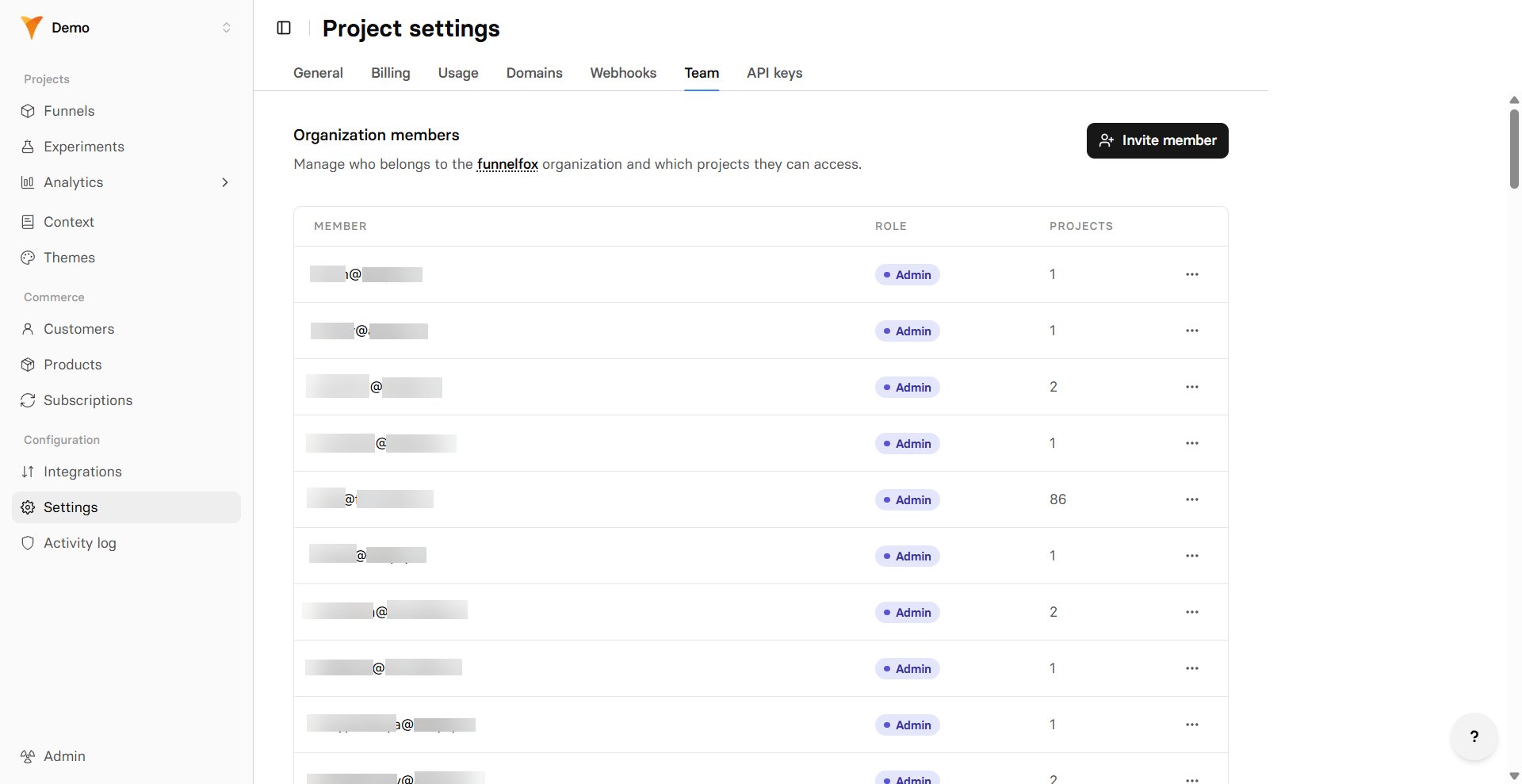
The [Team page](https://app.funnelfox.com/settings/team) controls who can
access your project and what they can do. It lists every member of your
organization, so the people you add here can be given access to this
project and any others in the same organization.
 ### Manage team members
The Team tab shows each member with their email, assigned role, and the
number of projects they can see. From here you can:
* **View members**: See everyone in your organization at a glance.
* **Edit a member**: Click the three-dot menu on the right of a row and
choose **Edit** to change their role, permissions, or project access.
* **Remove a member**: Click the three-dot menu and choose **Remove**.
This removes the person from the whole organization, not just this
project.
* **Add a member**: Click [Invite member](#add-team-members) to bring someone new in.
You can't grant permissions you don't hold yourself. Only an Owner can assign the
Owner role, and you can't edit your own access.
### Team roles
A role is a starting set of permissions. Pick a role to apply its
permissions in one step, then fine-tune individual access rights if you
need to.
| Role | Access |
| ------------- | --------------------------------------------------------------------------------------------------------------------------------- |
| **Owner** | Full access to every project and every permission in the organization. Only an Owner can assign this role. |
| **Admin** | Full access to all features in the project, including team, integrations, and settings. |
| **Designer** | Edits content (funnels, products, and experiments) and views analytics and customers. |
| **Developer** | Manages integrations and views settings, with read-only access to content and analytics. |
| **Viewer** | Read-only access to funnels, products, experiments, analytics, and customers. |
| **Support** | Views and manages customers only. |
| **Custom** | Applied automatically when a member's permissions don't match any role. Build it by adjusting the permission checkboxes directly. |
Each role is made up of individual permissions. You can grant or revoke
any of these when inviting or editing a member.
* **View funnels** / **Edit funnels**: See and change
[funnels](/dashboard/funnels).
* **View products** / **Edit products**: See and change
[products](/dashboard/products).
* **View experiments** / **Edit experiments** : See and change
[experiments](/dashboard/experiments).
* **View analytics** / **Export reports**: Open
[analytics](/dashboard/analytics) and export reports.
* **View customers** / **Manage customers**: See and manage
[customers](/dashboard/customers).
* **View integrations** / **Manage integrations**: See and configure
[integrations](/integrations).
* **View settings** / **Edit settings**: Open and change project
[settings](/dashboard/settings).
* **Invite members** / **Manage members**: [Invite new members](/dashboard/settings#add-team-members) and edit
or remove existing ones from this Team tab.
* **View billing** / **Manage billing**: See and manage billing for the
organization.
* **Create projects** / **Archive projects**: Create new projects and
archive existing ones.
* **View audit log**: Open the [activity log](/dashboard/activity-log).
### Add team members
On the [Settings > Team](https://app.funnelfox.com/settings/team) page, click
**Invite member**.
Add the email address of the person you want to invite.
Pick one of the [team roles](#team-roles) to apply its permissions as a
starting point.
Adjust the individual permissions if the member needs more or less
access than the role provides. When the permissions no longer match the
role, it's labeled **Custom**.
Choose which projects the member can see. Owners always see every
project in the organization.
## Domains
The [Domains page](https://app.funnelfox.com/settings/domains) controls
where your funnels are hosted. You can use FunnelFox subdomains, add a
custom domain, or use both simultaneously.
### How Domains Work
**Important**: When you add a custom domain, both domains remain active
Your funnels will be accessible at both:
* `your-project.fnlfx.com/funnel-name` (FunnelFox subdomain)
* `get.yourbrand.com/funnel-name` (your custom domain)
This gives you flexibility to use different domains for different
campaigns while maintaining all your existing links.
### Domain Options
**Always available**: Your project automatically gets a subdomain like
`your-project.fnlfx.com`. This is perfect for:
* Quick testing and development
* Smaller campaign testing
* Backup access if custom domain has issues
Your funnels will be accessible at:
`your-project.fnlfx.com/funnel-name`
This subdomain remains active even after adding a custom domain,
so existing links will continue to work.
Each custom domain can be connected to only one project.
**Professional option**: Add your own domain like `get.yourbrand.com`
for better branding and trust. Benefits include:
* Consistent brand experience
* Higher trust from visitors
* Harder to track in ad libraries
Only third-level domains are supported (like `get.yourbrand.com`).
You cannot use root domains (`yourbrand.com`) or second-level
domains (`www.yourbrand.com`).
Adding a custom domain doesn't disable your FunnelFox subdomain.
Both will work simultaneously, giving you maximum flexibility.
### Setting Up a Custom Domain
Let's configure `quiz.mysite.com` as an example:
Log into your domain registrar or DNS provider:
* [Cloudflare DNS](https://dash.cloudflare.com/dns/records)
* [GoDaddy DNS](https://dcc.godaddy.com/domains/)
* [Namecheap DNS](https://www.namecheap.com/domains/)
Add a new DNS record with these settings:
| Field | Value |
| ------ | ------------------------------- |
| Type | CNAME |
| Name | quiz (or your chosen subdomain) |
| Target | cname.fnlfx.com |
| TTL | Auto or 3600 |
DNS changes can take up to 48 hours to propagate globally,
though it's usually much faster (5-30 minutes).
Each custom domain can be connected to only one project.
1. Go to [Settings → Domains](https://app.funnelfox.com/settings/domains)
2. Enter your full domain (`quiz.mysite.com`) in **Custom domain**
3. Click **Save** to activate
FunnelFox will automatically provision SSL certificates and
configure your domain for secure access.
### Apple Pay Domain Verification
If you're using Apple Pay through your payment processor:
Select the PSP merchant certificate to host on your domain.
This is required for Apple Pay to work with your custom domain.
## Webhooks
The [Webhooks page](https://app.funnelfox.com/settings/webhooks) lets you
receive real-time events from your funnels to your backend systems.
### Webhook Endpoints
Endpoint for receiving events from preview/test funnels.
Use this for development and testing without affecting production data.
Endpoint for receiving events from live, published funnels.
This should point to your production backend systems.
Keep preview and production webhooks separate to avoid mixing test
data with real customer events. Learn more in our
[webhooks guide](/develop/webhooks).
## Fonts
The [Fonts page](https://app.funnelfox.com/settings/fonts) lets you
upload and manage custom fonts for your funnels, ensuring brand
consistency across all your campaigns.
### Supported Formats
* **WOFF/WOFF2** (recommended for web performance)
* **TTF/OTF** (standard font formats)
* **Variable fonts** for advanced typography control
Custom fonts are automatically optimized and served through our
global CDN for fast loading times worldwide.
## API Keys
The [API Keys page](https://app.funnelfox.com/settings/api) provides
access credentials for programmatic access to your FunnelFox project.
Learn more about using the FunnelFox API in our
[developer guide](/develop/api).
## Frequently Asked Questions
No, all settings apply project-wide to ensure consistency. If you
need different configurations (like separate payment providers or
tracking codes), create separate projects for each configuration.
Yes, but be careful — changing your subdomain will break all existing
funnel links. Only do this if you haven't launched any campaigns yet.
### Manage team members
The Team tab shows each member with their email, assigned role, and the
number of projects they can see. From here you can:
* **View members**: See everyone in your organization at a glance.
* **Edit a member**: Click the three-dot menu on the right of a row and
choose **Edit** to change their role, permissions, or project access.
* **Remove a member**: Click the three-dot menu and choose **Remove**.
This removes the person from the whole organization, not just this
project.
* **Add a member**: Click [Invite member](#add-team-members) to bring someone new in.
You can't grant permissions you don't hold yourself. Only an Owner can assign the
Owner role, and you can't edit your own access.
### Team roles
A role is a starting set of permissions. Pick a role to apply its
permissions in one step, then fine-tune individual access rights if you
need to.
| Role | Access |
| ------------- | --------------------------------------------------------------------------------------------------------------------------------- |
| **Owner** | Full access to every project and every permission in the organization. Only an Owner can assign this role. |
| **Admin** | Full access to all features in the project, including team, integrations, and settings. |
| **Designer** | Edits content (funnels, products, and experiments) and views analytics and customers. |
| **Developer** | Manages integrations and views settings, with read-only access to content and analytics. |
| **Viewer** | Read-only access to funnels, products, experiments, analytics, and customers. |
| **Support** | Views and manages customers only. |
| **Custom** | Applied automatically when a member's permissions don't match any role. Build it by adjusting the permission checkboxes directly. |
Each role is made up of individual permissions. You can grant or revoke
any of these when inviting or editing a member.
* **View funnels** / **Edit funnels**: See and change
[funnels](/dashboard/funnels).
* **View products** / **Edit products**: See and change
[products](/dashboard/products).
* **View experiments** / **Edit experiments** : See and change
[experiments](/dashboard/experiments).
* **View analytics** / **Export reports**: Open
[analytics](/dashboard/analytics) and export reports.
* **View customers** / **Manage customers**: See and manage
[customers](/dashboard/customers).
* **View integrations** / **Manage integrations**: See and configure
[integrations](/integrations).
* **View settings** / **Edit settings**: Open and change project
[settings](/dashboard/settings).
* **Invite members** / **Manage members**: [Invite new members](/dashboard/settings#add-team-members) and edit
or remove existing ones from this Team tab.
* **View billing** / **Manage billing**: See and manage billing for the
organization.
* **Create projects** / **Archive projects**: Create new projects and
archive existing ones.
* **View audit log**: Open the [activity log](/dashboard/activity-log).
### Add team members
On the [Settings > Team](https://app.funnelfox.com/settings/team) page, click
**Invite member**.
Add the email address of the person you want to invite.
Pick one of the [team roles](#team-roles) to apply its permissions as a
starting point.
Adjust the individual permissions if the member needs more or less
access than the role provides. When the permissions no longer match the
role, it's labeled **Custom**.
Choose which projects the member can see. Owners always see every
project in the organization.
## Domains
The [Domains page](https://app.funnelfox.com/settings/domains) controls
where your funnels are hosted. You can use FunnelFox subdomains, add a
custom domain, or use both simultaneously.
### How Domains Work
**Important**: When you add a custom domain, both domains remain active
Your funnels will be accessible at both:
* `your-project.fnlfx.com/funnel-name` (FunnelFox subdomain)
* `get.yourbrand.com/funnel-name` (your custom domain)
This gives you flexibility to use different domains for different
campaigns while maintaining all your existing links.
### Domain Options
**Always available**: Your project automatically gets a subdomain like
`your-project.fnlfx.com`. This is perfect for:
* Quick testing and development
* Smaller campaign testing
* Backup access if custom domain has issues
Your funnels will be accessible at:
`your-project.fnlfx.com/funnel-name`
This subdomain remains active even after adding a custom domain,
so existing links will continue to work.
Each custom domain can be connected to only one project.
**Professional option**: Add your own domain like `get.yourbrand.com`
for better branding and trust. Benefits include:
* Consistent brand experience
* Higher trust from visitors
* Harder to track in ad libraries
Only third-level domains are supported (like `get.yourbrand.com`).
You cannot use root domains (`yourbrand.com`) or second-level
domains (`www.yourbrand.com`).
Adding a custom domain doesn't disable your FunnelFox subdomain.
Both will work simultaneously, giving you maximum flexibility.
### Setting Up a Custom Domain
Let's configure `quiz.mysite.com` as an example:
Log into your domain registrar or DNS provider:
* [Cloudflare DNS](https://dash.cloudflare.com/dns/records)
* [GoDaddy DNS](https://dcc.godaddy.com/domains/)
* [Namecheap DNS](https://www.namecheap.com/domains/)
Add a new DNS record with these settings:
| Field | Value |
| ------ | ------------------------------- |
| Type | CNAME |
| Name | quiz (or your chosen subdomain) |
| Target | cname.fnlfx.com |
| TTL | Auto or 3600 |
DNS changes can take up to 48 hours to propagate globally,
though it's usually much faster (5-30 minutes).
Each custom domain can be connected to only one project.
1. Go to [Settings → Domains](https://app.funnelfox.com/settings/domains)
2. Enter your full domain (`quiz.mysite.com`) in **Custom domain**
3. Click **Save** to activate
FunnelFox will automatically provision SSL certificates and
configure your domain for secure access.
### Apple Pay Domain Verification
If you're using Apple Pay through your payment processor:
Select the PSP merchant certificate to host on your domain.
This is required for Apple Pay to work with your custom domain.
## Webhooks
The [Webhooks page](https://app.funnelfox.com/settings/webhooks) lets you
receive real-time events from your funnels to your backend systems.
### Webhook Endpoints
Endpoint for receiving events from preview/test funnels.
Use this for development and testing without affecting production data.
Endpoint for receiving events from live, published funnels.
This should point to your production backend systems.
Keep preview and production webhooks separate to avoid mixing test
data with real customer events. Learn more in our
[webhooks guide](/develop/webhooks).
## Fonts
The [Fonts page](https://app.funnelfox.com/settings/fonts) lets you
upload and manage custom fonts for your funnels, ensuring brand
consistency across all your campaigns.
### Supported Formats
* **WOFF/WOFF2** (recommended for web performance)
* **TTF/OTF** (standard font formats)
* **Variable fonts** for advanced typography control
Custom fonts are automatically optimized and served through our
global CDN for fast loading times worldwide.
## API Keys
The [API Keys page](https://app.funnelfox.com/settings/api) provides
access credentials for programmatic access to your FunnelFox project.
Learn more about using the FunnelFox API in our
[developer guide](/develop/api).
## Frequently Asked Questions
No, all settings apply project-wide to ensure consistency. If you
need different configurations (like separate payment providers or
tracking codes), create separate projects for each configuration.
Yes, but be careful — changing your subdomain will break all existing
funnel links. Only do this if you haven't launched any campaigns yet.