> ## Documentation Index
> Fetch the complete documentation index at: https://funnelfox.com/docs/llms.txt
> Use this file to discover all available pages before exploring further.
# Funnel management dashboard
> Create, edit, publish, and manage web funnels in FunnelFox. Set up acquisition and cancellation funnels in Editor.
The [Funnels page](https://app.funnelfox.com/funnels) is where you create
and manage all your marketing funnels and cancellation funnels. Build
everything from simple landing pages to complex multi-step sales funnels
in the Editor, by prompt with AI Chat in Editor or manually on the
canvas.
## How funnels work
FunnelFox funnels are **statically built** for maximum reliability and speed.
Once you publish a funnel, it becomes immutable — a snapshot that will work
exactly the same way forever.
Because funnels are static, you must republish after changing project
settings, products, pixels, or integrations for those changes to take effect
in your funnels.
If your funnel works during testing, it will work identically in
production. No surprise breaks from platform updates.
Static funnels load instantly with no server processing. Your visitors
get the best possible experience.
Each published version is permanent. Test new changes without affecting
live traffic until you're ready.
Changes to project settings or integrations only apply when you
republish. You control exactly when updates go live.
## Funnel List
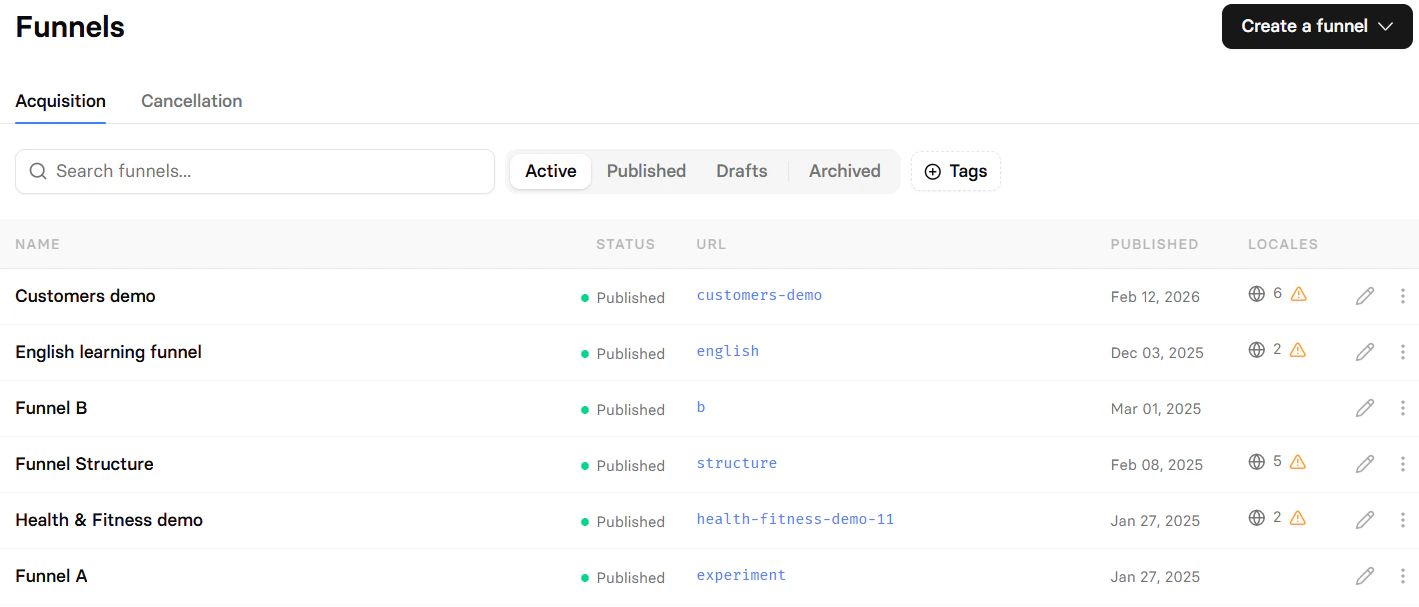
The [Funnels page](https://app.funnelfox.com/funnels) has two tabs: **Acquisition** and **Cancellation**. Both funnel types use the same Editor and features but serve different purposes in your customer journey.
You can quickly search funnels by their name, URL, or ID.
The default tab showing all your marketing and sales funnels. These
attract new customers and generate revenue through your
offers, products, and services.
 Special funnels triggered when customers try to cancel subscriptions.
Use these to offer alternatives like pauses, downgrades, or discounts
to retain customers who might otherwise leave.
Learn about [cancellation funnels](/dashboard/funnels#cancellation-funnels).
Special funnels triggered when customers try to cancel subscriptions.
Use these to offer alternatives like pauses, downgrades, or discounts
to retain customers who might otherwise leave.
Learn about [cancellation funnels](/dashboard/funnels#cancellation-funnels).
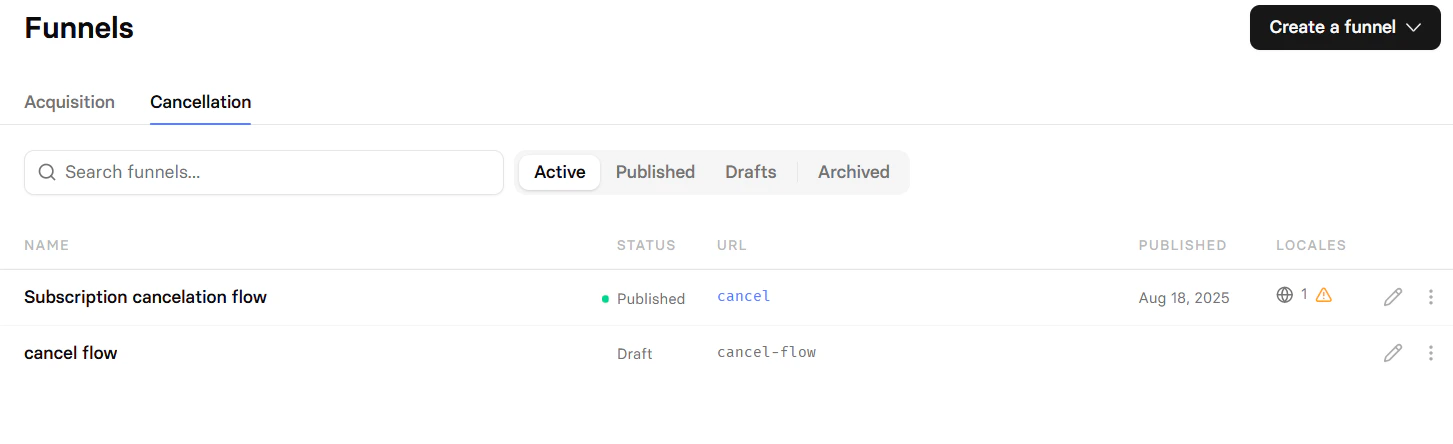 Both tabs display your funnels with key information:
Your internal funnel name. By default, this appears in browser tabs when visitors
view your funnel. You can override it in the Editor.
The name column also shows funnel tags you can use for filtering your Funnels list. Apply tags from the [funnel page](/dashboard/funnels).
Current funnel state:
* **Draft**: Still editing, not publicly accessible.
* **Published**: Live and receiving traffic.
The URL path where your funnel lives. For example, the slug "offer" creates
`your-project.fnlfx.com/offer`. Must be unique within your project.
When the funnel was last published.
The number of [locales](/editor/localizations) configured for this funnel. A red indicator means missing translation keys for that locale — usually caused by editing the default locale. To fix this, open the funnel page and click **Translate with AI**.
Edit your funnel right away or click the **three dots** to the right to access more actions:
* **Analytics**: Open analytics for this funnel.
* **Design**: Open in the Editor.
* **Duplicate**: Create a copy with a new slug.
* **Settings**: Open the funnel settings page to rename, edit the slug, archive, or tag the funnel.
* **Archive**: [Remove](/dashboard/funnels#archive-funnel) the funnel from your Funnels list and make both its preview and public URLs unavailable.
### Funnel page
To view detailed information about a specific funnel, either:
* Click the 🌐︎ locales icon in your [Funnels list](https://app.funnelfox.com/funnels) (if you have any locales).
* Hover over the 🌐︎ globe icon at the top of the Editor and click **Manage locales**.
* Click the three dots to the right of the funnel and select **Settings**.
Both tabs display your funnels with key information:
Your internal funnel name. By default, this appears in browser tabs when visitors
view your funnel. You can override it in the Editor.
The name column also shows funnel tags you can use for filtering your Funnels list. Apply tags from the [funnel page](/dashboard/funnels).
Current funnel state:
* **Draft**: Still editing, not publicly accessible.
* **Published**: Live and receiving traffic.
The URL path where your funnel lives. For example, the slug "offer" creates
`your-project.fnlfx.com/offer`. Must be unique within your project.
When the funnel was last published.
The number of [locales](/editor/localizations) configured for this funnel. A red indicator means missing translation keys for that locale — usually caused by editing the default locale. To fix this, open the funnel page and click **Translate with AI**.
Edit your funnel right away or click the **three dots** to the right to access more actions:
* **Analytics**: Open analytics for this funnel.
* **Design**: Open in the Editor.
* **Duplicate**: Create a copy with a new slug.
* **Settings**: Open the funnel settings page to rename, edit the slug, archive, or tag the funnel.
* **Archive**: [Remove](/dashboard/funnels#archive-funnel) the funnel from your Funnels list and make both its preview and public URLs unavailable.
### Funnel page
To view detailed information about a specific funnel, either:
* Click the 🌐︎ locales icon in your [Funnels list](https://app.funnelfox.com/funnels) (if you have any locales).
* Hover over the 🌐︎ globe icon at the top of the Editor and click **Manage locales**.
* Click the three dots to the right of the funnel and select **Settings**.
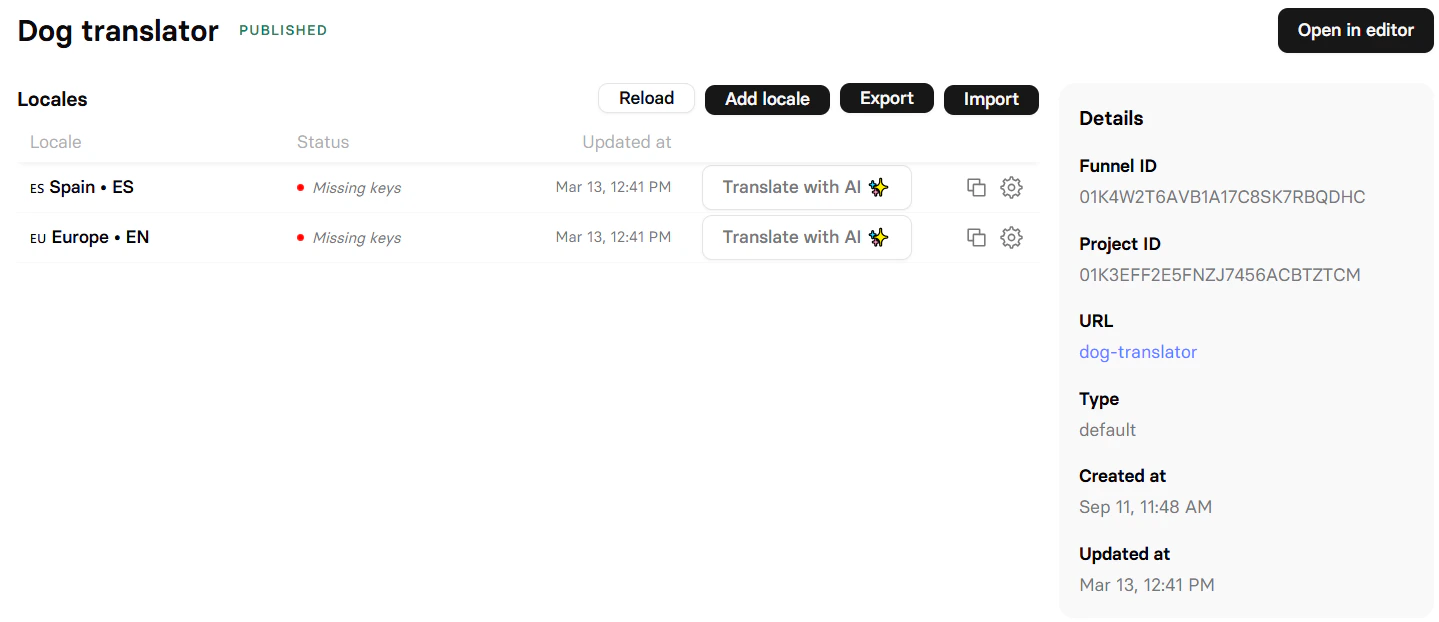
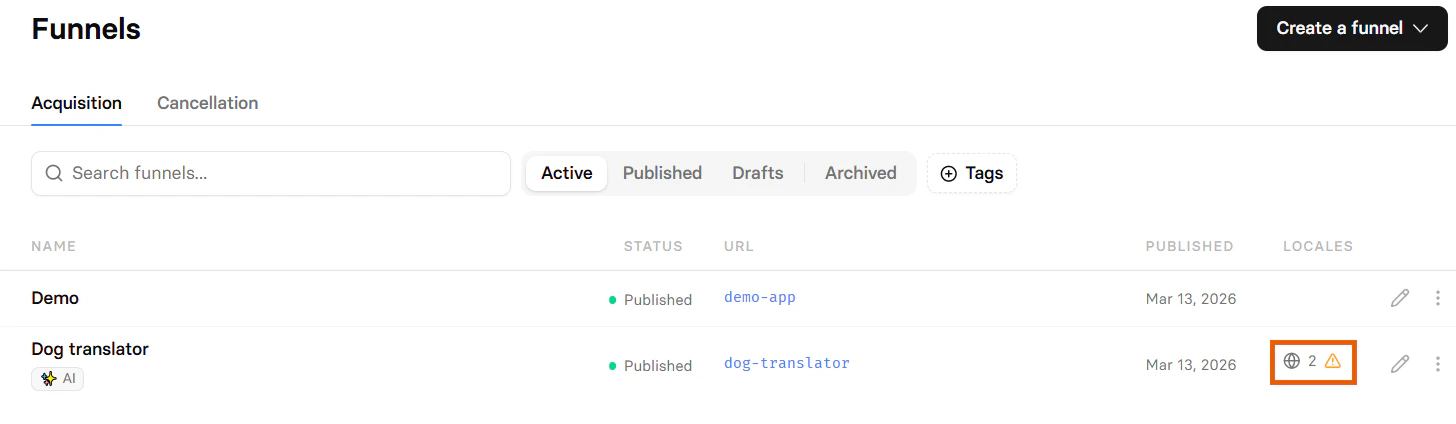 From the funnel page, you can:
* View and [manage locales](/editor/localizations#manage-locales).
* Check locale status for missing translation keys that need updating with **Translate with AI**.
* View funnel details like Funnel ID, Project ID, URL, Type, and creation or update dates.
* Apply funnel tags used for filtering your funnels list.
From the funnel page, you can:
* View and [manage locales](/editor/localizations#manage-locales).
* Check locale status for missing translation keys that need updating with **Translate with AI**.
* View funnel details like Funnel ID, Project ID, URL, Type, and creation or update dates.
* Apply funnel tags used for filtering your funnels list.
 ## Create funnel
The funnel type you create depends on which tab you start from: **Acquisition** or **Cancellation**.
Go to the **Funnels** page and click **Create a funnel**.
Select how you want to build:
AI Chat in Editor composes a complete, on-brand funnel from
scratch. Structure, pricing, and onboarding flow are
chosen from market benchmarks for your niche, not guessed from
a template.
Before you start, describe your app or paste an App Store,
Google Play, or website link in the
[Project context](/agentic-solution/overview#project-context)
so the agent has something to ground its generation on.
Learn more about
[generating funnels from scratch](/agentic-solution/overview#generate-funnels-from-scratch).
Start with a blank canvas, just one empty screen. Build your
funnel manually in the Editor with full control over every
screen, element, and interaction. You can still prompt
[AI Chat in Editor](/agentic-solution/overview#ai-chat-in-editor)
at any point to edit elements, screens, or the whole funnel.
Click the three dots to the right of the funnel
on the [Funnels page](https://app.funnelfox.com/funnels) and select
**Settings**:
* **Name**: Internal name for your reference.
* **Alias**: URL path (e.g., "special-offer").
* **Tags**: Optional labels for filtering your Funnels list.
## Edit funnel
Click any funnel in your [Funnels list](https://app.funnelfox.com/funnels)
to open the Editor.
The fastest way to edit is by prompting
[AI Chat in Editor](/agentic-solution/overview#ai-chat-in-editor).
Select an element, a screen, or nothing (to target the whole funnel),
describe the change in plain English, and the agent applies it
directly on the canvas.
You can also edit screens, elements,
actions, and conditions manually right on the canvas.
Learn more about the [Editor](/editor/overview).
Remember to republish your funnel after editing to apply changes to the live version.
## Create funnel
The funnel type you create depends on which tab you start from: **Acquisition** or **Cancellation**.
Go to the **Funnels** page and click **Create a funnel**.
Select how you want to build:
AI Chat in Editor composes a complete, on-brand funnel from
scratch. Structure, pricing, and onboarding flow are
chosen from market benchmarks for your niche, not guessed from
a template.
Before you start, describe your app or paste an App Store,
Google Play, or website link in the
[Project context](/agentic-solution/overview#project-context)
so the agent has something to ground its generation on.
Learn more about
[generating funnels from scratch](/agentic-solution/overview#generate-funnels-from-scratch).
Start with a blank canvas, just one empty screen. Build your
funnel manually in the Editor with full control over every
screen, element, and interaction. You can still prompt
[AI Chat in Editor](/agentic-solution/overview#ai-chat-in-editor)
at any point to edit elements, screens, or the whole funnel.
Click the three dots to the right of the funnel
on the [Funnels page](https://app.funnelfox.com/funnels) and select
**Settings**:
* **Name**: Internal name for your reference.
* **Alias**: URL path (e.g., "special-offer").
* **Tags**: Optional labels for filtering your Funnels list.
## Edit funnel
Click any funnel in your [Funnels list](https://app.funnelfox.com/funnels)
to open the Editor.
The fastest way to edit is by prompting
[AI Chat in Editor](/agentic-solution/overview#ai-chat-in-editor).
Select an element, a screen, or nothing (to target the whole funnel),
describe the change in plain English, and the agent applies it
directly on the canvas.
You can also edit screens, elements,
actions, and conditions manually right on the canvas.
Learn more about the [Editor](/editor/overview).
Remember to republish your funnel after editing to apply changes to the live version.
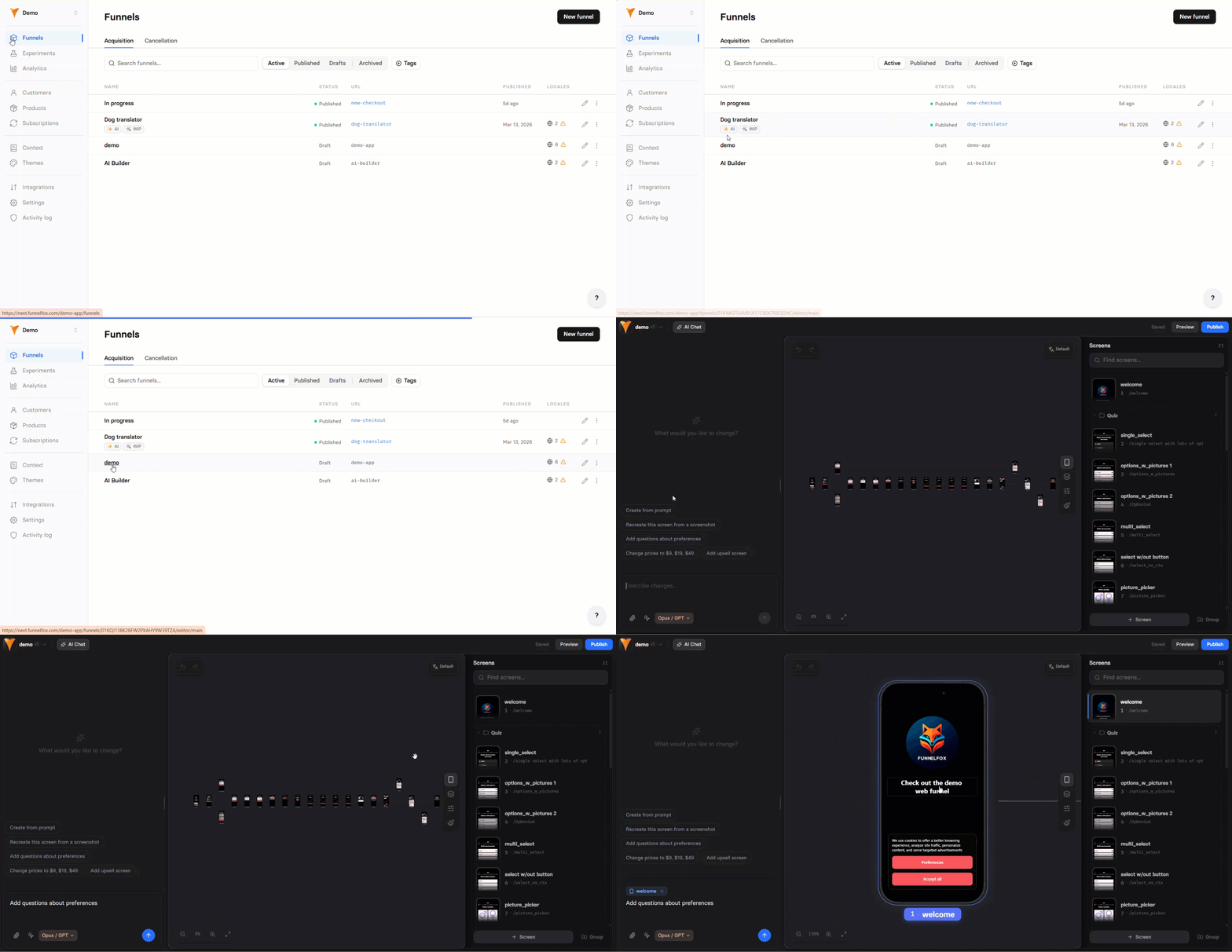 ## Publish funnel
Publishing makes your funnel live and accessible to visitors. Draft funnels
remain private until published. You can edit published funnels and republish
them — this creates a new version that immediately replaces the previous one.
Learn more about [publishing funnels](/editor/publishing).
Publishing is immediate and replaces any existing funnel at that URL.
Test thoroughly before publishing to production URLs.
## Cancellation funnels
Cancellation funnels help retain customers who want to cancel their
subscriptions. Instead of losing them completely, offer alternatives
that address their concerns.
## Publish funnel
Publishing makes your funnel live and accessible to visitors. Draft funnels
remain private until published. You can edit published funnels and republish
them — this creates a new version that immediately replaces the previous one.
Learn more about [publishing funnels](/editor/publishing).
Publishing is immediate and replaces any existing funnel at that URL.
Test thoroughly before publishing to production URLs.
## Cancellation funnels
Cancellation funnels help retain customers who want to cancel their
subscriptions. Instead of losing them completely, offer alternatives
that address their concerns.
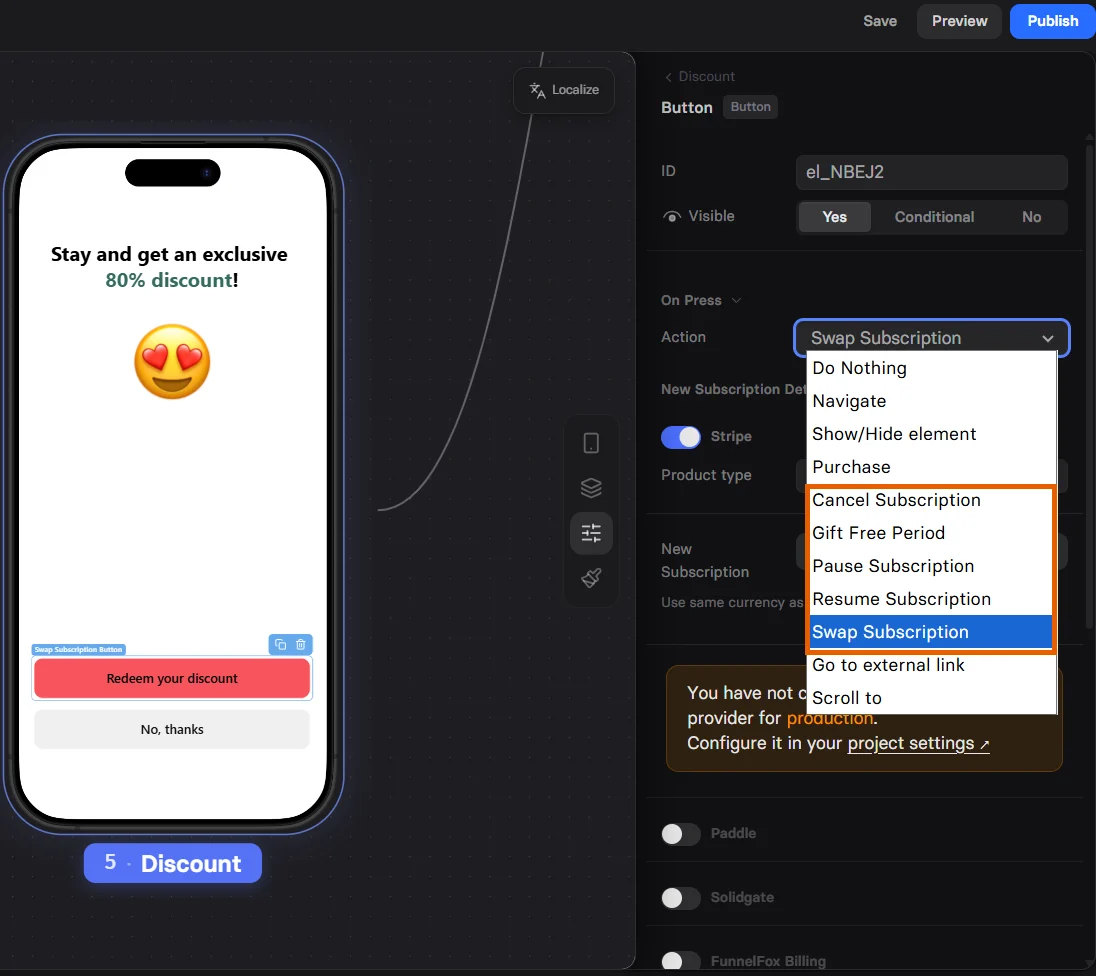
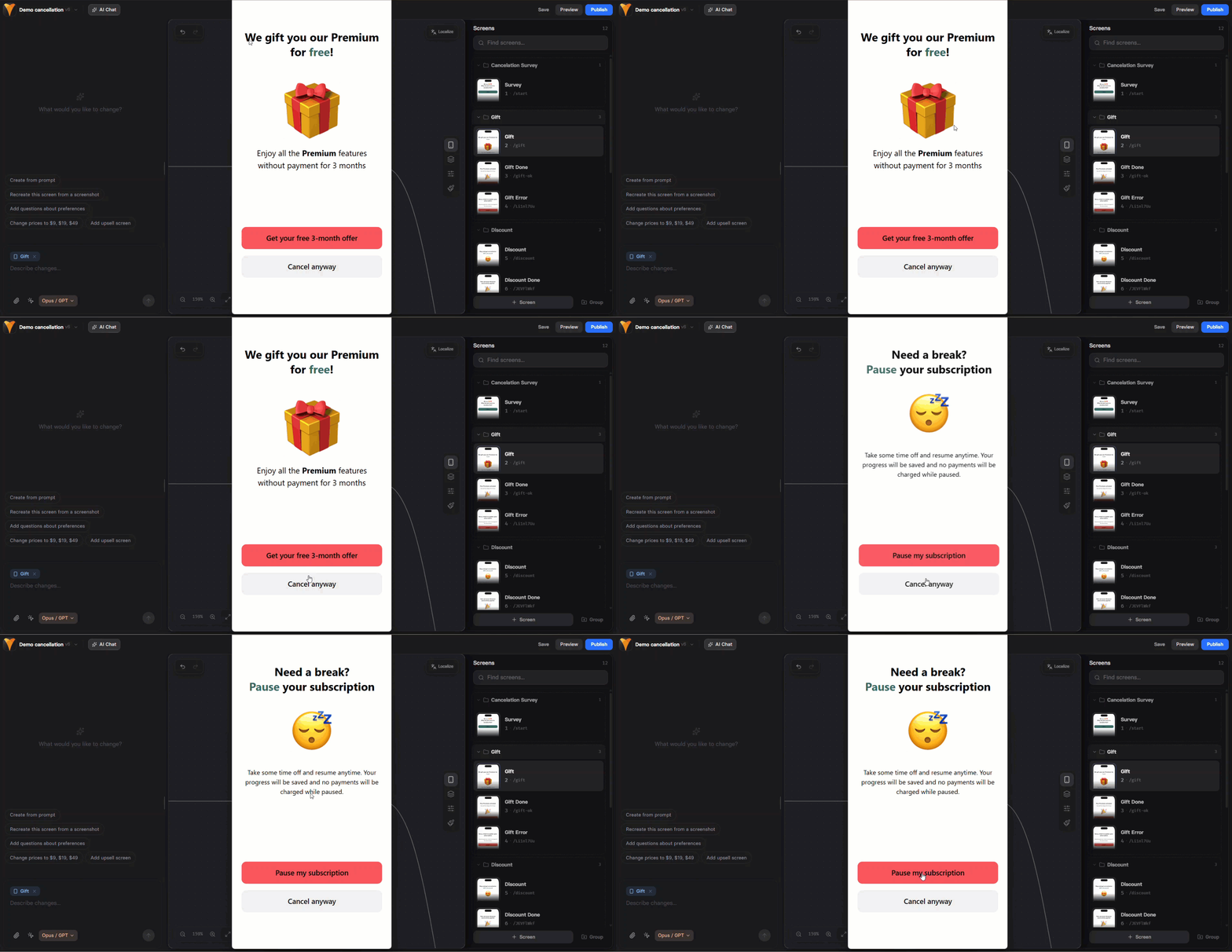 Cancellation funnels are [created](/dashboard/funnels#create-funnel) the same way as acquisition funnels, but they include additional cancellation actions:
* **Swap subscription**: Offer a discounted alternative instead of complete cancellation. Learn about [subscription swap flow](/dashboard/funnels#subscription-swap).
* **Gift free period**: Select a period to extend their current billing cycle for free. This gives you time to demonstrate value before the next charge.
* **Pause subscription**: Temporarily suspend access and stop billing while maintaining the customer relationship.
* **Cancel subscription**: If retention fails, process the cancellation gracefully.
* **Resume subscription**: Paused subscriptions can be resumed at any time.
Learn more about [actions](/editor/actions).
Cancellation funnels are [created](/dashboard/funnels#create-funnel) the same way as acquisition funnels, but they include additional cancellation actions:
* **Swap subscription**: Offer a discounted alternative instead of complete cancellation. Learn about [subscription swap flow](/dashboard/funnels#subscription-swap).
* **Gift free period**: Select a period to extend their current billing cycle for free. This gives you time to demonstrate value before the next charge.
* **Pause subscription**: Temporarily suspend access and stop billing while maintaining the customer relationship.
* **Cancel subscription**: If retention fails, process the cancellation gracefully.
* **Resume subscription**: Paused subscriptions can be resumed at any time.
Learn more about [actions](/editor/actions).
 ### How cancellation funnels work
Cancellation funnels work with Stripe, Paddle, Solidgate, and FunnelFox Billing subscriptions only. You can configure how the payment provider processes subscription swaps or cancellations directly in the Editor when editing actions.
When a customer enters the funnel with their [profile ID](/dashboard/funnels#customer-access-link), FunnelFox loads their subscriptions across all [organization projects](/getting-started/concepts#core-concepts) and uses the payment provider from their original purchase.
When the customer takes an action, the payment provider applies your configuration to the most recently purchased active or trialing subscription and syncs with the PSP. For example, pausing a Stripe subscription immediately appears in:
* In [subscription status](/dashboard/subscriptions#param-status) on the FunnelFox [Subscriptions page](https://app.funnelfox.com/subscriptions).
* In [subscription status](https://docs.stripe.com/billing/subscriptions/overview#subscription-statuses) on Stripe Dashboard.
Cancellation funnels aren’t personalized by product and always affect the most recent active or trialing subscription across all organization projects.
* A funnel offering 1 free week gives the same gift period to everyone (e.g., 1-year and 1-week plans).
* If a customer has multiple active or trialing subscriptions, only the last purchased subscription may be modified.
### Subscription swap
If you’d like to offer customers a discounted alternative instead of a full cancellation, you can configure a subscription swap.
Because payment providers handle this differently, the resulting flow depends on which provider you use:
When customer activates a discount (swaps subscription):
Their current subscription keeps running until the end of the current billing period (or trial, if they’re trialing).
Stripe cancels the current subscription automatically at that time.
As soon as the old one ends, Stripe activates the new subscription (or starts the new plan’s trial, if it has one).
The customer is charged for the new plan when it becomes active.
If the new plan includes a paid trial, Stripe charges the trial payment at the moment of the swap (even though the plan/trial starts at period end).
For example:
* Current paid period: September 1–30, `$20/month`.
* Subscription swap: September 23.
* Monthly price of new plan: `$10`.
Result:
* Sep 23 - Sep 30: the customer stays on the `$20/month` subscription (no change, no interruption).
* On Oct 1:
* The `$20/month` subscription is canceled.
* The `$10/month` subscription becomes active.
* The customer is billed `$10`.
If the new plan includes a paid trial: the customer would pay the trial amount on Sep 23, and the new plan/trial would still begin on Oct 1 (right after the current period ends).
When a customer activates a discount (swaps subscription):
Their current subscription keeps running until the end of the current billing period (or trial, if they’re trialing).
Paddle cancels the current subscription automatically at that time.
As soon as the old one ends, Paddle activates the new subscription (or starts the new plan’s trial, if it has one).
For example:
* Current paid period: September 1–30.
* Subscription swap: September 10.
* Monthly price of new plan: `$10`.
Result:
* Sep 10 - Sep 30: the customer stays on the current subscription (no change, no interruption).
* On Oct 1:
* The current subscription is canceled.
* The new subscription begins billing from that date.
If the customer is trialing: the current trial continues until it ends, then the current subscription is canceled and the new subscription begins billing from that date.
Subscription swap isn't supported while a subscription is paused. Consider resuming it first.
When a customer activates a discount (swaps subscription):
The most recent active subscription remains active until the end of the current paid period or trial, if applicable.
At the end of that period, the subscription is canceled.
The new subscription is activated immediately after the previous one is canceled.
The new subscription trial period, if any, is not applied. We recommend swapping to subscriptions without trial periods.
For example:
* Current paid period: September 1-30, 2025.
* Subscription swap: September 10, 2025.
* Result: The original subscription stays active through September 30, 2025. It cancels at period end, and the new subscription activates on October 1, 2025, with the first payment on October 1, 2025.
When a user activates a discount (swaps subscription):
The most recent active subscription is canceled immediately.
A new subscription is activated the same moment.
The user receives a free trial equal to the remaining paid time of the canceled subscription (if any).
For example:
* Current paid period: September 1-30, 2025.
* Subscription swap: September 10, 2025.
* Result: the original subscription cancels on September 10. A new subscription starts right away with a free trial through September 30, 2025. The first payment on the new plan occurs on October 1, 2025.
### Cancel subscription
Cancellation behavior is consistent for Stripe and Paddle, but differs slightly for Solidgate cancellation funnels.
Any canceled subscription runs until the end of the current paid period.
Solidgate behaves differently when canceling active or paused subscriptions:
* **Active**: Subscription runs until the end of the current paid period.
* **Paused**: Subscription is immediately canceled. If you want cancellation to happen after the paid period expires, resume the subscription first, then cancel.
### Customer access link
To access a cancellation funnel, the customer must be identified. FunnelFox directs customers into a specific cancellation flow when you pass their profile ID (fpid) as a query parameter:
```
https://your-project.fnlfx.com/cancel?fpid=PROFILE_ID
```
You can find a customer's profile ID in the following ways:
* **[Customers page](https://app.funnelfox.com/customers)** - Listed in the **ID** column of the customers list
* **Webhook events** - Sent as `profile.id`
* **Subscription integrations** - User attributes, such as [Profile ID in Adapty](https://adapty.io/docs/profiles-crm#user-attributes)
* **FunnelFox API** - Use the [Get profile](https://funnelfox.com/docs/api-reference/get-profile) endpoint
Use preview mode to test cancellation funnels without
affecting real subscriptions. Preview mode won't modify actual customer data.
## Archive funnel
You can archive a funnel to remove it from your Funnels list and make both its preview and public URLs unavailable:
1. Click the gear icon to the right of the funnel.
2. Click **Archive** and confirm archiving.
Your funnel will be removed from the web within a few minutes.
### How cancellation funnels work
Cancellation funnels work with Stripe, Paddle, Solidgate, and FunnelFox Billing subscriptions only. You can configure how the payment provider processes subscription swaps or cancellations directly in the Editor when editing actions.
When a customer enters the funnel with their [profile ID](/dashboard/funnels#customer-access-link), FunnelFox loads their subscriptions across all [organization projects](/getting-started/concepts#core-concepts) and uses the payment provider from their original purchase.
When the customer takes an action, the payment provider applies your configuration to the most recently purchased active or trialing subscription and syncs with the PSP. For example, pausing a Stripe subscription immediately appears in:
* In [subscription status](/dashboard/subscriptions#param-status) on the FunnelFox [Subscriptions page](https://app.funnelfox.com/subscriptions).
* In [subscription status](https://docs.stripe.com/billing/subscriptions/overview#subscription-statuses) on Stripe Dashboard.
Cancellation funnels aren’t personalized by product and always affect the most recent active or trialing subscription across all organization projects.
* A funnel offering 1 free week gives the same gift period to everyone (e.g., 1-year and 1-week plans).
* If a customer has multiple active or trialing subscriptions, only the last purchased subscription may be modified.
### Subscription swap
If you’d like to offer customers a discounted alternative instead of a full cancellation, you can configure a subscription swap.
Because payment providers handle this differently, the resulting flow depends on which provider you use:
When customer activates a discount (swaps subscription):
Their current subscription keeps running until the end of the current billing period (or trial, if they’re trialing).
Stripe cancels the current subscription automatically at that time.
As soon as the old one ends, Stripe activates the new subscription (or starts the new plan’s trial, if it has one).
The customer is charged for the new plan when it becomes active.
If the new plan includes a paid trial, Stripe charges the trial payment at the moment of the swap (even though the plan/trial starts at period end).
For example:
* Current paid period: September 1–30, `$20/month`.
* Subscription swap: September 23.
* Monthly price of new plan: `$10`.
Result:
* Sep 23 - Sep 30: the customer stays on the `$20/month` subscription (no change, no interruption).
* On Oct 1:
* The `$20/month` subscription is canceled.
* The `$10/month` subscription becomes active.
* The customer is billed `$10`.
If the new plan includes a paid trial: the customer would pay the trial amount on Sep 23, and the new plan/trial would still begin on Oct 1 (right after the current period ends).
When a customer activates a discount (swaps subscription):
Their current subscription keeps running until the end of the current billing period (or trial, if they’re trialing).
Paddle cancels the current subscription automatically at that time.
As soon as the old one ends, Paddle activates the new subscription (or starts the new plan’s trial, if it has one).
For example:
* Current paid period: September 1–30.
* Subscription swap: September 10.
* Monthly price of new plan: `$10`.
Result:
* Sep 10 - Sep 30: the customer stays on the current subscription (no change, no interruption).
* On Oct 1:
* The current subscription is canceled.
* The new subscription begins billing from that date.
If the customer is trialing: the current trial continues until it ends, then the current subscription is canceled and the new subscription begins billing from that date.
Subscription swap isn't supported while a subscription is paused. Consider resuming it first.
When a customer activates a discount (swaps subscription):
The most recent active subscription remains active until the end of the current paid period or trial, if applicable.
At the end of that period, the subscription is canceled.
The new subscription is activated immediately after the previous one is canceled.
The new subscription trial period, if any, is not applied. We recommend swapping to subscriptions without trial periods.
For example:
* Current paid period: September 1-30, 2025.
* Subscription swap: September 10, 2025.
* Result: The original subscription stays active through September 30, 2025. It cancels at period end, and the new subscription activates on October 1, 2025, with the first payment on October 1, 2025.
When a user activates a discount (swaps subscription):
The most recent active subscription is canceled immediately.
A new subscription is activated the same moment.
The user receives a free trial equal to the remaining paid time of the canceled subscription (if any).
For example:
* Current paid period: September 1-30, 2025.
* Subscription swap: September 10, 2025.
* Result: the original subscription cancels on September 10. A new subscription starts right away with a free trial through September 30, 2025. The first payment on the new plan occurs on October 1, 2025.
### Cancel subscription
Cancellation behavior is consistent for Stripe and Paddle, but differs slightly for Solidgate cancellation funnels.
Any canceled subscription runs until the end of the current paid period.
Solidgate behaves differently when canceling active or paused subscriptions:
* **Active**: Subscription runs until the end of the current paid period.
* **Paused**: Subscription is immediately canceled. If you want cancellation to happen after the paid period expires, resume the subscription first, then cancel.
### Customer access link
To access a cancellation funnel, the customer must be identified. FunnelFox directs customers into a specific cancellation flow when you pass their profile ID (fpid) as a query parameter:
```
https://your-project.fnlfx.com/cancel?fpid=PROFILE_ID
```
You can find a customer's profile ID in the following ways:
* **[Customers page](https://app.funnelfox.com/customers)** - Listed in the **ID** column of the customers list
* **Webhook events** - Sent as `profile.id`
* **Subscription integrations** - User attributes, such as [Profile ID in Adapty](https://adapty.io/docs/profiles-crm#user-attributes)
* **FunnelFox API** - Use the [Get profile](https://funnelfox.com/docs/api-reference/get-profile) endpoint
Use preview mode to test cancellation funnels without
affecting real subscriptions. Preview mode won't modify actual customer data.
## Archive funnel
You can archive a funnel to remove it from your Funnels list and make both its preview and public URLs unavailable:
1. Click the gear icon to the right of the funnel.
2. Click **Archive** and confirm archiving.
Your funnel will be removed from the web within a few minutes.
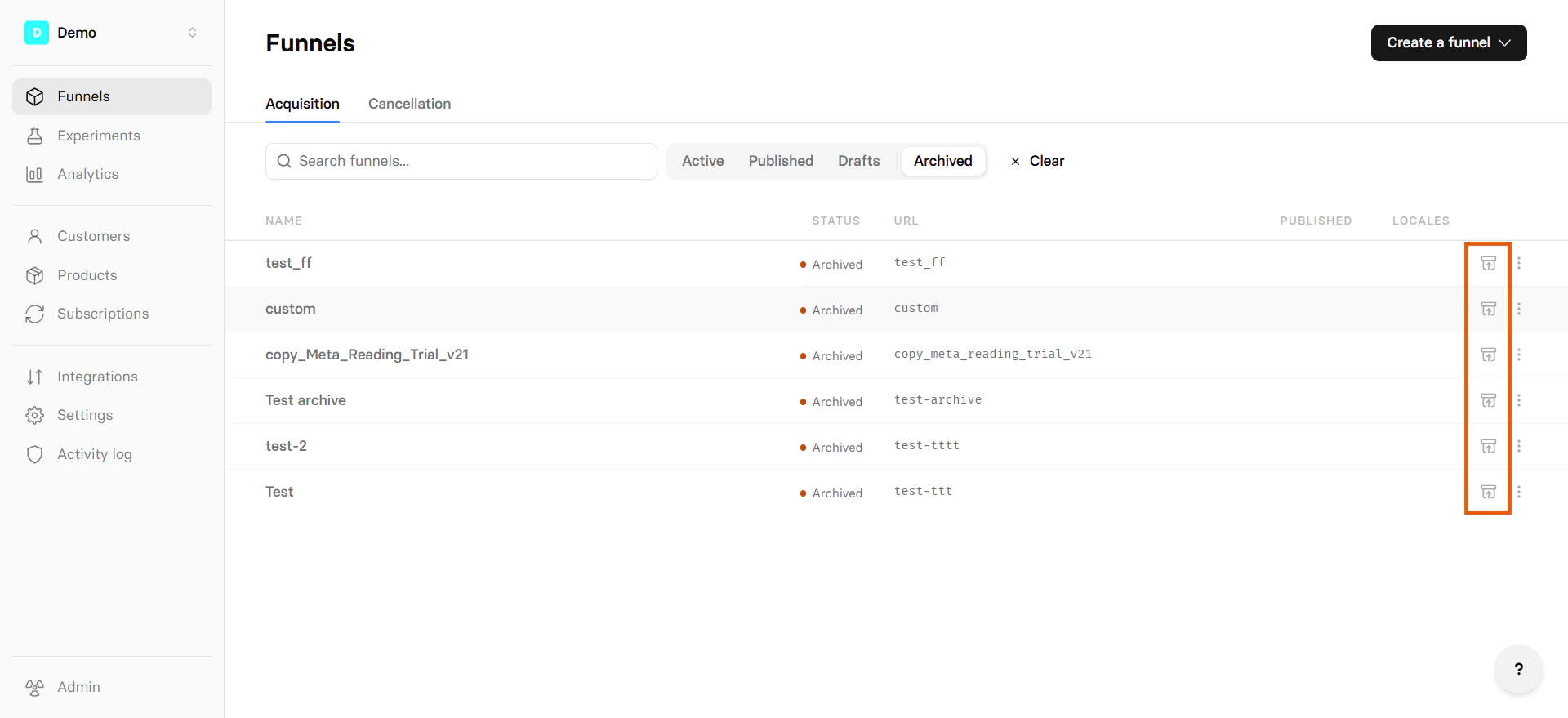
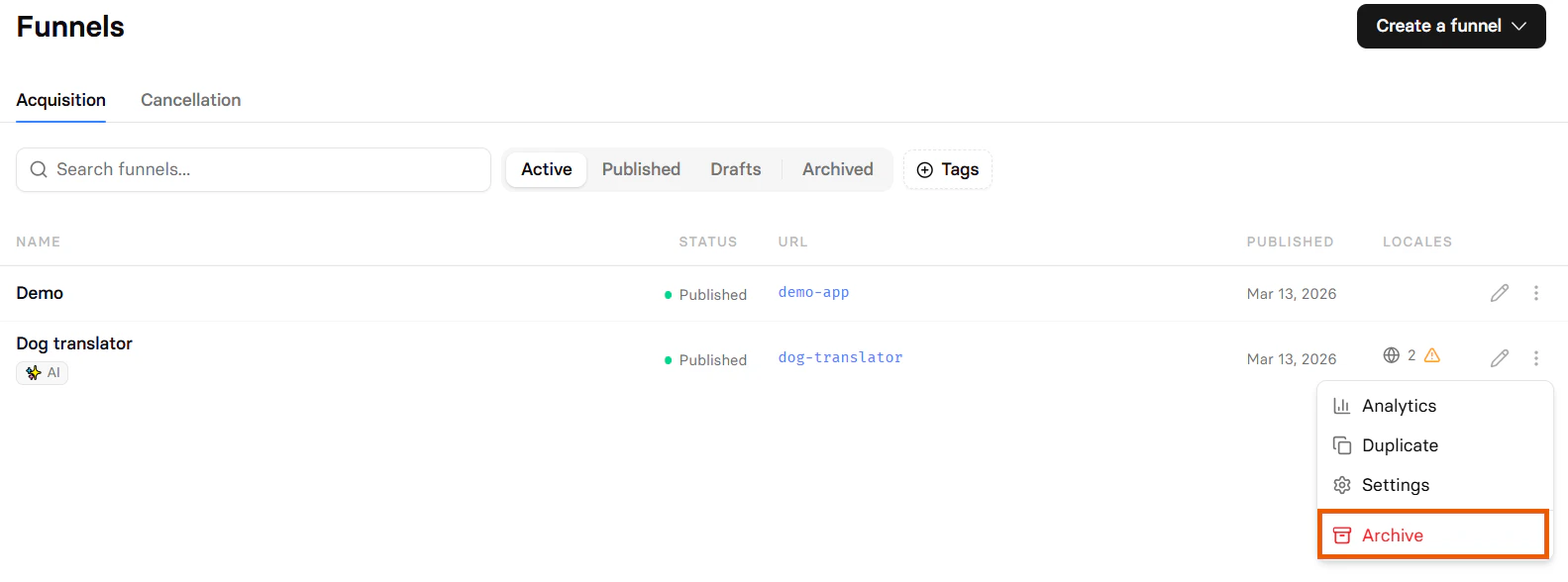 To view and restore your archived funnels, choose **Archived** in the funnel status selector and click the restore icon on the right.
 ## FAQ
Yes, you can edit published funnels directly. Simply make your changes
and click publish again. This creates a new version that immediately
replaces the previous one at the same URL.
The switch is instant. Visitors on the old version continue their
session normally. New visitors immediately see the new version. There's
no downtime or broken experience.
Technical improvements and fixes reach your live funnels instantly. No republishing needed.
## Next steps
* Learn about the [Editor](/editor/overview)
* Configure [Analytics](/dashboard/analytics) to track funnel performance
* Create [Experiments](/dashboard/experiments) to optimize conversions with A/B tests
## FAQ
Yes, you can edit published funnels directly. Simply make your changes
and click publish again. This creates a new version that immediately
replaces the previous one at the same URL.
The switch is instant. Visitors on the old version continue their
session normally. New visitors immediately see the new version. There's
no downtime or broken experience.
Technical improvements and fixes reach your live funnels instantly. No republishing needed.
## Next steps
* Learn about the [Editor](/editor/overview)
* Configure [Analytics](/dashboard/analytics) to track funnel performance
* Create [Experiments](/dashboard/experiments) to optimize conversions with A/B tests