> ## Documentation Index
> Fetch the complete documentation index at: https://funnelfox.com/docs/llms.txt
> Use this file to discover all available pages before exploring further.
# FunnelFox Billing Taxes
> Add sales tax on top of prices at checkout. Calculate tax with Stripe Tax or your own manually entered rates.
FunnelFox Billing Taxes can add sales tax on top of your checkout prices. A single
setting turns tax on and chooses how it's calculated — automatically with
Stripe Tax, or from rates you enter yourself.
 ## How it works
FunnelFox Billing Taxes calculates tax on top of the price at checkout. Prices are
always treated as net amounts, so tax is added on top and never included in
the listed price.
Tax is estimated live at checkout as the buyer enters their address, charged
together with the payment, and reversed automatically when you refund an
order.
For a \$20.00 monthly price point with a 20% tax rate, the checkout breaks
down like this.
**Checkout without Taxes:**
* Amount charged: \$20.00
* Subscription price: \$20.00
**Checkout with Taxes:**
* Amount charged: \$24.00
* Subscription price: \$20.00
* Tax (VAT 20%): \$4.00
The tax amount depends on where the buyer is, so the amount charged varies
from one buyer to the next.
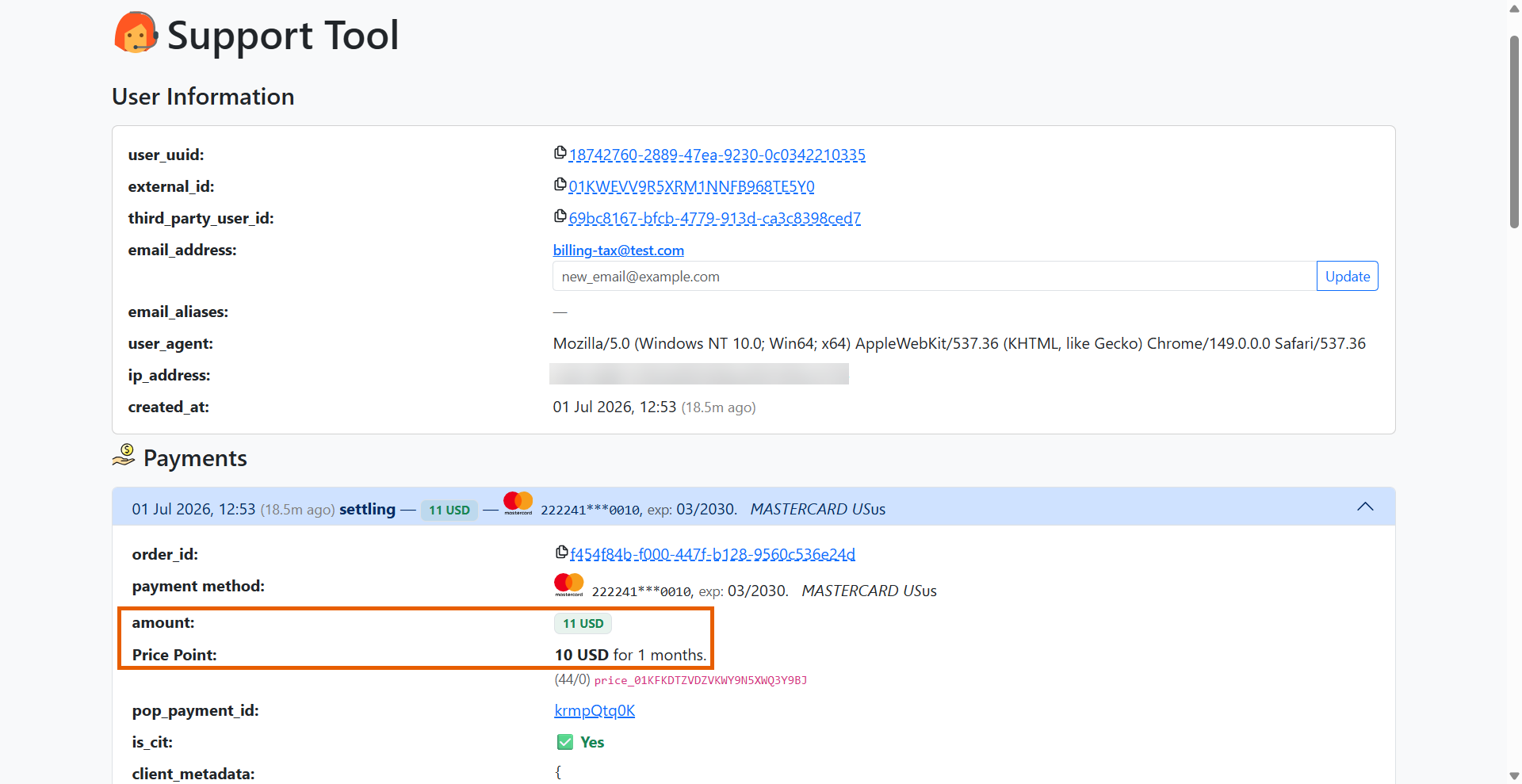
You can always see the difference between the price point and the amount charged in the Support Tool when viewing a payment:
## How it works
FunnelFox Billing Taxes calculates tax on top of the price at checkout. Prices are
always treated as net amounts, so tax is added on top and never included in
the listed price.
Tax is estimated live at checkout as the buyer enters their address, charged
together with the payment, and reversed automatically when you refund an
order.
For a \$20.00 monthly price point with a 20% tax rate, the checkout breaks
down like this.
**Checkout without Taxes:**
* Amount charged: \$20.00
* Subscription price: \$20.00
**Checkout with Taxes:**
* Amount charged: \$24.00
* Subscription price: \$20.00
* Tax (VAT 20%): \$4.00
The tax amount depends on where the buyer is, so the amount charged varies
from one buyer to the next.
You can always see the difference between the price point and the amount charged in the Support Tool when viewing a payment:
 ### Customer address
Tax depends on the buyer's address, which FunnelFox Billing reads differently
by payment method:
* **Cards**: the billing address the buyer enters at checkout (country and
postal code).
* **Digital wallets (Apple Pay, Google Pay)**: tax is calculated twice, first
from the buyer's IP and then from the wallet address. The first payment is
charged the IP amount; renewals use the wallet amount.
A wallet buyer whose IP location doesn't match their wallet's country is
charged one tax on the first payment but billed another on renewals.
When the provider is Stripe, calculations are also saved to your Stripe
dashboard (refunds included). For wallets, the saved value is the wallet-based
calculation.
## Setup
Configure Taxes from your FunnelFox Billing **Settings** page. The three settings below
control whether tax runs, which engine calculates it, and which checkout
fields stay visible.
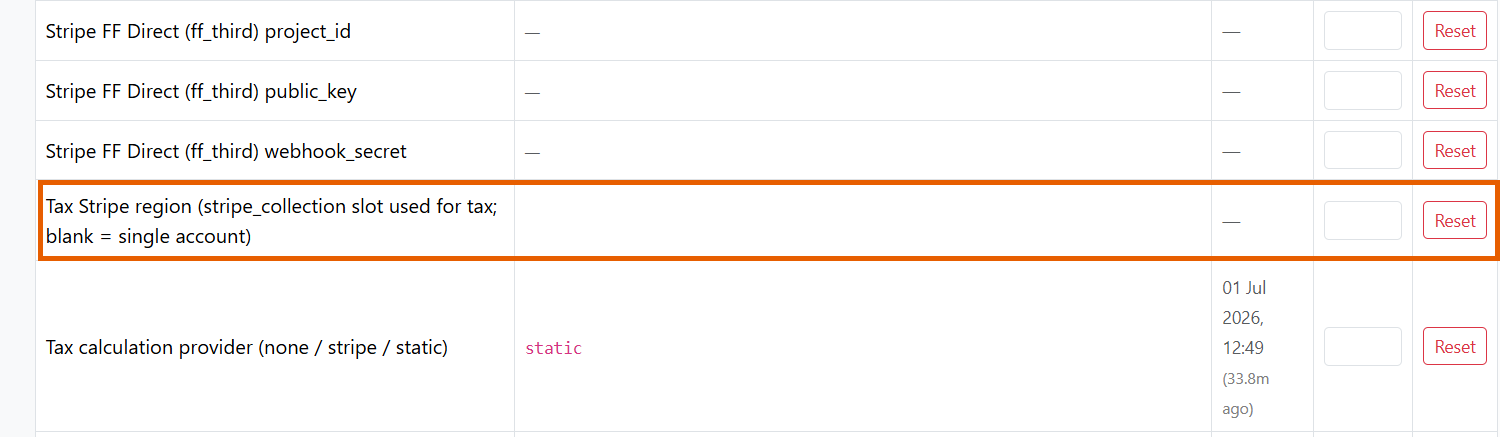
Set **Tax calculation provider** to one of:
* **None**: Tax stays off (default).
* **Stripe**: Calculate tax with [Stripe Tax](https://docs.stripe.com/tax/set-up).
* **Static**: Calculate tax from rates you enter on the Tax Rates page.
Stripe Tax requires activation on the Stripe side before you select it. Learn about
[setting up Stripe Tax](https://docs.stripe.com/tax/set-up).
For the **Static** option, define your rates on the [Tax Rates
page](#tax-rates).
### Customer address
Tax depends on the buyer's address, which FunnelFox Billing reads differently
by payment method:
* **Cards**: the billing address the buyer enters at checkout (country and
postal code).
* **Digital wallets (Apple Pay, Google Pay)**: tax is calculated twice, first
from the buyer's IP and then from the wallet address. The first payment is
charged the IP amount; renewals use the wallet amount.
A wallet buyer whose IP location doesn't match their wallet's country is
charged one tax on the first payment but billed another on renewals.
When the provider is Stripe, calculations are also saved to your Stripe
dashboard (refunds included). For wallets, the saved value is the wallet-based
calculation.
## Setup
Configure Taxes from your FunnelFox Billing **Settings** page. The three settings below
control whether tax runs, which engine calculates it, and which checkout
fields stay visible.
Set **Tax calculation provider** to one of:
* **None**: Tax stays off (default).
* **Stripe**: Calculate tax with [Stripe Tax](https://docs.stripe.com/tax/set-up).
* **Static**: Calculate tax from rates you enter on the Tax Rates page.
Stripe Tax requires activation on the Stripe side before you select it. Learn about
[setting up Stripe Tax](https://docs.stripe.com/tax/set-up).
For the **Static** option, define your rates on the [Tax Rates
page](#tax-rates).
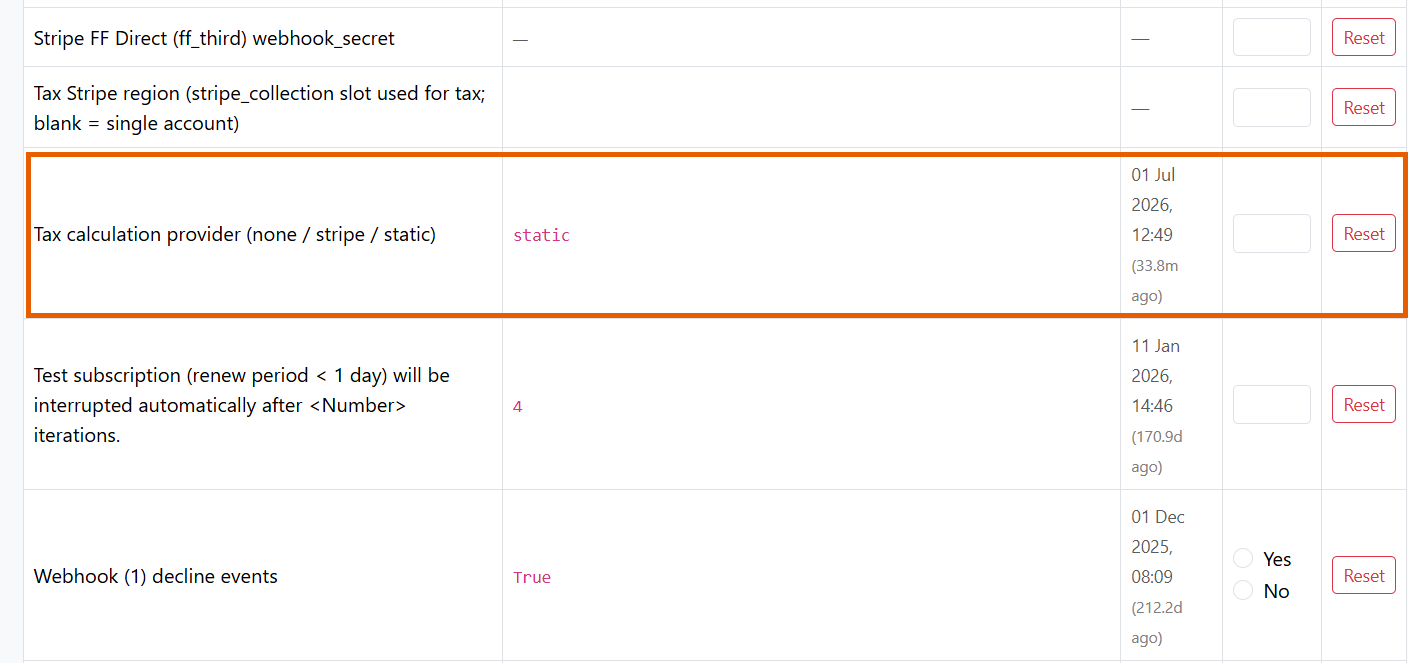 This setting applies only when the provider is **Stripe**. It names which
connected Stripe account FunnelFox Billing uses to calculate, record, and
reverse tax.
Leave it blank if you have a single Stripe account. Set it to a specific
account if you connect several and want tax to run against one of them.
This setting applies only when the provider is **Stripe**. It names which
connected Stripe account FunnelFox Billing uses to calculate, record, and
reverse tax.
Leave it blank if you have a single Stripe account. Set it to a specific
account if you connect several and want tax to run against one of them.
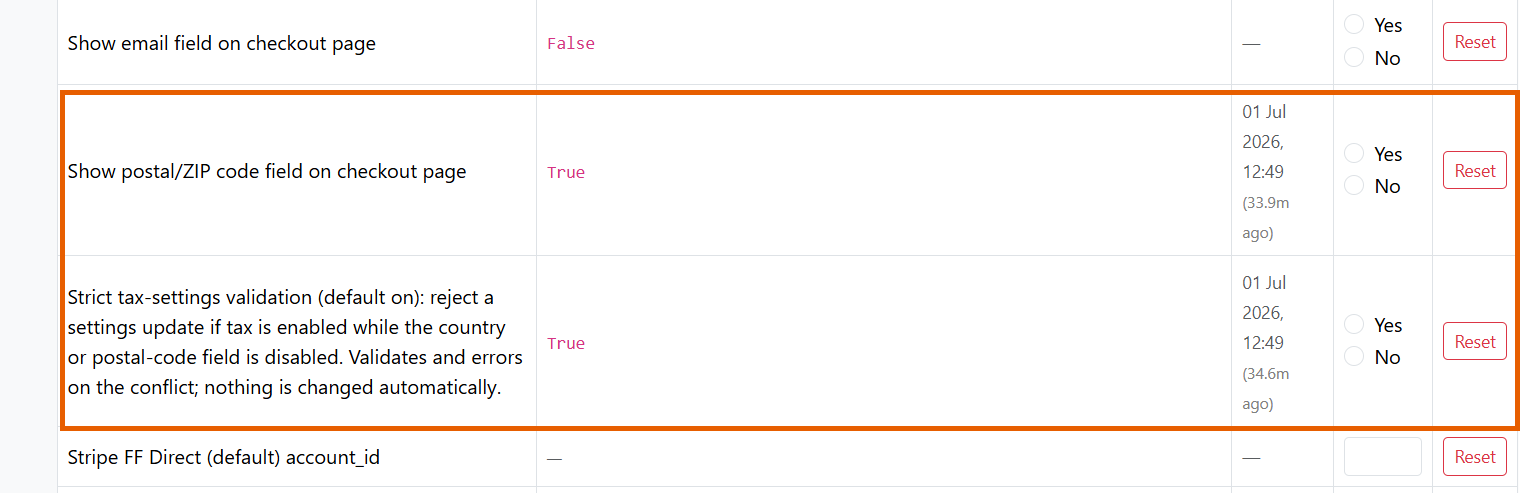
 Enable all required fields on the same **Settings** page before using this option.
Tax calculation needs the buyer's **country** and **postal code**, so those
fields must stay visible at checkout. The **Strict tax-settings validation**
setting protects this and is on by default.
While tax is enabled, this setting protects the checkout from saving changes that hide
the country selector or the postal-code field.
Enable all required fields on the same **Settings** page before using this option.
Tax calculation needs the buyer's **country** and **postal code**, so those
fields must stay visible at checkout. The **Strict tax-settings validation**
setting protects this and is on by default.
While tax is enabled, this setting protects the checkout from saving changes that hide
the country selector or the postal-code field.
 ## Tax rates
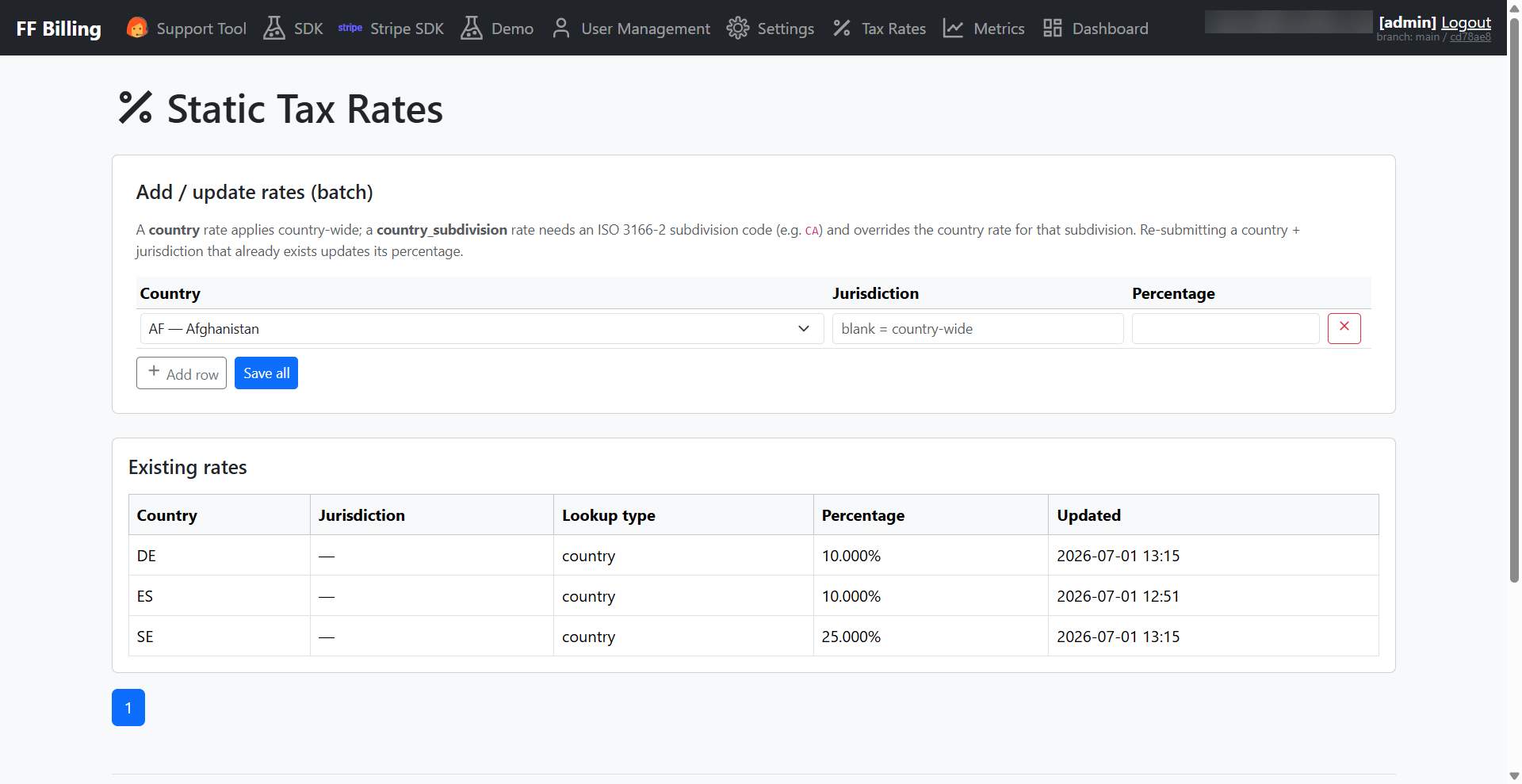
The Tax Rates page in your FunnelFox Billing dashboard holds the rates for the
**Static** provider. FunnelFox Billing uses these rates only when **Tax
calculation provider** is set to **Static** (they have no effect in **Stripe**
or **None** mode).
Each rate is one row with three fields:
* **Country**: The country the rate applies to (ISO 3166-1 code).
* **Jurisdiction**: An optional state or province code (ISO 3166-2, such as
`CA` for California). Leave it blank to apply the rate to the whole country. Saving a country and jurisdiction that already exist updates its percentage
instead of adding a duplicate.
* **Percentage**: The tax rate, such as `20` for 20%.
A blank jurisdiction sets a country-wide rate. Setting a jurisdiction rate overrides the country-wide rate for that state or
province.
FunnelFox Billing applies the most specific match: a matching jurisdiction rate wins, otherwise the country-wide rate applies.
If a country has no rate, no tax is charged there.
## Tax rates
The Tax Rates page in your FunnelFox Billing dashboard holds the rates for the
**Static** provider. FunnelFox Billing uses these rates only when **Tax
calculation provider** is set to **Static** (they have no effect in **Stripe**
or **None** mode).
Each rate is one row with three fields:
* **Country**: The country the rate applies to (ISO 3166-1 code).
* **Jurisdiction**: An optional state or province code (ISO 3166-2, such as
`CA` for California). Leave it blank to apply the rate to the whole country. Saving a country and jurisdiction that already exist updates its percentage
instead of adding a duplicate.
* **Percentage**: The tax rate, such as `20` for 20%.
A blank jurisdiction sets a country-wide rate. Setting a jurisdiction rate overrides the country-wide rate for that state or
province.
FunnelFox Billing applies the most specific match: a matching jurisdiction rate wins, otherwise the country-wide rate applies.
If a country has no rate, no tax is charged there.