> ## Documentation Index
> Fetch the complete documentation index at: https://funnelfox.com/docs/llms.txt
> Use this file to discover all available pages before exploring further.
# Delayed capture
> Authorize a payment now and capture the funds later, giving your team a fraud review window before the money settles.
Authorize a payment immediately but delay the capture, giving
your team a fraud review window before funds are settled by your
PSP. The order stays in
`authorized` status until FunnelFox Payments captures it and moves it to
`settled`.
A cancellation before capture costs nothing, while a capture followed by a
refund is a real money movement.
CIT and MIT payments use separate delay settings.
Purchases, subscriptions, and outbound webhooks fire at authorization, not at
capture. Customers get access immediately, and only the money settles later.
## Setup
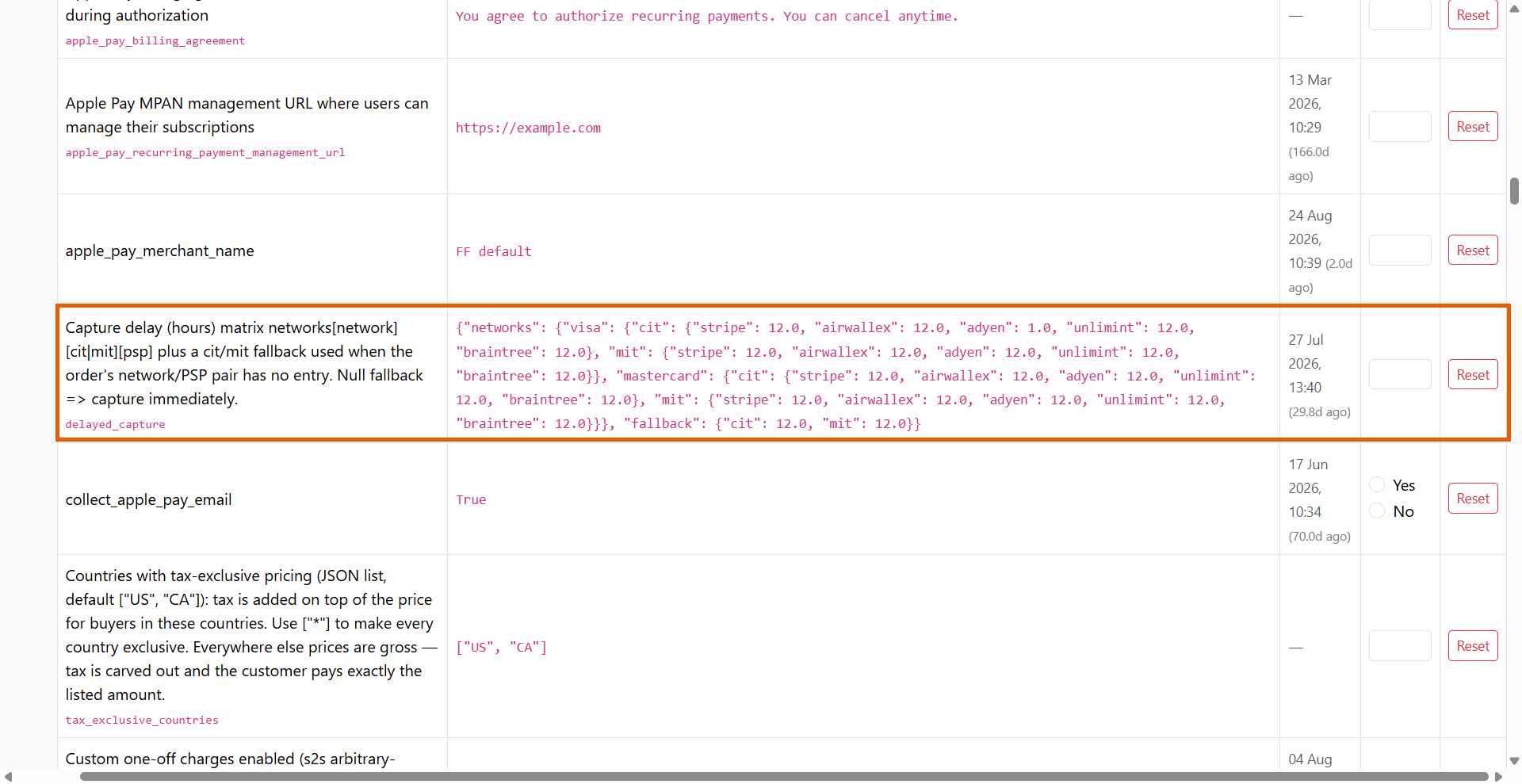
1. Configure the `delayed_capture`
on the **Settings** page of your FunnelFox Payments dashboard. The delay is
counted
in hours from order creation, and a change
also
applies to orders that are already authorized.
`delayed_capture` is a JSON field. Paste the whole matrix
into it and click **Save**.
```json theme={null}
{
"networks": {
"visa": {
"cit": { "stripe": 12, "adyen": 24 },
"mit": { "stripe": 12, "adyen": 24 }
},
"mastercard": {
"cit": { "stripe": 12, "adyen": 24 },
"mit": { "stripe": 12, "adyen": 24 }
}
},
"fallback": { "cit": 12, "mit": 12 }
}
```
| Level | Allowed keys |
| ------------------------------ | ------------------------------------------------------------------------------------------------- |
| Network | `visa`, `mastercard`. Any other network is rejected. |
| Transaction type | `cit`, `mit` |
| PSP | `stripe`, `braintree`, `paypal`, `adyen`, `checkout`, `primer_processor`, `airwallex`, `unlimint` |
| Delay | Hours, a number of 0 or more. Fractions such as `1.5` are allowed. |
| `fallback.cit`, `fallback.mit` | Hours of 0 or more, or `null` |
There is no partial fall-through inside the JSON. A Visa CIT entry that
does not list your PSP goes straight to the `cit` fallback.
A `null` fallback captures on the next run. To turn the hold off everywhere,
set `{"networks": {}, "fallback": {"cit": null, "mit": null}}`.
A fallback that sets only `cit` leaves `mit` as `null`, so renewals capture
immediately. Always write both keys.
An authorization expires if it is held too long, so every delay is capped.
FunnelFox Payments rejects a value above its cap when you save.
| PSP | Visa CIT | Visa MIT | Mastercard CIT | Mastercard MIT |
| ---------------------------------- | -------- | -------- | -------------- | -------------- |
| Stripe | 89 | 89 | 89 | 89 |
| Airwallex | 96 | 96 | 96 | 96 |
| Adyen | 144 | 96 | 144 | 144 |
| Unlimint | 72 | 72 | 72 | 72 |
| Braintree | 47 | 47 | 47 | 47 |
| PayPal, Checkout, Primer processor | 216 | 96 | 144 | 144 |
Both fallbacks are capped at 47 hours. An order with an unknown network or PSP
could be on the strictest acquirer, so the tightest cap applies.
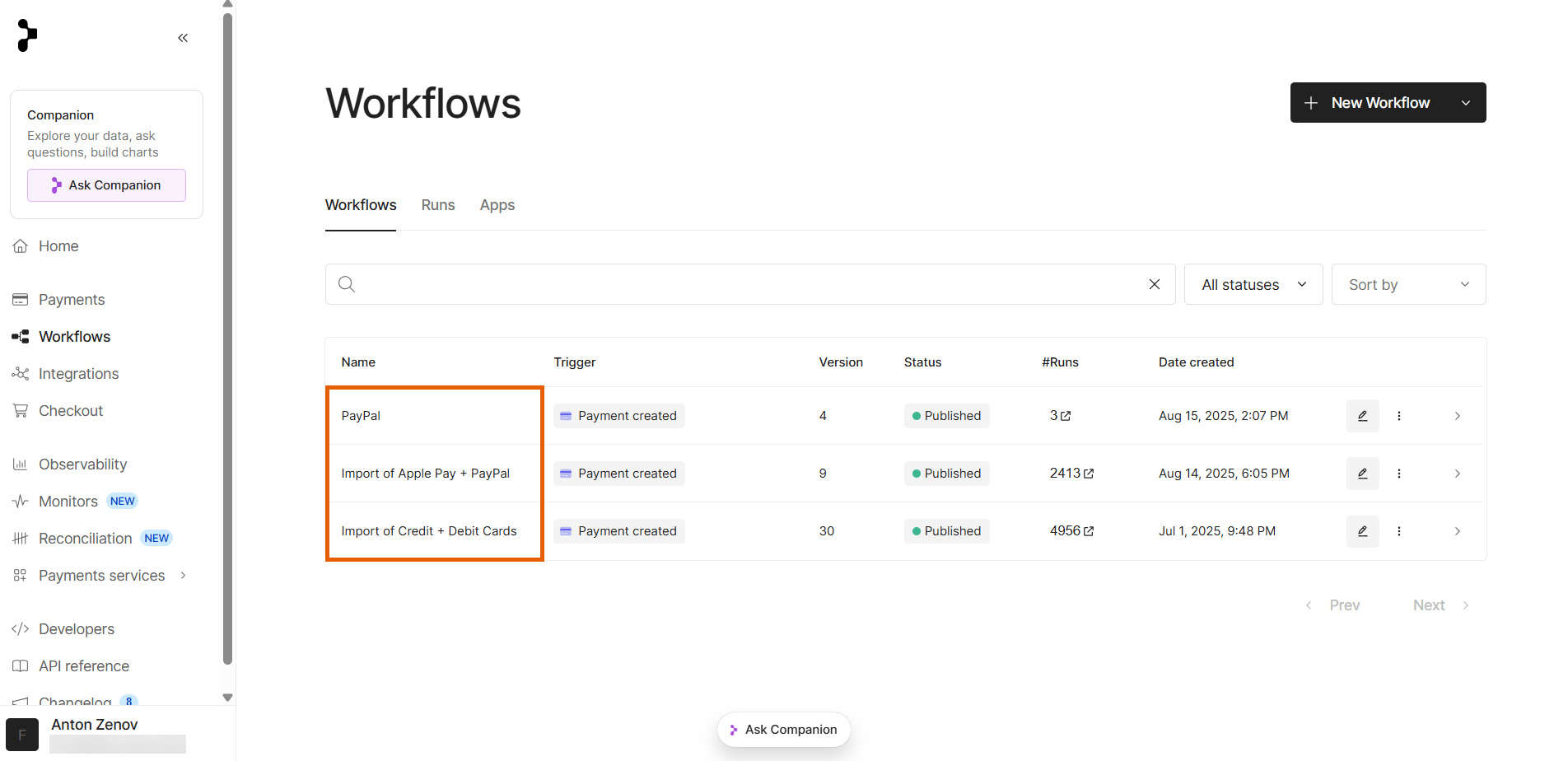
 2. Go to the **Workflows** page in your Primer dashboard.
3. Open your workflow.
2. Go to the **Workflows** page in your Primer dashboard.
3. Open your workflow.
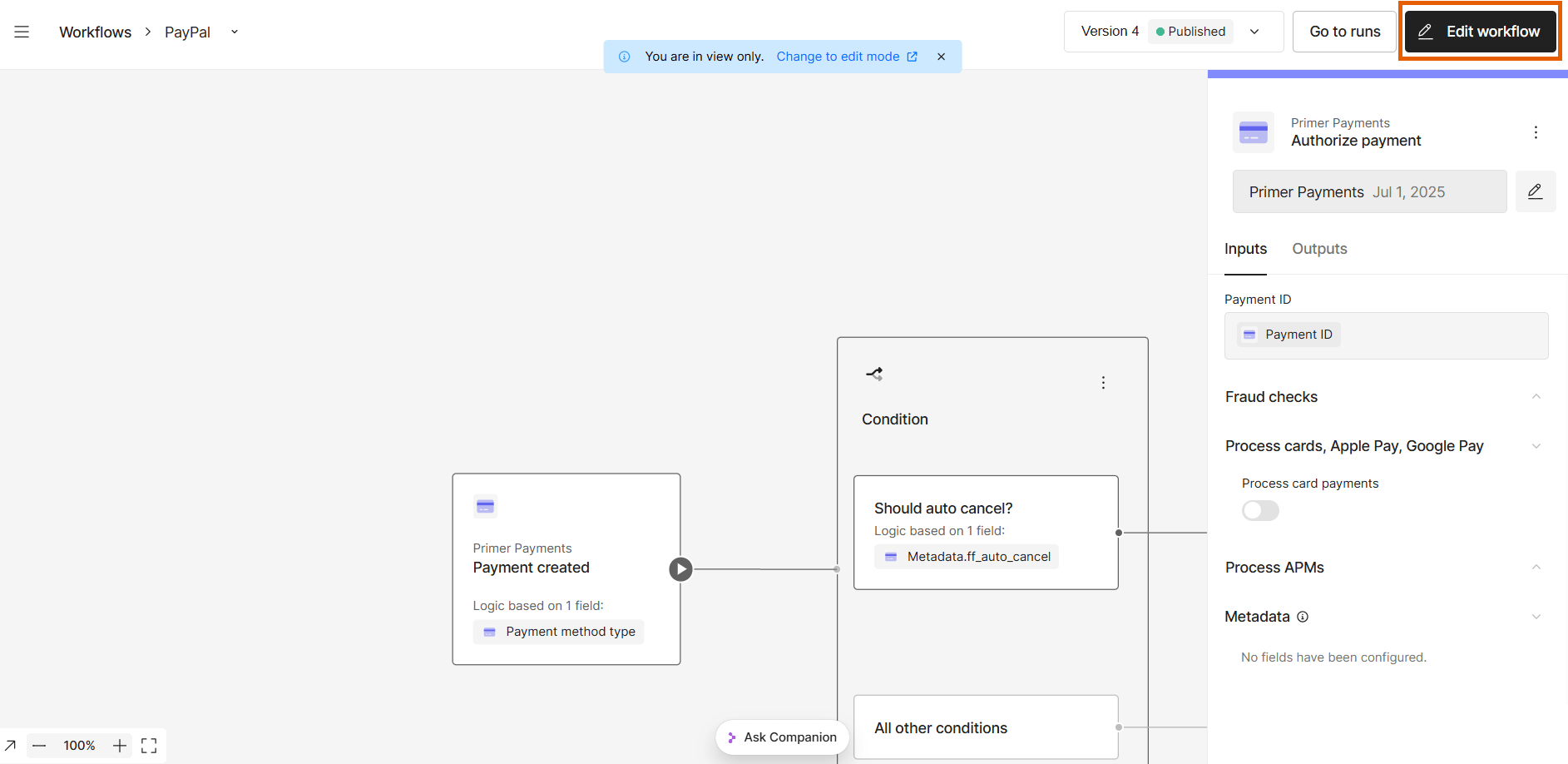
 4. Click **Edit workflow** at the top right.
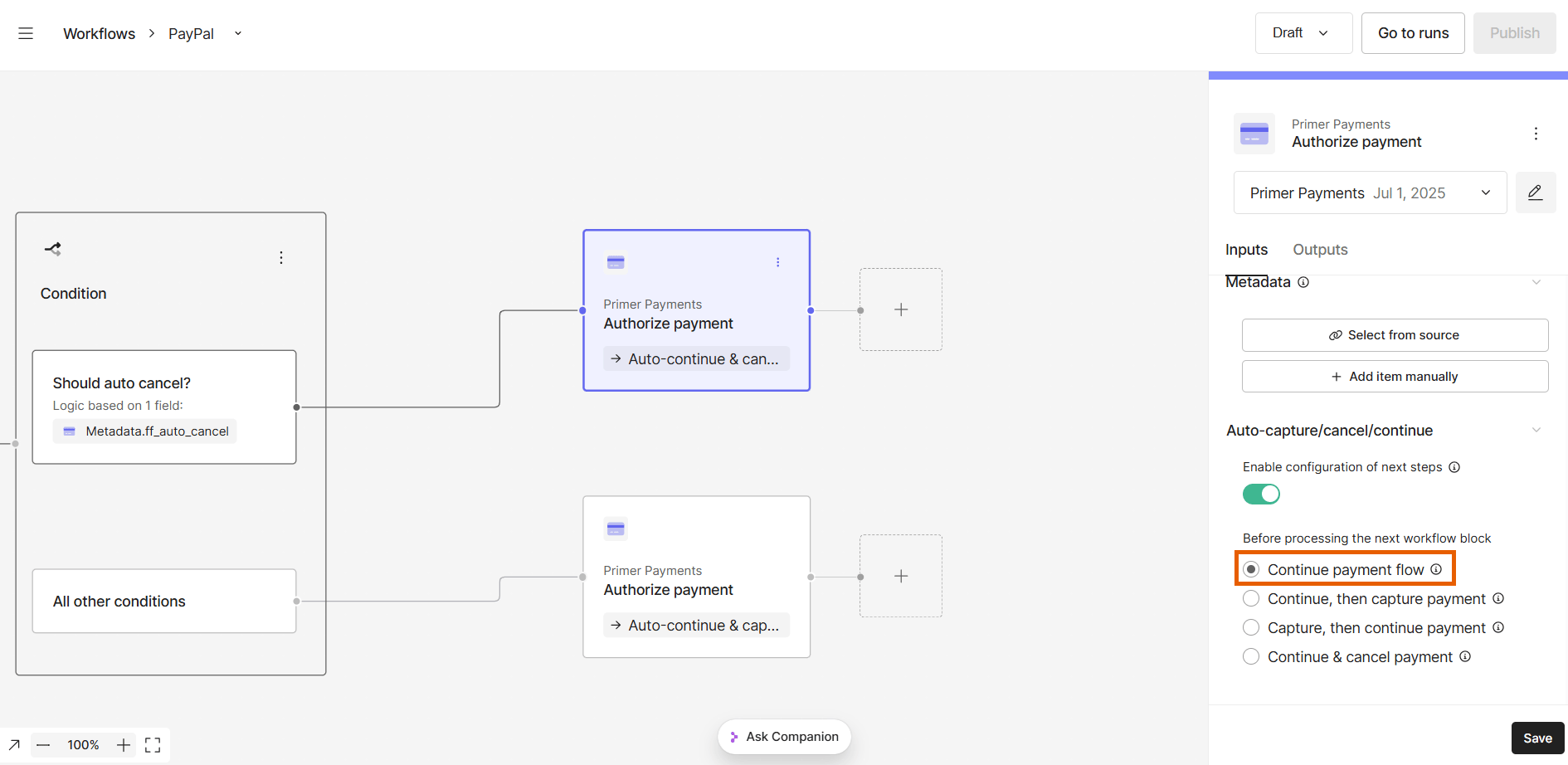
 5. Select the **Authorize payment** stage and set **Before processing the next
workflow block** to **Continue payment flow**.
5. Select the **Authorize payment** stage and set **Before processing the next
workflow block** to **Continue payment flow**.
 6. Click **Save**.
## Capture behavior
A capture is attempted at most twice, after which the payment is blocked for
12 hours.
Orders older than 480 hours (20 days) are no longer picked up and
the authorization is treated as dead.
You can also capture an authorized order
manually at any time, which ignores the configured delay.
## Next steps
* [Prevent chargebacks with dispute alerts](/docs/billing/disputes)
* [Configure the `delayed_capture` setting](/docs/billing/settings#delayed-capture)
* [View and refund payments](/docs/billing/payments-management)
6. Click **Save**.
## Capture behavior
A capture is attempted at most twice, after which the payment is blocked for
12 hours.
Orders older than 480 hours (20 days) are no longer picked up and
the authorization is treated as dead.
You can also capture an authorized order
manually at any time, which ignores the configured delay.
## Next steps
* [Prevent chargebacks with dispute alerts](/docs/billing/disputes)
* [Configure the `delayed_capture` setting](/docs/billing/settings#delayed-capture)
* [View and refund payments](/docs/billing/payments-management)