> ## Documentation Index
> Fetch the complete documentation index at: https://funnelfox.com/docs/llms.txt
> Use this file to discover all available pages before exploring further.
# Adaptive 3DS
> Recover card payments that need authentication without adding friction to every checkout.
FunnelFox Billing supports Adaptive 3DS to improve your card acceptance rate
without adding friction to every checkout. Authentication is applied only when
a payment needs it.
Adaptive 3DS is disabled by default.
## How it works
3D Secure (3DS) asks customers to confirm their identity with their bank, for
example by entering a one-time code. It reduces fraud, but applying it to every
transaction costs conversions when customers drop off at the challenge.
Adaptive 3DS applies it only when needed:
1. Every payment is first attempted without 3DS.
2. If it's approved, the customer pays instantly.
3. If the PSP declines the
payment because authentication is required, FunnelFox Billing triggers 3DS
and retries.
4. The customer completes the challenge, and the payment goes through.
Hard declines, such as a reported stolen card, are not retried.
Adaptive 3DS is required for card
[payment cascading](/billing/payments-retries#payment-cascading). The 3DS
result from the first attempt is reused on the backup processor, so the
customer doesn't authenticate twice.
## Setup
Request Adaptive 3DS from your FunnelFox
Billing dashboard.
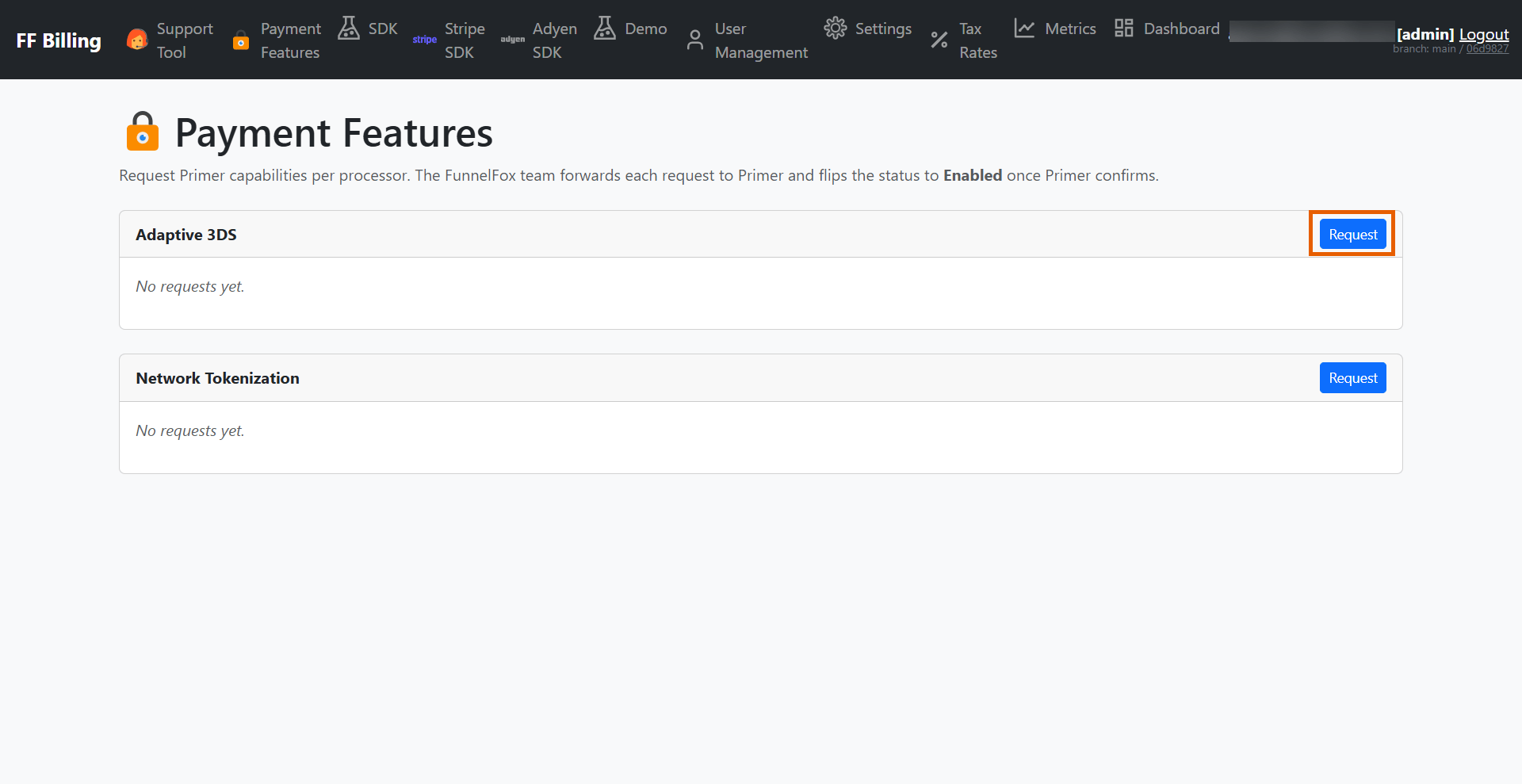
1. Go to the **Payment Features** page.
2. Click **Request** to the right of **Adaptive 3DS**.
 3. Complete the form:
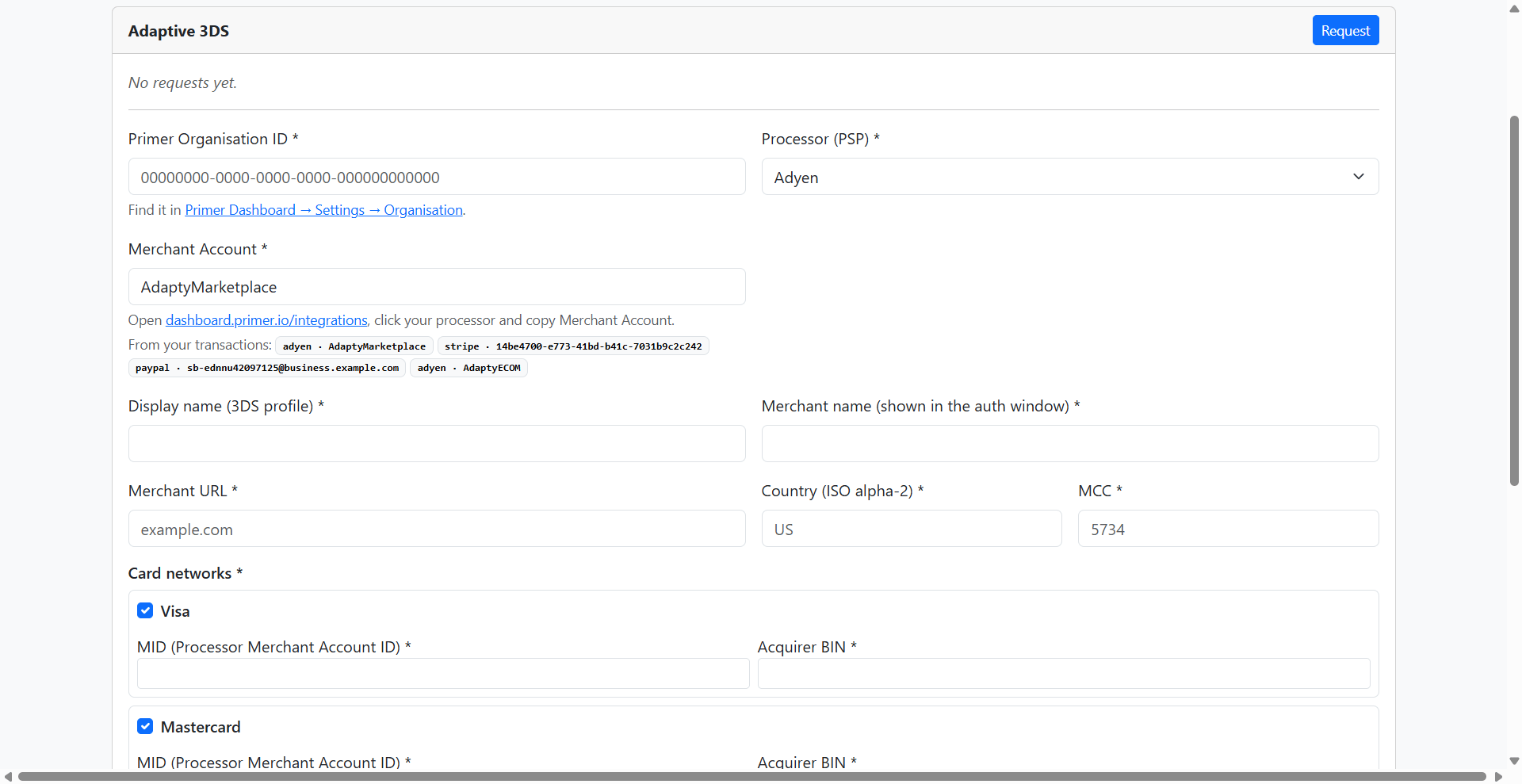
* **Primer Organisation ID**: Find it in the
[Primer Dashboard](https://dashboard.primer.io/settings/organisation) under
**Settings > Organisation**.
* **Processor (PSP)**: The processor this profile applies to (for example,
Stripe, Adyen, or Airwallex).
* **Merchant Account**: Find it in the
[Primer Dashboard](https://dashboard.primer.io/integrations) under
**Integrations > \[processor] > Merchant Account**.
* **Display name**: Name for the 3DS profile.
* **Merchant name**: Name shown in the authentication window.
* **Merchant URL**: A bare domain like `example.com` is fine.
* **Country code**: ISO 3166-1 alpha-2, for example `US`.
* **Merchant Category Code (MCC)**: Exactly 4 digits, for example `5734`.
* **Card networks**: Select at least one (Visa and Mastercard are selected by
default). For each selected network, enter:
* Processor Merchant Account ID (MID)
* Acquirer BIN
If you use Stripe, we retrieve the processor details (BIN and MID)
automatically. For other processors, request them from your processor's support
team.
3. Complete the form:
* **Primer Organisation ID**: Find it in the
[Primer Dashboard](https://dashboard.primer.io/settings/organisation) under
**Settings > Organisation**.
* **Processor (PSP)**: The processor this profile applies to (for example,
Stripe, Adyen, or Airwallex).
* **Merchant Account**: Find it in the
[Primer Dashboard](https://dashboard.primer.io/integrations) under
**Integrations > \[processor] > Merchant Account**.
* **Display name**: Name for the 3DS profile.
* **Merchant name**: Name shown in the authentication window.
* **Merchant URL**: A bare domain like `example.com` is fine.
* **Country code**: ISO 3166-1 alpha-2, for example `US`.
* **Merchant Category Code (MCC)**: Exactly 4 digits, for example `5734`.
* **Card networks**: Select at least one (Visa and Mastercard are selected by
default). For each selected network, enter:
* Processor Merchant Account ID (MID)
* Acquirer BIN
If you use Stripe, we retrieve the processor details (BIN and MID)
automatically. For other processors, request them from your processor's support
team.
 4. Click **Submit request**.