> ## Documentation Index
> Fetch the complete documentation index at: https://funnelfox.com/docs/llms.txt
> Use this file to discover all available pages before exploring further.
# Manage subscriptions
> Subscriptions management from your FunnelFox Billing dashboard. Handle upgrades, downgrades, pauses, and grace periods.
Handle subscription changes directly in your FunnelFox Billing dashboard for both, subscriptions purchased in FunnelFox or in your custom funnels.
You can also use [FunnelFox Billing API](/develop/api-billing) for managing subscriptions crated through your custom funnels.
## Subscription management
To modify your FunnelFox Billing subscriptions:
1. Go to the **Support Tool** page in your FunnelFox Billing dashboard.
2. Search for a user or click on the User UUID under **Latest payments**.
3. Make your changes in the **Subscriptions** section.
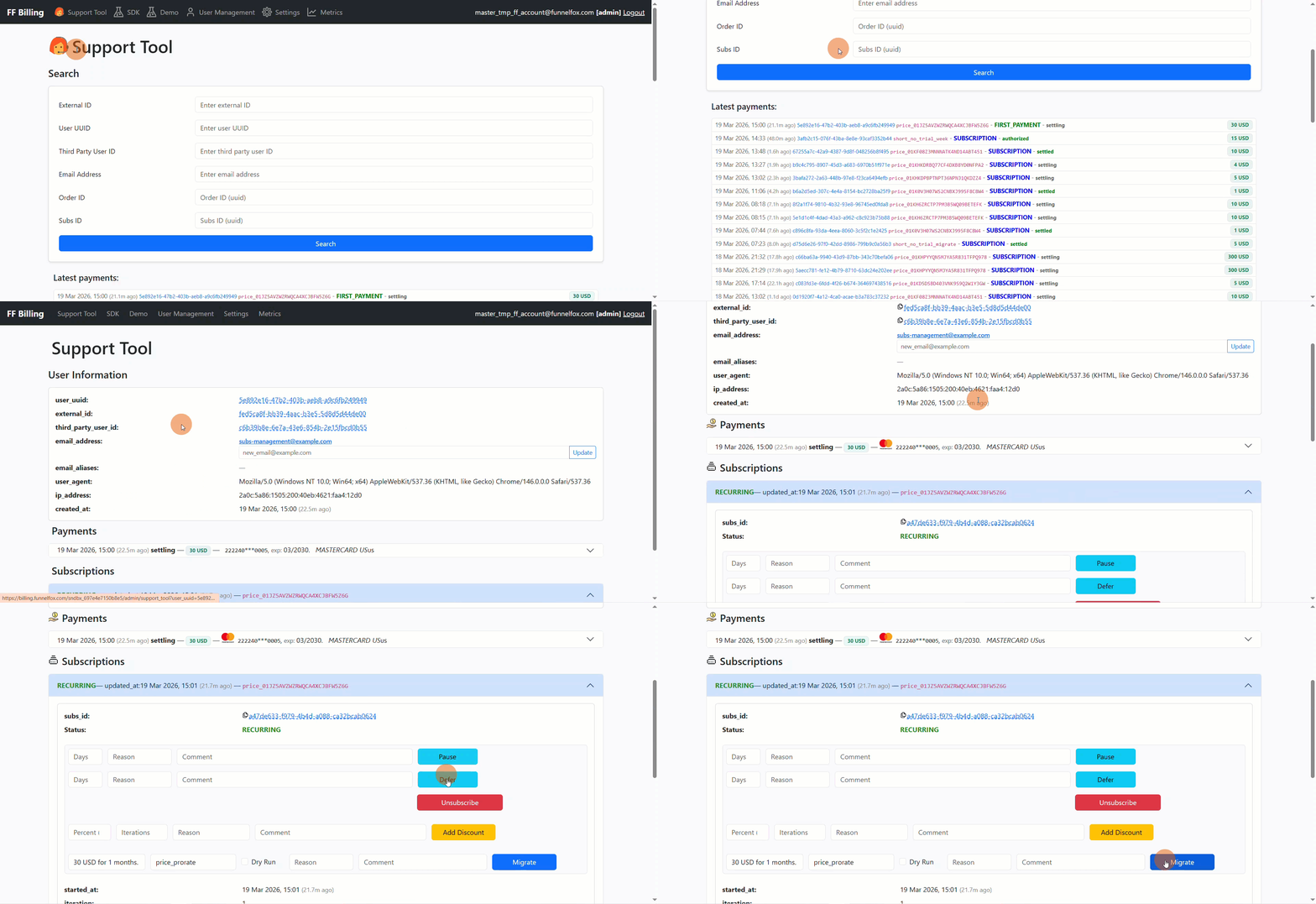 From here, you can:
* Unsubscribe
* Pause and resume
* Add discount
* Defer
* Migrate
### Unsubscribe
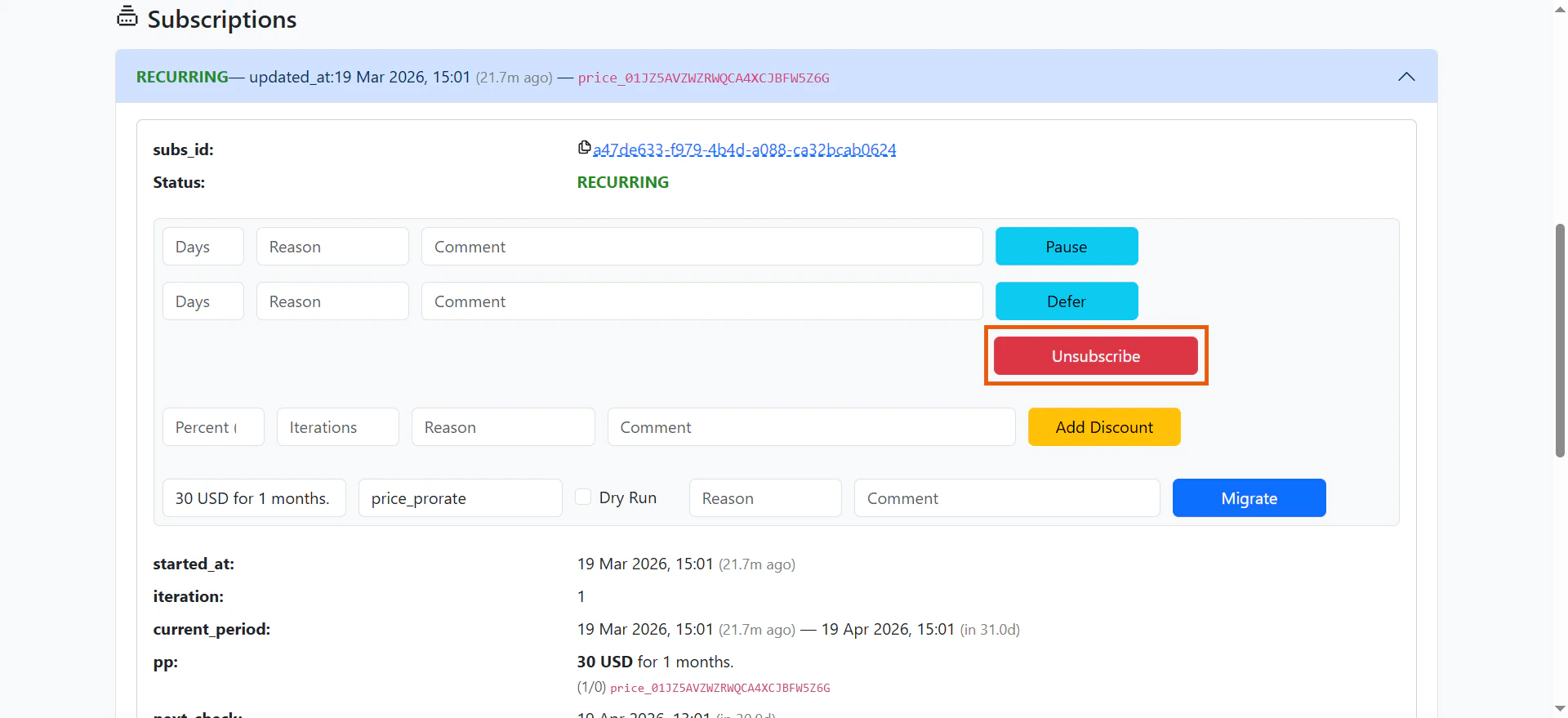
Click **Unsubscribe** under the selected subscription, if you want to disable its auto-renewal.
Premium access remains active until the end of the current paid period, then becomes deactivated.
From here, you can:
* Unsubscribe
* Pause and resume
* Add discount
* Defer
* Migrate
### Unsubscribe
Click **Unsubscribe** under the selected subscription, if you want to disable its auto-renewal.
Premium access remains active until the end of the current paid period, then becomes deactivated.
 ### Pause and resume
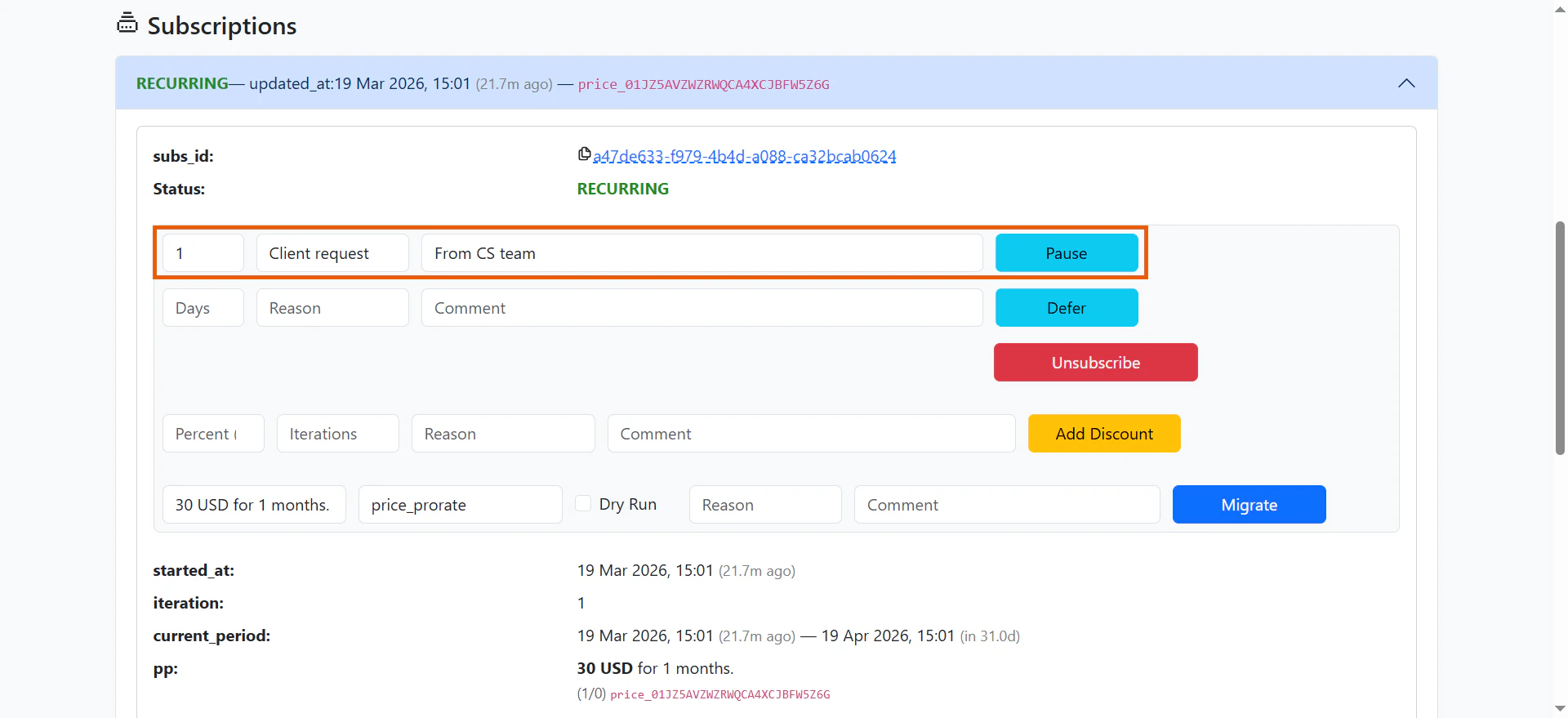
To temporarily delay future charges:
1. Enter the pause details:
* **Duration** (days)
* **Pause reason** (optional)
* **Comment** (optional)
2. Click **Pause**.
Premium access is suspended for the pause duration. The subscription
resumes automatically after the set period, or you can resume it
manually via the API.
### Pause and resume
To temporarily delay future charges:
1. Enter the pause details:
* **Duration** (days)
* **Pause reason** (optional)
* **Comment** (optional)
2. Click **Pause**.
Premium access is suspended for the pause duration. The subscription
resumes automatically after the set period, or you can resume it
manually via the API.
 When you pause subscriptions:
* `next_check_at` indicates the datetime when the subscription will auto-resume.
When the pause is persistent (no end date), this value is `null` and
the subscription must be resumed manually via the API.
* `unused_premium_after_pause` shows how long Premium access will remain
available after the subscription resumes. This attribute is not
currently included in webhook payloads.
### Add discount
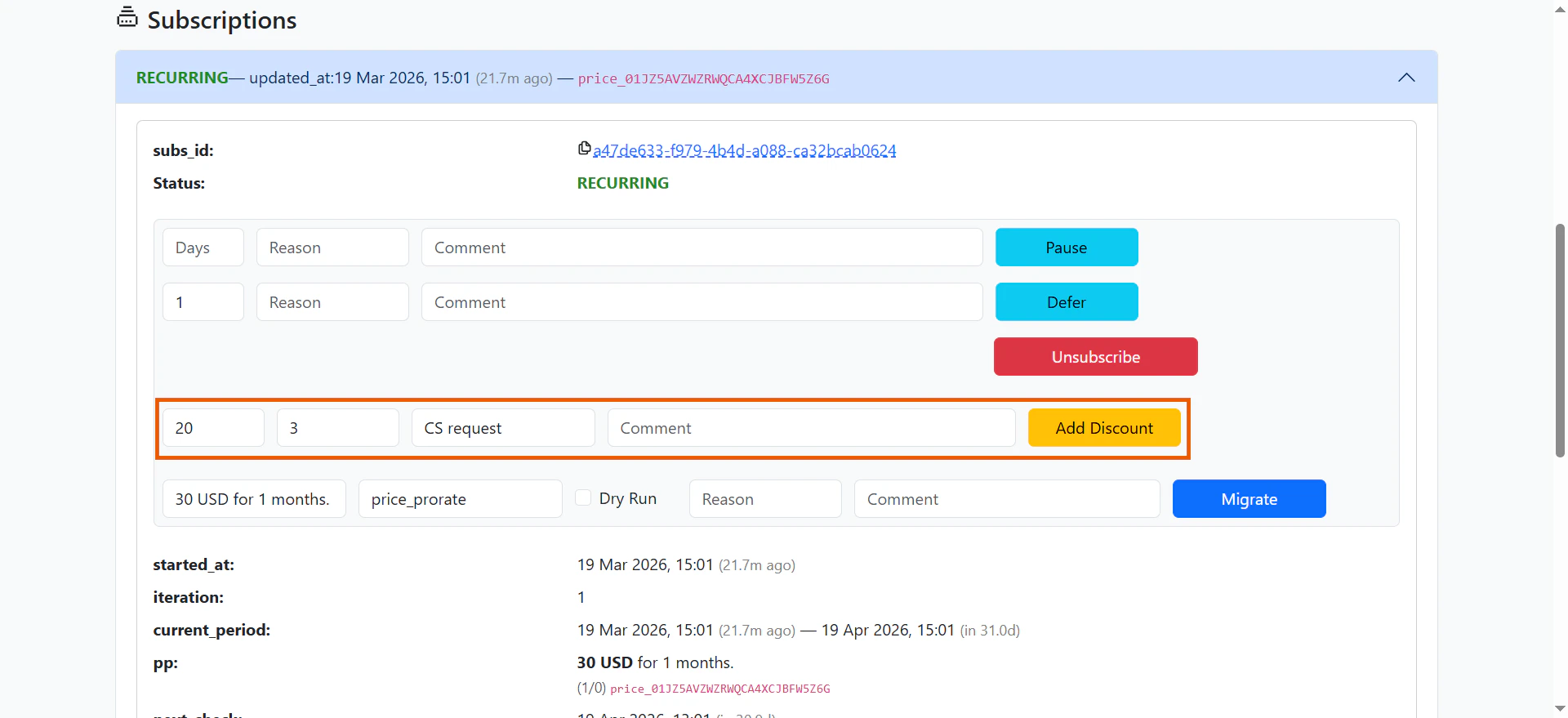
After a subscription is purchased, you can apply discounts to future payments:
1. Enter the discount details:
* **Percentage**: Discount amount based on iteration price.
* **Number of iterations**: How many billing cycles the discount applies to.
* **Reason** (optional)
* **Comment** (optional)
2. Click **Add discount**.
For example, set a 30% discount on 12 future payments, or a 50% discount on just the next two payments.
When you pause subscriptions:
* `next_check_at` indicates the datetime when the subscription will auto-resume.
When the pause is persistent (no end date), this value is `null` and
the subscription must be resumed manually via the API.
* `unused_premium_after_pause` shows how long Premium access will remain
available after the subscription resumes. This attribute is not
currently included in webhook payloads.
### Add discount
After a subscription is purchased, you can apply discounts to future payments:
1. Enter the discount details:
* **Percentage**: Discount amount based on iteration price.
* **Number of iterations**: How many billing cycles the discount applies to.
* **Reason** (optional)
* **Comment** (optional)
2. Click **Add discount**.
For example, set a 30% discount on 12 future payments, or a 50% discount on just the next two payments.
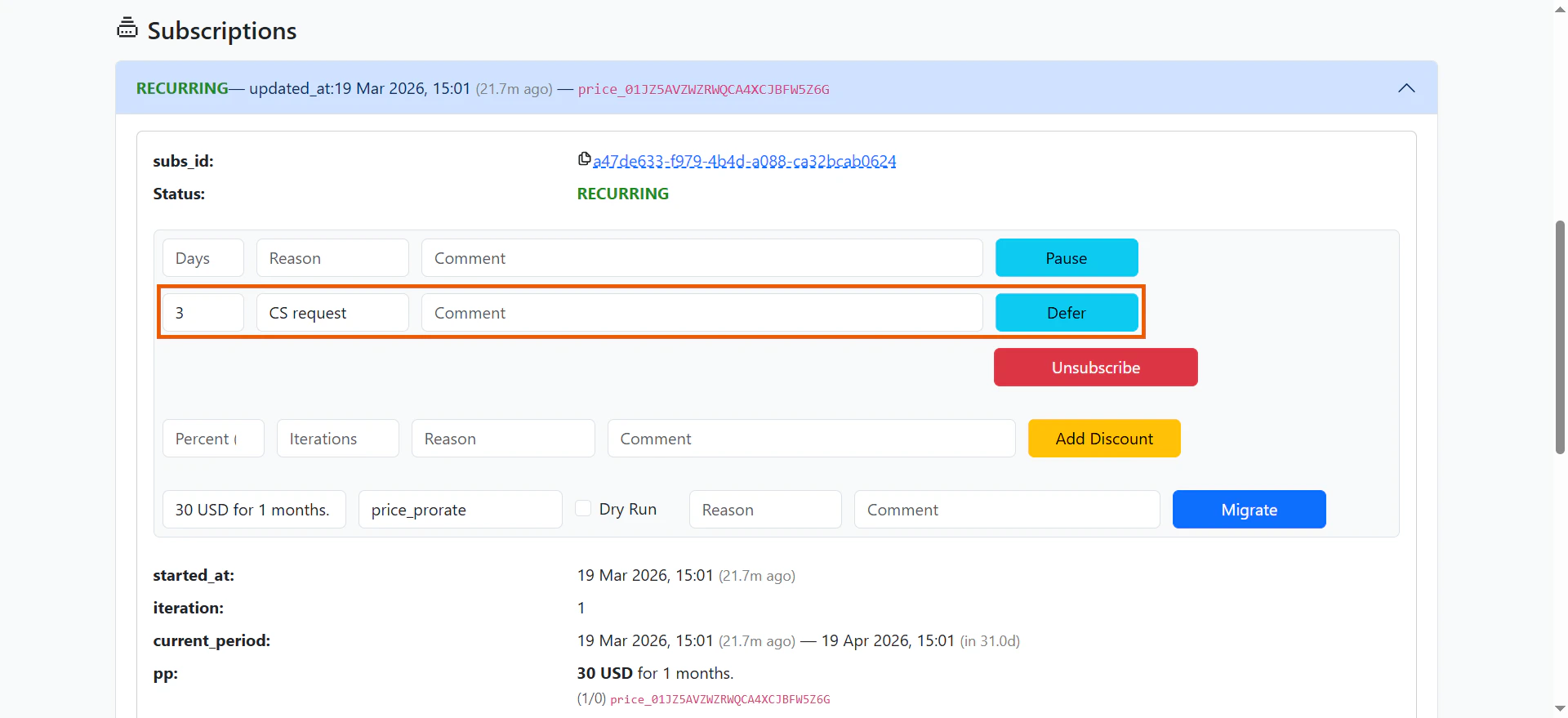
 ### Defer
You can postpone the next charge date:
1. Enter the deferral details:
* **Duration** (days)
* **Pause reason** (optional)
* **Comment** (optional)
2. Click **Defer**.
This is useful when a user could not use the app and you want to compensate them for that time.
The next payment date is pushed forward, giving the user free access for a set period. This helps maintain customer loyalty without issuing refunds or manually extending subscriptions.
### Defer
You can postpone the next charge date:
1. Enter the deferral details:
* **Duration** (days)
* **Pause reason** (optional)
* **Comment** (optional)
2. Click **Defer**.
This is useful when a user could not use the app and you want to compensate them for that time.
The next payment date is pushed forward, giving the user free access for a set period. This helps maintain customer loyalty without issuing refunds or manually extending subscriptions.
 ## Update user email
Learn how FunnelFox Billing [stores customer emails](/billing/payments-management#email) from purchases.
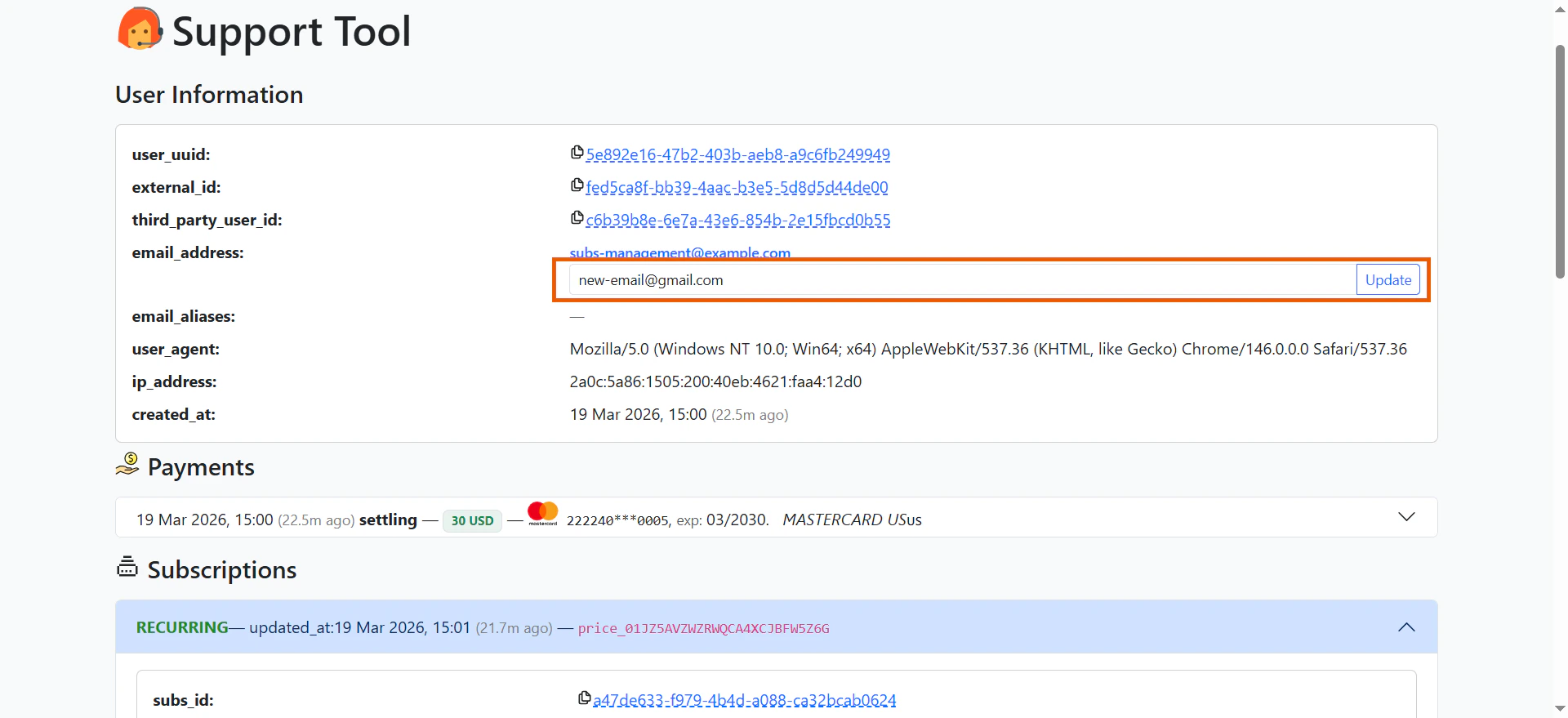
Along with subscription details changes, you can also update customer email.
1. Go to the User Information section of the **Support Tool** page in your FunnelFox Billing dashboard.
2. Enter a new valid email address.
3. Click **Update**.
## Update user email
Learn how FunnelFox Billing [stores customer emails](/billing/payments-management#email) from purchases.
Along with subscription details changes, you can also update customer email.
1. Go to the User Information section of the **Support Tool** page in your FunnelFox Billing dashboard.
2. Enter a new valid email address.
3. Click **Update**.
 An email is valid only if it passes all of the following validation rules:
* Must be a properly formatted email address (has a local part, an `@` sign, and a valid domain).
* Reject if the email ends with `example@example.com`.
* Reject if the email starts with `FIXME@`.
## Next steps
* [Learn how to migrate a customer’s subscription to a new plan](/billing/subscription-migration-billing)
An email is valid only if it passes all of the following validation rules:
* Must be a properly formatted email address (has a local part, an `@` sign, and a valid domain).
* Reject if the email ends with `example@example.com`.
* Reject if the email starts with `FIXME@`.
## Next steps
* [Learn how to migrate a customer’s subscription to a new plan](/billing/subscription-migration-billing)