> ## Documentation Index
> Fetch the complete documentation index at: https://funnelfox.com/docs/llms.txt
> Use this file to discover all available pages before exploring further.
# Integrate FunnelFox Billing with FunnelFox
> Learn how to connect FunnelFox Billing as your FunnelFox payment provider.
Our team handles most of the integration process, including connecting FunnelFox Billing to your FunnelFox projects, configuring workflows, and more. You only need to complete a few steps on your side.
Start by setting up the Sandbox environment first, then move to Production.
Once integrated, you’ll be able to [create products](https://funnelfox.com/docs/dashboard/products) and select FunnelFox Billing as the payment provider for your [Checkout element](/elements/checkout) in FunnelFox.
## Sandbox
Follow these steps to set up FunnelFox Billing in your Sandbox environment.
### 1. Get Primer invitation
Your Solution Manager will send you an email invitation to [Primer.io](https://primer.io/).
This is a dedicated Primer Sandbox account we create for your FunnelFox Billing setup.
### 2. Connect your Stripe to Primer
You can optionally connect a different payment provider instead of Stripe using similar setup steps.
1. Go to the [Integrations](https://sandbox-dashboard.primer.io/integrations) page in the Primer account we created for you.
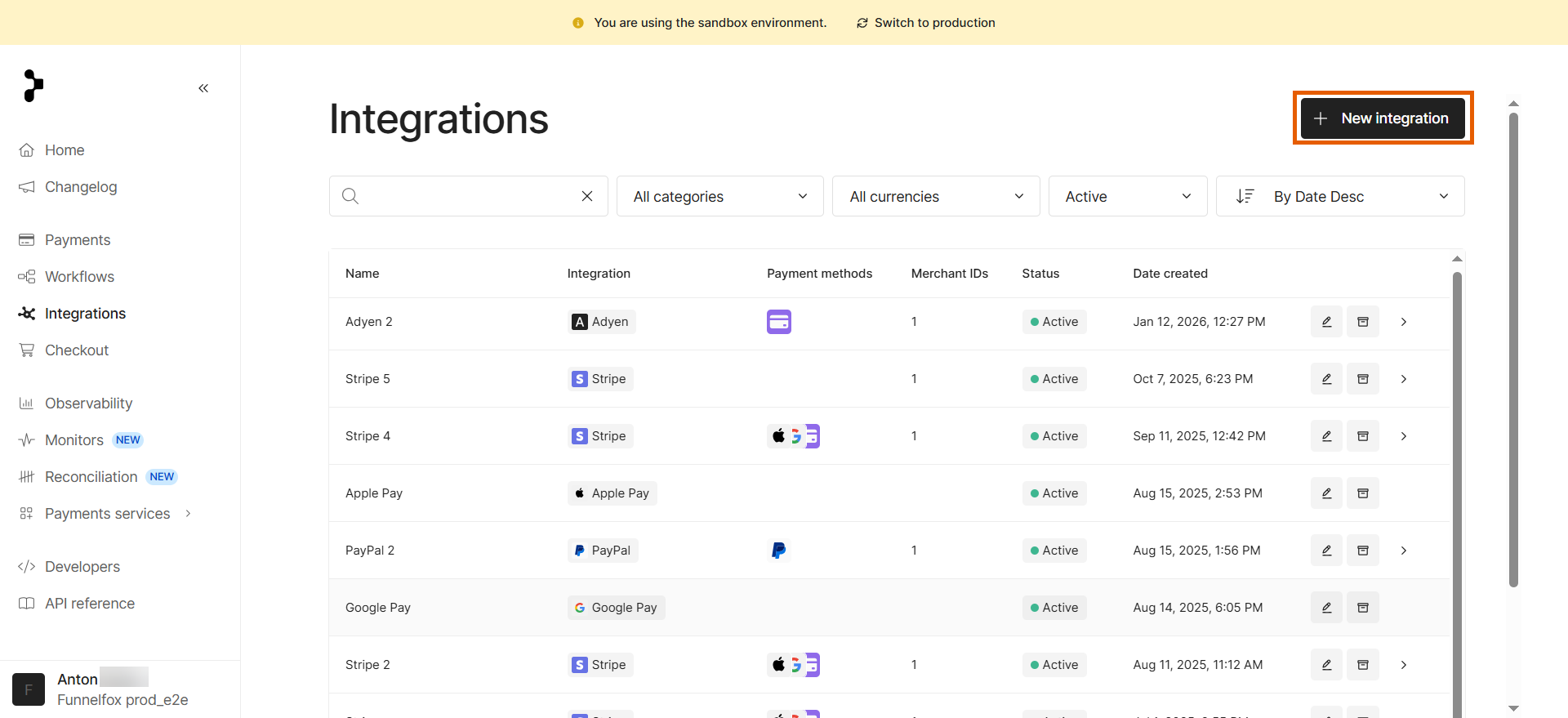
2. Click **+ New integration** at the top right.
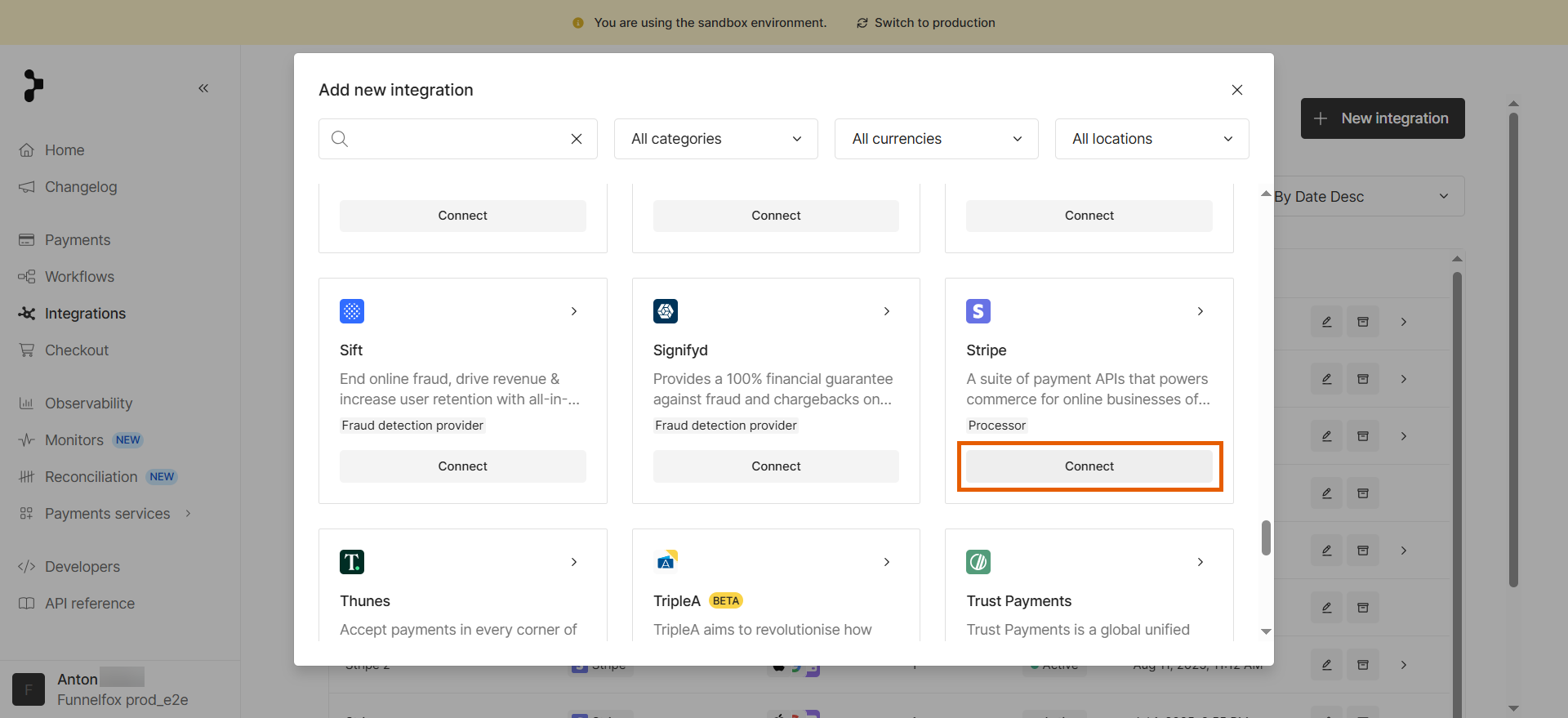
 3. Click **Connect** under **Stripe**.
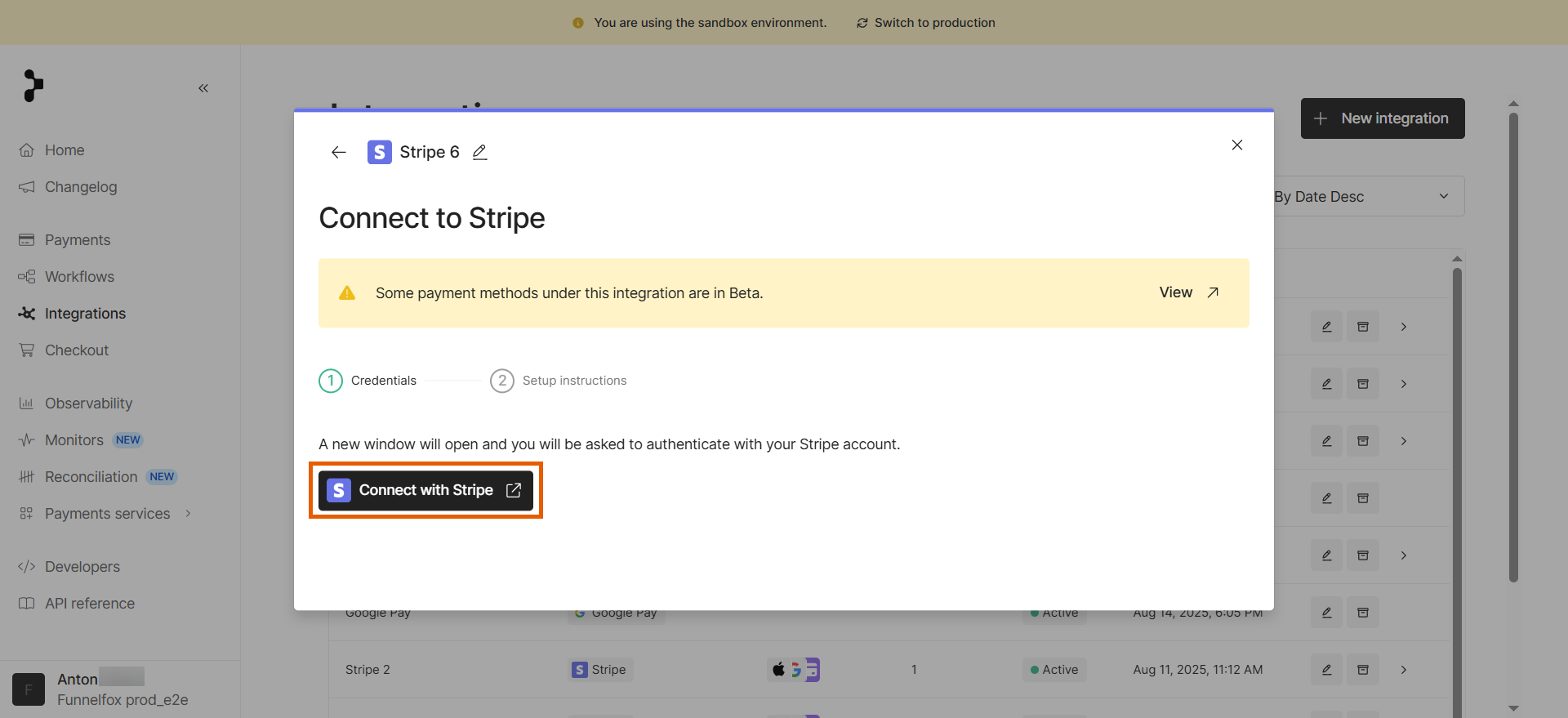
 4. Click **Connect with Stripe**.
 5. Select your sandbox account and click **Connect**.
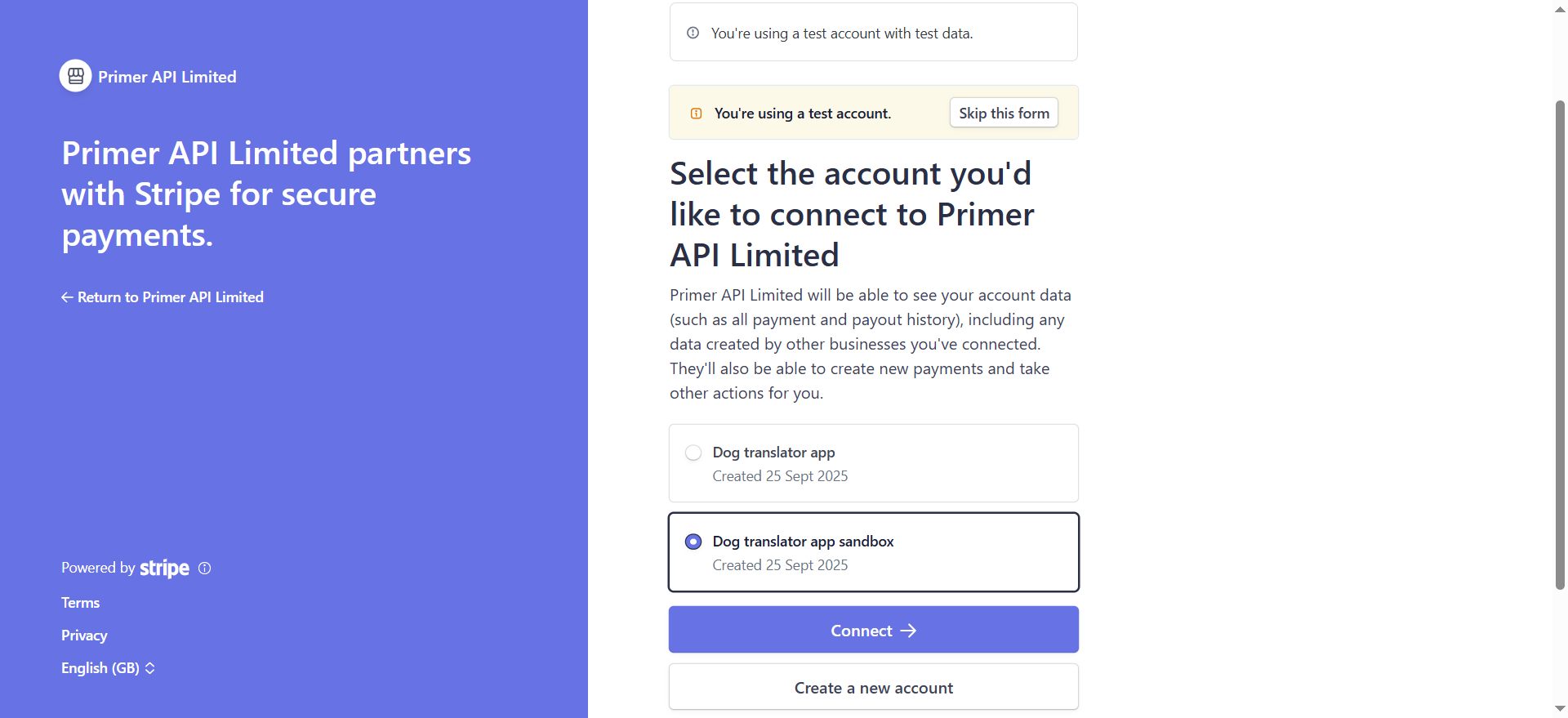 After connecting, you'll see the **Webhooks** page in Stripe where you can proceed to the next step.
### 3. Set up Primer webhook
1. Click **+ Add destination** on the [Developers > Webhooks](https://dashboard.stripe.com/webhooks) page in Stripe.
After connecting, you'll see the **Webhooks** page in Stripe where you can proceed to the next step.
### 3. Set up Primer webhook
1. Click **+ Add destination** on the [Developers > Webhooks](https://dashboard.stripe.com/webhooks) page in Stripe.
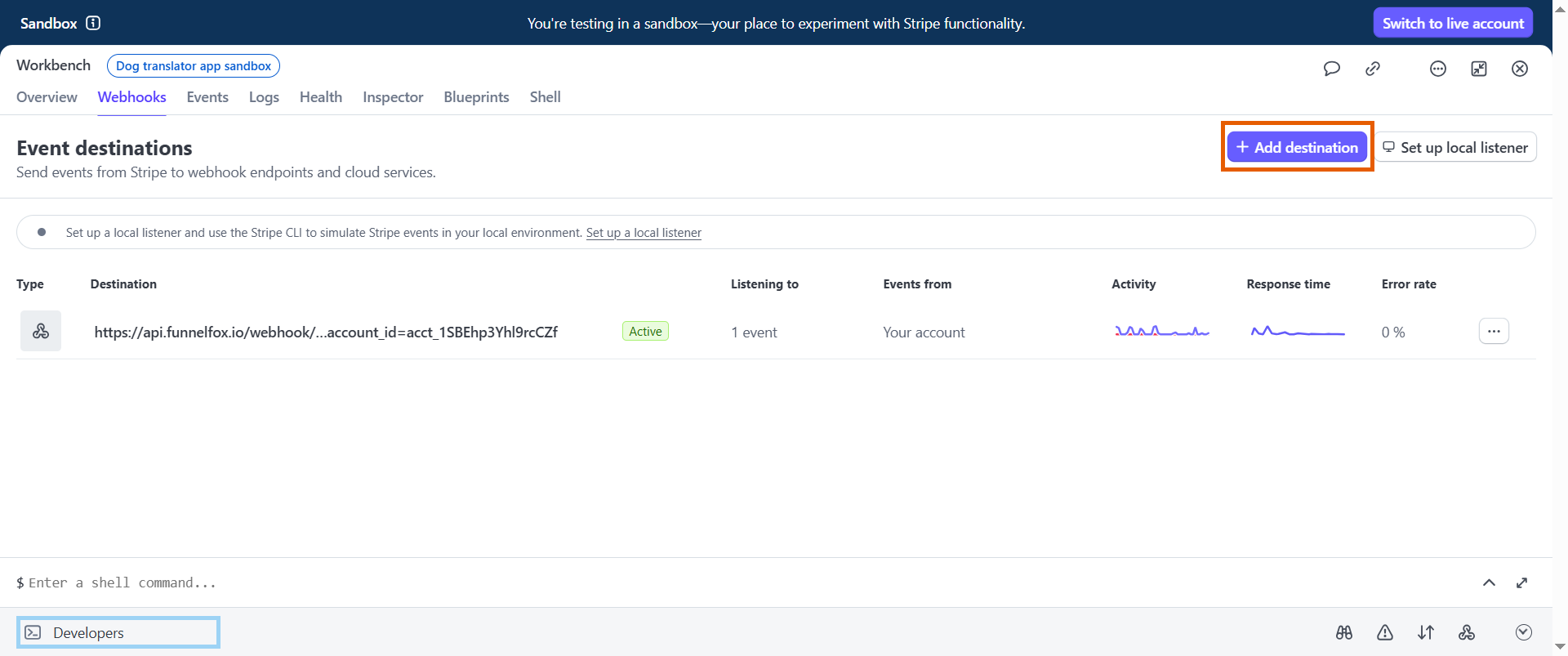 2. Select **Your account** under **Events from**.
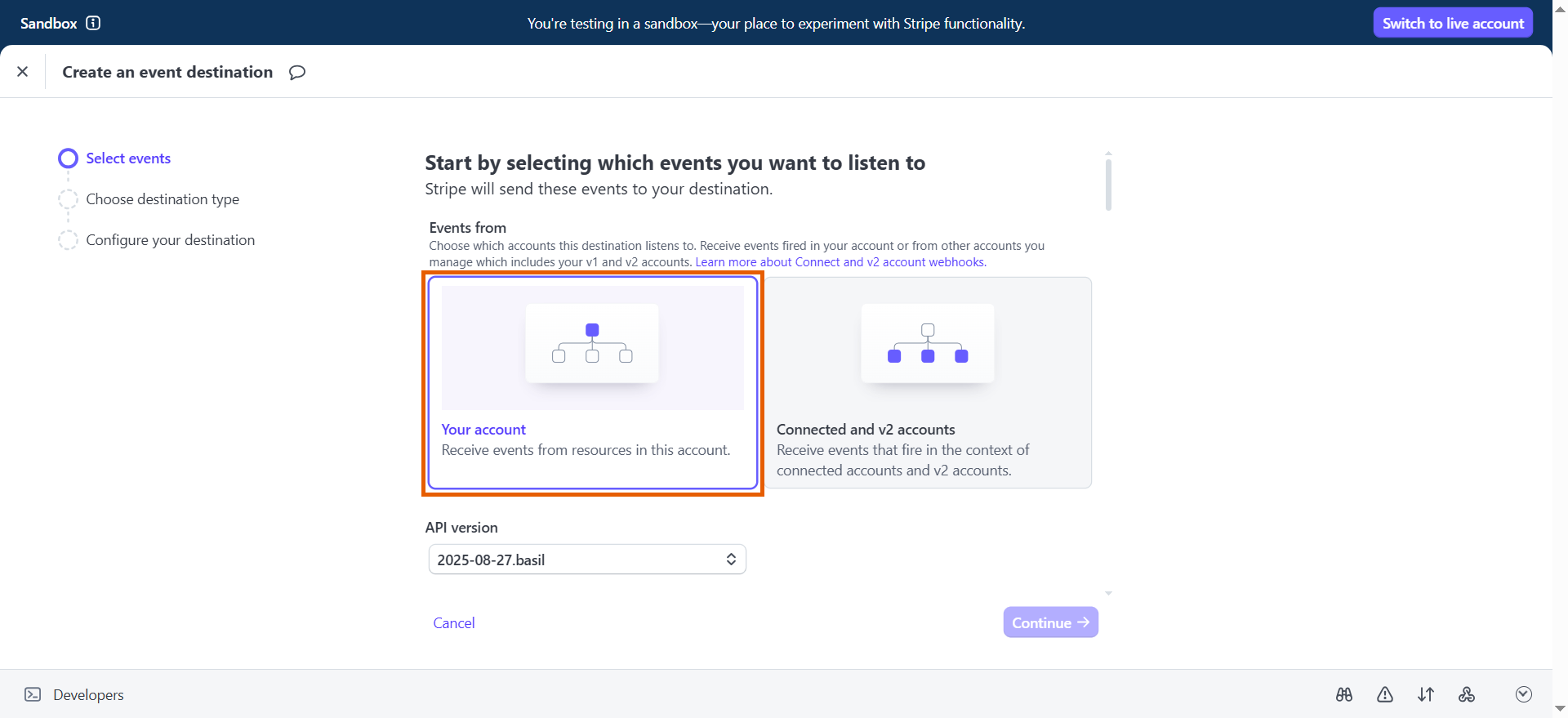 3. Ensure the API version is 2020-03-02 or later.
If you're using an older Stripe API version, learn about [Stripe API upgrades](https://docs.stripe.com/upgrades).
3. Ensure the API version is 2020-03-02 or later.
If you're using an older Stripe API version, learn about [Stripe API upgrades](https://docs.stripe.com/upgrades).
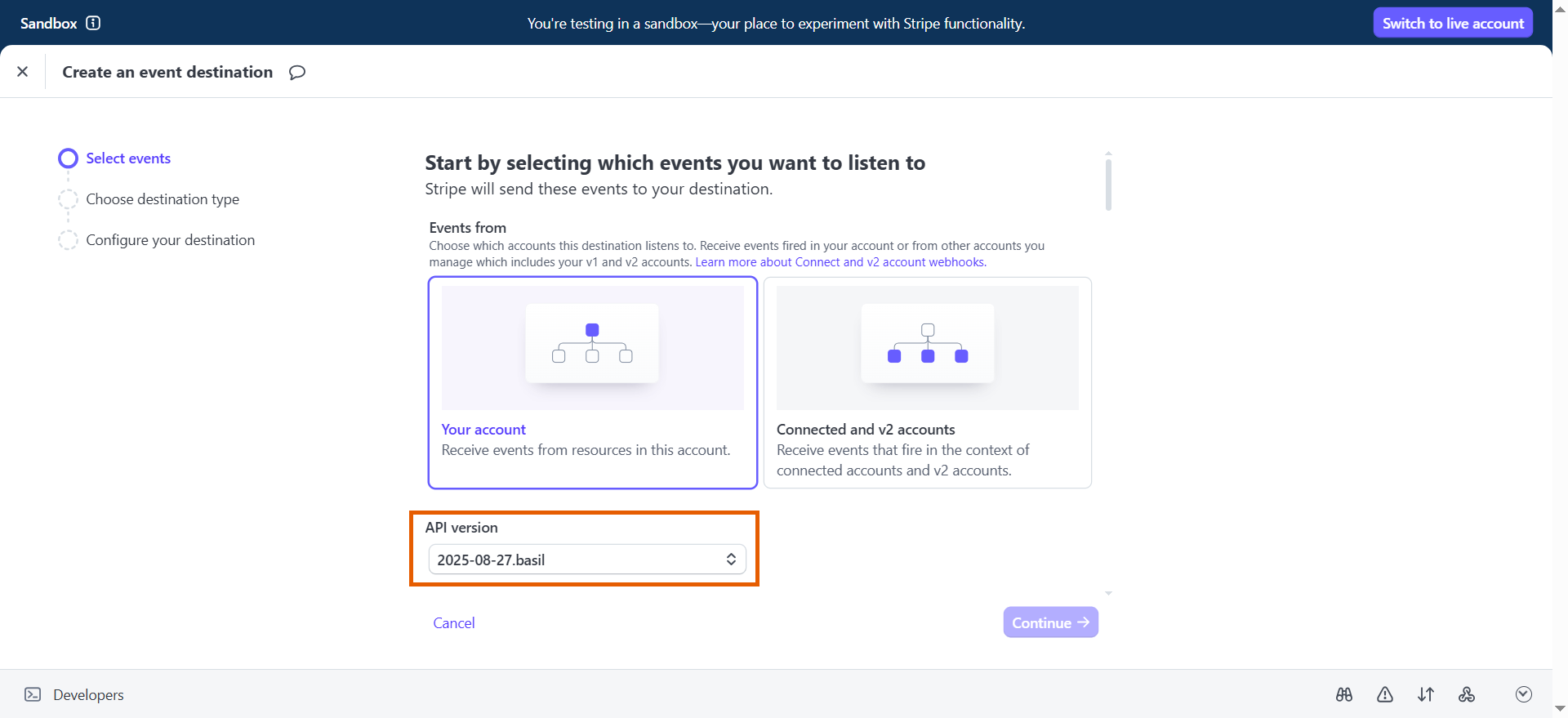 4. Select the following events and click **Continue**:
* **payment\_intent.succeeded**
* **payment\_intent.payment\_failed**
* **payment\_intent.processing**
* **payment\_intent.canceled**
* **payment\_intent.amount\_capturable\_updated**
* **payment\_intent.partially\_funded**
* **charge.dispute.created**
* **charge.dispute.closed**
4. Select the following events and click **Continue**:
* **payment\_intent.succeeded**
* **payment\_intent.payment\_failed**
* **payment\_intent.processing**
* **payment\_intent.canceled**
* **payment\_intent.amount\_capturable\_updated**
* **payment\_intent.partially\_funded**
* **charge.dispute.created**
* **charge.dispute.closed**
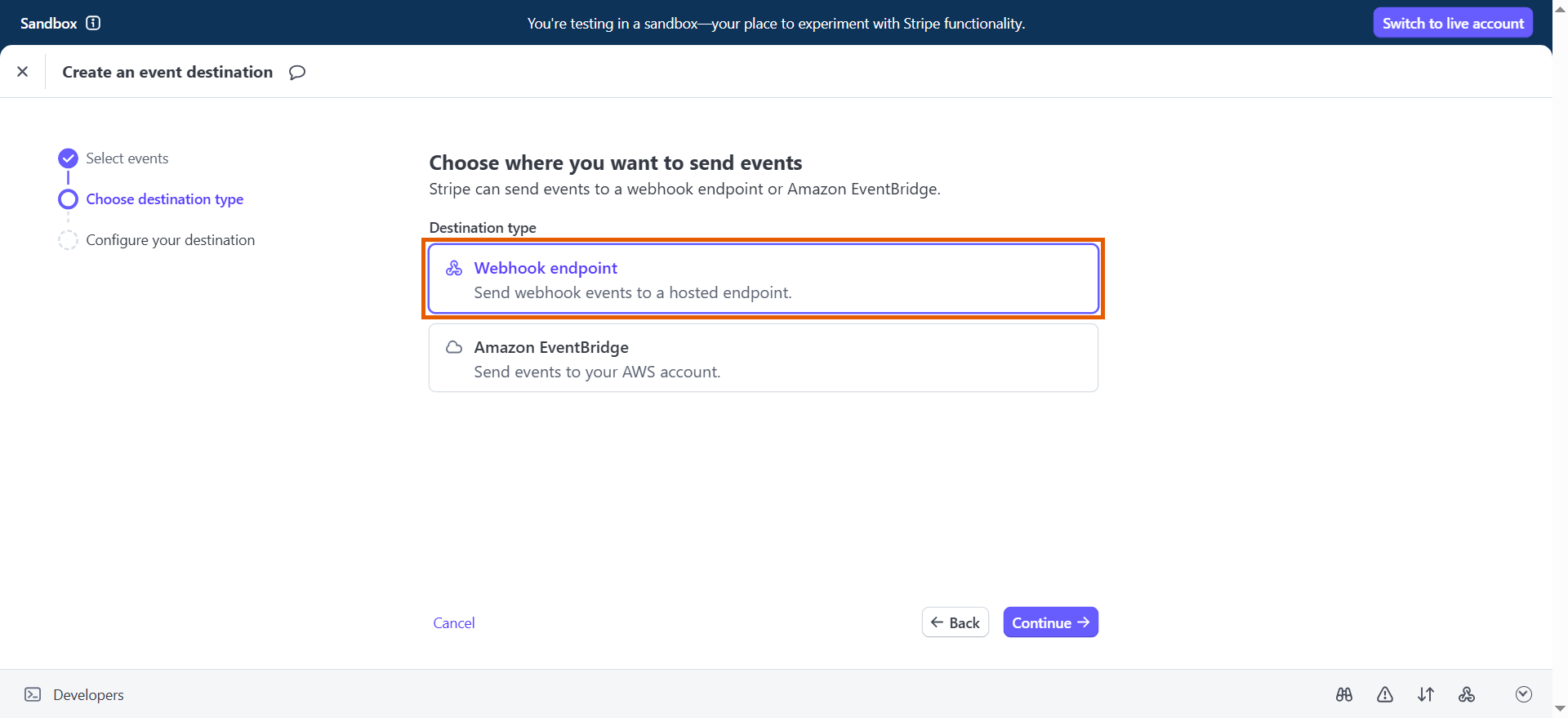
 5. Select **Webhook endpoint** under **Destination type** and click **Continue**.
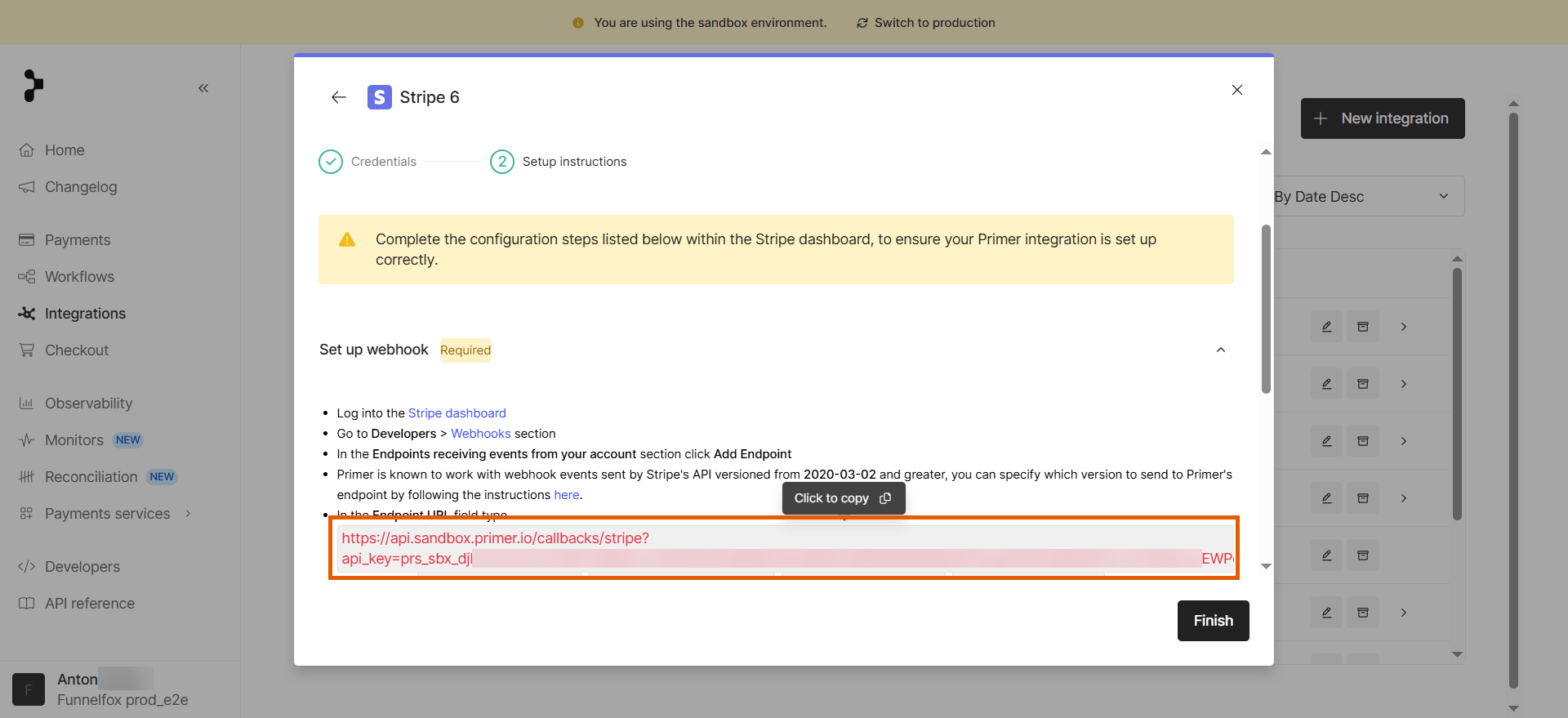
 6. Go back to the Stripe integration in Primer and copy the endpoint URL under **Set up webhook**.
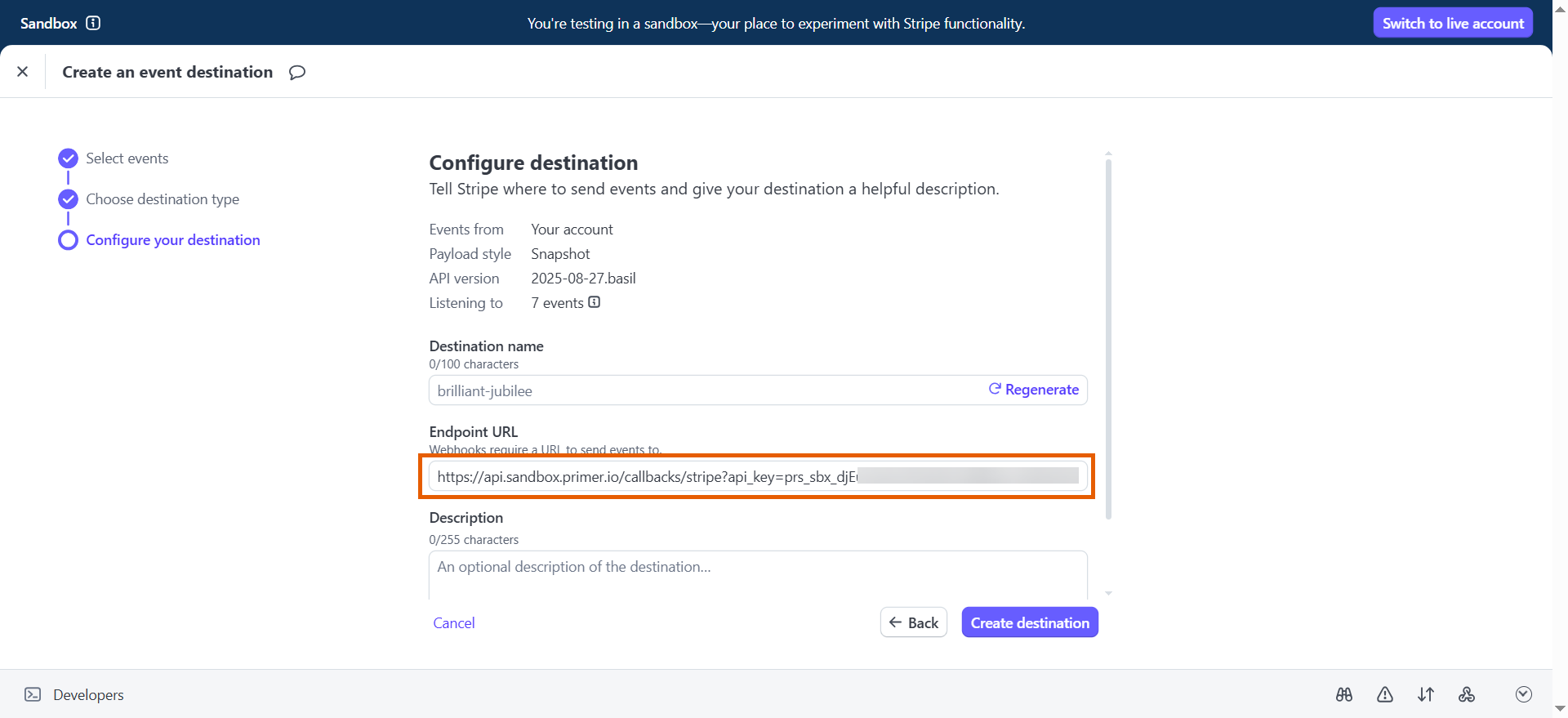
 7. Go back to webhook configuration in Stripe and paste the endpoint URL into the **Endpoint URL** field.
 8. Click **Create destination**.
Click **Finish** in the Stripe integration in Primer. You can skip the remaining steps about enabling raw card data handling—that section of the Primer guide is outdated.
### 4. Set up FunnelFox Billing webhook
Repeat the steps above to set up another webhook using a different endpoint URL and events.
1. Click **+ Add destination** on the [Developers > Webhooks](https://dashboard.stripe.com/webhooks) page in Stripe.
2. Select **Your account** under **Events from**.
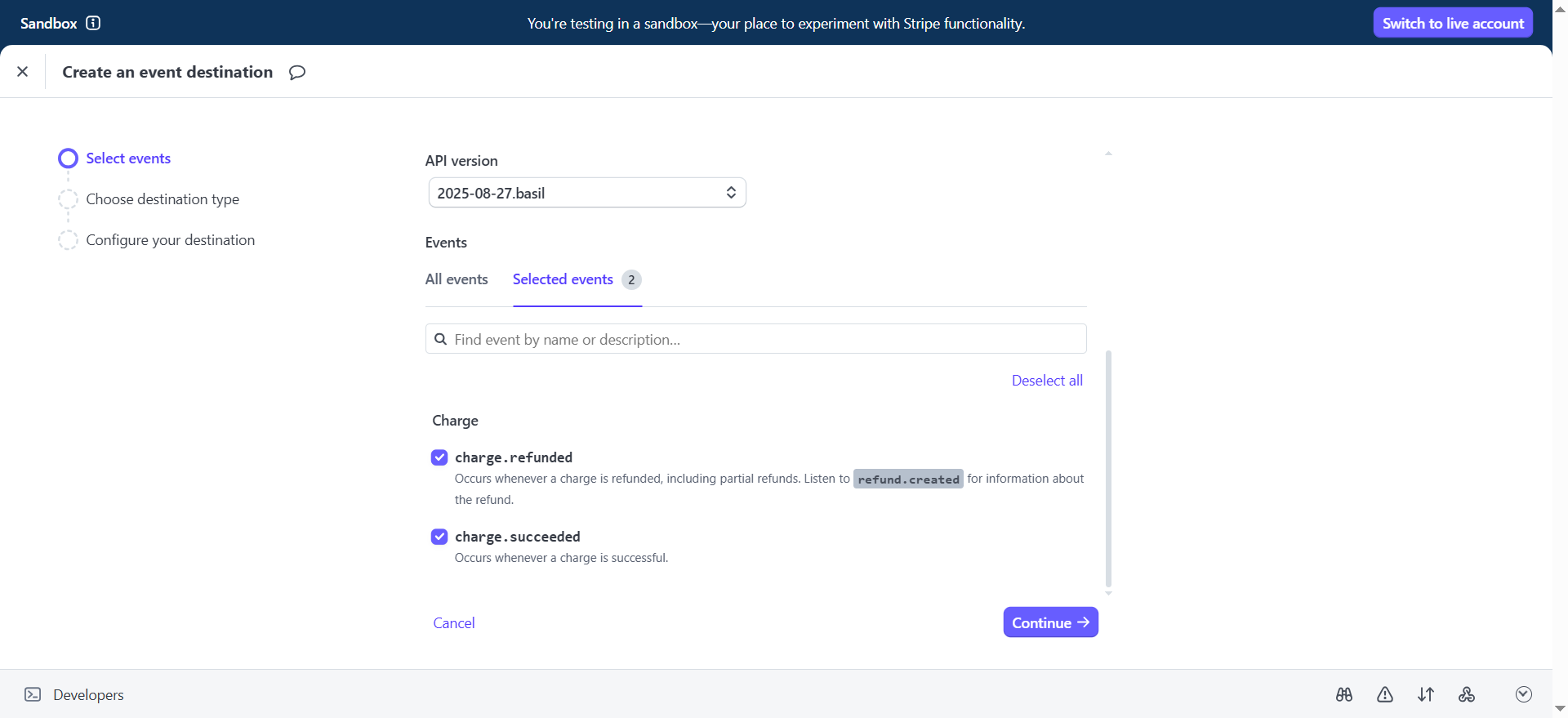
3. Select the following events and click **Continue**:
* **charge.refunded**
* **charge.succeeded**
8. Click **Create destination**.
Click **Finish** in the Stripe integration in Primer. You can skip the remaining steps about enabling raw card data handling—that section of the Primer guide is outdated.
### 4. Set up FunnelFox Billing webhook
Repeat the steps above to set up another webhook using a different endpoint URL and events.
1. Click **+ Add destination** on the [Developers > Webhooks](https://dashboard.stripe.com/webhooks) page in Stripe.
2. Select **Your account** under **Events from**.
3. Select the following events and click **Continue**:
* **charge.refunded**
* **charge.succeeded**
 4. Select **Webhook endpoint** under **Destination type** and click **Continue**.
5. Request your **Sandbox Organization ID** (org id) from your Solution manager.
6. Replace `{ORG_ID}` in `https://billing.funnelfox.com/{ORG_ID}/v1/stripe/webhook?region=default` with your Sandbox Organization ID.
Your complete endpoint URL will look like `https://billing.funnelfox.com/sndbx_123a4b5678c9d0/v1/stripe/webhook?region=default`.
7. Go back to the Stripe webhook configuration and paste the endpoint URL into **Endpoint URL**.
4. Select **Webhook endpoint** under **Destination type** and click **Continue**.
5. Request your **Sandbox Organization ID** (org id) from your Solution manager.
6. Replace `{ORG_ID}` in `https://billing.funnelfox.com/{ORG_ID}/v1/stripe/webhook?region=default` with your Sandbox Organization ID.
Your complete endpoint URL will look like `https://billing.funnelfox.com/sndbx_123a4b5678c9d0/v1/stripe/webhook?region=default`.
7. Go back to the Stripe webhook configuration and paste the endpoint URL into **Endpoint URL**.
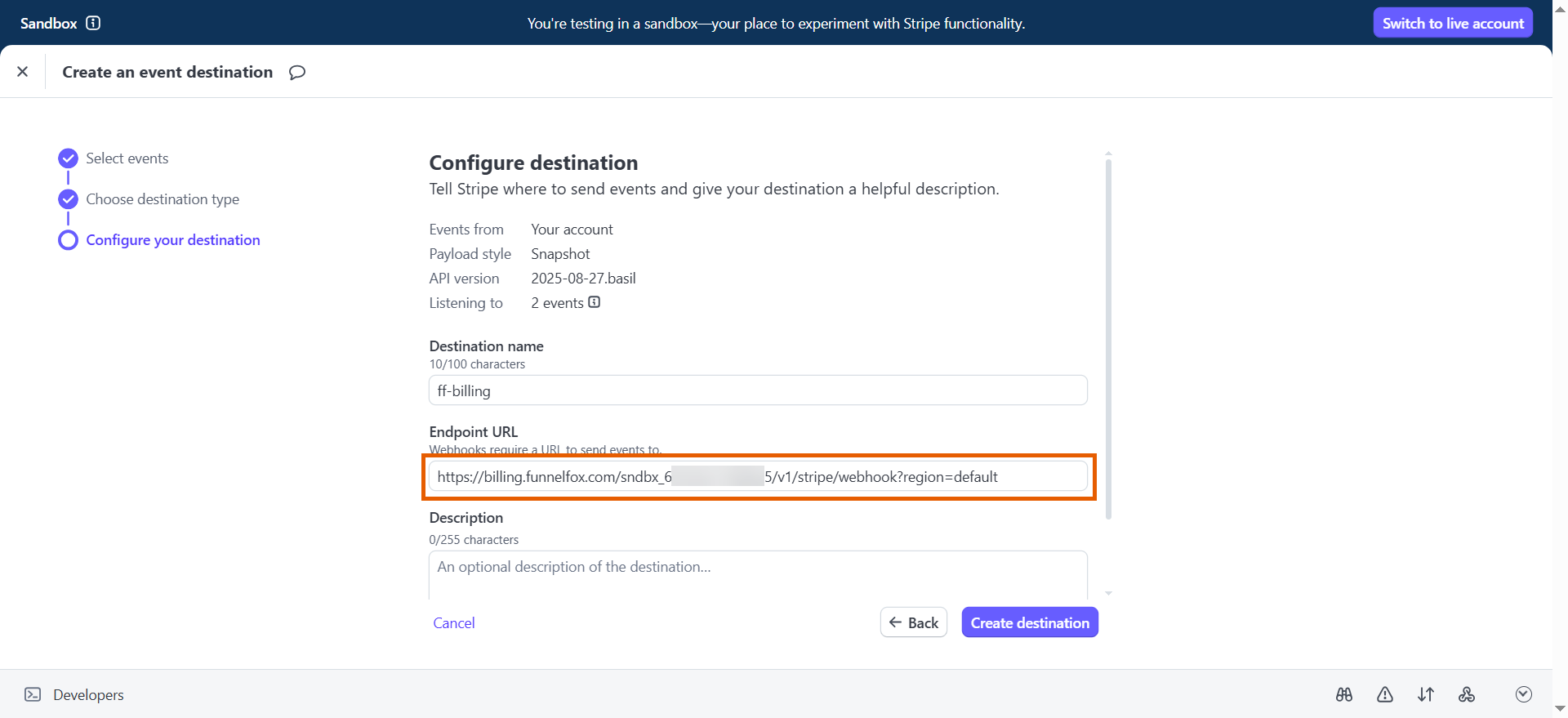 8. Click **Create destination**.
### 5. Configure field mapping
Map required fields in Primer to ensure FunnelFox Billing receives the necessary customer data from Stripe.
1. Go to [Integrations](https://sandbox-dashboard.primer.io/integrations) in Primer and open the Stripe integration you just set up.
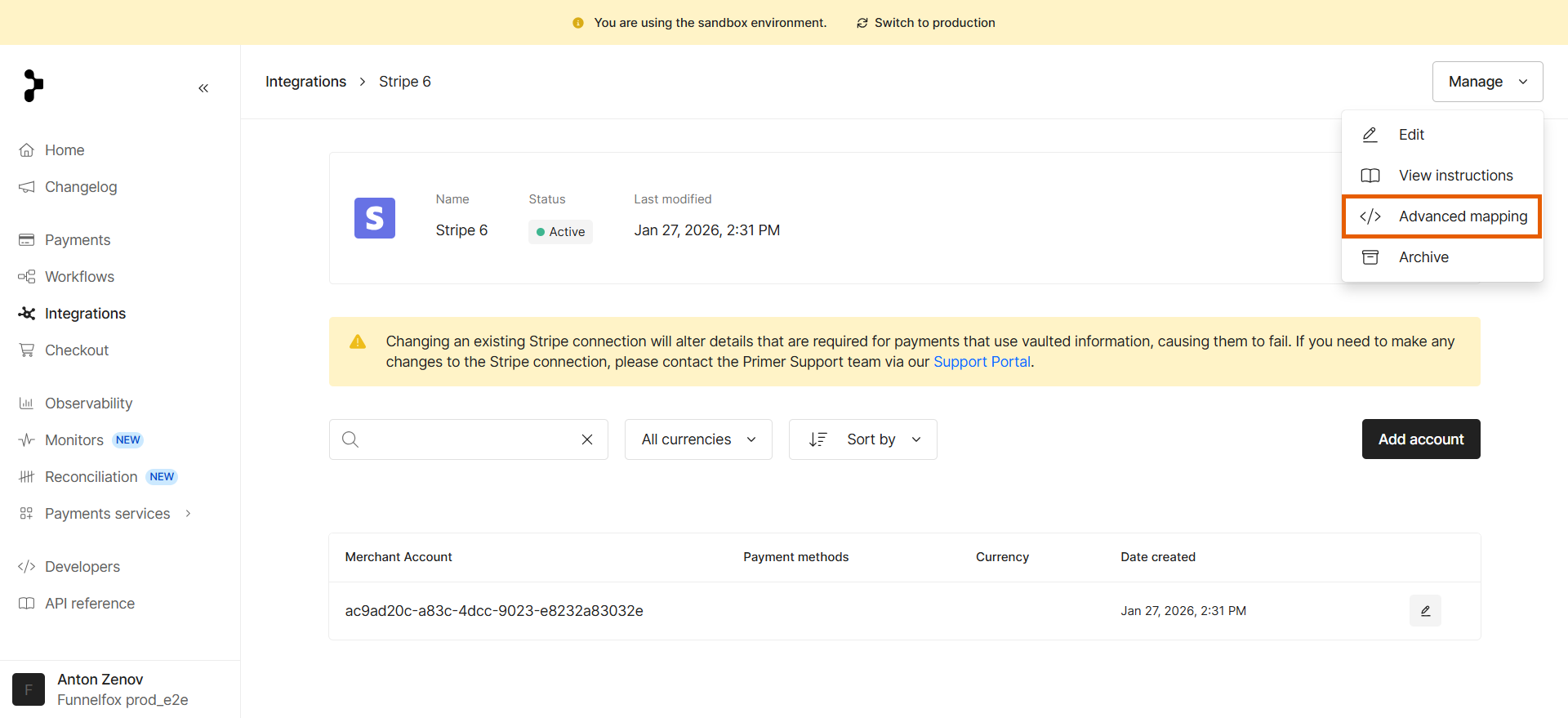
2. Click **Manage** at the top right and select **Advanced mapping**.
8. Click **Create destination**.
### 5. Configure field mapping
Map required fields in Primer to ensure FunnelFox Billing receives the necessary customer data from Stripe.
1. Go to [Integrations](https://sandbox-dashboard.primer.io/integrations) in Primer and open the Stripe integration you just set up.
2. Click **Manage** at the top right and select **Advanced mapping**.
 3. Click **Add field** and map the following fields under the **Authorization** tab:
* `ff_org_id`: `metadata[ff_org_id]`
* `ff_country_code`: `payment_method_data[billing_details][address][country]`
* `postal_code`: `payment_method_data[billing_details][address][postal_code]`
* `email`: `payment_method_data[billing_details][email]`
3. Click **Add field** and map the following fields under the **Authorization** tab:
* `ff_org_id`: `metadata[ff_org_id]`
* `ff_country_code`: `payment_method_data[billing_details][address][country]`
* `postal_code`: `payment_method_data[billing_details][address][postal_code]`
* `email`: `payment_method_data[billing_details][email]`
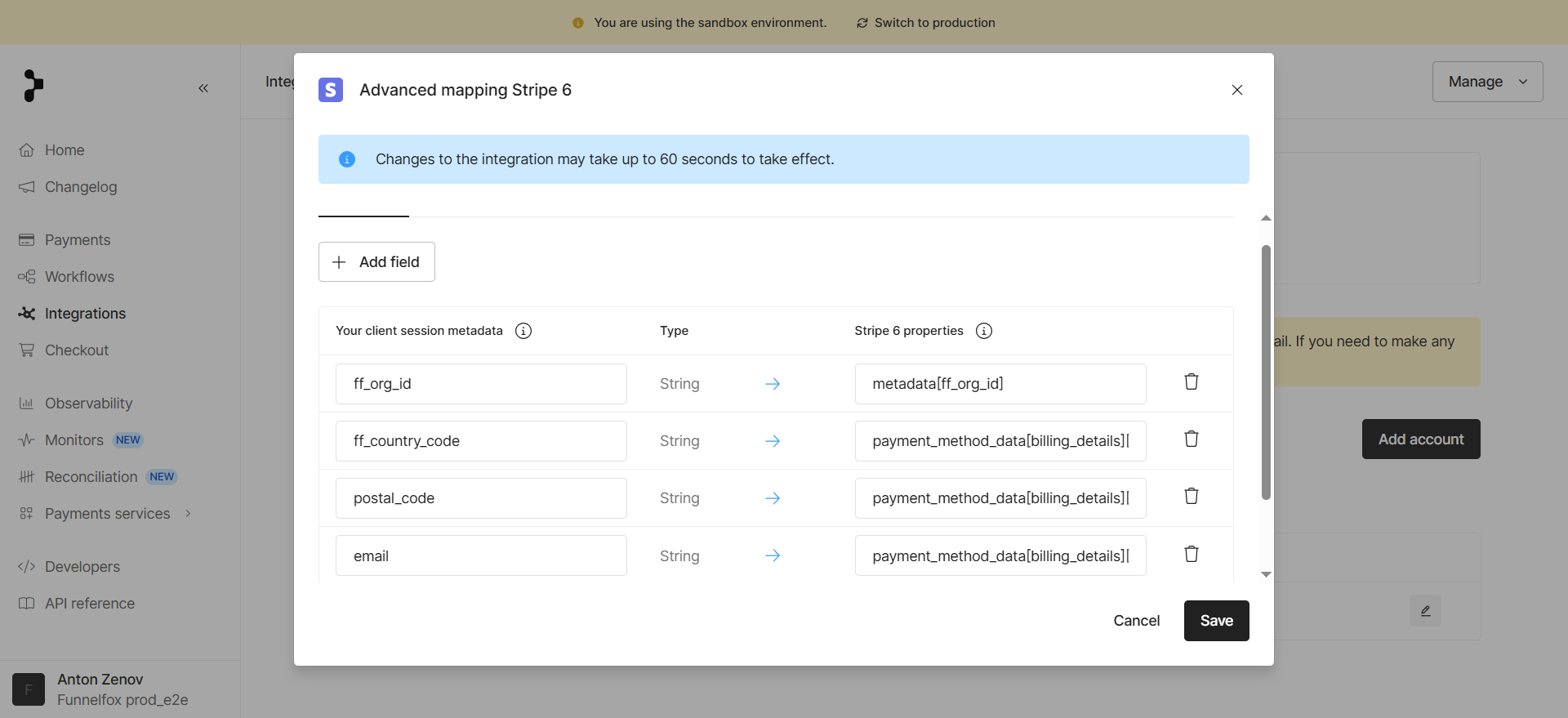 4. Click **Save**.
### 6. Get Support Tool access
Your Solution manager will reach out to provide access to the dedicated FunnelFox Billing dashboard with the Support Tool.
Use the Support Tool to manage subscriptions, process refunds, and view payments, webhooks, and more.
Your FunnelFox Billing Sandbox setup is complete. Make test payments to verify that everything is configured correctly.
## Production
After testing in Sandbox, set up FunnelFox Billing for your live environment to start accepting real payments.
Repeat the setup process from the Sandbox section above using the Primer Production account we create for you.
After completing the setup, proceed with configuring Apple Pay, Google Pay, and PayPal.
Before you begin, ensure you have:
* Your Merchant ID from the [Google Pay & Wallet Console](https://pay.google.com/business/console/home) with a verified business profile.
* An active PayPal business account.
### 1. Set up Apple Pay
1. Go to the [Integrations](https://sandbox-dashboard.primer.io/integrations) page in the Primer account we created for you.
2. Click **+ New integration** at the top right.
3. Click **Connect** under **Apple Pay**.
4. Click **Save**.
### 6. Get Support Tool access
Your Solution manager will reach out to provide access to the dedicated FunnelFox Billing dashboard with the Support Tool.
Use the Support Tool to manage subscriptions, process refunds, and view payments, webhooks, and more.
Your FunnelFox Billing Sandbox setup is complete. Make test payments to verify that everything is configured correctly.
## Production
After testing in Sandbox, set up FunnelFox Billing for your live environment to start accepting real payments.
Repeat the setup process from the Sandbox section above using the Primer Production account we create for you.
After completing the setup, proceed with configuring Apple Pay, Google Pay, and PayPal.
Before you begin, ensure you have:
* Your Merchant ID from the [Google Pay & Wallet Console](https://pay.google.com/business/console/home) with a verified business profile.
* An active PayPal business account.
### 1. Set up Apple Pay
1. Go to the [Integrations](https://sandbox-dashboard.primer.io/integrations) page in the Primer account we created for you.
2. Click **+ New integration** at the top right.
3. Click **Connect** under **Apple Pay**.
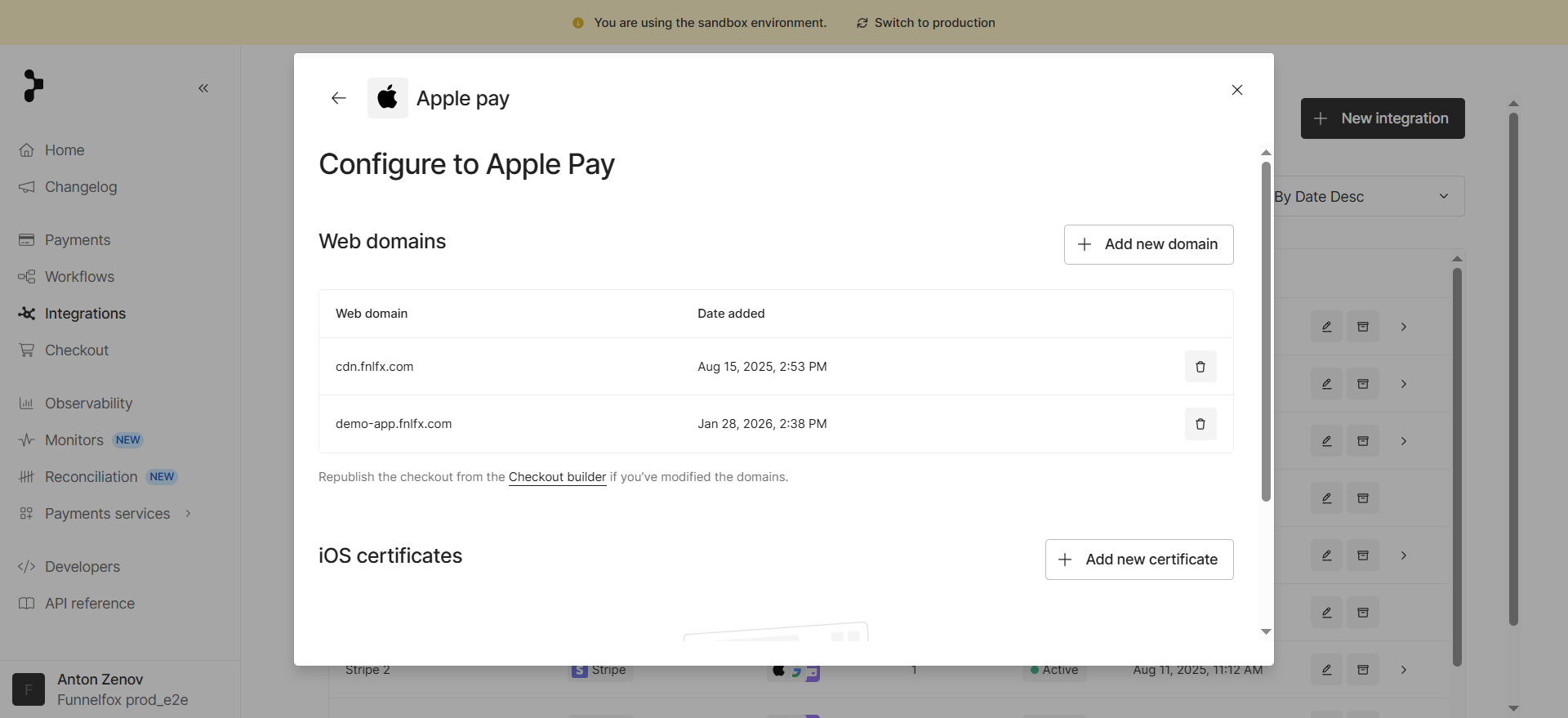
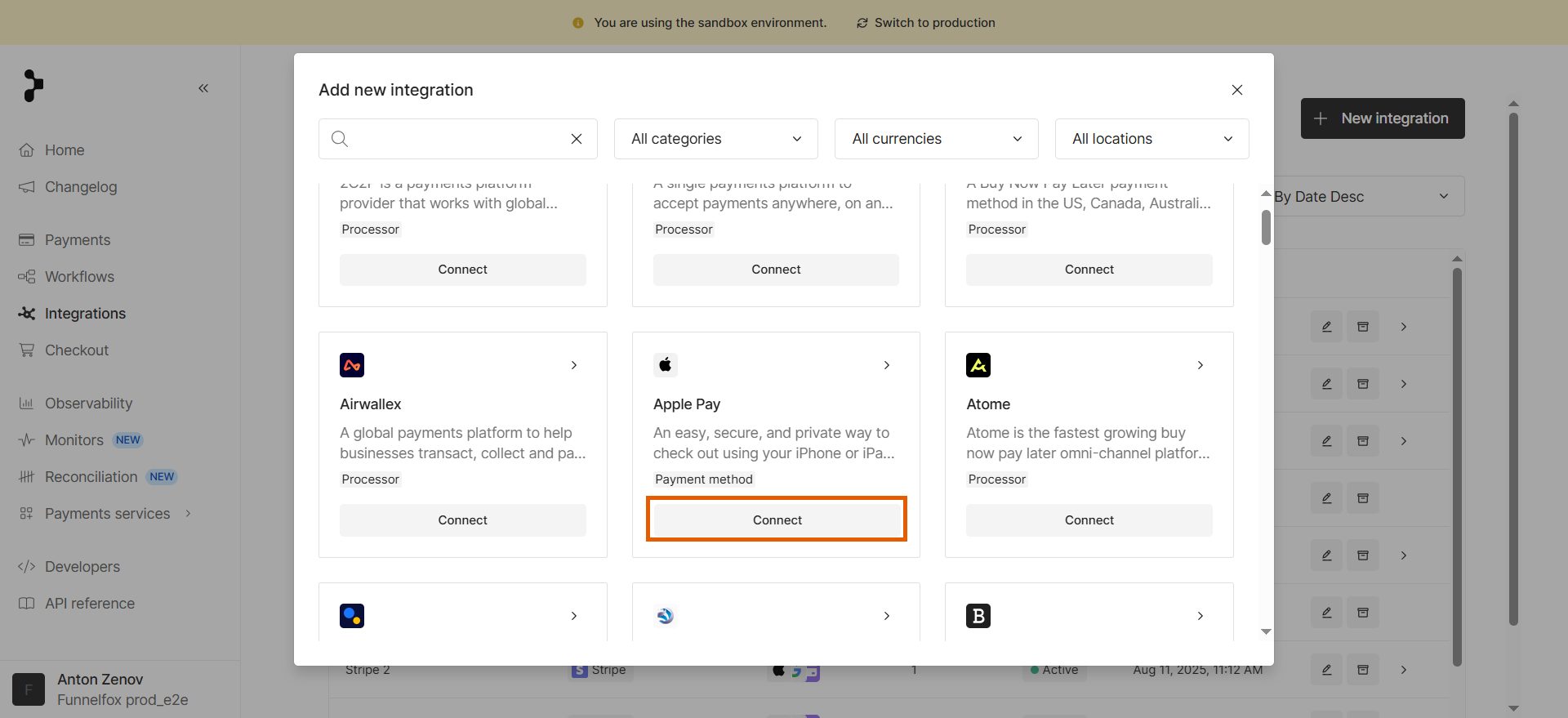 4. Click **+ Add new domain** and add three domains:
* `cdn.fnlfx.com`.
* Your project domain from [Settings > Domains](/dashboard/settings#domains) in FunnelFox (for example, `demo-app.fnlfx.com`).
* Your custom domain (if any).
4. Click **+ Add new domain** and add three domains:
* `cdn.fnlfx.com`.
* Your project domain from [Settings > Domains](/dashboard/settings#domains) in FunnelFox (for example, `demo-app.fnlfx.com`).
* Your custom domain (if any).
 5. Go to [Settings > Domains](/dashboard/settings#domains) in FunnelFox.
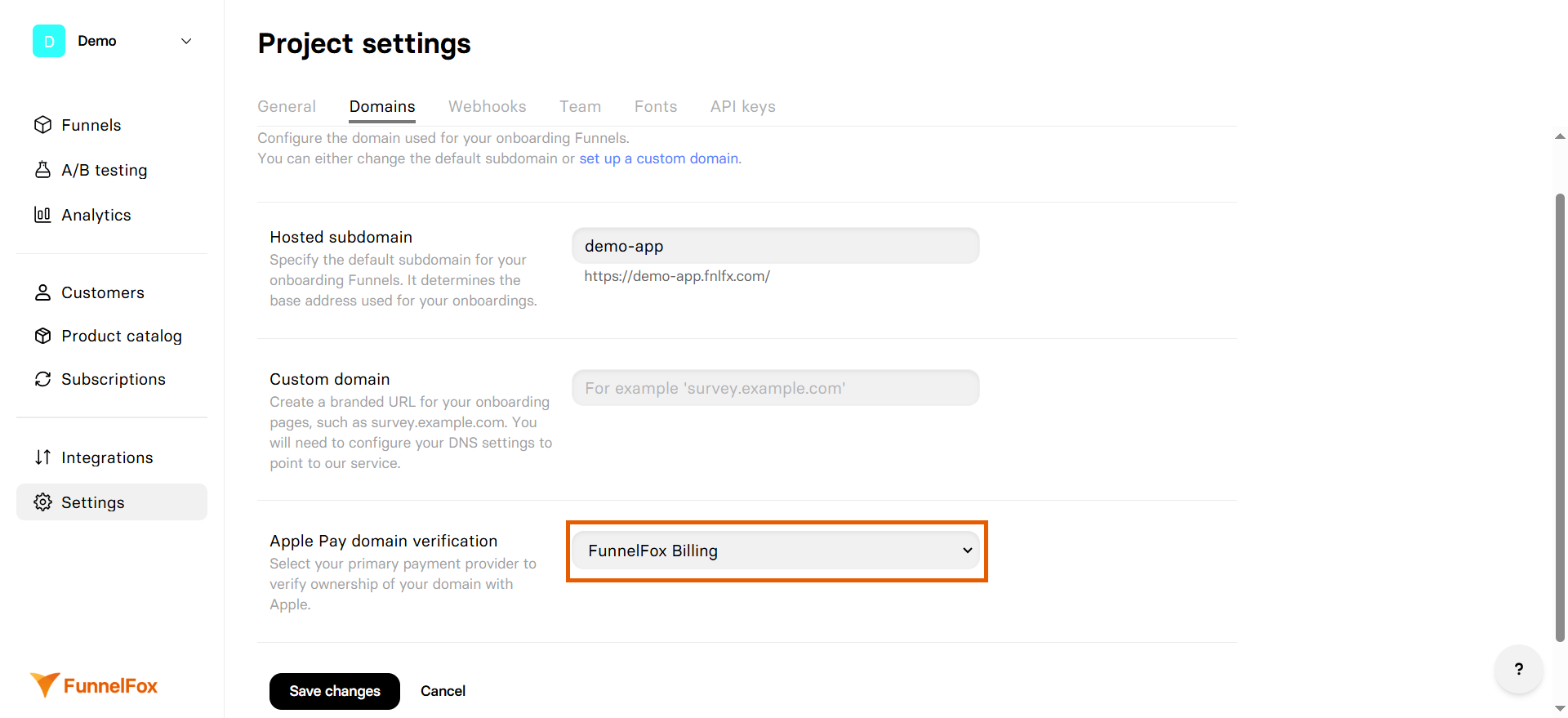
6. Select **FunnelFox Billing** under **Apple Pay domain verification**.
5. Go to [Settings > Domains](/dashboard/settings#domains) in FunnelFox.
6. Select **FunnelFox Billing** under **Apple Pay domain verification**.
 7. Save changes.
### 2. Set up Google Pay
1. Click **+ New integration** on the [Integrations](https://sandbox-dashboard.primer.io/integrations) page in Primer.
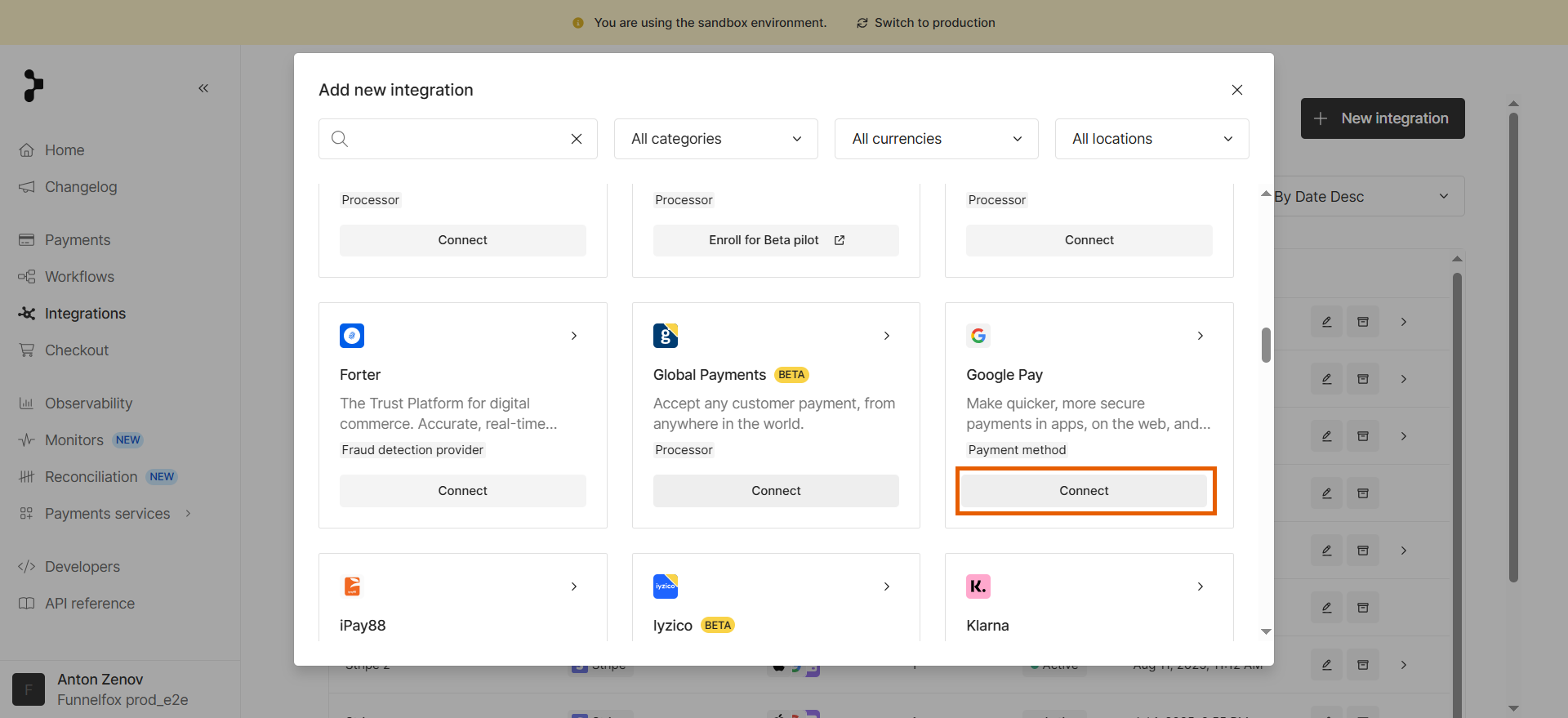
2. Click **Connect** under **Google Pay**.
7. Save changes.
### 2. Set up Google Pay
1. Click **+ New integration** on the [Integrations](https://sandbox-dashboard.primer.io/integrations) page in Primer.
2. Click **Connect** under **Google Pay**.
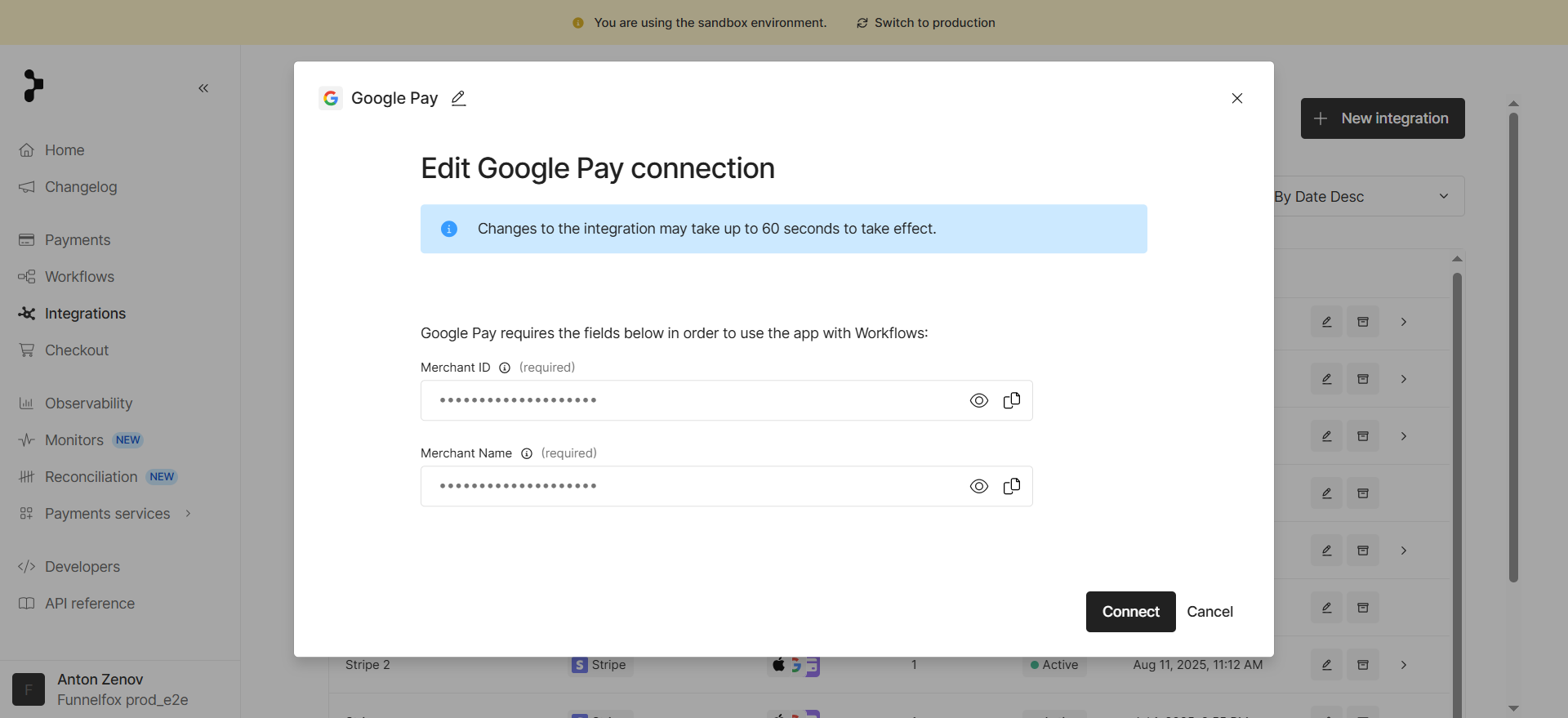
 3. Enter your Google Pay merchant details and click **Connect**:
* **Merchant ID**
* **Merchant Name**
3. Enter your Google Pay merchant details and click **Connect**:
* **Merchant ID**
* **Merchant Name**
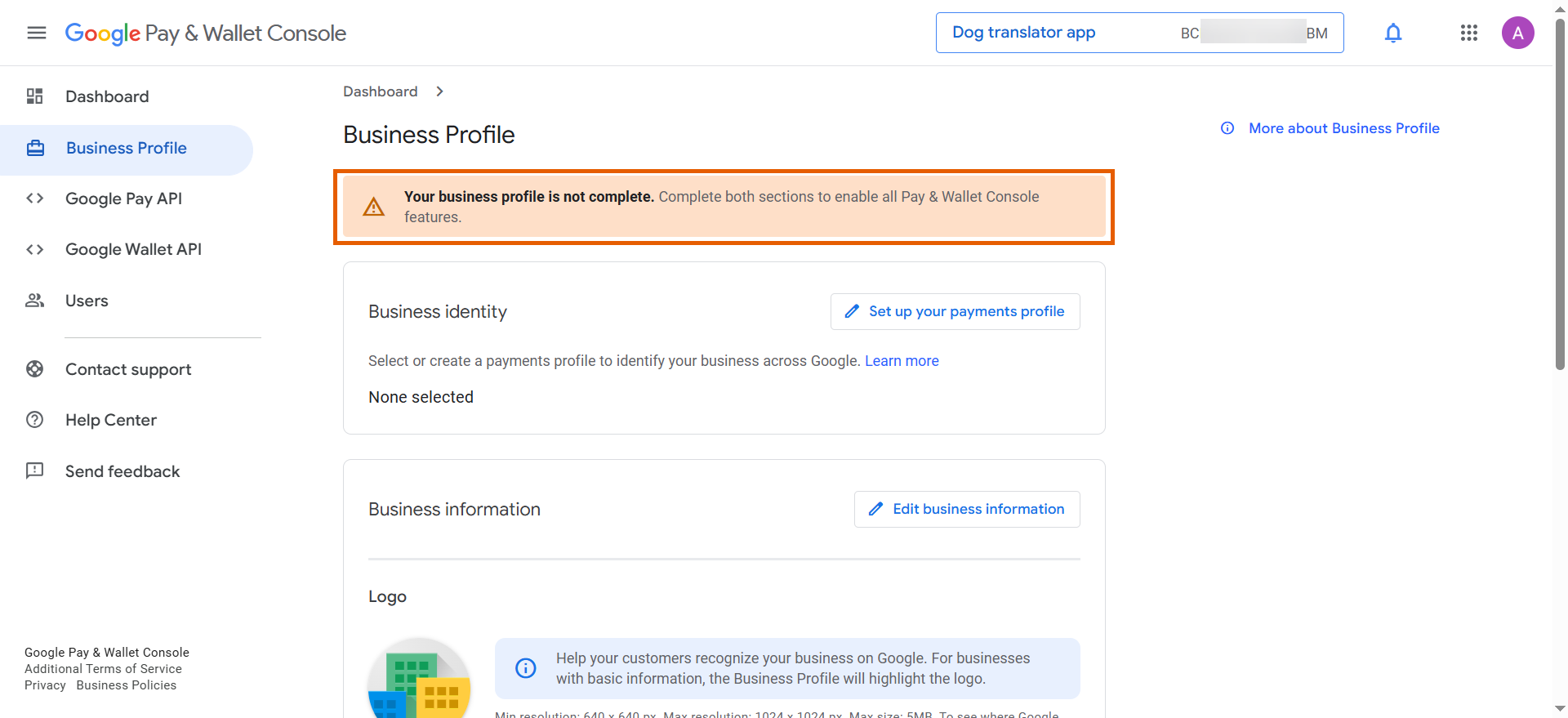
 4. Go to the Business profile page in your [Google Pay & Wallet Console](https://pay.google.com/business/console/home) and verify your business profile is complete.
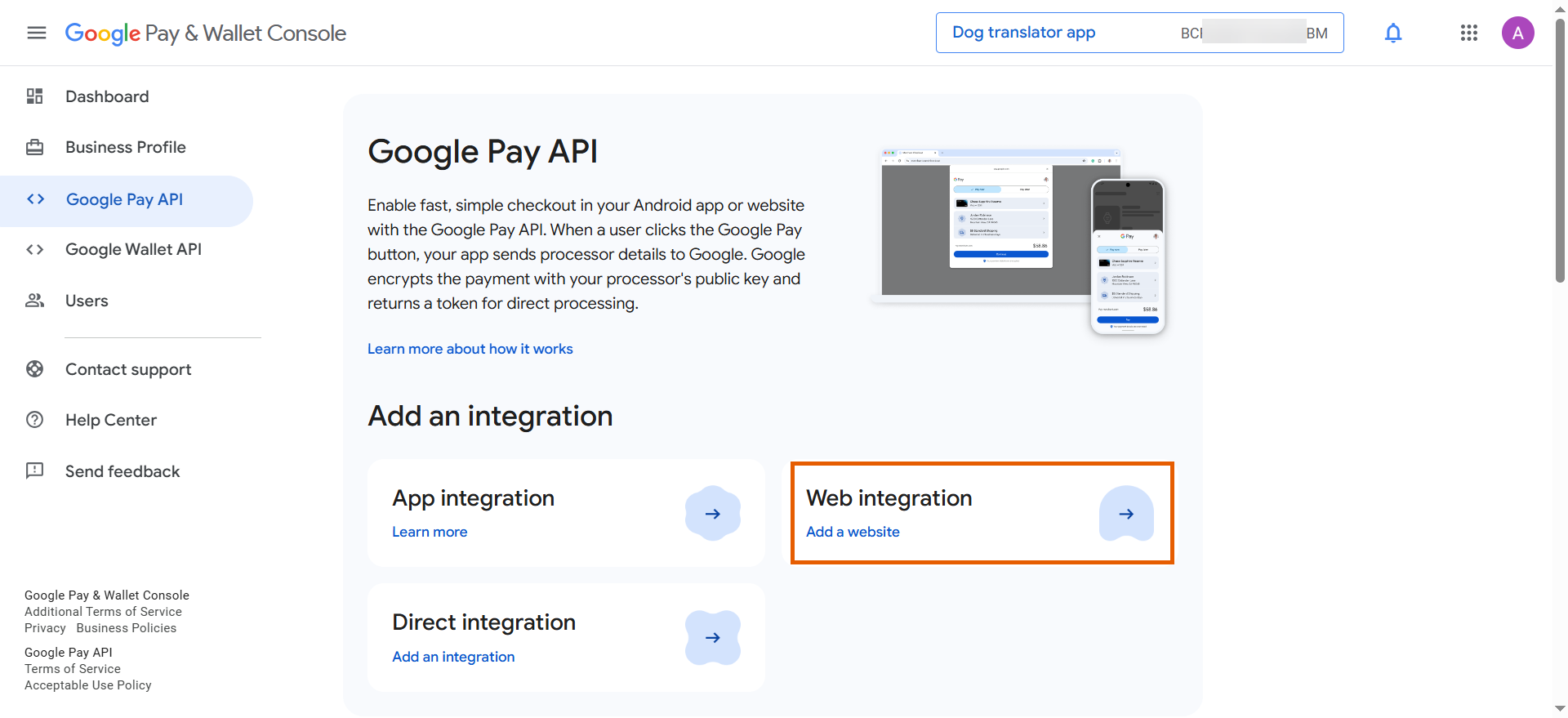
 5. Go to **Google Pay API > Web integration**.
 6. Complete the form and click **Submit for approval**:
* **Website URL**: Enter the domain you’d like to integrate with. If you have multiple domains, enter the main one.
* **Integration type**: Gateway.
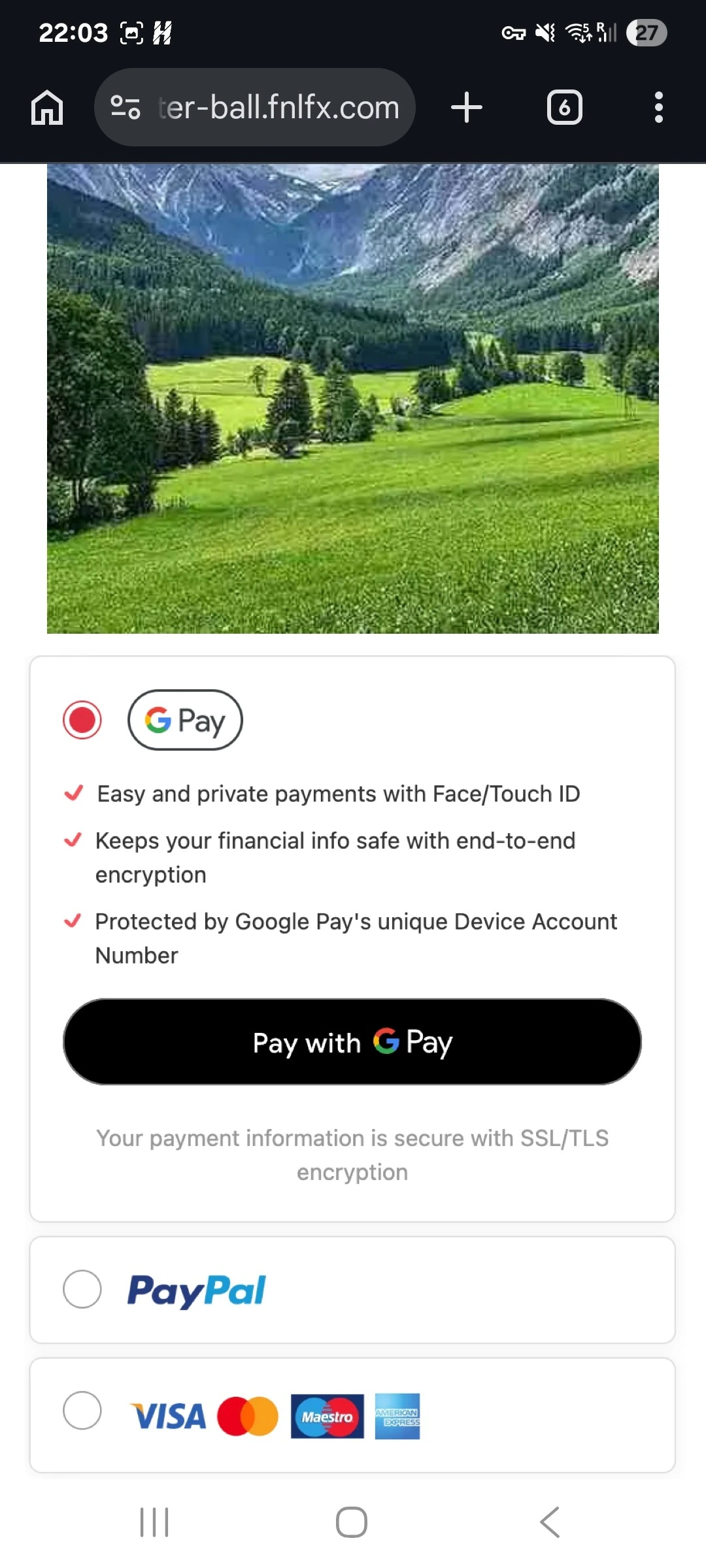
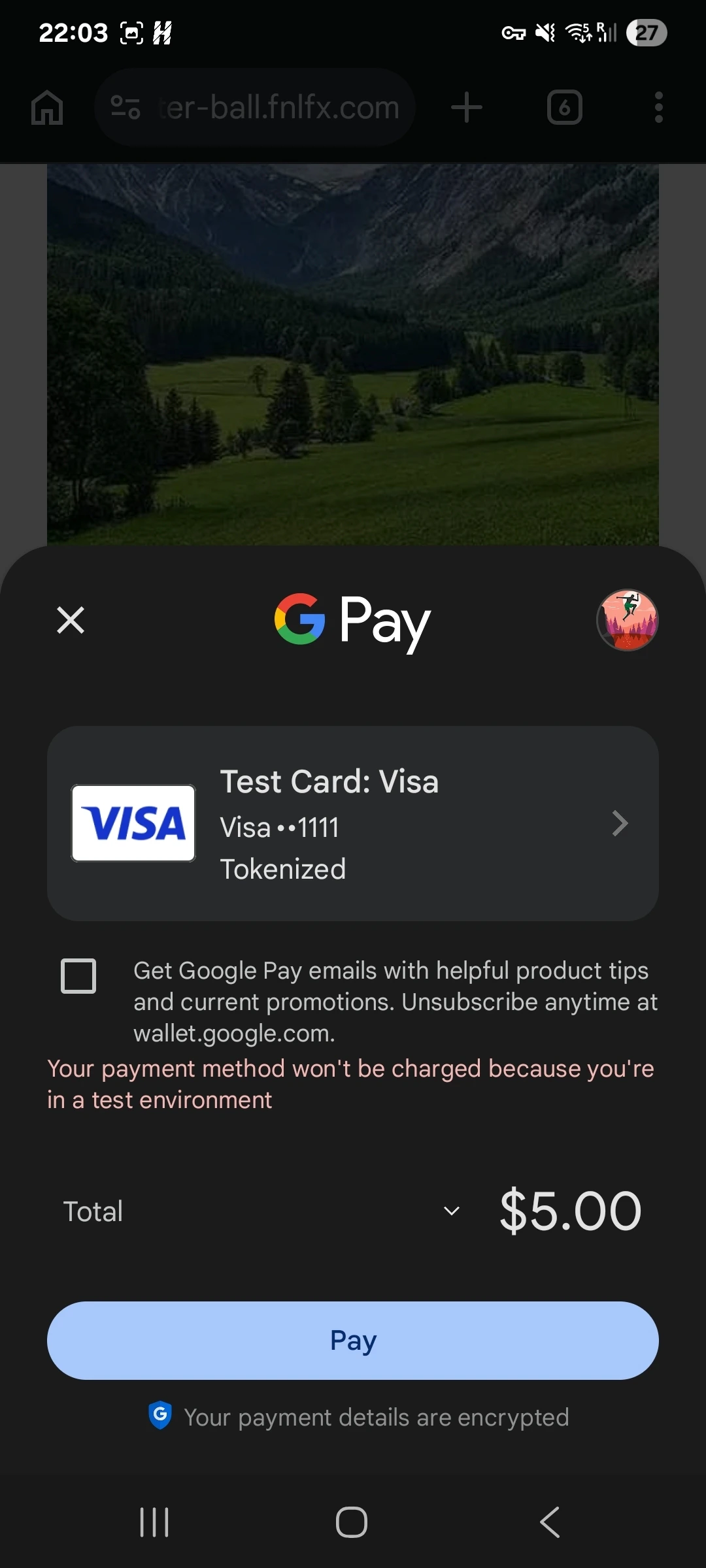
* **Screenshots of your buyflow**: Upload screenshots of your buyflow with the Google Pay API (1MB max).
6. Complete the form and click **Submit for approval**:
* **Website URL**: Enter the domain you’d like to integrate with. If you have multiple domains, enter the main one.
* **Integration type**: Gateway.
* **Screenshots of your buyflow**: Upload screenshots of your buyflow with the Google Pay API (1MB max).
 ### 3. Set up PayPal
1. Click **+ New integration** on the [Integrations](https://sandbox-dashboard.primer.io/integrations) page in Primer.
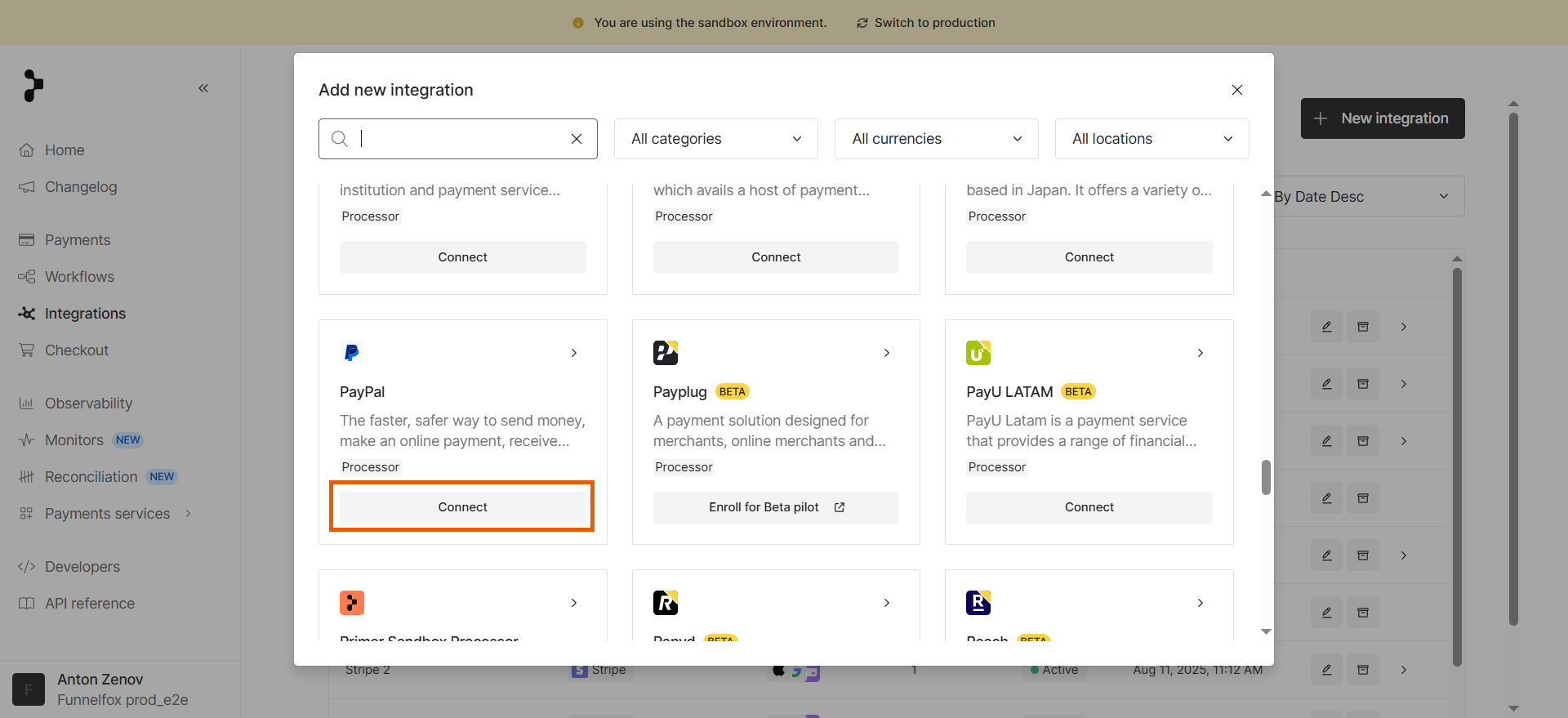
2. Click **Connect** under **PayPal**.
### 3. Set up PayPal
1. Click **+ New integration** on the [Integrations](https://sandbox-dashboard.primer.io/integrations) page in Primer.
2. Click **Connect** under **PayPal**.
 3. Go to [Apps & Credentials](https://developer.paypal.com/dashboard/applications/sandbox) in your PayPal Developer dashboard and open your app under **REST API apps**.
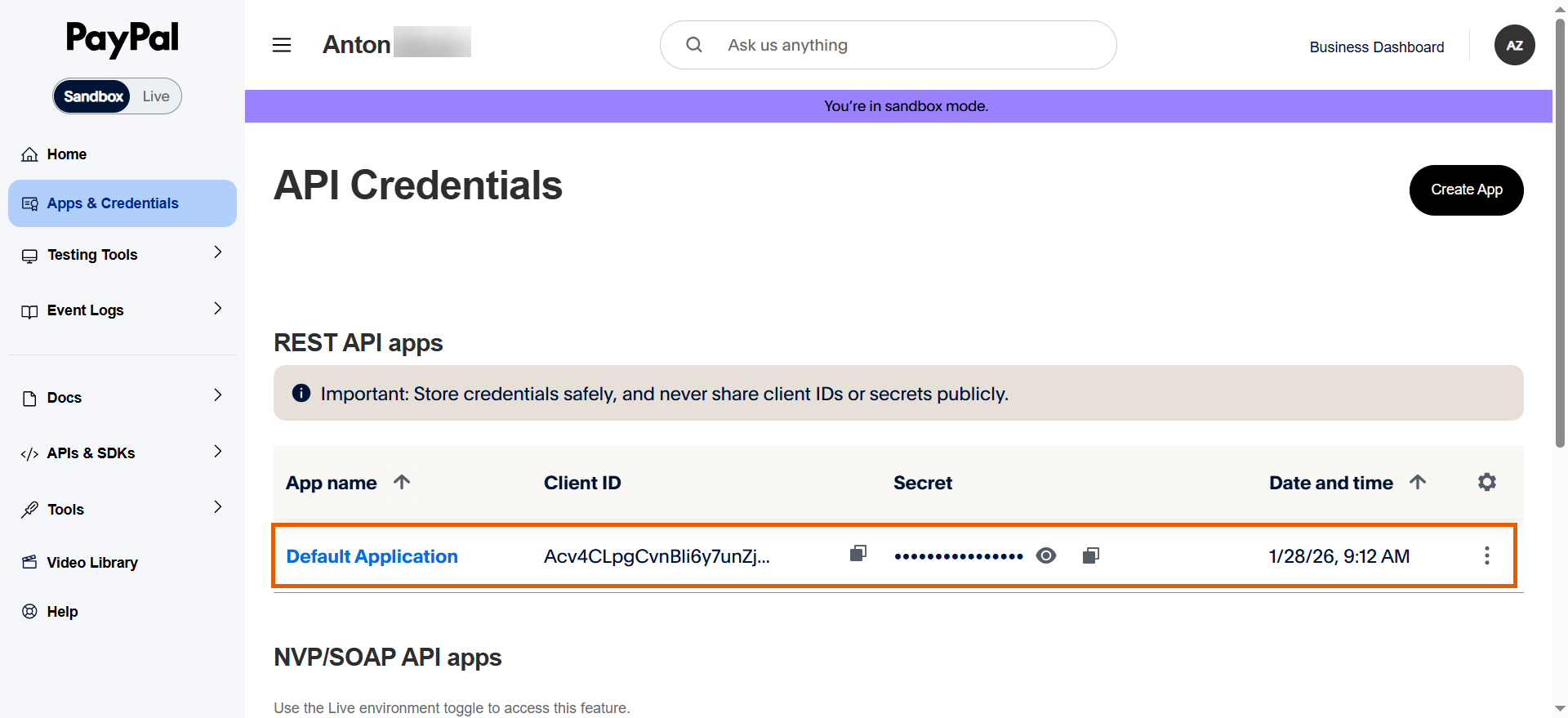 4. Copy your PayPal API credentials and paste them in Primer:
* **Account**: Email address associated with the PayPal app under the **Account info**.
* **Client ID**: Public API identifier for the PayPal app under the **API credentials**.
* **Secret**: API secret key for the PayPal app under the **API credentials**.
* **Landing Page**: Billing page.
4. Copy your PayPal API credentials and paste them in Primer:
* **Account**: Email address associated with the PayPal app under the **Account info**.
* **Client ID**: Public API identifier for the PayPal app under the **API credentials**.
* **Secret**: API secret key for the PayPal app under the **API credentials**.
* **Landing Page**: Billing page.
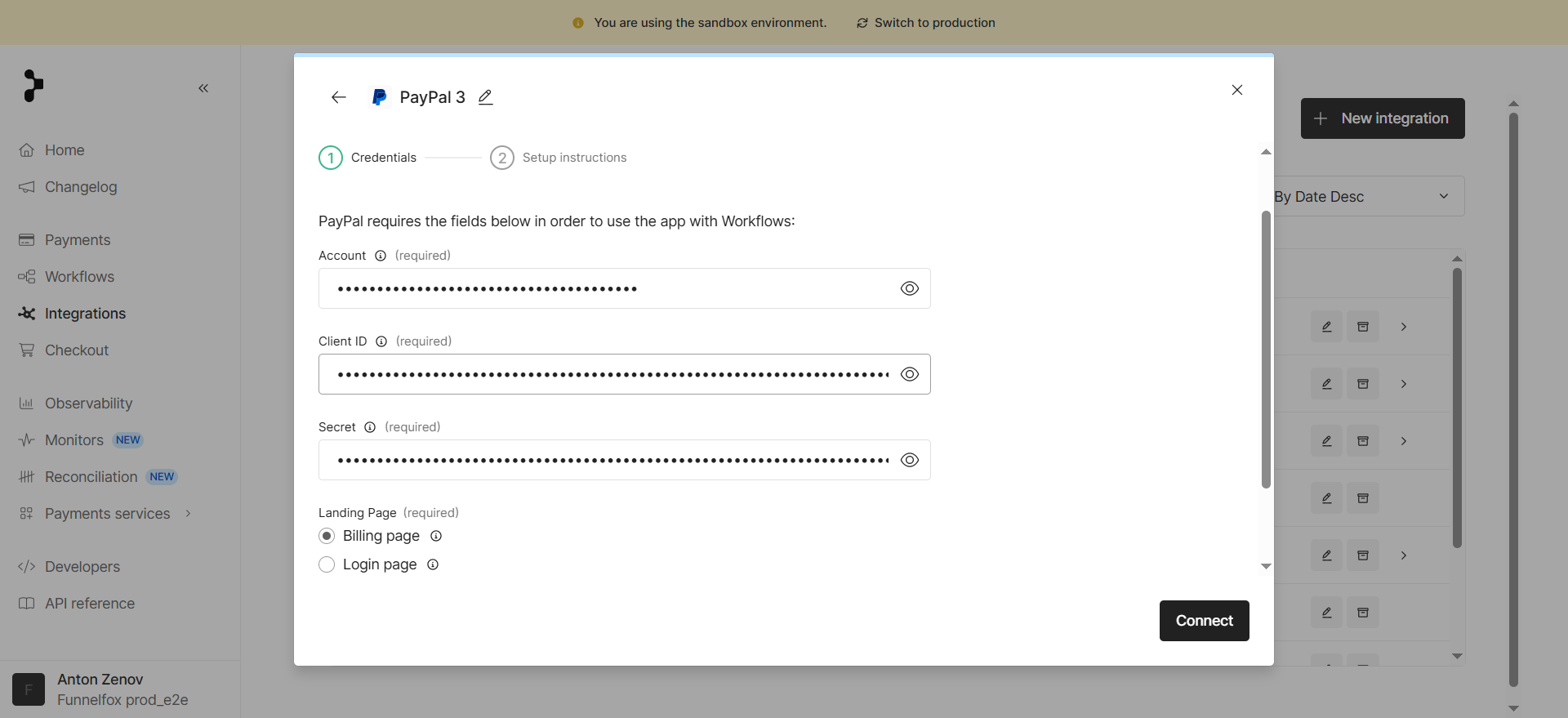 4. Click **Connect**.
5. Go back to your app page under [Apps & Credentials](https://developer.paypal.com/dashboard/applications/sandbox) in the PayPal Developer dashboard and ensure **Save payment methods** is enabled.
This allows the Vault API to save customer payment methods for faster checkout.
6. Contact PayPal Support and request to enable [Reference transactions](https://developer.paypal.com/docs/checkout/advanced/customize/reference-transactions/).
Reference transactions allow you to charge customers using their saved payment method.
Your FunnelFox Billing Production setup is complete. Make test payments to verify that everything is configured correctly.
4. Click **Connect**.
5. Go back to your app page under [Apps & Credentials](https://developer.paypal.com/dashboard/applications/sandbox) in the PayPal Developer dashboard and ensure **Save payment methods** is enabled.
This allows the Vault API to save customer payment methods for faster checkout.
6. Contact PayPal Support and request to enable [Reference transactions](https://developer.paypal.com/docs/checkout/advanced/customize/reference-transactions/).
Reference transactions allow you to charge customers using their saved payment method.
Your FunnelFox Billing Production setup is complete. Make test payments to verify that everything is configured correctly.